service AUDI Q7 2020 Owner´s Manual
[x] Cancel search | Manufacturer: AUDI, Model Year: 2020, Model line: Q7, Model: AUDI Q7 2020Pages: 316, PDF Size: 113.87 MB
Page 160 of 316
Parking and maneuvering
authorized Audi dealer or authorized Audi Service
Facility to have the malfunction repaired.
If Nvis displayed in the MMI, the ultrasonic sen-
sor indicated is icy or dirty. Clean the area in front
of the sensors > page 120.
if or is displayed when there is a malfunc-
tion, the parking aid functions may be unavaila-
ble or may be limited.
A message that indicates the cause and possible
solution may appear with some displays. The
weather conditions may be too poor or a sensor
may be covered. Clean the area in front of the
sensors > page 120 and try to turn on the sys-
tems again later.
If the malfunction remains, drive to an author-
ized Audi dealer or authorized Audi Service Facili-
ty immediately to have the malfunction correct-
ed.
ZA WARNING
— Follow the safety precautions and note the
limits of the assist systems, sensors, and
cameras > page 118.
— Sensors and cameras have spots in which
the surrounding area cannot be detected.
Objects, animals, and people may only be
detected with limitations may not be detect-
ed at all. Always monitor the traffic and the
vehicle's surroundings directly and do not
become distracted.
@) Note
Keep enough distance from the curb to avoid
damage to the rims.
@) Tips
— Certain settings are stored automatically in
the active personal profile.
— If the distance to an obstacle remains con-
stant, the volume of the distance warning
gradually lowers after a few seconds until it
is muted (this does not apply to the continu-
ous tone). If the obstacle comes closer than
it was before the sound was muted, the
tone will sound again. If the obstacle be-
comes farther away than it was before the
158
sound was muted, no tone will sound. Pay
attention to the vehicle's surroundings
when you start to drive.
— There is no rear distance warning when trail-
er mode is detected. The front sensors re-
main activated. The visual display switches
to trailer mode. There is no guarantee the
functions will be deactivated when using a
retrofitted trailer hitch.
Rearview camera and
peripheral cameras
Introduction
Applies to: vehicles with rearview camera/peripheral cameras
B8V-0629
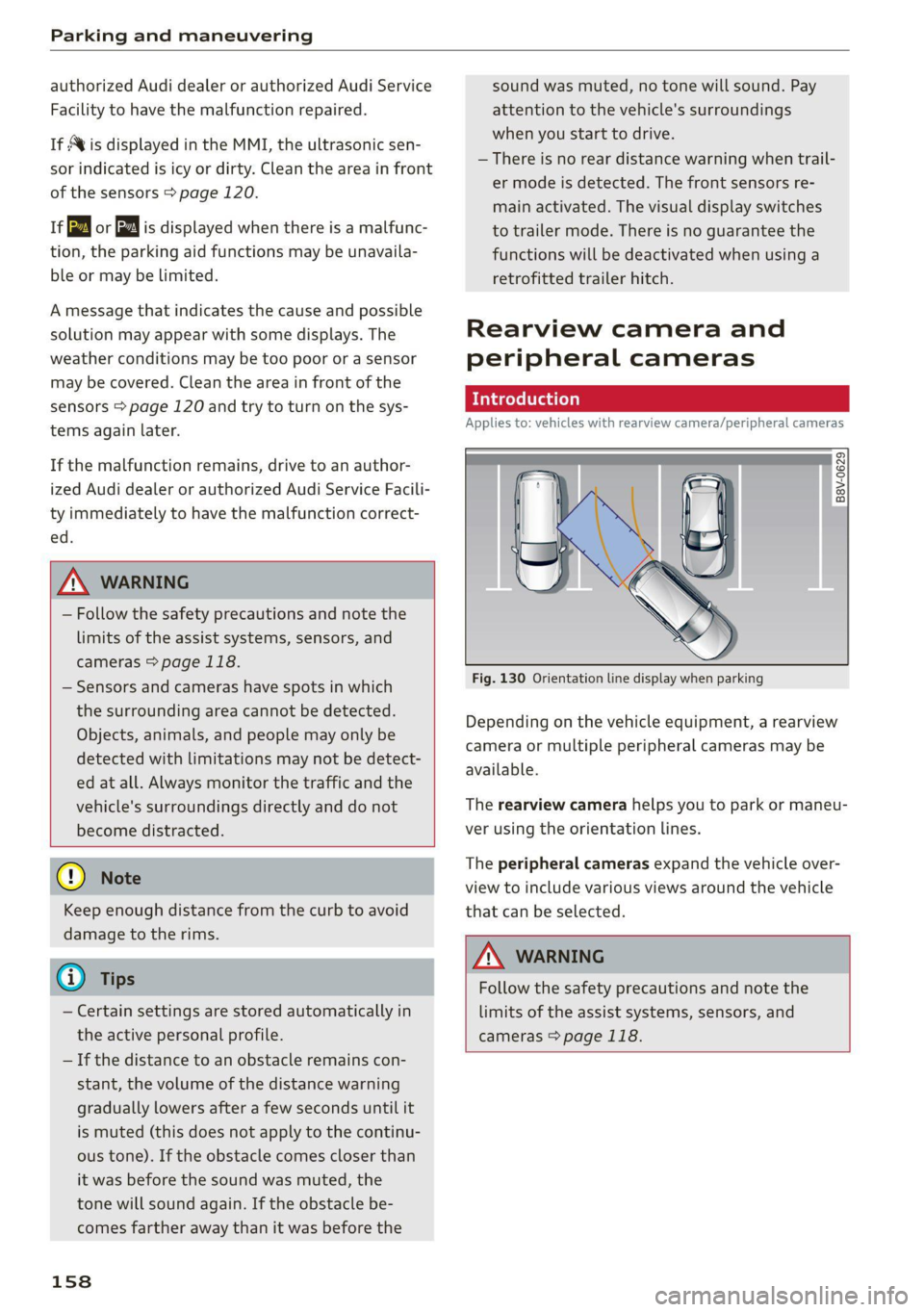
Fig. 130 Orientation line display when parking
Depending on the vehicle equipment, a rearview
camera or multiple peripheral cameras may be
available.
The rearview camera helps you to park or maneu-
ver using the orientation lines.
The peripheral cameras expand the vehicle over-
view to include various views around the vehicle
that can be selected.
ZX WARNING
Follow the safety precautions and note the
limits of the assist systems, sensors, and
cameras > page 118.
Page 162 of 316
Parking and maneuvering
@ You should stop driving in reverse when the
red orientation line touches the edge of an
object, at the latest.
Trailer view
Applies to: vehicles with trailer view
The trailer view > fig. 133 assists you in position-
ing the vehicle in front of a trailer.
— Applies to: vehicles with peripheral cameras:
Switch to the Rear view G) > page 161,
fig. 134.
— Select Trailer view in the upper display when
the parking aid is active |].
Now you can position your vehicle in front of the
trailer. The orange orientation line ©) ° fig. 133
indicates the expected path toward the trailer
hitch. Use the blue markings © to help you esti-
mate the distance to the trailer hitch. Each mark-
ing represents approximately 1 foot (0.30 me-
ters). The width of the blue surface represents
the maximum steering wheel angle.
Symbols
If $2/€9/< is displayed and the display area
represented by that symbol is not available, then
the camera on the that side is not available. The
power exterior mirrors may have been folded in
or a door or the luggage compartment lid may
have been opened.
If # is displayed, there is a system malfunction
and the display area represented by that symbol
is not available. The camera is not working in this
area.
If Nvis displayed, the respective ultrasonic sensor
is icy or dirty. Clean the area in front of the sen-
sors > page 120.
If one of the symbols continues to be displayed,
drive immediately to an authorized Audi dealer or
authorized Audi Service Facility to have the mal-
function repaired.
160
Z\ WARNING
— Follow the safety precautions and note the
limits of the assist systems, sensors, and
cameras > page 118.
— Sensors and cameras have spots in which
the surrounding area cannot be detected.
Objects, animals, and people may only be
detected with limitations may not be detect-
ed at all. Always monitor the traffic and the
vehicle's surroundings directly and do not
become distracted.
@) Note
— The orange orientation lines @) show the di-
rection the rear of the vehicle will be travel-
ing, based on the steering wheel angle. The
front of the vehicle swings out more than
the rear of the vehicle. Maintain plenty of
distance so that an exterior mirror or a cor-
ner of the vehicle does not collide with any
obstacles.
— Keep enough distance from the curb to
avoid damage to the rims.
— Only use the images provided by the camera
on the rear of the vehicle when the luggage
compartment lid is completely closed. Make
sure any objects you may have mounted on
the luggage compartment lid do not block
the rearview camera.
@ Tips
— Applies to vehicles with air suspension: The
accuracy of the orientation lines and blue
surfaces on the camera display decreases
when the vehicle is raised or lowered with
the air suspension.
— There is no rear distance warning when trail-
er mode is detected. The front sensors re-
main activated. The visual display switches
to trailer mode. The rearview camera image
will not show the orientation lines and the
blue surfaces. There is no guarantee the
functions will be deactivated when using a
retrofitted trailer hitch.
Page 165 of 316
4M1012721BA
Parking and maneuvering
Rear cross-traffic assist
Applies to: vehicles with rear cross-traffic assist
3 s
&
= st a
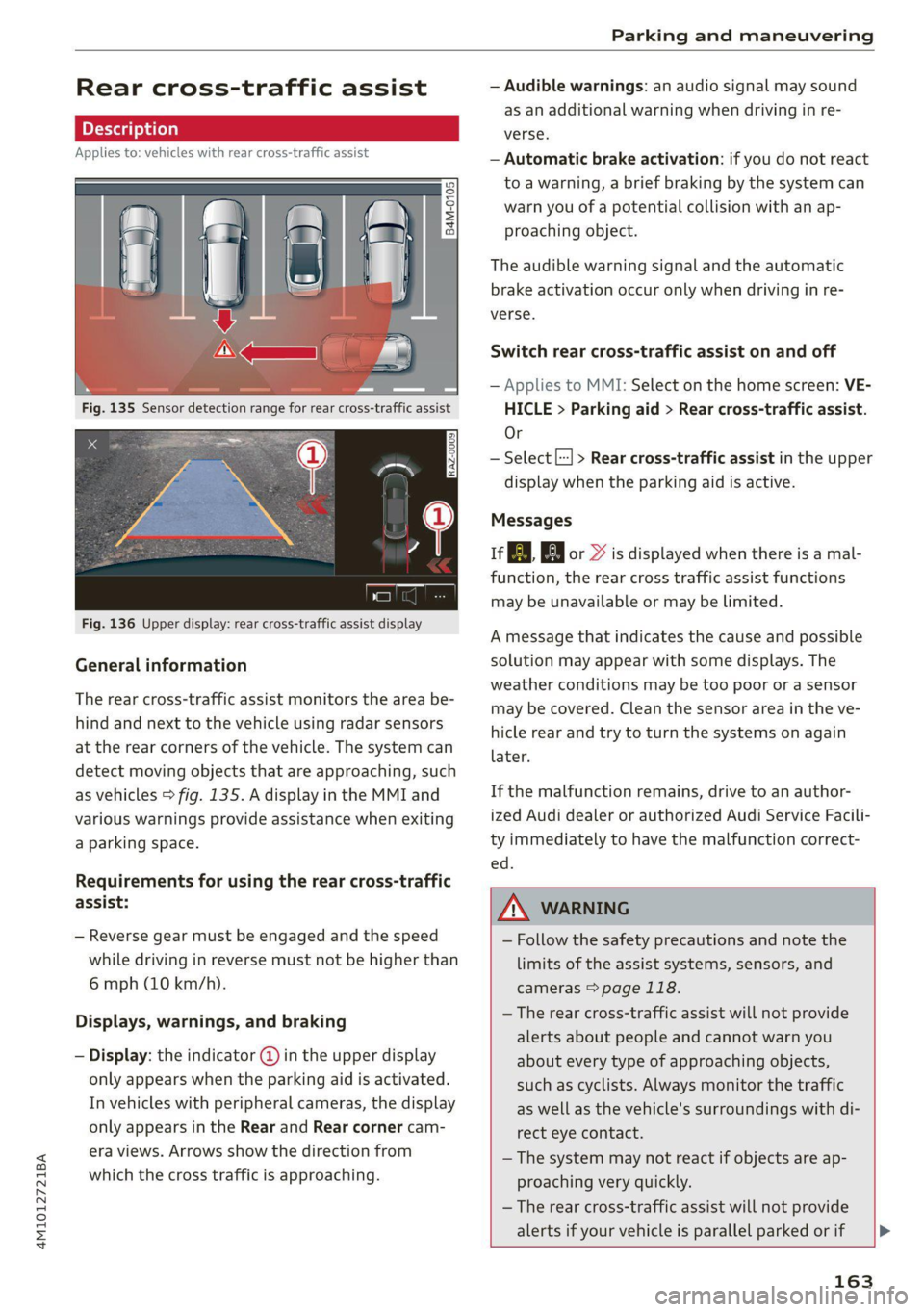
Fig. 136 Upper display: rear cross-traffic assist display
General information
The rear cross-traffic assist monitors the area be-
hind and next to the vehicle using radar sensors
at the rear corners of the vehicle. The system can
detect moving objects that are approaching, such
as vehicles > fig. 135. A display in the MMI and
various warnings provide assistance when exiting
a parking space.
Requirements for using the rear cross-traffic
assist:
— Reverse gear must be engaged and the speed
while driving in reverse must not be higher than
6 mph (10 km/h).
Displays, warnings, and braking
— Display: the indicator @ in the upper display
only appears when the parking aid is activated.
In vehicles with peripheral cameras, the display
only appears in the Rear and Rear corner cam-
era views. Arrows show the direction from
which the cross traffic is approaching.
— Audible warnings: an audio signal may sound
as an additional warning when driving in re-
verse.
— Automatic brake activation: if you do not react
to a warning, a brief braking by the system can
warn you of a potential collision with an ap-
proaching object.
The audible warning signal and the automatic
brake activation occur only when driving in re-
verse.
Switch rear cross-traffic assist on and off
— Applies to MMI: Select on the home screen: VE-
HICLE > Parking aid > Rear cross-traffic assist.
Or
— Select |--| > Rear cross-traffic assist in the upper
display when the parking aid is active.
Messages
re or >% is displayed when there is a mal-
function, the rear cross traffic assist functions
may be unavailable or may be limited.
A message that indicates the cause and possible
solution may appear with some displays. The
weather conditions may be too poor or a sensor
may be covered. Clean the sensor area in the ve-
hicle rear and try to turn the systems on again
later.
If the malfunction remains, drive to an author-
ized Audi dealer or authorized Audi Service Facili-
ty immediately to have the malfunction correct-
— Follow the safety precautions and note the
limits of the assist systems, sensors, and
cameras > page 118.
— The rear cross-traffic assist will not provide
alerts about people and cannot warn you
about every type of approaching objects,
such as cyclists. Always monitor the traffic
as well as the vehicle's surroundings with di-
rect eye contact.
— The system may not react if objects are ap-
proaching very quickly.
— The rear cross-traffic assist will not provide
alerts if your vehicle is parallel parked or if
163
Page 170 of 316
Telephone
braking maneuvers, which increases the risk
of
an accident. Store objects securely while
driving.
— The mobile device may become hot during
wireless charging. Pay attention to the tem-
perature of your mobile device and be care-
ful when removing it from the Audi phone
box.
— An alternating magnetic field is used for
wireless charging. Maintain a minimum dis-
tance of approximately 2.4 in (6 cm) to the
Audi phone box charging plate. The thresh-
olds for prolonged exposure at this distance
comply with ICNIRP1998. Therefore, inter-
actions such as irritation of sensory organs,
malfunctions of active implants (such as
pacemakers, infusion pumps, or neurosti-
mulators) or effects on passive implants
(such as prosthetic limbs) is highly unlikely.
If you have an implant, consult a medical
specialist if you have any questions. You can
also switch the function for wireless charg-
ing in the Audi phone box on and off. You
can continue to charge your mobile device
using a cable connection.
@) Note
Applicable to U.S.A.
Operation of the Audi phone box is subject to
the following requirements of the Federal
Communications Commission:
— This is a CONSUMER device.
— BEFORE USE, you MUST REGISTER THIS DE-
VICE with your wireless provider and have
your provider’s consent. Most wireless pro-
viders consent to the use of signal boosters.
Some providers may not consent to the use
of this device on their network. If you are
unsure, contact your service provider.
— You MUST operate this device with approved
antennas and cables as specified by the
manufacturer. Antennas MUST be installed
at least 20 cm (8 inches) from any person.
— You MUST cease operating this device im-
mediately if requested by the FCC or a li-
censed wireless service provider.
168
— WARNING: E911 location information may
not be provided or may be inaccurate for
calls served by using this device.
C) Note
Applicable to Canada
In Canada, operation of a Zone Enhancer,
such as an Audi Phone Box, is subject to the
following requirements of the Innovation,
Science and Economic Development Canada
(ISED):
— This is a CONSUMER device.
— BEFORE USE, you MUST meet all require-
ments set out in CPC-2-1-05.
— You MUST operate this device with approved
antennas
and cables as specified by the
manufacturer. Antennas MUST NOT be in-
stalled within 20 cm of any person.
— You MUST cease operating this device im-
mediately if requested by ISED or a licensed
wireless service provider.
— WARNING: £911 location information may
not be provided or may be inaccurate for
calls served by using this device.
@ Tips
— Only one mobile device at a time can be
charged wirelessly in the Audi phone box.
— Strong transmission quality* cannot be
guaranteed if more than one mobile device
is in the box.
— To reduce the risk of malfunctions, make
sure the mobile device is positioned correct-
ly in the Audi phone box.
— Make sure there are no objects between the
Audi phone box and the mobile device.
— Placing the mobile device in a bag or protec-
tive sleeve inside the Audi phone box can in-
terfere with the connection to the external
antenna”*.
— Metallic objects in the Audi phone box block
the wireless charging of your mobile device
and calls made using the exterior antenna”*.
—The maximum charging output is 5 W.
—The charging time and temperature will vary
depending on the mobile device being used. >
Page 171 of 316
4M1012721BA
Telephone
— You can purchase a USB adapter from an au-
thorized Audi dealer or authorized Audi
Service Facility, or at specialty stores.
— Audi recommends using Audi Genuine Ac-
cessories. Audi has verified their reliability,
safety, and suitability.
Using the telephone
Accessing the telephone functions
Applies to: vehicles with telephone
w
fentins frencsy
or
Requirement: a mobile device must be connected
to the MMI > page 165.
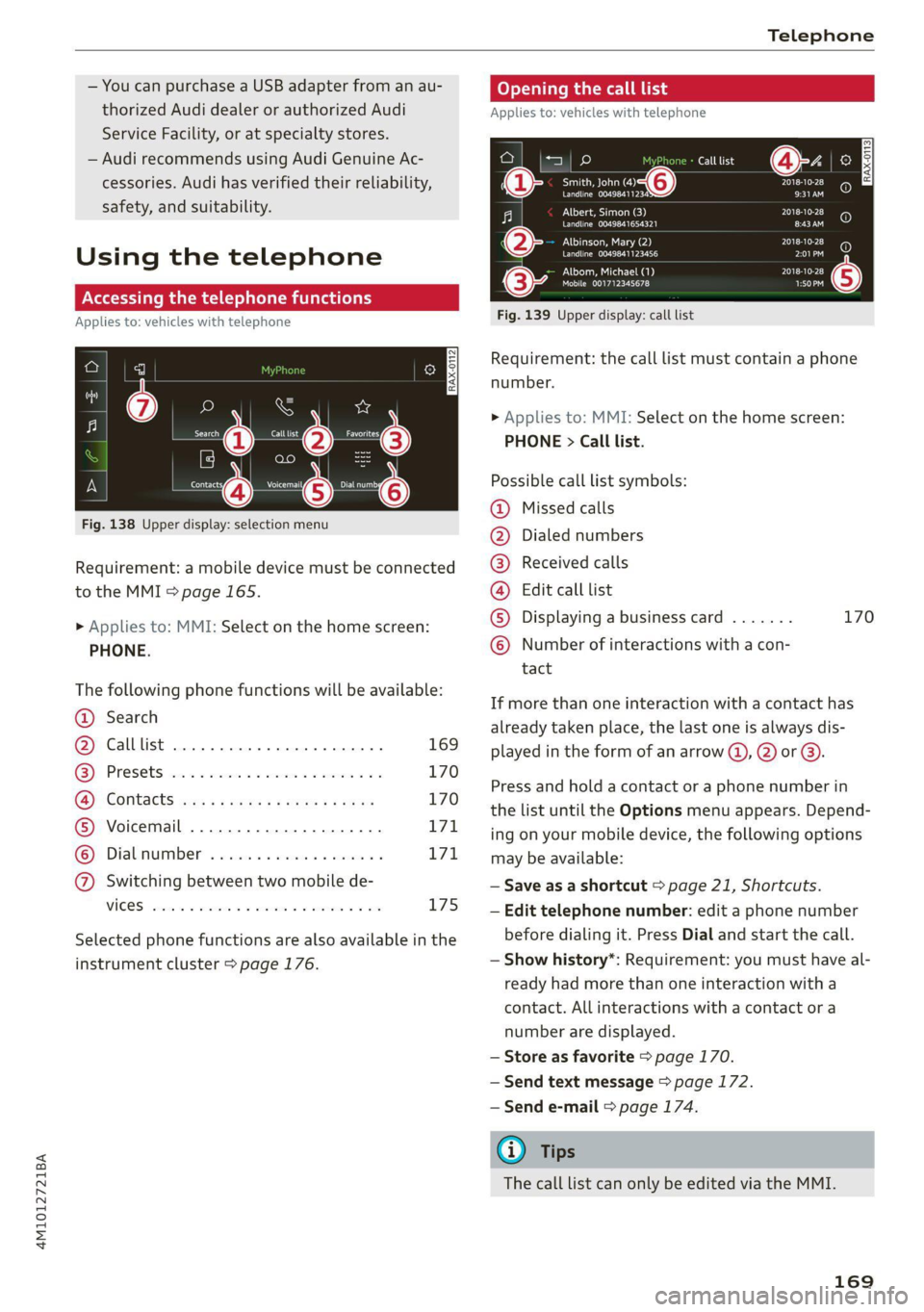
Fig. 138 Upper —O selection menu
> Applies to: MMI: Select on the home screen:
PHONE.
The following phone functions will be available:
@ Search
@ Calllist ........ ee 169
GQ) Presets von c= cian es eemusoe 2 v cmvtee 2 vo 170
CB) COMtACES isws + x naps so ews ge saws 170
® Voicemail ...............0.000. 171
© Dialnumber ..............20005 171
@ Switching between two mobile de-
VICES sevens x aeswnn « % euenoos wo seeomus «aoe L75
Selected phone functions are also available in the
instrument cluster > page 176.
Opening the call list
Applies to: vehicles with telephone
Call list
Smith, John (4) PIES ti
Perm AnPED 9:31AM
Albert, Simon (3) PT Sloe)
Peewee era) EEE
ENT TES Ae) PLSD
Perm EL PE)
PUT ea 2018-10-28
Mobile 001712345678 rT
a) 2 aa
Fig. 139 Upper display: call list
Requirement: the call list must contain a phone
number.
> Applies to: MMI: Select on the home screen:
PHONE > Call list.
Possible call list symbols:
Missed calls
Dialed numbers
Received calls
Edit call list
Displaying a business card ....... 170
Number of interactions with a con-
tact
©OO®COLO
If more than one interaction with a contact has
already taken place, the last one is always dis-
played in the form of an arrow (a), @) or @).
Press and hold a contact or a phone number in
the list until the Options menu appears. Depend-
ing on your mobile device, the following options
may be available:
— Save as a shortcut > page 21, Shortcuts.
— Edit telephone number: edit a phone number
before dialing it. Press Dial and start the call.
— Show history*: Requirement: you must have al-
ready had more than one interaction with a
contact. All interactions with a contact or a
number are displayed.
— Store as favorite > page 170.
— Send text message > page 172.
— Send e-mail > page 174.
@) Tips
The call list can only be edited via the MMI.
169
Page 173 of 316

4M1012721BA
Telephone
— Deleting imported contacts: requirement: you
must have imported at least one contact. Se-
lect: Contacts > Z > one or more contacts, or
Select all > Delete imported contacts > Done.
The imported contacts are deleted.
G) Tips
— Pay attention to any synchronization
prompts on your mobile device when down-
loading contacts.
— Only the contacts of the mobile device being
actively used are displayed.
— The contacts from the mobile device may
not be transferred in alphabetical order. If
there are too many entries, contacts with
different first letters may be missing in the
MMI.
— If contacts are loaded from the mobile de-
vice into the MMI, the contacts on the SIM
card will no longer be displayed in the MMI.
— The contacts in the local MMI memory are
always visible and can be accessed by other
users.
— After switching off the ignition and exiting
the vehicle, the mobile device directory will
be loaded when the MMI is started again if
the mobile device is within range and the
Bluetooth function is switched on in the mo-
bile device and the MMI.
— Only the contacts in the local MMI memory
can be deleted.
Listening to voicemail
Applies to: vehicles with telephone
> Applies to: MMI: Select on the home screen:
PHONE > Voicemail.
Requirement: there must be no voicemail num-
ber stored.
> Entering the voicemail number: enter the de-
sired number. Press OK.
Requirement: a voicemail number must be stor-
ed.
> Dialing the voicemail number: press Voice-
mail. The call begins immediately.
@) Tips
This service must be set up and activated in
advance by the cell phone service provider.
Dialing a phone number
Applies to: vehicles with telephone
Depending on the vehicle equipment, you may
have the following options for dialing a phone
number:
— Using text input in the MMI > page 22.
— Using voice operation > page 25.
Making an emergency call
Applies to: vehicles with telephone
Requirement: a mobile device must be connected
to the MMI via Bluetooth.
> Applies to: MMI: Select on the home screen:
PHONE > Dial number > the emergency call
number specific to the country (for example,
911) > Dial.
Z\ WARNING
— Because your phone works with radio sig-
nals, a connection cannot be guaranteed un-
der all circumstances. Do not rely on only
your phone when it comes to essential com-
munication (such as during a medical emer-
gency).
— Always follow the instructions given by the
emergency personnel during an emergency
call and only end the call when they instruct
you to do so.
Answering/ending a call
Applies to: vehicles with telephone
> To accept or end a call, press the @ button on
the multifunction steering wheel. Operating
=> page 12.
You can use the following options on the MMI
when there is an incoming call:
> Answering an incoming call: press Answer.
> Declining a call: press Decline.
171
Page 174 of 316

Telephone
> Declining a call with a text message*: Require-
ment: the function must be enabled in the
settings. Press Decline with text message.
> Silencing the ringtone: press Mute.
@ Tips
The radio or media playback is muted during a
phone call.
During a phone call
Applies to: vehicles with telephone
The following options may be possible during a
call depending on the mobile device being used
and the type of connection:
— End call: ends the current phone call.
— Mute: the other person on the call will no lon-
ger be able to hear you. You will still be able to
hear the other person. To switch the micro-
phone back on, press Unmute.
— Hold/Resume: place your current phone call on
hold and answer another.
— Send tone sequence: press Numbers. You can
enter tone sequences (DTMF) and send them to
the other party on the call.
— Accepting an incoming call: if a phone call
comes in during another call, you can either Re-
place the current call with the incoming call, or
use Answer to put the current call on hold. The
incoming call will be answered.
— Declining an incoming call: press Decline to
decline an incoming call.
— Muting the incoming call: press Mute.
— Other call options: press More.
Requirement: two phone calls must be in prog-
ress.
— Conference call*: add a call on hold and up to
five active parties (depending on the cell phone
service provider) to the conference call.
— Swap call: alternate between two phone calls
while one of the calls is on hold. Press on the
respective call. Selecting End call will end the
active phone call. A call that was placed on hold
stays on hold and can be taken off hold with Re-
sume.
— Accepting an incoming call: if a phone call
comes in during another call and when there is
172
acall on hold, you can either Replace the cur-
rent call with the incoming call, or use Answer
to put the current call on hold. The incoming
call will be answered.
Press More.
— Transferring a call*: press Transfer call to mo-
bile device to transfer the existing call from the
MMI to your mobile device or Bluetooth® head-
set*.
— Switch to hands-free mode*: Requirement: you
must have a phone call in progress on your cell
phone. Press Switch to hands-free to transfer
the call from your cell phone back to the MMI.
— Add call: Select: Call list/Contacts/Favorites >
select an entry from the list or press Dial
phone number and enter a phone number.
Then the active call will be on hold.
— Remove conf. member*: Requirement: you
must have started a conference call. You can re-
move conference call members individually
when a conference call is active. Press on the
contact you would like to remove.
— Microphone input level: you can adjust the mi-
crophone input level during a phone call using
the slider.
Gi) Tips
—To be notified of an incoming call during a
phone call, the call waiting function in your
mobile device must be switched on when
using the Handsfree profile.
— When leaving the vehicle, the Bluetooth
connection to the mobile device will auto-
matically disconnect. Depending on your
mobile device, phone calls in progress may
be automatically redirected from the MMI
to your mobile device so that you can con-
tinue the call on your phone.
Messages
Text messages
Applies to: vehicles with telephone
Depending on the mobile device being used and
the mobile network contract, you may be able to
receive and send text messages using the MMI. >
Page 175 of 316

4M1012721BA
Telephone
Requirement: your mobile device must be con-
nected to the MMI via Bluetooth Message Access
Profile (Bluetooth MAP) > page 165.
> Applies to: MMI: Select on the home screen:
MESSAGES > (=) > Text message (SIM card)*/
text message (phone 1)/text message (phone
2)*.
Inboxes
— New text message: press on a template in the
list or dictate a text message. Press Add and
select one or more recipients from your con-
tacts. To remove a recipient, press Delete. Press
Send.
— Inbox: displays all received text messages.
— Sent: displays all sent text messages.
— Outbox”: displays all text messages to be sent.
— Drafts*: text messages that have not been sent
yet by the mobile device are displayed on the
MMI.
— Deleted*: deleted text messages are displayed.
— User-defined*: folders defined by the user are
transferred from your mobile device.
Message options
The following options are available when you se-
lect a text message:
— Read out* the text message).
— Reply: a reply can be sent to the selected mes-
sage in the Inbox.
— To switch to the previous or the next message,
press < or >.
— More: options
When you press More, the following options are
available:
— Call: Requirement: a number must be stored.
You can call the contact.
— Forward: the selected text message can be for-
warded to other recipients. Text can also be
added before sending.
— Navigate: Requirement: the contact must have
a navigation address stored with it in the direc-
tory. You can start route guidance.
D_ Not available in all languages.
2) Function is not supported on all mobile devices.
— Extract numbers: Requirement: the message
must contain a number. You can extract a num-
ber from a text message.
— Send again: Requirement: the text message
must be in the Outbox. The selected text mes-
sage can be resent.
Press and hold an entry in the Inbox until the Op-
tions menu appears.
— Reply: a reply can be sent to the selected mes-
sage in the Inbox.
— Forward: the selected text message can be for-
warded to other recipients. Text can also be
added before sending.
Settings
Press ©}.
— Automatically forward text message to mobile
device*2): when this function is switched on,
text messages will also be automatically stored
on your mobile device.
— New text message notification: when this
function is switched on, you will be notified
when new text messages are received. New text
messages are indicated with an envelope Min
the MMI status bar.
— Text message center*: the number for the text
message center of your cell phone service pro-
vider is displayed. If no number has been stor-
ed yet, you can enter the text message center
number.
— Delete text messages from SIM card”: if the
memory capacity on the SIM card is full, an en-
velope with a line through it is displayed in the
MMI status bar. You can continue to send text
messages, but you cannot receive new text
messages. To delete all sent text messages
from the SIM card, select All sent messages. To
delete all read text messages from the SIM
card, select All read messages.
Delete text message
Select: a mailbox > Z > one or more text mes-
sages > Delete > Done.
173
Page 177 of 316
4M1012721BA
Telephone
Deleting e-mails
Select: a mailbox > Z > one or more e-mails >
Delete > (Done).
@) Note
Read the information about Audi connect, and
be sure to note the connectivity costs section
=>page 178.
Settings
Phone settings
Applies to: vehicles with telephone
> Applies to: MMI: Select on the home screen:
PHONE > ©}.
Switching between two mobile devices
Requirement: phone 1 and phone 2 must be con-
nected to the MMI.
Switch telephones: the device name of the avail-
able mobile device is displayed. You can switch
the phone by pressing the button.
Declining a call with a text message*
When this function is switched on, you can de-
cline an incoming call with a text message.
Call options*
The following options may be available depend-
ing on the mobile device:
— Call forwarding: you can switch the forwarding
of incoming calls to your voicemail or to anoth-
er phone number on and off. You can check if
the function is activated or deactivated with
Status.
— Call waiting: you will be alerted to an incoming
call during a phone call when the function is
switched on. You can check if the function is ac-
tivated or deactivated with Status.
— Send own number: sending your phone num-
ber with an outgoing call can be switched on
and off. With the Net.-depen. setting, the set-
ting listed in the contract with the cell phone
service provider is used. The settings only apply
to the PHONE menu in the MMI. Please note
that the settings on your mobile device will ap-
ply after disconnecting the Bluetooth connec-
tion. You can determine which setting is active
with Status.
Ringtone and volume settings
— Ringtone and message volume: you can adjust
the volume of the selected ringtone and the no-
tification volume when a message is received by
moving the position of the slider.
— Ringtone”: available ringtones are played using
the Ringtone function. Press on an entry in the
list.
— Microphone input level: you can adjust the mi-
crophone input level using the slider.
Turn on car phone or data module
Applies to: vehicles with car phone/data module
When this function is switched on, you can use
the car phone or data module.
As long as the car phone was not turned off sepa-
rately the last time it was used, it will turn on au-
tomatically when the ignition is switched on.
Edit voicemail number
You can change your voicemail number.
Enable VoLTE
When this function is switched on, Voice over
LTE* will be supported.
Network settings
— Login to mobile phone network: select to log
into your cell phone service provider network
automatically or manually.
— Manual network selection: Requirement: the
data module must be switched on and Login to
mobile phone network must be set to Manual.
Select a network manually from the list of
available networks at the present location.
Car phone serial number (IMEI):
Applies to: vehicles with car phone
The serial number (IMEI) of your car phone is dis-
played.
@ Tips
— Several mobile devices can be paired with
the MMI, but only two* mobile devices can
be actively connected.
175
Page 179 of 316
4M1012721BA
Telephone
steering wheel. Operating > page 12 and
= page 27, Additional function buttons.
Requirement: the Telephone tab must be select-
— Favorites: Requirement: favorites must be stor-
ed in the MMI.
— Switch telephones: Requirement: two cell
ed in the instrument cluster.
> Press the [I button.
Possible options:
— Call list: Requirement: the call list must con-
tain a phone number.
Troubleshooting
Applies to: vehicles with telephone
phones must be connected to the MMI.
— Back to call: Requirement: there must be a call
in progress.
(i) Tips
Depending on the selected function, it may be
necessary to use the MMI.
The information that follows lists some trouble-
shooting options. They depend on the equip-
ment.
Problem Solution
Pairing the mobile device to the
MMI failed.
Make sure the requirements for connecting a mobile phone have
been met > page 165, or
make sure you did not accidentally decline the PIN for establishing
a connection on your mobile phone. If necessary, repeat the pair-
ing process > page 165.
After pairing, not all contacts or
no contacts have been loaded in-
to the MMI.
Avoid using special characters in names.
Avoid using contact groups on your mobile phone.
Check for prompts on your mobile device when connecting via
Bluetooth.
Certain telephone functions are
grayed out or not available.
The telephone functions depend on the mobile device service pro-
vider and the mobile device you are using.
Some telephone functions may
be switched off or not available,
even though the mobile device is
supported.
Check if the Bluetooth settings on your cell phone are limited or
individual Bluetooth settings are deactivated. This may be the
case with business cell phones.
Wireless cell phone charging is
not working or is interrupted.
Check if wireless charging with the Audi phone box is switched on.
Check if your mobile device is Qi-capable.
Check if your mobile device is positioned correctly in the Audi
phone box > page 167 and no other objects are between them.
The MESSAGES menu is not avail-
able.
Check if the Show messages option is on your mobile device and it
is enabled.
177