change time AUDI Q7 2021 Owner´s Manual
[x] Cancel search | Manufacturer: AUDI, Model Year: 2021, Model line: Q7, Model: AUDI Q7 2021Pages: 332, PDF Size: 117.99 MB
Page 174 of 332
Parking and maneuvering
@) Tips
— If you did not drive past a suitable parking
space too quickly, the system can also be ac-
tivated afterward by pressing Pe.
— The Electronic Stabilization Control (ESC)
must not be switched off during the parking
process. If the ESC intervenes, the parking
process will be canceled.
— You can also drive into a perpendicular park-
ing space yourself and then activate the sys-
tem. If this is the case, the front of the vehi-
cle should already be in the space (4)
=> page 170, fig. 131 so that the sensors
can measure the space.
— You cannot park with the parking assist sys-
tems when you are towing a trailer or have
the connector inserted in the trailer socket.
— The system is not available when certain as-
sist systems are switched on.
— If there are suitable parking spaces on both
sides of the street, for example, on a one-
way street, you can change the side where
the system is searching for parking spaces
by activating the turn signal for the other
side or by pressing on that side in the upper
display.
— The park systems do not provide support for
assisted parking on tight curves.
Park assist plus!)2)
General information
Applies to: vehicles with park assist plus
Park assist plus parks the vehicle after the park-
ing space search and also exits the parking space.
While the driver presses and holds the [>>P] but-
ton and monitors the vehicle's surroundings, park
assist plus controls the steering, gear selection,
acceleration, and braking.
)_ system availability may be limited depending on the mar-
ket.
2) In preparation at the time of printing.
172
ZA WARNING
— Observe the safety precautions and note the
limits of the assist systems, sensors, and
cameras > page 123.
— The driver is always responsible when enter-
ing or exiting a parking space and during
similar maneuvers.
— Do not use this function if the vehicle cannot
move freely, for example when on a vehicle
jack.
— Sensors and cameras have spots in which
the surrounding area cannot be detected.
Objects, animals, and people may only be
detected with limitations may not be detect-
ed at all. Always monitor the traffic and the
vehicle's surroundings directly and do not
become distracted.
@) Note
— Do not use park assist plus when transport-
ing cargo that extends outside of the vehicle
or when snow chains are mounted.
— Park assist plus and remote controlled park-
ing guides the vehicle either away from
curbs or onto them if other vehicles are
parked on the curb. Make sure that your ve-
hicle's tires and rims are not damaged. Re-
sume control of the vehicle in time or stop
the parking process if needed to prevent
damage.
— In parking spaces without curbs, maintain a
distance of at least 19 inches (50 cm) from
walls and buildings in order to reduce the
risk of vehicle damage.
G) Tips
Follow the legal regulations in the country
where you are operating the vehicle when us-
ing park assist plus. Park assist plus may be
prohibited in some countries. The system may
be unavailable in countries where it has been
deactivated in order to comply with legal reg-
ulations. Data will not be transmitted to Audi. >
Page 175 of 332
4M1012721BC
Parking and maneuvering
The driver is always responsible for adhering
to the regulations applicable in the country
where the vehicle is being operated.
Parking with park assist plus!)2)
Applies to: vehicles with park assist plus
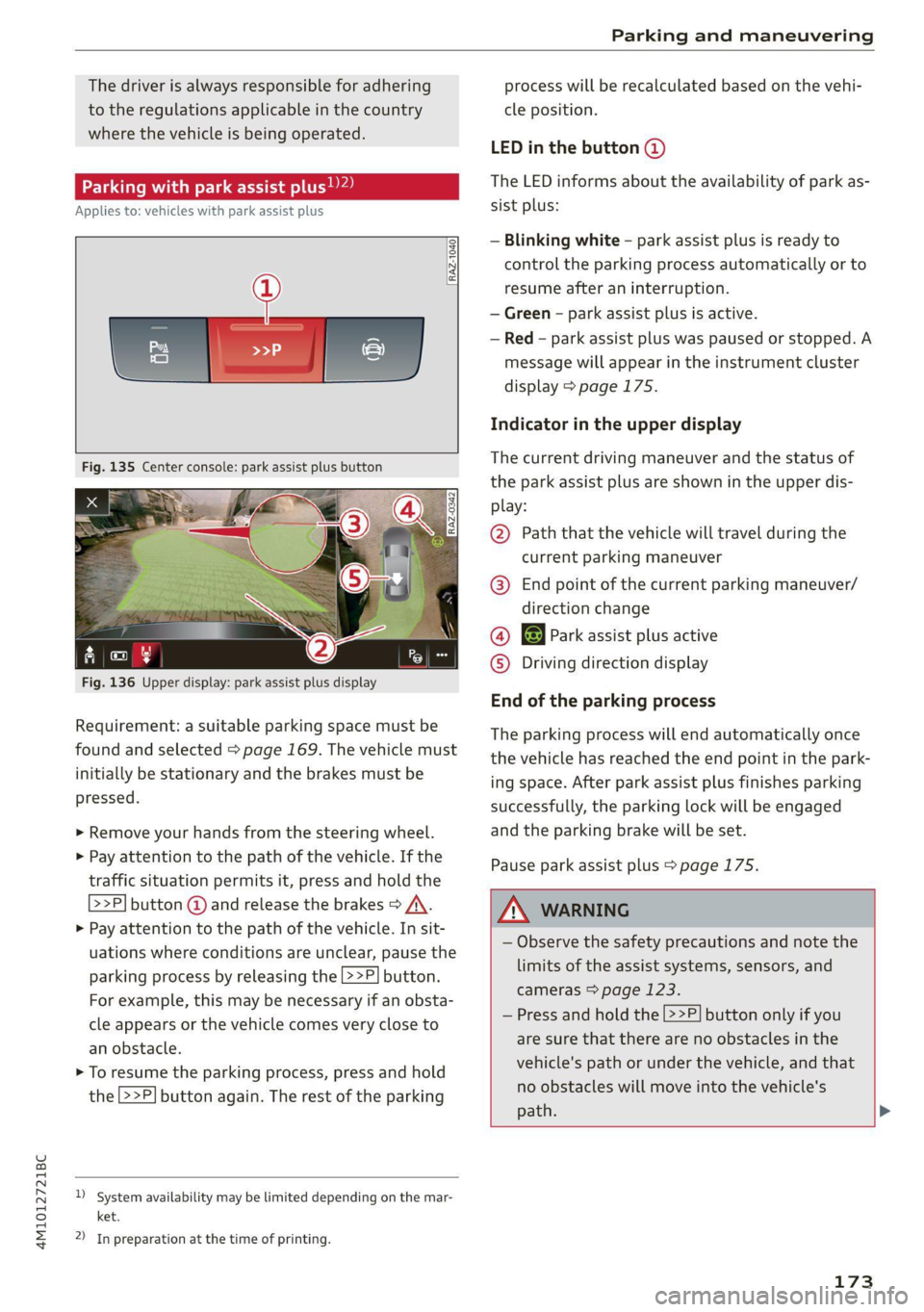
Fig. 136 Upper display: park assist plus display
Requirement: a suitable parking space must be
found and selected > page 169. The vehicle must
initially be stationary and the brakes must be
pressed.
> Remove your hands from the steering wheel.
> Pay attention to the path of the vehicle. If the
traffic situation permits it, press and hold the
>>P] button @ and release the brakes > /A\.
> Pay attention to the path of the vehicle. In sit-
uations where conditions are unclear, pause the
parking process by releasing the |>>P] button.
For example, this may be necessary if an obsta-
cle appears or the vehicle comes very close to
an obstacle.
> To resume the parking process, press and hold
the 2>P] button again. The rest of the parking
)_ System availability may be limited depending on the mar-
ket.
2) In preparation at the time of printing.
process will be recalculated based on the vehi-
cle position.
LED in the button @)
The LED informs about the availability of park as-
sist plus:
— Blinking white - park assist plus is ready to
control the parking process automatically or to
resume after an interruption.
— Green - park assist plus is active.
— Red - park assist plus was paused or stopped. A
message will appear in the instrument cluster
display > page 175.
Indicator in the upper display
The current driving maneuver and the status of
the park assist plus are shown in the upper dis-
play:
@ Path that the vehicle will travel during the
current parking maneuver
@® End point of the current parking maneuver/
direction change
@ 8 Park assist plus active
© Driving direction display
End of the parking process
The parking process will end automatically once
the vehicle has reached the end point in the park-
ing space. After park assist plus finishes parking
successfully, the parking lock will be engaged
and the parking brake will be set.
Pause park assist plus > page 175.
/\ WARNING
— Observe the safety precautions and note the
limits of the assist systems, sensors, and
cameras > page 123.
— Press and hold the [>>P] button only if you
are sure that there are no obstacles in the
vehicle's path or under the vehicle, and that
no obstacles will move into the vehicle's
path. >
173
Page 198 of 332
Audi connect
> To display the weather for your current loca-
tion, press on the location that is marked with
the crosshairs.
Requirement: route guidance must be active.
> To display the weather at your destination,
press on the location that is marked with the
flag PB.
Adding a location: select: WEATHER > Gu > Ina
new city > a location.
Removing a location: select: WEATHER > 44 > .Z
> one or more locations or Select all > Delete.
Online news
> Applies to: MMI: Select on the home screen:
NEWS.
Access to the calendar
Requirement: the myAudi app must be installed
and open on your mobile device. Access to your
calendar must be enabled on your mobile device.
You must be logged into the myAudi app with
your myAudi login data and you must have select-
ed your vehicle. The Wi-Fi function on your mo-
bile device and the MMI must be enabled and
your mobile device must be paired to the MMI
Wi-Fi hotspot > page 197, Wi-Fi.
You can display the your mobile device calendar
on the MMI.
> Applies to: MMI: Select on the home screen:
CALENDAR.
ZA\ WARNING
Always follow the information found in > A\
in General information on page 194.
©) Note
Always follow the information found in >@ in
General information on page 194.
Functions on demand
Displaying purchased functions
Applies to: vehicles with functions on demand
Depending on the country and vehicle equip-
ment, you can purchase functions on demand
196
through a myAudi account in the myAudi app at
any time.
The following options are available for displaying
purchased functions in the vehicle.
> Applies to: MMI: Select on the home screen:
PURCHASES.
(i) Tips
— Equipment installed at the factory may be
displayed as purchased functions.
— The availability of functions in the myAudi
app varies depending on the country. For
additional information, visit my.audi.com.
— At the time this manual was printed, func-
tions on demand was a planned function.
Functions on demand is not available in your
vehicle.
Messages
Applies to: vehicles with functions on demand
If a message about a function that requires a Li-
cense is displayed, the function is no longer avail-
able. Check the MMI Purchases menu to see if
you have a license for this function or if the li-
cense has expired. Purchase the function if neces-
sary using functions on demand.
Audi connect vehicle
control services
yaa)
Applies to: vehicles with Audi connect vehicle control
Using Audi connect vehicle control services, you
can perform tasks such as viewing data about
your vehicle or control vehicle functions remote-
ly.
You can view and use services available for your
vehicle at my.audi.com or through the myAudi
app.
Information about the services and the corre-
sponding app was accurate at the time this man-
ual was printed. The scope of services depends
on the country and equipment. There may be
changes over the service life of the vehicle. >
Page 204 of 332

Navigation
Navigation
Opening navigation
Applies to: vehicles with navigation system
Fig. 144 Route guidance not started
The navigation system directs you to your desti-
nation, around traffic incidents, and on alterna-
tive routes, if desired.
Opening navigation
>» Applies to: MMI: Press NAVIGATION on the
home screen.
After accessing the navigation for the first time,
the map is displayed.
Opening navigation using the multifunction
steering wheel
> Applies to: multifunction steering wheel: Select
the Navigation tab in the instrument cluster.
> To display navigation when route guidance has
started, select in the instrument cluster: the
button > Map.
The following functions are available in the MMI:
@ Open the Select destination menu
=> page 204, fig. 145.
@ Open the intelligent search > page 203.
@ Switch between the map and the menu:
press A repeatedly until the desired function
is displayed.
You can find additional information about the
map update at > page 207, Map operation.
ZA\ WARNING
— The demands of traffic require your full at-
tention. Always read the chapter > page 19,
Traffic safety information.
— The route calculated by the navigation sys-
tem is a driving recommendation. Follow
202
the traffic regulations that are applicable in
the country where you are operating the ve-
hicle. In the event that the driving directions
contradict traffic regulations, always follow
the traffic regulations applicable in the
country where you are operating the vehicle
to reduce the risk of an accident.
() Note
Read the information about Audi connect, and
be sure to note the connectivity costs section
=>@ in General information on page 194.
(i) Tips
— Snow and obstructions on the GPS antenna
or trees and large buildings can impair sat-
ellite reception and affect the system's abil-
ity to determine the vehicle position. Sever-
al deactivated or malfunctioning satellites
can also interrupt GPS reception and affect
the system's ability to determine the vehicle
position.
— Because street names sometimes change,
the names stored in the MMI may in rare
cases differ from the actual street name.
— Applies to: multifunction steering wheel:
Depending on the selected function, opera-
tion using the upper display may be re-
quired.
— Applies to: vehicles with Audi connect Info-
tainment: Depending on the country and ve-
hicle equipment, additional services may be
available.
— An additional indicator will appear in the
head-up display.
myAudi navigation
Applies to: vehicles with Audi connect Infotainment
MMI navigation works seamlessly with the myAu-
di app.
Your destinations (favorites, last destinations)
are synchronized through your myAudi account.
All important destinations can be displayed in
the vehicle and in the myAudi app.
Page 213 of 332

4M1012721BC
Navigation
Requirement: you must have created a myAudi
account at my.audi.com. Your vehicle must be
registered in your myAudi account.
Downloading a map update
> Download the map update at my.audi.com and
store it on a USB flash drive. For additional in-
formation, visit my.audi.com.
Installing a map update
> Connect the USB flash drive to the Audi music
interface > page 224.
> Open the notification in the notification center
on > page 22 and press on the notification.
> Press Next. The status of the installation is
shown in the display.
Traffic incidents
Applies to: vehicles with navigation system and online traffic
information
oi nemurcu) tos
RAX-0152 Beeeukucuoucae kal
erence eta
Fig. 151 traffic information overview
Open traffic information
Requirement: the map must be displayed
=> page 207.
> Press on the traffic jam symbol in the side
menu on the map © page 206, fig. 147.
Display traffic report details
> Press on the traffic report @) > fig. 151.
> To display the previous or next traffic report,
press < or.
The following information can be displayed
> fig. 151:
@ Amessage will appear if the MMI calculates a
better route for the current route guidance.
The predicted delay takes into account future
changes to the traffic situation on the route.
Press on an item ina list @ and select the
better route. More information can be found
under > page 208.
@ Atraffic message is displayed. The distance
to the hazardous area is calculated from the
current vehicle position.
@® The traffic messages are only shown when
route guidance is active. Press ona line to
display details about it.
(i) Tips
— Particularly critical traffic information, such
as warnings about wrong-way drivers, is au-
tomatically displayed as a notification.
— Traffic information is not available in some
countries.
Traffic rerouting
Applies to: vehicles with navigation system
By receiving traffic information, your MMI calcu-
lates a better route if available and the possible
time saved compared to the current route.
Traffic rerouting
> Start route guidance.
The MMI uses a notification or a note in the traf-
fic information @ > page 211, fig. 151 to indi-
cate a better route. You can decide which route
you would like to use.
To select a better route, you have the following
options:
> Notification: press F2. The better route will be
used for route guidance, or press on the notifi-
cation. Press on the information window for the
better route (for example @) > page 208,
fig. 150).
> Note in the traffic information: press on the
list entry @ > page 211, fig. 151. Press on the
information window for the better route (for
example (2) > page 208, fig. 150).
211
Page 233 of 332
4M1012721BC
Media
Aspect te Description
tio
The MMI detects the picture for-
Auto mat of the source and displays the
image in the optimal ratio.
The image is fixed in the corre-
4:3, sponding ratio. Select one of these
16:9, options if the image is distorted or
Cinema a section of the image is cut off or
blurry when Auto is selected.
The image is enlarged to fill the en-
Zoom oy
tire display.
The image is displayed in the ratio
of the source format. Select this
Original option if the image is distorted or a
section of the image is cut off or
blurry when Auto is selected.
Accessing settings
» Applies to: MMI: Select on the home screen:
MEDIA > ©}.
Depending on the vehicle equipment, the follow-
ing settings may be available:
Online additional data
Requirement: the MMI must be connected to the
Internet. A data plan must be available
=> page 198.
When the function is switched on, additional in-
formation (such as album cover, artist, track) will
be loaded depending on the availability from the
different providers.
DVD playback parental cntrl.
Playback of video DVDs can be restricted based
on age restrictions using parental control.
Displaying the DVD parental control menu
> Applies to: MMI: Select on the home screen:
MEDIA > © > DVD playback parental cntrl.
> Enter the PIN for parental control. The PIN set
at the factory is 1234.
> Press OK.
Switching the rating level on and off
Requirement: the DVD parental control menu
must be displayed.
> Select: DVD playback parental cntrl. > a rating
level (for example, level 5) > ~, or
> To remove all restrictions, press Off.
Eight different protection levels can be set for
parental control. If you set the parental control
level at level 5, all DVDs from levels 1 - 5 can be
played. Video DVDs with a higher level will not
play.
Changing the PIN
Requirement: the DVD parental control menu
must be displayed.
> Select: Change PIN > enter a new PIN for pa-
rental control > OK.
> Repeat the entry and press OK.
G) Tips
— Not all video DVDs have parental control.
— The protection levels for the parental con-
trol are based on the US standards from the
Motion Picture Association of America
(MPAA). Note that the age levels for video
DVDs in European countries may differ.
— PIN entry for parental control will be locked
for approximately one minute if you enter
the incorrect PIN three times in a row. The
PIN can only be reset by an authorized Audi
dealer.
Supported media and file formats
Leta C7
Depending on the vehicle equipment, the follow-
ing properties for media files may be supported
by the DVD drive and the connection for USB stor-
age devices:
231
Page 238 of 332

Additional settings
Additional settings
System settings
Introduction
General settings are described in this chapter.
You can find specific settings in the chapters
about those settings. The available settings de-
pend on the vehicle equipment.
Date and time
» Applies to: MMI: Select on the home screen:
SETTINGS > General > Date & time.
Possible settings:
— Automatically set date and time
— Date format
— Time format
— Automatic time zone
— Time zone
Cental ah ey
» Applies to: MMI: Select on the home screen:
SETTINGS > General > Measurement units.
Possible settings:
— Speed
— Distance
— Temperature
— Volume
— Pressure
— Consumption (engine)
Language and keyboard
» Applies to MMI: Select on the home screen:
SETTINGS > Language & keyboard.
Language
You can change the languages for the display,
navigation announcements, and the voice recog-
nition system.
236
Keyboard
See > page 24.
Requirement: an audio source must be active.
» Applies to MMI: Select on the home screen:
SETTINGS > Sound.
Possible settings:
— Treble
— Bass
— Balance/fader
— Speed dependent volume control
— Subwoofer
— Surround Level
Focus
You can optimize the sound distribution for vari-
ous locations in the vehicle.
3D effect
You can adjust the intensity of the 3D effect.
With the Medium setting, you will hear an opti-
mal 3D effect for all sources.
Plea ee ely
> Applies to: MMI: Select on the home screen:
SETTINGS > Announcements & tones.
Possible settings:
— Announcement volume
— Welcome sound
ZA WARNING
Adjust the volume of the audio system so that
signals from outside the vehicle, such as po-
lice and fire sirens, can be heard easily at all
times.
Gi) Tips
The volume is automatically adjusted to a pre-
set level when the MMI is switched on.
Page 239 of 332

4M1012721BC
Additional settings
Bluetooth
> Applies to MMI: Select on the home screen:
SETTINGS > Connection settings > Bluetooth
Bluetooth
You can select a setting for visibility of the MMI
to other Bluetooth devices. To connect a new
Bluetooth device, the Visible setting must be se-
lected. If Invisible is selected, a Bluetooth con-
nection will only be possible with paired devices.
If Off is selected, no Bluetooth device can be con-
nected.
Bluetooth audio player
When this function is switched on, the profile
will load automatically when your Bluetooth au-
dio player is within range.
Bluetooth name
The MMI’s Bluetooth name is displayed and can
be changed.
Factory default settings
Requirement: the ignition must be switched on.
> Applies to MMI: Select on the home screen:
SETTINGS > System maintenance > Restore
factory settings.
> Follow the system instructions.
The settings will be reset. The system will re-
start. This may take some time.
@ Tips
Make sure that not only the settings were de-
leted but also the stored data, if necessary.
Software update
Introduction
Applies to: vehicles with software update
You can update your vehicle’s software.
The functions depend on the country and vehicle
equipment:
— Update through the online system update
=> page 237.
— Map material update for the navigation system
=> page 210.
— Have the software update performed by an au-
thorized Audi dealer or authorized Audi Service
Facility. This can result in additional costs.
ZA\ WARNING
— Perform the installation only when the vehi-
cle is stationary. Otherwise, this increases
the risk of an accident
— If the installation fails, contact an author-
ized Audi dealer or authorized Audi Service
Facility immediately to have the malfunction
corrected.
Online system update
Applies to: vehicles with online system update
With the online system update, you can update
the software directly in the vehicle.
Requirement: the MMI must be connected to the
Internet > page 194, Audi connect.
Downloading updates
Requirement: notification for an online system
update will appear in the upper display.
> Press on the notification, or
> Open the notification in the notification center
on page 22 and press on the notification.
> Follow the system instructions.
You can also check manually if an update is avail-
able.
> Applies to: MMI: Select on the home screen:
SETTINGS > System maintenance > Software
update > Search for updates > desired update
> Continue.
> Follow the system instructions.
The
MMI will start the download. You can check
the status of the download process in the notifi-
cation center > page 22.
Installing updates
Requirement: an online system update must be
downloaded and a notification must be shown in
the upper display.
> Stop the vehicle safely.
237
Page 243 of 332

4M1012721BC
Checking and Filling
Checking and Filling
Fuel
Types of gasoline
The correct gasoline grade is stated on the inside
of the fuel filler door.
The vehicle is equipped with a catalytic converter
and must only be driven with unleaded gasoline.
Audi recommends using TOP TIER Detergent Gas-
oline. For additional information on TOP TIER De-
tergent Gasoline, visit www.toptiergas.com.
The individual gasoline grades are differentiated
by octane ratings. This value is given with (R
+M)/2 equating to AKI or in RON.
The headings below match the sticker in the fuel
filler door (examples):
UNLEADED FUEL ONLY MIN. (R+M)/2 87
Regular / MIN. RON 91 Regular
Use regular gasoline with minimum 87 AKI /
91 RON > ©.
Audi recommends using premium gasoline with
minimum 91 AKI / 95 RON to achieve the rated
horsepower and torque.
UNLEADED FUEL ONLY PREMIUM MIN. (R
+M)/2 91 / SUPER MIN. RON 95
Using premium gasoline with minimum 91 AKI /
95 RON is recommended.
If premium gasoline is not available, you can also
use regular gasoline 87 AKI / 91 RON. However
this does reduce the engine power slightly.
UNLEADED FUEL ONLY PREMIUM MIN. (R
+M)/2 93 / SUPER PLUS MIN. RON 98
Using premium plus gasoline with at least 93
AKI / 98 RON is recommended.
If no premium plus gasoline is available, you can
also use premium gasoline with 91 AKI /95 RON.
However this does reduce the engine power
slightly.
CG) Note
— Filling the tank just one time with leaded
fuel or other metallic additives will cause
permanent deterioration to the catalytic
converter function.
— When gasoline with an octane rating that is
too low is used, high speeds or heavy engine
load can lead to engine damage.
@ Tips
The vehicle may be filled with fuel that has a
higher octane rating than what is required by
the engine.
Gasoline mixture
Gasoline with alcohol or MTBE (Methyl-Tert-
Butyl-Ether)
You can use unleaded gasoline mixed with alco-
hol or MTBE (generally labeled as oxygenated
compounds) as long as the fuel meets the follow-
ing conditions:
Gasoline with methanol content (methyl alco-
hol or methanol)
— Anti-Knock Index is at least 87 AKI
—No more than 3% methanol
— More than 2% solvent
Gasoline with ethanol content (ethyl alcohol or
ethanol)
— Anti-Knock Index is at least 87 AKI
—No more than 15% ethanol
Gasoline with MTBE content
— Anti-Knock Index is at least 87 AKI
—No more than 15% MTBE
Gasoline adapted to the season
Many gasoline fuels are adapted to the seasons.
When the season changes, refueling at high-traf-
fic gas stations is recommended. It is more likely
that the gasoline will be suitable for the season
there.
@) Note
— Gasoline with methanol content that does
not meet the specified conditions may cause >
241
Page 250 of 332
Checking and Filling
The engine oil filler opening may be located ina
different area depending on the specific engine.
Engine oil
If the engine oil level is too low
If you need to add engine oil, use an oil that is
listed on the sticker. The sticker is located at the
front of the engine compartment > page 247,
fig. 168. When using the engine oil listed on the
sticker, you can adjust the oil level as often as
needed.
If engine oil that meets the recommended speci-
fication is not available, in an emergency you
may add a maximum of 1 quart (1 liter) of
ACEA C3 or API SN engine oil one time until the
next oil change.
For more information on the correct engine oil
for your vehicle, contact an authorized Audi deal-
er or authorized Audi Service Facility. Have the oil
changed by an authorized Audi dealer or author-
ized Service Facility.
@) Tips
Audi recommends using engine oils provided
by Audi Genuine Parts.
Messages
Engine oil pressure
E Turn off engine. Oil pressure too low
Stop driving and switch the engine off. Check the
engine oil level > page 249.
— If the engine oil level is too low, add engine oil
=> page 250. Only continue driving once the in-
dicator light turns off.
— If the engine oil level is correct and the indica-
tor light still turns on, turn the engine off and
do not continue driving. See an authorized Audi
dealer or authorized Audi Service Facility for as-
sistance.
Engine oil level
E& Please add oil immediately.
248
Stop driving and switch the engine off. Check the
engine oil level > page 249 and add engine oil
immediately > page 250.
=, Add max. x qt (x J) oil. You can continue
driving
Add the amount of oil shown immediately
=> page 250.
Reducing the oil level
=) Please reduce oil level
There is too much oil in the engine and there is a
risk of damaging the catalytic converter or en-
gine. Drive to an authorized Audi dealer or au-
thorized Audi Service Facility immediately to have
engine oil extracted if necessary. Avoid high en-
gine speeds, full acceleration, and heavy engine
loads.
Engine oil sensor
Bs Oil level sensor: oil change necessary. Please
contact Service
Fuel has entered the engine oil. This will cause
the engine oil level to rise slowly and the engine
oil quality to decrease. Do not extract engine oil
to reduce the level, because this will increase the
risk of engine damage. Drive to an authorized
Audi dealer or authorized Audi Service Facility im-
mediately to have engine oil extracted.
& Oil level system: malfunction! Please con-
tact Service
The sensor that checks the engine oil level has
malfunctioned. Drive immediately to an author-
ized Audi dealer or authorized Audi Service Facili-
ty to have the malfunction repaired.
2 Oil pressure sensor: malfunction! Please
contact Service
The sensor that checks the engine oil pressure
has malfunctioned. Drive immediately to an au-
thorized Audi dealer or authorized Audi Service
Facility to have the malfunction repaired.
Engine warm-up request
i Please drive to warm up engine