drive select AUDI Q8 2021 Owner´s Manual
[x] Cancel search | Manufacturer: AUDI, Model Year: 2021, Model line: Q8, Model: AUDI Q8 2021Pages: 332, PDF Size: 118.76 MB
Page 154 of 332
Driver assistance
ZA\ WARNING
— Observe the safety precautions and note the
limits of the assist systems, sensors, and
cameras > page 121.
— Audi pre sense side does not react to pedes-
trians, animals, and objects not detected as
vehicles.
@) Tips
— The Audi pre sense side functions are limit-
ed when trailer mode is detected.
— The Audi pre sense side functions may also
switch off if there is a malfunction in the in-
tersection assistant*.
Swerve assist
Applies to: vehicles with swerve assist
The swerve assist can help you to steer the vehi-
cle around an obstacle detected in a critical area.
If you avoid an obstacle after the acute warning,
then swerve assist assists you by specifically
braking individual wheels and applying slight
steering adjustment to correct the steering
wheel angle as long as you are actively steering.
The swerve assist is available at speeds between
approximately 30 mph and 90 mph (50 km/h -
150 km/h).
ZA\ WARNING
— Observe the safety precautions and note the
limits of the assist systems, sensors, and
cameras > page 121.
— Swerve assist does not react to pedestrians,
animals, crossing objects, and objects not
detected as vehicles.
@) Tips
— System functions may not be available if the
ESC is limited or switched off, or if there is a
malfunction.
— An indicator in the instrument cluster will
inform you when there is an intervention.
D_ In certain countries.
152
ag
Applies to: vehicles with turn assist
When turning left, turn assist can help to reduce
the risk of a collision with an oncoming vehicle by
using braking action to keep your vehicle in its
lane. The function is only available when the turn
signal is turned on and at speeds up to maximum
of 6 mph (10 km/h).
ZA WARNING
— Observe the safety precautions and note the
limits of the assist systems, sensors, and
cameras > page 121.
— The turn assist does not react to pedes-
trians, animals, crossing objects, and ob-
jects not detected as vehicles.
G) Tips
— System functions may not be available if the
ESC is limited or switched off, or if there is a
malfunction.
—An indicator in the instrument cluster will
inform you when there is an intervention.
Adjusting Audi pre sense
Applies to: vehicles with Audi pre sense
The system can be switched on and off in the
MMI > page 124. You can adjust Audi pre sense
functions to your preferences. The adjustment
options depend on the vehicle equipment.
> Applies to MMI: Select on the home screen: VE-
HICLE > Driver assistance > (3) > Audi pre
sense.
Setting the prewarning
You can adjust the warning time for the prewarn-
ing» individually (Early/Medium/Late) or switch
the prewarning off.
Set the warning time for the early warning to
Early at first. If you feel that the prewarnings ap-
pear too early, then set the warning time to Me-
dium. The Late warning time should only be set
in special circumstances. >
Page 157 of 332
4M8012721BF
Driver assistance
Adjusting the brightness
You can adjust the brightness of the display in
the exterior mirror. The settings depend on the
vehicle equipment.
> Applies to: MMI: Select on the home screen:
VEHICLE > Driver assistance > (<23) > Side as-
sist > Brightness.
The display brightness is automatically adapted
to the ambient light. If the automatic adaptation
has already reached the upper or lower limit, no
change will be apparent when the setting is
changed, or it will only become visible when the
ambient light changes. Adjust the brightness to a
level where the display in the information stage
will not disrupt your view ahead. If you change
the brightness, the display will briefly show the
brightness level in the information stage.
Messages
Applies to: vehicles with side assist
iff or ig is displayed when there is a malfunc-
tion, the side assist and exit warning system
functions may be unavailable or may be limited.
A message that indicates the cause and possible
solution may appear with some displays. The
weather conditions may be too poor or a sensor
may be covered. Clean the sensor area at the rear
corners of the vehicle > page 123, fig. 91 and try
to turn the systems on again later.
If the malfunction remains, drive to an author-
ized Audi dealer or authorized Audi Service Facili-
ty immediately to have the malfunction correct-
ed.
Exit warning
Applies to: vehicles with exit warning system
Fig. 114 Front door: warning strip
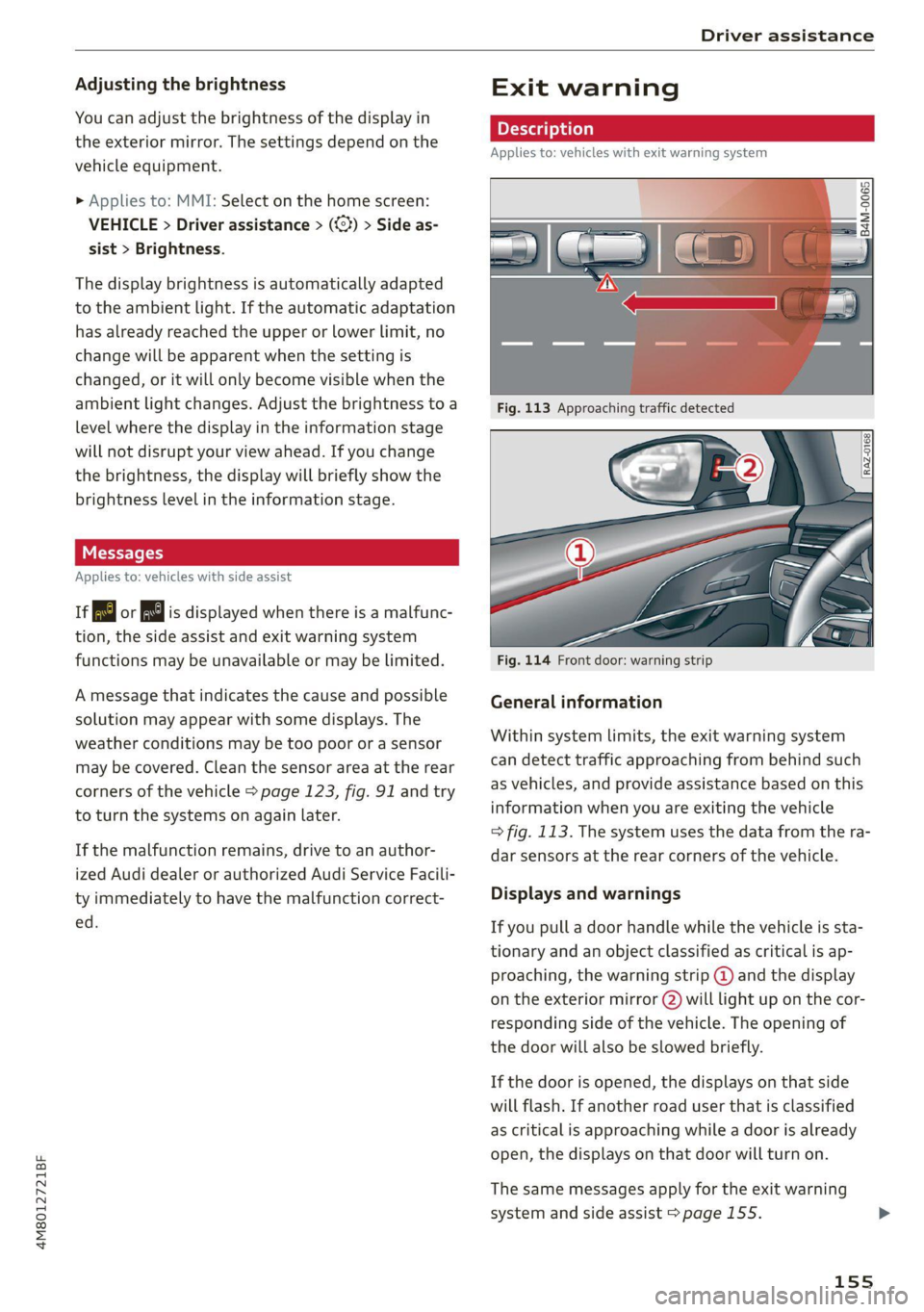
General information
Within system limits, the exit warning system
can detect traffic approaching from behind such
as vehicles, and provide assistance based on this
information when you are exiting the vehicle
=> fig. 113. The system uses the data from the ra-
dar sensors at the rear corners of the vehicle.
Displays and warnings
If you pull a door handle while the vehicle is sta-
tionary and an object classified as critical is ap-
proaching, the warning strip @ and the display
on the exterior mirror (2) will light up on the cor-
responding side of the vehicle. The opening of
the door will also be slowed briefly.
If the door is opened, the displays on that side
will flash. If another road user that is classified
as critical is approaching while a door is already
open, the displays on that door will turn on.
The same messages apply for the exit warning
system and side assist > page 155.
155
Page 158 of 332
Driver assistance
Switching the exit warning on and off
— The system can be switched on and off in the
MMI & page 124.
ZA\ WARNING
— Observe the safety precautions and note the
limits of the assist systems, sensors, and
cameras > page 121.
— Always pay attention to traffic and to the
area around your vehicle. The exit warning
system does not replace the attention of the
vehicle occupants. The vehicle occupants are
always responsible for opening the doors
and exiting the vehicle.
— The exit warning system does not respond
to people and cannot warn you about every
type of approaching objects, such as cyclists.
Always monitor the traffic as well as the ve-
hicle's surroundings with direct eye contact.
— The display may not appear in time when
vehicles are approaching very quickly.
— The exit warning system does not react to
stationary objects or pedestrians.
— The exit warning system will not provide
alerts if your vehicle is pulled too far into
the parking space so that it is hidden by ad-
jacent vehicles.
G) Tips
— The exit warning system can be available for
up to approximately three minutes after un-
locking the vehicle and opening the door as
well as after switching off the ignition. Then
the displays flash briefly and the system
switches off.
— The system is not available when towing a
trailer. There is no guarantee the system
will switch off when using a retrofitted trail-
er hitch. Do not use these functions when
towing a trailer.
— The coverage areas of the sensors > fig. 113
are diagrams and do not represent a true-
to-scale image of the sensor ranges.
— The system complies with United States FCC
regulations and ISED regulations
=> page 311.
156
Intersection assistant
Applies to: vehicles with intersection assistant
RAH-9247
Fig. 116 Instrument cluster: directional display from the
intersection assistant
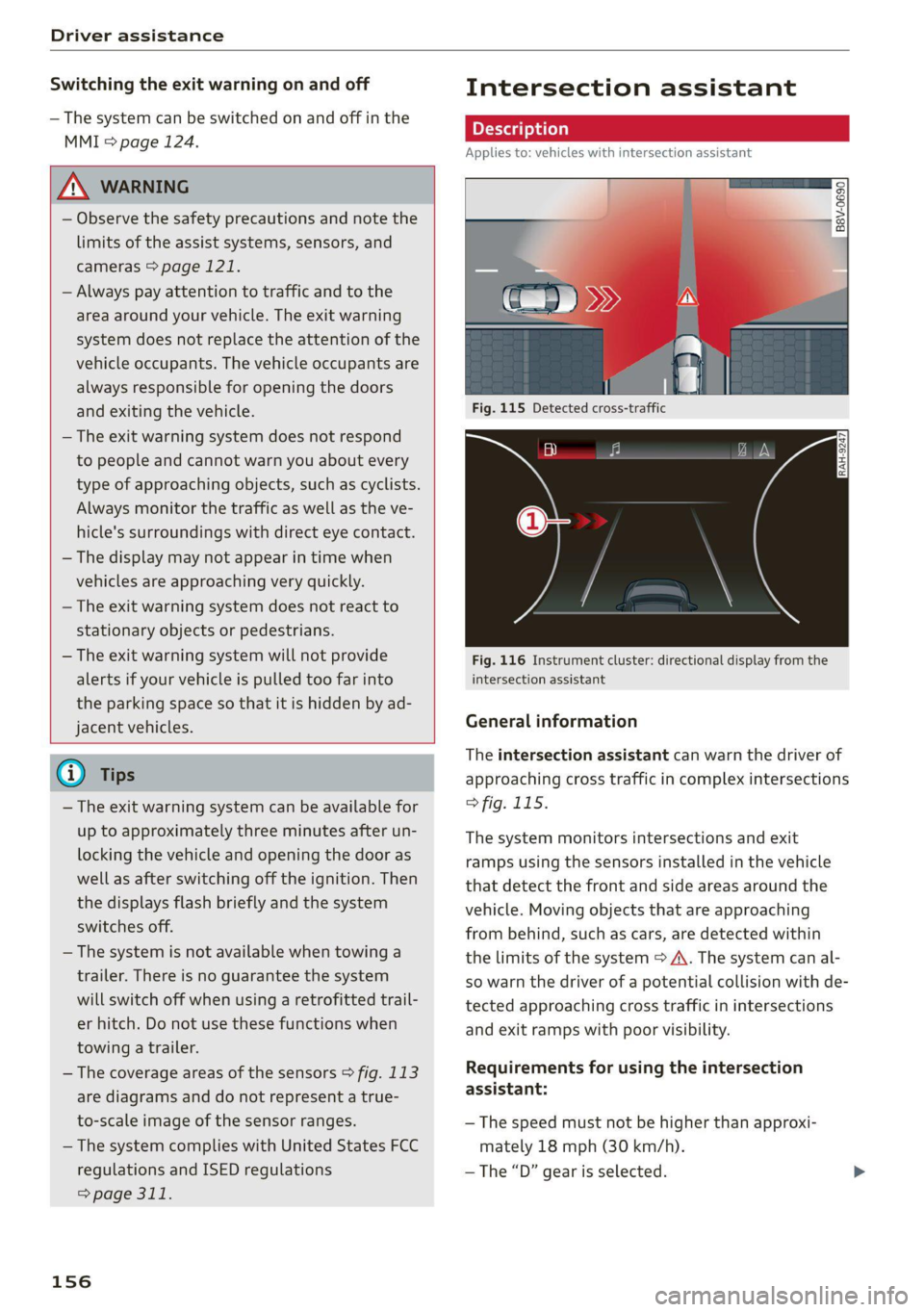
General information
The intersection assistant can warn the driver of
approaching cross traffic in complex intersections
> fig. 115.
The system monitors intersections and exit
ramps using the sensors installed in the vehicle
that detect the front and side areas around the
vehicle. Moving objects that are approaching
from behind, such as cars, are detected within
the limits of the system > A\. The system can al-
so warn the driver of a potential collision with de-
tected approaching cross traffic in intersections
and exit ramps with poor visibility.
Requirements for using the intersection
assistant:
— The speed must not be higher than approxi-
mately 18 mph (30 km/h).
—The “D” gear is selected.
Page 161 of 332
4M8012721BF
Parking and maneuvering
Parking and
maneuvering
Introduction
Depending on the vehicle equipment, various
parking aids will help you when parking and ma-
neuvering.
Parking aid
The parking aid plus assists you while parking
using audio and visual signals to warn you about
objects detected in front of, behind, and at the
sides* of the vehicle > page 159.
The rearview camera shows the area behind the
vehicle in the MMI display. The lines in the rear-
view camera image help you to park and maneu-
ver > page 162.
The peripheral cameras are an addition to the
rearview camera and help you to see various
areas around the vehicle while parking and ma-
neuvering > page 162.
The rear cross-traffic assist can warn you of ap-
proaching cross traffic when driving in reverse or
exiting a parking space > page 166.
The maneuver assist!)”) helps the driver to ma-
neuver > page 178.
Assisted parking
The following systems help you to locate suitable
parking spaces > page 167 and to park in them
and exit them. The driver must always monitor
the area around the vehicle and supervise the
parking process.
Park assist plus!)2) helps you when parking in
available parking spaces and exiting them. This
occurs either in the vehicle by pressing a drive
button > page 170 or, if equipped with Remote
park assist plus!)2), from outside the vehicle by
remote control using a mobile device
=> page 173. The systems control steering, gear
selection, acceleration, and braking.
)_ System availability may be limited depending on the mar-
ket.
2) In preparation at the time of printing.
Remote park assist plus with garage func-
tion)2) enhances the remote controlled parking
by remote park assist to include parking in pri-
vate one-car and two-car garages > page 173.
Settings options
You can adjust parking aid functions individually.
The adjustment options depend on the vehicle
equipment.
— Automatic activation > page 160
— Front and rear volume > page 161
— Entertainment fader > page 161.
— Clean rearview camera > page 162
— Trailer view > page 163
— View > page 165
— Rear cross-traffic assist > page 166
— Maneuver assist > page 179
Z\ WARNING
Observe the safety precautions and note the
limits of the assist systems, sensors, and
cameras > page 121.
G) Tips
Audi recommends practicing parking in a traf-
fic-free location or parking lot to become fa-
miliar with the systems. Practice parking in
good light and weather conditions.
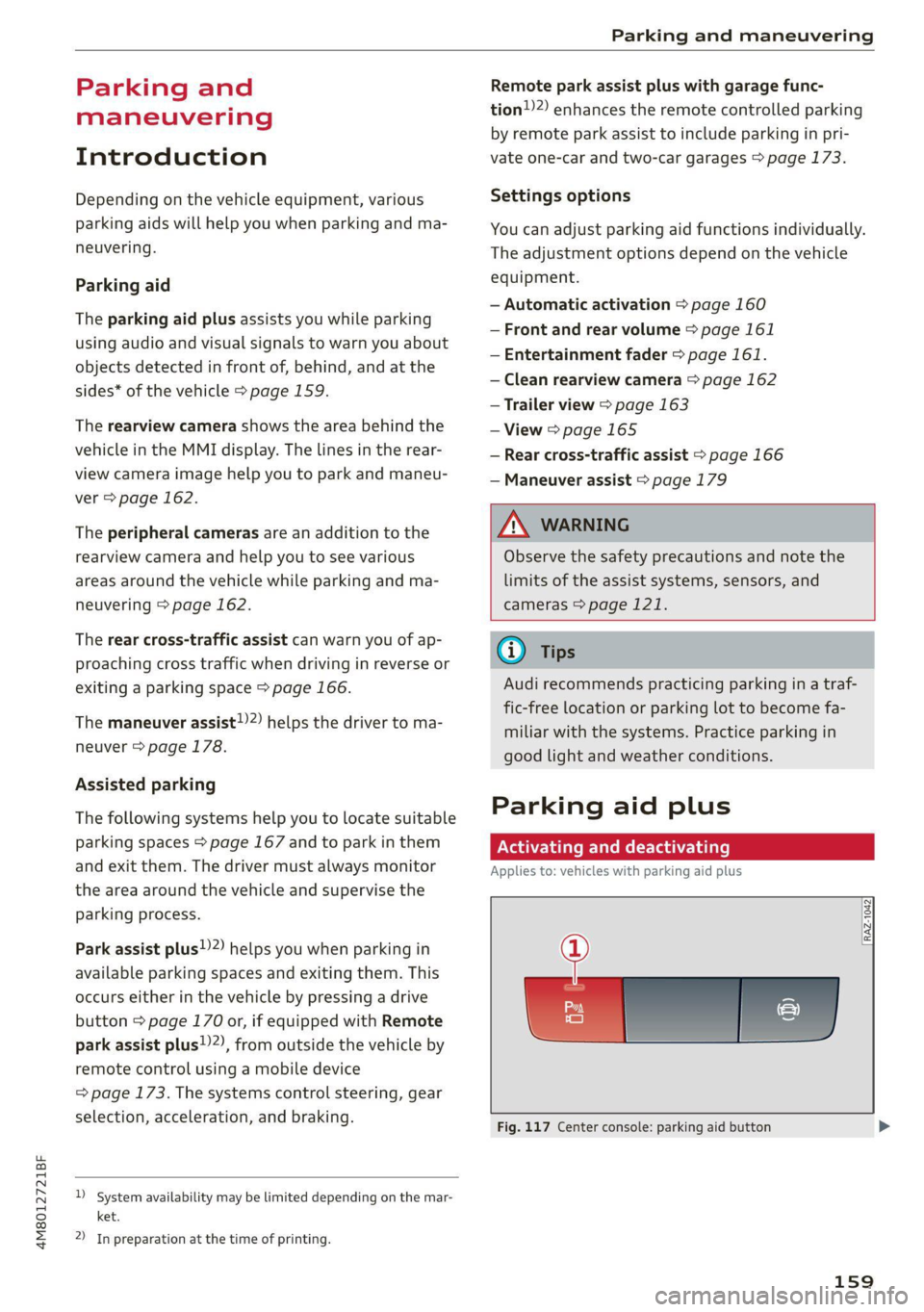
Parking aid plus
Activating and deactivating
Applies to: vehicles with parking aid plus
[RAZ-1042)
Fig. 117 Center console: parking aid button
159
Page 163 of 332
4M8012721BF
Parking and maneuvering
sides* of the vehicle. Do not continue driving for-
ward or in reverse >@.
> To deactivate audio signals while parking, press
(in the upper display. The audio signals will be
automatically activated again the next time the
parking aid is activated.
Adjusting the volume
You can adjust the volume to your preferences.
The settings depend on the vehicle equipment.
» Applies to MMI: Select on the home screen: VE-
HICLE > Parking aid. Or
> Press |---| in the upper display when the parking
system is active.
Possible settings:
Front volume - Volume for the front and side*
area.
Rear volume - Volume for the rear area.
Entertainment fader —- The volume of the audio/
video source is lowered when the parking aid is
activated.
The new level is demonstrated briefly* when the
volume is adjusted.
Error messages
If P4 appears, the sensor in the respective area
or the speaker is faulty. Drive immediately to an
authorized Audi dealer or authorized Audi Service
Facility to have the malfunction repaired.
If Avis displayed in the MMI, the ultrasonic sen-
sor indicated is icy or dirty. Clean the area in front
of the sensors > page 123.
if or is displayed when there is a malfunc-
tion, the parking aid functions may be unavaila-
ble or may be limited.
A message that indicates the cause and possible
solution may appear with some displays. The
weather conditions may be too poor or a sensor
may be covered. Clean the area in front of the
sensors > page 123 and try to turn the system on
again later.
If the malfunction remains, drive to an author-
ized Audi dealer or authorized Audi Service Facili-
ty immediately to have the malfunction correct-
ed.
ZA WARNING
— Observe the safety precautions and note the
limits of the assist systems, sensors, and
cameras > page 121.
— Sensors and cameras have spots in which
the surrounding area cannot be detected.
Objects, animals, and people may only be
detected with limitations may not be detect-
ed at all. Always monitor the traffic and the
vehicle's surroundings directly and do not
become distracted.
@) Note
— Keep enough distance from the curb to
avoid damage to the rims.
— Applies to: vehicles with assisted parking
systems: If you park in short parking spaces
using assisted parking systems, a continu-
ous tone will sound from the parking aid
when the distance to an object is less than
approximately 0.7 feet (0.20 m). Do not
continue driving farther.
@) Tips
—The side area* > page 122, fig. 88 is detect-
ed and evaluated when passing. There may
have been changes to the surrounding area
after switching the ignition off and on
again, after opening the doors, or if the ve-
hicle is left stationary for a period of time.
In this case, the area will appear black until
the area has been detected and evaluated.
— If the distance to an obstacle remains con-
stant, the volume of the distance warning
gradually lowers after a few seconds until it
is muted (this does not apply to the continu-
ous tone). If the obstacle comes closer than
it was before the sound was muted, the
tone will sound again. If the obstacle be-
comes farther away than it was before the
sound was muted, no tone will sound. Pay
attention to the vehicle's surroundings
when you start to drive.
— There is no distance warning for the rear
and the sides* when trailer towing mode is
161
>
Page 165 of 332
4M8012721BF
Parking and maneuvering
> Move the window wiper lever S7 into the posi-
tion for cleaning the rear window & & page 57.
ZA WARNING
Observe the safety precautions and note the
limits of the assist systems, sensors, and
cameras > page 121.
Warnings
Applies to: vehicles with rearview camera/peripheral cameras
Applies to: vehicles with trailer view
Fig. 122 Upper display: trailer view
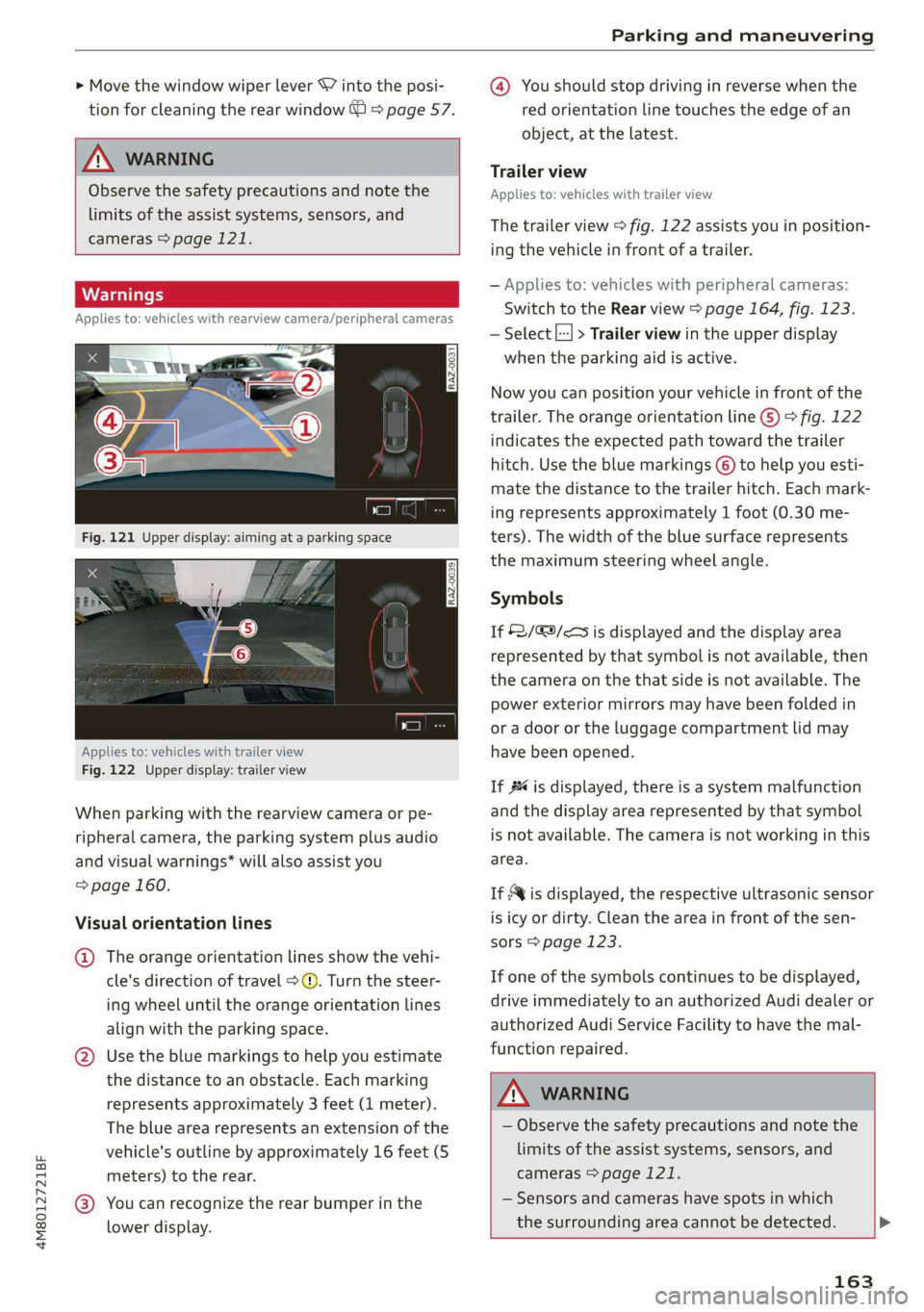
When parking with the rearview camera or pe-
ripheral camera, the parking system plus audio
and visual warnings* will also assist you
=> page 160.
Visual orientation lines
@ The orange orientation lines show the vehi-
cle's direction of travel >@. Turn the steer-
ing wheel until the orange orientation lines
align with the parking space.
@ Use the blue markings to help you estimate
the distance to an obstacle. Each marking
represents approximately 3 feet (1 meter).
The blue area represents an extension of the
vehicle's outline by approximately 16 feet (5
meters) to the rear.
@® You can recognize the rear bumper in the
lower display.
@ You should stop driving in reverse when the
red orientation line touches the edge of an
object, at the latest.
Trailer view
Applies to: vehicles with trailer view
The trailer view > fig. 122 assists you in position-
ing the vehicle in front of a trailer.
— Applies to: vehicles with peripheral cameras:
Switch to the Rear view > page 164, fig. 123.
— Select |---| > Trailer view in the upper display
when the parking aid is active.
Now you can position your vehicle in front of the
trailer. The orange orientation line ©) > fig. 122
indicates the expected path toward the trailer
hitch. Use the blue markings © to help you esti-
mate the distance to the trailer hitch. Each mark-
ing represents approximately 1 foot (0.30 me-
ters). The width of the blue surface represents
the maximum steering wheel angle.
Symbols
If $2/&9/< is displayed and the display area
represented by that symbol is not available, then
the camera on the that side is not available. The
power exterior mirrors may have been folded in
or a door or the luggage compartment lid may
have been opened.
If # is displayed, there is a system malfunction
and the display area represented by that symbol
is not available. The camera is not working in this
area.
If Avis displayed, the respective ultrasonic sensor
is icy or dirty. Clean the area in front of the sen-
sors > page 123.
If one of the symbols continues to be displayed,
drive immediately to an authorized Audi dealer or
authorized Audi Service Facility to have the mal-
function repaired.
A WARNING
— Observe the safety precautions and note the
limits of the assist systems, sensors, and
cameras > page 121.
— Sensors and cameras have spots in which
the surrounding area cannot be detected. >
163
Page 167 of 332
4M8012721BF
Parking and maneuvering
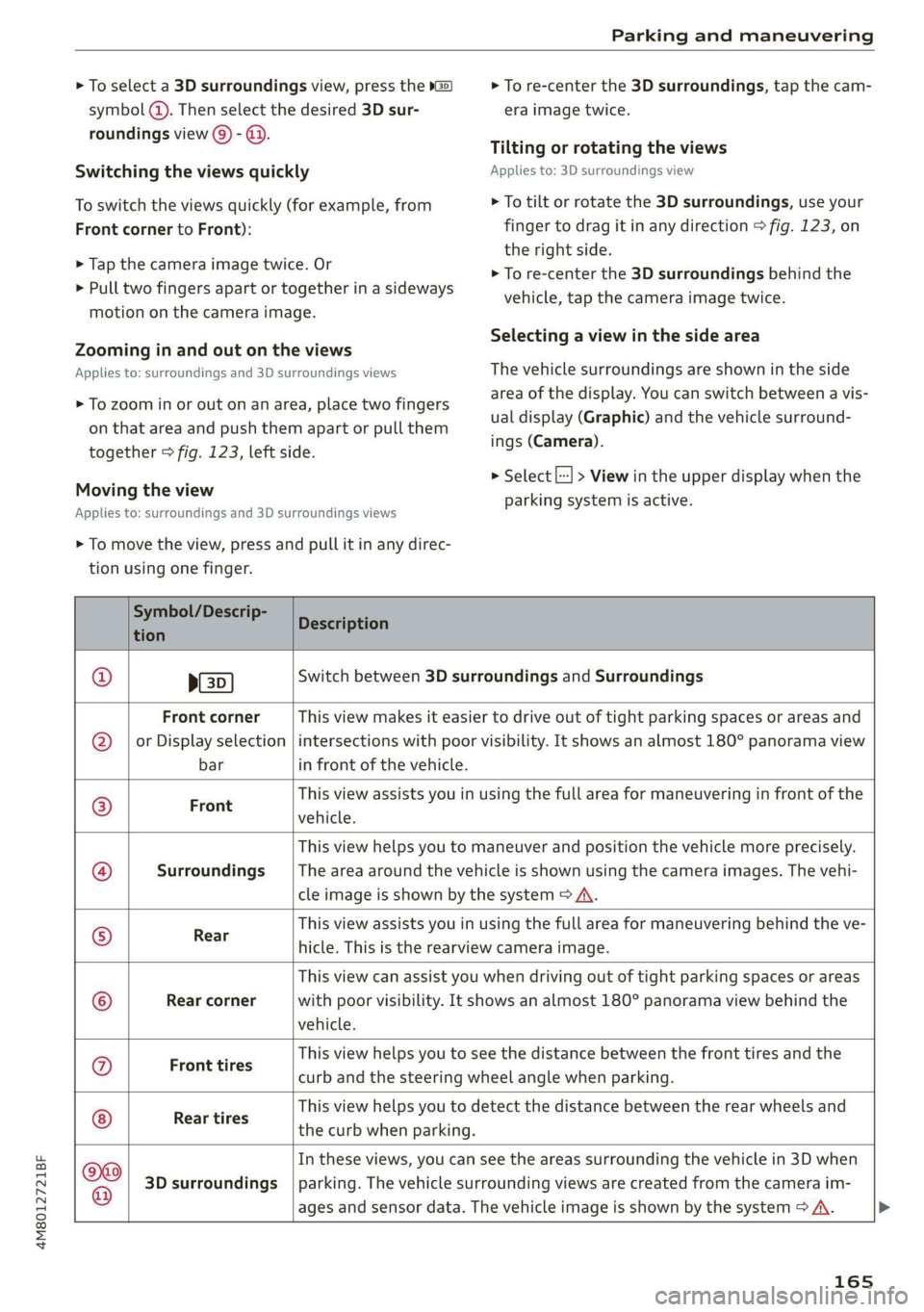
> To select a 3D surroundings view, press the »@)
symbol @). Then select the desired 3D sur-
roundings view () - @.
Switching the views quickly
To switch the views quickly (for example, from
Front corner to Front):
> Tap the camera image twice. Or
> Pull two fingers apart or together in a sideways
> To re-center the 3D surroundings, tap the cam-
era image twice.
Tilting or rotating the views
Applies to: 3D surroundings view
> To tilt or rotate the 3D surroundings, use your
finger to drag it in any direction > fig. 123, on
the right side.
> To re-center the 3D surroundings behind the
vehicle, tap the camera image twice.
motion on the camera image.
Selecting a view in the side area
Zooming in and out on the views
Applies to: surroundings and 3D surroundings views
> To zoom in or out on an area, place two fingers
on that area and push them apart or pull them
together > fig. 123, left side.
Moving the view
Applies to: surroundings and 3D surroundings views
The vehicle surroundings are shown in the side
area of the display. You can switch between a vis-
ual display (Graphic) and the vehicle surround-
ings (Camera).
> Select |--] > View in the upper display when the
parking system is active.
> To move the view, press and pull it in any direc-
tion using one finger.
Symbol/Descrip-
tion
Description
ED)
Switch between 3D surroundings and Surroundings
Front corner
or Display selection
bar
This view makes it easier to drive out of tight parking spaces or areas and
intersections with poor visibility. It shows an almost 180° panorama view
in front of the vehicle.
Front
This view assists you in using the full area for maneuvering in front of the
vehicle.
Surroundings
This view helps you to maneuver and position the vehicle more precisely.
The area around the vehicle is shown using the camera images. The vehi-
cle image is shown by the system > A\.
Rear
This view assists you in using the full area for maneuvering behind the ve-
hicle. This is the rearview camera image.
Rear corner
This view can assist you when driving out of tight parking spaces or areas
with poor visibility. It shows an almost 180° panorama view behind the
vehicle.
Front tires
This view helps you to see the distance between the front tires and the
curb and the steering wheel angle when parking.
Rear tires
This view helps you to detect the distance between the rear wheels and
the curb when parking.
©e$|e@|e|
©
|o|/
©
|e]
©
|e
3D surroundings
In these views, you can see the areas surrounding the vehicle in 3D when
parking. The vehicle surrounding views are created from the camera im-
ages and sensor data. The vehicle image is shown by the system > A\.
165
Page 169 of 332
4M8012721BF
Parking and maneuvering
— Select | > Rear cross-traffic assist in the upper
display when the parking aid is active.
Messages
ire or > is displayed when there is a mal-
function, the rear cross traffic assist functions
may be unavailable or may be limited.
A message that indicates the cause and possible
solution may appear with some displays. The
weather conditions may be too poor or a sensor
may be covered. Clean the sensor area in the ve-
hicle rear and try to turn the system on again lat-
er.
If the malfunction remains, drive to an author-
ized Audi dealer or authorized Audi Service Facili-
ty immediately to have the malfunction correct-
ed.
Z\ WARNING
— Observe the safety precautions and note the
limits of the assist systems, sensors, and
cameras > page 121.
— The rear cross-traffic assist will not provide
alerts about people and cannot warn you
about every type of approaching objects,
such as cyclists. Always monitor the traffic
as well as the vehicle's surroundings with di-
rect eye contact.
— The system may not react if objects are ap-
proaching very quickly.
— The rear cross-traffic assist will not provide
alerts if your vehicle is parallel parked or if
your vehicle is pulled too far into the park-
ing space so that it is hidden by adjacent
vehicles.
@) Tips
— Once an automatic brake activation occurs,
the system cannot initiate another activa-
tion for several seconds.
— System functions may not be available if the
ESC is limited or switched off, or if there is a
malfunction.
— If there is an acoustic warning signal from
the rear cross-traffic assist, then the park-
ing aid may not warn you of detected obsta-
cles under certain circumstances.
— The system is not available when the vehicle
detects that you are towing a trailer. There
is no guarantee the functions will be deacti-
vated when using a retrofitted trailer hitch.
Do not use these functions when towing a
trailer.
— The coverage areas of the sensors > fig. 124
are diagrams and do not represent a true-
to-scale image of the sensor ranges.
— The system complies with United States FCC
regulations and ISED regulations
=> page 311.
Assisted parking
Applies to: vehicles with assisted parking
If your vehicle is equipped with park assist plus
or remote park assist plus, these systems will
help you to find suitable parking spaces. Parking
spaces are measured using ultrasonic sensors on
the sides of the vehicle. Depending on vehicle
equipment, the laser scanner may also improve
the measurement.
If a parking space is found, the systems will help
you to park while the driver monitors the vehi-
cle's surroundings with the parking aids, cam-
eras*, and direct eye contact.
ZA WARNING
Observe the safety precautions and note the
limits of the assist systems, sensors, and
cameras > page 121.
167
Page 170 of 332
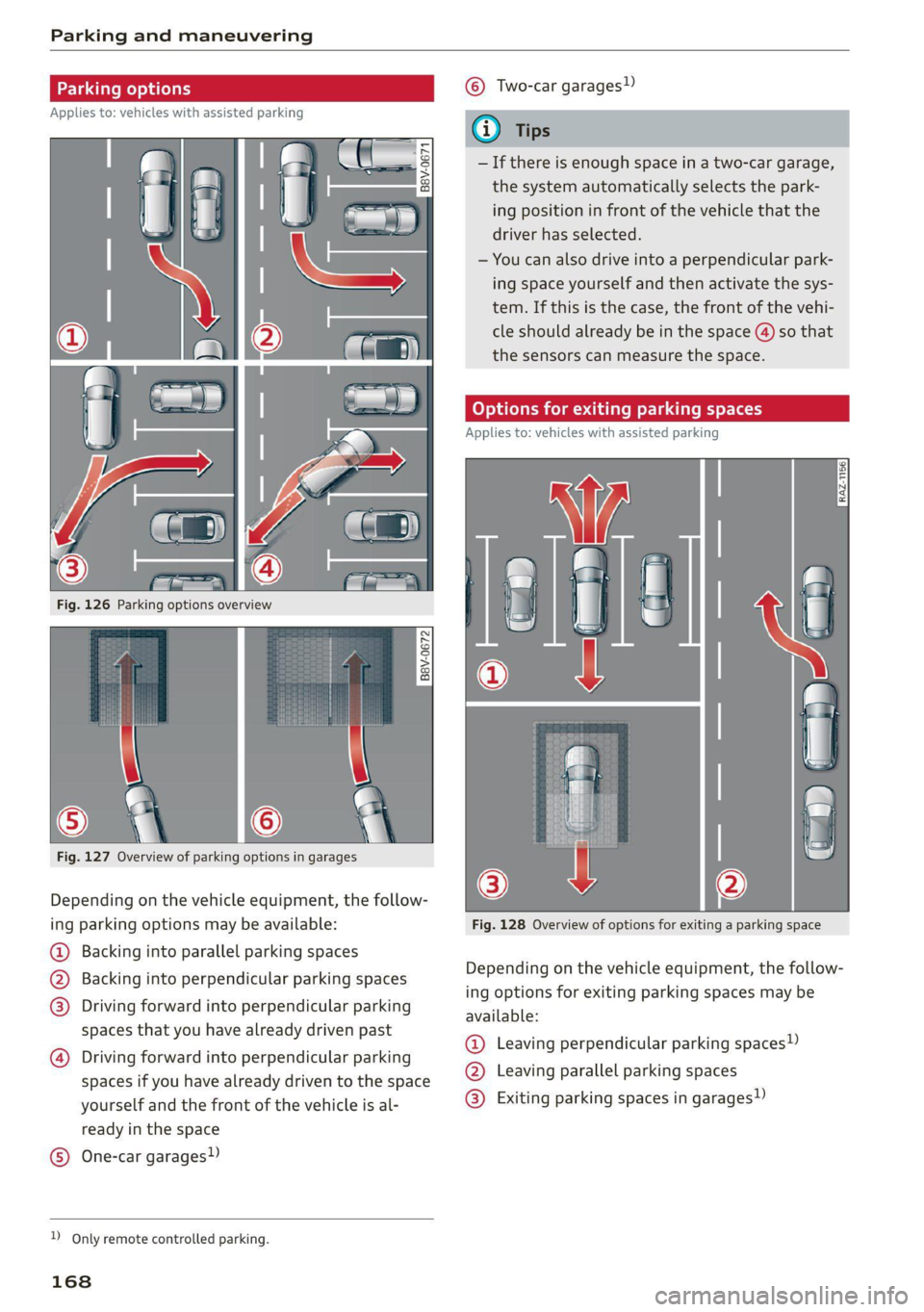
Parking and maneuvering
cE
Applies to: vehicles with assisted parking
Fig. 127 Overview of parking options in garages
Depending on the vehicle equipment, the follow-
ing parking options may be available:
@ Backing into parallel parking spaces
@ Backing into perpendicular parking spaces
@®) Driving forward into perpendicular parking
spaces that you have already driven past
@)
Driving forward into perpendicular parking
spaces if you have already driven to the space
yourself
and the front of the vehicle is al-
ready in the space
One-car garages) @
D_ Only remote controlled parking.
168
© Two-car garages)
— If there is enough space in a two-car garage,
the system automatically selects the park-
ing position in front of the vehicle that the
driver has selected.
— You can also drive into a perpendicular park-
ing space yourself and then activate the sys-
tem. If this is the case, the front of the vehi-
cle should already be in the space () so that
the sensors can measure the space.
go P is as
Applies to: vehicles with assisted parking
Fig. 128 Overview of options for exiting a parking space
Depending on the vehicle equipment, the follow-
ing options for exiting parking spaces may be
available:
@ Leaving perpendicular parking spaces»)
@ Leaving parallel parking spaces
® Exiting parking spaces in garages)
Page 171 of 332
4M8012721BF
Parking and maneuvering
Parking space sea
Applies to: vehicles with assisted parking
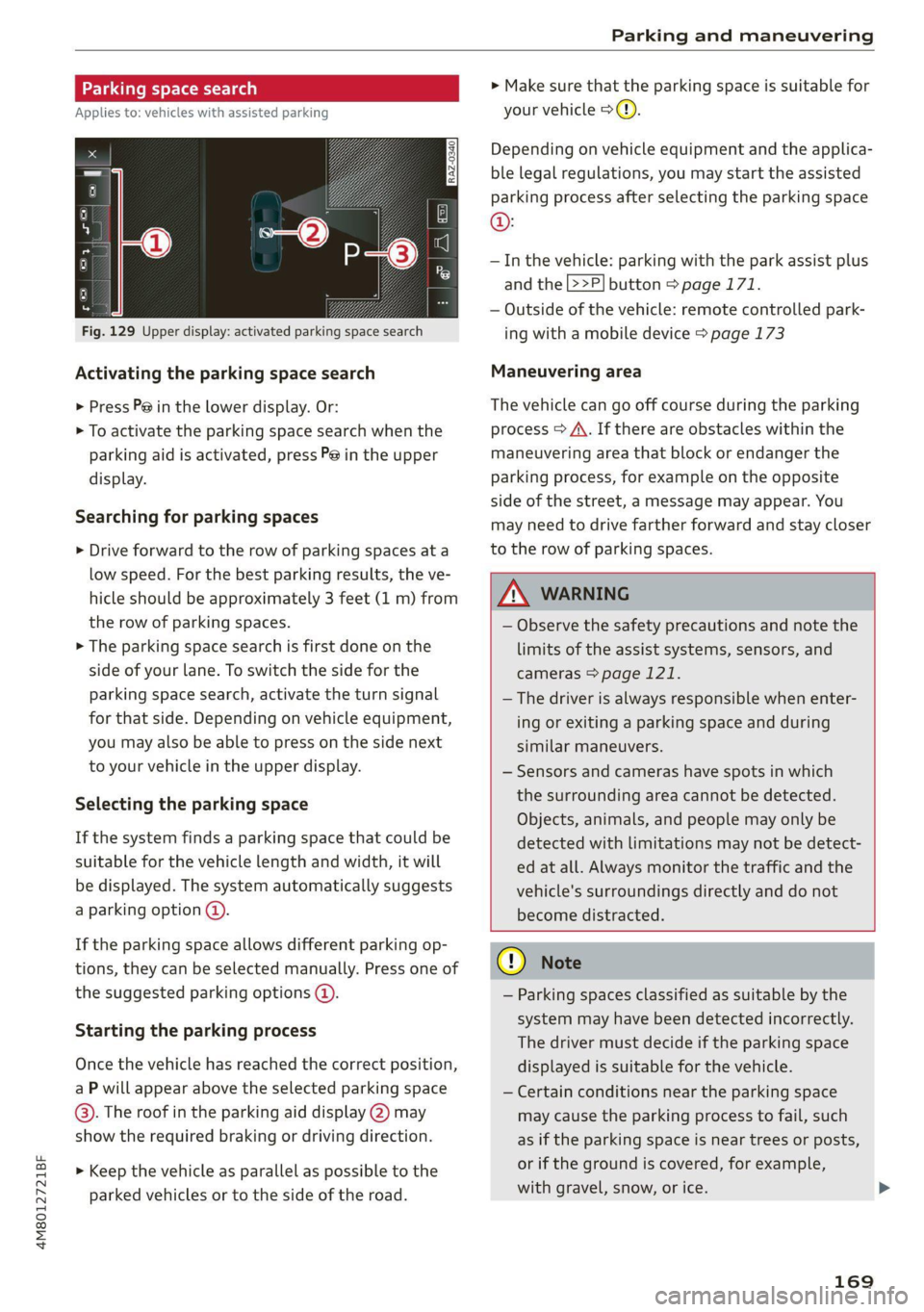
Fig. 129 Upper display: activated parking space search
Activating the parking space search
> Press P@ in the lower display. Or:
> To activate the parking space search when the
parking aid is activated, press Pe in the upper
display.
Searching for parking spaces
> Drive forward to the row of parking spaces at a
low speed. For the best parking results, the ve-
hicle should be approximately 3 feet (1 m) from
the row of parking spaces.
> The parking space search is first done on the
side of your lane. To switch the side for the
parking space search, activate the turn signal
for that side. Depending on vehicle equipment,
you may also be able to press on the side next
to your vehicle in the upper display.
Selecting the parking space
If the system finds a parking space that could be
suitable for the vehicle length and width, it will
be displayed. The system automatically suggests
a parking option @.
If the parking space allows different parking op-
tions, they can be selected manually. Press one of
the suggested parking options @.
Starting the parking process
Once the vehicle has reached the correct position,
a P will appear above the selected parking space
©. The roof in the parking aid display @) may
show the required braking or driving direction.
> Keep the vehicle as parallel as possible to the
parked vehicles or to the side of the road.
> Make sure that the parking space is suitable for
your vehicle >().
Depending on vehicle equipment and the applica-
ble legal regulations, you may start the assisted
parking process after selecting the parking space
@:
— In the vehicle: parking with the park assist plus
and the |>>P] button > page 171.
— Outside of the vehicle: remote controlled park-
ing with a mobile device > page 173
Maneuvering area
The vehicle can go off course during the parking
process > A\. If there are obstacles within the
maneuvering area that block or endanger the
parking process, for example on the opposite
side of the street, a message may appear. You
may need to drive farther forward and stay closer
to the row of parking spaces.
ZA\ WARNING
— Observe the safety precautions and note the
limits of the assist systems, sensors, and
cameras > page 121.
— The driver is always responsible when enter-
ing or exiting a parking space and during
similar maneuvers.
— Sensors and cameras have spots in which
the surrounding area cannot be detected.
Objects, animals, and people may only be
detected with limitations may not be detect-
ed at all. Always monitor the traffic and the
vehicle's surroundings directly and do not
become distracted.
@) Note
— Parking spaces classified as suitable by the
system may have been detected incorrectly.
The driver must decide if the parking space
displayed is suitable for the vehicle.
— Certain conditions near the parking space
may cause the parking process to fail, such
as if the parking space is near trees or posts,
or if the ground is covered, for example,
with gravel, snow, or ice.
169