drive select AUDI Q8 2021 Owner´s Manual
[x] Cancel search | Manufacturer: AUDI, Model Year: 2021, Model line: Q8, Model: AUDI Q8 2021Pages: 332, PDF Size: 118.76 MB
Page 172 of 332
Parking and maneuvering
@) Tips
— If you did not drive past a suitable parking
space too quickly, the system can also be ac-
tivated afterward by pressing Pe.
— The Electronic Stabilization Control (ESC)
must not be switched off during the parking
process. If the ESC intervenes, the parking
process will be canceled.
— You can also drive into a perpendicular park-
ing space yourself and then activate the sys-
tem. If this is the case, the front of the vehi-
cle should already be in the space (4)
=> page 168, fig. 126 so that the sensors
can measure the space.
— You cannot park with the parking assist sys-
tems when you are towing a trailer or have
the connector inserted in the trailer socket.
— The system is not available when certain as-
sist systems are switched on.
— If there are suitable parking spaces on both
sides of the street, for example, on a one-
way street, you can change the side where
the system is searching for parking spaces
by activating the turn signal for the other
side or by pressing on that side in the upper
display.
— The park systems do not provide support for
assisted parking on tight curves.
Park assist plus!)2)
General information
Applies to: vehicles with park assist plus
Park assist plus parks the vehicle after the park-
ing space search and also exits the parking space.
While the driver presses and holds the [>>P] but-
ton and monitors the vehicle's surroundings, park
assist plus controls the steering, gear selection,
acceleration, and braking.
)_ system availability may be limited depending on the mar-
ket.
2) In preparation at the time of printing.
170
ZA WARNING
— Observe the safety precautions and note the
limits of the assist systems, sensors, and
cameras > page 121.
— The driver is always responsible when enter-
ing or exiting a parking space and during
similar maneuvers.
— Do not use this function if the vehicle cannot
move freely, for example when on a vehicle
jack.
— Sensors and cameras have spots in which
the surrounding area cannot be detected.
Objects, animals, and people may only be
detected with limitations may not be detect-
ed at all. Always monitor the traffic and the
vehicle's surroundings directly and do not
become distracted.
@) Note
— Do not use park assist plus when transport-
ing cargo that extends outside of the vehicle
or when snow chains are mounted.
— Park assist plus and remote controlled park-
ing guides the vehicle either away from
curbs or onto them if other vehicles are
parked on the curb. Make sure that your ve-
hicle's tires and rims are not damaged. Re-
sume control of the vehicle in time or stop
the parking process if needed to prevent
damage.
— In parking spaces without curbs, maintain a
distance of at least 19 inches (50 cm) from
walls and buildings in order to reduce the
risk of vehicle damage.
G) Tips
Follow the legal regulations in the country
where you are operating the vehicle when us-
ing park assist plus. Park assist plus may be
prohibited in some countries. The system may
be unavailable in countries where it has been
deactivated in order to comply with legal reg-
ulations. Data will not be transmitted to Audi. >
Page 173 of 332
4M8012721BF
Parking and maneuvering
The driver is always responsible for adhering
to the regulations applicable in the country
where the vehicle is being operated.
Parking with park assist plus!)2)
Applies to: vehicles with park assist plus
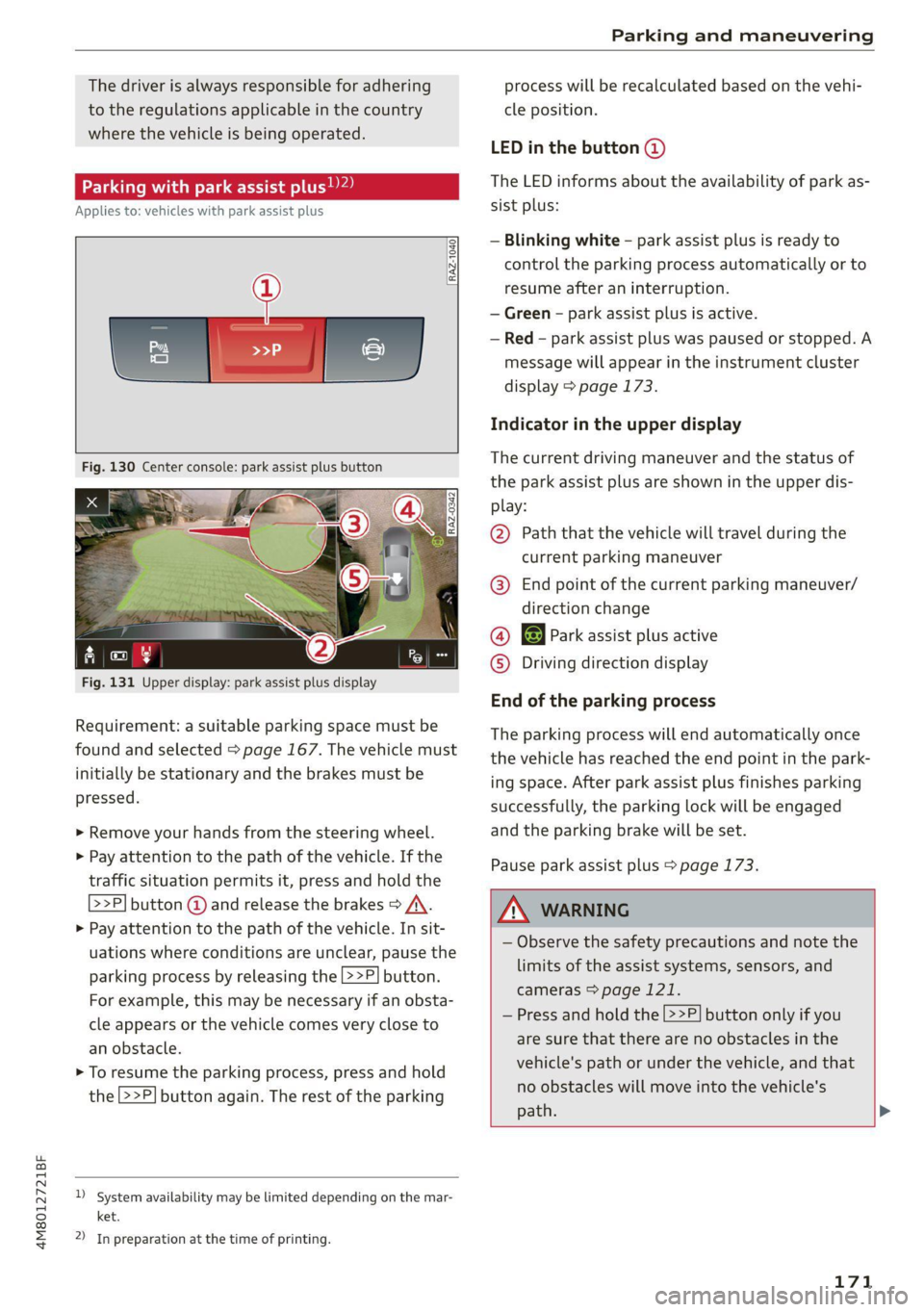
Fig. 131 Upper display: park assist plus display
Requirement: a suitable parking space must be
found and selected > page 167. The vehicle must
initially be stationary and the brakes must be
pressed.
> Remove your hands from the steering wheel.
> Pay attention to the path of the vehicle. If the
traffic situation permits it, press and hold the
>>P] button @ and release the brakes > /A\.
> Pay attention to the path of the vehicle. In sit-
uations where conditions are unclear, pause the
parking process by releasing the |>>P] button.
For example, this may be necessary if an obsta-
cle appears or the vehicle comes very close to
an obstacle.
> To resume the parking process, press and hold
the 2>P] button again. The rest of the parking
)_ System availability may be limited depending on the mar-
ket.
2) In preparation at the time of printing.
process will be recalculated based on the vehi-
cle position.
LED in the button @)
The LED informs about the availability of park as-
sist plus:
— Blinking white - park assist plus is ready to
control the parking process automatically or to
resume after an interruption.
— Green - park assist plus is active.
— Red - park assist plus was paused or stopped. A
message will appear in the instrument cluster
display > page 173.
Indicator in the upper display
The current driving maneuver and the status of
the park assist plus are shown in the upper dis-
play:
@ Path that the vehicle will travel during the
current parking maneuver
@® End point of the current parking maneuver/
direction change
@ 8 Park assist plus active
© Driving direction display
End of the parking process
The parking process will end automatically once
the vehicle has reached the end point in the park-
ing space. After park assist plus finishes parking
successfully, the parking lock will be engaged
and the parking brake will be set.
Pause park assist plus > page 173.
/\ WARNING
— Observe the safety precautions and note the
limits of the assist systems, sensors, and
cameras > page 121.
— Press and hold the [>>P] button only if you
are sure that there are no obstacles in the
vehicle's path or under the vehicle, and that
no obstacles will move into the vehicle's
path. >
171
Page 174 of 332
Parking and maneuvering
— Park assist plus is an assist system. The driv-
er is still responsible for monitoring the ve-
hicle's surroundings and preventing colli-
sions when using the system.
— When using park assist plus to drive into or
out of a parking space, the steering wheel
turns quickly on its own. Reaching into the
steering wheel spokes while this is happen-
ing can result in injury.
— Sensors and cameras have spots in which
the surrounding area cannot be detected.
Objects, animals, and people may only be
detected with limitations may not be detect-
ed at all. Always monitor the traffic and the
vehicle's surroundings directly and do not
become distracted.
@) Tips
— You can reduce the speed specified by the
system at any time by pressing the brake
pedal.
— The system can incorrectly interpret parking
space barriers (such as parking curbs). Take
over the parking process = page 173 if the
vehicle is not completely inside the parking
space or if the vehicle tries to drive over the
parking space barrier.
— The image in the display is an enlarged and
distorted image. Under certain circumstan-
ces, objects may appear different and un-
clear on the display. This is especially true if
there are objects that do not touch the
ground, such as the bumper of a parked ve-
hicle or the rear of a truck. Drive with spe-
cial care and do not use the image if neces-
sary.
— Applies to vehicles with air suspension: The
accuracy of the orientation lines and green
surfaces in the display decreases when the
vehicle is raised or lowered with the air sus-
pension.
)_ system availability may be limited depending on the mar-
ket.
2) In preparation at the time of printing.
172
Exiting a parking space with park assist
Pye oa)
Applies to: vehicles with park assist plus
If you parked the vehicle in a parallel parking
space, park assist plus can help you drive out of
it.
> Start the engine.
> Press P@ in the lower display.
> Wait until a message appears on the upper dis-
play that requests you to select the direction to
travel in when exiting the parking space.
> Activate the turn signal on the desired side or
press that side next to the vehicle in the upper
display.
> Remove your hands from the steering wheel.
> Pay attention to the path of the vehicle. If the
traffic situation permits it, press and hold the
>>P] button @ > page 171, fig. 130 and re-
lease the brakes > A\.
> Pay attention to the path of the vehicle. If an
obstacle appears, interrupt the parking process
by releasing the [>>P] button. The vehicle re-
mains stopped.
> To resume the parking process, press and hold
the [>>P| button again.
> The process of exiting the parking space has
ended if additional corrective movements are
no longer necessary and the specified steering
wheel angle is sufficient to drive out of the
parking space. Resume control of the steering
wheel >@).
Pause park assist plus > page 173.
Z\ WARNING
— Observe the safety precautions and note the
limits of the assist systems, sensors, and
cameras > page 121.
— Press and hold the [>>P] button only if you
are sure that there are no obstacles in the
vehicle's path or under the vehicle, and that
no obstacles will move into the vehicle's
path. >
Page 175 of 332
4M8012721BF
Parking and maneuvering
— Park assist plus is an assist system. The driv-
er is still responsible for monitoring the ve-
hicle's surroundings and preventing colli-
sions when using the system.
— When using park assist plus to drive into or
out of a parking space, the steering wheel
turns quickly on its own. Reaching into the
steering wheel spokes while this is happen-
ing can result in injury.
@) Note
Resume steering immediately after the last
corrective movement and the takeover
prompt, so that the specified steering wheel
angle is not recentered.
G) Tips
You can reduce the speed selected by the ve-
hicle or stop the vehicle at any time by press-
ing the brake pedal.
Pausing park assist plus))2)
Applies to: vehicles with park assist plus
You can pause park assist plus at any time by re-
leasing the [>>P] button @ > page 171, fig. 130.
To resume the parking process, press and hold
the [>>P] button again.
Canceling automatically
Park assist plus is canceled automatically among
other things, if:
— If you switch off the system
— You take over steering or press the brake pedal,
— If the time limit is exceeded
— If an obstacle is detected
— The ESC intervenes
Resume control of the vehicle, end the parking
process manually, or:
You can resume the parking process in some sit-
uations. Press and hold the brake pedal and press
Pe.
)_ System availability may be limited depending on the mar-
ket.
2) In preparation at the time of printing.
ZA\ WARNING
Observe the safety precautions and note the
limits of the assist systems, sensors, and
cameras > page 121.
Messages
Applies to: vehicles with park assist plus
If the roll or il indicator light turns on, the
park assist is not available or was interrupted.
A message that indicates the cause and possible
solution may appear with some displays. The
weather conditions may be too poor or a sensor
may be covered. Clean the area in front of the
sensors > page 123 and try to turn the system on
again later.
If the malfunction remains, drive to an author-
ized Audi dealer or authorized Audi Service Facili-
ty immediately to have the malfunction correct-
ed.
Remote controlled
parking!)2)
General information
Applies to: vehicles with remote park assist plus
Remote controlled parking is part of park assist
plus/park assist plus with garage function. The
process for parking or exiting a parking space can
be controlled with a mobile device from outside
the vehicle. To do so, the driver must have both
the vehicle key and the mobile device with him or
her. While the driver controls the vehicle remote-
ly and monitors the vehicle's surroundings, the
system controls the steering, gear selection, ac-
celeration, braking, and locking the vehicle.
ZA\ WARNING
— Observe the safety precautions and note the
limits of the assist systems, sensors, and
cameras > page 121. >
173
Page 177 of 332
4M8012721BF
Parking and maneuvering
— Your mobile device should have a sufficient
battery charge level. If necessary, charge
the mobile device before starting to drive.
— Do not use the remote controlled parking
function with devices that are faulty or dam-
aged or whose function is impaired. Only
use the operating systems approved by the
mobile device manufacturer.
— When using remote controlled parking, al-
ways pay attention to the areas where your
vehicle can be accessed. Check that no one
can enter your vehicle and if the vehicle has
been locked after parking is completed.
Take the vehicle key with you when leaving
the vehicle.
Applies to: vehicles with remote park assist plus
The following steps must be completed before
using for the first time:
> Create a myAudi account by registering in the
myAudi app or at my.audi.com, depending on
your country.
> Add your vehicle to your myAudi account.
> Set the key user > page 32.
> Install the myAudi app on your mobile device
and log in with your access information.
Device compatibility
The mobile device will be checked at the start of
a parking procedure. If an incompatibility is de-
tected, it will be displayed in the myAudi app.
Audi does not recommend using the function if
an incompatibility is detected > A\.
A selection of supported Bluetooth devices can
be found in the database for tested mobile devi-
ces at www.audi.com/bluetooth. Compatibility
cannot be guaranteed for all types of mobile de-
vices. The availability depends on the following
factors, among others:
— Brand and build version of the mobile device
D_ System availability may be limited depending on the mar-
ket.
2) In preparation at the time of printing.
3) Applies to: vehicles with remote park assist plus with ga-
rage function
— Version of the mobile device operating system
— Software version of the app used
— Individual settings on the mobile device
Z\ WARNING
— Observe the safety precautions and note the
limits of the assist systems, sensors, and
cameras > page 121.
— There is a risk of an accident if an incompati-
ble mobile device is used. If there is a dis-
play indicating that functionality is restrict-
ed, the vehicle’s reaction speed may be im-
paired due to reduced transmission speed.
Parking options!)2)
Applies to: vehicles with remote park assist plus
Depending on the vehicle equipment, you may
have the following options when using remote
controlled parking:
Driving into parking spaces
— Parallel parking on the left or right side of the
street @ > page 168, fig. 126
— Driving forward or backing into perpendicular
parking spaces (2)/@) > page 168, fig. 126.
— Parking in one-car or two-car garages») ©)/@)
=> page 168, fig. 127
Exiting parking spaces
— Leaving perpendicular parking spaces @)
> page 168, fig. 128.
— Exiting parallel parking spaces (2).
— Exiting one-car or two-car garages?) ®.
Z\ WARNING
Observe the safety precautions and note the
limits of the assist systems, sensors, and
cameras > page 121. >
175
Page 178 of 332
Parking and maneuvering
@) Tips
— When parking in garages, you can be
straight in front of the garage or at a slight
angle in front of the garage. You will have
the best results when you align and stop
your vehicle as straight as possible in front
of the garage.
— If there is enough space in a two-car garage,
the system automatically selects the park-
ing position in front of the vehicle that the
driver has selected.
Parking with the myAud re
Applies to: vehicles with remote park assist plus
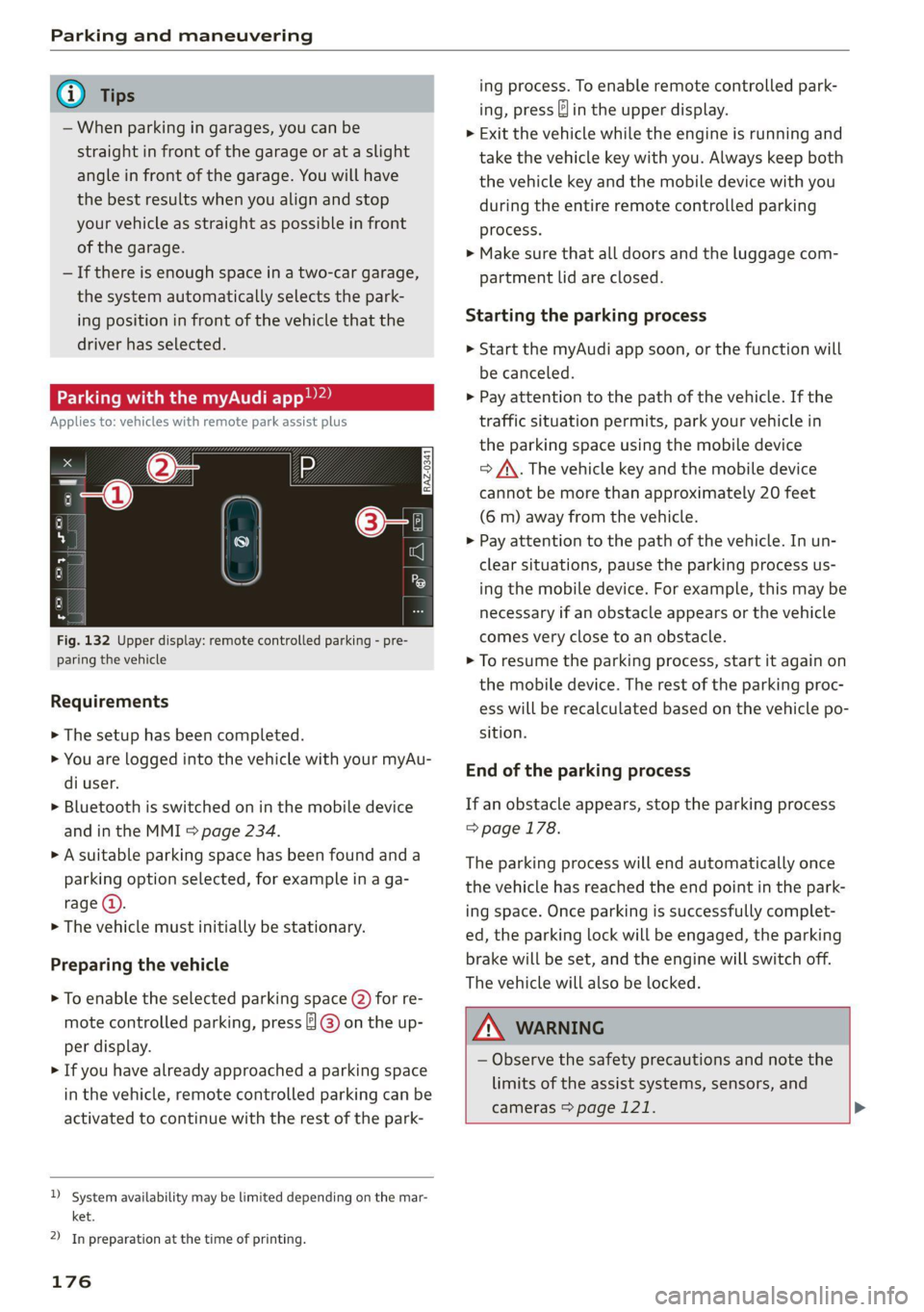
Fig. 132 Upper display: remote controlled parking - pre-
paring the vehicle
Requirements
> The setup has been completed.
> You are logged into the vehicle with your myAu-
di user.
> Bluetooth is switched on in the mobile device
and in the MMI > page 234.
> A suitable parking space has been found anda
parking option selected, for example in a ga-
rage (@).
> The vehicle must initially be stationary.
Preparing the vehicle
> To enable the selected parking space (2) for re-
mote controlled parking, press ] @) on the up-
per display.
> If you have already approached a parking space
in the vehicle, remote controlled parking can be
activated to continue with the rest of the park-
)_ system availability may be limited depending on the mar-
ket.
2) In preparation at the time of printing.
176
ing process. To enable remote controlled park-
ing, press J in the upper display.
> Exit the vehicle while the engine is running and
take the vehicle key with you. Always keep both
the vehicle key and the mobile device with you
during the entire remote controlled parking
process.
> Make sure that all doors and the luggage com-
partment lid are closed.
Starting the parking process
> Start the myAudi app soon, or the function will
be canceled.
> Pay attention to the path of the vehicle. If the
traffic situation permits, park your vehicle in
the parking space using the mobile device
> J\. The vehicle key and the mobile device
cannot be more than approximately 20 feet
(6 m) away from the vehicle.
> Pay attention to the path of the vehicle. In un-
clear situations, pause the parking process us-
ing the mobile device. For example, this may be
necessary if an obstacle appears or the vehicle
comes very close to an obstacle.
> To resume the parking process, start it again on
the mobile device. The rest of the parking proc-
ess will be recalculated based on the vehicle po-
sition.
End of the parking process
If an obstacle appears, stop the parking process
> page 178.
The parking process will end automatically once
the vehicle has reached the end point in the park-
ing space. Once parking is successfully complet-
ed, the parking lock will be engaged, the parking
brake will be set, and the engine will switch off.
The vehicle will also be locked.
ZA WARNING
— Observe the safety precautions and note the
limits of the assist systems, sensors, and
cameras > page 121. >
Page 197 of 332
4M8012721BF
Audi connect
ZA WARNING
— Always follow the information found in > AA
in General information on page 192.
— Driver messages, text messages, and illumi-
nated warning and indicator lights in the ve-
hicle always take priority over information
from the Audi connect services. The infor-
mation displayed by the Audi connect serv-
ices should not cause you to take safety
risks. This can result in the vehicle breaking
down in traffic and to serious injuries or ac-
cidents.
@) Tips
— Accessing specific data or controlling func-
tions remotely depends on the charge level
of the vehicle battery. Therefore, these
functions only have limited availability after
switching off the ignition.
— An eSIM card establishes the Internet con-
nection for Audi connect vehicle control
services. The costs for this are included in
the price of Audi connect vehicle control
services. The cell phone network, for exam-
ple, must be available to use these services.
Applies to: vehicles with Audi connect vehicle control
Create a myAudi account by registering in the
myAudi app or at my.audi.com, depending on
your country.
>» Set the key user > page 32.
> Install the myAudi app on your mobile device
and log in with your access information.
@) Tips
Some services require you to enter a 4-digit
PIN that you set up during registration.
Settings
Applies to: vehicles with Wi-Fi hotspot
Requirement: the ignition must be switched on.
> Applies to: MMI: Select on the home screen:
SETTINGS > Connection settings > Wi-Fi
Depending on the country and the vehicle equip-
ment, the following functions may be available:
Wi-Fi
When the function is switched on, the MMI's Wi-
Fi hotspot is active and Wi-Fi devices can be con-
nected to the hotspot.
Wi-Fi hotspot settings
The Wi-Fi connection between the MMI and your
Wi-Fi device is encrypted. You can change the fol-
lowing information if needed.
— Access point (SSID): name of the Wi-Fi hot-
spot.
— Password: an initial password was set at the
factory in the MMI. Audi recommends changing
the initial password. Only use secure passwords
that conform to the general guidelines for se-
cure passwords. For more information, refer to
reputable and current sources on password se-
curity.
Allow data connection through Wi-Fi
When the function is switched on, mobile devices
can use the Internet connection through the Wi-
Fi hotspot. A data plan is needed to do this.
Z\ WARNING
Always follow the information found in > AV
in General information on page 192.
@) Note
Always follow the information found in >@ in
General information on page 192.
195
Page 200 of 332
Emergency call
the emergency call button () will blink. The
emergency call will be made. The emergency call
cannot be canceled.
LED status
— Green - The emergency call function is availa-
ble.
— Red - There is a malfunction in the emergency
call function. Contact an authorized Audi dealer
or authorized Audi Service Facility. Note the
messages about the availability of the emer-
gency function > page 198.
— Off - The emergency call function is not availa-
ble, perhaps because no network is available.
Warnings
If there is a critical system failure in the emer-
gency call systems, the vehicle occupants will re-
ceive the following warning: see > page 198, LED
status
and > page 198, Messages.
@) Tips
If the emergency call is canceled due toa
poor connection, then the system automati-
cally tries to connect again.
Messages
Applies to: vehicles with emergency call function
508 Emergency call function: malfunction! Lim-
ited availability. Please contact Service
If this indicator light turns on and this message
appears, the emergency call function is restrict-
ed. For example, you cannot call the emergency
call center, but data may still be transmitted un-
der certain circumstances. Drive to an authorized
Audi dealer or authorized Audi Service Facility im-
mediately to have the malfunction corrected.
BS Emergency call function: malfunction! Func-
tion unavailable. Please contact Service
If this indicator light turns on and this message
appears, you cannot make an emergency call.
Drive to an authorized Audi dealer or authorized
) The availability of the services offered depends on the
country and may change in the future.
198
Audi Service Facility immediately to have the
malfunction corrected.
Online roadside
assistance
Applies to: vehicles with online roadside assistance
An online roadside assistance call )) is a combina-
tion of data transmission and a phone call. The
data transmission from your vehicle forwards im-
portant information to the Audi service center,
such as the vehicle and position data.
Calling online roadside assistance
Applies to: vehicles with online roadside assistance
RAZ-0443
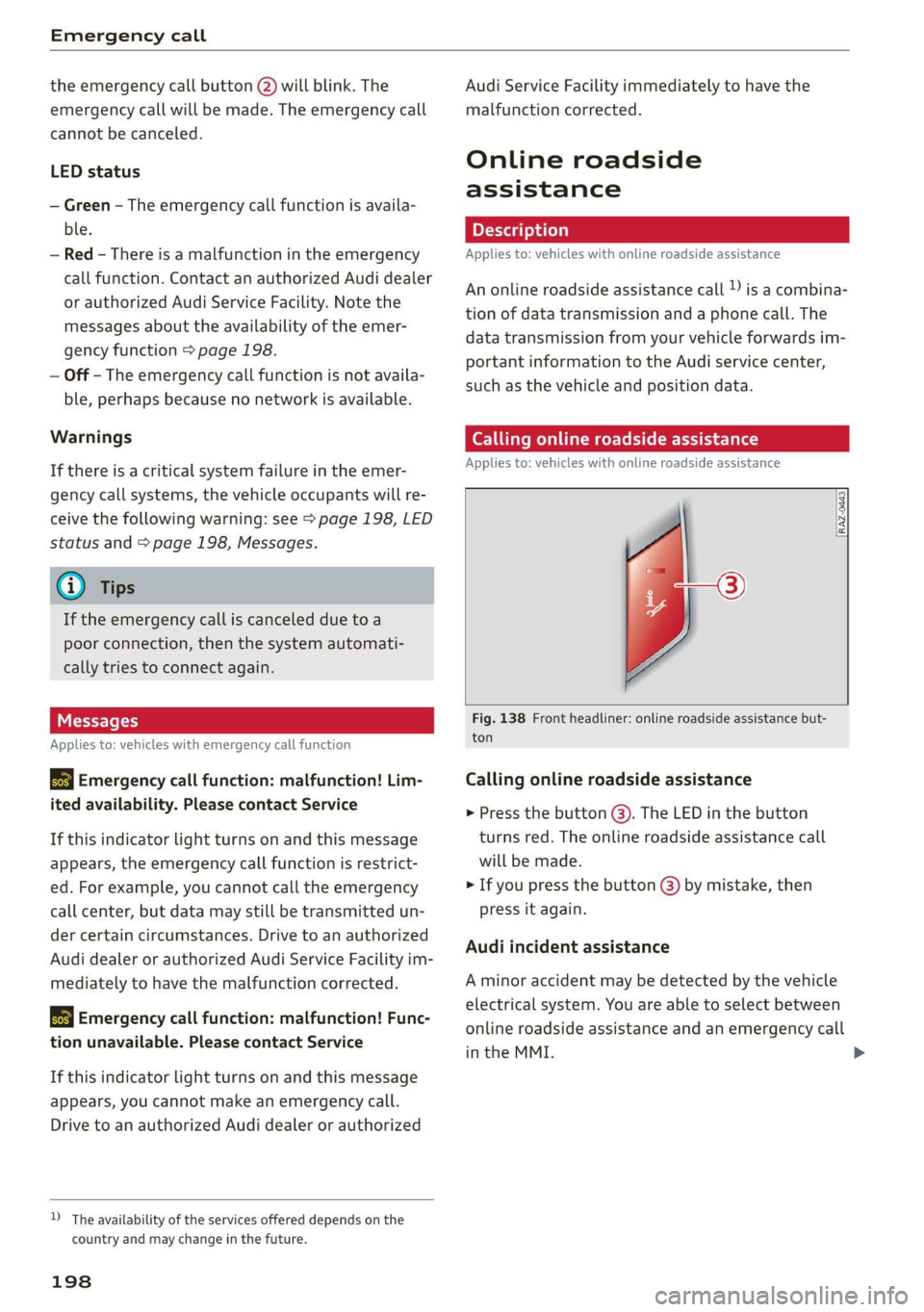
Fig. 138 Front headliner: online roadside assistance but-
ton
Calling online roadside assistance
> Press the button @). The LED in the button
turns red. The online roadside assistance call
will be made.
> If you press the button @) by mistake, then
press it again.
Audi incident assistance
A minor accident may be detected by the vehicle
electrical system. You are able to select between
online roadside assistance and an emergency call
in the MMI.
Page 208 of 332
Navigation
@) Tips
Certain gestures may not be available on all
touch displays or in every menu.
ALL) Naviga te guidance
started
Applies to: vehicles with navigation system and Audi virtual
cockpit
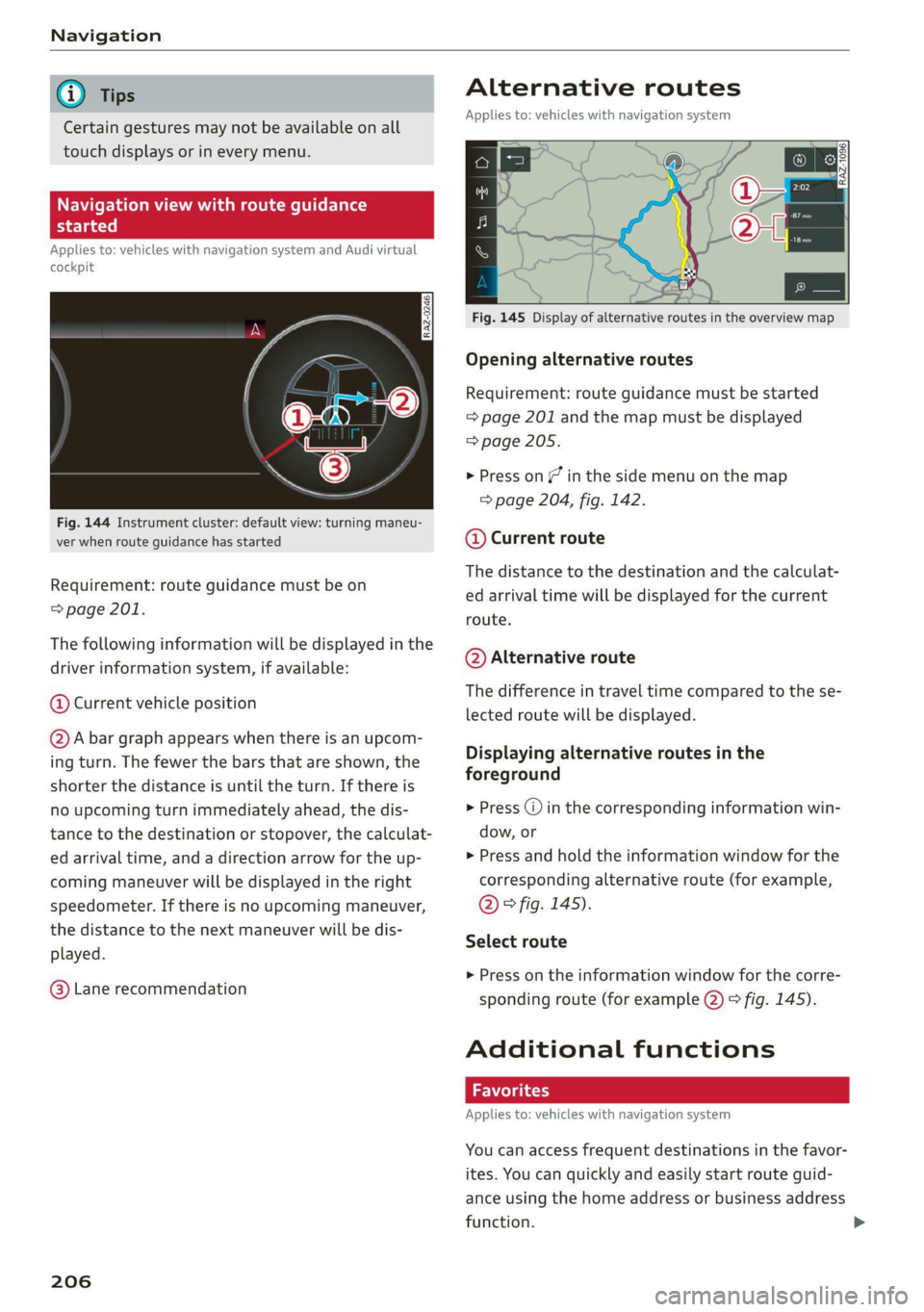
Fig. 144 Instrument cluster: default view: turning maneu-
ver when route guidance has started
Requirement: route guidance must be on
= page 201.
The following information will be displayed in the
driver information system, if available:
@ Current vehicle position
@A bar graph appears when there is an upcom-
ing turn. The fewer the bars that are shown, the
shorter the distance is until the turn. If there is
no upcoming turn immediately ahead, the dis-
tance to the destination or stopover, the calculat-
ed arrival time, and a direction arrow for the up-
coming maneuver will be displayed in the right
speedometer. If there is no upcoming maneuver,
the distance to the next maneuver will be dis-
played.
@® Lane recommendation
206
Alternative routes
Applies to: vehicles with navigation system
3 | SI
ny < ec
Fig. 145 Display of alternative routes in the overview map
Opening alternative routes
Requirement: route guidance must be started
= page 201 and the map must be displayed
=> page 205.
> Press on / in the side menu on the map
=> page 204, fig. 142.
@ Current route
The distance to the destination and the calculat-
ed arrival time will be displayed for the current
route.
@ Alternative route
The difference in travel time compared to the se-
lected route will be displayed.
Displaying alternative routes in the
foreground
> Press @ in the corresponding information win-
dow, or
> Press and hold the information window for the
corresponding alternative route (for example,
@° fig. 145).
Select route
> Press on the information window for the corre-
sponding route (for example @) 9 fig. 145).
Additional functions
Applies to: vehicles with navigation system
You can access frequent destinations in the favor-
ites. You can quickly and easily start route guid-
ance using the home address or business address
function.
Page 211 of 332
4M8012721BF
Navigation
Requirement: you must have created a myAudi
account at my.audi.com. Your vehicle must be
registered in your myAudi account.
Downloading a map update
> Download the map update at my.audi.com and
store it on a USB flash drive. For additional in-
formation, visit my.audi.com.
Installing a map update
> Connect the USB flash drive to the Audi music
interface > page 222.
> Open the notification in the notification center
on > page 23 and press on the notification.
> Press Next. The status of the installation is
shown in the display.
Traffic incidents
Applies to: vehicles with navigation system and online traffic
information
oi nemurcu) tos
RAX-0152 Beeeukucuoucae kal
erence eta
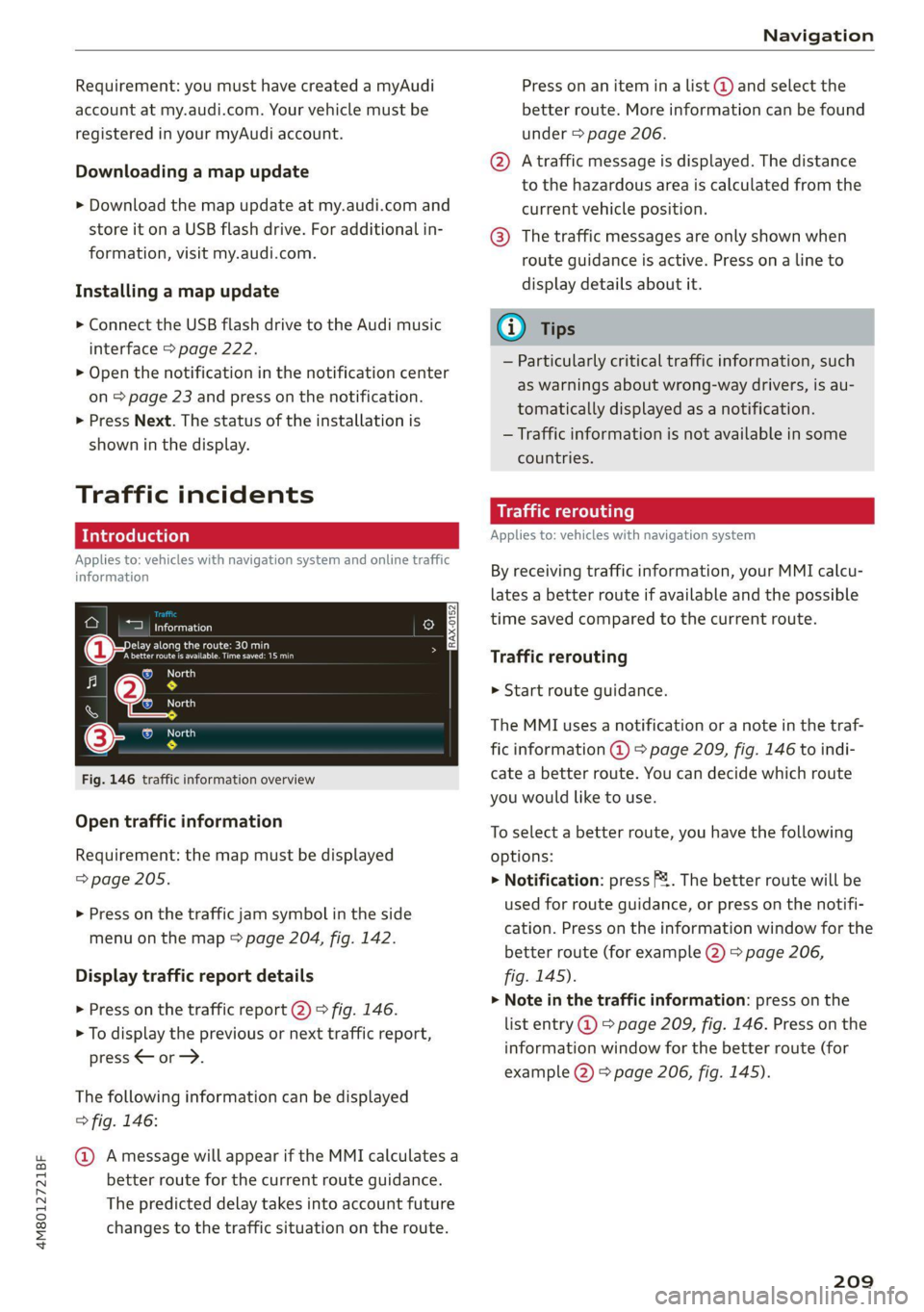
Fig. 146 traffic information overview
Open traffic information
Requirement: the map must be displayed
=> page 205.
> Press on the traffic jam symbol in the side
menu on the map > page 204, fig. 142.
Display traffic report details
> Press on the traffic report @) > fig. 146.
> To display the previous or next traffic report,
press < or.
The following information can be displayed
> fig. 146:
@ Amessage will appear if the MMI calculates a
better route for the current route guidance.
The predicted delay takes into account future
changes to the traffic situation on the route.
Press on an item ina list @ and select the
better route. More information can be found
under > page 206.
@ Atraffic message is displayed. The distance
to the hazardous area is calculated from the
current vehicle position.
@® The traffic messages are only shown when
route guidance is active. Press ona line to
display details about it.
(i) Tips
— Particularly critical traffic information, such
as warnings about wrong-way drivers, is au-
tomatically displayed as a notification.
— Traffic information is not available in some
countries.
Traffic rerouting
Applies to: vehicles with navigation system
By receiving traffic information, your MMI calcu-
lates a better route if available and the possible
time saved compared to the current route.
Traffic rerouting
> Start route guidance.
The MMI uses a notification or a note in the traf-
fic information @ > page 209, fig. 146 to indi-
cate a better route. You can decide which route
you would like to use.
To select a better route, you have the following
options:
> Notification: press F2. The better route will be
used for route guidance, or press on the notifi-
cation. Press on the information window for the
better route (for example @) > page 206,
fig. 145).
> Note in the traffic information: press on the
list entry @ > page 209, fig. 146. Press on the
information window for the better route (for
example (2) > page 206, fig. 145).
209