drive select AUDI Q8 2021 Owner´s Manual
[x] Cancel search | Manufacturer: AUDI, Model Year: 2021, Model line: Q8, Model: AUDI Q8 2021Pages: 332, PDF Size: 118.76 MB
Page 223 of 332
4M8012721BF
Media
DVD drive
Applies to: vehicles with a DVD drive
—
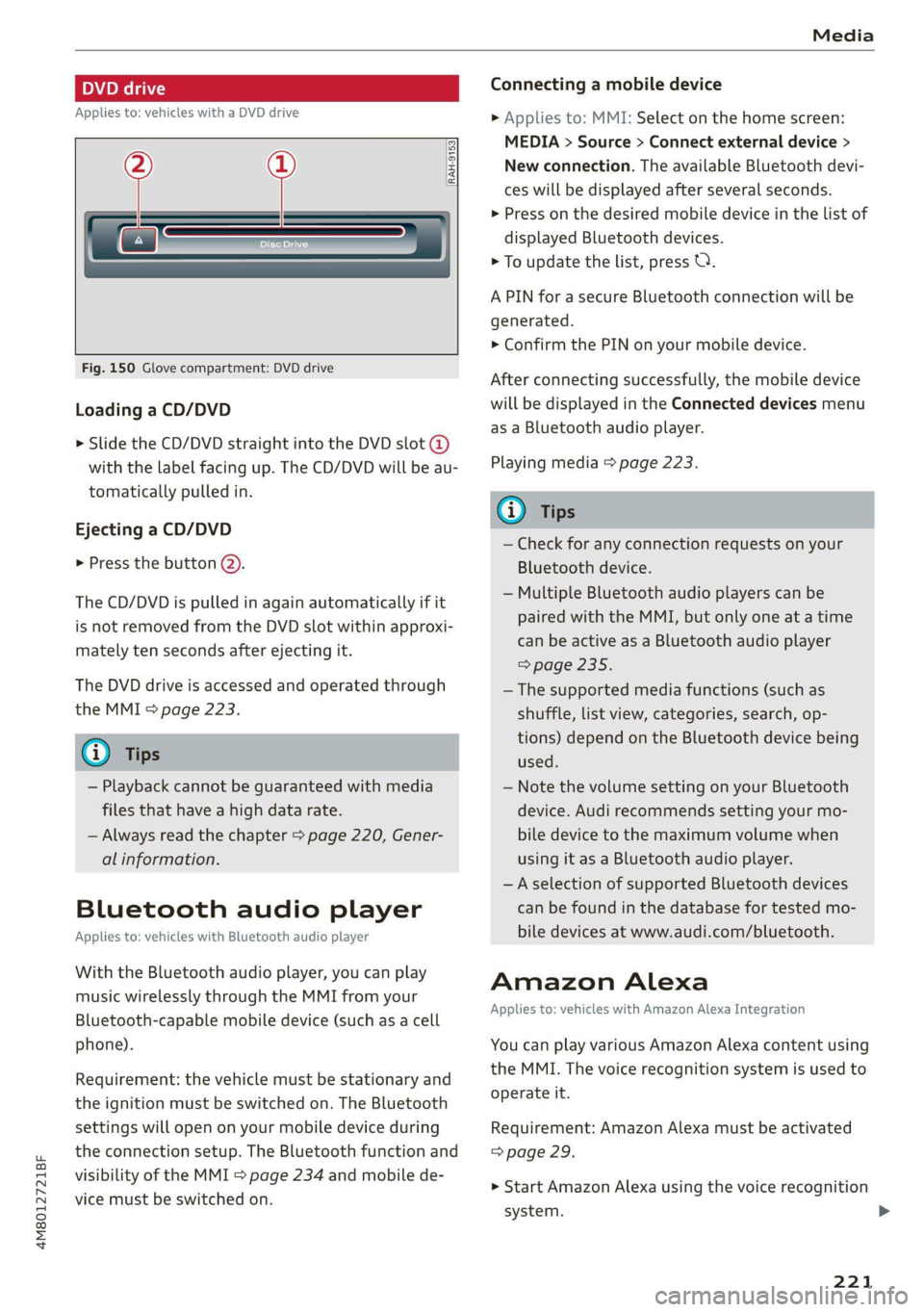
Fig. 150 Glove compartment: DVD drive
[RAH-9153,
Loading a CD/DVD
> Slide the CD/DVD straight into the DVD slot @
with the label facing up. The CD/DVD will be au-
tomatically pulled in.
Ejecting a CD/DVD
> Press the button (2).
The CD/DVD is pulled in again automatically if it
is
not removed from the DVD slot within approxi-
mately ten seconds after ejecting it.
The DVD drive is accessed and operated through
the MMI > page 223.
@) Tips
— Playback cannot be guaranteed with media
files that have a high data rate.
— Always read the chapter > page 220, Gener-
al information.
Bluetooth audio player
Applies to: vehicles with Bluetooth audio player
With the Bluetooth audio player, you can play
music wirelessly through the MMI from your
Bluetooth-capable mobile device (such as a cell
phone).
Requirement: the vehicle must be stationary and
the ignition must be switched on. The Bluetooth
settings will open on your mobile device during
the connection setup. The Bluetooth function and
visibility of the MMI > page 234 and mobile de-
vice must be switched on.
Connecting a mobile device
> Applies to: MMI: Select on the home screen:
MEDIA > Source > Connect external device >
New connection. The available Bluetooth devi-
ces will be displayed after several seconds.
> Press on the desired mobile device in the list of
displayed Bluetooth devices.
> To update the list, press OQ.
A PIN for a secure Bluetooth connection will be
generated.
> Confirm the PIN on your mobile device.
After
connecting successfully, the mobile device
will be displayed in the Connected devices menu
as a Bluetooth audio player.
Playing media > page 223.
@ Tips
— Check for any connection requests on your
Bluetooth device.
— Multiple Bluetooth audio players can be
paired with the MMI, but only one at a time
can be active as a Bluetooth audio player
=> page 235.
— The supported media functions (such as
shuffle, list view, categories, search, op-
tions) depend on the Bluetooth device being
used.
— Note the volume setting on your Bluetooth
device. Audi recommends setting your mo-
bile device to the maximum volume when
using it as a Bluetooth audio player.
—Aselection of supported Bluetooth devices
can be found in the database for tested mo-
bile devices at www.audi.com/bluetooth.
Amazon Alexa
Applies to: vehicles with Amazon Alexa Integration
You can play various Amazon Alexa content using
the MMI. The voice recognition system is used to
operate it.
Requirement: Amazon Alexa must be activated
=> page 29.
>» Start Amazon Alexa using the voice recognition
system.
221
>
Page 224 of 332
Media
» Applies to: MMI: Select on the home screen:
MEDIA > Source > Amazon Alexa.
@) Note
Read the information about Audi connect, and
be sure to note the connectivity costs section
=> page 192.
Multimedia connections
USB adapter cable
[RAH-9202
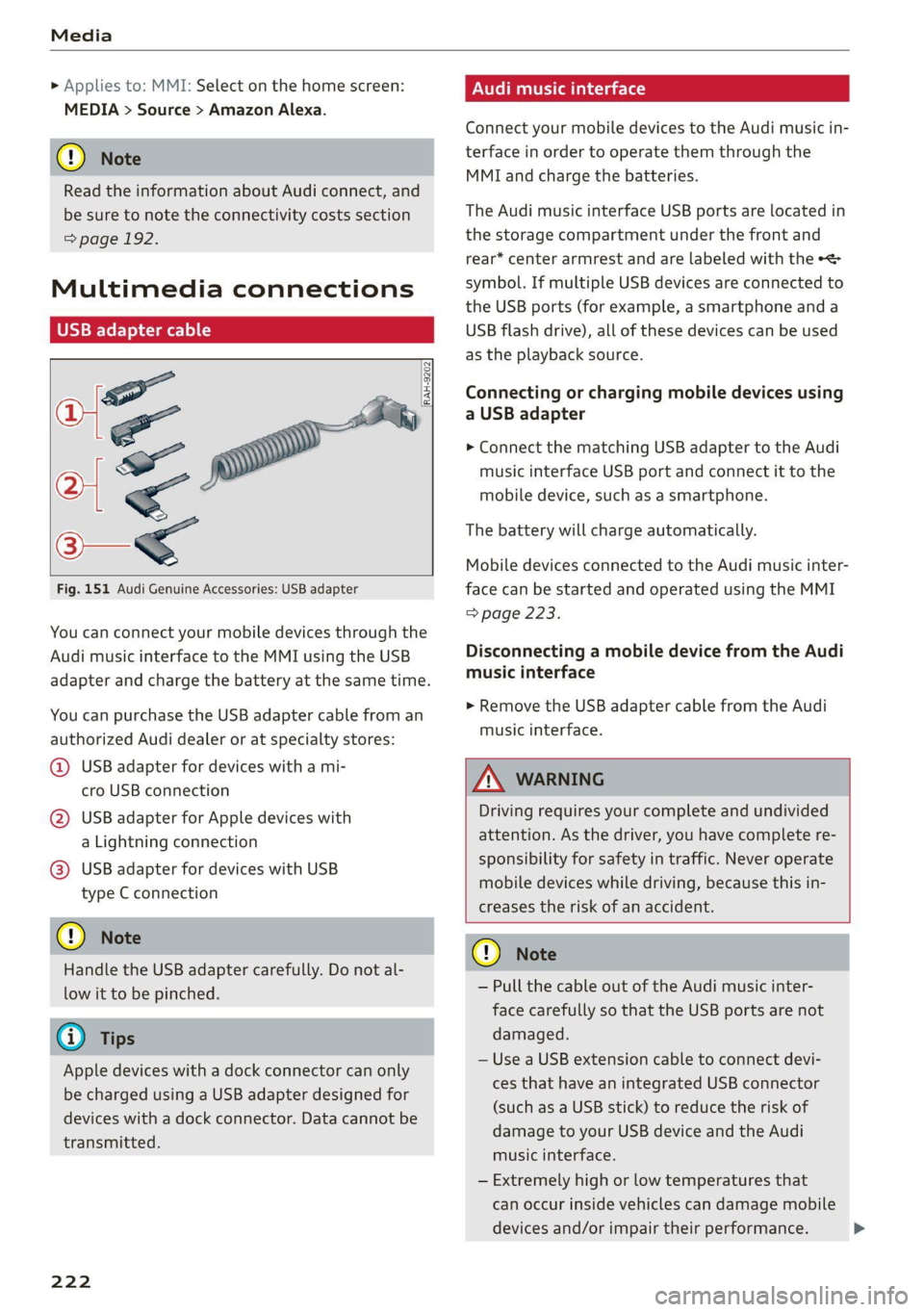
Fig. 151 Audi Genuine Accessories: USB adapter
You can connect your mobile devices through the
Audi music interface to the MMI using the USB
adapter and charge the battery at the same time.
You can purchase the USB adapter cable from an
authorized Audi dealer or at specialty stores:
@ USB adapter for devices with a mi-
cro USB connection
@ USB adapter for Apple devices with
a Lightning connection
@ USB adapter for devices with USB
type C connection
@) Note
Handle the USB adapter carefully. Do not al-
low it to be pinched.
G) Tips
Apple devices with a dock connector can only
be charged using a USB adapter designed for
devices with a dock connector. Data cannot be
transmitted.
222
ONU reat em Tale)
Connect your mobile devices to the Audi music in-
terface in order to operate them through the
MMI and charge the batteries.
The Audi music interface USB ports are located in
the storage compartment under the front and
rear* center armrest and are labeled with the +<
symbol. If multiple USB devices are connected to
the USB ports (for example, a smartphone and a
USB flash drive), all of these devices can be used
as the playback source.
Connecting or charging mobile devices using
a USB adapter
> Connect the matching USB adapter to the Audi
music interface USB port and connect it to the
mobile device, such as a smartphone.
The battery will charge automatically.
Mobile devices connected to the Audi music inter:
face can be started and operated using the MMI
=> page 223.
Disconnecting a mobile device from the Audi
music interface
> Remove the USB adapter cable from the Audi
music interface.
ZA\ WARNING
Driving requires your complete and undivided
attention. As the driver, you have complete re-
sponsibility for safety in traffic. Never operate
mobile devices while driving, because this in-
creases the risk of an accident.
@) Note
— Pull the cable out of the Audi music inter-
face carefully so that the USB ports are not
damaged.
— Use a USB extension cable to connect devi-
ces that have an integrated USB connector
(such as a USB stick) to reduce the risk of
damage to your USB device and the Audi
music interface.
— Extremely high or low temperatures that
can occur inside vehicles can damage mobile
devices and/or impair their performance.
Page 228 of 332
Media
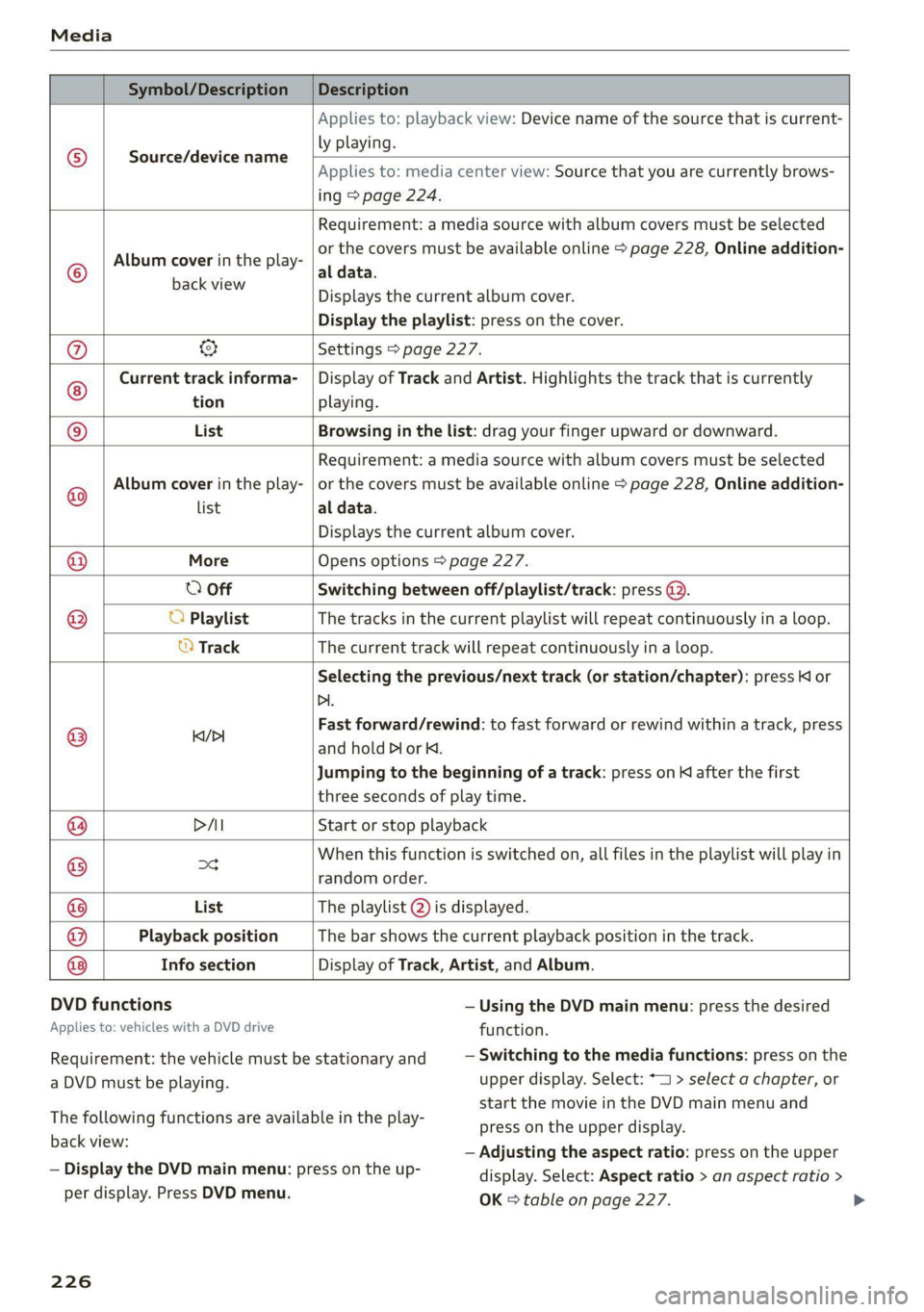
Symbol/Description Description
Source/device name
Applies to: playback view: Device name of the source that is current-
ly playing.
Applies to: media center view: Source that you are currently brows-
ing > page 224.
©
Album cover in the play-
Requirement: a media source with album covers must be selected
or the covers must be available online > page 228, Online addition-
al data.
same Displays the current album cover.
Display the playlist: press on the cover.
@ & Settings > page 227.
Current track informa- | Display of Track and Artist. Highlights the track that is currently
tion playing.
List Browsing in the list: drag your finger upward or downward.
Album cover in the play-
Requirement: a media source with album covers must be selected
or the covers must be available online > page 228, Online addition-
Playback position The bar shows the current playback position in the track.
Info section
©
© list al data.
Displays the current album cover.
@ More Opens options > page 227.
O Off Switching between off/playlist/track: press @..
() O Playlist The tracks in the current playlist will repeat continuously in a loop.
© Track The current track will repeat continuously in a loop.
Selecting the previous/next track (or station/chapter): press Ki or
Di.
@ ‘aii Fast forward/rewind: to fast forward or rewind within a track, press
and hold Dior K.
Jumping to the beginning of a track: press on K after the first
three seconds of play time.
@ PAI Start or stop playback
@ og When this function is switched on, all files in the playlist will play in
random order.
@ List The playlist @ is displayed.
@
® Display of Track, Artist, and Album.
DVD functions
Applies to: vehicles with a DVD drive
— Using the DVD main menu: press the desired
function.
— Switching to the media functions: press on the
Requirement: the vehicle must be stationary and
a DVD must be playing.
The following functions are available in the play-
back view:
— Display the DVD main menu: press on the up-
per display. Press DVD menu.
226
upper display. Select: *1 > select a chapter, or
start the movie in the DVD main menu and
press on the upper display.
— Adjusting the aspect ratio: press on the upper
display. Select: Aspect ratio > an aspect ratio >
OK > table on page 227.
Page 230 of 332
Media
Online additional data
Requirement: the MMI must be connected to the
Internet. A data plan must be available
=> page 196.
When the function is switched on, additional in-
formation (such as album cover, artist, track) will
be loaded depending on the availability from the
different providers.
DVD playback parental cntrl.
Playback of video DVDs can be restricted based
on age restrictions using parental control.
Displaying the DVD parental control menu
> Applies to: MMI: Select on the home screen:
MEDIA > ©} > DVD playback parental cntrl..
> Enter the PIN for parental control. The PIN set
at the factory is 1234.
> Press OK.
Switching the rating level on and off
Requirement: the DVD parental control menu
must be displayed.
> Select: DVD playback parental cntrl. > a rating
level (for example, level 5) > *, or
> To remove all restrictions, press Off.
Eight different protection levels can be set for
parental control. If you set the parental control
level at level 5, all DVDs from levels 1 - 5 can be
played. Video DVDs with a higher level will not
play.
Changing the PIN
Requirement: the DVD parental control menu
must be displayed.
> Select: Change PIN > enter a new PIN for pa-
rental control > OK.
> Repeat the entry and press OK.
G) Tips
— Not all video DVDs have parental control.
— The protection levels for the parental con-
trol are based on the US standards from the
Motion Picture Association of America
(MPAA). Note that the age levels for video
DVDs in European countries may differ.
— PIN entry for parental control will be locked
for approximately one minute if you enter
the incorrect PIN three times in a row. The
PIN can only be reset by an authorized Audi
dealer.
Supported media and file formats
OTe TN]
Depending on the vehicle equipment, the follow-
ing properties for media files may be supported
by the DVD drive and the connection for USB stor-
age devices:
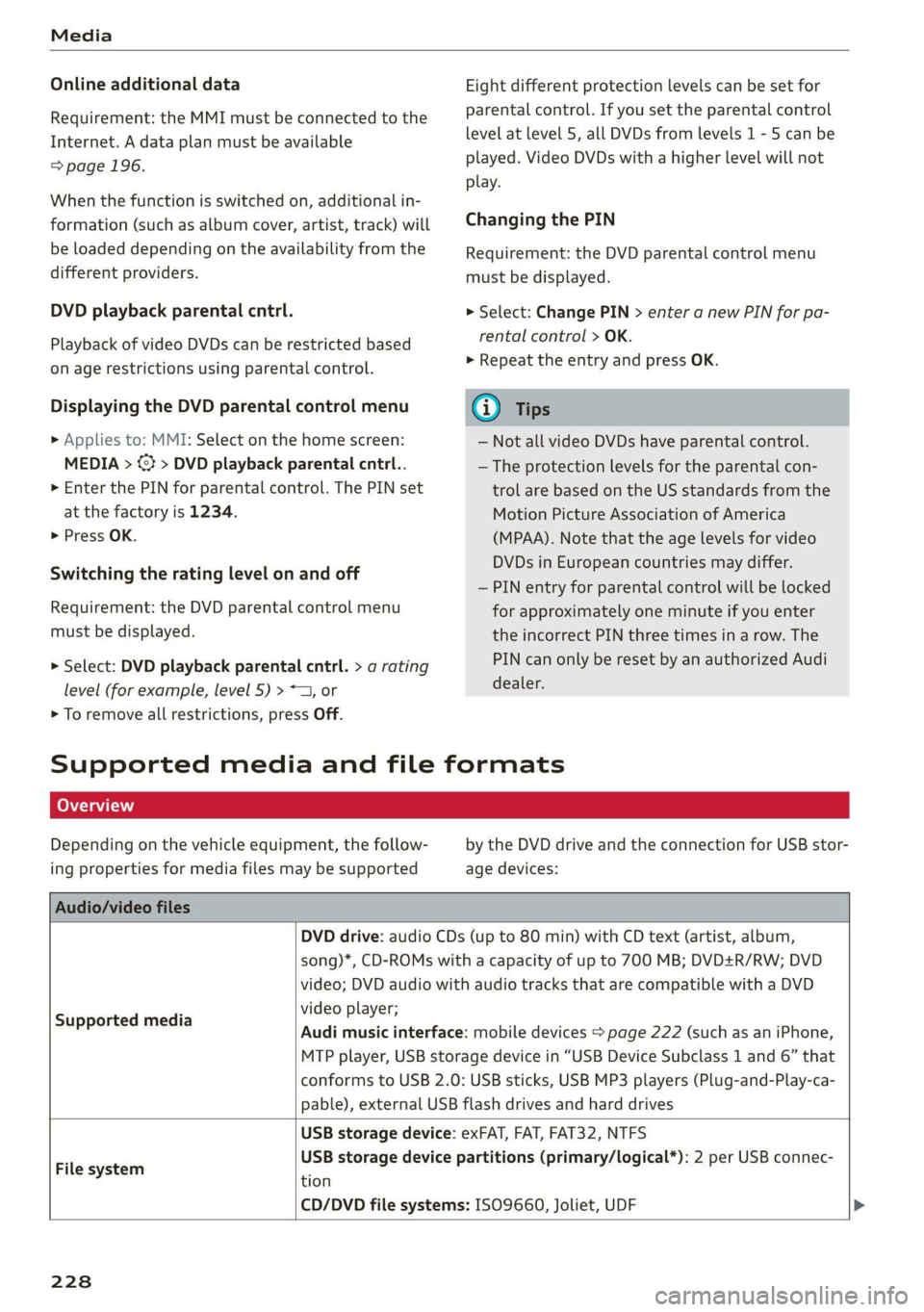
Audio/video files
DVD drive: audio CDs (up to 80 min) with CD text (artist, album,
Supported media
song)*, CD-ROMs with a capacity of up to 700 MB; DVD+R/RW; DVD
video; DVD audio with audio tracks that are compatible with a DVD
video player;
Audi music interface: mobile devices > page 222 (such as an iPhone,
MTP player, USB storage device in “USB Device Subclass 1 and 6” that
conforms to USB 2.0: USB sticks, USB MP3 players (Plug-and-Play-ca-
pable), external USB flash drives and hard drives
File system
USB storage device: exFAT, FAT, FAT32, NTFS
USB storage device partitions (primary/logical*): 2 per USB connec-
tion
CD/DVD file systems: ISO9660, Joliet, UDF
228
Page 233 of 332
4M8012721BF
Audi smartphone interface
Audi smartphone
interface
Setup
Applies to: vehicles with Audi smartphone interface
You can connect your smartphone to the MMI
with a cable or wirelessly* using the Audi smart-
phone interface. Certain content on your smart-
phone is adapted in the MMI while driving and
can be operated through the MMI.
Requirement: the vehicle must be stationary and
the ignition must be switched on. iPhone genera-
tion 5 or higher with Lightning connector and iOS
7.1.2 operating system or higher, or smartphone
with Android Auto app and Android 5.0 Lollipop
operating system or higher.
> Applies to: MMI: Select on the home screen:
SETTINGS > Connected devices > Audi smart-
phone interface > New connection.
> Connect your smartphone to the Audi music in-
terface > page 222 using a USB adapter
=> page 222, fig. 151, or
> To connect your iPhone wireless*, switch on the
Bluetooth function and Wi-Fi on your iPhone.
Open the Apple CarPlay settings in your iPhone.
In the MMI, press on your iPhone in the list of
displayed devices.
> To update the list, press O.
> Follow the system instructions.
> Pay attention to any additional system prompts
on your smartphone, if applicable.
> Applies to: MMI: If you declined use of Apple
CarPlay or Android Auto the first time you con-
nected your smartphone, then select on the
home screen: SETTINGS > Connected devices >
Audi smartphone interface > a smartphone.
> Follow the system instructions.
Z\ WARNING
Driving requires your complete and undivided
attention. As the driver, you have complete re-
sponsibility for safety in traffic. Never operate
mobile devices while driving, because this in-
creases the risk of an accident.
CG) Note
Read the information about Audi connect, and
be sure to note the connectivity costs section
=> page 192.
G@) Tips
— The functions that can be used depend on
the following factors, among others:
— The brand of your smartphone
— The version of the operating system in
your smartphone
— The software version of the app used
— The USB adapter cable and correct connec-
tion
— Your cell phone service provider
— The customized settings on your smart-
phone
— One of the factors above or a combination
of any of them could cause your smart-
phone to be incompatible with the Audi
smartphone interface. Compatibility cannot
be guaranteed for all types of smartphones.
For more information and assistance, refer
to the user guide and the manufacturer of
your smartphone.
— Please note that you can only connect your
smartphone via the front Audi music inter-
face in order to use the Audi smartphone
terface.
in-
— Wireless Apple CarPlay* is not available in
all countries.
— Wireless Apple CarPlay* was a planned func-
tion at the time this manual was printed.
Wireless Apple CarPlay* is not available in
your vehicle.
— Wireless Apple CarPlay* is only possible i
vehicles without a navigation system or
without a detected vehicle position (GPS
n
da-
ta) if the following requirement is met: the
embedded SIM card for the vehicle must
logged into the mobile phone network
=> page 192.
be
— If the connected smartphone has voice con-
trol, you can operate your smartphone using
the external voice recognition system
=> page 29.
231
Page 237 of 332
4M8012721BF
Additional settings
> Press on the notification, or
> Open the notification in the notification center
on > page 23 and press on the notification.
> Follow the system instructions.
Depending on the scope of the update, the online
system update may only be started if you follow
these instructions:
>» Switch the emergency flashers off, if necessary
> Make sure that the starter battery is charged.
> To start the update, exit and lock the vehicle.
The MMI will start the installation. When the up-
date has ended, a notification will be displayed.
ZA\ WARNING
Depending on the scope of the installation,
the ignition must not be switched on during
the installation to ensure the installation
completes successfully.
() Note
Read the information about Audi connect, and
be sure to note the connectivity costs section
=@ in General information on page 192.
@ Tips
The software update may take some time.
WEE Tel
Applies to: vehicles with online system update
Online system update: incomplete. Warning!
Vehicle functions limited
If an error occurs when installing an online sys-
tem update, certain functions such as the emer-
gency call function may not be available. Drive to
an authorized Audi dealer or authorized Audi
Service Facility immediately to have the malfunc-
tion corrected.
Connected devices
Displayed connected devices
Requirement: the vehicle must be stationary and
the ignition must be switched on.
> Applies to: MMI: Select on the home screen:
SETTINGS > Connected devices.
Possible menu items:
— Telephone 1
— Telephone 2
— Audio player
— Wi-Fi hotspot
— Headset
Audi smartphone interface
You can connect your smartphone to the MMI
> page 231.
myAudi app
This function is available if the myAudi app is in-
stalled on your mobile device and started, and if
the mobile device is connected with the vehicle’s
Wi-Fi hotspot.
() Note
Read the information about Audi connect, and
be sure to note the connectivity costs section
=> page 192.
Managing connected devices
Requirement: the connected devices menu must
be displayed > page 235.
Connecting a device
Requirement: Bluetooth visibility must be acti-
vated in the MMI & page 234 and mobile device.
> Press on a menu item, such as Telephone 1.
> To search for and connect your mobile device,
press New connection = page 181.
Selecting a connected device
> Press on a menu item, such as Telephone 1.
> Press on the desired mobile device in the list of
displayed devices. The connection will be made.
Disconnecting a connected device
> Press on a menu item, such as Telephone 1.
> Press on the connected mobile device. The se-
lected mobile device will be disconnected from
the MMI.
Deleting a device
> Press on a menu item, such as Telephone 1.
235
>
Page 248 of 332
Checking and Filling
speeds, full accelerating, and heavy engine loads
when doing this.
@) Tips
The oil pressure warning = is not an oil level
indicator. Always check the oil level regularly.
Checking the engine oil level
The engine oil level can be checked in the MMI.
Observe the safety precautions > page 242, Gen-
eral information.
>» Park the vehicle on a level surface.
> Shut the engine off when it is warm.
> Switch only the ignition back on.
> Wait approximately two minutes.
> Applies to MMI: Select on the home screen: VE-
HICLE > Settings & Service > Oil level.
> Read the oil level in the display. Add engine oil
if the bar in the oil level indicator is just below
“min” > page 247.
@) Note
If the engine oil level is too low or too high,
there is a risk of engine damage.
G) Tips
The oil level indicator in the display is only an
informational display. If the oil level is too
low, a minimum oil warning appears in the in-
strument cluster. Add oil and close the hood.
The current oil level will be displayed on the
MMI the next time the ignition is switched on.
@) Tips
The engine oil consumption may be up to
0.5 quart/600 miles (0.5 liter/1,000 km), de-
pending on driving style and operating condi-
tions. In RS models, the oil consumption may
be up to 1 qt/600 mi (0.8 L/1,000 km). Con-
sumption may be higher during the first
3,000 miles (5,000 km). The engine oil level
must be checked regularly. It is best to check
each time you refuel your vehicle and before
long drives.
— Because of the Lubrication and cooling of
the engine, combustion engines consume
246
oil. The oil consumption varies depending
on the engine and may change during the
service life of the engine. Engines generally
consume more oil at the beginning during
the break-in period. Then oil consumption
stabilizes after the break-in period.
Under normal conditions, oil consumption
depends on the quality and viscosity of the
oil, the engine RPM, the climate conditions,
and the road conditions. The dilution of oil
from condensation or fuel residue as well as
the age of the oil also play a role. Because
engine wear increases with mileage, oil con-
sumption will increase again over time until
it may be necessary to replace worn compo-
nents.
Because all these variables play a role, it is
not possible to define an oil consumption
standard. Therefore, the oil level must be
checked regularly.
If you believe that your engine has in-
creased its oil consumption, contact an au-
thorized Audi dealer or authorized Audi
Service Facility to determine the cause.
Please note that an exact oil consumption
measurement must be done with the neces-
sary care and accuracy and may take time.
An authorized Audi dealer or authorized
Audi Service Facility is trained in accurately
measuring the oil consumption.
You can find information on engine oil and
engine oil capacities for the USA at www.
audiusa.com/help/maintenance, or for Can-
ada at www.audi.ca/ca/web/en/
customer-area/care-and-maintenance/
audi-service-schedules.html, or call
800-822-2834.
Page 266 of 332
Wheels
> Audi recommends using Audi
Genuine Tires. If you would like
to use different tires, please
note that the tires may perform
differently even if they are the
same size > A.
>If you would like to equip your
vehicle with a tire and rim com-
bination that is different from
what was installed at the facto-
ry, consult with an authorized
Audi dealer or authorized Audi
Service Facility before making a
purchase > A.
Because the spare tire® is differ-
ent from the regular tires instal-
led on the vehicle (such as winter
tires or wide tires), only use the
spare tire* temporarily in case of
emergency and drive carefully
while it is in use. It should be re-
placed with a regular tire as soon
as possible.
All four wheels must be equipped
with tires that are the same brand
and have the same construction
and tread pattern so that the
drive system is not damaged by
different tire speeds. For this rea-
son, in case of emergency, only
use a Spare tire* that is the same
circumference as the regular tires.
264
Z\ WARNING
—Do not use steel rims that are
17 inches or larger. Otherwise,
damage to the vehicle and an
accident could result.
—Only use tire/rim combina-
tions and suitable wheel bolts
that have been approved by
Audi. Otherwise, damage to
the vehicle and an accident
could result.
—For technical reasons, it is not
possible to use tires from oth-
er vehicles. In some cases, you
cannot even use tires from the
same vehicle model.
—Make sure that the tires you
select have enough clearance
to the vehicle. Replacement
tires should not be chosen
simply based on the nominal
size, because tires with a dif-
ferent construction can differ
greatly even if they are the
same size. If there is not
enough clearance, the tires or
the vehicle can be damaged
and this can reduce driving
safety and increase the risk of
an accident.
—Only use tires that are more
than six years old when
Page 278 of 332
Wheels
minute and then stays on, there is system mal-
function. Try to store the correct tire pressures
= page 276. Insome cases, you must drive for
several minutes after storing the pressures until
the indicator light turns off. If the indicator light
does turn off or turns on again after a short peri-
od of time, drive to an authorized Audi dealer or
authorized Audi Service Facility immediately to
have the malfunction corrected.
ZA\ WARNING
— If the tire pressure indicator appears in the
display, reduce your speed immediately and
avoid any hard steering or braking maneu-
vers. Stop as soon as possible and check the
tires and their pressure.
— The driver is responsible for maintaining the
correct tire pressure. You must check the
tire pressure regularly.
— Under certain conditions (such as a sporty
driving style, winter conditions, or unpaved
roads), the tire pressure monitoring system
indicator may be delayed.
(i) Tips
— The tire pressure monitoring system can al-
so stop working when there is an ESC mal-
function.
— Using snow chains may result in a system
malfunction.
— The tire pressure monitoring system in your
Audi was calibrated with “Audi Original
Tires” > page 263. Audi recommends using
these tires.
Storing tire pressures
Applies to: vehicles with Tire Pressure Monitoring System in-
dicator
If the tire pressure changes or a tire is replaced,
it must be confirmed in the MMI.
> Before storing the tire pressures, make sure the
tire pressures in all four tires meet the speci-
fied values and are adapted to the load
=> page 266.
> Switch the ignition on.
> Applies to MMI: Select on the home screen: VE-
HICLE > Settings & Service > Tire pressure
276
monitoring > Store tire pressure > Yes, store
now.
@) Tips
Do not store the tire pressures if snow chains
are installed.
Tire pressure monitoring
system
(1) General notes
Each tire, including the spare (if provided),
should be checked monthly when cold and inflat-
ed to the inflation pressure recommended by the
vehicle manufacturer on the vehicle placard or
tire inflation pressure label. (If your vehicle has
tires of a different size than the size indicated on
the vehicle placard or tire inflation pressure la-
bel, you should determine the proper tire infla-
tion pressure for those tires).
As an added safety feature, your vehicle has been
equipped with a tire pressure monitoring system
(TPMS) that illuminates a Low tire pressure tell-
tale when one or more of your tires is significant-
ly under-inflated. Accordingly, when the low tire
pressure telltale illuminates, you should stop and
check your tires as soon as possible, and inflate
them to the proper pressure. Driving ona signifi-
cantly under-inflated tire causes the tire to over-
heat and can lead to tire failure. Under-inflation
also reduces fuel efficiency and tire tread life,
and may affect the vehicle's handling and stop-
ping ability.
Please note that the TPMS is not a substitute for
proper tire maintenance, and it is the driver's re-
sponsibility to maintain correct tire pressure,
even if under-inflation has not reached the level
to trigger illumination of the TPMS low tire pres-
sure telltale.
Your vehicle has also been equipped with a TPMS
malfunction indicator to indicate when the sys-
tem is not operating properly. The TPMS mal-
function indicator is combined with the low tire
pressure telltale. When the system detects a
malfunction, the telltale will flash for approxi-
mately one minute and then remain continuously >
Page 279 of 332

4M8012721BF
Wheels
illuminated. This sequence will continue upon
subsequent vehicle start-ups as long as the mal-
function exists.
When the malfunction indicator is illuminated,
the system may not be able to detect or signal
low tire pressure as intended. TPMS malfunctions
may occur for a variety of reasons, including the
installation of replacement or alternate tires or
wheels on the vehicle that prevent the TPMS
from functioning properly. Always check the
TPMS malfunction telltale after replacing one or
more tires or wheels on your vehicle to ensure
that the replacement or alternate tires and
wheels allow the TPMS to continue to function
properly.
General information
Applies to: vehicles with tire pressure monitoring system
The tire pressure monitoring system monitors
the pressure in the four tires when driving.
The system uses sensors that measure the tem-
perature and pressure in the tires. The data is
sent from these sensors to the control module by
radio frequency.
The tire pressure monitoring system shows the
current pressures and temperatures of the tires
in the MMI while driving > page 277. It also
compares the current tire pressures with the stor-
ed tire pressures and gives a warning in the driver
information system if the tire pressure is differ-
ent from what is stored > page 278.
The system does not detect if the stored tire
pressures match the recommended tire pres-
sures. You must store the tire pressures again in
each of the following situations > page 278:
— Each time the tire pressures change, for exam-
ple when the load in the vehicle changes
— After replacing a tire
— If wheels with new wheel sensors are used
Z\ WARNING
— The tire pressure monitoring system assists
the driver in monitoring tire pressures. The
driver is responsible for having the tires in-
flated to the correct pressure.
— Do not change the tire pressure when the
temperature of the tire is extremely high.
This could result in serious damage to the
tire and even cause the tire to burst, increas-
ing the risk of an accident.
— A tire with low pressure flexes more. This
heats the tire up too much. This could cause
the tread to separate and even cause the tire
to burst, increasing the risk of an accident.
— The tire pressure monitoring system does
not warn about damage or defects in the
tire construction that could cause the tire to
burst, for example. Inspect your tires regu-
larly.
G) Tips
—If tires are replaced, the sensors and valves
do not need to be removed or replaced. Only
replace the valve stem and, if necessary, the
valve and the wheel electronics. If you have
questions, see an authorized Audi dealer or
authorized Audi Service Facility.
—An incorrect display or a malfunction in the
tire pressure monitoring system can occur
after using the tire mobility kit*. Have the
sensors replaced by an authorized Audi
dealer or authorized Audi Service Facility.
— The system complies with United States FCC
regulations and ISED regulations
=> page 311.
Displaying tire pressures and temperatures
Applies to: vehicles with tire pressure monitoring system
Requirement: you must be driving the vehicle.
> Applies to MMI: Select on the home screen: VE-
HICLE > Settings & Service > Tire pressure
monitoring > Display tire pressure.
The current tire pressures are shown in green,
yellow, or red numbers:
— Green: the current tire pressure and the speci-
fied tire pressure are approximately the same.
— Yellow: the current tire pressure is lower than
the specified tire pressure.
— Red: the current tire pressure is much lower
than the specified tire pressure.
277