infotainment AUDI R8 COUPE 2020 Owner's Manual
[x] Cancel search | Manufacturer: AUDI, Model Year: 2020, Model line: R8 COUPE, Model: AUDI R8 COUPE 2020Pages: 308, PDF Size: 82.41 MB
Page 81 of 308
4S1012721BA
Assist systems
Auto - Provides an overall comfortable yet dy-
namic driving feel and is suited for everyday use.
Dynamic - Gives the driver a sporty driving feel
and is suited to a sporty driving style.
Individual - > page 79.
Setting the driving program
Depending on the driving mode selected, you can
select additional driving programs with the selec-
tor lever.
D/M - Driving forward
When the transmission is in the D/M position, it
can be operated either in the D normal mode or
in the M manual mode. To engage the M manual
mode, move the selector lever into the tiptronic
gate
or use the shift paddles. You can only select
the M selector lever position when D is engaged.
To engage D from the M selector lever position,
move the selector lever out of the tiptronic gate
to D/S or tap it once toward the rear > A\ in Se-
lecting a selector lever position on page 68. To
shift from N to D when traveling at speeds below
2 mph (2 km/h), press the brake pedal and shift
into the D position > A\ in Selecting a selector
lever position on page 68.
S/MS - Driving forward
When the transmission is in the S/MS position, it
can be operated either in the S sport mode or in
the MS manual mode. To engage the MS manual
mode, move the selector lever into the tiptronic
gate
or use the shift paddles. You can only select
the MS selector lever position when S is engaged.
To engage S from the MS selector lever position,
move the selector lever out of the tiptronic gate
to D/S or tap it once toward the rear > A\ in Se-
lecting a selector lever position on page 68. To
shift from N to S when traveling at speeds below
2 mph (2 km/h), press the brake pedal and shift
into the S position > A in Selecting a selector
lever position on page 68.
M Performance - Driving forward
The transmission can be operated in the MS
mode when the selector Lever is in the M posi-
tion. To engage the manual “MS” performance
mode, press the performance mode button on
the steering wheel.
Performance mode
Applies to: vehicles with performance mode
The vehicle is configured in performance mode
for sporty driving.
The suspension setting, engine and transmission
characteristics change when driving in perform-
ance mode. It is switched on or off with the per-
formance mode button on the steering wheel.
Road conditions
Using the knob > page 78, fig. 82 2), you can op-
timize the vehicle settings for the current road
conditions (such as wet roads).
ZA WARNING
Please note that the stabilization functions
provided by the ESC and the ASR are limited
when performance mode is switched on. To
reduce the risk of sliding, only switch per-
formance mode on when your driving abilities
and the traffic situation permit.
Adjusting the Individual mode
You can adjust the vehicle settings to your personal preferences.
> Press the sist button > Individual > right con-
trol button, or
> Select in the Infotainment system: [MENU] but-
ton > Vehicle > left control button>Audi drive
select
> Individual > right control button
After you have closed the settings, you will auto-
matically drive in the Individual* mode.
The equipment in your vehicle will determine
which settings you can adjust. The following ta-
ble gives an overview of the characteristics.
79
>
Page 83 of 308
4S1012721BA
Parking aid
Parking aid
Introduction
Depending on the vehicle equipment, various
parking aids will help you when parking and ma-
neuvering.
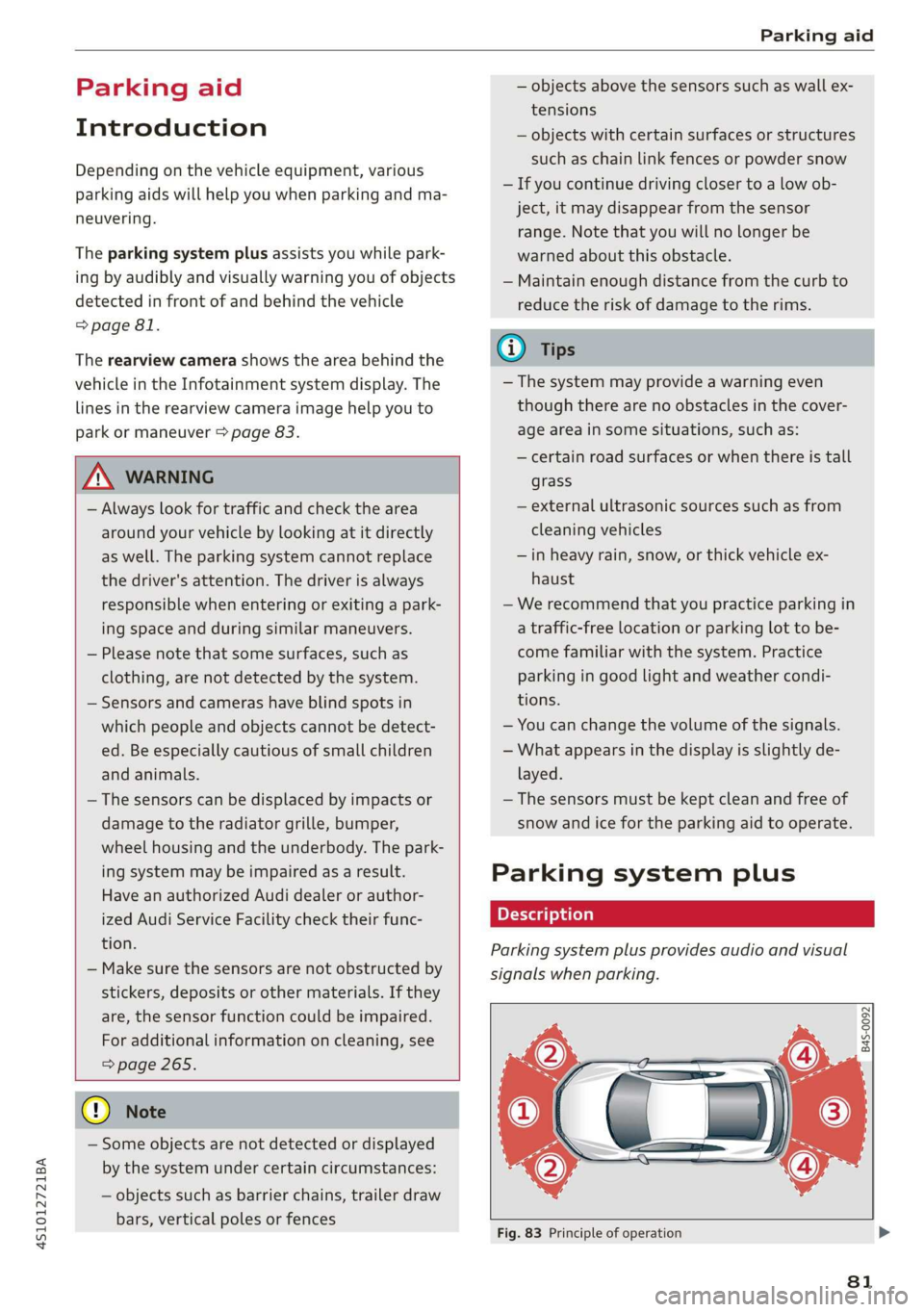
The parking system plus assists you while park-
ing by audibly and visually warning you of objects
detected in front of and behind the vehicle
=> page 81.
The rearview camera shows the area behind the
vehicle in the Infotainment system display. The
lines in the rearview camera image help you to
park or maneuver > page 83.
ZA WARNING
— Always look for traffic and check the area
around your vehicle by looking at it directly
as well. The parking system cannot replace
the driver's attention. The driver is always
responsible when entering or exiting a park-
ing space and during similar maneuvers.
— Please note that some surfaces, such as
clothing, are not detected by the system.
— Sensors and cameras have blind spots in
which people and objects cannot be detect-
ed. Be especially cautious of small children
and animals.
— The sensors can be displaced by impacts or
damage to the radiator grille, bumper,
wheel housing and the underbody. The park-
ing system may be impaired as a result.
Have an authorized Audi dealer or author-
ized Audi Service Facility check their func-
tion.
— Make sure the sensors are not obstructed by
stickers, deposits or other materials. If they
are, the sensor function could be impaired.
For additional information on cleaning, see
=> page 265.
@) Note
— Some objects are not detected or displayed
by the system under certain circumstances:
— objects such as barrier chains, trailer draw
bars, vertical poles or fences
— objects above the sensors such as wall ex-
tensions
— objects with certain surfaces or structures
such as chain link fences or powder snow
— If you continue driving closer to a low ob-
ject, it may disappear from the sensor
range. Note that you will no Longer be
warned about this obstacle.
— Maintain enough distance from the curb to
reduce the risk of damage to the rims.
@ Tips
— The system may provide a warning even
though there are no obstacles in the cover-
age area in some situations, such as:
— certain road surfaces or when there is tall
grass
— external ultrasonic sources such as from
cleaning vehicles
— in heavy rain, snow, or thick vehicle ex-
haust
— We recommend that you practice parking in
a traffic-free location or parking lot to be-
come familiar with the system. Practice
parking in good light and weather condi-
tions.
— You can change the volume of the signals.
— What appears in the display is slightly de-
layed.
— The sensors must be kept clean and free of
snow and ice for the parking aid to operate.
Parking system plus
Description
Parking system plus provides audio and visual
signals when parking.
B4S-0092
Fig. 83 Principle of operation
81
Page 85 of 308

4S1012721BA
Parking aid
Rearview camera
Introduction
Applies to: vehicles with rearview camera
B8V-0629
Fig. 86 Diagram: lines to aid in parking
The rearview camera helps you to park or maneu-
ver using the orientation lines.
General information
Applies to: vehicles with rearview camera
B4s-0090
Fig. 87 Principle of operation: Area covered (@) and area
not covered (2) by the rearview camera.
Fig. 88 Vehicle rear: rearview camera component location
The rearview camera is located above the rear li-
cense plate bracket. Make sure that the lens for
the parking system > fig. 88 is not covered by de-
posits or any other obstructions because this can
impair the function of the parking system. For in-
formation on cleaning, see > page 265.
The rearview camera coverage area includes (4)
> fig. 87. Only this area is shown in the Infotain-
ment display. Objects that are in area @), which is
not covered, are not displayed.
ZA WARNING
— Always read and follow the applicable warn-
ings > A in Introduction on page 81.
— If the position and the installation angle of
the rearview camera was changed, for exam-
ple after a collision, do not continue to use
the system for safety reasons. Have it
checked by an authorized Audi dealer or au-
thorized Audi Service Facility.
— Only use the rearview camera to assist you if
it shows a good, clear picture. For example,
the image may be affected by the sun shin-
ing into the lens, dirt on the lens, or if there
is a malfunction.
— Use the rearview camera only if the engine
compartment lid is completely closed. Make
sure any objects you may have mounted on
the luggage compartment lid do not block
the rearview camera.
— The camera lens enlarges and distorts the
field of vision. The object appears both al-
tered and inaccurate on the screen.
—Incertain situations, people or objects in
the display appear closer or farther away:
— For objects that do not touch the ground,
such as the bumper of a parked vehicle, a
trailer hitch or the rear of a truck. Do not
use the orientation lines in this case.
— If driven from a level surface onto an in-
cline, or a downward slope.
— If driven toward protruding objects.
— If the vehicle is carrying too much load in
the rear.
@) Note
— Always read and follow the applicable warn-
ings >@ in Introduction on page 81.
— The orange-colored orientation lines in the
Infotainment display show the vehicle path
based on the steering wheel angle. The
83
>
Page 86 of 308
Parking aid
front of the vehicle swings out more than
the rear of the vehicle. Maintain plenty of
distance so that an exterior mirror or a cor-
ner of the vehicle does not collide with any
obstacles.
Scare Rie meal
Applies to: vehicles with rearview camera
Switching on
> Shift into reverse, or
> Press the Pt button in the center console
=> page 82, fig. 84. A short confirmation tone
sounds and the LED in the button turns on.
Switching off
> Drive faster than 6 mph (10 km/h), or
> Press the Pa button, or
> Switch the ignition off.
G) Tips
— The visual display in the left part of the dis-
play should help you detect the critical vehi-
cle areas.
— You can change the volume of the signals
and the display > page 84.
Perpendicular parking
Applies to: vehicles with rearview camera
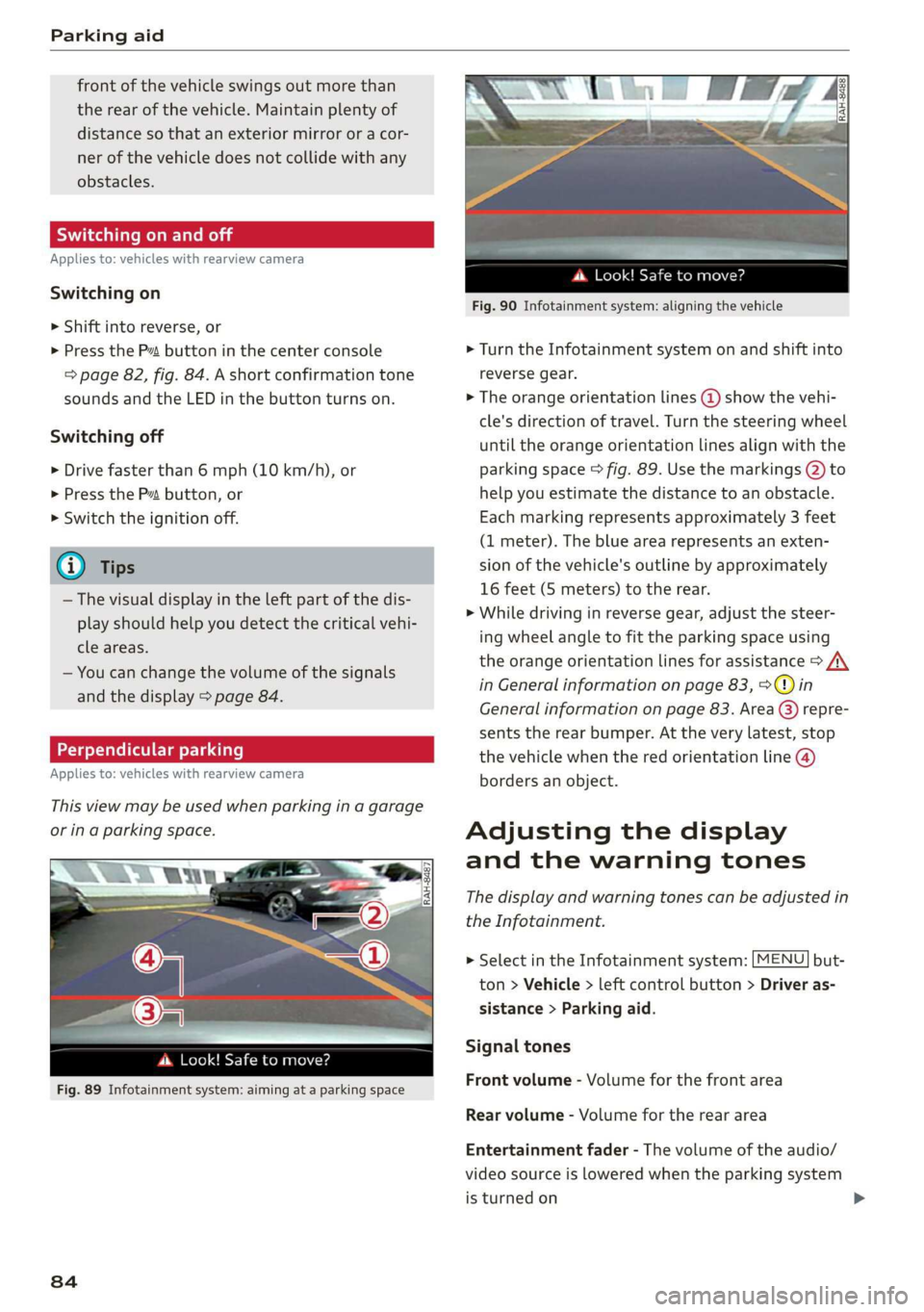
This view may be used when parking in a garage
or ina parking space.
(3)
4. Look! Safe to move?
Fig. 89 Infotainment system: aiming at a parking space
84
ds. Look! Safe to move?
Fig. 90 Infotainment system: aligning the vehicle
> Turn the Infotainment system on and shift into
reverse gear.
> The orange orientation lines @ show the vehi-
cle's direction of travel. Turn the steering wheel
until the orange orientation lines align with the
parking space > fig. 89. Use the markings @ to
help you estimate the distance to an obstacle.
Each marking represents approximately 3 feet
(1 meter). The blue area represents an exten-
sion of the vehicle's outline by approximately
16 feet (5 meters) to the rear.
> While driving in reverse gear, adjust the steer-
ing wheel angle to fit the parking space using
the orange orientation lines for assistance > A\
in General information on page 83, >@) in
General information on page 83. Area () repre-
sents the rear bumper. At the very latest, stop
the vehicle when the red orientation line @
borders an object.
Adjusting the display
and the warning tones
The display and warning tones can be adjusted in
the Infotainment.
> Select in the Infotainment system: [MENU] but-
ton > Vehicle > left control button > Driver as-
sistance > Parking aid.
Signal tones
Front volume - Volume for the front area
Rear volume - Volume for the rear area
Entertainment fader - The volume of the audio/
video source is lowered when the parking system
is turned on
Page 87 of 308
4S1012721BA
Parking aid
@) Tips
— The settings are automatically stored and
assigned to the remote control key that is in
use.
— The new level is demonstrated briefly* when
the volume is adjusted.
Error messages
There is an error in the system if the LED in the
Pv button is blinking and you hear a continuous
alarm for a few seconds after switching on the
parking system or when the parking system is al-
ready activated. If the error is not corrected be-
fore you switch off the ignition, the LED in the Pa
button will blink the next time you switch on the
parking system by shifting into reverse.
Parking system plus*
If a sensor or speaker is faulty, the P4 symbol
will appear in front of/behind the vehicle in the
Infotainment display. If a rear sensor is faulty,
only obstacles that are in areas @) and @)
=> page 81, fig. 83 are shown. If a front sensor is
faulty, only obstacles that are in areas @) and @)
are shown.
Drive immediately to an authorized Audi dealer
or authorized Audi Service Facility to have the
malfunction repaired.
8s
Page 95 of 308
4S1012721BA
Multi Media Interface
Multi Media Interface
Traffic safety
information
Audi recommends performing certain Infotain-
ment system functions, such as entering a desti-
nation, only when the vehicle is stationary. Al-
ways be prepared to stop operating the Infotain-
ment system in the interest of your safety and
the safety of other road users.
Z\ WARNING
Only use the Infotainment system when road,
traffic, weather, and visibility conditions per-
mit and always in a way that allows you to
maintain complete control over your vehicle.
@) Tips
Certain functions are not available while driv-
ing.
Introduction
[RAH-8837,
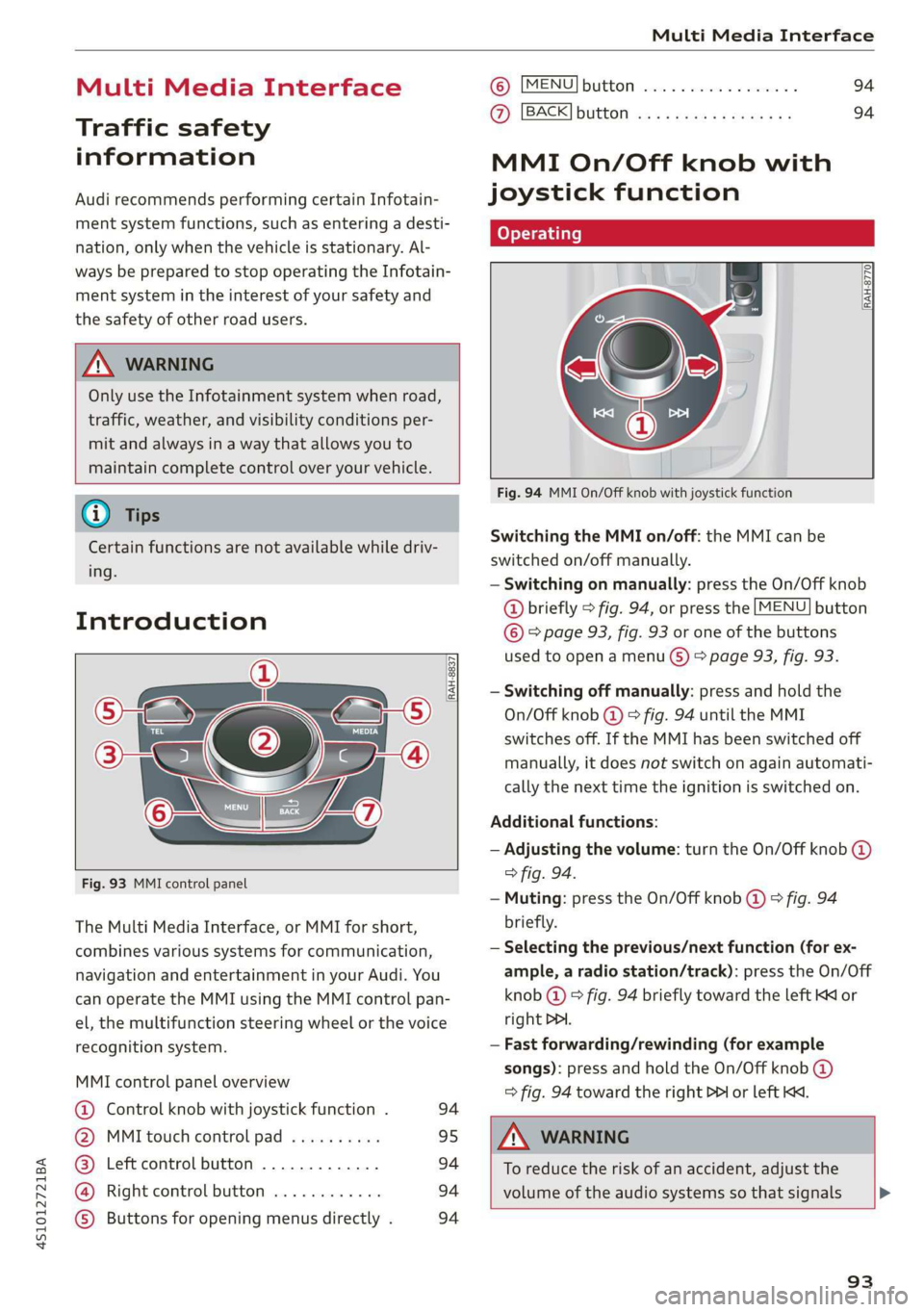
Fig. 93 MMI control panel
The Multi Media Interface, or MMI for short,
combines various systems for communication,
navigation and entertainment in your Audi. You
can operate the MMI using the MMI control pan-
el, the multifunction steering wheel or the voice
recognition system.
MMI control panel overview
@ Control knob with joystick function . 94
@ MMI touch control pad .......... 95
@® Left control button ............. 94
@®
Right control button ............ 94
© Buttons for opening menus directly . 94
(B) [MENU] button socscc co escvon ov comers «5 94
@ [BACK] button ............0.0.. 94
MMI On/Off knob with
joystick function
Operating
RAH-8770|
Fig. 94 MMI On/Off knob with joystick function
Switching the MMI on/off: the MMI can be
switched on/off manually.
— Switching on manually: press the On/Off knob
@ briefly > fig. 94, or press the [MENU] button
© © page 93, fig. 93 or one of the buttons
used to open a menu G) > page 93, fig. 93.
— Switching off manually: press and hold the
On/Off knob @ © fig. 94 until the MMI
switches off. If the MMI has been switched off
manually, it does not switch on again automati-
cally the next time the ignition is switched on.
Additional functions:
— Adjusting the volume: turn the On/Off knob @
> fig. 94.
— Muting: press the On/Off knob @ © fig. 94
briefly.
— Selecting the previous/next function (for ex-
ample, a radio station/track): press the On/Off
knob @ ® fig. 94 briefly toward the left KM or
right DDI.
— Fast forwarding/rewinding (for example
songs): press and hold the On/Off knob @)
=> fig. 94 toward the right PPI or left Kd.
ZA\ WARNING
To reduce the risk of an accident, adjust the
volume of the audio systems so that signals >
93
Page 97 of 308
4S1012721BA
Multi Media Interface
Selection menu: through the selection menu,
you can open additional functions within a menu
item (such as Radio).
Requirement: the Selection menu symbol must
appear in the Infotainment system display.
Opening and closing a selection menu: Press the
left control button. Then you can select and con-
firm
a function using the control knob.
Options menu: using the options menu, you can
select and confirm context-dependent functions
as well as settings within a menu item (such as
Radio).
Requirement: the Options menu symbol [+] must
be displayed in the Infotainment system display.
Opening and closing the options menu: Press
the right control button. Then you can select and
confirm a function using the control knob.
Information about menu paths
This guide shows you at a glance the paths for
opening a desired menu and its settings and
functions.
Example of a path
RADIO > Select: button > left control button >
FM.
Following the path
> Press the [RADIO] button.
> Press the left control button.
> Turn the control knob to the FM menu item to
select it.
> Press the control knob to confirm the selected
FM menu item.
> The selected and confirmed function is execut-
ed. In this example, the FM frequency band is
set.
MMI touch
MMI touch control pad
RAH-8760,
OL
¥-wreashire Blvd, Los Angeles
ea asi N7« Angele:
ba 18
cis Meu es10
EG E Locust St
~
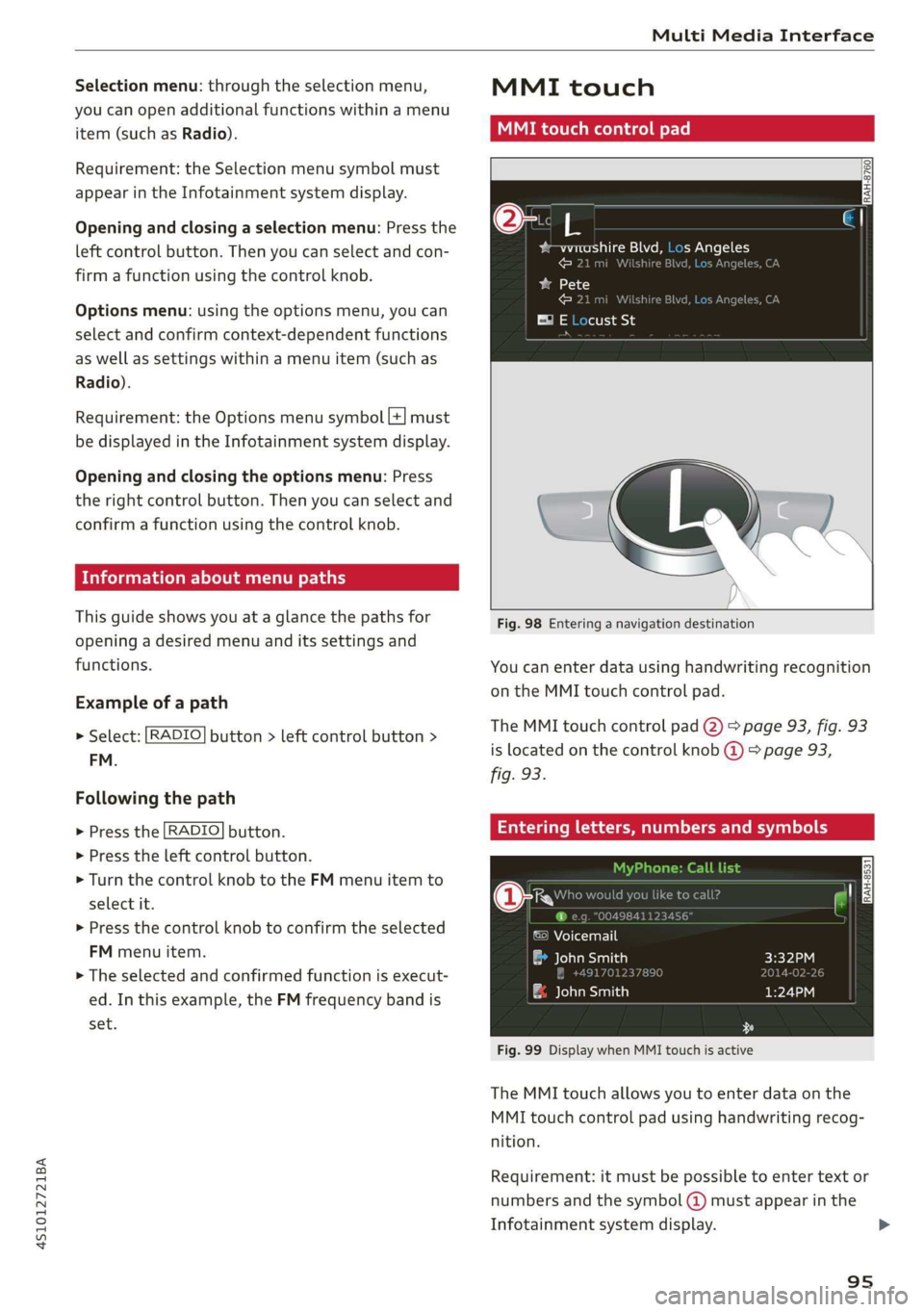
Fig. 98 Entering a navigation destination
You can enter data using handwriting recognition
on the MMI touch control pad.
The MMI touch control pad @) > page 93, fig. 93
is located on the control knob @) > page 93,
fig. 93.
Entering letters, numbers and symbols
uld you lik
©) Voicemail
a John Smith
& John Smith
Fig. 99 Display when MMI touch is active
The MMI touch allows you to enter data on the
MMI touch control pad using handwriting recog-
nition.
Requirement: it must be possible to enter text or
numbers and the symbol (@) must appear in the
Infotainment system display.
95
>
Page 98 of 308
Multi Media Interface
— Initial entry: write an individual upper case or
lower case letter or number/symbol on the
MMI touch control pad using your finger. A
symbol that is recognized clearly by the system
is displayed in the Infotainment system display
@ > page 95, fig. 98, confirmed with an audi-
ble signal if necessary, and transferred to the
input field.
— Entering spaces: move your finger across the
MMI touch control pad from left to right.
— Deleting characters: move your finger across
the MMI touch control pad from right to left.
— Deleting characters quickly: move your finger
quickly across the MMI touch control pad from
right to left.
—
Selecting the input suggestion: press the con-
trol knob.
— Switching directly to the results list: turn the
control knob to the right.
— Opening the speller: select the right control
button > Open speller. Text or numbers are en-
tered using the speller > page 99.
UUs eee
3 = % z < «
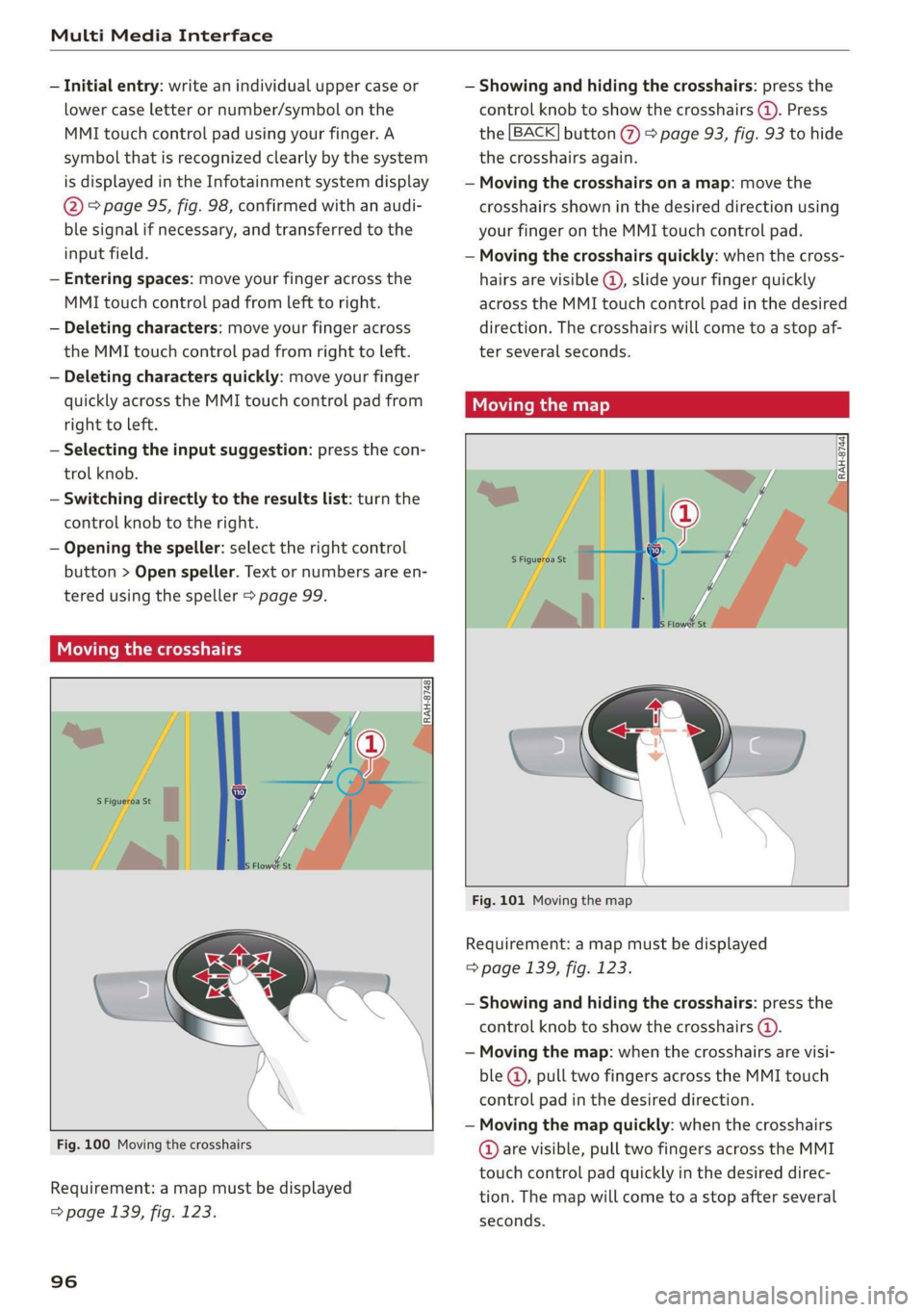
Fig. 100 Moving the crosshairs
Requirement: a map must be displayed
=> page 139, fig. 123.
96
— Showing and hiding the crosshairs: press the
control knob to show the crosshairs (@). Press
the [BACK] button @ > page 93, fig. 93 to hide
the crosshairs again.
— Moving the crosshairs on a map: move the
crosshairs shown in the desired direction using
your finger on the MMI touch control pad.
— Moving the crosshairs quickly: when the cross-
hairs are visible @, slide your finger quickly
across the MMI touch control pad in the desired
direction. The crosshairs will come to a stop af-
ter several seconds.
Moving the map
RAH-8744
Fig. 101 Moving the map
Requirement: a map must be displayed
=> page 139, fig. 123.
— Showing and hiding the crosshairs: press the
control knob to show the crosshairs (4).
— Moving the map: when the crosshairs are visi-
ble @, pull two fingers across the MMI touch
control pad in the desired direction.
— Moving the map quickly: when the crosshairs
@ are visible, pull two fingers across the MMI
touch control pad quickly in the desired direc-
tion. The map will come to a stop after several
seconds.
Page 103 of 308
4S1012721BA
Multi Media Interface
Selecting the input suggestion to complete
the entry
Requirement: a suggestion to complete the entry
@® must be displayed.
> MMI touch input: press the control knob.
> Speller input: push the control knob up.
Selecting an entry from the results list
> MMI touch input: turn the control knob to the
right. Select and confirm an entry from the list.
> Speller input: select and confirm [LIST] @
=> page 99, fig. 105, or
» Push the control knob down. Select and con-
firm an entry from the list.
Menus and symbols
aera ard
Additional station information
v Slide show Preferred picture view
Treble
Radio settings
uae war OF
Telephone
b A olilams inital
LEZ 1
Ralf Schmidt
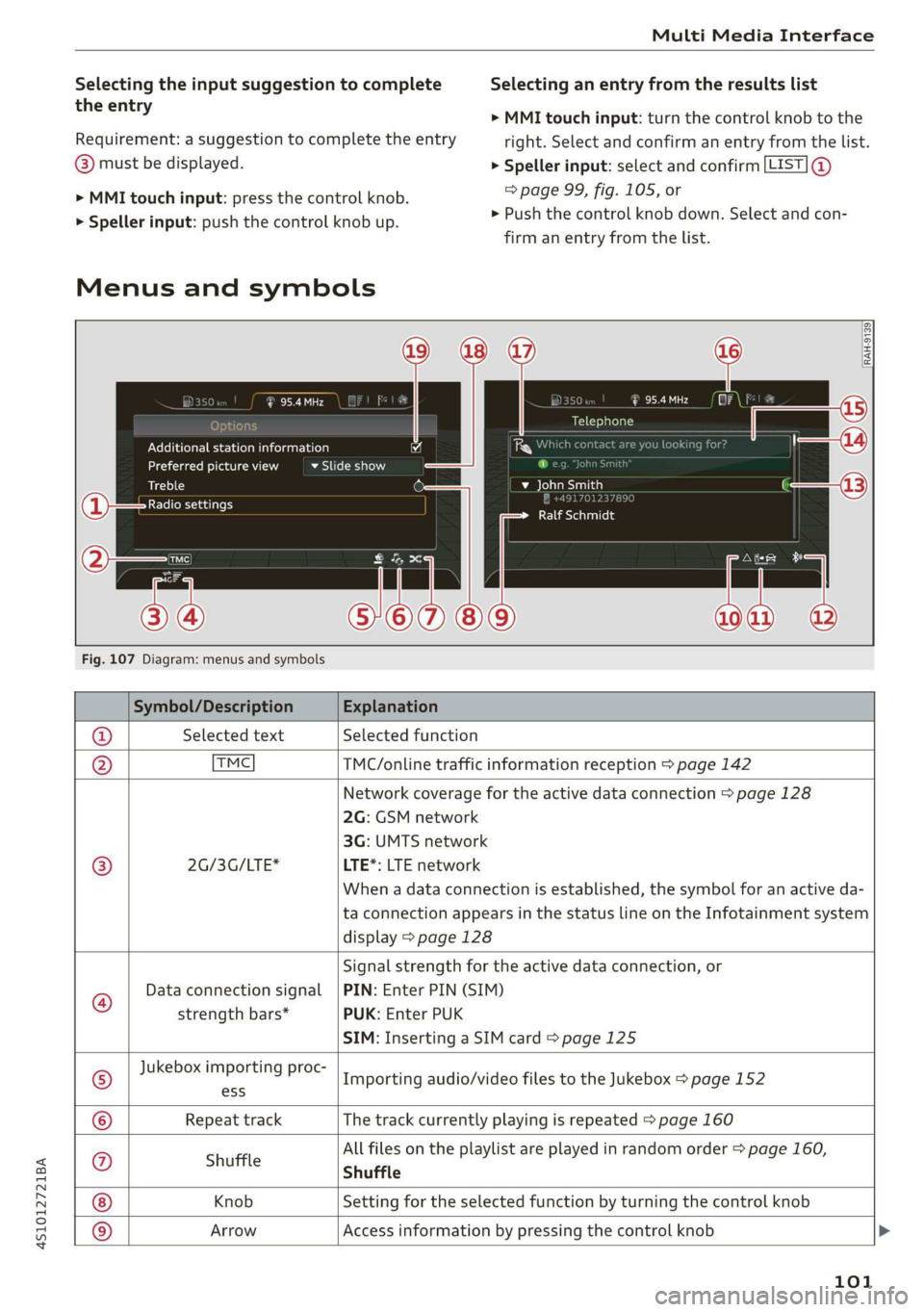
Fig. 107 Diagram: menus and symbols
Symbol/Description Explanation
@ Selected text Selected function
@ TMC TMC/online traffic information reception > page 142
Network coverage for the active data connection > page 128
2G: GSM network
3G: UMTS network
® 2G/3G/LTE* LTE*: LTE network
When a data connection is established, the symbol for an active da-
ta connection appears in the status line on the Infotainment system
display > page 128
iS)
Data connection signal
strength bars*
Signal strength for the active data connection, or
PIN: Enter PIN (SIM)
PUK: Enter PUK
SIM: Inserting a SIM card > page 125
Jukebox importing proc-
® ess Importing audio/video files to the Jukebox > page 152
© Repeat track The track currently playing is repeated > page 160
All files on the playlist are played in random order > page 160,
huff
@ shuffle Shuffle
Knob Setting for the selected function by turning the control knob
© Arrow Access information by pressing the control knob
101
Page 106 of 308
Voice recognition system
Voice recognition system
Operating
You can operate many Infotainment functions
conveniently by speaking.
Requirement: the ignition and the MMI must be
switched on. A system language supported by
the voice recognition system must be set. There
must be no phone calls in progress and the park-
ing aid must not be active.
> Switching on: briefly press the [2] button @)
=> page 14, fig. 10 on the multifunction steer-
ing wheel and say the desired command after
the Beep.
> Switching off: press and hold the |] button, or
say the command Cancel.
> Pausing: say the command Pause. To resume,
press the |] button.
> Correcting: say the command Correction.
Input assistance
The system guides you through the input with
visual and audio feedback.
— Visual input assistance: after switching on
voice recognition, a display with a selection of
possible commands appears. The command
display can be switched on/off under [MENU] >
Settings > left control button > MMI settings >
Speech dialog system.
— Audio input assistance: to have the possible
commands read, press the [2] button on the
multifunction steering wheel briefly and say
Help.
For the system to understand you:
— Speak clearly and distinctly at a normal volume.
Speak louder when driving faster.
— Emphasize the words in the commands evenly
and do not leave long pauses.
— Do not speak a command when the voice recog-
nition system is making an announcement.
— Close the doors, the windows, and the sunroof*
to reduce background noise. Make sure that
passengers are not speaking when you are giv-
ing a voice command.
104
— Do not direct the vents toward the handsfree
microphone, which is near the front interior
lights on the roof headliner or on the driver's
safety belt*. For additional information on the
safety belt microphone, see > page 122.
— Only use the system from the driver's seat be-
cause the hands-free microphone is directed to-
ward that seat.
Additional settings
See > page 172, Voice recognition system.
ZA\ WARNING
— Direct your full attention to driving. As the
driver, you have complete responsibility for
safety in traffic. Only use the functions in
such a way that you always maintain com-
plete control over your vehicle in all traffic
situations.
— Do not use the voice recognition system in
emergencies because your voice may change
in stressful situations. The system may take
longer to dial the number or may not be
able to dial it at all. Dial the emergency
number manually.
Gi) Tips
— The dialog pauses when there is an incom-
ing phone call and will continue if you ig-
nore the call. The dialog ends if you answer
the call.
— There are no voice guidance prompts when a
dialog is active.
— You can select an item in the list using ei-
ther the voice recognition system or the
control knob.
Command overview
information
The following overviews describe the commands
that can be used to operate the MMI using the
voice recognition system.
Alternative commands are separated using a “/”,
for example say: Telephone / (or) Navigation /
(or) Radio.