infotainment AUDI R8 COUPE 2020 Service Manual
[x] Cancel search | Manufacturer: AUDI, Model Year: 2020, Model line: R8 COUPE, Model: AUDI R8 COUPE 2020Pages: 308, PDF Size: 82.41 MB
Page 132 of 308
Audi connect
Data Privacy
Applies to: vehicles with Audi connect Infotainment
AUDI AG collects, uses, stores and shares your
personal information, such as contact data, vehi-
cle data, usage data, driving data and precise ge-
olocation, in order to provide you with the prod-
ucts and services you have purchased or request-
ed, and for a number of other purposes, for ex-
ample, to track quality issues, to performance
and safety, to meet our internal compliance or le-
gal requirements and to market to customers
and potential customers. For a more complete
list of the data we collect, how we use it and with
whom we share it, please visit your Audi nation-
al/sales region website at www.audi.com.
The collection, use and sharing may vary depend-
ing on your model and model year, your subscrip-
tion status, or the service offering. For example,
collection, use and sharing may vary between Au-
di connect services, if you have designated a key
user, or if you are driving a model equipped with
Troubleshooting
Applies to: vehicles with Audi connect Infotainment
The information that follows lists some trouble-
shooting options. They depend on the equip-
ment.
persistent data logging. Please review the com-
plete Privacy Statement to understand our data
handling practices with respect to a particular
service.
You can find additional information about our da-
ta privacy practices in your MMI.
> Select: [MENU] button > Audi connect > right
control button > About Audi connect.
Information about our privacy practices in con-
junction with the mobile Audi connect applica-
tion can be found in the Application’s Privacy
Statement.
For additional information about the privacy
practices relating to Audi connect, myAudi, or
other websites, applications or online services as
well as your obligations with respect to using
these services, and for additional information re-
garding Audi connect terms and conditions,
please visit your Audi national/sales region web-
site at www.audi.com.
Problem Solution
Audi connect Infotainment serv-
ices: individual Audi connect Info-
tainment services are grayed out or
not available.
Some Audi connect Infotainment services must be activated or
configured through your personal myAudi account before using
them for the first time. You can find detailed information online
at my.audi.com.
Wi-Fi hotspot: it is not possible to
connect through Wi-Fi.
Check if Wi-Fi is activated in the MMI > page 129.
Delete all existing Wi-Fi connections on your mobile device and
restart it.
Wi-Fi hotspot: the data connection
is interrupted.
Check if the function Connection to personal hotspot is activat-
ed = page 129. Turn the function off if you are not using a per-
sonal hotspot.
Personal Wi-Fi hotspot: the Net-
work search is not possible (grayed
out).
To start a network search for your personal Wi-Fi hotspot, the
Wi-Fi hotspot must be turned on > page 125.
130
Page 133 of 308
4S1012721BA
Navigation
Navigation
Opening navigation
ild you like to drive
yh
Home address
ation
Yes : ne il, (D) A
@-: John Smith
aI
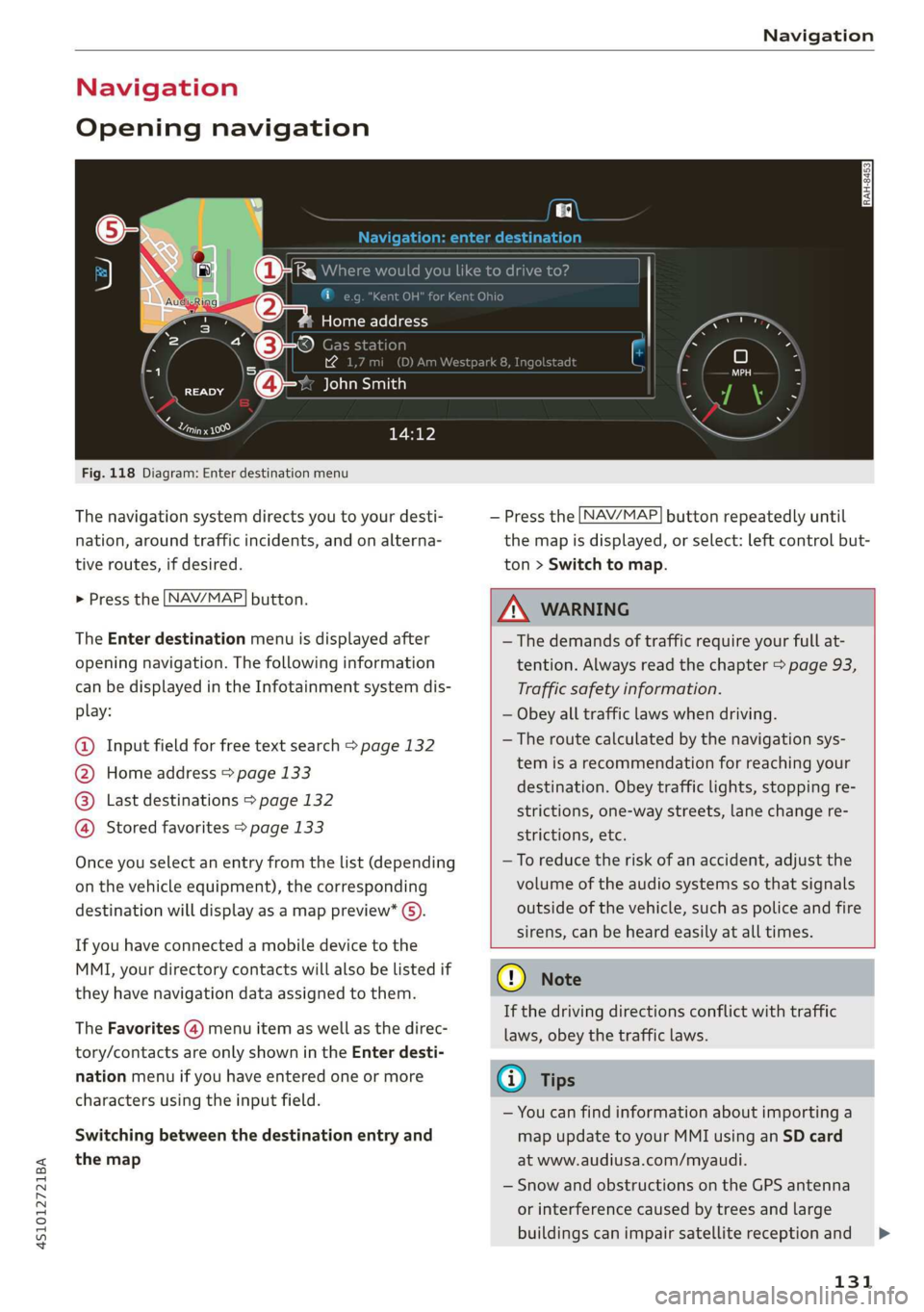
Fig. 118 Diagram: Enter destination menu
The navigation system directs you to your desti-
nation, around traffic incidents, and on alterna-
tive routes, if desired.
> Press the [NAV/MAP| button.
The Enter destination menu is displayed after
opening navigation. The following information
can be displayed in the Infotainment system dis-
play:
@ Input field for free text search > page 132
@ Home address > page 133
@® Last destinations > page 132
@ Stored favorites > page 133
Once you select an entry from the list (depending
on the vehicle equipment), the corresponding
destination will display as a map preview* ().
If you have connected a mobile device to the
MMI, your directory contacts will also be listed if
they have navigation data assigned to them.
The Favorites (4) menu item as well as the direc-
tory/contacts are only shown in the Enter desti-
nation menu if you have entered one or more
characters using the input field.
Switching between the destination entry and
the map
— Press the [NAV/MAP] button repeatedly until
the map is displayed, or select: left control but-
ton > Switch to map.
Z\ WARNING
—The demands of traffic require your full at-
tention. Always read the chapter > page 93,
Traffic safety information.
— Obey all traffic laws when driving.
—The route calculated by the navigation sys-
tem is a recommendation for reaching your
destination. Obey traffic lights, stopping re-
strictions, one-way streets, lane change re-
strictions, etc.
—To reduce the risk of an accident, adjust the
volume of the audio systems so that signals
outside of the vehicle, such as police and fire
sirens, can be heard easily at all times.
@) Note
If the driving directions conflict with traffic
laws, obey the traffic laws.
G) Tips
— You can find information about importing a
map update to your MMI using an SD card
at www.audiusa.com/myaudi.
— Snow and obstructions on the GPS antenna
or interference caused by trees and large
buildings can impair satellite reception and
131
Page 135 of 308
4S1012721BA
Navigation
— Select and confirm a line (such as Street, House
number or Country/state) and enter the de-
sired information.
— Select and confirm Start route guidance.
Setting a destination from the map
A point on the map can be used as the destina-
tion.
> Press the [NAV/MAP| button repeatedly until
the map is displayed.
— Adjusting the scale: turn the control knob to
the left or right.
— Activating crosshairs: press the control knob.
The
crosshairs are shown on the map.
— Moving the crosshairs: move the crosshairs to
the destination using the MMI touch control
pad.
— Hiding the crosshairs: press the [BACK] button.
— Setting as destination: press the control knob
when the crosshairs are shown. Select and con-
firm
Start route guidance.
Additional information about the location of
the crosshairs: if you select map content with
crosshairs, the available information is displayed
(such as the name of the city or points of inter-
est) © & page 1339, fig. 123.
Setting a home address/favorite as the
CC diesel)
You can quickly and easily start route guidance to
your home address using the home address func-
tion. Favorites allow easier access to frequently
used destinations.
> Press the LNAV/MAP] button repeatedly until
the Enter destination menu is displayed
=> page 131, fig. 118.
Setting a home address as the destination
Requirement: a home address must be stored
=> page 136.
Your Home address is shown directly in the Enter
destination menu @) > page 131, fig. 118.
— Select: Home address.
Setting a favorite as the destination
Requirement: a destination must be stored as a
favorite > page 136.
— Enter one or more letters into the free text
search input field. The favorites that are found
are shown in the Infotainment system display
and marked with the symbol @) > page 131,
fig. 118.
— Select and confirm the desired favorite.
@) Tips
— Additional settings for the home address
can be found under > page 136.
— Additional settings for the favorites can be
found under > page 136.
MCh dere im
iittala
Options — Show contact details
Bela yaaa)
®&% Audi Beverly Hills
4 Hawthorn Ave, Los Angeles, CA
© Wilshire Blvd, Beverly Hills, CA
Q 34°03°12.7°’N, 118°14°43.2°°W
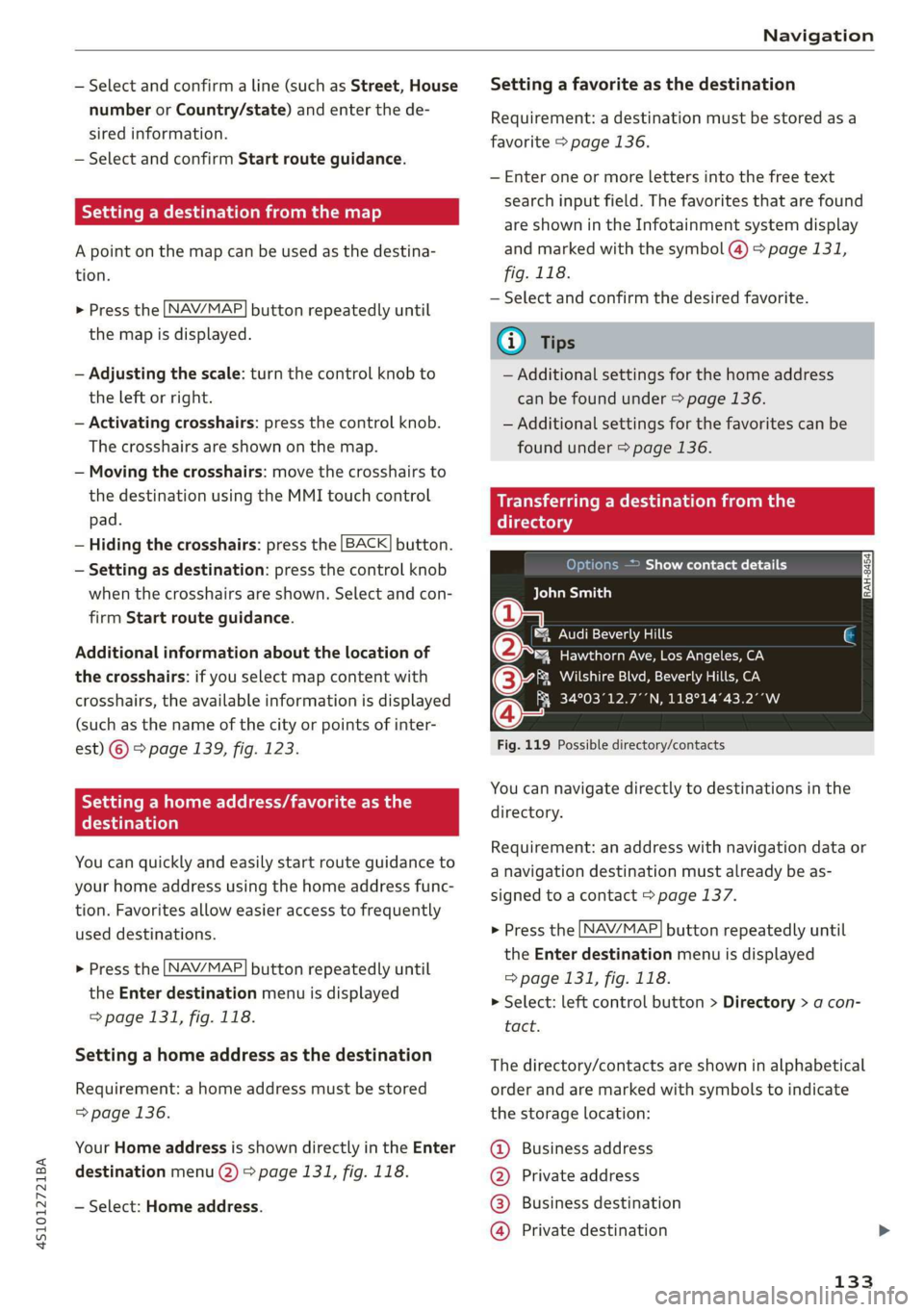
Fig. 119 Possible directory/contacts
You can navigate directly to destinations in the
directory.
Requirement: an address with navigation data or
a navigation destination must already be as-
signed to a contact > page 137.
> Press the [NAV/MAP] button repeatedly until
the Enter destination menu is displayed
=> page 131, fig. 118.
> Select: left control button > Directory > a con-
tact.
The directory/contacts are shown in alphabetical
order and are marked with symbols to indicate
the storage location:
@ Business address
@ Private address
@® Business destination
@) Private destination
133
Page 138 of 308
![AUDI R8 COUPE 2020 Service Manual Navigation
> Press the LNAV/MAP] button repeatedly until
the Enter destination menu is displayed
=> page 131, fig. 118.
> Turn the control knob to the left until the active
route guidan](/img/6/57639/w960_57639-137.png "AUDI R8 COUPE 2020 Service Manual Navigation
> Press the LNAV/MAP] button repeatedly until
the Enter destination menu is displayed
=> page 131, fig. 118.
> Turn the control knob to the left until the active
route guidan")
Navigation
> Press the LNAV/MAP] button repeatedly until
the Enter destination menu is displayed
=> page 131, fig. 118.
> Turn the control knob to the left until the active
route guidance is shown.
> Select and confirm Delete destination
=> page 135, fig. 120. The destination is delet-
ed, or
> Select: right control button > Cancel route
guidance.
Additional options when entering a
destination
> Press the right control button.
Depending on the selected function, the follow-
ing options may be available when entering a
destination:
Cancel route guidance: Requirement: route guid-
ance must be active. Route guidance is canceled.
For additional information, see > page 135.
Map settings: > page 141.
Navigation settings: > page 137.
Voice guidance: > page 138.
Route criteria: > page 137.
Show location on map: Requirement: you must
have selected a destination from the results list.
The destination entered is displayed on the map.
Parking at this location: Requirement: you must
have selected a destination from the results list.
All parking options near the selected location are
displayed in the Infotainment system.
POIs along the route: all points of interest in the
area around the vehicle will be displayed when
route guidance is active.
Delete: the selected entry is deleted. You can de-
lete individual entries or all entries (for example,
favorites or last destinations).
Audi connect for this location!): Requirement:
you must have selected a destination from the re-
sults list. Allows you to search for items in the vi-
D_ This function is not offered in Mexico.
136
cinity of the selected location, such as City
Events or Travel information.
Online traffic data*: receiving online traffic infor-
mation > page 143 can be switched on or off.
Country/state selection: > page 132, Narrowing
the search area.
Store as favorite: > page 136.
Home address
> Press the [NAV/MAP] button repeatedly until
the Enter destination menu is displayed
=> page 131, fig. 118.
Storing a home address
— Select and confirm Home address (2)
=> page 131, fig. 118. After opening the home
address for the first time, you will be asked to
create a home address.
— Select and confirm Create now.
— Enter a destination or select a destination from
the list.
Editing the home address
— Select Home address (2) > page 131, fig. 118.
— Select: right control button > Edit home ad-
dress.
— Select and confirm a new destination as the
home address.
The selected destination is stored as the new
home address.
Favorites
> Press the [NAV/MAP] button repeatedly until
the Enter destination menu is displayed
=> page 131, fig. 118.
— Saving a destination as a favorite: search for
the desired destination using the input field, or
select a destination from the list. Select: right
control button > Store as favorite.
— Renaming a favorite: select the left control
button > Favorites > a favorite from the list >
right control button > Rename favorite.
Page 145 of 308
4S1012721BA
Navigation
Omer late eleurlsela)
Applies to: vehicles with Audi connect
[RAH-8613}
No better route is available. —@
IEEE Colare te: O
Nogales St, Northbound
@) Northbound
Northbound
cere
es
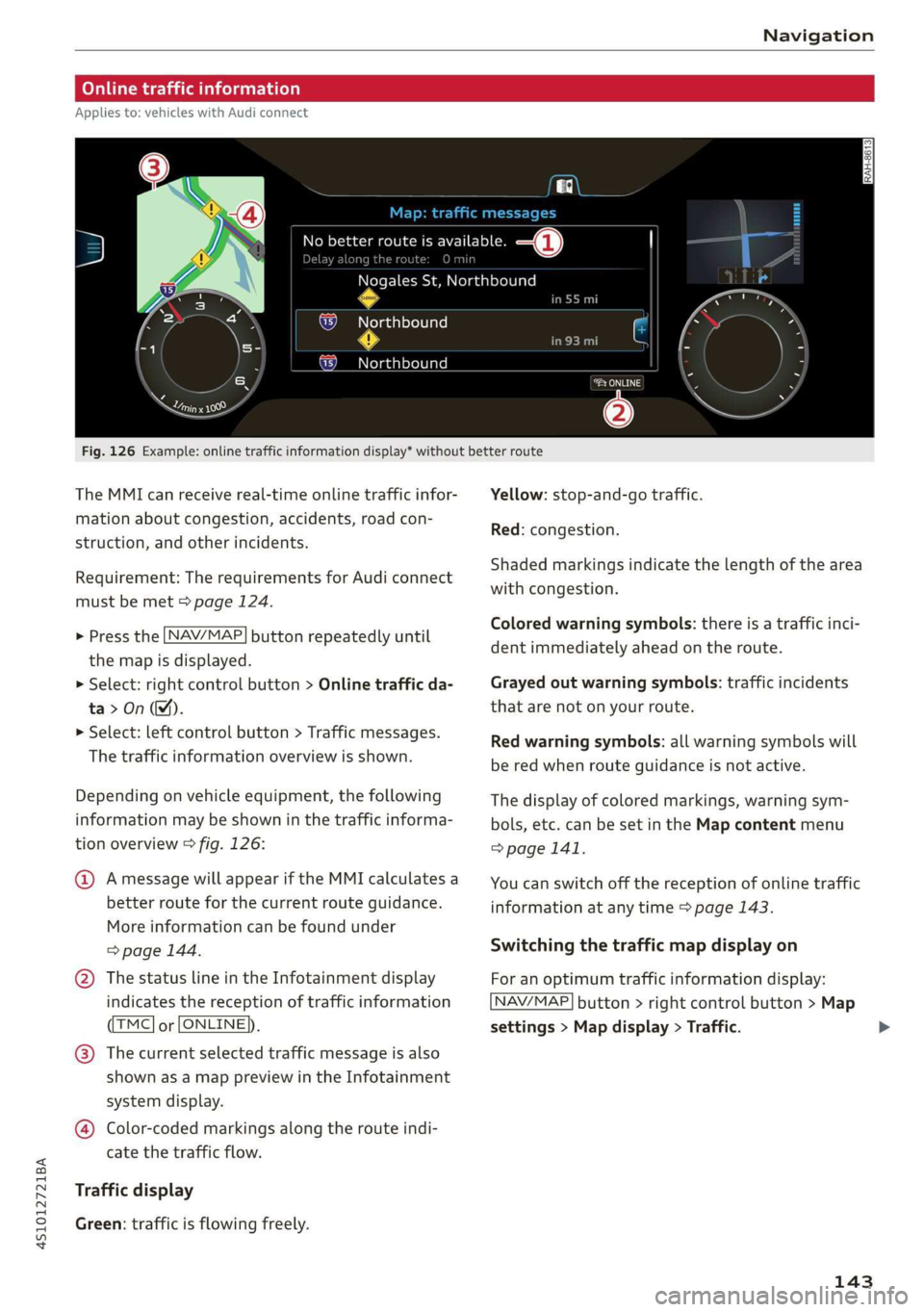
Fig. 126 Example: online traffic information display* without better route
The MMI can receive real-time online traffic infor-
mation about congestion, accidents, road con-
struction, and other incidents.
Requirement: The requirements for Audi connect
must be met > page 124.
> Press the [NAV/MAP| button repeatedly until
the map is displayed.
> Select: right control button > Online traffic da-
ta>On().
> Select: left control button > Traffic messages.
The traffic information overview is shown.
Depending on vehicle equipment, the following
information may be shown in the traffic informa-
tion overview > fig. 126:
@ Amessage will appear if the MMI calculates a
better route for the current route guidance.
More information can be found under
=> page 144.
@ The status line in the Infotainment display
indicates the reception of traffic information
TMC] or [ONLINE].
@) The current selected traffic message is also
shown as a map preview in the Infotainment
system display.
@ Color-coded markings along the route indi-
cate the traffic flow.
Traffic display
Green: traffic is flowing freely.
Yellow: stop-and-go traffic.
Red: congestion.
Shaded markings indicate the length of the area
with congestion.
Colored warning symbols: there is a traffic inci-
dent immediately ahead on the route.
Grayed out warning symbols: traffic incidents
that are not on your route.
Red warning symbols: all warning symbols will
be red when route guidance is not active.
The display of colored markings, warning sym-
bols, etc. can be set in the Map content menu
>page 141.
You can switch off the reception of online traffic
information at any time > page 143.
Switching the traffic map display on
For an optimum traffic information display:
NAV/MAP] button > right control button > Map
settings > Map display > Traffic.
143
Page 151 of 308
![AUDI R8 COUPE 2020 Service Manual 4S1012721BA
Radio
Additional settings
Radio settings
> Select: [RADIO] button > right control button >
Radio settings.
The following settings can be selected, depend-
ing on the ba](/img/6/57639/w960_57639-150.png "AUDI R8 COUPE 2020 Service Manual 4S1012721BA
Radio
Additional settings
Radio settings
> Select: [RADIO] button > right control button >
Radio settings.
The following settings can be selected, depend-
ing on the ba")
4S1012721BA
Radio
Additional settings
Radio settings
> Select: [RADIO] button > right control button >
Radio settings.
The following settings can be selected, depend-
ing on the band that is selected:
Station names (FM)
Variable: scrolling text transmitted by the FM
stations is shown in the Infotainment system dis-
play.
Fixed: scrolling text transmitted by the FM sta-
tions is not shown in the Infotainment system
display. Only the current section of the scrolling
text is displayed.
FM/AM HD Radio*
You can switch HD Radio reception on or off.
Channel sorting (SiriusXM*)
You can set the channel sorting for SiriusXM sta-
tion lists* by:
— Channel number: the channels are sorted in as-
cending order according to their channel num-
ber.
— Channel name: the channels are listed in alpha-
betical order.
— First category, then channel number: the chan-
nels are sorted by their category and then by
their channel numbers.
— First category, then channel name: the sta-
tions are sorted by their category and then by
their channel names.
Category filter (SiriusXM*)
The stations shown in the station list can be fil-
tered by your personal preferences and by pro-
gram type. The program categories that you can
Troubleshooting
select depend on what is offered by your provid-
er. Select the All categories option to deactivate
all filter options and display all available stations
in the satellite station list.
Show "Now Playing" screen
When the function is switched on ¥ and the sta-
tions or presets list is open, the display will
switch to the Show "Now Playing" screen view
after approximately five seconds > page 147. De-
pending on availability, information about the set
station (such as station name, artist and station
logo) may be displayed in this view.
Preferred picture view
You can set your preferred screen view for the
Show "Now Playing" screen > page 147.
— Station logo: the station logo is displayed, de-
pending on availability.
— Cover art: the album cover or genre cover is dis-
played, depending on availability.
Gracenote online database*
Requirement: the MMI must be connected to the
Internet. The Cover art option must be selected
=> page 149, Preferred picture view.
When the function is switched on M, the album
cover or genre cover for the song that is playing is
loaded from the Gracenote online database, de-
pending on availability.
Subscription status (SiriusXM)*
This option is available when your subscription is
about to expire or has already expired. The expi-
ration date for your license is displayed.
Call to SiriusXM”*: the contact information for
your satellite radio provider is displayed. To call
your satellite radio provider using the MMI, press
Call to SiriusXM*.
Problem Solution
A station with poor reception is no longer
displayed in the station list once you
switch to a different station.
Store the station as a preset in advance. Access the pre-
sets using the presets list > page 148.
149
Page 164 of 308
Media
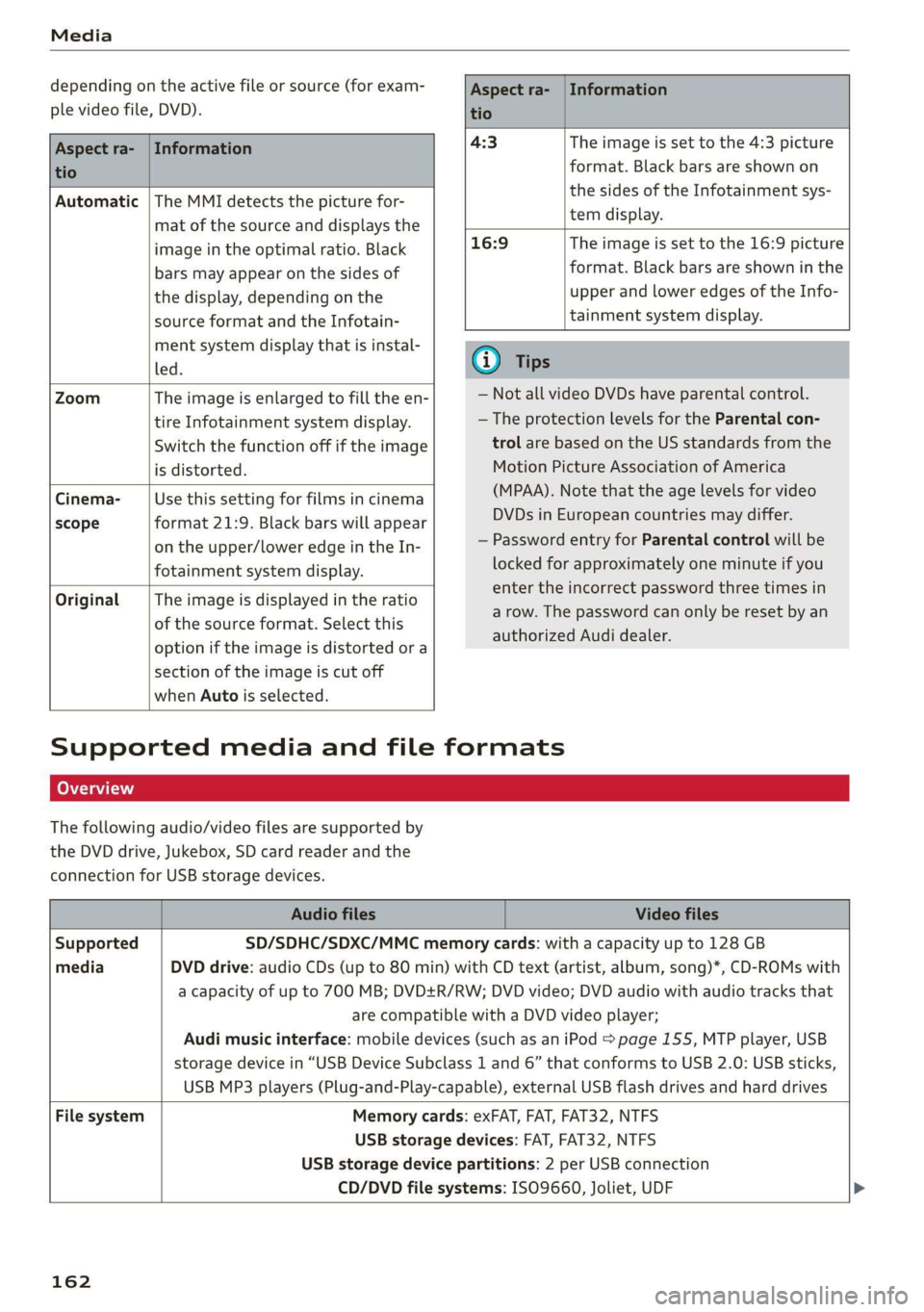
depending on the active file or source (for exam-
ple video file, DVD).
Aspect ra- | Information
tio
Aspect ra- | Information
tio
Automatic |The MMI detects the picture for-
mat of the source and displays the
image in the optimal ratio. Black
bars may appear on the sides of
the display, depending on the
source format and the Infotain-
ment system display that is instal-
led.
4:3 The image is set to the 4:3 picture
format. Black bars are shown on
the sides of the Infotainment sys-
tem display.
16:9 The image is set to the 16:9 picture
format. Black bars are shown in the
upper and lower edges of the Info-
tainment system display.
Zoom The image is enlarged to fill the en-
tire Infotainment system display.
Switch the function off if the image
is distorted.
Cinema-
scope
Use this setting for films in cinema
format 21:9. Black bars will appear
on the upper/lower edge in the In-
fotainment system display.
Original The image is displayed in the ratio
of the source format. Select this
option if the image is distorted or a
section of the image is cut off
when Auto is selected.
@ Tips
— Not all video DVDs have parental control.
— The protection levels for the Parental con-
trol are based on the US standards from the
Motion Picture Association of America
(MPAA). Note that the age levels for video
DVDs in European countries may differ.
— Password entry for Parental control will be
locked for approximately one minute if you
enter the incorrect password three times in
a row. The password can only be reset by an
authorized Audi dealer.
Supported media and file formats
Leta TN]
The following audio/video files are supported by
the DVD drive, Jukebox, SD card reader and the
connection for USB storage devices.
Audio files Video files
Supported SD/SDHC/SDXC/MMC memory cards: with a capacity up to 128 GB
media DVD drive: audio CDs (up to 80 min) with CD text (artist, album, song)*, CD-ROMs with
a capacity of up to 700 MB; DVD+R/RW; DVD video; DVD audio with audio tracks that
are compatible with a DVD video player;
Audi music interface: mobile devices (such as an iPod page 155, MTP player, USB
storage device in “USB Device Subclass 1 and 6” that conforms to USB 2.0: USB sticks,
USB MP3 players (Plug-and-Play-capable), external USB flash drives and hard drives
File system Memory cards: exFAT, FAT, FAT32, NTFS
USB storage devices: FAT, FAT32, NTFS
USB storage device partitions: 2 per USB connection
CD/DVD file systems: ISO9660, Joliet, UDF
162
Page 169 of 308
![AUDI R8 COUPE 2020 Service Manual 4S1012721BA
System settings
System settings
Setting the date and
time
You can set the clock time manually or using the
GPS.
> Select: [MENU] button > Settings > left control
button > MMI](/img/6/57639/w960_57639-168.png "AUDI R8 COUPE 2020 Service Manual 4S1012721BA
System settings
System settings
Setting the date and
time
You can set the clock time manually or using the
GPS.
> Select: [MENU] button > Settings > left control
button > MMI")
4S1012721BA
System settings
System settings
Setting the date and
time
You can set the clock time manually or using the
GPS.
> Select: [MENU] button > Settings > left control
button > MMI settings > Date & time, or
>» Select: [MENU] button > Vehicle > left control
button > Vehicle settings > Date & time.
Automatic setting
When this function is switched on ¥, the time
and date are automatically set.
Time
Requirement: the Automatic setting must be
switched off.
Press the control knob. You can set the Time
manually by turning and pressing the control
knob.
Date
Requirement: the Automatic setting must be
switched off.
Press the control knob. You can set the Date
manually by turning and pressing the control
knob.
Time zone
When selecting the appropriate time zone, a
sampling of countries in this zone will be listed.
Automatic time zone*
When this function is switched on ¥, the time
will automatically adjust to the corresponding
time zone.
Time format
If you select 24h, the clock will display, for exam-
ple, 13:00. If you select AM/PM, the clock will
display, for example, 1:00 PM.
D_ The Qi standard makes it possible to charge your mobile
device wirelessly.
Date format
If you select DD.MM.YYYY, the date display will
show, for example, 31.08.2017. If you select
MM/DD/YYVY, the date display will show, for ex-
ample, 08/31/2017. If you select YYYY-MM-DD,
the date display will show, for example,
2017-08-31.
MMI settings
> Select: [MENU] button > Settings > left control
button > MMI settings.
Language
You can change the display language as well as
the language for the voice guidance and voice
recognition system.
The number of languages available depends on
the market.
Measurement units
The following measurement units can be set de-
pending on availability: Speed, Distance, Tem-
perature, Fuel consumption, Volume, Pressure.
Mobile device reminder signal
Applies to: vehicles with Audi phone box
Requirement: your cell phone must be Qi-capa-
ble ) or connected to the Audi music interface @
with a USB adapter cable > page 112, fig. 110.
When the device reminder signal is switched on,
you will be notified that your mobile device is still
in the Audi phone box when you leave the vehicle.
You can select between Spoken cue, Signal tone
and Off.
Mobile device reminder signal volume: you can
adjust the reminder signal volume by turning the
control knob.
Switch off pop-up: when the function is switched
on [M, the messages in the Infotainment system
display regarding the charging status of your cell
phone in the Audi phone box are hidden. The re-
minder not to forget your cell phone when leav-
ing the vehicle is likewise switched off.
167
Page 172 of 308
System settings
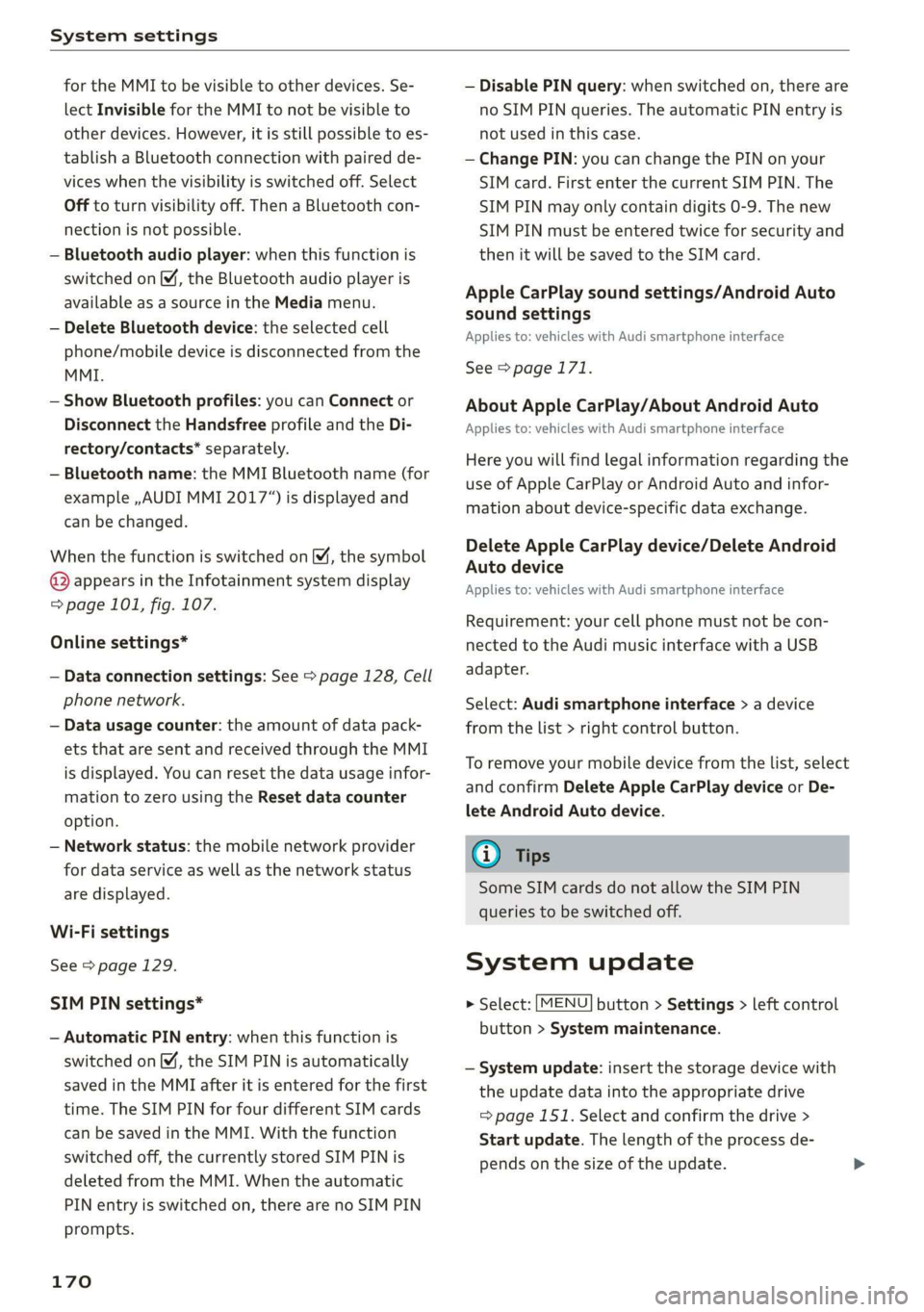
for the MMI to be visible to other devices. Se-
lect Invisible for the MMI to not be visible to
other devices. However, it is still possible to es-
tablish a Bluetooth connection with paired de-
vices when the visibility is switched off. Select
Off to turn visibility off. Then a Bluetooth con-
nection is not possible.
— Bluetooth audio player: when this function is
switched on , the Bluetooth audio player is
available as a source in the Media menu.
— Delete Bluetooth device: the selected cell
phone/mobile device is disconnected from the
MMI.
— Show Bluetooth profiles: you can Connect or
Disconnect the Handsfree profile and the Di-
rectory/contacts* separately.
— Bluetooth name: the MMI Bluetooth name (for
example ,AUDI MMI 2017“) is displayed and
can be changed.
When the function is switched on [M, the symbol
© appears in the Infotainment system display
=> page 101, fig. 107.
Online settings*
— Data connection settings: See > page 128, Cell
phone network.
— Data usage counter: the amount of data pack-
ets that are sent and received through the MMI
is displayed. You can reset the data usage infor-
mation to zero using the Reset data counter
option.
— Network status: the mobile network provider
for data service as well as the network status
are displayed.
Wi-Fi settings
See > page 129.
SIM PIN settings*
— Automatic PIN entry: when this function is
switched on , the SIM PIN is automatically
saved in the MMI after it is entered for the first
time. The SIM PIN for four different SIM cards
can be saved in the MMI. With the function
switched off, the currently stored SIM PIN is
deleted from the MMI. When the automatic
PIN entry is switched on, there are no SIM PIN
prompts.
170
— Disable PIN query: when switched on, there are
no SIM PIN queries. The automatic PIN entry is
not used in this case.
— Change PIN: you can change the PIN on your
SIM card. First enter the current SIM PIN. The
SIM PIN may only contain digits 0-9. The new
SIM PIN must be entered twice for security and
then it will be saved to the SIM card.
Apple CarPlay sound settings/Android Auto
sound settings
Applies to: vehicles with Audi smartphone interface
See > page 171.
About Apple CarPlay/About Android Auto
Applies to: vehicles with Audi smartphone interface
Here you will find legal information regarding the
use of Apple CarPlay or Android Auto and infor-
mation about device-specific data exchange.
Delete Apple CarPlay device/Delete Android
Auto device
Applies to: vehicles with Audi smartphone interface
Requirement: your cell phone must not be con-
nected to the Audi music interface with a USB
adapter.
Select: Audi smartphone interface > a device
from the list > right control button.
To remove your mobile device from the list, select
and confirm Delete Apple CarPlay device or De-
lete Android Auto device.
G) Tips
Some SIM cards do not allow the SIM PIN
queries to be switched off.
System update
> Select: [MENU] button > Settings > left control
button > System maintenance.
— System update: insert the storage device with
the update data into the appropriate drive
= page 151. Select and confirm the drive >
Start update. The length of the process de-
pends on the size of the update.
Page 236 of 308

Checking and Filling
oil quality to decrease. Do not extract engine oil
to reduce the level, because this will increase the
risk of engine damage. Drive to an authorized Au-
di dealer or authorized Audi Service Facility im-
mediately to have engine oil extracted.
3 Oil level system: malfunction! Please con-
tact Service
The sensor that checks the engine oil level has
malfunctioned. Drive immediately to an author-
ized Audi dealer or authorized Audi Service Facili-
ty to have the malfunction repaired.
3 Oil pressure sensor: malfunction! Please
contact Service
The sensor that checks the engine oil pressure
has malfunctioned. Drive immediately to an au-
thorized Audi dealer or authorized Audi Service
Facility to have the malfunction repaired.
Engine warm-up request*
fi Please drive to warm up engine
Fuel has entered the engine oil, either due to low
outside temperatures or frequent short drives.
Drive until the engine is warm so that the fuel in
the engine oil will evaporate. Avoid high engine
speeds, full accelerating, and heavy engine loads
when doing this.
G) Tips
The oil pressure warning & is not an oil level
indicator. Always check the oil level regularly.
Checking the engine oil level
The engine oil level can be checked in the Info-
tainment system
Observe the safety precautions > A\ in General
information on page 229.
> Park your vehicle on a level surface.
> Let the engine run at idle.
> Wait approximately two minutes.
> Select in the Infotainment system: the [MENU
button > left control button > Service & checks
> Oil level
234
> Read the oil level in the display. Add engine oil
if the bar in the oil level indicator is just below
“min” > page 235.
C) Note
If the engine oil level is too low or too high,
there is a risk of engine damage.
G) Tips
The oil level indicator in the display is only an
informational display. If the oil level is too
low, a minimum oil warning appears in the in-
strument cluster. Add oil and close the engine
compartment lid. The current oil level is dis-
played in the Infotainment system the next
time the ignition is switched on.
G) Tips
— The engine oil consumption may be up to
1 quart per 600 miles (0.8 liter/1,000 km),
depending on driving style and operating
conditions. Consumption may be higher dur-
ing the first 3,000 miles (5,000 km). The
engine oil level must be checked regularly.
It is best to check each time you refuel your
vehicle and before long drives.
— Because of the lubrication and cooling of
the engine, combustion engines consume
oil. The oil consumption varies depending
on the engine and may change during the
service life of the engine. Engines generally
consume more oil at the beginning during
the break-in period. Then oil consumption
stabilizes after the break-in period.
— Under normal conditions, oil consumption
depends on the quality and viscosity of the
oil, the engine RPM, the climate conditions,
and the road conditions. The dilution of oil
from condensation or fuel residue as well as
the age of the oil also play a role. Because
engine wear increases with mileage, oil con-
sumption will increase again over time until
it may be necessary to replace worn compo-
nents.
— Because all these variables play a role, it is
not possible to define an oil consumption
standard. Therefore, the oil level must be
checked regularly.