warning AUDI R8 COUPE 2020 Repair Manual
[x] Cancel search | Manufacturer: AUDI, Model Year: 2020, Model line: R8 COUPE, Model: AUDI R8 COUPE 2020Pages: 308, PDF Size: 82.41 MB
Page 92 of 308
Intelligent Technology
snow and ice. Always read and follow safety pre-
cautions > A\.
Winter tires
By using all wheel drive, your vehicle has good
forward motion with standard tires in winter con-
ditions. However, in winter we recommend using
winter or all season tires on all four wheels, be-
cause this will improve the braking effect.
Snow chains
If there are snow chain laws, snow chains must
also be used on vehicles with all wheel drive
= page 259, Snow chains.
ZA WARNING
— Also, in vehicles with all wheel drive, adapt
your driving style to the current road and
traffic conditions. Do not let the increased
safety provided tempt you into taking risks,
because this increases the risk of an acci-
dent.
— The braking ability of your vehicle is limited
to the traction of the wheels. In this way, it
is not different from a two wheel drive vehi-
cle. Do not be tempted to accelerate toa
high speed when the road is slippery, be-
cause this increases the risk of an accident.
— Note that on wet streets, the front wheels
can “hydroplane” if driving at speeds that
are too high. Unlike front wheel drive vehi-
cles, the engine RPM does not increase sud-
denly when the vehicle begins hydroplaning.
For this reason, adapt your speed to the
road conditions to reduce the risk of an acci-
dent.
90
Rear spoiler
Applies to: vehicles with retractable rear spoiler
The extendable rear spoiler increases driving sta-
bility.
5 =
S $
db + a
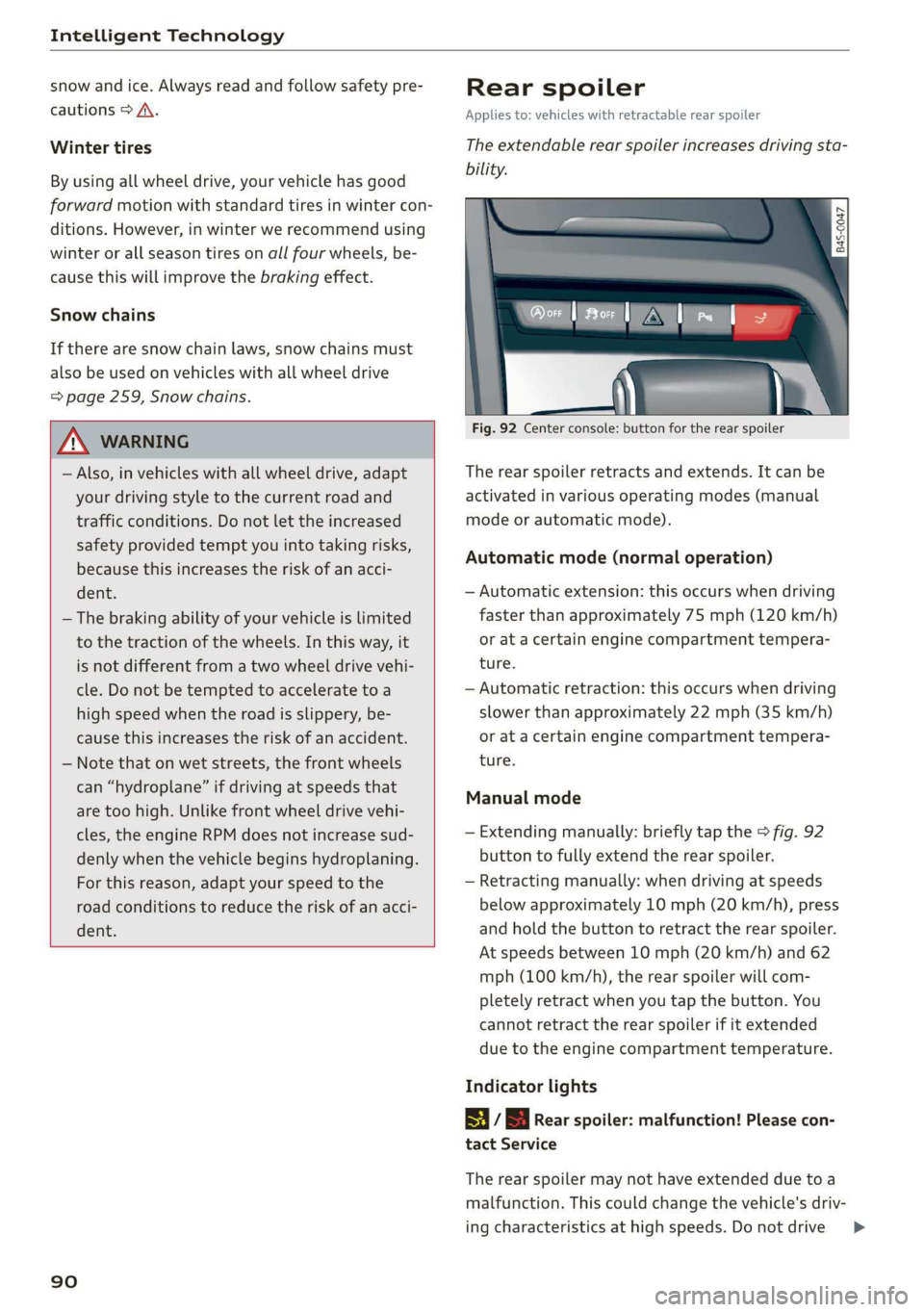
Fig. 92 Center console: button for the rear spoiler
The rear spoiler retracts and extends. It can be
activated in various operating modes (manual
mode or automatic mode).
Automatic mode (normal operation)
— Automatic extension: this occurs when driving
faster than approximately 75 mph (120 km/h)
or at a certain engine compartment tempera-
ture.
— Automatic retraction: this occurs when driving
slower than approximately 22 mph (35 km/h)
or at a certain engine compartment tempera-
ture.
Manual mode
— Extending manually: briefly tap the > fig. 92
button to fully extend the rear spoiler.
— Retracting manually: when driving at speeds
below approximately 10 mph (20 km/h), press
and hold the button to retract the rear spoiler.
At speeds between 10 mph (20 km/h) and 62
mph (100 km/h), the rear spoiler will com-
pletely retract when you tap the button. You
cannot retract the rear spoiler if it extended
due to the engine compartment temperature.
Indicator lights
| / S Rear spoiler: malfunction! Please con-
tact Service
The rear spoiler may not have extended due toa
malfunction. This could change the vehicle's driv-
ing characteristics at high speeds. Do not drive >
Page 93 of 308
4S1012721BA
Intelligent Technology
faster than 85 mph (140 km/h). Drive immedi-
ately to an authorized Audi dealer or authorized
Audi Service Facility to have the malfunction re-
paired. The color of the indicator light depends
on the vehicle speed.
ZA WARNING
Driving at higher speeds without the rear
spoiler deployed can impair handling charac-
teristics, making the vehicle harder to control.
— Always make sure that the spoiler is de-
ployed when driving at speeds over 85 mph
(140 km/h). If the rear spoiler warning/indi-
cator light in the instrument cluster comes
on, the rear spoiler may not have deployed.
— Never drive at speeds higher than 85 mph
(140 km/h) if the spoiler is not deployed.
Have the spoiler inspected as soon as possi-
ble by an authorized Audi dealer or qualified
workshop.
— Always obey speed limits and other traffic
laws.
— Hot air from the engine compartment can
escape through the rear spoiler when it is
open and it could burn you.
ZA\ WARNING
Improper operation of the rear spoiler can
cause crushing injuries.
— Always make sure that nobody, especially
children, is in the way when the rear spoiler
is deployed or retracted.
©) Note
— Never push on the vehicle on the rear spoil-
er. This could cause damage.
— To prevent damage to the rear spoiler do
not lean or place anything on it.
—To reduce the risk of damage, only operate
the rear spoiler manually when the engine
compartment lid is closed and the moving
parts for the rear spoiler are not blocked.
G@) Tips
Clean the rear spoiler compartment every 2 to
3 months. To function correctly, the rear
spoiler must be free of ice, snow and leaves.
Energy management
Your vehicle is equipped with an intelligent ener-
gy management system for distributing electrici-
ty. This significantly improves the starting ability
and increases the vehicle battery life.
(i) Tips
— If you drive short distances frequently, the
vehicle battery may not charge enough
while driving. As a result, convenience func-
tions for electrical equipment may be tem-
porarily unavailable.
— The vehicle battery will gradually drain if
the vehicle is not driven for long periods of
time, or if electrical equipment is used
when the engine is not running. To ensure
that the vehicle can still be started, the
electrical equipment will be limited or
switched off.
Notice about data
recorded by the Event
Data Recorder and
vehicle control modules
Event Data Recorder
This vehicle is equipped with an Event Data Re-
corder (EDR). The main purpose of an EDR is to
record, in certain crash or near crash-like situa-
tions, such as an airbag deployment or hitting a
road obstacle, data that will assist in understand-
ing how a vehicle's systems performed. The EDR
is designed to record data related to vehicle dy-
namics and safety systems for a short period of
time, typically 30 seconds or less. The EDR in this
vehicle is designed to record such data as:
— How various systems in your vehicle were oper-
ating;
— Whether or not the driver and passenger safety
belts were buckled/fastened;
— How far (if at all) the driver was depressing the
accelerator and/or brake pedal; and,
— How fast the vehicle was traveling.
These data can help provide a better understand-
ing of the circumstances in which crashes and
91
>
Page 95 of 308
4S1012721BA
Multi Media Interface
Multi Media Interface
Traffic safety
information
Audi recommends performing certain Infotain-
ment system functions, such as entering a desti-
nation, only when the vehicle is stationary. Al-
ways be prepared to stop operating the Infotain-
ment system in the interest of your safety and
the safety of other road users.
Z\ WARNING
Only use the Infotainment system when road,
traffic, weather, and visibility conditions per-
mit and always in a way that allows you to
maintain complete control over your vehicle.
@) Tips
Certain functions are not available while driv-
ing.
Introduction
[RAH-8837,
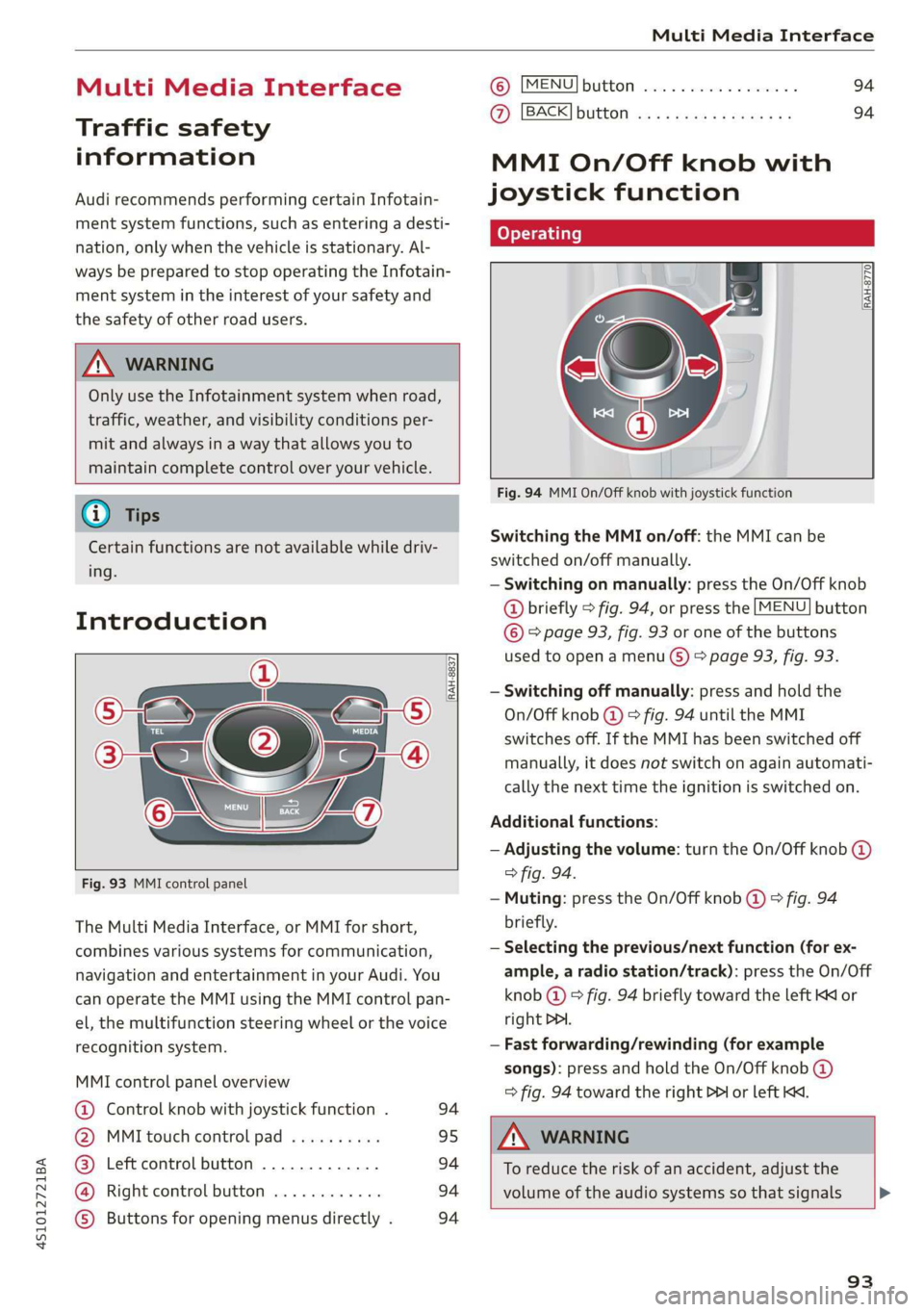
Fig. 93 MMI control panel
The Multi Media Interface, or MMI for short,
combines various systems for communication,
navigation and entertainment in your Audi. You
can operate the MMI using the MMI control pan-
el, the multifunction steering wheel or the voice
recognition system.
MMI control panel overview
@ Control knob with joystick function . 94
@ MMI touch control pad .......... 95
@® Left control button ............. 94
@®
Right control button ............ 94
© Buttons for opening menus directly . 94
(B) [MENU] button socscc co escvon ov comers «5 94
@ [BACK] button ............0.0.. 94
MMI On/Off knob with
joystick function
Operating
RAH-8770|
Fig. 94 MMI On/Off knob with joystick function
Switching the MMI on/off: the MMI can be
switched on/off manually.
— Switching on manually: press the On/Off knob
@ briefly > fig. 94, or press the [MENU] button
© © page 93, fig. 93 or one of the buttons
used to open a menu G) > page 93, fig. 93.
— Switching off manually: press and hold the
On/Off knob @ © fig. 94 until the MMI
switches off. If the MMI has been switched off
manually, it does not switch on again automati-
cally the next time the ignition is switched on.
Additional functions:
— Adjusting the volume: turn the On/Off knob @
> fig. 94.
— Muting: press the On/Off knob @ © fig. 94
briefly.
— Selecting the previous/next function (for ex-
ample, a radio station/track): press the On/Off
knob @ ® fig. 94 briefly toward the left KM or
right DDI.
— Fast forwarding/rewinding (for example
songs): press and hold the On/Off knob @)
=> fig. 94 toward the right PPI or left Kd.
ZA\ WARNING
To reduce the risk of an accident, adjust the
volume of the audio systems so that signals >
93
Page 106 of 308
Voice recognition system
Voice recognition system
Operating
You can operate many Infotainment functions
conveniently by speaking.
Requirement: the ignition and the MMI must be
switched on. A system language supported by
the voice recognition system must be set. There
must be no phone calls in progress and the park-
ing aid must not be active.
> Switching on: briefly press the [2] button @)
=> page 14, fig. 10 on the multifunction steer-
ing wheel and say the desired command after
the Beep.
> Switching off: press and hold the |] button, or
say the command Cancel.
> Pausing: say the command Pause. To resume,
press the |] button.
> Correcting: say the command Correction.
Input assistance
The system guides you through the input with
visual and audio feedback.
— Visual input assistance: after switching on
voice recognition, a display with a selection of
possible commands appears. The command
display can be switched on/off under [MENU] >
Settings > left control button > MMI settings >
Speech dialog system.
— Audio input assistance: to have the possible
commands read, press the [2] button on the
multifunction steering wheel briefly and say
Help.
For the system to understand you:
— Speak clearly and distinctly at a normal volume.
Speak louder when driving faster.
— Emphasize the words in the commands evenly
and do not leave long pauses.
— Do not speak a command when the voice recog-
nition system is making an announcement.
— Close the doors, the windows, and the sunroof*
to reduce background noise. Make sure that
passengers are not speaking when you are giv-
ing a voice command.
104
— Do not direct the vents toward the handsfree
microphone, which is near the front interior
lights on the roof headliner or on the driver's
safety belt*. For additional information on the
safety belt microphone, see > page 122.
— Only use the system from the driver's seat be-
cause the hands-free microphone is directed to-
ward that seat.
Additional settings
See > page 172, Voice recognition system.
ZA\ WARNING
— Direct your full attention to driving. As the
driver, you have complete responsibility for
safety in traffic. Only use the functions in
such a way that you always maintain com-
plete control over your vehicle in all traffic
situations.
— Do not use the voice recognition system in
emergencies because your voice may change
in stressful situations. The system may take
longer to dial the number or may not be
able to dial it at all. Dial the emergency
number manually.
Gi) Tips
— The dialog pauses when there is an incom-
ing phone call and will continue if you ig-
nore the call. The dialog ends if you answer
the call.
— There are no voice guidance prompts when a
dialog is active.
— You can select an item in the list using ei-
ther the voice recognition system or the
control knob.
Command overview
information
The following overviews describe the commands
that can be used to operate the MMI using the
voice recognition system.
Alternative commands are separated using a “/”,
for example say: Telephone / (or) Navigation /
(or) Radio.
Page 112 of 308

Telephone
Telephone
Introduction
To make phone calls in your vehicle using the
MMI, connect your cell phone to the MMI via
Bluetooth.
Handsfree
After you have connected your mobile device to
the MMI via Bluetooth, you can use the handsfree
system and operate telephone functions through
your MMI. You can make calls using the antenna
on your mobile device.
ZA\ WARNING
— Medical experts warn that mobile devices
can interfere with the function of pacemak-
ers. Always maintain a minimum distance of
about 7.9 inches (20 cm) between the mo-
bile device antennas and the pacemaker.
— Do not carry the mobile device in a pocket
directly over the pacemaker when the
phone is switched on.
— Switch the mobile device off immediately
if you suspect it may be interfering with
the pacemaker.
— Do not use the voice recognition system
=> page 104 in emergencies because your
voice may change in stressful situations. The
system may take longer to dial the number
or may not be able to dial it at all. Dial the
emergency number manually.
— Switch your mobile device off in areas where
there is a risk of an explosion. These loca-
tions are not always clearly marked. This
may include gas stations, fuel and chemical
storage facilities or transport vehicles, or lo-
cations where fuel vapors (such as propane
or gasoline vapor in vehicles or buildings),
chemicals or large quantities of dust parti-
cles (such as flour, sawdust or metal) may
be present in the air. This also applies to all
other locations where you would normally
turn your vehicle engine off.
— The demands of traffic require your full at-
tention. Always read the chapter > page 93,
Traffic safety information.
110
@) Note
Always follow the information found in >@ in
General information on page 124.
G) Tips
—To learn which Bluetooth connections and
which of the functions in your mobile device
are supported, check with your mobile de-
vice service provider or the database for mo-
bile devices at www.audiusa.com/
bluetooth.
— The Bluetooth connection range is limited
to inside the vehicle. It can also be affected
by local conditions and interference with
other devices.
Setup
Connecting a cell phone using Bluetooth
Visa ate) aioe
Does this PIN match the one on your
Bluetooth device? PIN: 967536
Fig. 109 Displaying the PIN for entering in the cell phone
Requirement
The vehicle must be stationary and the ignition
must be switched on.
The Bluetooth settings must be open on your
mobile device during the connection setup.
The Bluetooth function and visibility of the MMI
= page 169 and mobile device must be switched
on.
The mobile device to be connected must not be
actively connected to any other Bluetooth device.
The MMI must not be connected to a mobile de-
vice.
Connecting a mobile device
MENU > Select: button > Telephone > Connect
mobile device > Find new devices > Next. The
>
Page 115 of 308
4S1012721BA
Telephone
the cell phone symbol in the Audi phone box
=> fig. 110. Make sure there are no objects be-
tween the Audi phone box and the mobile de-
vice.
— Charge a cell phone wirelessly: Place a Qi-capa-
ble » cell phone centered on the symbol in the
Audi phone box with the display facing up
=> fig. 110. The cell phone will charge.
— Charge a cell phone using the USB adapter:
Connect your cell phone to the Audi music in-
terface using a USB adapter cable @).
You can charge your mobile device using specific
USB adapters > page 155, fig. 134.
Z\ WARNING
— Loose objects can be thrown around the ve-
hicle interior during sudden driving or brak-
ing maneuvers, which increases the risk of
an accident. Store objects securely while
driving.
— The mobile device may become hot during
wireless charging. Pay attention to the tem-
perature of your mobile device and be care-
ful when removing it from the Audi phone
box.
— An alternating magnetic field is used for
wireless charging. Maintain a minimum dis-
tance of approximately 2.4 in (6 cm) to the
Audi phone box charging plate. The thresh-
olds for prolonged exposure at this distance
comply with ICNIRP1998. Therefore, inter-
actions such as irritation of sensory organs,
malfunctions of active implants (such as
pacemakers, infusion pumps, or neurosti-
mulators) or effects on passive implants
(such as prosthetic limbs) is highly unlikely.
If you have an implant, consult a medical
specialist if you have any questions.
@) Note
Applicable to U.S.A.
Operation of the Audi phone box is subject to
the following requirements of the Federal
Communications Commission:
) The Qi standard makes it possible to charge your mobile
device wirelessly.
— This is a CONSUMER device.
— BEFORE USE, you MUST REGISTER THIS DE-
VICE with your wireless provider and have
your provider’s consent. Most wireless pro-
viders consent to the use of signal boosters.
Some providers may not consent to the use
of this device on their network. If you are
unsure, contact your service provider.
— You MUST operate this device with approved
antennas and cables as specified by the
manufacturer. Antennas MUST be installed
at least 20 cm (8 inches) from any person.
— You MUST cease operating this device im-
mediately if requested by the FCC or a li-
censed wireless service provider.
— WARNING: E911 location information may
not be provided or may be inaccurate for
calls served by using this device.
() Note
Applicable to Canada
In Canada, operation of a Zone Enhancer,
such as an Audi Phone Box, is subject to the
following requirements of the Innovation,
Science and Economic Development Canada
(ISED):
— This is a CONSUMER device.
— BEFORE USE, you MUST meet all require-
ments set out in CPC-2-1-05.
— You MUST operate this device with approved
antennas
and cables as specified by the
manufacturer. Antennas MUST NOT be in-
stalled within 20 cm of any person.
— You MUST cease operating this device im-
mediately if requested by ISED or a licensed
wireless service provider.
— WARNING: £911 location information may
not be provided or may be inaccurate for
calls served by using this device.
@) Tips
— The Audi phone box is not available in all
countries. For additional information, con-
tact an authorized Audi dealership.
113
Page 122 of 308
![AUDI R8 COUPE 2020 Repair Manual Telephone
Emergency call functions
> Select: [MENU] button > Telephone > left con-
trol button > Dial number > Enter emergency
call number (for example, 911) > OK.
ZA\ WARNING
â€](/img/6/57639/w960_57639-121.png "AUDI R8 COUPE 2020 Repair Manual Telephone
Emergency call functions
> Select: [MENU] button > Telephone > left con-
trol button > Dial number > Enter emergency
call number (for example, 911) > OK.
ZA\ WARNING
â€")
Telephone
Emergency call functions
> Select: [MENU] button > Telephone > left con-
trol button > Dial number > Enter emergency
call number (for example, 911) > OK.
ZA\ WARNING
— Because your phone works with radio sig-
nals, a connection cannot be guaranteed un-
der all circumstances. Do not rely on only
your phone when it comes to essential com-
munication (such as a medical emergency).
— Always follow the instructions given by the
emergency personnel during an emergency
call and only end the call when they instruct
you to do so.
G) Tips
Emergency numbers are not the same every-
where. Find out which emergency number is
used in your current location.
Directory
Opening the directory
> Voicemail
v_ Green, Andrew
Rees 8
> Smith, John
Fig. 115 Directory
After connecting the cell phone, the contacts in it
are automatically imported into the MMI.
Requirement: you must have at least one contact
stored in your cell phone.
> Select: [MENU] button > Telephone > left con-
trol button > Directory.
— Selecting a contact: select and confirm a con-
tact from the directory. The phone numbers for
your selected contact are displayed. Select and
confirm a phone number to start a call.
— Free text search for a contact: see > page 100.
120
Contacts are displayed in alphabetical order and
can be sorted by first or last name > page 122.
The directory can be opened through the Tele-
phone menu as well as through the Navigation
menu.
@ Tips
— Check for a possible request to synchronize
on your cell phone. Requests to synchronize
the directory must be confirmed so that
your cell phone contacts can be loaded into
the MMI.
— The contact display in the MMI depends on
the mobile device being used. For more in-
formation on supported mobile devices, vis-
it www.audi.com/bluetooth or contact an
authorized Audi dealer or authorized Audi
Service Facility.
— The directory from the cell phone with the
active connection will always be displayed.
— The contacts from the mobile device may
not be transferred in alphabetical order. If
there are too many entries, contacts with
different first letters may be missing in the
MMI.
— The contacts in the local MMI memory are
always visible and can be accessed by other
users.
teammate La)
> Select: [MENU] button > Telephone > left con-
trol button > Directory.
> To limit the search, enter the initials of the con-
tact being searched with each initial separated
by a space. Enter additional letters if necessary.
> Select and confirm a contact from the directory.
The phone numbers for the selected contact are
displayed.
> To make the call, select and confirm a phone
number.
G) Tips
— You can scroll through long lists quickly by
turning the control knob quickly. The scroll-
ing speed depends on the number of list en-
tries.
Page 126 of 308
Audi connect
Audi connect
General information
Applies to: vehicles with Audi connect
Depending on the country and the vehicle equip-
ment, the following functions may be available:
— Audi connect Infotainment
You can also find more information on Audi con-
nect online at www.audiusa.com.
ZA WARNING
—To reduce the risk of an accident, only use
Audi connect services when road and traffic
conditions permit. Always read and follow
the notes in > page 93, Traffic safety infor-
mation.
— It is only safe to use tablets, laptops, mobile
devices and other similar devices when the
vehicle is stationary because, like all loose
objects, they could be thrown around the in-
side of the vehicle in a crash and cause seri-
ous injuries. Store these types of devices se-
curely while driving.
— As the driver, do not allow usage of the Wi-
Fi hotspot to distract you from driving, as
this could increase the risk of an accident.
— Do not use any Wi-Fi devices within range of
the airbags while driving. Also read the
warnings in the chapter > page 187.
—To reduce the risk of an accident, only use
Audi connect Infotainment services using a
Wi-Fi hotspot when the vehicle is stationary.
@) Note
— Applies to: usage of personal SIM card in
the SIM card reader or SIM card in the Wi-Fi
device through a personal hotspot: If you
use your personal SIM card, all data connec-
tions for all Audi connect Infotainment
services will run through your SIM card. This
could result in additional costs, depending
on your cell phone service provider and es-
pecially when using in other countries. A flat
rate data plan is strongly recommended.
You can obtain more information from your
cell phone service provider.
124
—Incertain situations, the Wi-Fi hotspot data
connection may be established as a replace-
ment for the SIM card on your Wi-Fi device.
This feature depends on the configuration
of your Wi-Fi device and operating system.
This could result in fees depending on your
cell phone service provider, especially if you
are using this feature while abroad. A flat
rate data plan is strongly recommended. For
more information, contact your cell phone
service provider or refer to the owner's man-
ual for your Wi-Fi device.
— You are responsible for all precautions taken
for data protection, anti-virus protection,
and protection against loss of data on mo-
bile devices that are used, for example, to
access the Internet through the Wi-Fi hot-
spot.
G@) Tips
— The availability of services depends on the
subscription.
— AUDI AG provides access to services from
third party providers. Permanent availability
cannot be guaranteed, because that de-
pends on the third party provider.
— Use of the most up-to-date mobile network
standard is not available in every country.
Contact an authorized Audi dealer or au-
thorized Audi Service Facility or your cell
phone service provider for additional infor-
mation.
— Audi connect Infotainment services are only
available within the cell phone network cov-
erage from your cell phone service provider.
— Availability, scope, providers, screen display,
and costs of services may vary depending on
the country, model, model year, end device
and rates.
Audi connect
Infotainment
Applies to: vehicles with Audi connect Infotainment
With Audi connect Infotainment services, online
information is transmitted directly to the vehicle. >
Page 127 of 308
4S1012721BA
Audi connect
An Internet connection is required to use Audi
connect Infotainment. Depending on the country
and the vehicle equipment, the following options
may be available:
— SIM card reader
— Personal Wi-Fi hotspot
ZA\ WARNING
Always follow the information found in > AV
in General information on page 124.
() Note
Always follow the information found in >@ in
General information on page 124.
By eee tel
Applies to: vehicles with Audi connect Infotainment and a
SIM card reader
All data connections will be made through the
SIM card in the card reader, if a SIM card is insert-
ed >@) in General information on page 124.
Requirement: The vehicle must be stationary and
the ignition must be switched on. A data connec-
tion must be configured for Audi connect Info-
tainment services. Your personal SIM card must
be a mini SIM card >@) and have a data option.
Inserting a SIM card
The SIM card reader is located in the rear panel.
> The angled corner of the SIM card must face to-
ward the left front side when being inserted.
> Slide the SIM card into the SIM card reader slot
until you feel the SIM card click into place.
> Select and confirm Enter PIN on the MMI. En-
ter the PIN for your SIM card.
> Select and confirm OK.
> To connect to the Internet automatically in the
future, select and confirm Yes; see also
=> page 129.
After connecting successfully, the signal strength
@ and connection type @) will be displayed in
the MMI status bar > page 101, fig. 107.
Removing a SIM card
> Press on the SIM card briefly.
CG) Note
— Always follow the information found in 9®
in General information on page 124.
—To reduce the risk of damaging the SIM card
reader, only use mini SIM cards (25 mmx
15 mm). Contact your cell phone service
provider for more information on mini SIM
cards.
—If a SIM card of a different size is inserted in
the SIM card reader, do not under any cir-
cumstances remove this card yourself due
to the risk of damaging the SIM card reader.
Contact an authorized Audi dealer or au-
thorized Audi Service Facility.
— There is a risk of damaging the SIM card
reader if you use a SIM card adapter, be-
cause vibrations can cause the SIM card to
fall out of the adapter while driving.
@ Tips
— Additional Internet connection settings can
be found under > page 129.
— Do not remove the SIM card from the SIM
card reader when using the Audi connect In-
fotainment services.
Using personal Wi-Fi hotspot
Applies to: vehicles with Audi connect Infotainment and a
personal Wi-Fi hotspot
Depending on the country and the vehicle equip-
ment, the MMI can use the established Internet
connection on your mobile device through a Wi-Fi
connection.
Requirement: The vehicle must be stationary and
the ignition must be switched on. Your mobile
device and your cell phone service provider must
support the personal Wi-Fi hotspot function. The
personal Wi-Fi hotspot must be activated on your
mobile device. Access by other devices must be
permitted on the personal hotspot. Your own
SIM card in the mobile device must have a data
option. No SIM card is inserted in the SIM card
reader.
125
Page 128 of 308
![AUDI R8 COUPE 2020 Repair Manual Audi connect
Connecting the MMI with the personal
hotspot
> Select: [MENU] button > Telephone > right con-
trol button > Wi-Fi settings > Wi-Fi > On.
> Then select and confirm Network s](/img/6/57639/w960_57639-127.png "AUDI R8 COUPE 2020 Repair Manual Audi connect
Connecting the MMI with the personal
hotspot
> Select: [MENU] button > Telephone > right con-
trol button > Wi-Fi settings > Wi-Fi > On.
> Then select and confirm Network s")
Audi connect
Connecting the MMI with the personal
hotspot
> Select: [MENU] button > Telephone > right con-
trol button > Wi-Fi settings > Wi-Fi > On.
> Then select and confirm Network search. The
devices that are found are shown in the Info-
tainment system display.
> Select and confirm your personal Wi-Fi hotspot
from the list.
>» Enter the password that your mobile device
provides, if necessary.
> Select and confirm OK.
ZA WARNING
Always follow the information found in > AV
in General information on page 124.
() Note
Always follow the information found in >@ in
General information on page 124.
@) Tips
— Your cell phone service provider can deter-
mine which functions are supported by your
mobile device.
— Your cell phone data package determines if
other devices will be able to use the person-
al Wi-Fi hotspot.
— Audi recommends protecting your mobile
wireless network with a password to prevent
unauthorized access.
Using a Wi-Fi hotspot
Applies to: vehicles with Wi-Fi hotspot
You can connect up to eight Wi-Fi devices (such
as smartphones) with the MMI Wi-Fi hotspot. If
the MMI is connected to the Internet
=> page 124, the connected Wi-Fi devices can also
use the MMI’s Internet connection.
Requirement: The ignition must be switched on.
> Select: [MENU] button > Telephone > right con-
trol button > Wi-Fi settings > Wi-Fi. Switch on
the Wi-Fi hotspot.
> Select: [MENU] button > Telephone > right con-
trol button > Wi-Fi settings > Network key. The
access data for the Wi-Fi hotspot is displayed.
126
Switch on the visibility of the Wi-Fi hotspot if
necessary.
> Switch the Wi-Fi function on in your mobile de-
vice and connect it to the MMI Wi-Fi hotspot
using the authentication data that is shown.
> Follow any additional system prompts on your
Wi-Fi device if necessary.
Your device is successfully connected with the
MMI's Wi-Fi hotspot.
ZA WARNING
Always follow the information found in > AV
in General information on page 124.
@) Note
Always follow the information found in >@ in
General information on page 124.
Audi connect
Infotainment services
Configuration
Applies to: vehicles with Audi connect Infotainment
Requirement: your vehicle must be connected to
the Internet > page 124.
Some Audi connect Infotainment services must
be configured through your personal myAudi ac-
count before using them for the first time.
> Register at my.audi.com.
> Add your vehicle to your myAudi account.
> Select: [MENU] button > Audi connect > right
control button > Log in.
> Log in to myAudi in the vehicle using your e-
mail address and password.
(i) Tips
— For some Audi connect Infotainment serv-
ices, you may also have to enter your myAu-
di access information when accessing serv-
ices inthe MMI.
— Some Audi connect Infotainment services
must be activated at my.audi.com.