button AUDI S3 SEDAN 2017 Owners Manual
[x] Cancel search | Manufacturer: AUDI, Model Year: 2017, Model line: S3 SEDAN, Model: AUDI S3 SEDAN 2017Pages: 400, PDF Size: 67.32 MB
Page 192 of 400
Audi connect (Infotainm ent )
Audi connect
(Infotainment)
Introduction
Applies to: vehicles w ith Audi connect (Infotainment)
With Audi connect Infotainment services, on line
information is transmitted directly to the vehicle
and then integrated .
A WARNING
To reduce the risk of an accident, only use
Audi connect Infotainment services when
road and traffic cond itions permit. A lways
read and fo llow the notes in
9 page 158,
Traffic safety information.
Setup
Requirements for Audi connect
(Infotainment)
Applies to: vehicles with Audi connect (Infotainment)
The data connection for Audi connect Infota in
ment services is made thro ugh an embedded SIM
card (eS IM card) that is equipped in the veh icle.
The fo llow ing requ irements must be met to use
the embedded SI M card:
- You have already registered at
www .audiu sa .com /my audi and ass igned ave
hicle .
- You have also already logged in to your myAud i
account under Audi connect plan for the em
bedded SIM ca rd and accepted the terms of use
given there. For add it iona l info rmation, co ntact
an a uth orized Aud i de aler or a uth orized Audi
Se rvice Facility .
Then you r Audi co nnect Infota inment services are
activated and can be used i n your veh icle.
(D Tips
- After the free subscription has ended or the
data volume has been used up, data pac kets
ca n be purc hased for the use of Audi con
nect Infota inment serv ices. Yo u can find a d
dit ional info rmation about fees and p ur
chasing at www.audiusa .com /myaudi.
190
-Read this chapter before operating
~ page 196, Audi connect (Infotainment)
general information.
Configuration through myAudi
Audi connect (Infotainment) configuration
Applies to: vehicles with Audi connect (Infotainment)
Some Audi connect Infotainment services must
be configured through your personal myAudi ac
count before using them for the first time.
-If you do not have your own myAudi accoun t,
register on line at www .audiusa. com /my audi.
-Add your veh icle to your myAudi account.
- Ac tivate/configu re the A udi connect (Infotai n-
ment) services you would like for your veh icle in
your myA udi account.
- For some Aud i connect Info tainment servi ces,
you may also have to enter your myAudi user
data o r your myAudi P IN when accessing serv
ices in the MMI to connect your vehicle to
myAudi.
For more info rmation on configuration, go to
www.audiu sa.com /m yaudi .
Logging into myAudi in the vehicle
Applies to: vehicles with Audi connect (Infotainment)
To use some Audi connect Infotainment services
(such as Twitter*), you must first connect your
vehicle to myAudi to transfer your personal set
tings from your myAudi account .
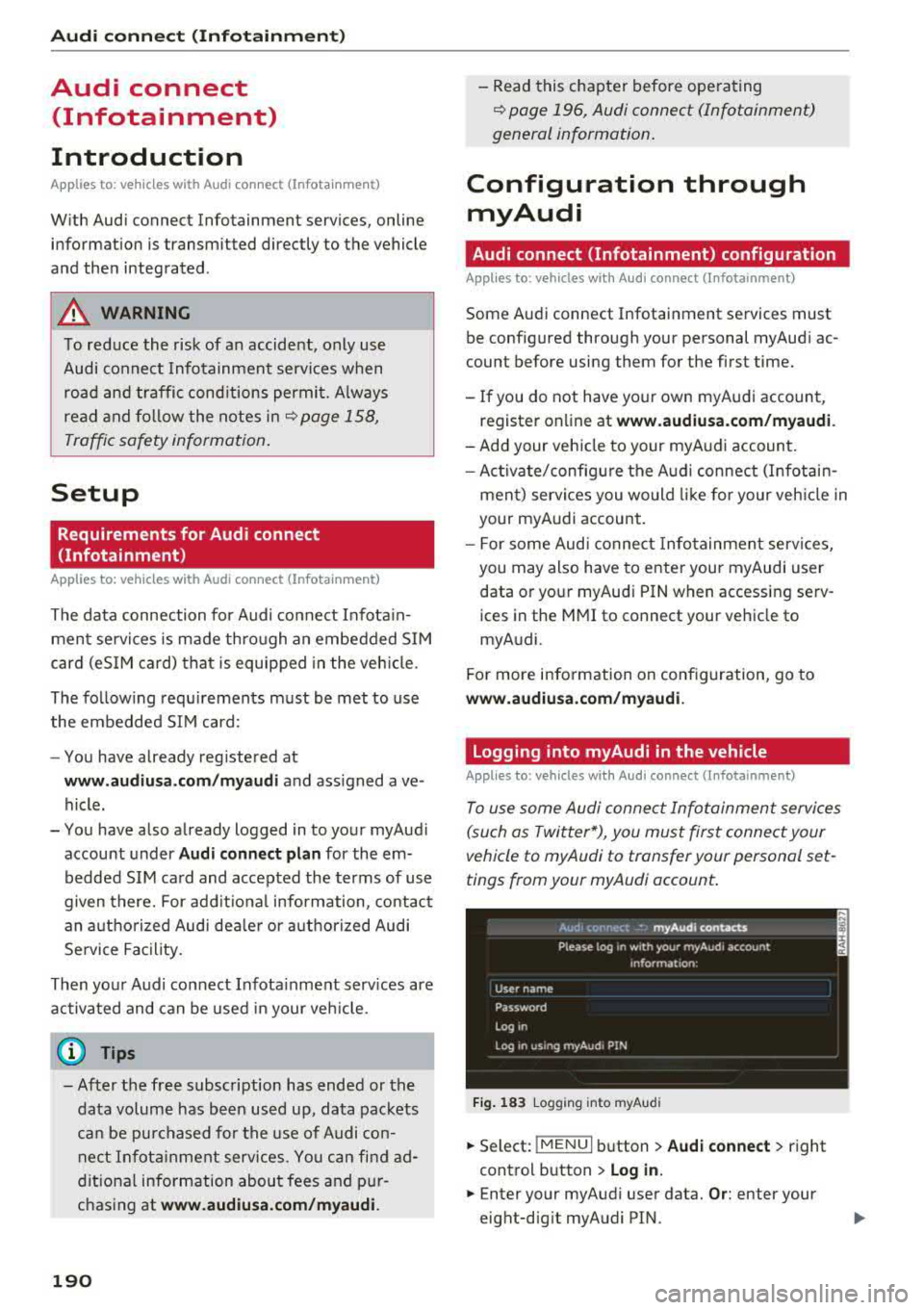
Fig . 1 83 Logging into myAudi
.,. Select: !MENUI button> Audi connect > right
control button > Log in.
.,. Enter your myAudi user data. Or: enter your
eight-dig it myAudi PIN.
Page 193 of 400
a, co ..... N
" N ..... 0
.. Confirm your entry with OK.
Then you can open your personal sett ings from
your myA udi account in your vehicle.
@ Tips
You can receive your myAud i PIN if you have
set up a myA udi account. For additional infor
mat ion, see
my.audi usa.com .
Opening Audi connect
(Infotainment)
A ppl ies to: ve hicles with Audi co nnect (Infota inment)
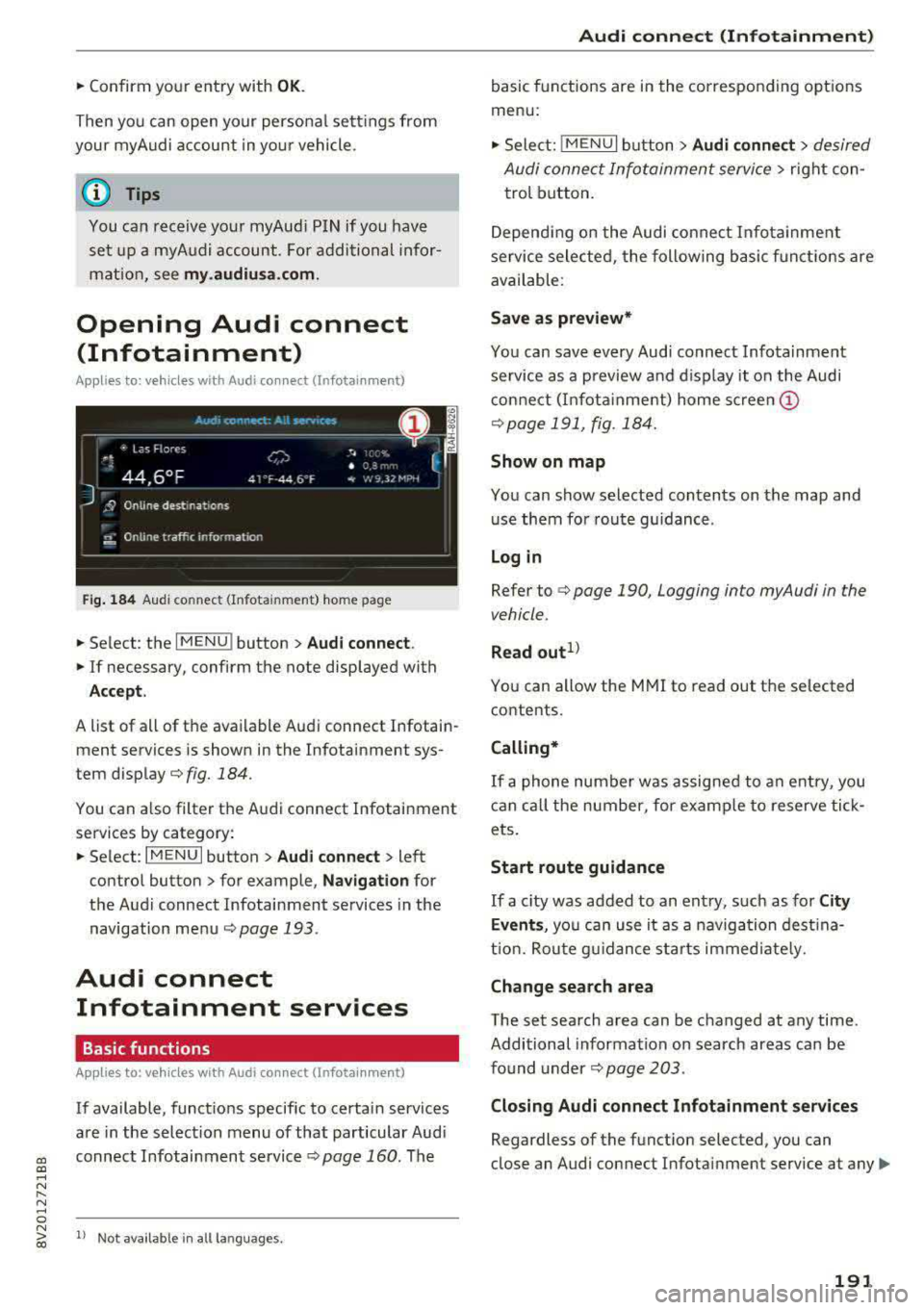
Fig . 184 Aud i co nnect (Infota inment) home page
.. Select: the I MENU ! button > Audi connect .
.. If necessary, confirm the note displayed with
Acce p t.
A list of all of the available Audi connect Infotain
ment services is shown in the Infotainment sys
tem
display¢ fig. 184 .
You can a lso filter the Audi connect Infotainment
services by category:
.. Select : I MENU I button > Audi connect > left
contro l button
> for example, N avi gat ion for
the Audi connect Infotainment services in the
navigation
menu ¢ page 193 .
Audi connect
Infotainment services
Basic functions
Ap plies to: ve hicles w ith Audi co nnect (Infot ainment)
If available, funct ions specific to certain services
are in the select ion menu of that particular Aud i
connect Infotainment
service ¢ page 160. The
N ~ 1> Not availab le in all la nguages.
Audi conne ct (Inf otainment )
basic functions are in the corresponding options
menu:
,. Select: ! MENUI button> Audi connect > desired
Audi connect Infotainment service>
right con
trol button.
Depend ing on the Audi conne ct Infota inment
service selected, the following basic funct ions are
available :
Save as prev iew*
You can save every Aud i connect Infotainment
service as a preview and d isplay it on the Audi
connect (I nfota inment) home
s c ree n@
¢ page 191 , fig . 184.
Show on map
You can show selected contents on the map and
use them for route gu idance .
Lo g in
Refer to ¢ page 190, Logging into myAudi in the
vehicle .
Read out1>
You can allow the MMI to read out the selected
contents.
Calling*
If a phone number was assigned to an e ntry, you
can call the number, for examp le to reserve tick
ets.
Start route guidance
If a c ity was added to an ent ry, such as for C ity
Ev ent s,
yo u can use it as a navigation dest ina
t ion. Rou te g uidance sta rts immed iately.
Change sea rch area
The set search area can be changed at any time.
Additional information on search areas can be
found
under ¢ page 203 .
Closin g Audi connect Infotainment ser vices
Regardless of the funct ion selected, you can
close an Audi connect Infotainment service at any
Ill>
191
Page 194 of 400
Audi connect (Infotainment)
time and return to the home screen c:>poge 191,
fig. 184.
Parking information
Applies to: vehicles with Aud i connect (Infotainment)
Information on parking locations and fees in the
selected search area (for example
Nearby ).
~ Select and confirm Park ing information.
You can use the right control button to sort the
pa rking locations
By distance or By availability .
Travel information
Applies to: vehicles with Audi connect (Infotainment)
Information on attractions in the selected search
area .
~ Select and confirm an attraction to display the
details.
Fuel prices
Applies to: vehicles with Audi connect (Infotainment)
Information on gas stations with the lowest fuel
prices for your vehicle in the selected search area.
~ Select and confirm Fuel prices .
You can use the right control button to sort the
fue l prices
By price or By distance .
Weather
Applies to: vehicles with Audi connect (Infotainment)
Information on current weather conditions as
well as weather forecasts for the selected search
area .
~ Select and confirm Weather.
You can also display the current weather cond i
tions on the map, for examp le.
~ Select: left control button > on entry .
Flight information
Applies to: veh icles with Aud i connect (Infotainment)
Information on flights and current arriva l/depar
ture times in the se lected search area .
~ Select and confirm Flight information .
192
· City events
Applies to: vehicles with Audi connect (Infota inment)
Information on events in various categories in
the desired search area.
~ Select City Events > left control button > cate
gory .
Online news
Applies to: vehicles with Audi connect (Infota inment)
You can check the current headlines of your fa
vo rite publications in the MMI.
Requirement: your myAud i account must be sub
scribed to newsfeeds and your vehicle must be
connected to myAudi
c:> poge 190.
~ Select: Online news > desired newsfeed > a
headline .
(D Tips
If you have not subscribed to any personal
newsfeeds in your myAudi account, pre-con
figured newsfeeds will be displayed.
Twitter
Applies to: vehicles with Audi connect (Infota inment)
You con access the most important functions in
your Twitter account through your MMI .
Requirement:
You must have connected your my Audi account
with Twitter . You can find additional information
on line at
www.audiusa.com/myaudi.
You must have connected your vehicle with
myAudi
c:> poge 190.
~ Select Twitter > left control button > desired
function
(for examp le, Trends ).
The following categories can be selected in the
Twitter me nu:
-My tweets: News Feed and the Tweets you have
posted a re listed.
-Home : the Tweets for everyone you fo llow are
displayed .
-Trends: topics on Twitter that are currently
popular within a country.
Page 195 of 400
CXl CXl .... N r--N .... 0 N > 00
Different functions are available depending on
the Twitter category you have selected:
- New twe et: you can post a new tweet using
pre-made temp lates or using myAudi tem
plates that you have created yourse lf .
- Refr es h: the selected Tw itter function is re
freshed.
- Favori te: mark a Tweet as favo rite to show you
l ik ed it.
- Retw eet: you can quote a Tweet to share it with
others.
(j) Tips
- Other settings such as account, language,
Tweet security and location settings
cannot
be changed in the MMI. These changes must
be made on the Twitter website .
- You can only connect
one Twitter account
wi th you r myAudi account.
- Audi connect (Infotainment) makes it possi
ble to access Tw itter. Permanen t ava ilability
cannot be guaranteed, because that de
pends on Twitter.
Travel (travel guide)
Applies to: vehicles with Audi connect (Infotainmen t)
You can use the Audi MMI connect opp to store
points of interest on your mobile device (such as
a smartphone) and then use them for route
guidance in the MMI .
Requirement:
The
A udi MM I connect app must be installed and
open on your mobile device .
You must be logged i nto your myAud i account in
the
A udi MMI conn ect app and you must have se
l ected your vehicle.
The Wi-Fi funct ion on your mobile device and on
the MMI must be switched on.
The MMI must be connected to the network.
.,. Press: I MENU I button > Audi conne ct > left con-
t ro l button
> Inf ormati on category > Tra ve l.
Afte r opening the travel guide, travel tips in yo ur
a rea will be displayed incl uding c urrent rat ings as
well as the correspond ing category.
Audi c onn ect ( Inf ota inm ent )
.,. Press the le ft control button to change the cat
egory (such as bars nearby) .
A WARNING
= -
-It is only safe to use tablets, laptops, mo
b ile dev ices and other similar devices when
the vehicle is stationary because, like all loose objects, they co uld be thrown around
the inside of the vehicle in a crash and cause
serious inju ries. Store these types of devices
securely while d riving.
- Do not use any wireless devices on the front
seats within range of the airbags while dr iv
ing. Also read the warnings in the chapte r
¢ page 271, Front airbags.
(D Tips
-Units of measurement, language settings
and time are shown in the Infotainment sys
tem display based on how they were set in
the system settings
¢ page 241.
Audi connect (Infotainment) in navigation
Applies to: vehicles with navigation system and Audi connect
(Infotainment)
.,. Select : !MENUI button> A udi conn ect > left
control button >
Na vig atio n.
The following Audi connect Infotainment services
are currently ava ilable:
- Navigation with
online m ap vie w and Street
Vi ew
¢ page 212.
- Point of Intere st (POI) on line sea rch with
v oi ce re cognit ion
(such as restaurants): plan
route guidance using the MMI contro l pane l
¢ page 203 and the voice recogn ition system
¢ page 170 .
-Set up destinations in your MMI using your
myAu di account or onl in e map vie w
¢page 212 .
-On line traff ic informat ion : receive up-to-the
m inute traffic informat ion about acc idents,
road construction and other inc idents
¢ page 215 .
-Map update: import navigation map updates
direct ly to your veh icle using an SD card or as
an online update
¢ page 213.
193
Page 196 of 400
Audi connect (Infotainm ent )
(D Tips
-For the m ap update Audi connect Infotain
ment service via SD card, check the current
software vers ion in your vehicle and then
check
m y.audi usa .com to see if a newer ver
sion is available . You can also have the new
navigation data installed by an Audi dealer,
which can be done for an additional charge .
- You can find add itional information about
the
map update online at
www. audiu sa .com /m yaudi .
Audi connect (Infotainment) on the phone
Applies to: veh icles with Audi connect (Infota inment)
.,. Se lect : I MENU I button> Audi conne ct> left
contro l bu tton
> C ommunication .
The follow ing Audi connect Infota inme nt services
are currently availab le:
- Stor ing contacts on your computer using your
m yA ud i Ac co unt and loading the contacts into
the MMI directory
<=:> page 187.
Audi connect (Infotainment) in Media
menu
Applies to: ve hicles w ith Wi- Fi audio playe r and Aud i connect
(Infotainment)
.,. Se lect : IMENUI button> Audi c onne ct > right
contro l bu tton
> Ent erta inment .
- Wi-Fi audio pla yer:
you can access the media
cente r th rough a Wi-Fi connected media player
(such as a smartphone)
c:> page 226 .
-Online m edi a and Int ern et r adi o: offers access
to diffe rent onl ine media services and ope ra
tion through the MMI using the
Audi MM I con
n ect
app .
A WARNING
It is on ly safe to use tab lets, laptops, mobi le
devices and other similar devices when the ve
hicle is stationary because, like all loose ob
jects, they could be thrown around the ins ide
of the veh icle in a crash and cause serious in
jur ies . Store these types of devices securely
wh ile driving .
194
(D Note
A lways fo llow the information found in c:> 0 in
Wi-Fi hotspot on pag e 195.
@ Tips
- Also see the chapter ¢ page 196, Audi con
nect (Infotainment) general information .
-For more information on the Wi -Fi audio
player and supported devices, contact an
authorized Audi dealer or authorized Audi
Service Facility.
Additional options
App lies to : vehicles with Aud i connect (I nfotainment)
.,. Select: !M ENU I button> Aud i con nect > right
control button .
T he following options are available in the Aud i
connect Infota inment servi ces overview :
Log in*
Refer to c:> page 190, Logging into myAudi in the
vehicle .
Connection manag er
Refer to c:> page 242.
Li cens e subscription
The validity and exp ira tion date of your license s
are displayed. When the function is sw itched on
~. the message Warning b efor e subscr iption
ex pires
will display to warn you that your license
i s about to exp ire.
Refre sh
The content of the selec ted Audi connect Info
ta inment service or the ent ire Audi connect (Info
ta inment) list is updated .
Page 197 of 400
CXl CXl .... N r--N .... 0 N > 00
Wi-Fi hotspot
Applies to: vehicles with Wi-Fi hotspot
You con use the MMI as a Wi-Fi hotspot to con
nect up to eight Wi-Fi devices to the Internet. While driving, restricted use of unsecured, light,
small wireless devices is only possible from the
rear of the vehicle.
Requirement: the ignition must be switched on.
• Select: I MENU I button > Tele ph one> right con-
trol button >
Wi -F i s ettin gs.
The follow ing settings can be modified:
Wi-Fi
The MMI Wi-F i hotspot is deactivated at the fac
tory . Switch the Wi-Fi hotspot to
H otsp ot before
establishing a connection between your vehicle
and your W i- Fi dev ice.
- On : the MMI Wi-Fi hotspot is active and visible
to other devices . You can connect your Wi-Fi
device with the MMI.
- Off: the MMI W i-F i hotspot is deactivated . An
I n ternet connection fo r Wi-Fi devices is not
poss ible.
_& WARNING
- T o reduce the risk of an accident, use the
Audi connect In fotainment services with a
Wi-Fi hotspot only in the rear seat when the
vehicle is in motion, or on ly when the vehi
cle is stationary.
- It is only safe to use tab lets, laptops, mo
bile devices and other similar devices when
the vehicle is stationary because, like all loose objects, they could be thrown around
the ins ide of the vehicle in a crash and cause
serious injur ies. Store these types of devices
securely while driving.
- Do not use any w ireless devices on the front
seats w ith in range of the a irbags while driv
ing. Also read the warn ings in the chapter
~page 271, Front airbags.
- As the driver, do not allow usage of the Wi
Fi hotspot to dist ract you from driving, as
this could increase the risk of an accident .
-
Audi conn ect ( Inf ota inm ent )
(D Note
-Under some conditions, certain mobile devi
ces and operating systems may automati
cally switch from your vehicle's Wi-Fi hot
spot to the device's mobile data connection.
In that event , standard text and data usage
rates would apply wh ile the device's mobile
data connection is in use. Please refer to
documentation provided by your mobile de
vice's manufacture and your data carrier for details, related terms and privacy state
ment.
- You a re responsib le for all precautions tak
en for data protection, anti -virus protection
and protection against loss of data on mo
bile devices that are used to access the In
ternet through the Wi-Fi hotspot.
(D Tips
- In vehicles without Audi connect (Infotain
ment)*, the use of the Wi-Fi hotspot is only
possible for the W i-Fi audio player*. A data
connect ion to the Internet cannot be estab
lished.
- For add itional information about the Audi
connect Infotainment services, visit
ww w.a udiusa.c o m /aud iconn ect .
Configuring the data
connection
Applies to: vehicles with Audi connect (Infotainment)
The data connection for Audi connect Infotain
ment services is pre-configured at the factory.
However, if a configuration should be necessary,
you con adjust the following settings.
• Select: ! MENU I button> right control button>
Connecti on manag er.
• Select: right control button > Online setti ngs >
Data c onnec tion setting s.
Using the Data co nnection settin gs menu, you
can set when an Internet connection should be
made . T he Internet connection disconnects auto
matically once the requested Audi connect Info
tainment service no longer requires any data.
The following options can be selected:
195
Page 202 of 400
Navigation
Navigation
Opening navigation
Applies to: veh icles w ith navigation system
The navigation system directs you to your desti
nation , around traffic incidents and on alterna
tive routes, if desired .
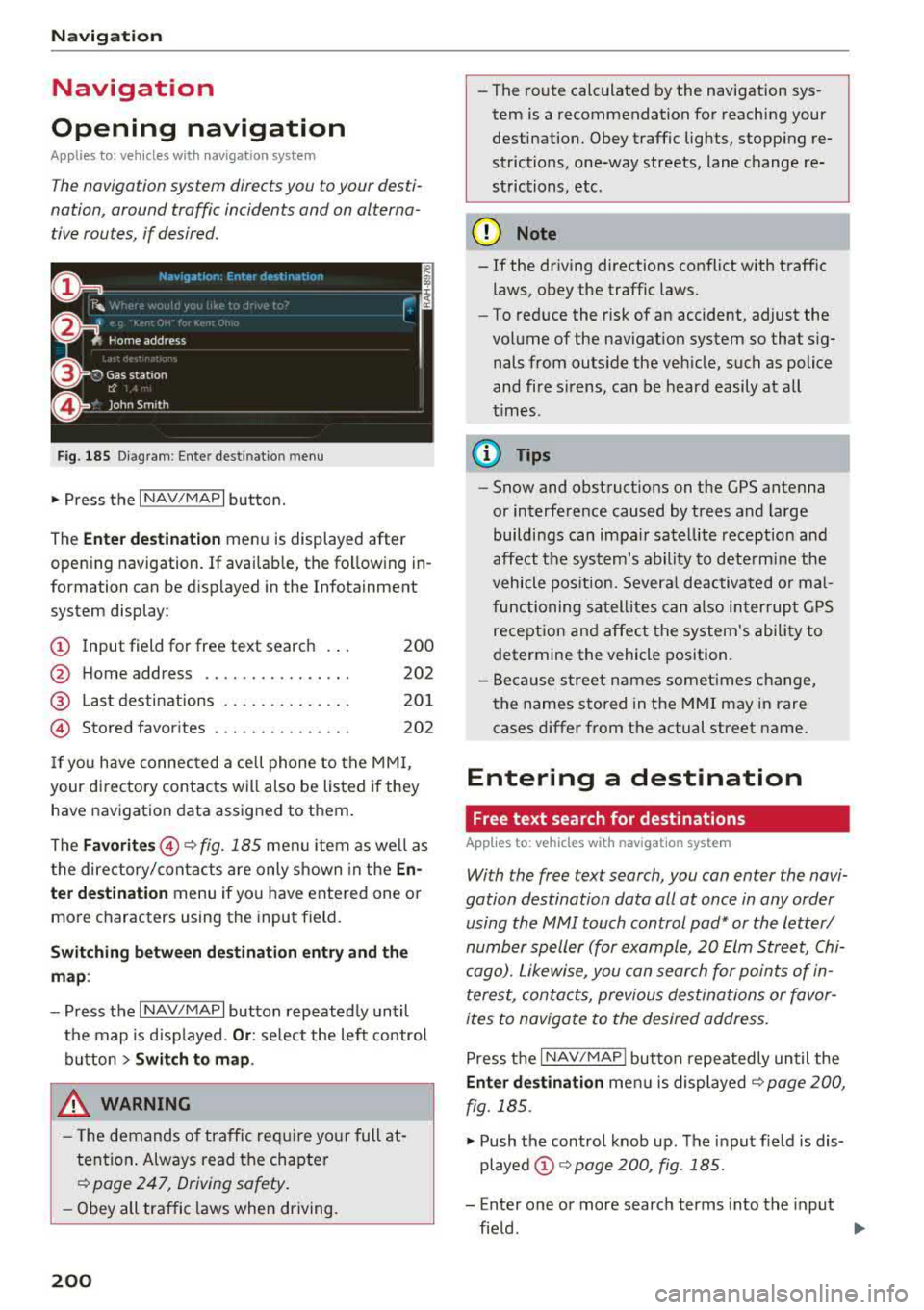
Fig. 185 Diagram : Ente r dest inatio n menu
"'Press the I NAV/MAPI button.
The
Enter destination menu is displayed after
opening navigation. If availab le, the following in
formation can be d isplayed in the Infotainment
system display:
@ Input field for free text search 200
@ Home address . . . . . . . . . . . . . . . . 202
@ Last destinations . . . . . . . . . . . . . . 201
© Stored favorites . . . . . . . . . . . . . . . 202
If you have connected a cell phone to the MMI,
your directory contacts will also be listed if they
have navigation data assigned to them.
The
Favorites @¢ fig. 185 men u item as well as
the directory/contacts are only shown in the
En·
ter destination
menu if you have entered one o r
more characters using the input field.
Switching between destination entry and the
map :
-Press the I NAV/MAPI button repeated ly until
the map is d isp layed.
Or : select the left contro l
button
> Switch to map.
_& WARNING
- The demands of traffic require yo ur full at
tention . Always read the chapter
~ page 247, Driving safety.
-Obey all traffic laws when driving.
200
.
- The route calculated by the navigation sys
tem is a recommendation for reaching your
destination. Obey traffic lights, stopping re
strictions, one-way streets, lane change re
strictions, etc .
(D Note
- If
the dr iv ing directions conflict with traffic
laws, obey the traffic laws.
- To reduce the risk of an accident, adjust the
volume of the navigat ion system so that s ig
nals from outs ide the veh icle, such as police
and fire s irens, can be heard easily at all
t imes.
(D Tips
- Snow and obstruct ions on the GPS antenna
or interference caused by trees and large
buildings can impair satellite reception and
affect the system's ability to determine the
vehicle position. Several deactivated or mal
functioning satellites can also interrupt GPS
reception and affect the system's ability to
determine the vehicle position.
-Because street names somet imes change,
the names stored in the MMI may in rare
cases differ from the actual street name.
Entering a destination
Free text search for destinations
Applies to: vehicles with navigation system
With the free text search, you con enter the navi
gation destination data all at once in any order using the MMI touch control
pad* or the letter/
number speller (for example, 20 Elm Street, Chi
cago). Likewise, you can search for points of in
terest, contacts, previous destinations or favor
ites to navigate to the desired address.
Press the I NAV/MAPI button repeatedly until the
Enter destination menu is displayed~ page 200,
fig. 185 .
"' Push the control knob up. The input fie ld is dis
played @¢ page 200, fig. 185.
- Enter one or more search terms into the input
field .
""
Page 203 of 400
CXl CXl .... N ,.__
N .... 0 N > 00
-If availab le, confirm the in put suggestion* to
complete the entry or a word suggestion*. Re
fer to
c::> page 165, Letter/number speller.
-T urn the control knob to the right to change
t h e results list .
-Select and confirm a destinatio n from the re -
s ul ts list .
-Se lect and confirm Start route guidance .
The route d isplays as an overview in the map .
R oute guidance is a lready ac tive ..
Narrowing the sea rch area
All countr ies/states are selected at the factory
for the free text search .
-Select the right control button > Country /state
selection
i n the input field @c::> page 200,
fig. 185.
-Se lect the country or state( ~) that sho uld be
searched using the free text searc h in order to
narrow the n umbe r of res ults and increase the
search speed. The selec ted entry in the coun
t ry/state selection is stored.
@ Tips
-The MMI input suggest io ns depend on the
l ast navigated destinations .
-Up to SO entries can be stored in the last
dest inat ions lis t.
- Additional informat ion on free text searches
ca n be found unde r
c::>page 166.
Loading the last destination
App lies to: ve hicles with navigation system
Your last destinations are automatically stored
and can be loaded directly as a destination.
Requirement: a destination was already navigat
ed to.
.,. Press t he I NAV/MAPI but ton repeated ly un til
the
Enter destination menu is displayed
c::> page 200, fig. 185 .
Your last dest ination is liste d di re ct ly in the Enter
destination
menu under the home address and
i d ent ified with the symbol @
c::> page 200,
fig. 185.
Na vigation
-Select an d confirm one of the last des tinations
from the list.
-Sele ct an d confirm Start route guidance.
Deleting last destinations
-Select and confirm one of the last des tinations
from t he list.
-Select: r ight con trol b utton > Delete destina
tion
> Delete this last de stinat ion or Delete all
last destinations .
The selected destinat ion or all last dest inat ions
is/are deleted and no longer d is p layed in the
En
ter destination
men u.
Entering an address
Applies to: vehicles wit h naviga tion system
As an alternative to free text search , you can al
so enter an address in stages .
.. Press the INAV/MAPI button repeatedly unti l
the
Enter dest ination menu is disp layed
c::> page200, fig.185 .
.,. Select: lef t control button > Enter address .
-Entering a destination using a country /state :
select a nd confirm Country . Select an d confirm
a country/sta te d irectly from the list .
Or :
se ar ch fo r a co unt ry/state us ing the input field.
-Entering a destination using the City /ZIP
code :
select and confirm City/ZIP code. Enter a
ci ty or a ZIP code.
Or : sele ct and confirm a city
from t he lis t.
-Entering a destination u sing a street intersec
tion* :
select and confirm Inter section . Selec t
a nd confi rm a street d irect ly from t he lis t.
Or :
search for a street us ing the input f ield .
-Select an d co nfirm add itional de tails about t he
destin ation s uch a s
Street , House number o r
Downtown .
-Select and con firm Start route guidance .
201
Page 204 of 400
Nav igatio n
Setting a home address/favorite as the
destination
Applies to: vehicles with navigation system
You con quickly and e asily start r oute guidance
to your home address using the home address
function. Favorites allow easier access to fre
quently used destinations.
• P ress the I N AV/MAPI button repeated ly until
the
Enter de stination menu is displayed
c:>page 200, fig. 185 .
Setting a home address as the destination
Req uirement: a home address must be stored
c:>poge207.
Your Home addr ess is shown d irectly in the Enter
d es tin ation
menu @c:> page 200, fig. 185 .
-Select: the home address > Start route guid
ance .
Setting a favorite a s th e destination
Requirement: a favorite must be stored as a des
tination
c:> page 20 7 .
-Enter at leas t the first three le tters of the de
s ir ed favorite i n the free text search input field.
The favorites found are shown in the Infotain
ment system display ©
c:> page 200, fig. 185.
- Se lec t and confirm the desired en try .
- Se lect and co nfirm
Start route guidan ce .
@ Tips
- Additional settings for the home address
ca n be found under
c:> page 207 .
-Additional settings for the favorites can be
found under
c:> page 207 .
202
Transferring a destination from the
directory
Applies to: vehicles with navigat ion system
You con navigate directly to destinations in the
directory.
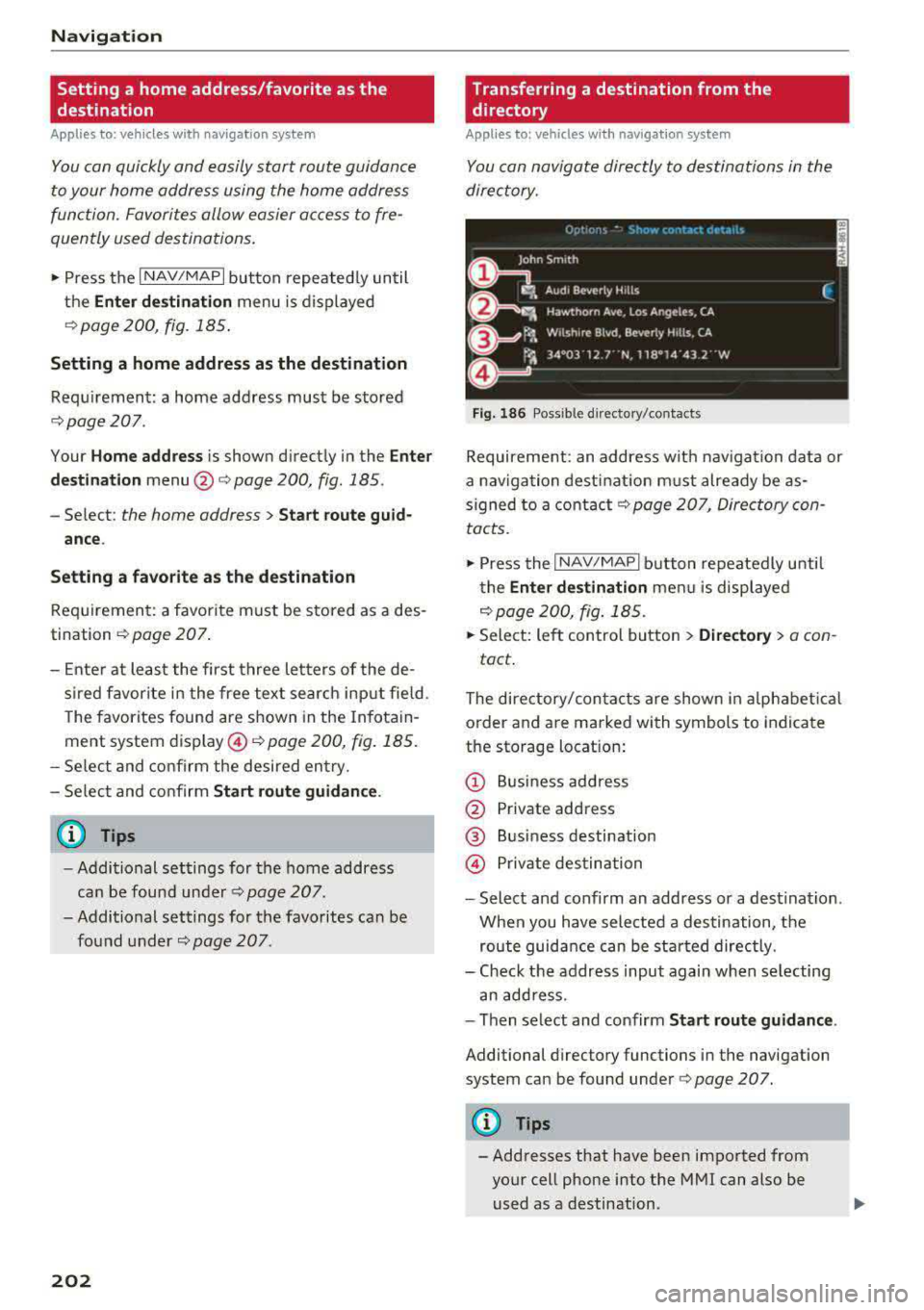
Fig. 186 Possible d irecto ry/contacts
Requirement: an address wit h nav iga tion data or
a navigation dest inat ion m ust already be as
s igned to a contact
c:> page 207, Direc tory con
tacts.
• Press the I NAV/MAPI b utton repeatedly u ntil
t he
Enter de stination men u is displayed
c:>poge 200, fig. 185 .
.. Select: left control button > Directory > a con -
tact .
The dire ctory/con tacts are shown in a lphabet ical
o rder and a re marked wi th symbols to indicate
the storage locat ion:
(D Bu siness address
@ Private address
@ Bus iness destination
© Private des tina tion
- Select and confirm an address or a destina tion .
When you have sele cted a destination, the
route guidance can be st arted directly.
- Check the address input again when se lecting
an add ress.
- Then se lect and confirm
Start route guidance .
Additional directory functions in the navigation
system can be found under
c:> page 207.
(!} Tips
- Addresses that have been imported from
your cell phone into the MMI can also be
used as a destination.
Page 205 of 400
CXl CXl .... N ,.__
N .... 0 N > 00
-If a contact is grayed out in the d irectory,
this contact has neither a destination no r an
address assigned to them.
Point of interest search
App lies to: ve hicles with navigation system
N.-w1gat1on . Po1nb of interest i
__ S_ e_ a_r_c _
h _a_ r_e _
a ______________ L _o _s _ A_ n_ g_ e_l_ e_s __ (_. ~
J
Find entry
Select category
0 Restaurant
ii) Diesel fueling station
fJ Coffee shop
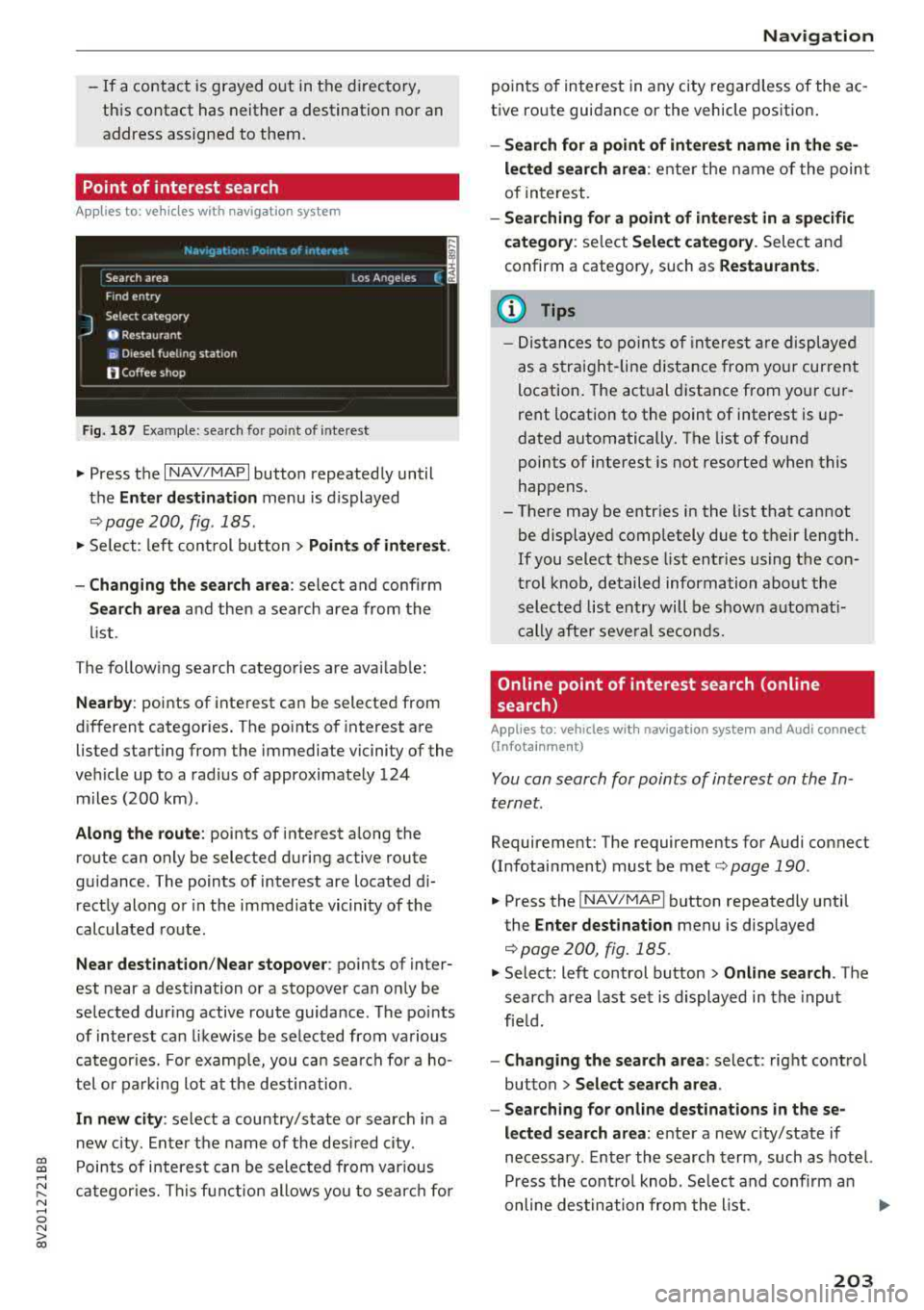
Fig . 187 Exa mple: se arch fo r po int of inte rest
"' Press the I NAV/MAPI button repeated ly until
t h e
Enter de stination menu is displayed
,:::;, page 200, fig . 185.
"' Se lect : left con trol but ton > Points of interest .
-Changing the search area : select and confirm
Search area and then a search area from the
li st.
The follow ing search catego ries are avai lab le :
Nearby : points of inte rest ca n be selected from
d ifferent categor ies. The po ints of interest a re
listed starting from the immediate vicinity of the
ve hicle up to a rad ius of approximate ly 124
m iles (200 km) .
Along the route : points of interest a long the
ro ute can only be selected d uring active route
gu idance . The points of interest are located d i
rect ly along or in the immed iate vicinity of the
calculated route .
Near destination /Near stopover : points of inter
est near a destination or a stopover can on ly be
se lected during active route guida nce. The po ints
of interest can likewise be se lected from various
categor ies. For examp le, you ca n sea rch for a ho
tel or parking lot at the destin ation.
In new city : select a country/state or search in a
n ew c ity . E nte r th e name of the desi red c ity .
P oints of i nte res t can be sele cted from var ious
ca tegor ies. Th is f unct ion allows you to sear ch for
Navigation
po ints of interest in any city re gard less of the ac
t ive ro ute guidance or the vehicle pos ition .
-Search for a point of int ere st name in these
lected search area :
enter the n ame of the poin t
of interest.
- Searching for a point of interest in a specific
category :
select Select category . Select and
confirm a category, such as
Restaurants .
(D Tips
-Distances to poin ts of i nte res t are displ aye d
as a s tra ight-line d ist ance from your current
location . The actual d istance from you r cur
rent locat ion to the point of interest is up
dated automatically . The list of found
points of interest is not resorted when this
happens.
-There may be entr ies in the list that cannot
be displayed completely due to t he ir length .
If you select these list entries using the con
tr ol knob , detailed information about the
sel ected list e ntry will be shown a utomat i
c ally af te r seve ral second s.
Online point of interest search (on line
search)
Appl ies to: vehicles with navigat ion system and Aud i connect
(Infotainment)
You can search for points of interest on the In
ternet.
Requirement: The requirements for Audi co nnect
(Infotainment) mus t be met
,:::;, page 190 .
"'Press the !NAV/MAPI button repeatedly until
the
Enter destination menu is displayed
,:::;,page 200, fig.185.
"' Select: left control button > Online search . The
search a rea last se t is displayed in the inpu t
fie ld.
-Changing the search area : select: right cont rol
button
> Select search area .
-Searching for online destinations in these
lected search area :
ente r a new c ity/state if
necessary . E nter the search term , such as hotel.
Press the contro l knob . Se lect and confi rm an
online des tination fro m the list.
..,.
203