rim AUDI S3 SEDAN 2018 User Guide
[x] Cancel search | Manufacturer: AUDI, Model Year: 2018, Model line: S3 SEDAN, Model: AUDI S3 SEDAN 2018Pages: 404, PDF Size: 62.3 MB
Page 174 of 404
Voice recognition s ystem
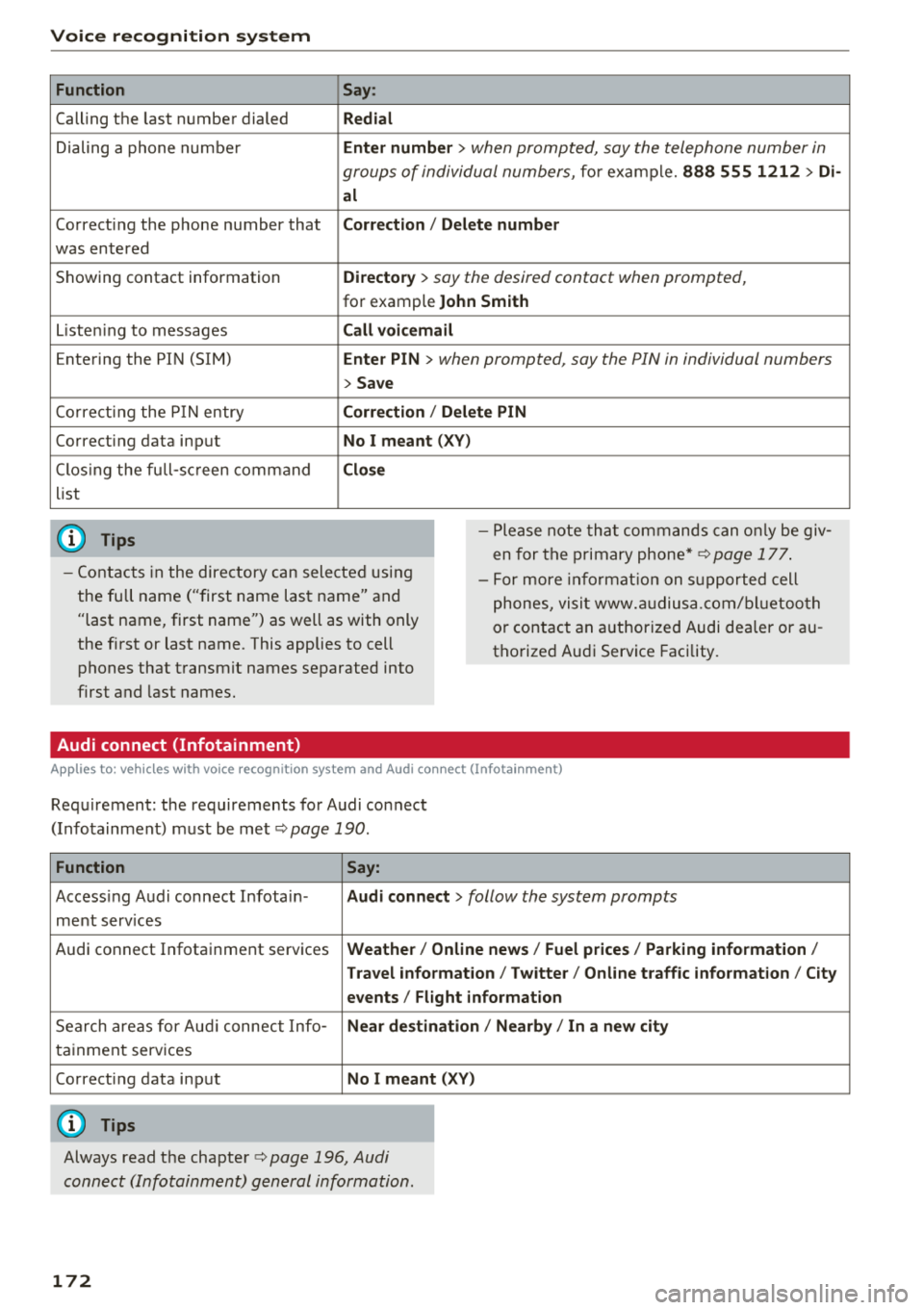
Function
Calling the last number dialed
Dialing a phone numbe r
Correcting the phone number that
was entered
Showing contact information
L isten ing to messages
Entering the PIN (SIM)
Co rrect ing the P IN entry
Correcting data input
C los ing the full-sc reen command
list
(D Tips
Say :
R edi al
Enter number
> when prompted, say the telephone number in
groups of individual numbers,
for example. 888 555 1212 > Di -
al
C orr ect ion / Delet e numb er
Di rector y
> say the desired contact when prompted,
for example John Sm ith
C all voic emai l
Ente r PIN
> when prompted , say the P IN in individual numbers
> S av e
Corr ection
I Delete PIN
No I meant ( XV)
Clos e
-Please note tha t commands can on ly be giv
en for the primary
phone*¢ page 177 .
-Contacts in the directory can selected using
the full name ("first name last name" and "last name, first name") as well as with only
the first or last name . This applies to cell
phones that transmit names separated into
first and last names. -
For more informat ion on s upported cell
phones, visit www.a udiusa.com/ bluetoo th
or contact an authorized Audi dealer or au
thorized Audi Service Facility .
Audi connect (Infotainment)
Applies to: vehicles with voice recognition system and Audi connect (Infotainment)
Requirement: the requirements for Audi connect
(Infotainment) must be met
¢ page 190 .
Function Say:
Accessing Audi connect Infota in -Audi connect > follow the system prompts
ment services
Audi connect Infotainment services
Weather / Online news / Fuel p rice s/ Parking info rmation /
T rav el info rmat ion / Tw itte r/ Online traffic info rmation / City
e v ents / Fl ight informat ion
Search areas for Aud i connect Info-N ear de stination / Nearb y/ In a new city
tainment serv ices
Correcting data input
No I m eant (XV)
(D Tips
Always read the chapter ¢ page 196, Audi
connect (Infotainment) general information.
172
Page 181 of 404
u. 00 .-< N l' N .-< 0 N > 00
Operating two telephones through the
MMI
You can connect two cell phones to the MMI, for
example your business cell phone as the primary
phone and your private cell phone as the secon
dary phone . You can be reached in your vehicle
through both cell phones.
The first con nected cell phone is disp layed as the
primary phone in the MMI. The second cell phone
is connected as the secondary phone.
The directory from the connected pr imary p ho ne
w ill always be disp layed. If yo u wou ld like to use
the directory from the secondary phone, yo u
must switch the primary and secondary phone
c:> page 179.
Connecting a cell phone as the primary
phon e
Connect yo ur ce ll phone to the M MI via Blue
tooth . The first connected cell p hone is displayed
as the
Prima ry phone in the MMI.
See
¢ page 177, Connecting a cell phone using
Bluetooth .
Connecting a cell phone as the secondary
phon e
Requirement: a cell phone must be connec ted to
the M MI as the prima ry phone.
Select:
IM ENU ! button> Telephone > right con
tro l button >
Conn ect secondary tel ephon e.
See c:> page 177, Connecting a cell phone using
Bluetooth .
Example: you have connec ted your business ce ll
phone to the MMI as the primary phone and your
private cell phone as the secondary phone . To be
ab le to call contacts from you r private cell p hone
d irecto ry, you m ust swit ch the pr ima ry and sec
onda ry phone, s ince the di rectory from the p ri
mary phone is always displayed.
Switching the primary and secondary phone
Requ irement: a primary phone and a seconda ry
phone must be connected .
Tele ph on e
Switch primary and second. phone : select:
IMENU I button> Telephone > right contro l but
ton >
Switch primary and second. phone .
(D Tips
-Please note that on ly the directory from the
pr imary phone is always disp layed .
-To view if your ce ll phone is co nne cte d as
the primary or secondary p hone, go to the
Connection manager c:> page 244 . Or: the
device name of the connected p rima ry
phone is shown in the
Telephone menu
(suc h as myPhone).
-If the pr imary phone does not connect a uto
matically to the MMI when the ignit ion is
switched on, for example because it is out
of the ve hicle range o r the Blue tooth func
tion is sw itched off, then a p reviously pa ired
se condary p ho ne is automa tic ally connected
as t he p rim ary phone .
-You can send and rece ive messages on your
pr ima ry phone as we ll as on your secon dary
phone
c:> page 180, fig. 174 . You do not
need to sw itch your pr im ary phone and sec
ondary phone fo r thi s.
-Yo u ca n a lso make you r co nne cted ce ll
phone the defau lt phone by se lecting
Set as
default telephone
i n the Connection man
ager
c:> page 246 .
179
Page 182 of 404
Telephone
Using the telephone
Opening the telephone
Applies to: vehicles with telephone
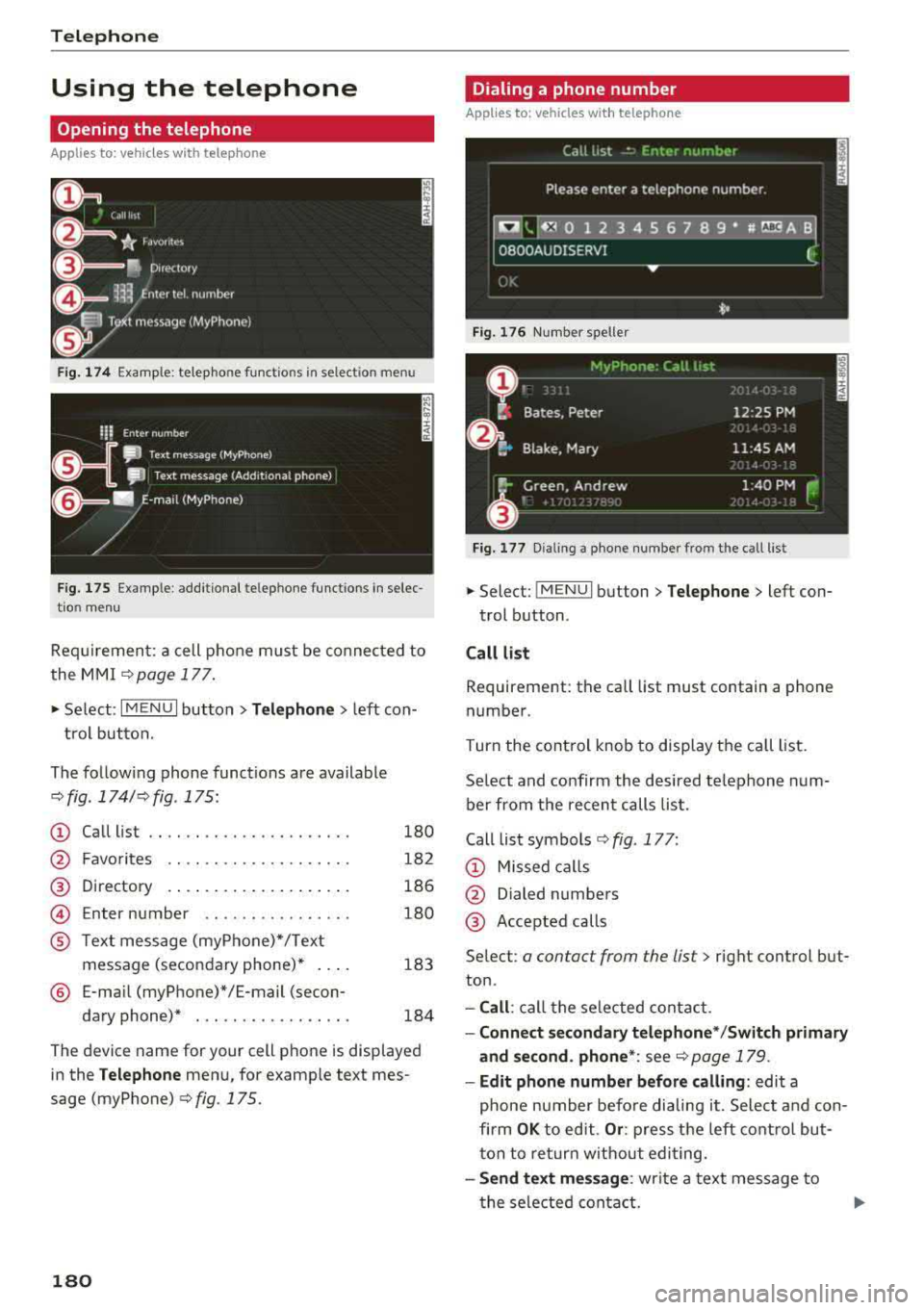
Fig. 1 74 Example: te lep ho ne fu nct ions in se lec tion menu
Fig . 175 Example: add it ional te lephone funct ions in se lec
t io n m enu
Re qui remen t: a cell phone m ust be connec ted to
the MMI
c> page 1 77.
~ Se lect : I MENU I but ton> T elephone > left con
t rol button.
The fo llow ing phone funct ions are available
¢ fig . 174/ c>fig . 175:
CD
@
Call list
F avo rites .. .. .. .. .. ... ... ... .
Directory
Enter number .. .. .. .... .... . .
®
©
® Text mess age (myP hone) */ T ext
message (seco ndary phone)* ....
® E-ma il (myP hone)*/E-mail (secon-
da ry phone)* . .. ... ....... ... .
180
18 2
186
1 80
183
184
T he dev ice name for your cell pho ne is d isplayed
in the
Telephone men u, for examp le text mes
sage (myPhone)
c> fig. 175.
180
Dialing a phone number
Applies to: vehicles with telephone
Fig. 176 N umber s pell er
Fi g. 1 7 7 D ialing a ph one numb er from t he c all list
~ Select: ! M EN UI button> Telephone > left con-
t rol b utton .
Call list
Requ irement : th e call list must contain a phone
numbe r.
Turn the cont rol knob to disp lay the ca ll li st.
Se lect and confirm the desired te lephone num
b er from the recen t calls list.
Call list symbo ls
c> fig . 177:
CD Missed ca lls
@ Dialed n umbers
@ Acce pted calls
Se lec t:
a con tac t from the lis t> right control but
ton .
-Call : ca ll t he se lected contact .
-Connect secondary telephone * /Switch primary
and second . phone *:
see r::!) page 179 .
-Edit phone number before calling : edit a
phone number befo re dialing i t. S elec t and con
firm
OK to edit. Or : pre ss t he left contro l but
t on to re turn w it h out edi ting.
- Send text mes sage : write a text message to
t he sele cted conta ct.
Page 188 of 404
Telephone
Directory
Opening the directory
Applies to: vehicles w ith telep hone
After connecting the cell phone, the contacts in
it are automatically imported into the
MMI.
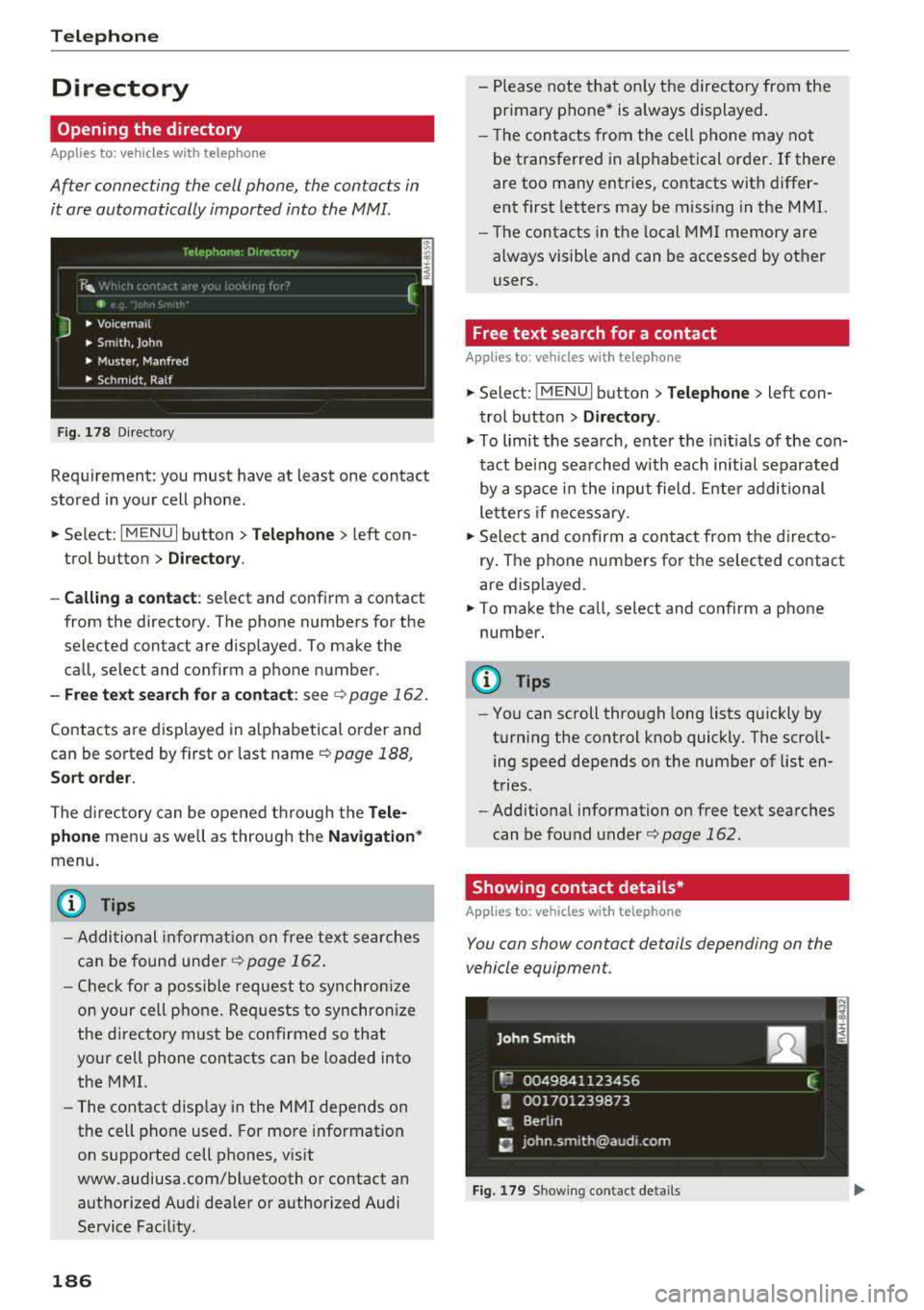
Fig. 178 Directory
Requirement: you must have at least one contact
stored in your cell phone .
.. Select: I MENU I button >Telephone > left con
trol button >
Directory .
- Calling a contact:
select and confirm a contact
from the directory. The phone numbers for the
selected contact are displayed. To make the call, select and confirm a phone number.
- Free text search for a contact: see ¢ page 162.
Contacts are displayed in alphabetical order and
can be sorted by first or last name ¢
page 188,
Sort order.
The directory can be opened through the Tele
phone
menu as well as through the Navigation *
menu.
(D Tips
-Additional information on free text searches
can be found under
¢ page 162.
-Check for a possible request to synchronize
on your cell phone. Requests to synchronize
the directory must be confirmed so that
your cell phone contacts can be loaded into
the MMI.
- The contact display in the MMI depends on
the cell phone used . For more information
on supported cell phones, visit
www.audiusa .com/bluetooth or contact an
authorized Audi dea ler or authorized Audi
Service Fac ility.
186
- Please note that only the directory from the
primary phone* is always displayed.
- Th e contacts from the cell phone may not
be transferred in alphabetical order. If there
are too many entries, contacts with differ
ent first letters may be miss ing in the MMI.
- The contacts in the local MMI memory are
always visible and can be accessed by other
users.
' Free text search for a contact
App lies to: vehicles wit h telepho ne
.. Select: !MENUI button> Telephone> left con
trol button >
Directory .
.,,. To limit the search, enter the initials of the con
tact being searched with each initial separated
by a space in the input field . Enter additional
letters if necessary .
.. Select and confirm a contact from the directo
ry . The phone numbers for the se lected contact
are displayed.
.. To make the call, select and confirm a phone
number.
(D Tips
- You can scroll through long lists quickly by
turning the control knob quickly. The scroll ing speed depends on the number of list en
tries.
- Additional information on free text searches
can be found under¢
page 162.
Showing contact details*
Applies to: vehicles with telephone
You can show contact details depending on the
vehicle equipment.
Fig. 179 Sh owing contact detail s
Page 239 of 404
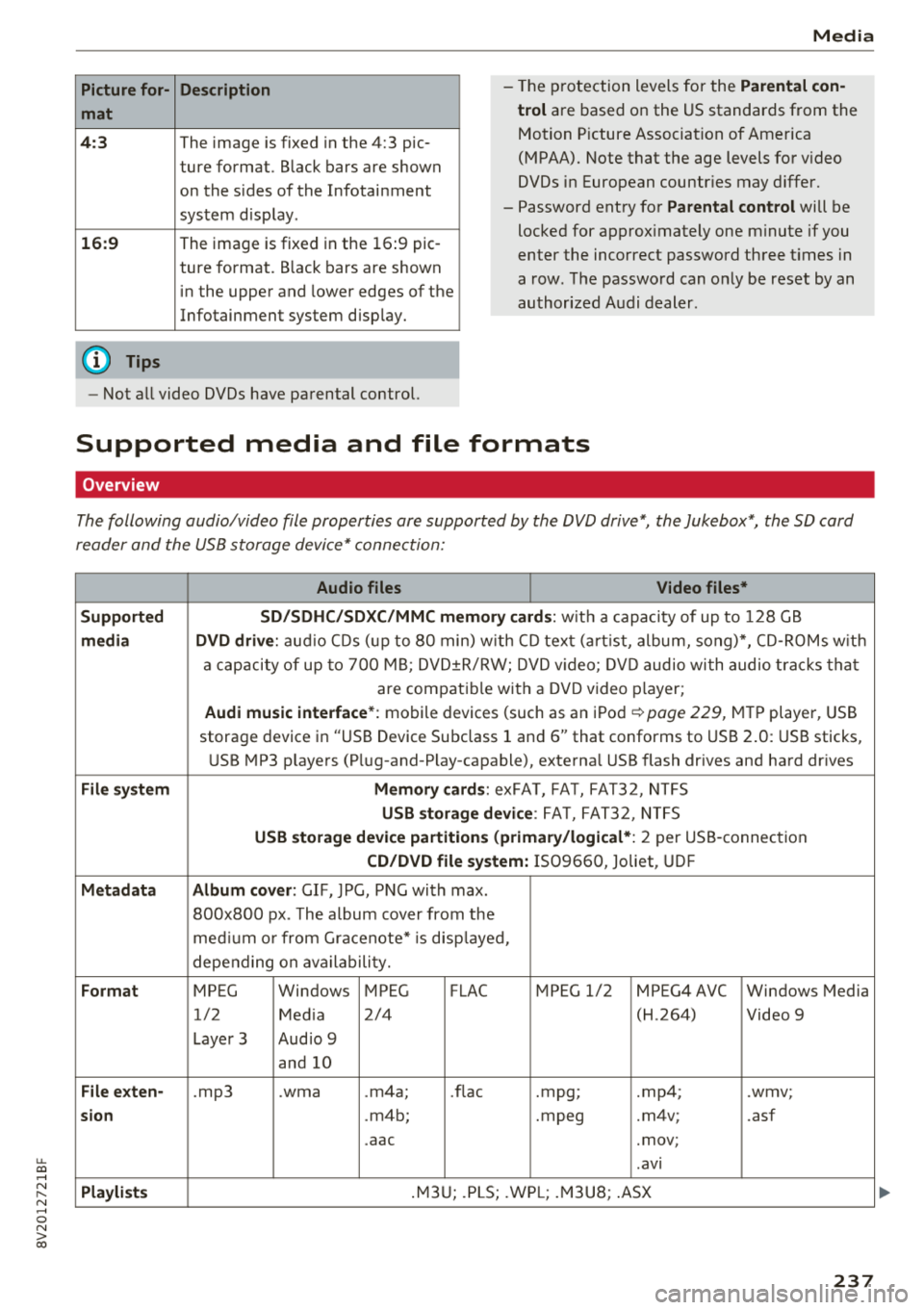
u. 00 ... N l' N ... 0 N > 00
Picture for-
mat
4: 3
16 :9
(D Tips Description
The image is fixed
in the 4:3 pie-
ture format. Black bars are shown
on the sides of the Infotainment
system d isplay.
The image is fixed in the 16 :9 pie -
ture format . B lack bars are shown
in the upper and lower edges of the
Infotainment system disp lay.
Media
-T he p rotection levels for the Parental con
t rol
are based on the US standards from the
Motion P icture Associat ion of America
(MPAA). Note that the age levels fo r video
DVDs in European countr ies may differ.
-Password ent ry fo r Parental control will be
locked for approx imately one m inute if you
enter the incorrect password three t imes in
a row. The password can o nly be reset by an
au thori zed A udi dealer.
-Not a ll video DVDs have parental control.
Supported media and file formats
Overview
The following audio/video file properties are supported by the DVD drive*, the Jukebox*, the SD card
reader and the USB storage device* connection:
Audio files Video files*
Supported SD/SDHC /SDXC /MMC m emory cards :
with a capacity of up to 128 GB
media DVD drive : audi o CDs ( up to 80 min) w ith CD tex t (a rt ist, album, so ng)*, CD -R O Ms w ith
a ca pacity of up to 70 0 M B; D V D± R/RW; DVD video; DV D audio wi th audio t ra ck s tha t
are compatible with a DVD video p layer;
Audi music interface *: mobile devices (such as an i Pod i::> page 229, M TP playe r, USB
storage device in "USB Device Subclass 1 and
6" that conforms to USB 2 .0: USB sticks,
U SB MP3 p laye rs (P lug-and-P lay-capable), external USB flash drives and ha rd dr ives
File system Memory cards : exFA T, FA T, FAT32, NTFS
USB storage device : FA T, FA T32 , NTFS
USB storage device partition s (primary/logical* : 2 per USS-connec tion
CD/DVD file sy stem: IS09660, Joliet, UDF
Metadata Album cover : GIF, )PG, P NG with max.
800x800 px . The album cover from the
me diu m o r from Gracenote* is disp layed,
depe nding on ava ilabili ty.
Format MPEG Windows MPEG FLAC MPEG 1/2 MPEG4 AVC Windows Media
1/2 Med ia 2/4 (H
.264)
Video 9
Laye r 3 Aud io 9
and 10
File e xten-.mp3 .wma .m4a; .nae .mpg; .mp4; .wmv;
sion .m4b; .mpeg .m4v; .asf
.aac .mov;
.avi
Pla ylists .M3 U; .PLS; .WP L; .M3 U8; .ASX
237
Page 246 of 404
System settings
wait for the sig nal t one (bee p) to say a new
command.
Volume : you can a djust th e vol ume of th e
p romp ts by turning the con tro l k no b.
Individual speech training (on ly when the v ehi
cle is s ta ti onary): yo u ca n ad apt the vo ice recog
ni tion sy ste m to your voic e or pro nunciati on in
or der to im prove the sys tem's a bili ty to re co gni ze
your speec h. Indivi dua l speech train ing is com
p rised of 20 s peech ent ries t hat consist o f com
mands and sequences of numbers . You can de
lete the p rogrammed voice t rain ing with the
Re
set individual speech training
function.
Display brightness
You can a djust the brigh tness o f the Info tain
ment system disp lay by t urning the cont ro l knob.
Factory settings
D epe ndi ng on t he ve hicle eq uipme nt, th e fo llow
i ng fu nctio ns ca n b e rese t to factory se ttings :
-Sound settings
- Radio
- Media settings
- Jukebox *
- Directory
-Telephone
- Bluetooth and Wi-Fi*
- Navigation settings*
- Navigation and online memory *
- Speech dialog system*
- Message settings *
-Apps*
- Tool tips
- Audi connect*
- Audi smartphone interface *
You can select the des ired functions individually
or all at once with the option
Select all entries .
Select and confirm Restore factory settings .
(D Tips
-Make s ure that n ot on ly t he settings we re
d eleted but also the stored data, if ap plica
b le.
- Pleas e note t hat the vo ice reco gnit io n sys
te m* is not availab le in Cabr io lets .
244
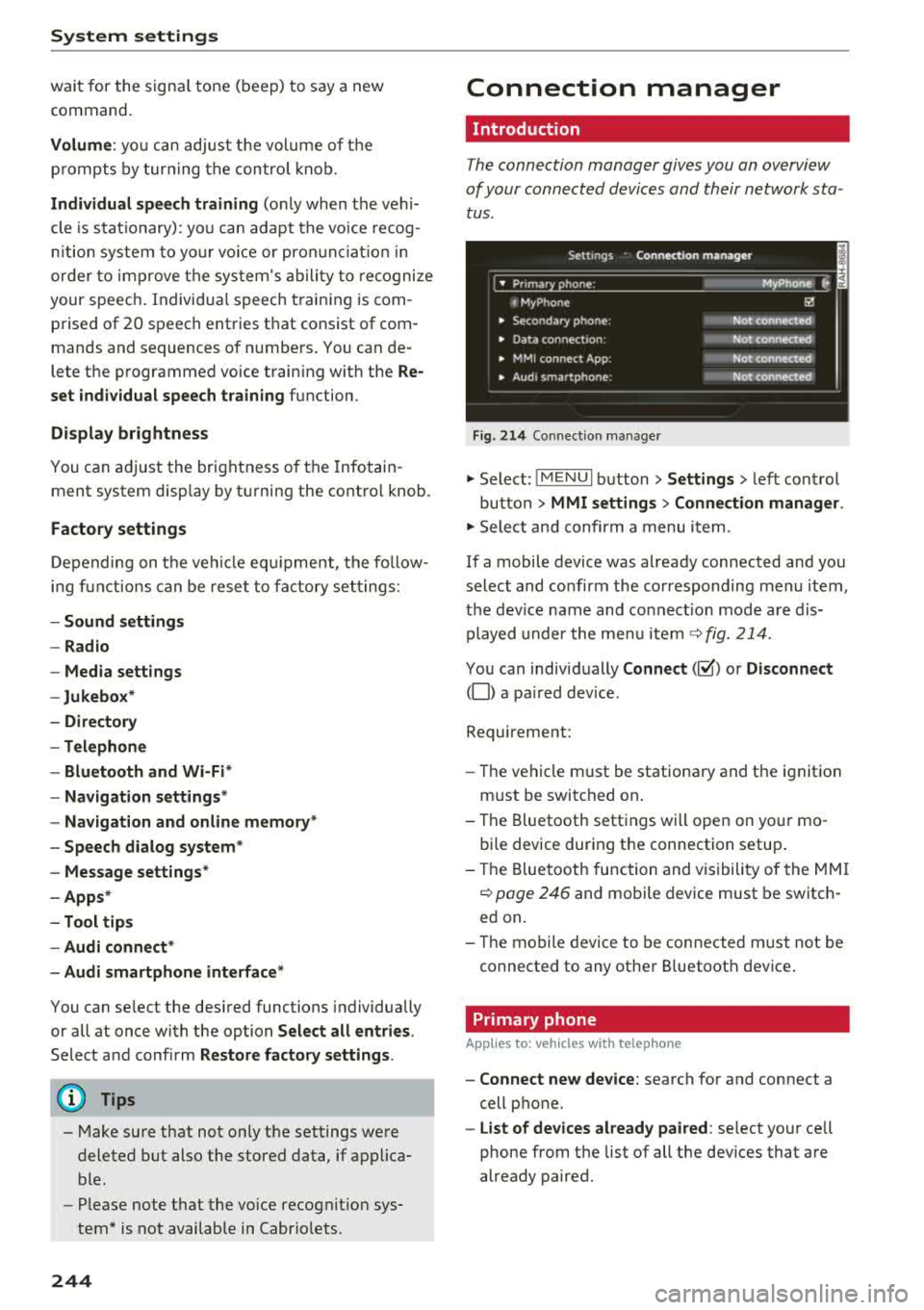
Connection manager
Introduction
The connection manager gives you an overview
of your conn ected devic es and th eir network sta
tus .
Settings Conne -ction manager I
-====- ,.· • Prima hone: MyPhone .,.
c M yPhone
• Second ary phone :
• Data conn ection :
• MM I connect App :
• Audi smartphone:
Fig. 214 Co nnec tion man ag er
Ii'!
Not connected
Not
conn.,ct.,d
Not connected
Not
conn..cted
"' Select : !ME NUI bu tton> Settings > left con trol
bu tton >
MMI settings > Connection manager .
"'Sele ct a nd confirm a menu item.
If a mobile device was already connected and you
select and co nfirm the co rresponding menu item,
t h e dev ice name and co nnect ion mode a re dis
p layed under the menu i tem
r:!;> fig. 214 .
You can indiv id ually Connect (~ ) or Disconnect
(0) a pa ired device .
Requirement:
- The ve hicl e m ust be statio na ry and the ignit io n
m ust be switc hed on .
- Th e Bluetooth sett ings will open on yo ur mo
bi le device dur ing the connection setup .
- T he Blue tooth func tion and v is ibili ty of the MMI
c:!;> page 24 6 and mobile device must be switc h
ed on.
- T he mo bile device to be con nected m ust not be
connected to any othe r Bluetoot h dev ice .
Primary phone
App lies to: vehicles wit h telepho ne
- Connect new device: search for and connect a
cell p hone.
- List of devices already paired : select yo ur cell
phone from the list of all the dev ices that a re
already paired.
Page 252 of 404
Driving sa fety
,.. ALWAYS adjust your speed to road, traffic and
weather conditions.
,.. Take frequent breaks on long trips. Do not drive
for more than two hours at a stretch.
,.. Do NOT drive when you are tired, under pres
sure or whe n you are stressed .
A WARNING
Impaired driv ing safety inc reases the risk of
ser ious persona l inju ry and death whenever a
vehicle is being used.
Correct passenger
seating positions
Proper seating position for the driver
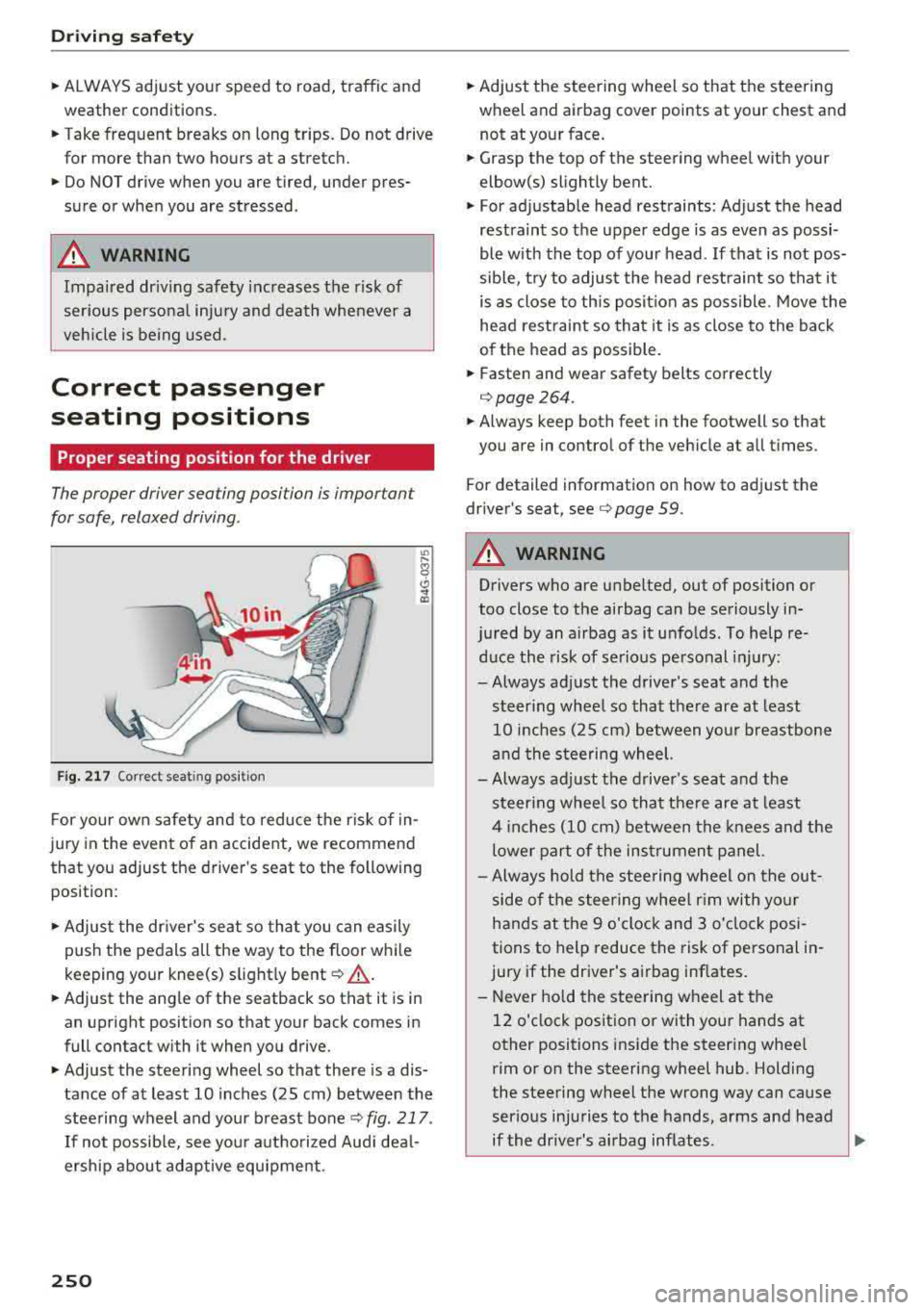
The proper driver sea ting po sition is impor tan t
for safe, relaxed driving .
Fig. 217 Correc t seat ing posit ion
F or your own safety and to reduce the risk of in
jury in the event of an accident, we recommend
that you adjust the driver 's seat to the following
position :
,.. Adjust the dr iver's seat so tha t you can easily
push the pedals all the way to the floor whi le
keeping your knee(s) s light ly
bent ¢ ,A.
,.. Adjust the angle of the seatback so that it is in
an upright position so that your back comes in
full contact with it when you drive.
,.. Adjust the steering wheel so that there is a dis
tance of at least 10 inches (25 cm ) between the
stee ring wheel and your breast bone
<=;> fig . 217 .
If not possib le, see you r autho rized Aud i dea l
ersh ip about adaptive equipment .
250
,.. Adjust the steering wheel so that the steering
wh eel and airbag cover points at your chest and
not at your face.
,.. Grasp the top of the steering wheel with your
elbow(s) slightly bent.
,.. F or ad justab le head rest raints: Adjust the head
restraint so t he upper edge is as even as possi
ble with the top of your head . If that is not pos
sible, t ry to adjust the head restraint so tha t it
is a s close to this pos it ion as poss ible . M ove the
he ad restraint so tha t it is as close to the back
o f the head as possible.
,.. Fasten and wear safety belts correctly
q page264 .
,.. Always keep both feet in the footwell so that
you are in contro l of the veh icle at all times .
Fo r detail ed information on how to adjust the
dr iver's seat,
see ¢ page 59.
A WARNING
Drivers who are unbelted , out of position or
too close to the airbag can be seriously in-
jured by an airbag as it unfo lds . To help re-
duce the risk of serio us pe rsonal i njury:
-Always adjust the driver's seat and the steer ing whee l so that there are at least
10 inches (25 cm) between you r breastbone
and the steering wheel.
- Always ad just the driver's seat and the
steer ing whee l so that the re are at least
4 inch es (10 cm) between the knees a nd the
lower part of the ins trumen t panel.
-Always hold t he s teering wheel on the out
side of t he steering wheel r im with yo ur
hands at the 9 o'clock and 3 o'clock posi
tions to help reduce the risk of personal in
jury if the dr iver 's airbag inflates.
-Never hold the stee ring wheel at the
12 o'clock position or with you r hands at
other positions inside the steer ing whee l
rim o r on the steering wheel hub. Holding
the steering wheel the wrong way can cause
serious injuries to the hands, arms and head
-
if the driver's airbag inflates . .,_
Page 258 of 404
Drivin g saf ety
- After closing the rear lid, a lways make sure
that it is properly closed and locked.
- Never leave yo ur vehicle unattended espe
c ia lly w ith the rear lid left open. A ch ild
could crawl into the ve hicle through the lug
gage compartment and close the rear lid be
coming trapped and unable to get out . Be
ing t rapped in a veh icle can lead to se rious
persona l injury.
- Never let children play in or around the veh i
cle .
- Never let passengers ride in the luggage
compartment. Ve hicle occupants m ust al
ways be prope rly rest ra ined in one of the ve
hicle's seating posi tions.
(D Tips
- A ir c irculat io n helps to reduce window fog
g ing . Stale air escapes to the outside
th rough vents i n the t rim panel. Be s ure to
k eep these slots free and open.
- The t ire pressu re must correspond to the
l oad. The tire p ressure is shown on the tire
p ressure labe l. Th e tire pressu re labe l is lo
ca ted on t he driver 's s ide B-p illar. The tir e
p ressure labe l lists the recommended cold
tire inflation pressures for the vehicle at its max imum capacity weig ht and the t ires t hat
were on your vehicle at the t ime it was man
ufactured. For recommended tire pressures
for normal load cond itions, please see chap
ter
¢ page 341.
Tie-downs
The luggage compartment is equipped with four
tie -downs to secure luggage and other items .
Use the tie-downs to secure your cargo proper ly
¢ page 255, Loading the luggage compartment.
In a col lision, the laws of p hysics mean that even
sma ller items that are loose in the vehicle will
become heavy missiles that can cause ser ious in
jury. Items in t he ve hicle possess energy which
vary with vehicle speed and the weight of the item . Veh icle speed is the most s ignificant factor .
For examp le, in a frontal collision at a speed of
30 mph (48 km/h), the forces act ing o n a 10-lb
256
(4.5 kg) object are about 20 times the normal
weight of the item . This means that the weight
of the item would s udden ly be about
200 lbs. (90 kg). You can imag ine the in juries
that a 200 lbs. (90 kg) item flying freely through
the passenger compartment could cause in a col
l is ion like t his.
A WARNING
Weak, damaged or imp roper straps used to
secure items to tie-downs can fa il dur ing hard
b raking or in a coll is ion and cause ser io us pe r
sona l injury .
- Always use s uitable mo unt ing st raps and
p roper ly sec ure i tems to the t ie -downs in
the l uggage compa rtment to help preven t
items from shifting or flying forward as dan
ge rous missi les .
- W hen the rear seat backrest is fo lded down,
a lways use s uitable mo unting straps and
properly sec ure items to the tie-downs in
the luggage compartment to help prevent items from flying forward as dangerous
m iss iles into the passenger compartment.
- Never attach a child safety seat tether strap
to a t ie-down.
-
Page 275 of 404
LL co ..... N
" N ..... 0 N > co
-An improper ly installed child restraint can
interfere with the airbag as it deploys and
seriously injure or even kill the child
-even
with an Advanced Airbag System.
- Always carefully follow the manufacturer's
instructions provided with the child seat or
carrier .
- Always make sure that there is nothing on
the front passenger seat that will cause the capacit ive passenger detection system in
the seat to signal to the Airbag System that
the seat is occupied by a person when it is
not, or to signal that it is occupied by some
one who is heavier than the person actually
sitting on the seat. The presence of addi
tional objects could cause the passenger
front airbag to be turned on when it should be off, or could cause the airbag to work in a
way that is different from the way it would have worked without the object on the seat .
Front airbags
Description of front airbags
The airbag system can provide supplemental
protection to properly restrained front seat occu
pants.
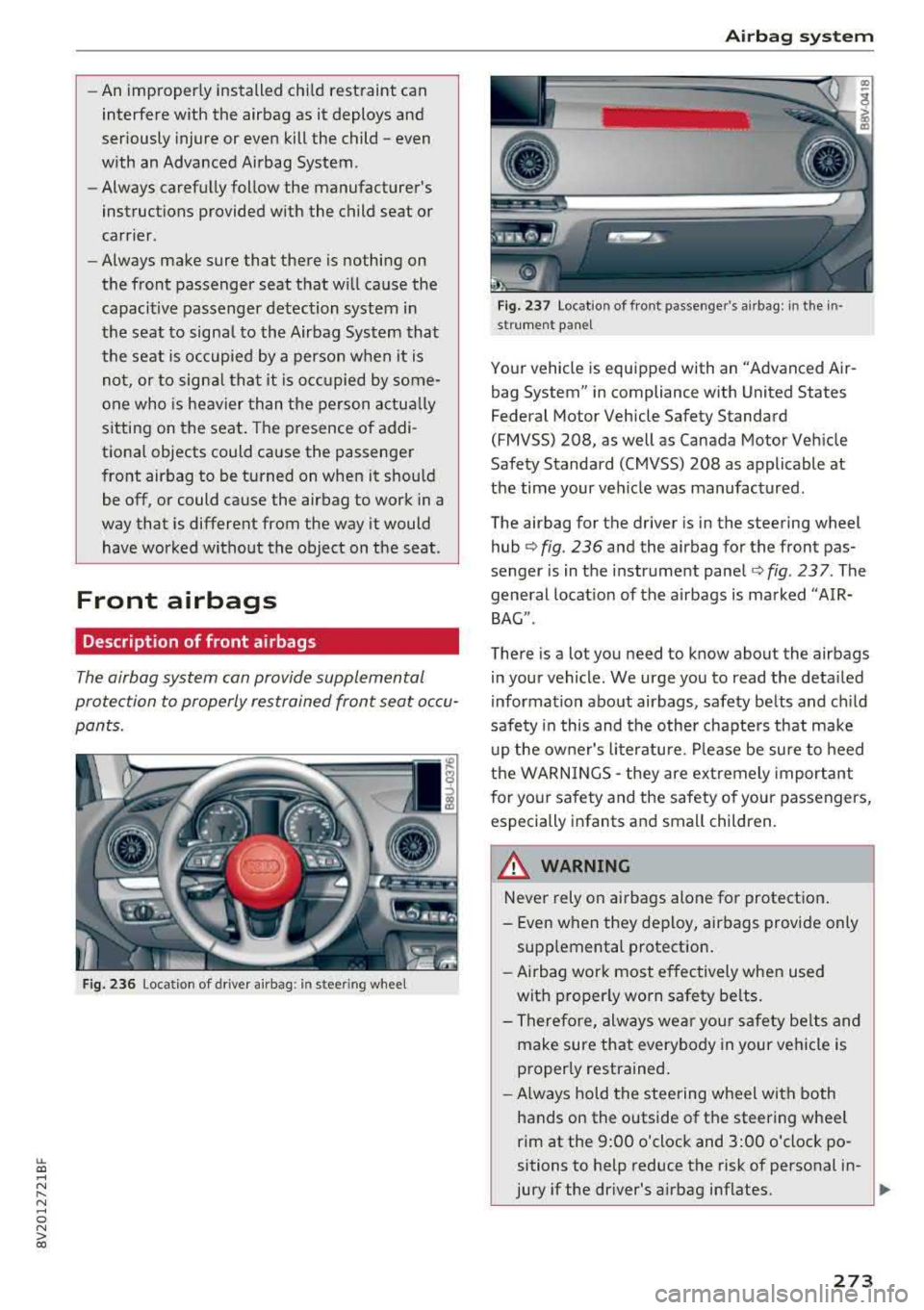
Fig. 236 Loc ation of driver a irbag: in ste .e ring wheel
Airbag system
Fig. 237 Location of front passenger's airbag: in the in
st rum ent panel
Your vehicle is equipped with an "Advanced Air
bag System" in compliance with United States
Federal Motor Vehicle Safety Standard
(FMVSS) 208, as well as Canada Motor Vehicle
Safety Standard (CMVSS) 208 as applicable at
the time your veh icle was manufactured.
The airbag for the driver is in the steering wheel
hub
¢ fig. 236 and the airbag for the front pas
senger is in the instrument panel
¢fig . 237. The
general location of the airbags is marked "AIR
BAG ".
There is a lot you need to know about the airbags
in your vehicle . We urge you to read the detailed
information about airbags, safety belts and child
safety in this and the other chapters that make
up the owner's literature. Please be sure to heed
the WARNINGS
-they are extremely important
for your safety and the safety of your passengers,
especially infants and small children.
_& WARNING
-Never rely on airbags alone for protection .
- Even when they deploy, airbags provide only
supplemental protection.
- Airbag work most effectively when used
with properly worn safety belts.
- Therefore, always wear your safety belts and
make sure that everybody in your vehicle is
properly restrained.
- Always hold the steering wheel with both
hands on the outside of the steering wheel
rim at the 9:00 o'clock and 3:00 o'clock po
sitions to help reduce the risk of personal in-
jury if the driver's airbag inflates.
..,.
273
Page 287 of 404
LL co .... N
" N .... 0 N > co
action is entered in your Audi Warranty &
Maintenance booklet under
AIRBAG RE
PLACEMENT RECORD.
- Applies to plug-in hybrid* vehicles: In the
event of a collision where the airbags de
ploy, the electrical connection to the high
voltage battery is automatically disconnect
ed. This prevents a short c ircuit.
@) For the sake of the environment
Undeployed airbag modules and pretension
ers might be classified as Perchlorate Materi
al - special handling may apply, see
www.dtsc.ca.gov/hazardouswaste/perchlo
rate. When the vehicle or parts of the re
straint system including airbag modules and
safety belts with pretensioners are scrapped,
all applicable laws and regulations must be
observed. Your authorized Audi dealer is fa
miliar with these requirements and we recom
mend that you have your dealer perform this
service for you.
Other things that can affect Advanced
Airbag performance
Changing the vehicle's suspension system can
change the way that the Advanced Airbag System
performs in a crash. For example, using tire-rim
combinations not approved by Audi, lowering the
vehicle, changing the stiffness of the suspension, including the springs , suspension struts, shock
absorbers etc. can change the forces that are
measured by the airbag sensors and sent to the
electronic control unit . Some suspension changes
can, for example, increase the force levels meas
ured by the sensors and make the airbag system
deploy in crashes in which it would not deploy if
the changes had not been made. Other kinds of
changes may reduce the force levels measured by
the sensors and prevent the airbag from deploy
ing when it should.
A WARNING
Changing the vehicle's suspension including
use of unapproved tire-rim combinations can
change Advanced Airbag performance and in-
.
Airbag system
crease the risk of serious personal injury in a
crash.
- Never install suspension components that
do not have the same performance charac
teristics as the components originally instal led on your vehicle.
- Never use tire-rim combinations that have
not been approved by Audi.
Knee airbags
Description of knee airbags
Applies to: vehicles with knee airbags
The knee airbag system can provide supplemen
tal protection to properly restrained front seat
occupants.
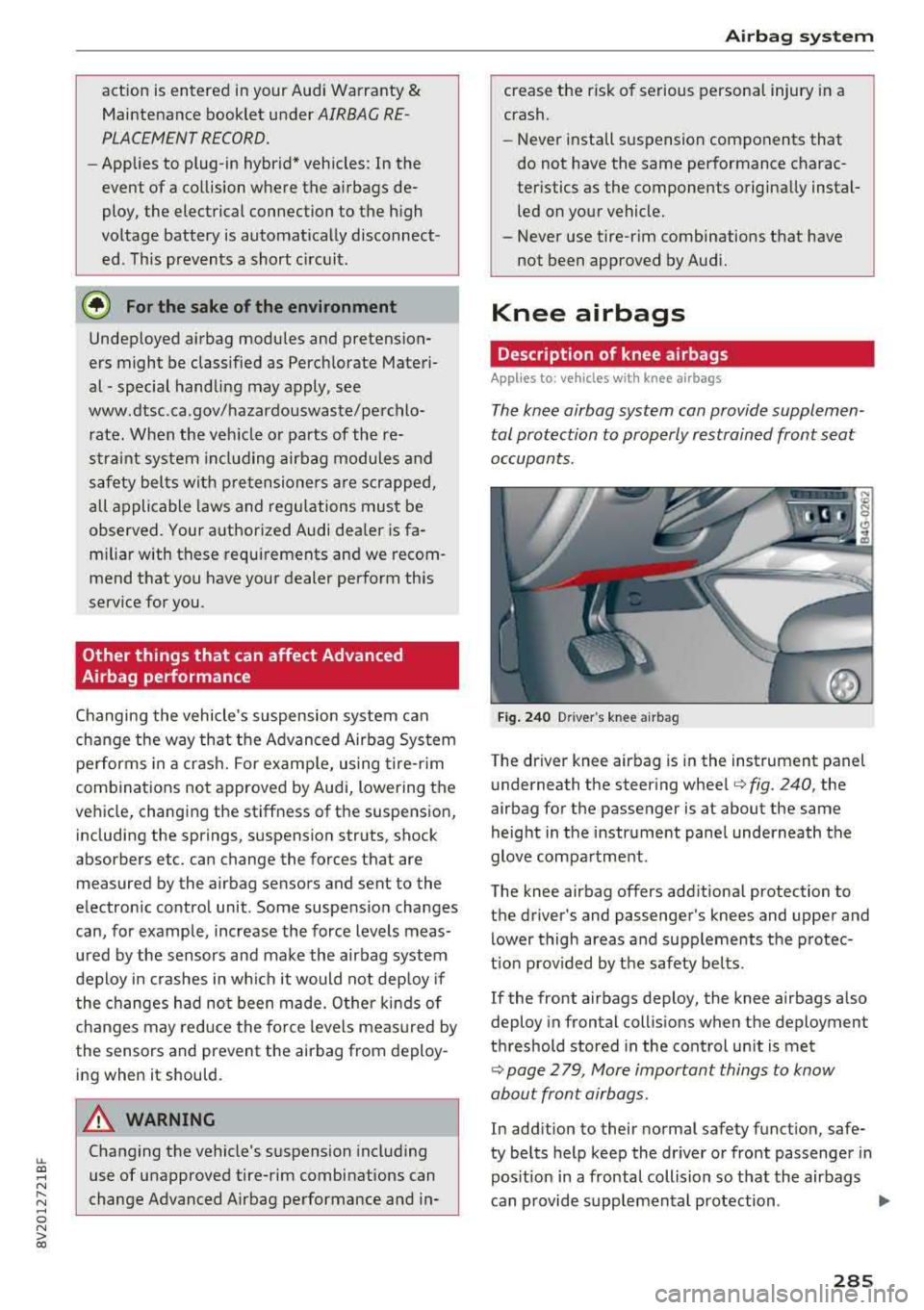
Fig. 240 Driver 's knee airbag
The driver knee airbag is in the instrument panel
underneath the steering
wheel¢ fig. 240, the
airbag for the passenger is at about the same
height in the instrument panel underneath the
glove compartment.
The knee airbag offers additional protection to
the driver's and passenger's knees and upper and
lower thigh areas and supplements the protec
t ion provided by the safety belts.
If the front airbags deploy, the knee airbags also
deploy in frontal collisions when the deployment
threshold stored in the control unit is met
¢ page 2 79, More important things to know
about front airbags .
In addition to their normal safety function, safe
ty belts help keep the driver or front passenger in
posit ion in a frontal collision so that the airbags
can provide supplemental protection .
..,.
285