led AUDI S3 SEDAN 2018 Repair Manual
[x] Cancel search | Manufacturer: AUDI, Model Year: 2018, Model line: S3 SEDAN, Model: AUDI S3 SEDAN 2018Pages: 404, PDF Size: 62.3 MB
Page 191 of 404
u. 00 .-< N l' N .-< 0 N > 00
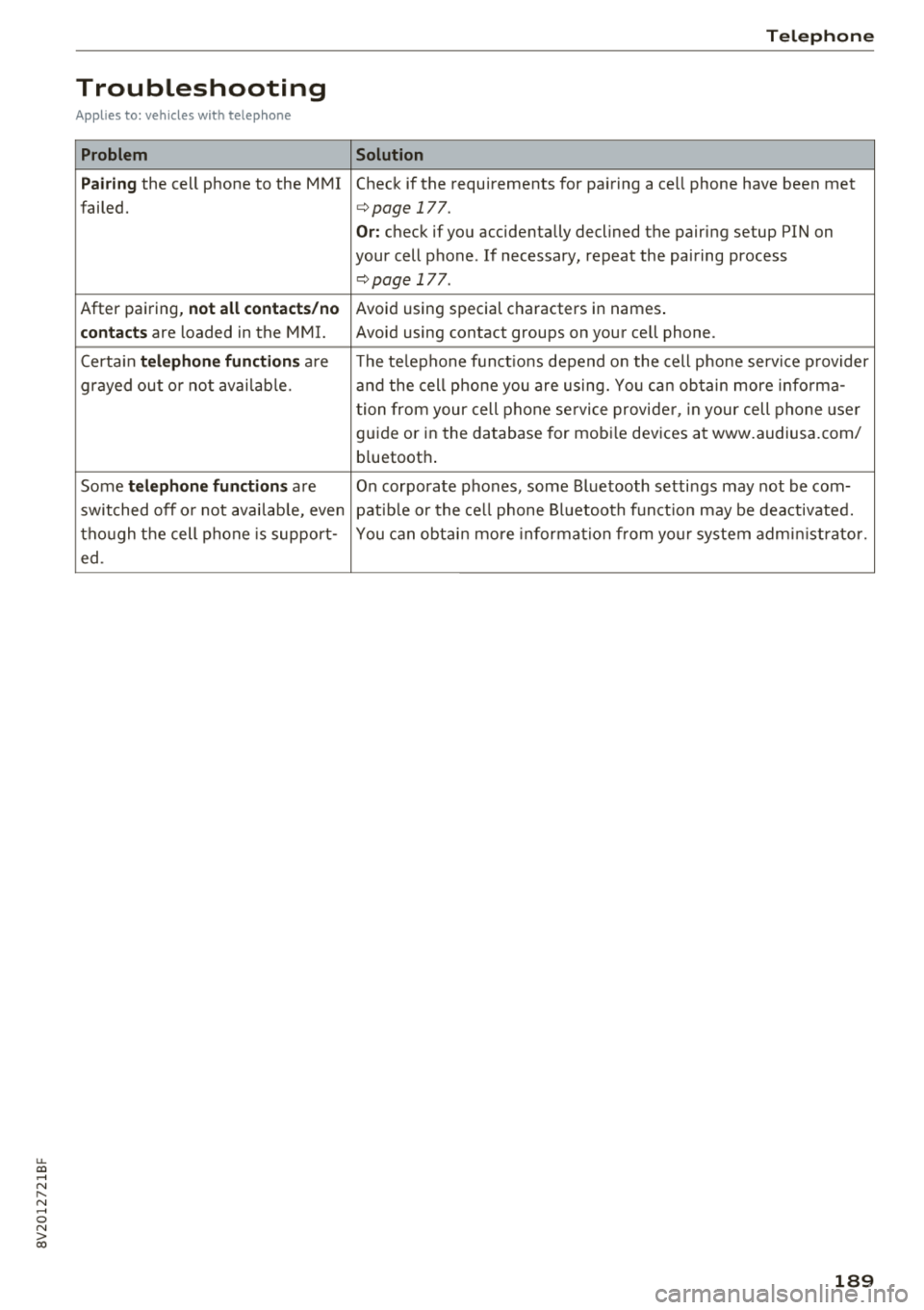
Troubleshooting
Applies to: vehicles with telephone
Problem
Pairing
the cell phone to the MMI
failed.
After pairing,
not all contacts/no
contacts
are loaded in the MMI.
Certa in
telephone functions are
grayed out o r not avai lab le.
Some
telephone functions are
switched off o r not avai lab le, even
though the cell phone is support-
ed.
Telephone
Solution
Check if the requirements for pairing a cell phone have been met
c>page 177.
Or: check if you accidentally declined the pairing setup PIN on
your cell phone. If necessary, repeat the pairing process
c>page 177 .
Avoid using special characters in names .
Avoid using contact groups on your cell phone.
The te lephone funct ions depend o n the cell phone service p rovider
and the cell phone you are using. You can obtain more informa-
tion from your cell phone se rvice provider, in your cell phone user
guide or in the database for mobi le devices at www.audiusa.com/
b luetooth .
On corporate
phones, some Bluetooth settings may not be com-
patib le or the cell phone Bluetooth function may be deactivated.
You can obtain more information from yo ur system administrator.
189
Page 192 of 404
Audi conn ect (Infotainment)
Audi connect
(Infotainment)
Introduction
Applies to vehicles with Audi connect (Infotainment)
With Audi connect Infotainment services, online information is transmitted directly to the vehicle
and then integrated .
A WARNING
To reduce the risk of an accident, only use
Audi connect Infotainment services when
road and traffic cond itions permit. A lways
read and fo llow the notes
in~ page 154,
Traffic safety information.
Setup
Requirements for Audi connect (Infotainment)
Applies to vehicles with Audi connect (Infotainment)
-
The data connection fo r A udi connect Infota in
ment services is made thro ugh an embedded SIM
card (eS IM card) that is equipped in the veh icle.
The fo llow ing requ irements must be met to use
the embedded SI M card:
- You have already reg istered at
www .aud iusa.com/myaud i and ass igned a vehi
cle.
- You have also already logged in to your myAud i
account under Audi connect plan for the em
bedded SIM card and accepted the terms of use
given there. For add it io na l information, co ntact
an a uth orized Aud i de aler o r au th orized Audi
Service Facility .
Then you r Audi connect Infota inment serv ices are
activated and can be used in your ve hicle.
(D Tips
- After the free subscription has ended or the
data volume has been used up, data pac kets
can be purchased for the use of Audi con nect Infot ainment serv ices. You can find a d
dit ional info rmation about fees and pur
chasing at www .audiusa .com/myaudi.
190
- Read this chapter before operating
~ page 196, Audi connect (Infotainment)
general information.
Configuration through myAudi
Audi connect (Infotainment) configuration
Applies to vehicles with Audi connect (Infotainment)
Some A udi connect Infotainment services must
be conf igured through your personal myAud i ac
count before using them for the first time.
- If you do not have a persona l myAudi account
yet, you can register on line at
www.a udiusa.com/myaudi.
- Add your vehicle to your myAudi account.
- Ac tivate/config ure the A ud i connect (Infotain -
ment) services you would like for your veh icle in
your myA udi account.
- For some Audi connect Infotainment services,
you may also have to enter your myAudi user
data or your myAudi PIN when accessing serv ices in the MMI to connect your veh icle to
myAudi.
For detailed information on configuration, visit
www.audiusa .com/mya udi .
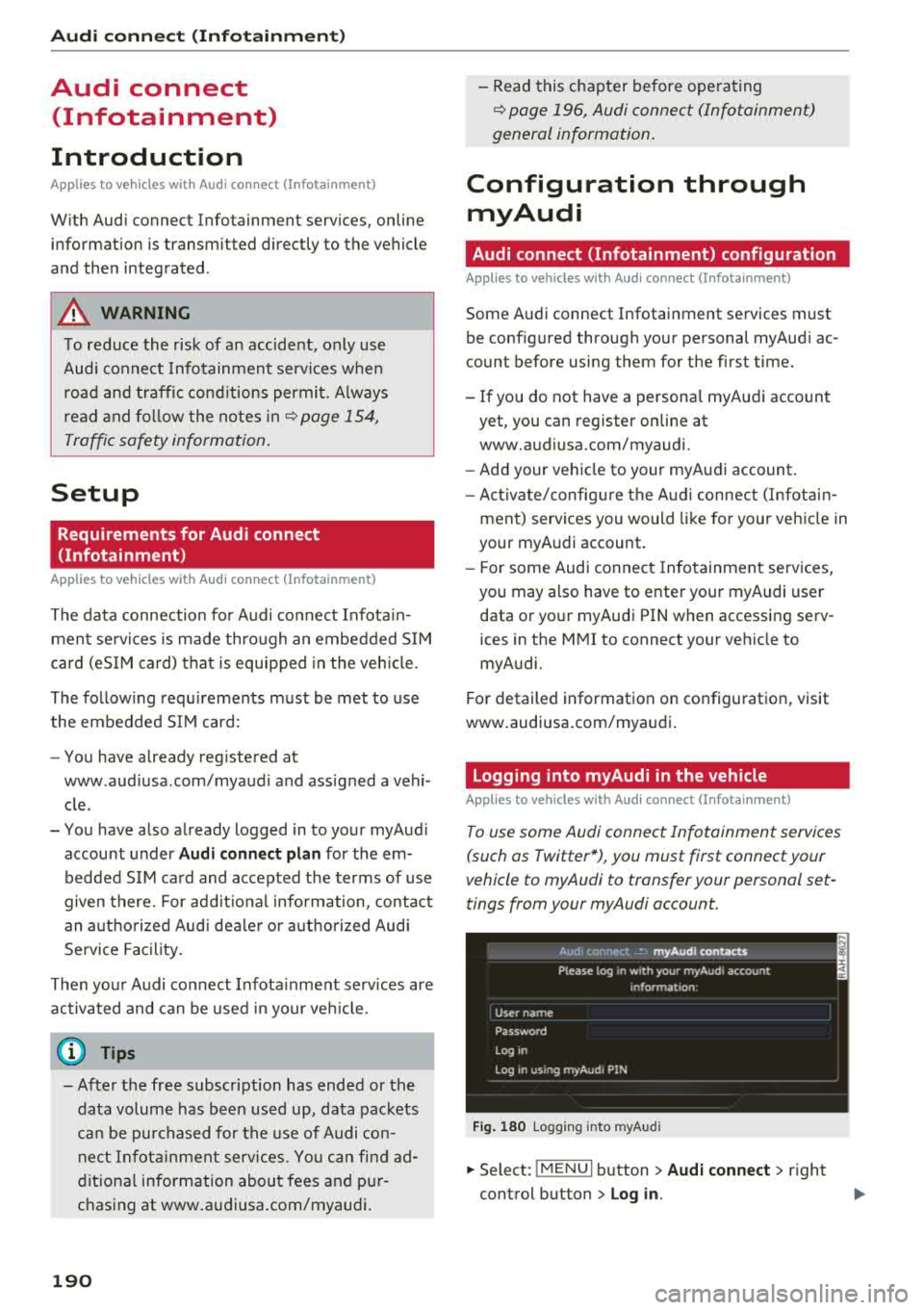
Logging into myAudi in the vehicle
Applies to vehicles with Audi connect (Infotainment)
To use some Audi connect Infotainment services
(such as Twitter*), you must first connect your
vehicle to myAudi to transfer your personal set
tings from your myAudi account.
Fig . 180 Logging into myA udi
.,.. Select: !MENUI b utton> Audi conne ct > right
control button > Log in.
Page 195 of 404
u. 00 .-< N l' N .-< 0 N > 00
The following categories can be selected in the
Twitter menu:
-My tw eets: News Feed and the Tweets you have
posted are listed.
- Home: the Tweets for everyone you follow are
displayed.
- Trends : topics on Twitte r that are cur rently
popular w ithin a country .
D ifferent functions are available depending on
the Twitter category you have selected:
- New tweet : you can post a new tweet using
pre-made templates or using myAudi tem
plates that you have created yourself .
-Refresh : the selected Tw itter function is re
freshed .
-Favorite : mark a Tweet as favorite to show you
liked it .
-Retweet: you can quote a Tweet to share it with
others.
(D Tips
- Other settings such as account, language,
Tweet security and location settings
cannot
be changed in the MMI. These changes must
be made on the Twitter webs ite.
- You can only connect
one Twitter account
with your myAudi account.
- Audi connect (Infotainment) makes it possi ble to access Tw itter. Permanent ava ilability
cannot be guaranteed, because that de pends on Twitter.
Travel (travel guide)
Applies to: ve hicles with Trave l (travel guide)
You can use the Audi MMI connect opp to store
points of interest on your mobile device (such as a smartphone) and then use them for route
guidance in the
MMI.
Requirement:
The
Audi MMI connect app must be insta lled and
open on your mobile device.
Audi connect (Infotainment)
You must be logged into your myAudi account in
the
Audi MMI connect app and you must have se
l ected your vehicle.
T he Wi-Fi function on your mobile device and on
the MMI must be switched on.
T he M MI must be connected to the network.
.. Press: !MENU ! button> Audi connect> left con-
trol button >
Information category> Travel.
After opening the trave l guide, trave l tips in your
area w ill be displayed including current ratings as
well as the corresponding category .
.. Press the left control button to change the cat
egory (such as bars nearby).
,&. WARNING
- It is only safe to use tablets, laptops, mo
bile devices and other similar devices when
the vehicle is sta tionary because, like all
loose objects, they co uld be thrown around
the inside of the ve hicle in a crash and cause
serious inj uries. Store these types of devices
securely while driving.
- Do not use any wireless devices on the front
seats within range of the airbags while dr iv
ing. Also read the warnings in the chapter
¢ page 2 73, Front airbags .
(D Tips
-Units of measurement, language settings
and time are shown in the Infotainment sys
tem display based on how they were set in
the MMI system sett ings
¢ page 243.
Audi connect (Infotainment) in navigation
App lies to : vehicles wit h a navigat ion syste m and Audi co n
nect (Infota inment)
.. Select: IMENU! button> Audi connect> left
control button>
Navigation.
-
T he following Audi connect Infotainment services
are currently available:
..,.
193
Page 196 of 404
Audi conn ect (Infotainment)
- Navigation with satellite map1> r::!>page 213.
- Po in t o f Inter est (PO I) online se a rc h with
v o ic e re co gni tion
(such as restaurants): plan
route g uidance using the MMI control panel
¢ page 204 and the voice recognition system
¢page 170.
-Set up destinations in your MMI using your
m yAudi acco unt or the sa tellite m ap vie w l)
¢ page 213.
- Online traffic informat ion : receive up-to-the
minute traffic information about accidents,
road construction and other incidents
¢page 216.
- Map updat e: import navigat ion map updates
directly to your vehicle using an SD card or as
an online update
¢page 214.
(D Tips
-For the map update Audi connect Infotain
ment service via SD card, check the current
software vers ion in your vehicle and then
check www.aud iusa .com/myaudi to see if a
newer ve rsion is ava ilable. You can a lso have
the new navigation data insta lled by an A udi
dealer, w hich can be done for an add itional
cha rge.
- You can find add itiona l information abo ut
the
map upda te on line a t
www.audiusa.com/myaud i.
Audi connect (Infotainment) in Media
menu
Applies to vehicles with Audi connect (Infotainment)
.,. Se lect : IMENUI button> Audi connect > right
control button >
Ente rtainment .
- Online medi a and Internet r adio :
offers access
to different online media services as well as In
ternet rad io and operat ion through the MMI us
ing the
Audi MMI conne ct app.
Applies to: vehicles with Wi-Fi audio player
-Wi-Fi audi o player : you can access t he media
center through a Wi -Fi connected media player
(such as a smartphone)
¢ page 22 7.
ll AU DI AG provides access to services fro m third party pro
v iders . Pe rma nent availabil ity can not be guaran teed , be
c a use that depen ds on the th ird party provider.
194
A WARNING
It is only safe to use tablets, laptops, mobile
devices and other similar devices whe n the ve
hi cle is stationary because, like all loose ob
jects, they could be thrown around the inside of the vehicle in a cras h and cause se rious in
j ur ies . Store these types of devices sec urely
while driv ing.
((D} Note
A lways fo llow the information found in r::!> 0 in
Wi -Fi hotspot on page 195.
(D Tips
- Also see the chapter r::!> page 196, Audi con
nect (Infotainment) general information.
- For more informat ion on the W i-F i aud io
player and suppo rted devices, contact an
autho rized A ud i dealer o r autho riz ed Aud i
Serv ice Facility.
Additional options
Applies to vehicles with Audi connect (Infotainment)
.,. Select: IMENUI b utton> Audi conn ect > right
control button.
The following opt ions are available in the Aud i
connect I nfota inment serv ices overv iew :
About Audi conn ect
Here you w ill find legal information for Audi con
nect (Infota inment) usage .
Lo g in *
See ¢ page 190, Logging into myAudi in the vehi
cle.
Connection manager
Seer::!> page 244.
Licens e subscription
The validity and exp iration date of your licenses
a re disp layed. W hen the fu nction is sw itched on
1111-
Page 199 of 404
u. 00 .-< N l' N .-< 0 N > 00
myaudi is required to use individual serv
ices . You can contact an authorized Audi
dealer or Audi connect (Infotainment) cus
tomer service at (877) SOS-AUDI (2834) to receive information on options for expand
i ng your usage and any costs that may re
sult .
- The Audi connect Infotainment services are
a W i-F i/lnternet-based system . If the sys
tem does not function co rrectly even
though all of the requirements a re met,
please try again later or contact Audi con
ne ct (Infota inment) customer service a t
(8 77) SOS -AU DI (2834) .
- Fo r detailed information on Audi connect
(Infotainment) and the Terms of Use, refer
to www .audiusa .com .
Data protection
Applies to vehicles with Aud i connect (Infotainment)
(D Tips
- Your privacy is important to us.
-AUDI AG collects, processes, shares and
transmits your persona l information in ac
cordance with legal regulations in order to
ensure proper function and availability of
the individual Audi connect Infota inment
services . You can view the complete, current
and val id Audi connect (Infotainment) data
prote ction poli cy in your MMI. The myAudi
platfo rm is available fo r to yo u to activate
additional Audi connect Infotainment serv
ices and to transfer data to your vehicle,
among other services. A one-time registra
tion is required to establish a connection to
your vehicle. For this purpose, AUDI AG col
l ects, processes, transmits and uses your re
quired personal informat ion as requ ired for
you to use the services provided by AUDI
AG. Your information is not dist ributed to
th ird parties. Us ing you r ce ll phone with Audi conn
ect (Inf otainment )
your myAudi p latform allows you to trans
mit data for your Audi connect Infotain
ment serv ices functions to your vehicle and
you can allow specific vehicle data to be transmitted from your vehicle.
- By activating special information services that are part of your Aud i connect (Infotain
ment) portfolio, you can use these functions
directly in your vehicle by entering data to
confirm you r identity (to use soc ial net
works, for example). To do this, the ident ifi
cat ion info rmation you provided is forward
ed with the request to the respec tive service
prov ider. Then you can access yo ur persona l
content using a sec ure connection . This con
tent is displayed in the vehicle for your use .
Your personal content is not stored w ith in
Audi AG. The necessary connection informa tion is processed and used for prov iding
serv ices and the proper funct ion of the serv
ices in accordance with applicable legal
guide lines.
- You can find additional info rmation in your
MMI in the options menu for the selected
Audi connect Infotainment service and a lso
online at www.a udiusa.com.
- By p roviding Aud i connect Infotainment
serv ices, Audi of Ameri ca is au thori zed to
c ollec t, p rocess, transmi t and transfer info r
mation about you and your vehicle . Addi
tional information can also be found in your
MMI in the options menu for the selected
Audi connect Infotainment service.
- Information on o ur data protection meas
ures in conjunct ion with the mob ile Audi
connect (Infotainment) app lication can be
found in the applicat ion's privacy policy. For
add itiona l information about the
www.aud iusa.com/myaudi webs ite or other
applications, websites or on line services
connected to Audi, v is it www.aud iusa.com/
pr ivacy.
197
Page 200 of 404

Audi connect (Infotainment)
Troubleshooting
Applies to vehicles with Audi connect (Infotainment)
Problem Solution
Audi connect Infotainment serv·
Some Audi connect Infotainment services must be activated/con-
ices: individual Audi connect Info- figured through your personal myAudi account before using
ta inment serv ices are grayed out or them for the first time. You can find deta iled information on line
not available . atwww.audiusa.com/myaudi.
Wi-Fi hotspot : it is not possible to Delete all existing Wi-Fi connections on your mobi le device and
connect through Wi-Fi. restart it.
198
Page 206 of 404
Navigat ion
-If a contact is grayed out in the directory,
this contact has neither a destination nor an
address assigned to them.
Point of interest search
Applies to: ve hicles w ith navigation system
.. Press the I NAV /MAPI bu tton repeatedly until
t he
E nte r d estination menu is displayed
¢page 201 , fig . 1 82 .
.. Select : left cont rol button > Point s of intere st.
-C hanging the search area : select and confirm
Sear ch ar ea > a search area from the list .
The following search categories are avai lab le:
Nearb y: points o f interes t can be sele cted from
different categories . The points o f interest are
list ed starting from the immediate vicinity of the
vehicle up to a radi us of approximate ly 124
miles (200 km).
Along the route: points of inte rest a long the
route can on ly be select ed during active rout e
gu idance. The points of interest are located d i
rect ly along or in the immediate vicinity of the
calcul ated route. The points of interest can like
wise be selected from various categor ies . For ex
ample, you can search for a hotel or park ing lot
at the destination .
Near destin ation /Near stopo ver : po ints of inter
est near a destination or a stopover can only be
selected dur ing active route guidance . T he poi nts
of interest can likewise be se lected from va rious
ca tegor ies. For examp le, you ca n search fo r a ho
tel or parking lot a t the destination.
In new city : select a country/state or searc h in a
new c ity . Ente r the name of the des ired c ity .
P oints of i nte rest can be selected from var ious
ca tegor ies. Th is f unction allows you to searc h for
points of interes t in any ci ty regardless of the ac
tive route guidance or the vehicle position.
-Sea rch for a p oint of inter est name in these
lec ted search are a:
en ter the name of the po int
of inte rest .
-Sear ching f or a poin t of inter est in a specifi c
ca tegory :
select Select cat egory . Select and
confirm a ca tegory such as
Restaurant s.
204
(D Tips
-Distances to points of interest are displayed
as a stra ight -line d istance from your current
location. The actual d istance from your cur
rent location to the point of interest is up
dated automatically. The list of found
points of interest is not resorted when this
happens.
-T here may be entr ies in the l ist that cannot
be displayed comp letely due to t heir length .
Select the cor respond ing ent ry from the
list. Select: r ight cont rol b utton> Show des
ti na tion det ails. De tailed informa tion fo r
the se lected entry in the list is then dis
played .
Online point of interest search (online
search)
App lies to: vehicles wit h a navigation system and Audi co n
nect (Infota inment)
You can search for points of interest on the In
t e rnet .
Requirement: the requirements for Aud i connect
(Infotai nment) must be met
¢ page 190 .
.. Press the I NAV/MAPI button repeatedly until
the
Enter des tination me nu is displayed
~ page 201, fig. 182 .
.. Select: left control button > Online sear ch . Th e
searc h area last set is displayed in the inpu t
fie ld .
-C hanging the search area : select: right cont rol
bu tton >
S elect sear ch are a.
-Searching for onlin e destinations in thes e
l ec ted search ar ea :
ente r a new c ity/state if
necessary. En ter the search term, such as hotel.
Press the contro l knob. Se lect and confirm an
online destination from the list.
-Sea rching for online de stinations in a specific
categor y:
se lect and confirm Sele ct category.
Select and confirm a category such as Re stau
rants .
Find w hich search areas are avai lab le under
¢ page 204 , Point of interest search .
You can search for online destinations using the
vo ice recog nitio n
sys tem ¢ table on page 173. .,..
Page 208 of 404
Navigation Cancel route guidance
App lies to: vehicles with navigation system
Requirement: route guidance must be active.
.,. Press the I NAV/MAPI button repeatedly until
the
Enter destination menu is displayed
c:::> page201, fig .182 .
.,. Turn the control knob to the left until the active
route gui dance is shown
c:::> page 205, fig. 184 .
.,. Select and confirm Cancel route guidance (D
c:::> page 205, fig. 184 . The destination is delet
ed.
Or : select the right control button > Cancel
route guidance .
Additional options when entering a
destination
Applies to: vehicles with navigation system
.,. Press the right control button .
Depending on the selected function, the follow
ing options may be available when entering a
destination:
Cancel route guidance : Requirement: route guid
ance must be active. Route guidance is canceled. For addit ional information, see
c:::> page 206 .
Country information: you can d isp lay the appli
cable urban and rural speed limits for any coun
try/state. If this function is activated, the infor
mat ion will be automatically shown to you in the
route information
(z) c:::> page 210, fig . 189 when
the speed limit is exceeded
c:::> page 212 .
Country/state selection: see c::> page 202, Nar
rowing the search area.
Route criteria: see c:::> page 209, Route criteria.
Show location on map : Requirement: you must
have se lected a destination from the results list.
The destination entered is displayed on the map .
Parking at this lo cation *: Requirement: you
m ust have selected a destination from the re
sults list . All parking options near the selected
location are displayed in the Infotainment sys
tem .
Delete : th e selected en try is deleted. You can de
lete individua l entries or all entries (for example,
favorites or last destinations).
206
Audi connect at this location* : Requirement: yo u
must have se lected a destination from the re
su lts list. A llows you to search for items in the v i
cinity of the selected location, such as
Travel in
formation.
Online traffic data *:
the on line traffic informa
tion
c:::> page 216 can be sw itched on or off .
Add destination to contact: see c:::> page 208.
Store as favorite: see c:::> page 208 .
Voice guidance : see c:::> page 210.
Navigation settings: see c:::> page 209.
(D Tips
Information on on line traff ic data* can also
be found on line at www.audiusa .com .
Personal route
assistance
Applies to: vehicles with navigation system and personal
ro ute assistance
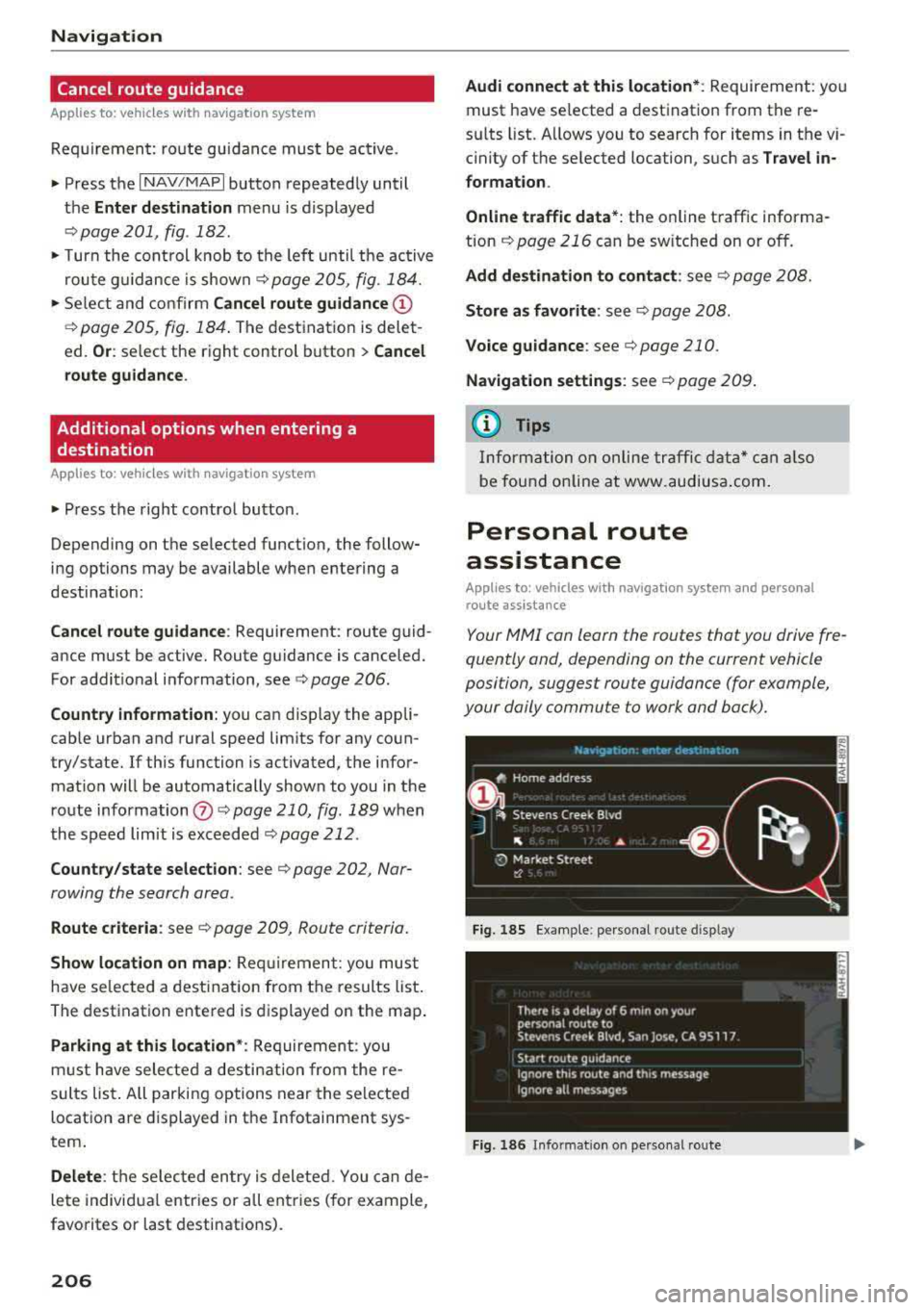
Your MMI con learn the routes that you drive fre
quently and, depending on the current vehicle
position, suggest route guidance (for example,
your daily commute to work and back).
Fig. 185 E xample : personal route disp lay
Fig. 186 Info rmation o n personal route
Page 215 of 404
LL co .... N
" N .... 0 N > co
or can be minimized on the display of upcoming maneuvers.
Automatic zo om
On : the map scale is adapted a utomat ica lly de
pending on the type of road being trave led (ex
pressway, hig hway, other roads) so that you al
ways have an optimal overview o f the road ahead.
The sca le is also automatica lly adapted when
there are upcoming maneuvers to provide a bet ter detailed view.
Inter section : when route guidance is active, the
map temporarily zooms in to a detailed scale
when there are upcom ing maneuvers so that you
can see the street or turn better.
Off: the map sca le you have chosen is main
tained.
M ap content
Map content such as weathe r, traff ic information
or favorites can be displayed or hidden .
The weather forecast* is d isplayed o n a 3 m i (5
km) scale on the map ¢
page 208, fig. 187.
Satellite map
Appl ies to: ve hicles with a nav igatio n system an d Audi con
nect (I nfotainment)
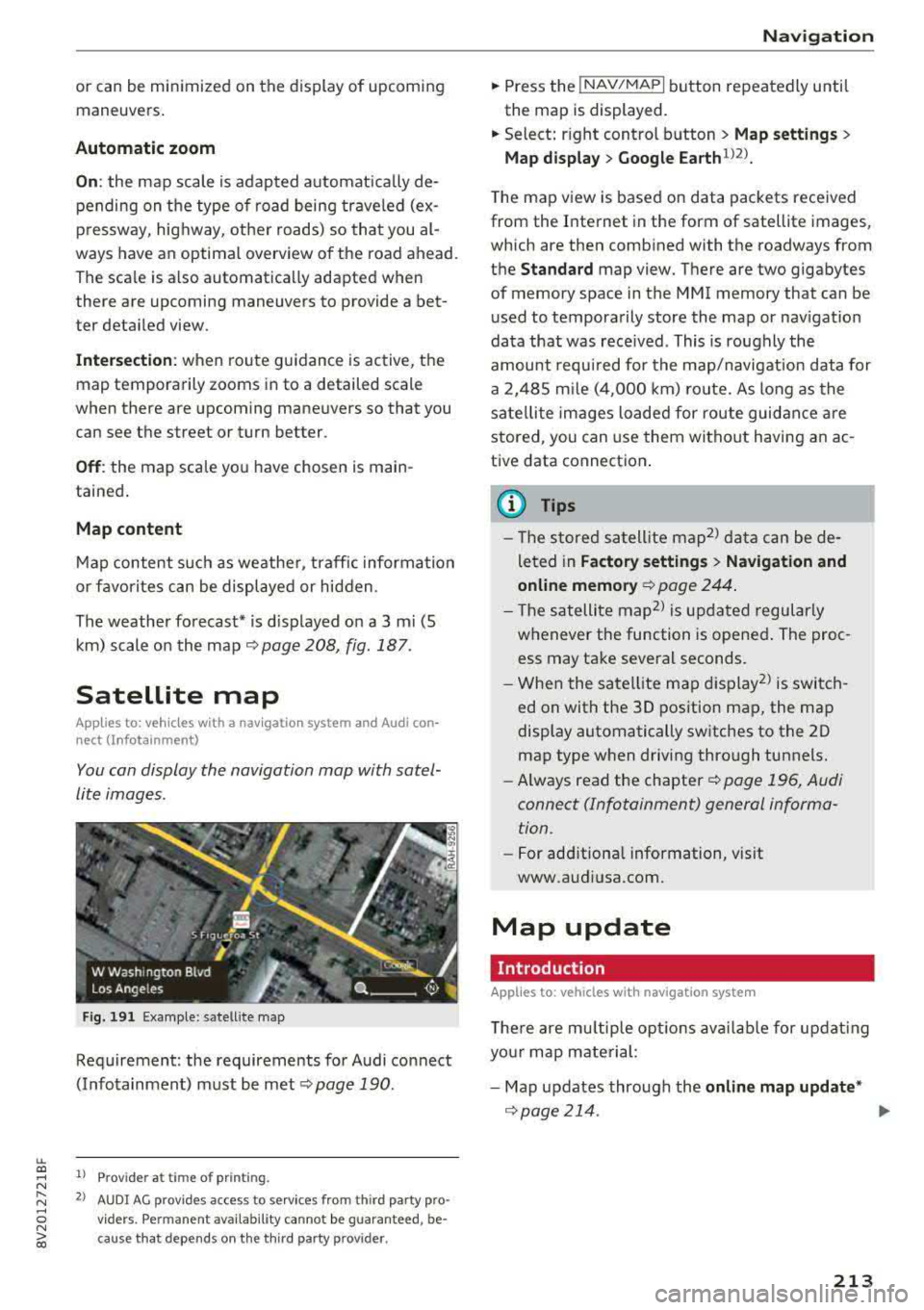
You can display the navigation map with satel
lite images .
Fig. 191 Example: satellite map
Requirement: the requirements for Audi connect
(Infotainment) must be met
¢ page 190.
1> Prov ider at time of printing .
2> AUDI AG provides access to se rvices from th ird party pro ·
v iders . Pe rman ent ava ilability cannot be guaran teed , be
c ause that depe nds on th e th ird party provider.
Na viga tion
.. Press the !NAV/MAPI button repeatedly until
the map is displayed.
.. Select: r ight control b utton > M ap settings >
Map displa y> Google Earth ll2l_
T he map v iew is based on data packets received
from the Internet in the form of satellite images,
which are then combined with the roadways from
the
Standard map view. There are two gigabytes
of memory space in the MMI memory that can be
u sed to temporarily store the map or nav igat io n
data that was received . This is roughly the
amount requ ired for the map/navigation data for
a 2, 485 m ile ( 4,000 km) ro ute. As long as the
sate llite images loaded for route guidance are
stored, you can use them witho ut having a n ac
tive data connection .
(D Tips
- The sto red sa tell ite map2> d ata can be de
leted in
Factory setting s> Navigation and
online memory ¢
page 244.
- The s atellite map2> is updated regularly
whenever the function is opened . The proc
ess may take several seconds.
- When the satellite map d isplay
2> is switch
ed on with the 30 position map, the map
display automatically sw itches to the 20
map type when driving through tunnels.
- Always read the chapter¢
page 196, Audi
connect (Infotainment) general informa tion .
-For add itiona l information, v is it
www.audiusa.com.
Map update
Introduction
Applies to: vehicles wi th navigat ion syste m
The re are mu ltip le opt io ns avai lab le for updat ing
yo ur map mate rial:
- Map updates through the
online map upd ate *
¢page 214 . ..,_
213
Page 216 of 404
Navigation
-Import map updates from the SO card* to your
MMI. You can find additional information on
li ne at www.audiusa.com/myaudi.
-Map update at an authorized Audi dealer or au
thorized Audi Service Facility. This can result in
additional costs.
Online map update
Applies to: vehicles with a navigation system and Audi con
nect (Infotainment)
Using the online map update, you can update
the map material in your navigation system di
rectly from your vehicle.
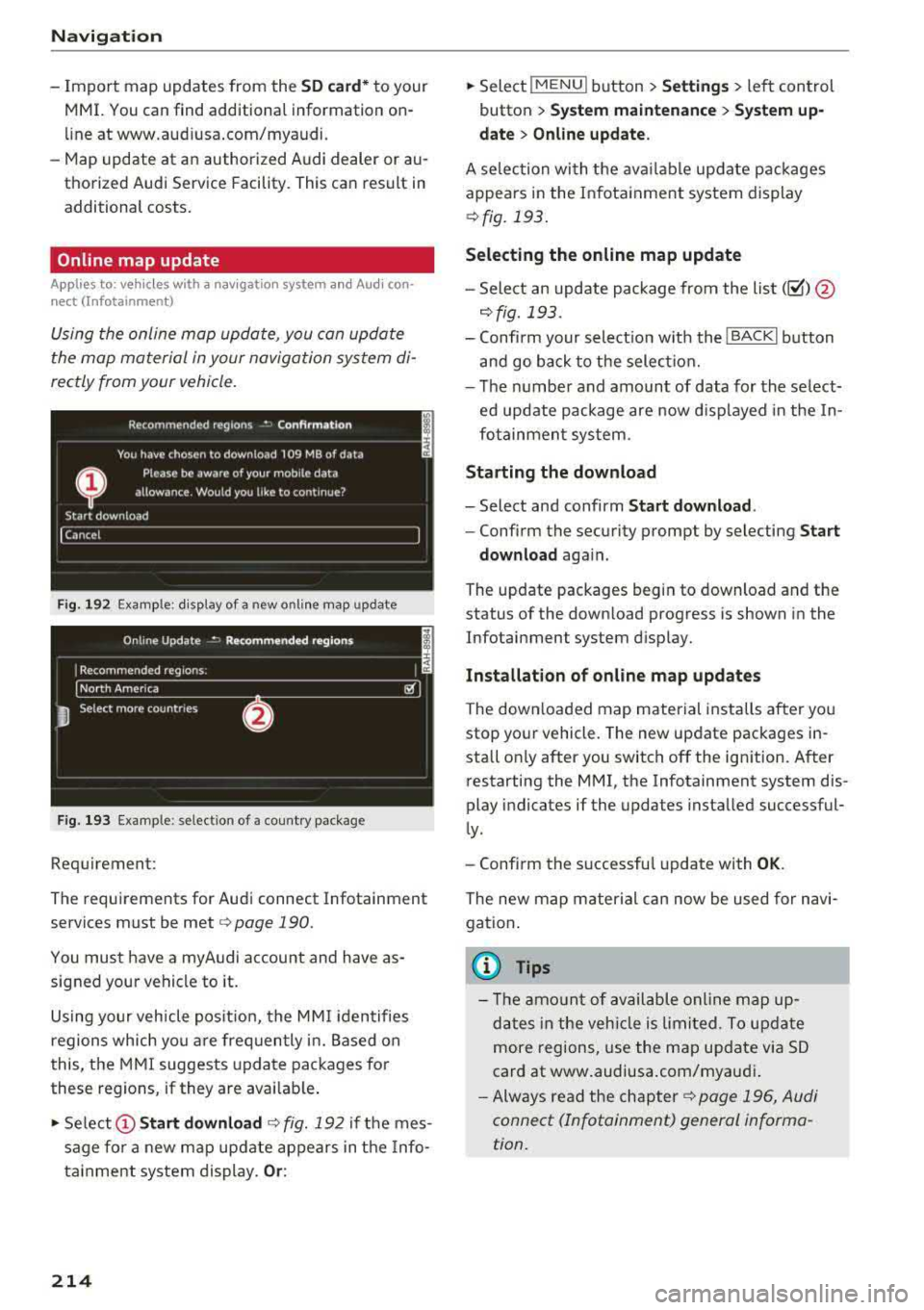
Fig. 192 Exa mple: disp lay of a new onl ine map update
Fig. 193 Example : select ion of a country package
Requirement:
The requirements for Audi connect Infotainment
services must be met
r=> page 190.
You must have a myAudi account and have as
signed your vehicle to it.
Using your vehicle position, the MMI identifies
regions which you are frequently in. Based on
this, the MMI suggests update packages for
these regions, if they are avai lable .
• Select @Start download c> fig. 192 if the mes
sage for a new map update appears in the Info
tainment system display.
Or :
214
.. Select !MENUI button> Settings> left control
button >
System maintenance > System up
date > Online update.
A selec tion with the available update packages
appears in the Infotainment system display
¢fig. 193.
Selecting the online map update
-Sele ct an update package from the list(~) @
r=>fig. 193.
-Confirm your select ion w ith the ! BACK I button
and go back to the select ion.
-The number and amount of data for the se lect
ed update package are now displayed in the In
fotainment system.
Starting the download
-Select and confirm Start download .
-Confirm the security prompt by selecting Start
download
again.
The update packages begin to download and the
status of the down load progress is shown in the
Infotainment system display.
Installation of online map updates
The downloaded map material installs after you
stop your vehicle. The new update packages in
stall on ly after you switch
off the ign ition. After
restarting the MMI, the Infotainment system dis
play indicates if the updates installed successful
ly.
-Confirm the successful update with OK.
The new map material can now be used for navi
gation.
{i) Tips
-Th e amount of available on line map up
dates in the vehicle is limited. To update
more regions, use the map update via SD
card at www.audiusa.com/myaudi .
-Always read the chapter c> page 196, Audi
connect (Infotainment) general informa
tion.