led AUDI S3 SEDAN 2018 Workshop Manual
[x] Cancel search | Manufacturer: AUDI, Model Year: 2018, Model line: S3 SEDAN, Model: AUDI S3 SEDAN 2018Pages: 404, PDF Size: 62.3 MB
Page 146 of 404
Parking aid
Sensors are located in the front and rear bump
ers . If these detect an obstacle, audible and visu
al signals warn you.
M ake sure the sensors are not covered by stick
ers, deposits or any other obstructions as it may
impair the function of the system. For informa
tion on cleaning, see
~ page 354.
The display field begins approximate ly a t:
® 4 ft (1.20 m)
® 3 ft (0.90 m)
© S.2 ft (l.60 m)
@ 3 ft (0.90 m)
The closer you get to the obstacle, the shorter
the interva l between the audible signals. A con
tinuous tone sounds when the obstacle is less
than approximately 1 foot (0.30 meters) away .
Do not continue driving forward or in reverse
¢.&. in General information on page 143, ¢0 in
General information on page
143!
If the distance to an obstacle remains constant,
the vol ume of the distance warning gradually
lowers after a few seconds until it is muted (this
is not apply in the continuous tone range).
If the
obstacle becomes closer than it was before the
sound was muted, the tone w ill sound again. If
the obstacle is farther away than it was before
the sound was muted, no tone will sound. Pay at
tention to the vehicle's su rroundings whe n you
start to drive.
Switching on /off
A pplies to: ve hicles w ith pa rking system p lus
F ig. 146 Center console: p-.irk in g aid button
144
M ;g 0
> co ID
l
Fig. 147 Infota inment system: v isua l distance d isplay
Switching on/off
Requirement: the vehicle speed must be under
approximately 6 mph (10 km/h) .
.. Press the p,q~ button in the center console. A
short confirmation tone sounds and the LED in
the button turns on.
Switching on automatically
The system switches on automatically when re
verse gea r is engaged wh ile the engine is run
ning. A brief confirmation tone will so und .
If Activate automatically is switched on in the
Infotainment system and if the vehicle ap
proaches an obstacle at speeds under approxi
mately 6 mph (10 km/h), the parking aid will
switch on automatically . Audible signals wi ll
sound once the obstacle is within the sensor de
tection area.
Switching off automatically
The system switches off automatically when driv
i ng fo rward faster than 6 mph (10 km/h).
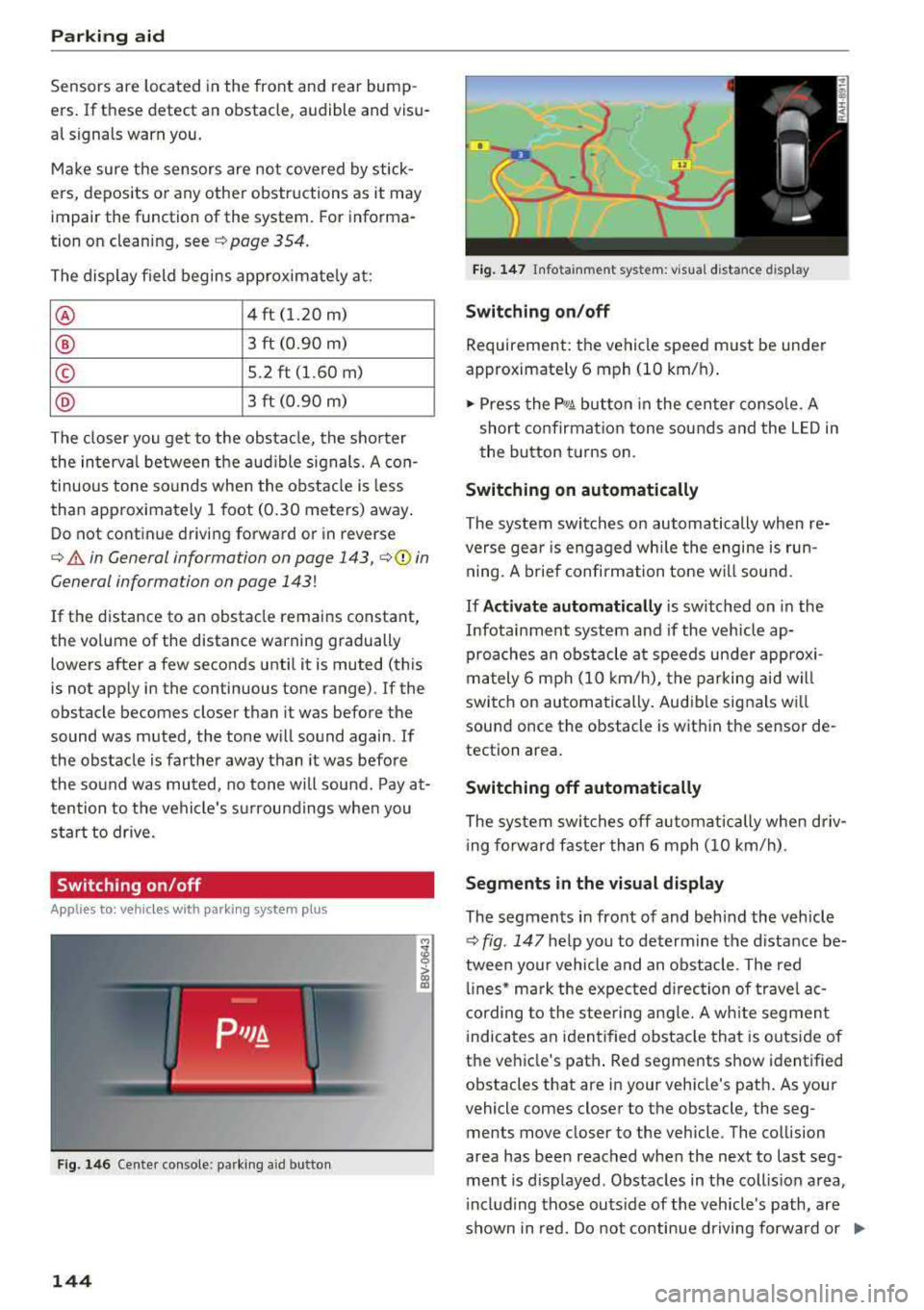
Segments in the visual display
The segments in front of and behind the vehicle
~ fig. 147 he lp you to determine the distance be
tween yo ur vehicle and an obstacle . The red
lin es* mark the expected direction of travel ac
cording to the steering angle. A white segment
indicates an identified obstacle that is outside of
the vehicle's path . Red segments show identified
obstacles that are in your veh icle's path. As your
vehicle comes closer to the obstacle, the seg
ments move closer to the vehicle . The collision
area has been reached when the ne xt to last seg
ment is d isplayed . Obstacles in the coll is ion area,
i nclud ing those outside of the vehicle's path, are
shown in red. Do not continue driving forward or
..,.
Page 148 of 404
Parking aid
-Only use the rearview camera to assist you if
it shows a good, clear picture. For example,
the image may be affected by the sun shin
ing into the lens, d irt on the lens, or if there
is a malfunction .
- Use the rearview camera only if the luggage
compartment lid is completely closed . If the
luggage compartment lid is open the orien
tation lines and blue surfaces are hidden .
Make su re any objects you may have mount
ed on the luggage compa rtment lid do not
block the rearview camera.
- T he came ra lens enlarges and distorts the
field of v is ion. Th e object appears both al
tered and inaccurate on the screen.
- In certai n situations, people or objects in
the d isplay appear closer or farthe r away:
- For objects that do not touch the ground,
such as the bumper of a parked vehicle, a
trailer hitch or the rear of a truck . Do not
use the orientation lines in this case .
- If driven from a level surface onto an in
cline, o r a downward slope.
- If driven toward protrud ing objects.
- If the veh icle is carry ing too much load in
the rear.
- Always read and follow the applicable warn
ings ¢(!) in General information on
page 143 .
-The orange-colored orientation lines in the
Infotainment display show the vehicle path
based on the steering wheel angle . The
front of the vehicle swings out more than
the rear of the veh icle. Mainta in plenty of
distance so that an exterio r mirror or a cor
ner of the vehicle does not co llide w ith any
obstacles.
Switching on/off
Applies to : veh icles with rearview camera
Switching on/off
Requirement: the veh icle speed must be under
approximately 6 mph (10 km/h) .
146
.,. Press the p, .//~ button in the center console. A
short confirmation tone sounds and the LED in the button turns on.
Switching on automatically
The system switches on automatically when re
verse gear is engaged wh ile the engine is run
ning.
Switching off automatically
The system switches off automatically when driv i ng fo rward faster than 6 mph ( 10 km/h).
(0 Tips
- The visua l display* in the right sect ion of the
display should help you de tect the critical
vehicle area.
- You can change the volume of the signa ls
and the
display ¢ page 147.
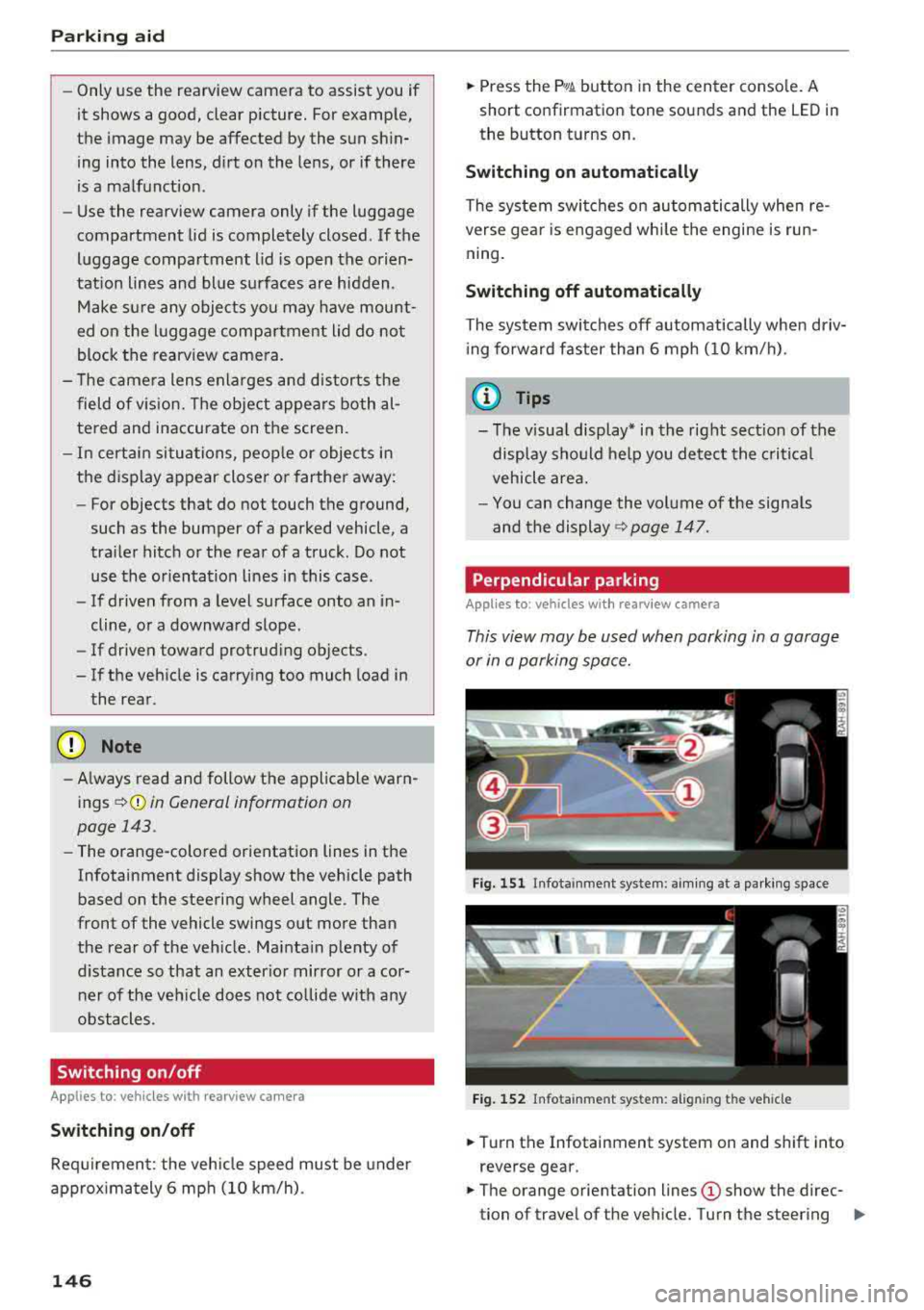
Perpendicular parking
Applies to: vehicles with rearview camera
This view may be used when parking in a garage
or in a parking space.
Fig. 151 Infota inment system: aim ing at a parki ng space
Fig. 152 Infota inm ent sys tem: al ign ing the vehicle
.,. Turn the Infotainment system on and shift into
reverse gear.
.,. The orange orientation lines (D show the direc
tion of travel of the vehicle. Turn the steering
..,.
Page 151 of 404
u. 00 .-< N l' N .-< 0 N > 00
Intelligent Technology
-Press the accelerator pedal carefully when
accelerating on even, slippery surfaces such
as ice and snow. The drive wheels can spin
even when these control systems are instal
led and this can affect dr iv in g stab ility and
increase the risk of a collision. condition. Different tire
sizes can lead to a
reduction in engine power.
- You may hear noises when the systems de
scribed are working .
(D Tips
-The ABS and ASR only function correctly
when all four wheels have a s imilar wear
Switching on/off
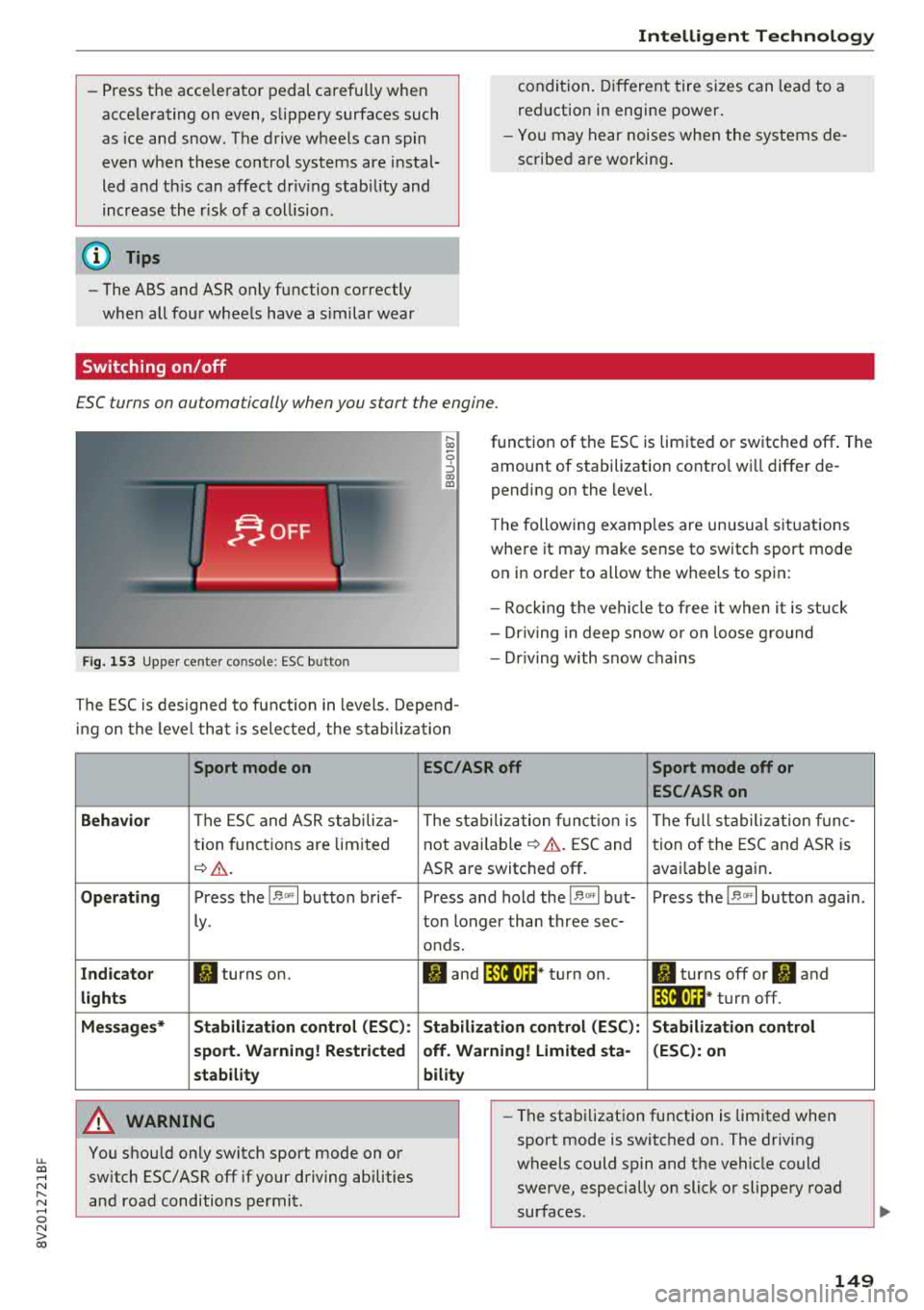
ESC turns on automatically when you start the engine.
F ig. 153 Upper center console: ESC button
function of the ESC is limited or switched off. The
amount of stabilization contro l wi ll differ de
pending on the level.
The following examp les are unusua l situations
where it may make sense to switch sport mode on in order to allow the wheels to spin:
- Rocking the vehicle to free it when it is stuck
- Dr iving in deep snow o r on loose g round
- Dr iving with snow chains
The ESC is designed to function in levels. Depend
ing on the level that is selected , the stabilization
Sport mode on
Behavior
The ESC and ASR stab iliza-
tion functions are limited
~ &..
Operating Press the 11> .. , I button brief-
ly .
Indicator II turns on.
lights
Messages* Stabilization control (ESC):
sport. Warning! Restricted
stability
A WARNING
You should only switch sport mode on or switch ESC/ ASR
off if your driving abilities
and road conditions permit.
ESC/ASR off Sport mode off or
ESC/ASRon
The stabilization function is The full stabilization func-
not
avai lab le~ A . ESC and tion of the ESC and ASR is
ASR are switched off . availab le again.
Press and hold the
! 1> °',1 but- Press the 11> .. , I button again .
ton longer than three sec-
onds.
II and lfil•)~~* turn on. II turns off or II and
lfil•)~~ * turn off.
Stabilization control (ESC): Stabilization control
off. Warning! Limited sta- (ESC): on
bility
-
- The stabilization function is limited when
sport mode is switched on. The driving
wheels could spin and the vehicle could swerve, especially on slick or slippery road
surfaces .
149
Page 153 of 404
u. 00 .-< N l' N .-< 0 N > 00
Brake booster
The brake booster amplifies the pressu re yo u ap
p ly to the brake pedal. It only operates while the
engine is running or when the ignition is switched
on (plug-in hybrid drive*) .
A WARNING
- Only apply the brakes for the purpose of
cleaning the brake system when road and
traff ic conditions permit. You must not en
danger other road users. This increases the
r isk of an accident .
-
-Never let the vehicle roll while the engine is
stopped because this increases the risk of an
acc ident.
- Depend ing on the veh icle equipment, the
brake pedal may be pulled downward when
the vehicle automatically initiates b rak ing.
- Never place objects in the driver's footwell.
An object could end up in the area around
the pedals and prevent you from using
them. You wo uld not be able to use the ped
als if sudden driving or braking mane uvers
were needed, which increases the risk of an
accident.
- Only use floor mats that do not obstruct the
area around the pedals and that can be se
curely fastened in the footwe lls.
- T o reduce the risk of injury, do not place
your foot under the brake pedal.
(Llj) Note
-Never let the brakes "rub" by pressing the
pedal lightly when braking is not actually
necessary. This causes the brakes to over
heat and increases braking distance and
causes wear.
- Before driving on a long stretch with steep
slopes, reduce your speed and shift to the
next lower gear This makes use of the en
gine braking effect and relieves the brakes.
If you need to brake add it ionally, brake in
i ntervals and not cont inuously.
Intelligent Technology
(D Tips
- If the brake booster is not working, you
must press the brake pedal with much more
force than normal.
- If you retrofit your vehicle with a front spoi l
er, wheel covers or simi lar items, make sure
that the air flow to the front wheels is not
interrupted. Otherwise the brake system
can become too hot.
Electromechanical
steering
The electromechanical steering supports the
driver's steering movements.
Power steering adapts electronically based on
the ve hicle speed.
Indicator lights and messages
• Do not drive vehicle: steering defective
If this indicator light turns on and stays on and
th is message appears, the power steering may
have failed .
Stop the vehicle in a safe location as soon as pos
s ible. Do
not cont inue driving. See an authorized
Audi dealer or authorized Audi Service Fac ility for
ass istance .
l;r-ij Steering: system fault! You can continue
driving
If the indicator light turns on, the steering wheel
may be more difficult to move or more sensitive
than usual. The steering whee l may also be at an
angle when driving straight.
Drive slowly to an authorized Audi dea ler or au
thorized Audi Service Facility to have the mal
function corrected.
(D Tips
If the. or 'Tij indicator light on ly stays on
for a short time, you may continue driving .
151
Page 155 of 404
u. 00 .-< N l' N .-< 0 N > 00
record, in certain crash or near crash -like situa
tions, such as an airbag deployment or hitting a
road obstacle, data that will assist in understand
ing how a vehicle's systems performed. The EDR
is designed to record data re lated to vehicle dy
namics and safety systems for a short period of
time, typically 30 seconds or less . The EDR in this
veh icle is designed to record such data as:
- How various systems in your vehicle were oper
ating;
- Whether or not the driver and passenger safety
belts were buckled/fastened;
- How far (if at all) the driver was depressing the accelerator and/or brake pedal; and,
- How fast the vehicle was traveling.
These data can help provide a better understand
ing of the circumstances in which crashes and in
juries occur. NOTE: EDR data are recorded by your
vehicle only if a non-trivia l crash situation occurs;
no data are recorded by the EDR under normal
driving conditions and no personal data (e.g.,
name, gender, age, and crash location) are re
corded . H owever, other parties, such as law en
forcement, could combine the EDR data with the
type of personally identifying data routinely ac
quired during a crash invest igation .
To read data recorded by an EDR, special equip
ment is required, and access to the vehicle or the
E DR is needed. In addition to the vehicle manu
facturer, other parties, such as law enforcement,
that have the specia l equipment, can read the in
formation if they have access to the vehicle or the
EDR.
Aud i w ill only access the EDR and/or sim ilar data
or give it to others with the consent of the owner
or lessee or in accordance with applicable law.
States vary in their access/disclosure restrictions
for EDR data, but typically such data can be ac
cessed/disclosed in the following c ircumstances :
- when the vehicle owner (or lessee if the vehicle
has been leased) agrees; or
- upon the officia l request by the police; or
- up on the order of a court of law or a govern-
ment agency; or
- for the defense of a lawsu it through the judicial
dis covery process.
Intelligent Technology
-Audi may also use the data, once retrieved from
the vehicle under permissib le circumstances, in
an anonymous format.
- for research about vehicle operation and safety
performance or provide the data to a third par
ty for such research purposes.
Vehicle control modules
Your vehicle is also equipp ed w ith a number of
electronic control modules for various vehicle
systems, such as engine management, emission
control, airbags, and safety belts.
Th ese elect ronic control modules record data
during norma l vehicle operation that may be
needed by trained technicians for diagnostic and
repair purposes. The recording capabi lity of these
modules is limited to data (no sound is record
ed) . Only a small amount of data is actually re
corded over a very limited period of time, or stor
ed when a system fault is detected by a control
module . Some of the data stored may relate to
vehicle speed, direction, or braking, as well as re
straint system use and performance in the event
of a crash. Stored data can also only be read and
down loaded with specia l equipment that is di
rectly connected to the vehicle .
(D Tips
Your vehicle may be equipped w ith Audi con
nect. Your use of certain Audi connect fea
tures requires wire less services that are pro
vided by a third party wireless telecommuni
cations provider . For details regarding how in
formation obtained through Aud i connect is
collected, processed, transmitted, used, and
shared, please see your contract with the
wireless telecommunications provider.
153
Page 168 of 404
Multifunction steering wheel
-Always pay attention to the Infotainment
system d isp lay . Add itiona l operat ion
th ro ugh t he M MI cont rol panel may be nec
essa ry, depend ing o n the selected f unction.
Telephone
Applies to: vehicles with multifunction steering wheel and
telephone
R equir emen t: a cell phone must be connec ted to
the MMI
¢ page 177 an d the telephone tab
m ust be displayed .
.,. Press ei ther the l== lbu tto n or the left con trol
but ton
~page 1 4 , d epe ndin g on veh icle eq uip
ment.
D epe nding on vehicle equip men t, the follow ing
f un ctions may be av aila ble i n t he drive r info rma
t ion system .
-Accessing a contact : selec t and conf irm Call
list / Favorites / Directory .
Select and co nfirm
a c onta ct.
-Directory contacts : the drive r information sys
tem o nly disp lays dire ctory co ntacts t hat have a
p hone num ber stored . If severa l pho ne n um
bers are s to red w it h a contac t, the lis t of stored
num bers is dis played fi rst when the entry is se
l ected . For more informat io n about t he di s
played symbols, refer
to ¢ page 186 .
-Recent calls: the recent ca lls list conta ins a ll in
coming, o utgoing and missed ca lls.
-Caller information* : the name, phone number
or Unknown ap pears in t he dr ive r informat io n
system d isp lay depending on whether the ca ller
has been stored in the directory and if the
phone numbe r has been t ransm itted .
Functions during an incoming call
-Accepting a call : press the le ft thu mb whee l
whe n there is an incom in g ca ll.
-Declining a call : sele ct and c onfirm Decline
whe n there is an incom in g ca ll.
-Ending a phone call : selec t a nd confi rm End
call .
Functions during a phone call
166
Applies to: vehicles with analog instrument cluster
-Making an additional phone call : selec t Hold >
[§] butto n > Directory or Call list > an entry in
t he lis t.
-Accepting an incoming call when there is an
active call and a call on hold:
sele ct and con
f ir m
Replace . The ac tive c all is repl aced with
t he incoming call.
Appl ies to: vehicles with Aud i v irtual cockp it
-Making an additional phone call : select: Hold
call
> l eft con trol button > Directory or Call list
> an entry .
-Accepting an incoming call when there is an
active call and a call on hold:
select and con
fi rm
Answer . The act ive ca ll is replaced wi th t he
i n com ing c all.
Additional f unct ions include:
Mute : if you select and confirm this f unction, the
othe r person on the phone cannot hear you. You
can hea r the other person .
Holding/resuming a call : you can place the exist
i ng ca ll on ho ld and res ume it aga in.
Swap call : you can alt ern ate between two p ho ne
ca lls at the same time . One of t he calls will be on
h o ld. Select ing
End call will end t he active phone
ca ll. A call that was placed on ho ld stays on hold
and can be taken
off ho ld with Resume .
Conference call :
a call on ho ld and up to five ac
tive pa rties ( dep endi ng on the ce ll phone serv ice
provide r) ca n be added to a confe rence cal l. To
make an additional ca ll, put all participants in
the cur rent conference call on hold us ing
Hold
call .
By press ing the left contro l button, you ca n
make additional ca lls from the directory or the
ca ll list .
Resume takes all par ties off hold .
(D Tips
-The telephone fu nctions can on ly be co n
tr olled wi th t he mu ltifunc tio n steer ing
w heel if th e te lep hon e equip ment was in
stall ed
at the fa ctory.
-The te le phon e fun ctions dep end on the c ell
ph one and wheth er they are suppor te d by
y ou r ce ll ph one serv ice pro vider or not.
-The Call waiting funct ion must b e ac tivate d
in y our c ell ph on e and in th e MMI in order to
...
Page 174 of 404
Voice recognition s ystem
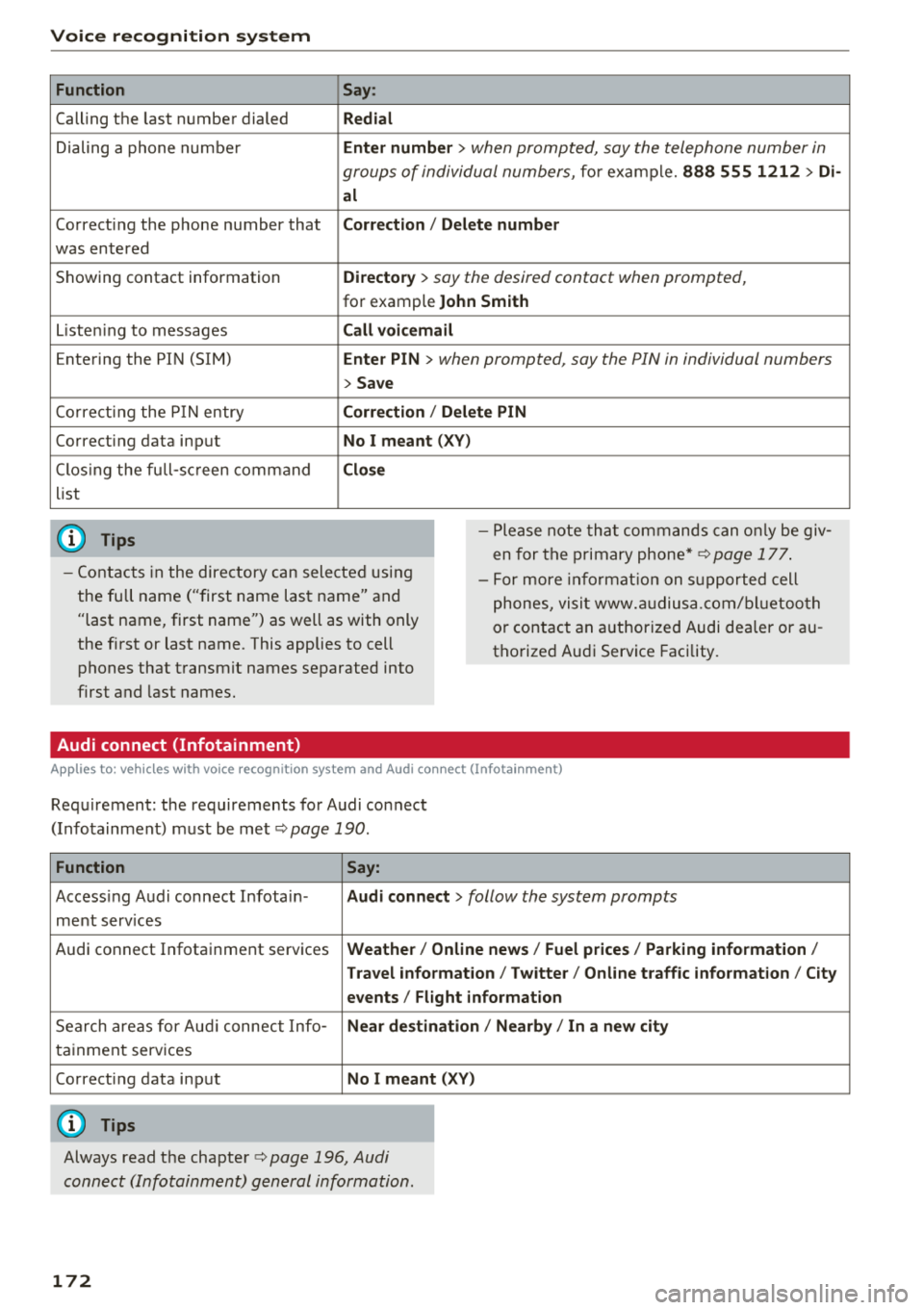
Function
Calling the last number dialed
Dialing a phone numbe r
Correcting the phone number that
was entered
Showing contact information
L isten ing to messages
Entering the PIN (SIM)
Co rrect ing the P IN entry
Correcting data input
C los ing the full-sc reen command
list
(D Tips
Say :
R edi al
Enter number
> when prompted, say the telephone number in
groups of individual numbers,
for example. 888 555 1212 > Di -
al
C orr ect ion / Delet e numb er
Di rector y
> say the desired contact when prompted,
for example John Sm ith
C all voic emai l
Ente r PIN
> when prompted , say the P IN in individual numbers
> S av e
Corr ection
I Delete PIN
No I meant ( XV)
Clos e
-Please note tha t commands can on ly be giv
en for the primary
phone*¢ page 177 .
-Contacts in the directory can selected using
the full name ("first name last name" and "last name, first name") as well as with only
the first or last name . This applies to cell
phones that transmit names separated into
first and last names. -
For more informat ion on s upported cell
phones, visit www.a udiusa.com/ bluetoo th
or contact an authorized Audi dealer or au
thorized Audi Service Facility .
Audi connect (Infotainment)
Applies to: vehicles with voice recognition system and Audi connect (Infotainment)
Requirement: the requirements for Audi connect
(Infotainment) must be met
¢ page 190 .
Function Say:
Accessing Audi connect Infota in -Audi connect > follow the system prompts
ment services
Audi connect Infotainment services
Weather / Online news / Fuel p rice s/ Parking info rmation /
T rav el info rmat ion / Tw itte r/ Online traffic info rmation / City
e v ents / Fl ight informat ion
Search areas for Aud i connect Info-N ear de stination / Nearb y/ In a new city
tainment serv ices
Correcting data input
No I m eant (XV)
(D Tips
Always read the chapter ¢ page 196, Audi
connect (Infotainment) general information.
172
Page 176 of 404
Voice recognition system
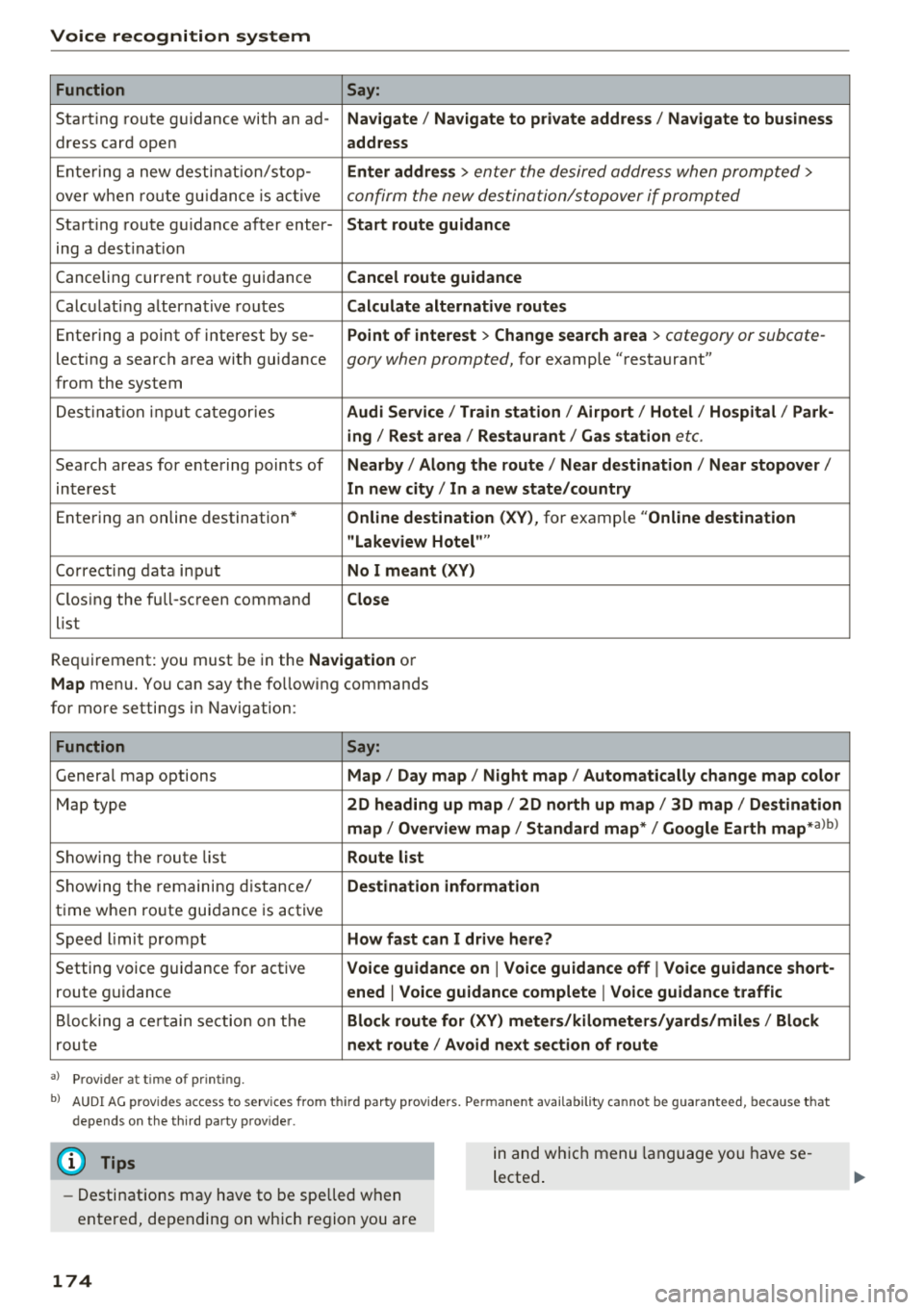
Function Say:
Starting route guidance with an ad-Navigate/ Navigate to private address / Navigate to business
dress card open address
Ent ering a new destination/stop- Enter address
> enter the desired address when prompted>
over when ro ut e gu idan ce is active confirm the new destination/stopover if prompted
Starting route guidance after enter- Start route guidance
ing a destination
Canceling current route guidance Cancel route guidance
Calculating alternat ive routes Calculate alternative routes
Entering a point of interest by se -Point of interest
> Change search area > category or subcote-
lecting a search area with guidance gory when prompted, for example
"restaurant"
from the system
Destination input categor ies Audi Service / Train station /Airport / Hotel / Hospital / Park-
ing / Rest area /Restaurant / Gas station
etc.
Search areas for entering points of Nearby/ Along the route / Near destination / Near stopover /
interest In new city/ In a new state/country
Entering an online destination * Online destination
(XV), for example "Online destination
"Lakeview Hotel""
Co rrect ing data input No I meant (XV)
Clos ing the full-screen command
Close
list
Requirement: you must be in the Navigation or
Map menu. You can say the fo llowing commands
for more settings in Navigation:
Function Say:
Genera l map options Map/ Day map / Night map / Automatically change map color
Map type 2D heading up map/ 2D north up map / 3D map / Destination
map / Overview map / Standard map* / Google Earth
map* albl
Showing the route list Route list
Showing the remaining distance/ Destination information
time when route guidance is active
Speed l imit prompt How fast can I drive here?
Setting voice guidance for active Voice guidance on
I Voice guidance off I Voice guidance short-
route guidance ened
I Voice guidance complete I Voice guidance traffic
Blocking a certain section on the Block route for (XV) meters/kilometers/yards/miles / Block
route next route / Avoid next section of route
a) P rov ider a t tim e of prin ting.
bl AUDI AG p rovides access to services fro m thir d party prov iders. Perm anent ava ilab ility cannot be guaranteed , because t hat
depends on the th ird party p rov ide r.
(D Tips
- Destinations may have to be spelled when
entered, depending on which region you are
174
in and wh ich menu language you have se
lected.
Page 178 of 404
Voice recognition s ystem
A cell p hone m ust be connected to the M MI w ith
the
Handsfree profile ~ page 177.
The cell phone bei ng connected must have vo ice
con trol that can be controlled externally .
.,. Switching on : press and hold the 51 button on
the m ult if u nct ion steer ing whee l* and say the
desired command after the exte rnal spee ch d i
alog beg ins .
... Continuing /resuming the dialog: the system
remains ready to use for a short time after end
ing t he d ia log . You can start a new external dia
log during this time. Press the
10•1 button if
needed, and say a new command .
Or: selec t
and confirm
Re sume on the MM I control panel.
.,. Switching off: press and hold the 51 button .
Or: select and confirm Cancel on the MM I con
t rol panel.
(D Tips
- There a re no voice guidance* prompts when
a d ia log is active.
- This funct ion depends on the cell phone
u sed. You can obtai n more informat ion
from your cell p hone se rvi ce p rovide r or
from your cell p hone use r g ui de .
- AUDI AG simply prov ides access to cont rol
you r ce ll phone with vo ice opera tion and
does no t take any respons ibility for the co n
tents and commands wi thin the externa l
voice contro l.
176
Page 182 of 404
Telephone
Using the telephone
Opening the telephone
Applies to: vehicles with telephone
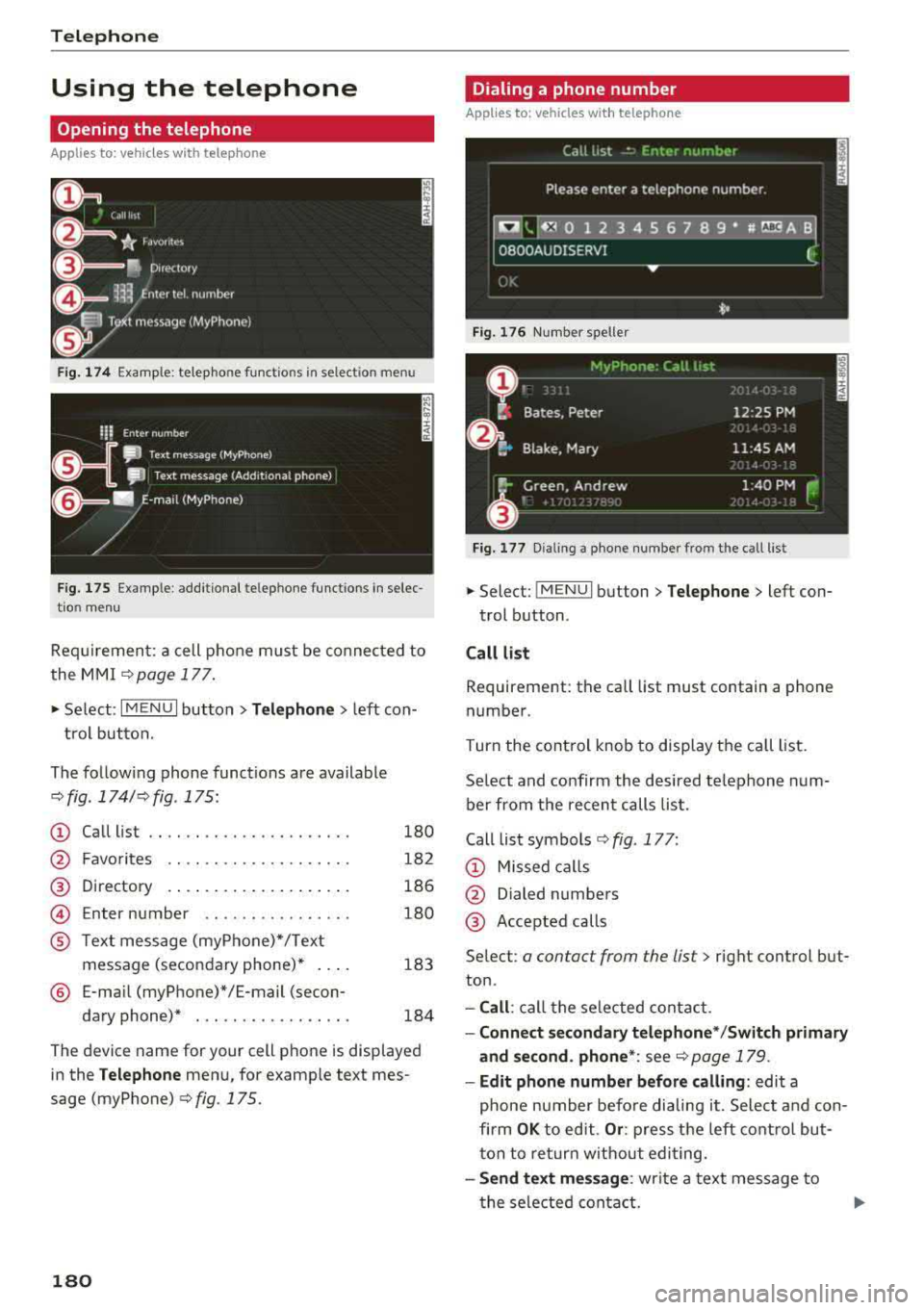
Fig. 1 74 Example: te lep ho ne fu nct ions in se lec tion menu
Fig . 175 Example: add it ional te lephone funct ions in se lec
t io n m enu
Re qui remen t: a cell phone m ust be connec ted to
the MMI
c> page 1 77.
~ Se lect : I MENU I but ton> T elephone > left con
t rol button.
The fo llow ing phone funct ions are available
¢ fig . 174/ c>fig . 175:
CD
@
Call list
F avo rites .. .. .. .. .. ... ... ... .
Directory
Enter number .. .. .. .... .... . .
®
©
® Text mess age (myP hone) */ T ext
message (seco ndary phone)* ....
® E-ma il (myP hone)*/E-mail (secon-
da ry phone)* . .. ... ....... ... .
180
18 2
186
1 80
183
184
T he dev ice name for your cell pho ne is d isplayed
in the
Telephone men u, for examp le text mes
sage (myPhone)
c> fig. 175.
180
Dialing a phone number
Applies to: vehicles with telephone
Fig. 176 N umber s pell er
Fi g. 1 7 7 D ialing a ph one numb er from t he c all list
~ Select: ! M EN UI button> Telephone > left con-
t rol b utton .
Call list
Requ irement : th e call list must contain a phone
numbe r.
Turn the cont rol knob to disp lay the ca ll li st.
Se lect and confirm the desired te lephone num
b er from the recen t calls list.
Call list symbo ls
c> fig . 177:
CD Missed ca lls
@ Dialed n umbers
@ Acce pted calls
Se lec t:
a con tac t from the lis t> right control but
ton .
-Call : ca ll t he se lected contact .
-Connect secondary telephone * /Switch primary
and second . phone *:
see r::!) page 179 .
-Edit phone number before calling : edit a
phone number befo re dialing i t. S elec t and con
firm
OK to edit. Or : pre ss t he left contro l but
t on to re turn w it h out edi ting.
- Send text mes sage : write a text message to
t he sele cted conta ct.