radio AUDI S4 2017 User Guide
[x] Cancel search | Manufacturer: AUDI, Model Year: 2017, Model line: S4, Model: AUDI S4 2017Pages: 386, PDF Size: 96.32 MB
Page 154 of 386

Voice recognition system
• Telephone
• Audi connect •
Favorites
• Call (XV)
• Navigation
• Directory
• Radio
• Media
• Sound •
Enter number
• Redial
• Read new text message
• Navigate to
(XY)
• Enter address/destination
• Help • Online destinations
• Help Speech dialog system
• Help Telephone •
Cancel route guidance
• Map
• Help Audi connect •
Line (XV)
• Help Navigation
• Help
Map
• Help Radio •
Next page
I previous page
• Cancel
• No. I meant (XV)
• He lp Media • Correction
TE ,EPflON ~
• Enter number • Call list
• Delete number/ correction • Redial
• Directory
• Call (XV) •
Call mailbox
• Enter PIN/ delete PIN
· business/ private/ land tine
I mobile • Telephone favorites
• Nav igate to contact (XV)
•Business address
I Pnvate address •
Block route for (XV) miles
I Block
the next section
• Start
I cancel route guidance
• Directory
• Last destinations • Route
list
• Calculate alternative routes
• Online destinations
• Nav igation favorites
• Drive home •
Special destination
• Enter address
• Enter country/ town / street / state
• Exclude route/ Exclude route for (XV) km/ m
• Map
• Day map/ Night map
• 2D driving position map/ 20 north position map/ 3D map/ Destination map/ Overview map
Al!IDI
• Audi connect
• Travel information/ Parking Information
• Fuel prices
• Weather
RADIO
• Radio presets
• Last stations
• FM
• FM / AM / SIRIUS XM
• Station (XV) / Frequency (XV)
• Traffic announcement on
I off
Fig. 156 Comm and overv iew
152
• Flight Information
• City events
• Online news
• Twitter
MEDIA
• Jukebox
• CO
I DVD
• SD card
l / SD card 2
• Audi music interface/ I Pod / USB / Bluetooth /
WI -Fl/ Medium (XV)
• Media favorites
I Artists / Albums / Genres /
Tracks
I Playtlsts / Videos
• Folder up
• Random playback on / off
Page 156 of 386

Voice recognition system
Command overview information
Applies to: vehicles with voice recognition system
The fo llow ing ove rviews describe t he commands
that ca n be used to operate the MMI using the
voice recognition system .
A lternat ive commands are separated using a"/",
for example say:
Telephone / (or) Navigation /
(or) Radio.
Commands
Global commands
Applies to: vehicles with voice recognition system
You can a lways use the global commands, re
gardless of the men u selected.
Function
Say:
Sequences of commands used to perform an ac
tion are identified with a">", for example say:
Ente r addre ss > (then) Enter countr y/state.
The ma jo rit y shown are ma in commands . T his
system a lso recognizes synonyms in certain cas
es . For a
bus iness add res s, you can also say bu si
ness , work , office or at the office .
Opening a menu Telephone / Director y/ Navigation / Rad io / Media / Audi con-
nect *
I Car/ Tone
Hav ing the possible commands Help / Help spe ech dialog system I Help Telephone /
read aloud H elp Navigation / Help Map / Help Radio / Help M edia / Help
Audi connec t*
Telephone functions Call (XV) , for example Call "John Smith" /
Enter number / Redial / Directory / Read out new te xt mes-
s age
I Read out n ew e-ma il
Navigation functions* Dri ve me to (XV) or Navigate to (XV) , for example Navigate to
" John Smith "
Ente r addre ss / Canc el route guidance / Map / Onl ine destina -
tions *
I Online destinatio n (XV)*
Access ing favorites Favorit es > follow the system prompts
Selecting an entry from a list Line (XV)
Scro lling thro ugh a list Next page / Pre viou s page
Correcting the command given Corr ect ion
Swi tching the voice recogn ition sys -Cancel
tern off
Telephone
Applies to: vehicles with voice recognition system and telephone
Requirement: a cell phone must be connected to
the MMI
<=> page 160 and the Telephone menu
m ust be open
r=> table on page 154.
154 You can say the following commands depend
ing
o n the selected menu item :
IJ,,
Page 160 of 386

Voice recognition system Function
Setting voice guidance for active route guidance
Blocking a certain section on the
route
(D Tips Say:
Voice guidance on/ Voice guidance off/ Voice guidance short-
ened
/ Voice guidance complete/ Voice guidance traffic
Block route for (XV) meters/kilometers/yards/miles/ Block
next route / Avoid next section of route. you are located and which menu language
you have selected.
- Destinations may have to be spelled when
entered, depending on the country where -
Always read the chapter~
page 178, Audi
connect (Infotainment) information.
Radio
A ppl ies to: ve hicles w ith vo ice recogni tion sys te m
Requirement: the Radio must already be open.
You can say the following commands depending
on the selected frequency band:
Function Say:
Selecting the frequency band FM*/ SiriusXM* / FM / AM
Selecting a station from the station Channel (XV) / !Frequency (XV)
list
Selecting a station from favorites/
Radio presets > Line (XV)
presets
Setting the frequency
Frequency (XV) / Frequency (XV) HD 1
Correcting data input No I meant (XV)
Closing the full-screen command Close
list
Media
Appl ies to: ve hicles w ith vo ice recognition sys te m
Requirement: you must be in the Media menu. You can say the following commands depending
on the act ive media:
Function
Say:
Selecting a source directly Jukebox*/ CD/ DVD/ SD card 1 / SD card 2 / Audi music inter·
face* / iPhone* / USB* / Bluetooth* / Wi-Fi* / Media source
(XV),
for example "John's player"
Selecting audio/video files* in the
Media favorites/ Artists/ Albums/ Genres/ Tracks/ Playlists /
Jukebox* Videos
Selecting audio files on an iPod Artists I Album ,s / Genres / Tracks / Playlists /Composers /
(source: Audi music interface*) Podcasts / Audio books
Navigating within a folder struc-Folder up/ Line (XV)
tu re/list
Selecting shuffle
Shuffle on / Shuffle off
158
Page 206 of 386
Radio
Radio
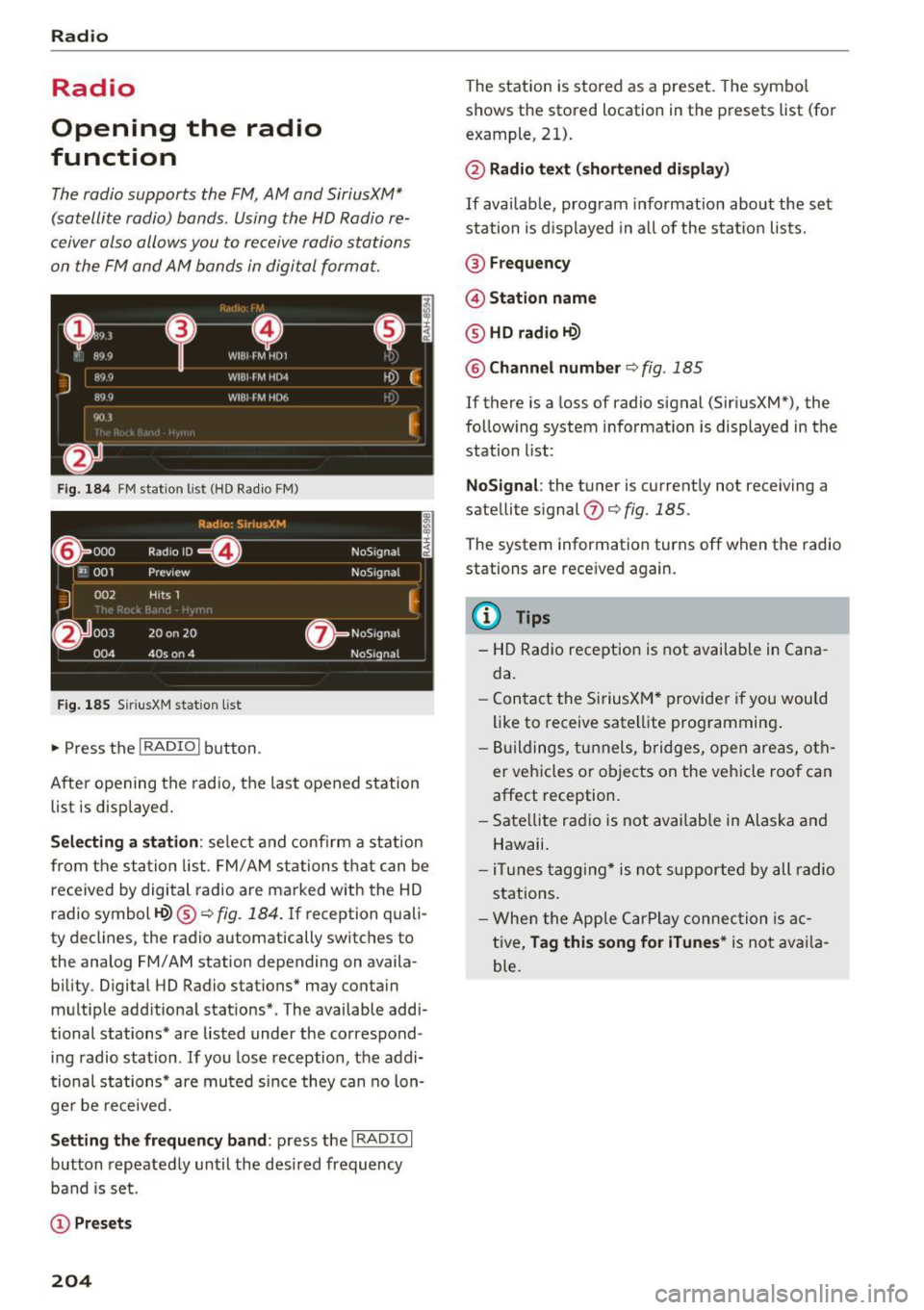
Opening the radio
function
The radio supports the FM, AM and SiriusXM"
(satellite radio) bands . Using the HD Radio re
ceiver also allows you to receive radio stations
on the FM and AM bands in digital format.
I·, i ' ,\.,
•-I . <)l
'
0 • 899 WIBI fM Hill 1•,'
J
89 9 WIBI r M HD4 fO) G-
Ht)Q WIH I fM HIJ<, !'.',
90.3
~
@n
Fig. 184 FM stat ion list (HD Radio FM)
Radi o: Sir iusXM i
----- R __ -ad - ,o _ _ I_D_ r,1 ·-------- N-0-S-, g- n_ a_ l __ , ~
~ 000 ~
I " 001 Prev iew NoSignal
J 002 Hits 1
003 20 on 20 N0S1gna l -
____ 0_Q_4 ___ 4_0~ _
.,. Press the I RADIO I button .
After opening the radio, the last opened station
list is disp layed .
Selecting a station: select and confirm a station
from the station list . FM/ AM stations that can be
received by digital radio are marked with the HD
radio symbol
H?) ® ¢fig. 184 . If reception quali
ty decl ines, the radio automatically switches to
the analog FM/AM station depending on availa bility. Digital HD Radio stations* may conta in
multiple add itional stations* . The available addi
tional stations* are listed under the correspond
ing radio station . If you lose reception, the addi
tional stations* are muted s ince they can no lon
ger be received.
Setting the frequency band : press the I RADIO I
button repeatedly until the desired frequency
band is set.
(D Presets
204
The station is stored as a preset. The symbo l
shows the stored location in the presets list (for
example, 21).
@ Radio text (shortened display)
If available, program information about the set
station is d is played in a ll of the station lists.
@ Frequency
@ Station name
® HD radio H?)
@ Channel number Q fig. 185
If there is a loss of radio signal (SiriusXM*), the
following system informat ion is displayed in the
station list:
NoSignal : the tuner is currently not receiving a
satellite signal
(J) ¢ fig. 185 .
The system information turns off when the radio
stations are rece ived again.
@ Tips
- HD Radio reception is not available in Cana
da.
- Contact the SiriusXM* provider if you would
like to
receive satellite programming .
- Buildings, tunnels, bridges, open areas, oth
er vehicles o r objects on the vehicle roof can
affect reception.
- Satellite radio is not availab le in Alaska and
Hawaii.
- iTunes tagging* is not supported by all radio
stations.
- When the Apple CarPlay connection is ac
tive,
Tag this song for iTunes * is not availa
ble.
Page 207 of 386
Radio functions
Free text search
Applies to: vehicles wit h free text search
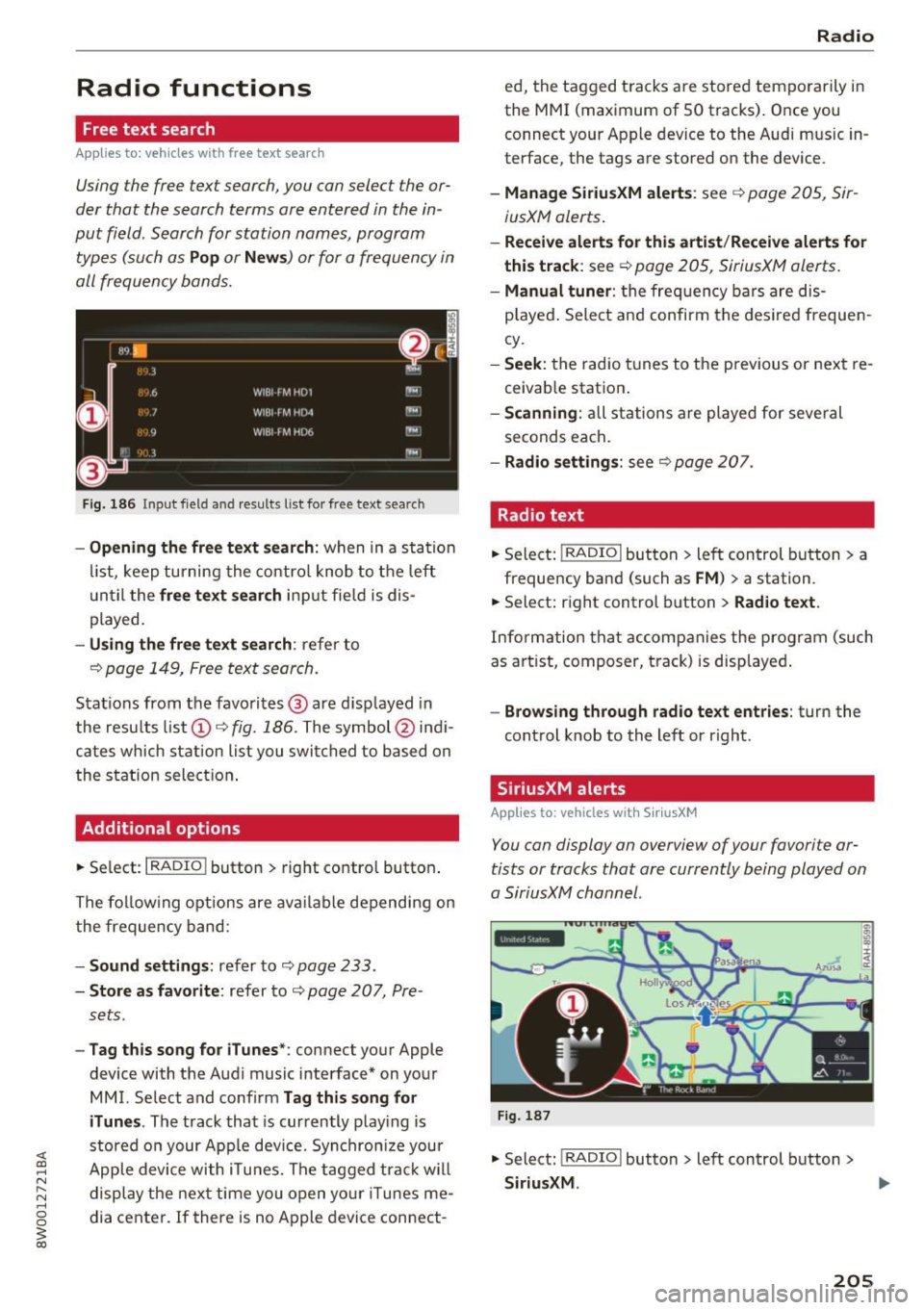
Using the free text search, you can select the or
der that the search terms are entered in the in
put field . Search for station names, program
types (such as
Pop or News ) or for a frequency in
all frequency bands.
Fig. 186 In pu t field a nd result s list fo r free text sea .rch
- Opening the free text search: when in a station
list, keep turning the cont rol knob to the left
u ntil the
free text search input field is dis
played.
- Usi ng the free text search: refer to
¢page 149, Free text search.
Stations from the favorites @ are disp layed in
the resu lts list @ ¢
fig. 186 . The symbol @indi
cates which station list you switched to based on
the station selection .
Additional options
• Se lect : I RADIO ! button > right contro l button .
The fol low ing options are available depending on
the frequency band:
-Sound settings: refer to¢ page 233 .
-Store as favorite : refer to ¢ page 20 7, Pre-
sets .
-Tag this song for iTunes *: connect your Apple
device with the Aud i music interface* on your
MMI. Select and confirm
Tag this song for
iTunes .
The track that is currently playing is
stored on your App le dev ice. Synchronize your
Apple device with i Tunes. The tagged track will
display the next time you open your iTunes me
dia center. If there is no Apple device connect -
Radio
ed, the tagged tracks are stored temporarily in
the MMI (maximum of 50 tracks) . Once you
connect your Apple device to the Audi mus ic in
terface , the tags are stored on the device .
-Manage SiriusXM alerts: see ¢ page 205, Sir
iusXM alerts .
-Receive alerts for this artist /Receive alerts for
this track:
see ¢ page 205, SiriusXM alerts.
-Manual tuner : the frequency bars are dis
played . Select and confirm the desired frequen
cy.
- Seek : the radio tunes to the previous or next re
ce ivab le station .
-Scanning : all stations a re played for seve ral
seconds each.
- Radio settings: see r:;, page 207.
Radio text
• Select: !RADIO I but ton > left control button> a
frequency band (such as
FM ) > a station.
• Select: right control button >
Radio text.
Information that accompanies the program (such
as art ist, composer, track) is displayed.
-Browsing through radio text entries: turn the
control knob to the left or r ight .
SiriusXM alerts
Applies to: veh icles w ith SiriusXM
You can display an overview of your favorite ar
tists or tracks that are currently being played on
a SiriusXM channel.
Fig.187
• Select: I RADIO I button > left control button >
SiriusXM . .,.
205
Page 208 of 386
Radio
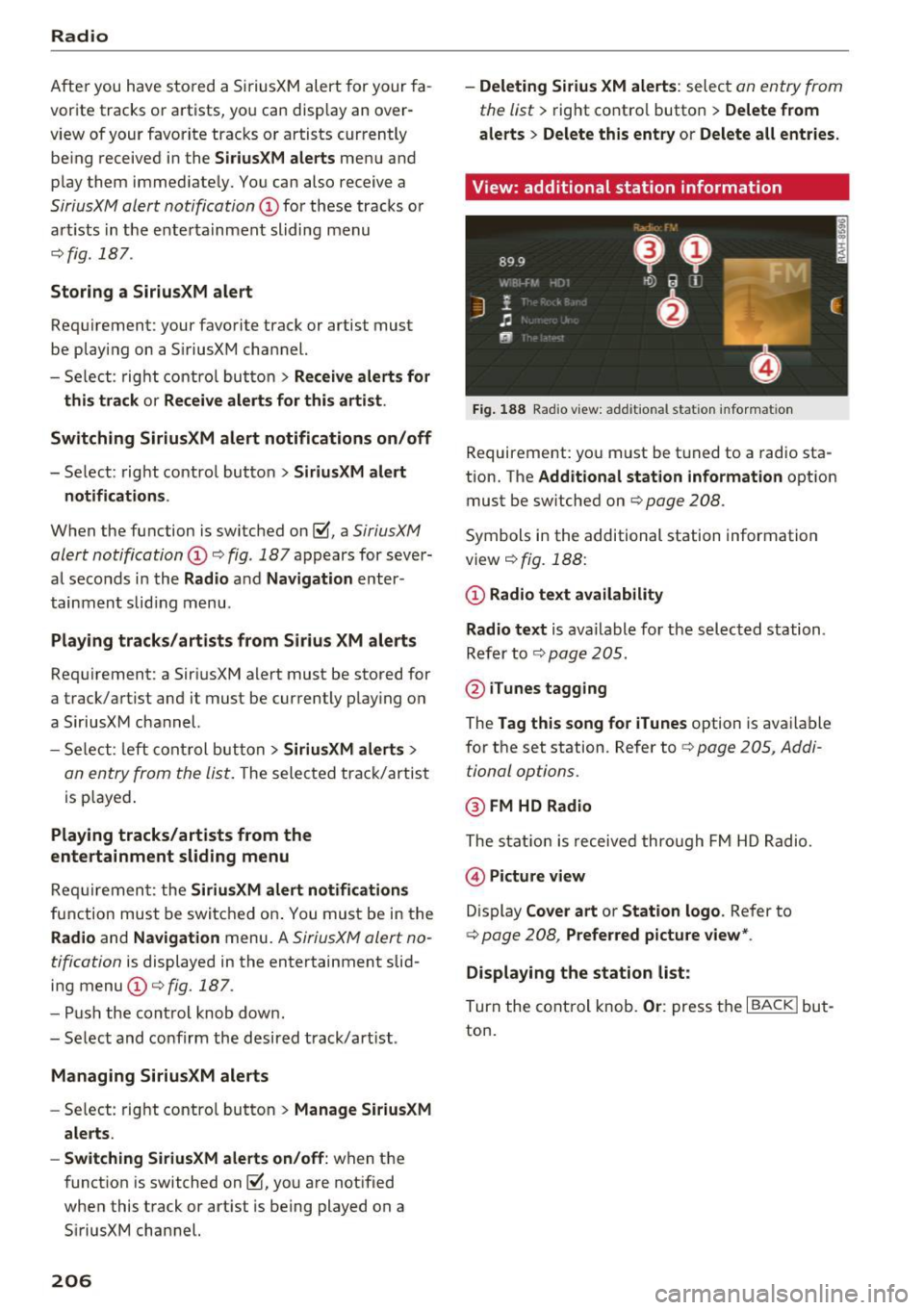
After you have stored a SiriusXM alert for your fa
vorite tracks or artists, yo u can display an over
view of your favorite tracks or artists currently be ing received in the
SiriusXM alerts menu and
play them immediate ly. You can also receive a
SiriusXM alert notification (D for these tracks or
art ists in the e ntertainment sliding menu
¢fig . 187 .
Storing a SiriusXM alert
Requirement: your favorite track or artist must
be playing on a S iriusXM channel.
- Se lect : right control button
> Receive alerts for
this track
or Receive alerts for this artist .
Switching SiriusXM alert notifications on/off
- Se lect: right control button > SiriusXM alert
notifications .
When the function is switched on~-a SiriusXM
alert notification
(D ¢ fig. 187 appears for sever
al seconds i n the
Radio and Navigation enter
tainment sliding menu .
Playing tracks /artists from Sirius XM alerts
Requirement: a SiriusXM alert must be stored for
a track/artist and it must be currently play ing on
a SiriusXM channel.
- Select : left control button
> SiriusXM alerts >
an entry from the list. T he selected track/artist
is p layed .
Playing tracks/artists from the
entertainment sliding menu
Requirement: the SiriusXM alert notifications
function must be switched on . You must be in the
Radio and Navigation menu. A SiriusXM alert no
tification
is displayed in the entertainment slid
ing menu (D¢fig.
187 .
-Push the control knob down.
- Select and confirm the desired track/art ist .
Managing SiriusXM alerts
-Se lect: right contro l button > Manage SiriusXM
alerts .
- Switching SiriusXM alerts on/off:
when the
function is switched on~-you are notified
when this track or art ist is being played on a
SiriusXM channel.
206
- Deleting Sirius XM alerts : select an entry from
the list>
right contro l button > Delete from
alerts
> Delete this entry or Delete all entries.
View: additional station information
Fig. 188 Radio view: add it ional stat ion informat ion
Requirement: you must be tuned to a radio sta
tion. The
Additional station information option
must be sw itched on ¢
page 208.
Symbols in the additional station information
view¢
fig. 188:
(D Radio text availability
Radio text
is available for the selected station .
Refer to
r::1;> page 205.
@ilunes tagging
The Tag this song for iTunes option is available
for the set station. Refer to
r::1;> page 205, Addi
tional options.
@ FM HD Radio
The station is received through FM HD Radio.
@) Picture view
Display Cover art or Station logo . Refer to
<=> page 208, Preferred picture view*.
Displaying the station list:
Turn the control knob. Or: press the I BACK! but
ton.
Page 209 of 386
Radio menu
Fig. 1 89 Examp le of t he radio menu
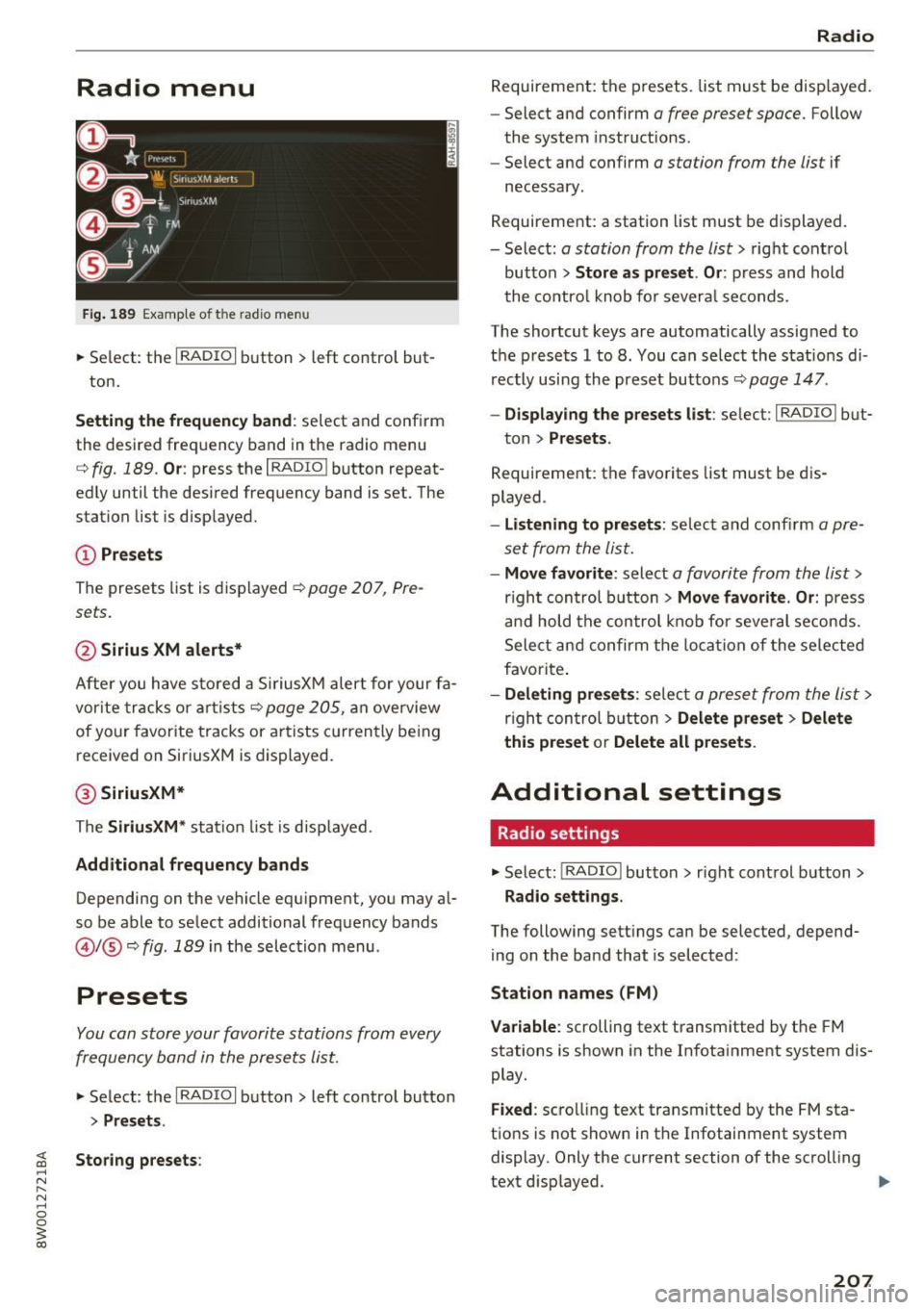
.,. Se lect: the I RADIO I button > left control but-
ton.
Setting the frequenc y band : select and confirm
the desired freq uency band in the radio menu
c::> fig. 189 . Or: press the I RADIO I button repeat
ed ly until the desired frequency band is set. The
station list is disp layed.
CD Pr esets
The presets list is displayed~ page 207, Pre
sets.
@ Sirius XM alerts*
After you have s to red a Si riusXM alert for your fa
vor ite tracks or a rtists
c::> page 205, an overview
of your favor ite tracks or a rtists c urrently be ing
received on SiriusXM is displayed.
@ SiriusXM*
The Siriu sXM * station list is disp layed.
Additional frequency bands
Depending on the vehicle equipment, you may a l
so be able to select additional frequency bands
@l @c::> fig. 189 in the selec tion menu .
Presets
You can store your favorite stations from every
frequency band in the presets list.
.,. Select : the I RADIO I button > left control button
> Presets.
Storing presets :
Radio
Requirement: the presets. list must be disp layed.
- Select and confirm
a free preset space. Follow
the system instruct ions .
- Select and confirm
a station from the list if
necessary .
Requirement: a station list must be d isplayed.
- Select:
a station from the list> right contro l
button >
Store as preset . Or : press and hold
the contro l knob fo r severa l se conds.
The shortcut keys are automatically assig ned to
the prese ts 1 to 8. You can se lect the stat io ns di
rectly using the preset butto ns
c::> page 147.
- Displ aying the presets li st: se lect: I RADIO I but-
ton >
Presets .
Requirement: the favorites list must be dis
played .
-Listening to preset s: select and confi rm a pre
set from the list.
- Move favorite : select a favorite from the list>
right con trol button > Move favorite . Or : press
an d hold the control knob for seve ral se con ds.
Select an d confirm t he loca tion of the selected
f a vorite .
-Deleting pre set s: selec t a preset from the list >
righ t con trol b utton > Delete preset > Delete
this preset
o r Delete all preset s.
Additional settings
Radio settings
.,. Select: !RADIO I button> r ight cont rol button>
Radio settings .
The following sett ings can be selected, depend
ing on the band that is selected :
Station name s (FM)
Variable:
scrolling text transm itted by the FM
stations is shown in the In fotainment system dis
play .
Fixed : scro lli ng text transmitted by the FM sta
tions is not shown in the Infotainment system
display. Only the current section of the scroll ing
text d isplayed. .,_
207
Page 210 of 386
Radio
FM/AM HD Radio *
You can switch HD R ad io recept ion on or off.
Channel sorting (Si riusXM *)
You can set the station sorting for SiriusXM sta
tion lists* by:
- Channel n umber : the stations are sorted in as
cending order according to their station num
ber .
-Channe l name : the stations are listed in alpha
betical order .
-First categor y, the n channel number : the sta
tions are sorted by their category and then by
their channel numbers .
-First categor y, then channel name : the sta
tions are sorted by their category and then by
their channel names.
C ateg ory filter (Sirius XM*)
The stations shown in the station list can be fi l
tered by your personal preferences and by pro
gram type . The program categor ies that you can
select depend on what is offered by your provid
er . Select the
All categor ie s option to deactivate
all filter options and disp lay all ava ilable stations
i n the sate llite station list.
Additional station information
When the function is switched on~ and the sta
tions or presets list is open, the display will
sw itch to the
Additional stat io n i nform ation
view after approximate ly five seconds
Troubleshooting
Problem Solution
¢ page 206. Depending on availability, in forma
tion about the set station (such as station name,
artist and station logo) is disp layed in this view .
Preferred picture vi ew *
You can set your preferred s creen view fo r the
Additional station inf ormation disp lay
¢ page 206 .
-Station logo: the station logo is displayed de
pend ing on availability.
- Cov er art : the album cove r is d isp layed depend-
ing on availability.
Gracenote online data base *
Requirement: the MMI must be co nnected to the
Internet . The
C ov er art opt ion m ust be selected
¢ page 208, Pref erred pictur e view *.
When the function is switched on~, the album
cover or genre cover for the song that is p lay ing
i s loaded from the Gracenote online database,
depending on ava ilability.
Subscription status (SiriusXM }*
This opt ion is available when your subscr ipt ion is
a bout to expire or has alre ady expired . The expi
ration date for your license is displayed.
Call to Siriu sXM* : the contact information for
your sate llite rad io provider is displayed . To call
your satellite rad io provider using the MMI , press
Call to Siriu sXM*.
A station with poo r reception is no longer Store the stat io n as a preset in advance . Access the p reset
displayed in the station l ist once you t
hroug h the presets list on
¢page 207.
swit ch to a d ifferen t station.
208
Page 227 of 386

<( a, .... N ,....
N .... 0 0
3 a,
Problem
Audi music interface :
the porta-
ble audio device is not recognized
as a source.
Audi music interface : the audio
playback through the iPod/
iPhone/iPad is malfunctioning.
Audi music interface : contents
that are changed on a mobile de-
vice connected to the Audi music
interface are not displayed in the
media center ..
AUX input: there is stat ic when
connecting and disconnecting the
AUX connection cable.
Bluetooth audio player* /Wi-Fi
audio player *:
aud io playback in-
terference.
Jukebox*: tracks on the imported
playlist are grayed out.
Jukebox*: i mported tracks cannot
be played or found.
Wi-Fi audio player *: multiple de-
vices are connected to the Wi-Fi
hotspot. A media player (such as a
smartphone) appears as the
source and cannot be changed.
Online media *: connection failed
between the MMI and the
Audi
MMI connect
app.
Wi-Fi audio player* /Online me-
dia *:
audio playback interference.
Media
Solution
For many ce ll phones or mobile devices, playback is not possible
when the battery level is too low (less than 5% of its capacity).
The mobile de-vice will only be recognized as a source in the MMI
after connecting if the battery charge is sufficient.
The
Bluetooth audio player f unction is switched on. Switch this
function off
c:> page 231 when you a re not using the Bluetooth
audio player.
Reset the Media settings to the facto ry defau lt settings
c:>page 230.
When connecting a nd disconnecting, the External audio player
source is already selected. Before connecting or disconnecting the
mobile device, either mute the device (refer to
c:> page 233) or
sw itch to a different audio source (for example
c:> page 204, Open-
ing the radio function).
Only one interface should be act ively used at a time to ensure
problem-free playback.
When importing playlists, a ll of the fi les themselves must be im-
ported.
If yo u cannot find impor ted tracks in the media center, they may
not be supported. Only copy supported files
c:> page 223 to the
Jukebox.
Close the
Audi MMI connect app on the connected dev ices (for ex-
ample, smartphones) that are not being used as the Wi-Fi audio
p laye r*. Likewise, close the UPnP server apps or the media pe rm is-
sions on the integrated UPnP/DLNA server. Connect the desired
device as a Wi-Fi audio pla yer*
c:> page 213.
To establish a connection to the MMI, the MMI connection switch
must be switched on in the
Audi MMI connect app status screen.
Malfunctions can occur during audio playback if the
Hotspot and
client a)
c:> page 177 Wi-Fi mode setting was selected. For p layback
without interference, Audi recommends the
Hotspot setting for
Wi-Fi mode.
225
Page 232 of 386
System settings
Speech training (only when the vehicle is station
ary): you can adapt the voice recognition system
to your voice or pronunciation in order to improve
the system's ability to recogni ze your speech. In
dividual training is comprised of 20 speech en
tr ies that consist of commands and sequences of
numbers . You ca n delete the programmed voice
training with the
Reset individual speech train·
ing
function.
Display brightness
Display brightness:
you can adjust the bright
ness of the Infotainment system display by turn
ing the control knob .
Factory settings
The follow ing functions can be reset to the facto
ry default settings :
-Sound settings
- Radio
- Media settings
-Jukebox*
- Directory
- Telephone
- Bluetooth and Wi-Fi*
- Navigation settings *
- Navigation and online memory*
- Speech dialog system*
- Message settings*
- Shortcut keys
- Apps *
- Tool tips
- Audi connect*
- Audi smartphone interface*
You can select the des ired functions individually
or all at once with the option
Select all entries .
Select and confirm Restore factory settings.
@ Tips
-Make sure that not only the settings were
deleted but also the stored data, if applica
ble.
- If you reset the
Navigation and online
memory *, Apps * or Audi connect*
to the
factory default settings, the system auto
matically restarts after approximately 20
seconds . The Infotainment system display
230
will be black for several minutes when re
starting.
Connection manager
Introduction
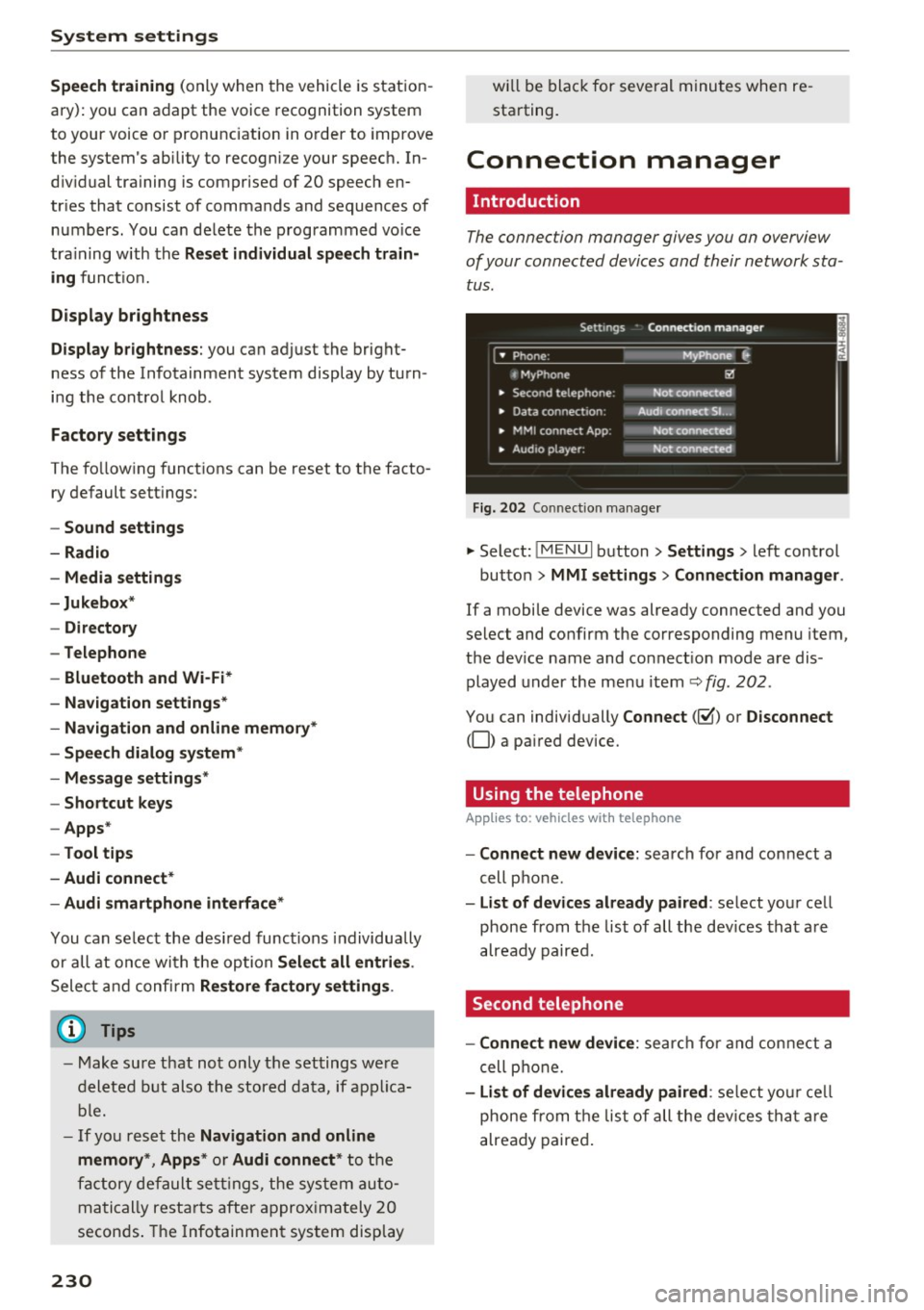
The connection manager gives you an overview
of your connected devices and their network sta tus .
Settings Conne-ction manager I
===---- · MyPhone (, • Phone :
t MyPhone
• Second telephone:
• Data conn ection :
• MM I connect App :
• Audio player: !ill
Not connectl!d
Audi connect SI.. .
Not connected
Not connected
Fig. 202 Co nnect ion manager
.,. Select: !MENUI button> Settings> left control
button>
MMI settings > Connection manager.
If a mobile device was already connected and you
select and confirm the corresponding menu item,
the dev ice name and connect ion mode are dis
played under the menu item
Q fig. 202.
You can individually Connect(~) or Disconnect
(0) a pa ired device.
Using the telephone
App lies to: vehicles wit h telepho ne
- Connect new device: search for and connect a
cell phone .
-List of devices already paired: select your cell
phone from the list of all the dev ices that are
already paired.
Second telephone
- Connect new device:
search for and connect a
cell phone.
-List of devices already paired : select your cell
phone from the list of all the devices that are
already paired.