steering AUDI S6 2008 Owner's Manual
[x] Cancel search | Manufacturer: AUDI, Model Year: 2008, Model line: S6, Model: AUDI S6 2008Pages: 390, PDF Size: 88.42 MB
Page 152 of 390
-L_!_A~u~d:!!i~la~n~e :...a ~ s~s ~i s ~t _______________________________________________ _
Audi lane assist
Lane assist
Applies to vehic les : w ith lane assist
Description
Lane assist helps you keep your vehicle in your lane.
Lane assist uses a camera to detect lane boundary lines. If the
system detects that your vehicle is about to leave a lane boundary
line, the steering wheel
vibrates to alert the driver . If lane assist
de tects boundary lines on both sides of the vehicle's lane, the
system enters active standby mode, which is indicated by the green
indicator light /: on the instrument cluster.
If the system is in active standby mode and the turn signal is acti
vated before driving over the boundary line, the warning does not
occur since the system allows for intentional lane changes.
The system is designed for driving on freeways and expanded high
ways and thus works only at speeds of 40 mph (65 km/h) or more.
& WARNING
• Lane assist will not keep your vehicle in your lane. The system
only warns the driver when the vehicle is leaving the lane . The
driver is always responsible for keeping the vehicle in the lane .
• The camera is not able to detect all lane boundary lines and in
some cases might also detect lane structures or objects as
boundary lines . This can lead to incorrect warnings or warnings
that fail to go off at all.
• The camera's visibility can be impaired by vehicles ahead of
you , for instance, or by rain, snow, heavy spray or light shining into
the camera lens. This can cause lane assist to fail to detect
boundary lines. •
Applies to veh icle s: with lane assi st
Activating and deactivating
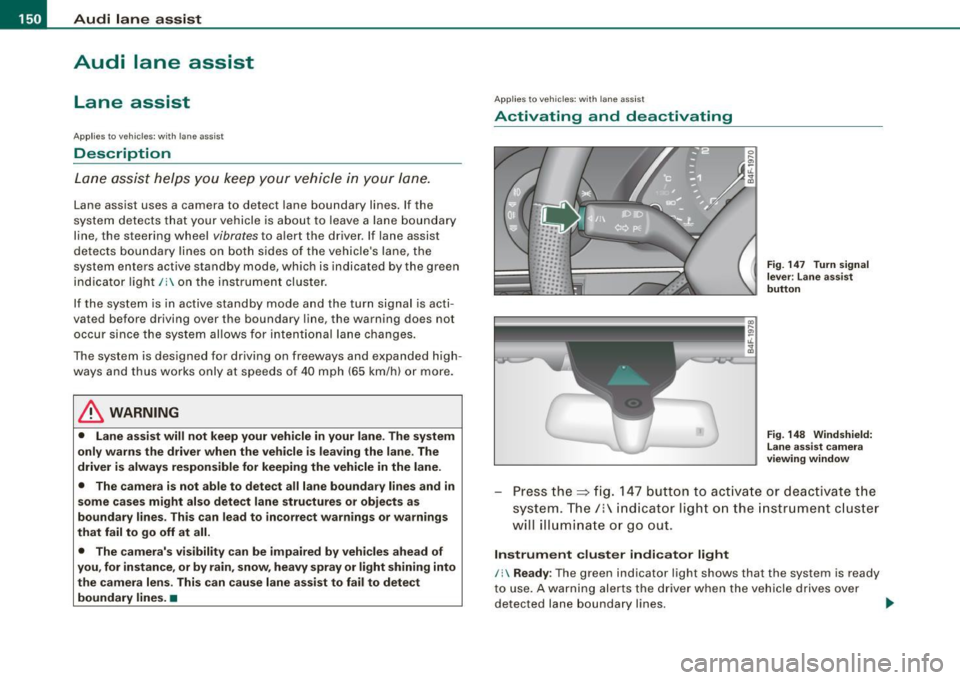
Fig . 147 Turn signal
le ve r: Lane assist
button
Fig . 148 Windshield:
Lane assist camera
viewing window
Press the=> fig. 147 button to activate or deactivate the
system. The/: indicator light on the instrument cluster
will illuminate or go out.
Instrument cluster indicator light
/: Ready : The green indicator light shows that the system is ready
to use. A warning alerts the driver when the vehicle drives over
detected lane boundary lines. -.,
Page 153 of 390
Audi lane assist -
----------------
, Not ready: The yellow indicator light shows that the system is
turned on but unable to send a warning. This can be due to the
following:
• There are no boundary lines, or there is only one boundary line
present .
• The boundary lines are not detected (e.g. due to snow, dirt, wet
conditions or light shining into the camera lens).
• More than two boundary lines (such as at construction sites) are
located in the vehicle's lane.
• The vehicle's speed is below the speed needed to activate it,
which is about
40 mph (65 km/h).
• The lane is narrower than about
8 ft. (2.5 ml, or wider than about
16 ft. (5 ml.
• The curve is too sharp.
Notes on the instrument cluster display
When the lane assist turns off automatically, the instrument cluster
indicator goes out and one of the following messages appears on
the display:
Audi lane assist not available: Currently no sensor vision
This message appears when the camera can no longer function
because it cannot detect the boundary lines. This may be due to the
following:
• The exterior side of the camera viewing window=>
page 150,
fig. 148 is covered with dirt or ice. Clean this part of the windshield.
• The camera viewing window is fogged up on the inside. In this
case, wait until the fog disappears before turning lane assist on
again.
• The system was unable to detect boundary lines over an
extended period of time due to road conditions (such as snow
covered lanes). Do not turn lane assist on again until the lines can
be more easily detected.
Audi lane assist not available
Controls and equip
ment A temporary malfunction is preventing
lane assist from operating .
Try turning on lane assist again at a later time.
Audi lane assist: system fault
The system should be checked by an authorized Audi dealer or other qualified workshop.
[ i] Tips
• Make sure that the camera viewing window=> page 150, fig. 148
is not covered by stickers or similar objects .
• Always keep the camera viewing window clean. This can usually
be done by operating the windshield wipers. •
Applies to vehic les: with lane ass ist
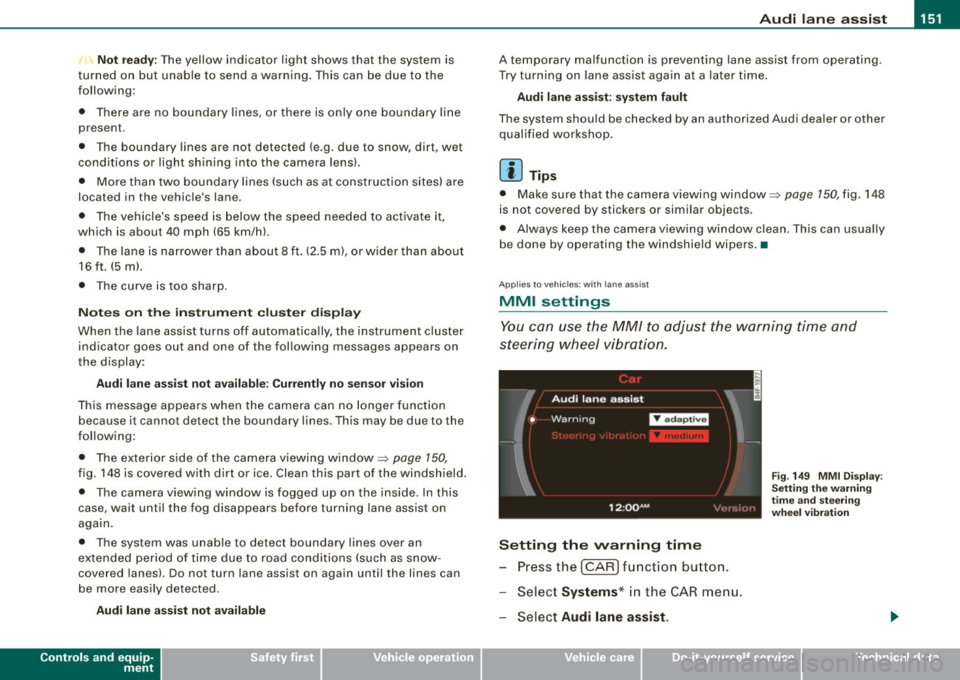
MMI settings
You can use the MM/ to adjust the warning time and
steering wheel vibration.
Setting the warning time
Pressthe[CAR]function button.
Select
Systems * in the CAR menu.
Select
Audi lane assist.
I • •
Fig . 149 MMI Display :
Setting the warning
time and steering
wheel vibration
Page 154 of 390
1111 Audi lane assist
--------------------
-Selec t Warning early , adaptive or late => page 151,
fig. 149.
Setting the steering wheel vibration Press the
I CAR I function button.
- Selec t
Systems * in the CAR menu.
- Selec t
Audi lane assist.
Select Steering vibration weak, medium or strong.
Setting the warning time
Early: This setting warns the driver before a wheel touches the
detected lane boundary line. The warning depends on the vehicle's
angle as it approaches the boundary line . If you approach a
boundary line gradually, the warning w ill occur earlier. If you
approach the boundary line at a very sharp ang le, the warning will
occur just before a wheel touches the line.
Adaptive : In this setting, the warning time adjusts to the character
istics of the road and the vehic le speed. The warning occurs later for
curves and occurs earlier for straight stretches of road . The warning
occurs later on narrow roads than on wide roads.
Late: This setting warns the driver when a whee l drives over the
detected lane boundary line .
Setting the steering wheel vibration
When adjusting the steering wheel vibration, the steering wheel
vibrates so that you can check the intensity you have set.
[ i ] Tips
• When making the adjustment, lane assist is not activated. The
steering wheel vibrates briefly only to assist you in changing the
setting .
• Your settings are automatically stored and assigned to the
remote control key being used.•
Page 160 of 390
-L-_:A:....::..: u:;. t .:.o.::..:. m.:....:..: a:;. t.:. i;..: c :......: t.:r .:a :...n.: s;;:..:. m;_;_;_ is.::....:: s.:i o .::..:. n.:.... _______________________________________________ _
[ i J Tip s
• When you shift into the next lower gear, the tran smission will
downshift only when there is no possibi lity of over -revv ing the
engin e.
• When the kickdown comes on, th e transmission wil l shift down
to a lower gear, depending on vehicle and engine speeds.
• tiptronic® is inoperative when the transmission is in the fail -safe
mode .•
A pplies to vehi cles : w it h 6- speed automatic trans mission
St ee ring wh eel with tiptroni c®
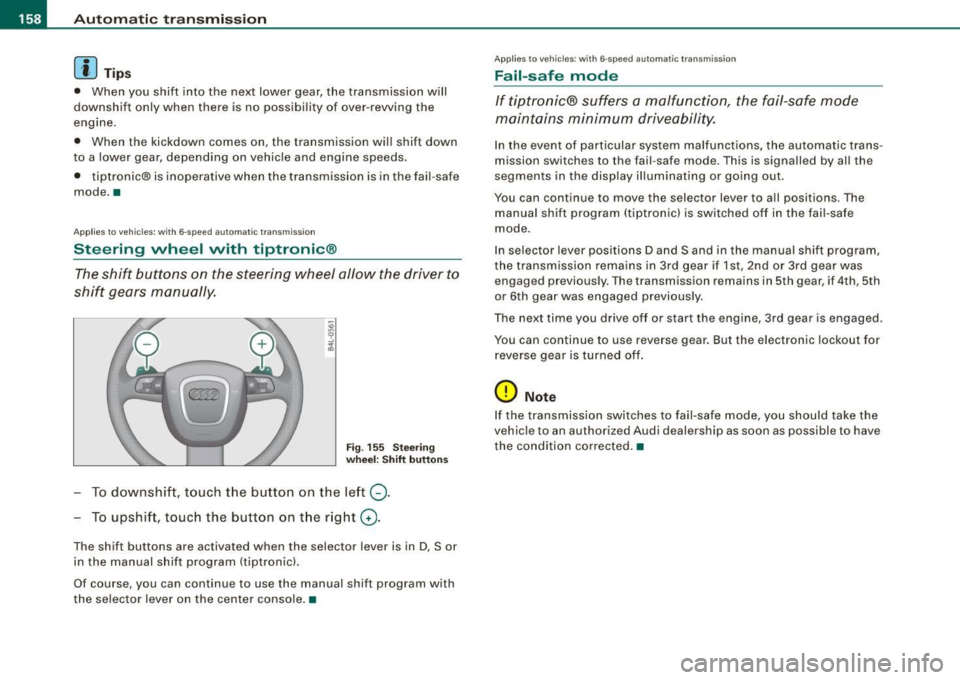
The shift buttons on the steering wheel allow the driver to
shift gears manually.
Fig . 155 Stee ring
whe el: Shift button s
To downshift, touch the button on the left Q.
To upshift, touc h the button on the r ight G) .
The shift buttons are act ivated when the selector lever is in D, Sor
in the manual shift program (tiptronic) .
Of course, you can continue to use the manual shift program with
the selec tor lever on the center console. •
App lies to veh ic les : w it h 6-speed au tomat ic tra n smission
Fail-saf e mode
If tiptronic® suffers a malfunction, the fail-safe mode
maintains minimum driveability.
In the event of particular system malfunctions, the au tomatic trans
mission switches to th e fail -safe mode. This is signalled by al l the
segments in the display illuminating or going out.
You can continue to move the selec to r lever to all positions . The
manual shift program (tiptronic l is switched off in the fai l- safe
mode .
In selector lever positions D and Sand in the manual shift program,
the transmission remains in 3rd gear if 1st, 2nd or 3rd gear was e ngag ed pr evious ly. The transmission remains in 5th gear, if 4 th , 5th
or 6th gear was engaged previous ly .
T he next time you drive off or sta rt the engine , 3rd gear is engaged .
You can continue to use reverse gear. But the electronic lockout for
reverse gea r is turned off.
(D Note
If the transmission switches to fail -safe mode , you should take the
v ehicle to an au thori zed Audi dealership as soon as possible to have
the condition corrected .•
Page 167 of 390
_________________________________________________ A_ u_t_ o_ m_ a_t _i _ c _ t _ra_ n_s_ m __ is_ s_ io_ n _ __.1111
automatic downshifting is interrupted as soon as you apply throttle
again .
[ i J Ti ps
• When you shift into the next lower gear, the engine will down
shift only when there is no possibility of over-revving .
• When the kick-down comes on, the transmission will sh ift down
to a lower gear depending on vehicle and engine speeds.
• The tiptronic® is inoperative when the transmission is in the fail
safe mode .•
Ap plies to vehic les: with multit ron ic® Continuous ly Variable Transm ission (CVT)
Steering wheel with tiptronic ®
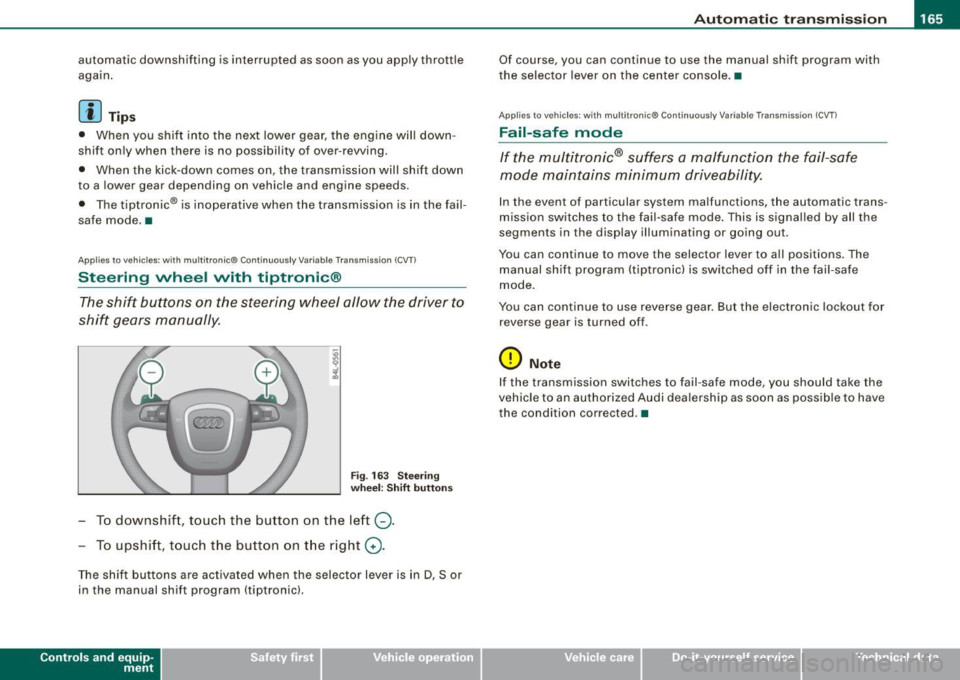
The shift buttons on the steering wheel allow the driver to
shift gears manually.
Fig . 163 S teering
w heel : S hift butt ons
- To downshift, touch the button on the left Q.
- To upshift, touch the button on t he right G) .
The shift buttons are activated when the selector lever is in D, Sor
in the manual shift program (tiptronic).
Contro ls and eq uip
ment
Of course, you can continue to use the manual shift program with
the selector lever on the center console. •
Applies to vehicles : with multitronic® Continuously Var iable Transm ission (CVT )
Fail -safe mode
If the multitronic® suffers a malfunction the fail-safe
mode maintains minimum driveability.
In the event of particular system malfunctions, the automatic trans
mission switches to the fail-safe mode . This is signal led by all the
segments in the display illuminating or going out.
You can continue to move the selector lever to all positions. The
manual shift program (tiptronic) is switched off in the fail-safe
mode.
You can continue to use reverse gear. But the electronic lockout for
reverse gear is turned off .
0 Note
If the transmission switches to fail-safe mode, you should take the
vehicle to an authorized Audi dea lership as soon as poss ib le to have
the condition corrected. •
Vehicle care I I irechnical data
Page 176 of 390
-Audi Park in g Sy ste m
-------===--~------------------------------------
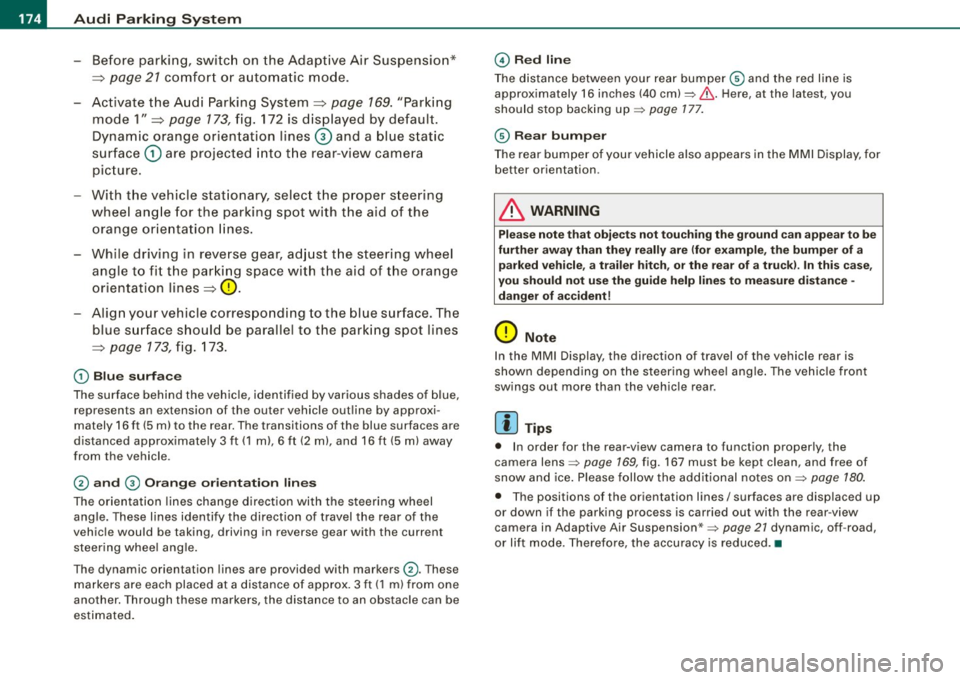
-Before parking, switch on the Adaptive Air Suspension*
=>
page 21 comfor t or automatic mode.
- Activate the Audi Parking System=>
page 169. "Parking
mode 1" =>
page 173, fig. 172 is displayed by default.
Dynamic orange orien tation lines© and a blue s tatic
surface
G) are projected i nto t he rear-view camera
pic ture .
- With the vehicle stat ionary, select the proper steer ing
wheel ang le for the parking spot with the aid of the
orange orie ntation lines.
- While driv ing in reverse gear, ad just t he steering wheel
angle to fit the parking space w ith the aid of the orange
orientation lines=>
0.
- Align your vehicle corresponding to the blue surface. The
blue surface should be parallel to the park ing spot lines
=>
page 173, fig . 173.
G) Blu e surface
The surface behind the vehic le, identified by various shades of b lue,
rep resents an extension of the outer vehicle out line by approxi
mately 16 ft (5 ml to the r ear. Th e transitions of the blue surfac es are
distanced approx imately 3 ft (1 ml , 6
ft (2 m) , and 16 ft (5 m) away
from the vehicle .
0 and G) O ra ng e or ien ta tion lin es
The orientation lines change direct ion with the steering wheel
angle. These lines identify the direction of travel the rear of the
vehic le would be taking , driving in reverse gear with the current
steer ing whee l ang le.
Th e dynamic or ientation lines ar e provid ed with mark ers
0 -These
markers are each placed at a distance of approx . 3 ft ( 1 m) from one
ano ther. Through these markers , the distance to an obstacle can be
estimated.
© Redli ne
The distance between your rear bumper® and the red line is
approximately 16 inches (40 cm):::::,&. Here, a t the latest, you
should stop backing up:::::,
page 177 .
© Rear bum per
The rear bumper of your vehicle also appears in the MMI Display, for
better orientation .
& WARNING
Please n ote t hat obje cts n ot tou ch ing th e ground can ap pear to be
fu rther away th an th ey re ally ar e (for example , the bumper of a
p arked vehi cle , a trai ler hit ch, o r th e rea r of a tr uck). In this case,
yo u shou ld not u se th e gu ide h elp lin es to mea sur e di stan ce -
d anger of accident !
0 Note
In the MMI Display, the di rection of travel of the vehicle rear is
shown depending on the steering whee l ang le . The vehicle front
swings out more than the vehic le rear .
[ i ] T ip s
• In o rder for the rear -v iew camera to function proper ly , the
camera lens:::::,
page 169 , fig. 167 must b e kept cl ean, and free of
snow and ice. P lease follow the add itional notes on :::::,
page 180.
• The posit ions of the orientation lines / surfaces are disp laced up
o r down if the parking process is carried out with the rear -view
camera in Adaptiv e Air Suspension *:::::,
page 21 dynamic , off -road ,
or lift mode. Therefore, the accuracy is reduced. •
Page 177 of 390
Audi Parking System -
----------------=----=------'
Applies to vehic les : w ith Au di Par kin g Sy stem (r ear) and rea r-v ie w came ra
Parking mode 2
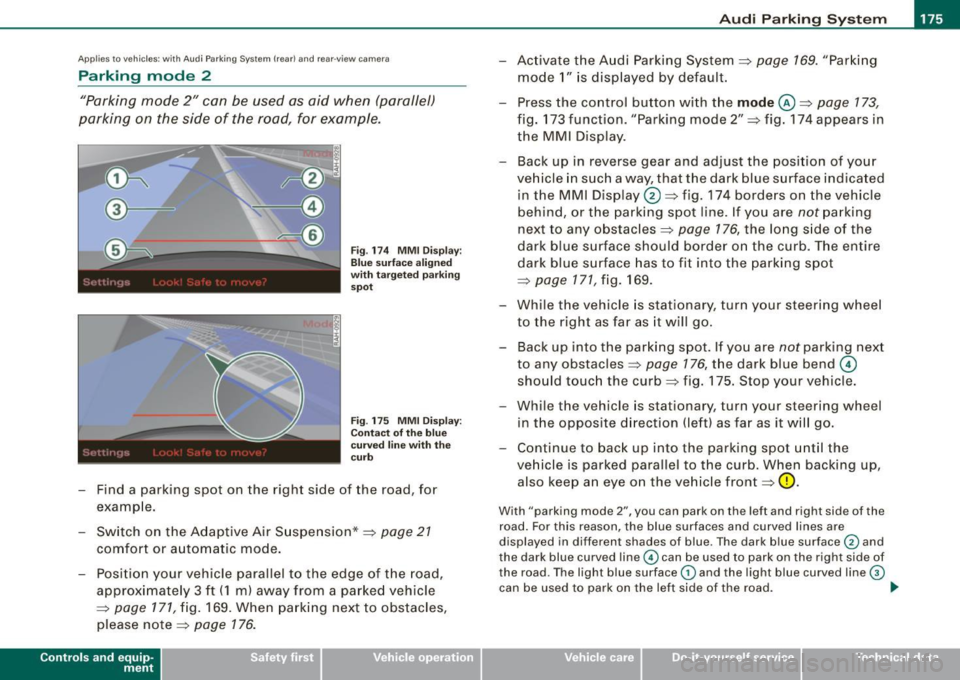
"Parking mode 2" can be used as aid when (parallel)
parking on the side of the road , for example.
Fig . 174 MMI Display:
Blue surface aligned
with targeted parking
spot
Fig . 175 MMI Display:
Contact of the blue
curved line with the
curb
- Find a parking spot on the right side of the road, for
example .
- Switch on the Adaptive Air Suspension*=>
page 21
comfort or automatic mode.
- Position your vehicle parallel to the edge of the road,
approximately 3 ft (1 m) away from a parked vehicle
=>
page 171, fig. 169. When parking next to obstacles,
please note=>
page 176.
Contro ls and eq uip
ment
- Activate the Audi Parking System=> page 169. "Parking
mode 1" is displayed by default.
- Press the control button with the
mode @=> page 173,
fig. 173 funct ion . "Park ing mode 2" => fig. 174 appears in
the MMI D isplay.
- Back up in reverse gear and adjust the pos ition of your
vehicle in such a way, that the dark blue surface ind icated
in the MMI Display
0 => fig . 174 borders on the vehicle
be hind, or the parking spot line. If you are
not parking
next to any obstacles=>
page 176, the long side of the
dark blue surface should border on the curb. The ent ire
dark blue surface has to fit into the parking spot
=>
page 171 , fig. 169.
- While the vehicle is stationary, turn your steering wheel
to the right as far as it will go.
- Back up into the parking spot. If you are
not park ing next
to any obstac les =>
page 176, the dark blue bend ©
should touch the curb=> fig . 175. Stop your vehicle.
- Wh ile the vehicle is stat ionary, turn your steering whe el
i n the oppos ite direc tion (lef t) as far as it will go .
- Contin ue to back up into the park ing spot until the
vehicle is parked pa rallel to the curb. When backing up,
also keep an eye on the vehicle front=>
0.
With "parking mode 2 ", you can park on th e left a nd right sid e of the
road. Fo r this reason, the blue surfaces and curved l ines are
displ ayed in diffe ren t sh ades of blue . The dark blue surfa ce
0 and
the dark blue curved line© can be used to park on the right side of
t he road . The l igh t blue s urfa ce
G) and the light blue curved lin e G)
can be us ed to park on the left si de of the road . .,
Vehicle care I I irechnical data
Page 178 of 390
• .___A_ u_d_ i _P _a_ r_ k_ i_ n ..:g=-- S_ y=-- s_t _ e _m _____________________________________________ _
When the turn signal is switched on, only the necessary surfaces
and curves are shown. To change the side that is shown, simply
change the turn signal.
The displayed light blue® or dark blue © curved line identifies the
turn-around point when maneuvering to park. If the curved line
touches the curb, the steering wheel turn -around point has been
reached =>
page 175, fig. 175.
The distance from the rear bumper © to the red line@ is approxi
mately 1.3 ft (40 cm). Here, at the latest, you should stop backing up
=>
page 177.
& WARNING
Please note that objects not touching the ground can appear to be
further away than they really are (for example, the bumper of a parked vehicle, a trailer hitch, or the rear of a truck).
In this case,
you should not use the guide help lines to measure distance -
danger of accident!
0 Note
In the MMI Display, the direction of travel of the vehicle rear is repre
sented depending on the steering wheel angle. The vehicle front
swings out more than the vehicle rear .
[ i] Tips
• In order for the rear-view camera to function properly, the
camera lens=>
page 169, fig. 167 must be kept clean, and free of
snow and ice. Please follow the additional notes on=>
page 180.
• The positions of the orientation lines/ surfaces are displaced up
or down if the parking process is carried out with the rear-view
camera in Adaptive Air Suspension*=>
page 21 dynamic, off -road,
or lift mode. Therefore, the accuracy is reduced. •
Special parking situations
Applies to vehicles : with Audi Parkin g System (rea r) and rear-view camera
Parking next to obstacles
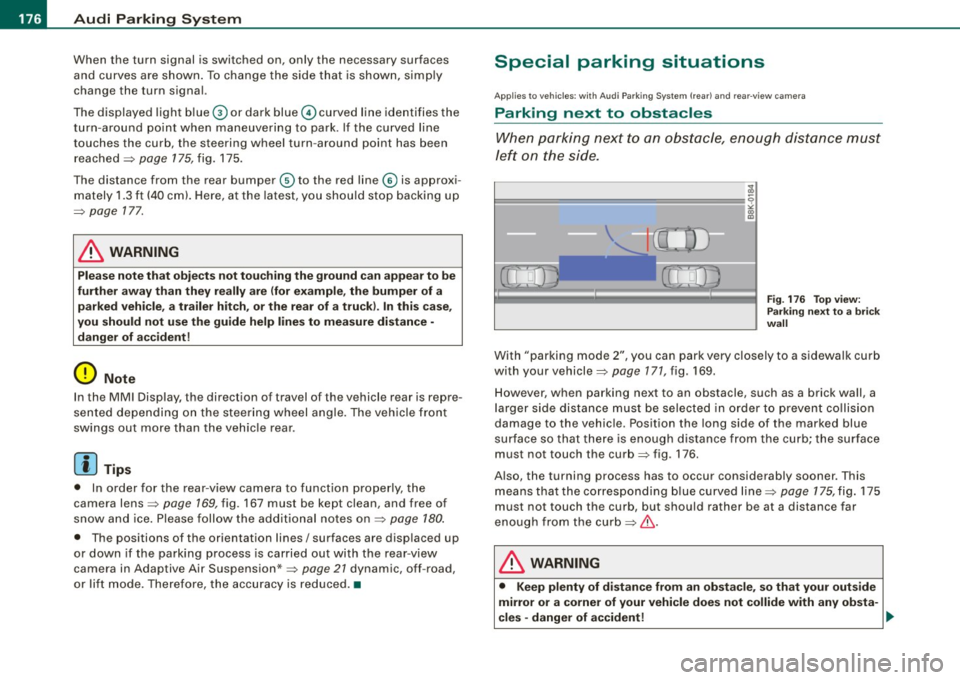
When parking next to an obstacle, enough distance must
left on the side.
=
Fig. 176 Top view:
Parking next
to a brick
wall
With "parking mode 2", you can park very closely to a sidewalk curb
with your vehicle=>
page 171, fig. 169.
However, when parking next to an obstacle, such as a brick wall, a
larger side distance must be selected in order to prevent collision
damage to the vehicle. Position the long side of the marked blue
surface so that there is enough distance from the curb; the surface
must not touch the curb=> fig. 176 .
Also, the turning process has to occur considerably sooner. This means that the corresponding blue curved line=>
page 175, fig. 175
must not touch the curb, but should rather be at a distance far
enough from the curb=>&.
& WARNING
• Keep plenty of distance from an obstacle, so that your outside
mirror or a corner of your vehicle does not collide with any obsta-
cles -danger of accident! ..
Page 194 of 390
........ _o_ r_iv _i_ n""' g::;._ S_ a_f _e _ly =---------------------------------------------------
Driving Safely
General notes
Safe driving habits
Please remember -safety first!
This chapter contains important information, tips, suggestions and
warnings that you need to read and observe for your own safety, the safety of your passengers and others. We have summarized here
what you need to know about safety belts, airbags, child restraints as well as child safety. Your safety is for us
priority number 1. Always
observe the information and warnings in this section -for your own
safety as well as that of your passengers.
The information in this section applies to all model versions of your
vehicle. Some of the features described in this sections may be
standard equipment on some models, or may be optional equip
ment on others. If you are not sure, ask your au thorized Audi dealer .
& WARNING
• Always make sure that you follow the suggestions and heed
the WARNINGS in this Manual. It is in your interest and in the interest of your passengers.
• Always keep the complete Owner's Literature in your Audi
when you lend or sell your vehicle so that this important informa
tion will always be available to the driver and passengers.
• Always keep the Owner's literature handy so that you can find
it easily if you have questions. •
Safety equipment
The safety features are part of the occupant restraint
system and work together to help reduce the risk of injury
in a wide variety of accident situations.
Your safety and the safety of your passengers should not be left to
chance. Advances in technology have made a variety of features
available to help reduce the risk of injury in an accident. The
following is a list of just a few of the safety features in your Audi:
• sophisticated safety belts for driver and all passenger seating
positions,
• safety belt pretensioners,
• safety belt force limiters for the front seats,
• safety belt height adjustment systems for the front seats,
• automatic safety belt height adjustment for the rear seats,
• front airbags,
• side airbags in the front seats and outer rear seats *,
• side curtain airbags (SIDEGUARD),
• special LATCH anchorages for child restraints,
• head restraints for each seating position ,
• adjustable steering column.
These individual safety features, can work together as a system to
help protect you and your passengers in a wide range of accidents.
These features cannot work as a system if they are not always correctly adjusted and correctly used.
Safety is everybody's responsibility! •
Page 196 of 390
___ D_ ri_v _i_n -=g=--- S_ a_ f _e___, ly'---------------------------------------------------
Proper occupant seating positi ·ons
Proper seating position for the driver
The proper driver seating position is important for safe,
relaxed driving.
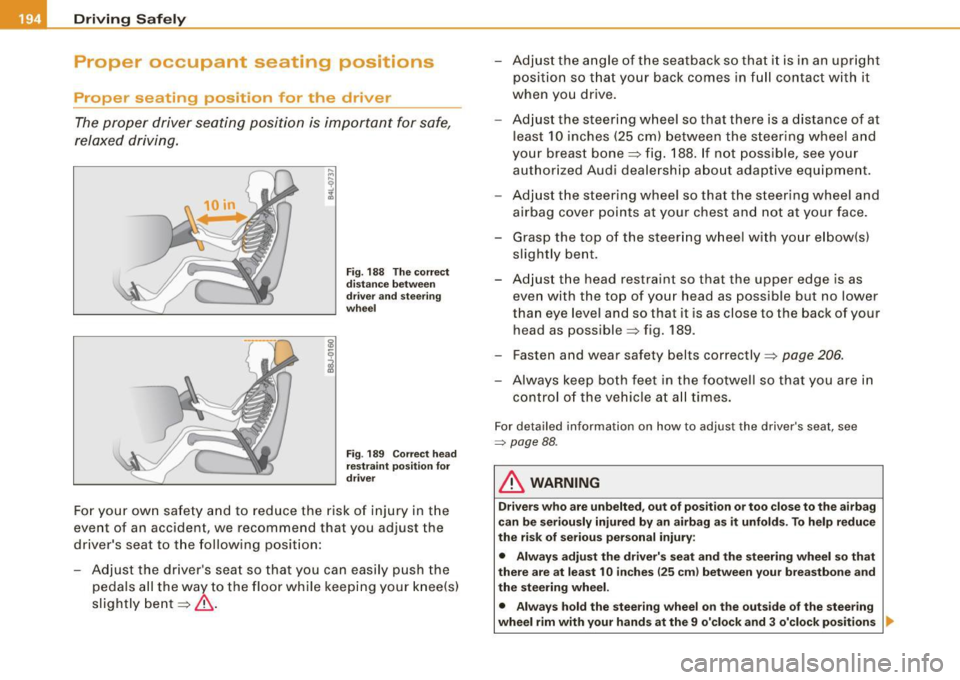
Fig. 188 The correct
distance between
driver and steering
wheel
Fig. 189 Correct head
restraint position for
driver
For your own safety and to reduce the risk of injury in the
event of an accident, we recommend that you adjust the
driver's seat to the following position:
- Adjust the driver's seat so that you can easily push the
pedals all the way to the floor while keeping your knee(s)
slightly bent=:>& . - Adjust the angle of the seatback so that it is in an upright
position so that your back comes in full contact with it
when you drive.
- Adjust the steering wheel so that there is a distance of at
least 10 inches (25 cm) between the steering wheel and
your breast bone=:> fig. 188. If not possible, see your
authorized Audi dealership about adaptive equipment.
- Adjust the steering wheel so that the steering wheel and
airbag cover points at your chest and not at your face.
- Grasp the top of the steering wheel with your elbow(s)
slightly bent.
- Adjust the head restraint so that the upper edge is as even with the top of your head as possible but no lower
than eye level and so that it is as close to the back of your
head as possible =:> fig . 189.
- Fasten and wear safety belts correctly=:>
page 206.
- Always keep both feet in the footwell so that you are in
control of the vehicle at all times.
For detailed information on how to adjust the driver's seat, see
=> page 88 .
& WARNING
Drivers who are unbelted, out of position or too close to the airbag
can be seriously injured by an airbag as it unfolds. To help reduce
the risk of serious personal injury:
• Always adjust the driver's seat and the steering wheel so that
there are at least 10 inches
125 cm) between your breastbone and
the steering wheel.
• Always hold the steering wheel on the outside of the steering
wheel rim with your hands at the 9 o'clock and 3 o'clock positions ..