remote control AUDI S6 2009 User Guide
[x] Cancel search | Manufacturer: AUDI, Model Year: 2009, Model line: S6, Model: AUDI S6 2009Pages: 398, PDF Size: 43 MB
Page 86 of 398
Seats and storage
Seat memory
Applies to vehi cles : w ith seat memo ry
Driver's seat memory
The seat adjustment settings for two drivers can be stored
using the memory buttons in the driver's door.
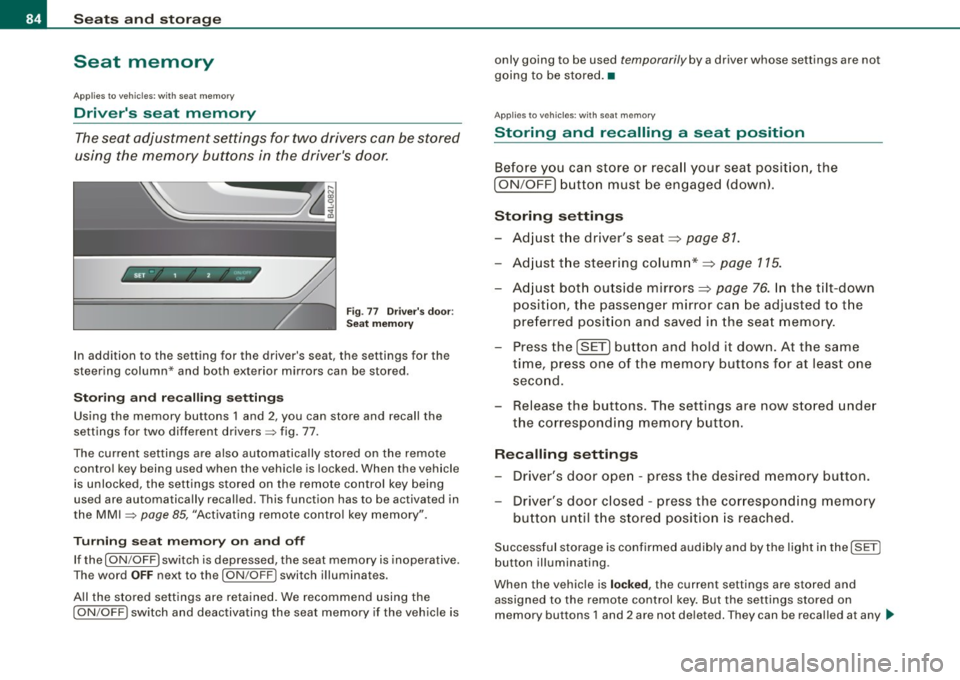
SET - 1 2 ~
Fig. 77 Driver's door:
Seat memory
In addition to the setting for the driver's seat, the settings for the
steering column* and both exterior mirrors can be stored.
Storing and recalling settings
Using the memory buttons 1 and 2 , you can store and recall the
settings for two different drivers=> fig. 77.
The current settings are also automatically stored on the remote
control key being used when the vehicle is locked. When the vehicle
is unlocked, the settings stored on the remote control key being
used are automatically recalled. This function has to be activated in
the MMI
=> page 85, "Activating remote control key memory".
Turning seat memory on and off
If the [ ON/OFF ) switch is depressed, the seat memory is inoperative.
The word
OFF next to the [ ON /OFF I switch illuminates.
All the stored settings are retained. We recommend using the
I ON/OFF) switch and deactivating the seat memory if the vehicle is only
going to be used
temporarily by a driver whose settings are not
going to be stored. •
Applies to v ehi cle s: wit h seat memory
Storing and recalling a seat position
Before you can store or recall your seat position, the
[ ON /OFF] button must be engaged (down).
Storing settings
-Adjust the driver's seat=> page 81.
- Adjust the steering column*=> page 115.
- Adjust both outside mirrors=> page 76. In the tilt-down
posit ion, the passenger mirror can be adjusted to the
preferred position and saved in the seat memory.
- Press the [SET] button and hold it down. At the same
time, press one of the memory buttons for at least one
second.
- Release the buttons. The settings are now stored under
the corresponding memory button.
Recalling settings
- Driver's door open -press the desired memory button.
- Driver's door closed -press the corresponding memory
button until the stored position is reached.
Successful storage is confirmed audib ly and by the light in the [ SETI
button illuminating .
When the vehicle is
locked , the current settings are stored and
assigned to the remote control key. But the settings stored on
memory buttons 1 and 2 are not deleted. They can be recalled at any .,_
Page 87 of 398
time. When the vehicle is unlocked, the settings stored on the
remote control key are restored.
If your vehicle is driven by other persons using your remote control
key, you should save your individual seat position on one of the
memory buttons. You can recall your settings again simply and
conveniently by pressing the corresponding memory button. When
the vehicle is locked , these settings are automatically re-assigned to
the remote control key and stored.
& WARNING
• For safety reasons, the seat setting can only be recalled when
the vehicle is stationary -otherwise you risk having an accident.
• In an emergency, the recall operation can be stopped by
pressing the [
ON/OFF) button or by briefly pressing any given
memory button. •
Applies to vehicles : w ith seat memory
Activating remote control key memory
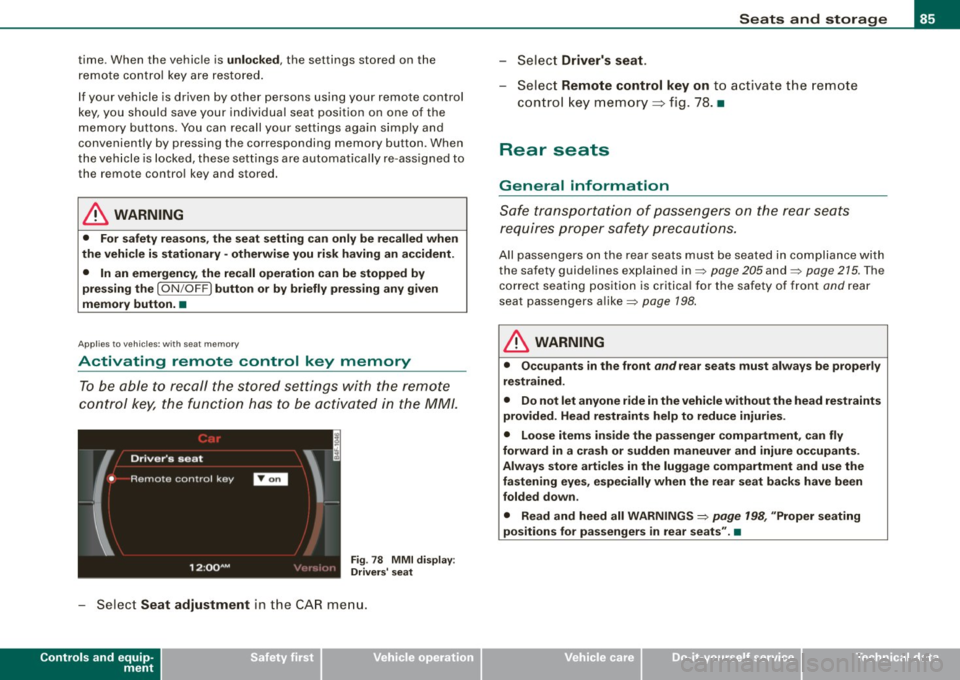
To be able to recall the stored settings with the remote
control key, the function has to be activated in the MM/.
Fig. 78 MMI display :
Drivers' seat
- Select Seat adjustment in the CAR menu.
Controls and equip
ment
Seats and storage
Select Driver's seat.
-Select Remote control key on to activate the remote
control key memory ~ fig. 78. •
Rear seats
General information
Safe transportation of passengers on the rear seats
requires proper safety precautions.
All passengers on the rear seats must be seated in compliance with
the safety guidelines explained in=> page 205 and=> page 215. The
correct seating position is critical for the safety of front and rear
seat passengers alike=> page 198.
& WARNING
• Occupants in the front and rear seats must always be properly
restrained.
• Do not let anyone ride in the vehicle without the head restraints
provided. Head restraints help to reduce injuries.
• Loose items inside the passenger compartment, can fly
forward in a crash or sudden maneuver and injure occupants.
Always store articles in the luggage compartment and use the
fastening eyes, especially when the rear seat backs have been
folded down .
• Read and heed all WARNINGS=>
page 198, "Proper seating
positions for passengers in rear seats". •
I • •
Page 142 of 398
• ..__A_ d_ a-:.. p_t _iv _ e_ C_r_ u_ i _s _ e_ C_ o_n_ t_ r_ o_ l _____________________________________________ _
Sav ing s etting s
Your individual settings are automa tically saved and assigned to the
remote control key being used {remote key storage). If the key is
given to another person, the saved settings remain as they are. •
System limitations
Applies to vehic les : with Adapt ive Crui se Co ntro l
General information
The radar sensor has limits that the driver must know to
b e able to use AC C properly.
The Adaptive Cruise Control works within limits that are also re lated
to radar sensor range and sight d istance. In some situations ACC
may react unusually or late from the driver's point of view. There
fore, always be attentive to what is happening around you and
a lways be ready to in tervene, if necessary:
• when driving around curves=>
page 140
• whe n vehicles up front are not in line with y our vehicle
=>
page 141
• when other vehicles a re changing lanes => page 141
• when other vehicles are difficu lt to detect => page 141.
• when vehicles up ahead are not moving or obstacles are in your
travel lane=>
page 141
& WARNING
The radar sensor's function and range can be r educed by rain ,
sn ow and he avy spray. Moving vehicles up ahead may not be
promptly det ected or ma y not be det ected at all.
• Alway s pay careful attention to the traffi c situatio n a nd be
ready to intervene and be ready to take complete contr ol when
e ver ne ces sary . •
Ap plies to veh ic les: with Ad apt ive Crui se Contro l
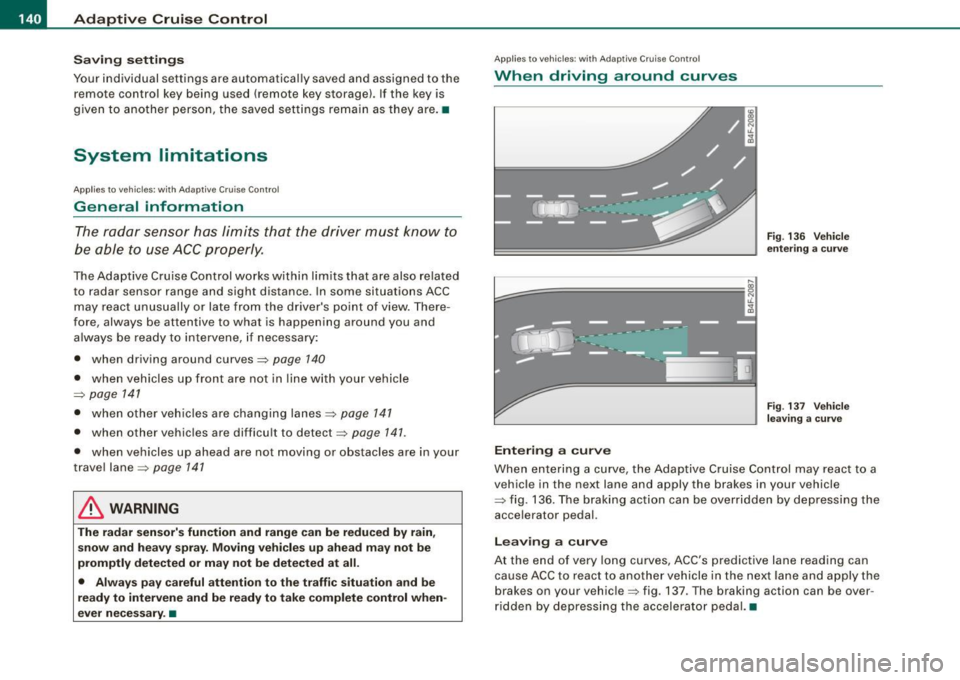
When driving around curves
k::;=========== =,!
~
[J
Ent ering a cur ve
Fi g. 13 6 Veh icle
e nteri ng a curv e
Fig. 137 Ve hicle
l ea ving a curv e
When entering a curve, the Adaptive Cruise Control may react to a
vehicle in the next lane and apply the brakes in your vehicle
=> fig. 136. The braking action can be overridden by depressing the
acce lerator pedal.
Lea vin g a c urve
At the end of very long curves, ACC 's predictive lane reading can
cause ACC to react to another vehicle in the next lane and apply t he
brakes on your vehicle=> fig. 137 . T he braking action can be over
ri dden by depressing t he accelerator peda l.•
Page 147 of 398
___________________________________________________ A_u_ d_i_ l_ a _ n_ e_ a _ s_s _ i_s _t __ lffll
- Sele ct Warning early , adaptive or late ~ page 144,
fig. 145.
Setting th e st eering wheel vibration
- Press the
I CAR I function button.
- Selec t Sy stems ·* in t he CAR me nu.
- Selec t Audi lane a ssis t.
- Selec t Steering vibrat ion weak , medium or strong.
Setting th e warning tim e
Earl y:
This setting warns the driver before a wheel touches the
detected lane boundary line. The warning depends on the vehicle's
angle as it approaches the boundary line . If you approach a
boundary l ine gradua lly, the warning will occur ear lier. If you
approach the boundary line at a very sharp angle, the warning wi ll
occur just before a whee l touches the line.
Adapti ve : In this setting, the warning time adjusts to the character
istics of the road and the vehicle speed. The warning occurs later for
curves and occurs earlier for straight stretches of road . The warning
occurs later on narrow roads than on wide roads.
Late: This setting warns the driver when a whee l drives over the
detected lane boundary line.
Se ttin g th e steering wheel vibrat ion
When adjusting the steering wheel vibration, the steering wheel
v ibrates so that you can check the intensity you have set.
[ i ] Tips
• When making the adjustment, lane assist is not activated . The
steering whee l vibrates briefly only to assist you in changing the
setting .
• Your settings are automatically stored and assigned to the
remote contro l key being used. •
Controls and equip
ment I • •
Page 173 of 398
![AUDI S6 2009 User Guide Audi Parking System -
----------------=----=------
Rear frequency adjustment
- Pressthe (CAR]function button.
- Select
Audi parking system.
- Select Rear frequency when you want to cha](/img/6/57595/w960_57595-172.png "AUDI S6 2009 User Guide Audi Parking System -
----------------=----=------
Rear frequency adjustment
- Pressthe (CAR]function button.
- Select
Audi parking system.
- Select Rear frequency when you want to cha")
Audi Parking System -
----------------=----=------'
Rear frequency adjustment
- Pressthe (CAR]function button.
- Select
Audi parking system.
- Select Rear frequency when you want to change the
frequency of the rear audible signal generator.
When adjusting the volume and frequency, the new setting will
sound for approx. 2 seconds from each audible signal generator.
The volume and frequency settings are automatically stored and assigned to the master key with remote control.
& WARNING
• You should always adjust the volume and frequency of the
chimes so that you can easily hear the acoustic distance warning
even if the radio is playing, the air-conditioner blower is on High or
there is a high level of outside noise.
- Check the settings whenever anyone else has driven the
vehicle before you. •
Con tro ls and eq uip
ment
Audi Parking System (rear, with rear
view camera)
A pp lies to veh ic les: w ith Aud i Par king System ( rear) and re ar-view came ra
Acoustic parking system in the rear , with rear
view camera
The acoustic parking system gives an acoustic signal
when detecting obstacles, and the rear -view camera
offers further aid in the parking process.
OOID ;
r--= ===~~=~~;;;;;;;;~, ---;!
l_..:..:-=.: ~f---=====:=~.
Activation
Fig . 174 Rear lid: Loca
tion of the rear-view
camera
-Put the vehicle in reverse gear, the acoust ic parking
system with rear-view camera is activated automatically.
Activation of the acoustic parking system is confirmed by
a brief acknowledgement sound.
Deactivation
- Take the vehicle out of reverse gear. The acoustic park ing
system is immediately deactivated, and the rear -view
camera picture is deactivated automatically after a period of about 15 seconds, or
~
Vehicle care I I irechnical data
Page 182 of 398
• .___A_ u_d_ i _P _a_ r_ k_ i_ n ..:g=-- S_ y=-- s_t _ e _m _____________________________________________ _
& WARNING (continued)
• Maintain plenty of distance from an obstacle, so that your
outside mirror or a corner of your vehicle does not collide with any
obstacles - danger of accident!
• The Audi Parking System is not a substitute for being careful
and alert when backing up. Be especially careful during parking
and similar maneuvers. Always watch where you are driving and
make sure that nothing is in the way.
• When maneuvering or parking, do not only use the MMI Display
for orientation. Certain objects -depending on the screen resolu
tion -may not, or not entirely, be displayed ; for example trailer
hitches, chains, narrow posts, or fences . •
Settings in the MMI
App lies to veh ic les: witn Av(li Pi, rk ing System (rear! and rear-view camera
Adjusting the chimes -option 1
The volume and the pitch (frequency) of the chimes can
be adjusted in the MM/.
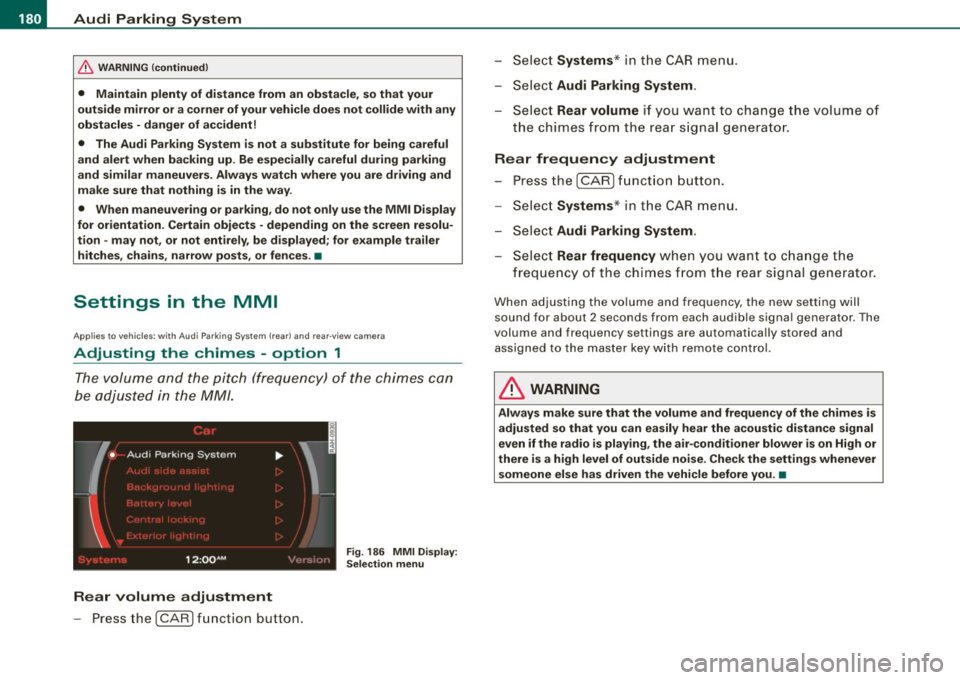
Fig . 186 MMI Display:
Selection menu
Rear volume adjustment
- Press the [CARI function button. -
Select
Systems * in the CAR menu .
- Select
Audi Parking System .
-Select Rear volume if you want to change the volume of
the chimes from the rear signal generator.
Rear frequency adjustment
- Press the [CAR I function button.
- Select
Systems* in the CAR menu .
- Select
Audi Parking System .
-Select Rear frequency when you want to change the
frequency of the chimes from the rear signal generator.
When adjusting the volume and frequency, the new setting will
sound for about 2 seconds from each audible signal generator . The
volume and frequency settings are automatically stored and assigned to the master key with remote control.
& WARNING
Always make sure that the volume and frequency of the chimes is
adjusted so that you can easily hear the acoustic distance signal
even if the radio is playing, the air-conditioner blower is on High or
there is a high level of outside noise. Check the settings whenever someone else has driven the vehicle before you. •
Page 183 of 398
______________________________________________ A_ u_d_ i _ P_a _ r_ k_ i_n -=g:a.- S_ y=--- s_t _ e _m _ ___._
Ap plies to vehicles: with Audi Par king System (r ear) and rea r-vie w came ra
Adjusting the chimes -option 2
The menu for adjusting signal sounds can also be called
up via the control button with the "settings" function.
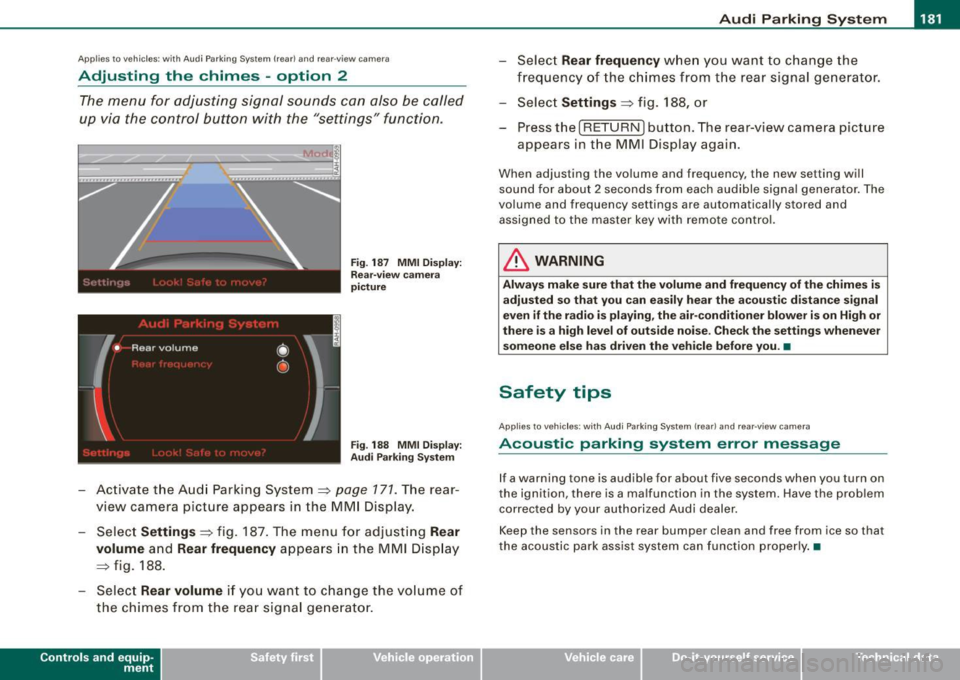
Fig. 187 MMI Display:
Rear-view camera
picture
Fig . 188 MMI Display:
Audi Parking System
- Activate the Audi Parking System=> page 171. The rear
view camera picture appears in the MMI Display.
- Select
Settings => fig. 187. The menu for adjusting Rear
volume
and Rear frequency appears in the MMI Display
=>fig,
188.
Select Rear volume if you want to change the volume of
the chimes from the rear signal generator.
Contro ls and eq uip
ment
Select Rear frequency when you want to change the
frequency of the chimes from the rear signal generator.
Select
Settings => fig. 188, or
Press the [RETURN] button . T he rear-v iew camera picture
appears in the MMI Display again.
When adjusting the volume and frequency , the new setting will
sound for about 2 seconds from each audible signal generator. The
volume and frequency settings are automatically stored and
assigned to the master key with remote control.
& WARNING
Always make sure that the volume and frequency of the chimes is
adjusted so that you can easily hear the acoustic distance signal
even if the radio is playing, the air-conditioner blower is on High or
there is a high level of outside noise. Check the settings whenever
someone else has driven the vehicle before you. •
Safety tips
Applies to vehic les: with Audi Par king System {rear) and rea r-v iew came ra
Acoustic parking system error message
If a warning tone is audible for about five seconds when you turn on
the ignition, there is a malfunction in the system. Have the problem
corrected by your authorized Audi dealer.
Keep the sensors in the rear bumper clean and free from ice so that
the acoustic park assist system can function properly.•
Vehicle care I I irechnical data
Page 190 of 398
• .___H_ o_ m _ e _L_i _ n _k _® ____________________________________________________ _
Homelink®
Universal remote control
Applies to vehic les: w ith Home link ® universal remote cont ro l
General information
The HomeLink® fe ature c an learn th e up to th re e r adio
fre que nc y c odes for m ost cu rrent t ransmi tters us ed for
operating gar age do ors, es tate gates , home o r out doo r
lighti ng sy stems, an d other de vice s.
Yo u must first pro gram t he Hom elink ® trans mitter b efor e you c an
use the system=>
page 189, "Pro gramm ing th e Home link® tra ns
mit ter".
In o rd er to pro gram t he Homelink® tra nsmitter fo r dev ices utiliz ing
ro lling code, a second person on a ladder who can safe ly reach the
ga rag e door o pener motor is reco m me nd ed. It is also necessa ry to
l ocate the "learn" button on yo ur garage do or opener moto r. R efer
to t he op era tin g instr uctions for the open er, as the loc ation and
co lor of th is button may vary by manufacturer .
Y o u c an still u se the o rigi na l r emo te c ontrol for th e dev ice at a ny
tim e.
& WARNING
• Never use the Homelinkl1JI transmitter with any garage door
opener that does have not the safety stop and reverse feature as
required by federal safety standards . This includes any garage
door opener model manufactured before April 1, 1982.
• A garage door opener which cannot detect an object , signaling
the door to stop and reverse does not meet current federal safety standards . Using a garage door opener without these features
increases risk of serious injury or death .
& WARNING (continued)
• For safety reasons never release the parking brake or start the
engine while anyone is standing in front of the vehicle.
• A garage door or an estate gate may sometimes be set in
motion when the Homelink ® remote control is being
programmed . If the device is repeatedly activated , this can over
strain motor and damage its electrical components -an over
heated motor is a fire hazard!
• To avoid possible injuries or property damage , please always
make absolutely certain that no persons or objects are located in
the range of motion of any equipment being operated.
[ i ] Tips
• If y ou wou ld l ik e mor e inf ormation o n Hom elink®, wh ere to
purchase the Homelink ® compatib le products, or wou ld li ke to
pu rchase th e Home link® Ho m e Lightin g Pack age, please call toll
fre e: 1 -8 0 0 -355 -3515.
• For Declara tion of Comp lia nc e to Un ited St ates FCC and Indust ry
C anada regulations=>
page 3 75. •
Page 191 of 398
___________________________________________________ H_ o_m _ e_ L_ i_ n _k_ @_R _ __.11111
Ap plies to vehic les: wit h Hom elin k® un iversal remo te contro l
Programming the Homelink ® transmitter
The transmitter is programmed in two phases. For rolling
code transmitters, a third phase is also necessary.
[i Ii It~
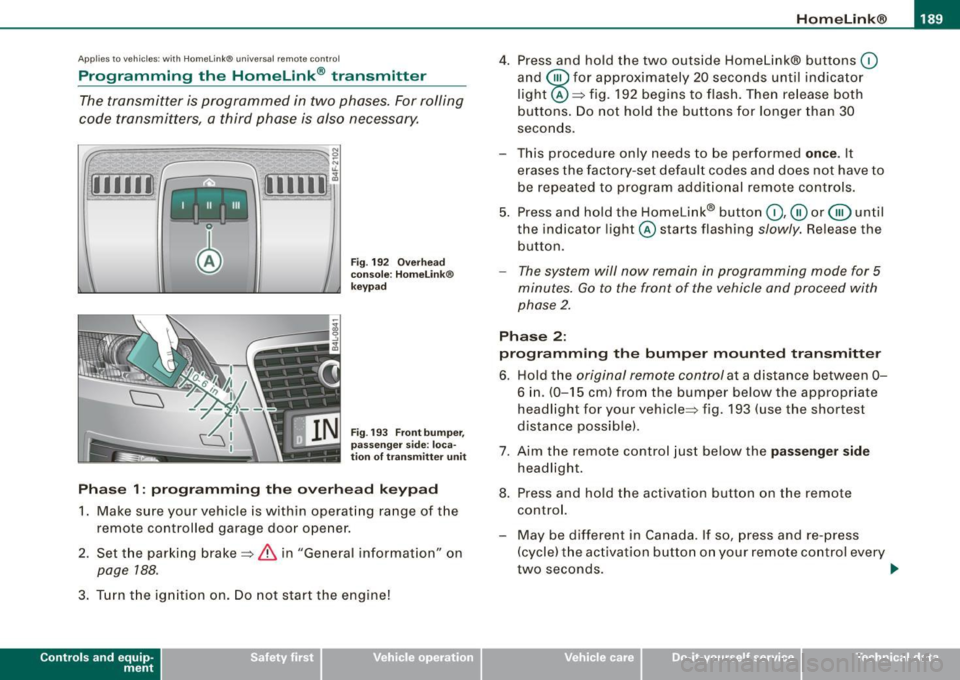
Fig . 192 Overhead
console: HomeLink®
keypad
Fig . 193 Front bumper,
passenger side : loca
tion of transmitter unit
Phase 1: programming the overhead keypad
1. Make sure your vehicle is with in operating range of the
remote controlled garage door opener.
2. Set the parking brake=>
& in "General information " on
page 188 .
3. Turn the ignition on . Do not start the engine!
Con tro ls and eq uip
ment
4. Press and hold the two outside Homelink® buttons (0
and @for approximately 20 seconds until indicator
light @=> fig. 192 begins to flash. Then release both
buttons. Do not hold the buttons for longer than 30
seconds.
This procedure only needs to be performed
once. It
erases the factory-set default codes and does not have to be repeated to program additional remote controls.
5. Press and hold the Homelink® button
(0 ,@ or @ until
the indicator l ight @starts flashing
slowly. Release the
button.
- The system will now remain in programming mode for 5
minutes.
Go to the front of the vehicle and proceed with
phase 2.
Phase 2:
programming the bumper mounted transmitter
6. Hold the original remote control at a distance between 0-
6 in. (0-15 cm ) from the bumper below the appropriate
headlight for your vehicle=> fig . 193 (use the shortest
distance possible) .
7. Aim the remote control just below the
passenger side
headlight.
8. Press and hold the activation button on the remote control.
- May be different in Canada. If so, press and re-press (cycle) the activation button on your remote control every
two seconds. .,_
Vehicle care I I irechnical data
Page 192 of 398
• ..__H_ o_m_ e_ L_ i_ n _k_ @_R __________________________________________________ _
9. The emergency flashers will flash three times (after
about 15-60 seconds) when the programming is
successful. Release the button on the remote control.
- To program more devices, repeat steps 4 to 9.
10. Press and hold the trained Homelink® button and
observe the indicator light@=> page 189, fig. 192.
- If the indicator light is solid/continuous, programming is
complete and your device should activate when you press and release the trained Homelink® button.
- If the indicator light blinks rapidly for 2 seconds and is
then a solid/continuous light, proceed with phase 3 to program a rolling code device.
Phase 3: rolling code programming
- A second person on a ladder who can safely reach the
garage door opener motor is recommended.
11. Locate the "learn" button on the garage door opener
motor (refer to the operating instructions for the opener,
as the location of this button may vary by manufacturer).
12. Press and release the learn button on the garage door
opener motor.
- Note: once the button is pressed, there are 30 seconds in
which to initiate the next step.
13. On the Homelink® keypad inside the vehicle, firmly
press and hold the Homelink ® button previously
programmed in phases 1 and 2 for two seconds and
release. Repeat this sequence
twice .
- Some vehicles may require the press/hold/release
sequence up to three times to complete the training
process.
- Homelink® should now activate your rolling code
equipped device.
If the 5 minute time limit is exceeded, the emergency flashers will
flash one time
to indicate that the process has been terminated. In
this case, repeat steps 4 through 9.
If the emergency flashers do not flash
three times (after about 15-
60 seconds), programming was not successful. In this case, repeat
steps 4 through 9 .
Remote control units for garage door openers in Canada are set to
stop transmitting radio frequency signals after two seconds. This
time may not b e sufficient for the Homelink® system to learn the
radio frequency signal. Perform all other steps as described
above. •
Applies to vehicles: with Horne link ® uni versa l remote contro l
Operating the HomeLink ® transmitter
The Homelink® transmitter works in the same manner as
the original handheld remote control that came with the
system.
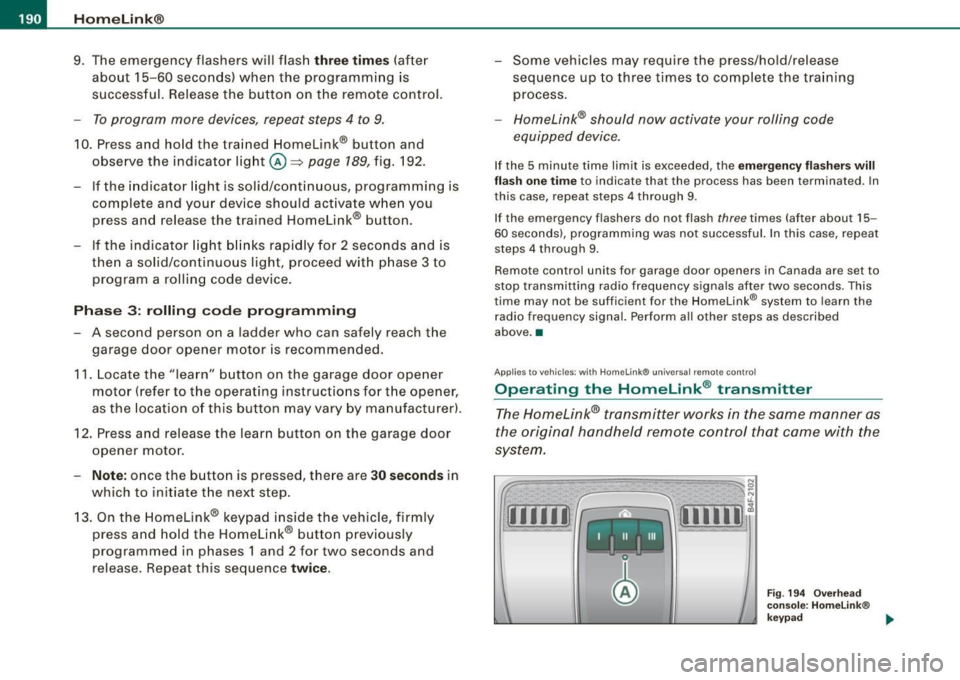
[iiiil~
I -I II I Ill
Fig. 194 Overhead
console: Homelink®
keypad ...