change AUDI S6 2016 Owner's Manual
[x] Cancel search | Manufacturer: AUDI, Model Year: 2016, Model line: S6, Model: AUDI S6 2016Pages: 294, PDF Size: 73.88 MB
Page 100 of 294
Audi side assist
-Improper reliance on the side assist system
can cause collisions and serious personal in
jury:
- Never rely only on side assist when chang
ing lanes.
- Always check rear view mirrors to make
sure that it is safe to change lanes.
- Side assist cannot detect all vehicles under
all conditions- danger of accident!
- Please note that side assist indicates there
are approaching vehicles, or vehicles in your blind spot, only after your vehicle has
reached a driving speed of at least 19 mph
(30 km/h).
- In certain situations, the system may not
function or its function may be limited. For
example:
- if vehicles are approaching or being left
behind very quickly . The display may not
turn on in time .
- in poor weather conditions such as heavy
rain, snow or heavy mist .
- on very wide lanes, in tight curves or if
there is a rise in the road surface . Vehicles
in the adjacent lane may not be detected
because they are outside of the sensor
range.
(D Note
The sensors can be displaced by impacts or damage to the bumper, wheel housing and
underbody . This can affect the system . Have
your authorized Audi dealer or authorized
Audi Service Facility check their function.
(D Tips
-If the window glass in the driver's door or
front passenger's door has been tinted, the
display in the exterior mirror may be misin
terpreted.
- For Declaration of Compliance to United
States FCC and Industry Canada regulations
¢page 276.
98
Switching on and off
Applies to vehicles: with A udi side assist
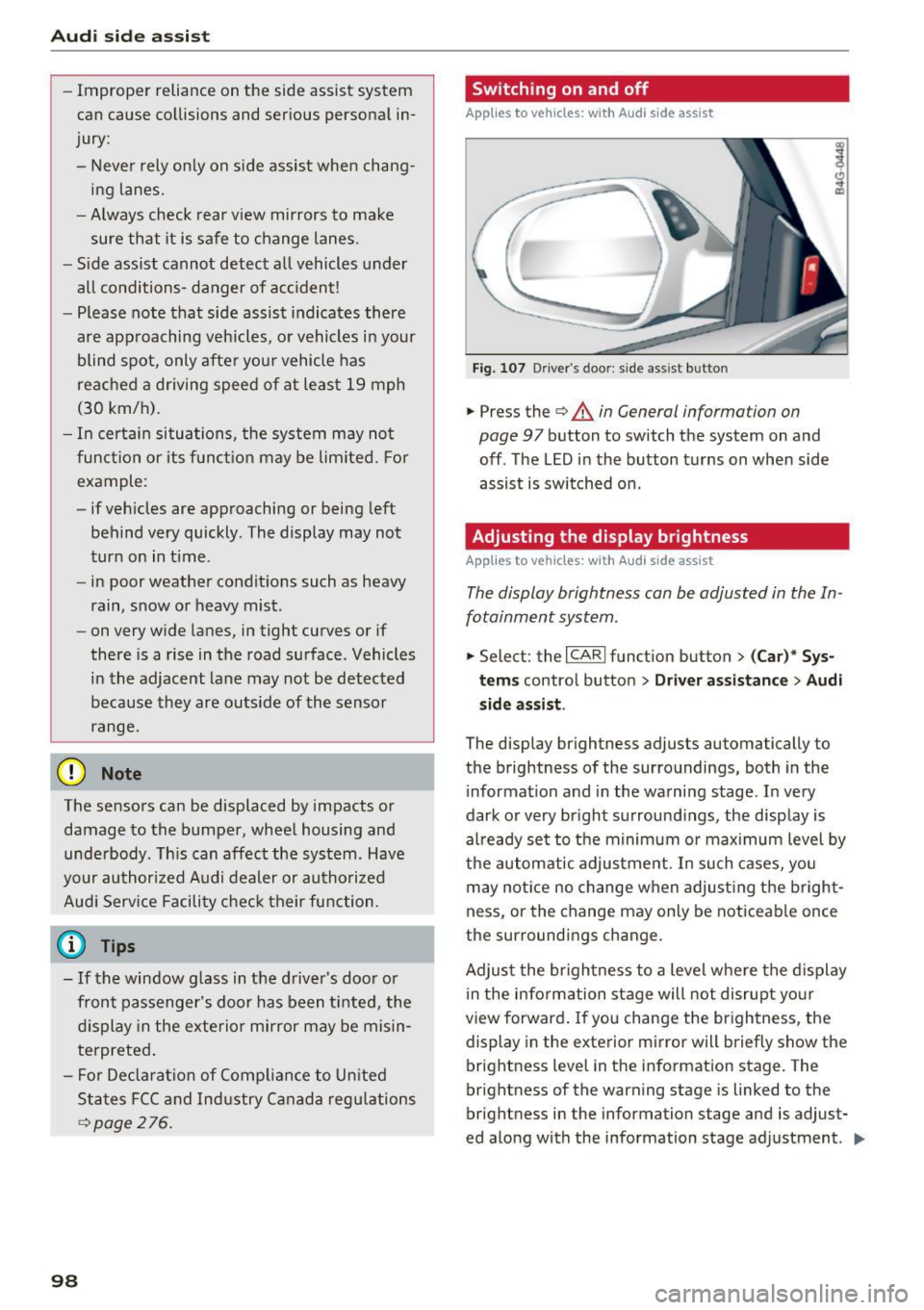
Fig. 107 D river 's doo r: side assi st but ton
.,.. Press the ¢&. in General information on
page
97 button to switch the system on and
off . The LED in the button turns on when side
assist is switched on .
Adjusting the display brightness
Applies to vehicles: with A udi side assist
The display brightness can be adjusted in the In
fotainment system .
.,.. Select: the I CARI function button > (Car)* Sys
tems control button > Driver assistance> Audi
side assist .
The display brightness adjusts automatically to
the brightness of the surroundings, both in the
information and in the warning stage . In very
dark or very bright surroundings, the display is
already set to the minimum or maximum level by
the automatic adjustment. In such cases, you
may notice no change when adjusting the bright
ness, or the change may only be noticeable once
the surroundings change.
Adjust the brightness to a level where the display
in the information stage will not disrupt your
view forward. If you change the brightness, the
display in the exterior mirror will briefly show the
brightness level in the information stage. The
brightness of the warning stage is linked to the
brightness in the information stage and is adjust
ed along with the information stage adjustment . ..,.
Page 102 of 294
Audi drive select
Audi drive select
Driving settings
Introduction
Drive select makes it possible to experience d if
ferent types of vehicle settings in one vehicle.
The driver can select
Comfort, Auto and Dynami c
modes in the Infotainment system to switch be
tween a sporty and a comfortable driving mode.
In the
Individual mode, the settings can be ad
justed to your personal preferences. This makes it possible to combine settings such as a sporty
engine tuning with light steering.
A WARNING
-
Improper use of the Audi dr ive select can
cause collisions, other accidents and serious
personal injury.
Description
The follow ing systems are affected by drive se
lect:
Engine and transmission
Depending on the mode, the eng ine and the
transmission respond quicker or in a more bal
anced manner to acce lerator pedal movements.
I n the sporty dynamic mode, the transmission
shifts at h igher RPMs.
Air suspension*
The adaptive air suspension/adaptive air suspen
sion sport*
(Air suspension in the MMI) is an
e lectronically controlled air suspens ion and
damping system. They are adjusted depend ing
on the selected dr iv in g mode, the driver's steer
ing, braking and acceleration input and the road
surface, vehicle speed and load. A sporty setting
is generally used in vehicles with adaptive air sus
pension sport*.
The vehicle clearance varies depending on these
lected mode and the speed.
The highway setting is activated automatically
when yo u drive above 75 mph (120 km/h) for
mo re than 30 seconds in the
Auto or Dynamic
100
mode. The ground clea rance is increased auto
matically if the speed drops below 44 mph (70
km/h) for more than 120 seconds.
Steering
The steering adapts in terms of steering effort
and steering ratios. Indirect stee ring that moves
easily, like the steering in comfort mode, is best
suited to long drives on a highway. In contrast,
dynamic mode provides sporty, direct steering.
The following applies to vehicles with dynamic
steering*: the steering ratio changes based on
vehicle speed in order to maintain optimum
steering effort for the driver at a ll times . This
sets the steering to be less sensitive at higher
speeds in order to provide improved vehicle con
trol. At reduced speeds, however, steering is
more direct in order to keep the steering effort as
min imal as possible when the dr iver is maneuver
i ng the vehicle. At low and average speeds, dy
namic steering additionally provides more re
sponsive steering performance.
Sport differential*
As a component of the all wheel dr ive system
(quattro)
c::;> poge 191, the Sport differentia l*
distributes the d riving powe r to the rear axle de
pending on the situation . T he distr ibutio n of
power varies depending on the selected mode,
from ba lanced (comfort) to agile (dynamic). The
goal is a high level of agility and ability to accel
erate on curves. The vehicle is very responsive to
steering.
Curve light*
The curve light adapts to driving on curves. The
pivoting action and the lighting are also adapted
to the mode.
Adaptive cruise control*
The behav ior when accelerating can be adjusted
from comfortable to sporty, depending on the
drive select mode. Adaptive cruise control also
responds to the driving behavior of the vehicle
ahead in a more conservative or sporty manner . .,..
Page 103 of 294
.... N
0 CJ '
Engine sound *
The sou nd of the engine is adapted to the select
ed mode and ranges from subt le to sporty.
(D Note
- Make sure there is enough cle arance above
and below t he vehicle when parking. The
height of the vehicle can change once it is
parked due to temperature f luctuations,
changes to the load conditions and changes
to the driving modes, which can affect clear
ance.
- When transporting the vehicle on a car car
rier, tra in, ship or by other means, only t ie
the vehicle down at the running surface of
the tires, which is the outer circumference.
Securing the vehicle at the axle compo
nents, suspe ns ion struts or towing eyes is
not permitted be cause the press ure in the
air suspension struts can change dur ing
transport . The vehicle may not be secured
sufficiently if this happens .
-If yo u are going to tow a tra ile r, you m ust
activate the trailer operation mode
r:!;> page 199 .
(D Tips
-In some models, the maximum vehicle
speed can only be reached in the
Auto and
D ynami c modes.
- Se lecting the
D ynamic mode resu lts in spor
ty shifting characteristics. The S gear posi
tion engages a utomatically.
- In vehicles with spo rt d ifferen tial *, the
D y
n amic
mode is deactivated when towing a
trailer .
- In vehicles that have dynamic steering*, op
erating noise is heard when start ing or stop -
Adjusting the Individual mode
Audi driv e se lect
ping the engine. This does not indicate a
prob lem.
Selecting the driving mode
You con choose between comfort, auto, dynamic
and individual.
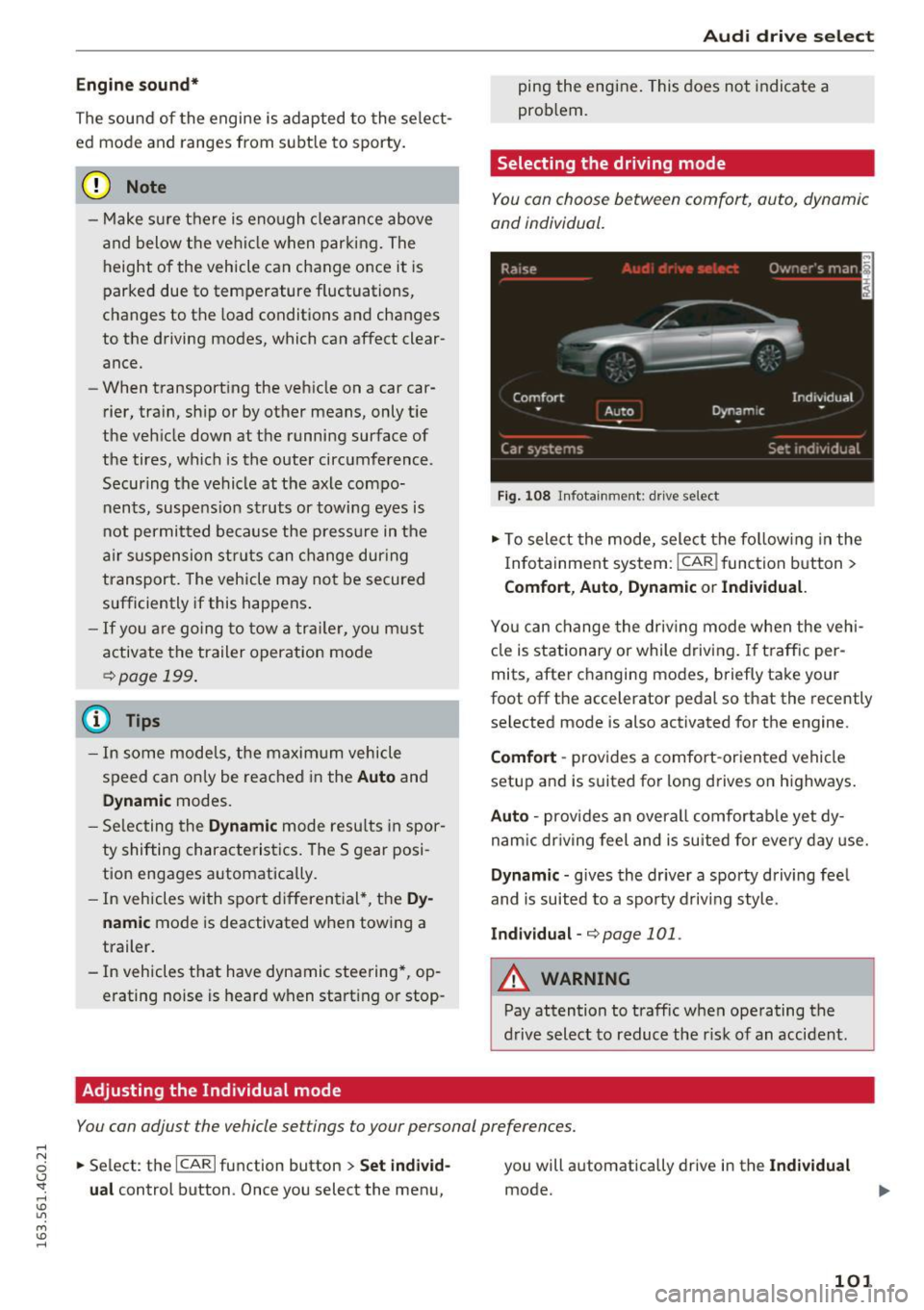
F ig. 1 08 In fotainment: drive select
.,. To sele ct the mode, select the fo llow ing in the
I n fotainment system:
I CAR ! function button >
Comfort , Auto , Dynam ic or Indi vidual.
Yo u can change the driv ing mode when the vehi
cle is stationary or while driving. If t raffic per
mits, after changing modes, briefly take your
foot off the accelerator pedal so that the recently selected mode is also activated for the engine.
Comfort -provides a comfort-oriented vehicle
setup and is suited for long d rives on h ighways .
Auto -provides an overa ll comfortab le yet dy
nam ic dr iving feel and is suited for every day use.
Dynamic -gives the driver a sporty driving fee l
and is suited to a sporty driv ing style.
Indi vidual -r:!;> page 101 .
A WARNING
Pay attention to traffic when operating the
d rive select to reduce the risk of an accident.
You con adjust the vehicle settings to your personal preferences .
.,. Se lect: the ICARI function button > Set indi vid
u al
control button . Once you select the menu, you will a
utomatically drive in the
Indi vidual
mode .
101
Page 108 of 294
Automatic transmission
Automatic transmission S tronic, tiptronic
Introduction
The automatic transmission is controlled elec
tronically. The transmission upshifts or down
shifts automatically depending on which drive
program is selected.
When a
moderate driving style is used, the
transmission selects the most economical driving
mode. The transmission upshifts at a lower RPM
and downshifts at a higher RPM to improve fuel
efficiency.
The transmission switches to a sporty mode after
a kick-down or when the driver uses a
sporty
driving style
characterized by quick accelerator
pedal movements, heavy acceleration, frequent
changes in speed and traveling at the maximum
speed.
If desired , th e driver can also select the gears
manually (tiptronic mode) 9 page 110.
Various automatic transmissions may be instal
led, depending on the model:
S tronic transmission
The S tronic is a dual-clutch transmission. Power
is transferred using two clutches that work inde
pendently from one another. They replace the
torque converter used in conventional automatic
transmissions and allow the vehicle to accelerate
without a noticeable interruption in traction.
tiptronic transmission
In the tiptronic transmission, power is transfer
red by a torque converter.
106
Selector lever positions
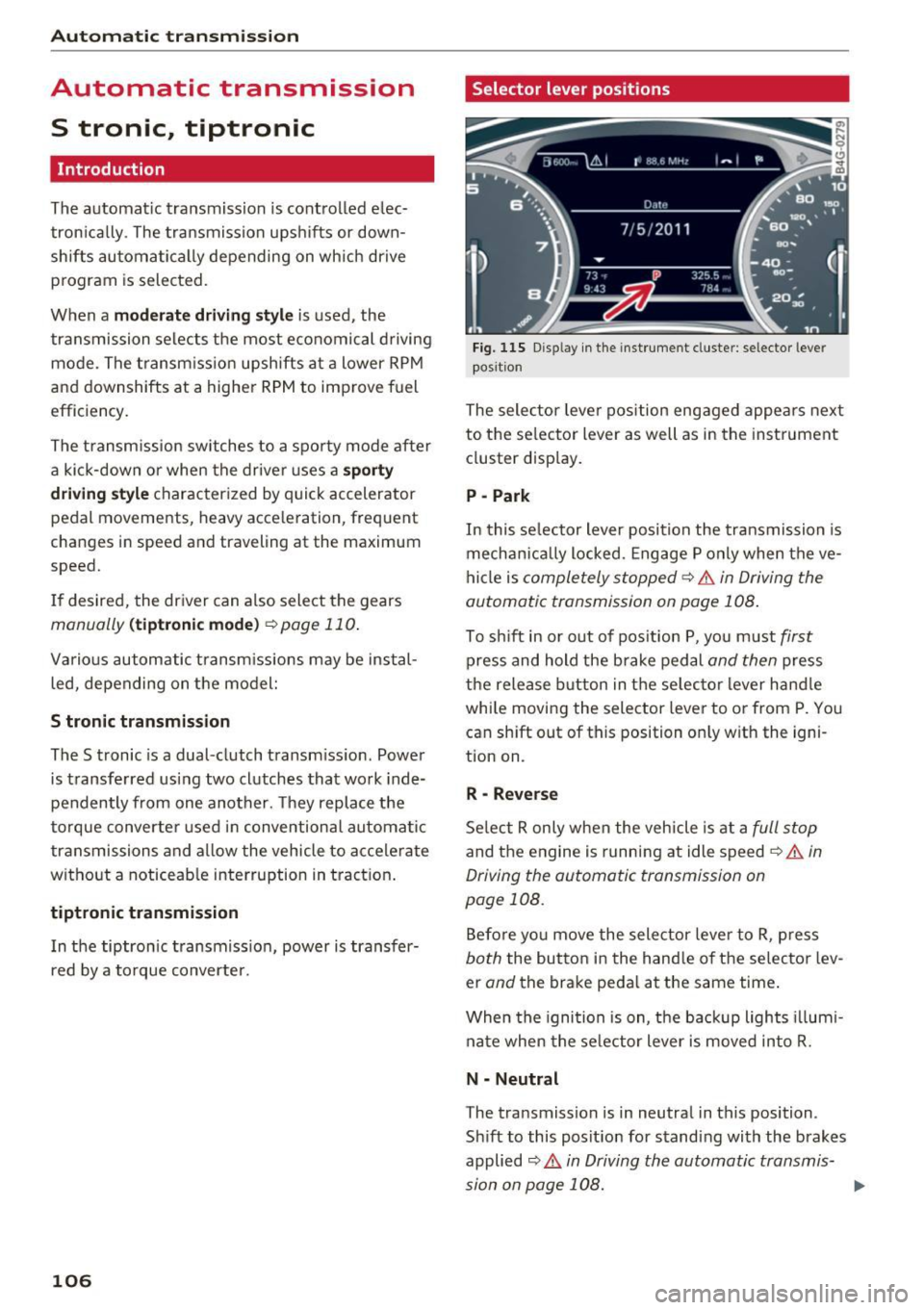
Fig. 115 Display in the instrument cluster: selector lever
position
The selector lever position engaged appears next
to the selector lever as well as in the instrument
cluster display.
P -Park
In this selector lever position the transmission is
mechanically locked. Engage P only when the ve
hicle is
completely stopped¢&. in Driving the
automatic transmission on page 108.
To shift in or out of position P, you must first
press and hold the brake pedal and then press
the release button in the selector lever handle
while moving the selector lever to or from P. You
can shift out of this position only with the igni
tion on.
R -Reverse
Select R only when the vehicle is at a full stop
and the engine is running at idle speed¢&. in
Driving the automatic transmission on
page 108.
Before you move the selector lever to R, press
both the button in the handle of the selector lev
er
and the brake pedal at the same time.
When the ignition is on, the backup lights illumi
nate when the selector lever is moved into R.
N -Neutral
The transmission is in neutral in this position.
Shift to this position for standing with the brakes
applied
9 A in Driving the automatic transmis
sion on page 108.
...
Page 115 of 294
Parking systems
General information
Applies to vehicles: with parking system plus/rear view cam
era/peripheral cameras
Depending on your vehicle's equipment, various
parking aids will help you when parking and ma
neuvering.
The
parking system plus assists you when park
ing by audibly and visually indicating objects de
tected
in front of and behind the vehicle
r::!:>page 114.
The rear view camera shows the area behind the
vehicle in the Infotainment display. This display
assists you when you are cross or parallel parking
r::!:> page 115. In addition, you are assisted by the
functions from the parking system plus
r::!:>page 114.
The peripheral cameras assist you with parking
and maneuvering. You are aided by various cam
e ras depending on the vehicle equipment leve l
¢ page 118. In addition, you are assisted by the
functions from the parking system plus
r::!:>page 114.
A WARNING
-Always look for traffic and check the area
around your vehicle by looking at it directly
as well. The parking system cannot replace
the driver's attention. The driver is always
responsible for safety during parking and
for all other maneuvers.
-
-Please note that some surfaces, such as
clothing, are not detected by the system.
- Sensors and cameras have blind spots in
which people and objects cannot be detect ed. Be especially cautious of children and
animals.
- The sensors can be displaced by impacts or
damage to the radiator grille, bumper,
wheel housing and the underbody. The park
ing systems may become impaired as a re
sult. Have your authorized Audi dealer or
qualified workshop check their function.
- Make sure the sensors are not covered by
stickers, deposits or any other obstructions
Parking systems
as it may impair the sensor function. For in
formation on cleaning, refer to
r::!:>page203.
(D Note
-Some objects are not detected by the sys
tem under certain circumstances:
- Objects such as barrier chains, trailer draw
bars, vertical poles or fences
- Objects above the sensors such as wall ex tensions
- Objects with specific surfaces or struc
tures such as chain link fences or powder
snow.
- If you continue driving closer to a low-lying
object, it may disappear from the sensor
range. Note that you will no longer be
warned about this obstacle.
(D Tips
- The system may provide a warning even
though there are no obstacles in the cover age area in some situations, such as:
- certain road surfaces or for long grass.
- external ultrasonic sources e.g. from cleaning vehicles.
- heavy rain, snow or thick vehicle exhaust.
- We recommend that you practice parking in
a traffic-free location or parking lot to be
come familiar with the system. When doing
this, there should be good light and weath
er conditions.
- You can change the volume and pitch of the
signals as well as the display
r::!:>page 123.
-Please refer to the instructions for towing a
trailer
r::!:>page 123.
-What appears in the infotainment display is
somewhat time-delayed.
113
Page 117 of 294
.... N
0 CJ '
Rearview camera
Introduction
Applies to vehicles: with rearv iew camera
...
F ig. 122 Illustrat ion : Cross parking
Fig. 123 Illustrat ion : Pa rallel park ing
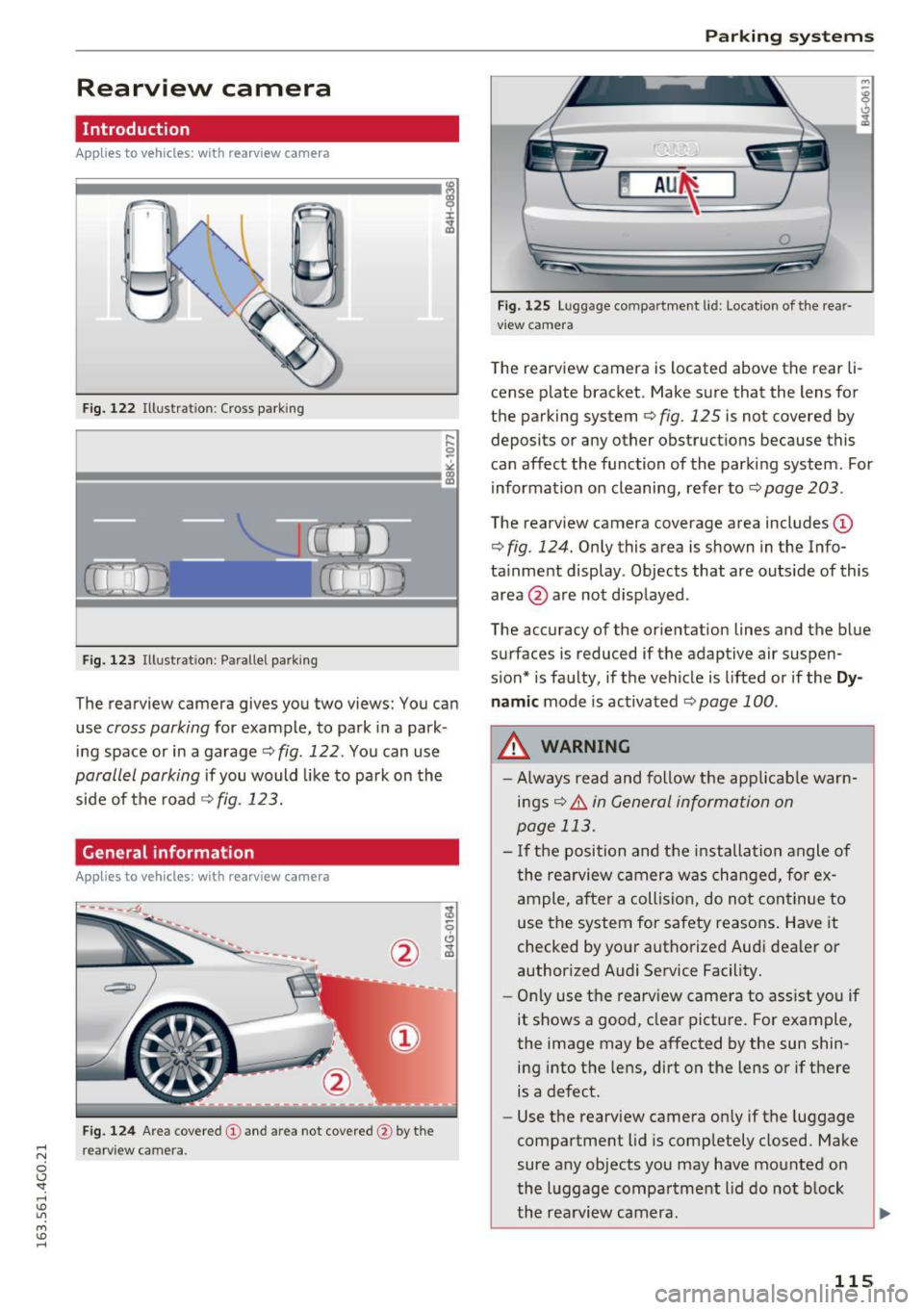
The rearview camera gives you two views: You can
use
cross parking for example , to park in a park
ing space or in a garage
r:::;, fig . 122 . You can use
parallel parking if you would like to park on the
side of the road
r:::;, fig. 123.
General information
Appl ies to vehicles : wit h rearv iew camera
--------
F ig. 124 A re a covered (!) and area not covered @ by the
r ea rv iew ca mera.
Parking systems
Fig. 12S Lu ggage compar tmen t lid : Locatio n of th e rea r
v iew camera
T he rearview camera is located above the rear li
cense plate bracket. Make sure that the lens for
the parking system
r:::;, fig. 125 is not covered by
deposits or any other obstructions because this
can affect the function of the parking system . For
information on cleaning, refer to
c::> page 203 .
The rearview came ra coverage area includes ©
r:::;, fig. 124. Only this area is shown in the Info
ta inment display . Objects that are outs ide of this
area @are not displayed .
The accuracy of the orientation lines and the blue
surfaces is reduced if the adaptive air suspen
s ion* is faulty, if the vehicle is lifted or if the
D y
nam ic mode is activated c::> page 100.
A WARNING ~
- Always read and follow the applicab le warn-
ings
c::> & in General information on
page 113.
- I f the position and the i nstalla tion angle of
the rearview camera was changed, fo r ex
ample, after a collision, do not continue to
use the system for safety reasons . Have it
checked by yo ur autho rized Audi dealer or
author ized Audi Service Facility.
- Only use the rearv iew camera to ass ist you if
it shows a good, clear pictu re. For example,
the image may be affected by the sun shin
ing into the lens, dirt on the lens o r if there
is a defect .
- Use the rearv iew camera on ly if the luggage
compartment lid is comp letely closed. Make
sure any objects you may have mounted on
the luggage compartment l id do not block
the rea rview camera.
115
Page 118 of 294
Parking systems
-The camera lens enlarges and distorts the
field of vision. The object appears both al
tered and inaccurate on the screen.
- In certain situations, people or objects in
the display appear closer or farther away:
- For objects that do not touch the ground,
such as the bumper of a parked vehicle, a
trailer hitch or the rear of a truck. Do not
use the help lines in this case.
- If driven from a level surface onto an in
cline, or a downward slope.
- If driven toward protruding objects.
- If the vehicle is carrying too much load in
the rear.
(D Note
- Always read and follow the applicable warn
ings r::!>(D
in General information on
page 113 .
-The orange colored orientation lines in the
Infotainment display show the vehicle path
depending on the steering wheel angle. The
front of the vehicle front swings out more
than the rear of the vehicle . Maintain plenty
of distance so that your outside mirror or a
corner of your vehicle does not collide with
any obstacles.
Switching on/off
Applies to vehicles: with rearview camera
Switching on
.,. Shift into reverse, or
.,. Press the
P,,, A button in the center console
r:=> page 114, fig. 121. A short confirmation
tone sounds and the LED in the button turns
on.
Switching between the rearview camera and
optical display
.,. Press the Graphic control button ®
r:=> page 116, fig. 126 to see the optical display .
.,. Press the
Rear view control button to see the
. . rearv1ew camera image.
Switching off
.,. Drive forward faster than 10 km/h, or
.,. press the
P,1
1.A button, or
116
.,. Switch the ignition off.
@ Tips
- The visual display in the left part of the dis
play should help you detect the critical vehi
cle areas.
- You can change the volume and pitch of the
signals as well as the dis play
r:=> page 123.
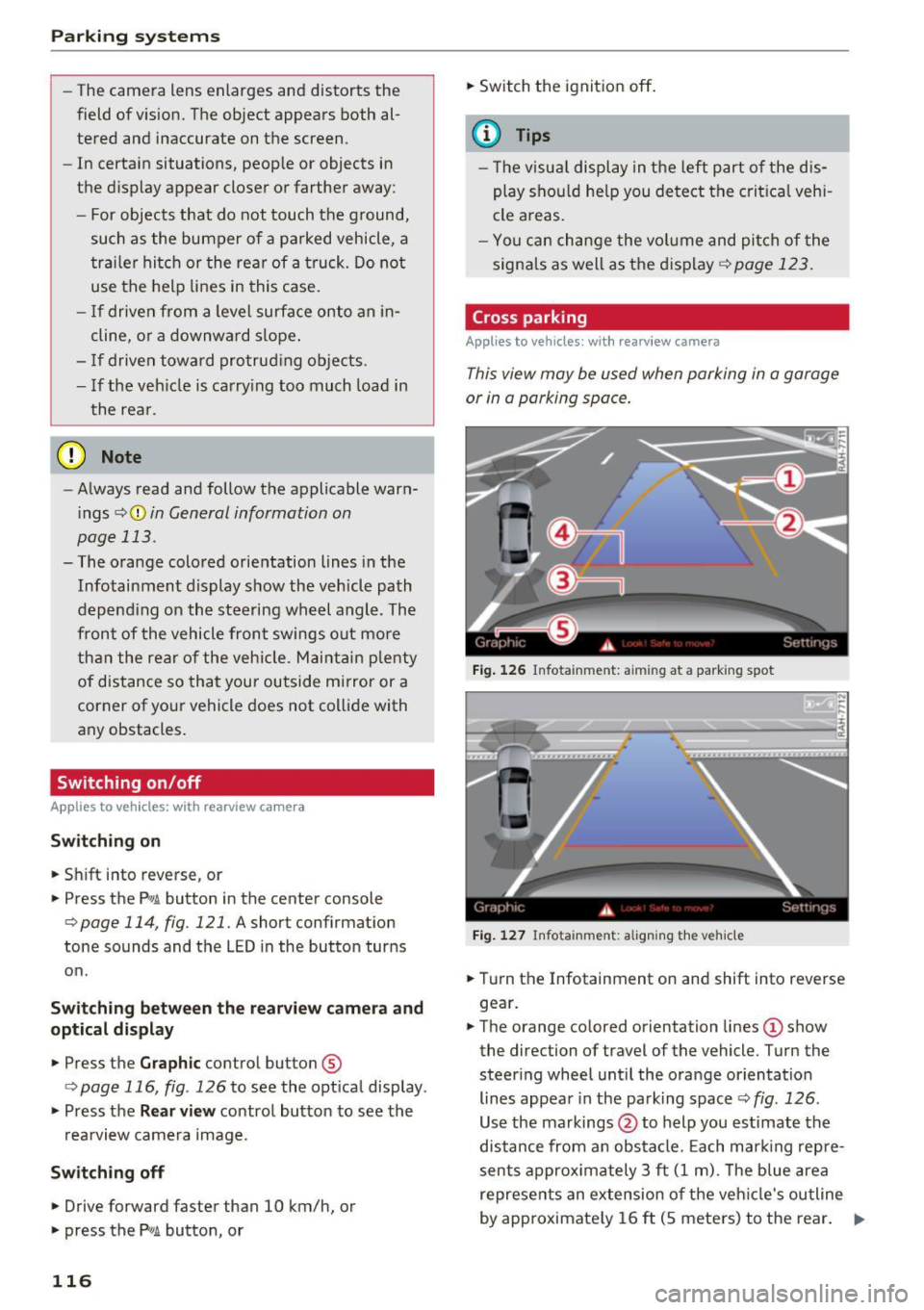
Cross parking
Applies to vehicles: with rearview camera
This view may be used when parking in a garage
or in a parking space.
Fig. 126 Infotainment: aiming at a parking spot
Fig. 127 Infota inment: aligning the vehicle
.,. Turn the Infotainment on and shift into reverse
gear.
.,. The orange colored orientation lines
(D show
the direction of travel of the vehicle. Turn the
steer ing wheel until the orange orientation
lines appear in the parking space r::!>
fig. 126 .
Use the markings @to help you estimate the
distance from an obstacle. Each marking repre
sents approximately 3 ft
(1 m). The blue area
represents an extension of the vehicle's outline
by approximately
16 ft (5 meters) to the rear. .,._
Page 120 of 294
Parking system s
CD Note
Keep enough distance from the curb to avoid
damage to the rims .
@ Tips
The left or right orientation lines and surfaces
wi ll be displayed, depending on the turn sig
nal being used .
Peripheral cameras
Introduction
Applies to vehicles: with peripheral cameras
With this equipment, die parking system plus* is
supp lemented with var io us peripheral cameras
qpage 114. Depending on vehicle equipment,
you are provided with the following views: Around the vehicle, front corner and rear corner,
in front of the vehicle and behind the vehicle.
General information
Applies to veh icles: with peripheral cameras
F ig . 1 30 Location of periphe ral cameras
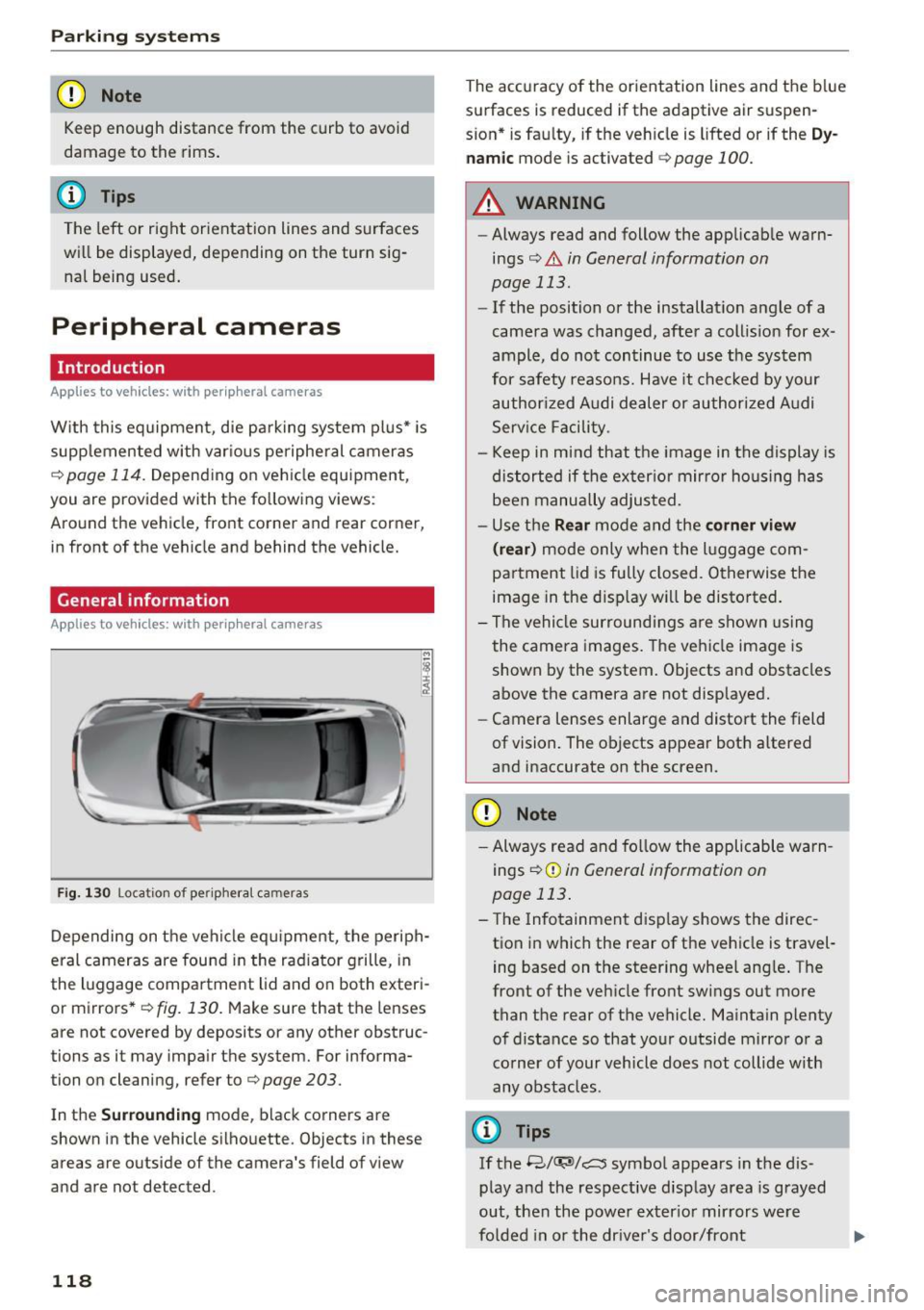
Depending on the vehicle eq uipment, the periph
eral cameras are fou nd in the radiator grille, in
the luggage compa rtment lid and on both exteri
or mirrors *
q fig. 130. Make sure that the lenses
are not covered by deposits or any other obstruc
tions as it may impair the system. For informa
tion on cleaning, refer to¢
page 203.
In the Surrounding mode, black corners are
shown in the vehicle silhouette. Objects in these
areas are outside of the camera's field of v iew
and are not detected.
118
The accuracy of the orientation lines and the b lue
surfaces is reduced if the adaptive air suspen
s ion* is fau lty, if the veh icle is lifted or if the
D y
nam ic mode is activated qpage 100.
A WARNING
-Always read and follow the applicab le warn
ings¢ .&
in General information on
page 113.
- If the position or the installat ion angle of a
camera was changed, after a collis ion for ex
ample, do not continue to use the system
for safety reasons. Have it chec ked by your
authorized Audi dealer or authori zed A udi
Serv ice Facility.
- Keep in mind that the image in the display is
distorted if the exter ior mir ror ho using has
been manually adjusted.
- Use the
Rear mode and the corner view
( rear )
mode only when the l uggage com
partment lid is fu lly closed. Otherwise the
image in the disp lay will be disto rted.
- The vehicle surroundi ngs a re shown using
the camera images. The veh icle image is
shown by the system. Objects and obstacles
above the camera are not displayed.
- Camera lenses enlarge and distort the field
of vision. The objects appear both a ltered
and inaccurate on the screen.
CD Note
- Always read and fo llow the applicable warn
ings
¢ (Din General information on
page 113 .
-The Infotainment d isp lay shows the direc
tion in which the rear of the vehicle is travel
ing based on the steering wheel ang le . The
front of the vehicle front sw ings out more
than the rear of the vehicle. Maintain plenty of distance so that your o utside mirror or a
corner of your vehicle does not collide with
any obstacles.
(I} Tips
If the 8/(J;(SJ/c:, symbol appears in the dis
play and the respective display area is grayed
out, then the power exter io r mir rors we re
fo lded in or the dr ive r's door/front
Page 124 of 294
Parking system s
to this vehicle should be approximately 3 ft (1
m).
.. Turn the Infota inment on and shift into reverse
gear. The parking system is turned on and the
cro ss park ing view is disp layed .
.. Press the control button on the Infotainment
unit (D
¢page 117, fig . 128 . The par all el park
ing
ind icator is displayed .
.,. Back up and align yo ur vehicle so the b lue area
@ borders on the rear end of the ve hicle be
hind you or on the parking space line
¢ ..&. in
General information on page 118, ¢(D in Gen
eral information on page 118 .
The blue area
represents an extension of the vehicle's out line
by approximately
16 ft (5 meters) to the rear .
The long side of the blue area should be on the
curb . The entire blue area must f it into the
parking space .
.,. With the veh icle stopped, turn the steer ing
whee l to the right as far as it w ill go .
.,. Back in to the par king space until the b lue curve
¢
page 117, fig. 129 touches the curb¢..&. in
General information on page 118, ¢(D in Gen
eral information on page 118 .
Stop the vehicle.
.. With the veh icle stopped, turn the steering
whee l to the left as far as it will go.
.. Cont inue to back into the parking space unt il
the ve hicle is parked parallel to the curb¢
&
in General information on page 118, ¢(D in
General information on page 118. @
displays
the rear bumper. Stop the vehicle, at the latest ,
whe n the re d or ien ta ti on line @ borders an ob
ject. Keep an eye on the front of your vehicle
whi le doing this.
Parking next to obstacles
When the re is an obs tacle (such as a wa ll) next to
the par king space, choose a space with more
space on the sides. Posit ion the long side of the
b lue area so t hat there is sufficient space from
the object . The area must not be on the curb . You
will also need to start turn ing the steer ing whee l
much earlier. The b lue curve¢
page 117,
fig . 129
must not touch the obstacle, but rather
there should be enough distance.
122
@ Tips
The left or right orientation lines and surfaces
will be d isp layed, depend ing on the tu rn s ig
nal be ing used.
Trailer mode
App lies to vehicles: wit h peripheral ca meras a nd trailer hitch
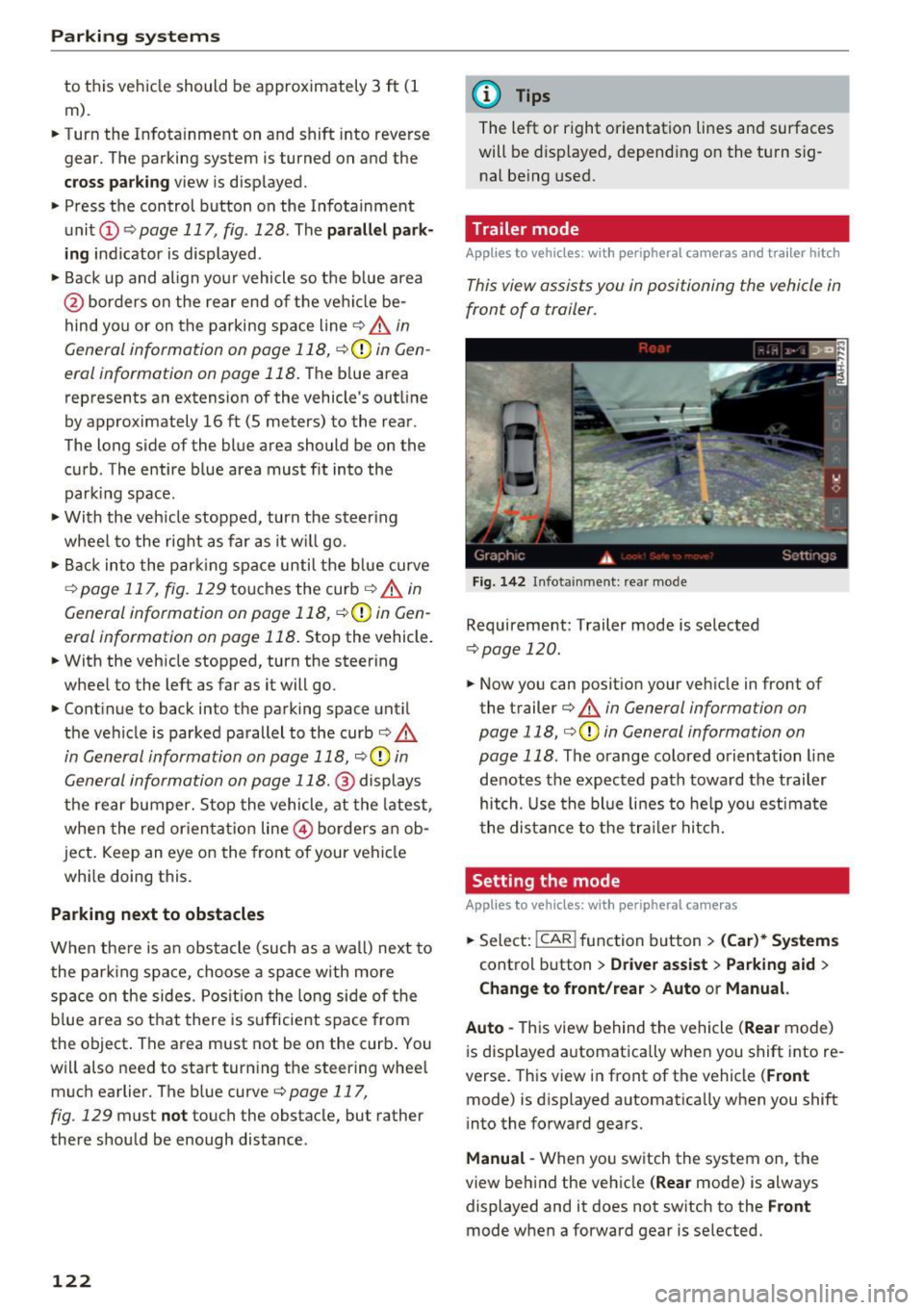
This view assists you in positioning the vehicle in
front of a trailer.
F ig. 142 I n fota inment: rea r mode
Requirement: Trailer mode is selected
¢ page 120 .
.. Now you can posit ion your veh icle in front of
the trailer
¢ & in General information on
page 118, ¢(D in General information on
page 118 .
The orange colored orientation line
denotes the expected path towa rd the trailer
hitch. Use the bl ue lines to he lp you est ima te
the distance to the tra ile r hitc h.
Setting the mode
App lies to vehicles : wit h peripheral ca meras
.. Select: !CAR ! function b utton> (Car )* System s
control button > Driver assi st > Parking aid >
Change to front/rear > Auto or Manual.
Auto -
This view behind the vehicle (Rear mode)
i s disp layed automatica lly when you shift into re
verse. This view in front of the vehicle
( Front
mode) is displayed automat ica lly when you shift
i nto the forward gears.
Manu al -When yo u sw itch the system on, the
view beh ind the veh icle
( Rear mode) is always
displayed and it does not switch to the
Front
mode when a forward gear is se lected.
Page 125 of 294
Adjusting the display and the warning tones
A ppl ies to vehicles: W it h parkin g system plus/rearview c am·
era/peripheral ca meras
The display and warning tones can be adjusted in
the Infotainment.
~ Se lect: the ICARI function button > ( Car)* Sys
tems control b utton
> Driver ass istance > Pa rk
ing aid .
Display
On * -An op tical d isp lay is shown for the parking
system plus, a rearview camera image is s hown
for the rearview camera *.
Off -Whe n the par king system is switched off,
only audib le signa ls are give n.
Warning tones Front volume - Volume for the front a rea
Rear volume - Volume fo r the rear area
Front frequency· Frequency for the front a rea
Rear frequency · Freq uency for the rear area
Entertainment volume lowering - When the
pa rking system is turned on, the volume of the
aud io/video so urce is lowered .
The new ly adjusted value is briefly heard from
the signal generato r.
@ Tips
- The warning tones can also be adjusted d i
rectly by the vis ual disp lay or the pictu re
from the camera. Simply press the Settings
control bu tton.
- Changed settings are activated when the
parking system is switched o n aga in.
- The settings for volume and frequency are
automat ica lly saved and assigned to the re
mote control key be ing used .
Error messages
Appl ies to vehicles: W ith pa rk in g syste m plus/rearview ca m·
era/per ipheral ca meras
There is an erro r in the system if the LED in the
Pw , button is b linking and yo u hear a continuous
Parking systems
alarm for a few seconds after sw itch ing on the
par king system or w hen the pa rking system is a l·
ready activated. If the error is not cor rected be
fo re you switch
off the ignition, the LED in the Pw ,
button wi ll blink the next time you switch on the
park ing system by shifting into reverse.
Parking sy stem plus
If a sensor is fa ulty, the .l?4 symbo l will appear i n
front of/behind the vehicle in the Infotainment
display. If a rear sensor is faulty, on ly obstacles
that are in areas @and @ are shown
¢ page 114, fig . 120 . If a front sensor is faulty,
only obs tacles tha t are in areas © and @are
shown. The re is a lso a system ma lf u nction if all
segme nts ar ound the veh icle are red or if no seg·
me nts are disp laye d.
Peripheral cameras*
T he re is a system malfu nction if t he
t8> • symbol
appea rs and the co rresponding disp lay area is
shown in bl ue. The camera is not wo rking in this
area.
Drive to an authorized A udi dealer or authorized
Audi Service Facility immed iate ly to have the
malfunction corrected.
Trailer hitch
App lies to vehicles: wit h parking system pl us/rea rv iew cam
era/periphera l cameras an d tra ile r hitc h
For vehicles using the t rai ler socket, the park ing
system rear sensors do not tu rn on whe n you
shift into reverse gear or when yo u press the
Pwi
button. This resu lts in the following restrict ions.
Parking system plus
There is no distance warning for the rear. The
front senso rs remain activated. The v isua l display
switches to t he tra iler tow ing mode.
Rearview camera* /peripheral cameras *
T he re is no distance warning for the rear . The
front sensors remain activated . The visua l display
switches to the tra ile r towing mode. The rearv iew
camera image w ill not show the orientation lines
and the b lue surfaces. .,,.
123