phone AUDI TT 2021 Owner´s Manual
[x] Cancel search | Manufacturer: AUDI, Model Year: 2021, Model line: TT, Model: AUDI TT 2021Pages: 280, PDF Size: 99.18 MB
Page 124 of 280
Voice recognition system
Voice recognition system
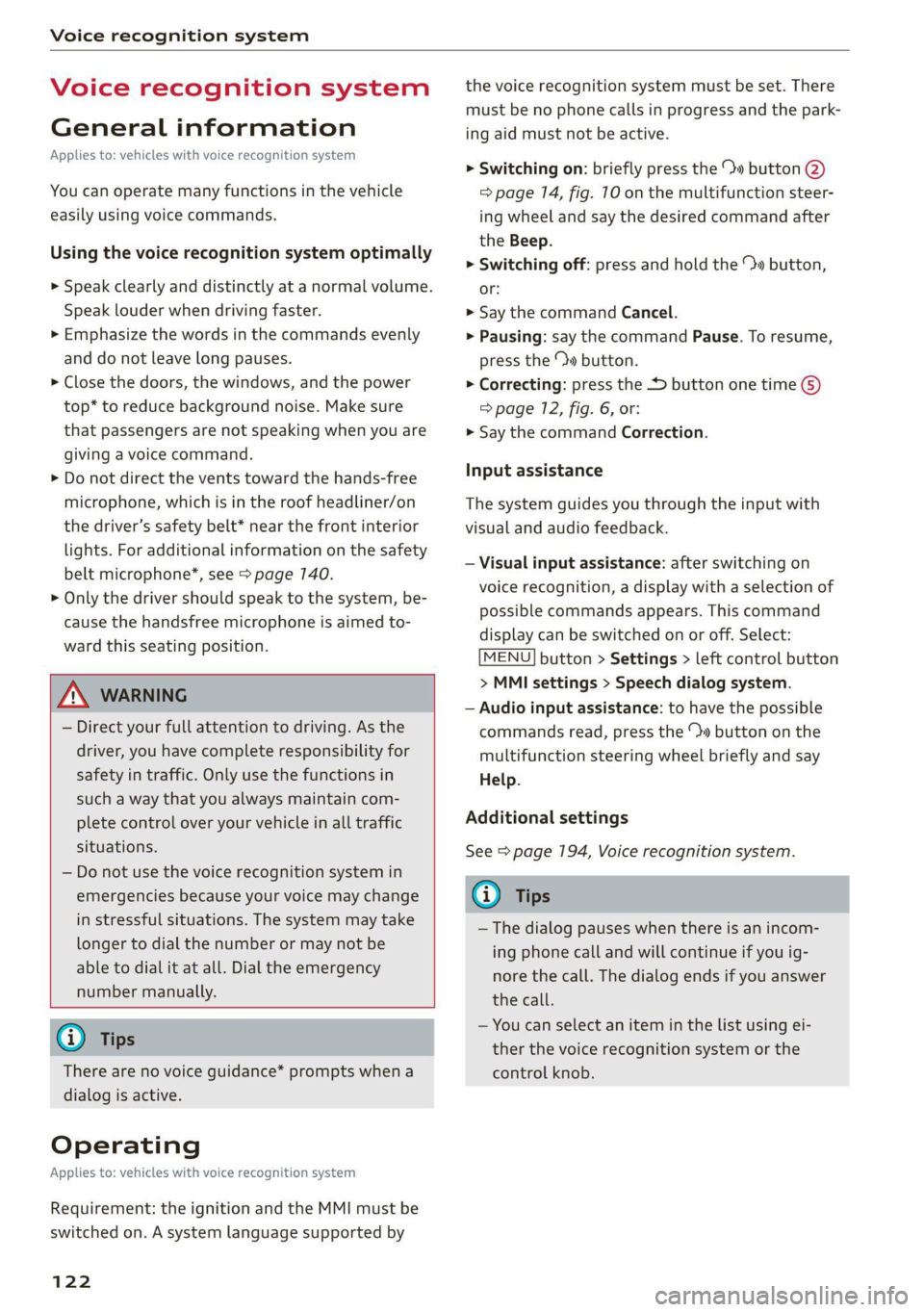
General information
Applies to: vehicles with voice recognition system
You can operate many functions in the vehicle
easily using voice commands.
Using the voice recognition system optimally
> Speak clearly and distinctly at a normal volume.
Speak louder when driving faster.
> Emphasize the words in the commands evenly
and do not leave long pauses.
> Close the doors, the windows, and the power
top* to reduce background noise. Make sure
that passengers are not speaking when you are
giving a voice command.
> Do not direct the vents toward the hands-free
microphone, which is in the roof headliner/on
the driver’s safety belt* near the front interior
lights. For additional information on the safety
belt microphone’, see > page 140.
> Only the driver should speak to the system, be-
cause the handsfree microphone is aimed to-
ward this seating position.
ZA\ WARNING
— Direct your full attention to driving. As the
driver, you have complete responsibility for
safety in traffic. Only use the functions in
such a way that you always maintain com-
plete control over your vehicle in all traffic
situations.
— Do not use the voice recognition system in
emergencies because your voice may change
in stressful situations. The system may take
longer to dial the number or may not be
able to dial it at all. Dial the emergency
number manually.
G) Tips
There are no voice guidance* prompts when a
dialog is active.
Operating
Applies to: vehicles with voice recognition system
Requirement: the ignition and the MMI must be
switched on. A system language supported by
122
the voice recognition system must be set. There
must be no phone calls in progress and the park-
ing aid must not be active.
> Switching on: briefly press the %» button @)
=> page 14, fig. 10 on the multifunction steer-
ing wheel and say the desired command after
the Beep.
> Switching off: press and hold the ™» button,
or:
» Say the command Cancel.
> Pausing: say the command Pause. To resume,
press the ™» button.
> Correcting: press the button one time G)
=> page 12, fig. 6, or:
» Say the command Correction.
Input assistance
The system guides you through the input with
visual and audio feedback.
— Visual input assistance: after switching on
voice recognition, a display with a selection of
possible commands appears. This command
display can be switched on or off. Select:
MENU] button > Settings > left control button
> MMI settings > Speech dialog system.
— Audio input assistance: to have the possible
commands read, press the “9 button on the
multifunction steering wheel briefly and say
Help.
Additional settings
See > page 194, Voice recognition system.
Gi) Tips
—The dialog pauses when there is an incom-
ing phone call and will continue if you ig-
nore the call. The dialog ends if you answer
the call.
— You can select an item in the list using ei-
ther the voice recognition system or the
control knob.
Page 125 of 280
8S1012721BE
Voice recognition system
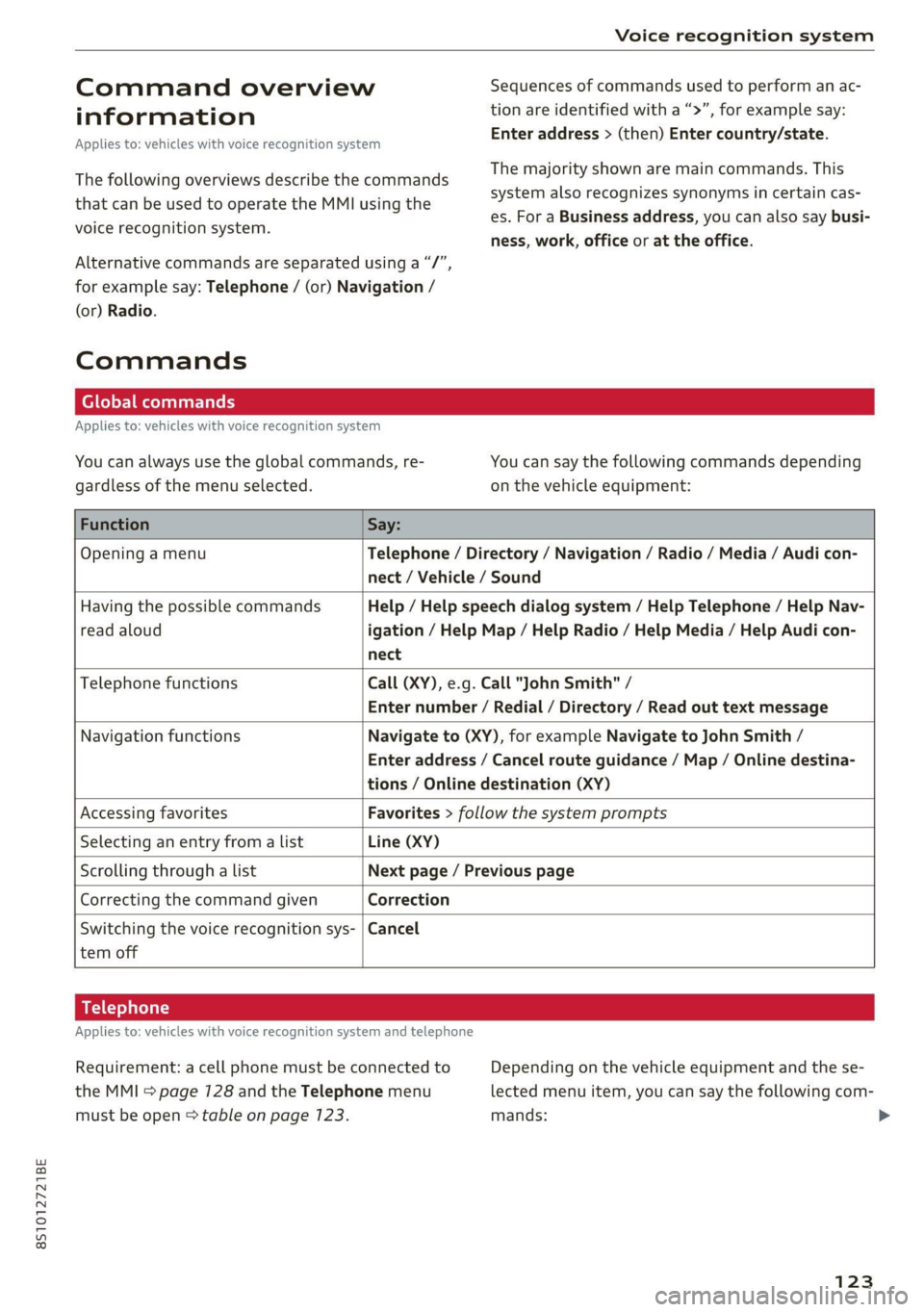
Command overview Sequences of commands used to perform an ac-
ag information tion are identified with a “>”, for example say:
: . . Enter address > (then) Enter country/state.
Applies to: vehicles with voice recognition system
The majority shown are main commands. This
system also recognizes synonyms in certain cas-
es. For a Business address, you can also say busi-
ness, work, office or at the office.
The following overviews describe the commands
that can be used to operate the MMI using the
voice recognition system.
Alternative commands are separated using a “/”,
for example say: Telephone / (or) Navigation /
(or) Radio.
Commands
Global commands
Applies to: vehicles with voice recognition system
You can always use the global commands, re- You can say the following commands depending
gardless of the menu selected. on the vehicle equipment:
Function Say:
Opening a menu Telephone / Directory / Navigation / Radio / Media / Audi con-
nect
/ Vehicle / Sound
Having the possible commands Help / Help speech dialog system / Help Telephone / Help Nav-
read aloud igation / Help Map / Help Radio / Help Media / Help Audi con-
nect
Telephone functions Call (XY), e.g. Call "John Smith" /
Enter number / Redial / Directory / Read out text message
Navigation functions Navigate to (XY), for example Navigate to John Smith /
Enter address / Cancel route guidance / Map / Online destina-
tions / Online destination (XY)
Accessing favorites Favorites > follow the system prompts
Selecting an entry from a list Line (XY)
Scrolling through a list Next page / Previous page
Correcting the command given Correction
Switching the voice recognition sys- | Cancel
tem off
BK) aela
Applies to: vehicles with voice recognition system and telephone
Requirement: a cell phone must be connected to Depending on the vehicle equipment and the se-
the MMI > page 7128 and the Telephone menu lected menu item, you can say the following com-
must be open > table on page 123. mands: >
123
Page 126 of 280
Voice recognition system
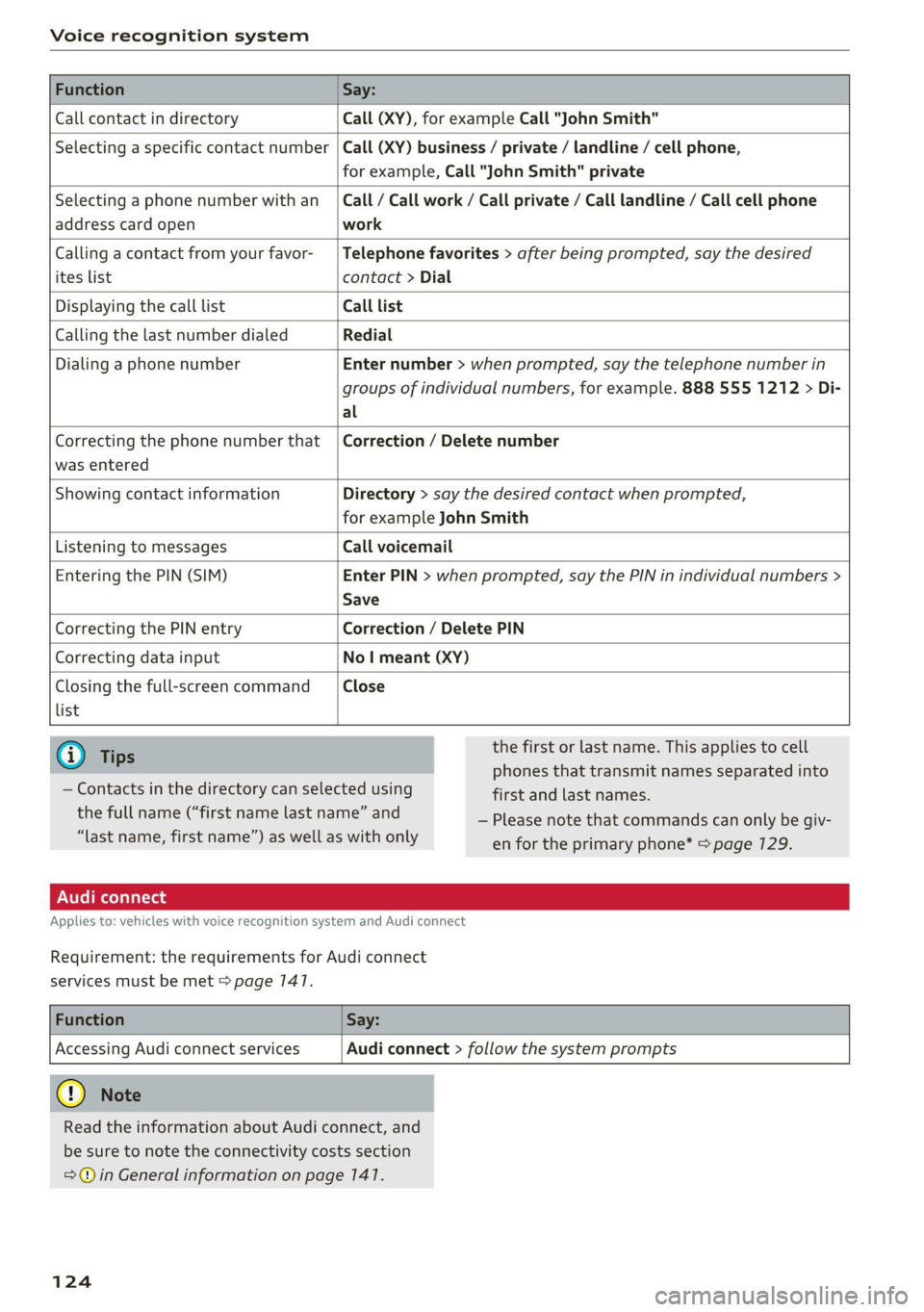
Function Say:
Call contact in directory Call (XY), for example Call "John Smith"
Selecting a specific contact number Call (XY) business / private / landline / cell phone,
for example, Call "John Smith" private
Selecting a phone number with an
address card open
Call / Call work / Call private / Call landline / Call cell phone
work
Calling a contact from your favor-
ites list
Telephone favorites > after being prompted, say the desired
contact > Dial
Displaying the call list Call list
Calling the last number dialed Redial
Dialing a phone number Enter number > when prompted, say the telephone number in
groups of individual numbers, for example. 888 555 1212 > Di-
al
Correcting the phone number that
was entered
Correction / Delete number
Showing contact information Directory > say the desired contact when prompted,
for example John Smith
Listening to messages Call voicemail
Entering the PIN (SIM) Enter PIN > when prompted, say the PIN in individual numbers >
Save
Correcting the PIN entry Correction / Delete PIN
Correcting data input No I meant (XY)
Closing the full-screen command
list
Close
G) Tips
— Contacts in the directory can selected using
the full name (“first name last name” and
“last name, first name”) as well as with only
the first or last name. This applies to cell
phones that transmit names separated into
first and last names.
— Please note that commands can only be giv-
en for the primary phone* > page 729.
Applies to: vehicles with voice recognition system and Audi connect
Requirement: the requirements for Audi connect
services must be met > page 147.
Function Say:
Accessing Audi connect services
Audi connect > follow the system prompts
@) Note
Read the information about Audi connect, and
be sure to note the connectivity costs section
=@ in General information on page 141.
124
Page 129 of 280
8S1012721BE
Voice recognition system
Applies to: vehicles with voice recognition system
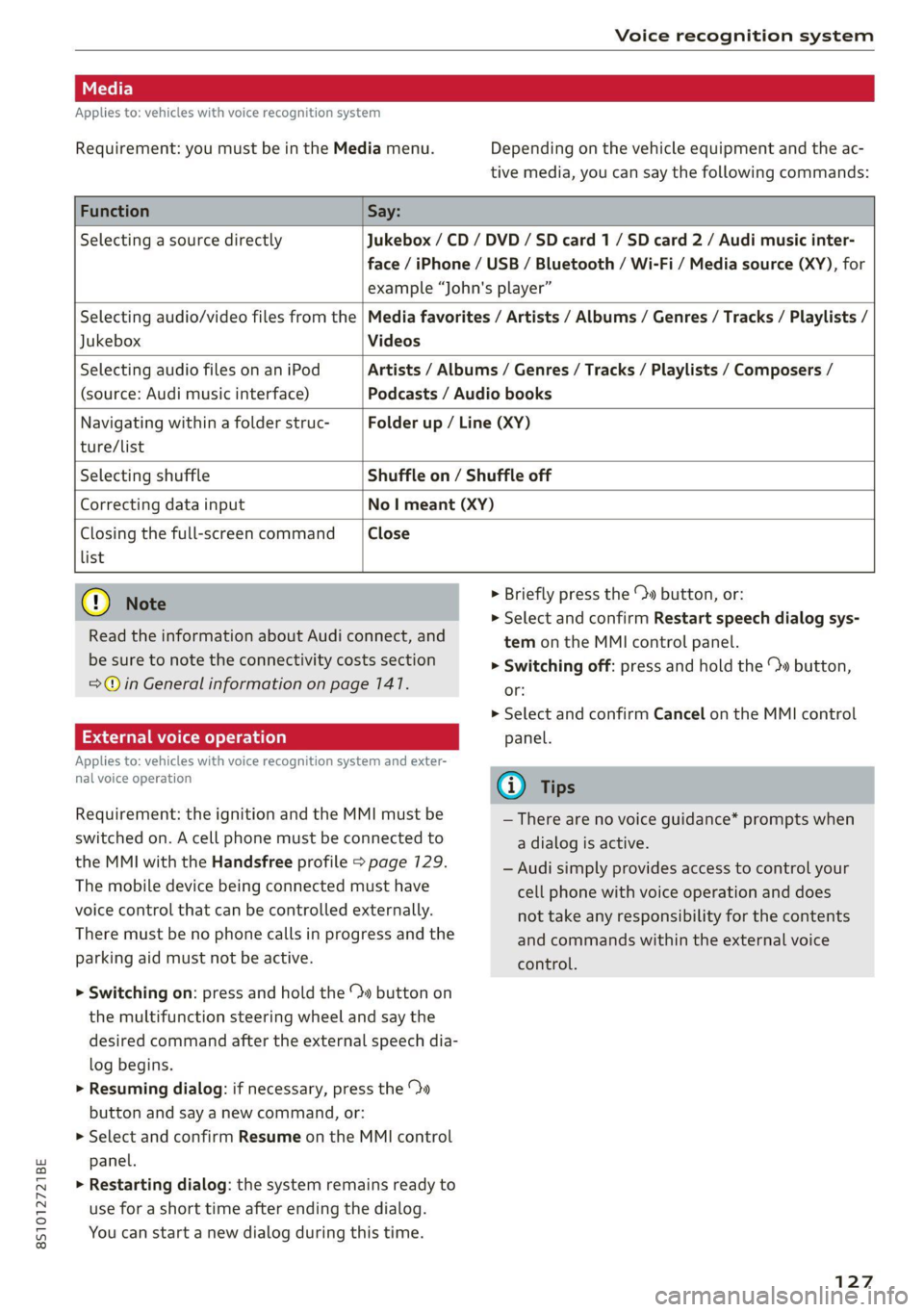
Requirement: you must be in the Media menu. Depending on the vehicle equipment and the ac-
tive media, you can say the following commands:
Function Say:
Selecting a source directly Jukebox /CD / DVD / SD card 1 / SD card 2 / Audi music inter-
face / iPhone / USB / Bluetooth / Wi-Fi / Media source (XY), for
example “John's player”
Jukebox Videos
Selecting audio/video files from the | Media favorites / Artists / Albums / Genres / Tracks / Playlists /
Selecting audio files on an iPod
(source: Audi music interface)
Artists / Albums / Genres / Tracks / Playlists / Composers /
Podcasts / Audio books
Navigating within a folder struc-
ture/list
Folder up / Line (XY)
Selecting shuffle Shuffle on / Shuffle off
Correcting data input No | meant (XY)
Closing the full-screen command Close
list
@) Note
Read the information about Audi connect, and
be sure to note the connectivity costs section
=@© in General information on page 147.
External voice operation
Applies to: vehicles with voice recognition system and exter-
nal voice operation
Requirement: the ignition and the MMI must be
switched on. A cell phone must be connected to
the MMI with the Handsfree profile > page 129.
The mobile device being connected must have
voice control that can be controlled externally.
There must be no phone calls in progress and the
parking aid must not be active.
> Switching on: press and hold the ™» button on
the multifunction steering wheel and say the
desired command after the external speech dia-
log begins.
> Resuming dialog: if necessary, press the %»
button and say a new command, or:
> Select and confirm Resume on the MMI control
panel.
> Restarting dialog: the system remains ready to
use for a short time after ending the dialog.
You can start a new dialog during this time.
> Briefly press the \» button, or:
» Select and confirm Restart speech dialog sys-
tem on the MMI control panel.
> Switching off: press and hold the » button,
or:
> Select and confirm Cancel on the MMI control
panel.
G) Tips
— There are no voice guidance* prompts when
a dialog is active.
— Audi simply provides access to control your
cell phone with voice operation and does
not take any responsibility for the contents
and commands within the external voice
control.
127
Page 130 of 280
Telephone
Telephone
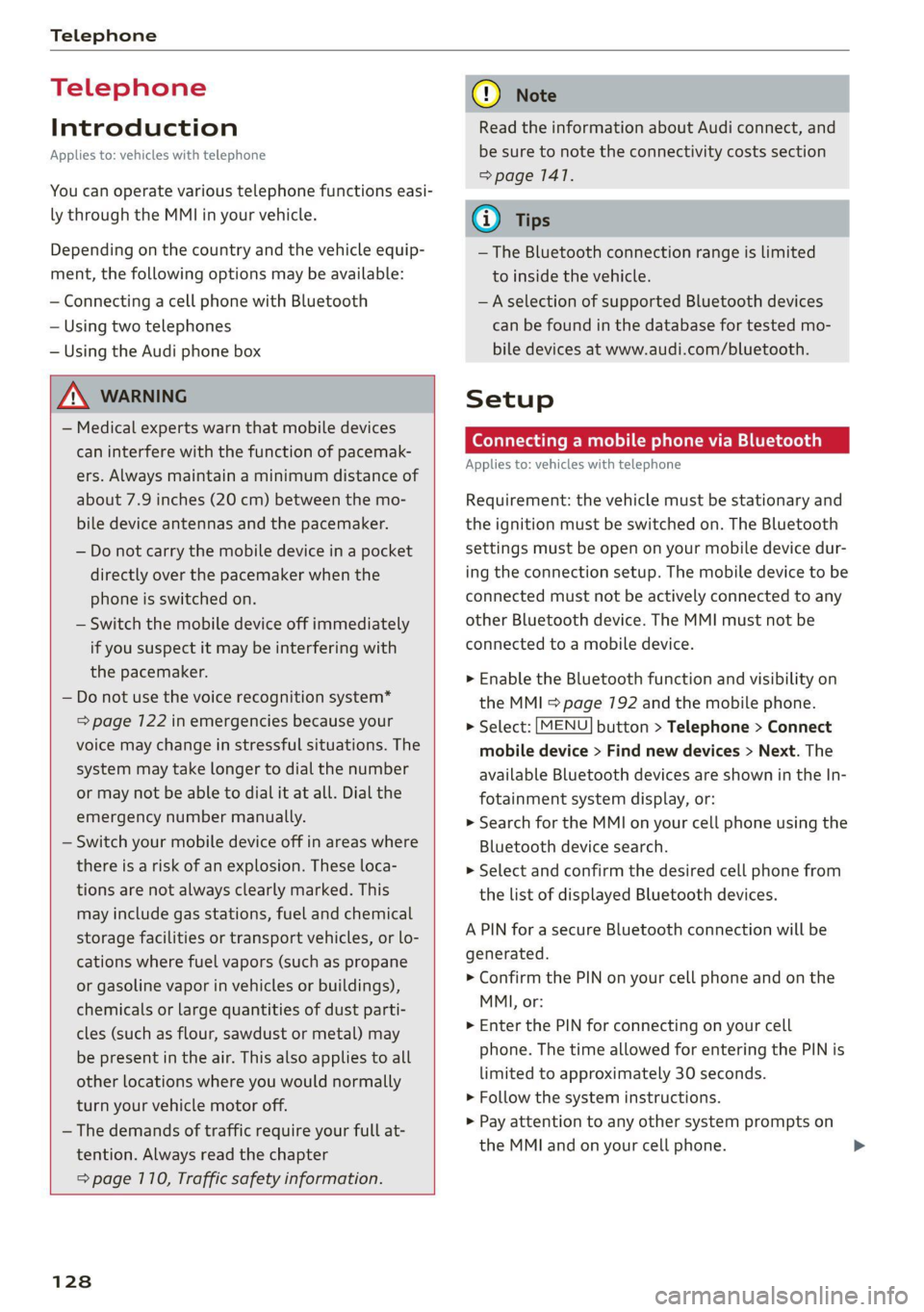
Introduction
Applies to: vehicles with telephone
You can operate various telephone functions easi-
ly through the MMI in your vehicle.
Depending on the country and the vehicle equip-
ment, the following options may be available:
— Connecting a cell phone with Bluetooth
— Using two telephones
— Using the Audi phone box
ZA\ WARNING
— Medical experts warn that mobile devices
can interfere with the function of pacemak-
ers. Always maintain a minimum distance of
about 7.9 inches (20 cm) between the mo-
bile device antennas and the pacemaker.
— Do not carry the mobile device in a pocket
directly over the pacemaker when the
phone is switched on.
— Switch the mobile device off immediately
if you suspect it may be interfering with
the pacemaker.
— Do not use the voice recognition system*
=> page 122 in emergencies because your
voice may change in stressful situations. The
system may take longer to dial the number
or may not be able to dial it at all. Dial the
emergency number manually.
— Switch your mobile device off in areas where
there is a risk of an explosion. These loca-
tions are not always clearly marked. This
may include gas stations, fuel and chemical
storage facilities or transport vehicles, or lo-
cations where fuel vapors (such as propane
or gasoline vapor in vehicles or buildings),
chemicals or large quantities of dust parti-
cles (such as flour, sawdust or metal) may
be present in the air. This also applies to all
other locations where you would normally
turn your vehicle motor off.
— The demands of traffic require your full at-
tention. Always read the chapter
= page 110, Traffic safety information.
128
@) Note
Read the information about Audi connect, and
be sure to note the connectivity costs section
=> page 1417.
@) Tips
— The Bluetooth connection range is limited
to inside the vehicle.
—Aselection of supported Bluetooth devices
can be found in the database for tested mo-
bile devices at www.audi.com/bluetooth.
Setup
Connecting a mobile phone via Bluetooth
Applies to: vehicles with telephone
Requirement: the vehicle must be stationary and
the ignition must be switched on. The Bluetooth
settings must be open on your mobile device dur-
ing the connection setup. The mobile device to be
connected must not be actively connected to any
other Bluetooth device. The MMI must not be
connected to a mobile device.
> Enable the Bluetooth function and visibility on
the MMI = page 192 and the mobile phone.
> Select: [MENU] button > Telephone > Connect
mobile device > Find new devices > Next. The
available
Bluetooth devices are shown in the In-
fotainment system display, or:
>» Search for the MMI on your cell phone using the
Bluetooth device search.
> Select and confirm the desired cell phone from
the list of displayed Bluetooth devices.
A PIN for a secure Bluetooth connection will be
generated.
> Confirm the PIN on your cell phone and on the
MMI, or:
> Enter the PIN for connecting on your cell
phone. The time allowed for entering the PIN is
limited to approximately 30 seconds.
> Follow the system instructions.
> Pay attention to any other system prompts on
the MMI and on your cell phone.
Page 131 of 280
8S1012721BE
Telephone
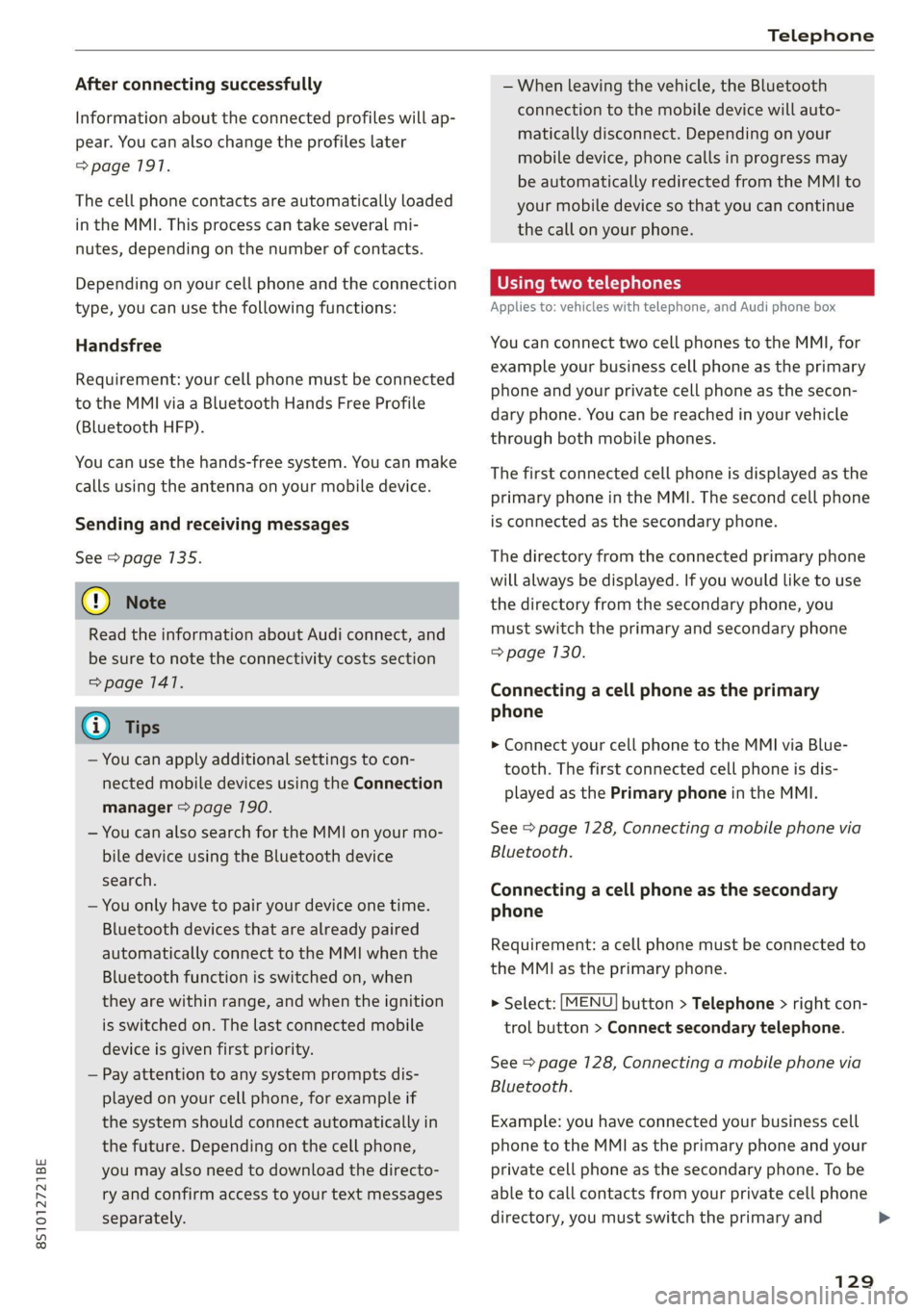
After connecting successfully
Information about the connected profiles will ap-
pear. You can also change the profiles later
=> page 1917.
The cell phone contacts are automatically loaded
in the MMI. This process can take several mi-
nutes, depending on the number of contacts.
Depending on your cell phone and the connection
type, you can use the following functions:
Handsfree
Requirement: your cell phone must be connected
to the MMI via a Bluetooth Hands Free Profile
(Bluetooth HFP).
You can use the hands-free system. You can make
calls using the antenna on your mobile device.
Sending and receiving messages
See > page 135.
() Note
Read the information about Audi connect, and
be sure to note the connectivity costs section
=> page 1417.
@) Tips
— You can apply additional settings to con-
nected mobile devices using the Connection
manager > page 790.
— You can also search for the MMI on your mo-
bile device using the Bluetooth device
search.
— You only have to pair your device one time.
Bluetooth devices that are already paired
automatically connect to the MMI when the
Bluetooth function is switched on, when
they are within range, and when the ignition
is switched on. The last connected mobile
device is given first priority.
— Pay attention to any system prompts dis-
played on your cell phone, for example if
the system should connect automatically in
the future. Depending on the cell phone,
you may also need to download the directo-
ry and confirm access to your text messages
separately.
— When leaving the vehicle, the Bluetooth
connection to the mobile device will auto-
matically disconnect. Depending on your
mobile device, phone calls in progress may
be automatically redirected from the MMI to
your mobile device so that you can continue
the call on your phone.
Using two telephones
Applies to: vehicles with telephone, and Audi phone box
You can connect two cell phones to the MMI, for
example your business cell phone as the primary
phone and your private cell phone as the secon-
dary phone. You can be reached in your vehicle
through both mobile phones.
The first connected cell phone is displayed as the
primary phone in the MMI. The second cell phone
is connected as the secondary phone.
The directory from the connected primary phone
will always be displayed. If you would like to use
the
directory from the secondary phone, you
must switch the primary and secondary phone
=> page 130.
Connecting a cell phone as the primary
phone
> Connect your cell phone to the MMI via Blue-
tooth. The first connected cell phone is dis-
played as the Primary phone in the MMI.
See > page 128, Connecting a mobile phone via
Bluetooth.
Connecting a cell phone as the secondary
phone
Requirement: a cell phone must be connected to
the MMI as the primary phone.
> Select: [MENU] button > Telephone > right con-
trol button > Connect secondary telephone.
See = page 128, Connecting a mobile phone via
Bluetooth.
Example: you have connected your business cell
phone to the MMI as the primary phone and your
private cell phone as the secondary phone. To be
able to call contacts from your private cell phone
directory, you must switch the primary and
129
Page 132 of 280
Telephone
secondary phone, since the directory from the
primary phone is always displayed.
Switching the primary and secondary phone
Requirement: a primary phone and a secondary
phone must be connected.
> Select: [MENU] button > Telephone > right con-
trol button > Switch primary and second.
phone.
iG) Tips
— You can see if a cell phone is connected as
the primary phone or secondary phone in
the Connection manager > page 190.
— You can also make your connected cell
phone the default phone by selecting Set as
default telephone in the Connection man-
ager > page 792.
— The device name of the connected primary
phone is shown in the Telephone menu
(such as myPhone).
— If the primary phone does not connect auto-
matically to the MMI when the ignition is
switched on, for example because it is out
of the vehicle range or the Bluetooth func-
tion is switched off, then a previously paired
secondary phone is automatically connected
as the primary phone.
— You can send and receive messages on your
primary phone as well as on your secondary
phone
> page 132, fig. 1317. You do not
need to switch your primary phone and sec-
ondary phone for this.
1) The Qi standard makes it possible to charge your mobile
device wirelessly.
130
Using the Audi phone
box
Applies to: vehicles with Audi phone box
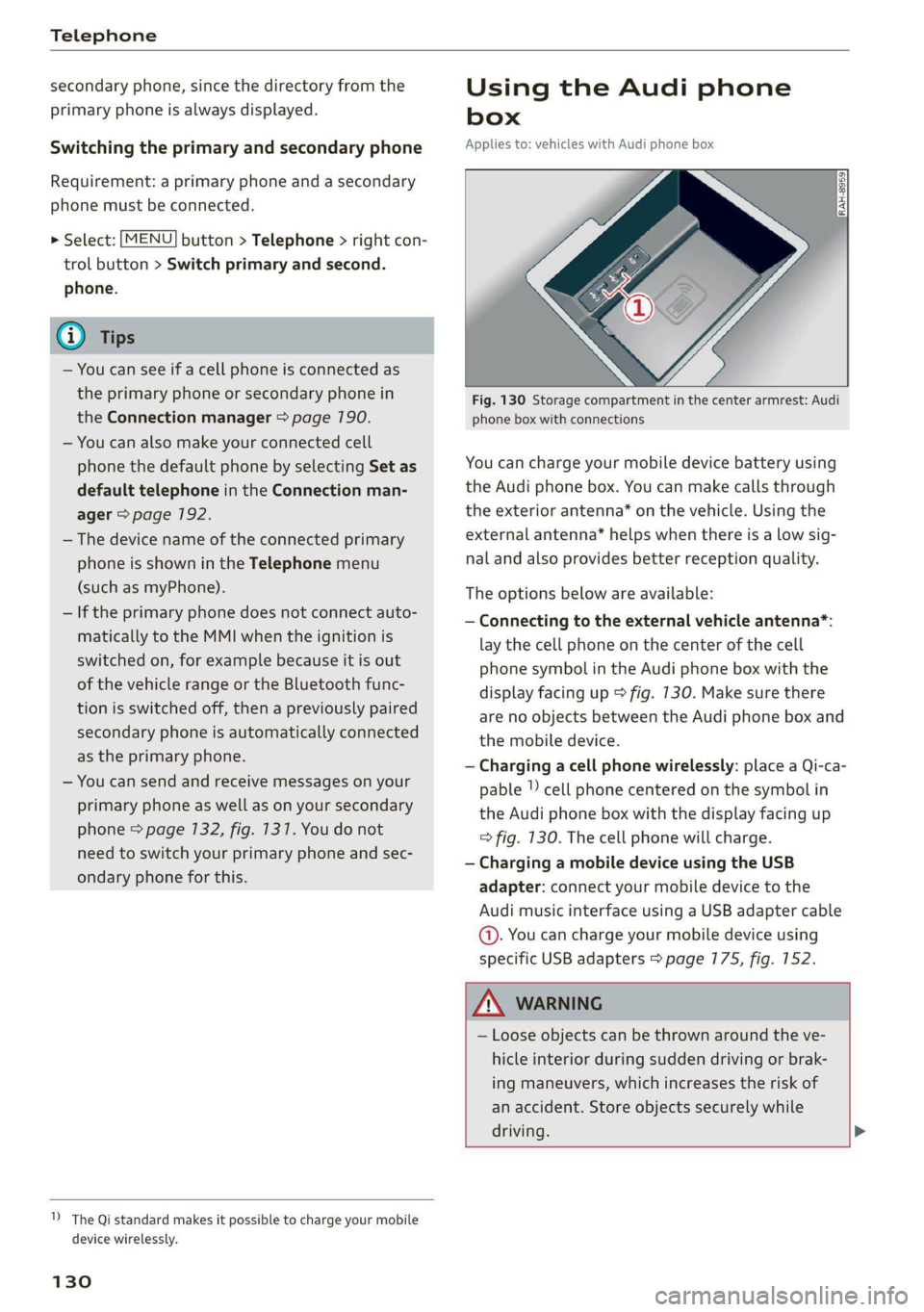
Fig. 130 Storage compartment in the center armrest: Audi
phone box with connections
You can charge your mobile device battery using
the Audi phone box. You can make calls through
the exterior antenna* on the vehicle. Using the
external antenna* helps when there is a low sig-
nal and also provides better reception quality.
The options below are available:
— Connecting to the external vehicle antenna*:
lay the cell phone on the center of the cell
phone symbol in the Audi phone box with the
display facing up > fig. 130. Make sure there
are no objects between the Audi phone box and
the mobile device.
— Charging a cell phone wirelessly: place a Qi-ca-
pable | cell phone centered on the symbol in
the Audi phone box with the display facing up
=> fig. 130. The cell phone will charge.
— Charging a mobile device using the USB
adapter: connect your mobile device to the
Audi music interface using a USB adapter cable
@. You can charge your mobile device using
specific USB adapters > page 775, fig. 152.
ZA WARNING
— Loose objects can be thrown around the ve-
hicle interior during sudden driving or brak-
ing maneuvers, which increases the risk of
an accident. Store objects securely while
driving. >
Page 133 of 280
8S1012721BE
Telephone
— The mobile device may become hot during
wireless charging. Pay attention to the tem-
perature of your mobile device and be care-
ful when removing it from the Audi phone
box.
— An alternating magnetic field is used for
wireless charging. Maintain a minimum dis-
tance of approximately 2.4 inches (6 cm) to
the Audi phone box charging plate. The
thresholds for prolonged exposure at this
distance comply with ICNIRP1998. There-
fore, interactions such as irritation of senso-
ry organs, malfunctions of active implants
(such as pacemakers, infusion pumps, or
neurostimulators) or effects on passive im-
plants (such as prosthetic limbs) is highly
unlikely. If you have an implant, consult a
medical specialist if you have any questions.
@) Note
Applicable to U.S.A.
Operation of the Audi phone box is subject to
the following requirements of the Federal
Communications Commission:
— This is a CONSUMER device.
— BEFORE USE, you MUST REGISTER THIS DE-
VICE with your wireless provider and have
your provider’s consent. Most wireless pro-
viders consent to the use of signal boosters.
Some providers may not consent to the use
of this device on their network. If you are
unsure, contact your service provider.
— You MUST operate this device with approved
antennas and cables as specified by the
manufacturer. Antennas MUST be installed
at least 20 cm (8 inches) from any person.
— You MUST cease operating this device im-
mediately if requested by the FCC or a li-
censed wireless service provider.
— WARNING: E911 location information may
not be provided or may be inaccurate for
calls served by using this device.
@) Note
Applicable to Canada
In Canada, operation of a Zone Enhancer,
such as an Audi phone box, is subject to the
following requirements of the Innovation,
Science and Economic Development Canada
(ISED):
—This is a CONSUMER device.
— BEFORE USE, you MUST meet all require-
ments set out in CPC-2-1-05. At the time of
printing this user manual, the CPC-2-1-05
client procedures circular of ISED Canada
was available at the following web page:
http://www.ic.gc.ca/eic/site/smt-gst.
nsf/eng/sf08942.html.
— You MUST operate this device with approved
antennas and cables as specified by the
manufacturer. Antennas MUST NOT be in-
stalled within 20 cm of any person.
— You MUST cease operating this device im-
mediately if requested by ISED or a licensed
wireless service provider.
— WARNING: £911 location information may
not be provided or may be inaccurate for
calls served by using this device.
G@) Tips
— The system complies with United States FCC
regulations and ISED regulations
=> page 267.
— Placing the mobile device in a bag or protec-
tive sleeve inside the Audi phone box can in-
terfere with the connection to the external
antenna*.
— Metallic objects in the Audi phone box block
the wireless charging of your mobile device
and calls made using the exterior antenna”.
— The charging time and temperature will vary
depending on the mobile device being used.
— Your mobile device can only be charged in
the Audi phone box when the ignition is
switched on.
—To reduce the risk of malfunctions, make
sure the mobile device is positioned correct-
ly in the Audi phone box.
—The maximum charging output is 5 W.
— Strong transmission quality* cannot be
guaranteed if more than one mobile device
is in the box.
— Only one mobile device at a time can be
charged wirelessly in the Audi phone box.
131
>
Page 134 of 280

Telephone
— Audi recommends using Audi Genuine Ac-
cessories. Audi has verified their reliability,
safety, and suitability.
— You can purchase a USB adapter from an au-
thorized Audi dealer or authorized Audi
Service Facility, or at specialty stores.
— If you place your remote control key togeth-
er with your mobile device in the Audi phone
box, it may cause your mobile device to stop
charging if wireless charging is active.
Using the telephone
Opening the telephone
Applies to: vehicles with telephone
Call list
(2 Sa
©— Directory
cy DUEL \1g
a message (mobile device)
Fig. 131 Infotainment system: telephone functions in the
selection menu
alee laa oli RAH-8936|
BS Text message (myPhone)
SB Text message (Additional phone)
@—= E-mail (myPhone)
Fig. 132 Infotainment system: additional telephone func-
tions in the selection menu
Requirement: a mobile device must be connected
to the MMI > page 7128.
> Select: [MENU
trol button.
button > Telephone > left con-
The following phone functions will be available:
GS CALS Ee encci oo siete 2 cote memati 132
G) FAVOTItes! « ss ows ce mee as ra a 134
@®) Directory ................0000. 137
@ Dial phone number ............. 132
© Text message (myPhone)*/text
message (secondary phone)* ..... 135
132
© E-mail (myPhone)*/e-mail (secon-
dary phone)*
Dialing a phone number
Applies to: vehicles with telephone
| cep!
| Bates, Peter
|e) ola
136
2014-03-16
bya)
TORO aE:
11:45 AM
Toe EO eae)
RAH-8505
& Green, Andrew
Je
Fig. 133 Infotainment system: dialing a phone number
from the call list
> Select: [MENU
trol button.
button > Telephone > left con-
Call list
Requirement: the call list must contain a phone
number.
Turn the control knob to display the call list.
Select and confirm the desired telephone num-
ber from the recent calls list.
Call list symbols:
@ Missed calls
@ Dialed numbers
@® Accepted calls
Select: a contact from the list > right control but-
ton.
— Call: call the selected contact.
— Connect secondary telephone*/Switch primary
and second. phone”: see > page 129.
— Edit phone no. before call: edit a phone num-
ber before dialing it. Select and confirm OK to
edit. press the left control button to return
without editing.
— Send text message: write a text message to
the selected contact.
— Delete call list: select and confirm if you would
like to Delete this entry or Delete all entries.
— Store as favorite: store the selected contact as
a favorite.
— Show contact details: see > page 138.
— Connection manager: see > page 190. >
Page 135 of 280
8S1012721BE
Telephone
— Bluetooth settings: see > page 7192.
— Online settings*: see > page 192.
— Wi-Fi settings”: see > page 146.
— Telephone settings: see > page 139.
Favorites
Requirement: a phone number or contact must
be stored as a favorite > page 134.
Select and confirm a favorite in the favorites list.
Directory
Requirement: you must have at least one contact
stored in your cell phone.
Select and confirm a phone number from the di-
rectory > page 137.
Enter number
— Entering a phone number as a sequence of
numbers: enter a phone number using the
number speller.
— Entering the phone number as a sequence of
letters: select and confirm ABC above the num-
ber speller. Enter a sequence of letters using
the letter speller, for example AUDISERVICE.
— Dialing a phone number: select and confirm &,
or push the control knob downward. Select and
confirm OK.
— Deleting individual characters: select and con-
firm &.
— Deleting all characters entered at once: turn
the control knob with the character selection to
l] and press and hold the control knob, or se-
lect: right control button > Clear input field.
Tone sequences (DTMF) can be entered directly
into the speller during a phone call.
Accepting or ending a call
Applies to: vehicles with telephone
> Accepting a call: select and confirm Answer.
> Declining a call: select and confirm Decline.
> Muting the active call: select and confirm
Mute.
> Ending a phone call/cancel dialing: select and
confirm End call.
> Accepting another call: see > page 7133.
@) Tips
The radio or media playback is muted during a
phone call.
During a phone call
Applies to: vehicles with telephone
Requirement: there must be a call in progress.
> Press the right control button.
The following options may be possible during a
call depending on the mobile device being used
and the type of connection:
— Making an additional call: select: Find contact
> Call list/Directory/Favorites > an entry from
the list.
— Accepting an incoming call when there is an
active call and a call on hold: select Replace.
The active call is replaced with the incoming
call.
— Answering an additional call: if there is an in-
coming call while another call is active, you can
select Answer to put the existing call on hold
and answer the incoming call. If you select De-
cline, the incoming call will be declined.
Additional functions include:
Mute: if you select and confirm this function, the
other person on the phone cannot hear you. You
will still be able to hear the other person. To turn
the microphone back on, select and confirm Un-
mute.
Hold call/Resume: you can place the existing call
on hold and resume it again. To resume the call,
select and confirm the call you would like to re-
sume.
Transfer call to mobile device”: select and con-
firm Transfer call to mobile device to transfer
the existing call from the MMI to your cell phone.
Switch to hands-free mode*: Requirement: you
must have a phone call in progress on your cell
phone. Select and confirm Switch to hands-free
mode to transfer the call from your cell phone to
the MMI.
Swap call: alternate between two phone calls
while one of the calls is on hold. Selecting End
133