tow AUDI TT 2021 Owner´s Manual
[x] Cancel search | Manufacturer: AUDI, Model Year: 2021, Model line: TT, Model: AUDI TT 2021Pages: 280, PDF Size: 99.18 MB
Page 103 of 280
8S1012721BE
Parking aid
General infor ion
Applies to: vehicles with rearview camera
© © 3 g
S £ 0
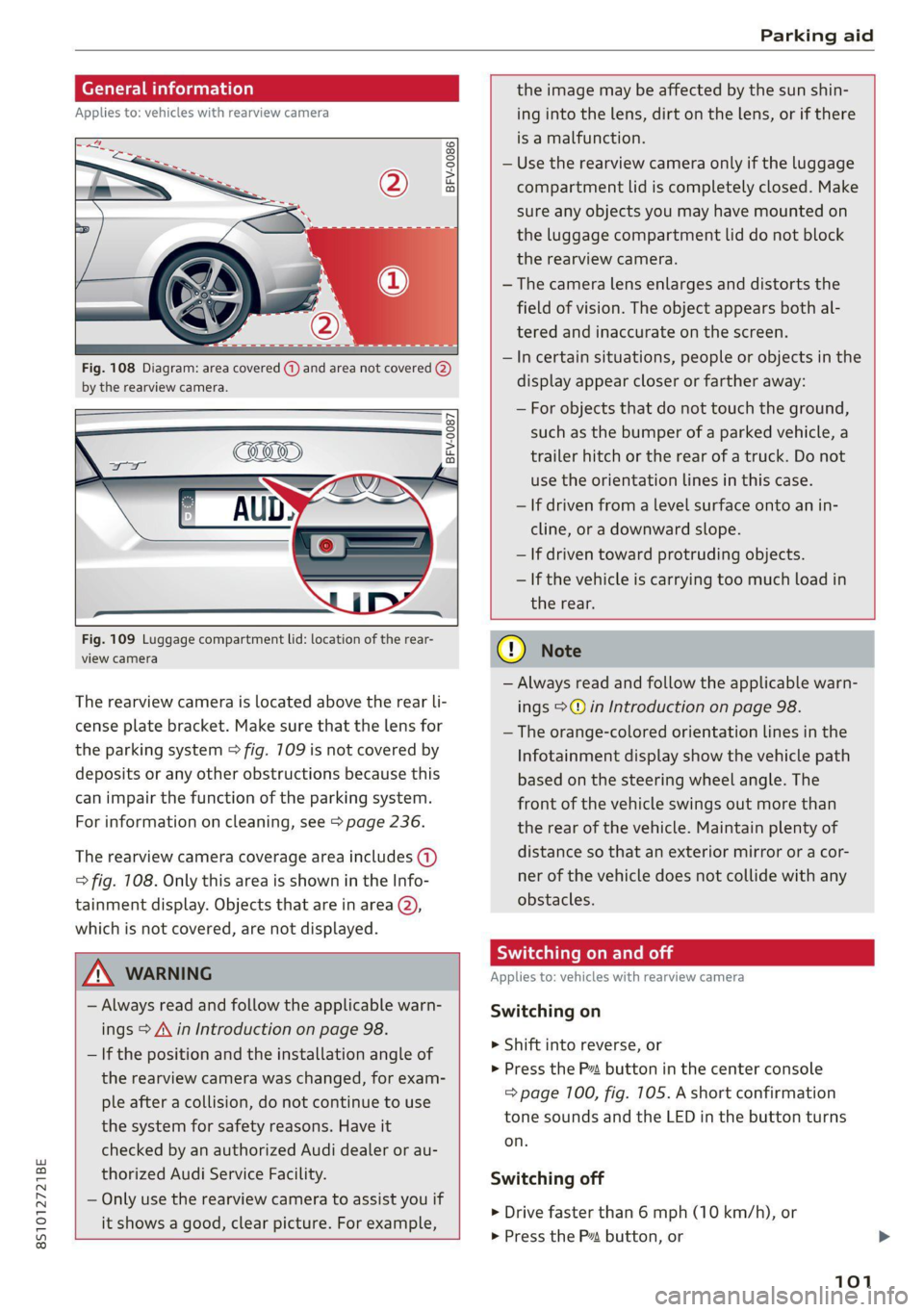
Fig. 108 Diagram: area covered (@) and area not covered @)
by the rearview camera.
Fig. 109 Luggage compartment lid: location of the rear-
view camera
The rearview camera is located above the rear li-
cense plate bracket. Make sure that the lens for
the parking system > fig. 709 is not covered by
deposits or any other obstructions because this
can impair the function of the parking system.
For information on cleaning, see > page 236.
The rearview camera coverage area includes (1)
=> fig. 108. Only this area is shown in the Info-
tainment display. Objects that are in area (2),
which is not covered, are not displayed.
ZA\ WARNING
— Always read and follow the applicable warn-
ings > A\ in Introduction on page 98.
— If the position and the installation angle of
the rearview camera was changed, for exam-
ple after a collision, do not continue to use
the system for safety reasons. Have it
checked by an authorized Audi dealer or au-
thorized Audi Service Facility.
— Only use the rearview camera to assist you if
it shows a good, clear picture. For example,
the image may be affected by the sun shin-
ing into the lens, dirt on the lens, or if there
is a malfunction.
— Use the rearview camera only if the luggage
compartment lid is completely closed. Make
sure any objects you may have mounted on
the luggage compartment lid do not block
the rearview camera.
— The camera lens enlarges and distorts the
field of vision. The object appears both al-
tered and inaccurate on the screen.
—Incertain situations, people or objects in the
display appear closer or farther away:
— For objects that do not touch the ground,
such as the bumper of a parked vehicle, a
trailer hitch or the rear of a truck. Do not
use
the orientation lines in this case.
— If driven from a level surface onto an in-
cline, or a downward slope.
— If driven toward protruding objects.
— If the vehicle is carrying too much load in
the rear.
CG) Note
— Always read and follow the applicable warn-
ings >@ in Introduction on page 98.
— The orange-colored orientation lines in the
Infotainment display show the vehicle path
based on the steering wheel angle. The
front
of the vehicle swings out more than
the rear of the vehicle. Maintain plenty of
distance so that an exterior mirror or a cor-
ner of the vehicle does not collide with any
obstacles.
Sica Re moll
Applies to: vehicles with rearview camera
Switching on
> Shift into reverse, or
> Press the P button in the center console
=> page 100, fig. 105. A short confirmation
tone sounds and the LED in the button turns
on.
Switching off
> Drive faster than 6 mph (10 km/h), or
> Press the P button, or
101
Page 106 of 280

Intelligent Technology
Intelligent Technology
Electronic Stabilization
Control (ESC)
Electronic Stabilization Control (ESC) supports
driver safety. It reduces the risk of slipping and
improves driving stability. ESC detects critical sit-
uations such as the vehicle oversteering and un-
dersteering or the wheels are spinning. The
brakes are applied or the motor torque is reduced
in order to stabilize the vehicle. When the ESC
engages, the B indicator light flashes in the in-
strument cluster.
The following systems are integrated in the ESC:
Anti-lock braking system (ABS)
ABS prevents the wheels from locking when brak-
ing. The vehicle can still be steered even during
hard braking. Apply steady pressure to the brake
pedal. Do not pump the pedal. A pulsing in the
brake pedal indicates that the system is acting to
stabilize the vehicle.
Brake assist
The brake assist system can decrease braking dis-
tance. It increases braking power when the driver
presses the brake pedal quickly in emergency sit-
uations. You must press and hold the brake pedal
until the dangerous situation is over.
Anti-Slip Regulation (ASR)
ASR reduces drive power when the wheels begin
spinning and adapts the power to the road condi-
tions. This will increase the driving stability.
Electronic Differential Lock (EDL)
The EDL applies the brakes to wheels that are
slipping and transfers the drive power to the oth-
er wheels. This function is not available at higher
speeds.
In extreme cases, EDL automatically switches off
to keep the brake on the braked wheel from over-
heating. The vehicle is still functioning correctly.
EDL will switch on again automatically when con-
ditions have returned to normal.
104
Power steering
The ESC can also support vehicle stability
through steering.
Selective wheel torque control
Selective wheel torque control is used when driv-
ing on curves. Braking is targeted toward the
wheels on the inside of the curve as needed. This
allows more precise driving in curves.
Automatic post-collision braking system
The automatic post-collision braking system can
help to reduce the risk of sliding and of addition-
al collisions after an accident. If the airbag con-
trol module detects a collision above a certain ve-
hicle speed, the vehicle is braked by the ESC.
The vehicle does not brake automatically if one of
the following occurs:
— The driver presses the accelerator pedal
—The braking force generated by the pressed
brake pedal is greater than the braking force
that would be initiated by the system
— The ESC, the brake system, or the vehicle elec-
trical system is not functioning
Z\ WARNING
— The ESC and its integrated systems cannot
overcome the limits imposed by natural
physical laws. This is especially important on
slippery or wet roads. If the systems begin
acting to stabilize your vehicle, you should
immediately alter your speed to match the
road and traffic conditions. Do not let the in-
creased safety provided tempt you into tak-
ing risks. This could increase your risk of a
collision.
— Please note the risk of a collision increases
when driving fast, especially through curves
and on slippery or wet roads, and when driv-
ing too close to objects ahead. There is still
a risk of accidents because the ESC and its
integrated systems cannot always prevent
collisions.
— Accelerate carefully when driving on
smooth, slippery surfaces such as ice and
snow. The drive wheels can spin even when
these control systems are installed and this
Page 112 of 280

Multi Media Interface
Multi Media Interface
Traffic safety
information
Audi recommends performing certain Infotain-
ment system functions, such as entering a desti-
nation, only when the vehicle is stationary. Al-
ways be prepared to stop operating the Infotain-
ment system in the interest of your safety and
the safety of other road users.
Z\ WARNING
Only use the Infotainment system when road,
traffic, weather, and visibility conditions per-
mit and always in a way that allows you to
maintain complete control over your vehicle.
@ Tips
Certain functions are not available while driv-
ing.
Introduction
[RAH-8837
Fig. 114 MMI control panel: overview
The Multi Media Interface, or MMI for short, com-
bines various systems for communication, navi-
gation* and entertainment in your Audi. You can
operate the MMI using the MMI control panel,
the multifunction steering wheel or the voice rec-
ognition system”.
MMI control panel overview
@ Control knob with joystick function*
eee ete eee tenets 111
@ MMI touch control pad* ......... 112
® Left control button ............. 111
@ Right control button ............ 11
110
© Buttons for opening menus direct-
WY cecccecceceveeseseeeeeenees 11
©) [MENU] button eves. 2 2 coscens ve somes» 111
@)- [BACK] BUttON esia x segues yx meme & 111
MMI On/Off knob with
joystick function
Operat
Applies to: vehicles with On/Off knob with joystick function
[RAH-8739
Fig. 115 MMI control panel: On/Off knob with joystick
function
Switching the MMI on or off
The MMI can be manually switched on and off.
Switching on manually
> Press the On/Off knob @ briefly, or
> Press the [MENU] button @) > page 710,
fig. 114 or one of the buttons to open the me-
nus directly ©) > page 110, fig. 114.
Switching off manually
> Press and hold the On/Off knob (@) until the
MMI switches off. If the MMI has been switched
off manually, it does not switch on again auto-
matically the next time the ignition is switched
on.
Additional functions
> Adjusting the volume: turn the On/Off knob
@.
> Muting: press the On/Off knob (~) briefly.
> Selecting the previous/next function (for ex-
ample, a radio station/track): briefly press the
On/Off knob (@) toward the left Kd or right DD.
> Fast forwarding/rewinding (for example,
tracks): press the On/Off knob (a) Longer to-
ward the right DDI or left Kd.
Page 117 of 280
8S1012721BE
Multi Media Interface
Selecting a menu item
> Move your finger up/down or left/right on the
MMI touch control pad.
Confirming a selection
> Press the control knob.
@) Tips
The volume of the prompts for the MMI touch
can be adjusted separately > page 194.
Control knob with
joystick function
Applies to: vehicles with control knob with joystick function
2
RAH-8515|
© »
&
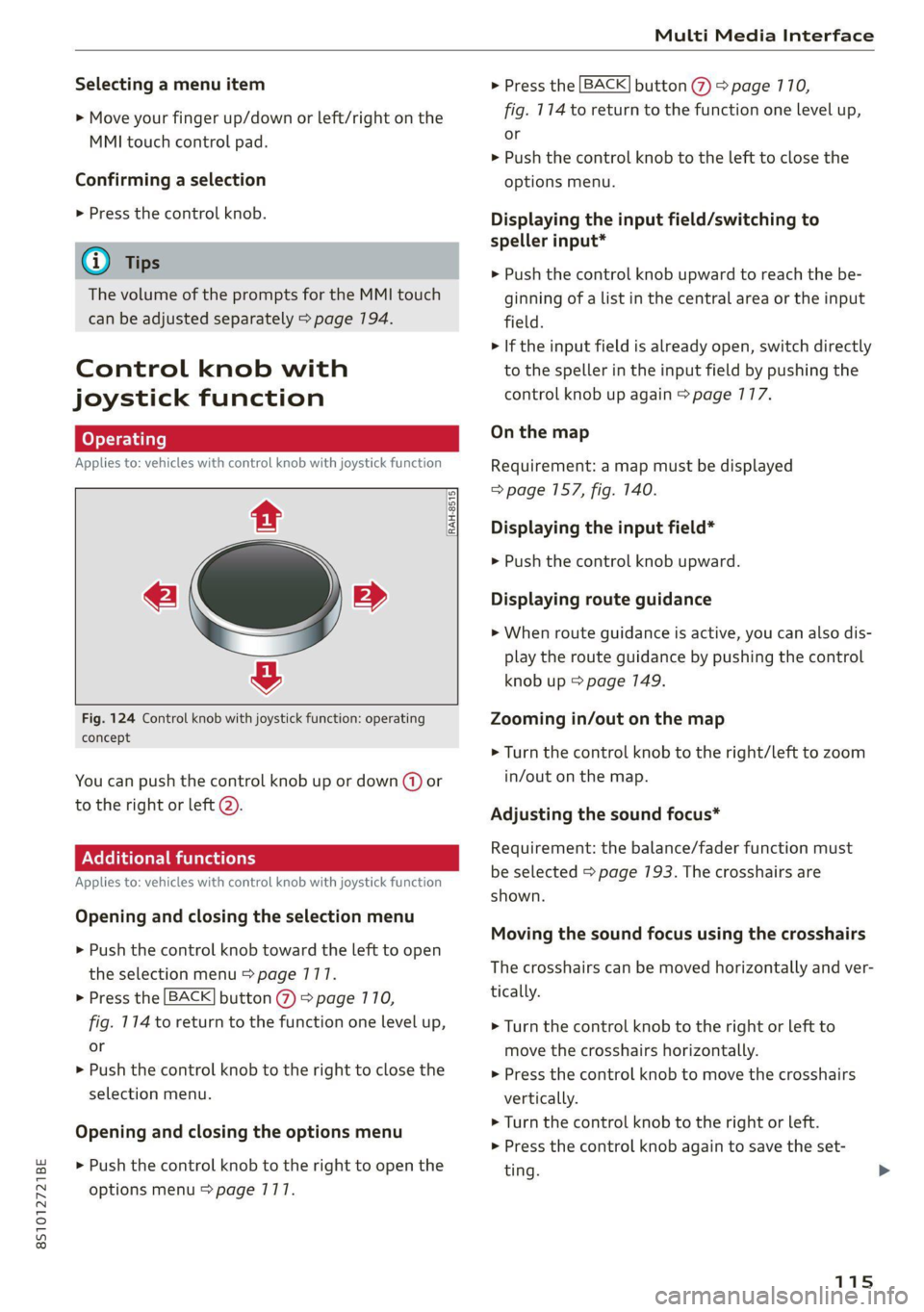
Fig. 124 Control knob with joystick function: operating
concept
You can push the control knob up or down (@) or
to the right or left @).
Additional functions
Applies to: vehicles with control knob with joystick function
Opening and closing the selection menu
> Push the control knob toward the left to open
the selection menu > page 177.
> Press the [BACK] button (7) > page 710,
fig. 114 to return to the function one level up,
or
> Push the control knob to the right to close the
selection menu.
Opening and closing the options menu
> Push the control knob to the right to open the
options menu > page 1717.
> Press the [BACK] button @ > page 110,
fig. 114 to return to the function one level up,
or
> Push the control knob to the left to close the
options menu.
Displaying the input field/switching to
speller input*
> Push the control knob upward to reach the be-
ginning of a list in the central area or the input
field.
> If the input field is already open, switch directly
to the speller in the input field by pushing the
control knob up again > page 177.
On the map
Requirement: a map must be displayed
=> page 157, fig. 140.
Displaying the input field*
> Push the control knob upward.
Displaying route guidance
> When route guidance is active, you can also dis-
play the route guidance by pushing the control
knob up > page 149.
Zooming in/out on the map
> Turn the control knob to the right/left to zoom
in/out on the map.
Adjusting the sound focus*
Requirement: the balance/fader function must
be selected > page 193. The crosshairs are
shown.
Moving the sound focus using the crosshairs
The crosshairs can be moved horizontally and ver-
tically.
> Turn the control knob to the right or left to
move the crosshairs horizontally.
» Press the control knob to move the crosshairs
vertically.
> Turn the control knob to the right or left.
> Press the control knob again to save the set-
ting.
115
Page 118 of 280
Multi Media Interface
Using the DVD main menu
Applies to: vehicles with a DVD drive
Requirement: a DVD must be playing
= page 177. The DVD main menu is shown.
Selecting a menu item
> Move the control knob with joystick function up
or down or to the left or right.
Confirming a selection
> Press the control knob.
Opening the selection/options menu w
the control knob
Applies to: vehicles with control knob with joystick function
RAH-8762|
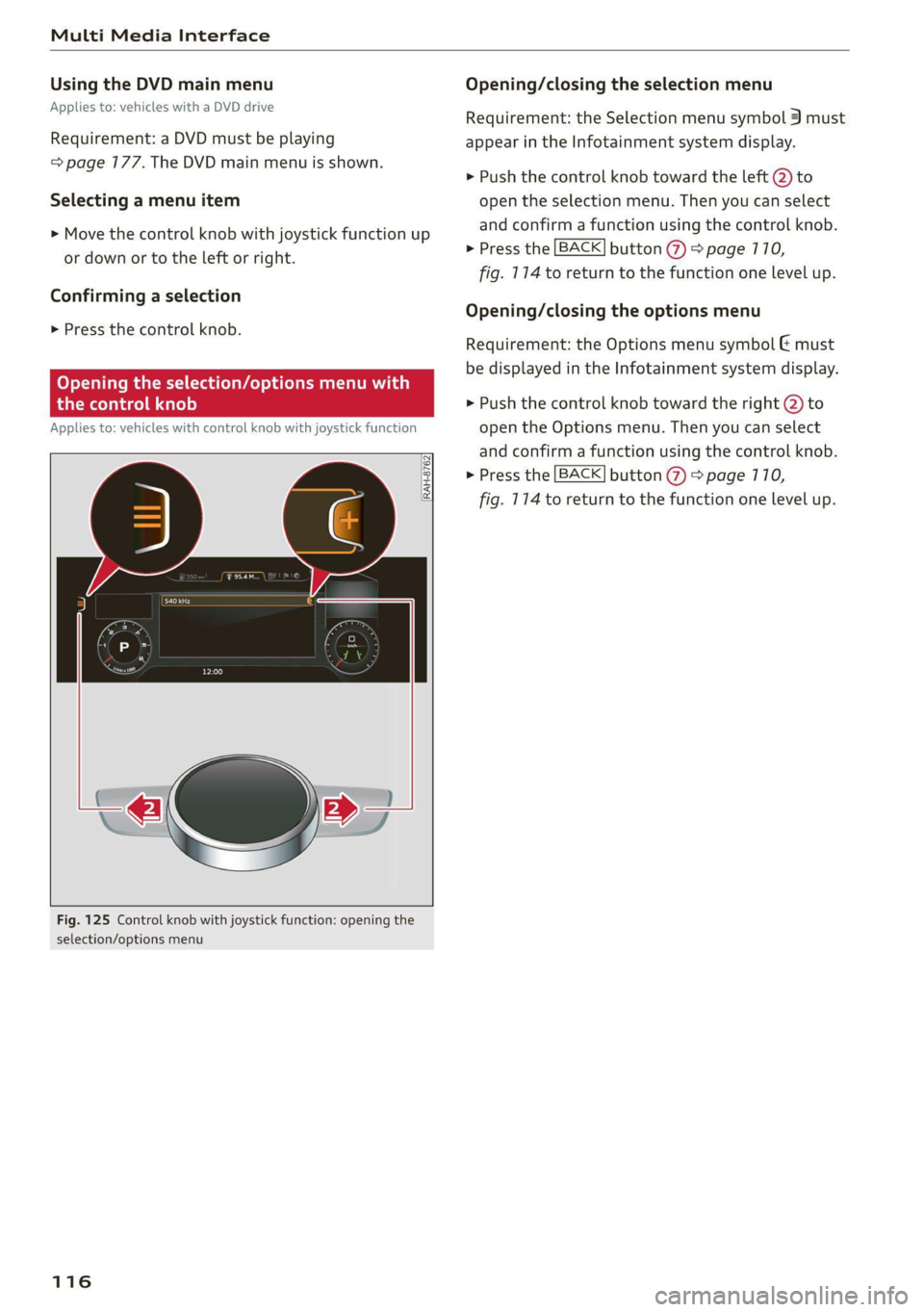
Fig. 125 Control knob with joystick function: opening the
selection/options menu
116
Opening/closing the selection menu
Requirement: the Selection menu symbol 3 must
appear in the Infotainment system display.
> Push the control knob toward the left @) to
open the selection menu. Then you can select
and confirm a function using the control knob.
> Press the [BACK] button (7) > page 710,
fig. 114 to return to the function one level up.
Opening/closing the options menu
Requirement: the Options menu symbol & must
be displayed in the Infotainment system display.
> Push the control knob toward the right @) to
open the Options menu. Then you can select
and confirm a function using the control knob.
> Press the [BACK] button @ > page 710,
fig. 114 to return to the function one level up.
Page 123 of 280
8S1012721BE
Multi Media Interface
BAR COMMANDS
RAH-8462|
* Telephone + Favorites
+ Audi connect * Call (XY)
* Navigation + Enter number
* Directory * Redial
* Radio * Read new text message
+ Media + Navigate to (XY)
* Sound + Enter address/destination
* Help + Online destinations
+ Help Speech dialog system * Cancel route guidance
* Help Telephone * Map
* Help Audi connect + Line (XY)
* Help Navigation * Next page / previous page
* Help Map * Cancel
* Help Radio * No, I meant (XY)
* Help Media * Correction
TELEPHONE, Zi
+ Enter number Call list a.
+ Delete number / correction Redial sie
+ Directory Call mailbox
* Call (XY) Enter PIN / delete PIN
* business / private / land line / mobile Telephone favorites
NAVIGATION i
+ Navigate to (XY) + Exclude next route section / Exclude
«Business address / Private address next street
+ Start / cancel route guidance * Route list
+ Directory * Calculate alternative routes
+ Last destinations * Online destinations
+ Navigation favorites * Special destination
+ Drive home
- Enter address
+ Enter country / town / street / state
+ Exclude route / Exclude route for (XY) km /m
MAP.
* Map
* Day map / Night map
* 2D driving position map / 2D north position map / 3D map / Destination map / Overview map
AUDI CONNECT
* Audi connect * Flight information / Train information
* Travel information / Parking information + City events
* Fuel prices * Online news
* Weather + Twitter
+ Radio presets « Jukebox rs}
+ Last stations * CD/DVD MEDIA
*FM + SDcard1/SDcard2
*FM/AM/ SIRIUS XM « Audi music interface / iPod / USB / Bluetooth /
+ Station (XY) / Frequency (XY) Wi-Fi / Medium (XY)
* Traffic announcement on / off * Media favorites / Artists / Albums / Genres /
Tracks / Playlists / Videos
* Folder up
* Random playback on / off
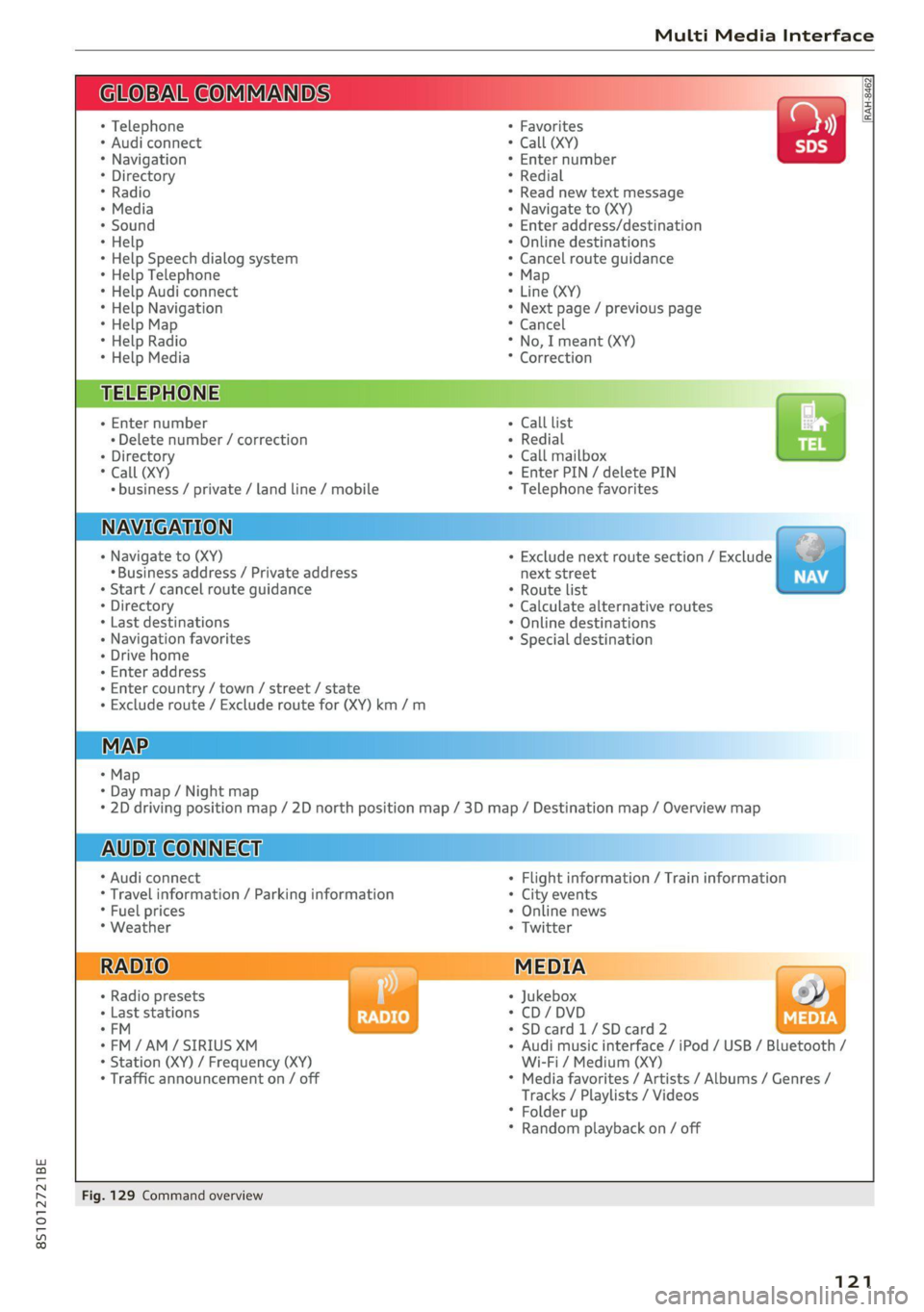
Fig. 129 Command overview
121
Page 124 of 280
Voice recognition system
Voice recognition system
General information
Applies to: vehicles with voice recognition system
You can operate many functions in the vehicle
easily using voice commands.
Using the voice recognition system optimally
> Speak clearly and distinctly at a normal volume.
Speak louder when driving faster.
> Emphasize the words in the commands evenly
and do not leave long pauses.
> Close the doors, the windows, and the power
top* to reduce background noise. Make sure
that passengers are not speaking when you are
giving a voice command.
> Do not direct the vents toward the hands-free
microphone, which is in the roof headliner/on
the driver’s safety belt* near the front interior
lights. For additional information on the safety
belt microphone’, see > page 140.
> Only the driver should speak to the system, be-
cause the handsfree microphone is aimed to-
ward this seating position.
ZA\ WARNING
— Direct your full attention to driving. As the
driver, you have complete responsibility for
safety in traffic. Only use the functions in
such a way that you always maintain com-
plete control over your vehicle in all traffic
situations.
— Do not use the voice recognition system in
emergencies because your voice may change
in stressful situations. The system may take
longer to dial the number or may not be
able to dial it at all. Dial the emergency
number manually.
G) Tips
There are no voice guidance* prompts when a
dialog is active.
Operating
Applies to: vehicles with voice recognition system
Requirement: the ignition and the MMI must be
switched on. A system language supported by
122
the voice recognition system must be set. There
must be no phone calls in progress and the park-
ing aid must not be active.
> Switching on: briefly press the %» button @)
=> page 14, fig. 10 on the multifunction steer-
ing wheel and say the desired command after
the Beep.
> Switching off: press and hold the ™» button,
or:
» Say the command Cancel.
> Pausing: say the command Pause. To resume,
press the ™» button.
> Correcting: press the button one time G)
=> page 12, fig. 6, or:
» Say the command Correction.
Input assistance
The system guides you through the input with
visual and audio feedback.
— Visual input assistance: after switching on
voice recognition, a display with a selection of
possible commands appears. This command
display can be switched on or off. Select:
MENU] button > Settings > left control button
> MMI settings > Speech dialog system.
— Audio input assistance: to have the possible
commands read, press the “9 button on the
multifunction steering wheel briefly and say
Help.
Additional settings
See > page 194, Voice recognition system.
Gi) Tips
—The dialog pauses when there is an incom-
ing phone call and will continue if you ig-
nore the call. The dialog ends if you answer
the call.
— You can select an item in the list using ei-
ther the voice recognition system or the
control knob.
Page 210 of 280
Checking and Filling
— Only refill with new coolant.
— Radiator sealant must not be mixed with
the coolant.
— You can continue driving if the permitted
G12evo coolant additive was not added.
However, go to an authorized Audi dealer or
authorized Audi Service Facility immediately
to have the coolant replaced to reduce the
risk of engine damage.
— Due to the risk of engine damage, the cool-
ing system should only be refilled by an au-
thorized Audi dealer or authorized Audi
Service Facility. An authorized Audi dealer or
authorized Audi Service Facility can also pro-
vide
you with important information about
the recommended coolant additive.
Checking coolant
©) = z [RAz-0539]
MIN
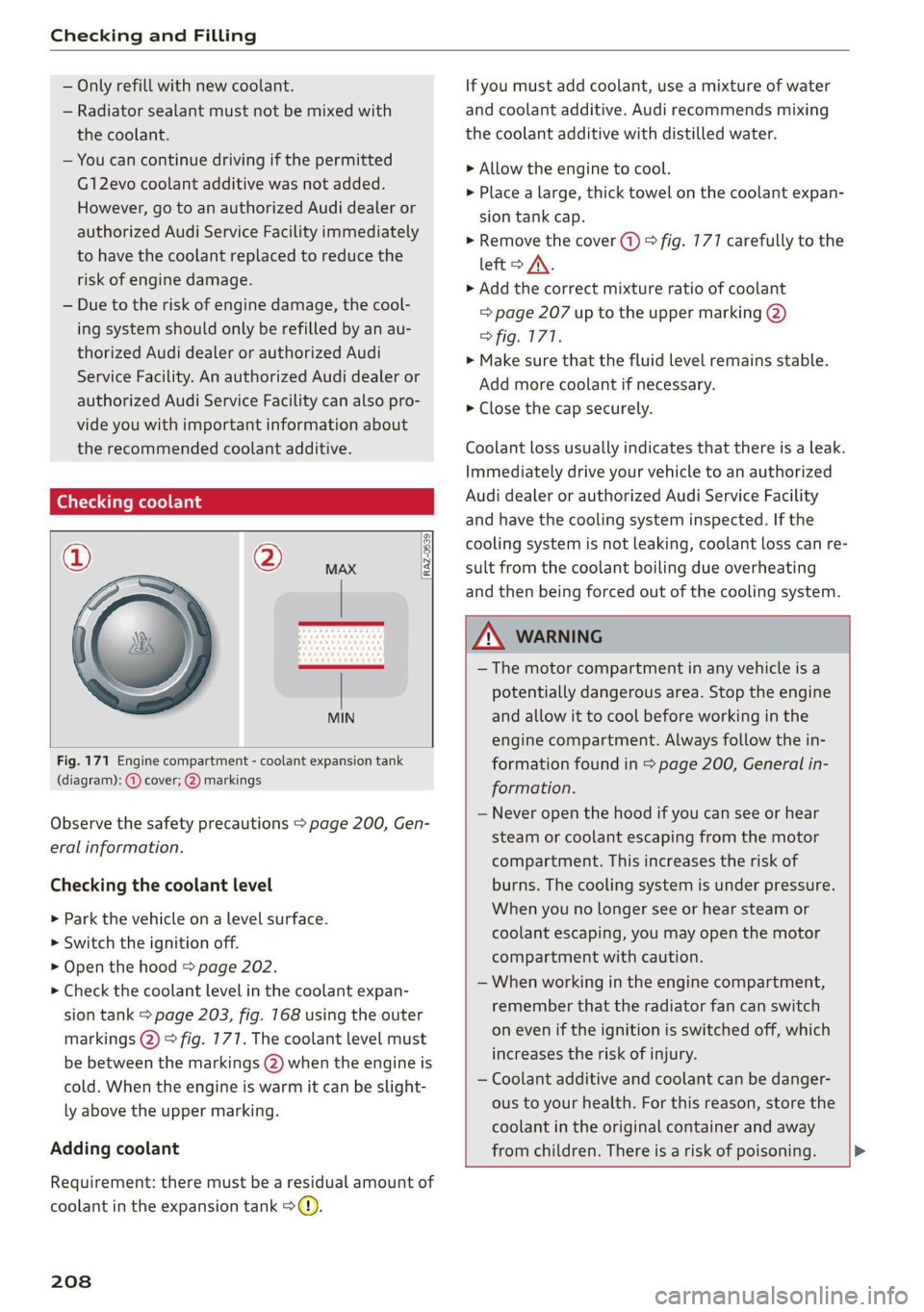
Fig. 171 Engine compartment - coolant expansion tank
(diagram): @ cover; @) markings
Observe the safety precautions > page 200, Gen-
eral information.
Checking the coolant level
>» Park the vehicle on a level surface.
> Switch the ignition off.
> Open the hood > page 202.
> Check the coolant level in the coolant expan-
sion tank > page 203, fig. 168 using the outer
markings @) > fig. 177. The coolant level must
be between the markings 2) when the engine is
cold. When the engine is warm it can be slight-
ly above the upper marking.
Adding coolant
Requirement: there must be a residual amount of
coolant in the expansion tank >@).
208
If you must add coolant, use a mixture of water
and coolant additive. Audi recommends mixing
the coolant additive with distilled water.
> Allow the engine to cool.
> Place a large, thick towel on the coolant expan-
sion tank cap.
> Remove the cover (1) > fig. 777 carefully to the
left > AX.
» Add the correct mixture ratio of coolant
> page 207 up to the upper marking @)
> fig. 177.
» Make sure that the fluid level remains stable.
Add more coolant if necessary.
> Close the cap securely.
Coolant loss usually indicates that there is a leak.
Immediately drive your vehicle to an authorized
Audi dealer or authorized Audi Service Facility
and have the cooling system inspected. If the
cooling system is not leaking, coolant loss can re-
sult from the coolant boiling due overheating
and then being forced out of the cooling system.
Z\ WARNING
— The motor compartment in any vehicle is a
potentially dangerous area. Stop the engine
and allow it to cool before working in the
engine compartment. Always follow the in-
formation found in > page 200, General in-
formation.
— Never open the hood if you can see or hear
steam or coolant escaping from the motor
compartment. This increases the risk of
burns. The cooling system is under pressure.
When you no longer see or hear steam or
coolant escaping, you may open the motor
compartment with caution.
— When working in the engine compartment,
remember that the radiator fan can switch
on even if the ignition is switched off, which
increases the risk of injury.
— Coolant additive and coolant can be danger-
ous to your health. For this reason, store the
coolant in the original container and away
from children. There is a risk of poisoning.
Page 230 of 280
Wheels
increase the risk of the loss of
vehicle control.
—The brakes on a vehicle that
has been overloaded may not
be able to stop the vehicle
within a safe distance.
—Tires ona vehicle that has
been overloaded can fail sud-
denly, including a blowout and
sudden deflation, causing loss
of control and a crash.
—Always make sure that the to-
tal load being transported
does not make the vehicle
heavier than the vehicle’s
Gross Vehicle Weight Rating.
Determining correct load
Ths
Use the example below to calcu-
late the total weight of the pas-
sengers and luggage or other
things that you plan to transport
so that you can make sure that
your vehicle will not be overload-
ed.
Steps for Determining Correct
Load Limit
1. Locate the statement “THE
COMBINED WEIGHT OF OCCU-
PANTS AND CARGO SHOULD
NEVER EXCEED XXX KG OR XXX
228
LBS” on your vehicle’s placard
(tire inflation pressure label)
=> page 224, fig. 178.
. Determine the combined
weight of the driver and pas-
sengers that will be riding in
your vehicle.
. Subtract the combined weight
of the driver and passengers
from “XXX” kilograms or “XXX”
pounds shown on the sticker
=> page 224, fig. 178.
. The resulting figure equals the
available amount of cargo and
luggage load capacity. For ex-
ample, if the “XXX” amount
equals 1400 lbs. and there will
be five 150 lbs. passengers in
your vehicle, the amount of
available cargo and luggage
load capacity is 650 lbs.
(1400-750 (5 x 150) = 650
lbs.)
. Determine the combined
weight of luggage and cargo
being loaded on the vehicle.
That weight may not safely ex-
ceed the available cargo and
luggage load capacity calculat-
ed in Step 4.
. If your vehicle will be towing a
trailer, load from your trailer
will be transferred to your >
Page 252 of 280
Emergency assistance
4. Attach the other end of the negative cable
(black) to the jump start connection @ on
the vehicle.
Starting the engine
> Start the engine in the vehicle giving the charge
and let it run at idle.
> Now start the engine in your vehicle, which has
the
drained battery.
> If the engine does not start, stop the starting
procedure after 10 seconds and then repeat it
after approximately 30 seconds.
> Turn on the rear window defogger in your vehi-
cle in order to reduce any voltage peaks that
may occur when disconnecting the jump start
cables. The headlights must be switched off.
> With the engines running, remove the cables in
reverse order of the way they were installed.
> Close the red cover on the positive terminal.
ZA\ WARNING
— Never connect the jump start cable directly
to your vehicle battery. Only use the connec-
tions in the engine compartment.
— Do not touch the non-insulated parts of the
terminal clamps. The cable must also not
come into contact with vehicle components
that conduct electricity when it is connected
to the positive vehicle battery terminal. This
can cause a short circuit.
— The locking bolts on the battery cells must
be tightened securely.
— Keep ignition sources (open flames, burning
cigarettes, etc.) away from the vehicle bat-
teries to reduce the risk of an explosion.
— Route the jump start cables so they cannot
get caught in the moving parts in the other
vehicle's engine compartment.
C) Note
Please note that the connecting process previ-
ously described for the jump start cables is in-
tended for when your vehicle is being jump
started.
250
G) Tips
Make sure that the connected jump start ca-
bles have sufficient contact with metal.
Towing
General information
You should only perform the steps that follow if
you have the necessary tools and technical ex-
pertise.
Towing requires a certain amount of practice.
Audi recommends contacting a towing company
to have the vehicle transported.
You should only have your vehicle towed by an-
other vehicle when disabled in exceptional cir-
cumstances. Inexperienced drivers should not
tow.
Notes on towing
When the engine is stopped, the transmission
will not be sufficiently lubricated if traveling at
high speeds and long distances:
— The maximum permitted towing speed is 30
mph (50 km/h).
— The maximum permitted towing distance is 30
miles (SO km).
Additional information on towing with a tow
truck
The vehicle may only be towed with the front axle
raised. Do not wrap any chains or cables around
the brake lines.
If the vehicle should be towed with the axle
raised, then the ignition must be switched off to
reduce the risk of damage to the drivetrain.
Tow bar and towing cable
The vehicle can be towed with a tow bar or tow-
ing cable. Both drivers should be familiar with
the special considerations when towing, especial-
ly when using a towing cable.
Always make sure the traction force does not ex-
ceed the permitted level and there are no shock
loading conditions. There is always the risk of the >