service AUDI TT 2021 Owner´s Manual
[x] Cancel search | Manufacturer: AUDI, Model Year: 2021, Model line: TT, Model: AUDI TT 2021Pages: 280, PDF Size: 99.18 MB
Page 149 of 280
8S1012721BE
Audi connect
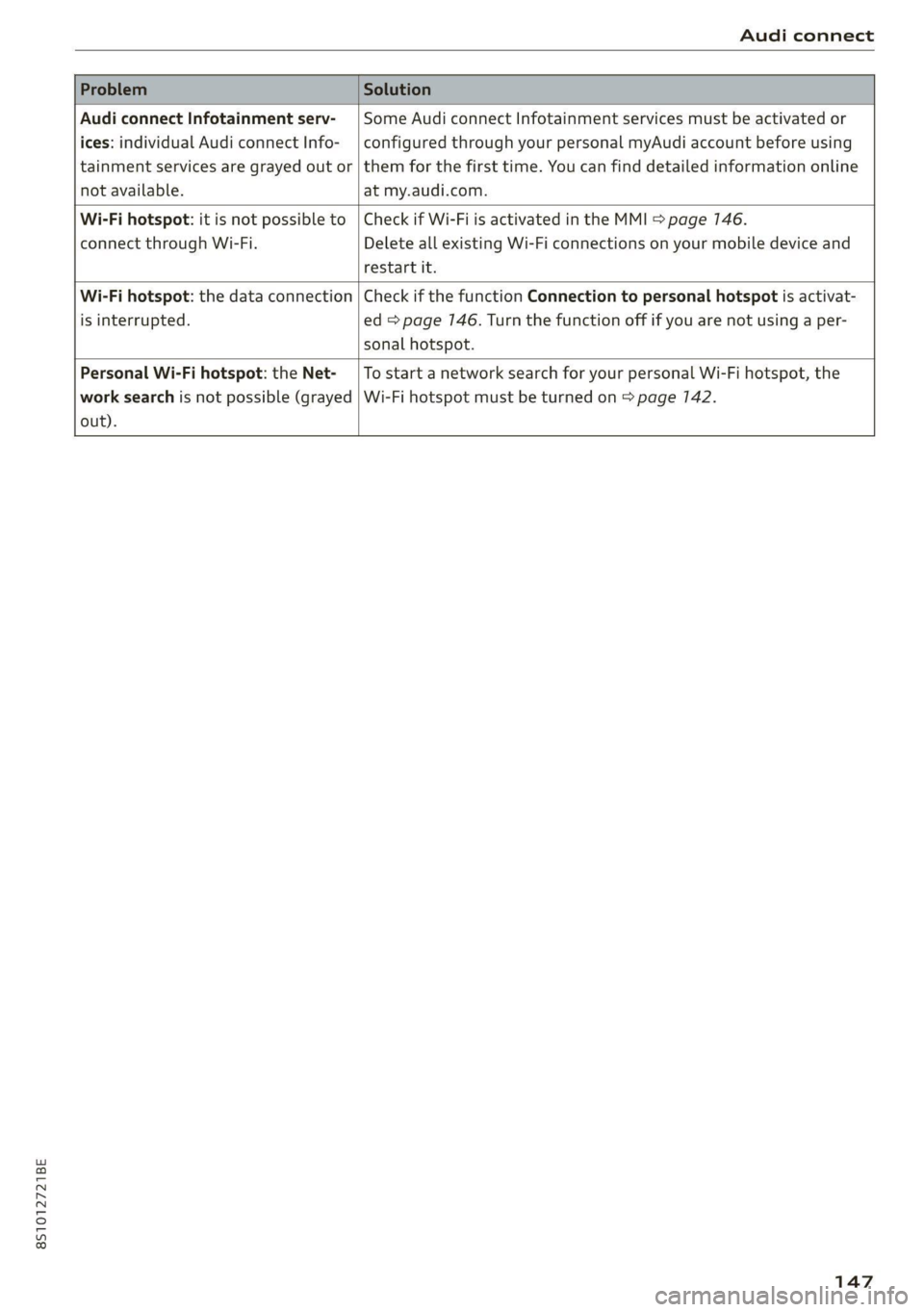
Problem Solution
Audi connect Infotainment serv-
ices: individual Audi connect Info-
tainment services are grayed out or
not available.
Some Audi connect Infotainment services must be activated or
configured through your personal myAudi account before using
them for the first time. You can find detailed information online
at my.audi.com.
Wi-Fi hotspot: it is not possible to
connect through Wi-Fi.
Check if Wi-Fi is activated in the MMI > page 146.
Delete all existing Wi-Fi connections on your mobile device and
restart it.
Wi-Fi hotspot: the data connection
is interrupted.
Check if the function Connection to personal hotspot is activat-
ed > page 146. Turn the function off if you are not using a per-
sonal hotspot.
Personal Wi-Fi hotspot: the Net-
work search is not possible (grayed
out).
To start a network search for your personal Wi-Fi hotspot, the
Wi-Fi hotspot must be turned on > page 142.
147
Page 154 of 280
Navigation
Online point of interest search (online Accessing destinations from myAudi
search) Elda aig
Applies to: vehicles with a navigation system and Audi con-
nect Infotainment
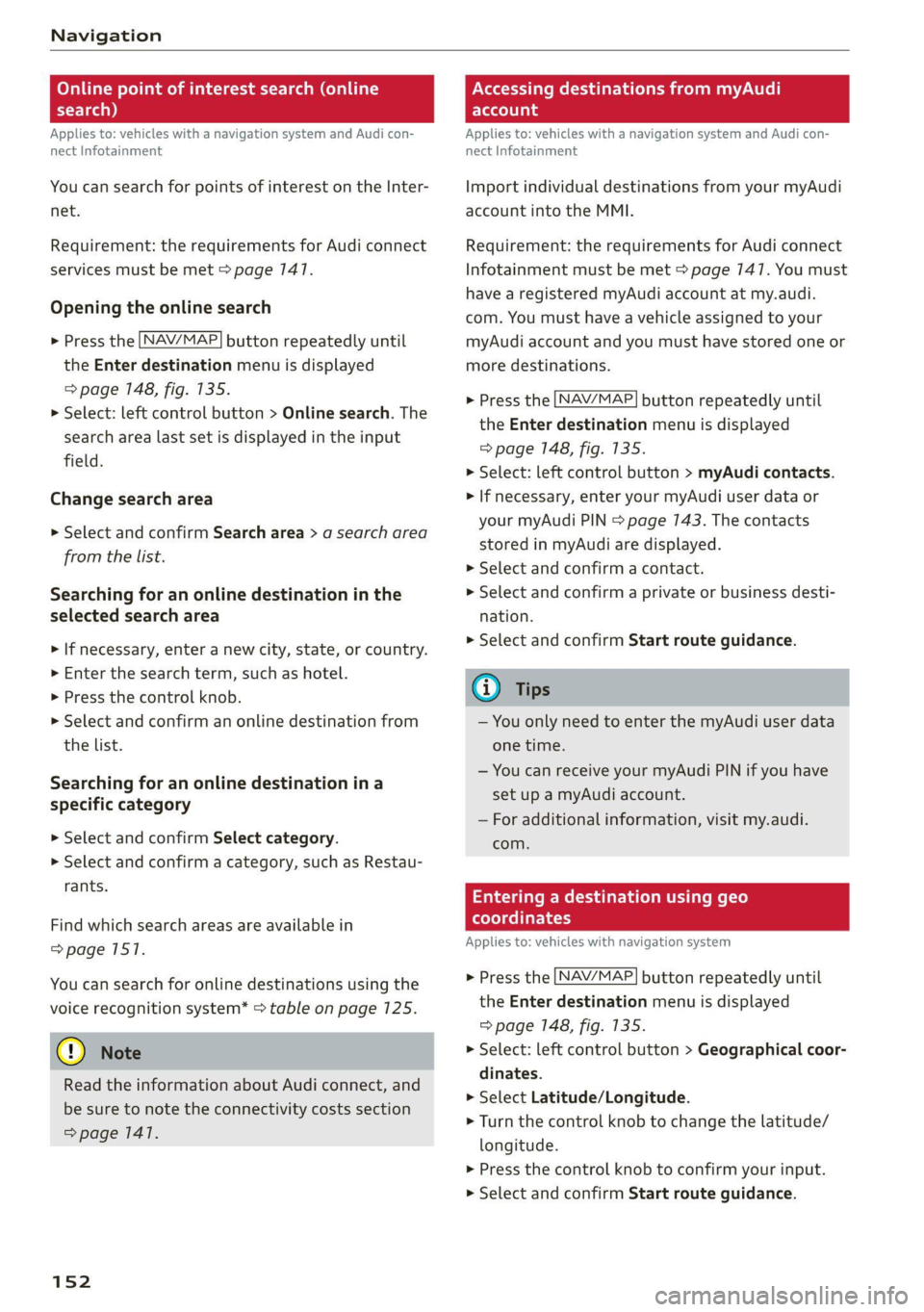
You can search for points of interest on the Inter-
net.
Requirement: the requirements for Audi connect
services must be met > page 147.
Opening the online search
> Press the [NAV/MAP] button repeatedly until
the Enter destination menu is displayed
=> page 148, fig. 135.
> Select: left control button > Online search. The
search area last set is displayed in the input
field.
Change search area
> Select and confirm Search area > a search area
from the list.
Searching for an online destination in the
selected search area
> If necessary, enter a new city, state, or country.
> Enter the search term, such as hotel.
> Press the control knob.
> Select and confirm an online destination from
the list.
Searching for an online destination in a
specific category
> Select and confirm Select category.
> Select and confirm a category, such as Restau-
rants.
Find which search areas are available in
=> page 157.
You can search for online destinations using the
voice recognition system* > table on page 7125.
@) Note
Read the information about Audi connect, and
be sure to note the connectivity costs section
=> page 1417.
152
Applies to: vehicles with a navigation system and Audi con-
nect Infotainment
Import individual destinations from your myAudi
account into the MMI.
Requirement: the requirements for Audi connect
Infotainment must be met > page 747. You must
have a registered myAudi account at my.audi.
com. You must have a vehicle assigned to your
myAudi account and you must have stored one or
more destinations.
> Press the [NAV/MAP] button repeatedly until
the Enter destination menu is displayed
=> page 148, fig. 135.
> Select: left control button > myAudi contacts.
> If necessary, enter your myAudi user data or
your myAudi PIN > page 143. The contacts
stored in myAudi are displayed.
> Select and confirm a contact.
> Select and confirm a private or business desti-
nation.
> Select and confirm Start route guidance.
@) Tips
— You only need to enter the myAudi user data
one time.
— You can receive your myAudi PIN if you have
set up a myAudi account.
— For additional information, visit my.audi.
com.
Entering a destination using geo
coordinates
Applies to: vehicles with navigation system
> Press the [NAV/MAP] button repeatedly until
the Enter destination menu is displayed
> page 148, fig. 135.
> Select: left control button > Geographical coor-
dinates.
> Select Latitude/Longitude.
> Turn the control knob to change the latitude/
longitude.
> Press the control knob to confirm your input.
> Select and confirm Start route guidance.
Page 161 of 280
8S1012721BE
Navigation
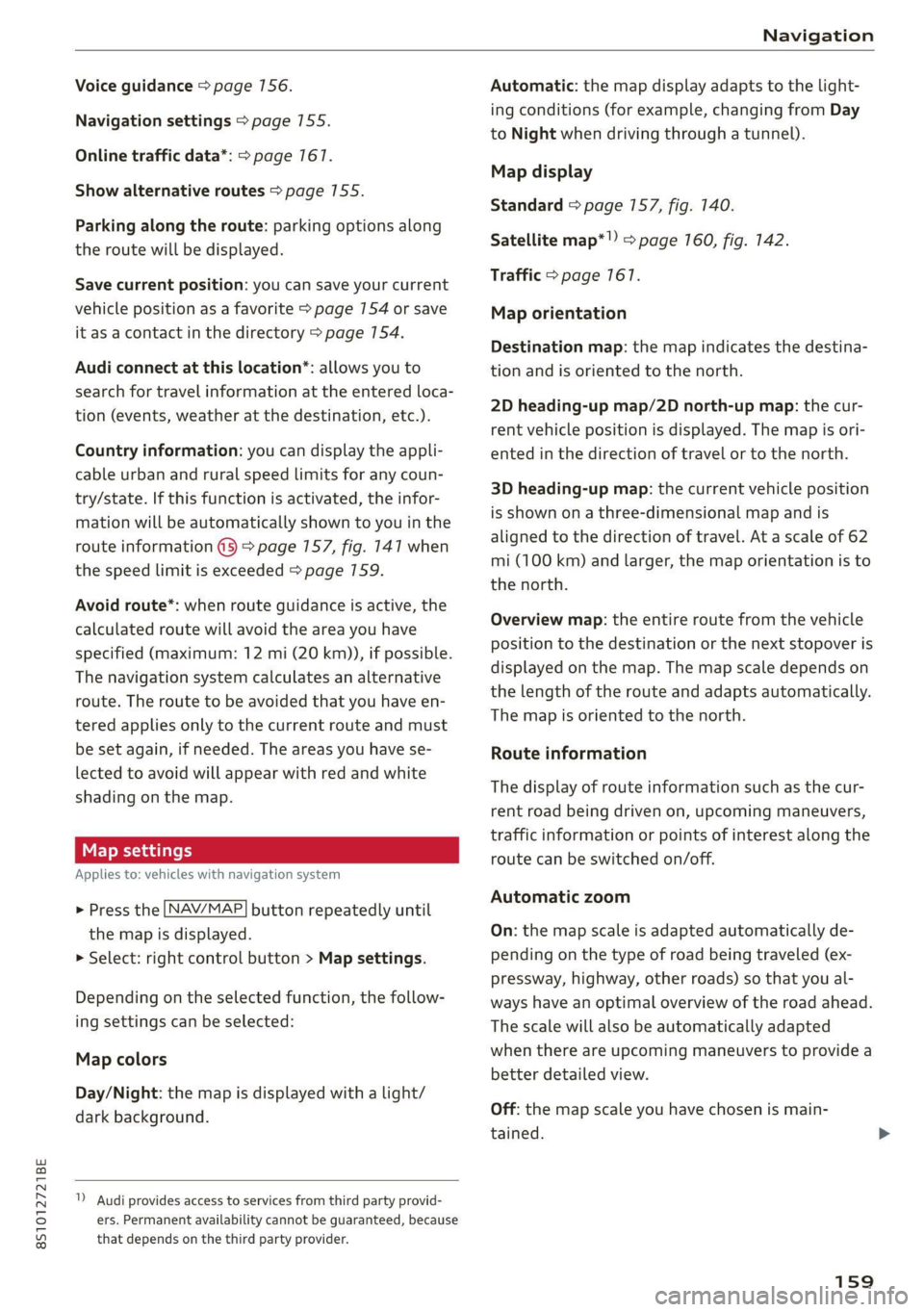
Voice guidance > page 156.
Navigation settings > page 155.
Online traffic data*: > page 167.
Show alternative routes > page 755.
Parking along the route: parking options along
the route will be displayed.
Save current position: you can save your current
vehicle position as a favorite > page 154 or save
it as a contact in the directory > page 154.
Audi connect at this location”: allows you to
search for travel information at the entered loca-
tion (events, weather at the destination, etc.).
Country information: you can display the appli-
cable urban and rural speed limits for any coun-
try/state. If this function is activated, the infor-
mation will be automatically shown to you in the
route information @3 > page 157, fig. 147 when
the speed limit is exceeded > page 7159.
Avoid route*: when route guidance is active, the
calculated route will avoid the area you have
specified (maximum: 12 mi (20 km)), if possible.
The navigation system calculates an alternative
route. The route to be avoided that you have en-
tered applies only to the current route and must
be set again, if needed. The areas you have se-
lected to avoid will appear with red and white
shading on the map.
Applies to: vehicles with navigation system
> Press the [NAV/MAP] button repeatedly until
the map is displayed.
> Select: right control button > Map settings.
Depending on the selected function, the follow-
ing settings can be selected:
Map colors
Day/Night: the map is displayed with a light/
dark background.
”) Audi provides access to services from third party provid-
ers. Permanent availability cannot be guaranteed, because
that depends on the third party provider.
Automatic: the map display adapts to the light-
ing conditions (for example, changing from Day
to Night when driving through a tunnel).
Map display
Standard > page 157, fig. 140.
Satellite map*!) > page 160, fig. 142.
Traffic > page 167.
Map orientation
Destination map: the map indicates the destina-
tion and is oriented to the north.
2D heading-up map/2D north-up map: the cur-
rent vehicle position is displayed. The map is ori-
ented in the direction of travel or to the north.
3D heading-up map: the current vehicle position
is shown on a three-dimensional map and is
aligned to the direction of travel. At a scale of 62
mi (100 km) and larger, the map orientation is to
the north.
Overview map: the entire route from the vehicle
position to the destination or the next stopover is
displayed on the map. The map scale depends on
the length of the route and adapts automatically.
The map is oriented to the north.
Route information
The display of route information such as the cur-
rent road being driven on, upcoming maneuvers,
traffic information or points of interest along the
route can be switched on/off.
Automatic zoom
On: the map scale is adapted automatically de-
pending on the type of road being traveled (ex-
pressway, highway, other roads) so that you al-
ways have an optimal overview of the road ahead.
The scale will also be automatically adapted
when there are upcoming maneuvers to provide a
better detailed view.
Off: the map scale you have chosen is main-
tained.
159
Page 162 of 280
Navigation
Map content
Map content, such as traffic information, favor-
ites or restaurants, can be displayed or hidden M.
Satellite map
Applies to: vehicles with a navigation system and Audi con-
nect Infotainment
Sir ries
W Washington Blvd 5
Los Angeles ee
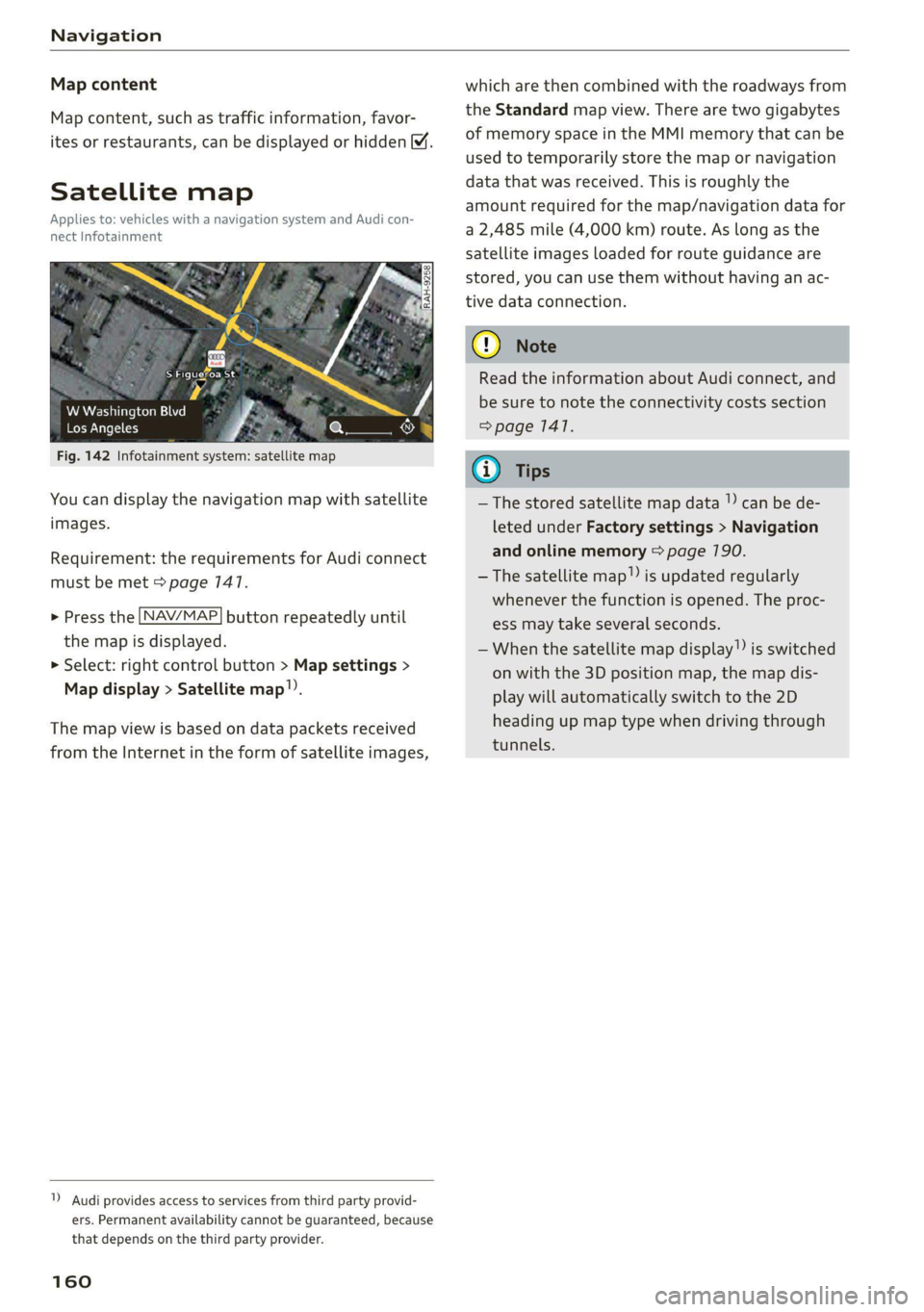
Fig. 142 Infotainment system: satellite map
You can display the navigation map with satellite
images.
Requirement: the requirements for Audi connect
must be met > page 147.
> Press the [NAV/MAP] button repeatedly until
the map is displayed.
> Select: right control button > Map settings >
Map display > Satellite map).
The map view is based on data packets received
from the Internet in the form of satellite images,
”) Audi provides access to services from third party provid-
ers. Permanent availability cannot be guaranteed, because
that depends on the third party provider.
160
which are then combined with the roadways from
the Standard map view. There are two gigabytes
of memory space in the MMI memory that can be
used to temporarily store the map or navigation
data that was received. This is roughly the
amount required for the map/navigation data for
a 2,485 mile (4,000 km) route. As long as the
satellite images loaded for route guidance are
stored, you can use them without having an ac-
tive data connection.
® Note
Read the information about Audi connect, and
be sure to note the connectivity costs section
=> page 1417.
@) Tips
—The stored satellite map data |) can be de-
leted under Factory settings > Navigation
and online memory > page 790.
—The satellite map!) is updated regularly
whenever the function is opened. The proc-
ess may take several seconds.
—When the satellite map display! is switched
on with the 3D position map, the map dis-
play will automatically switch to the 2D
heading up map type when driving through
tunnels.
Page 164 of 280
![AUDI TT 2021 Owner´s Manual Navigation
Switching the traffic map display on
For an optimum traffic information display:
NAV/MAP] button > right control button > Map
settings > Map display > Traffic.
You can al](/img/6/40287/w960_40287-163.png "AUDI TT 2021 Owner´s Manual Navigation
Switching the traffic map display on
For an optimum traffic information display:
NAV/MAP] button > right control button > Map
settings > Map display > Traffic.
You can al")
Navigation
Switching the traffic map display on
For an optimum traffic information display:
NAV/MAP] button > right control button > Map
settings > Map display > Traffic.
You can also display the online traffic information
in the satellite map*! > page 160 or the stand-
ard map > page 157, fig. 140.
@) Note
Read the information about Audi connect, and
be sure to note the connectivity costs section
=> page 1417.
G) Tips
Having the Online traffic data function
switched on provides the most accurate re-
ports of traffic situations as well as traffic
forecasting. Your vehicle transmits and proc-
esses its anonymous, encrypted position in-
formation at regular intervals to the traffic
data provider. If you do not want to use this,
you can switch off the online traffic informa-
tion function at any time.
13T-) ae-Tmcol tL)
Applies to: vehicles with a navigation system and Audi con-
nect
Infotainment
By receiving traffic information online, your MMI
calculates a better route if available and the pos-
sible time saved compared to the current route.
You can decide which route you would like to use.
Selecting a better route
Requirement: route guidance must be active and
online traffic information must be available
=>page 167
”) Audi provides access to services from third party provid-
ers. Permanent availability cannot be guaranteed, because
that depends on the third party provider.
162
> Press the [NAV/MAP] button repeatedly until
the map is displayed.
If your MMI has calculated a better route than the
current route guidance, the message A better
route is available. appears for several seconds
along with the time that may be saved. A better
route is indicated in the map view by the symbol
"3 > page 157, fig. 140.
Accept better route
> Press the right control button in the map view,
or:
> Select: left control button > Traffic messages.
The better route with the calculated arrival
time is displayed.
» Select and confirm the better route, or:
> Select and confirm Details to display details
about the better route.
> You can zoom in or out on the map using the
MMI touch control pad.
Requirement: there must be more than one opti-
mized route calculated.
> Press the control knob to switch to the next
route in the detailed view.
> Closing the detailed view: press the [BACK
button.
After you have selected a better route, the route
will be recalculated.
Page 175 of 280
8S1012721BE
Media
device. The time allowed for entering the PIN is
limited to approximately 30 seconds.
The media is started and operated through the
mobile device or the MMI, depending on the de-
vice being used.
G) Tips
— Check for any connection requests on your
Bluetooth device.
— Multiple Bluetooth audio players can be
connected to the MMI, but only one mobile
device can be active.
— Bluetooth protocols AVRCP (1.0/1.3/1.4)
and A2DP are supported.
— Note the volume setting on your Bluetooth
device. Audi recommends setting your mo-
bile device to the maximum volume when
using it as a Bluetooth audio player.
— The supported media functions (such as
shuffle) depend on the Bluetooth device be-
ing used.
—Aselection of supported Bluetooth devices
can be found in the database for tested mo-
bile devices at www.audi.com/bluetooth.
Wi-Fi audio player
Applies to: vehicles with Wi-Fi audio player
Using the Wi-Fi audio player media source on the
MMI, you can connect and operate your Wi-Fi-ca-
pable media player (such as a smartphone) to
wirelessly play music from your media player Li-
brary. The media player is connected through the
vehicle's Wi-Fi hotspot. A UPnP Server app or an
integrated UPnP/DLNA server on your media
player is required to access your media player li-
brary.
Requirement: the Wi-Fi function on your media
player must be switched on. The myAudi app or a
UPnP server app is installed on your media player,
or your media player has an integrated UPnP/
DLNA server.
Connecting a media player
> Press the [MEDIA] button.
> Press the left control button until the sources
overview > page 177 is displayed.
> Select and confirm Wi-Fi audio player (7)
=> page 177, fig. 155.
> If necessary, select and confirm Wi-Fi turned
off > Turn on Wi-Fi to activate Wi-Fi in the
MMI.
> If necessary, select and confirm Wi-Fi settings.
> Select the same settings on the wireless media
player that are used for the Wi-Fi hotspot.
Starting the Wi-Fi audio player
> Start the myAudi app or an UPnP server app, or
allow media sharing on your device.
Operating a media player
The media player is operated through the MMI.
> Press the left control button repeatedly until
the Folders menu item appears.
> Select and confirm Folders.
Playing music from a media player
> Select and confirm Media center.
Internet radio: see > page 174.
ZA\ WARNING
—As the driver, do not allow usage of the Wi-
Fi hotspot to distract you from driving, as
this could increase the risk of an accident.
—To reduce the risk of an accident, only use
Audi connect services and the Wi-Fi hotspot
only if the traffic situation permits it. Read
and follow the guidelines provided in
=> page 710, Traffic safety information.
— It is only safe to use tablets, laptops, mobile
devices and other similar devices when the
vehicle is stationary because, like all loose
objects, they could be thrown around the in-
side of the vehicle in a crash and cause seri-
ous injuries. Store these types of devices se-
curely while driving. Also read the warnings
in the chapter > page 52.
@) Note
Always follow the information found in @ in
General information on page 141.
173
>
Page 176 of 280
— The Wi-Fi connection is reconfigured when
inserting or removing the mini SIM card in
the SIM card reader*. There may be a tem-
porary interruption in audio playback, de-
pending on the media player.
— Please note that a Wi-Fi connection does
not automatically make it possible to use
the Internet. For additional information, see
=> page 1417.
— To avoid interruptions during playback, de-
activate the power saving function on the
media player or connect it to a charger.
— The loading times for the audio data depend
on the media player used and the number of
files
that it contains.
—A maximum of 2,000 entries per directory
are displayed in the MMI.
— Songs downloaded for offline use using mu-
sic streaming services are stored on your
mobile device (such as a smartphone) and
may be DRM protected. The Wi-Fi audio
player will not play DRM protected files.
— Contact an authorized Audi dealer or au-
thorized Audi Service Facility for additional
information on the Wi-Fi audio player.
Online media and
Internet radio
Applies to: vehicles with Audi connect
You can playback and operate various online me-
dia services and Internet radio using the MMI.
> Press the [MEDIA] button.
> Press the left control button until the sources
overview > page 177, fig. 155 is displayed.
Applies to: using online media and Internet radio
Requirement
— The myAudi app must be installed and open on
your mobile device.
— You must be logged into your myAudi account
in the myAudi app and you must have selected
your vehicle.
— The Wi-Fi function on the mobile device and on
the MMI must be switched on.
174
—If necessary, check in the connection manager
=> page 190 if the mobile device you connected
is selected under the MMI connect app M.
—The MMI must be connected to the network.
— The symbol for the Online media source
=> page 177, fig. 155 is shown in the MMI.
Applies to: using online media
Additional requirement
— A supported online media service must be avail-
able in the country where the vehicle is being
operated.
— You must have an account with a supported on-
line media service.
— Depending on the online media service, you
may need to install and open an app on your
mobile device.
Starting Online media
— Press the [MEDIA] button.
— Press the left control button until the sources
overview > page 177 is displayed.
— Select and confirm an online media service.
Starting Internet radio
— Press the [MEDIA] button.
— Press the left control button until the sources
overview > page 177 is displayed.
— Select and confirm Internet radio. The Internet
radio browser or the last station that was play-
ing is shown.
— Selecting the station: if necessary, select and
confirm a category in the Internet radio Brows-
er > a station.
Online media and Internet radio:: additional op-
tions
— Press the right control button.
The following options may be available, depend-
ing on the information shown (such as the sta-
tion/track that is currently playing):
— Sound settings: see > page 193.
— Wi-Fi settings: see > page 146.
— Connection manager: see > page 190.
— Additional options may be available, depending
on the active online media service or Internet
radio.
Page 177 of 280
8S1012721BE
Media
ZA WARNING
—To reduce the risk of an accident, only use
Audi connect services and the Wi-Fi hotspot
only if the traffic situation permits it. Read
and follow the guidelines provided in
=>
page 110, Traffic safety information.
— It is only safe to use tablets, laptops, mobile
devices and other similar devices when the
vehicle is stationary because, like all loose
objects, they could be thrown around the in-
side of the vehicle in a crash and cause seri-
ous injuries. Store these types of devices se-
curely while driving. Also read the warnings
in the chapter > page 52.
Multimedia connections
USB adapter for Audi music interface or
USB charging port
Applies to: vehicles with Audi music interface/USB charging
es
2
<
eg
[RAH-9203|
@) Note
Always follow the information found in >@® in
General information on page 141.
G) Tips
— Depending on the Internet connection and
network traffic, the connection may discon-
nected when online media sources are play-
ing.
— Online media and Internet radio usage de-
pends on the service availability of the third
party provider.
— Audi simply makes the access to online me-
dia services possible through the MMI and
does not take any responsibility for the con-
tent
of the online media services.
— Depending on the mobile device being used,
there may be interruptions during media
playback and when using the myAudi app.
To avoid interruptions when using a mobile
device, do not lock the screen on your mo-
bile device and keep the myAudi app in the
foreground.
— Contact an authorized Audi dealer or au-
thorized Audi Service Facility for additional
information about online media.
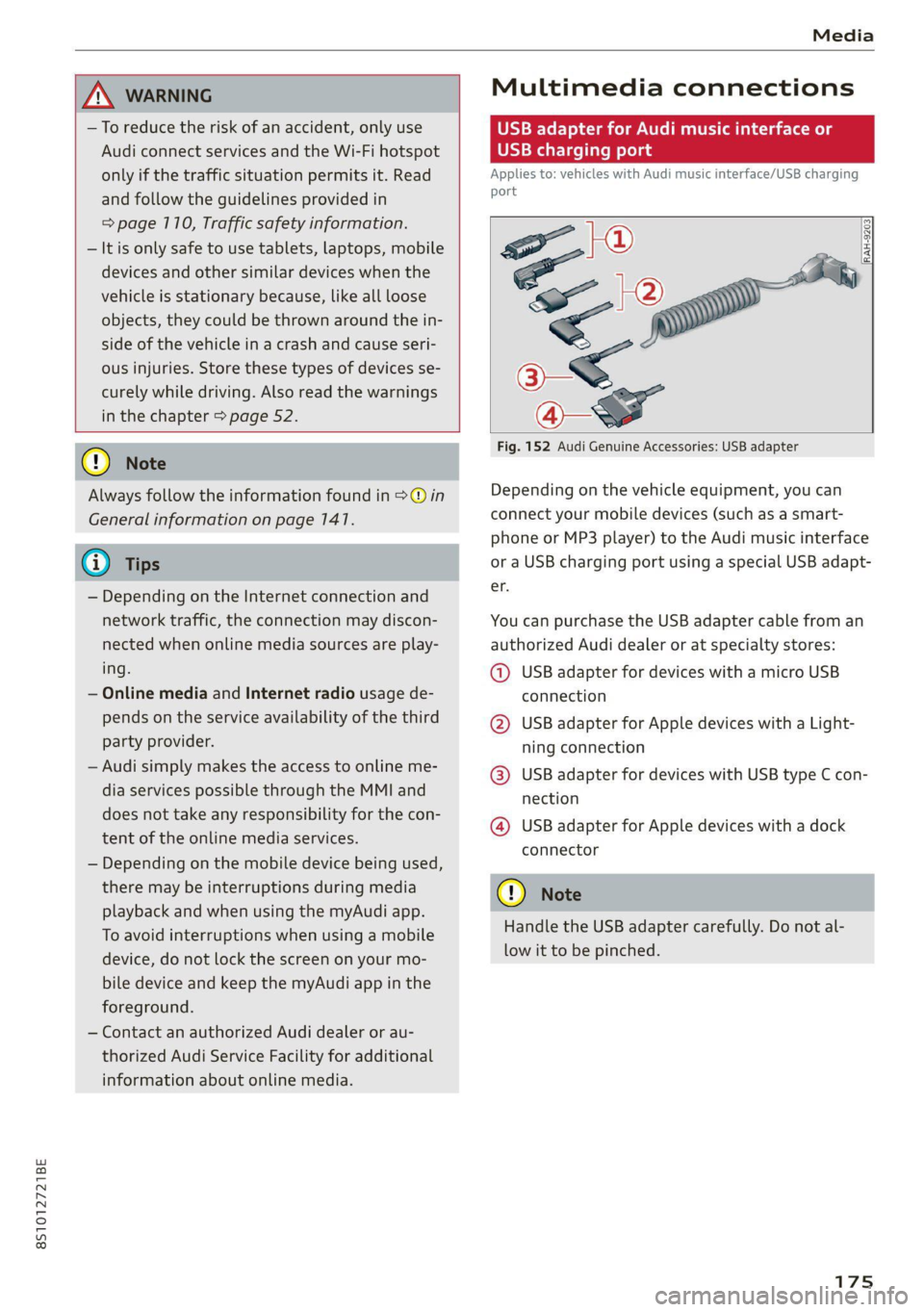
Fig. 152 Audi Genuine Accessories: USB adapter
Depending on the vehicle equipment, you can
connect your mobile devices (such as a smart-
phone or MP3 player) to the Audi music interface
or a USB charging port using a special USB adapt-
er.
You can purchase the USB adapter cable from an
authorized Audi dealer or at specialty stores:
@ USB adapter for devices with a micro USB
connection
@ USB adapter for Apple devices with a Light-
ning connection
@ USB adapter for devices with USB type C con-
nection
@ USB adapter for Apple devices with a dock
connector
C) Note
Handle the USB adapter carefully. Do not al-
low it to be pinched.
Page 180 of 280
Media
— Selecting the previous or next track/chapter
1): press the On/Off knob on the MMI control
panel briefly to the left Kd or right Do.
— Fast-forwarding and rewinding audio/video*
files: press and hold the On/Off knob on the
MMI control panel to the left Kd or right Pe for
a longer time.
— Pausing or resuming playback: press the
On/Off knob on the MMI control panel briefly.
G@) Tips
— You can scroll through long lists quickly by
turning the control knob quickly. The scroll-
ing speed depends on the number of list en-
tries.
— For safety reasons, the video image* is only
displayed when the vehicle is stationary. On-
ly the sound from the video* plays while
driving.
=e
ie
Naa a)
(4) As Albums
[ale
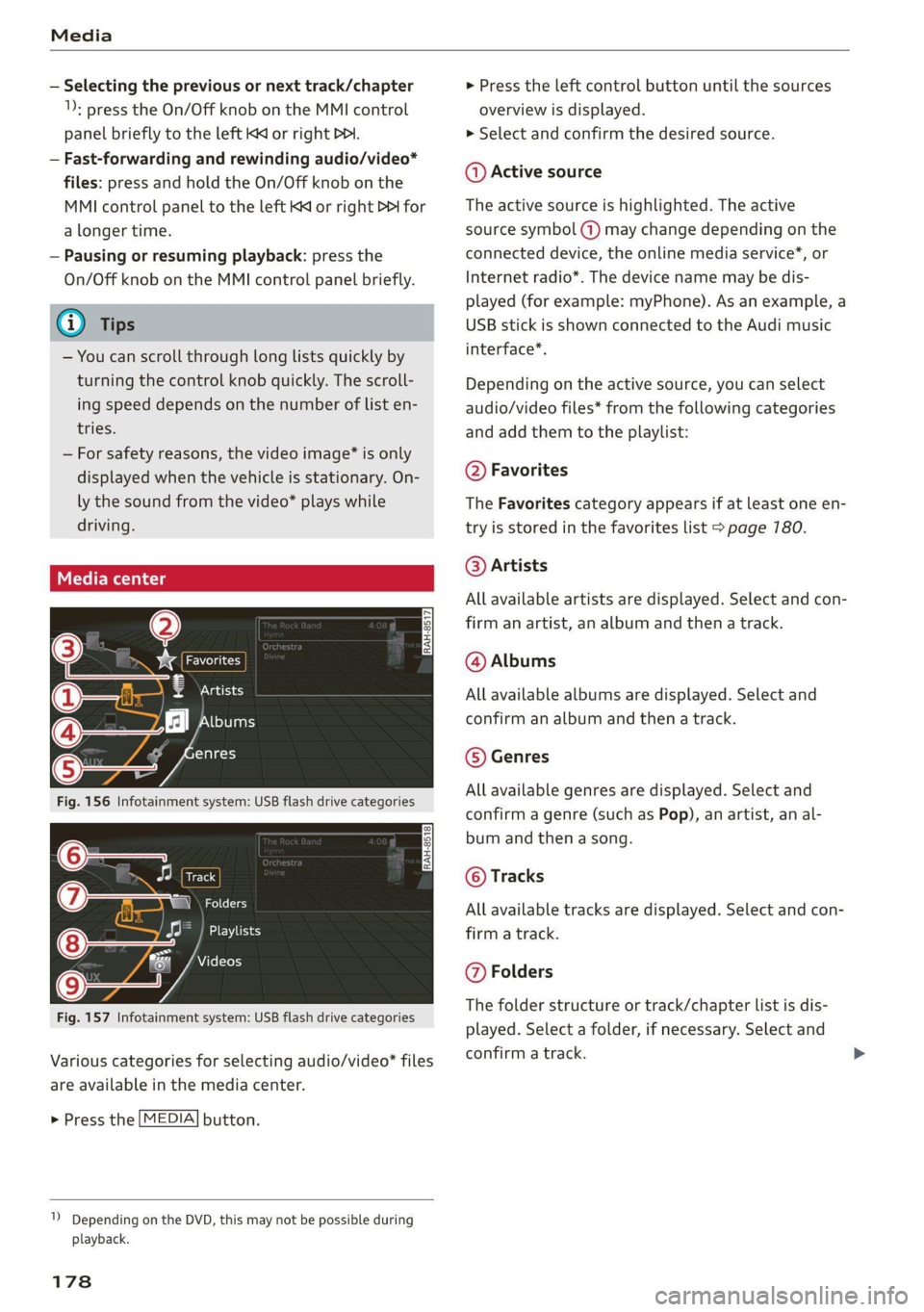
Fig. 156 Infotainment system: USB flash drive categories
i Beep
Orn oli
RAH-8518
8) apie ee
Nie (=fol-)
Fig. 157 Infotainment system: USB flash drive categories
Various categories for selecting audio/video" files
are available in the media center.
> Press the [MEDIA] button.
1) Depending on the DVD, this may not be possible during
playback.
178
> Press the left control button until the sources
overview is displayed.
> Select and confirm the desired source.
@ Active source
The active source is highlighted. The active
source symbol (a) may change depending on the
connected device, the online media service”, or
Internet radio*. The device name may be dis-
played (for example: myPhone). As an example, a
USB stick is shown connected to the Audi music
interface*.
Depending on the active source, you can select
audio/video files* from the following categories
and add them to the playlist:
@ Favorites
The Favorites category appears if at least one en-
try is stored in the favorites list > page 780.
@ Artists
All available artists are displayed. Select and con-
firm
an artist, an album and then a track.
@ Albums
All available albums are displayed. Select and
confirm an album and then a track.
© Genres
All available genres are displayed. Select and
confirm a genre (such as Pop), an artist, an al-
bum and then a song.
© Tracks
All available tracks are displayed. Select and con-
firm a track.
@ Folders
The folder structure or track/chapter list is dis-
played. Select a folder, if necessary. Select and
confirm a track.
Page 181 of 280
8S1012721BE
Media
Playlists
All available playlists from the source and the
smart playlists are displayed. Select and confirm
a playlist and then a track.
Smart playlists
— Last played tracks: the last tracks played in the
selected source are displayed.
— Most played tracks: the most played tracks in
the selected source are displayed.
— 5 stars to 1 star: tracks from the selected
source are displayed according to their rating.
— Unrated: all files from the selected source
without rating information (for example, in the
ID3 tag) are displayed.
© Videos*
All available video files are displayed. Select and
confirm a video file.
@) Tips
— Only the categories supported by the medi-
um are available. For example, CD/DVD-
ROM tracks* cannot be selected with cate-
gories such as Artists, Albums or Genres.
With an iPod (source: Audi music interface
= page 175), the Podcasts, Audio books
and Composers categories are also availa-
ble.
— For safety reasons, the video image* is only
displayed when the vehicle is stationary. On-
ly the sound from the video* plays while
driving.
— When synchronizing a portable device with
"Cloud" services, playlists may display incor-
rectly
in the MMI. Use the media center in
the device.
cme deer 1g
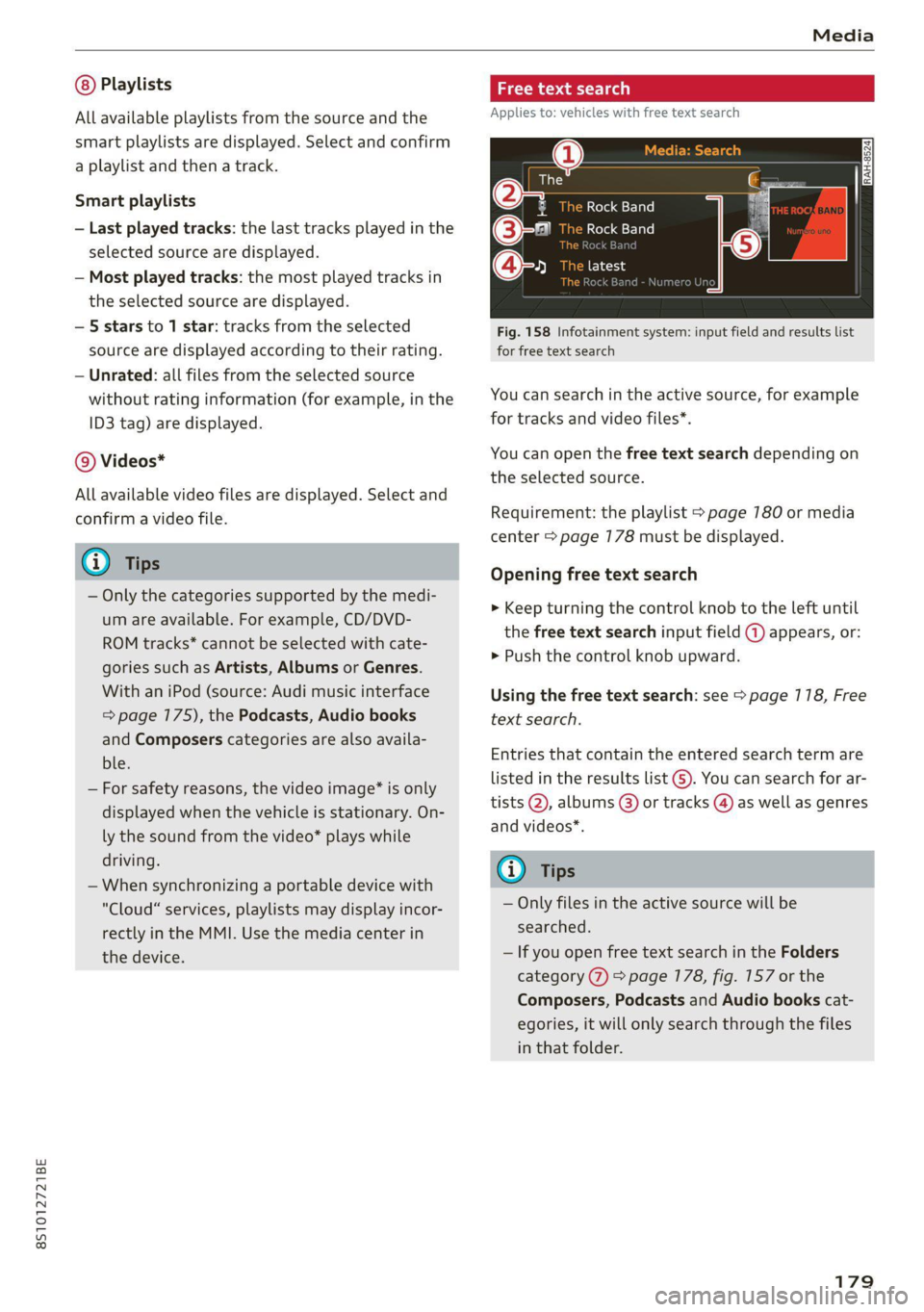
Applies to: vehicles with free text search
@
e@- Rock Band
©-" Rock Band
@-» ete
React
Fig. 158 Infotainment system: input field and results list
for free text search
Nume
You can search in the active source, for example
for tracks and video files*.
You can open the free text search depending on
the selected source.
Requirement: the playlist > page 780 or media
center > page 178 must be displayed.
Opening free text search
> Keep turning the control knob to the left until
the free text search input field @ appears, or:
> Push the control knob upward.
Using the free text search: see > page 118, Free
text search.
Entries that contain the entered search term are
listed
in the results list G). You can search for ar-
tists @, albums @) or tracks @) as well as genres
and videos*.
G) Tips
— Only files in the active source will be
searched.
— If you open free text search in the Folders
category (7) > page 178, fig. 157 or the
Composers, Podcasts and Audio books cat-
egories, it will only search through the files
in that folder.
179