reset AUDI TT COUPE 2014 User Guide
[x] Cancel search | Manufacturer: AUDI, Model Year: 2014, Model line: TT COUPE, Model: AUDI TT COUPE 2014Pages: 284, PDF Size: 34.42 MB
Page 188 of 284
Downloaded from www.Manualslib.com manuals search engine System
settings
System settings
Setting the date and
time
The time can be set manually or via CPS.
.,. Select: I MENU I button >Settings > left control
button > MMI settings > Date & time.
Set automatically
The time and date are automatically updated
when this function is switched on.
Time The Time can be set manually. The Set automati
cally function must be deactivated to do this.
Date
The Date can be set manually. The Set automati
cally function must be deactivated to do this.
Time zone
When selecting the correct time zone, a list of
corresponding countries is displayed as an exam
ple.
Automatic time zone*
When the automatic time zone option is activa
ted, the time is automatically adjusted to the rel
evant time zone.
Time format
When this option is set to 24h, for example
13:00 will be displayed as the time. When it is
set to AM/PM, for example 1:00 PM will be dis
played.
Date format
When this option is set to TT. MM.YYYY, for ex
ample 31.12.2013 will be displayed as the date.
When it is set to MM/DD /JJJJ, for example
12/31/ 2013 will be displayed. When it is set to
JJJ- MM-DD , for example 2013-12-31 will be dis
played.
MMI settings
.,. Select: I MENU I button >Settings > left control
button > MMI settings.
186 Language
You can change the language of the display along
with the language of the navigation cues* and
the speech dialogue system*.
The number of languages available depends on
the market .
Meas urem ent units
The following measurement units are available:
- Speed (km/h or mph)
- Dist ance (km or miles)
- Temperature (0
( or °F)
- Consumption (ltr/100 km, mpg (US), mpg (UK)
or km/ltr)
- Cap acity (litres, gallons)
Usage tips
Your MMI displays usage tips when this function
is switched on�. They will appear less often as
time goes by. You can switch the usage tips off at
any time.
Speech dialogue system*
Command display: The display of possible com
mands during a speech dialogue can be switched
on/off.
Short dialogue: This option can be switched on/
off. When it is activated, the spoken cues played
by the system are shortened.
Speech dialogue system volume: Turn the rotary
pushbutton to adjust the volume of the spoken
cues.
Individual speech training (only possible when
the vehicle is stationary): You can use the individ
ual speech training to adapt the speech dialogue
system to your voice or pronunciation so that the
speech dialogue system can then better recog
nise what you are saying. The individual speech
training prompts you to repeat 20 spoken phra
ses that consist of certain commands and blocks
of digits. If you would like to delete the stored
speech training setup, you can use the function
Reset speech training.
...,
Page 189 of 284
Downloaded from www.Manualslib.com manuals search engine 0
N
co
....
\D L/'l
N
L/'l
.... Factory
settings
You can reset the following functions to the fac
tory settings:
- Sound settings
-Radio
- Media settings
-Jukebox*
- Directory*
- Telephone*
- Bluetooth and Wi-Fi*
- Navigation settings*
- Navigation and online memory*
- Speech dialogue system*
- Message settings*
-Apps*
- Usage tips
- Audi connect*
You can select the desired options individually or
mark Select all entries. Select and confirm Re
store factory settings.
i Note
Please note that not only settings will be de
leted when you do this;
saved
data may also
be erased.
Connection manager
Introduction
The connection manager gives you an overview
of your connected devices and their connection
status.
.. Select: I MENU
I button
>Settings> left control
button > MMI settings > Connection manager.
If a mobile device has already been connected, its
name and connection mode is displayed under
the relevant menu item.
Telephone
- Connect new device: You can search for and
connect a mobile phone.
- List of devices already bonded: Select your mo
bile phone from the list of all devices which System
settings
have already been bonded. Or: Insert a SIM
card in the SIM card reader¢ page 126.
Data connection
Applies to vehicles: with Audi connect
- Connect new device: You can search for and
connect a mobile device (e.g. a smartphone).
- List of devices already bonded: Select your mo
bile phone from the list of all devices which
have already been bonded. Or: Insert a SIM
card in the SIM card reader¢ page 138.
MMI connect app
Applies to vehicles: with Audi connect
Important: The Audi MMI connect app must be
installed on your mobile device and have been
started.
- Connect new device: You can search for and
connect a mobile device (e.g. a smartphone).
- List of devices already bonded: Select your mo
bile device from the list of all devices which
have already been bonded.
Music
Applies to vehicles: with Bluetooth audio player or Wi-Fi au
dio player
Audio player*
Important: The Bluetooth function and the dis
coverability option of the MMI system
¢ page 188 and the mobile phone must be acti
vated.
- To connect a new device: Press the rotary push
button. Select Bluetooth audio player. Search
for and connect a new device.
- List of devices already bonded: Select a Blue
tooth device from the list of all devices which
have already been bonded.
Wi-Fi audio player*
Important: The Wi-Fi hotspot on the MMI system
¢ page 143 and your mobile phone must be acti
vated.
- To connect a new device: Press the rotary push
button. Search for and connect a Wi-Fi enabled
device. ...,.
187
Page 190 of 284
Downloaded from www.Manualslib.com manuals search engine System
settings
- To disconnect a Wi-Fi audio player: Deactivate
Wi-Fi on your Wi-Fi enabled device. The device
will be removed from the list automatically.
Directory
Important: No mobile phones are connected to
the MMI via the Bluetooth remote SIM Access
Profile or the Handsfree profile.
- Connect new device: You can search for and
connect a new mobile phone. Or: Insert a SIM
card in the SIM card reader ¢ page 126.
- List of devices already bonded: Select your mo
bile phone from the list of all mobile phones
which have already been bonded.
Further options
Further options may be available in the connec
tion manager via the right control button de
pending on the function selected.
Bluetooth settings
- Bluetooth: When this function is on �. the
Bluetooth symbol will appear on the infotain
ment display. The Bluetooth discoverability of
the MMI can be switched on/off using the set
tings visible/invisible. Devices which have al
ready been bonded can connect via Bluetooth
even when discoverability is deactivated. Once
you have connected your mobile phone, you
should switch Bluetooth to invisible to prevent
the MMI from being discovered by third parties.
You can switch the Bluetooth function off. It is
then not possible to establish a Bluetooth con
nection.
- Delete Bluetooth device: The selected mobile
phone/device is disconnected from the MMI.
- Display Bluetooth profiles: You can Connect or
Disconnect the Handsfree, Car phone and Di
rectory/contacts individually.
- Bluetooth audio player: Switch this function on
� to be able to use the Bluetooth audio player
as a source in the Media menu.
- Bluetooth name: The Bluetooth name of the
MMI system (e.g. "AUDI MMI 2613") is dis
played and can be changed.
188 Online
settings*
- Data conne ction settings: Refer to ¢ page 144,
Configuring the data connection
- Data usage meter: The number of the data
packets sent/received via the MMI system is
displayed. Select Reset data meter to reset the
usage statistics to zero.
- Connection status: The mobile network provid
er for data services and the network status are
displayed.
Wi-Fi settings*
Refer to¢ page 143, Wi-Fi hotspot.
SIM PIN settings*
- Automatic PIN entry: When this function is
switched on�, the SIM PIN is stored in the
MMI after it has been entered for the first time.
You can save the PIN codes of four different
SIM cards on the MMI. If this function is
switched off, the PIN currently stored in the
MMI will be deleted. If the automatic PIN entry
function is activated, the system does not ask
you to enter your SIM PIN explicitly.
- Deactivate PIN query: The system does not ask
for the SIM PIN when you switch it on. The au
tomatic PIN entry function is ignored in this
case.
- Change PIN: You can change the PIN code for
your SIM card. First enter the existing PIN code
for your SIM card. The SIM PIN code can only
consist of numbers from Oto 9. The new SIM
PIN code has to be entered twice, as a precau
tionary measure, and is stored on the SIM card.
Network settings*
- Registration: To dial into your service provider's
mobile network automatically or to select a
network manually from the list of available
networks.
- Network selection: You can use this function to
select the available networks for the current
position of the vehicle. This function is only
available when the manual setting is activated
for registration.
�
Page 191 of 284
Downloaded from www.Manualslib.com manuals search engine 0
N
co
....
\D U'l
N
U'l
.... (D
Note
Some SIM cards do not allow the SIM PIN
query to be deactivated.
System update .,.
Sele
ct: I M
ENU I button >Settings > left control
button > System maintenance.
- System update: Insert the storage medium
with the update data into the appropriate drive
¢ page 169. Select and confirm the appropri
ate drive> Start update. The duration of this
process depends on the size of the update.
- Reset driver installation: The media driver
package selected is reset to the factory de
faults.
- Version information: Information on the soft
ware version of the M MI and the navigation da
tabase* are displayed. In addition, you can use
the Software information function to display
information on the MMI's software and
licence
conditions.
On-board handbook
Applies to vehicles: with On-board Handbook
The On-board Handbook includes the Owner's
Manual for your
vehicle.
Installing/updating the On-board Handbook
Important: The storage medium on which the
On-board Handbook is stored must have been in
serted into the relevant drive¢ page 169.
.,. Select:
I MENU I button >Settings > left control
button > System maintenance > System up
date > SD card 1, SD card 2, CD/DVD* or USB* .
.,. Follow the directions given by the system.
Starting the Hand book
Important: The Handbook must have been instal
led previously .
.,. Select: I
MENU I button >Car> left control but-
ton > Handbo ok.
The On-board Handbook will automatically load
in the language that is set under the option Menu
language in the MMI ¢ page 186. System
settings
Using the On-board Handbook
The following functions are available when you
are operating the On-board Handbook using the
rotary pushbutton:
- Select and confirm an entry: Turn the rotary
pushbutton to the entry you require and press
the rotary pushbutton.
- Show a picture in full size: Turn the rotary
pushbutton to the desired picture and press the
rotary pushbutton.
- Call up the options menu: You can return to
the Home page, Refresh the content in the On
board Handbook, Cancel refresh of the content
and open the Index.
A WARNING
Not paying attention to the road traffic can
lead to serious accidents and loss of life. Only
use the On-board Handbook when the traffic
conditions allow you to do so safel y. You must
maintain proper control of your vehicle at all
times. As the driver, you bear the responsibili
ty for road safety.
� Note
- The On-board Handbook is not available in
all countries. Your Audi dealer will be able
to provide you with more detailed informa
tion.
- Switch off the ignition while you are instal
ling/updating the On-board Handbook.
- Please note that the On-board Handbook is
not a substitute for the printed Owner's
Manual.
189
Page 192 of 284
Downloaded from www.Manualslib.com manuals search engine System
settings
Sound settings
You can adjust the sound and volume of the MMI
individually. The settings depend on the equip
ment fitted in your vehicle.
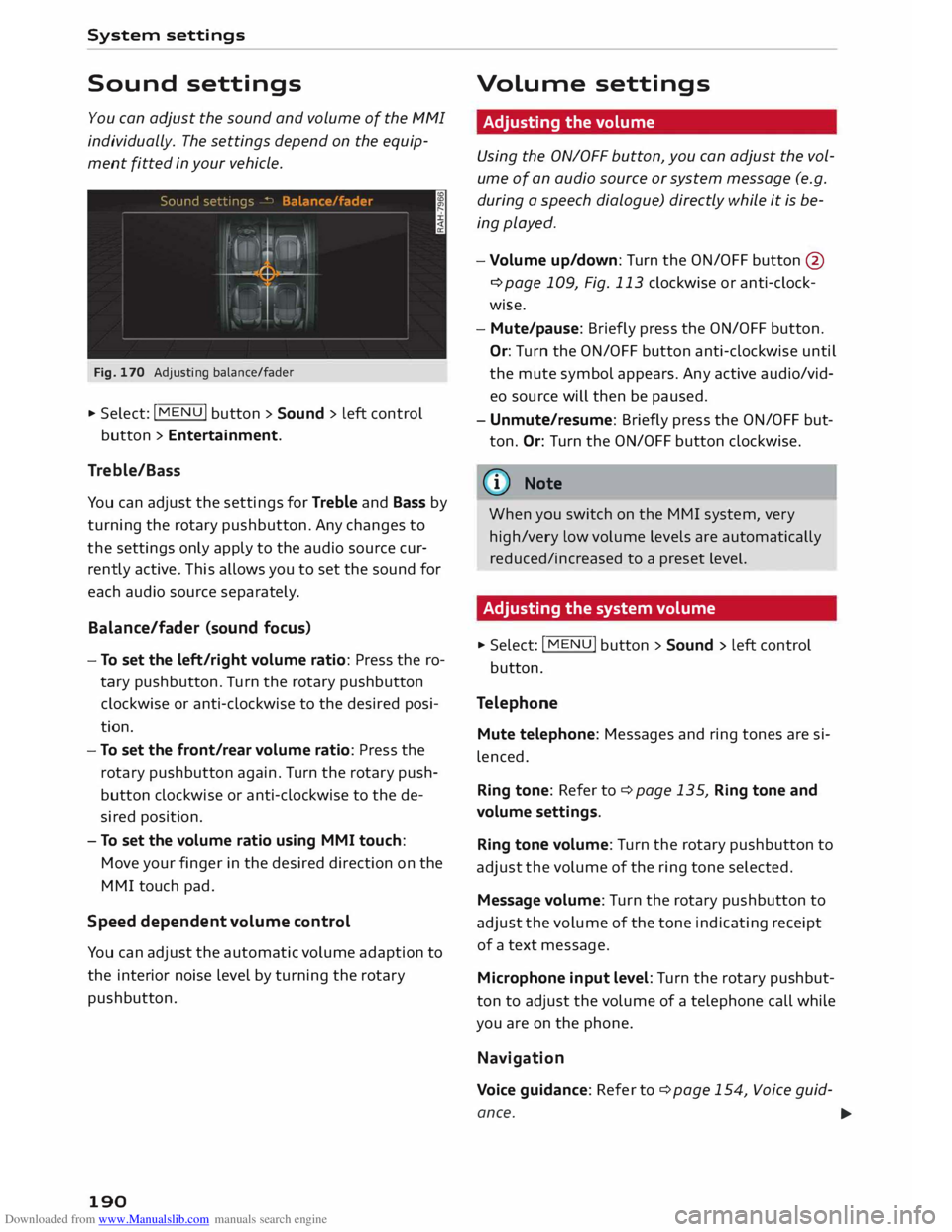
Fig. 170 Adjusting balance/fader
... Select: I MENU
I button
> Sound > Left control
button > Entertainment.
Treble/Bass
You can adjust the settings for Treble and Bass by
turning the rotary pushbutton. Any changes to
the settings only apply to the audio source cur
rently active. This allows you to set the sound for
each audio source separat ely.
Bal ance/fader (sound focus}
- To set the left/right volume ratio: Press the ro
tary pushbutton. Turn the rotary pushbutton
clockwise or anti-clockwise to the desired posi
tion.
- To set the front/rear volume ratio: Press the
rotary pushbutton again. Turn the rotary push
button clockwise or anti-clockwise to the de
sired position.
- To set the volume ratio using MMI touch:
Move your finger in the desired direction on the
MMI touch pad.
Speed dependent volume control
You can adjust the automatic volume adaption to
the interior noise level by turning the rotary
pushbutton.
190 Volume
settings
Adjusting the volume
Using the ON/OFF button, you can adjust the vol
ume of an audio source or system message (e.g.
during a speech dialogue) directly while it is be
ing played.
- Volume up/down: Turn the ON/OFF button@
¢page 109, Fig. 113 clockwise or anti-clock
wise.
- Mute/pause: Briefly press the ON/OFF button.
Or: Turn the ON/OFF button anti-clockwise until
the mute symbol appears. Any active audio/vid
eo source will then be paused .
- Unmute/resume: Briefly press the ON/OFF but
ton. Or: Turn the ON/OFF button clockwise.
� Note When you switch on the MMI system, very
high/very Low volume Levels are automatically
reduced/increased to a preset Level.
Adjusting the system volume
... Select: I MENU
! button > Sound > Left control
button.
Telephone Mute telephone: Messages and ring tones are si
lenced.
Ring tone: Refer to¢ page 135, Ring tone and
volume settings.
Ring tone volume: Turn the rotary pushbutton to
adjust the volume of the ring tone selected.
Message volume: Turn the rotary pushbutton to
adjust the volume of the tone indicating receipt
of a text message.
Microphone input level: Turn the rotary pushbut
ton to adjust the volume of a telephone call while
you are on the phone.
Navigation
Voice guidance: Refer to¢ page 154, Voice guid-
ance. ...,.
Page 193 of 284
Downloaded from www.Manualslib.com manuals search engine 0
N
co
....
\D U'l
N
U'l
.... Voice
guidance during calls: Refer to
¢ page 154, Voice guidance.
Volume of spoken cues: Turn the rotary pushbut
ton to adjust the volume of the spoken cues while
route guidance is active.
Entertainment fader: This option allows the vol
ume of the current audio source to be temporari
ly reduced when the parking aid is active or while
a navigation cue is being played.
Announcements
Traffic announcements: Refer to¢ page 164.
DAB announcements*: Refer to ¢ page 164.
Volume of announcements: You can adjust the
volume of a traffic announcement by turning the
rotary pushbutton.
Speech dialogue system
Short dialogue: This option can be switched on/
off. When it is activated, the spoken cues played
by the syste m are shortened.
Speech dialogue system volume: Turn the rotary
pushbutton to adjust the volume of the spoken
cues.
Parking aid
Turn the rotary pushbutton to adjust the volume
of the beeps.
MMI touch
Turn the rotary pushbutton to adjust the volume
of the MMI touch's spoken cues.
Audi heartbeat
Turn the rotary pushbutton to adjust the volume
of the Audi heartbeat. System
settings
Restarting the MMI
system (Reset)
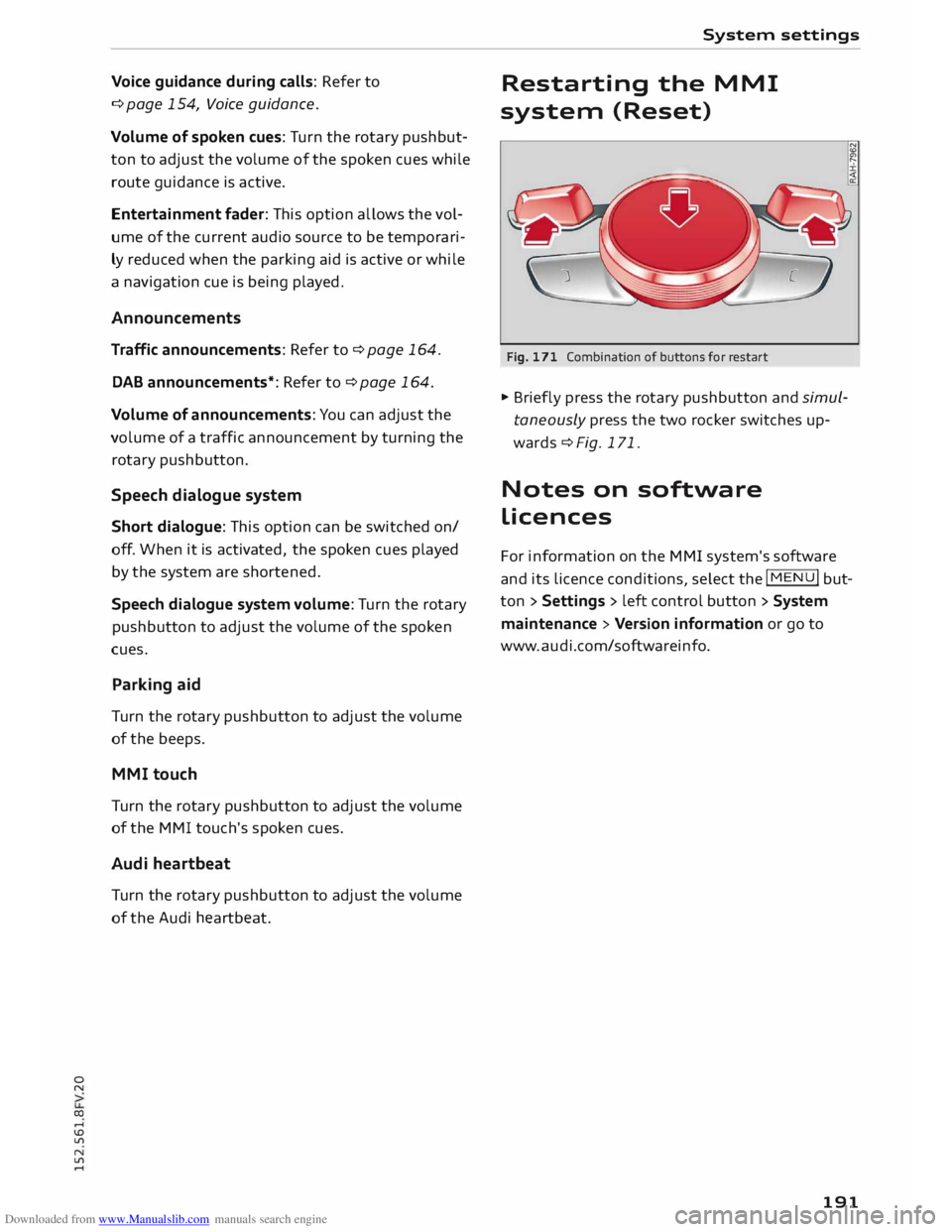
Fig. 171 Combination of buttons for restart
� Briefly press the rotary pushbutton and simul
taneously press the two rocker switches up
wards¢ Fig. 171.
Notes on software
licences
For information on the MMI system's software
and its Licence conditions, select the
I MENU
I but
ton > Settings > left control button > System
maintenance > Version information or go to
www.audi.com/softwareinfo.
191
Page 228 of 284
Downloaded from www.Manualslib.com manuals search engine Checking
and topping up fluids
Brake fluid
&
8cm DOT 4 0
0
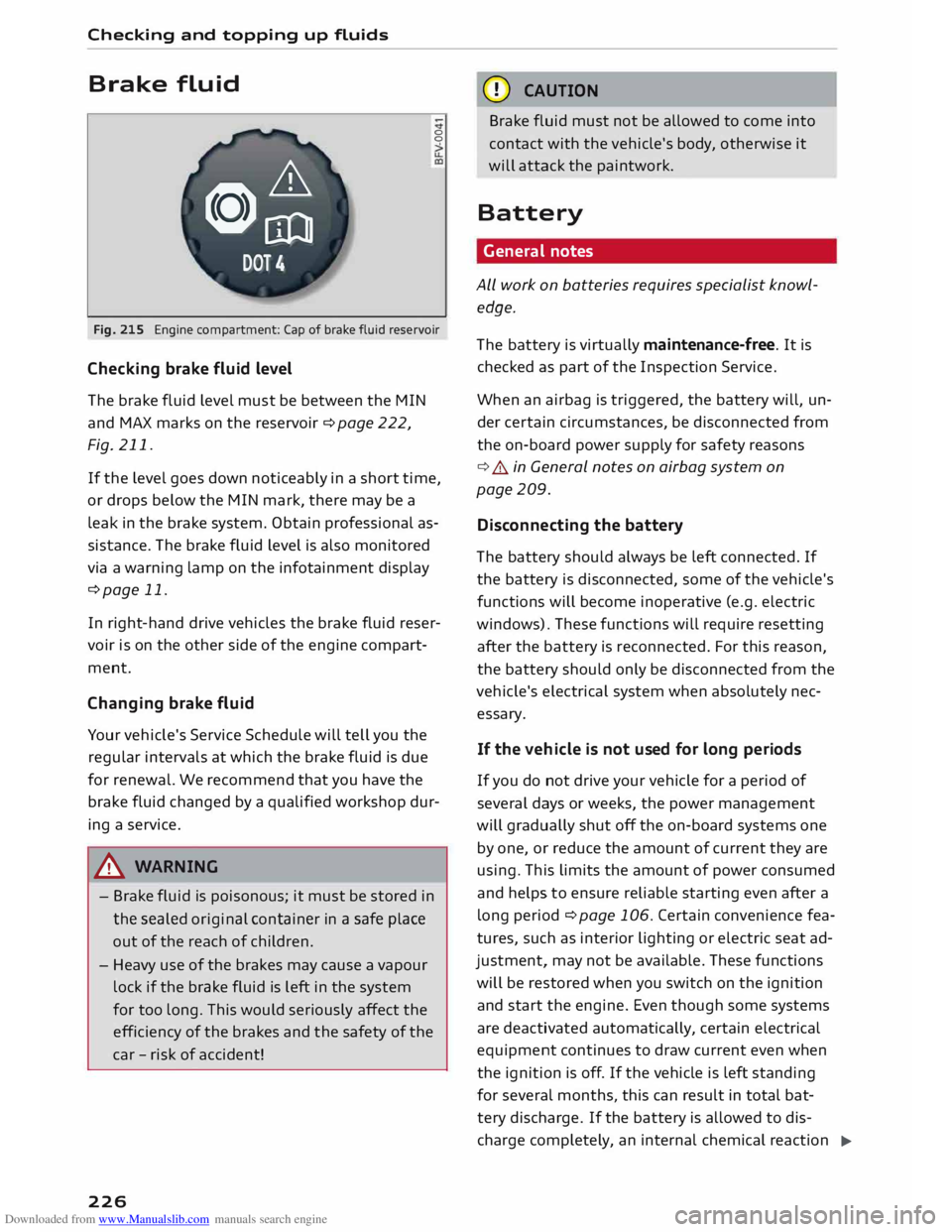
Fig. 215 Engine compartment: Cap of brake fluid reservoir
Checking brake fluid level
The brake fluid Level must be between the MIN
and MAX marks on the reservoir ¢ page 222,
Fig. 211.
If the Level goes down noticeably in a short time,
or drops below the MIN mark, there may be a
Leak in the brake system. Obtain professional as
sistance. The brake fluid Level is also monitored
via a warning Lamp on the infotainment display
¢page 11.
In right-hand drive vehicles the brake fluid reser
voir is on the other side of the engine compart
ment.
Changing brake fluid
Your vehicle's Service Schedule will tell you the
regular intervals at which the brake fluid is due
for renewal. We recommend that you have the
brake fluid changed by a qualified workshop dur
ing a service.
A WARNING
- Brake fluid is poisonous; it must be stored in
the sealed original container in a safe place
out of the reach of children.
- Heavy use of the brakes may cause a vapour
Lock if the brake fluid is left in the system
for too Long. This would seriously affect the
efficiency of the brakes and the safety of the
car -risk of accident!
226 CD
CAUTION
Brake fluid must not be allowed to come into
contact with the vehicle's body, otherwise it
will attack the paintwork.
Battery General notes
ALL work on batteries requires specialist knowl
edge.
The battery is virtually maintenance-free. It is
checked as part of the Inspection Service.
When an airbag is triggered, the battery will, un
der certain circumstances, be disconnected from
the on-board power supply for safety reasons
¢ .&.. in General notes on airbag system on
page 209.
Disconnecting the battery
The battery should always be Left connected. If
the battery is disconnected, some of the vehicle's
functions will become inoperative (e.g. electric
windows). These functions will require resetting
after the battery is reconnected. For this reason,
the battery should only be disconnected from the
vehicle's electrical system when absolutely nec
essary.
If the vehi cle is not used for long periods
If you do not drive your vehicle for a period of
several days or weeks, the power management
will gradually shut off the on-board systems one
by one, or reduce the amount of current they are
using. This Limits the amount of power consumed
and helps to ensure reliable starting even after a
Long period ¢ page 106. Certain convenience fea
tures, such as interior Lighting or electric seat ad
justment, may not be available. These functions
will be restored when you switch on the ignition
and start the engine. Even though some systems
are deactivated automatically, certain electrical
equipment continues to draw current even when
the ignition is off. If the vehicle is Left standing
for several months, this can result in total bat-
tery discharge. If the battery is allowed to dis
charge completely, an internal chemical reaction
..,_
Page 232 of 284
Downloaded from www.Manualslib.com manuals search engine Checking
and topping up fluids
- Inspection or oil change reminder: After acer
tain mileage, a service reminder will appear on
the infotainment display each time the ignition
is switched on/off¢ Fig. 218. The distance or
time remaining will be shown briefly.
- Inspection or oil change due: When your vehi
cle is due for an inspection, oil change or both,
the corresponding reminder Inspection due!,
Oil change due! or Oil change and inspection
due! will appear briefly after you switch the ig
nition on/off.
Checking the service intervals
You can look up the distance and time remaining
until the next oil change and next service inspec
tion. Select the following on the infotainment
system: I MENU I button > Car > left control button
> Se rvicing & checks > Service intervals. You can
not check the service interval for the first 500 km
or so after resetting the display or when your ve
hicle is new.
CD CAUTION
- Keeping to the correct service intervals is
most important for the service life and re
sidual value of the vehicle (and especially
for the life of the engine). Services must al
ways be carried out promptly, even if the
mileage is low.
- The time until the next oil change is not
counted down if the battery is disconnec
ted. If your vehicle is out of service for an
extended period, please refer to the Service
Schedule for details of the next service
date.
230
Page 258 of 284
Downloaded from www.Manualslib.com manuals search engine Fuses
and bulbs
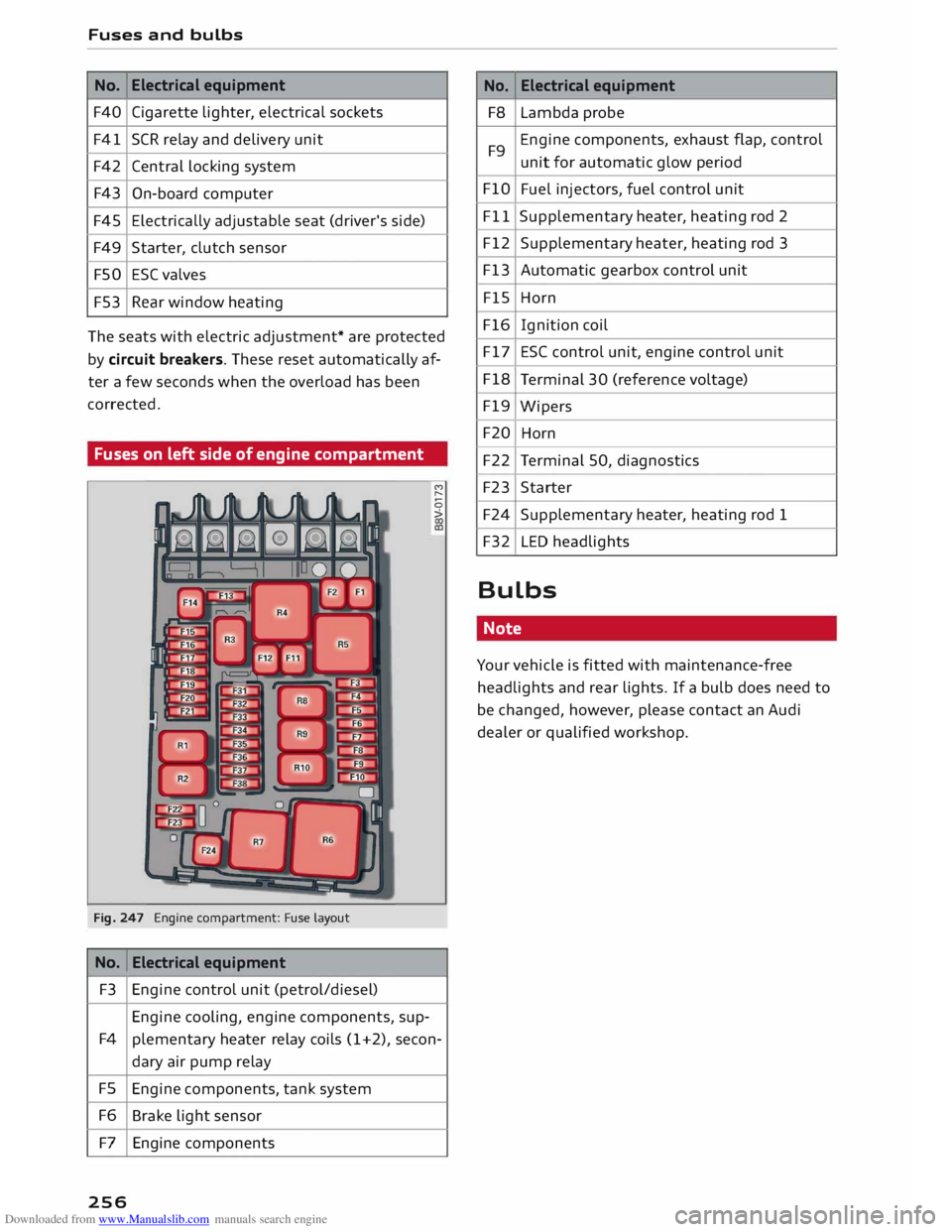
No. Electrical
equipment
F40 Cigarette lighter, electrical sockets
F41 SCR relay and delivery unit
F42 Central locking system
F43 On-board computer
F45 Electrically
adjustable seat (driver's side)
F49 Starter, clutch sensor
FSO ESC
valves
F53 Rear window heating
Th e seats with electric adjustment* are protected
by circuit breakers. These reset automatically af
ter a few seconds when the overload has been
corrected.
Fuses on left side of engine compartment
Fig. 247 Engine compartment: Fuse la
yout
No. Electrical
equipment
F3 Engine control unit (petrol/diesel)
Engine cooling, engine components, sup-M
,...,
0
>
F4 plementary heater relay coils (1+2), secon-
dary air pump relay
FS Engine components, tank system
F6 Brake light sensor
F7 Engine components
256 No.
Electrical
equipment
F8 Lambda probe
F9 Engine
components, exhaust flap, control
unit for automatic glow period
FlO Fuel injectors, fuel control unit
Fll Supplementary
heater, heating rod 2
F12 Supplementary heater, heating rod 3
F13 Automatic gearbox control unit
FlS Horn
F16 Ignition coil
F17 ESC control unit, engine control unit
F18 Terminal 30 (reference voltage)
F19 Wipers
F20 Horn
F22 Terminal 50, diagnostics
F23 Starter
F24 Supplementary heater, heating rod 1
F32 LED headlights
Bulbs Note
Your vehicle is fitted with maintenance-free
headlights and rear lights. If a bulb does need to
be changed, however, please contact an Audi
dealer or qualified workshop.
Page 268 of 284
Downloaded from www.Manualslib.com manuals search engine Index
Closing Bonnet 222
Windows ........................... 33
Coasting mode . . . . . . . . . . . . . . . . . . . . . . . .
75
Coat hooks . . . . . . . . . . . . . . . . . . . . . . . . . . .
SO
Colour code . . . . . . . . . . . . . . . . . . . . . . . . . . 257
Coming home . . . . . . . . . . . . . . . . . . . . . . . . . 40
Command (speech dialogue system) . . . . . .
116
Compact temporary spare wheel . . . . . . . . . 247
Compartments . . . . . . . . . . . . . . . . . . . . . . . . 49
Compass in mirror
Conference calling
Connecting a mobile phone 44
129
Requirements . . . . . . . . . . . . . . . . . . . 124, 137
Connection manager . . . . . . . . . . . . . . . . . .
187
Audi MMI connect app . . . . . . . . . . . . . . . .
187
Bluetooth settings . . . . . . . . . . . . . . . . . . .
188
Data connection . . . . . . . . . . . . . . . . . . . . . 187
Directory . . . . . . . . . . . . . . . . . . . . . . . . . . .
188
Music . . . . . . . . . . . . . . . . . . . . . . . . . . . . . 187
Network settings . . . . . . . . . . . . . . . . . . . .
188
Online settings . . . . . . . . . . . . . . . . . . . . . .
188
Options . . . . . . . . . . . . . . . . . . . . . . . . . . . .
188
SIM PIN settings . . . . . . . . . . . . . . . . . . . .
188
Telephone . . . . . . . . . . . . . . . . . . . . . . . . . .
187
Connections see Media drives. . . . . . . . . . . . . . . . . . . . .
168
Consumption (fuel) . . . . . . . . . . . . . . . . 22, 257
Contact Calling . . . . . . . . . . . . . . . . . . . . . . . . . . . . 133
Deleting . . . . . . . . . . . . . . . . . . . . . . . 133, 135
Editing . . . . . . . . . . . . . . . . . . . . . . . . . . . .
133
Finding . . . . . . . . . . . . . . . . . . . . . . . . . . . . 131
Greying out . . . . . . . . . . . . . . . . . . . . . . . . .
135
Having read out . . . . . . . . . . . . . . . . . . . . .
133
Importing/exporting . . . . . . . . . . . . . . . . . 133
Navigating to . . . . . . . . . . . . . . . . . . . 133, 149
Searching for . . . . . . . . . . . . . . . . . . . . . . .
132
Sending as text message . . . . . . . . . . . . . .
133
Using from another mobile phone . . . . . .
132
Contacts Favourites . . . . . . . . . . . . . . . . . . . . . . . . . . 129
Controls Multi-function steering wheel . . . . . . . . . . .
19
Controls and displays (overview) . . . . . . . . . . . 6
Controls (MMI control console) . . . . . . . . . .
109
Control units . . . . . . . . . . . . . . . . . . . . . . . . . 107
266 Convenience key
Indicator lamp . . . . . . . . . . . . . . . . . . . . . . . 62
Locking and unlocking the vehicle . . . . . . .
28
Switching off engine (START ENGINE STOP
button) . . . . . . . . . . . . . . . . . . . . . . . . . . . . . 61
Convenience open/close . . . . . . . . . . . . . . . . . 34
Cooling mode (automatic air conditioner) . . 55
Cooling mode (manual air conditioner) . . . . . 54
Cooling system
Anti-freeze . . . . . . . . . . . . . . . . . . . . . . . . . 224
Checking coolant level . . . . . . . . . . . . . . . .
225
Coolant temperature gauge . . . . . . . . . . . . . 8
Topping up coolant . . . . . . . . . . . . . . . . . . 225
Warning lamp . . . . . . . . . . . . . . . . . . . . . . . 12
Copyright Media drives . . . . . . . . . . . . . . . . . . . . . . . . 168
Cornering light . . . . . . . . . . . . . . . . . . . . . . . . 90
Country information . . . . . . . . . . . . . . . . . . . 157
Cruise control system
Adjusting stored speed . . . . . . . . . . . . . . . .
81
Pre-selecting a speed . . . . . . . . . . . . . . . . . .
81
Switching off . . . . . . . . . . . . . . . . . . . . . . . .
81
Switching on . . . . . . . . . . . . . . . . . . . . . . . . .
80
Cup holder . . . . . . . . . . . . . . . . . . . . . . . . . . . .
49
Current fuel consumption . . . . . . . . . . . . . . . 22
D
DAB (digital radio)
Data connection
Configuring ....................... .
Data connection .................... .
Data roaming ...................... .
Resetting configuration .............. .
Usage meter ....................... .
Data encryption
Data protection
Audi connect 166
144 144
144
144
188
186
146
Date . . . . . . . . . . . . . . . . . . . . . . . . . . . . . 22, 186
Daytime running Lights.. . . . . . . . . . . . . . . . . 37
Deactivatiing front passenger's airbag . . . . . 211
Defrosting (windows)
Automatic air conditioner . . . . . . . . . . . . . .
56
Manual air conditioner. . . . . . . . . . . . . . . . .
54
DEF (instrument cluster) . . . . . . . . . . . . . . . .
22