service AUDI TT COUPE 2014 Owner's Manual
[x] Cancel search | Manufacturer: AUDI, Model Year: 2014, Model line: TT COUPE, Model: AUDI TT COUPE 2014Pages: 284, PDF Size: 34.42 MB
Page 138 of 284
Downloaded from www.Manualslib.com manuals search engine Telephone
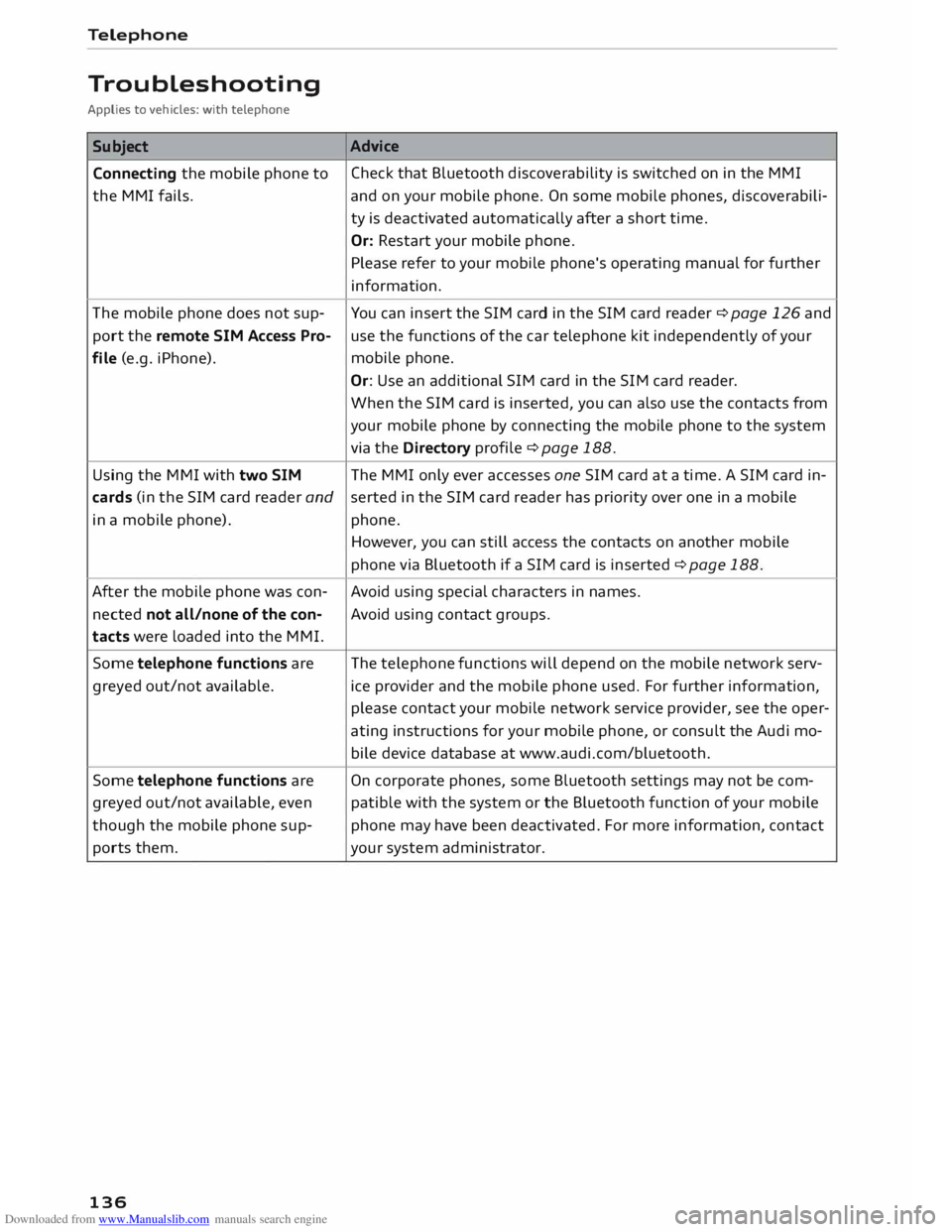
Troubleshooting
Applies to vehicles: with telephone
Subject Connecting the mobile phone to
the MMI fails.
The mobile phone does not sup
port the remote SIM Access Pro
file (e.g. iPhone).
Using the MMI with two SIM Advice
Check that Bluetooth discoverability is switched on in the MMI
and on your mobile phone. On some mobile phones, discoverabili
ty is deactivated automatically after a short time.
Or: Restart your mobile phone.
Please refer to your mobile phone's operating manual for further
information.
You can insert the SIM card in the SIM card reader ¢ page 126 and
use the functions of the car telephone kit independently of your
mobile phone.
Or: Use an additional SIM card in the SIM card reader.
When the SIM card is inserted, you can also use the contacts from
your mobile phone by connecting the mobile phone to the system
via the Directory profile¢ page 188.
The MMI only ever accesses one SIM card at a time. A SIM card in-
cards (in the SIM card reader andserted
in the SIM card reader has priority over one in a mobile
in a mobile phone). phone.
After the mobile phone was con
nected not all/none of the con
tacts were loaded into the MMI.
Some telephone functions are
greyed out/not available.
Some telephone functions are
greyed out/not available, even
though the mobile phone sup
ports them.
136 However,
you can still access the contacts on another mobile
phone via Bluetooth if a SIM card is inserted ¢ page 188.
Avoid using special characters in names.
Avoid using contact groups.
The telephone functions will depend on the mobile network serv
ice provider and the mobile phone used. For further information,
please contact your mobile network service provider, see the oper
ating instructions for your mobile phone, or consult the Audi mo
bile device database at www.audi.com/bluetooth.
On corporate phones, some Bluetooth settings may not be com
patible with the system or the Bluetooth function of your mobile
phone may have been deactivated. For more information, contact
your system administrator.
Page 139 of 284
Downloaded from www.Manualslib.com manuals search engine 0
N
co
.... Audi
connect
Introduction
Applies to vehicles: with Audi connect
Audi connect services allow on line information to
be directly transmitted and integrated into the
vehicle.
Thanks to a Wi-Fi hotspot, it is possible to use a
mobile device to access the Internet in the rear of
the vehicle during journeys or anywhere in the ve
hicle when it is stationary .
.&_ WARNING
- Only use Audi connect services when the
traffic conditions allow you to do so safely -
risk of accident! Please always observe
¢ page 192, Notes on traffic safety.
- The Audi connect services should only be
used via a Wi-Fi hotspot when the vehicle is
stationary or from the rear seats if the vehi
cle is in motion -risk of accident!
Cl) Note
Please observe the Notes on Audi co nnect
¢ page 145 before using the system.
Setting up
Before you start
An Internet connection is required in order to use
Audi connect services. You can establish a con
nection by using one of the following options:
Option 11
>
Connecting an rSAP 2
) enabled mobile phone via
Bluetooth ¢page 137
Option 2 Using a separate SIM card in the SIM card reader
¢page 138
� l
l
Not available for all countries and models
N
� 2
l
Bluetooth remote SIM Access Profile Audi
connect
Option 3l)
Using a mobile device (e.g. a smartphone) as a
personal Wi-Fi hotspot for the MMI ¢ page 139
Connecting an rSAP enabled mobile phone
via Bluetooth
Applies to vehicles: with Audi connect
<(
a:
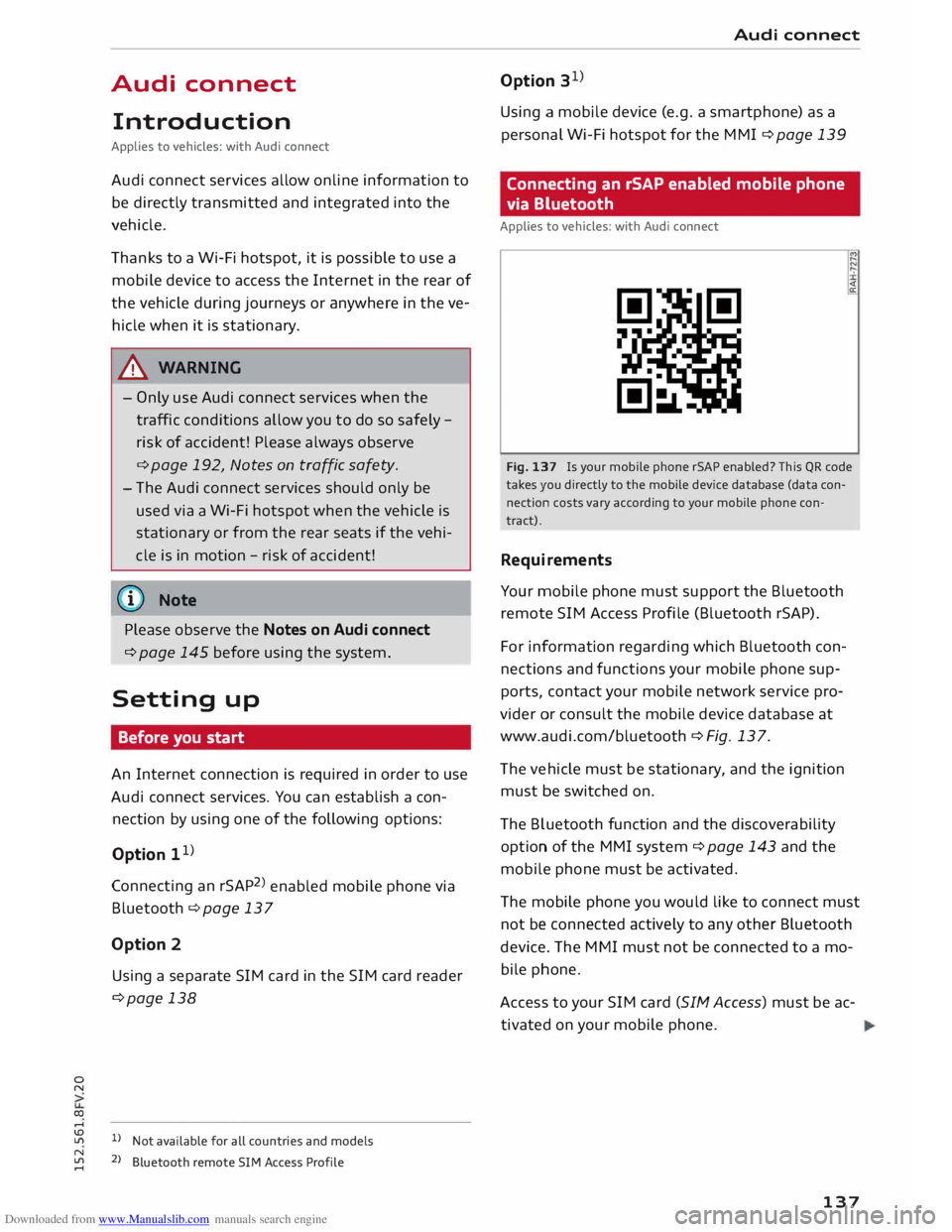
Fig. 137 Is your mobile phone rSAP enabled? This QR code
takes you directly to the mobile device database (data con
nection costs vary according to your mobile phone con
tract).
Requirements
Your mobile phone must support the Bluetooth
remote SIM Access Profile (Bluetooth rSAP).
For information regarding which Bluetooth con
nections and functions your mobile phone sup
ports, contact your mobile network service pro
vider or consult the mobile device database at
www.audi.com/bluetooth ¢ Fig. 13 7.
The vehicle must be stationary, and the ignition
must be switched on.
The Bluetooth function and the discoverability
option of the MMI system¢ page 143 and the
mobile phone must be activated.
The mobile phone you would like to connect must
not be connected actively to any other Bluetooth
device. The MMI must not be connected to a mo
bile phone.
Access to your SIM card (SIM Access) must be ac
tivated on your mobile phone.
137
Page 140 of 284
Downloaded from www.Manualslib.com manuals search engine Audi
connect
Connecting a mobile phone
"' Select: !TELi
button > Connect mobile phone>
Continue. The display will show the Bluetooth
devices available. Or: Search for the MMI sys
tem via the Bluetooth device search function on
your mobile phone.
"' Select and confirm the desired mobile phone
from the List of Bluetooth devices shown.
"' Enter the PIN to establish a connection on your
mobile phone. Or: If the PIN is already being
displayed on your mobile phone, confirm it on
the phone and in the MMI. You have about 30
seconds to enter the PIN code.
"' Then enter the PIN code for your SIM card in
the MMI.
Please note any additional system queries on
your mobile phone, e.g. whether the phone
should connect automatically in the future. On
some mobile phones, you may also need to
download the directory separately.
After connecting successfully
The signal strength bars and the Bluetooth sym
bol will appear in the status Line of the infotain
ment display after the device has been connected
success fully.
You can now use Audi connect .
.. Select: !MENU! button> Audi connect.
"' Confirm the system query of whether an Inter
net connection should be established with Al
ways accept.
«:I)) Note
- Bluetooth devices only have to be bonded
once. Depending on the mobile phone you
are using, any devices that have already
been bonded to the MMI system are connec
ted automatically when they are within
range and the ignition is on. You can bond
several mobile phones to the MMI system;
however only one connection is active at a
time.
l l
The number of possible attempts
depends
on the SIM
card.
138 -
You receive the SIM PIN code from your mo
bile network service provider together with
the SIM card. If you enter the SIM PIN code
incorrectly three times1
>
in a row, the SIM
card will be be blocked. A PUK (personal un
blocking key) must be entered in order to re
activate the SIM card.
- The Bluetooth connection between the sys
tem and the mobile phone is automatically
terminated when you Leave the car.
- For further information regarding your mo
bile phone, contact your mobile network
service provider or refer to the operating in
structions for your mobile phone. For infor
mation on using a phone in your car, please
go online (e.g. www.audi.com/bluetooth) or
ask an Audi dealer.
Using a separate SIM card
Applies to vehicles: with SIM card reader
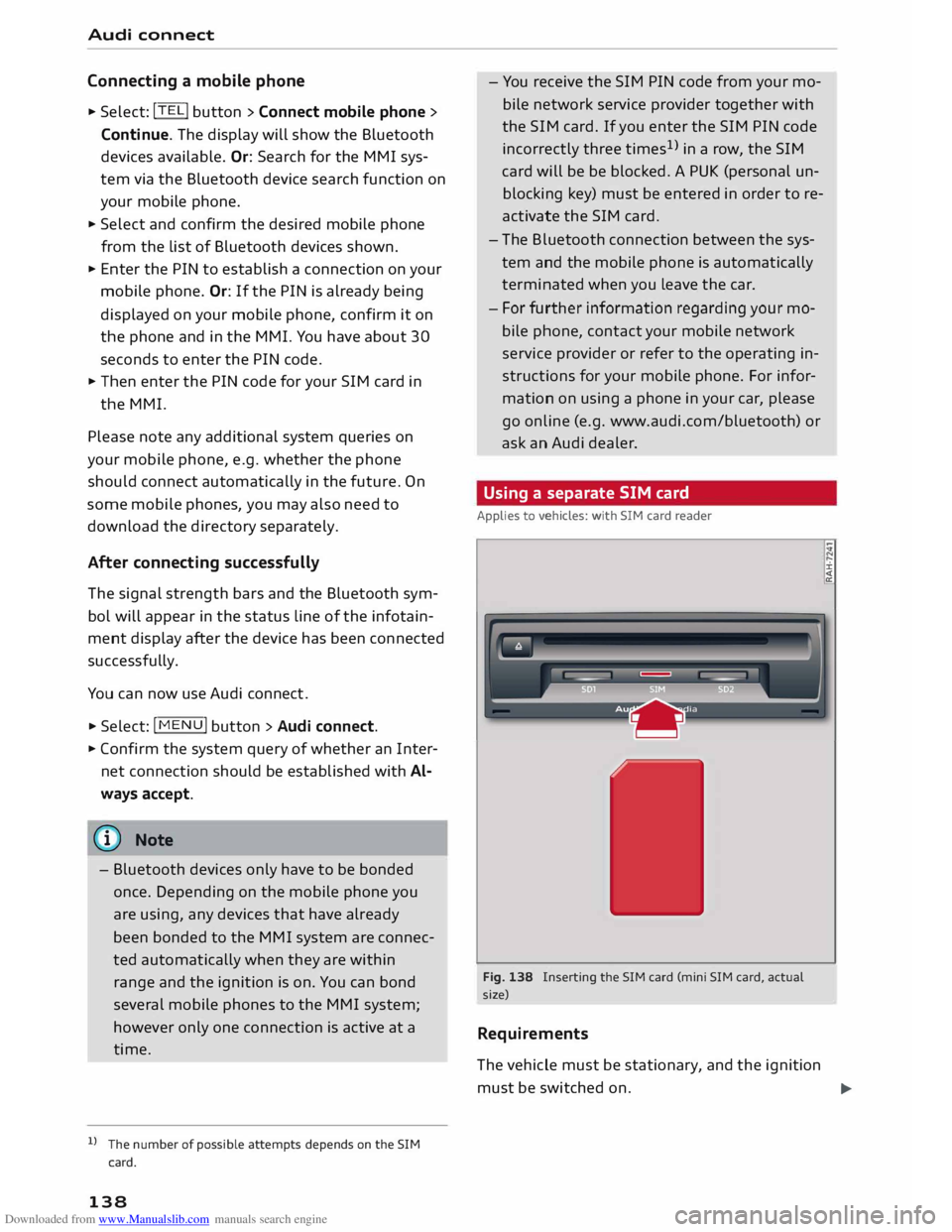
Fig. 138 Inserting the SIM card (mini SIM card, actual
size)
Requirements
The vehicle must be stationary, and the ignition ±
must be switched on.
...,
Page 141 of 284
Downloaded from www.Manualslib.com manuals search engine 0
N
co
....
\D Lfl
N
Lfl
.... Inserting
SIM card
• Press the !TELi button.
• Insert your mini SIM card (printed side facing
up, contact surface facing down) into the slot
of the card reader ¢ Fig. 138. The missing cor
ner of the SIM card should be at the front left.
Then push the SIM card into the slot until you
feel it engage.
• Enter the PIN code for your SIM card in the
MMI.
• Select and confirm OK.
• To allow the MMI to connect automatically in
the future, select and confirm Yes.
• To establish an Internet connection for Audi
connect services, confirm the prompt on the
display with Accept.
After connecting successfully
After connecting successfully, one or two signal
strength bars (depending on the connection type)
will be displayed in the status line of the infotain
ment display.
You can now use Audi connect. •Sele
ct: !M
ENU! button
> Audi connect.
• Confirm the system query of whether an Inter
net connection should be established with Al
ways accept.
Removing SIM card
• Briefly press the SIM card. The card will then
eject from the slot. Remove the SIM card.
Using a personal Wi-Fi hotspot
Applies to vehicles: with Audi connect
Requirements
Your mobile device and mobile network provider
must support the mobile Wi-Fi hotspot function.
The personal Wi-Fi hotspot on your mobile device
is activated.
Other devices must be permitted to access the
mobile hotspot.
The Wi-Fi mode hotspot and client must have
been selected in the MMI ¢page 143. Audi
connect
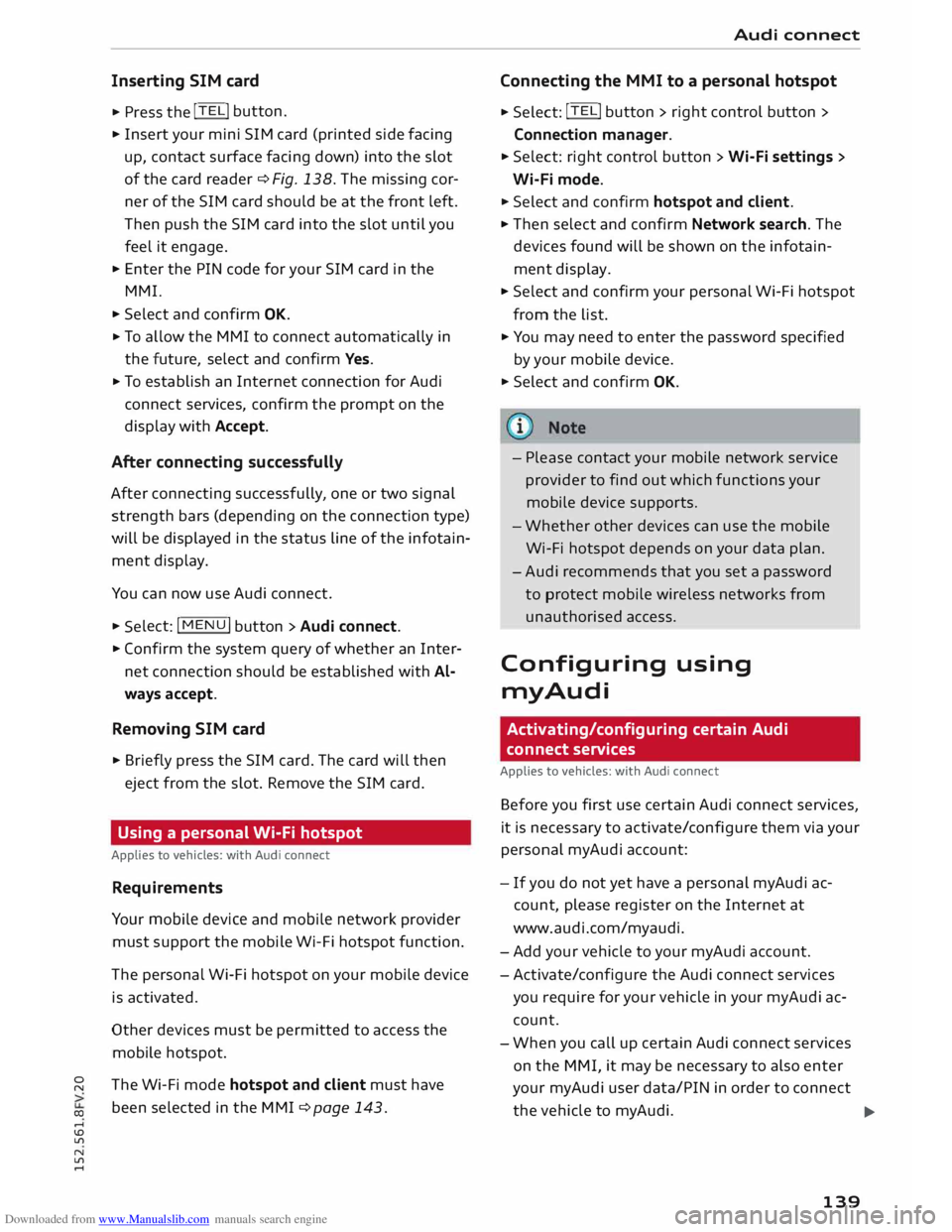
Connecting the MMI to a personal hotspot
• Select: !TELi button
> right control button >
Connection manager.
• Select: right control button > Wi-Fi settings >
Wi-Fi mode.
• Select and confirm hotspot and client.
• Then select and confirm Network search. The
devices found will be shown on the infotain
ment display.
• Select and confirm your personal Wi-Fi hotspot
from the list.
• You may need to enter the password specified
by your mobile device.
• Select and confirm OK.
- Please contact your mobile network service
provider to find out which functions your
mobile device supports.
- Whether other devices can use the mobile
Wi-Fi hotspot depends on your data plan.
- Audi recommends that you set a password
to protect mobile wireless networks from
unauthorised access.
Configuring using
myAudi
Activating/configuring certain Audi
connect services
Applies to vehicles: with Audi connect
Before you first use certain Audi connect services,
it is necessary to activate/configure them via your
personal myAudi account:
- If you do not yet have a personal my Audi ac
count, please register on the Internet at
www.audi.com/myaudi.
- Add your vehicle to your myAudi account.
- Activate/configure the Audi connect services
you require for your vehicle in your myAudi ac
count.
- When you call up certain Audi connect services
on the MMI, it may be necessary to also enter
your myAudi user data/PIN in order to connect
the vehicle to myAudi.
..,.
139
Page 142 of 284
Downloaded from www.Manualslib.com manuals search engine Audi
connect
Detailed information on configuration can be
found on the Internet at www.audi.com/myaudi.
Logging into myAudi in the vehicle
Applies to vehicles: with Audi connect
Before you use some Audi connect services (e.g.
Facebook), you will need to connect your vehicle
to your myAudi account. ""
Sele ct: !ME
NU! button
> Audi connect > right
control button > Login.
"" Enter your myAudi user data. Or: Enter your
eight-character myAudi PIN.
"" Confirm the entry with OK.
You can then use all the Audi connect services.
(©) Note
You will receive your myAudi PIN after setting
up a myAudi account. For more information,
please see www.audi.com/myaudi.
An overview of Audi
connect services
Basic functions
Applies to vehicles: with Audi connect
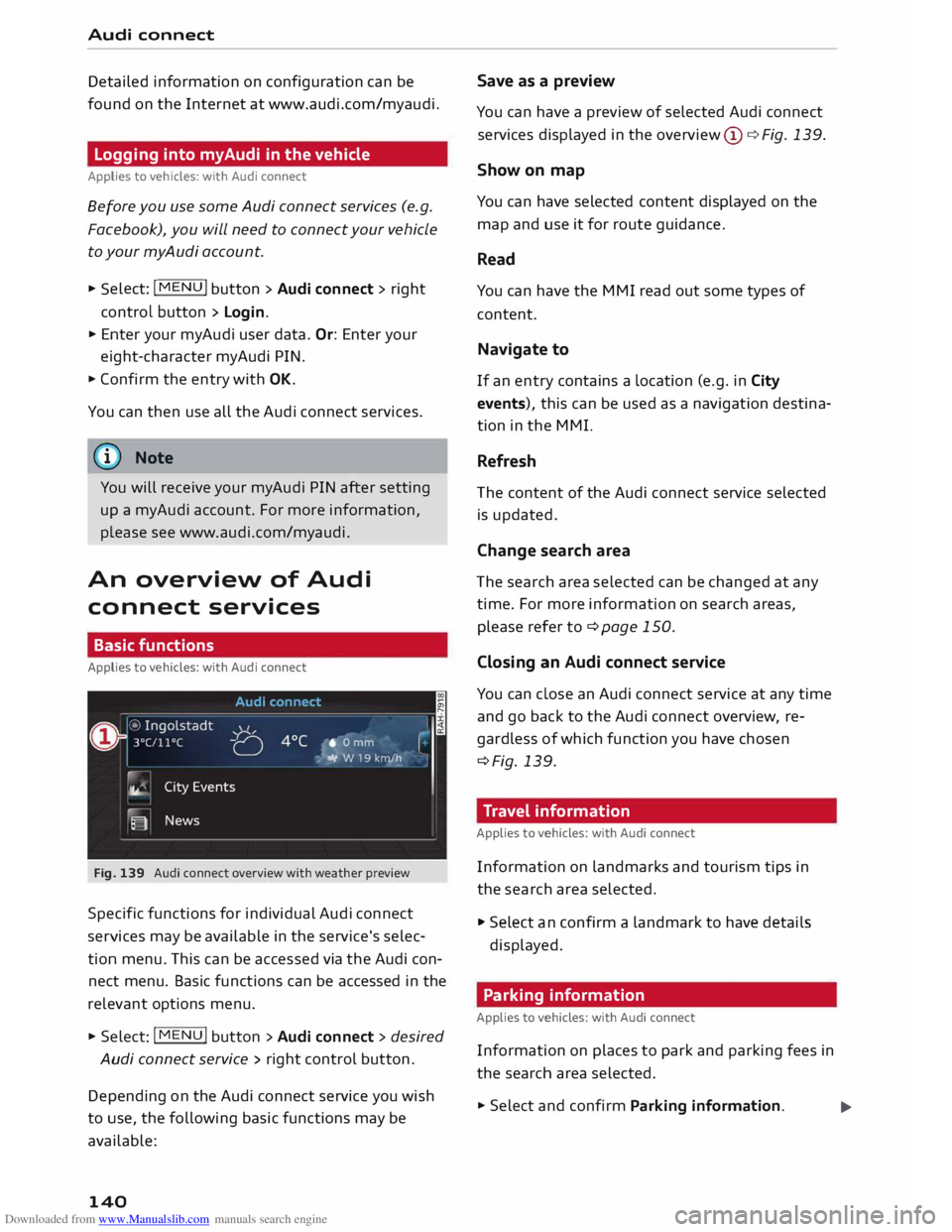
Fig. 139 Audi connect overview with weather preview
Specific functions for individual Audi connect
services may be available in the service's selec
tion menu. This can be accessed via the Audi con
nect menu. Basic functions can be accessed in the
relevant options menu.
"" Select: I MENU
I button > Audi connect > desired
Audi connect service> right control button.
Depe nding on the Audi connect service you wish
to use, the following basic functions may be
available:
140 Save
as a preview
You can have a preview of selected Audi connect
services displayed in the overview @¢ Fig. 139.
Show on map
You can have selected content displayed on the
map and use it for route guidance.
Read
You can have the MMI read out some types of
content.
Navigate to
If an entry contains a Location (e.g. in City
events), this can be used as a navigation destina
tion in the MMI.
Refresh
The content of the Audi connect service selected
is updated.
Change search area
The search area selected can be changed at any
time. For more information on search areas,
please refer to ¢page 150.
Closing an Audi connect service
You can close an Audi connect service at any time
and go back to the Audi connect overview, re
gardless of which function you have chosen
¢Fig. 139.
Travel information
Applies to vehicles: with Audi connect
Information on landmarks and tourism tips in
the search area selected.
"" Select an confirm a landmark to have details
displayed.
Parking information
Applies to vehicles: with Audi connect
Information on places to park and parking fees in
the search area selected.
""Select and confirm Parking information.
...
Page 143 of 284
Downloaded from www.Manualslib.com manuals search engine 0
N
co
....
\D U'l
N
U'l
.... You can
use the right control button to sort the
car parks by distance or by availability.
Fuel prices
Applies to vehicles: with Audi connect
Information on filling stations with the cheapest
prices for your vehicle in the search area selected.
.,.. Select and confirm Fuel prices.
You can use the right control button to sort the
fuel prices by price or by distance.
Weather
Applies to vehicles: with Audi connect
Information on the current weather and weather
forecasts for the search area selected (e.g. In im
mediate vicinity).
.,.. Select and confirm Weather.
Flight information
Applies to vehicles: with Audi connect
Information on flights and current arrival/depar
ture times in the search area selected.
.,.. Select and confirm Flight information.
You can use the right control button to select the
information you require.
Train information
Applies to vehicles: with Audi connect
Information on stations, stops and current arriv
al/departure times in the search area selected.
.,.. Select and confirm Train information.
You can use the right control button to select the
train information you require.
City events
Applies to vehicles: with Audi connect
Information on events of different categories in
the search area selected.
.,.. Select and confirm City events > left control
button > a category. Audi
connect
Online news
Applies to vehicles: with Audi connect
With this service, you can call up the latest head
lines from your preferred news providers in the
MMI.
Important: You must have subscribed to news
feeds via your myAudi account and your vehicle
must be connected to myAudi c::> page 140 .
.,.. Select
Online news> a headline.
If you have not yet subscribed to any personal
news feeds in your myAudi account, pre-con
figured news feeds will be shown.
Facebook
Applies to vehicles: with Audi connect
You can access the most important functions of
your Facebook account via the MMI.
Important: You must have a Facebook account
and your vehicle must be connected to myAudi
c::>page 140.
.,.. Select Facebook > left control button > func-
tion desired (e.g. News Feed) .
You can choose the following categories in the
Facebook menu:
- News Feed: New posts (e.g. from friends or
groups) are displayed.
- Timeline: Your Facebook timeline is displayed.
- Messages: Messages you have received are dis-
played.
- Places nearby: Places located near you (e.g .
that have been recommended by your friends)
are displayed. You can enter categories to re
strict the search further.
- Events: Events to which you have been invited
are displayed.
- Friends: All your Facebook friends are dis-
played.
Depending on the Facebook category chosen, dif
ferent Functions will be available to you:
- What's on your mind?: You can update your
Face book status with the help of ready-made
IJJJ.
141
Page 144 of 284
Downloaded from www.Manualslib.com manuals search engine Audi
connect
templates or text blocks personalised using
myAudi.
- Where are you?: You can enter your current lo
cation and make it visible to others.
{[)) Note
- Further settings (such as Account Settings
and Privacy Settings) cannot be changed in
the MMI. If you wish to change anything in
these menus, please do so on the Facebook
website itself.
- You can only connect one Facebook account
to your myAudi account.
- You can use the Internet to add personal
templates at www.audi.com/myaudi.
- Audi connect enables you to access the
Facebook service. Audi cannot guarantee
that these services will be available indefi
nitely; this is the responsibility of Facebook.
Twitter
Applies to vehicles: with Audi connect
You can access the most important functions of
your Twitter account via the MMI.
Important: You must have a Twitter account and
have connected your myAudi account to Twitter.
.. Select Twitter > left control button > function
desired (e.g. Trends).
You can choose the following categories in the
Twitter menu:
- Tweets: All the tweets you have created are lis
ted.
- Home: All the tweets from people you are fol
lowing are displayed.
- Trends: Topics currently being favoured for dis-
cussion within a particular country.
Depending on the Twitter category chosen, dif
ferent Functions will be available to you:
- New tweet: You can send a new tweet with the
help of ready-made templates or text blocks
personalised using myAudi.
- Refresh:The Twitter function selected is upda
ted.
142 -
Favourite: You can "favourite" a tweet to show
that you like it.
- Retweet: You can repost a tweet to share it
with other people.
@ Note
- Further settings (such as your account, lan
guage, Tweet privacy, and location settings)
cannot be changed in the MMI. If you wish
to change anything in these menus, please
do so on the Twitter website itself.
- You can use the Internet to add personal
templates at www.audi.com/myaudi.
- You can only connect one Twitter account to
your myAudi account.
- Audi connect enables you to access the Twit
ter service. Audi cannot guarantee that
these services will be available indefinitely;
this is the responsibility of Twitter.
Audi connect services in the navigation
system
Applies to vehicles: with navigation system and Audi connect
The following Audi connect services are currently
available:
- Navigation with Google Earth and Google
Street View ¢page 159 .
- Point of interest search (e.g. restaurants): For
planning a route via the MMI control console
¢ page 150 and the speech dialogue system
¢page 116.
- Adding a destination to your MMI via your
myAudi account or Google Maps ¢page 159.
- Online traffic information: Up-to-the-minute
reception of information on accidents, road
works and other incidents ¢page 161.
- myAudi special destinations: Your personal
special destinations can be imported to your
MMI via an SD card.
- Navigation map update service: Navigation
map updates can be imported to your MMI us
ing an SD card.
- The Audi connect service navigation map
update service using an SD card allows you
to find out which software version is
Page 145 of 284
Downloaded from www.Manualslib.com manuals search engine 0
N
co
....
\D L/'l
N
L/'l
.... installed
in your vehicle. You can then check
whether a new version is available at
www.audi.com/myaudi. You can also have
the new navigation data installed by an Audi
dealer (carries additional charges).
- For more information on the myAudi spe
cial destinations and the navigation map
update service, please see the Operating
Manual for Audi connect at www.audi.com/
myaudi.
Audi connect services for the telephone
Applies to vehicles: with Audi connect
The following Audi connect services are currently
available:
- Creating contacts on your PC via your myAudi
account and loading the contacts into the direc
tory of your MMI system ¢page 133.
Audi connect services in the media menu
Applies to vehicles: with Wi-Fi audio player and Audi connect
- Wi-Fi audio player: To access the media centre
of your player (e.g. smartphone) connected via
Wi-Fi ¢page 172. Additionally, you can use
the Audi MMI connect app to access Internet
radio programmes*.
- Online media: With assistance from the Audi
MMI connect app, this function allows you to
access and operate various online media serv
ices using the MMI.
@ Note
Please contact an Audi dealer for more infor
mation on Wi-Fi audio players and for a list of
supported devices.
Further options
Applies to vehicles: with Audi connect
.,. Select: I MENU I button > Audi connect > right
control button.
The following options are available to you in the
overview of the Audi connect services:
- Login: ¢ page 140
- Connection manager: ¢page 187 Audi
connect
- Licence periods: The validity and the time re
maining on your licences is displayed. If the Li
cence expiry warning function is switched on, a
message will be displayed before the licence ex
pires.
Wi-Fi hotspot
Applies to vehicles: with Wi-Fi hotspot
You can use your MMI system as a Wi-Fi hotspot
for connecting to the Internet on up to eight Wi
Fi devices. Small, light Wi-Fi devices that are not
permanently attached to the vehicle must only
be operated from the rear seats while the vehicle
is moving.
Impor tant: The ignition must be switched on.
.,. Select: !TEL!
button > right control button Con-
nection manager.
.,. Select:
right control button > Wi-Fi settings.
You can access the following settings in the Wi-Fi
settings menu:
Wi-Fi mode
The Wi-Fi hotspot is deactivated when the vehicle
leaves the factory. Set the Wi-Fi hotspot to hot
spot before establishing a connection between
your vehicle and your Wi-Fi device.
- hotspot: The MMI's Wi-Fi hotspot is active and
visible to other devices. It is possible to connect
to new Wi-Fi devices.
- hotspot and client: The MMI's Wi-Fi hotspot is
active. An Internet connection to a personal
Wi-Fi hotspot (e.g. smartphone) can be estab
lished. You can search for your personal hot
spot and connect to the MMI using Network
search ¢page 144 ¢page 139.
- off: The MMI system's Wi-Fi hotspot is deacti
vated. It will not be possible to establish an In
ternet connection .
Hotspot settings
The Wi-Fi connection between your vehicle and
the Wi-Fi device (laptop or mobile phone) is en
crypted. Before a connection can be established,
you must enter the following values/settings
when setting up your Wi-Fi device (these values
can be edited as required):
..,.
143
Page 146 of 284
Downloaded from www.Manualslib.com manuals search engine Audi
connect
-Access point (SSID): Name of the Wi-Fi net
work.
- Password: A random MMI password is set at
the factory. This password can be changed. The
encr yption type WPA2 requires the password to
be at Least 8 characters long. Please select a se
cure password.
- Discoverability: To switch the discoverability of
your Wi-Fi network on or off.
Network search
A list of the Wi-Fi networks available near you is
d isplayed .
.&_ WARNING
- Do not allow the features of the Wi-Fi hot
spot to distract you from watching the traf
fic -this can cause an accident.
- Laptop computers and similar devices can
only be operated safely when the vehicle is
stationar y because of their weight; any
loose objects can be catapulted through the
vehicle in an accident and cause serious inju
ries. Always make sure that such devices are
securely stowed while you are driving.
- No Wi-Fi devices may be used from the front
seats in the areas around the airbags while
the vehicle is being driven. Please also ob
serve the safety warnings in the "Airbag sys
tem" chapter under "Important safety notes
on the front airbag system" � page 210,
Front airbags.
CD CAUTION
Please note that it is your responsibility to
take precautions regarding data protection,
anti-virus protection and protection against
Loss of data on mobile devices used to con
nect to the Internet via the Wi-Fi hotspot.
Note
- You might require a separate mobile phone
contract with extra costs before you can use
the Wi-Fi hotspot. For more information,
contact your service provider.
- Depending on your mobile phone tariff, you
may be charged for receiving data packets
on line via the Wi-Fi hotspot, especially if
144 you
are using the system abroad: We
strongly recommend that you use a data flat
rate. For more information, contact your
service provider.
- For more information on Audi connect serv
ices, visit www.audi.com/connect.
Configuring the data
connection
Applies to vehicles: with Audi connect
You must configure a data connection before you
can use Audi connect services.
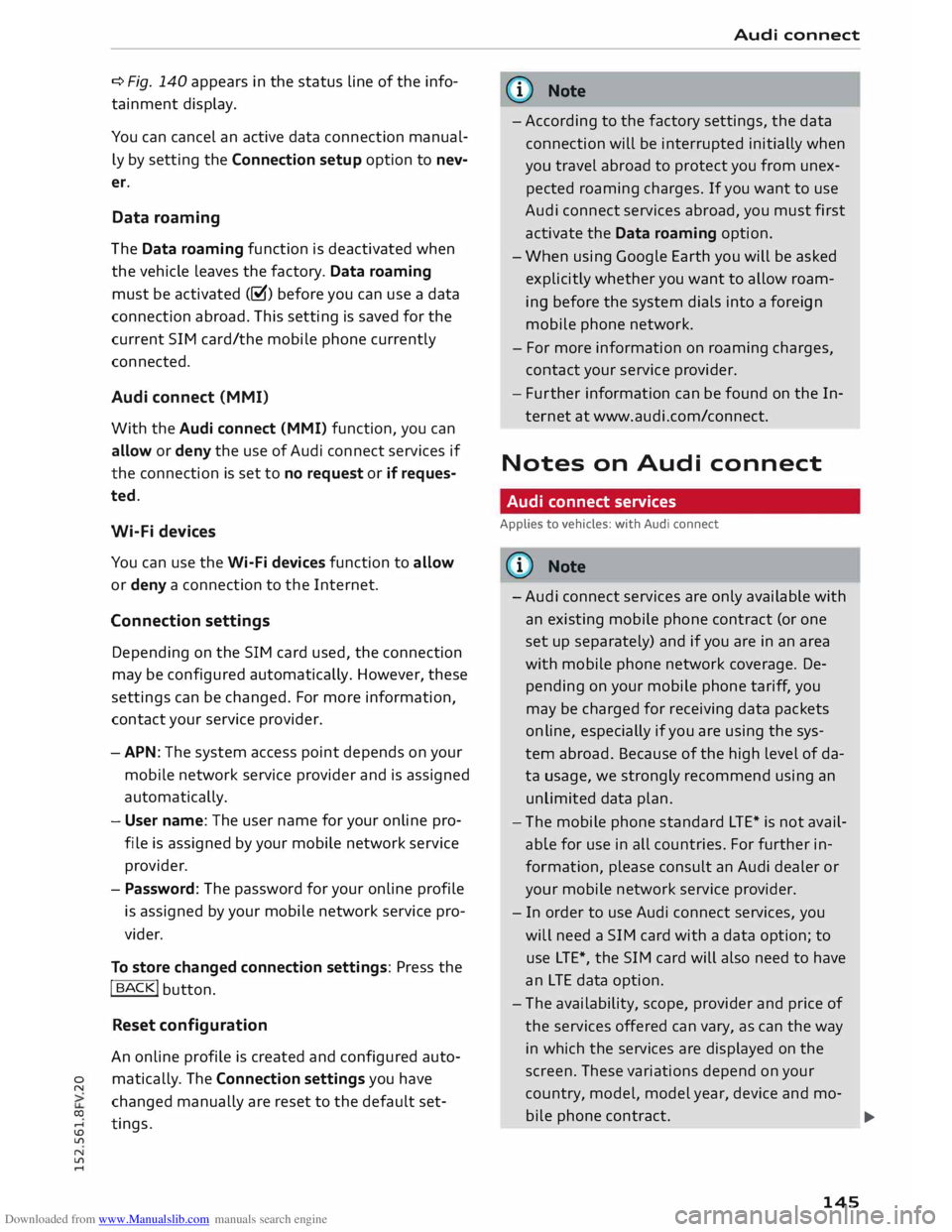
Fig. 140 Configuring data connection .,.
Selec t: !TEL! button > right control button Con
nection manager .
.,. Select:
right control button > Online settings >
Data connection settings.
You can select when you would like the system to
establish an Internet connection in the Data con
nection settings menu. The online connection is
ended automatically when a requested Audi con
nect service no Longer requires any further data.
The following options are available:
Connection setup
- if requested: A data connection will only be es
tablished on request.
- no request: A data connection will be establish
ed automatically for the use of Audi connect
services.
- never: A data connection will not be establish
ed. It is then not possible to call up Audi con
nect services.
When a data connection has been established, a
symbol indicating the active data connection @
..,.
Page 147 of 284
Downloaded from www.Manualslib.com manuals search engine 0
N
co
....
\D L/'l
N
L/'l
.... ¢
Fig. 140 appears in the status line of the info
tainment display.
You can cancel an active data connection manual
ly by setting the Connection setup option to nev
er.
Data roaming
The Data roaming function is deactivated when
the vehicle leaves the factory. Data roaming
must be activated (�) before you can use a data
connection abroad. This setting is saved for the
current SIM card/the mobile phone currently
connected.
Audi connect (MMI)
With the Audi connect {MMI) function, you can
allow or deny the use of Audi connect services if
the connection is set to no request or if reques
ted.
Wi-Fi devices
You can use the Wi-Fi devices function to allow
or deny a connection to the Internet.
Connection settings
Depending on the SIM card used, the connection
may be configured automatically. However, these
settings can be changed. For more information,
contact your service provider.
- APN: The system access point depends on your
mobile network service provider and is assigned
automatically.
- User name: The user name for your online pro
file is assigned by your mobile network service
provider.
- Password: The password for your online profile
is assigned by your mobile network service pro
vider.
To store changed connection settings: Press the
I BACK!
button.
Reset configuration
An online profile is created and configured auto
matically. The Connection settings you have
changed manually are reset to the default set
tings . Audi
connect
(D) Note
- According to the factory settings, the data
connection will be interrupted initially when
you travel abroad to protect you from unex
pected roaming charges. If you want to use
Audi connect services abroad, you must first
activate the Data roaming option.
- When using Google Earth you will be asked
explicitly whether you want to allow roam
ing before the system dials into a foreign
mobile phone network.
- For more information on roaming charges,
contact your service provider.
- Fur ther information
can
be found on the In
ternet at www.audi.com/connect.
Notes on Audi connect
Audi connect services
Applies to vehicles: with Audi connect
CD) Note
- Audi connect services are only available with
an existing mobile phone contract (or one
set up separately) and if you are in an area
with mobile phone network coverage. De
pending on your mobile phone tariff, you
may be charged for receiving data packets
on line, especially if you are using the sys
tem abroad. Because of the high level of da
ta usage, we strongly recommend using an
unlimited data
plan.
- The mobile phone standard
LTE*
is not avail
able for use in all countries. For further in
formation, please consult an Audi dealer or
your mobile network service provider.
- In order to use Audi connect services, you
will need a SIM card with a data option; to
use LTE*, the SIM card will also need to have
an LTE data option.
- The availability, scope, provider and price of
the services offered can vary, as can the way
in which the services are displayed on the
screen. These variations depend on your
country, model, model year, device and mo-
bile phone contract.
.,..
145