tow AUDI TT COUPE 2014 Owner's Manual
[x] Cancel search | Manufacturer: AUDI, Model Year: 2014, Model line: TT COUPE, Model: AUDI TT COUPE 2014Pages: 284, PDF Size: 34.42 MB
Page 111 of 284
Downloaded from www.Manualslib.com manuals search engine 0
N
co
....
\D L/'l
N
L/'l
.... Multi
Media Interface
Introduction The Multi Media Interface (MMI) combines dif
ferent communication, navigation* and enter
tainment systems in your Audi.
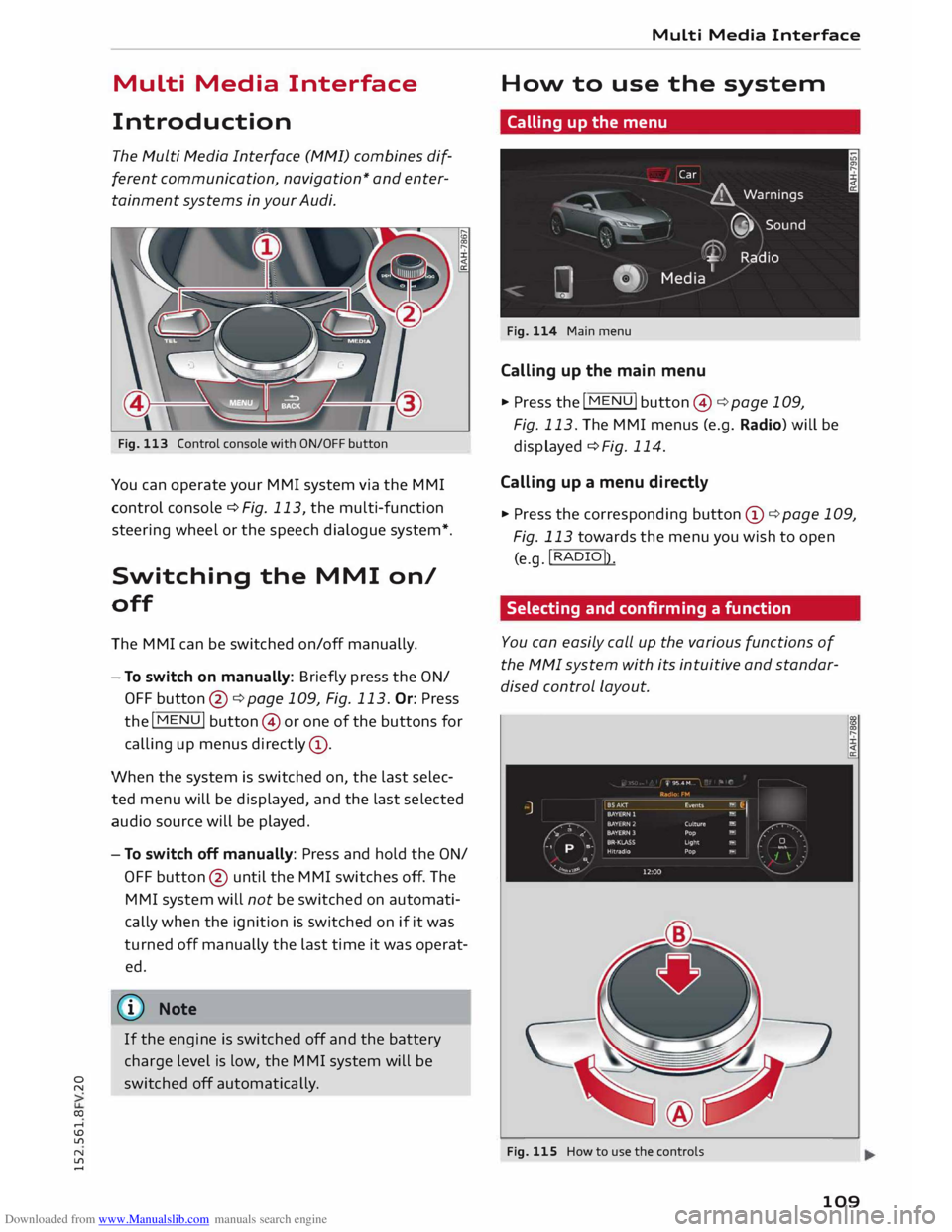
Fig. 113 Control console with ON/OFF button
You can operate your MMI system via the MMI
control console¢ Fig. 113, the multi-function
steering wheel or the speech dialogue system*.
Switching the MMI on/
off
The MMI can be switched on/off manually.
- To switch on manually: Briefly press the ON/
OFF button @¢page 109, Fig. 113. Or: Press
the I
MENU! button@or one of the buttons for
calling up menus directly (!).
When the system is switched on, the last selec
ted menu will be displayed, and the last selected
audio source will be played.
- To switch off manually: Press and hold the ON/
OFF button @ until the MMI switches off. The
MMI system will not be switched on automati
cally when the ignition is switched on if it was
turned off manually the last time it was operat
ed.
CD) Note
If the engine is switched off and the battery
charge level is low, the MMI system will be
switched off automatically. Multi
Media Interface
How to use the system
Calling up the menu
Fig. 114 Main menu
Calling up the main menu
.,. Press the I MENU! button@¢ page 109,
Fig. 113. The MMI menus (e.g. Radio) will be
displayed ¢ Fig. 114.
Calling up a menu directly
.,. Press the corresponding button CD¢ page 109,
Fig. 113 towards the menu you wish to open
(e.g. !RADIO!)
.
Selecting and confirming a function
You can easily call up the various functions of
the MMI system with its intuitive and standar
dised control Layout.
Fig. 115 How to use the controls
109
Page 117 of 284
Downloaded from www.Manualslib.com manuals search engine 0
N
co
....
\D L/'l
N
L/'l
.... •
Telephone
• Audi connect
• Navigation
• Directory
• Radio
• Media
• Sound
• Help
• Help Speech Dialogue System
• Help Telephone
• Help Audi connect
• Help Navigation
• Help Map
• Help Radio
• Help Media
• Enter
number
• Delete
number/ correct number
• Directory
• Call (XY)
• business / private / land line/ mobile
• Drive
me to (XY)
• Business address/ Private address
• Start/ stop route guidance
• Directory
• Last destinations
• Navigation
favourites
• Drive
home
• Enter
address
• Enter
country / town / street
• Exclude
route/ Exclude route for (XY) km / m
• Map
• Day map/ Night map/ Route info Speech
dialogue system
• Favourites
• Call (XY)
• Enter number
• Redial
• Read new text message
• Drive
me to (XY)
• Enter address
• Stop route guidance
• Map
• Line (XY)
• Next page/ previous page
• Cancel
• Online destinations
• No, I meant (XY)
• Correct
• Call
list
• Redial
• Call
mailbox
• Enter
PIN / delete PIN
• Telephone favourites
• Exclude
next route section / Exclude
next street
• Manual / Automatic traffic
avoidance
• Route
list
• Calculate
alternative routes
• Online destinations
• Special
destination •
• 20 driving position map/ 20 north position map/ 30 map / Destination map/ Overview map
• Audi connect
• Travel information / Parking information
• Fuel prices
• Weather
R � D IO
• Radio
favourites
• Last
stations
• FM and DAB
•FM/ DAB/ AM
• Station (XY) / Frequency (XY)
• Ensemble (XY)
• Traffic programme on I off
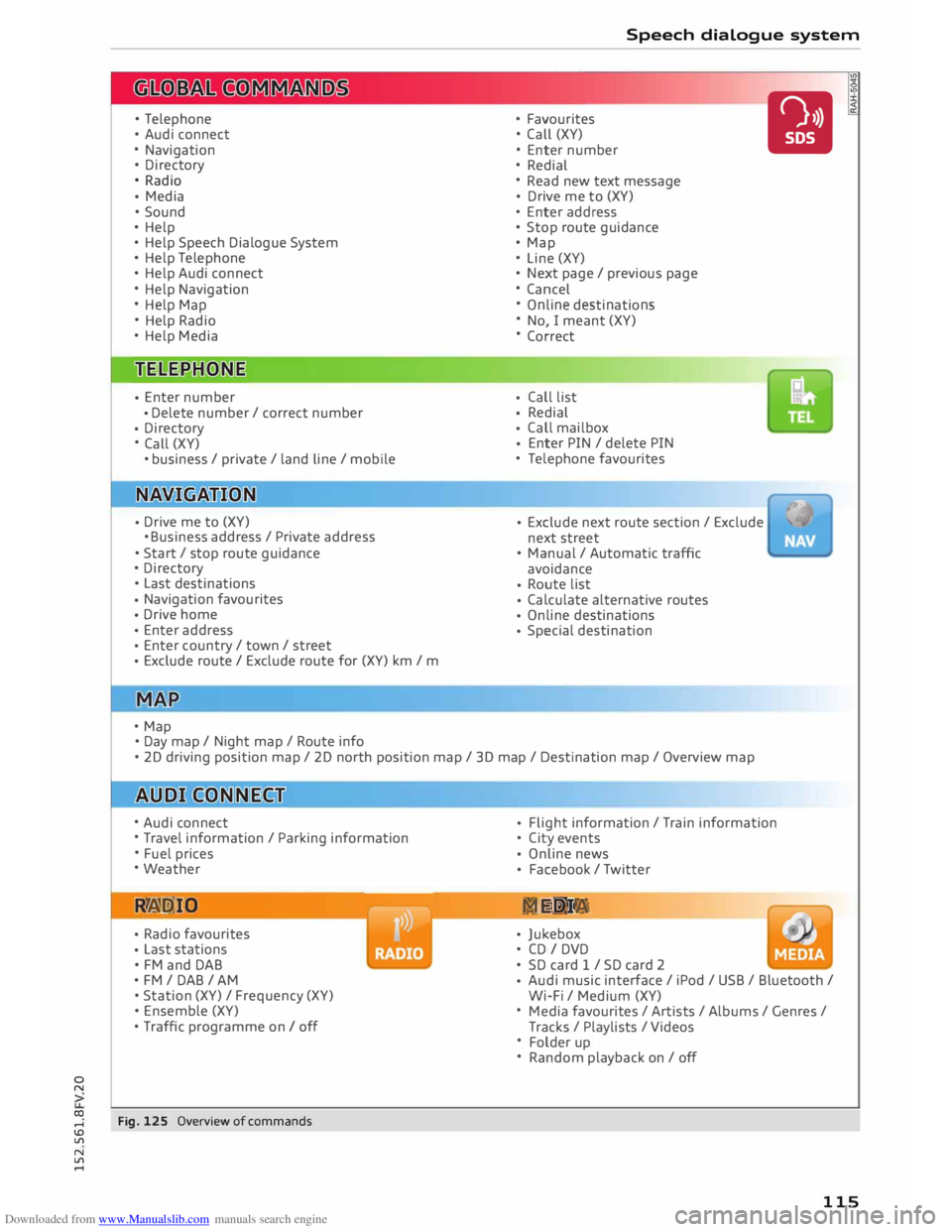
Fig. 125 Overview of commands •
Flight
information / Train information
• City events
• Online
news
• Facebook
/ Twitter
ME DIA
• Jukebox
• CD I DVD
• SD card 1 / SD card 2
• Audi
music interface / iPod / USB / Bluetooth /
Wi-Fi / Medium (XY)
• Media favourites / Artists / Albums / Genres /
Tracks / Playlists / Videos
• Folder up
• Random playback on / off
115
Page 121 of 284
Downloaded from www.Manualslib.com manuals search engine 0
N
co
....
\D L/'l
N
L/'l
.... Speech
dialogue system
� Note
Please observe the notes in the chapter Notes
on Audi connect ¢page 145.
Messages
Applies to vehicles: with speech dialogue system and Audi connect
Important: A SIM card with a messaging option
must be inserted in the control console's SIM
card reader* ¢ page 126. Or: A mobile phone with
active MAP (Message Access Profile) must be
connected to the MMI ¢ page 123.
Function
Having a new message read out
Having messages read out
{Q) Note Say:
Read new text message
Read text message
www.audi.com/bluetooth or contact an Audi
dealer.
For more information on which mobile
phones are supported, please go to
Navigation
Applies to vehicles: with speech dialogue system and navigation system
Important: The Navigation menu must be open
¢ table on page 117. You
can say the following commands to enter a
destination:
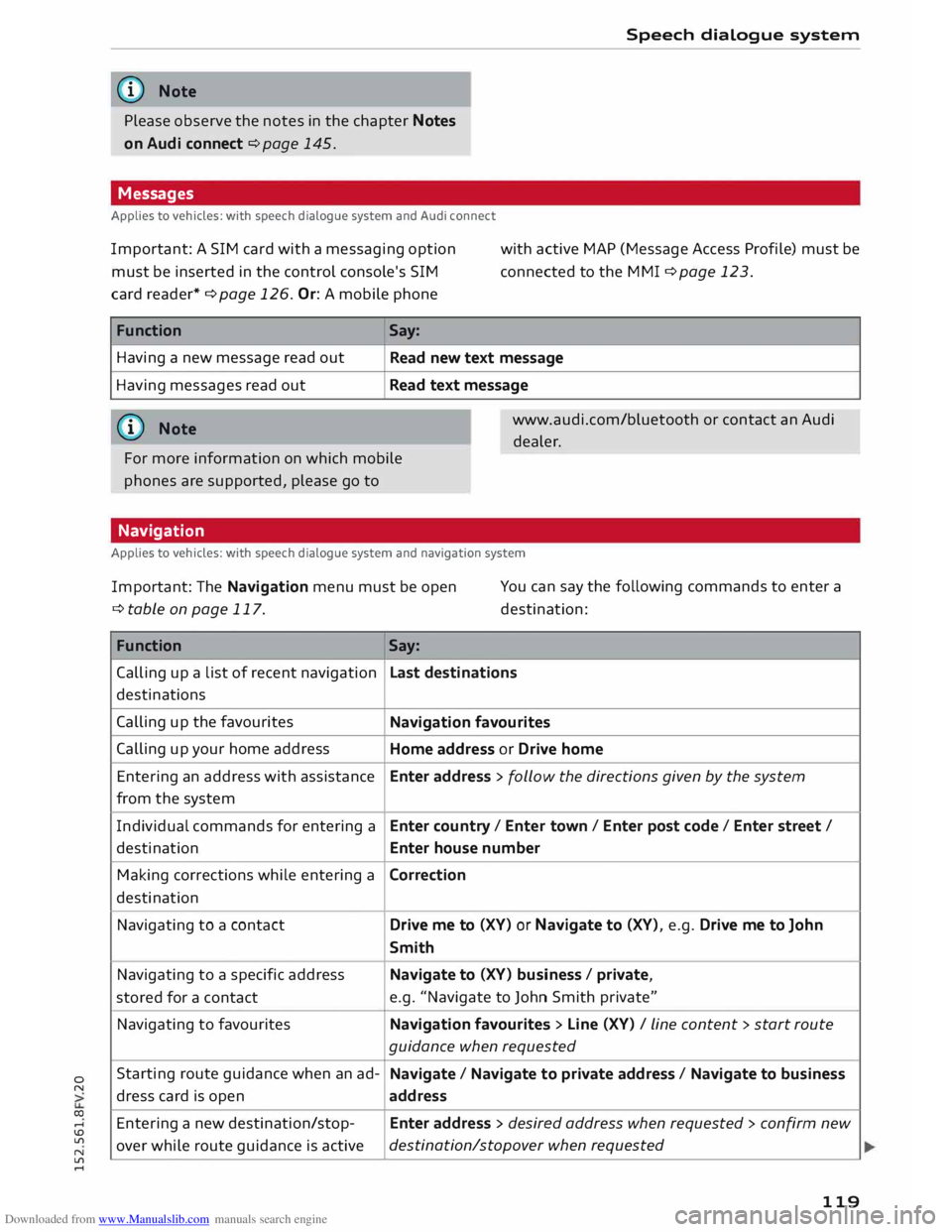
Function Say:
Calling up a list of recent navigation
Last destinations
destinations
Calling up the favourites
Navigation favourites
Calling up your home address
Home address or Drive home
Entering an address with assistance Enter
address > follow the directions given by the system
from the system
Individual commands for entering a
Enter country/ Enter town/ Enter post code/ Enter street I
destination Enter house number
Making corrections while entering a
Correction
destination
Navigating to a contact
Drive me to (XV) or Navigate to (XV), e.g. Drive me to John
Smith
Navigating to a specific address
Navigate to (XV) business / private,
stored for a contact e.g.
"Navigate to John Smith private"
Navigating to favourites
Navigation favourites> Line (XV) / line content > start route
guidance when requested
Starting route guidance when an ad-
Navigate / Navigate to private address / Navigate to business
dress card is open
address
Entering a new destination/stop-
Enter address > desired address when requested > confirm new
over while route guidance is active destination/stopover
when requested
119
Page 122 of 284
Downloaded from www.Manualslib.com manuals search engine Speech
dialogue system
Function Say:
Starting route guidance after enter-
Start route guidance
ing a destination
Cancelling the active route guidance
Stop route guidance
Calculating alternative routes
Calculate alternative routes
Entering a special destination with
Special destination > Change search area > enter desired cote-
search area with assistance from
gory or subcategory when requested, e.g. "Restaurant"
the system
Categories for entering special des-
Audi Service / Railway station/ Airport/ Hotel/ Hospital /
ti nations
Parking space/ Service area/ Restaurant/ Filling station etc.
Search areas for entering special
In immediate vicinity/ In vicinity of route / In vicinity of desti-
destinations nation/ In vicinity of stopover / In new town/ In new country
Entering an online destination* Online destination (XV), e.g. "Online destination Palace Hotel"
Correcting an entry
No, I meant (XV)
Closing the full list of commands
Close
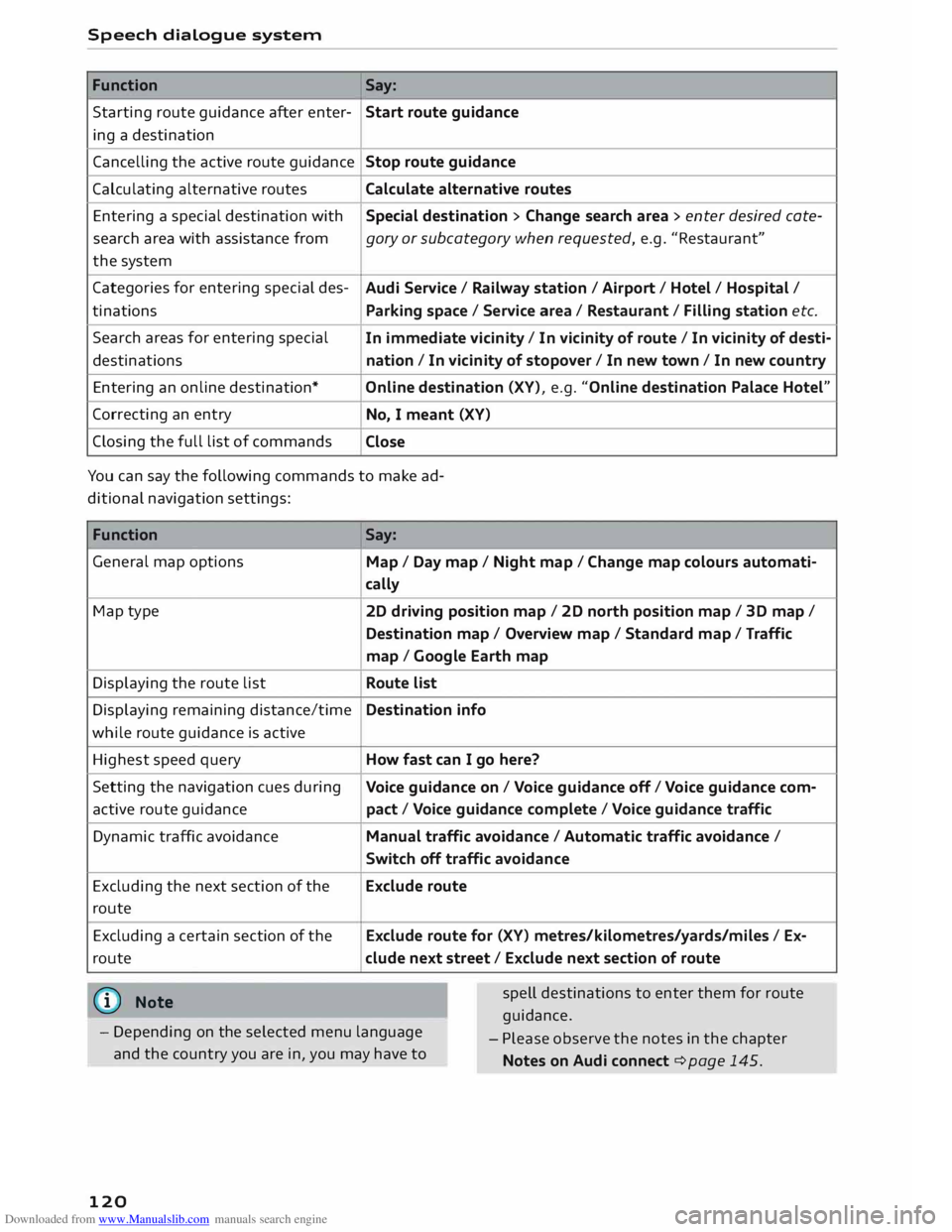
You can say the following commands to make ad
ditional navigation settings:
Function
General map options
Map type
Displaying the route list
Displaying remaining distance/time
while route guidance is active
Highest speed query
Setting the navigation cues during
active route guidance
Dynamic traffic avoidance
Excluding the next section of the
route
Excluding a certain section of the
route
(©) Note Say:
Map / Day map/ Night map/ Change map colours automati-
cally
20 driving position map/ 20 north position map/ 30 map/
Destination map/ Overview map/ Standard map/ Traffic
map / Google Earth map
Route list
Destination info
How fast can I go here?
Voice guidance on/ Voice guidance off/ Voice guidance com-
pact / Voice guidance complete/ Voice guidance traffic
Manual traffic avoidance / Automatic traffic avoidance /
Switch off traffic avoidance
Exclude route
Exclude route for (XV) metres/kilometres/yards/miles / Ex-
elude next street/ Exclude next section of route
spell destinations to enter them for route
guidance.
- Depending on the selected menu language
and the country you are in, you may have to -
Please observe the notes in the chapter
Notes on Audi connect ¢ page 145.
120
Page 146 of 284
Downloaded from www.Manualslib.com manuals search engine Audi
connect
-Access point (SSID): Name of the Wi-Fi net
work.
- Password: A random MMI password is set at
the factory. This password can be changed. The
encr yption type WPA2 requires the password to
be at Least 8 characters long. Please select a se
cure password.
- Discoverability: To switch the discoverability of
your Wi-Fi network on or off.
Network search
A list of the Wi-Fi networks available near you is
d isplayed .
.&_ WARNING
- Do not allow the features of the Wi-Fi hot
spot to distract you from watching the traf
fic -this can cause an accident.
- Laptop computers and similar devices can
only be operated safely when the vehicle is
stationar y because of their weight; any
loose objects can be catapulted through the
vehicle in an accident and cause serious inju
ries. Always make sure that such devices are
securely stowed while you are driving.
- No Wi-Fi devices may be used from the front
seats in the areas around the airbags while
the vehicle is being driven. Please also ob
serve the safety warnings in the "Airbag sys
tem" chapter under "Important safety notes
on the front airbag system" � page 210,
Front airbags.
CD CAUTION
Please note that it is your responsibility to
take precautions regarding data protection,
anti-virus protection and protection against
Loss of data on mobile devices used to con
nect to the Internet via the Wi-Fi hotspot.
Note
- You might require a separate mobile phone
contract with extra costs before you can use
the Wi-Fi hotspot. For more information,
contact your service provider.
- Depending on your mobile phone tariff, you
may be charged for receiving data packets
on line via the Wi-Fi hotspot, especially if
144 you
are using the system abroad: We
strongly recommend that you use a data flat
rate. For more information, contact your
service provider.
- For more information on Audi connect serv
ices, visit www.audi.com/connect.
Configuring the data
connection
Applies to vehicles: with Audi connect
You must configure a data connection before you
can use Audi connect services.
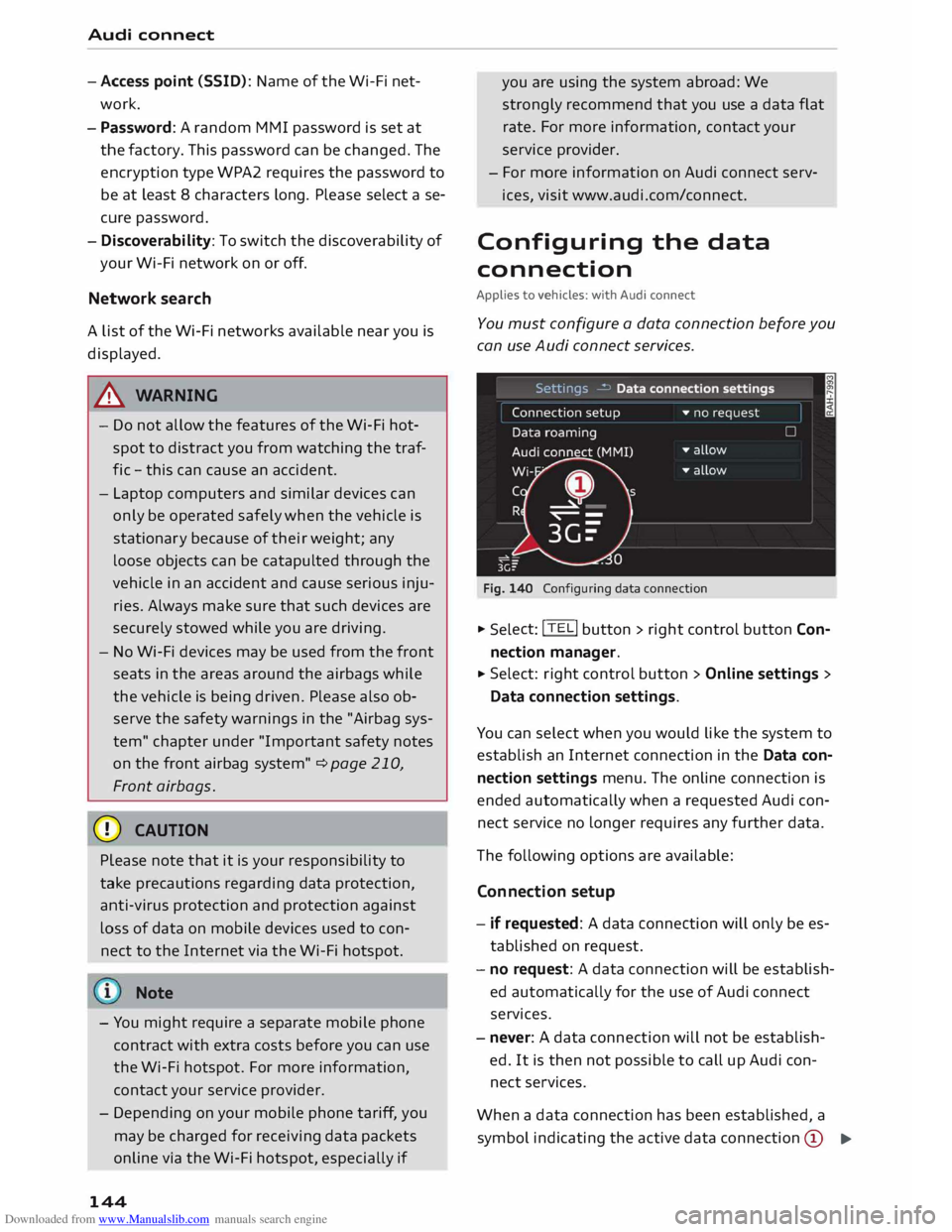
Fig. 140 Configuring data connection .,.
Selec t: !TEL! button > right control button Con
nection manager .
.,. Select:
right control button > Online settings >
Data connection settings.
You can select when you would like the system to
establish an Internet connection in the Data con
nection settings menu. The online connection is
ended automatically when a requested Audi con
nect service no Longer requires any further data.
The following options are available:
Connection setup
- if requested: A data connection will only be es
tablished on request.
- no request: A data connection will be establish
ed automatically for the use of Audi connect
services.
- never: A data connection will not be establish
ed. It is then not possible to call up Audi con
nect services.
When a data connection has been established, a
symbol indicating the active data connection @
..,.
Page 150 of 284
Downloaded from www.Manualslib.com manuals search engine Navigation
deactivation or a malfunction of several sat
ellites.
- Street and town names can change; there
fore the names stored on the MMI can in ex
ceptional cases be different from the actual
names.
- For more information on the navigation
map update service*, please see the Operat
ing Manual
for Audi connect at
www.audi.com/myaudi.
Entering a destination
Search function
Applies to vehicles: with navigation system
You can use the search function to quickly and
conveniently find a destination and use it for
route guidance.
.. Select: I NAV/MAP! button.
.. Push
the rotary pushbutton upwards.
- Enter one or more search terms in the entry
field (I)¢ page 147, Fig. 141.
- Select a destination from the results list and
confirm it.
- Select and confirm Start route guidance.
The route will be displayed as an overview on the
map. Route guidance is already active.
Narrowing the search area
- Select: right control button > Country selec-
tion.
All countries are preselected for the search func
tion at the factory. You can use the Country se
lection function to deselect any countries you do
not require. This speeds up the search and limits
the number of results in the list.
(Qj) Note
- The terms suggested by the MMI depend on
the destinations to which you have recently
driven.
- Up to 50 entries are stored in the list of des
tinations to which you have recently driven.
- For more information on the search func
tion, please refer to ¢ page 114.
148 Loading
last destination
The Last destinations are stored automatically
and can be Loaded again directly as a new desti
nation.
.. Press the I N
AV/ M
AP! button repeatedly until
the Enter destination menu is displayed
¢ page 147, Fig. 141.
The destinations to which you have recently driv
en are displayed in the Enter destination menu
and marked with the symbol ®¢ page 147,
Fig. 141.
- Select a recent destination from the list and
confirm it.
- Select and confirm Start route guidance.
Delete last destinations
- Select a recent destination from the list and
confirm it .
- Select and confirm the right control button >
Delete.
- Select and confirm Delete this recent destina-
tion or Delete all recent destinations.
The destination selected or all the recent destina
tions will be deleted and no longer displayed in
the search function.
Entering an address
Applies to vehicles: with navigation system
.. Press
the I N
A V/
M
AP! button
repeatedly until
the Enter destination menu is displayed
¢ page 147, Fig. 141.
.. Select: left control button > Enter address.
- To enter a destination via the country: Select
and confirm Country. Select a country from the
list and confirm it. Or: Search for a country via
the entry field.
- To enter a destination via the town/post code:
Select and confirm Town/post code. Enter a
town or a post code. Or: Select and confirm a
town from the list.
- Select and confirm additional details for the
destination such as Street, House number or
Centre. Select and confirm Start route guid
ance.
Page 152 of 284
Downloaded from www.Manualslib.com manuals search engine Navigation
@ Private navigation destination
- Select and confirm a postal address or a naviga
tion destination. If you select a navigation des
tination, route guidance is started immediately.
- If you select a postal address, you can check the
address details again.
- You can then select and confirm Start route
guidance.
Further directory functions in the navigation sys
tem can be found on ¢page 153.
((!) Note
- Addresses which you have imported from
your mobile phone into the MMI can also be
used as navigation destinations.
- If a directory contact is greyed out, no navi
gation destination/postal address has yet
been added for the contact.
Entering a special destination
Applies to vehicles: with navigation system
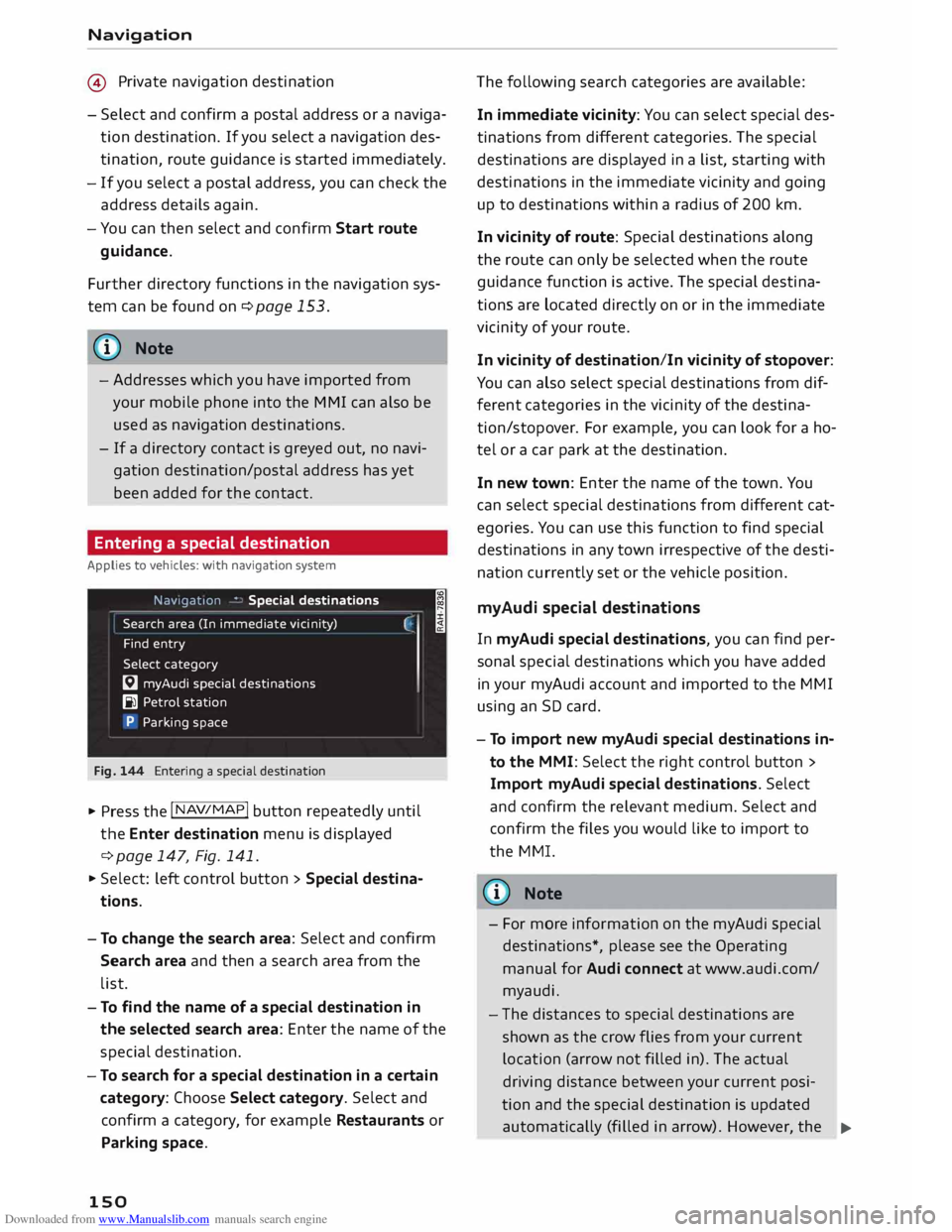
Navigation • Special destinations
Search area (In imm ediate vicinity)
Find entry
Select category
[:J myAudi special destinations
B1 Petrol station
P Parking space
Fig. 144 Entering a special destination
.,. Press the I NAV/MAP!
button repeatedly until
the Enter destination menu is displayed
¢ page 147, Fig. 141 .
.,. Select: left control button > Special destina
tions.
- To change the search area: Select and confirm
Search area and then a search area from the
list. I
- To find the name of a special destination in
the selected search area: Enter the name of the
special destination.
- To search for a special destination in a certain
category: Choose Select category. Select and
confirm a category, for example Restaurants or
Parking space.
150 The
following search categories are available:
In immediate vicinity: You can select special des
tinations from different categories. The special
destinations are displayed in a list, starting with
destinations in the immediate vicinity and going
up to destinations within a radius of 200 km.
In vicinity of route: Special destinations along
the route can only be selected when the route
guidance function is active. The special destina
tions are located directly on or in the immediate
vicinity of your route.
In vicinity of destination/In vicinity of stopover:
You can also select special destinations from dif
ferent categories in the vicinity of the destina
tion/stopo ver. For example, you can look for a ho
tel or a car park at the destination.
In new town: Enter the name of the town. You
can select special destinations from different cat
egories. You can use this function to find special
destinations in any town irrespective of the desti
nation currently set or the vehicle position.
myAudi special destinations
In myAudi special destinations, you can find per
sonal special destinations which you have added
in your myAudi account and imported to the MMI
using an SD card.
- To import new myAudi special destinations in
to the MMI: Select the right control button >
Import myAudi special destinations. Select
and confirm the relevant medium. Select and
confirm the files you would like to import to
the MMI.
{(!) Note
- For more information on the myAudi special
destinations*, please see the Operating
manual for Audi connect at www.audi.com/
myaudi.
- The distances to special destinations are
shown as the crow flies from your current
location (arrow not filled in). The actual
driving distance between your current posi-
tion and the special destination is updated
automatically (filled in arrow). However, the
�
Page 153 of 284
Downloaded from www.Manualslib.com manuals search engine 0
N
co
....
\D L/'l
N
L/'l
.... list
of special destinations is not sorted
again.
- Sometimes there are destination entries in
the list that cannot be displayed completely
because they are too long. If you select one
of these entries with the rotary pushbutton,
detailed information on the selected entry
will be displayed automatically after a few
seconds.
Online search
Applies to vehicles: with navigation system and Audi connect
You can Look for special destinations online.
Important: The requirements for Audi connect
must be met ¢page 137.
... Press the
I NAV
/MAP!
button repeatedly until
the Enter destination menu is displayed
¢ page 147, Fig. 141.
... Select: left control button > Online search. The
search area that was last set will be displayed
in the entry field.
- To change the search area: Select and confirm
Search area and then a search area from the
list.
- To find an online destination in the selected
search area: Enter a new town/country if neces
sary. Enter a search term (e.g. restaurant). Se
lect and confirm an online destination. Select
and confirm Start route guidance.
- To search for an online destination in a specif
ic category: Choose Select category. Select and
confirm a category, for example Restaurants or
Parking space.
Please see ¢ page 150, Entering a special desti
nation for information on which search areas are
available.
- Please observe the notes in the chapter
Notes on Audi connect ¢ page 145.
- Further information can be found on the In
ternet at www.audi.com/c onnect. Navigation
Calling up destinations from a myAudi
account
Applies to vehicles: with navigation system
You can import navigation destinations from
your myAudi account to the MMI.
Important: You must have created an account at
www.audi.com/myaudi, added a vehicle to the ac
count and stored one or more destinations.
... Press
the I N
A V/
MAP!
button repeatedly until
the Enter destination menu is displayed
¢ page 147, Fig. 141 .
... Select: left control button > myAudi contacts.
... If
necessary, enter your myAudi login details or
your myAudi PIN. The contacts stored in myAu
di will
be displayed .
- Select and confirm a contact.
- Select and confirm a private/ business naviga-
tion destination .
- Select and confirm Start route guidance.
- You only have to enter your myAudi login
details once.
- You will receive your myAudi PIN after set
ting up a myAudi account. For more infor
mation, please see www.audi.com/ myaudi.
- Further information can be found on the In
ternet at www.audi.com/connect.
Entering a destination via the coordinates
Applies to vehicles: with navigation system
... Press the I N
A V/MAP!
button repeatedly until
the Enter destination menu is displayed
¢ page 147, Fig. 141.
... Select: left control button > Geographic coordi
nates.
- Select and confirm either Latitude or Longi
tude.
- Tu rn the rotary pushbutton clockwise or anti
clockwise to adjust the longitude/latitude.
- Press the rotary pushbutton to confirm your en
try.
- Select and confirm Start route guidance.
151
Page 160 of 284
Downloaded from www.Manualslib.com manuals search engine Navigation
Route criteria: Refer to¢ page 154
Voice guidance: Refer to¢ page 154
Navigation settings: Refer to¢ page 153
Online traffic data*: Refer to ¢ page 161.
Exclude route: Refer to¢ page 155
Display alternative routes: Refer to¢ page 155
Parking in vicinity of route: Parking facilities
near the vehicle are displayed.
Store current position: You can store your vehi
cle's current position as a favourite ¢page 153
or as a contact in the directory ¢page 153.
Audi connect for this location*: Enables you to
search for e.g. City events or Travel information
in the Location entered (events, weather at desti
nation etc.).
Country information: With this option, you can
view the speed limits for towns and country
roads in the country you have selected. This infor
mation is displayed automatically when you cross
a border in the route information �¢ page 156,
Fig. 148 if this is activated ¢page 158.
Map settings
Applies to vehicles: with navigation system
.,. Press the
I NAV/MAP!
button repeatedly until
the map is displayed.
.,. Select: right control button > Map settings.
Depending on the function selected, you can use
the following settings:
Map colours
day/night: The map is displayed with a light/dark
background colour.
automatic: When the lights are on, the map
scheme will switch from day to night.
Map display
Standard ¢ page 156, Fig. 148.
Google Earth ¢page 159, Fig. 149.
Traffic ¢page 161, Fig. 151.
158 Map
orientation
destination: The map indicates the destination
and is set to face north.
2D driving position/2D north: The map depicts
the vehicle's current position. The map is set to
face the direction of travel or north.
3D map: When this function is activated, the cur
rent vehicle position is displayed in a three-di
mensional map, and the map is set to face the di
rection of travel. If the map scale is more than
100 km, the map is set to face north.
overview: The entire route from the vehicle posi
tion to the final destination or next stopover is
displayed on the map. The map scale varies ac
cording to the length of the route and is adapted
automatically. The map is set to face north.
Route information
The display of route information such as the
street you are currently on, upcoming turn-offs,
traffic information or special destinations on the
current route can be switched on/off.
Automatic zoom
on: The map scale is adjusted automatically ac
cording to the category of the road you are on
(motorway , major road, other road) to ensure
that you always have the best possible overview
of the route ahead. When there is an upcoming
turn-off, the map display will also be automati
cally adjusted so that you have a more detailed
view.
intersection: When route guidance is active and
there are upcoming turn-offs, the map display
will temporarily switch to a more detailed scale
so that the road layout can be identified more
easily.
off: The map scale you have set will remain unal
tered.
Map content
The display of map content such as traffic infor
mation, favourite destinations, restaurants, and
content from Google can be switched on� and
off.
Page 168 of 284
Downloaded from www.Manualslib.com manuals search engine Listening
to the radio
Other settings
Radio settings
.,. Select: I RADIO! button> right control button>
Radio settings.
Depending on the waveband setting (FM, AM or
DAB*), you can select the following functions:
Alternative frequency (FM, DAB*)
on: The tuner attempts to switch to an alterna
tive frequency of the current station when the re
ception quality becomes weaker. When the re
ception is lost in the FM or DAB* waveband, the
system will automatically (in the background)
switch to an alternative station, if there is one
available.
off: Switching to an alternative frequency is
switched off. The current frequency will be main
tained, and in some cases may no longer be re
ceived. The alternative frequency function is au
tomatically switched on again when the station is
changed.
Switch regional stations (FM)
Impor tant: The Alternative frequency function
must be switched on.
Some FM stations split up their transmission and
provide different regions with regional pro
grammes with differing content. When the func
tion is on �. the system switches to alternative
reg ion-specific frequencies.
L band (DAB*)
There are two wavebands for the digital radio:
Band III and L band. Ensembles in the band III
usually have a larger range extending into several
regions. They can be received at all times. In
some regions DAB is broadcast in the L band.
When this option is on, stations from the L band
will also be received.
Station sorting (FM)
A-Z: The stations are displayed in the station list
in alph abetical order. Radio stations with variable
station names are displayed after the stations
which have been sorted alphabetically. Radio sta-
166 tions
with a frequency as their station name are
displayed at the end of the list.
ID: The stations in the station list are sorted ac
cording to the station's ID (e.g. all BBC radio sta
tions are sorted together). Radio stations with a
frequency as their station name are displayed at
the end of the list.
Station sorting (DAB*)
A-Z: The stations are displayed in the station list
in alphabetical order.
Ensemble: Ensembles comprise various radio sta
tions of a specific area (e.g. a town or region);
they are listed together as an ensemble in the
station list. To open/close the list of radio sta
tions in an ensemble, select and confirm the en
semble. Available sub-programmes* (additional
services provided by DAB* radio stations) are lis
ted beneath the radio station (indented).
Detailed station info
When this function is switched on� and the sta
tion or favourites list is open, the system
switches to the Deta iled station information
view ¢ page 164 after approximately five sec
onds. If it is available, information on the selec
ted station (e.g. station name, artist, slide show,
station logo) may be shown.
Preferred image (DAB*)
You can specify your preferred image for the De
ta iled station information option ¢ page 164.
- station logo: The station logo is displayed if
available.
- slide show: Depending on availability, addition
al information as a supplement to the normal
programme may be shown (e.g. images from
the studio, current photographs of artists or al
bum covers).
({D Note
- If the Traffic announcements or DAB an
nouncements* function is switched on,
playback is interrupted for announcements.
You can cancel an announcement while it is
being played by briefly pressing the ON/OFF
button @
¢ page 109, Fig. 113. ____ ..,.