radio AUDI TT COUPE 2016 User Guide
[x] Cancel search | Manufacturer: AUDI, Model Year: 2016, Model line: TT COUPE, Model: AUDI TT COUPE 2016Pages: 322, PDF Size: 52.86 MB
Page 115 of 322
Downloaded from www.Manualslib.com manuals search engine ...... N
G'. CX)
..... ID VI ..... ID .....
.,. Select: I MENU I button >Telephone> left con
trol button.
Call list
Requirement: a phone number must be stored in
the call list.
Select and confirm the desired telephone num
ber from the recent calls list.
Call list symbols Q fig. 108:
@ Missed calls
@ Dialed numbers
@ Accepted calls
Favorites
Requirement: a phone number or contact must
be stored as a favorite ¢ page 114.
Select and confi rm a favorite in the favorites list.
Directory
Select and confirm a phone number from the di
rectory
Q page 117.
Enter number
- Entering a phone number as a sequence of
numbers: enter a phone number using the
number speller Q fig. 109.
- Entering the phone number as a sequence of
letters: select and confirm IABCI above the
number speller. Enter a sequence of letters us
ing
the letter speller, for example AUDISER
VICE.
- Dialing a phone number: select and confirm 4"".
Or: push the control knob down. Select and
confirm
OK.
- Deleting individual characters: select and con
firm
the speller to
and confirm Clear input field .
Tone
sequences (DTMF) can be entered directly
into
the speller during a phone call.
Telephone
Accepting/ending a call
Applies to: vehicles with telephone
-Accepting a call : select and confirm Accept
call.
-
Ignoring a call : select and confirm Ignore call.
-
Muting the active call: select and confirm
Mute.
- Ending a
call/canceling the dialing: press the
control knob (End call).
Answering
an additional call : if there is an in
coming call while
another call is active, you can
select Accept call to put the exis ting call on hold
and
answer the i ncoming call. If you selec t Ig
nore call, the incom ing call will be ignored.
Caller information: the name, phone number or
Unknown appears in the Infotainment system
display depending on if the ca lle r has been stored
in the directory and if the phone number has
been transmitted. A picture may also be dis
play ed,
depending on whether you have assigned
a picture to a
contact in your directory and if it
was transferred to your MMI. You can find out if
your cell
phone supports this function from your
cell
phone network provider, your cell phone
owner's manual or at www.audisua.com/blue
tooth.
(!') Tips
The radio or media playback is muted during a
phone call.
During a phone call
Applies to: vehicles with telepho ne
Requirement: there must be a call in progress.
... Press the right control button.
The follow ing options are possible during a call
depending on the cell phone being used and the
type of connection:
- Making
an additional call: select: Find contact
> Call list/Directory /Favorites > Entry in list.
-Accepting an incoming call when there is an
active call and a call on hold: select Replace .
The active call
is replaced with the incoming
call.
113
Page 119 of 322
Downloaded from www.Manualslib.com manuals search engine -The voicemail number depends on the cell
phone service provider.
Emergency call functions
Applies to: vehicles with telephone
.. Select: I MENU I button >Telephone > left con
trol button > Enter numbe r > Enter emergency
call
number (for example, 911) > OK .
A WARNING
-
-Because your phone works with radio sig
nals, a connection
cannot be guaranteed un
der all circumstances. Do not rely on only
your
phone when it comes to essential com
munication (such
as a medical emergency).
-Always follow the instructions given by the
emergency personnel during an emergency
call and only end the call when they instruct
you
to do so.
Tips
Emergency numbers are not the same every
where. Find out which emergency number is
used in your current location.
Directory
· Opening the directory
Applies to: vehicles with telephone
After connecting the cell phone, the contacts in
it are automatically imported into the MM!.
.. Select: I MENU I button >Telephone > left con
trol button > Directory.
- Selecti
ng a contact : select and confirm a con
tact from the directory. The phone numbers for
your
selected contact open. Select and confirm
a
phone number to start a call.
-Free text search for a contact : refer to
Qpage 102.
Contacts are displayed in alphabetical order and
can
be sorted by first or last name Q page 119.
The directory can be opened through the Tele
phone*
menu as well as through the Navigat ion*
menu.
Telephone
Tips
- Additional information on free text search
ing can be found under Qpage 102.
-Check for a possible request to synchronize
on
your cell phone. Requests to synchronize
the directory must be confirmed so that
your cell phone contacts can be loaded into
the MMI.
-The contact display in the MMI depends on
the cell phone used. For more information
on the supported cell phones, visit
www .
audiusa.com/bluetooth or your au
thorized Audi dealer.
-The directory from the cell phone with the
active connection will always be displayed.
- The
contacts from the cell phone may not
be transferred in alphabetical order. If there
are too many entries, contacts with differ
ent first letters may be missing in the MMI.
-The public contacts in the local MMI memo
ry are always visible and can be accessed by
other users.
Free text search for a contact
Applies to: vehicles with telephone
.. Select: IMENUI button> Telephone > left con
trol button >Directory .
.. To limit the search, enter the initials of the con
tact being searched with each initial separated
by a space. Enter additional letters if necessary.
.. Select and confirm a contact from the directo
ry. The
phone numbers for your selected con
tact open.
.. To make the call, selec t and confirm a phone
number.
Tips
-You can scroll through long lists quickly by
turning the control knob quickly.
- Additional
information on free text search
ing can be found under Qpage 102.
117
Page 127 of 322
Downloaded from www.Manualslib.com manuals search engine @ Tips
-You can find additiona l information on con
necting your myAudi account with Twitter in
the Aud i conne ct (myAud i) operat ing man
ual at www.audi.com/myaud i.
-
Other settings such as account, language,
Tweet security and location settings
cannot
be changed in the MMI. These changes must
be made on the Twitter website.
-
You can create individual text templates in
your myAudi account.
-
You can only connect one Twitter account
with your myAudi account.
- Audi connect makes
it possible to access
Twitter. Permanent availability cannot be
guaranteed, because that depends on Twit
ter.
Audi connect services in navigation
Applies to: vehicles with nav igation system and Audi connect
The following Audi connect services are currently
available:
- Navigation
with online map view and Street
View
c::;. page 142.
-Point of Inte rest (POI) online search with
voice recognition (such as restaurants): plan
r oute guidance using
the MMI control panel
and
the vo ice recogn ition system 9 page 104.
-Set up destinations in your MMI using your
myAudi account or onl ine map vie w .
-
Onlin e traffic informat ion: receive up-to-the
minute traffic info rmation about accidents,
road construction and
other incidents
¢page 143.
-Map updates : import navigation map updates
in you r MM I
using an SD card .
@ Tips
-For the Map update Audi connect service us
ing an SD card, check the current software
version in you r vehicle and compare
it with
my.audiusa.com to see if a new version is
available.
You can also have the new naviga
tion data installed by an Audi dealer, which
can
be done for an additiona l charge.
Audi c onne ct
- More information on map update s can be
found in the Audi connect Operating Man
ual under my.audiusa.com.
Audi connect services in the telephone
Applies to vehicles with Audi connect
The following Audi connect services are currently
available:
- Storing contacts on
your computer using your
myAudi Accoun t and loading the contacts into
the MMI directory 9page 118.
Audi connect services in the Media menu
Applies to: vehicles with Wi·Fi audio player and Audi connect
-Wi-Fi audio player: you can access the med ia
center
through W i-Fi connected media players
(such
as smartphones) 9 page 153. The Audi
MMI connect app also offers access to Internet
radio *.
-
Onl ine m edia : offers access to different on line
media
ser vices and operation through the MM I
using
the Audi MMI c onnect app .
@ Tips
For more information on the Wi-Fi audio play
er and supported devices, contact an author
ized Audi dealer or authori zed Audi Service
Facility.
Additional options
Appl ies to vehicles with Audi connect
... Select: IMENUI button> Audi connect > right
control button.
T he
following options are available in the Audi
connect services overview:
-Log in : c::;. page 122, Logging into myAudi in the
vehicle
-Connecti on manage r: 9 page 167, Connection
manager
125
Page 147 of 322
Downloaded from www.Manualslib.com manuals search engine ..... N
G: CX)
.....
"' U"I
.....
"' .....
Radio
Accessing the radio
The radio supports the FM, AM and SiriusXM*
(satellite radio) bands. Using
the HO Radio re
ceiver also
allows you to receive radio stations
on the FM and AM bond in digital format.
Fig. 124 FM station list (HO Radio FM)
Radio: SiriusXM
~'
.000 RADIO 10 D
120 001 Preview NoSignal
&
002 Hits 1
003 20 on 20 NoSignal =
Fig. 125 Siri usXM station list
"Press the I RADIO I button.
After opening the radio, the last opened station
list is displayed.
.
I
Selecting a station : select and confirm a station
from the station list. FM/ AM stations that can be
received by
digital radio are marked with the HD
radio symbol @. If recept ion quality declines,
the radio automatically switches to the analog
FM/AM station depending on availability . Digital
HD Radio stations * may contain multiple addi
tional stations* . The available additional sta
tions* are listed under
the radio station. If you
lose recept ion,
the additional stations* are mut
ed since they can no Longer be received.
Setting the frequency band: press the I RADIO I
button repeatedly until the desired frequency
band
is set.
Updating the station list: station lists are updat
ed automatically .
Radio
The following information is d isplayed in the sta
tion Lists:
The statio n is stored as a favor ite. The symbol
shows
the stored Location in the favorites list (fo r
example, 21).
@Frequency
©Station name
® Channel number
If there is a loss of radio signal (SiriusXM*), the
following system information is displayed in the
station List:
NoSignal: the tuner is currently not receiving a
satellite signal @
c::> fig. 125.
The system information turns off when the radio
stations are received again.
{!) Tips
-HD Radio reception is not availab le in Cana
da.
-
Contact the SiriusXM* provider if you would
like
to receive satellite programming.
- Buildings, tunnels, bridges, open areas,
oth
er veh icles or objects on the vehicle roof can
affect reception.
- Satellite radio is
not availab le in Alaska and
Hawaii.
- iTunes
tagging* is not supported by all radio
stations.
Radio functions
Free text search
Fig. 126 Input field and results list for free text search
145
Page 148 of 322
Downloaded from www.Manualslib.com manuals search engine Radio
-Opening the free text search: when in a station
list, keep turning the control knob to the left
until the free text search inp ut fie ld is dis
played.
-Using the free text search : ¢page 102, Free
text search.
Stations from the favorites list@ are dis played
in the results list CD¢ fig. 126. The symbol@ in
dicates which station list you switched to based
on the station selection.
Additional options
•Se lect: IRADIOI button> right control button.
The following options are avai lable depending on
the frequency band:
-Sound settings : q page 169.
-Store as favorite : ¢page 147, Favorites .
-Delete all entries: all entries are deleted in the
Last stations view.
-Tag this song for iTunes* : connect your Apple
device with
the Audi music interface* on your
MMI. Select and confirm Tag this song for
iTunes .
The track that is currently p la ying is
stored on your Apple device. Synchronize your
Apple device with iTunes. The tagged track will
display
the next time you open yo ur iTunes me
dia center. If there is no Apple device connect
ed, the tagged track are stored temporarily in
the MMI (maximum of SO tracks). Once you
connect your Apple device to the Audi music in
terface, the tags are stored on the device.
-Manual station tuning: the frequency bars are
displayed. Select and confirm the desired fre
quency .
-Seek: the radio tunes to the previous or next re
ceivable
station.
-Scan: a ll stations are played for several seconds
each.
- Radio settings : ¢page 147.
Radio text
• Se lect: I RADIO I button > left control button > a
frequency band (for example, FM) >a station.
• Select: right control button > Radio text.
146
Information that accompanies the program (such
as artist, composer, track) is displayed .
-Browsing through radio text entries: turn the
control knob to the left or right.
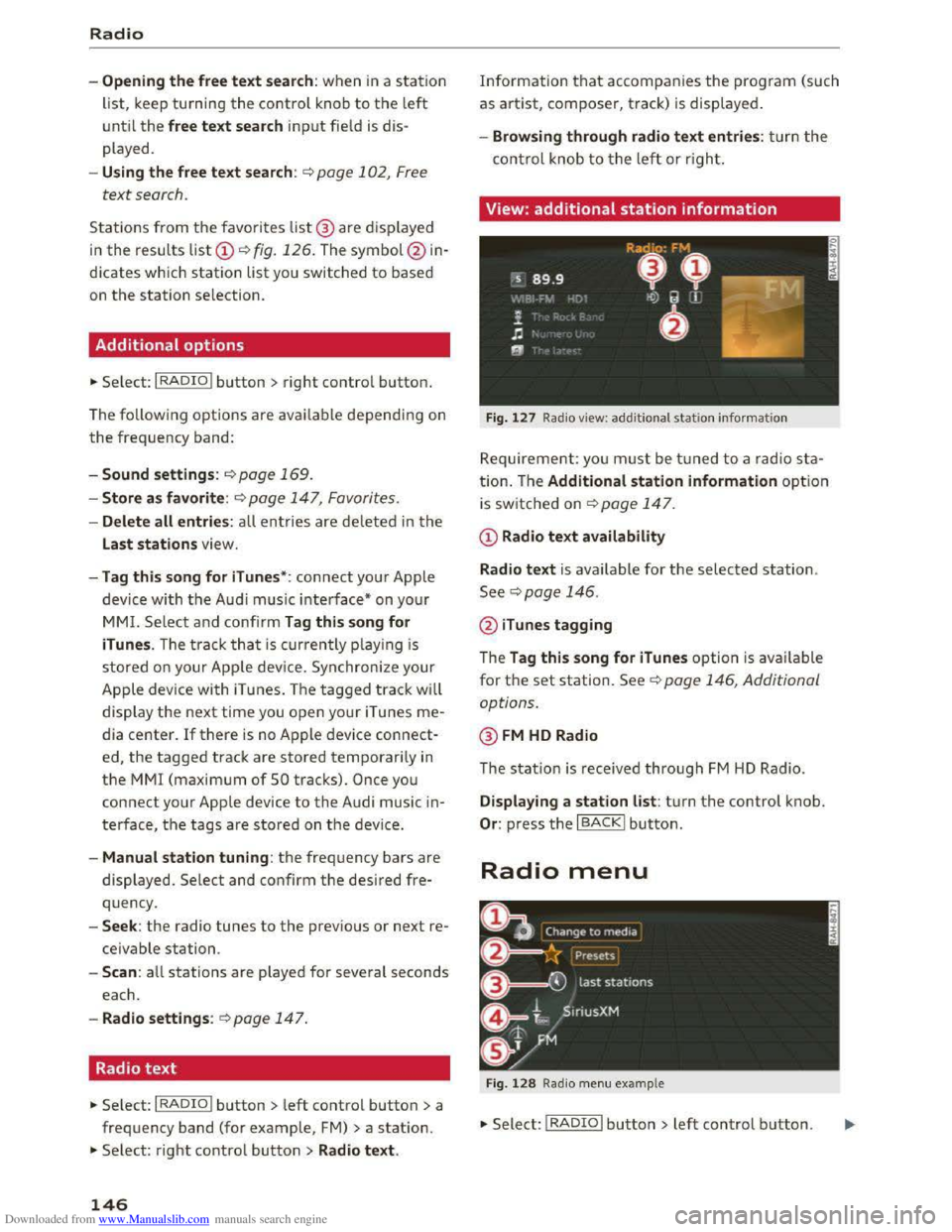
View: additional station information
Fig. 127 Radio view: additional statio n informa tio n
Requirement: you must be tuned to a radio sta
tion. Th e Additional station information option
is switched on ~page 147.
CD Radio text availability
Radio
text is available for the selected station.
See¢ page 146.
@ iTunes tagging
The Tag this song for iTunes option is available
for the set station. See ¢ page 146, Additional
options.
@FM HD Radio
The station is received through FM HD Radio.
Displaying a station list: tur n the control knob.
Or : press the I BACK! button.
Radio menu
Fig . 128 Radio menu example
•Select: I RADIO I button> left control button.
Page 149 of 322
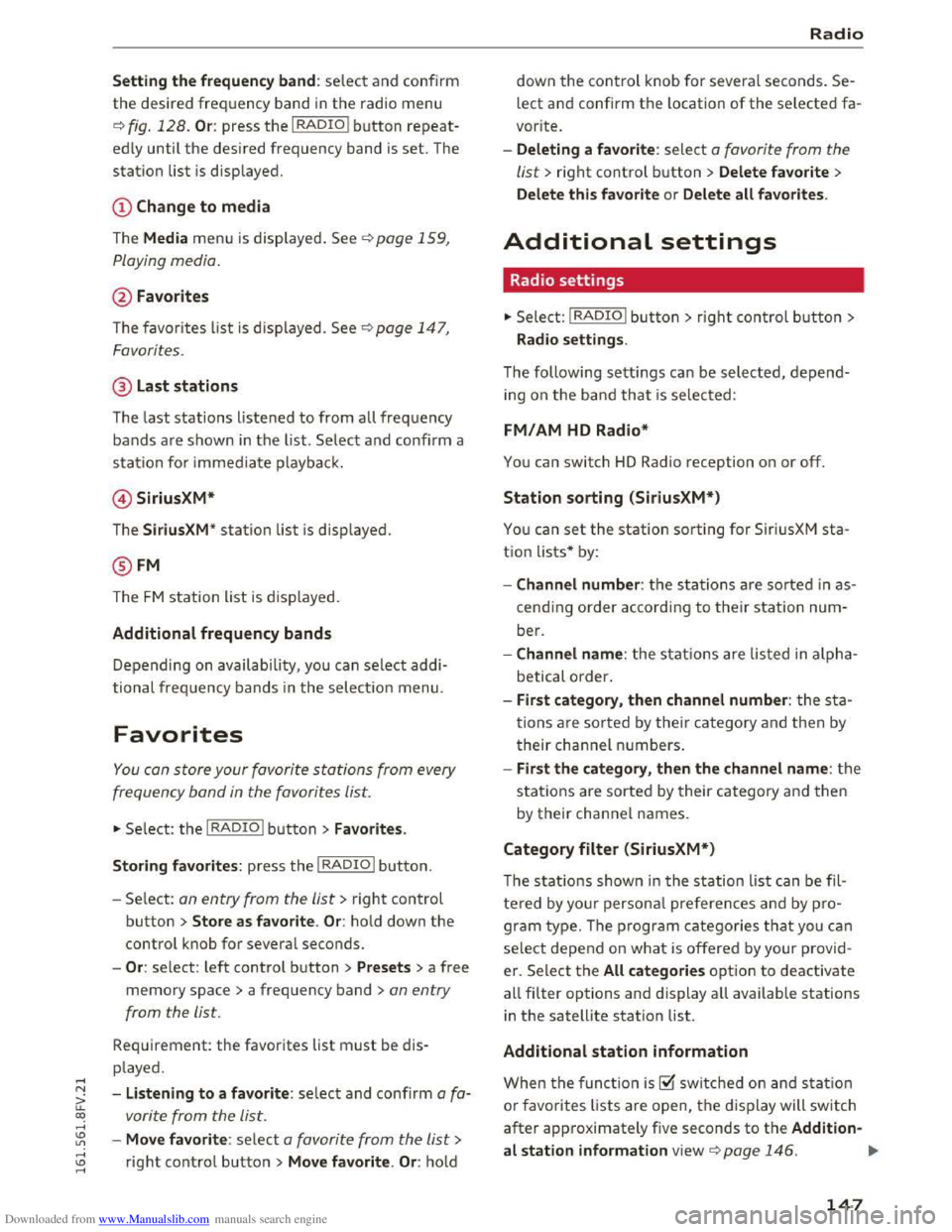
Downloaded from www.Manualslib.com manuals search engine Setting the frequency band: select and confirm
the desired frequency band in the radio menu
c::> fig . 128. Or: press the I RADIO I button repeat
edly until the desired frequency band is set. The
station list is displ ayed.
The Media menu is displayed. See c::> page 159,
Playing
media.
@ Favorites
The favorites list is displayed . See c::>page 147,
Favorites.
@ Last stations
The last stations listened to from all frequency
bands are shown in the list. Select and confirm a
station for immediate playback.
© SiriusXM*
The SiriusXM " station list is displ ayed.
@ FM
The FM station list is displayed.
Additional frequency bands
Depending on availability, you can select addi
tional frequency bands in the selection menu.
Favorites
You can store your favorite stations from every
frequency
band in the favorites list.
" Se lect: the I RADIO I button > Favorites .
Storing favorites:
press the I RADIO I button.
-Select: an entry from the list> right control
button > Store as favorite. Or: hold down the
control knob for several seconds.
-Or: select: left control button > Presets > a free
memory space> a frequency band >an entry
from
the lis t.
Requirement: the favorites list must be dis
p layed.
- Listening to a favorite : select and confirm a fa
vorite from
the list.
-Move favorite : select a favorite from the list>
right control button > Move favorite . Or: hold
Radio
down the control knob for several seconds. Se
lect and confirm the location of the selected fa
vorite.
-Deleting a favorite : select a favorite from the
list> right control button> Delete favorite >
Delete this favorite
or Delete all favorites .
Additional settings
Radio settings
" Select: I RADIO I button > rig ht control button >
Radio settings.
The following settings can be selected, depend
ing on the ba nd that is selected:
FM/AM HD Radio*
You can switch HD Radio reception on or off.
Station sorting (SiriusXM*)
You can set the station sorting for SiriusXM sta
tion lists* by:
-Channel number : the stations are sorted in as
cending order according to their station num
ber.
-Channel name: the stations are listed in alpha
betical order.
-First category , then channel number: the sta
tions are sorted by their category and then by
their channel numbers.
-First the category, then the channel name: the
stations are sorted by their category and then
by their channel names.
Category filter (SiriusXM*)
The stations shown in the station list can be fil
tered by your personal preferences and by pro
gram type. The program categories that you can
select depend on what is offered by your provid
er.
Se lect the All categories option to deactivate
all filter options and display all available stations
in the satellite station list.
Additional station information
When the function is~ switched on and statio n
or favorites lists are open, the display will switch
after approximately five seconds to the Addition-
al station information view c::> page 146. ""
147
Page 150 of 322
Downloaded from www.Manualslib.com manuals search engine Radio
Depending on availability, in formation about the
set station (such as station name, artist, slide
show,
station logo) is displayed in this view.
Preferred picture view
You can set your preferred picture view for the
Additional station information display
c::>poge 146 .
-Station logo : th e station logo is d is played, d e
pending on ava ilability.
-Cover art : th e a lbum cover or genre cover is dis-
p layed,
dependi ng on ava ila bil ity.
Gracenote online database*
Req uirement: the MMI must be connected to the
Internet. T he Cover art option must be selected
c::> page 148, Preferred picture view.
Troubleshooting
Problem Solution
When the~ function is switched on, the albu m
cover
or genre cover for the song being played is
l
oaded from the G racenote on line database, de
pending on availability.
Subscription status (SiriusXM)*
This optio n is available whe n your subscrip tion is
abou t to expire or has already expired. The expi
ration date of your license is displ ayed .
Call to SiriusXM *: the contact information for
yo ur satellite radio provi der is d isplaye d. To ca ll
you r
satellite radio provi der using the MMI, p ress
Call to SiriusXM*.
A station with poor reception is no longer Store the statio n as a favo rite in advance. Access the fa-
displ ayed in t he
station list onc e you vorite throug h t he favorites list c::> page 147.
switch to a different station.
148
Page 155 of 322
Downloaded from www.Manualslib.com manuals search engine ..... N
a:
-Note the volume setting on your Bluetooth
device. Audi recommends setting your mo
bile device to the maximum volume when
using it as a Bluetooth audio player.
- The
supported media functions (such as
shuffle) depend on the Bluetooth device be
ing used.
- For
more information on the supported de
vices, visit www.audiusa.com/bluetooth or
contact your authorized Audi dealer.
Wi-Fi audio player
Applies to: vehicles with Wi·F i
Using the Wi-Fi audio player media source on the
MMI, you can connect and operate your Wi·Fi ca·
pable media player (such as a smartphone) to
wirelessly play music from your media player Ii·
brary. The media player is connected to the MMI
through the Wi-Fi hotspot. An UPnP Server opp
or an integrated UPnPIDLNA server on your me
dia
player is required to access your media player
library. The Audi MMI connect opp also offers ac
cess to Internet radio*.
Requirement: the Wi·Fi function on your media
player must be switched on. The Audi MMI con
nect app or an UPnP server app is installed on
your media player or your media player has an in·
tegrated UPnP/DLNA server.
-
Connecting a media player: press the I MEDIAi
button. Press the left control button until the
sources overview c::;, page 159 is displayed. Se·
lect and confirm Wi-Fi audio player@
c::;,page 159, fig. 135.
-If necessary, select and confirm Wi-Fi turned
off> Turn on Wi-Fi to activate Wi-Fi in the
MMI. Select Wi-Fi settings, if necessary. Select
the same settings on the wireless medi a p layer
that are used for the Wi-Fi hotspot.
-
Starting the Wi-Fi audio player: start the Audi
MMI
connect app or a UPnP serve r app, or set
media permissions on you r media pla ye r. The
first song in the media cente r on your media
player will begin playing.
co .....
:=: 1) Only ava ilable with the Audi MMI connect app.
Media
-Operating the media player: the media player
is operated through the MMI.
-
Starting Online radio1> : press the left control
button repeatedly until the Folders menu item
appears. Select and confirm Folders > Online
radio. Select and confirm a station from one of
the folders shown.
A WARNING
t-==
-As the driver, do not allow usage of the Wi-
Fi hotspot to distract you from driving, as
this could increase the r isk of an accident.
-It is only safe to use laptops and similar mo
bile dev ices when the veh icle is stationary
because, like all loose objects, they could be
thrown around the inside of the vehicle in a
crash and cause serious injuries. Store these
types of devices securely while driving.
-
Do not use any wireless devices on the front
seats within range of the airbags while driv
ing . A l
so read and follow the warnings on
c::;, page 192, Front airbags.
@Note
You are responsible for all precautions taken
fo r data protection, anti-v irus protection and
protection against loss of data on mobile de
vices that are used to access the Internet
through the Wi-Fi hotspot.
(!) Tips
- T he Wi-Fi audio player only needs to be
paired one time to the MMI using the Wi-Fi
hotspot. Depending on the media player be·
ing used, a device that was already paired
w ill
connect automatically with the MMI Wi
Fi hotspot when it is within range.
-The Wi-Fi connection is reconfigured when
inserting or removing the SIM card in the
SIM card reader* . There may be a temporary
interruption in audio playback, depending
on the media player.
- Also
note the instructions in the chapter
c::;, page 128, About Audi connect .
153
Page 161 of 322
Downloaded from www.Manualslib.com manuals search engine .... N
G'. co ..... ID VI .... ID .....
Playing media
Accessing media
You can start and operate various media
through the MMI control panel.
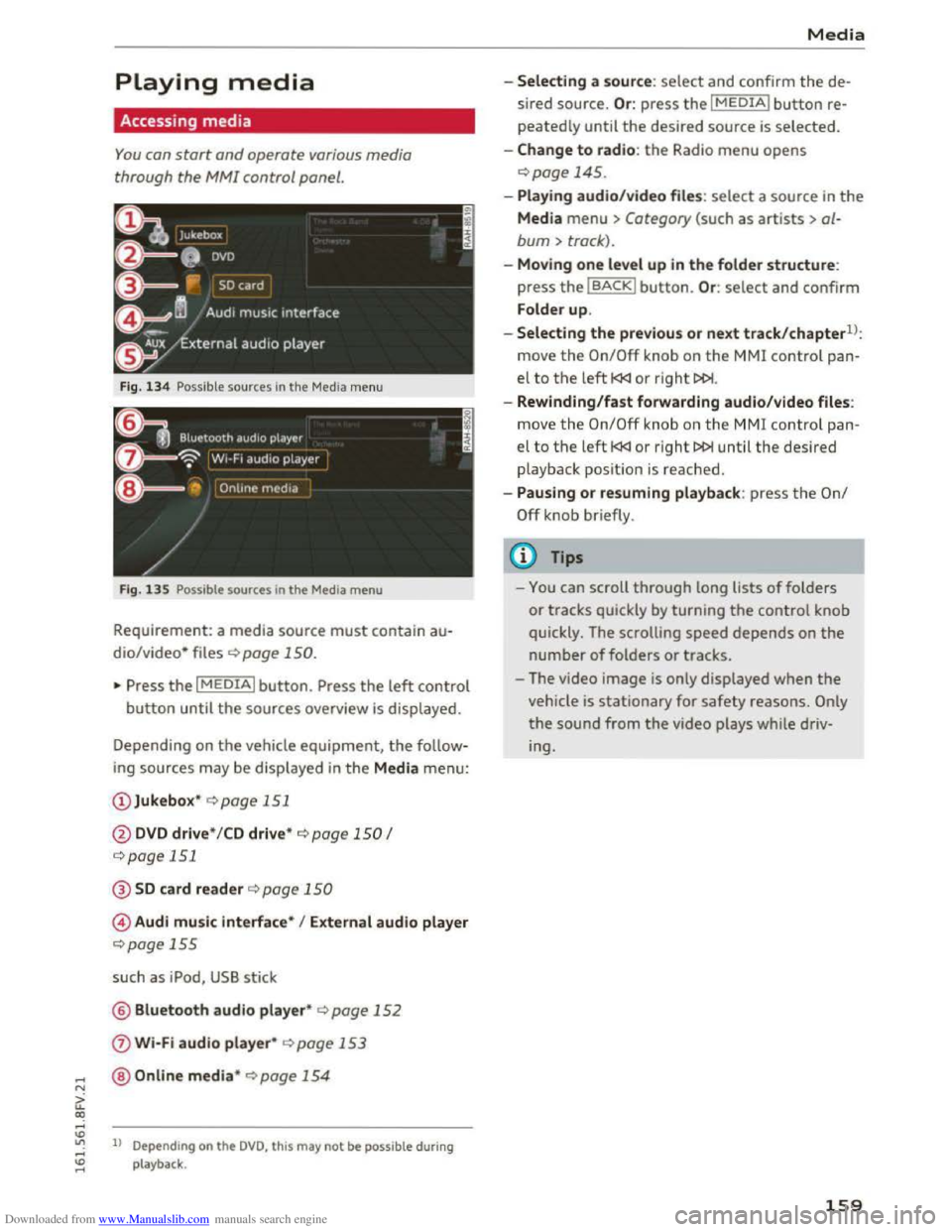
Fig. 134 Possible sources in the Media menu
F ig .
135 Possible sources in the Media menu
Requirement: a media source must contain au
dio/video* files c::> page 150.
"Press the I MEDIAi button. Press the left control
button until the sources overview is displayed.
Depending on
the vehicle equipment, the follow
ing sources may be displayed in the Media menu:
@ Jukebox* c::>page 151
@DVD drive * /CD drive* c::> page 150 I
c::>page 151
@SD card reader c::> page 150
© Audi music interface* I External audio player
c::>page 155
such as iPod, USB stick
@ Bluetooth audio player* c::> page 152
0 Wi-Fi audio player* c::> page 153
@Online media* c::>page 154
ll Depend ing on the DVD, this may not be possible during
playback .
Media
-Selecting a source: select and confirm the de
sired
source. Or : press the I MEDIAi button re
peatedly until the desired source is selected.
-Change to radio: the Radio menu opens
c::> page 145.
-Playing audio/video file s: select a source in the
Media menu > Category (such as artists > al
bum > track).
-Moving one level up in the folder structure:
press the IBACKI button. Or : select and confirm
Folder
up.
-
Selecting the previous or next track/chapterll:
move the On/Off knob on the MMI control pan
el to the left l
-Rewinding/fast forwarding audio/video files:
move
the On/Off knob on the MMI control pan
el to the left l
playback posit ion is reached .
-
Pausing or resuming playback: press the On/
Off knob briefly.
(D Tips
-You can scroll through long lists of folders
or tracks quickly by turning the control knob
quickly. The scrolling
speed depends on the
number of folders or tracks.
- The video
image is only displayed when the
vehicle is stationary for safety reasons. Only
the sound from the video plays while driv
ing.
159
Page 166 of 322
Downloaded from www.Manualslib.com manuals search engine Media
-The security levels for the Parental control
are based on the US standards from the Mo
tion Picture Association of America (MPAA).
Note that the age levels for video DVDs in
European countries may differ. -
Password entry
for Parental control will be
locked for approximately one minute if you
enter the incorrect password three times in
a row. The password can only be reset by an
authorized
Audi dealer.
Troubleshooting
Problem Solution
Audi music interface* /Bluetooth
Refer to the information on the Audi music interface*
audio player*:
mobile device is c::.> page 155/Blue·tooth audio player* c::.> page 152. You can learn
not supported. about supported mobile devices in the Audi database for mobile
devices
at www.audisua.com/bluetooth.
Audi music interface* : the vol-Adjust the volume of the mobile device to approximately 70% of
ume is too high/too low when the maximum output c> page 162, Input level.
starting playback through the
AUX input.
Audi music interface* : the porta-For many cell phones or mobile devices, playback is not possible
ble device
is not recognized as a when the battery level is too low (less than So/o of its capacity).
source. The mobile device will only be recognized as a source
in the MM!
after connecting if the battery charge is sufficient.
Audi music interface* : malfunc- The Bluetooth audio player function is switched on. Switch this
tions during audio playback
function off
c> page 168 when you are not using the Bluetooth
through an iPod/iPhone/iPad. audio player.
AUX input: there is static when When connecting and disconnecting, the External audio player
connecting and disconnecting the source is already selected. Before connecting or disconnecting the
AUX connection cable. mobile device, either mute the device (see q page 169) or switch
to a different audio source (for example
c> page 145, Accessing
the radio).
Bluetooth audio player*/Wi-Fi Only one interface should be actively used at a time to ensure
audio player*: audio playback in-problem-free playback.
terference .
Wi-Fi audio player*: audio play- Audio playback interference can occur on some cell phones if the
back interference . Internet connectilon in the vehicle was not established through
the SIM card reader* on the MMI control panel and the mobile da-
ta option on the cell phone is switched on. Deactivate the mobile
data
option on your cell phone.
Jukebox*: tracks on the imported When
importing playlists , all of the files themselves must be im-
playlist are grayed out. ported.
Jukebox*: imported tracks cannot If you cannot find imported tracks in the media center, they may
be played or found . not be supported .
Only copy supported files q page 15 7 to the
Jukebox .
164