reset AUDI TT COUPE 2016 User Guide
[x] Cancel search | Manufacturer: AUDI, Model Year: 2016, Model line: TT COUPE, Model: AUDI TT COUPE 2016Pages: 322, PDF Size: 52.86 MB
Page 154 of 322
Downloaded from www.Manualslib.com manuals search engine Media
Requirement: the playlist must be open. See
¢page 161.
-Selecting a track: select the track that is cur
rently playing. Select: right control button>
Copy to Jukebox> This track or Entire album
or This artist.
Requirement: a video file must be playing .
- Select:
right control button > Copy to Jukebox.
The copying
process begins. The status of the
copying process is shown in the MM!.
-Hiding the importing process: select and con
firm
Continue copying in background. The im
porting process is hidden .
-
Canceling the importing process: select and
confirm Cancel copying: Or : remove the source
that is being imported. Files already copied re
main.
When importing, the audio files are automatical
ly sorted into the media center categories based
on the stored additional information
¢ page 160. The copie d video files are stored in
the media center under the Videos category.
CD Note
Do not import audio/video files when the en
gine is turned off because this will drain the
vehicle battery.
Tips
-Tracks from audio CDs cannot be impo rted
to the Jukebox for legal reasons.
- Files that have already been imported are
automatically recognized and cannot be
copied to the Jukebox again.
-
It is not possible to play audio/video* files
in
the CD/DVD* drive while importing them.
-The Jukebox does not provide an export
function due to legal reasons.
-Files or tracks without stored additional in
formation are listed as Unknown. Audi rec
ommends adding additional information
(such as ID3 tags) to audio files.
-
Reset the Jukebox to the factory default set
tings when selling your vehicle ¢ page 166.
152
Bluetooth audio player
Applies to: vehicles with Bluetooth
With the Bluetooth audio player, you can play
music wirelessly from your Bluetooth-capab/e
device (such as a cell phone) through the MM!.
Requirement: th e vehicle must be stationary and
the Bluetooth function on your Bluetooth device
and the Bluetooth audio player¢ page 168 in
the MM! must both be switched on.
-Connecting a Bluetooth device : press the
I MEDIAi button. Press the left control button
until the sources overview is displayed. Select
and confirm Bluetooth audio player@
<=;>page 159, fig. 135.
-If necessary, select and confirm, Not connected
>Connect Bluetooth audio player. The Blu e
tooth device search starts. Follow the instruc
tions in the MM!.
-Select and confirm the desired Bluetooth de
vice from the list. The MMI generates a PIN for
the connection.
-Select and confirm Yes .
-Enter the PI N for connecting on yo ur Bluetooth
devi ce. Or: if the PIN is already di splayed on
your Bluetooth device, confirm it in the Blue
tooth device and in the MMI. The time a llowed
for entering the PIN is limited to approximately
30 seconds.
The media is started and operated through the
mobile device or the MMI, depending on the de
vice being
used.
(!) Tips
-Check for any connection requests on your
Bluetooth device.
-
You only have to pair your device one time.
Bluetooth devices that are already paired
automatically connect to the MMI when
they are within range.
-Multiple Bluetooth audio players can be
connected to the MMI, but only one mobile
device can be acti ve.
-
Bluetooth protocols AVRCP (1.0/1.3/1.4)
and A20P are supported.
Page 158 of 322
Downloaded from www.Manualslib.com manuals search engine Media
connected at the same time, then both devices
can be used as playback sources.
You can connect mobile devices using the analog
AUX port.
-Connect ing a mobile device to the AUX input:
connect the cable® Q fig . 133 to the AUX in
put@ on the Audi music interface and then to
the mobile device @ (such as an MP3 player or
smartphone).
-Disconnecting a mobile device from the AUX
input: remove the cable® Q fig. 133 from the
Audi music interface.
-Operation : select and confirm the External au
dio player source @ Q page 159, fig. 135. The
med ia are started and operated through the
mobile
device @Q fig. 133.
A WARNING r--·
Driving requires your complete and undivided
attention.
As the driver, you have complete
responsibility
for safety in traffic. Never oper
ate mobile devices while driving, because
this
increases the risk of an accident.
(D Note
-Remove the connector from the Audi music
interface carefully so
it is not damaged.
-
Use a USB extension cable to connec t devi
ces that have an integrated USB connector
(such
as a USB stick) to prevent damage to
your USB device and the Audi music inter
face.
- E
xtremely high or low temperatures that
can occur inside vehicles can damage mobile
devices
and/or impair their performance.
Never leave mobile devices in
the vehicle in
extremely high or
low temperatures.
Tips
-Do not use an additional adapter or USB ex
tension cable to connect mobile devices to
156
the Audi music interface that already have a
cable or
that must be connected with a USB
adapter (Q page 155). They may impair the
functionality.
-
You can purchase the AUX connector cable
from an authorized Audi dealer or at spe
cialty stores .
- Functionality
is not guaranteed for mobile
devices
that do not meet the USB 2.0 speci
fication.
-
USB hubs are not supported.
- Some
iPod versions, such as the iPod shuf-
fle, cannot be connected
to the USB adapte r
for devices with Apple Dock connector *.
Connect these devices using a AUX connec
tor cable.
- Video playback through the Audi music in
terface
is only supported if the connected
device
is r ecognized as a USB storage device
(for example a USB stick). Apple devices and
MTP devices (such as smartphones) are not
recognized as USB storage devices.
-
iPod/iPhone/iPad malfunctions also affect
the operation of the MM!. Reset your iPod/
i P hone/iPad
if this happens .
- For i
mportant information on operating
your
iPod/iPhone/iPad, refer to the user
guide
for that device. Audi recommends up
dating
the iPod/iPhone/iPad software to the
latest version .
- For more
information about the Audi music
in terface and supported devices, check
the
Audi database for mobile devices at
www. aud
iusa.com/bluetooth or contact an
authorized Audi dealer or
authorized Audi
Service Facility.
Page 164 of 322
Downloaded from www.Manualslib.com manuals search engine Media
-Move favorit e: select the desired entry from
the favorites list. Select the right control but
ton > Move fa vorite. Select and confirm the
desired presets lo cation.
- Deleting a fa vo rite:
select the desired entry
from the favorites list. Select the right control
button > Delete favorite > Delete this favorite
or Delete all favorites.
Additional settings
Options menu
Context-specific functions and settings are avail
able depending on the selected source.
.. Press the right control button.
Sound settings
See Q page 169.
Input level
Requirement: a mobile device must be connected
to the AUX connection cable* or to a USB adapt
er*.
The volume
of the mobile device is adapted to
the MMI. Audi recommends adjusting the volume
on
the mobile device to 70o/o of the maximum
volume
output.
Bluetooth settings
See Q page 168.
Connection manager
See Qpage 167.
Additional track information
When the function is switched on~ and a play
list is open, various information
about the cur
rent track (such as artist, album, album cover*)
as well as the elapsed playing time and the re
maining playing time are displayed .
ll The func tion automatically switc hes off when th e sou rce
is ch
anged.
162
Jukebox memory capacity
Information on the Jukebox memory capacity and
the number of stored tracks in the Jukebox is dis
played.
Change playing position
Turn the control knob to the left or to the right.
Or: move your finger across the MMI touch con
trol pad from left to right.
Shuffle1>
With the function switched on~' all files in the
playlist are played and shown in random order.
Repeat trackll
When the funct ion is switched on~, the current
track repeats.
Back
to "Now playing"
The options menu is closed. The track being cur
rently played
appears in the playlist.
Play
similar music*
The track being played is quickly analyzed (such
as artists, genres, mood , beat) and a smart play
list with similar
tracks is shown.
Play more ...
A
smart playlist is shown based on the track be
ing played. You can select between a playlist with
more tracks by this artist, from this album or of
this genre.
Gracenote online database*
Requirement : the MMI must be connected to the
Internet.
Depending on ava
ilability, various information
will
Load about the track being currently played
when
this function is switched on~.
Copy to jukebox
See Q page 151 , Adding to the Jukebox.
Favorites
See ~page 161.
Page 166 of 322
Downloaded from www.Manualslib.com manuals search engine Media
-The security levels for the Parental control
are based on the US standards from the Mo
tion Picture Association of America (MPAA).
Note that the age levels for video DVDs in
European countries may differ. -
Password entry
for Parental control will be
locked for approximately one minute if you
enter the incorrect password three times in
a row. The password can only be reset by an
authorized
Audi dealer.
Troubleshooting
Problem Solution
Audi music interface* /Bluetooth
Refer to the information on the Audi music interface*
audio player*:
mobile device is c::.> page 155/Blue·tooth audio player* c::.> page 152. You can learn
not supported. about supported mobile devices in the Audi database for mobile
devices
at www.audisua.com/bluetooth.
Audi music interface* : the vol-Adjust the volume of the mobile device to approximately 70% of
ume is too high/too low when the maximum output c> page 162, Input level.
starting playback through the
AUX input.
Audi music interface* : the porta-For many cell phones or mobile devices, playback is not possible
ble device
is not recognized as a when the battery level is too low (less than So/o of its capacity).
source. The mobile device will only be recognized as a source
in the MM!
after connecting if the battery charge is sufficient.
Audi music interface* : malfunc- The Bluetooth audio player function is switched on. Switch this
tions during audio playback
function off
c> page 168 when you are not using the Bluetooth
through an iPod/iPhone/iPad. audio player.
AUX input: there is static when When connecting and disconnecting, the External audio player
connecting and disconnecting the source is already selected. Before connecting or disconnecting the
AUX connection cable. mobile device, either mute the device (see q page 169) or switch
to a different audio source (for example
c> page 145, Accessing
the radio).
Bluetooth audio player*/Wi-Fi Only one interface should be actively used at a time to ensure
audio player*: audio playback in-problem-free playback.
terference .
Wi-Fi audio player*: audio play- Audio playback interference can occur on some cell phones if the
back interference . Internet connectilon in the vehicle was not established through
the SIM card reader* on the MMI control panel and the mobile da-
ta option on the cell phone is switched on. Deactivate the mobile
data
option on your cell phone.
Jukebox*: tracks on the imported When
importing playlists , all of the files themselves must be im-
playlist are grayed out. ported.
Jukebox*: imported tracks cannot If you cannot find imported tracks in the media center, they may
be played or found . not be supported .
Only copy supported files q page 15 7 to the
Jukebox .
164
Page 168 of 322
Downloaded from www.Manualslib.com manuals search engine System settings
System settings
Setting the date and
time
You can set the clock time manually or using the
CPS.
.,. Select: IMENUI button> Settings > left control
button > MMI settings> Date & time .
Automatic setting
When this function is switched on~, the time
and date are automatically adjusted.
Time
The Time can be set manually. The Automatic
setting
must be switched off to do this.
Date
The Date can be set manually. The Automatic
setting
must be switched off to do this.
Time zone
When selecting the appropriate time zone, a
sampling of countries in this zone will be listed .
Automatic time zone*
When the automatic time zone function is
swi t
ched on, the time will automatically adjust to
the corresponding time zone.
Time format
If you select 24h, the clock will display, for ex
ample, 13:00. If you select AM/PM, the clock
will display, for
example, 1:00 PM.
Date format
I f you select 00.MM .YYYY, the date will display,
for example, 31.12.2015. If you select MM/DD/
YYYY , the date will display, for example,
12/31/2015. If you select YYYY·MM·DD , the
date display will display, for example,
2015-12-31.
MMI settings
.,. Select: IMENUI button> Settings > left control
button > MMI settings.
166
Language
The display language as well as the language for
Voice guidance* and the voice recognition sys
tem* can be changed.
The number of languages available depends on
the market .
Units of measurement
The following units can be selected:
-Speed (mph or km/h)
- Distance (miles or kilometers)
-Temperature (°F or 0()
- Fuel consumption (l/lOOkm, mpg (US), mpg
(UK) or km/l)
-Volume (liters, gallons)
Operating tips
When the function is switched on~. your MM!
shows you operating tips for input. The frequency
of how often it displays decreases with time. You
can switch off the operating tips at any time.
Voice recognition*
Command display : the display of possible com
mands during voice input can be switched on or
off.
Short dialog : prompts in a shorter format can be
switched on
or off.
Speech dialog system volume: you can adjust
the volume of the announcements by turning the
control knob.
Individual speech training (only when the vehi
cle is
stationary): you can adapt the voice recog
nition
system to your voice or pronunciation in
order to imp rove the system's ability to recognize
your speech. Individual training is comprised of
20 speech entries that consist of commands and
sequences of numbers. You can delete the pro
grammed voice training with the Reset individu
al speech training function .
Factory default settings
The following functions can be reset to the facto
ry default settings:
-Sound settings ~
Page 170 of 322
Downloaded from www.Manualslib.com manuals search engine System settings
-
Lis t of devices already co nn ected : select your
cell phone from the list of all the cell phones
that are already connected.
Additional options
Depending on the selected function, you can use
the right control button to access the available
additional options in the connection manager.
Bluetooth settings
-Bluetooth : when the function is switched on
~, the Bluetooth symbol appears in the Info
tainment system display. The MMI visibility for
Bluetooth devices can be turned on or off using
the Visible /Invi sible settings. Howeve r, it is
still possible to establish a Bluetooth connec
tion w ith pa ired devices when the visibility is
switched off. Bluetooth shoul d be switched t o
Invisible when the pairing process is complete
so that the MMI is not visible to others. Blue
tooth can be switched off. Then a Bluetooth
connection is not possible.
-Delete Bluetooth device: the selected cell
phone/mobile device is disconnected from the
MMI.
-Show Bluetooth profi les: you can individually
Connect or Dis connect the H andsfree , Car
phone and Directory/contacts profiles.
- Bluetooth audio player : switch this function on
~to select the Bluetooth audio player as a
source in the Media menu.
-Bluetooth name: the MMI Bluetooth name (for
example ,,AUDI MMI 2613") is displayed and
can be changed.
Online settings*
-Data connection settings: see~ page 127,
Configuring
the data connection
- Data usage coun ter : the amount of data pack
ets that are sent and received through the MMI
is displayed. You can reset the data usage infor
mation to zero using the Reset data cou nter
option.
-Netwo rk status: the mobile network provider
for data service as well as the network status
are displayed.
168
Wi-Fi settings*
See ~page 126, Wi-Fi Hotspot.
SIM PIN settings*
-Automatic PIN en try : when this function is
switched on~, the SIM PIN is automatically
saved in the MMI after it is entered for the first
time. The SIM PIN for four different SIM cards
can be saved in the MMI. With the function
switched off, the currently stored SIM PIN is
deleted from the MMI. When the automatic
PIN entry is switched on, there are no SIM PIN
prompts.
- Disable PIN query : when switched on, there are
no SIM PIN queries. The automatic PIN entry is
not used in this case.
-Change PIN: you can change the PIN on your
SIM card. First enter the current SIM PIN. The
SIM PIN can only contain digits 0-9. The new
SIM PIN must be entered twice for security and
then it will be saved to the SIM card.
Network settings*
- Logi
n: you can chose an autom atic login to
your cell phone service provider's network, or
you can choose a manual login from the list of
available networks.
-Netwo rk selection : available networks in the
present location can be selected under network
selection. This function is only available for the
manual login setting.
(D Tips
Some SIM cards do not allow the SIM PIN
queries to be switched off.
System update
"'Select: IMENUI button> Settings> left control
button > Sy ste m ma intenance .
-
System update : slide the storage device with
the update data into the appropriate drive
¢page 150. Select and confirm the drive>
Start update . The duration of the process de
pends on the size of the update.
Page 171 of 322
Downloaded from www.Manualslib.com manuals search engine -Reset driv e r in stallation: the selected media
driver package is
reset to the settings at the
time of delivery.
- Ver
sion in fo rmation: information on the MMI
software version and the navigation database*
software version is displayed. The Software in
formation function also provides information
on the software contained in the MMI and the
licensing agreement.
Sound settings
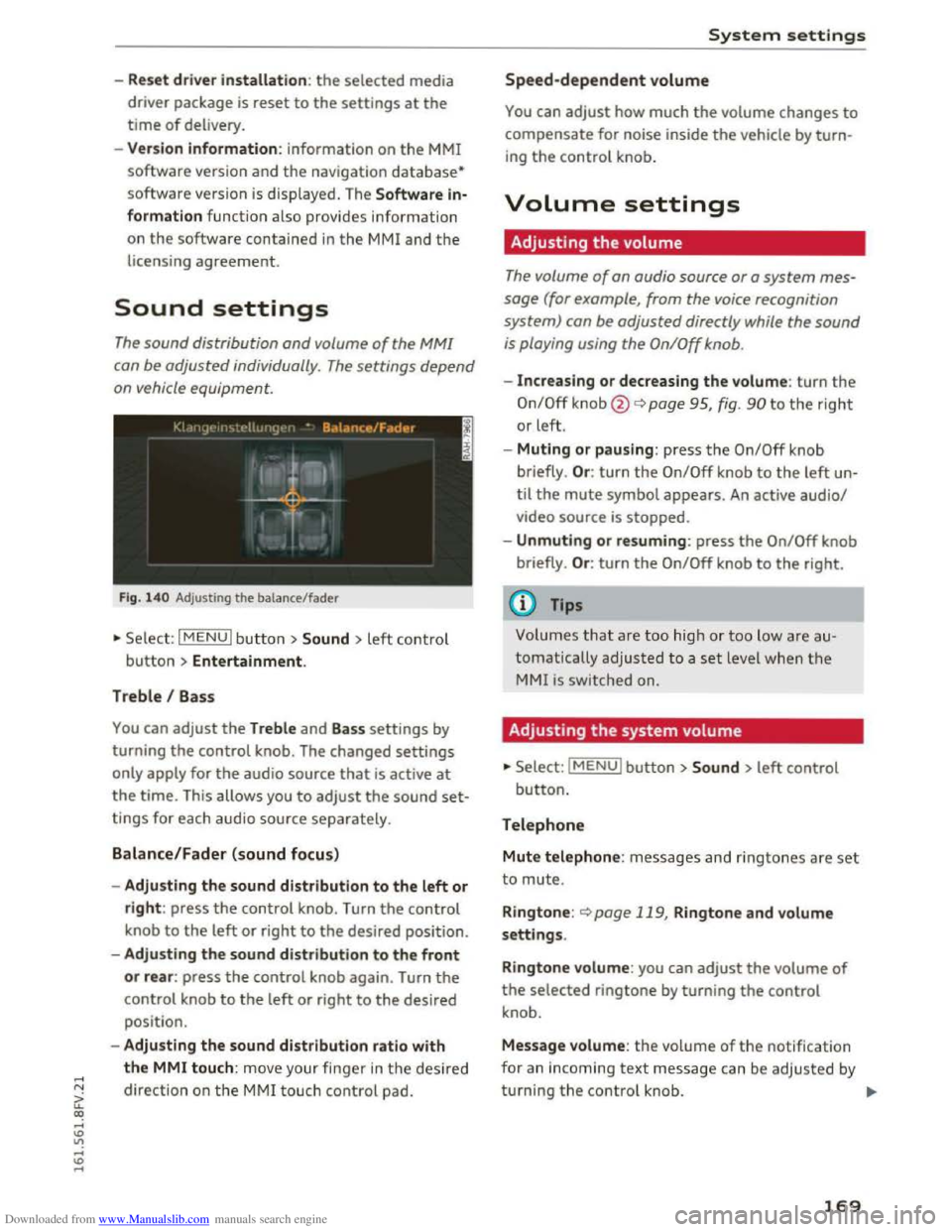
The sound distribution and volume of the MM!
can be adjusted individually . The settings depend
on vehicle equipment.
Fig. 14 0 Adjusting the balance/fader
"'Se lect: I MENU I butt on >Sound > left contro l
button > Entertainment.
Treble I Bass
You can adjust the Treble and Bass settings by
turning
the control knob. The changed settings
only apply for the audio source that is active at
the time. This allows you to adjust the sound set
tings for each audio source separately.
Balance/Fader (sound focus)
- Adju sting the sound distribution to the left or
right: press the control knob. Turn the control
knob to the left or right to the desired position.
- Adjusting
the sound distribution to the front
or rear: press the control knob again. Turn the
control knob to the left or right to the desired
position.
- Adjusting
the sound distribution ratio with
the MMI touch: mov e your finger in the desired
direction
on the M MI touch control pad.
System settings
Speed-dependent volume
You can adjust how much the volume changes to
compensate for noise inside the vehicle by turn
ing the control knob.
Volume settings
Adjusting the volume
The volume of an audio source or a system mes
sage (for example, from the voice recognition
system) can be adjusted directly while the sound
is playing using the On/Off knob.
-Increasing or decreasing the volume: turn the
On/Off knob@¢ page 95, fig. 90 to the right
or left.
- Muting
or pausing: press the On/Off knob
briefly . Or :
turn the On/Off knob to the left un
til the mute symbol appears. An active audio/
video source is stopped.
-Unmuting or resuming: press the On/Off knob
briefly . Or :
turn the On/Off knob to the right.
(0 Tips
Volumes that are too hig h or too low are au
tomatically
adjusted to a set level when the
MMI is switched on.
Adjusting the system volume
"'Select: IMENUI button> Sound> left control
button.
Telephone
Mute telephone: messages and ringtones a re set
to mute.
R i
ngtone: <::)page 119, Ringtone and volume
settings.
Ringtone volume: you can adjust the volume of
the selected ringtone by turning the control
knob.
Message volume: the volume of the notification
for an incoming
text message can be adjusted by
turning
the control knob. ..,..
169
Page 172 of 322
Downloaded from www.Manualslib.com manuals search engine System settings
Microphone sensitivity: the vo lume of a phone
call can be adjusted during the phone call using
the control knob.
Navigation
Voice guidance:~ page 138, Voice guidance.
Voice guidance during phone call: 9 page 138,
Voice guidance.
Voice guidance volume: the voice guidance vol
ume can be adjusted during active route guid
ance by turning the control knob.
Entertainment fader: the volume of audio play
back can be
temporarily lowered when the park
i n g
system or voice guidance is active .
Voice recognition
Short dialog : prompts in a shorter format can be
switched on or off.
Speech dialog system volume: you can adjust
the volume of the announcements by turning the
control knob.
Parking aid*
You can adjust the signal tone volume by turning
the control knob.
-Adjusting the Front volume : select and con
firm
High , Medium or Low .
- Adjusting
the Rear volume: select and confirm
High, Medium or Low.
MMI touch
The volume
of the MM! touch voice prompts can
be
adjusted by turning the control knob.
Audi Heartbeat
You can adjust the Audi Heartbeat volume by
turning the control knob.
170
Restarting the MMI
(reset)
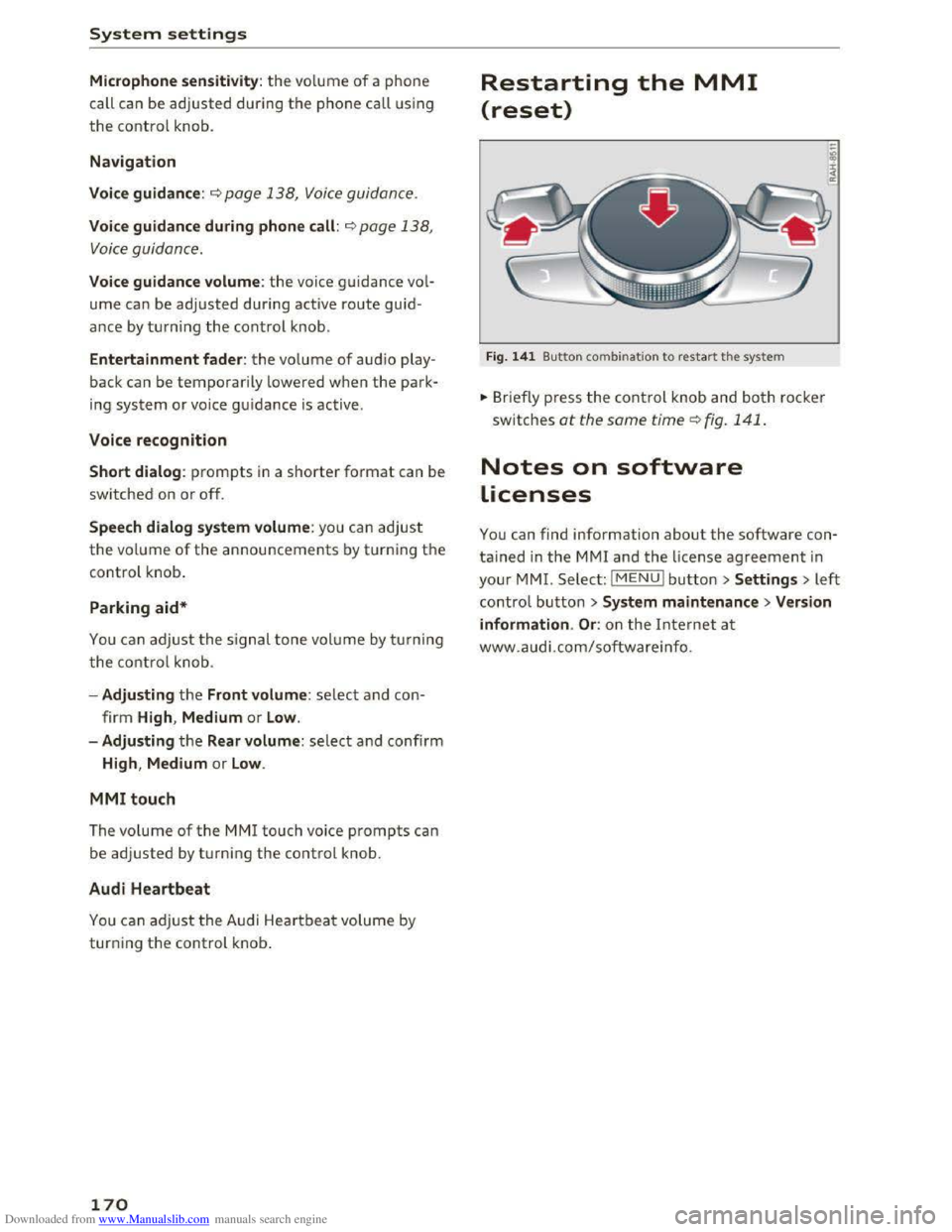
Fig. 141 Button combination to restart th e system
... Briefly press the control knob and both rocker
switches at the same time Q fig. 141 .
Notes on software
Licenses
You can find information about the software con
tained in the MMI and the license agreement in
your MM!. Select: I MENU! button >Settings > left
control button > System maintenance >Version
information .
Or: on the Internet at
www.audi.com/softwareinfo.
Page 313 of 322
Downloaded from www.Manualslib.com manuals search engine Options menu . . . . . . . . . . . . . . . . . . . . . . . . 97
Selection menu . . . . . . . . . . . . . . . . . . . . . . 96
Operation
Voice recognition system
Options
104
Navigation . . . . . . . . . . . . . . . . . . . . . . . . . 136
Options menu
Connection manager . . . . . . . . . . . . . . . . . 168
Control unit . . . . . . . . . . . . . . . . . . . . . . . . . 21
Directory... .. ................. ..... 119
Map ............................ .. . 140
Media . . . . . . . . . . . . . . . . . . . . . . . . . . . . . 162
Opening/closing . . . . . . . . . . . . . . . . . . . . . . 97
Radio settings . . . . . . . . . . . . . . . . . . . . . . 147
Telephone .. .. ................. ..... 119
Overview
Menus and symbols . . . . . . . . . . . . . . . . . . 101
Voice recognition system . . . . . . . . . . . . . 104
Overview (Cockpit) . . . . . . . . . . . . . . . . . . . . . . 6
p
Paint damage 272
Paint No. . . . . . . . . . . . . . . . . . . . . . . . . . . . . 298
Parental control (DVD) . . . . . . . . . . . . . . . . . 162
Parking aids
Cleaning sensors . . . . . . . . . . . . . . . . . . . . 271
Parking brake . . . . . . . . . . . . . . . . . . . . . . . . . 61
Emergency braking function . . . . . . . . . . . . 62
Indicator light . . . . . . . . . . . . . . . . . . . . 12, 61
Parking . . . . . . . . . . . . . . . . . . . . . . . . . . . . . 62
Power supply failure . . . . . . . . . . . . . . . . . . 61
Releasing/setting . . . . . . . . . . . . . . . . . . . . 61
Starting from a stop . . . . . . . . . . . . . . . . . . 62
also refer to Parking brake . . . . . . . . . . . . . 61
Parking light . . . . . . . . . . . . . . . . . . . . . . . . . . 36
Parking system
Adjusting
the disp lay/warning tone . . . . . . 86
C leaning the rearview camera . . . . . . . . . . . 84
Malfunction . . . . . . . . . . . . . . . . . . . . . . . . . 86
Parking system plus . . . . . . . . . . . . . . . . . . . 83
Peripheral display . . . . . . . . . . . . . . . . . . . . 83
Rearview camera . . . . . . . . . . . . . . . . . . . . . 84
also refer to Parking systems . . . . . . . . 83, 84
..... N Parking systems . . . . . . . . . . . . . . . . . . . . . . . 82
a: co Rear parking system . . . . . . . . . . . . . . . . . . 82
.....
~ Parking (automatic transmission) . . . . . . . . . 66
:£: Parts replacement . . . . . . . . . . . . . . . . . . . . 296 .....
Index
PASSENGER AIR BAG OFF light . . . . . . . . . . 200
Pause (audio/video file) . . . . . . . . . . . . . . . . 159
Pausing (audio/video files) . . . . . . . . . . . . . . 21
Pausing (audio/video file) . . . . . . . . . . . . . . . 22
Pedals . . . . . . . . . . . . . . . . . . . . . . . . . . . . . . 175
Peripheral display . . . . . . . . . . . . . . . . . . . . . . 83
Phone book
refer to Directory .................. .. 117
Phone number
Call list . . . . . . . . . . . . . . . . . . . . . . . . . . . . 112
Dialing . . . . . . . . . . . . . . . . . . . . . . . . . . . . 112
Directory . . . . . . . . . . . . . . . . . . . . . . . . . . . 112
Favorites . . . . . . . . . . . . . . . . . . . . . . . . . . . 112
Physical principles of a frontal collision . . . 181
Playback (media) . . . . . . . . . . . . . . . . . . . . . 159
Point of interest
Entering . . . . . . . . . . . . . . . . . . . . . . . . . . . 134
Search area . . . . . . . . . . . . . . . . . . . . . . . . . 134
Point of interest search . . . . . . . . . . . . . . . . 134
Polishing . . . . . . . . . . . . . . . . . . . . . . . . . . . . 272
Pollen filter
refer to Pollutant filter . . . . . . . . . . . . . . . . 52
Pollutant filter . . . . . . . . . . . . . . . . . . . . . . . . 52
Power
seat
adjustment . . . . . . . . . . . . . . . . . . . . . . 45
Windows ....... ................... . 32
Power windows
Convenience opening/closing . . . . . . . . . . .
32
Malfunction . . . . . . . . . . . . . . . . . . . . . . . . . 33
Pregnant women
Special considerat ions when wearing a safe-
ty belt . . . . . . . . . . . . . . . . . . . . . . . . . . . . . 185
Presentation mode . . . . . . . . . . . . . . . . . . . . 137
Presets
Radio . . . . . . . . . . . . . . . . . . . . . . . . . . . . .
147
Presets list
refer to Favorites . . . . . . . . . . . . . . . . . . . . 147
Pressure (tires) . . . . . . . . . . . . . . . . . . . . . . . 268
Programming a button (multifunction steer-
ing wheel) . . . . . . . . . . . . . . . . . . . . . . . . . . . .
21
Prompt (voice recognition system) . . . . . . . 104
Proper occupant seating positions . . . . . . . 172
Proper safety belt position . . . . . . . . . . . . . . 185
311
Page 314 of 322
Downloaded from www.Manualslib.com manuals search engine Index
Proper seating position
Front passenger . . . . . . . . . . . . . . . . . . . . . 173
Occupants .. .. ..
................. .. . 172
Rear passengers..................... 174
Protecting 272
Q
quattro (all wheel drive) . . . . . . . . . . . . . . . . . 91
Question
What happens to unbelted occupants? . . 182
R
Radiator fan 243
Radio . . . . . . . . . . . . . . . . . . . . . . . . . . . . . . . 145
Additional station information . . . . . . . . . 146
Free text search . . . . . . . . . . . . . . . . . . . . . 145
Frequency band . . . . . . . . . . . . . . . . . . . . . 146
Menu...... .. ...................... 146
MMI control panel . . . . . . . . . . . . . . . . . . . 145
Presets . . . . . . . . . . . . . . . . . . . . . . . . . . . .
147
Program guide . . . . . . . . . . . . . . . . . . . . . . 146
Radio text . . . . . . . . . . . . . . . . . . . . . . . . . . 146
Scan . . . . . . . . . . . . . . . . . . . . . . . . . . . . . . 146
Station list . . . . . . . . . . . . . . . . . . . . . . . . . 145
Troubleshooting. . . . . . . . . . . . . . . . . . . . . 148
Updating stations (station list) . . . . . . . . . 145
Voice recognition system . . . . . . . . . . . . . 108
Radio setti ngs
Additional station information . . . . . . . . . 147
Rain/light sensor
Headlights . . . . . . . . . . . . . . . . . . . . . . . . . .
36
Indicator light . . . . . . . . . . . . . . . . . . . . . . . 17
Intermittent (windshield wipers) . . . . . . . . 41
Raising the vehicle . . . . . . . . . . . . . . . . . . . . 292
Range (fuel level) . . . . . . . . . . . . . . . . . . . . . . 23
Reading aloud
Possible commands . . . . . . . . . . . . . . . . . .
105
Reading lights . . . . . . . . . . . . . . . . . . . . . . . . . 38
Rear lid
refer to Luggage compartment lid . . . . . . . 30
Rear spoiler .. .. .. ............... .. .. .. 91
Rearview camera
refer to Parking systems . . . . . . . . . . . . 83, 84
Rearview mirror dimming . . . . . . . . . . . . . . . 40
Rear window defogger . . . . . . . . . . . . . . . . . . 54
Recirculation mode (climate control system) 53
312
Recuperation . . . . . . . . . . . . . . . . . . . . . . . . . 23
Redial . . . . . . . . . . . . . . . . . . . . . . . . . . . . . .
119
Refueling . . . . . . . . . . . . . . . . . . . . . . . . . . . . 232
Remote control
refer to Remote control key . . . . . . . . . . . . 2S
Remote control key . . . . . . . . . . . . . . . . . . . . 25
LED . . . . . . . . . . . . . . . . . . . . . . . . . . . . . . . . 27
Personaliz ing . . . . . . . . . . . . . . . . . . . . . . . .
25
Replacing the battery . . . . . . . . . . . . . . . . . 2 7
unlocking/locking . . . . . . . . . . . . . . . . . . . . 27
Repair manuals . . . . . . . . . . . . . . . . . . . . . . .
294
Repairs
Airbag system . . . . . . . . . . . . . . . . . . . . . .
202
Replacement key . . . . . . . . . . . . . . . . . . . . . . 25
Replacing windshield
wiper blades . . . . . . . . 42
Reporting Safety Defects . . . . . . . . . . . . . . . 178
Rerouting ...... .. .. .. ........... 137, 142
Reset button (trip odometer) . . . . . . . . . . . . 23
Resetting
the trip odometer . . . . . . . . . . . . . 23
Reset (restart) . . . . . . . . . . . . . . . . . . . . . . .
170
Restart (reset) . . . . . . . . . . . . . . . . . . . . . . . 170
Retract
New brake pads . . . . . . . . . . . . . . . . . . . . . .
89
Retractor . . . . . . . . . . . . . . . . . . . . . . . . . . . . 184
Reverse (automatic transmission) . . . . . . . . . 64
Rewinding (audio/video file) . . . . . . . . . . . . 159
Right control button . . . . . . . . . . . . . . . . . . . . 21
Rims
.......... .. .. ................. 264
Ringtone settings ................. 119, 169
Road noise compensation (SDVC) . . . . . . . . 169
Roaming
refer to Data connection . . . . . . . . . . . . . . 127
Roof rack . . . . . . . . . . . . . . . . . . . . . . . . . . . . . 49
Roof load . . . . . . . . . . . . . . . . . . . . . . . . . . . 49
Route criteria . . . . . . . . . . . . . . . . . . . . . . . . 13 7
Route guidance
refer to Navigation . . . . . . . . . . . . . . . . . . . 132
Route information . . . . . . . . . . . . . . . . . . . . 141
Route
list . . . . . . . . . . . . . . . . . . . . . . . . . . . . 140
s
Safe driving ......... ................. 171
Safe driving habits ... .. .. .
............ 171