navigation AUDI TT COUPE 2016 Owner's Manual
[x] Cancel search | Manufacturer: AUDI, Model Year: 2016, Model line: TT COUPE, Model: AUDI TT COUPE 2016Pages: 322, PDF Size: 52.86 MB
Page 139 of 322
Downloaded from www.Manualslib.com manuals search engine ...... N
> u. CX> ...... u:>
"' ...... u:> ......
The selected destination is stored as the new
home
address.
Favorites
Applies to: vehicles with navigation system
... Press the INAV/MAPI repeatedly until the Enter
destination menu is displayed<:> page 131,
fig. 114.
-Storing an existing destination as a favorite:
search for
the desired destination using the in
put field. Or : select and confirm a destination
from the list. Select: right control button>
Store as favorite .
-
Renaming stored favorites: select: left control
button > Favorites > a favorite from the list>
right control button> Rename favorite.
- Moving
stored favorites: selec t: left contro l
button > Favorites > a favorite from the list >
right control button> Move favorite . Select
and confirm
the desired position.
- Deleting
stored favorites: select and confirm a
favorite> right control button> Delete this fa
vorite I Delete all favor ites.
Creating directory
contacts
Applies to: vehicles with navigation system
Two addresses (private/business) can be as
signed as destinations for each contact in the di
rectory.
... Press t h e I NAV/MAPI repeatedly until the Enter
destination menu is displayed r:!) page 131,
fig. 114.
Storing a destination as a contact in the
directory
Requirement: a cell phone must be connec ted to
the MMI.
- Select a destination> right control button>
Add destination to contact.
-
Select and confirm Add business destination or
Add private destination .
- Enter a
name. Or: select and confirm a directo
ry contact from the list .
-
Select and confirm Save business card.
Navigation
Additional settings
Navigation settings
Applies to: vehicles with navigation system
... Press the I NAV/MAPI repeatedly until the Enter
destination menu is displayed <:>page 131,
fig. 114.
... Select: right control button > Navigation set-
tings.
Depending on
the selected function, the follow
ing settings can be selected:
Show alternative routes
Up to three route suggestions and their proper
ties are displayed on the overview map when this
functi on is switched on. See also r:!) page 138
Gas station message
When this function is switched on, a message is
displayed if the fuel gauge goes below the re
serve marking. Confirming this message displays
a list
of gas stations in the area. When a gas sta
tion is selected, route guidance from the current
vehicle position is calculated .
Presentation mode
The presentation mode helps you to plan and fol
low a route without moving the vehicle. You can
Select starting point when you would like to cal
culate a route starting from a location other than
the veh icle position. Start presentation mode to
simulate route guidance .
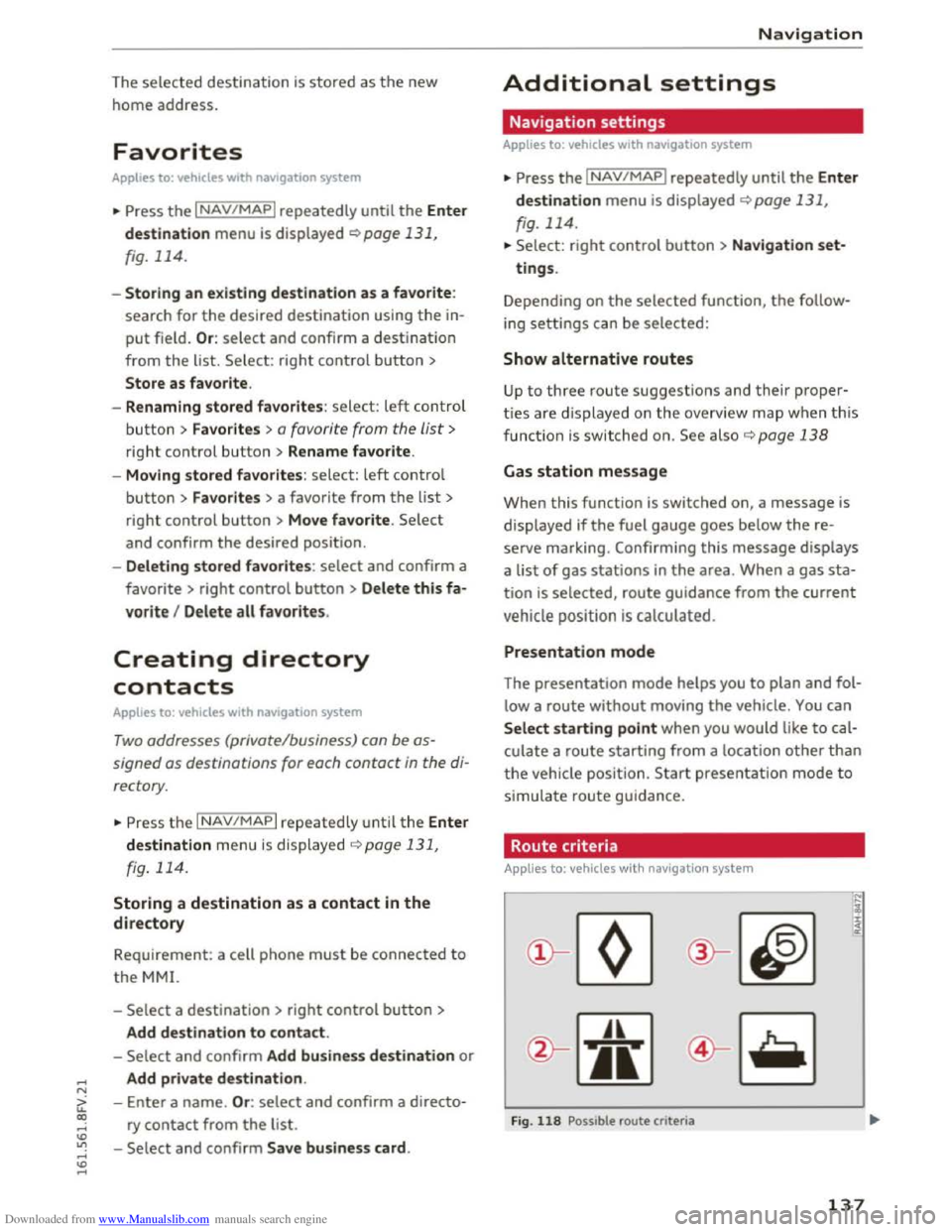
Route criteria
Applies to: vehicles with nav igat ion syste m
)(
Fig. 118 Possible route criteria
N
i :c <( cc
137
Page 140 of 322
Downloaded from www.Manualslib.com manuals search engine Navigation
... Press the I NAV/MAPI repeatedly until the Enter
destination
menu is displayed c::> page 131,
fig. 114.
... Select: right control button > Route criteria.
(!)HOV lanesn: with the Avoid function, HOV
lanes are excluded when calculating routes.
When Allow is selected, the MMI will route you
through HOV lanes and show them on the map.
@Highways / @ Toll roads /@ Ferries : if the navi
gation system should not include highways, toll
roads or ferries -if possible -when calculating
routes, you can select the Avoid function.
Voice guidance
Applies to: vehicles with navigation system
... Press the I NAV/MAPI repeatedly until the Enter
destination
menu is displayed c::> page 131,
fig. 114.
... Select: right control button > Voice guidance .
Voice guidance:
voice guidance can be complete
or shortened. With the Traffic function, voice
gu
idance prompts are only given when there are
traffic incidents on your route. When Off is se
lec ted, no voice guidance is given .
Voice guidance during phone call: voice guid
ance during a phone call can be switched on or
off.
Entertainment fader: c::> page 170.
Voice guidance volume: c::> page 170.
Blocking a route
App lies to: vehicles with navigation system
Requirement: a destination must be entered and
the route guidance must be started.
... Press the I NAV/MAPI repeatedly until the Enter
destination
menu is displayed c::> page 131,
fig. 114.
... Select: right control button > Block route .
When route guidance is active, the calculated
route will avoid the area you have specified (max-
l) Hig h oc cupancy vehicle
138
imum: 20 km), if possible. The navigation system
calculates an alternative route.
The
route to be avoided that you have entered
applies only to the c urrent route and must be re
set, if necessary.
The
areas you have selected to avoid will appear
with red and white shading on the map.
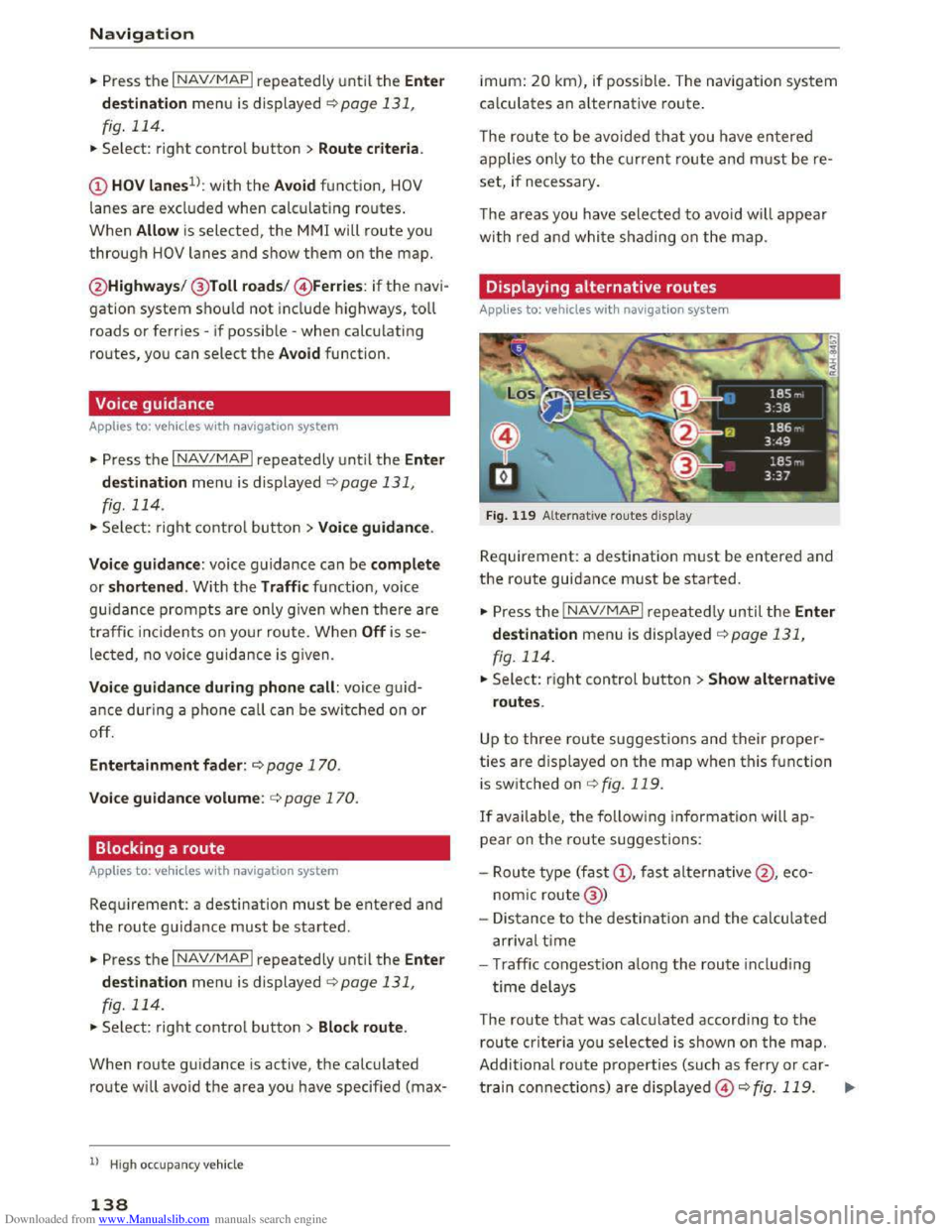
Displaying alternative routes
Applies to: vehicles with navigation system
Fig. 119 Alternative routes display
Requirement: a destination must be entered and
the route guidance must be started.
... Press the I NAV /MAP I repeated Ly until the Enter
destination
menu is displayed r::!>page 131,
fig. 114 .
... Select: right control button >Show alternative
routes.
Up to three route suggestions and their proper
ties are displayed on the map when this function
is
switched on c::>fig. 119.
If available, the following information will ap
pear on the ro ute suggestions:
-
Route type (fast(!), fast alternative@ , eco
nomic route@ )
- Distance
to the destination and the calculated
arrival time
- Traffic congestion a long the route includ ing
time delays
The route that was calculated according to the
route criteria you selected is shown on the map.
Additional
route properties (such as ferry or car-
train connections) are d isplayed@r::!> fig. 119. .,..
Page 141 of 322
Downloaded from www.Manualslib.com manuals search engine ..... N
G: CX)
.....
"' U"I
.....
"' .....
Additional information about individual route
criteria can be found in¢ page 137.
Using the control knob , you can select the possi
b le routing for t
he alternative routes and show
Map
Operating the map
Appl ies to: vehicles with navigation system
•
Wild Acres R d
•
Escondido Fwy
Escondido
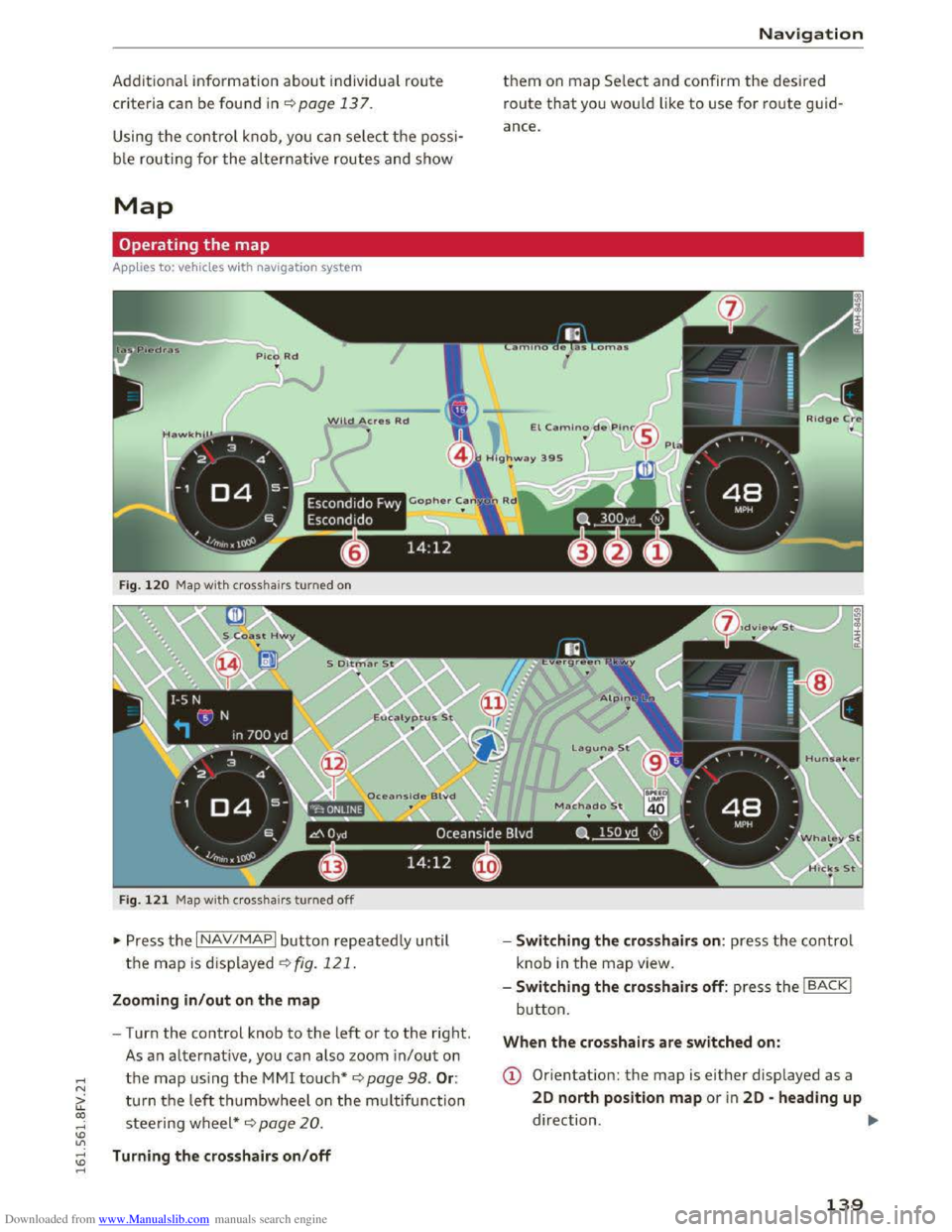
Fig. 120 Map wit h crosshairs turned on
F i
g. 121 Map wit h crosshai rs turned off
~ Press th e I NAV/MAPI button repeatedly un til
the map is displayed~ fig. 121.
Zooming in /out on the map
-Turn the control knob to the left or to the right.
As a n alternative, you can also zoom in/out on
the map using the MMI touch* ¢ page 98. Or:
turn the left thumbwheel on the m ultifun ction
steering wheel*~ page 20 .
Turning the crosshairs on/off
Nav igation
them on map Se lect and confirm the desired
route that yo u wou ld like to use for route guid
ance.
-
Switching the crosshairs on: press the co ntrol
knob
in the map view.
- Switching
the crosshairs off: press the IBACKI
button.
When the crosshairs are switched on:
(D Orientation: the map is either displayed as a
20 north position map or i n 20 -heading up
direction . ..,.
139
Page 142 of 322
Downloaded from www.Manualslib.com manuals search engine Navigation
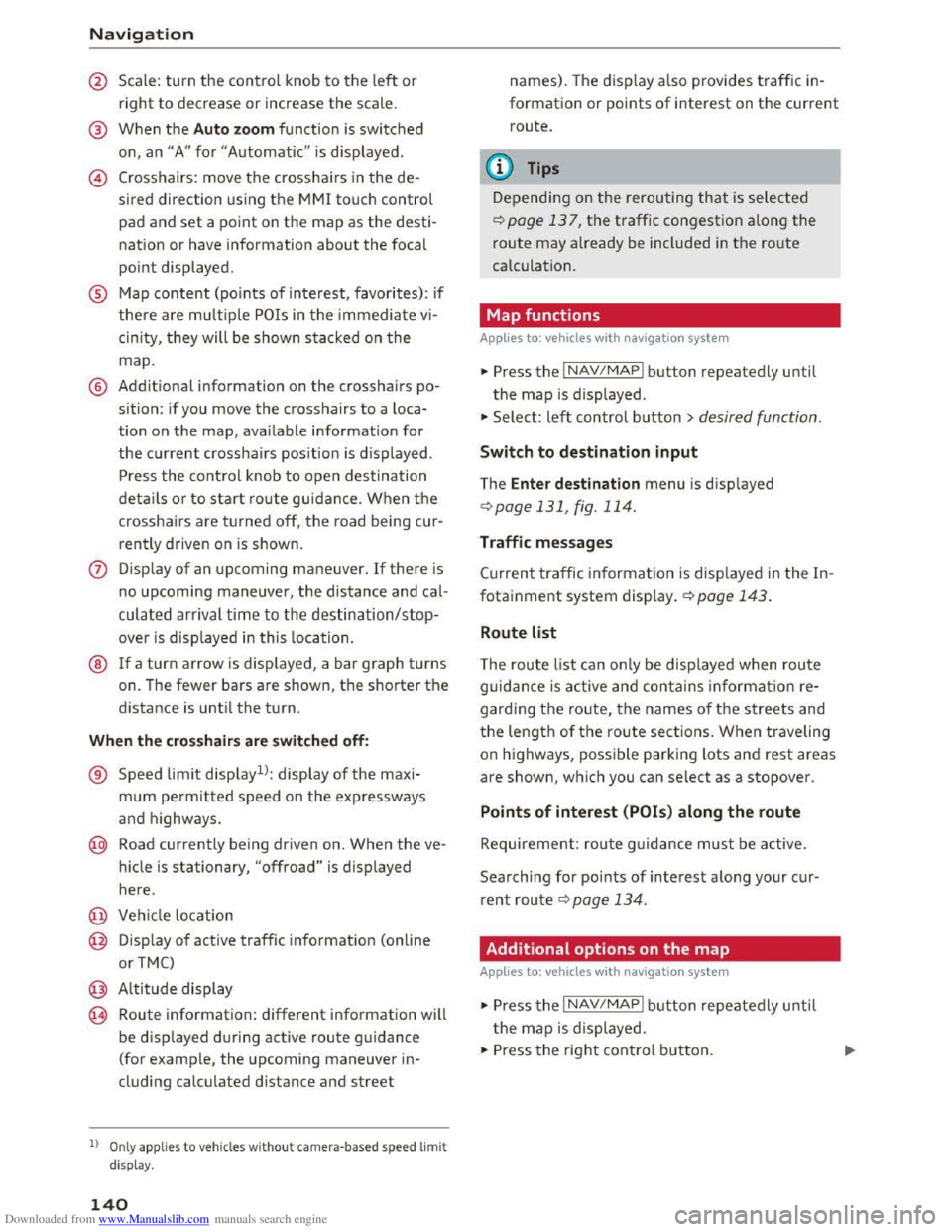
@ Scale: turn the control knob to the left or
right to decrease or increase the scale.
@ When the Auto zoom function is switched
on, an "A" for "Automatic" is displayed .
@ Crosshairs: move the crosshairs in the de
sired direction using the MMI touch control
pad and set a point on the map as the desti
nation or have information about the focal
point displayed.
® Map content (points of interest, favorites): if
there are multiple POis in the immediate vi
cinity, they will be shown stacked on the
map.
@ Addit ional information on the crosshairs po
sition: if you move the crosshairs to a loca
tion on the map, ava ilable information for
the current crosshairs position is displayed.
Press the control knob to open destination
details o r to start ro ute guidance. When the
crosshairs are turned off, the road being cur
rently driven on is shown.
(j) Disp lay of an upcoming maneuver. If there is
no upcoming maneuver, the distance and cal
culated arrival time to the destination/stop
over is displayed in this location.
® If a turn arrow is displayed, a bar graph turns
on. The fewer bars are shown, the shorter the
d istance is unti l the turn.
When the crosshairs are s witch ed off:
® Speed limit displayll: display of the maxi
mum permitted speed on the exp ressways
and highways.
@ Road currently being driven on. When the ve
h i
cle is stationary, "offroad" is displayed
here.
@ Vehicle location
@ Disp lay of active traffic information (online
or TMC)
@ Altitude display
@ Route information: different information will
be displayed during active route guidance
(for example, the upcoming maneuver in
cluding
calculated d istance and street
l) O nly app lies to veh icles without camer a-based speed limit
di splay .
140
names). The display also provides traffic in
formation or points of interest on the current
route.
(!) Tips
Depending on the rerouting that is selected
¢page 137, the traffic congestion along the
route may already be included in the route
calculation.
Map functions
Applies to: vehicles with navigat ion system
... Press the I NAV/MAPI button repeatedly until
the map is displayed .
... Select: left control button> desired function .
Switch to destination input
The Enter de stin ation menu is displ ayed
¢ page 131 , fig. 114.
Traffic messages
Current traffic information is displayed in the In
fotainment system display. ¢page 143.
Route list
The route list can only be displ ayed when rou te
guidance is active and contains informatio n re
garding the ro ute, the names of th e s treets and
th e length of the route sections. When traveling
on highways, possible parking lots and rest areas
are shown, w hich you can select as a stopover.
Points of interest (POis) along the route
Requirement: rou te guidance must be active.
Searching for poi nts of interest along your cur
r
ent route ¢ page 134.
Additional options on the map
Applies to: vehicles with navigation syste m
... Press the I NAV/MAPI b utton repeatedly unti l
t
he map is displayed.
... Press the right control button.
Page 143 of 322
Downloaded from www.Manualslib.com manuals search engine ...... N
> u. CX> ...... u:>
"' ...... u:> ......
Depending on the function selec ted, the follow
i ng
options can also be selected under th e Map
menu:
Cancel route guidance: ¢ page 136.
Map settings: ¢page 141 .
Route criteria :¢ page 137.
Voice guidance:¢ page 138.
Navigation settings: ¢page 137.
Online traffic data*: ¢page 142.
Block route:¢ page 138.
Show alternative routes:¢ page 1 3 8 .
Parking along the route: parki ng option s near
the veh icle are disp layed.
POis along the route: points of interest nea r the
vehicle are displayed .
Save current position: you can save your current
vehicle position as a favor ite q page 13 7 or save
it
as a contact in the directory ¢ page 13 7.
Audi
connect for this location* : allows you to
search for City events or Weather at the entered
location.
Country information: you can display the appli
cable urban
and rural speed limits for any coun
try/state. This information will be automatically
shown
to you in the route information @
q page 139, fig. 120 when the speed limit is e x
ceed ed, if this function is activated ¢page 141.
Map settings
A pp lies to: vehi cles with navigation system
... Press the I NAV/MAPI button repeatedly un til
the map is displayed .
... Select: right control button> Map settings.
Depending on
the selected function, the follow
ing
settings can be selected :
Day/night map
Day/Night : the map is displayed with a light/
dark background .
Automatic: when the lights switch on, the map
colors switch from day to night.
Map view
Standard ¢page 139, fig . 120.
Google Earth ¢ page 142, fig. 122
Traffic ¢ page 142
Map orientation
Navigation
Destination: the map ind icates the destina tion
and is or iented to the north.
2D -heading up/2D north position map: the
curre nt vehicle position is displayed. The map is
oriented in the direction of travel or to the north.
3D
position map: when this functio n is sw itch ed
on, the cur rent vehicle position is show n on a
three-dim ensiona l map and oriente d in the d ir e c
tion of travel. At a sca le of 62 m iles (100 km ) and
larger, t he map is or iented to the north.
Overview : the entire route from the vehicle posi
ti on to the destination or the nex t stopover is dis
played on
the map. The map scale depends on
the length of the route and adapts automatically.
The
map i s oriented to the north.
Route information
The display of route information such as the cur
rent road being driven on, upcoming maneuvers,
traffic information
or points of interest along the
r
oute can be switched on/off.
Auto zoom
On: the map scale is adapted automatically de
p endi ng o n th e type of road being traveled (ex
pr essway,
highway, other roads) so th a t you al
way s have an opti
mal o ve rview of the roa d ah ead.
The scale is also automatically adapted w he n
t h
ere are upcom ing maneu vers to provi de a bet
ter detailed view.
Off: the map scale you have chosen is kept.
Map content
Map content, such as traffic information, favor
i t es
or restaurants, can be displayed or hidden
(g).
141
Page 144 of 322
Downloaded from www.Manualslib.com manuals search engine Navigation
Online map view
Applies to: vehicles with navigation system and Audi connect
With the online map view, you can display the
map with satellite images.
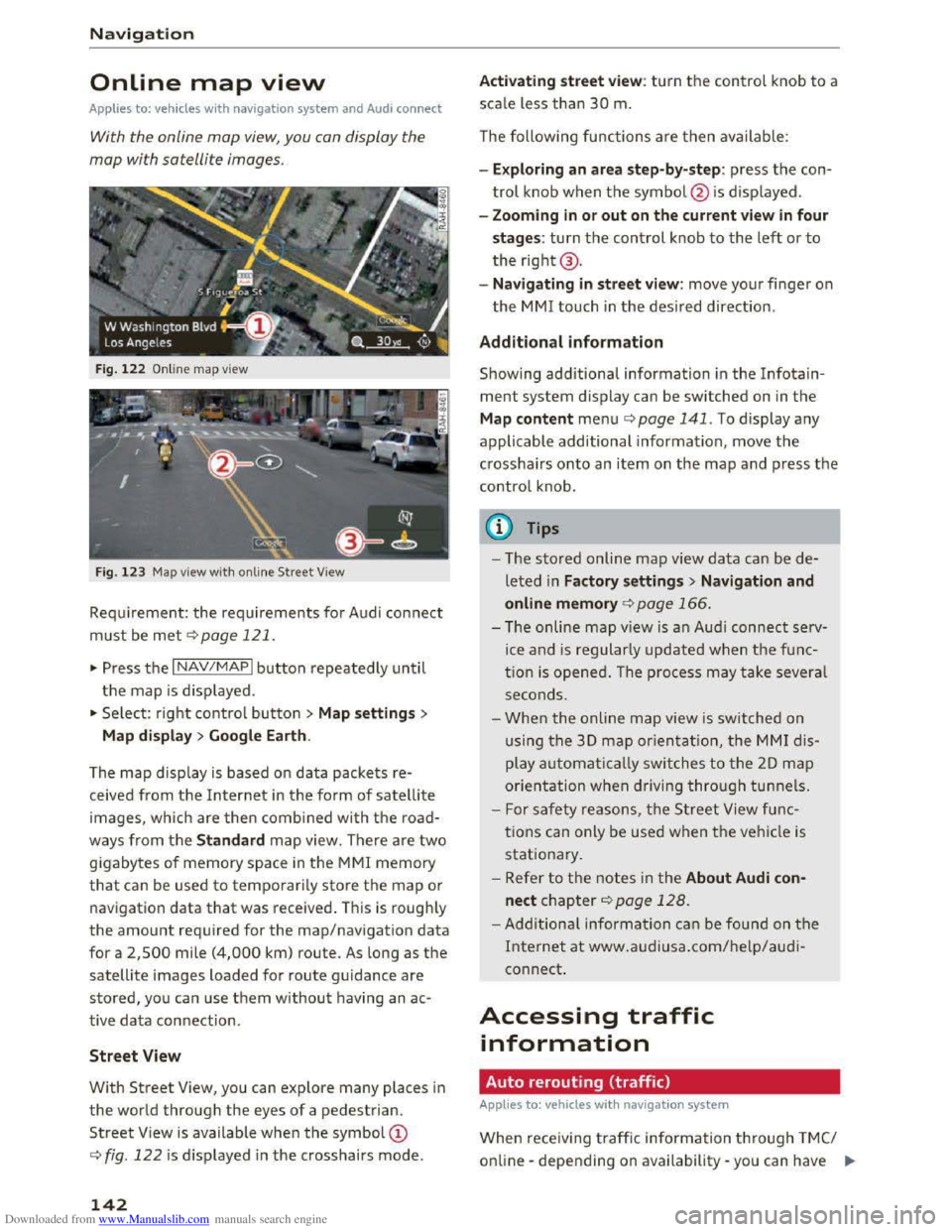
Fig. 122 Online map view
Fig.
123 Map view with on line Street View
Requirement: the requirements for Audi connect
must be met c::> page 121.
... Press the I NAV/MAPI button repeatedly until
the map is displayed .
... Select: right control button > Map settings>
Map
display> Google Earth.
The
map display is based on data packets re
ceived from the Internet in the form of satellite
images, which are then combined with the road
ways from the Standard map view. There are two
gigabytes of memory space in the MMI memory
that can be used to temporarily store the map or
navigation
data that was received . This is roughly
the amount required for the map/navigation data
for a 2,500 mile (4,000 km) route. As long as the
satellite images loaded for route guidance are
stored, you can use them without having an ac
tive data connection .
Street View
With Street View, you can explore many places in
the world through the eyes of a pedestrian.
Street View is available when the symbol©
c::> fig. 122 is displayed in the crosshairs mode.
142
Activating street view: turn the control knob to a
scale less than 30 m.
The following functions
are then available:
- Exploring
an area step-by-step: press the con
trol knob when the symbol @ is displayed .
-
Zooming in or out on the current view in four
stages: turn the control knob to the left or to
the right@.
-
Navigating in street view: move your finger on
the MM! touch in the desired direction .
Additional information
Showing additional information in the Info tain
ment system display can be switched on in the
Map content menu c::;.page 141. To display any
applicable additional information , move
the
crosshairs onto an item on the map and press the
control knob .
(D Tips
-The stored on line map view data can be de
leted in Factory settings> Navigation and
online memory c::;. page 166.
-The on line map view is an Audi connect serv
ice and is regularly updated when the func
tion is opened. The process may take several
seconds .
-
When the online map view is switched on
using
the 30 map orientation, the MMI dis
play automatically switches to the 20 map
orientation when driving through tunnels.
- For safety reasons, the Street View func
tions can only be used when the vehicle is
stationary.
-Refer to the notes in the About Audi con·
nect chapter c::> page 128.
-Additional information can be found on the
Internet at www.audiusa.com/help/audi
connect.
Accessing traffic
information
Auto rerouting (traffic)
Applies to: vehicles with navigat ion system
When receiving traffic inform ation through TMC/
online -depending on availability -you can have II>
Page 145 of 322
Downloaded from www.Manualslib.com manuals search engine the MMI navigate you around traffic incidents, if
possib l
e. Rerouting must be switched on for this
¢page 137.
Reception of traffic information is indicated by
the ITMCI or IONLINEI symbol on the map.
Traffic information (TMC)
Applies to: vehicles with nav igation system
~Press the I NAV/MAPI button repeatedly until
the map is displ ayed .
~ Select: left control button > Traffic messages.
Reception of traffic information is indicated by
the ITMCI symbol on the map:
M ul
tiple traffi c messages are summarized in the
overview under the corresponding street names
or highway names.
-Dis playing all traffi c messages for a street/
highway :
select and confirm the [ill symbol. A
list
of all the traffic messages for the selected
street/highway is displayed.
-Openin g a detailed view of traffic information :
select and confirm the traffic report from the
list.
-Displa ying the selected traffi c information on
the map : select and confirm the right control
button > Show on map. The shaded line shows
the street and the length of the traffic jam.
-Dis pla ying the ne xt traffic message on the
map : press the control knob .
Traffic information display
Colored warning symbo ls : traffi c inc idents on
your route are shown in the upper section of the
list and are sorted according to distance.
Warning symbols with..=>: avoided traffic inc i
dents.
Gray ed out warning symbols: traffic inc idents
that are not on yo ur route. They are sorted ac
cord ing
to road type (exp ressway, highway, other
road),
country and name.
(D Tips
Crit ical traffic information, such as warnings
about wrong-way drivers, is automatically d is-
Navigation
played. To h ide the traffic in formation, press
the IBACKI button or the control knob .
-
T M C traffic reports are not available in Can
ada. For more information, please contact
Sirius Canada .
Better route
Applies to: vehicles with nav igation system
By receiving traffic information through TMC,
your MMI calculates a better route -if available -
and the possible time saved for the current route
guidance.
You can decide yourself which route
you would like
to use.
Requirement: the route guidance must be active,
rero u
ting must be set to Manual q page 13 7 and
the map must be displayed.
If your MMI has calculated a better route than
the current route guidance, the message A better
route is av ailable .
is displayed on the map along
with the time that may be saved.
Apply better route
-Press the contro l knob. Or: select the left con
trol button > Traffic messages. The better
route with the calculated arrival time is dis
played.
-
Select and confirm the better route.
- The
better route wi ll be used for the rest of the
route guidance.
Online traffic information
Applies to: vehicles with nav igation system and Audi connect
The MMI can receive real-time traffic informa
tion
about traffic congestion, accidents, road
construction
and other incidents from the Inter
net.
Requirement: the requirements for Aud i connect
must be met ¢page 121.
~Press the INAV/MAPI button repeatedly until
t he
map is displayed.
-Switching online traffic information on: press
the right control button and switch Onlin e traf·
fic data on (~). IJll-
143
Page 146 of 322
Downloaded from www.Manualslib.com manuals search engine Navigation
-Switching traffic map view on: for an optimal
view of traffic information, select: I NAV/MAPI
button > right control button > Map settings >
Map display >Traffic .
You can also display the online traffic informa
tion in the on line map view ¢ page 142 or the
standard map view ¢ page 139, fig. 120.
Traffic information display
@Green : traffi c is movi ng freely
@Red: congestion
® Orange : stop-and-go traffic
Shaded markings indicate the leng th of the con
gestion.
Colored warning symbols: there is a t raffic inci
dent immedia te ly ahead on the route.
Grayed out warning symbols: traffic inc idents
t
hat a re not on your rou te.
Red warning symbol: all warning symbols will be
red
when route guidance i s no t ac tive.
The display of colored markings, warning sym·
bols, etc. can be set in the Map content menu
¢ page 141
Troubleshooting
Applies to: vehi cles with navigation system
Problem Solution
Traffic in formation is switched on at the fa ctory.
You can switch off the rece ption of online traffic
i
nformation at any time.
@ Tips
-O nline traffic information is not available in
Cana da.
- Refer to th e notes in the About Audi con
nect chapter¢ page 128.
- Every vehicle with t he Online traffic data
func tion switched on has the most ac cu rate
re po rts of traffic situations as well as traffic
f o
recasting. Your vehicle transmits and
processes its anonymous, encrypted p osi
tion info rmation at regular intervals to the
t raffic data provider . In case you do not
want to use t h is, you can switch off the On
line traffic information function at any
t i
me.
- T he online traffic information network is
still cur re ntly not available in all countries,
nor is the cover age nationwi de. Additional
inf ormation can be found on the Intern et at
www .audiusa.c om/help /a udi -connect.
Free text search : the desired des-The destinatio n i s possibly not entered in the navigation database.
ti
nati o n ca nnot be found . Or: check the spelling of th e search ter m a nd w hether the right
co un
try/state w as selected usi ng the Country/State selec-
tion¢ page 132 for the free text searc h.
144
Page 169 of 322
Downloaded from www.Manualslib.com manuals search engine ...... N
> u. CX> ...... u:>
"' ...... u:> ......
-Radio
- Media s
ettings
-Jukebox*
- Directory *
-
Telephone*
-
Bluetooth and Wi·Fi *
-Nav igation settings*
-Navigation and online memory*
-
Voice recognition*
- Message
settings*
-Apps *
-
Operating tips
- Audi connect*
You can select the desired func tions individ ually
or all at once with the Select all entries optio n.
Select and confirm Restore factory settings.
{!) Tips
Make sure that not only the sett ings were de
leted
but a lso the stored data, if applicable.
Connection manager
Introduction
The connection manager gives you an overview
of your connected devices and their network sta
tus.
~ Select: IM ENU I button > Settings > left control
button> MMI settings> Connection manager.
If a mobile device was already connected, the
name of the dev ice and the connection mode will
dis pl ay under th e correspond ing menu item.
Using the telephone
-Connect new device : search for and connect a
cell phone.
' Data connection
Applies to vehicles with Audi connect
-Connect new device : search for and connect a
mobile device (such as a
smartphone).
-List of devices already connected: select your
cell
phone from the list of all the devices that
System settings
are already connected. Or: insert a mini SIM
card into
the SIM card reader Qpage 121.
MMI connect app
Applies to vehicles with Audi connect
Requirement: the Audi MMI connect app must
be installed and open on your mobile device.
-
Connect new device : search for and connect a
mobile device (such
as a smartphone).
-List of device s already connected: select your
mobi le device
from the list of all the devices
that are already connected.
Music
Applies to vehicles wit h Bluetooth or Wi-Fi au dio player
Audio player*
Requirement: the Bluetooth function and visibili
ty on the MM! Q page 168 and cell phone must
be switched on.
-
Connect new devi ce : press the control knob.
Select Bluetooth audio player . Search for and
connect a new device.
-List of devices already connected: select a
Bluetooth device
from the list of all the devices
that are already connected.
Wi·Fi audio player*
Requirement: the Wi·Fi hotspot on the MMI
Q page 126 and the Wi-Fi on your cell phone
must be switched on.
-
Connect new device : press the control kno b.
S earc h
for and connect a Wi-F i capa ble device.
- Disconnect
Wi·Fi audio player: deactivate th e
Wi-Fi on your
Wi·Fi capable device. The device
will
be automatically removed from the list.
Directory
Requirement: cell phones must not be connected
to the MM! through the Bluetooth remote SIM
access profile or through the Handsfree profile.
-
Connect new d evice : search for and connect a
new cell phone.
Or: insert a mini SIM card into
the SIM card reader Qpage 121. ..,.
167
Page 171 of 322
Downloaded from www.Manualslib.com manuals search engine -Reset driv e r in stallation: the selected media
driver package is
reset to the settings at the
time of delivery.
- Ver
sion in fo rmation: information on the MMI
software version and the navigation database*
software version is displayed. The Software in
formation function also provides information
on the software contained in the MMI and the
licensing agreement.
Sound settings
The sound distribution and volume of the MM!
can be adjusted individually . The settings depend
on vehicle equipment.
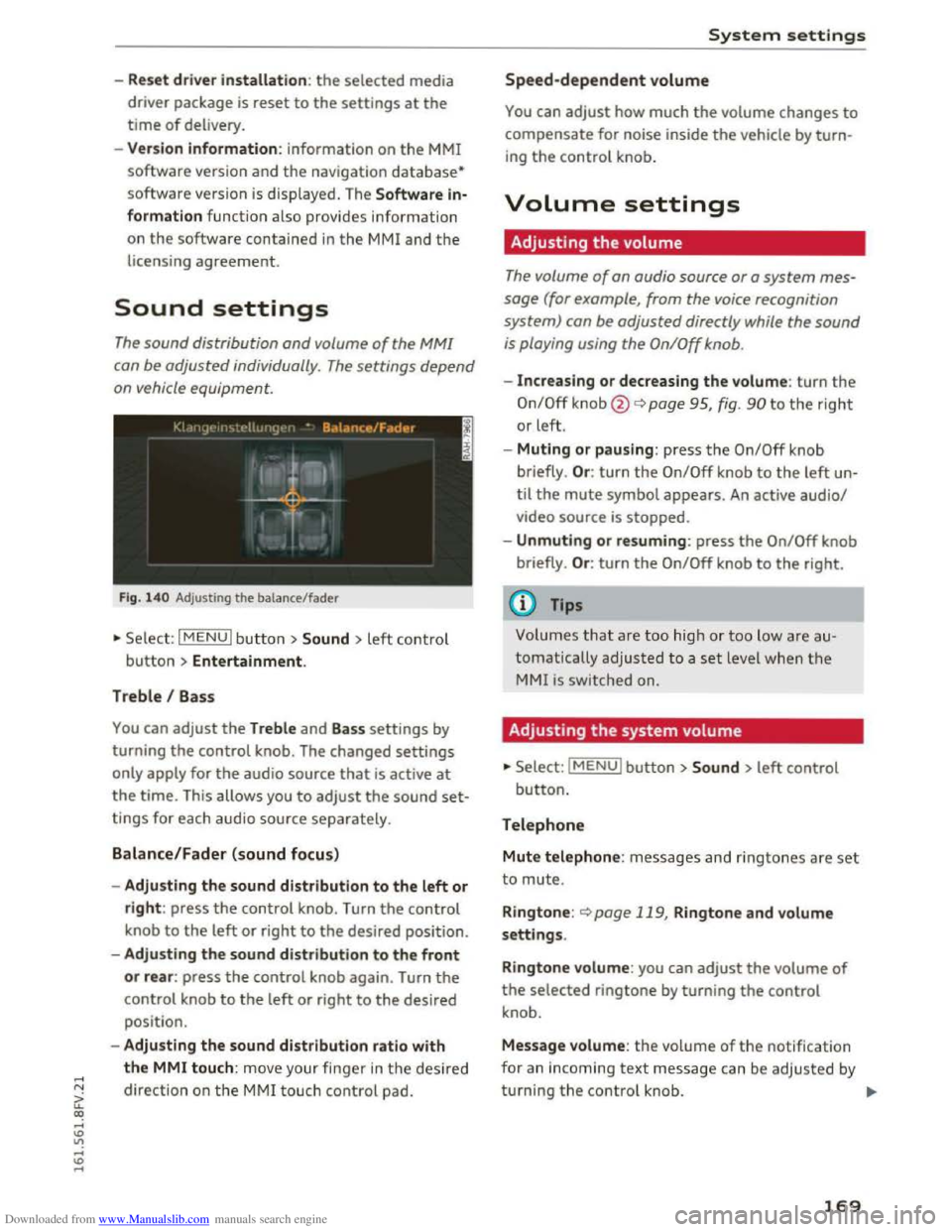
Fig. 14 0 Adjusting the balance/fader
"'Se lect: I MENU I butt on >Sound > left contro l
button > Entertainment.
Treble I Bass
You can adjust the Treble and Bass settings by
turning
the control knob. The changed settings
only apply for the audio source that is active at
the time. This allows you to adjust the sound set
tings for each audio source separately.
Balance/Fader (sound focus)
- Adju sting the sound distribution to the left or
right: press the control knob. Turn the control
knob to the left or right to the desired position.
- Adjusting
the sound distribution to the front
or rear: press the control knob again. Turn the
control knob to the left or right to the desired
position.
- Adjusting
the sound distribution ratio with
the MMI touch: mov e your finger in the desired
direction
on the M MI touch control pad.
System settings
Speed-dependent volume
You can adjust how much the volume changes to
compensate for noise inside the vehicle by turn
ing the control knob.
Volume settings
Adjusting the volume
The volume of an audio source or a system mes
sage (for example, from the voice recognition
system) can be adjusted directly while the sound
is playing using the On/Off knob.
-Increasing or decreasing the volume: turn the
On/Off knob@¢ page 95, fig. 90 to the right
or left.
- Muting
or pausing: press the On/Off knob
briefly . Or :
turn the On/Off knob to the left un
til the mute symbol appears. An active audio/
video source is stopped.
-Unmuting or resuming: press the On/Off knob
briefly . Or :
turn the On/Off knob to the right.
(0 Tips
Volumes that are too hig h or too low are au
tomatically
adjusted to a set level when the
MMI is switched on.
Adjusting the system volume
"'Select: IMENUI button> Sound> left control
button.
Telephone
Mute telephone: messages and ringtones a re set
to mute.
R i
ngtone: <::)page 119, Ringtone and volume
settings.
Ringtone volume: you can adjust the volume of
the selected ringtone by turning the control
knob.
Message volume: the volume of the notification
for an incoming
text message can be adjusted by
turning
the control knob. ..,..
169