navigation AUDI TT COUPE 2016 User Guide
[x] Cancel search | Manufacturer: AUDI, Model Year: 2016, Model line: TT COUPE, Model: AUDI TT COUPE 2016Pages: 322, PDF Size: 52.86 MB
Page 111 of 322
Downloaded from www.Manualslib.com manuals search engine Voice recognition system
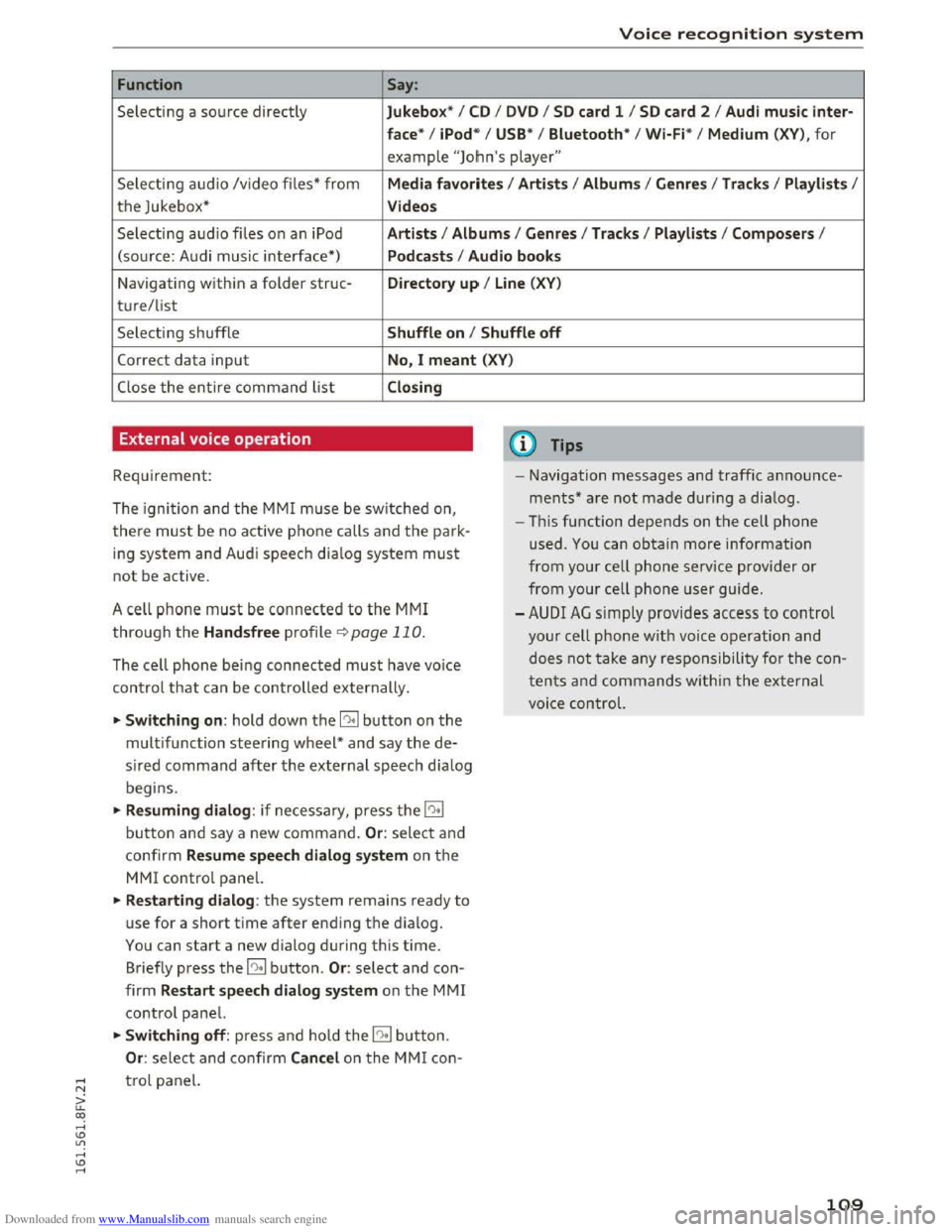
Function Say:
Selecting a source directly Jukebo x* I CD I D V D I SD card 1 I S D card 2 I Aud i mu sic inter-
face *
I iPod * I USB* I Bluetooth * I Wi-Fi* I Medium (XV), for
example "Jolhn's player"
Selecting audio /video files* from Media favo rite s I Artists I Album s I Genres I Tracks I Playli st s I
the Jukebox* Videos
Selecting audio files on an iPod A rt ists I Albums I Genre s I Tracks I Playlists I Compos ers I
(sou rce: Audi music interface*) Podcast s I Audio books
Navigating within a folder struc-Di rectory up I Line (XV)
t u re/list
Selecting shuffle Shuffle on I Shuffle off
Correct data input No, I meant (XV)
Close the entire command list Closing
External voice operation
Requirement:
The ignition and the MMI m use be switched on,
there must be no active phone calls and the park
ing system and Audi speech dia log system must
not be active .
A cell
phone must be connected to the MMI
through the Handsfree profile¢ page 110.
The cell phone bei ng connected must have voice
con trol that can be controlled externally.
~Switching on : hold down the 12!:1 button on the
multifunction steering wheel* and say the de
sired command after the external speech d ia log
begi ns.
~Resuming dialog : if necessary, press the l"l•I
button and say a new command. Or : select and
confirm Resum e speech dialog system on the
MMI control panel.
~Restarting dialog: the system remains ready to
use for a short time after ending the d ialog.
You can start a new dialog during this time.
Briefly press the 12!:1 button. Or: select and con
firm Restart speech dialog syste m on the MMI
control panel.
~Switching off: press and ho ld the 12!:1 b utton.
Or : select and confirm Cancel o n the MMI con-
(D Tips
- Navigation messages and traffic announce
ments* are not made duri ng a dialog.
-Th is function depends on the cell phone
used. You can obtain more information
from your cell phone ser vice provider or
from your cell phone user guide.
-AUDI AG simply provides access to control
your cell phone with voice operation and
does not take any responsibility for the con
t
ent s and commands within the external
voi ce control.
~ t ro l panel.
a: co ,....,
Page 120 of 322
Downloaded from www.Manualslib.com manuals search engine Telephone
Displaying contact details
Applies to: vehicles with telephone
f Plt•phor11_· ()1rl'ctc1ry
r,..
•
.. Vo1cema1l
• Green, Andrew (·
.. Smith, John
*•
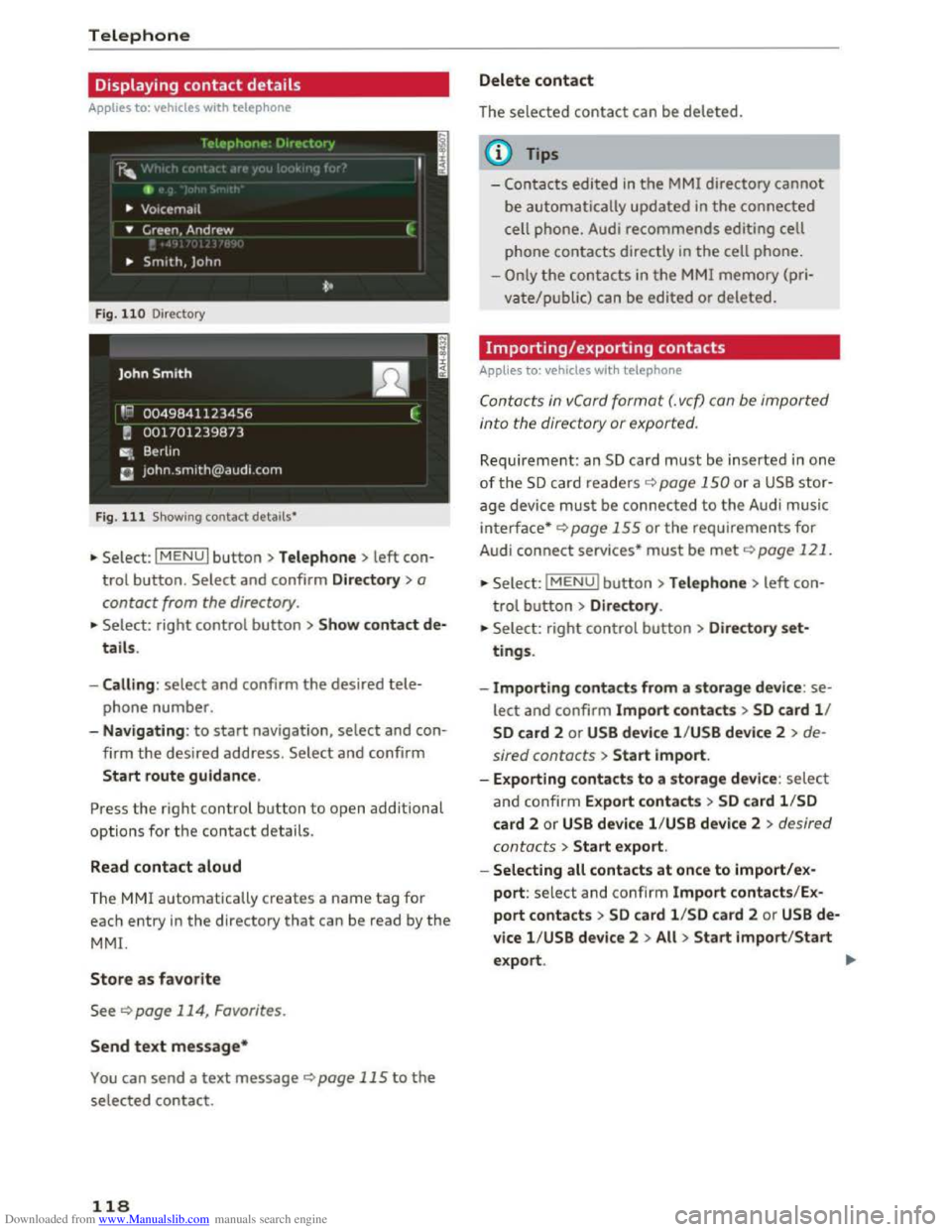
F ig . 110 Directory
Fig .
111 Showing contact details*
•Select: I MENU I button >Telephone > left con
trol button. Select and confirm Directory > a
contact from the directory .
~
• Select: right control button > Show contact de
tails.
- Calling :
select and confirm the desired tele
phone number.
- Navigating :
to start navigation, select and con
f irm
the desired address. Select and confirm
Start route guidance.
Press the right control button to open additional
options for the contact details.
Read
contact aloud
The MM! automati ca lly creates a name tag for
each
entry in the directory that can be read by the
MM!.
Store as favorite
See ¢page 114, Favorites.
Send text message*
You can send a text message ¢page 115 to the
selected contact.
118
Delete contact
The selected contact can be deleted.
© Tips
-Contac ts edited in the MMI directory cannot
be automatically updated in the connected
cell phone.
Audi recommends editing cell
phone
contacts directly in the cell phone .
-
Only the contacts in the MMI memory (pri
vate/public) can be
edited or deleted.
Importing/exporting contacts
Applies to: vehicles with telephone
Con tac ts in vCord format (. vcf) con be importe d
i
nto th e di rectory or exported .
Requirement: an SD card must be inserted in one
of the S D card readers ¢ page 150 or a USB stor
age device must be connected to the Audi music
interface* ¢ page 155 or the requirements for
Audi connect services* must be met ¢page 121.
•Selec t: IMENUI button> Telephone > left con-
t rol
button> Directory .
•Select: right control button > Directory set
tings.
-
Importing contacts from a storage device : se
lect and confirm Import contacts > SD card 1/
SD card 2 or USB device l /USB devi ce 2 > de
sired contacts >
Start import.
- Exporting
contacts to a storage device : select
and confirm Export contacts > SD card l/SD
card 2 or USB device l/USB device 2 > desired
contacts
> Start export.
- Selecting
all contacts at once to import/ex
port: select and confirm Import contacts/Ex
port contacts> SD card l/SD card 2 or USB de
vice l/USB device 2 >All > Start import/Start
export.
Page 125 of 322
Downloaded from www.Manualslib.com manuals search engine ..... N
G: CX)
.....
"' U"I
.....
"' .....
Overview of Audi
connect services
Basic functions
Applies to vehicles with Audi connect
F i
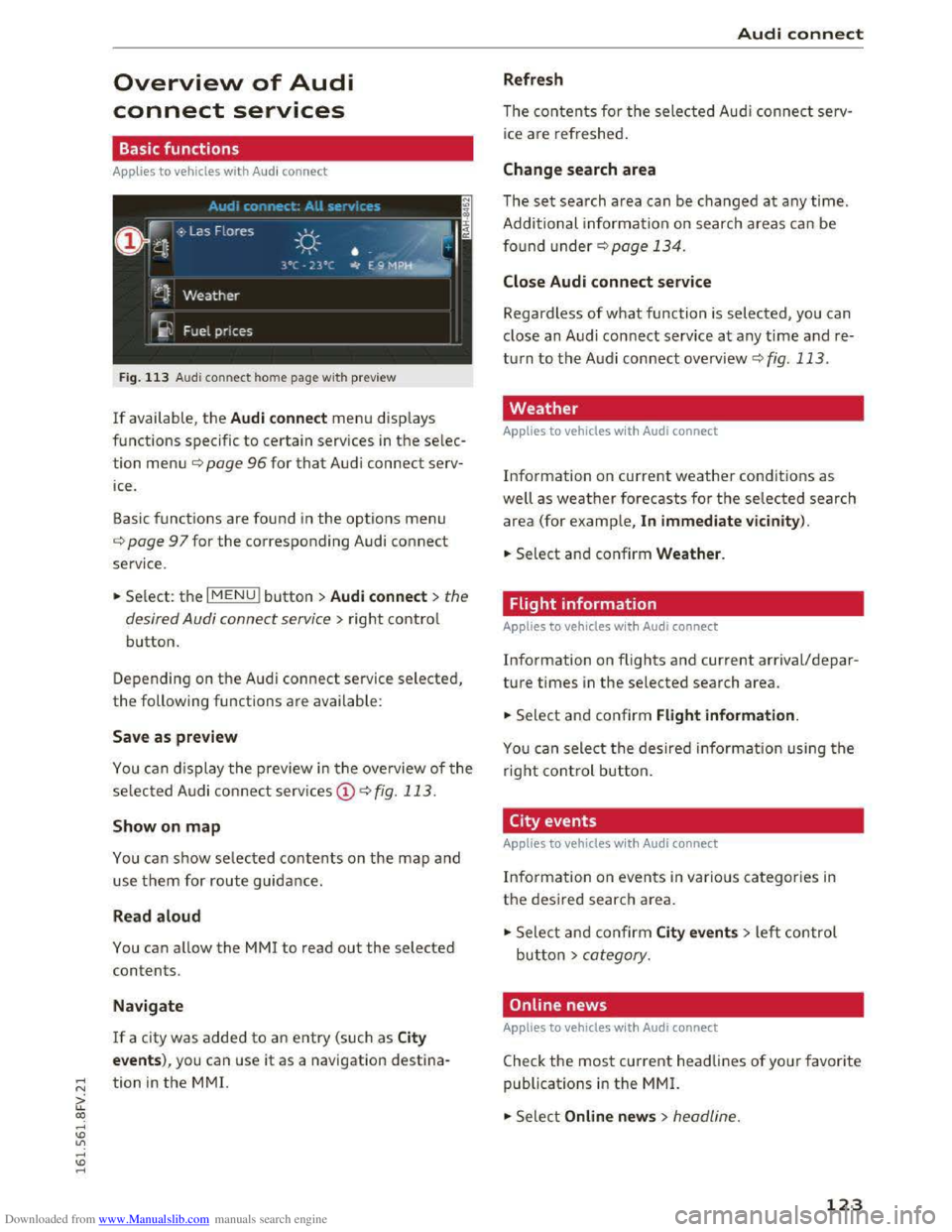
g. 113 Audi con nect home page with preview
If available, the Audi connect men u disp lays
functions specific
to certain services in the selec
tion menu¢ page 96 for that Audi connect serv
ice .
Basic functions
are found in the options menu
¢page 97 for the corresponding Audi connect
service .
.. Se lect: the I MENU! button >Audi connect> the
desired Audi connect service
> right contro l
button.
Depending on th e A udi connect service selected,
the following functions are available:
Save as preview
You can display the preview in the ove rview of the
selec ted Audi co nnect serv ices CD¢ fig. 113.
Show on map
You can show selected contents on the map and
use them for route guidance.
Read aloud
You can allow the MM! to read out the selected
contents.
Navigate
If a city was added to an entry (such as City
events), you can use it as a navigation destina
tion
in the M M!.
Audi connect
Refresh
The contents for the selected Audi connec t serv
ice are refreshed .
Change search area
The set search area can be changed at any time.
Additional informa tion on searc h
areas ca n be
found under¢ page 134.
Close Audi connect service
Regardless of what function is selected, you can
close an Audi connect service
at any time and re
turn to the A udi connect overview ¢ fig. 113.
Weather
Applies to vehicles with Audi connect
Information on current weather condit ions as
well as weather forecasts for the selected search
area (for ex
ample, In immediate vic inity).
.. Select and confirm Weather.
Flight information
Applies to vehicles with Audi connect
Information on flights and current arrival/depar
ture times in the selected sear ch area.
.. Select and confirm Flight information.
You ca n sele ct the desire d in fo rmation using the
r
igh t control button.
City events
Applies to vehicles with Audi connect
Inform ation on even ts in vario us ca tegories in
the desired searc h area.
.,. Sele ct a nd confir m City events> left control
butto n > category.
Online news
Applies to vehicles with Audi connec t
Check the most current headlines of your favorite
publicat i
ons in the MMI.
.,. Select Online news> headline.
123
Page 127 of 322
Downloaded from www.Manualslib.com manuals search engine @ Tips
-You can find additiona l information on con
necting your myAudi account with Twitter in
the Aud i conne ct (myAud i) operat ing man
ual at www.audi.com/myaud i.
-
Other settings such as account, language,
Tweet security and location settings
cannot
be changed in the MMI. These changes must
be made on the Twitter website.
-
You can create individual text templates in
your myAudi account.
-
You can only connect one Twitter account
with your myAudi account.
- Audi connect makes
it possible to access
Twitter. Permanent availability cannot be
guaranteed, because that depends on Twit
ter.
Audi connect services in navigation
Applies to: vehicles with nav igation system and Audi connect
The following Audi connect services are currently
available:
- Navigation
with online map view and Street
View
c::;. page 142.
-Point of Inte rest (POI) online search with
voice recognition (such as restaurants): plan
r oute guidance using
the MMI control panel
and
the vo ice recogn ition system 9 page 104.
-Set up destinations in your MMI using your
myAudi account or onl ine map vie w .
-
Onlin e traffic informat ion: receive up-to-the
minute traffic info rmation about accidents,
road construction and
other incidents
¢page 143.
-Map updates : import navigation map updates
in you r MM I
using an SD card .
@ Tips
-For the Map update Audi connect service us
ing an SD card, check the current software
version in you r vehicle and compare
it with
my.audiusa.com to see if a new version is
available.
You can also have the new naviga
tion data installed by an Audi dealer, which
can
be done for an additiona l charge.
Audi c onne ct
- More information on map update s can be
found in the Audi connect Operating Man
ual under my.audiusa.com.
Audi connect services in the telephone
Applies to vehicles with Audi connect
The following Audi connect services are currently
available:
- Storing contacts on
your computer using your
myAudi Accoun t and loading the contacts into
the MMI directory 9page 118.
Audi connect services in the Media menu
Applies to: vehicles with Wi·Fi audio player and Audi connect
-Wi-Fi audio player: you can access the med ia
center
through W i-Fi connected media players
(such
as smartphones) 9 page 153. The Audi
MMI connect app also offers access to Internet
radio *.
-
Onl ine m edia : offers access to different on line
media
ser vices and operation through the MM I
using
the Audi MMI c onnect app .
@ Tips
For more information on the Wi-Fi audio play
er and supported devices, contact an author
ized Audi dealer or authori zed Audi Service
Facility.
Additional options
Appl ies to vehicles with Audi connect
... Select: IMENUI button> Audi connect > right
control button.
T he
following options are available in the Audi
connect services overview:
-Log in : c::;. page 122, Logging into myAudi in the
vehicle
-Connecti on manage r: 9 page 167, Connection
manager
125
Page 133 of 322
Downloaded from www.Manualslib.com manuals search engine ..... N
Navigation
Opening navigation
Applies to: veh icles with navigation system
Nav igation
The navigation system directs you to your destination, around traffic incidents and on alternative
routes, if desired.
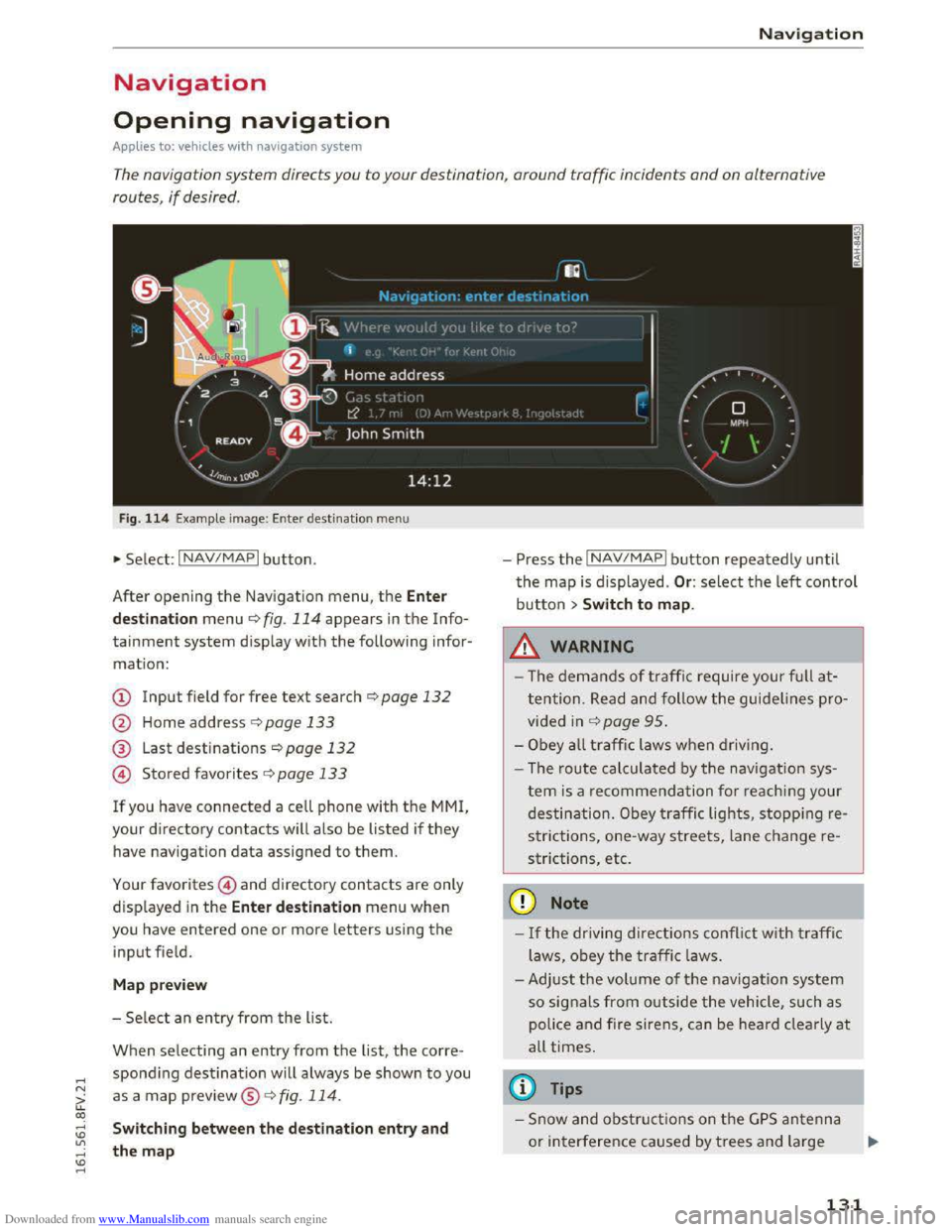
Fig. 114 Example image: Enter destination menu
•Select: INAV/MAPI button.
After opening
the Navigation menu, the Enter
d
est ina tion menu ¢ fig. 114 appears in the Info
tainment system display with the following infor
mation:
CD Input field for free text search¢ page 132
@ Home address r:!;> page 133
® Last destinations¢ page 132
@ Stored favorites C>page 133
If you have connected a cell phone with the MMI,
your directory contacts w ill also be listed if they
have navigation data assigned to them.
Your favorites@) and directory contacts are only
displayed
in the Ente r de stination menu when
you have entered one or more letters using the
input field.
M ap pre view
- Se lect an entry from the list.
When selecting an entry from the list, the corre
spondi ng destination will always be shown to you
as a map preview®~ fig. 114.
Switching between the destination entry and
the map
- Press the INAV/MAPI button repeatedly until
the map is displayed . Or: select the left control
button > Swit ch to map .
_&.WARNING
-The demands of traffic require your ful l at
tention. Read and follow the guidelines pro
vided in r:!;>page 95.
-Obey a ll traffic laws when driving.
- The r
oute calculated by the navigation sys-
tem is a recommendation fo r reaching your
destination. Obey traffic lights, stopping re
s trictions, one-way streets, lane change re
strictions, etc.
CD Note
-If the driving directions conflict with traffi c
laws, obey
the traffic laws.
- Adjust th e
volume of th e navigation system
so signals from outside the vehicle, such as
police
and fire siren s, can be heard cle arly at
all times.
@ Tips
-Snow and obstru ct ions on the G PS antenna
or interference caused by trees and large
- 1
131
Page 134 of 322
Downloaded from www.Manualslib.com manuals search engine Navigation
buildi ngs can impair satellite reception and
affect the system's ability to determine the
vehicle position. Several deactivated or mal
function ing satel lites can also interrupt GPS
reception and affect the system's ability to
determi ne the vehicle position.
- Because
street names sometimes change,
the names stored in the MMI may in rare
cases differ from the actual street name.
Entering a destination
Free text search
Applie s to: vehi cles with naviga tion syst em
You can quickly and easily search destinations
using the free
text search and transfer them to
route guidance.
Using the MMI touch control pad, yo u can enter
the data fo r a naviga tion destination in any order
all at once (for example, monument Washing
ton). Likewise, you can
search for points of inter
est, contacts, previous destinations or favorites
to navigate to the desired address.
.,.. Press the I NAV/MAPI repeatedly until the Enter
destination
menu is displayed ¢page 131,
fig. 114.
.. Keep turning the control knob to the left unti l
the input field appears.
-Write one or more search terms i n the input
field ©¢ page 131, fig. 114. A list of all re
sults found will appear in the Infotainment sys
tem display.
-
Select and confirm a destination from the re-
sults list.
-
Select and confirm Start route guidan ce .
The route is displayed as an ove rview in the m ap
and the route guidance is already active.
Narrowing the search area
-Se lect: right control button > Country /State
selection .
All countries/states are selected at the factory
for the free text search. Using the Country/State
selection ,
you can deselect the irre leva nt coun
tries/states to i ncrease th e search speed and nar
row th e res u
lts list.
132
(D Tips
- The MMI input suggestions depend on the
last navigated destinations.
-
Up to SO entries can be stored in the last
destinations list.
- Additional
information on free text search
ing can be found
under¢ page 102.
Loading last destination
Applies to: vehicles with nav igation syst e m
Your Last destinations are automatically stored
and can be directly loaded as a destination
ogoin .
.,.. Press the I NAV/MAPI repeatedly un til the Enter
destination
menu i s displayed ¢ page 131,
fig. 114.
Your last destina tions will be listed directly in the
Ente r destination menu and are marked wit h the
symbol @¢page 131, fig. 114.
- Sele ct and confirm a prev ious destina tion.
-
Select and confirm Start route guidance .
Delete last destinations
-Select and confirm a previous destination from
the list .
-
Select and confirm : right control button >De·
lete .
-Select and confirm Delete this la st destination
or Delete all last destinations .
The selected destination or all last destinations
is/are deleted and are no longer displayed in the
free text search .
Entering an address
Applies to: vehicles with navig ation syste m
.. Press the I NAV/MAPI repeatedly until the Enter
destination
menu i s displayed¢ page 131,
fig. 114.
.. Select: left control button > Ent er address .
-Select and confirm a line (such as Street , House
number
or Country /State ) and enter the de
sired information.
-Select and confirm Start route guidance .
Page 135 of 322
Downloaded from www.Manualslib.com manuals search engine Setting a destination from the map
Applies to: vehicles with nav igation system
A point on the map can be used as the destina
tion .
.. Press the I NAV/MAPI button repeatedly until
the map is displayed.
- Adju sting the scale: tu rn the control knob to
the left/right to move the crosshairs more
quickly.
- Mo ving the crosshairs: press the control knob.
The crosshairs
are shown on the map. Move the
crosshairs to the destination using the MMI
touch control pad i::> page 98. To hide the cross
hairs
agai n, press the IBACKI button.
-Setting as desti nat ion: press the control knob
when the crosshairs are shown. If necessary,
select and confirm Add as stopo ver and then
Start route guidance .
A dditional information about the lo
cation of
the crosshair s : if you select map content with
crosshairs , the avai lable information is displayed
(such
as the name of the c ity or points of inter
est)@ .
Setting a home address/favorite as the
destination
Applies to: vehicles with nav igation system
You can easily and quickly start route guidance
to your
home address using the home address
function. Favorites allow easier access to
other
frequently used destinations.
Requirement: a home address/favorite must be
stored i::>page 136.
.. Press th e I NAV/MAPI repeatedly until the Enter
d estination
menu is displayed ¢page 131,
fig . 114.
Setting a home address as the destination
Your home address will be displayed directly in
the Enter destination menu and can be identified
with
the symbol@ .
-
Select and confirm the home address.
-
If necessary , select and confirm Create now
and enter an address.
Navigation
-Select and confirm Start route guidance.
Setting a favorite as
the destination
-Enter one or more letters into the free text
search inp ut fie ld. The favo rites found are dis
p layed
and marked with the symbol@ .
-
Select and confirm the desired favorite.
-
Select and confirm Sta rt route guidance .
@ Tips
-Add itional information about the home ad
dress can be found under i::> page 136.
-Add itional information about favorites can
be found under¢ page 137.
Setting a destination from the directory
Applies to: vehicles with navigat ion system
You can navigate directly to destinations in the
directory.
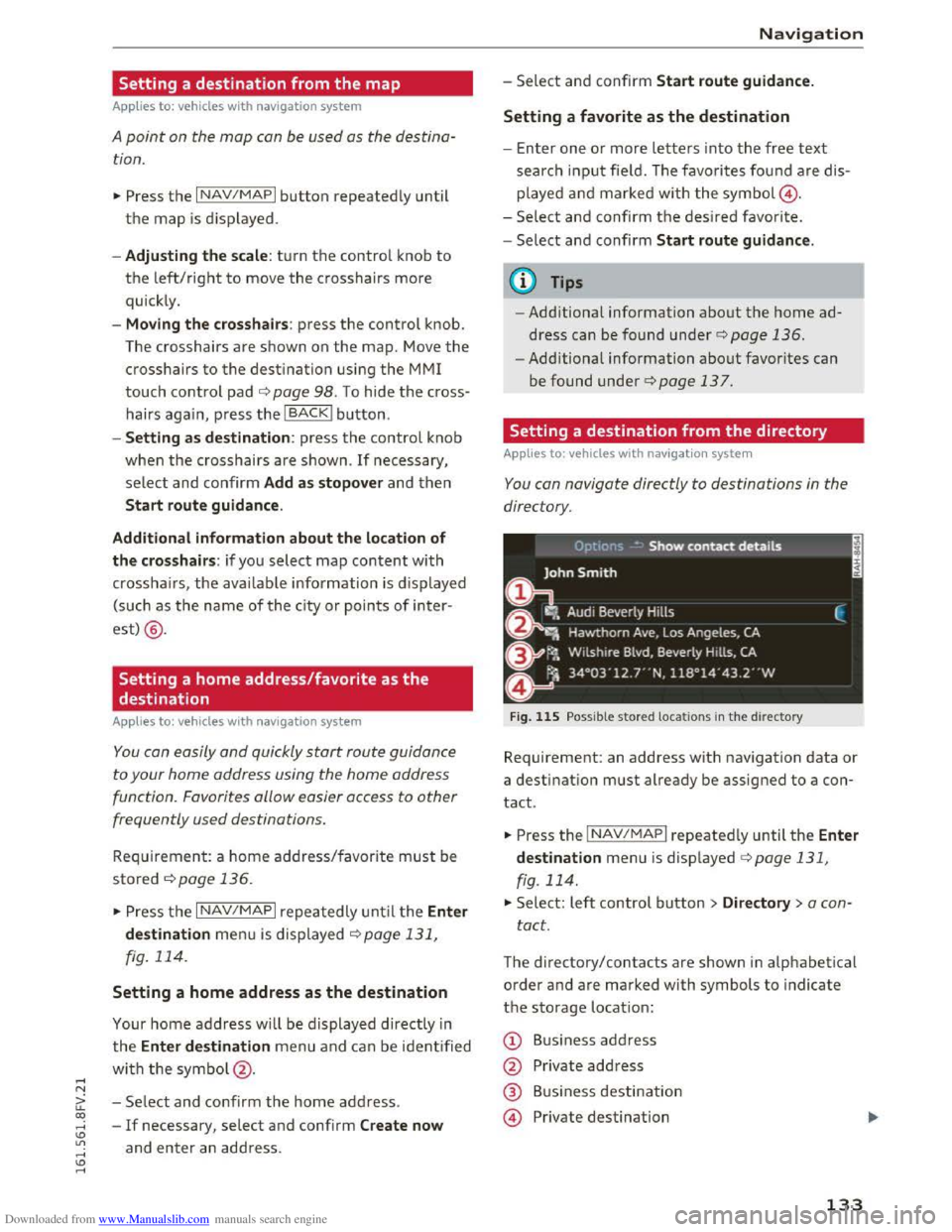
Fig. 115 Possib le stored locations in the direct ory
Requirement: an address with nav igation data or
a destination must already be assigned to a con
tact.
.. Press the INAV/MAPI repeatedly until the Enter
destination
menu i s disp layed i::> page 131,
fig. 114 .
.. Select: left control button > Directory > a con
tact.
The directory/contacts are shown in alphabetical
order a nd are marked with symbols to indicate
the storage location:
@ Bus iness address
@ Private address
@ Bus iness destination
© Private destination
133
Page 136 of 322
Downloaded from www.Manualslib.com manuals search engine Navigation
-Select and confirm an address or a destination.
When you have selected a destination, the
route guidance can be started directly.
-
Check the address input again when selecting
an address.
- T
hen select and confirm Start route guidan ce .
Addit ional directory functions in the n avigation
sys t
em can be found under ¢page 137.
@ Tips
-Addresses that have been imported from
your cell phone into the MM! can also be
used as a destination.
-
If a contact is grayed out in the directory,
this contact has neither a destination nor an
address assigned to them.
Entering a point of interest
Applies to: vehicles with navigation system
F i
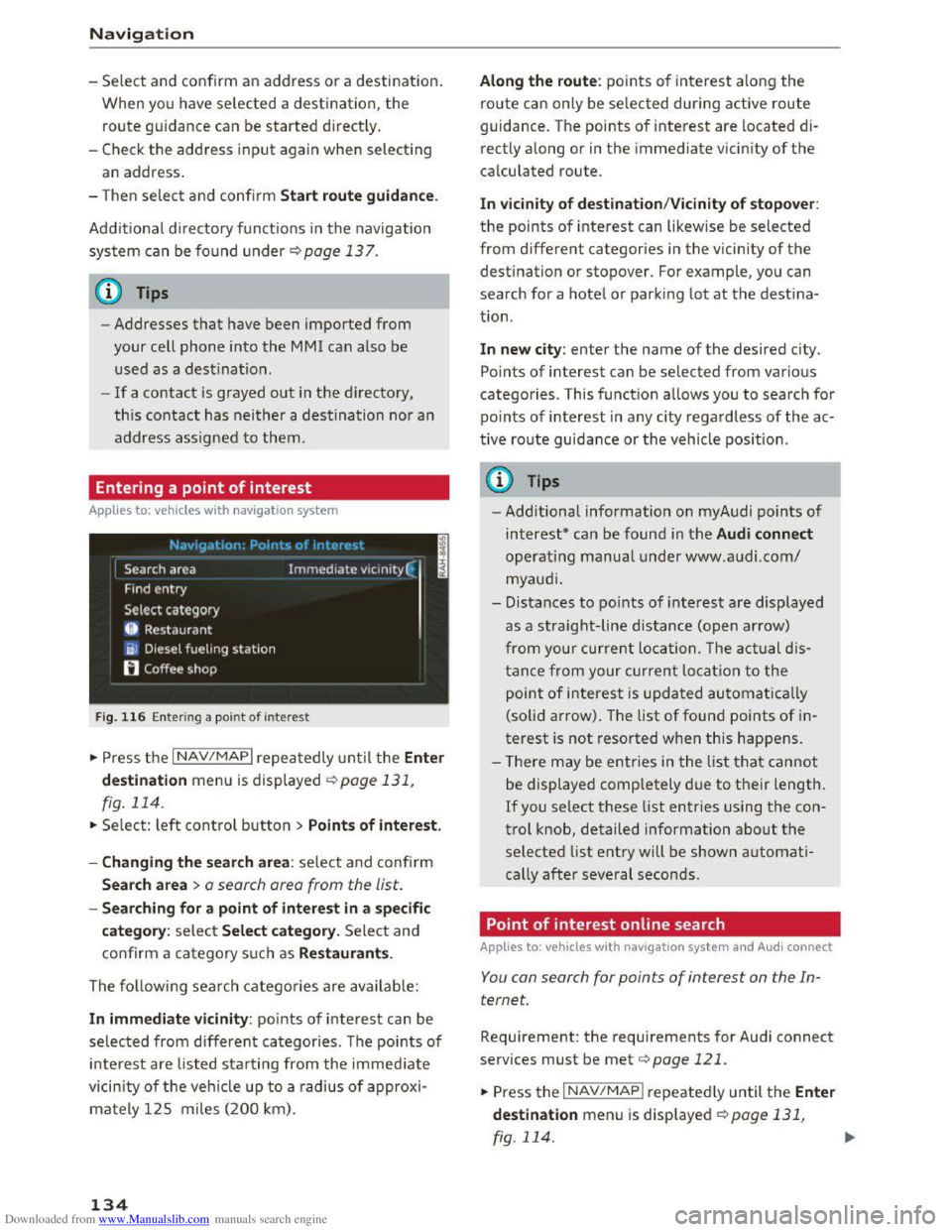
g. 116 Ente rin g a point of interest
.. Press the I NAV/MAPI repeatedly until the Ent er
de stination
menu is displayed ¢page 131,
fig. 114.
.. Select: left control button > Point s of interest.
-
Cha nging the sea rc h are a : select and confirm
Search a rea > a search area from the list.
-Searching fo r a p oin t of inter est in a specifi c
categor
y: select Sele ct category. Select and
confirm a category such as Restaurants.
The following search categories are avai lable:
In immediate vi cinity: points of interest can be
selected from different categories. The points of
interest are l isted starting from the immediate
vicin ity of the veh icle up to a rad ius of approxi
mately 125 miles (200 km).
134
Along th e r oute : points of interest along the
route can only be selected during active route
guidance. The points of interest are located di
rectly
along or in the immediate vicin ity of the
calculated route.
I n v icinity of dest ination/Vicinity of stopo ver:
the points of interest can likewise be selected
from different categories in the vic inity of the
destination or stopover. For example, you can
search for a hotel or park ing lot at the destina
tion.
In new city: enter the name of the desired city.
Points of interest can be selected from various
categories. This function allows you to search for
po i
nts of interest in any city regardless of the ac
tive
route guidance or the vehicle posi tion .
(D Tips
-Additional information on myAudi points of
interest* can be found in the Audi connect
operating manual under www.audi.com/
myaudi.
- Distances
to po ints of interest are displayed
as a straight-line distance (open arrow)
from your current location . The actual d is
tanc e from your current location to the
point of interest is updated automatically
(solid arrow) . The list of found points of in
terest is not resorted when this happens .
- T
here may be entries in the list that cannot
be displayed completely due to their length.
If you select these list entries using the con
t r
ol knob, detailed information about the
selected list entry will be shown automati
cally
after several seconds.
Point of interest on line search
Applies to: vehicles with navigat ion system and Audi connect
You can search for points of interes t on the In
ternet.
Requi rement: the requirements for Audi connect
services must be met ¢page 121 .
.. Press the I NAV /MAP I repeatedly until the Ente r
destination
menu is displayed ¢page 131,
fig. 114.
Page 137 of 322
Downloaded from www.Manualslib.com manuals search engine ..... N
G: CX)
.....
"' U"I ,....,
"' ,....,
.. Select: left control button > Online search. The
search
area last set is shown in the input field.
- Changing the search area: select and confirm
Sear ch area > o search area from the list.
-Sear ching for online destination s in these
lec ted se arch area: enter a new city/state if
necessary.
Enter the search term, such as res
taurant. Se lect and confi rm an online destina
t ion. Select and confirm Sta rt route guidance.
- Searching for online destination s in a specific
category :
select Select category. Select and
confirm a category such as Restaurants .
Find which search areas are available under
9 page 134, Entering a point of interest .
You ca n search for online destina tions using the
voice recogni tion system 9 table on page 107.
@ Tips
- Refer to the notes in the About Audi con
nect chapte r 9 page 128.
-For additional information, visit
www.audiusa.com/help/audi-co nnect.
Finding destinations from a myAudi
account
Applies to: vehicles with nav igation system and Audi connect
Import destinations from your myAudi account
into the MM!.
Req uirement: you must have a myAudi account
set up at http://my.audiusa .com. You must have
a vehicle
stored in your myAudi accou nt and you
must have a destination stored .
.. Press the I NAV/MAPI repeatedly until the Ent er
de stination
menu is displayed ¢page 131,
fig. 114 .
.. Select: left control button > myAudi contacts .
.. If necessary, enter your myAud i user data or
your myAudi PIN. The contacts stored in myAu
di are displayed.
- Se l
ect and confirm a contact.
-Select and confirm a private or bu siness desti-
na tion .
- Se l
ect and co nfirm Start route guidance .
Navigation
(D Tips
-You only need to e nter your myAudi user da
ta one time.
-
You can rece ive your myAudi PIN if yo u have
set up a myAu di account. For more informa
tion, go to www.audi.com/myaudi.
-Add itional information can be found on the
Internet at www .a udiusa.com/help/audi
connect.
Entering a destination using geocoor
dinates
Applies to: vehicles with navigat ion system
"" Press the I NAV /MAP I repeatedly until the Enter
destination
menu i s disp layed ¢ page 131,
fig. 11 4.
.. Select: left control button > Geo coordinates.
-Select and confirm either Latitude or Longi
tude .
-Turn the control knob to the left/right to
change the latitude/longitude.
-Press the control knob to confirm your in put.
-
Select and confirm Start route guidance .
Entering a stopover
Applies to: vehicles with navigat ion system
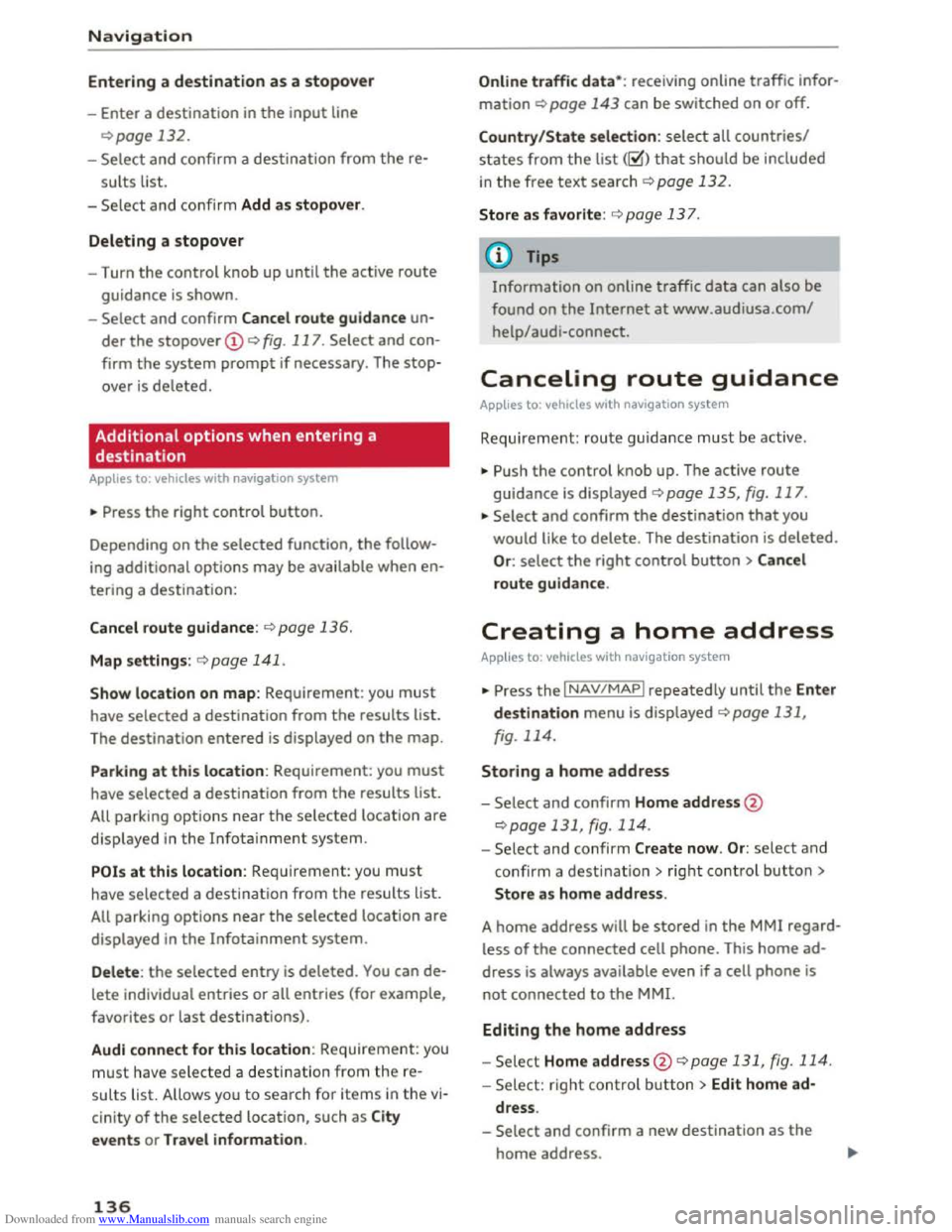
You can enter an additional stopover when route
guidance is active .
Fig. 117 Cu rren t ro u te guida nce with stopover
Requirement: a destination must be entered.
.. Press the I NAV /MAP I repeatedly until the Enter
destination
menu is disp layed ¢ page 131,
rg. 114. ~
135
Page 138 of 322
Downloaded from www.Manualslib.com manuals search engine Navigation
Entering a destination as a stopover
-Enter a destination in the input line
¢page 132.
-Select and confirm a destination from the re
sults list.
-
Se lect and conf irm Add as stopover.
Deleting a stopover
- Turn the control knob up until the active route
guidance
is shown.
-
Select and confirm Cancel route guidance un
der the stopover @¢ fig. 117. Select and con
firm
the system prompt if necessary. The stop
over is deleted.
Additional options when entering a
destination
Applies to: vehicles with navigation system
.,. Press the right control button.
Depending on the selected function, the follow
ing additional options may be available when en
tering a destination:
Cancel route guidance:¢ page 136.
Map settings: <=>page 141.
Show location on map: Requirement : you must
have selected a destination from the results list.
The destination
entered is displayed on the map.
Parking
at this location : Requirement: you must
have selected a destination from the results list.
All parking options near the selected location are
displayed
in the Infotainment system.
POi s at this location : Requirement: you must
have selected a destination from the results list.
All parking options near the selected location are
displayed
in the Infotainmen t system.
Delete: the selected entry is deleted. You can de
lete individual entries or all entries (for example,
favorites
or last destinations).
Audi c
onnect for this location : Requirement : you
must have selected a destination from the re
sults list. Allows you to search for items in the vi
cinity of the selected location, such as City
events or T ra vel information.
136
Online tra ffic data*: receiving on line traffic infor
mation ¢page 143 can be switched on or off.
Country /State selection: select all countries/
states from the list ([;1) that should be included
in the free text search <=>page 132.
Store as favorite : ¢page 13 7.
Information on
on line traffic data can also be
found on
the Internet at www.audiusa.com/
help/audi-connect.
Canceling route guidance
Applies to: vehicles with navigation system
Requirement: route guidance must be active.
.,. Push the control knob up. The active route
guidance
is displayed ¢ page 135, fig. 117 .
.,. Select and confirm the destination that you
would like
to delete. The destination is deleted.
Or: select the right control button > Can cel
route guidance.
Creating a home address
Applies to: vehicles with navigation system
.,. Press the INAV/MAPI repeatedly until the Enter
destination menu is displayed¢ page 131,
fig. 114.
Storing a home address
- Select and confirm Home address@
¢page 131, fig. 114.
-Select and confirm Create now. Or: select and
confirm a destinatio n > rig ht control button >
Store as home address.
A home
address will be stored in the MMI regard
less
of the connected cell phone. This home ad
dress is always available even if a cell phone is
not connected to the MMI.
Editing the home address
-Select Home address@¢page 131, fig. 114.
-Select: right control button > Edit home ad-
dress.
-
Select and confirm a new destination as the
home address.