change time AUDI TT COUPE 2016 Owners Manual
[x] Cancel search | Manufacturer: AUDI, Model Year: 2016, Model line: TT COUPE, Model: AUDI TT COUPE 2016Pages: 322, PDF Size: 52.86 MB
Page 22 of 322
Downloaded from www.Manualslib.com manuals search engine Driver information system
Multifunction steering
wheel plus
Operating
Apples to: vehicles with multifunction steering wheel plus
The Multifunction steering wheel plus* hos 14
buttons. You con use them to operate the driver
information
system and the MMI functions,
change the volume and switch the voice recogni
tion system* on and off.
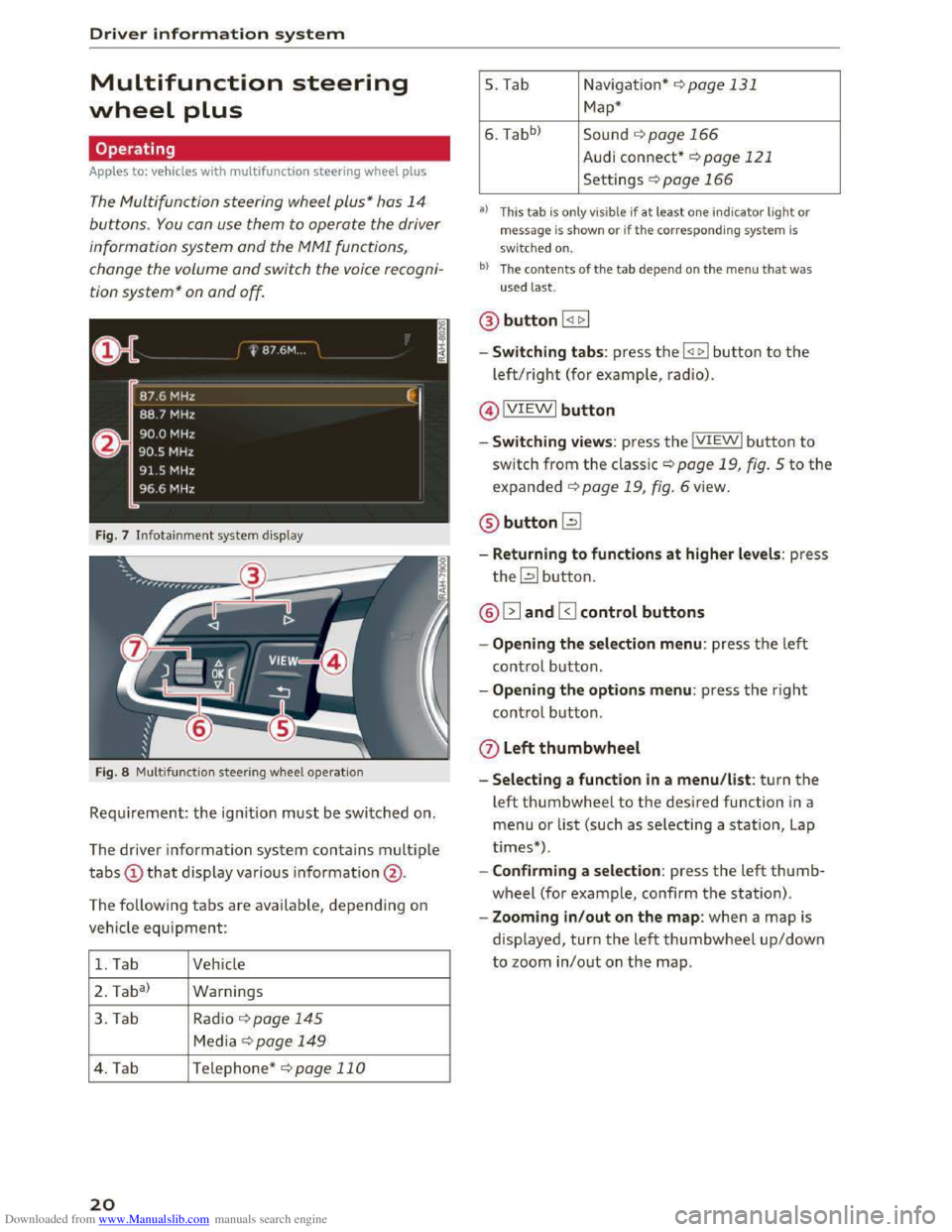
Fig. 7 Infotainment system display
Fig. 8 Multifunction
steering wheel operation
Requ irement: the ignition must be switched on.
The driver information
system contains multiple
tabs CD that display various information @.
The
following tabs are available, depend ing on
vehicle
equipment:
1. Tab Vehicle
2 . Ta
ba)
Warnings
3. Tab
Rad io¢ page 145
Media~ page 149
4. Tab Telephone* ¢page 110
20
5. Tab Navigation*¢ page 131
Map*
6. Tabb >
Sound ¢page 166
Audi connect* ¢page 121
Settings ¢page 166
a) This tab is only visible if at least o ne indicator light or
message is shown or if the correspon ding system is
sw i
tched on.
bl The contents of the tab depen d on the men u that was
used last.
® button I <11> I
- Switching tabs: press the I
left/right (for example, radio).
@IVIEWI button
-Switching views: press the IVIEWI button to
switch from the classic¢ page 19, fig. 5 to the
expanded ¢ page 19, fig. 6 view.
® buttonl2J
-Returning to functions at higher levels: press
the~ button.
@ 12] and 0 control buttons
-Opening the selection menu: press the left
control button.
-Opening the options menu: press the right
control button.
Q) Left thumbwheel
-Selecting a function in a menu/list: turn the
left thumbwheel to the desired function in a
menu or list (such as selecting a station, Lap
times*) .
-
Confirming a selection: press the left thumb
wheel (for example, confirm the station).
-Zooming in/out on the map: when a map is
displayed, turn the left thumbwheel up/down
to zoom in/out on the map.
Page 25 of 322
Downloaded from www.Manualslib.com manuals search engine Tachometer
The tachometer displays the engine speed in re v
olutions per minute (RPM).
The beginning
of the red zone in the tachometer
indicates
the maximum permissible engine speed
for all gears once the engine has been broken in
and when
it is warm . Before reaching the red
zone,
you should shift into the next higher gear,
choose
the D or S selector lever position, or re
move your foot from the accelerator pedal.
CD Note
The needle in th e tachometer m ay only be in
the re d area of th e gau ge for a short period of
time or there is a risk of d am aging the engine .
The loc ation wh ere th e red zone begins varies
d ep end in g o n
the engi ne.
@) For the sake of the environment
Upshifting early helps you to save fuel and re
duce operating noise.
Odometer
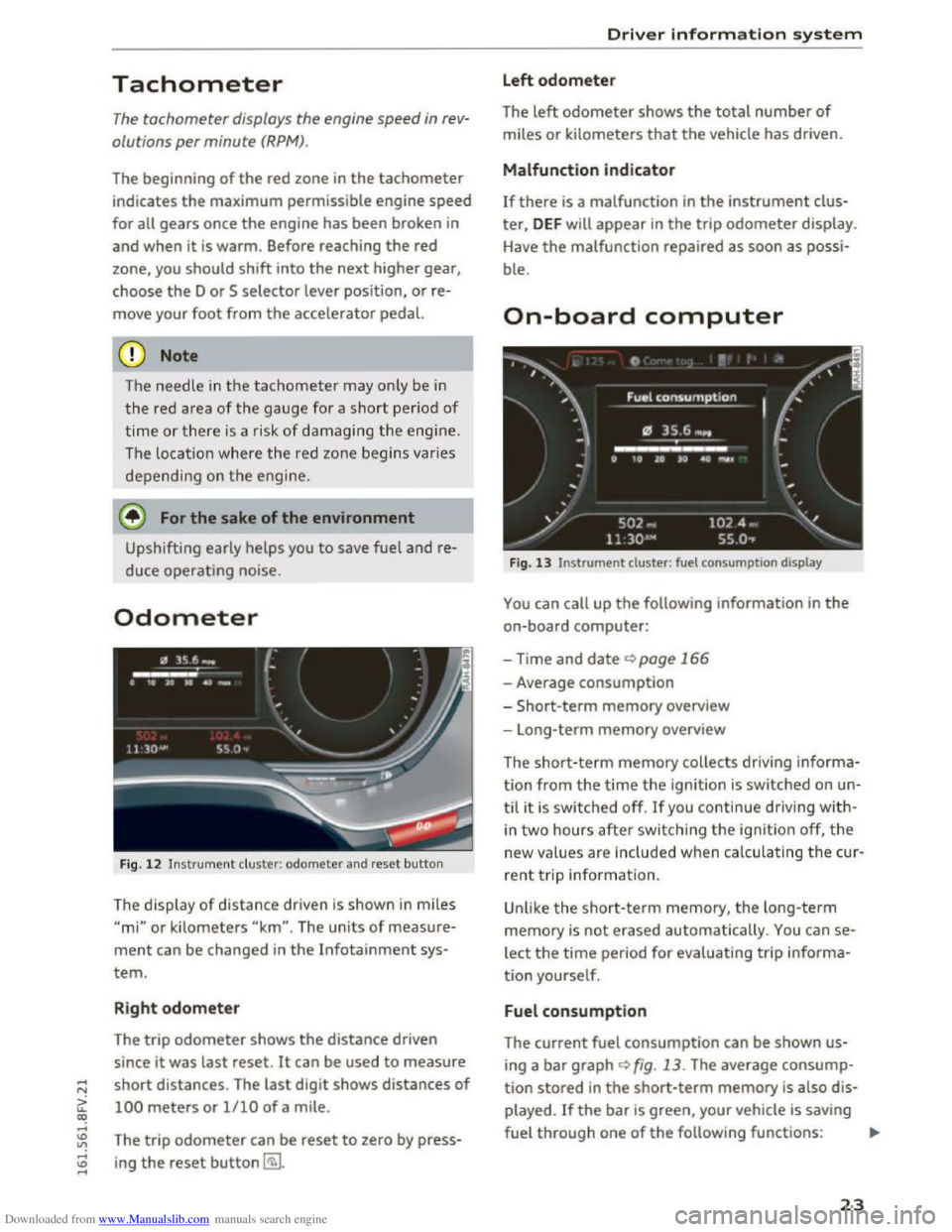
Fig. 12 Instrument c luster: odometer and reset button
The display of distance driven is shown in mile s
"mi" or kilometers "km". The units of meas ure
ment can be changed in the Infotainment sys
tem.
Right odometer
The trip odometer shows the distance driven
since it was last reset .
It can be used to measure
short distances . The last digit shows distances
of
100 meters or 1/10 of a mile.
The
tri p odometer can be reset to zero by press
ing the reset button~-
Driver information system
Left odometer
The left odometer shows the total number of
miles or kilometers that the vehicle has driven.
Malfunction indicator
If there is a malfunction in the instrument clus
ter, DEF will appear in the trip odometer display.
H
ave the malfunction repaired as soon as possi
ble.
On-board computer
Fig. 13 Instrument duster: fuel consumpt ion display
You can call up the following information in the
on-board computer:
-Time and date ~page 166
-Average consumption
- S
hort-term memory overview
- Long-term memory overview
The
short-ter m memory collects driving in forma
tion from the time the ignition is switched on un
til it is swi tched off. If you continue driving with
in two hours after switching the ignition off, the
n ew values are included when calculating the cur
re nt t rip information.
Unlike the short-term memory, the long-term
memory
is not erased automatically. You can se
lect the time period for evaluating tr ip i nforma
tion yourself.
Fuel consumption
The current fuel consumption can be shown us
ing a bar graph <:!)fig. 13. The average consump
tion stored in the short-term memory is also dis
played. If the bar is green, your vehicle is saving
fuel through one of the following fu nctions: ..,_
23
Page 29 of 322
Downloaded from www.Manualslib.com manuals search engine ..... N
G: CX)
.....
"' U"I
LED and batteries in the remote control key
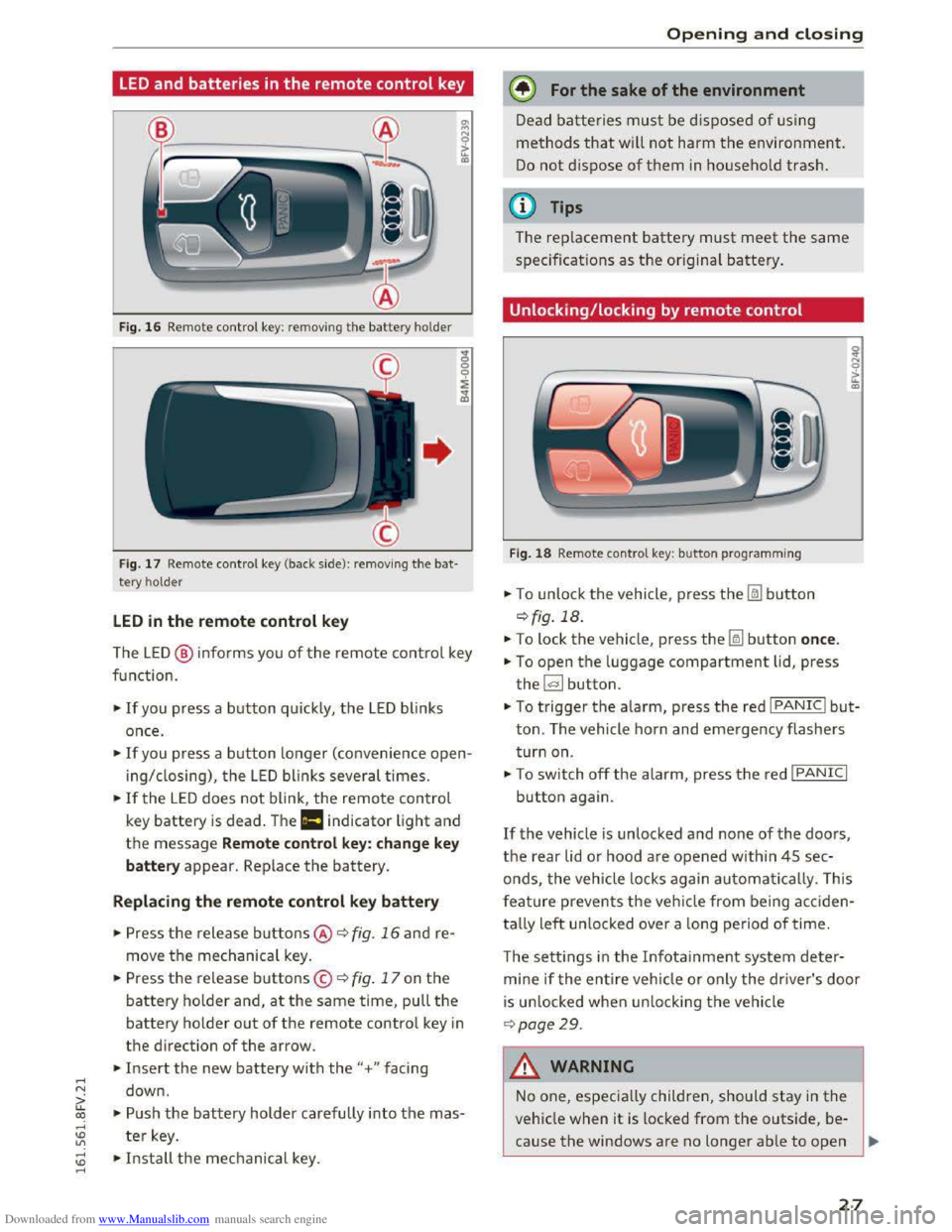
Fig. 16 Rem ote contro l key: rem ov ing the battery hol der
Fig. 17 Remote control key (back side ): remov ing the ba t
tery ho lder
LED in the remote control key
The LE D @ info rms you of the remote control key
function.
•If you press a button quick ly, the LED blinks
once .
• If you press a button longer (convenience open
ing/ closing), the LED blinks several times.
•If the LED does not blink, the remote control
key battery is dead . The Ill indicator light and
the message Remote control key: change key
battery appear. Replace the battery.
Replacing the remote control key battery
• Press the release buttons@ ¢ fig. 16 and re
move the mechanical key.
.. Press the release buttons© ¢ fig. 17 on the
battery holder and, at the same time, pull the
battery holder out of the remote contro l key in
the direction of the arrow .
.. Insert the new battery with the"+ " facing
down .
.. Push the battery holder carefully into the mas
ter key.
~ •Install the mechanical key . .....
Opening and closing
@) For the sake of the environment
Dead batteries must be disposed of using
methods that will not harm the environment.
Do not dispose of them in household trash.
@Tips
The replacement battery must meet the same
specificat ions as th e origina l battery.
Unlocking/locking by remote control
Fig. 18 Remote contro l key : button programming
.. To unlock the vehicle , press the Im button
¢ fig. 18.
.. To lock the vehicle, press the~ button once.
.. To open the luggage compartment lid, press
the~ button .
.. To trigger the alarm, press the red I PANIC I but
ton. The vehicle horn and emergency flashers
turn on.
•To switch off the alarm, press the red I PANIC I
button again .
If the vehicle is unlocked and none of the doors,
the rear lid or hood are opened within 45 sec
onds,
the veh icle locks again automatically. This
f
eature prevents the vehicle from being acciden
tally
left un locked over a long period of time.
T
he setti ngs in the Infota inment system deter
mine if the entire vehicle or only the driver's door
is un locked when un locking the vehicle
¢page 29.
A WARNING
--1
No one, especially children, should stay in the
vehicle when it is locked from the outside, be
cause the windows are no longer able to open
27
Page 36 of 322

Downloaded from www.Manualslib.com manuals search engine Opening and closing
Programming the transmitter
Applies to: vehicles with garage door opener (Homelink)
F ig.
29 Distance between the radiator grille and the re
mote control transmitter
Programming the button : step 1 on the
control panel
1. Switch on the ign ition.
2.
Press both of the outside buttons on the con
trol panel Q page 33, fig. 28 until the yellow
LED@ turns off and the green LED@ blinks.
This procedure clears
the standard codes that
were set at the factory and does not need to
be repeated again to program the other but
tons.
3. Briefly press the button in the control panel
that you want to program.
4. Wait until the yellow LED@ blinks. The pro
gramming mode is active for 5 minutes.
5.
Go in front of the vehicle with the original re
mote control transmitter for the system that
you are programming to the control panel
button.
Programming the button : step 2 at the
radiator grille
6. Hold the remote control transmitter at the
vehicle radiator grille c:> fig. 29.
7 . Now press the remote control transmitter
until the turn signals on your vehicle blink.
This can
take up to 30 seconds.
8.
If the emergency flashers blink three times,
the programming was successful. If the
emergency flashers only blink one time, the
5 minute time limit for programming has ex
pired
or the programming was unsuccessful.
Repeat the programming starting from the
third step or change the distance to the radi
ator grille.
34
9. If the garage door or other systems do not
open with the Homelink buttons even if the
programming was successful, the system
may use a rolling code instead of a fixed
code.
You must also then perform rolling
co de
programmin g Q page 35.
The other two buttons in the control panel can be
programmed using the instructions given above.
Start with step 3.
Deleting button programming
The programmed buttons cannot be deleted indi
vidually, they
must be deleted all at once. Repro
gram the buttons if necessary.
... Sw itch on the ign ition.
... Press both of the outside buttons on the con
trol unit until the yellow LED@ turns off and
the green LED@ blinks .
Reprogramming buttons
... Switch on the ignition .
... To reprogram an individual button, press the
desired button until the green LED@ turns off
and the yellow LED@ starts to blink (after ap
proximately
20 seconds). Release the button
immediately. The programming mode is active
for S minutes.
... Continue with step 5.
(!) Tips
-The distance needed between the remote
control transmitter and the Homelink mod
ule in the radiator grille c:> fig. 29 depends
on the system you are programming.
- Depending on the system model, you may
need
to release the button on the remote
control transmitter while it is programming
and press it again. Hold every position you
try when programming for at least 15 sec
onds before trying a new position. Keep an
eye on the vehicle turn signals while doing
this.
Page 38 of 322
Downloaded from www.Manualslib.com manuals search engine Lights and Vision
Lights and Vision
Exterior Lighting
Switching lights on and off
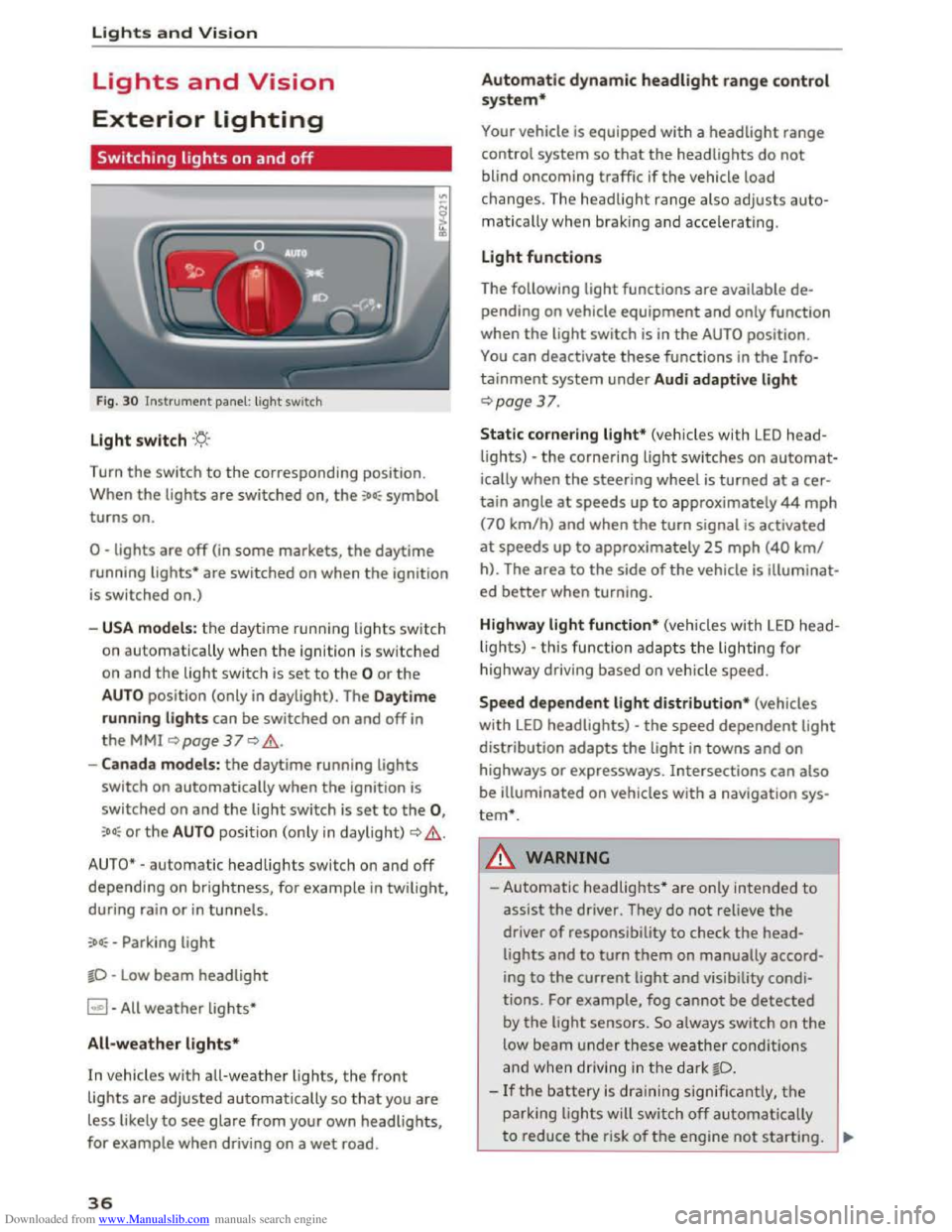
Fig. 30 Instrument panel: light switch
Light switch ·'t/;
Turn the switch to the corresponding position.
When
the lights are switched on, the :oo: symbol
turns on.
0 -lights are off (in some markets, the daytime
running
lights* are switched on when the ignition
is switched on.)
-USA models: the daytime running lights sw itch
on automatica
lly when the ignition is sw itched
on and
the light switch is set to the 0 or the
AUTO position (only in daylight). The Daytime
running lights
can be switched on and off in
the MMI ~page 37 Q &.
-Canada models: the daytime running lights
switch on automatically when the ignition is
switched on and the light switch is set to the 0,
:oo: or the AUTO position (only in daylight) QA .
AUTO* -automatic headlights switch on and off
depending on brightness, for example in twilight,
during rain
or in tunnels.
:oo: -Parking light
~D -Low beam headlight
~ -All weather lights*
All-weather lights*
In vehicles with all-weather lights, the front
lights are adjusted automatically so that you are
less likely
to see glare from your own headlights,
for example when driving on a wet road.
36
Automatic dynamic headlight range control
system*
Your vehicle is equipped with a headlight range
control system
so that the headlights do not
blind oncoming traffic if the vehicle load
changes. The headlight range also
adjusts auto
matically when braking and accelerating .
Light functions
The following light functions are available de
pending on vehicle equipment and only function
when the
light switch is in the AUTO position.
You can deactivate these functions in the Info
tainment system under Audi adaptive light
Qpage 37.
Static cornering light* (vehicles with LED head
lights) -the cornering light switches on automat
ically when the steeri ng wheel is turned at acer
tain angle at speeds up to approximately 44 mph
(70 km/h) and when the turn signal is activated
at speeds up to approxim ately 25 mph (40 km/
h). The area
to the side of the vehicle is illuminat
ed better when turning.
Highway light function* (vehicles with LED head
lights) -this function adapts the lighting for
highwa y driving based on vehicle speed.
Speed dependent light distribution* (vehicles
with LED headlights) -the speed dependent light
distribution adapts the light in towns and on
highways
or expressways. Intersections can also
be illuminated on vehicles
with a navigation sys
tem*.
A WARNING
- Automatic headlights * are only intended to
assist the driver. They do not reliev e the
driver
of responsibility to check the head
lights and to turn them on manually accord
ing to the current ligh t and visibility condi
tions. For example, fog cannot be detected
by
the light sensors . So always switch on the
low beam under these weather conditions
and when
driving in the dark ~D.
-If the battery is dra ining significantly, the
parking lights will switch off automatically
to reduce the risk of the engine not starting . ..,..
Page 40 of 322

Downloaded from www.Manualslib.com manuals search engine Lights and Vision
Canada models: this function cannot be switched
off. They activate automaticall y each time the ig
n ition is switched on. T his menu item is shown
with a "gray background".
Com ing home , Leaving home
The coming home function illuminates the area
outside the vehicle when you turn the ignition off
and open the driver 's door. To switch on the func
tion, select Entry /exit lighting .
The leaving home ill uminates the area outside
the vehicle when you unlock the vehicle . To
switch
on the function, select Entry/exit light
ing .
The coming home and leaving home f unctions
only operate when it is dark and the lig ht switch
is in
the AUTO position.
Emergency flasher
Fig. 32 Center conso le : eme rge ncy flash er button
The emergency flashers makes other drivers
aware of your vehicle in dangerous situations.
• Press the~ button to switch the emergency
flashers on or off.
You can indicate a
lane change or a turn when the
emergency fla sh ers are switched on by us ing the
turn sig nal lever. The emergency flashers stop
temporarily.
The emergency flashers also work when the igni
tion is turned off.
(!) Tips
You should switch the emergency flashers on
if:
38
- You are the last c a r in a tra ffic jam so that
all other vehi cles approaching from behind
can see you, or if
- Your vehicle
has broken down or you are
having
an emergency, or if
- You r vehicle is
being towed or i f you are
towing another vehicle.
Interior lighting
Interior lighting
Fig. 33 Headlin e r: i nterior lighti ng
[!]-Door contact switch. The interior lighting is
controlled automatically.
A switch is no longer needed to switch the read
ing lights on. A swiping movement or a brief tap
on the light is all that is needed to switch the
light on or off. If you hold your finger on the
reading light when switching it on, this ca n dim
the light down t o a certain level.
Interior light ing
There are other interior lighting functions that
are availab le. Several functions can be set in the
Infotainment system. Select in the Infotainment
system: I MENUl button > Vehicle > left control
b u
tton >Vehicle settings> Interior lighting.
Page 74 of 322
Downloaded from www.Manualslib.com manuals search engine Assis t
Assist
Electronic speed limiter
Your vehicle may be factory equipped with tires
that are rated for a maximum speed of 130 mph
(210 km/h). This is less than the maximum speed
of your vehicle. To reduce the risk of sudden tire
failure and loss of control if the vehicle is operat
ed at excessive speeds, your vehicle also has an
electronic speed limiter. The electronic speed
limiter prevents your vehicle from going faster
than the tire speed rating. For more information
9page257.
If the engine control unit receives faulty vehicle
road
speed s ignals, the Malfunction In d icator
Lamp (MIL) m will illuminate. If this occurs,
contact the nearest authorized Audi dealer for
assistance.
. _&WARNING
Always observe the posted speed limits and
adjust your speed to suit prevailing road, traf
fic and weather conditions. Never drive your
vehicle faster than the maximum speed rating
of the tires installed.
Speed warning system
Introduction
Applies to: vehicles with speed warning system
The speed warning system helps you to stay un
der a specified maximum speed.
The speed warning system warns you if yo u are
exceeding
the max imum speed that you have set.
You will hear a warning tone when your speed ex
ceeds the stored value by approximately 3 mph
(3 km/h). The (e] indicator light turns on at the
same time in the Infotainment display. The[•)
indicator light turns off when the speed decreas
es below the stored maximum speed.
Setting a threshold is recommended if you would
like to be reminded when you reach a certain
maximum speed. Situations where you may want
to do so include driving in a country with a gener
al speed limit or if there is a specified maximum
speed for winter tires.
72
('D Tips
Regard less of the speed warning system, you
should always monitor your speed using the
speedometer and make sure you are following
the legal speed limit.
Setting the threshold
Applies to: vehicles with speed warning system
You can set, change and delete the warning
threshold
in the Infotainment system.
... Select in the Infotainment system: I MENU! but
ton> Vehicl e> left control button >Dr ive r as
sistance > Speed warnin g .
You can set any threshold between 20 mph
(30 km/h) and lSO mph (240 km/h). Settings
can each be adjusted in increments of 5 mph
(10 km/h) .
Cruise control system
Switching on
Applies to: vehicles with cruise control system
The cruise control system makes it possible to
drive
at a constant speed starting ot 15 mph
(20 km/h).
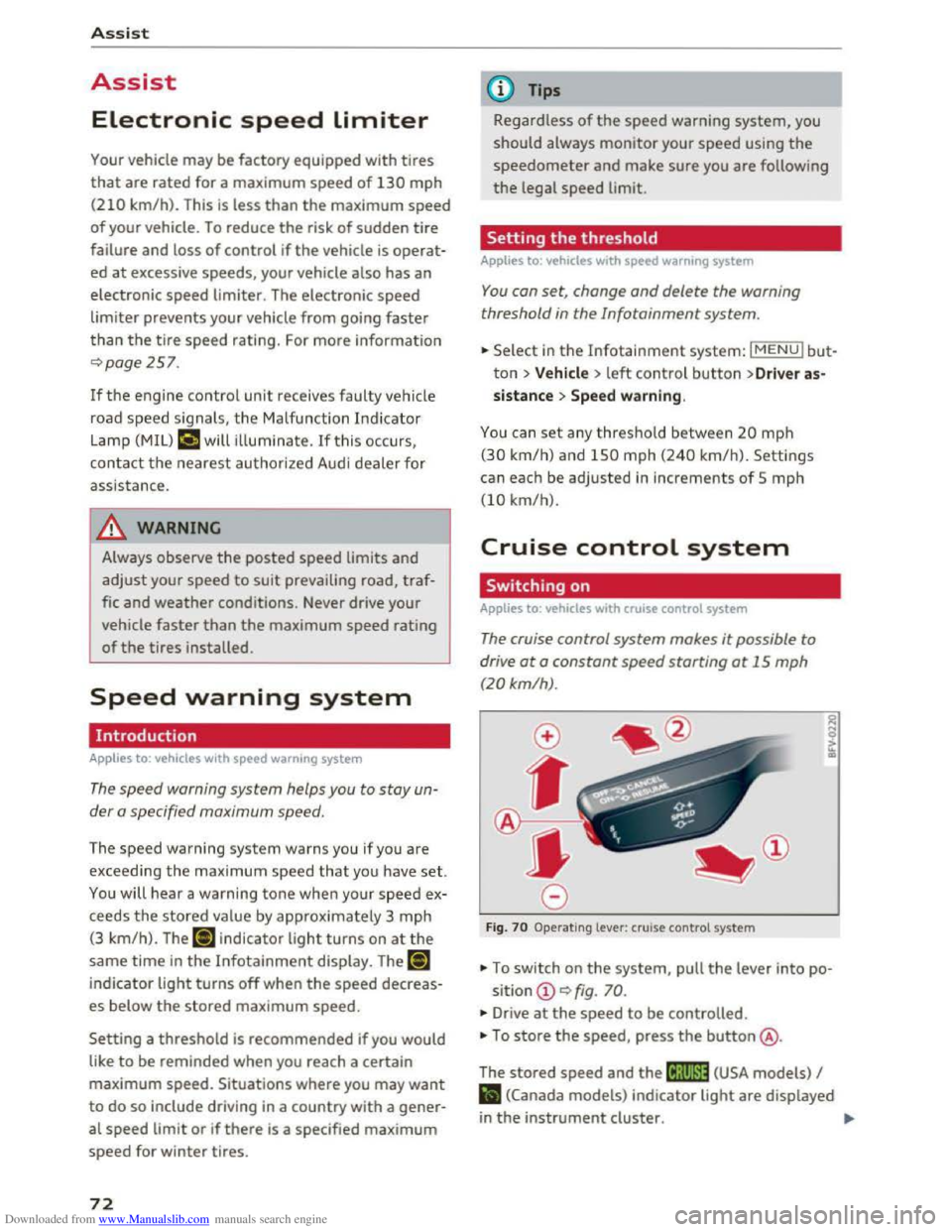
Fig . 70 Operating lever: cruise control system
... To switch on the system, pull the lever into po-
sition CD 9 fig. 70.
... Drive at the speed to be controlled.
• To store the speed, press the button@.
The
stored speed and the (lj;llJ~1# (USA models) I
Iii (Canada models) indicator light are displayed
in the instrument cluster. !)I>
Page 76 of 322
Downloaded from www.Manualslib.com manuals search engine Assist
The speed you saved will be retained ifthe cruise
control has been switched off temporarily. To re
sume the stored speed, release the brake or
clutch pedal and pull the lever to position(!).
Switching the ignition off will erase the stored
speed.
A WARNING
-You should only resume the saved speed if it
is not too high for existing traffic conditions.
Otherwise you risk an accident.
Audi active lane assist
Description
App lies to: ve h icles with Audi active lane assis t
Active lane assist detects lane marker lines with
in the limits of the system using a camera in the
windshield. If you are approaching a detected
lane marker line and it appears likely that you
will leave
the lane, the system will warn you with
corrective
steering. You can override this steering
at any time. If you pass over a line, the steering
wheel will vibrate lightly. In order for this warn
ing vibration to occur, it must first be switched
on in the Infotainment system. Active lane assist
is operable when the lane marker line is detected
on at least one side of the vehicle.
The
system is designed for driving on express
ways and highways and
therefore only activates
at speeds above approximately 40 mph (65 km/
h) (depending on the market).
Appl i
es to vehicles with side assist*: if you acti
vate a turn s ignal when active lane assist is ready
and it classifies a lane change as critical because
of vehicles traveling alongside you or approach
ing you, there will be noticeable corrective steer
ing
shortly before you leave the lane. This will at
tempt to keep your vehicle in the lane.
Applies
to vehicles without side assist*: the sys
tem does not warn when it is ready if you activate
the turn signal before crossing the lane marker
ll The co rrective steering function is not a va ilable in all mar
kets.
7 4
line. In this case, it assumes that you are chang
ing lanes intentionally.
A WARNING
!-="' -
-The system warns the driver that the vehicle
is leaving the lane using corrective steering.
The driver is always responsible for keeping
the vehicle within the lane.
- The
system can help you keep the vehicle in
the lane, but it does not drive by itself. Al
ways keep your hands on the steering
wheel.
- Corrective
steering may not occur in certain
situations, such as during heavy braking.
- There
may be cases where the camera does
not recognize all lane marker lines. Correc
tive steering can only take place on the side
of the vehicle where lane marker lines are
detected.
-Other road structures or objects could possi
bly be identified unintentionally as lane
marker lines. As a result, corrective steering
may be
unexpected or may not occur.
- The
camera view can be restricted, for ex
ample by vehicles driving ahead or by rain,
snow, heavy spray light shining into the
camera or by dirt on the window. This can
result in active lane assist not detecting the
lane marker lines or detecting them incor
rectly.
- In
certain situations where visibility is low,
the vehicle may switch internally from "ear
ly" to "late" steering correction ll.
-Under certain cond itions such as ruts in the
road, an inclined roadway or crosswinds, the
corrective steering alone may not be enough
to keep the vehicle in the middle of the lane.
- For
safety reasons, active lane assist must
not be used when there are poor road and/
or weather conditions such as slippery
roads, fog, gravel, heavy rain,
snow and the
potential for hydroplaning . Using active lane
assist under these conditions may increase
the risk of a crash.
Page 80 of 322
Downloaded from www.Manualslib.com manuals search engine Assis t
are indicated by the time they enter your "blind
spot",
at the latest.
© Vehicles left behind
If you slowly pass a vehicle that side assist has
detected ( the difference in speed betwee n the
vehicle and your vehicle is less than 9 mph or 15
km/h), the display in the exterior mirror turns on
as soon as the vehicle enters your blind spot.
The display will not turn o n if you quick ly pass a
vehicle that side assist has detected (the differ
ence in speed between
the vehicle and your vehi
cle
is greater than 9 mph or 15 km/h).
Functional limitations
The radar senso rs a re designed to detect the left
and right adjacent lanes when the road lanes are
the normal width. In some situations, the display
in the exter ior mirr or may turn on even though
there
is no vehicle located in the area that is criti
cal
for a lane change. For example:
-
If the lanes are narrow or if your are driving on
the edge of your lane. If this is the case, the
system may have detected the vehicle in anoth
er lane
that is not adjacent to your current lane.
-
If you are driving through a curve. Side assist
may react
to a vehicle that is one lane over
from the adjacent lane.
-
If side assist reacts to other objects (such as
high or displaced guard rails).
-
In poor weather conditions . The side assist
functions are limited.
Do not cover the radar senso rs c::> fig. 77 w it h
stic kers, deposits, bicycle wheels or
other ob
jects,
because this will affect the function. For in
formation on cleaning, see c::>poge 270.
.&. WARNING
-Always pay attention to traffic and to the
area around your vehicle. Side assist cannot
replace a
driver's attention. The driver alone
is always responsible for lane changes and
similar driving maneuvers.
-
In some situati ons, the system may not
function or its function may be limited. For
example:
78
-If vehicles are app roaching or being left
behind very quickly . The display may not
turn on in time.
-
In poor weather condit ions such as heavy
r ain, snow or heavy
mist.
-
On very wide lanes, in tight curves, or if
there is a r ise in the road surface. Vehicles
i n
the adjacent lane may not be detected
because they are outside
of the sensor
range.
-
Audi side assist cannot detect all vehicles
under
all conditions, which can increase the
risk of acciden ts.
-Please note that side assist only disp lays ap
proach ing vehicles
or veh icles in your blind
spot if your vehicle is traveling at l east
19 mph (30 km/h).
-In certain situations, th e system may not
work or its function may be limited. For ex
ample:
- The displ
ay may not turn on at the right
time if vehicles are approaching or passing
very quickly.
-In poor weathe r condit ions, such as heavy
rain, snow or fog .
-
In very wide lanes, in tight cu rves or when
there are slopes in the roadway, vehicles
i n
the neighboring lanes may not be de
tected because they a re outside
of the
senso r range.
CD Note
The sensors can be displaced by impacts or
damage
to the bumper, wheel housing and
underbody. This
can affect the system. Have
an authorized Audi dealer or authorized Audi
Service
Facility check thei r f unct ion .
(D Tips
-If the window glass in the driver's door or
front passenger 's door has been tinted, the
display in th e exterior mirror may be misin
terpreted.
- For
an explanation on conform ity with the
FCC reg ulations in the United States and the
Industry Canada regulatio ns, refer to
c::>poge 297.
Page 81 of 322
Downloaded from www.Manualslib.com manuals search engine Switching on and off
App lies to: vehicles with Audi side assist
The system can be switched on/off in the Info
tainment system.
"'Select in the Infotainment system: IM ENUI but
ton >Vehicle > left control button >Driver as
sistance >Audi side assist
An activated system will signal every time the ig
nition is switched on by turning the displays in
the exterior mirrors on briefly.
Adjusting the display brightness
Applies to: vehicles with Audi side assist
The display brightness can be adjusted in the In
fotainment system.
"'Select in the Infotainment system: IM ENUI but
ton >Vehicle > left control button >Driver as
sistance >Audi side assist
The display brightness adjusts automatically to
the brightness of the surroundings, both in the
information and in the warning stage. In very
dark or very bright surroundings, the display is
already set to the minimum or maximum level by
the automatic adjustment. In such cases, you
may notice no
change when adjusting the bright
ness, or the change may only be noticeable once
the surroundings change.
Adjust
the brightness to a level where the display
in the information stage will not disrupt your
view forward. If you change the brightness, the
display in the exterior mirror will briefly show the
brightness level in the information stage. The
brightness of the warning stage is linked to the
brightness in the information stage and is adjust
ed along with the information stage adjustment.
-Side assist is not active while you are mak
ing the adjustment.
- Your settings are automatically stored and
assigned to the remote control key being
used.
Assist
Driver messages
Applies to: vehicles with Audi side assist
If the side assist switches off automatically, a
message appears in the Infotainment system dis
play.
@i Audi side assist: currently unavailable.
Sensor vision restricted due to surroundings.
See owner's
manual
The radar sensors' vision is affected. Do not cover
the area in front of the sensors with bike wheels,
stickers, dirt or other objects. Clean the area in
front of the sensors, if necessary q page 77,
fig. 77.
@i Audi side assist: currently unavailable.
See owner's
manual
Side assist cannot be switched on temporarily be
cause there is a malfunction (for example, the
battery charge level may be too low).
@i Audi side assist: malfunction! Please
contact
Service
The system cannot guarantee that it will detect
vehicles correctly and it is switched off. The sen
sors have been displaced or are faulty. Have the
system checked by an authorized Audi dealer or
authorized Audi Service Facility soon.
Audi drive select (drive
settings)
Introduction
Applies to: vehicles with Audi drive select
Drive select makes it possible to experience dif
ferent types of vehicle settings in one vehicle.
The driver can
select from three modes, Comfort,
Auto and Dynamic, using the~.~;\,~ button in the
center console or by using the Infotainment sys
tem. This allows you to switch between a sporty
and a comfortable driving mode, for example. In
the Individual mode, the settings can be adjust
ed to your personal preferences. This makes it
possible to combine settings such as a sporty en-
gine
tuning with light steering. .,.
79