ECU AUDI TT COUPE 2017 User Guide
[x] Cancel search | Manufacturer: AUDI, Model Year: 2017, Model line: TT COUPE, Model: AUDI TT COUPE 2017Pages: 322, PDF Size: 79.73 MB
Page 131 of 322
co
co
.... N
" N .... 0
0
Vl c:o
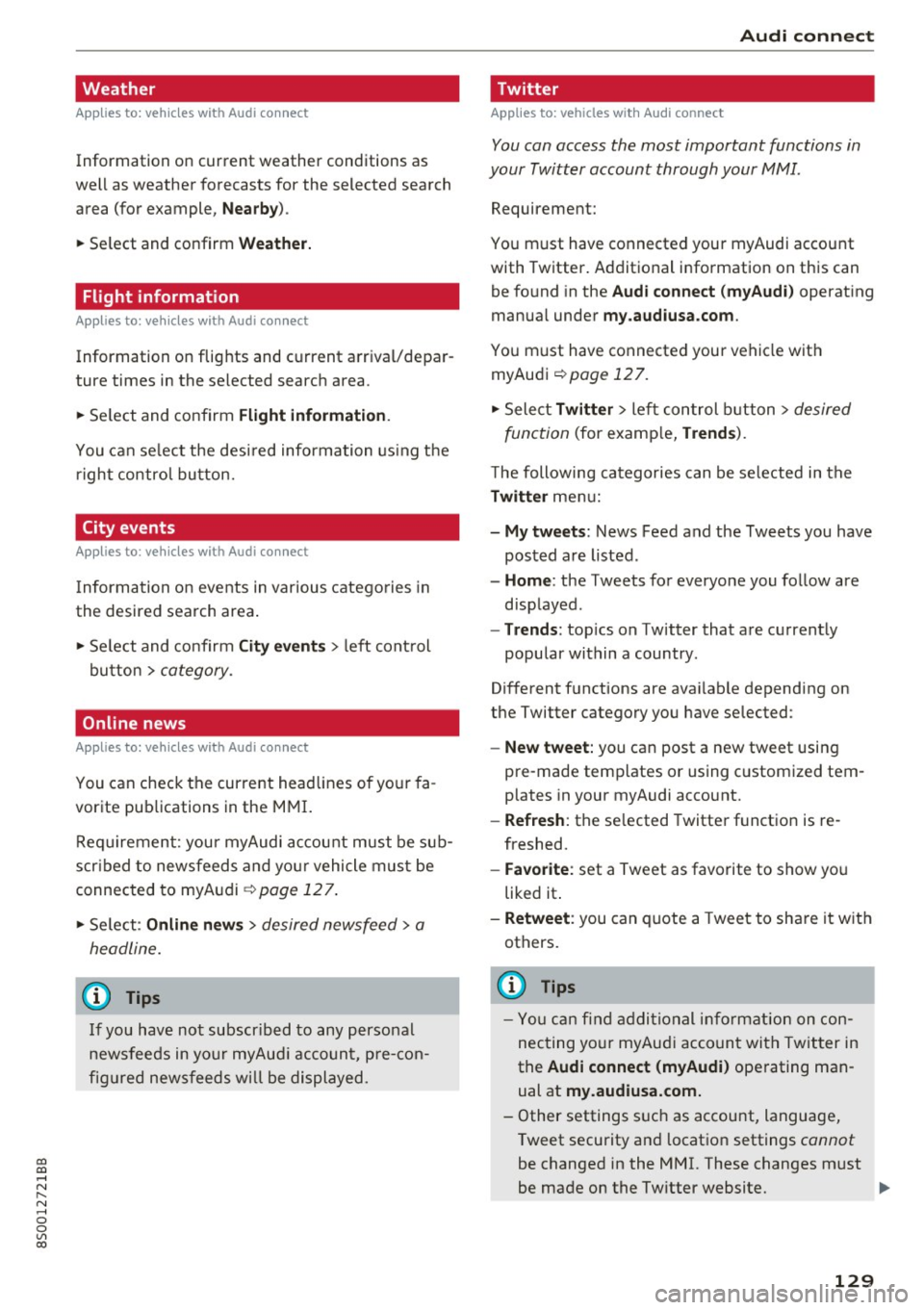
Weather
Applies to: vehicles with Audi connect
Information on current weather conditions as
well as weather forecasts for the selected search area (for example,
Nearby ).
~ Select and confirm Weather.
Flight information
Applies to: vehicles with Audi connect
Information on flights and current arrival/depar
ture times in the selected search area .
~ Select and confirm Flight information .
You can select the desi red information using the
right control button.
City events
Applies to: vehicles with Audi connect
Information on events in various categories in
the desired search area .
~ Select and confirm City events > left cont rol
button
> category.
Online news
Applies to: vehicles with Audi connect
You can check the current headlines of your fa
vorite publications in the MMI.
Requirement: your myAudi account must be sub
scr ibed to newsfeeds and your vehicle must be
connected to myAudi
¢ page 127.
~ Select : Online news > desired newsfeed > a
headline.
© Tips
If you have not subscribed to any personal
newsfeeds in your myAudi account, pre -con
figured newsfeeds will be displayed.
Audi connect
Twitter
Applies to: vehicles with Audi connect
You can access the most important functions in
your Twitter account through your MMI.
Requirement:
You must have connected your myAudi account
with Twitter. Additional information on this can
be found in the
Audi connect (myAudi) operating
manua l under
my .audiusa.com .
You must have connected your vehicle wit h
myAudi
¢ page 127.
~ Select Twitter > left control button > desired
function
(for examp le, Trends ).
The following categories can be se lected in the
Twitter menu:
- My tweets: News Feed and the Tweets you have
posted are listed.
- Home : the Tweets for everyone you follow are
displayed.
- Trends : topics on Twitter that are currently
popular within a country .
Different functions are ava ilable depending on
the Twitter category you have selected:
-New tweet: you can post a new tweet using
pre-made templates or using customized tem plates in your myAudi account.
-Refresh: the se lected Twitter function is re
freshed.
- Favorite : set a Tweet as favorite to show you
liked it .
-Retweet : you can quote a Tweet to share i t with
others.
(D Tips
- You can find additional information on con
necting your myAud i account with Twitter in
the
Audi connect (myAudi) operating man
ual at
my.audiusa.com.
- Other settings s uch as account, language,
Tweet security and location settings
cannot
be changed in the MMI. These changes must
be made on the Tw itter website.
129
Page 132 of 322

Audi connect
- You can on ly connect one Twitter account
with your myAudi account .
- Audi connect makes it possible to access
Twitter . Permanent avai lab ility cannot be
guaranteed, beca use that depends on Twit
ter.
Audi connect services in navigation
Applies to: veh icles w ith navigation system and Audi connect
The follow ing Audi connect services are currently
ava ilable :
- Navigat ion with online map view and Street
View
c::> page 146.
-Point of Inte rest (POI) online search with
v oice recognition (such as restaurants) : plan
route gu idance using the MMI control panel
and the voice recogn ition system
c::> poge 108.
- Set up dest inations in your MMI using yo ur
myAudi account or onl ine map view
c::> poge 146.
-Online traffic informat ion : receive up-to-the
minute traff ic information about accide nts,
road construction and other incidents
c::> poge 147.
-Map updates* : import navigation map updates
i n your MMI usi ng a n SD card .
(Di Tips
- For the Map update Audi connect se rvice us
i ng an SD card, check the current softwa re
version in you r vehicle a nd compare it with
my.audiusa .com to see if a new version is
available. You can also have the new naviga
tion data in sta lled by an Audi dea ler, whi ch
c an be done for an add ition al charge.
- More inform ation on map updates can be
fo und in t he Audi conne ct Operating Man
ual under my.audiu sa .com .
Audi connect services on the phone
Applies to: vehicles with Audi connect
The fo llowing A udi connect services are currently
ava ilable:
S to ring con tacts o n your computer us ing your
m yAudi Account and loading the contac ts into
the MMI directory
c::> poge 123.
130
' Audi connect services in the Media menu
Applies to: vehicles with Wi-Fi audio player and Audi connect
-Wi -Fi audio player : you can access the med ia
center through W i- Fi connec ted med ia p laye rs
(such as sma rtphones)
c:>poge 159.
-Online media : offers ac cess to d ifferen t onli ne
media se rvices and operation through the MM I
using the Audi MMI connect app.
(D Tips
Fo r more info rm ation on the Wi -Fi audio play
e r and s upported devices, cont act a n au thor
iz ed A udi dealer or au thori zed A udi Se rvi ce
Fac ility.
Additional options
Applies to: vehicles with Aud i connect
... Select: !MENU I button> Audi conne ct > right
cont rol button.
The following options are available in the Audi
connect services overview :
- Log in :
see c:>poge 127, Logging into myAudi in
the vehicle.
- Connection manag er: see c::> page 175.
Wi-Fi hotspot
Applies to: vehicles with Wi-Fi hotspot
You con use the MMI as o Wi-Fi hotspot to con
nect up to eight Wi- Fi devices to the Internet.
While driving, restricted use of unsecured, light,
small wireless devices is only possible from the
rear of the vehicle.
Requirement: the ignition must be switched on.
... Sele ct:
!ME NUI button> Telephone > right co n-
t rol butt on > Wi-Fi settings .
The following sett ings ca n be mod ified :
Wi-Fi
The MMI Wi-Fi hotspot is deactivated at the fac
tory. Sw itch the W i-F i hotspot to On before es
tablis hing an Internet connection betwee n your
vehicle and your Wi-Fi device . .,.
Page 134 of 322
Audi connect
changed. You can obtain more information from
your cell phone service provider.
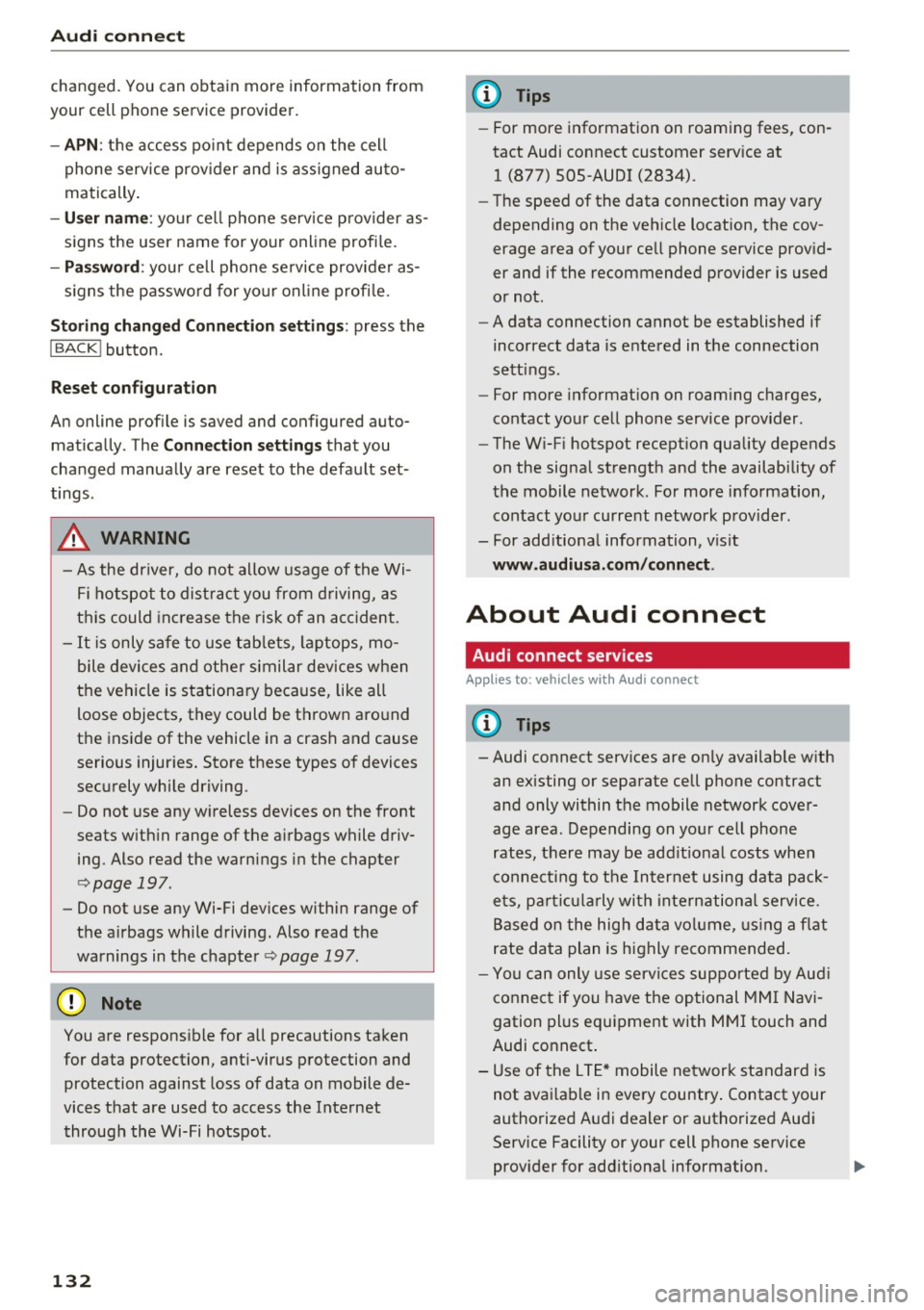
- APN: the access point depends on the cell
phone service provider and is assigned auto
matically.
- User name: your cell phone service provider as
signs the user name for your on line profile.
-Password: your cell phone service provider as-
signs the password for your online profile.
Storing changed Connection settings: press the
I BACK ! button.
Reset configuration
An online profile is saved and configured auto
matically . The
Connection settings that you
changed manually are reset to the default set
tings .
.&_ WARNING
-As the driver, do not allow usage of the Wi
Fi hotspot to distract you from driving, as
this could increase the risk of an accident.
-It is only safe to use tablets, laptops, mo
bile devices and other similar devices when
the vehicle is stationary because, like all
loose objects, they could be thrown around
the inside of the vehicle in a crash and cause
serious injuries. Store these types of devices
securely while driving.
- Do not use any wireless devices on the front
seats within range of the airbags while driv
ing. Also read the warnings in the chapter
r:> page 197 .
-Do not use any Wi-Fi devices within range of
the airbags while driving. Also read the
warnings in the chapter
r:> page 197.
@ Note
You are responsible for all precautions taken
for data protection, anti-virus protection and protection against loss of data on mobile de
vices that are used to access the Internet through the Wi-Fi hotspot .
132
(D Tips
-For more information on roaming fees, con
tact Audi connect customer service at
1 (877) SOS-AUDI (2834).
- The speed of the data connection may vary
depending on the vehicle location, the cov
erage area of your cell phone service provid
er and if the recommended provider is used
or not .
- A data connection cannot be established if
incorrect data is entered in the connection
settings.
- For more information on roaming charges,
contact your cell phone service provider.
- The Wi-Fi hotspot reception quality depends
on the signal strength and the availability of
the mobile network. For more information, contact your current network provider .
- For additional information, visit
www.audiusa.com/connect .
About Audi connect
Audi connect services
Applies to: vehicles with Aud i connect
(D Tips
-Audi connect services are only available with
an existing or separate cell phone contract
and only within the mobile network cover
age area. Depending on your cell phone
rates, there may be additional costs when
connecting to the Internet using data pack
ets, particularly with international service.
Based on the high data volume, using a flat
rate data plan is highly recommended.
- You can only use services supported by Audi
connect if you have the optional MMI Navi
gation plus equipment with MMI touch and
Audi connect.
- Use of the L TE* mobile network standard is
not available in every country. Contact your
authorized Audi dealer or authorized Audi
Service Facility or your cell phone service provider for additional information .
Page 136 of 322
Audi connect
using a secure connection. This content is
displayed in the vehicle for your use. Your personal content is not stored within Audi
AG. The necessary connection information is
processed and used for provid ing services
and the proper function of the serv ices in
accordance with applicable legal gu idelines .
- By prov iding Audi connect serv ices, Audi of
America is authorized to collect, process,
transm it and t ransfe r information about
you and your vehicle. Additional information
Troubleshooting
Applies to: veh icles with Audi connect
Problem Solution
can also be
found in you r MM I in the op tions
men u¢ page
98 for the selected Audi con
nect service.
- Information on o ur data protection meas
ures in conjunction wit h the mobi le Audi
connect app lication can be found in the ap
plicat ion 's privacy policy. For additional in
formation about the
my.audiusa.com web
site or other app lications, websites or on line
serv ices connected to Audi , vis it
www.audiusa .com/privacy .
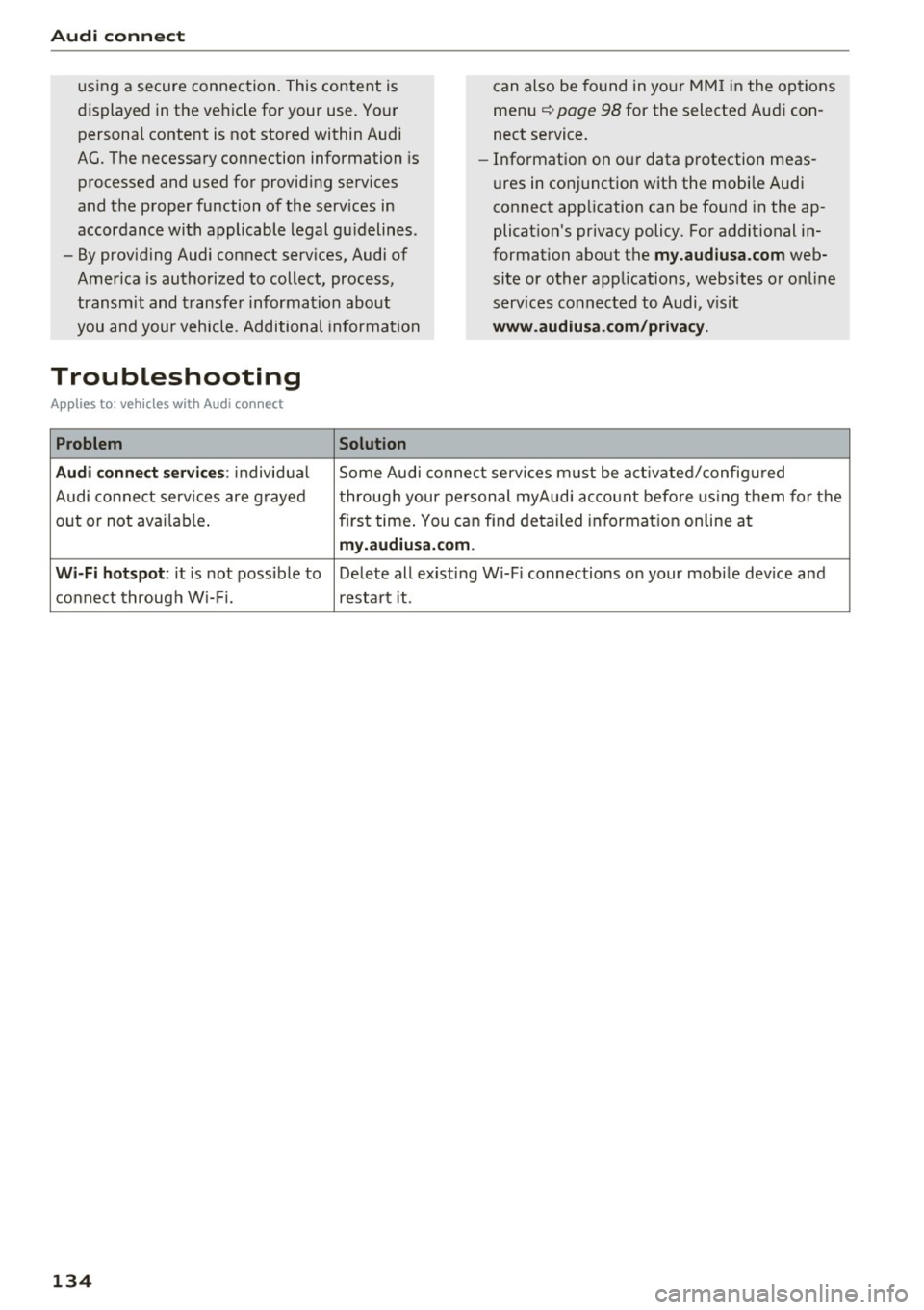
Audi connect s ervice s:
individ ua l Some Audi conne ct serv ices m ust be a ct ivated/config ured
Audi co nne ct serv ices are g rayed through your peirsonal myAud i acco unt befo re using them for the
o ut or not ava ilab le . first time. You can find detailed informat ion on line at
m y.aud iusa.com .
Wi-Fi hotspot :
it is not possible to Delete all existing W i-F i connections on your mob ile dev ice and
co nnect throug h W i-F i. restart it .
134
Page 157 of 322
co
co
.... N
" N .... 0
0
Vl c:o
Media
Introduction
There are various media drives and connections
avai lable in the MMI. You can play, for example,
audio/video files from the Jukebox* or connect
your mobile device to the Audi mus ic interface*
and operate it through the MMI.
Notes
General information
Media and format restrictions:
the MMI (includ
ing the SD card reader and the USB storage de
vice connection*) was tested with a variety of products and media on the market. However,
there may be cases where individual devices or media and audio/video* files may not be recog
n ized, may play only w ith restrictions or may not
play at all.
Digital Rights Management: please note that
the audio/video files are subject to copyright pro
tection .
The media drives do not play fi les that are pro
tected by ORM and that are ident ified with the
symbol
l'.D .
Data security: never store important data on SD
cards, the Jukebox*, CDs/DVDs or mobile devices .
Audi AG is not responsible for damaged or lost
files and media .
Loading times: the more files/fo lders/play lists
that are on a storage medium, the longer it will
take to load the audio/video files* . Audi recom
mends using storage media that only contain au
dio/video files*. To decrease the t i me it takes to
load audio/v ideo files*, create subfolders (for ex
ample, fo r the art ist or album). The loading time
will also increase when importing fi les.
Additional information : when playing, audio
files are automatically displayed w ith any add i
tional information that is stored (such as the ar
tist, track and album cover). If this information is
not available o n the storage med ium, the MMI
will check the Grace note metadata database .
Media
However, in some cases, the additional informa
tion may not be displayed.
Restricted functionality : reset the Media set
tings
t o the factory default settings if functional
ity is restr icted
<> page 175.
Reset the Jukebox* to the factory default set
t in gs if functiona lity is rest ricted <>
page 175.
For information about the propert ies of support
ed media and fi le formats, see
<>page 168 .
(D Note
You are responsible for all precaut ions taken
for data protection, anti-virus protect ion and
protection against loss of data on mobi le de
v ices that are used to access the Internet
through the Wi-Fi hotspot.
CD/DVD operation
CD/DVD and format restrictions:
the functionali
ty of individual storage media may be limited due
to the variety of blank CDs/DVDs availab le and
the various capacities. Audio CDs or video DVDs
with copy protection, CDs/DVDs that do not con
form to the standard and mult isess ion CDs may
have limited playback or may not play at all . Audi
recommends finaliz ing t he recording process
whe n creat ing mult isess ion CDs. Mult isession is
not supported for DVDs .
Using CDs /DVDs, the CD drive or the DVD drive :
to ensure correct, high-quality playback and to
prevent damage to the drive or disc reading er
ro rs, always store CDs/DVDs in a protective
s leeve and do not expose them to direct sunlight.
Do
not use:
- Damaged, dirty or scratched CDs/DVDs
- Single CDs/DVDs (3 inch/8 cm diameter)
- CD/DVDs that are not round
- CDs/DVDs w ith labels
- Protective rings
- Cleaning CDs
Thermal protection switch: CD/DVD playback
may be temporarily unavailable if outside tem-
peratures are extremely hot or cold. A thermal
llo-
155
Page 161 of 322
-Multiple Bluetooth audio players can be
connected to the MMI, but only one mobile
device can be active.
- Bluetooth protocols AVRCP (1.0/1.3/1.4)
and A2DP are supported.
- Note the volume setting on your Bluetooth
device. Audi recommends setting your mo
bile device to the maximum volume when
using it as a Bluetooth audio player.
- The supported media functions (such as
shuffle) depend on the Bluetooth device be
ing used.
- For more information on the supported de
vices, visit
www.audi.com/bluetooth or
contact your authorized Audi dealer or au
thorized Audi Service Facility.
Wi-Fi audio player
App lies to: ve hicles with Wi-F i
Using the Wi-Fi audio player media source on the
MMI, you can connect and operate your Wi-Fi-ca
pable media player (such as a smartphone) to
wirelessly play music from your media player
li
brary. The media player is connected through the
vehicle's Wi-Fi hotspot. A UPnP Server opp or an
integrated UPnPIDLNA server on your media
player is required to access your media player
li
brary.
Requirement: the Wi-Fi function on your media
player must be switched on. The
Audi MMI con
nect
app or a UPnP server app must be installed
on your media player .
Or: you must be using a
media player with an integrated UPnP/DLNA
server .
-Connecting a media player: press the I MEDIA !
button. Press the left control button until the
sources overview
c:;, page 163 is dis played. Se
lect and confirm
Wi-Fi audio player
(!) ¢page 163, fig . 140 .
-If necessary, select and confirm Wi-Fi off>
Turn on Wi-Fi
to activate Wi-Fi in the MMI. Se
lect
Wi-Fi settings, if necessary. Select the
same settings on the wireless media player
co that are used for the Wi-Fi hotspot. co
;:::: -Starting the Wi-Fi audio player: start the Audi
" ~ MMI connect app or a UPnP server app . Or: al-o
~ low media sharing on your media player. c:o
Media
Operating the media player: the media player is
operated through the MMI.
- Press the left control button repeatedly until
the
Folders menu item appears . Select and con
firm
Folders.
- Playing music from the media player:
select
and confirm
Media center .
Web radio:
see c:;, page 160 .
A WARNING
-As the driver, do not allow usage of the Wi
Fi hotspot to distract you from driving, as
this could increase the risk of an accident.
- It is only safe to use tablets, laptops, mo
bile devices and other similar devices when
the vehicle is stationary because, like all
loose objects, they could be thrown around
the inside of the vehicle in a crash and cause
serious injuries. Store these types of devices
securely while driving.
- Do not use any wireless devices on the front
seats within range of the airbags while driv
ing. Also read the warnings in the chapter
c:;, page 19 7.
@ Note
You are responsible for all precautions taken
for data protection, anti-virus protection and
protection against loss of data on mobile de
vices that are used to access the Internet
through the Wi-Fi hotspot.
(D Tips
- The Wi-Fi connection is reconfigured when
inserting or removing the mini SIM card in
the SIM card reader* . There may be a tem
porary interruption in audio playback, de
pending on the media player.
- Always read the chapter
c:;, page 132, About
Audi connect.
- Please note that a Wi-Fi connection does
not automatically make it possible to use
the Internet. For additional information, see
¢ page 126.
-To avoid interruptions during playback, de
activate the power saving function on the
media player or connect it to a charger.
159
Page 162 of 322
Media
-The loading times fo r the a udio data depend
on the media p layer used and the number of
files that it conta ins .
- A maxim um of 2,000 entries per directory
are displayed in the MMI.
- Songs down loaded for off line use using m u
sic streaming services are stored on your
mobile device (such as a smartphone) and
may be DRM protected. The Wi-Fi a udio
player will not play DRM protected files.
- Contact you r authorized Audi dea ler or a u
thorized Audi Service Facility for additional i nformat io n on the Wi-Fi audio player.
Online media and
Internet radio
Applies to: vehicl es w ith Audi connect
You can playback and opera te various online me
dia services and Internet radio using the MMI.
.,. Press the IM EDIA I button. Press the left control
button un til the so urces ove rview
¢page 163,
fig. 140
is d isp layed.
Applies to: using online media and Internet radio
Req uirement:
- The
Audi MMI connect app must be installed
and open o n your mob ile device .
- You must be logged into your myAudi account
in the
Audi MMI connect app and you must
have selected your veh icle.
- The Wi-Fi function on the mobile device and on
the MMI must be switched on.
- If necessary, check in the connection manager
¢
page 175 if the mobile device yo u connected
is selected under the
MMI connect app (~).
-The MMI must be connected to the network.
- The symbol for the
Online media* sou rce @
¢page 163, fig . 140 is shown in the MMI.
Applies to: using online media
Addit io nal requirement:
- A suppor ted on line media serv ice m ust be avail
able in your country.
- You must have an accou nt w ith a supported on
li ne med ia serv ice .
- Depend ing on the online media service, you
must install and open an app on your mob ile
device .
160 Starting Online med
ia
- Press the IM EDIA I button. Press the left contro l
button until the sources overview ¢
page 163
is displayed.
- Select and confirm an o n line media serv ice.
Starting Internet radio
- Press th e I MEDIA i button. Press the left cont rol
button u nti l the sources overview ¢
page 163
is displayed.
- Select and confirm
Internet radio . The In ter net
radio b rowser or the last stat ion that was play
i n g is shown.
- Select ing the station : if necessa ry, select and
confirm a category in the I nte rnet rad io
Brows
er
> a s ta tion.
Online m edia and Internet radio : additional op
tion s
-Press the right control but ton.
The following op tions may be ava ilable, depen d
i ng o n the information shown (s uch as the sta
t ion/ track th at is cur rently playing):
- Sound sett ings : ¢ page 178.
-Wi-Fi settings : see¢ page 130, Wi-Fi hotspot.
- Connection manager : see ¢page 175.
- Add ition al opt ions may be ava ilable, dep end ing
on t he active online media service or In ternet
radio .
A WARNING
-It is on ly safe to use ta blets , laptops, mo
bi le devices and ot her simi lar devices when
the vehicle is stat ionary because, like all
loose objects, they cou ld be thrown around
the inside o f th e ve hicle in a c rash and cause
serio us inju ries. S tore these ty pes of devices
secure ly wh ile driving.
- Do no t use any wire less dev ices on the front
seats wi thin ra nge of the air bags while dr iv
ing . Also read t he war ning s in the chapte r
¢page 197.
0 Note
Please note that there genera lly are add it ion
a l costs when usi ng an on line media se rvice
a ccoun t, es pe ci ally w hen it i s used inte rna
tion ally.
-
Page 170 of 322
Media
Picture for-
mat
4:3
16:9
(D Tips Information
The
image is fixed in the 4:3 pie-
ture format . Black bars are shown
on the sides of the Infotainment
system display .
The image is fixed in the 16:9 pie-
ture format. Black bars are shown
in the upper and lower edges of the
Infotainment system display. -
Th e security levels for the
Parental control
are based on the US standards from the Mo
t ion Picture Association of America (MPAA).
Note that the age levels for v ideo DVDs in
European countries may differ.
- Password entry for
Parental control will be
locked for approximately one minute if you
enter the incorrect password three times in
a row. The password can only be reset by an
authorized Audi dealer.
- Not all video DVDs have parental control.
Supported media and file formats
Overview
The following audio/video files are supported by the DVD drive, the Jukebox* , the SD card reader and
the connection for USB storage devices:
Audio files Video files*
Supported SD/SDHC/SDXC/MMC mem1ory cards:
w ith a capacity up to 128 GB
media DVD drive : audio CDs (up to 80 min.) with CD text (artist, album, song)*, CD-ROMs with
a capacity up to 700 MB; DVD±R/RW; DVD video; DVD audio with audio tracks that are
compatible with a DVD video player
Audi music interface : mobile devices ~page 161 such as iPods and MTP players, USB
storage devices in "USB Device Subclass 1 and 6" that conform to USB 2.0: USB sticks,
USB MP3 players (Plug-and-Play capable), external USB flash drives and hard drives
File system Memory cards: exFAT, FAT, FA T32, NTFS
USB storage devices: FAT, FAT32, NTFS
USB storage device partitions: 2 per USB connection
CD/DVD file systems: IS09660, Joliet, UDF
Metadata Album cover: GIF, )PG, PNG with max.
800x800 px. The album cover from the
medium or from Gracenote is displayed,
depending on availability.
Format MPEG-1/- Windows MPEG-2/- FLAC MPEG-1/- MPEG4 Windows Media Vid-
2 Media 4
2 AVC
eo 9
Layer-3 Audio 9 (H.264)
and 10
File exten-.mp3 .wma .m4a; .flac
.mpg; .
mp4; .wmv;
sion .m4b; .mpeg .m4v; .asf
.aac .mov;
.avi
Playlists .M3U; .PLS; .WPL ; .M3U8; .ASX
168
...
Page 179 of 322

co
co
.... N
" N .... 0
0
Vl c:o
Online settings*
- Data connection settings :
see Q pag e 131 ,
C on fig uri ng the d ata connection
- Data usage counter : the am oun t o f data pack
e ts th at ar e sent and r eceived throug h the M MI
is d is pl ayed. You can rese t the dat a usage infor
mation to zero using the
Reset data counter
opt ion.
- Network statu s: the mobile netwo rk provider
for data se rvice as well as t he netwo rk status
are displayed .
Wi-Fi settings*
See 9 p age 130, W i-F i ho tspo t.
SIM PIN settings*
- Automatic PIN entry:
when t his fu nction is
swi tched on@', the S IM PIN is automa tically
saved in t he MMI after it is e nte red for the firs t
t im e. The S IM PIN fo r f our di fferen t SIM car ds
c a n b e save d in t he MM I. W ith the func tion
swit ched o ff, the cu rrently store d SI M P IN i s
deleted from the MMI. When t he a utomat ic
PI N entry is switc hed on, there a re no SI M PIN
prompts.
- Disable PIN query : when switched on, the re are
no SIM PI N quer ies. The a utomat ic PIN entry is
not used in t his case.
- Change PIN : you can change t he PI N on your
SIM card . First enter the c urrent SI M PIN. The
SIM PIN may only contai n dig its 0-9. The new
SIM PIN must be ente red twice for secur ity and
then it w ill be saved to the SI M card.
Apple CarPlay sound settings/ Android Auto
sound settings
Applies to: vehicles with Audi smartphone interface
See Q page 178.
About Apple CarPlay/ About Android Auto
Applies to: vehicles with Audi smartphone interface
Here you will f in d l egal info rmat ion regar ding
the use of Ap ple Ca rPlay or Android Auto a nd in
formation about dev ice-specif ic data exchange.
System settings
Delete CarPlay device/Delete Android Auto
device
Applies to: vehicles with Aud i smartphone interface
Requirement: yo ur cell phone m ust not be con
nected to t he Aud i m usic inter face with a USB
adapter .
T o remove you r cell p hone from the list of a ll ce ll
p hones t hat are a lready paired, se lect and con
firm
Delete CarPlay device or Delete Android Au
to device .
{!) Tips
Some SIM ca rds do not a llow the SI M PIN
q ueries to be sw itche d off.
System update
.,. Select : !ME NUI button> Settings > left control
button >
System maintenance .
- System update :
slide the sto rage device w ith
the update data into t he a pprop riate drive
Q page 156. Se lect and confi rm the dr ive>
Start update . The length of the process de
pe nds on the s ize of the update .
-Reset driver installation : the selected media
driver package is reset to t he settings at the
time of delivery .
-Version information : information on the MMI
software version and the navigation database*
so ftware ve rsi on is d isplayed. The
Software in
formation
fu nction also prov ides info rmat io n
on t he softwa re co nta ined in th e MMI an d the
licensing ag ree ment.
177
Page 185 of 322
co
co
.... N
" N .... 0
0
Vl c:o
-Before driving, always adjus t the front pas
senger seat properly.
- Always keep your feet on the floor in front
of the seat. Never rest them on the seat, in
strument panel, out of the window, etc. The
airbag system and safety belt will not be
able to protect you properly and can even in
crease the risk of injury in a crash .
- Never drive with the backrest reclined or
t ilted fa r back! The farther the backrests are
t il ted back, the greater the risk of in ju ry due
to incorrect positioning of the safety belt
and improper se ating position.
- Children must a lways ride in child seats
¢ page 221. Special precautions apply
when insta lling a child seat on the front
passenge r seat
¢ page 19 7.
Proper seating positions for passengers in
rear seats
Rear seat passengers must sit upright wi th both
feet on the floor consistent with their physical
size and be properly restrained whenever the ve
hicle is in use.
To reduce the risk o f injury caused by an incorrect
seating position in the event of a sudden braking
maneuver or an accident, yo ur passengers on the
rear bench seat must a lways observe the follow
ing:
• Make s ure that the seatback is sec urely latched
in the upright pos ition
¢ page 49.
• Keep both feet flat in the footwell in front of
the rear seat.
• Fasten and wear safety be lts properly
¢ page 193 .
• Make su re that children are always properly re
st rained in a ch ild res traint that is approp riate
for their size and age
¢ page 221 .
A WARNING
Passengers who are improperly seated on the
rear seat can be seriously injured in a crash .
- Each passenger m ust always sit on a seat of
their own and properly fasten and wear the
safety belt belonging to that seat .
Safe driv ing
- Safety belts only offer maxim um protection
when the seatback is securely latched in the
upright pos ition and the safety belts are
properly posit ioned on the body . By not sit
ting upright, a rear seat passenger increases
the risk of personal injury from improperly
positioned safety belts!
Examples of improper seating positions
The occupant restraint system can only reduce
the risk of injury if vehicle occupants are properly
seated .
Improper seat ing positions can cause ser ious in
jury or death . Safety belts ca n only work when
they a re properly positioned on the body. Im
prope r seat ing positions red uce the effectiveness
of safety be lts an d will even inc rease the risk of
injury and deat h by moving the safety belt to cr it
ical areas of the body. Improper seating posi tions
also increase the risk of se rious i njury and death
when an airbag dep loys and strikes an occ upant
who is not in the proper seating posit ion. A dr iver
is responsible for the safety of all veh icle occu
pants and espec ially for children . Therefore :
• Never allow anyone to assume an incorrect
seating position when the vehicle is being used
¢ .&_ .
The following bulletins list on ly some samp le po
s itions that will increase the r isk of serious injury
and death . Our hope is that these examples will
make yo u more aware of seating positions that
are dangerous .
Therefore, whenever the vehicle is mov ing :
-neve r stand up in the vehicle
- never stand on the seats
- neve r kneel on the seats
- neve r ride wit h the sea tback recl ined
- neve r lie down on the rear seat
- never lean up against the instrument panel
- never s it on the edge of the seat
- neve r sit sideways
- never lean out the window
- neve r put your feet o ut the wi ndow
- neve r put your feet on t he i nstr ument pane l
183