instrument cluster AUDI TT COUPE 2020 Owner's Manual
[x] Cancel search | Manufacturer: AUDI, Model Year: 2020, Model line: TT COUPE, Model: AUDI TT COUPE 2020Pages: 280, PDF Size: 98.79 MB
Page 90 of 280
Assist systems
Switching the system on
Applies to: vehicles with cruise control system
@ #
©
f°
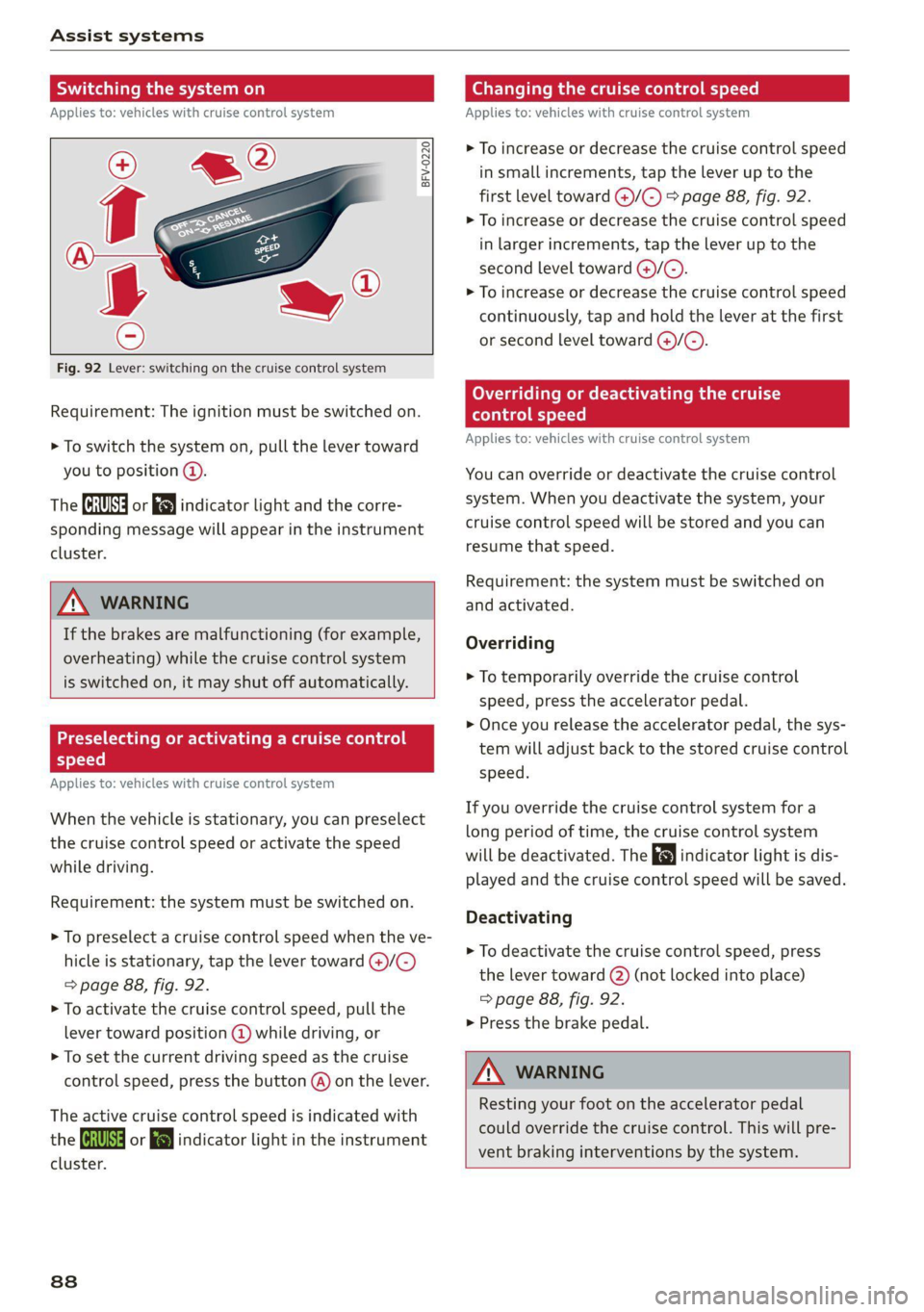
Fig. 92 Lever: switching on the cruise control system
Requirement: The ignition must be switched on.
> To switch the system on, pull the lever toward
you to position @).
The (a or 8] indicator light and the corre-
sponding message will appear in the instrument
cluster.
ZA WARNING
If the brakes are malfunctioning (for example,
overheating) while the cruise control system
is switched on, it may shut off automatically.
Preselecting or activating a cruise control
Cy ey-t-te)
Applies to: vehicles with cruise control system
When the vehicle is stationary, you can preselect
the cruise control speed or activate the speed
while driving.
Requirement: the system must be switched on.
> To preselect a cruise control speed when the ve-
hicle is stationary, tap the lever toward @)/G)
=> page 88, fig. 92.
> To activate the cruise control speed, pull the
lever toward position @ while driving, or
> To set the current driving speed as the cruise
control speed, press the button @) on the lever.
The active cruise control speed is indicated with
the ICRUISE| or i=} indicator light in the instrument
cluster.
838
Changing the cruise control speed
Applies to: vehicles with cruise control system
> To increase or decrease the cruise control speed
in small increments, tap the lever up to the
first level toward @)/G) > page 88, fig. 92.
> To increase or decrease the cruise control speed
in larger increments, tap the lever up to the
second level toward ()/C).
> To increase or decrease the cruise control speed
continuously, tap and hold the lever at the first
or second level toward @/G).
Overriding or deactivating the cruise
control speed
Applies to: vehicles with cruise control system
You can override or deactivate the cruise control
system. When you deactivate the system, your
cruise control speed will be stored and you can
resume that speed.
Requirement: the system must be switched on
and activated.
Overriding
> To temporarily override the cruise control
speed, press the accelerator pedal.
> Once you release the accelerator pedal, the sys-
tem will adjust back to the stored cruise control
speed.
If you override the cruise control system for a
long period of time, the cruise control system
will be deactivated. The indicator light is dis-
played and the cruise control speed will be saved.
Deactivating
> To deactivate the cruise control speed, press
the lever toward (2) (not locked into place)
=> page 88, fig. 92.
> Press the brake pedal.
A WARNING
Resting your foot on the accelerator pedal
could override the cruise control. This will pre-
vent braking interventions by the system.
Page 92 of 280
Assist systems
— For safety reasons, active lane assist must
not be used when there are poor road and/or
weather conditions such as slippery roads,
fog, gravel, heavy rain, snow and the poten-
tial for hydroplaning. Using active lane as-
sist under these conditions may increase the
risk of a crash.
Switching on/off
Applies to: vehicles with Audi active lane assist
B8V-0692
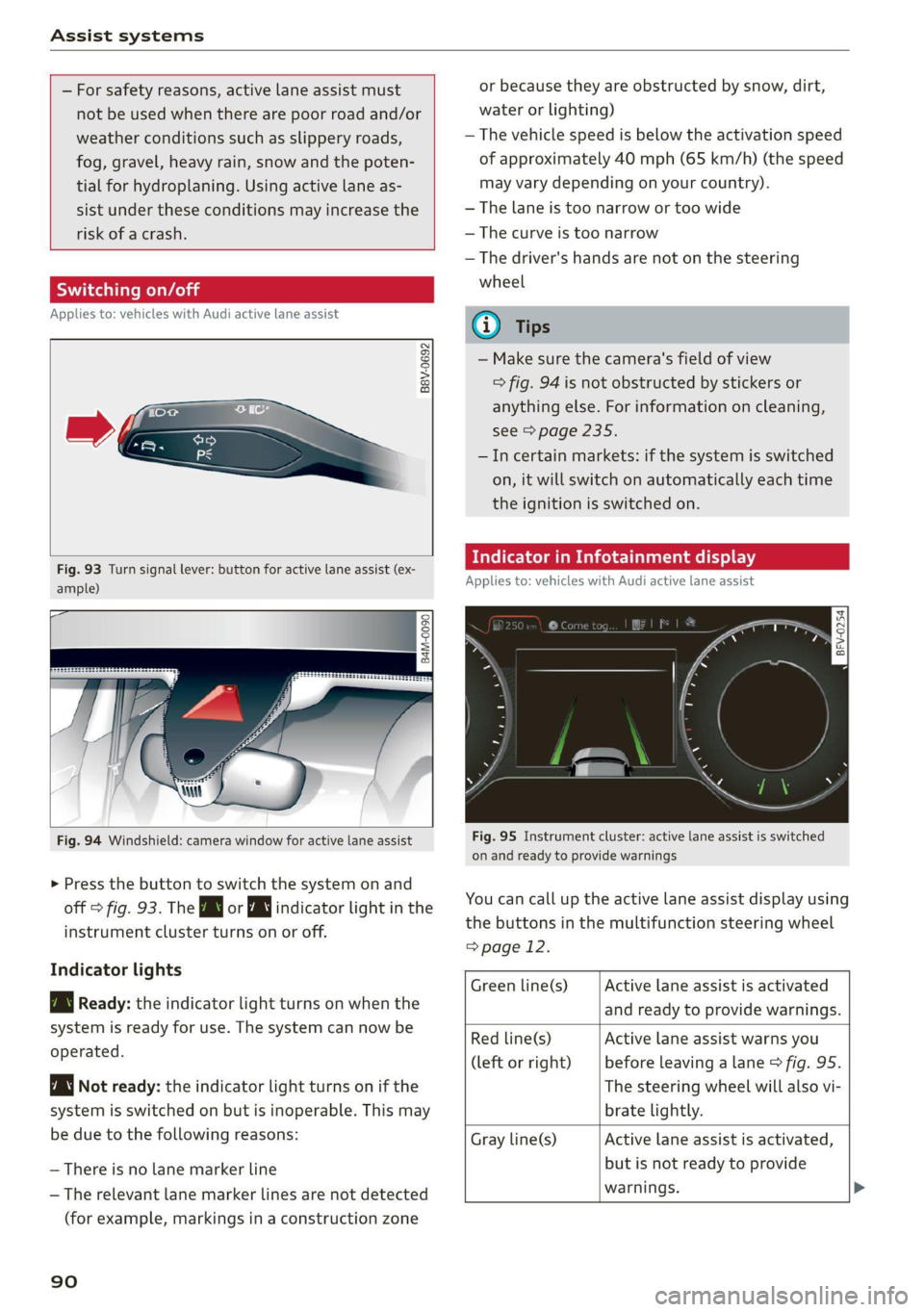
Fig. 93 Turn signal lever: button for active lane assist (ex-
ample)
ig
84M-0090
Fig. 94 Windshield: camera window for active lane assist
> Press the button to switch the system on and
off > fig. 93. The Bg or WJ indicator light in the
instrument cluster turns on or off.
Indicator lights
B Ready: the indicator light turns on when the
system is ready for use. The system can now be
operated.
Not ready: the indicator light turns on if the
system is switched on but is inoperable. This may
be due to the following reasons:
— There is no lane marker line
— The relevant lane marker lines are not detected
(for example, markings in a construction zone
90
or because they are obstructed by snow, dirt,
water or lighting)
— The vehicle speed is below the activation speed
of approximately 40 mph (65 km/h) (the speed
may vary depending on your country).
— The lane is too narrow or too wide
— The curve is too narrow
— The driver's hands are not on the steering
wheel
@) Tips
— Make sure the camera's field of view
=> fig. 94 is not obstructed by stickers or
anything else. For information on cleaning,
see > page 235.
—Incertain markets: if the system is switched
on, it will switch on automatically each time
the ignition is switched on.
dicator in Infotainment display
Applies to: vehicles with Audi active lane assist
Fig. 95 Instrument cluster: active lane assist is switched
on and ready to provide warnings
You can call up the active lane assist display using
the buttons in the multifunction steering wheel
=> page 12.
Active lane assist is activated
and ready to provide warnings.
Green line(s)
Red line(s)
(left or right)
Active lane assist warns you
before leaving a lane > fig. 95.
The steering wheel will also vi-
brate lightly.
Active lane assist is activated,
but is not ready to provide
warnings. >
Gray line(s)
Page 94 of 280

Assist systems
The time measurement on an individual lap ends
after 99 hours 59 minutes and 59 seconds. A new
lap starts automatically after that.
The measurement ends after a maximum of 30
laps. You can then evaluate the lap times or start
a new time measurement.
You can control the lap timer using the controls
on the multifunction steering wheel > page 92.
ZA WARNING
Your focus should always be on driving your
vehicle safely. As the driver, you have com-
plete responsibility for safety in traffic. Only
use the functions such as the lap timer in such
a way that you always maintain complete con-
trol over your vehicle in all traffic situations.
G) Tips
You can retrieve information from the trip
computer while the lap timer stopwatch is
running.
Opening the lap timer and measuring time
Applies to: vehicles with lap timer
Fig. 96 Multifunction steering wheel: controls
RAH-8493
@— 0:07.2——_@
Best lap 0:29.0
To} 0:30.5
New Lap
Fig. 97 Instrument cluster: lap timer
92
Opening the lap timer
> Select in the Infotainment system: [MENU] but-
ton > Vehicle > left control button > Lap times
> Turn the thumbwheel (@) > fig. 96 until Start
lap 1 by driving off or Start by driving off
> fig. 97 appears.
> Press the thumbwheel (@) to confirm the selec-
tion.
Timing laps
> To measure the lap time, press the thumb-
wheel (@) again while on the New lap menu
item. This starts timing the next lap at the
same time. The last time measurement moves
up to the top line @). The current lap time is in
the center line in area @).
As
long as the J symbol is green during the cur-
rent lap time measurement, the current time is
faster than your best time to date. If the [J sym-
bol is red, the current time is slower ©.
Displaying split time and pausing timing
> To display a split time @, turn the thumb-
wheel (@) until Split time appears in line @.
Press the thumbwheel (@) to confirm the selec-
tion. The split time appears for approximately
10 seconds in area @). The timing of the cur-
rent lap continues.
If you would like to insert a pause Oi immediate-
ly after the split time, first press the thumbwheel
@ to confirm the menu item Reset values with
OK.
> To insert a pause, turn the thumbwheel (@) until
Pause appears in line (@). Press the thumbwheel
@ to confirm the selection. The pause symbol
DH appears in area.
> To continue timing, press the thumbwheel ().
If timing is paused, you can continue it later even
if you switch the ignition off.
Meaning of the indicator in the Infotainment sys-
tem display > fig. 97:
Page 95 of 280
8S1012721BB
Assist systems
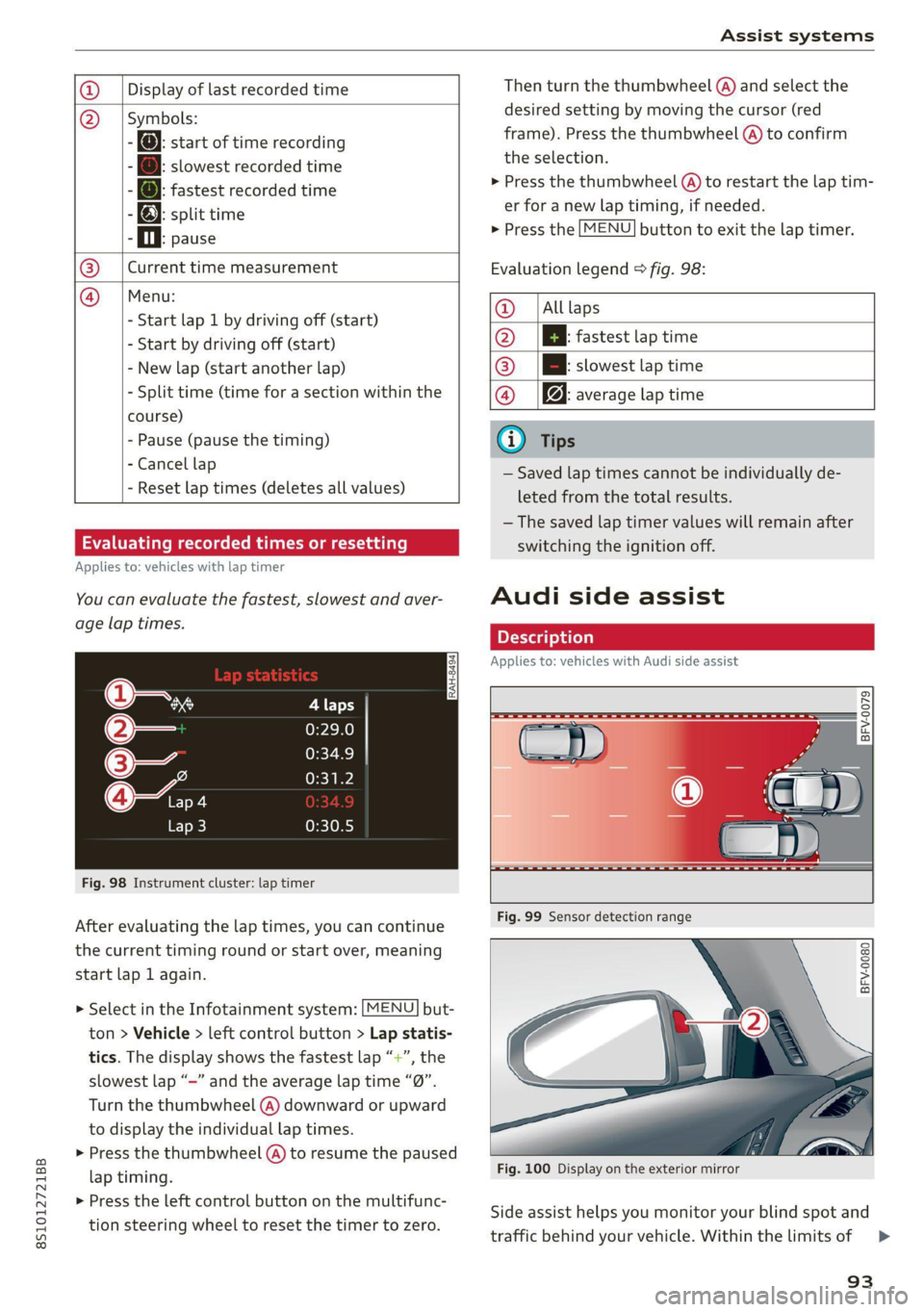
Display of last recorded time
O}{G) Symbols:
5 fe): start of time recording
- @: slowest recorded time
ei @: fastest recorded time
: fe): split time
- fl. pause
Current time measurement
Menu:
- Start lap 1 by driving off (start)
- Start by driving off (start)
- New lap (start another lap)
- Split time (time for a section within the
course)
- Pause (pause the timing)
- Cancel lap
- Reset lap times (deletes all values)
®|©
Evaluating recorded times or resetting
Applies to: vehicles with lap timer
You can evaluate the fastest, slowest and aver-
age lap times.
Fig. 98 Instrument cluster: lap timer
After evaluating the lap times, you can continue
the current timing round or start over, meaning
start lap 1 again.
> Select in the Infotainment system: [MENU] but-
ton > Vehicle > left control button > Lap statis-
tics. The display shows the fastest lap “+”, the
slowest lap “-” and the average lap time “0”.
Turn the thumbwheel (@) downward or upward
to display the individual lap times.
> Press the thumbwheel (@) to resume the paused
lap timing.
> Press the left control button on the multifunc-
tion steering wheel to reset the timer to zero.
Then turn the thumbwheel @) and select the
desired setting by moving the cursor (red
frame). Press the thumbwheel @ to confirm
the selection.
> Press the thumbwheel (@) to restart the lap tim-
er for a new lap timing, if needed.
> Press the [MENU] button to exit the lap timer.
Evaluation legend © fig. 98:
@ |Alllaps
@ |[EB fastest lap time
@® |[Bh slowest lap time
@ Bq: average lap time
@) Tips
— Saved lap times cannot be individually de-
leted from the total results.
— The saved lap timer values will remain after
switching the ignition off.
Audi side assist
Applies to: vehicles with Audi side assist
BFV-0079
BFV-0080
Fig. 100 Display on the exterior mirror
Side assist helps you monitor your blind spot and
traffic behind your vehicle. Within the limits of =>
93
Page 99 of 280
8S1012721BB
Assist systems
Steering
The power steering adapts. Indirect steering that
moves easily as in comfort mode is especially
suited to long drives on a highway. The dynamic
mode provides sporty, direct steering.
Engine sound*
The engine sound adapts to the current mode
and can be subtle to sporty.
— Certain vehicle settings will be reset when
the ignition is switched off.
— In some models, the maximum vehicle
speed can only be reached in the auto and
dynamic modes.
Selecting the driving mode
Applies to: vehicles with Audi drive select
You can choose between comfort, auto, dynamic
and individual.
BFV-0307
drive
select
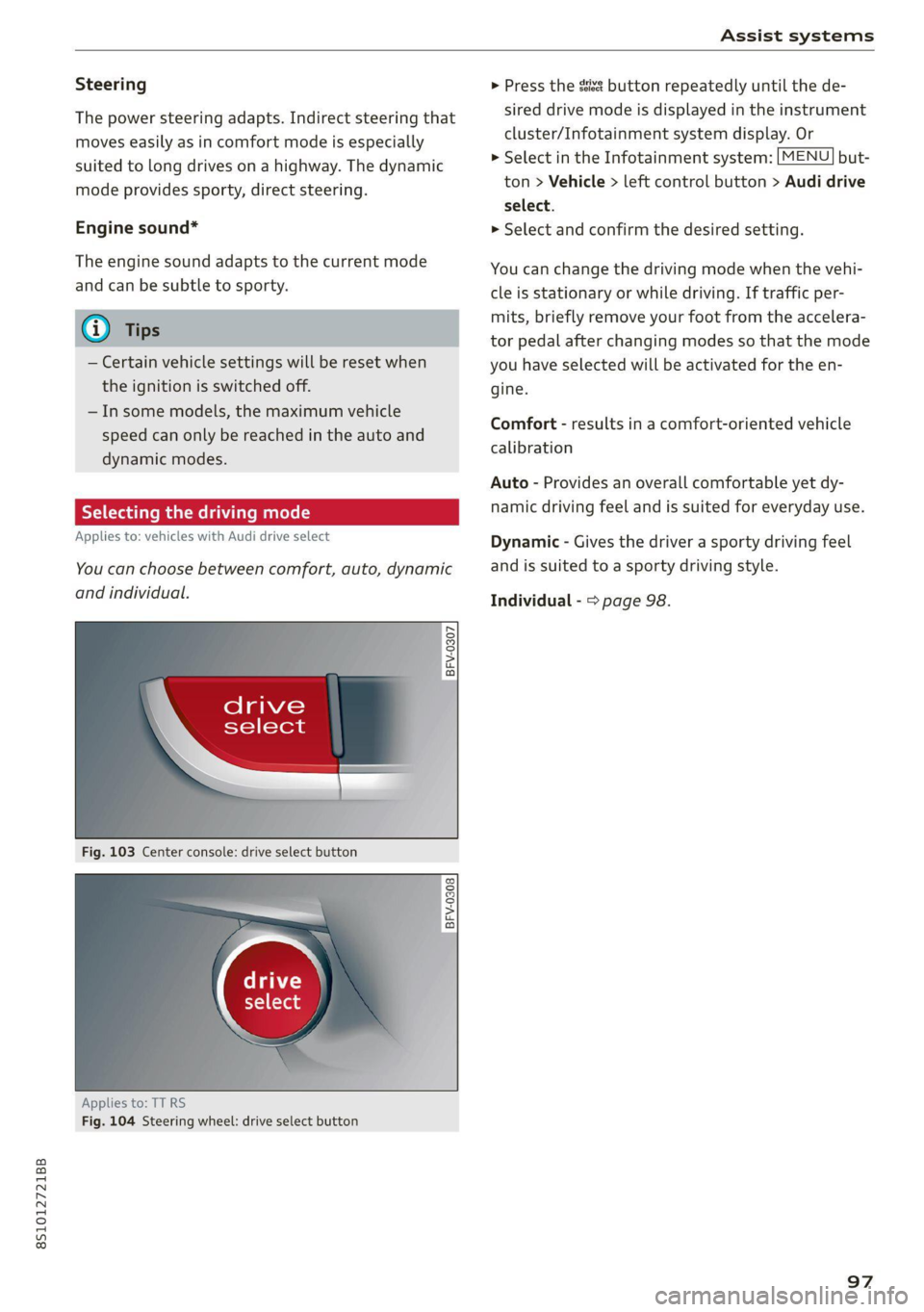
Fig. 103 Center console: drive select button
BFV-0308
Applies to: TT RS
Fig. 104 Steering wheel: drive select button
> Press the sist button repeatedly until the de-
sired drive mode is displayed in the instrument
cluster/Infotainment system display. Or
> Select in the Infotainment system: [MENU] but-
ton > Vehicle > left control button > Audi drive
select.
» Select and confirm the desired setting.
You can change the driving mode when the vehi-
cle is stationary or while driving. If traffic per-
mits, briefly remove your foot from the accelera-
tor pedal after changing modes so that the mode
you have selected will be activated for the en-
gine.
Comfort - results in a comfort-oriented vehicle
calibration
Auto - Provides an overall comfortable yet dy-
namic driving feel and is suited for everyday use.
Dynamic - Gives the driver a sporty driving feel
and is suited to a sporty driving style.
Individual - > page 98.
97
Page 107 of 280
8S1012721BB
Intelligent Technology
Intelligent Technology
Electronic Stabilization
Control (ESC)
Electronic Stabilization Control (ESC) supports
driver safety. It reduces the risk of slipping and
improves driving stability. ESC detects critical sit-
uations such as the vehicle oversteering and un-
dersteering or the wheels are spinning. The
brakes are applied or the engine torque is re-
duced in order to stabilize the vehicle. When the
ESC engages, the B indicator light blinks in the
instrument cluster.
The following systems are integrated in the ESC:
Anti-lock braking system (ABS)
ABS prevents the wheels from locking when brak-
ing. The vehicle can still be steered even during
hard braking. Apply steady pressure to the brake
pedal. Do not pump the pedal. A pulsing in the
brake pedal indicates that the system is acting to
stabilize the vehicle.
Brake assist system
The brake assist system can decrease braking dis-
tance. It increases braking power when the driver
presses the brake pedal quickly in emergency sit-
uations. You must press and hold the brake pedal
until the dangerous situation is over.
Anti-Slip Regulation (ASR)
ASR reduces drive power when the wheels begin
spinning and adapts the power to the road condi-
tions. This will increase the driving stability.
Electronic Differential Lock (EDL)
The EDL applies the brakes to wheels that are
slipping and transfers the drive power to the oth-
er wheels. This function is not available at higher
speeds.
In extreme cases, EDL automatically switches off
to keep the brake on the braked wheel from over-
heating. The vehicle is still functioning correctly.
EDL will switch on again automatically when con-
ditions have returned to normal.
Power steering
The ESC can also support vehicle stability
through steering.
Selective wheel torque control
Selective wheel torque control is used when driv-
ing on curves. Braking is targeted toward the
wheels on the inside of the curve as needed. This
allows more precise driving in curves.
Automatic post-collision braking system
The automatic post-collision braking system can
help to reduce the risk of sliding and of addition-
al collisions after an accident. If the airbag con-
trol module detects a collision above a certain ve-
hicle speed, the vehicle is braked by the ESC.
The vehicle does not brake automatically if one of
the following occurs:
— The driver presses the accelerator pedal
— The braking force generated by the pressed
brake pedal is greater than the braking force
that would be initiated by the system
— The ESC, the brake system, or the vehicle elec-
trical system is not functioning
ZA\ WARNING
—The ESC and its integrated systems cannot
overcome the limits imposed by natural
physical laws. This is especially important on
slippery or wet roads. If the systems begin
acting to stabilize your vehicle, you should
immediately alter your speed to match the
road and traffic conditions. Do not let the in-
creased safety provided tempt you into tak-
ing risks. This could increase your risk of a
collision.
— Please note the risk of a collision increases
when driving fast, especially through curves
and on slippery or wet roads, and when driv-
ing too close to objects ahead. There is still
a risk of accidents because the ESC and its
integrated systems cannot always prevent
collisions.
— Accelerate carefully when driving on
smooth, slippery surfaces such as ice and
snow. The drive wheels can spin even when
these control systems are installed and this
105
Page 151 of 280

8S1012721BB
Navigation
Navigation
Opening navigation
Applies to: vehicles with navigation system
a
Fig. 136 Instrument cluster: entering a destination
The navigation system directs you to your desti-
nation, around traffic incidents, and on alterna-
tive routes, if desired.
> Press the [NAV/MAP| button.
The Enter destination menu is displayed after
opening navigation.
The following information can be displayed:
@ Input field for free text search .... 150
@ Home address ................. 151
@® Last destinations ............... 150
@ Stored favorites ................ 151
Once you select an entry from the list (depending
on the vehicle equipment), the corresponding
destination will display as a map preview* ().
If you have connected a mobile device to the
MMI, your directory contacts will also be listed if
they have navigation data assigned to them.
The Favorites (4) menu item as well as the direc-
tory/contacts are only shown in the Enter desti-
nation menu if you have entered one or more
characters using the input field.
Switching between the destination entry and
the map
— Press the [NAV/MAP] button repeatedly until
the map is displayed, or
— Select: left control button > Switch to map.
Z\ WARNING
— The demands of traffic require your full at-
tention. Always read the chapter
=> page 111, Traffic safety information.
—The route calculated by the navigation sys-
tem is a driving recommendation. Follow
the traffic regulations that are applicable in
the country where you are operating the ve-
hicle. In the event that the driving directions
contradict traffic regulations, always follow
the traffic regulations applicable in the
country where you are operating the vehicle
to reduce the risk of an accident.
(i) Tips
— You can find information about importing a
map update to your MMI using an SD card
at www.audiusa.com/myaudi.
— Snow and obstructions on the GPS antenna
or interference caused by trees and large
buildings can impair satellite reception and
affect the system's ability to determine the
vehicle position. Several deactivated or mal-
functioning satellites can also interrupt GPS
reception and affect the system's ability to
determine the vehicle position.
149
Page 160 of 280

Navigation
Map
Operating the map
Applies to: vehicles with navigation system
Wild Acres Rd
¥,
£
\ |
Escondido Fwy (atiate
Fig. 142 Instrument cluster: map with crosshairs turned on
Opening the map
> Press the LNAV/MAP] button repeatedly until
the map is displayed > fig. 142.
Zooming in/out on the map
> Turn the control knob to the left or to the right.
As an alternative, you can also zoom in or out
on the map using the MMI touch > page 115,
or:
> turn the left thumbwheel on the multifunction
steering wheel* > page 13.
Turning the crosshairs on
> Press the control knob in the map view.
158
RAH-8885)
Turning the crosshairs off
> Press the [BACK] button.
When the crosshairs are switched on > fig. 141:
@
® ®
Orientation: the map is either displayed as a
2D north-up map or as a 2D heading-up
map.
Scale: turn the control knob to the left or
right to decrease or increase the scale.
Zoom: when the Automatic zoom function is
switched on, an “A” for “Automatic” is dis-
played in the magnifying glass.
Crosshairs: move the crosshairs in the desired
direction using the MMI touch control pad
and
set a point on the map as the destination >
Page 164 of 280

Navigation
Accessing traffic information
(OPN Maelarreleeleurl dela)
Applies to: vehicles with navigation system and Audi connect Infotainment
a icon better route is available. —@
slay along the route:
Nogales St, Northbound
Northbound
eel
i) Northbound
cory
C)
Fig. 144 Instrument cluster: online traffic information display* without better route
The MMI can receive real-time online traffic infor-
mation about congestion, accidents, road con-
struction, and other incidents.
Requirement: the requirements for Audi connect
must be met > page 142.
Accessing online traffic information
> Press the [NAV/MAP] button repeatedly until
the map is displayed.
> Select: right control button > Online traffic da-
ta>On(M).
> Select: left control button > Traffic messages.
The traffic information overview is shown.
Depending on vehicle equipment, the following
information may be shown in the traffic informa-
tion overview > fig. 144:
@ Amessage will appear if the MMI calculates a
better route for the current route guidance.
More
information can be found under
=> page 163.
@ The status line in the Infotainment display
also always indicates the reception of traffic
information.
@® The current selected traffic message is also
shown as a map preview in the Infotainment
system display.
@® Color-coded markings along the route indi-
cate the traffic flow.
162
Traffic display
Green: traffic is flowing freely.
Yellow: stop-and-go traffic.
Red: congestion.
Shaded markings indicate the length of the area
with congestion.
Colored warning symbols: there is a traffic inci-
dent immediately ahead on the route.
Grayed out warning symbols: traffic incidents
that are not on your route.
Red warning symbols: all warning symbols will
be red when route guidance is not active.
The display of colored markings, warning sym-
bols, etc. can be set in the Map content menu
=> page 160.
You can switch off the reception of online traffic
information at any time > page 162.
Switching the traffic map display on
For an optimum traffic information display:
NAV/MAP] button > right control button > Map
settings > Map display > Traffic.
Page 196 of 280
System settings
Navigation
Applies to: vehicles with navigation system
Voice guidance: See > page 157.
Voice guidance during phone call: See
=> page 157.
Voice guidance volume: you can adjust the voice
guidance volume by turning the control knob or
you can adjust it while route guidance is active by
turning the On/Off knob.
Entertainment fader: the volume of audio play-
back can be temporarily lowered when the park-
ing system or voice guidance is active.
Voice recognition system
Applies to: vehicles with voice recognition system
Short dialog: prompts in a shorter format can be
switched on or off.
Speech dialog system volume: you can adjust
the volume of the prompts by turning the control
knob.
Parking aid*
You can adjust the volume of the signal tone by
turning the control knob.
— Adjusting the Front volume: select and con-
firm High, Medium or Low.
— Adjusting the Rear volume: select and confirm
High, Medium or Low.
MMI touch volume*
Turn the control knob to adjust the volume of the
spoken prompts from the MMI touch*.
Audi Heartbeat
You can adjust the volume of Audi Heartbeat by
turning the control knob.
194
Restarting the MMI
(reset)
RAH-8611
ev
= ‘=
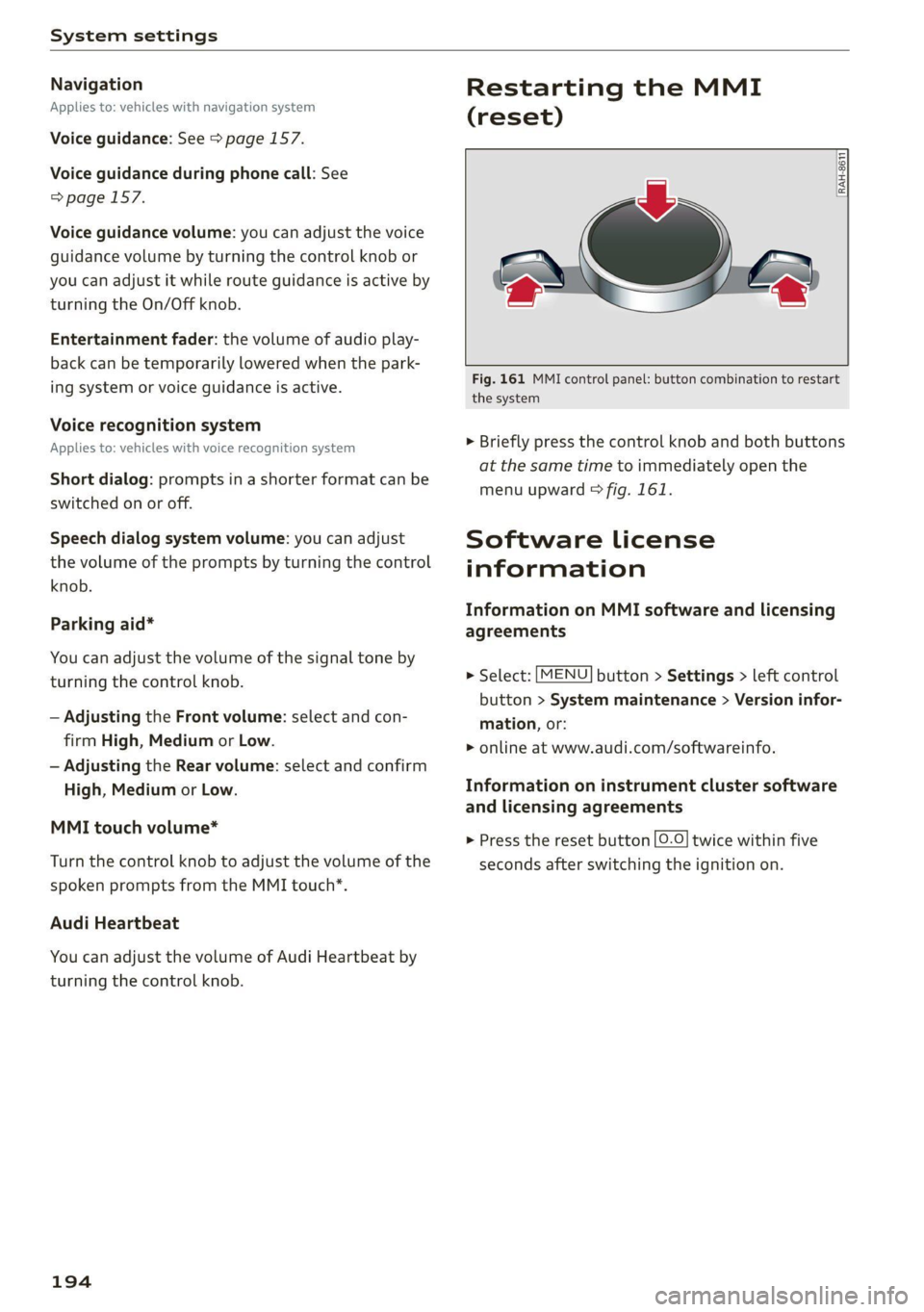
Fig. 161 MMI control panel: button combination to restart
the system
> Briefly press the control knob and both buttons
at the same time to immediately open the
menu upward > fig. 161.
Software License
information
Information on MMI software and licensing
agreements
> Select: [MENU] button > Settings > left control
button > System maintenance > Version infor-
mation, or:
> online at www.audi.com/softwareinfo.
Information on instrument cluster software
and licensing agreements
> Press the reset button [0-0] twice within five
seconds after switching the ignition on.