infotainment AUDI TT COUPE 2020 Workshop Manual
[x] Cancel search | Manufacturer: AUDI, Model Year: 2020, Model line: TT COUPE, Model: AUDI TT COUPE 2020Pages: 280, PDF Size: 98.79 MB
Page 158 of 280

Navigation
Alternative routes
Applies to: vehicles with navigation system
Fig. 139 Infotainment system: alternative routes display
Requirement: a destination must be entered and
the route guidance must be started.
> Press the [NAV/MAP] button repeatedly until
the Enter destination menu is displayed
=> page 149, fig. 136.
> Select: right control button > Navigation set-
tings > Show alternative routes.
Three routes are displayed in the overview map
after you enter a destination.
If available, the following information will ap-
pear on the route suggestions:
— Route type (fast (@, fast alternative (2), eco-
nomic route @))
— Distance to the destination and the calculated
arrival time
— Traffic congestion along the route including
time
delays
The route that was calculated according to the
route criteria you selected is shown on the map.
The special properties of the route (such as ferry
connections) may be displayed (). Additional in-
formation about individual route criteria can be
found in > page 156.
Additional settings
Navigation settings
Applies to: vehicles with navigation system
> Press the LNAV/MAP] button repeatedly until
the Enter destination menu is displayed
> page 149, fig. 136.
> Select: right control button > Navigation set-
tings.
156
Depending on the selected function, the follow-
ing settings can be selected:
Show alternative routes
Up to three route suggestions and their proper-
ties are displayed on the overview map when the
function is switched on. > page 156.
Low fuel warning
A message is displayed if the fuel gauge goes be-
low the reserve marking when this function is
switched on (MW. After confirming this message, a
list of gas stations in the area is displayed. When
a gas station is selected, route guidance from the
current vehicle position is calculated.
Notification when nearby*
The notification when nearby is switched off at
the factory.
The MMI notifies you when you are approaching
selected points of interest when this function is
switched on MW. You can also have a Notification
tone.
Presentation mode
The Presentation mode helps you to effectively
plan a trip and follow the planned route without
moving the vehicle. You can use Select starting
point when you would like to calculate a route
starting
from a location other than the vehicle
position, for example. Start Presentation mode
to simulate route guidance.
leg]
Applies to: vehicles with navigation system
10] 16
> tak) ° [|
Fig. 140 Infotainment system: possible route criteria
RAH-8472| i
Page 163 of 280

8S1012721BB
Navigation
Satellite map
Applies to: vehicles with navigation system and Audi connect
Infotainment
bo} f=
S Figueroa St
W Washington Blvd 7
Los Angeles ee
Fig. 143 Infotainment system: satellite map
You can display the navigation map with satellite
images.
Requirement: the requirements for Audi connect
must be met > page 142.
> Press the [NAV/MAP] button repeatedly until
the map is displayed.
> Select: right control button > Map settings >
Map display > Satellite map.
The map view is based on data packets received
from the Internet in the form of satellite images,
which are then combined with the roadways from
the Standard map view. There are two gigabytes
of memory space in the MMI memory that can be
D) AUDI AG provides access to services from third party pro-
viders. Permanent availability cannot be guaranteed, be-
cause that depends on the third party provider.
used to temporarily store the map or navigation
data that was received. This is roughly the
amount required for the map/navigation data for
a 2,485 mile (4,000 km) route. As long as the
satellite images loaded for route guidance are
stored, you can use them without having an ac-
tive data connection.
Q) Note
Read the information about Audi connect, and
be sure to note the connectivity costs section
=> page 142.
@ Tips
—The stored satellite map data )) can be de-
leted under Factory settings > Navigation
and online memory > page 190.
—The satellite map”) is updated regularly
whenever the function is opened. The proc-
ess may take several seconds.
—When the satellite map display”) is switched
on with the 3D position map, the map dis-
play will automatically switch to the 2D
heading up map type when driving through
tunnels.
— For additional information, visit www.audi.
com.
161
Page 164 of 280

Navigation
Accessing traffic information
(OPN Maelarreleeleurl dela)
Applies to: vehicles with navigation system and Audi connect Infotainment
a icon better route is available. —@
slay along the route:
Nogales St, Northbound
Northbound
eel
i) Northbound
cory
C)
Fig. 144 Instrument cluster: online traffic information display* without better route
The MMI can receive real-time online traffic infor-
mation about congestion, accidents, road con-
struction, and other incidents.
Requirement: the requirements for Audi connect
must be met > page 142.
Accessing online traffic information
> Press the [NAV/MAP] button repeatedly until
the map is displayed.
> Select: right control button > Online traffic da-
ta>On(M).
> Select: left control button > Traffic messages.
The traffic information overview is shown.
Depending on vehicle equipment, the following
information may be shown in the traffic informa-
tion overview > fig. 144:
@ Amessage will appear if the MMI calculates a
better route for the current route guidance.
More
information can be found under
=> page 163.
@ The status line in the Infotainment display
also always indicates the reception of traffic
information.
@® The current selected traffic message is also
shown as a map preview in the Infotainment
system display.
@® Color-coded markings along the route indi-
cate the traffic flow.
162
Traffic display
Green: traffic is flowing freely.
Yellow: stop-and-go traffic.
Red: congestion.
Shaded markings indicate the length of the area
with congestion.
Colored warning symbols: there is a traffic inci-
dent immediately ahead on the route.
Grayed out warning symbols: traffic incidents
that are not on your route.
Red warning symbols: all warning symbols will
be red when route guidance is not active.
The display of colored markings, warning sym-
bols, etc. can be set in the Map content menu
=> page 160.
You can switch off the reception of online traffic
information at any time > page 162.
Switching the traffic map display on
For an optimum traffic information display:
NAV/MAP] button > right control button > Map
settings > Map display > Traffic.
Page 165 of 280

8S1012721BB
Navigation
You can also display the online traffic informa-
tion in the satellite map*») > page 161 or the
standard map > page 158, fig. 141
@ Note
Read the information about Audi connect, and
be sure to note the connectivity costs section
=> page 142.
G) Tips
— Having the Online traffic data function
switched on provides the most accurate re-
ports of traffic situations as well as traffic
forecasting. Your vehicle transmits and
processes its anonymous, encrypted posi-
tion information at regular intervals to the
traffic data provider. If you do not want to
use this, you can switch off the online traf-
fic information function at any time.
— The online traffic information network is
currently not available in all countries, and
the coverage is not nationwide. For addi-
tional information, visit www.audi.com.
Better route
Applies to: vehicles with Audi connect Infotainment naviga-
tion system
By receiving traffic information online, your MMI
calculates a better route if available and the pos-
sible time saved compared to the current route.
You can decide which route you would like to use.
Selecting a better route
Requirement: route guidance must be active and
online traffic information must be available
= page 162
2) AUDI AG provides access to services from third party pro-
viders. Permanent availability cannot be guaranteed, be-
cause that depends on the third party provider.
> Press the [NAV/MAP] button repeatedly until
the map is displayed.
If your MMI has calculated a better route than
the current route guidance, the message A better
route is available. appears for several seconds
along with the time that may be saved. A better
route is indicated in the map view by the symbol
® © page 158, fig. 141.
Apply better route
> Press the right control button in the map view,
or:
> Select: left control button > Traffic messages.
The better route with the calculated arrival
time is displayed.
> Select and confirm the better route, or:
> Select and confirm Details to display details
about the better route.
> You can zoom in or out on the map using the
MMI touch control pad.
Requirement: there must be more than one opti-
mized route calculated.
> Press the control knob to switch to the next
route in the detailed view.
> Closing the detailed view: press the [BACK
button.
After you have selected a better route, the route
will be recalculated.
163
Page 167 of 280
8S1012721BB
Radio
Radio
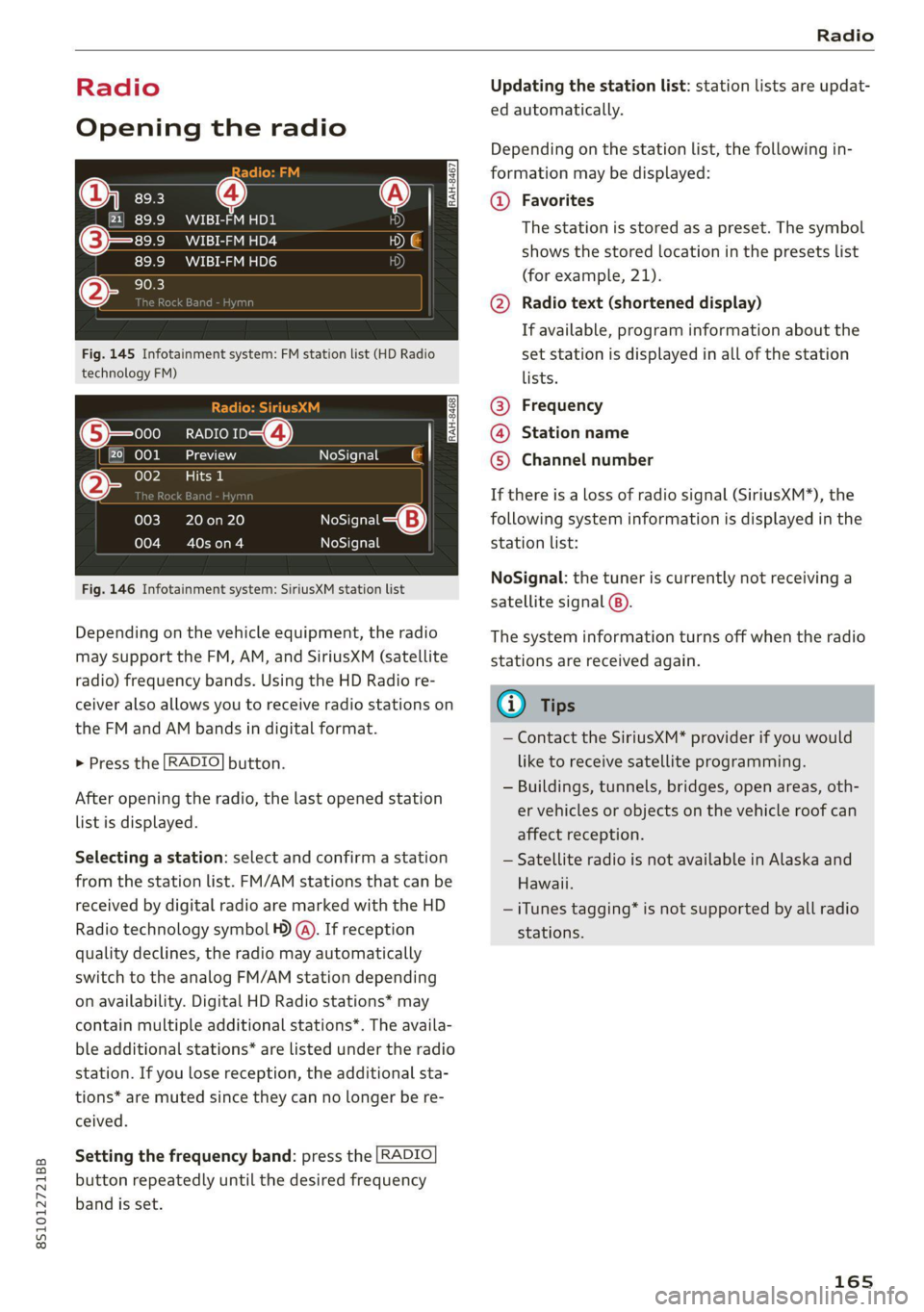
Opening the radio
@) =
CEVA PE
89.9 _WIBI-FM HD4
WIBI-FM HD6
Fig. 145 Infotainment system: FM station list (HD Radio
technology FM)
RADIO 4)
ada
eee
NoSignal é |
20 on 20
terol aes
NoSignal
NoSignal
Fig. 146 Infotainment system: SiriusXM station list
Depending on the vehicle equipment, the radio
may support the FM, AM, and SiriusXM (satellite
radio) frequency bands. Using the HD Radio re-
ceiver also allows you to receive radio stations on
the FM and AM bands in digital format.
> Press the [RADIO] button.
After opening the radio, the last opened station
list is displayed.
Selecting a station: select and confirm a station
from the station list. FM/AM stations that can be
received by digital radio are marked with the HD
Radio
technology symbol 4) @). If reception
quality declines, the radio may automatically
switch to the analog FM/AM station depending
on availability. Digital HD Radio stations* may
contain multiple additional stations*. The availa-
ble additional stations* are listed under the radio
station. If you lose reception, the additional sta-
tions* are muted since they can no longer be re-
ceived.
Setting the frequency band: press the [RADIO
button
repeatedly until the desired frequency
band is set.
Updating the station list: station lists are updat-
ed automatically.
Depending on the station list, the following in-
formation may be displayed:
@ Favorites
The station is stored as a preset. The symbol
shows the stored location in the presets list
(for example, 21).
@ Radio text (shortened display)
If available, program information about the
set station is displayed in all of the station
lists.
@ Frequency
@® Station name
© Channel number
If there is a loss of radio signal (SiriusXM*), the
following system information is displayed in the
station list:
NoSignal: the tuner is currently not receiving a
satellite signal @).
The system information turns off when the radio
stations are received again.
@ Tips
— Contact the SiriusXM* provider if you would
like to receive satellite programming.
— Buildings, tunnels, bridges, open areas, oth-
er vehicles or objects on the vehicle roof can
affect reception.
— Satellite radio is not available in Alaska and
Hawaii.
— iTunes tagging* is not supported by all radio
stations.
165
Page 168 of 280
![AUDI TT COUPE 2020 Workshop Manual Radio
Radio functions
ct-Me-y aati]
SYED ee
Nt) Be
WIBI-FM HD6
Fig. 147 Infotainment system: input field and results list
for free text search
Using the free text search, you can selec](/img/6/57658/w960_57658-167.png "AUDI TT COUPE 2020 Workshop Manual Radio
Radio functions
ct-Me-y aati]
SYED ee
Nt) Be
WIBI-FM HD6
Fig. 147 Infotainment system: input field and results list
for free text search
Using the free text search, you can selec")
Radio
Radio functions
ct-Me-y aati]
SYED ee
Nt) Be
WIBI-FM HD6
Fig. 147 Infotainment system: input field and results list
for free text search
Using the free text search, you can select the or-
der that the search terms are entered in the input
field. Search in all frequency bands for a station
name or program type, such as News.
— Opening the free text search: when in a station
list, keep turning the control knob to the left
until the free text search input field is dis-
played.
— Using the free text search: See > page 119.
You can also search for frequencies.
Stations from the presets list (3) are displayed in
the results list @. The symbol @) indicates which
station list you switched to based on the station
selection.
Additional options
> Select: [RADIO] button > right control button.
The following options are available depending on
the frequency band:
— Sound settings: see > page 193.
— Store as favorite: See > page 167.
— Delete all entries: all entries are deleted in the
Last stations view.
—Tag this song for iTunes*): connect your Apple
device to the Audi music interface* on your
MMI. Select and confirm Tag this song for
iTunes. The track that is currently playing is
stored on your Apple device. Synchronize your
Apple device with iTunes. The tagged track will
) In preparation at the time of printing.
166
display the next time you open your iTunes me-
dia center. If there is no Apple device connect-
ed, the tagged tracks are stored temporarily in
the MMI (maximum of 50 tracks). Once you
connect your Apple device to the Audi music in-
terface, the tags are stored on the device.
— Manual tuning: the frequency bars are dis-
played. Select and confirm the desired frequen-
vy.
— Seek: the radio tunes to the previous or next re-
ceivable station.
— Scan: all stations are played for several seconds
each.
— Radio settings: see > page 168.
> Select: [RADIO] button > left control button >a
frequency band (such as FM) > a station.
> Select: right control button > Radio text.
Browsing through radio text entries: turn the
control knob to the left or right.
Requirement: a radio text entry must be dis-
played and the station must be broadcasting a
phone number, a navigation destination, or a text
message number as RadioText Plus information.
If a location, a phone number or a text message
number is included with a radio text entry, the ra-
dio text will be shown with a colored border. You
have the following options:
Call*/Start route guidance*/Write text mes-
sage”:
— Select a radio text entry with RadioText Plus in-
formation and press the control knob.
— Select and confirm Call*/Start route guid-
ance*/Write text message”. press the |BACK
button to cancel.
@) Tips
The availability of radio text and RadioText
Plus depends on the radio station.
Page 169 of 280
![AUDI TT COUPE 2020 Workshop Manual 8S1012721BB
Radio
menu > fig. 149, or press the [RADIO] button re-
peatedly until the desired frequency band is se-
lected. Displays the station list.
@ Switch to media
The Media menu](/img/6/57658/w960_57658-168.png "AUDI TT COUPE 2020 Workshop Manual 8S1012721BB
Radio
menu > fig. 149, or press the [RADIO] button re-
peatedly until the desired frequency band is se-
lected. Displays the station list.
@ Switch to media
The Media menu")
8S1012721BB
Radio
menu > fig. 149, or press the [RADIO] button re-
peatedly until the desired frequency band is se-
lected. Displays the station list.
@ Switch to media
The Media menu is displayed > page 178.
@ Presets
The presets list is displayed > page 167, Pre-
sets.
@® Last stations
The last stations listened to from all frequen-
Fig. 148 Infotainment system: “Now Playing" screen
Requirement: you must be tuned to a radio sta- cy bands are shown in the list. Select and
tion. The Show "Now Playing" screen option confirm a station for immediate playback.
must be switched on
> page 168. @ Applies to: vehicle with SiriusxM
Symbols in the "Now Playing" screen > fig. 148: SiriusXM
@ Radio text availability The SiriusXM channel list is displayed.
Radio text is available for the selected sta- © FM
tion > page 166. The FM station list is displayed.
@ iTunes® Tagging
The Tag this song for iTunes option is availa-
ble for the set station > page 166, Addition-
al options.
@ FMHD Radio technology
The station is received through FM HD Radio
Additional frequency bands
Depending on the vehicle equipment, you can se-
lect additional frequency bands in the selection
menu > fig. 149.
Presets
technology.
® Screen view You can store your favorite stations from ever y' y
Display Cover art or Station logo frequency band in the presets list:
=> page 168.
> Select: the [RADIO button > Presets.
Displaying the station list: turn the control
knob, or press the [BACK] button.
Requirement: the presets list must be displayed.
— Storing presets: select and confirm a free pre-
Radio menu set space. Follow the system instructions.
— Select and confirm a station from the list if
? necessary.
9) | Change to media
eens Requirement: a station list must be displayed.
— Storing presets: Select: a station from the list
> right control button > Store as preset, or
press and hold the control knob for several sec-
onds.
Fig. 149 Infotainment system: radio menu — Displaying the presets list: select: [RADIO] but-
ton > Presets. >
> Select: [RADIO] button > left control button.
Selecting the frequency band: select and con-
firm the desired frequency band in the “Radio”
167
Page 170 of 280
Radio
Requirement: the favorites list must be dis-
played.
— Listening to presets: select and confirm a pre-
set from the list.
— Moving a preset: select a preset from the list >
right control button > Move preset, or press
and hold the control knob for several seconds.
Select and confirm the location of the selected
preset.
— Deleting a preset: select a preset from the list
> right control button > Delete preset > Delete
this preset or Delete all presets.
Additional settings
Radio settings
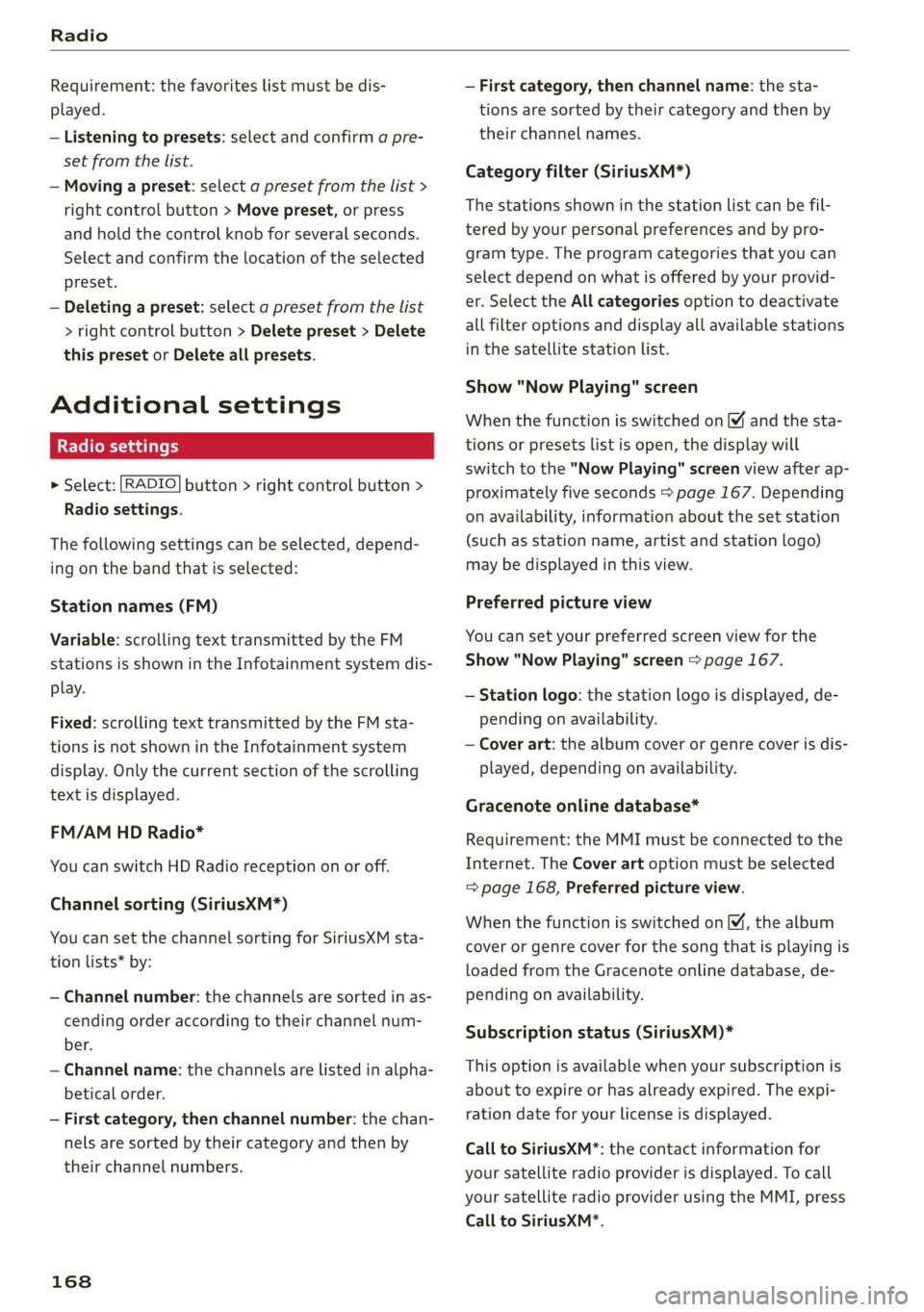
> Select: [RADIO] button > right control button >
Radio settings.
The following settings can be selected, depend-
ing on the band that is selected:
Station names (FM)
Variable: scrolling text transmitted by the FM
stations is shown in the Infotainment system dis-
play.
Fixed: scrolling text transmitted by the FM sta-
tions is not shown in the Infotainment system
display. Only the current section of the scrolling
text is displayed.
FM/AM HD Radio*
You can switch HD Radio reception on or off.
Channel sorting (SiriusXM*)
You can set the channel sorting for SiriusXM sta-
tion lists* by:
— Channel number: the channels are sorted in as-
cending order according to their channel num-
ber.
— Channel name: the channels are listed in alpha-
betical order.
— First category, then channel number: the chan-
nels are sorted by their category and then by
their channel numbers.
168
— First category, then channel name: the sta-
tions are sorted by their category and then by
their channel names.
Category filter (SiriusXM*)
The stations shown in the station list can be fil-
tered by your personal preferences and by pro-
gram type. The program categories that you can
select depend on what is offered by your provid-
er. Select the All categories option to deactivate
all filter options and display all available stations
in the satellite station list.
Show "Now Playing" screen
When the function is switched on ¥ and the sta-
tions or presets list is open, the display will
switch to the "Now Playing" screen view after ap-
proximately five seconds > page 167. Depending
on availability, information about the set station
(such as station name, artist and station logo)
may be displayed in this view.
Preferred picture view
You can set your preferred screen view for the
Show "Now Playing" screen > page 167.
— Station logo: the station logo is displayed, de-
pending on availability.
— Cover art: the album cover or genre cover is dis-
played, depending on availability.
Gracenote online database*
Requirement: the MMI must be connected to the
Internet. The Cover art option must be selected
= page 168, Preferred picture view.
When the function is switched on (¥, the album
cover or genre cover for the song that is playing is
loaded from the Gracenote online database, de-
pending on availability.
Subscription status (SiriusXM)*
This option is available when your subscription is
about to expire or has already expired. The expi-
ration date for your license is displayed.
Call to SiriusXM”*: the contact information for
your satellite radio provider is displayed. To call
your satellite radio provider using the MMI, press
Call to SiriusXM”*.
Page 180 of 280
Media
Audi dealer or authorized Audi Service Fa-
cility.
Playing media
Jukebox @-
>< @ ovo
=
PNT tarte
CA ,
(Sa audio player
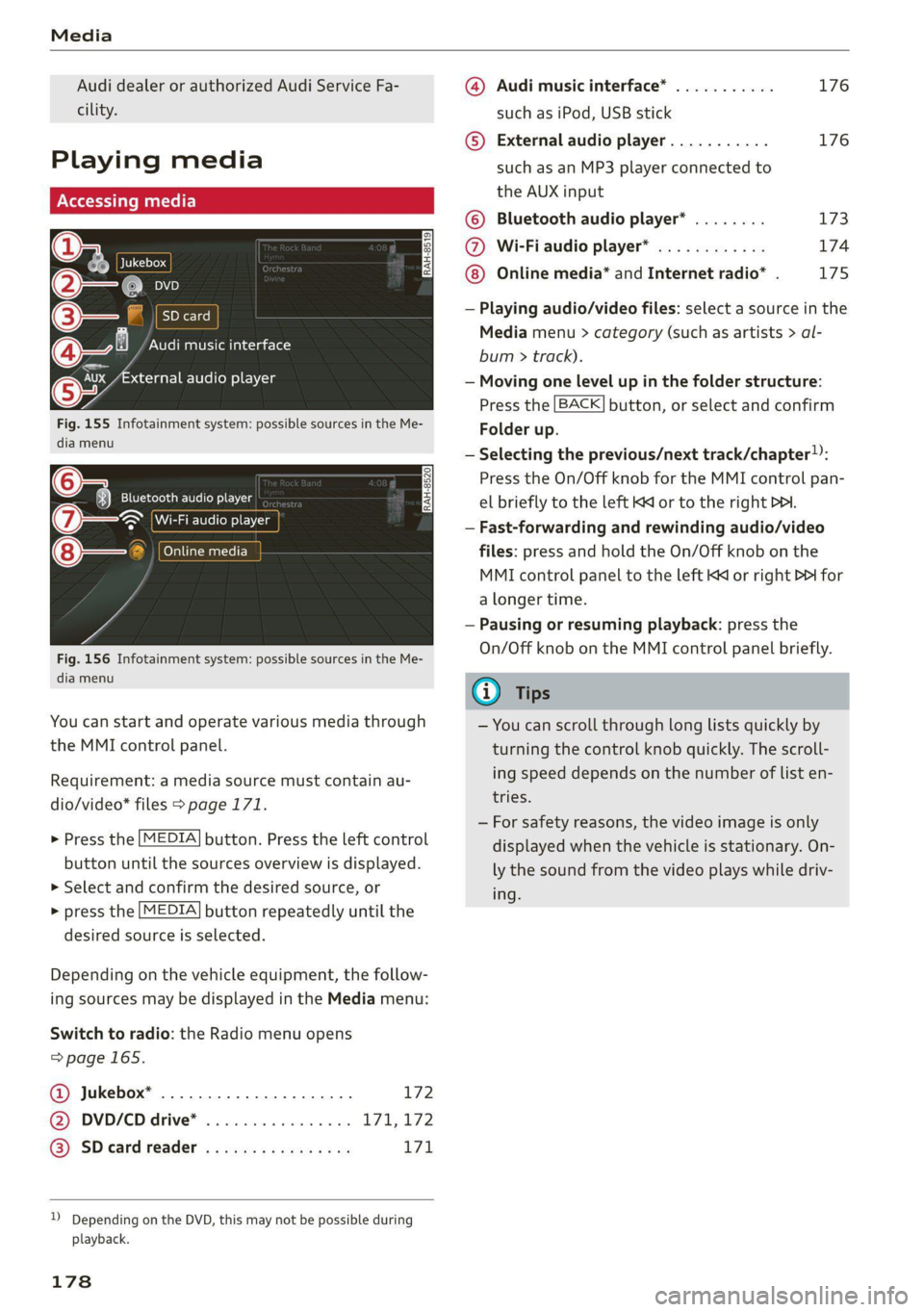
Fig. 155 Infotainment system: possible sources in the Me-
dia menu
6 3} Bluetooth audio player
> Wi-Fi audio player
foyal atwaatel-)
Fig. 156 Infotainment system: possible sources in the Me-
dia menu
You can start and operate various media through
the MMI control panel.
Requirement: a media source must contain au-
dio/video* files > page 171.
> Press the [MEDIA] button. Press the left control
button until the sources overview is displayed.
> Select and confirm the desired source, or
> press the [MEDIA] button repeatedly until the
desired source is selected.
Depending on the vehicle equipment, the follow-
ing sources may be displayed in the Media menu:
Switch to radio: the Radio menu opens
=>page 165.
Jukebox* ................0000. 172 ®
@ DVD/CD drive* ................ L711, 172
@) SD card reader « s eces ss eee ys oe 171
)) Depending on the DVD, this may not be possible during
playback.
178
@ Audi music interface* ........... 176
such as iPod, USB stick
© External audio player........... 176
such as an MP3 player connected to
the AUX input
© Bluetooth audio player* ........ 173
@ Wi-Fiaudio player* ............ 174
Online media* and Internet radio* . 175
— Playing audio/video files: select a source in the
Media menu > category (such as artists > al-
bum > track).
— Moving one level up in the folder structure:
Press the [BACK] button, or select and confirm
Folder up.
— Selecting the previous/next track/chapter)):
Press the On/Off knob for the MMI control pan-
el briefly to the left Kd or to the right Pe.
— Fast-forwarding and rewinding audio/video
files: press and hold the On/Off knob on the
MMI control panel to the left Kd or right Pb for
a longer time.
— Pausing or resuming playback: press the
On/Off knob on the MMI control panel briefly.
G) Tips
— You can scroll through long lists quickly by
turning the control knob quickly. The scroll-
ing speed depends on the number of list en-
tries.
— For safety reasons, the video image is only
displayed when the vehicle is stationary. On-
ly the sound from the video plays while driv-
ing.
Page 181 of 280
8S1012721BB
Media
Ob Lc
Nga)
( La |
(4) | Pts
enres
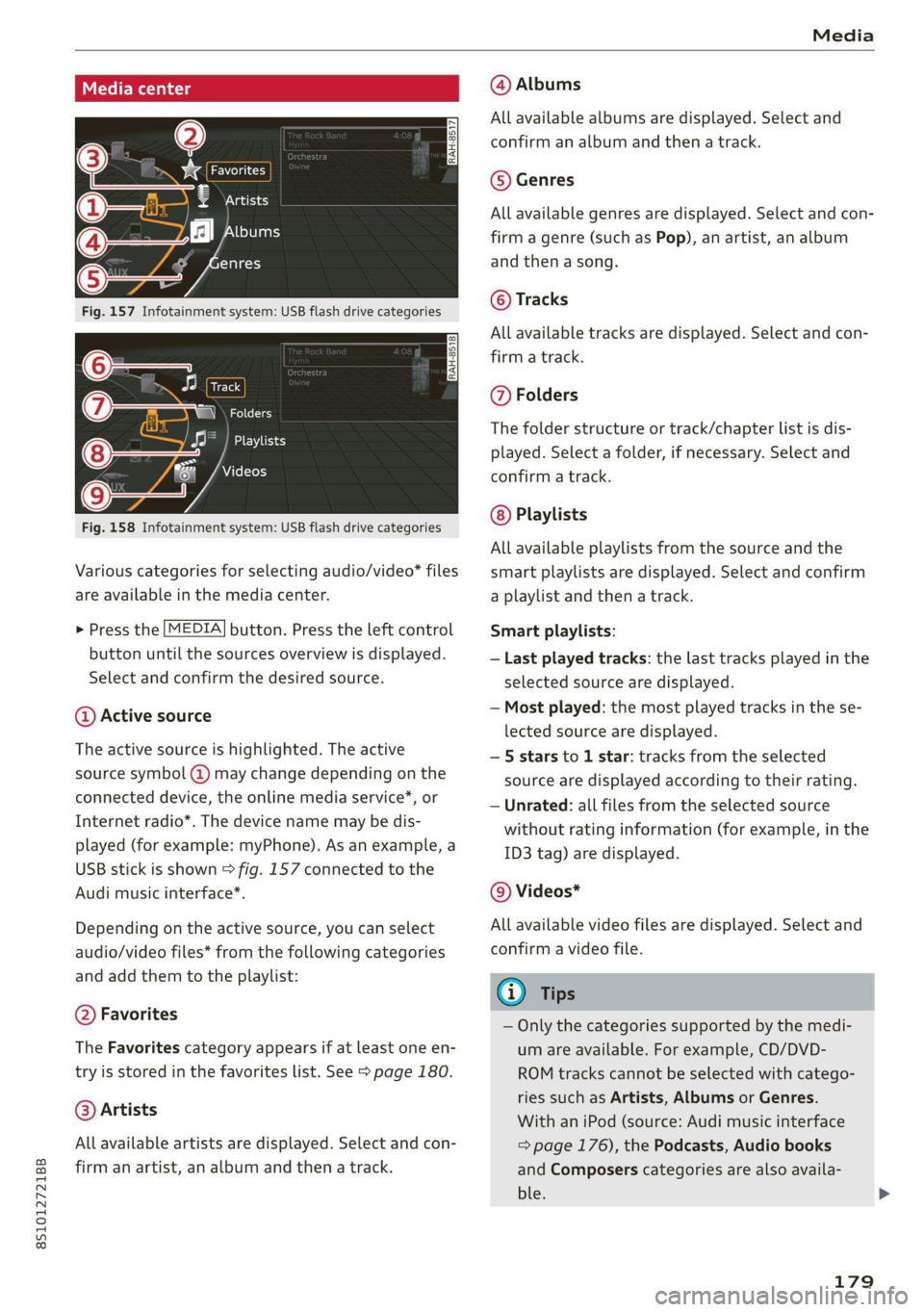
Fig. 157 Infotainment system: USB flash drive categories
Track
(7) \ NGC
Playlists
Videos
Fig. 158 Infotainment system: USB flash drive categories
Various categories for selecting audio/video files
are available in the media center.
> Press the [MEDIA] button. Press the left control
button until the sources overview is displayed.
Select and confirm the desired source.
@ Active source
The active source is highlighted. The active
source symbol (2) may change depending on the
connected device, the online media service*, or
Internet radio*. The device name may be dis-
played (for example: myPhone). As an example, a
USB stick is shown > fig. 157 connected to the
Audi music interface*.
Depending on the active source, you can select
audio/video files* from the following categories
and add them to the playlist:
@ Favorites
The Favorites category appears if at least one en-
try is stored in the favorites list. See > page 180.
@ Artists
All available artists are displayed. Select and con-
firm an artist, an album and then a track.
@ Albums
All available albums are displayed. Select and
confirm an album and then a track.
© Genres
All available genres are displayed. Select and con-
firm
a genre (such as Pop), an artist, an album
and then a song.
© Tracks
All available tracks are displayed. Select and con-
firm
a track.
@ Folders
The folder structure or track/chapter list is dis-
played. Select a folder, if necessary. Select and
confirm a track.
Playlists
All available playlists from the source and the
smart playlists are displayed. Select and confirm
a playlist and then a track.
Smart playlists:
— Last played tracks: the last tracks played in the
selected source are displayed.
— Most played: the most played tracks in the se-
lected source are displayed.
— 5 stars to 1 star: tracks from the selected
source are displayed according to their rating.
— Unrated: all files from the selected source
without rating information (for example, in the
ID3 tag) are displayed.
© Videos*
All available video files are displayed. Select and
confirm a video file.
(i) Tips
— Only the categories supported by the medi-
um are available. For example, CD/DVD-
ROM tracks cannot be selected with catego-
ries such as Artists, Albums or Genres.
With an iPod (source: Audi music interface
=> page 176), the Podcasts, Audio books
and Composers categories are also availa-
ble.
179