radio AUDI TT ROADSTER 2016 User Guide
[x] Cancel search | Manufacturer: AUDI, Model Year: 2016, Model line: TT ROADSTER, Model: AUDI TT ROADSTER 2016Pages: 306, PDF Size: 31.82 MB
Page 125 of 306
Downloaded from www.Manualslib.com manuals search engine Calling
up the selection/options menu with
the control buttons
You can use the selection menu to call up further
functions for individual menu items (e.g. radio).
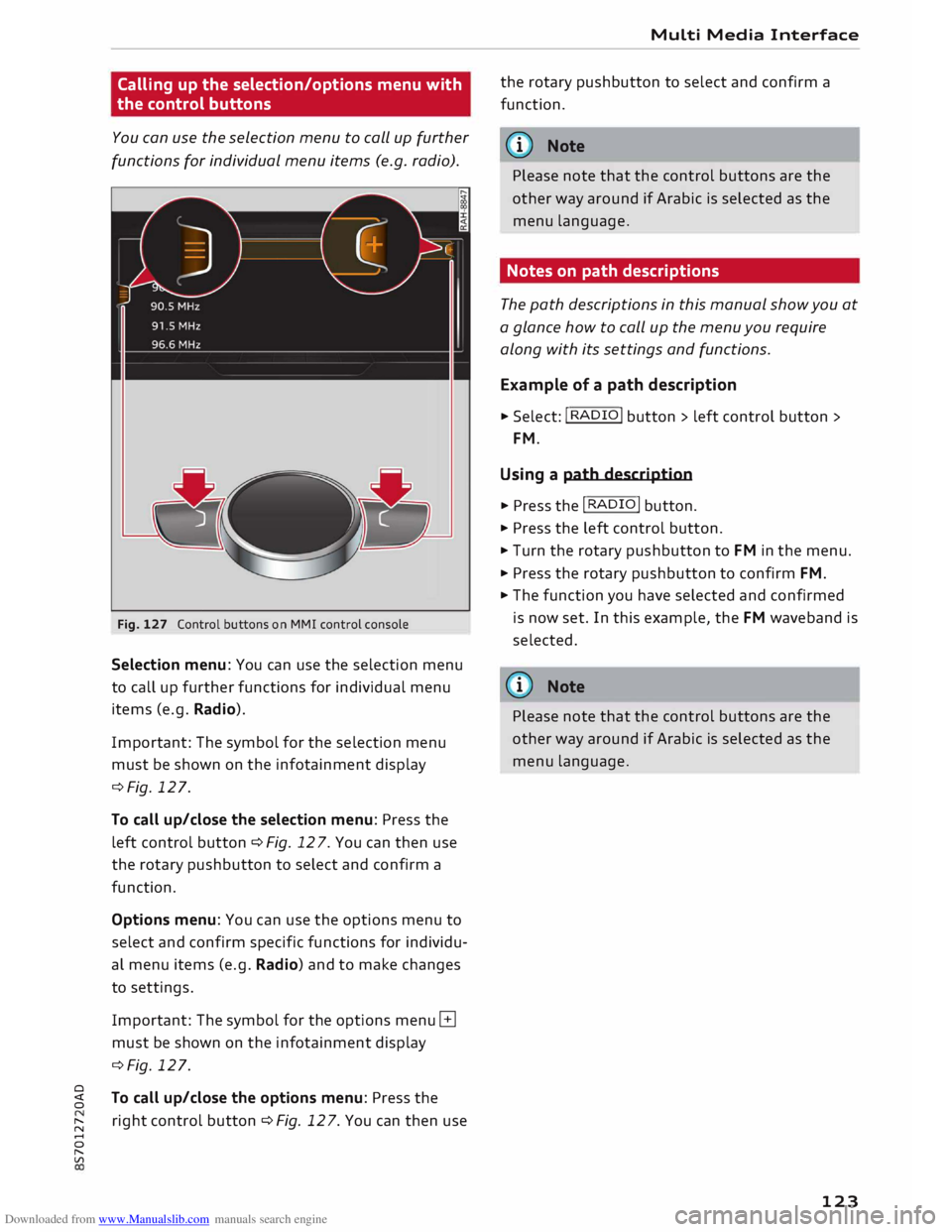
Fig. 127 Control buttons on MMI control console
Selection menu: You can use the selection menu
to call up further functions for individual menu
items (e.g. Radio).
Important: The symbol for the selection menu
must be shown on the infotainment display
¢Fig. 127.
To call up/close the selection menu: Press the
left control button ¢ Fig. 12 7. You can then use
the rotary pushbutton to select and confirm a
function.
Options menu: You can use the options menu to
select and confirm specific functions for individu
al menu items (e.g. Radio) and to make changes
to settings.
Important: The symbol for the options menu G
must be shown on the infotainment display
¢Fig. 127.
0
� To
call up/close the options menu: Press the
� right
control button ¢ Fig. 12 7. You can then use
......
0
"
Vl Multi
Media Interface
the rotary pushbutton to select and confirm a
function.
{(D Note
Please note that the control buttons are the
other way around if Arabic is selected as the
menu language.
Notes on path descriptions
The path descriptions in this manual show you at
a glance how to call up the menu you require
along with its settings and functions.
Example of a path description
.,. Select: I RADIO! button> left control button>
FM.
Using a path description
.,. Press the I RADIO I button .
.,. Press the left control button .
.,. Turn the rotary pushbutton to FM in the menu .
.,. Press the rotary pushbutton to confirm FM .
.,. The function you have selected and confirmed
is now set. In this example, the FM waveband is
selected.
@ Note
Please note that the control buttons are the
other way around if Arabic is selected as the
menu language.
123
Page 134 of 306
Downloaded from www.Manualslib.com manuals search engine Speech
dialogue system
• Telephone
• Audi connect
• Navigation
• Directory
• Radio
• Media
• Sound
• Help
• Help Speech Dialogue System
• Help Telephone
• Help Audi connect
• Help Navigation
• Help Map
• Help Radio
• Help Media
• Enter
number
• Delete
number / correction
• Directory
• Call (XY)
•business/ private/ Land line/ mobile
• Drive
me to (XY)
• Business address/ Private address
• Start/ stop route guidance
• Directory
• Last destinations
• Navigation
favourites
• Drive
home
• Enter
address
• Enter
country/ town/ street
• Exclude
route/ Exclude route for (XY) km/ m
• Audi connect
• Travel information / Parking information
• Fuel prices
• Weather
• Radio
favourites
• Last
stations
• FM
and DAB
•FM/ DAB/ AM
• Station (XY) / Frequency (XY)
• Ensemble (XY)
• Traffic programme on/ off
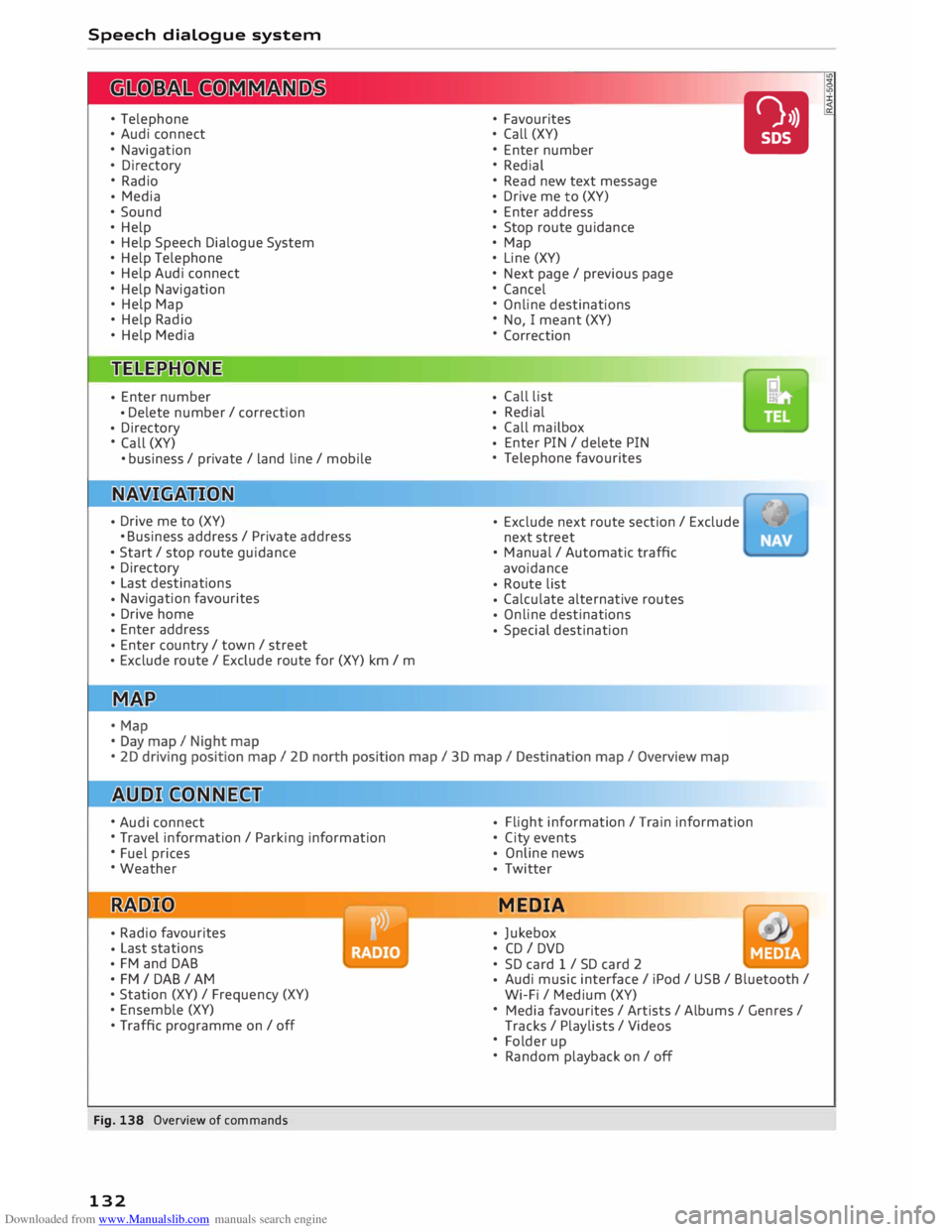
Fig. 138 Overview of commands
132 •
Favourites
• Call (XY)
• Enter number
• Redial
• Read new text message
• Drive
me to (XY)
• Enter address
• Stop route guidance
• Map
• Line (XY)
• Next page / previous page
• Cancel
• Online destinations
• No, I meant (XY)
• Correction
• Call
list
• Redial
• Call
mailbox
• Enter
PIN / delete PIN
• Telephone favourites
• Exclude
next route section / Exclude
next street
• Manual / Automatic traffic
avoidance
• Route
list
• Calculate
alternative routes
• Online
destinations
• Special
destination •
• Flight
information / Train information
• City events
• Online
news
• Twitter
MEDIA
• Jukebox
• CD I DVD
• SD card 1 / SD card 2
• Audi
music interface / iPod / USB / Bluetooth /
Wi-Fi / Medium (XY)
• Media favourites/ Artists/ Albums/ Genres/
Tracks / Playlists / Videos
• Folder up
• Random playback on / off
Page 136 of 306
Downloaded from www.Manualslib.com manuals search engine Speech
dialogue system
Notes on the overviews
of commands
Applies to: vehicles with speech dialogue system
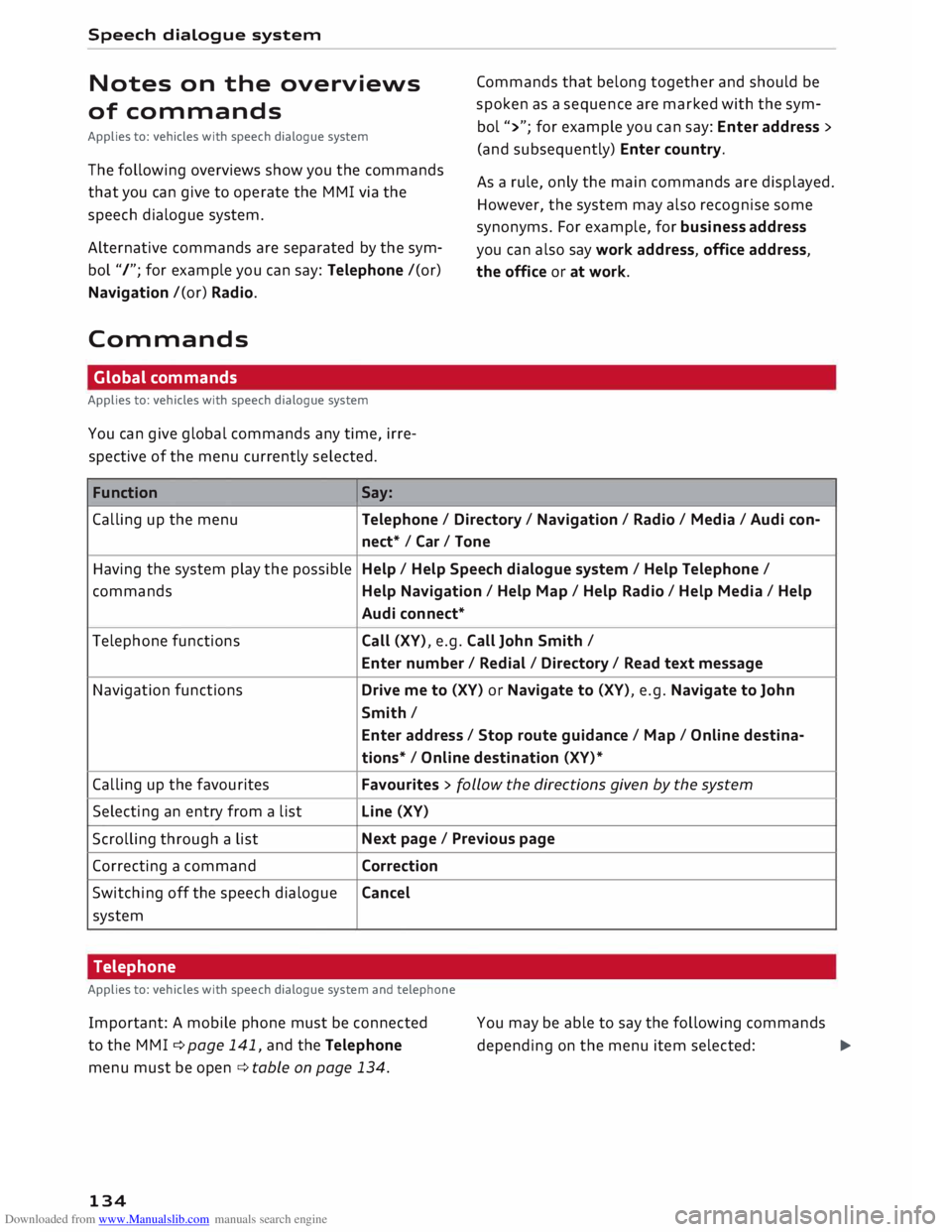
The following overviews show you the commands
that you can give to operate the MMI via the
speech dialogue system.
Alternative commands are separated by the sym
bol "/"; for example you can say: Telephone /(or)
Navigation /(or) Radio.
Commands Global commands
Applies to: vehicles with speech dialogue system
You can give global commands any time, irre
spective of the menu currently selected.
Function Say: Commands
that belong together and should be
spoken as a sequence are marked with the sym
bol ">"; for example you can say: Enter address >
(and subsequently) Enter country.
As a rule, only the main commands are displayed.
However, the system may also recognise some
synonyms. For example, for business address
you can also say work address, office address,
the office or at work.
Calling up the menu Telephone/ Directory/ Navigation / Radio / Media / Audi con-
nect* /Car/ Tone
Having the system play the possible Help
/ Help Speech dialogue system / Help Telephone /
commands Help Navigation / Help Map/ Help Radio/ Help Media / Help
Audi connect*
Telephone functions Call (XV), e.g. Call John Smith /
Enter number/ Redial/ Directory/ Read text message
Navigation functions Drive me to (XV) or Navigate to (XV), e.g. Navigate to John
Smith/ Enter address / Stop route guidance/ Map/ Online destina-
tions* / Online destination (XV)*
Calling up the favourites Favourites
> follow the directions given by the system
Selecting an entry from a list Line
(XV)
Scrolling through a list Next
page / Previous page
Correcting a command Correction
Switching off the speech dialogue Cancel
system
Telephone
Applies to: vehicles with speech dialogue system and telephone
Important: A mobile phone must be connected
to the M MI ¢ page 141, and the Telephone
menu must be open ¢ table on page 134.
134 You
may be able to say the following commands
depending on the menu item selected:
�
Page 140 of 306
Downloaded from www.Manualslib.com manuals search engine Speech
dialogue system
- Please always note the information in the
chapter ¢ page 167, Notes on Audi con
nect.
Radio
Applies to: vehicles with speech dialogue system
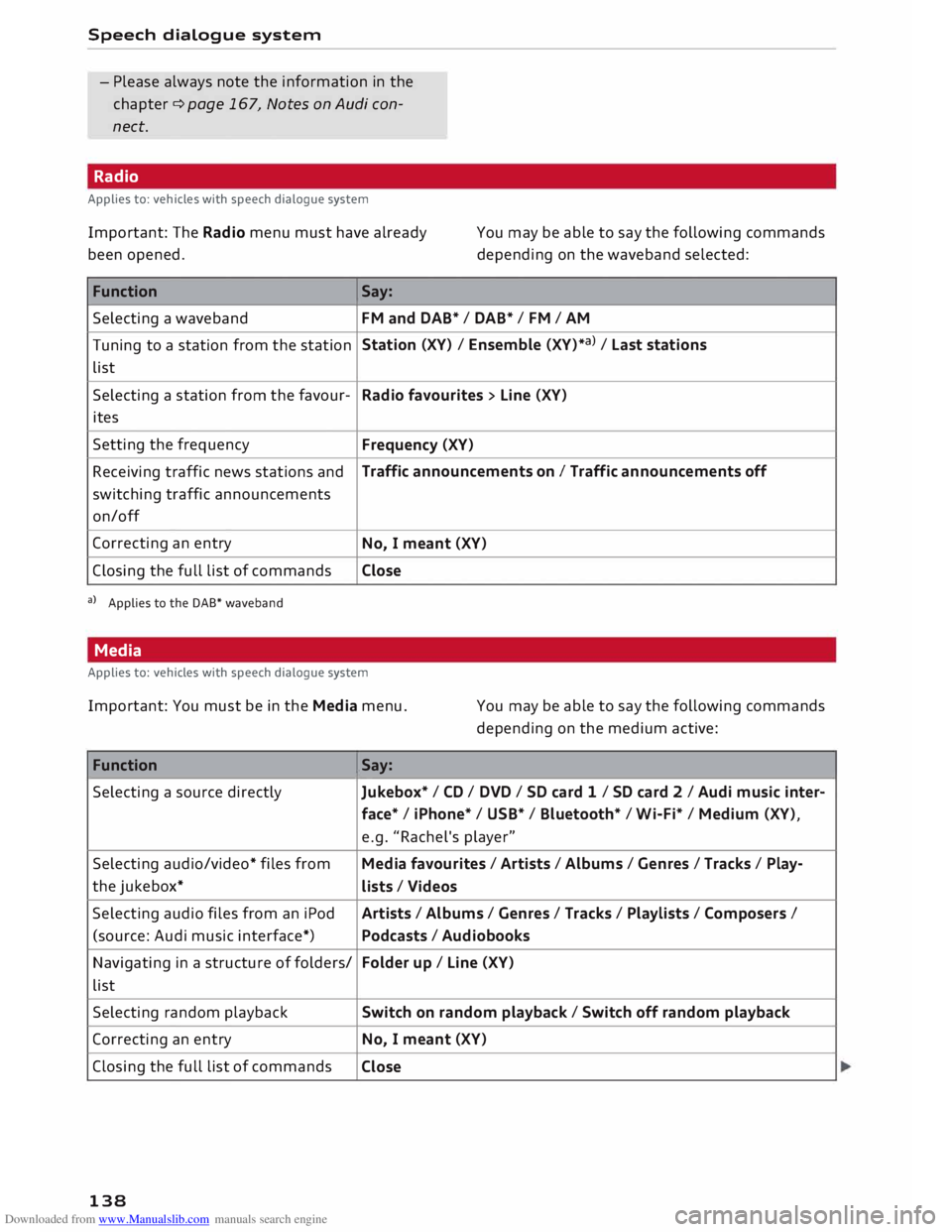
Important: The Radio menu must have already
been opened. You
may be able to say the following commands
depending on the waveband selected:
Function Say:
Selecting a waveband
FM and DAB* / DAB* / FM / AM
Tuning to a station from the station Station
(XV) / Ensemble (XV)*a) / La st stations
list
Selecting a station from the favour-
Radio favourites > Line (XV)
ites
Setting the frequency
Frequency (XV)
Receiving traffic news stations and Traffic
announcements on I Traffic announcements off
switching traffic announcements
on/off
Correcting an entry
No, I meant (XV)
Closing the full list of commands Close
a) Applies to the DAB* waveband
Media
Applies to: vehicles with speech dialogue system
Important: You must be in the Media menu. You may be able to say the following commands
depending on the medium active:
Function Say:
Selecting a source directly
Jukebox*/ CD/ DVD/ SD card 1 / SD card 2 I Audi music inter-
face* I iPhone* / USB* / Bluetooth* / Wi-Fi* / Medium (XV),
e.g. "Rachel's player"
Selecting audio/video* files from Media favourites / Artists / Albums / Genres I Tracks / Play-
the jukebox*
Lists / Videos
Selecting audio files from an iPod
Artists/ Albums / Genres I Tracks / Playlists / Composers I
(source: Audi music interface*) Podcasts / Audiobooks
Navigating in a structure of folders/ Folder
up/ Line (XV)
list
Selecting random playback Switch
on random playback/ Switch off random playback
Correcting an entry
No, I meant (XV)
Closing the full list of commands
Close
138
Page 150 of 306
Downloaded from www.Manualslib.com manuals search engine Telephone
- Edit number before making call: To edit a tele
phone number before making a call. Select and
confirm OK to use the changes. Or: Press the
left control button to go back without making
the changes.
- Send text message: To send the selected con
tact a text message.
- Delete call list: Select and confirm if you wish
to Delete this entry or Delete all entries.
- Store as favourite: To store the selected con-
tact as a favourite.
Favourites
Important: A telephone number or a contact
must have been added as a favourite
¢page 149.
Select and confirm a favourite in the favourites
list.
Directory
Important: You must have stored a contact on
your mobile phone.
Select and confirm a telephone number in the di
rectory ¢page 153.
Enter number
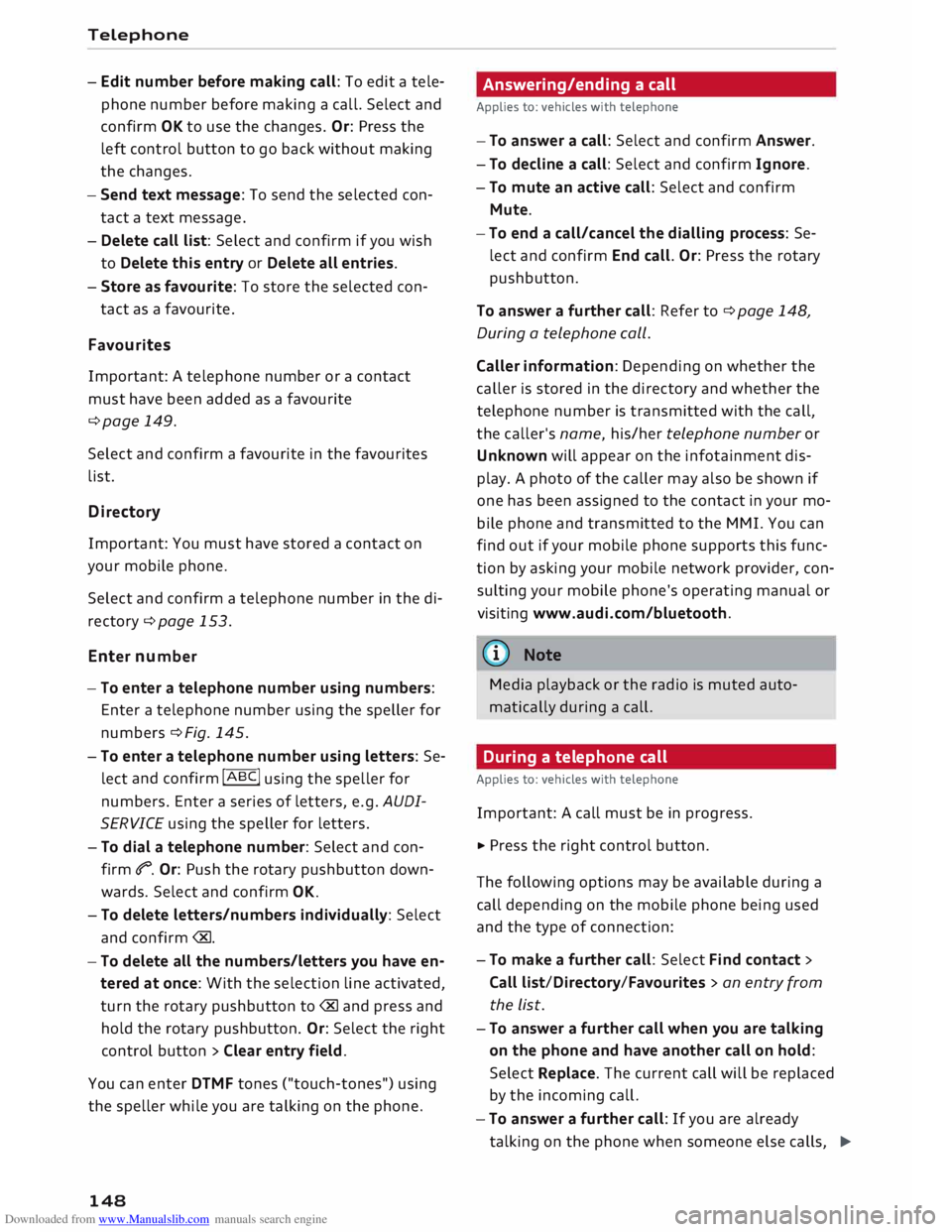
- To enter a telephone number using numbers:
Enter a telephone number using the speller for
numbers¢ Fig. 145.
- To enter a telephone number using letters: Se
lect and
confirm !ABC!
using the speller for
numbers. Enter a series of letters, e.g. AUDI
SERVICE using the speller for letters.
- To dial a telephone number: Select and con
firm qP_ Or: Push the rotary pushbutton down
wards. Select and confirm OK.
- To delete letters/numbers individually: Select
and confirm�-
- To delete all the numbers/letters you have en
tered at once: With the selection line activated,
turn the rotary pushbutton to� and press and
hold the rotary pushbutton. Or: Select the right
control button> Clear entry field.
You can enter DTMF tones ("touch-tones") using
the speller while you are talking on the phone.
148 Answe
ring/ending a call
Applies to: vehicles with telephone
- To answer a call: Select and confirm Answer.
- To decline a call: Select and confirm Ignore.
- To mute an active call: Select and confirm
Mute.
- To end a call/cancel the dialling process: Se
lect and confirm End call. Or: Press the rotary
pushbutton.
To answer a further call: Refer to ¢ page 148,
During a telephone call.
Caller information: Depending on whether the
caller is stored in the directory and whether the
telephone number is transmitted with the call,
the caller's name, his/her telephone number or
Unknown will appear on the infotainment dis
play. A photo of the caller may also be shown if
one has been assigned to the contact in your mo
bile phone and transmitted to the MMI. You can
find out if your mobile phone supports this func
tion by asking your mobile network provider, con
sulting your mobile phone's operating manual or
visiting www.audi.com/bluetooth.
@ Note
Media playback or the radio is muted auto
matically during a call.
During a telephone call
Applies to: vehicles with telephone
Important: A call must be in progress.
.., Press the right control button.
The following options may be available during a
call depending on the mobile phone being used
and the type of connection:
- To
make a further call: Select Find contact >
Call list/Directory/Favourites > an entry from
the List.
- To answer a further call when you are talking
on the phone and have another call on hold:
Select Replace. The current call will be replaced
by the incoming call.
-To answer a further call: If you are already
talking on the phone when someone else calls,
�
Page 154 of 306
Downloaded from www.Manualslib.com manuals search engine Telephone
The
following options may be available depend
ing on which menu you have selected:
Storing an e-mail as a template
There are already ten e-mail templates stored on
the MMI. You can store up to ten additional tem
plates.
- Create an e-mail.
- Select and confirm Store as template.
Continue with last edited e-mail
You can continue with the e-mail you last edited.
Reply*
You can reply to an e-mail you have selected in
the Inbox.
Reply to all*
You can reply to all the recipients of an e-mail
you have selected in the Inbox.
Forward
You can forward an e-mail you have selected to
another recipient.
Delete this message*
You can delete an e-mail you have selected.
Read 1
>
You can have the MMI read an opened e-mail to
you.
E-mail settings*
Activate E-mail notifications to have a notifica
tion displayed when a new e-mail is received. An
envelope symbol� is displayed in the status line
of the infotainment display if there are any new
e-mails.
Connection manager
Refer to¢ page 213.
Telephone settings
Refer to ¢page 155.
l l
Not available in all languages.
152 (I))
Note
Messages deleted using the MMI are also au
tomatically deleted on the mobile phone con
nected.
Listening to voicemail
messages Applies to: vehicles with telephone
... Select: I MENU I button >Telephone > left con
trol button. Select and confirm Call list/Direc
tory/Favourites > Mailbox.
- To enter the mailbox number: Enter the num
ber desired. Select and confirm OK.
- To dial the mailbox number: Select and con
firm Mailbox.
(I)) Note
- This service must be set up and activated by
your mobile network service provider before
you can use it. For more information, con
tact your service provider.
- The mailbox number depends on your serv
ice provider.
Emergency call functions
Applies to: vehicles with telephone
... Select: !MENU! button> Telephone > left con
trol button > Enter number > enter emergency
number (e.g. 112) > OK.
A WARNING
- Since your telephone operates via radio
waves, a connection cannot be guaranteed
under all circumstances. Do not rely solely
on your telephone when a vital communica
tion (e.g. medical emergency) is involved.
- Always follow the directions of the emer
gency operators when making an emergency
call and do not end the call before you are
requested to do so.
Page 187 of 306
Downloaded from www.Manualslib.com manuals search engine 0
N
,.....
N Radio
Calling up the radio
menu
The radio supports the following wavebands:
FM, AM, DAB* (digital radio). You can use the HD
Radio receiver* to receive radio stations from the
FM/AM wavebands digitally.
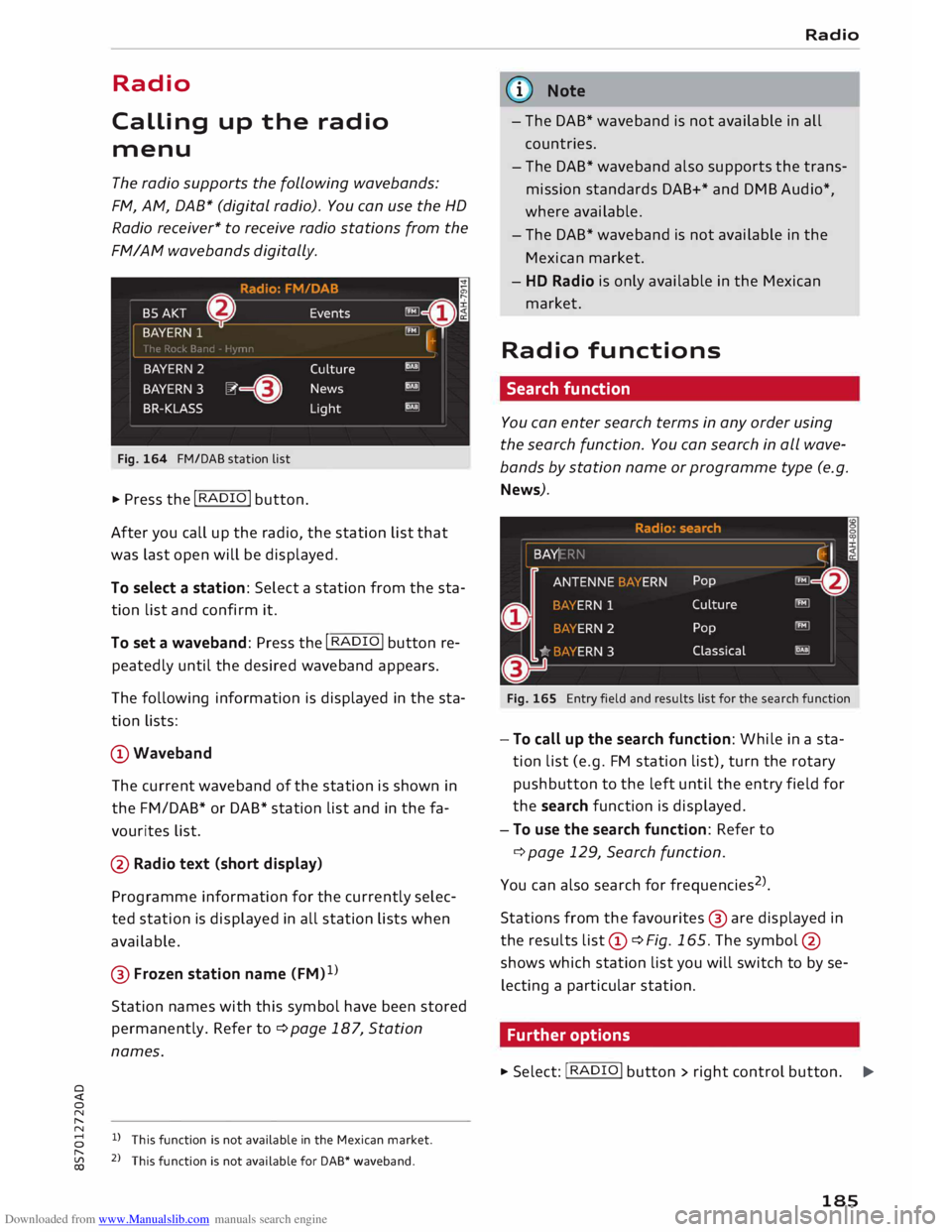
Fig. 164 FM/DAB station list
� Press the I RADIO I button.
After you call up the radio, the station list that
was last open will be displayed.
To select a station: Select a station from the sta
tion list and confirm it.
To set a waveband: Press the I RADIO! button re
peatedly until the desired waveband appears.
The following information is displayed in the sta
tion lists:
CD Waveband
The current waveband of the station is shown in
the FM/DAB* or DAB* station list and in the fa
vourites list.
@ Radio text (short display)
Programme information for the currently selec
ted station is displayed in all station lists when
available.
@ Frozen station name (FM)1
)
Station names with this symbol have been stored
permanently. Refer to¢ page 187, Station
names.
8 l)
This function is not available in the Mexican market.
[;:j 2
> This function is not available for DAB* waveband.
CX) Radio
G}) Note
- The DAB* waveband is not available in all
countries.
- The DAB* waveband also supports the trans
mission standards DAB+* and DMB Audio*,
where available.
- The DAB* waveband is not available in the
Mexican market.
- HD Radio is only available in the Mexican
market.
Radio functions
Search function
You can enter search terms in any order using
the search function. You can search in all wave
bands by station name or programme type (e.g.
News).
Fig. 165 Entry field and results list for the search function
- To call up the search function: While in a sta
tion list (e.g. FM station list), turn the rotary
pushbutton to the left until the entry field for
the search function is displayed.
- To use the search function: Refer to
¢ page 129, Search function.
You can also search forfrequencies 2
>
.
Stations from the favourites @ are displayed in
the results list(D ¢Fig. 165. The symbol @
shows which station list you will switch to by se
lecting a particular station.
Further options
� Select: I RADIO! button> right control button.
..,.
185
Page 188 of 306
Downloaded from www.Manualslib.com manuals search engine Radio
The following options may be available to you de
pending on the waveband:
- Sound settings: Refer to ¢ page 217.
- Store as favourite: Refer to¢ page 188, Fa-
vourites.
- Tag this song for iTunes*: 1
>2
> Connect your Ap
ple device to the Audi music interface*. Select
and confirm Tag this song for iTunes. The track
that is currently playing will be copied to your
Apple device. Synchronise your Apple device
with iTunes. The next time you call up your
iTunes library, the tagged tracks will be dis
played. If no Apple device is connected, the
tagged tracks will be stored temporarily on the
MMI system (max. 50 tracks). As soon as you
connect your Apple device to the Audi music in
terface, the tags will be imported to the device.
- Programme guide:3
>
The current and next radio
programmes are listed in the digital pro
gramme guide for all supported stations. Se
lect and confirm a radio programme to have
more details on the programme displayed.
- Manual station search:4
>
The frequency bar is
displayed. Select and confirm the desired fre
quency.
- Seek: 5
>
The previous/next receivable frequency
will be set.
- Radio settings: Refer to¢ page 188.
Announcements
"" Select: I RADIO! button> right control button>
Announcements.
Traffic announcements: 6
)
- off: Traffic announcements are not played.
- FM: Traffic announcements can be received via
FM and played by the system irrespective of the
selected waveband.
l l
This function is only available in the Mexican market.
2 l
Still under development at the time of print.
3 l
Not in the FM, AM station lists
4 l
Not in the DAB* waveband or in the mixed FM/DAB* sta
tion list.
S l
Not in the mixed station list FM/DAB*
6 l
This function is not available in the Mexican market.
186 -
FM/DAB*: You receive traffic announcements
from both wavebands. If DAB traffic announce
ments are not available from the station cur
rently set, they will be received from the FM
waveband.
DAB announcements*: 6
)
Depending on station availability, information
(e.g. news, weather information) may be played
when the function � is switched on.
Volume of announcements: 6
)
Refer to¢ page 218, Announcements.
Radio text
"" Select: I RADIO I
button > left control button > a
waveband (e.g. FM)> a station.
""Select: right control button > Radio text.
To browse radio text entries: Turn the rotary
pushbutton clockwise or anti-clockwise.
Important: A radio text entry must be displayed,
and the station must be transmitting a telephone
number, navigation destination or a text mes
sage number as RadioText Plus information.
If a location, telephone number or text message
number has been stored for a radio text entry,
the entry will be displayed with a coloured frame.
The following options are available:
Call*/Start route guidance*/Write text mes
sage*:
- Select a radio text entry with Radio Text Plus in
formation and press the rotary pushbutton.
- Select and confirm Call*/Start route guid
ance*/Write text message*. Or: Press the
I BACK
I button to cancel the process.
Page 189 of 306
Downloaded from www.Manualslib.com manuals search engine 0
N
,.....
N ((1'>
Note
The availability of radio text and Radio Text
Plus depends on the radio station.
-----
Station names
� Select:
I R A
DIO !
button > left control button>
FM. Select the desired station from the station
list.
Variable station names:
Some stations use variable station names. De
pending on how the station names are sorted,
the position of a variable station name may
change in the station list. You can lock the cur
rent name of a selected station permanently by
selecting the Lock station name1
>
option.
- Lock station name: Select the right control
button > Confirm. The locked station name will
be marked with the symbol @¢ page 185,
Fig. 164.
- Unlock station name: Select the right control
button > Unlock station name. The name re
ceived for the radio station will be displayed.
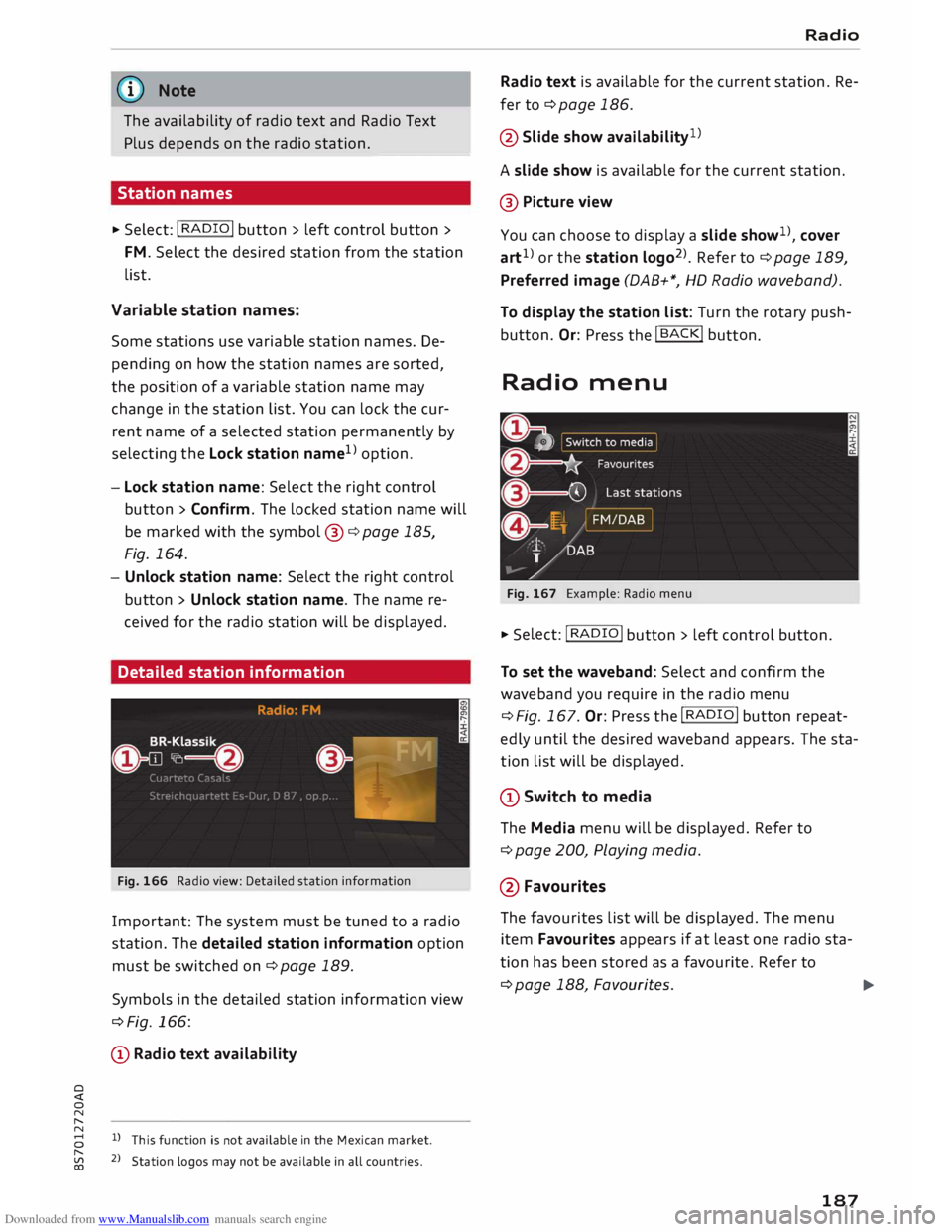
Detailed station information
Fig. 166 Radio view: Detailed station information
Important: The system must be tuned to a radio
station. The detailed station information option
must be switched on¢ page 189.
Symbols in the detailed station information view
¢Fig. 166:
CD Radio text availability
8 l)
This function is not available in the Mexican market.
,.....
� 2
> Station logos may not be available in all countries. Radio
Radio text is available for the current station. Re
fer to ¢page 186.
@ Slide show availability 1
>
A slide show is available for the current station.
@ Picture view
You can choose to display a slide show 1
>
, cover
art 1
>
or the station logo2
>
. Refer to ¢ page 189,
Preferred image (DAB+*, HD Radio waveband).
To display the station list: Turn the rotary pushbutton. Or: Press the I B
A CK!
butt on.
Radio
menu
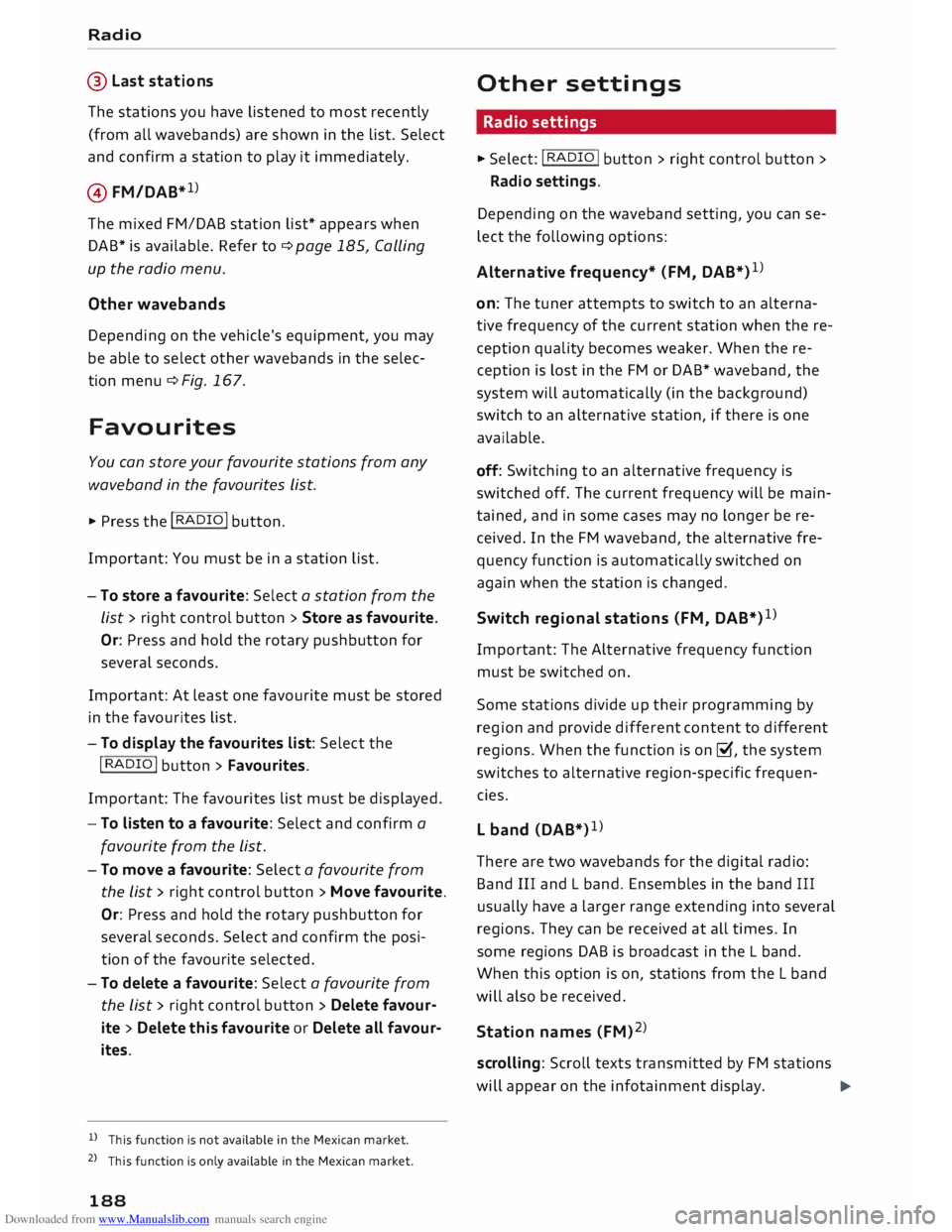
Fig. 167 Example: Radio menu
� Sele
ct: !
RA
DI
O ! button
> left control button.
To set the waveband: Select and confirm the
waveband you require in the radio menu
¢ Fig. 167. Or: Press the I R A
DI
O I button repeat
edly until the desired waveband appears. The sta
tion list will be displayed.
(D Switch to media
The Media menu will be displayed. Refer to
¢ page 200, Playing media.
@Favourites The favourites list will be displayed. The menu
item Favourites appears if at least one radio sta
tion has been stored as a favourite. Refer to
¢page 188, Favourites.
.,..
187
Page 190 of 306
Downloaded from www.Manualslib.com manuals search engine Radio
@ Last stations
The stations you have Listened to most recently
(from all wavebands) are shown in the List. Select
and confirm a station to play it immediately.
@ FM/DAB* 1
>
The mixed FM/DAB station List* appears when
DAB* is available. Refer to¢ page 185, Calling
up the radio menu.
Ot her waveba nds
Depending on the vehicle's equipment, you may
be able to select other wavebands in the selec
tion menu ¢ Fig. 167.
Favourites
You can store your favourite stations from any
waveband in the favourites List.
... Press the I RADIO! button.
Important: You must be in a station List.
- To
store a favourite: Select a station from the
List> right control button > Store as favourite.
Or: Press and hold the rotary pushbutton for
several seconds.
Important: At Least one favourite must be stored
in the favourites List.
- To display the favourites list: Select the
I R
ADIO I
button > Favourites.
Important: The favourites List must be displayed.
- To listen to a favourite: Select and confirm a
favourite from the List.
- To move a favourite: Select a favourite from
the List> right control button > Move favourite.
Or: Press and hold the rotary pushbutton for
several seconds. Select and confirm the posi
tion of the favourite selected.
- To delete a favourite: Select a favourite from
the List> right control button > Delete favour
ite > Delete this favourite or Delete all favour
ites.
l l
This function is not available in the Mexican market.
2 l
This function is only available in the Mexican market.
188 Other
settings
Radio settings
... Select: I
RADIO I
button > right control button >
Radio settings.
Depending on the waveband setting, you can se
lect the following options:
Alter native frequency* (FM, DAB*) 1
>
on: The tuner attempts to switch to an alterna
tive frequency of the current station when the re
ception quality becomes weaker. When the re
ception is Lost in the FM or DAB* waveband, the
system will automatically (in the background)
switch to an alternative station, if there is one
available.
off: Switching to an alternative frequency is
switched off. The current frequency will be main
tained, and in some cases may no Longer be re
ceived. In the FM waveband, the alternative fre
quency function is automatically switched on
again when the station is changed.
Switch regional stations (FM, DAB*) 1
)
Important: The Alternative frequency function
must be switched on.
Some stations divide up their programming by
region and provide different content to different
regions. When the function is on �, the system
switches to alternative region-specific frequen
cies.
L band (DAB*) 1
)
There are two wavebands for the digital radio:
Band III and L band. Ensembles in the band III
usually have a Larger range extending into several
regions. They can be received at all times. In
some regions DAB is broadcast in the L band.
When this option is on, stations from the L band
will also be received.
Station names (FM)2
>
scrol ling: Scroll texts transmitted by FM stations
will appear on the infotainment display.
�