radio AUDI TT ROADSTER 2016 Owner's Manual
[x] Cancel search | Manufacturer: AUDI, Model Year: 2016, Model line: TT ROADSTER, Model: AUDI TT ROADSTER 2016Pages: 306, PDF Size: 31.82 MB
Page 191 of 306
Downloaded from www.Manualslib.com manuals search engine 0
Scroll texts transmitted by FM stations will
not appear in the infotainment display. The cur
rent scroll text on the display will freeze.
FM/AM HD Radio l
)
You can switch the reception of HD Radio on or
off.
Station sorting (FM)2
)
A-Z: The stations are displayed in the station list
in alphabetical order. Radio stations with variable
station names are displayed after the stations
which have been sorted alphabetically. Radio sta
tions with a frequency as their station name are
dis played at the end of the list.
ID: The stations in the station list are sorted ac
cording to the station's ID (e.g. all BBC radio sta
tions are sorted together). Radio stations with a
frequency as their station name are displayed at
the end of the list.
Station sorting (DAB)*2
)
A-Z: The stations are displayed in the station list
in alphabetical order.
Ensemble: Ensembles comprise various radio
stations of a specific area (e.g. a town or region);
they are listed together as an ensemble in the
station list. To open/close the list of radio sta
tions in an ensemble, select and confirm the en
semble. Available sub-programmes* (additional
services provided by DAB* radio stations) are lis
ted beneath the radio station (indented).
Detailed station information
When this function is switched on� and the sta
tion or favourites list is open, the system
switches to the Detailed station information
view ¢ page 187 after approximately five sec
onds. Where available, information on the selec
ted station (e.g. station name, artist, slide
show 2
)
, station logo3
)
) may be shown.
� l)
This function is only available in the Mexican market.
8 2
> This function is not available in the Mexican market.
� 3
> Station logos may not be available in all countries. Preferred
image (DAB+*, HD Radio
waveba nd1
)) Radio
You can specify your preferred image for the De
tailed station information option¢ page 187.
- station logo3
)
: The station logo is displayed if
available.
- cover art: Album covers or genre artwork are
displayed if available.
- slide show: 2
)
Depending on availability, addi
tional information as a supplement to the nor
mal programme may be shown (e.g. images
from the studio, current photographs of artists
or album covers).
Grace note online database*
Important: The MMI must be connected to the
Internet. The cover art option must be selected
¢page 189, Preferred image (DAB+*, HD Radio
waveband).
When this function is switched on�, album cov
ers or genre artwork will, if available, be down
loaded from the Gracenote on line database for
the track currently playing.
Region for station logos•3
)
We recommend using the setting automatic.
When driving abroad, or if the station logo is not
displayed correctly, select and confirm the appro
priate region.
Applies to journeys in Russia: Select and confirm
the city in Russia from the list which is the near
est distance to your vehicle's current location.
{(D Note
- If the Traffic announcements or DAB an
nouncements* function is switched on,
playback is interrupted for announcements.
You can cancel an announcement while it is
being played by briefly pressing the ON/OFF
button ©¢ page 121, Fig. 124. ____ IIJJ-
189
Page 192 of 306
Downloaded from www.Manualslib.com manuals search engine Radio
- Not all radio settings for the FM and DAB*
wavebands are available in the mixed sta
tion list FM/DAB*.
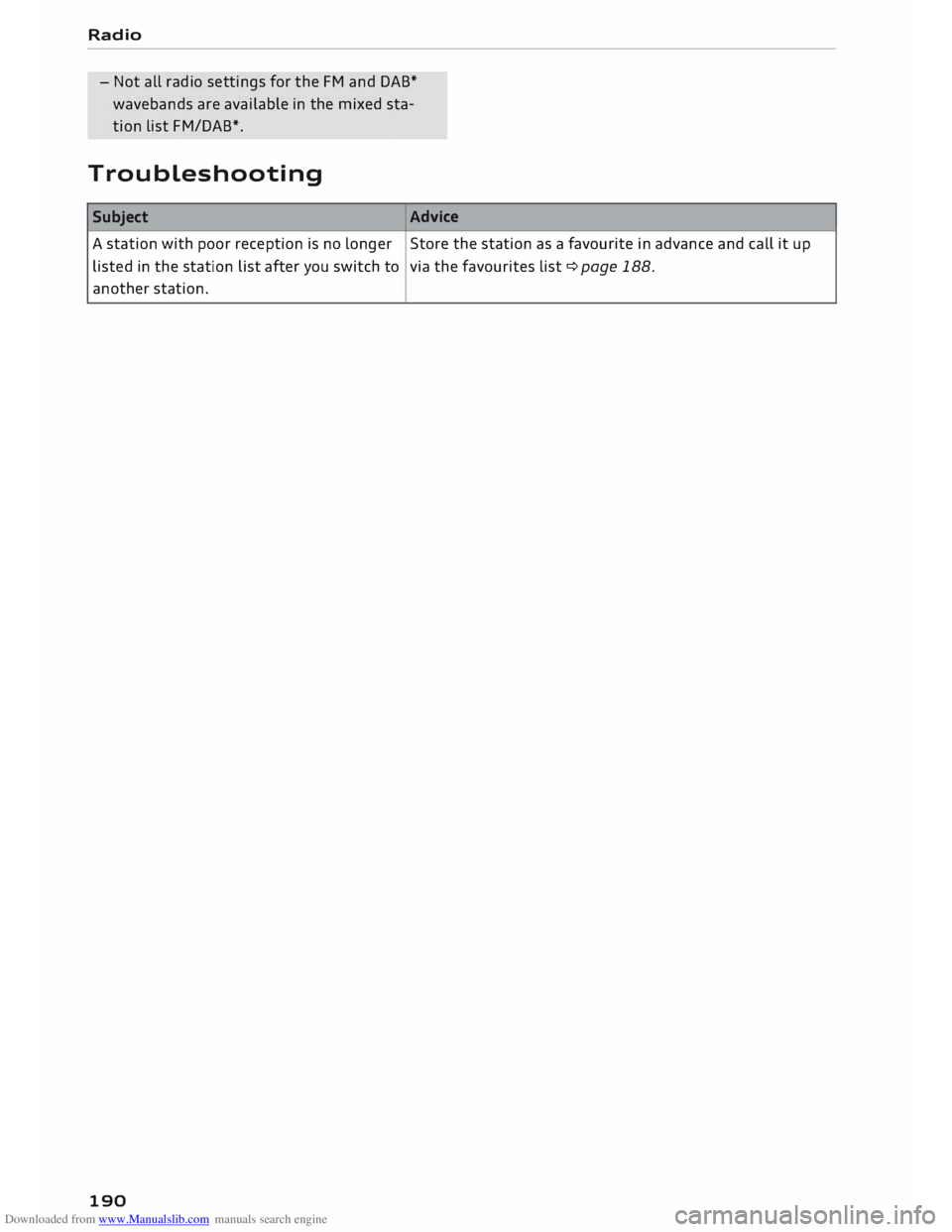
Troubleshooting Subject Advice
A station with poor reception is no longer Store the station as a favourite in advance and call it up
listed in the station list after you switch to via
the favourites list ¢ page 188.
another station.
190
Page 197 of 306

Downloaded from www.Manualslib.com manuals search engine 0
N
,.....
N
......
0
,.....
Vl
CX) Depending
on the device you are using, the me
dia are started and operated using the mobile de
vice or the MMI.
Note
- Pay attention to any connection queries on
your Bluetooth device.
- You can bond several Bluetooth audio play
ers to the MMI system; however only one
connection can be active at a time.
- The system supports the Bluetooth proto
cols AVRCP (1.0/1.3/1.4) and A2DP.
- Please consider the volume control on your
Bluetooth device. Audi recommends setting
the volume of mobile devices to maximum
when they are being used as Bluetooth au
dio players.
- Which media functions (e.g. random play
back) are supported depends on the Blue
tooth device you are using.
- For more information on which devices are
supported, please go online (e.g.
www.audi.com/bluetooth) or contact an
Audi dealer.
Wi-Fi audio players
Applies to: vehicles with Wi-Fi
The MMI's Wi-Fi audio player media source al
lows you to connect and operate your Wi-Fi me
dia player (e.g. smartphone) to play music wire
Lessly from your player's media centre. The me
dia player is connected via the vehicle's Wi-Fi
hotspot. A UPnP server opp or an integrated
UPnPIDLNA server on the media player is re
quired to access the media centre of your media
player.
Important: The Wi-Fi
function of
the media play
er must be switched on. The Audi MMI connect
app or a UPnP server app must be installed on
your media player. Or: You must be using a
UPnP/DLNA server integrated in the media play
er.
- To connect a media player: Select the I MEDIAi
button. Press the left control button repeatedly
until the source overview ¢page 200 is dis- Media
played. Select and confirm Wi-Fi audio player
0 ¢ page 200, Fig. 175.
- You may need to select and confirm Wi-Fi off>
Activate Wi-Fi to switch Wi-Fi on in the MMI.
Select Wi-Fi settings if necessary. Use the set
tings of the Wi-Fi hotspot for the media player
you are using.
- To start the Wi-Fi audio player: Start the Audi
MMI connect app or a UPnP server app, or ena
ble media sharing on your media player.
To use the media player: The media player is op
erated using the MMI.
- Press the left control button repeatedly until
the menu item Folders appears. Select and con
firm Folders.
- To play music from a media player: Select and
confirm Media centre.
Internet radio: See ¢page 196.
& WARNING
-
- Do not allow the features of the Wi-Fi hot
spot to distract you from watching the traf
fic -taking your eyes off the road can cause
an accident.
- Mobile devices, tablet and laptop computers
and devices of a similar weight can only be
operated safely when the vehicle is station
ary. Like any loose object, they can be cata
pulted through the vehicle in an accident
and cause serious injuries. Always make sure
that such devices are securely stowed while
you are driving.
- No Wi-Fi devices may be used in the areas
around the airbags while the vehicle is being
driven. Please also observe the safety warn
ings in the chapter on¢ page 235.
CD CAUTION
Please always observe the information ¢0 in
Wi-Fi hotspot on page 166.
@ Note
- Inserting or removing the mini SIM card
from the SIM card reader* causes the Wi-Fi
connection to be reconfigured. This may
cause a short interruption in the audio play-
back of some media players.
_____ _ ...,.
195
Page 198 of 306
Downloaded from www.Manualslib.com manuals search engine Media
- Please always note the information in the
chapter ¢page 167, Notes on Audi connect.
- Please note that the Wi-Fi connection does
not automatically enable you to use the In
ternet. Further information can be found
from ¢ page 159 onwards.
- To avoid interruptions in audio playback, de
activate the energy saving function on your
media player, or connect the player to a
charger.
- The time it takes to load audio files depends
on the media player in use and on the num
ber of files stored.
-A maximum of 2,000 entries per directory
are shown on the MMI.
- Tracks downloaded from music streaming
services for use offline may be stored on
your mobile device (e.g. smartphone) with
DRM protection. Please note that files with
DRM protection cannot be played by the Wi
Fi audio player.
-Audi dealerships will be able to provide you
with further information on Wi-Fi audio
players.
Online media and
Internet radio
Applies to: vehicles with Audi connect
You can start and operate Internet radio and
various online media services via the MMI.
.,. Press the I MEDIAi button. Press the left control
button repeatedly until the source overview
¢ page 200, Fig. 175 is displayed.
Applies to: using on line media and Internet radio
Important:
- The Audi MMI connect app must have been in
stalled and started on your mobile device.
- You must be logged in to your myAudi account
in the Audi MMI connect app and must have
selected your vehicle.
- The Wi-Fi function must be activated on the
mobile device and on the MMI.
- If necessary, open the connection manager
¢ page 213 and check that the mobile device
you have connected is selected under MMI con
nect App (�).
196 -
A
network connection must be set up on the
MMI ¢page 166.
- The symbol for the media source Online media*
@ ¢page 200, Fig. 175 must be shown on the
MMI.
Applies to: using on line media
Additional requirements:
- One of the supported on line media services
must be available in your country.
- You must have an account with one of the sup
ported online media services.
- Depending on the online media service, an app
may need to be installed and set up on your
mobile device.
Starting online media
- Press the I
MEDIAi button. Press the left control
button repeatedly until the source overview
¢ page 200 is displayed.
- Select and confirm an on line media service.
Starting
Internet
radio
- Press the I MEDIAi button. Press the left control
button repeatedly until the source overview
¢ page 200 is displayed.
- Select and confirm Internet radio. The Internet
radio browser or the most recently played sta
tion will be shown.
- To select a station: Select and confirm a cate
gory in the Internet radio Browser (if desired) >
a station.
Online media and Internet radio: Further op
tions
- Press the right control button.
The following options may be available depend
ing on the information displayed (e.g. the sta
tion/track currently playing):
- Sound settings: Refer to¢ page 217.
- Wi-Fi settings: Refer to ¢ page 165, Wi-Fi hot-
spot.
- Connection manager: Refer to ¢page 213.
-Additional options may be available depending
on the active online media service or Internet
radio function.
�
Page 199 of 306
Downloaded from www.Manualslib.com manuals search engine 0
N
,.....
N
......
0
,.....
Vl
CX) &,
WARNING
- Mobile devices, tablet and laptop computers
and devices of a similar weight can only be
operated safely when the vehicle is station
ary. Like any loose object, they can be cata
pulted through the vehicle in an accident
and cause serious injuries. Always make sure
that such devices are securely stowed while
you are driving.
- No Wi-Fi devices may be used in the areas
around the airbags while the vehicle is being
driven. Please also observe the safety warn
ings in the chapter on¢ page 235.
CD CAUTION
Please always observe the information ¢(Din
Wi-Fi hotspot on page 166.
ijj) Note
- Depending on the Internet connection and
network load, playback of the on line media
services may be interrupted.
- Whether online media and Internet radio
can be used depends on the availability of
services provided by third parties.
- AUDI AG only enables you to access online
media services via the MMI system and ac
cepts no responsibility for the content of
online media services.
- Please always note the information in the
chapter ¢ page 167, Notes on Audi connect.
- Depending on the mobile device you are us
ing, you may experience interruptions in
media playback when using the Audi MMI
connect app. To avoid interruptions, keep
the Audi MMI connect app running in the
foreground and do not lock the screen on
your mobile device.
- Audi dealerships will be able to provide you
with further information on online media. Media
Multimedia connections
USB adapters for Audi music interface or
USB charging socket
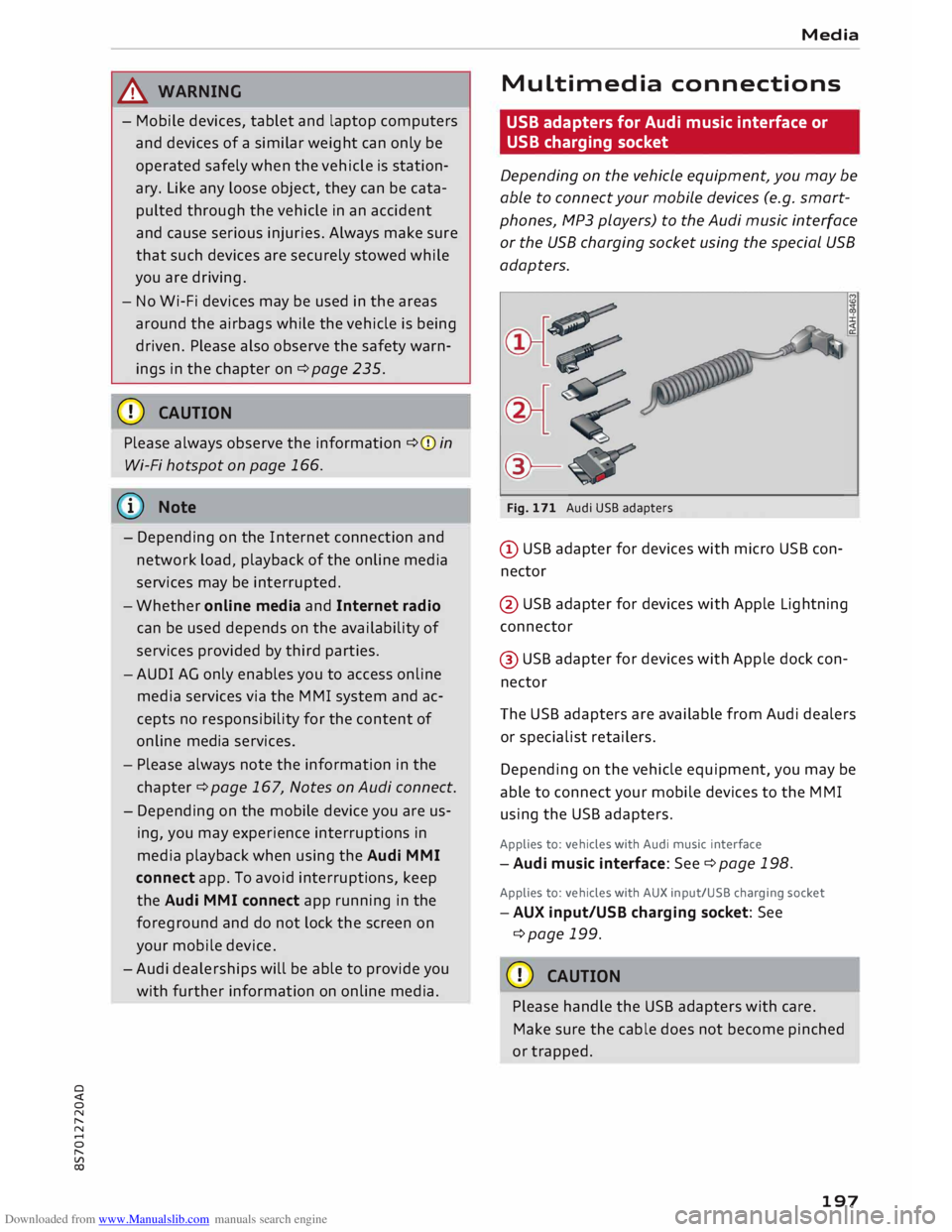
Depending on the vehicle equipment, you may be
able to connect your mobile devices (e.g. smart
phones, MP3 players) to the Audi music interface
or the USB charging socket using the special USB
adapters.
@-Fig. 171 Audi USB adapters
@ USB adapter for devices with micro USB con
nector
@ USB adapter for devices with Apple Lightning
connector
@ USB adapter for devices with Apple dock con
nector
The USB adapters are available from Audi dealers
or specialist retailers.
Depending on the vehicle equipment, you may be
able to connect your mobile devices to the MMI
using the USB adapters.
Applies to: vehicles with Audi music interface
-Audi music interface: See¢ page 198.
Applies to: vehicles with AUX input/USB charging socket
- AUX input/USB charging socket: See
¢page 199.
CD CAUTION
Please handle the USB adapters with care.
Make sure the cable does not become pinched
or trapped.
197
Page 202 of 306
Downloaded from www.Manualslib.com manuals search engine Media
- To disconnect mobile devices with Apple dock
connector: With the release tabs®
¢ page 197, Fig. 171 pressed, detach the Apple
dock connector from the Apple device.
A WARNING
Today's driving conditions require your full at
tention. As the driver, you have full responsi
bility for the safety of the vehicle and other
road users. Never use mobile devices while
the vehicle is moving -risk of accident!
CD CAUTION
- To avoid damaging the connection on the
Audi music interface, please take care when
unplugging the connector from the AUX in
put or the USB charging socket.
- Very
high or very low temperatures (a com
mon occurrence in a car's interior) can cause
damage to mobile devices and/or impair
their performance. Please do not leave your
mobile devices in the vehicle when the tem
perature is very high or very low.
({D Note
-When you switch off the ignition, the USB
ports will continue to be supplied with pow
er as long as the energy management sys
tem does not intervene.
- USB charging sockets marked
I CHARGE
ONL vi
cannot transfer data and
are intended for charging only.
- Do not use any additional USB extension ca
bles or adapters when connecting mobile
devices which must be connected to the USB
charging socket®¢ Fig. 173 via a USB
adapter (¢ page 197); this could cause per
formance issues.
- The AUX adapter cable is available from
Audi dealers or specialist retailers.
- USB hubs are not supported.
- Please refer to the operating instructions of
your mobile device for important informa
tion on its operation.
- It
cannot be guaranteed that all mobile de
vices will function without any problems.
200 -
Using a mobile device with the engine
switched off will drain the vehicle's battery.
-Audi recommends setting the volume of a
mobile device connected to the AUX input to
about 70 % of maximum.
Playing media
Calling up media
You can start and operate various types of media
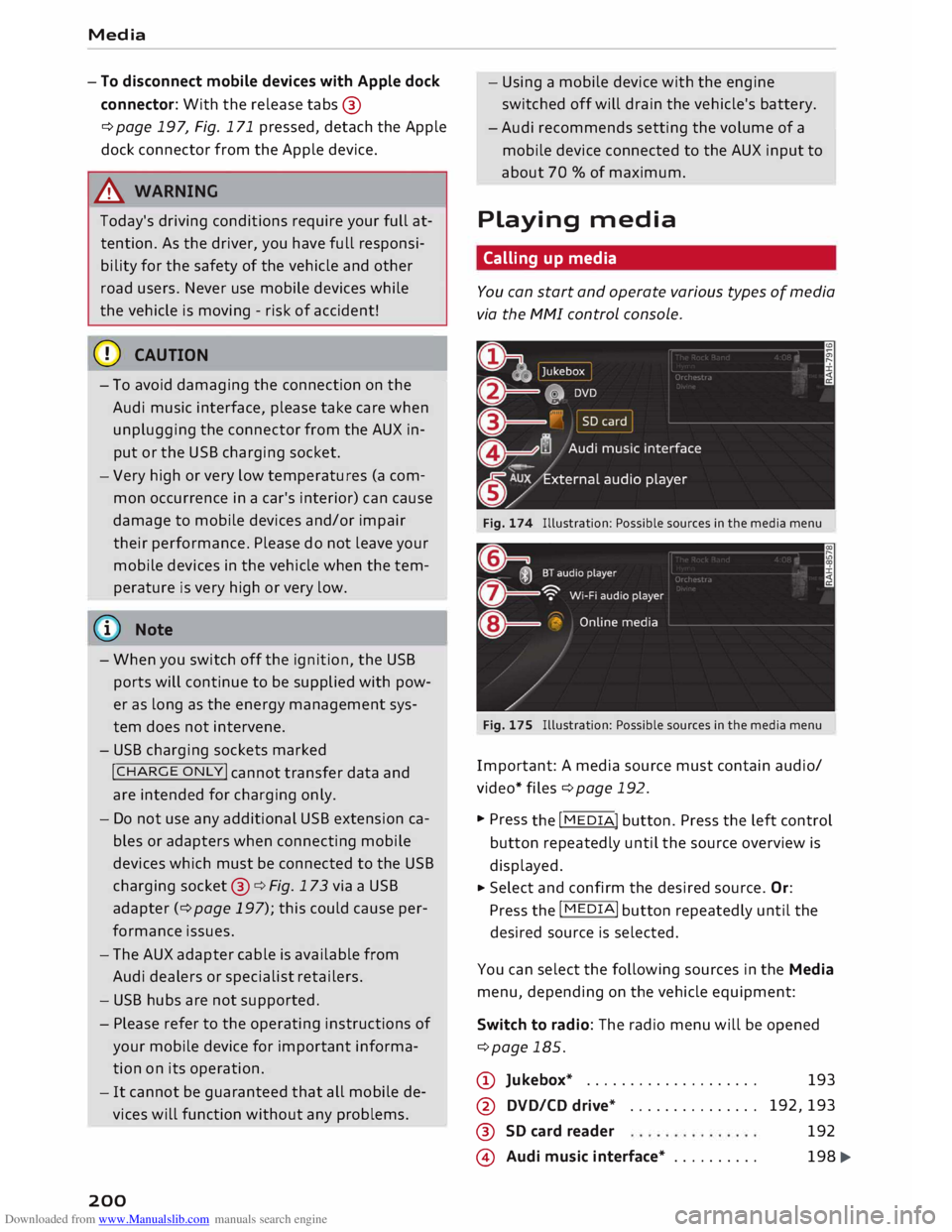
via the MMI control console.
Fig. 174 Illustration: Possible sources in the media menu
Fig. 175 Illustration: Possible sources in the media menu
Important: A media source must contain audio/
video* files ¢page 192.
... Press
the I
ME
DIA !
button. Press the left control
button repeatedly until the source overview is
displayed.
... Select
and confirm the desired source. Or:
Press the I
MEDI Ai
button repeatedly until the
desired source is selected.
You can select the following sources in the Media
menu, depending on the vehicle equipment:
Switch to radio: The radio menu will be opened
¢page 185.
(D Jukebox* ................... .
@ DVD/CD drive* .............. .
®
@ SD
card reader
Audi music interface* ......... . 193
192,193 192
198 �
Page 203 of 306
Downloaded from www.Manualslib.com manuals search engine 0
N
,.....
N e.g.
iPod, USB stick
® External audio player
e.g. an MP3 player connected to
the AUX input
® Bluetooth audio player*
0
® Wi-Fi
audio player* .......... .
Online media* and Internet radio* 199
194
195
196
-To play audio/video files: Select a source in the
Media menu> category (e.g. artist > album >
track/title).
- To access the next level up in the structure of
folders: Press the I
B A
CK !
button. Or: Select and
confirm Go up.
- To select the previous/next track/title/chap
ter 1
)
: Briefly press the ON/OFF button on the
MMI control console to the Left/right (l
-To rewind/fast forward audio/video files:
Move and hold the ON/OFF button to the Left/
rig ht (l
- To pause/resume playback: Briefly press the
ON/OFF button on the MMI control console.
@ Note
- You can scroll rapidly through Long Lists by
turning the rotary pushbutton quickly. The
scrolling speed depends on the number of
entries in the List.
- If the Traffic announcements ¢ page 186
or DAB announcements* function is switch
ed on, playback is interrupted for announce
ments. You can cancel an announcement
while it is being played by briefly pressing
the ON/OFF button on the MMI control con
sole.
- For safety reasons, the video picture is not
available while the vehicle is moving. While
you are driving, only the sound is played.
8 l}May not be possible during playback (depends on the
,.....
� DVD). Media
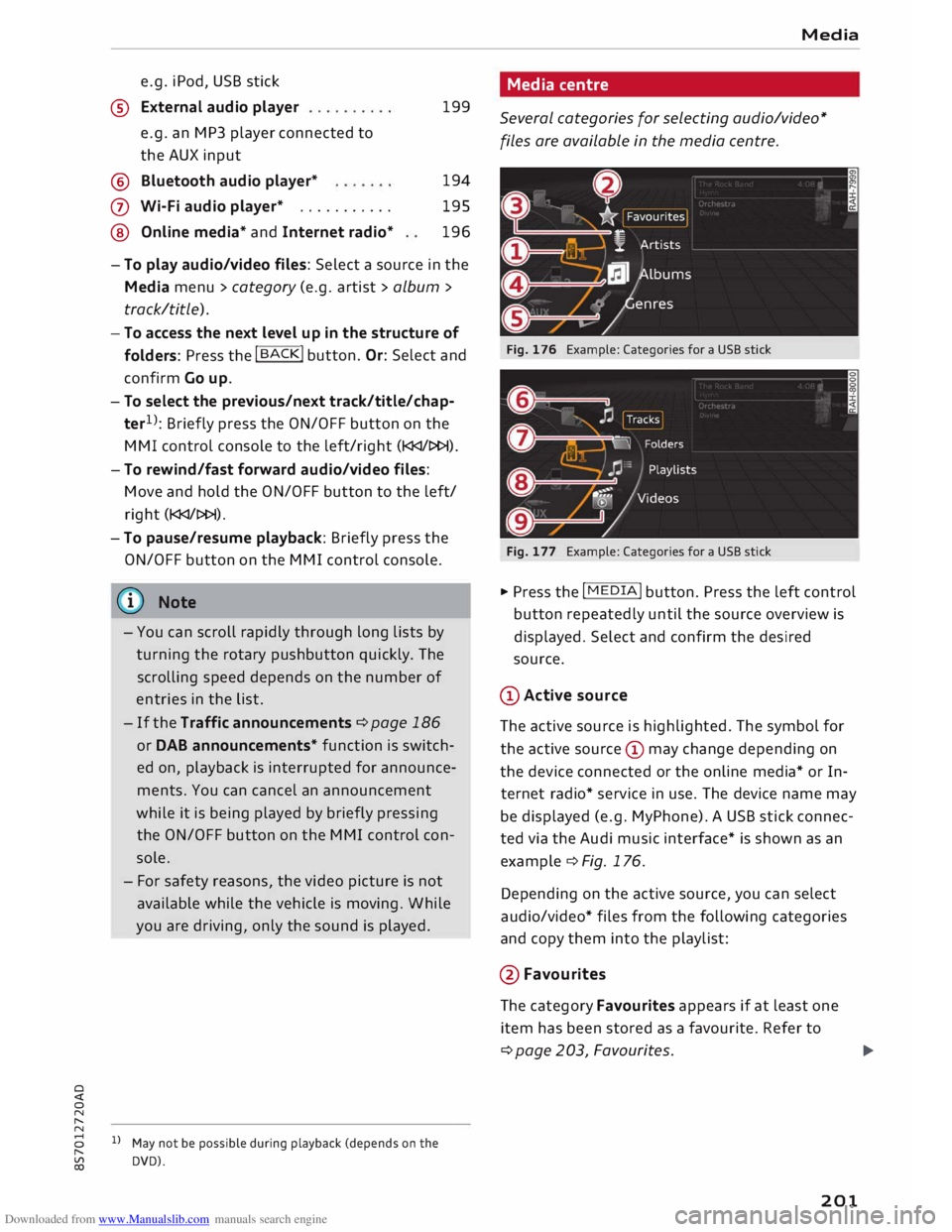
Media centre
Several categories for selecting audio/video*
files are available in the media centre.
Fig. 176 Example: Categories for a USB stick
Fig. 177 Example: Categories for a USB stick
"" Press the I MEDI
A! button. Press the Left control
button repeatedly until the source overview is
displayed. Select and confirm the desired
source.
CD Active source
The active source is highlighted. The symbol for
the active source (!) may change depending on
the device connected or the online media* or In
ternet radio* service in use. The device name may
be displayed (e.g. MyPhone). A USB stick connec
ted via the Audi music interface* is shown as an
example¢ Fig. 176.
Depending on the active source, you can select
audio/video* files from the following categories
and copy them into the playlist:
@Favourites The category Favourites appears if at Least one
item has been stored as a favourite. Refer to
¢page 203, Favourites.
l)IJ,,
201
Page 210 of 306
Downloaded from www.Manualslib.com manuals search engine Media
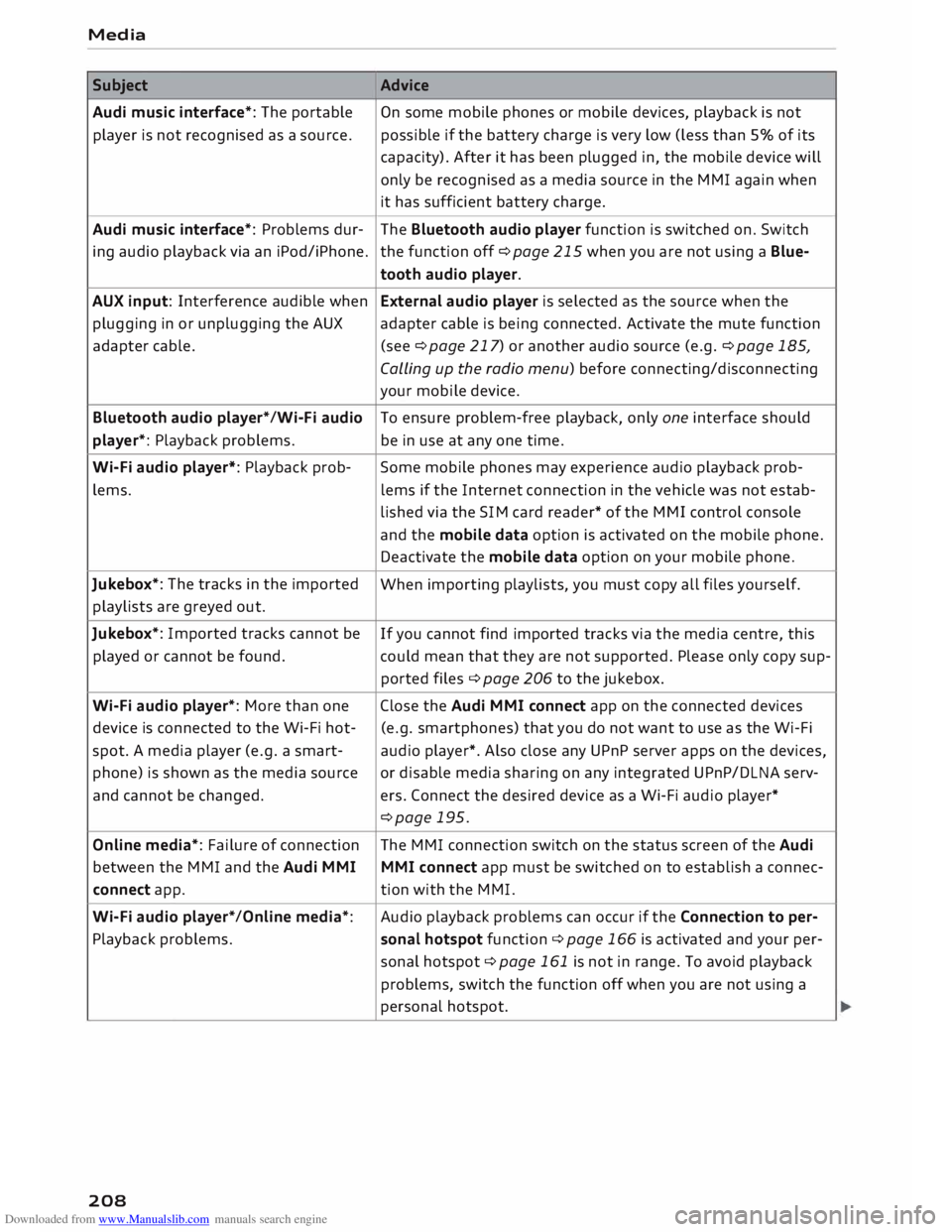
Subject Advice
Audi music interface*: The portable
On some mobile phones or mobile devices, playback is not
player is not recognised as a source. possible
if the battery charge is very low (less than 5% of its
capacity). After it has been plugged in, the mobile device will
only be recognised as a media source in the MMI again when
it has sufficient battery charge.
Audi music interface*: Problems dur-
The Bluetooth audio player function is switched on. Switch
ing audio playback via an iPod/iPhone. the function off ¢page 215 when you are not using a Blue-
tooth audio player.
AUX input: Interference audible when External audio player is selected as the source when the
plugging in or unplugging the AUX adapter cable is being connected. Activate the mute function
adapter cable. (see ¢page 217) or another audio source (e.g. ¢page 185,
Calling up the radio menu) before connecting/disconnecting
your mobile device.
Bluetooth audio player*/Wi-Fi audio
To ensure problem-free playback, only one interface should
player*: Playback problems. be in use at any one time.
Wi-Fi audio player*: Playback prob-
Some mobile phones may experience audio playback prob-
lems. lems
if the Internet connection in the vehicle was not estab-
lished via the SIM card reader* of the MMI control console
and the mobile data option is activated on the mobile phone.
Deactivate the mobile data option on your mobile phone.
Jukebox*: The tracks in the imported
When importing playlists, you must copy all files yourself.
playlists are greyed out.
Jukebox*: Imported tracks cannot be
If you cannot find imported tracks via the media centre, this
played or cannot be found. could mean that they are not supported. Please only copy sup-
ported files¢ page 206 to the jukebox.
Wi-Fi audio player*: More than one Close the Audi MMI connect app on the connected devices
device is connected to the Wi-Fi hot- (e.g.
smartphones) that you do not want to use as the Wi-Fi
spot. A media player (e.g. a smart-
audio player*. Also close any UPnP server apps on the devices,
phone) is shown as the media source
or disable media sharing on any integrated UPnP/DLNA serv-
and cannot be changed. ers. Connect the desired device as a Wi-Fi audio player*
¢page 195.
Online media*: Failure of connection The MMI connection switch on the status screen of the Audi
between the MMI and the Audi MMI
MMI connect app must be switched on to establish a connec-
connect app. tion
with the MMI.
Wi-Fi audio player* /Online media*: Audio
playback problems can occur if the Connection to per-
Playback problems. sonal
hotspot function¢ page 166 is activated and your per-
sonal hotspot ¢ page 161 is not in range. To avoid playback
problems, switch the function off when you are not using a
personal hotspot.
208
Page 215 of 306
Downloaded from www.Manualslib.com manuals search engine 0
N
,.....
N
......
0
,.....
Vl
CX) -
spoken: The reminder signal is spoken by the
system.
Reminder signal volume: You can adjust the vol
ume of the reminder signal by turning the rotary
pushbutton.
Switch off pop-up: This function is switched off
at the factory. When this function is switched on
� , the messages about the charging status of
the mobile phone in the Audi phone box* on the
infotainment display will not appear. The re
minder not to forget the mobile phone when
leaving the vehicle will also be switched off.
Usage tips
Your MMI displays usage tips when this function
is switched on�
. They will appear less often as
time goes by. You can switch the usage tips off at
any time.
Speech dialogue system
Applies to: vehicles with speech dialogue system
Command display: The MMI displays possible
voice commands in the corresponding menu
when this function is switched on�
. You can
switch this function off at any time.
Short dialogue: When this function is switched
on �
, the spoken cues are shortened. You can
switch this function off at any time.
Speech dialogue system volume: You can adjust
the volume of the spoken cues by turning the ro
tary pushbutton.
Individual speech training (only possible when
the vehicle is stationary): You can use the individ
ual speech training to adapt the speech dialogue
system to your voice or pronunciation so that the
speech dialogue system can then better recog
nise what you are saying. The individual speech
training prompts you to repeat 20 spoken phra
ses that consist of certain commands and blocks
of digits. If you would like to delete the stored
speech training setup, you can use the function
Reset individual speech training.
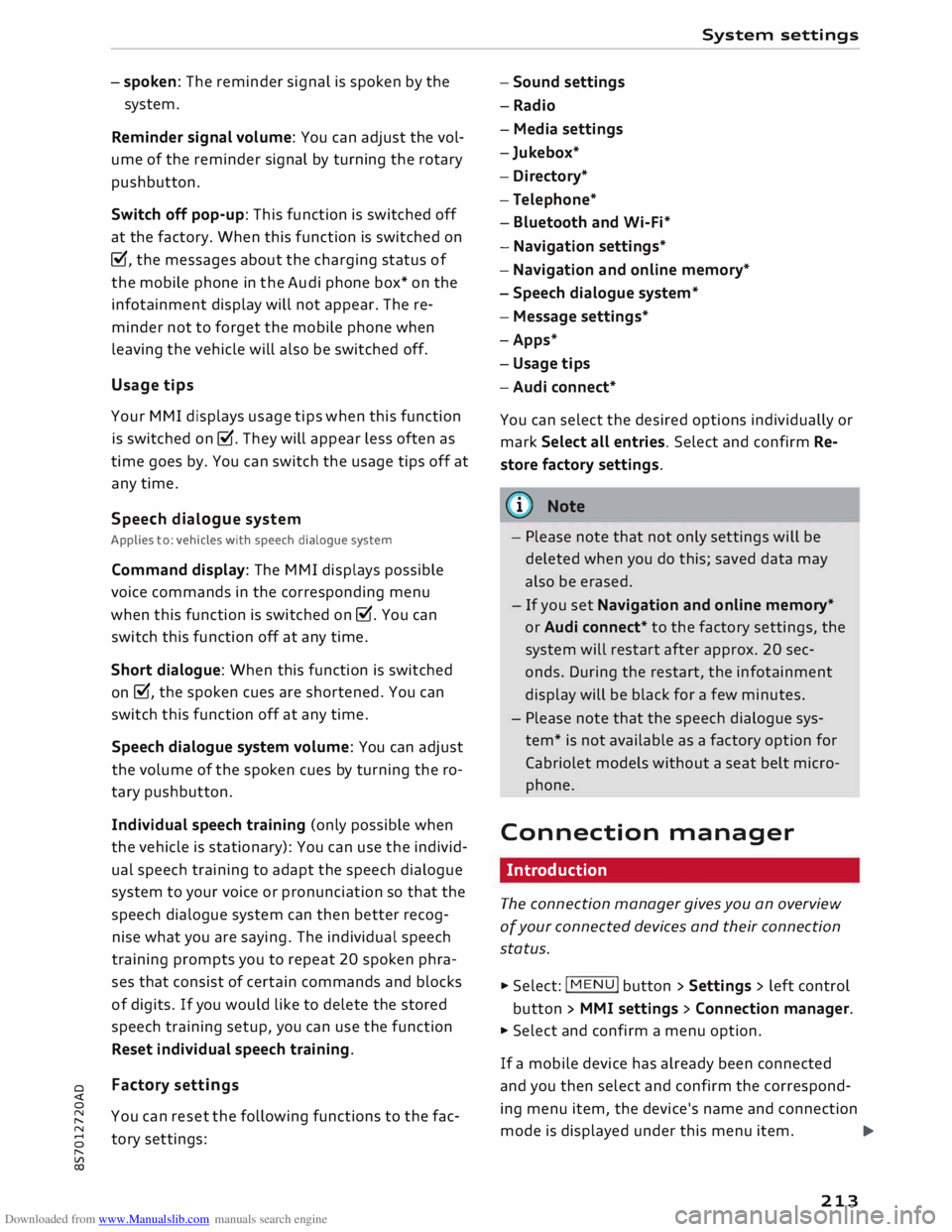
Factory settings
You can reset the following functions to the fac
tory settings: System
settings
- Sound settings
- Radio
- Media settings
-Jukebox*
- Directory*
- Telephone*
- Bluetooth and Wi-Fi*
- Navigation settings*
- Navigation and online memory*
- Speech dialogue system*
- Message settings*
-Apps*
- Usage tips
-Audi connect*
You can select the desired options individually or
mark Select all entries. Select and confirm Re
store factory settings.
ijj) Note
- Please note that not only settings will be
deleted when you do this; saved data may
also be erased.
- If you set Navigation and on line memory*
or Audi connect* to the factory settings, the
system will restart after approx. 20 sec
onds. During the restart, the infotainment
display
will
be black for a few minutes.
- Please note that the speech dialogue sys
tem* is not available as a factory option for
Cabriolet models without a seat belt micro
phone.
Connection manager
Introduction
The connection manager gives you an overview
of your connected devices and their connection
status.
.., Select: I MENU I button > Settings > left control
button > MMI settings > Connection manager.
.., Select and confirm a menu option.
If a mobile device has already been connected
and you then select and confirm the correspond
ing menu item, the device's name and connection
mode is displayed under this menu item.
...,.
213
Page 262 of 306
Downloaded from www.Manualslib.com manuals search engine Wheels
Tyre pressure
monitoring system
General notes
Applies to: vehicles with tyre pressure monitoring system
The tyre pressure monitoring system keeps a
check on the tyre pressures of the four road
wheels while you are driving.
The system uses sensors to measure tempera
tures and pressures in the tyres. The sensors
transmit the data to the control unit by radio.
The tyre pressure monitoring system displays the
current pressures and temperatures of the tyres
on the infotainment system while the vehicle is
moving ¢ page 260. In addition, it compares the
current tyre pressures with the stored tyre pres
sures and warns you if it detects a discrepancy
¢page 261.
The system cannot check if the stored tyre pres
sures correspond to the recommended tyre pres
sures for your vehicle. You must store the new
tyre pressures ¢ page 261:
- after every adjustment to the tyre pressures,
e.g. after changing the laden weight of your ve
hicle,
- after changing a wheel, or
- when using wheels with new wheel sensors.
.&_ WARNING
- The tyre pressure monitoring system helps
the driver to monitor the tyre pressures.
However, it is always the driver's responsi
bility to ensure that the tyres are at the cor
rect pressure.
- Never re-adjust the tyre inflation pressure
when the tyre is hot. This can cause serious
damage to the tyre or even a blow-out,
which could result in an accident.
- Under-inflated tyres flex more than they
should. This causes them to overheat. This
can cause tread separation and tyre blow
out, which could result in an accident.
- The tyre pressure monitoring system cannot
warn you of tyre damage or defects that
could lead, for example, to a tyre blow-out.
Perform a regular visual check of your tyres.
260 (I))
Note
- The sensors and valves do not have to be de
tached or changed round when fitting new
tyres. Only the valve core needs to be re
placed, and if necessary the valve and the
electronic components in the wheel. Please
contact a qualified workshop if you have any
questions.
-After using the tyre repair kit, the tyre pres
sure monitoring system may malfunction.
Have the sensors renewed by a qualified
workshop.
Displaying tyre pressures and temperatures
Applies to: vehicles with tyre pressure monitoring system
Important: The vehicle must be moving.
.. Select the following on the infotainment sys
tem: !MENU! button> Servicing & checks >
Tyre pressure loss indicator > Display tyre
pressures.
The current tyre pressures are displayed in green,
yellow or red on the infotainment system:
- Green: The tyre pressure is roughly the same as
the reference value.
- Yellow: The tyre pressure is too low compared
with the reference value.
- Red: The tyre pressure is much too low com-
pared with the reference value.
The reference value is the last stored tyre pres
sure value ¢ page 261.
Bear in mind that the tyre inflation pressure is al
so influenced by the temperature of the tyre. The
tyre heats up while the vehicle is being driven
and the tyre pressure will rise accordingly.
.&_ WARNING
Please observe the important safety informa-
tion and notes ¢ page 260.
�