change time AUDI TT ROADSTER 2016 Owner's Manual
[x] Cancel search | Manufacturer: AUDI, Model Year: 2016, Model line: TT ROADSTER, Model: AUDI TT ROADSTER 2016Pages: 306, PDF Size: 31.82 MB
Page 135 of 306
Downloaded from www.Manualslib.com manuals search engine 0
N
,.....
N
....
0
,.....
Vl
CX) Speech
dialogue system
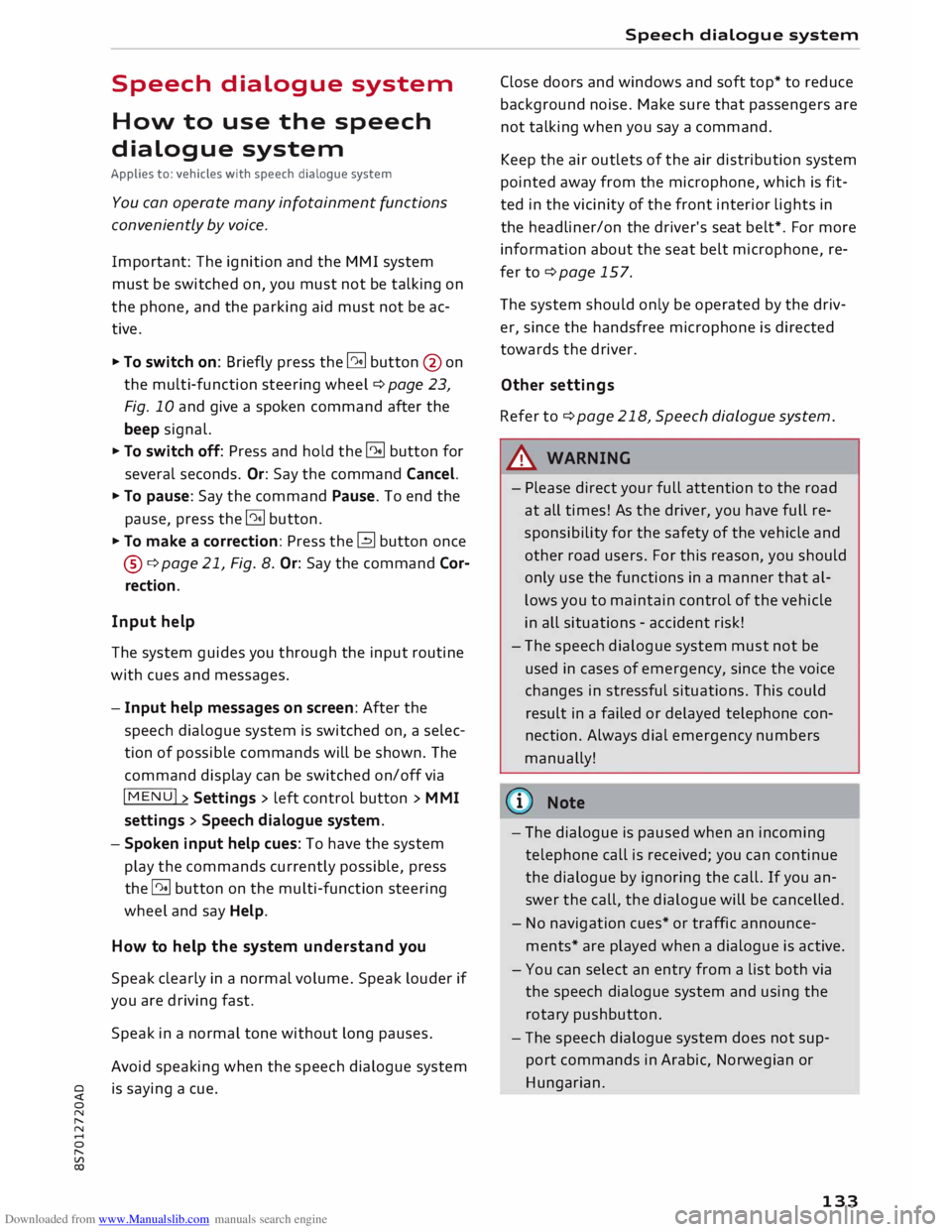
How to use the speech
dialogue system
Applies to: vehicles with speech dialogue system
You can operate many infotainment functions
conveniently by voice.
Important: The ignition and the MMI system
must be switched on, you must not be talking on
the phone, and the parking aid must not be ac
tive.
� To switch on: Briefly press the [2!l button @ on
the multi-function steering wheel¢ page 23,
Fig. 10 and give a spoken command after the
beep signal.
� To switch off: Press and hold the [2!l button for
several seconds. Or: Say the command Cancel.
� To pause: Say the command Pause. To end the
pause, press the [2!l button.
� To make a correction: Press the� button once
® ¢page 21, Fig. 8. Or: Say the command Cor
rection.
Input help
The system guides you through the input routine
with cues and messages.
- Input help messages on screen: After the
speech dialogue system is switched on, a selec
tion of possible commands will be shown. The
command display can be switched on/off via
IM ENU I
> Settings > left control button > MMI
settings > Speech dialogue system.
- Spoken input help cues: To have the system
play the commands currently possible, press
the [2!l button on the multi-function steering
wheel and say Help.
How to help the system understand you
Speak clearly in a normal volume. Speak louder if
you are driving fast.
Speak in a normal tone without long pauses.
Avoid speaking when the speech dialogue system
is saying a cue. Speech
dialogue system
Close doors and windows and soft top* to reduce
background noise. Make sure that passengers are
not talking when you say a command.
Keep the air outlets of the air distribution system
pointed away from the microphone, which is fit
ted in the vicinity of the front interior lights in
the headliner/on the driver's seat belt*. For more
information about the seat belt microphone, re
fer to¢ page 157.
The system should only be operated by the driv
er, since the handsfree microphone is directed
towards the driver.
Other settings
Refer to¢ page 218, Speech dialogue system.
&_ WARNING
- Please direct your full attention to the road
at all times! As the driver, you have full re
sponsibility for the safety of the vehicle and
other road users. For this reason, you should
only use the functions in a manner that al
lows you to maintain control of the vehicle
in all situations -accident risk!
- The speech dialogue system must not be
used in cases of emergency, since the voice
changes in stressful situations. This could
result in a failed or delayed telephone con
nection. Always dial emergency numbers
manually!
(@ Note
- The dialogue is paused when an incoming
telephone call is received; you can continue
the dialogue by ignoring the call. If you an
swer the call, the dialogue will be cancelled.
- No navigation cues* or traffic announce
ments* are played when a dialogue is active.
- You can select an entry from a list both via
the speech dialogue system and using the
rotary pushbutton.
- The speech dialogue system does not sup
port commands in Arabic, Norwegian or
Hungarian.
133
Page 139 of 306
Downloaded from www.Manualslib.com manuals search engine 0
N
,.....
N
......
0
,.....
Vl
CX) Speech
dialogue system
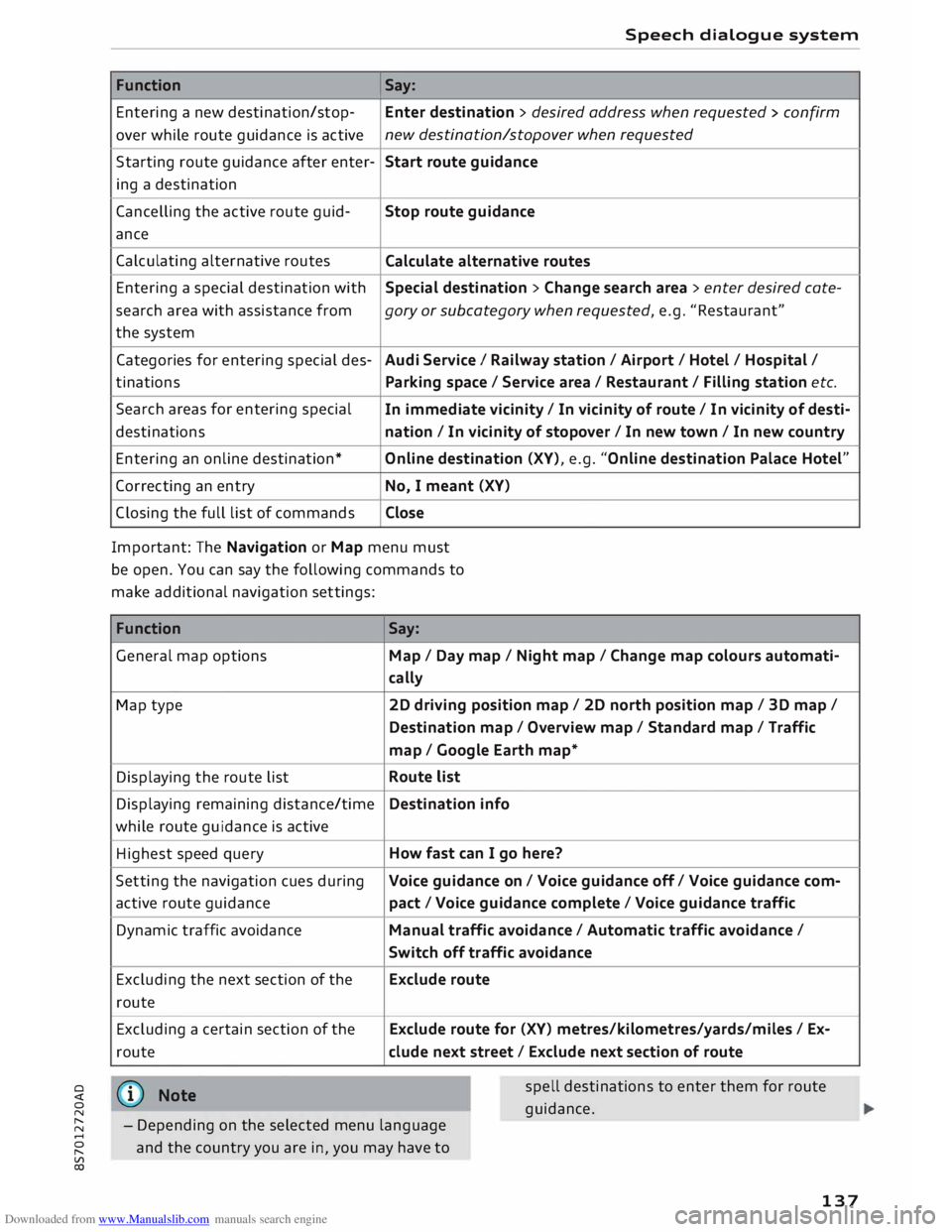
Function Say:
Entering a new destination/stop- Enter destination > desired address when requested > confirm
over while route guidance is active new
destination/stopover when requested
Starting route guidance after enter-
Start route guidance
ing a destination
Cancelling the active route guid-
Stop route guidance
ance
Calculating alternative routes
Calculate alternative routes
Entering a special destination with
Special destination > Change search area > enter desired cote-
se arch area with assistance from
gory or subcategory when requested, e.g. "Restaurant"
the system
Categories for entering special des-
Audi Service I Railway station/ Airport / Hotel / Hospital /
ti nations
Parking space/ Service area / Restaurant/ Filling station etc.
Search areas for entering special
In immediate vicinity/ In vicinity of route / In vicinity of desti-
destinations nation/ In vicinity of stopover / In new town/ In new country
Entering an online destination*
Online destination (XV), e.g. "Online destination Palace Hotel"
Correcting an entry
No, I meant (XV)
Closing the full list of commands Close
Important: The Navigation or Map menu must
be open. You can say the following commands to
make additional navigation settings:
Function
General map options
Map type
Displaying the route list
Displaying remaining distance/time
while route guidance is active
Highest speed query
Setting the navigation cues during
active route guidance
Dynamic traffic avoidance
Excluding the next section of the
route
Excluding a certain section of the
route
@ Note Say:
Map / Day map / Night map/ Change map colours automati-
cally
2D driving position map/ 2D north position map/ 3D map/
Destination map/ Overview map/ Standard map/ Traffic
map/ Google Earth map*
Route list
Destination info
How fast can I go here?
Voice guidance on/ Voice guidance off/ Voice guidance com-
pact / Voice guidance complete/ Voice guidance traffic
Manual traffic avoidance/ Automatic traffic avoidance /
Switch off traffic avoidance
Exclude route
Exclude route for (XV) metres/kilometres/yards/miles/ Ex-
elude next street / Exclude next section of route
spell destinations to enter them for route
guid ance.
- Depending on the selected menu language
and the country you are in, you may have to
137
Page 143 of 306
Downloaded from www.Manualslib.com manuals search engine 0
N
,.....
N
......
0
,.....
Vl
CX) Telephone
Introduction
Applies to: vehicles with telephone
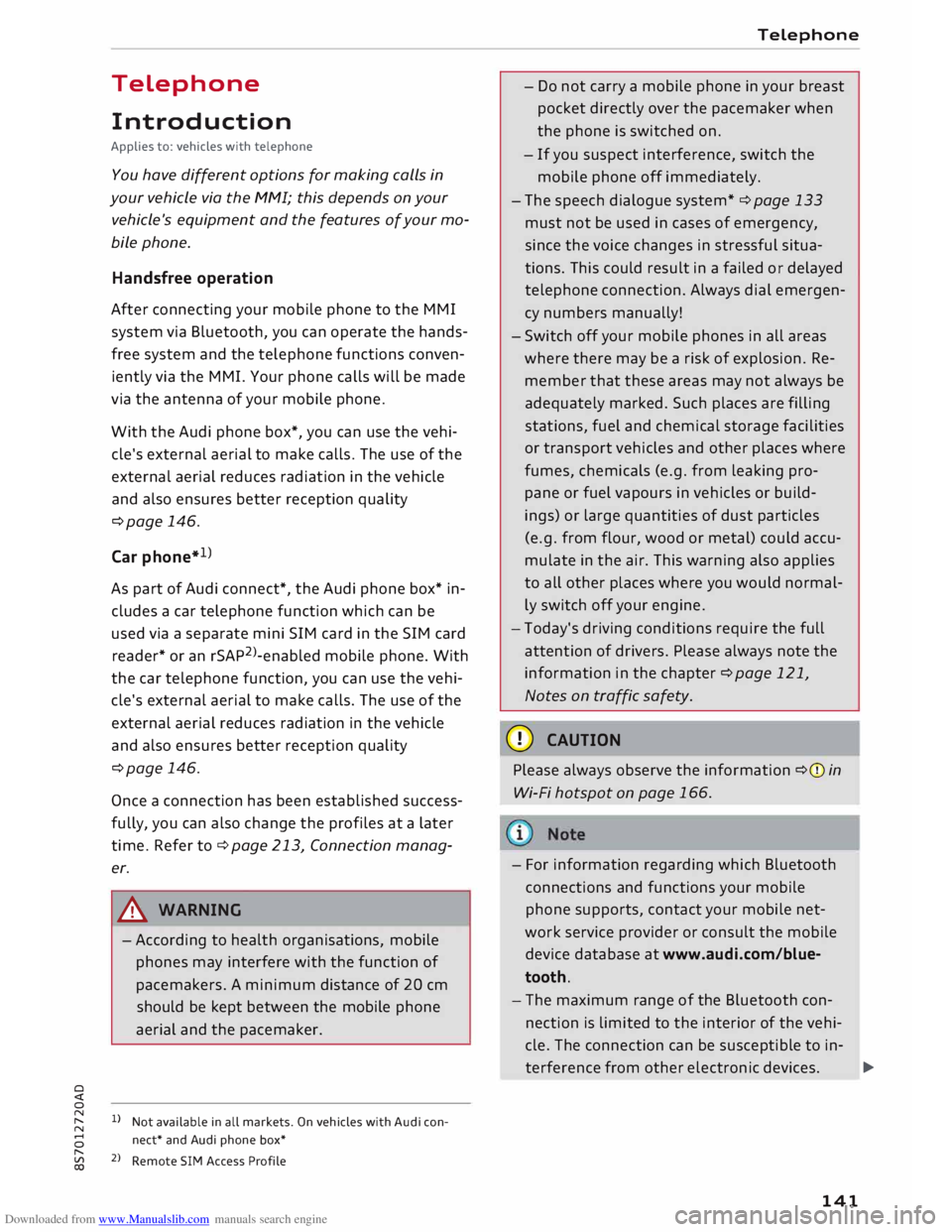
You have different options for making calls in
your vehicle via the MMI; this depends on your
vehicle's equipment and the features of your mo
bile phone.
Handsfree operation
After connecting your mobile phone to the MMI
system via Bluetooth, you can operate the hands
free system and the telephone functions conven
iently via the MMI. Your phone calls will be made
via the antenna of your mobile phone.
With the Audi phone box*, you can use the vehi
cle's external aerial to make calls. The use of the
external aerial reduces radiation in the vehicle
and also ensures better reception quality
¢page 146.
Car phone d
)
As part of Audi connect*, the Audi phone box* in
cludes a car telephone function which can be
used via a separate mini SIM card in the SIM card
reader* or an rSAP 2
>-enabled mobile phone. With
the car telephone function, you can use the vehi
cle's external aerial to make calls. The use of the
external aerial reduces radiation in the vehicle
and also ensures better reception quality
¢page 146.
Once a connection has been established success
fully, you can also change the profiles at a later
time. Refer to¢ page 213, Connection manag
er.
A WARNING
- According to health organisations, mobile
phones may interfere with the function of
pacemakers. A minimum distance of 20 cm
should be kept between the mobile phone
aerial and the pacemaker.
l) Not available in all markets. On vehicles with Audi con
nect* and Audi phone box*
2 > Remote SIM Access Profile Telephone
- Do not carry a mobile phone in your breast
pocket directly over the pacemaker when
the phone is switched on.
- If you suspect interference, switch the
mobile phone off immediately.
- The speech dialogue system*¢ page 133
must not be used in cases of emergency,
since the voice changes in stressful situa
tions. This could result in a failed or delayed
telephone connection. Always dial emergen
cy numbers manually!
- Switch off your mobile phones in all areas
where there may be a risk of explosion. Re
member that these areas may not always be
adequately marked. Such places are filling
stations, fuel and chemical storage facilities
or transport vehicles and other places where
fumes, chemicals (e.g. from leaking pro
pane or fuel vapours in vehicles or build
ings) or large quantities of dust particles
(e.g. from flour, wood or metal) could accu
mulate in the air. This warning also applies
to all other places where you would normal
ly switch off your engine.
- Today's driving conditions require the full
attention of drivers. Please always note the
information in the chapter ¢page 121,
Notes on traffic safety.
CD CAUTION
Please always observe the information ¢(Din
Wi-Fi hotspot on page 166.
- For information regarding which Bluetooth
connections and functions your mobile
phone supports, contact your mobile net
work
service
provider or consult the mobile
device database at www.audi.com/blue
tooth.
- The maximum range of the Bluetooth con
nection is limited to the interior of the vehi
cle. The connection can be susceptible to in-
terference from other electronic devices.
..,.
141
Page 165 of 306
Downloaded from www.Manualslib.com manuals search engine Show
on map
You can have selected content displayed on the
map and use it for route guidance.
Read 1
)
You can have the MMI read out some types of
content.
Start route guidance
If an entry contains a location (e.g. in City
events), this can be used as a navigation destina
tion in the MMI.
Refresh
The content of the Audi connect service selected
is updated.
Change search area
The search area selected can be changed at any
time. For more information on search areas,
please refer to ¢ page 172, Entering a special
destination.
Cl osing an Audi connect service
You can close an Audi connect service at any time
and go back to the overview, regardless of which
function you have chosen ¢ Fig. 152.
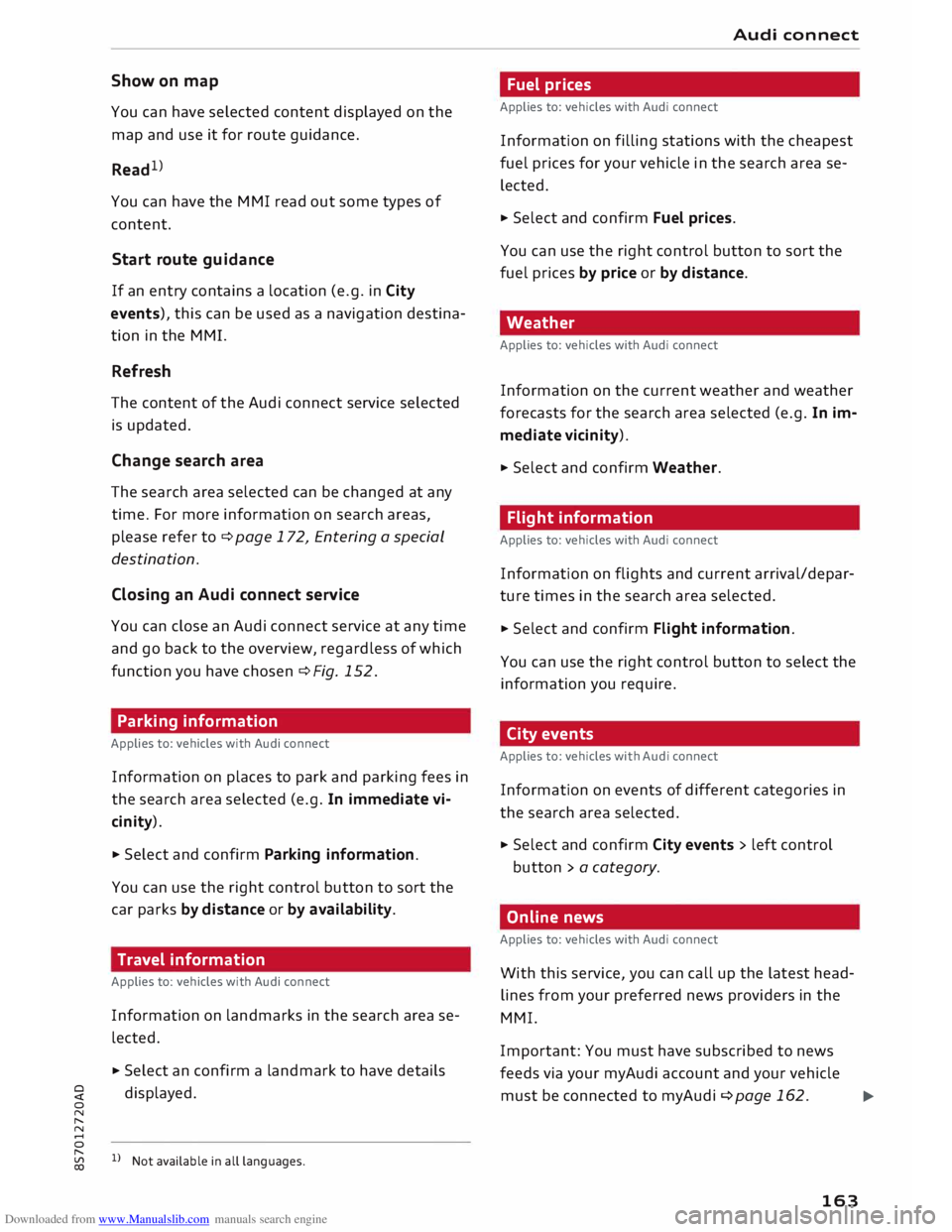
Parking information
Applies to: vehicles with Audi connect
Information on places to park and parking fees in
the search area selected (e.g. In immediate vi
cinity).
� Select and confirm Parking information.
You can use the right control button to sort the
car parks by distance or by availability.
Travel information
Applies to: vehicles with Audi connect
Information on landmarks in the search area se
lected.
� Select an confirm a landmark to have details
� displayed.
0
N
,.....
N
......
0
,.....
� 1}
Not available in all languages. Audi
connect
Fuel prices
Applies to: vehicles with Audi connect
Information on filling stations with the cheapest
fuel prices for your vehicle in the search area se
lected.
� Select and confirm Fuel prices.
You can use the right control button to sort the
fuel prices by price or by distance.
Weather
Applies to: vehicles with Audi connect
Information on the current weather and weather
forecasts for the search area selected (e.g. In im
mediate vicinity).
� Select and confirm Weather.
Flight information
Applies to: vehicles with Audi connect
Information on flights and current arrival/depar
ture times in the search area selected.
� Select and confirm Flight information.
You can use the right control button to select the
information you require.
City events
Applies to: vehicles with Audi connect
Information on events of different categories in
the search area selected.
� Select and confirm City events > left control
button > a category.
Online news
Applies to: vehicles with Audi connect
With this service, you can call up the latest head
lines from your preferred news providers in the
MMI.
Important: You must have subscribed to news
feeds via your myAudi account and your vehicle
must be connected to myAudi ¢page 162.
..,_
163
Page 167 of 306
Downloaded from www.Manualslib.com manuals search engine available
at my.audi.com. You can also have
the new navigation data installed by an Audi
dealer (carries additional charges).
- Further information on the myAudi special
destinations and the map update can be
found at my.audi.com.
Audi connect services for telephones
Applies to: vehicles with Audi connect
The following Audi connect services are currently
available:
Creating contacts on your PC via your myAudi ac
count and loading the contacts into the directory
of your MMI system ¢page 154.
Audi connect services in the Media menu
Applies to: vehicles with Wi-Fi audio player and Audi connect
- Wi-Fi audio player: To access the media centre
of your player (e.g. smartphone) connected via
Wi-Fi ¢page 195.
- Online media: With assistance from the Audi
MMI connect app, this function allows you to
access and operate various on line media serv
ices using the MMI.
CD CAUTION
Please always observe the information ¢(Din
Wi-Fi hotspot on page 166.
Note
Please contact an Audi dealer for more infor
mation on Wi-Fi audio players and for a list of
supported devices.
Further options
Applies to: vehicles with Audi connect .,.. Selec
t: I
MENU ! button
> Audi connect > right
control button.
The following options are available to you in the
overview of the Audi connect services:
- Login: Refer to ¢page 162, Logging into
0
� myAudi
in the vehicle.
� -Connection manager: Refer to ¢page 213.
N
......
0
"
Vl Audi
connect
- Licence periods: The validity and the time re
maining on your licences is displayed. If the Li
cence expiry warning function is switched on, a
message will be displayed before the licence
expires.
Wi-Fi hotspot
Applies to: vehicles with Wi-Fi hotspot
You can use your MMI system as a Wi-Fi hotspot
for connecting to the Internet on up to eight Wi
Fi devices.
Important: The ignition must be switched on.
.,.. Select:
I MENU
I button >Telephone > right con-
trol button > Wi-Fi settings.
The following settings can be made:
Wi-Fi
The Wi-Fi hotspot is deactivated when the vehicle
leaves the factory. Switch the Wi-Fi hotspot on
before establishing an Internet connection be
tween your vehicle and your Wi-Fi device.
- on: The MMI's Wi-Fi hotspot is activated and
visible to other devices. You can connect your
Wi-Fi device to the MMI.
- off: The M Mi's Wi-Fi hotspot is deactivated.
Wi-Fi devices will not be able to connect to the
Internet.
Network key
The Wi-Fi connection between your vehicle and
the Wi-Fi device (laptop or mobile phone) is en
crypted. Before a connection can be established,
you must enter the following values/settings
when setting up your Wi-Fi device (these values
can be edited as required):
-Access point (SSID): Name of the Wi-Fi net
work.
- Password: A random MMI password is set at
the factory. This password can be changed. The
encryption type WPA2 requires the password to
be at least 8 characters long. Please select a se
cure password.
- Discoverability: To switch the discoverability of
your Wi-Fi network on or off.
.,.
165
Page 175 of 306
Downloaded from www.Manualslib.com manuals search engine 0
N
,.....
N
......
0
,.....
Vl
CX) destinations
in any town irrespective of the
destination currently set or the vehicle position.
@ Note
- The distances to special destinations are
shown as the crow flies from the vehicle's
current position. The actual driving distance
between your current position and the spe
cial destination is updated automatically.
However, the list of special destinations is
not sorted again.
- Sometimes there are destination entries in
the list that cannot be displayed completely
because they are too long. If you select one
of these entries with the rotary pushbutton,
detailed information on the selected entry
will be displayed automatically after a few
seconds.
Online point of interest search
Applies to: vehicles with navigation system and Audi connect
You can look for special destinations online.
Important: The requirements for Audi connect
services must be met ¢page 159.
.,. Press the I NAV/
M
AP!
button repeatedly until
the Enter destination menu is displayed
¢page 169, Fig. 153.
.,. Select: left control button > Online search. The
search area that was last set will be displayed
in the entry field.
-To change the search area: Select and confirm
Search area > a search area from the list.
- To find an online destination in the selected
search area: Enter a new town if necessary. En
ter a search term (e.g. restaurant) and select
and confirm an online destination. Select and
confirm Start route guidance.
- To find an online destination in a specific cate
gory: Select: Select category > category de
sired, e.g. Hotels.
Please see ¢ page 172, Entering a special desti
nation for information on which search areas are
available. Navigation
You can also use the speech dialogue system to
search for on line destinations ¢ table on
page 136.
@ Note
- Please always note the information in the
chapter ¢ page 167.
- Further information can be found on the In
ternet at www.audi.com.
Calling up destinations from myAudi
account
Applies to: vehicles with navigation system and Audi connect
You can import navigation destinations from
your myAudi account to the MMI.
Important: You must have created a myAudi ac
count at my.audi.com, added a vehicle to the ac
count and stored one or more destinations.
.,. Press
the I N
AV/MAP!
button repeatedly until
the Enter destination menu is displayed
¢page 169, Fig. 153.
.,. Select: left control button > myAudi contacts.
.,. If necessary, enter your myAudi login details or
your myAudi PIN. The contacts stored in myAu
di will be displayed .
- Select and confirm a contact > desired destina
tion .
- Select and confirm Start route guidance.
@ Note
- You only have to enter your myAudi login
details once.
- You will receive your myAudi PIN after set
ting up a myAudi account. For more infor
mation, please refer to my.audi.com.
Entering a destination using coordinates
Applies to: vehicles with navigation system .,.
Press
the I NAV/M
AP! button repeatedly until
the Enter destination menu is displayed
¢page 169, Fig. 153.
... Select: left control button> Geographic coordi-
nates. .,.
173
Page 190 of 306
Downloaded from www.Manualslib.com manuals search engine Radio
@ Last stations
The stations you have Listened to most recently
(from all wavebands) are shown in the List. Select
and confirm a station to play it immediately.
@ FM/DAB* 1
>
The mixed FM/DAB station List* appears when
DAB* is available. Refer to¢ page 185, Calling
up the radio menu.
Ot her waveba nds
Depending on the vehicle's equipment, you may
be able to select other wavebands in the selec
tion menu ¢ Fig. 167.
Favourites
You can store your favourite stations from any
waveband in the favourites List.
... Press the I RADIO! button.
Important: You must be in a station List.
- To
store a favourite: Select a station from the
List> right control button > Store as favourite.
Or: Press and hold the rotary pushbutton for
several seconds.
Important: At Least one favourite must be stored
in the favourites List.
- To display the favourites list: Select the
I R
ADIO I
button > Favourites.
Important: The favourites List must be displayed.
- To listen to a favourite: Select and confirm a
favourite from the List.
- To move a favourite: Select a favourite from
the List> right control button > Move favourite.
Or: Press and hold the rotary pushbutton for
several seconds. Select and confirm the posi
tion of the favourite selected.
- To delete a favourite: Select a favourite from
the List> right control button > Delete favour
ite > Delete this favourite or Delete all favour
ites.
l l
This function is not available in the Mexican market.
2 l
This function is only available in the Mexican market.
188 Other
settings
Radio settings
... Select: I
RADIO I
button > right control button >
Radio settings.
Depending on the waveband setting, you can se
lect the following options:
Alter native frequency* (FM, DAB*) 1
>
on: The tuner attempts to switch to an alterna
tive frequency of the current station when the re
ception quality becomes weaker. When the re
ception is Lost in the FM or DAB* waveband, the
system will automatically (in the background)
switch to an alternative station, if there is one
available.
off: Switching to an alternative frequency is
switched off. The current frequency will be main
tained, and in some cases may no Longer be re
ceived. In the FM waveband, the alternative fre
quency function is automatically switched on
again when the station is changed.
Switch regional stations (FM, DAB*) 1
)
Important: The Alternative frequency function
must be switched on.
Some stations divide up their programming by
region and provide different content to different
regions. When the function is on �, the system
switches to alternative region-specific frequen
cies.
L band (DAB*) 1
)
There are two wavebands for the digital radio:
Band III and L band. Ensembles in the band III
usually have a Larger range extending into several
regions. They can be received at all times. In
some regions DAB is broadcast in the L band.
When this option is on, stations from the L band
will also be received.
Station names (FM)2
>
scrol ling: Scroll texts transmitted by FM stations
will appear on the infotainment display.
�
Page 206 of 306
Downloaded from www.Manualslib.com manuals search engine Media
Jukebox memory capacity*
Information on the jukebox memory capacity and
the number tracks stored on the jukebox will be
displayed.
Change play position
Turn the rotary pushbutton to the left or right.
Or: Move your finger from left to right across the
MMI touch pad.
Random playback 1
)
When this function is switched on�
. all the files
in the playlist will be played and shown in ran
dom order.
Repeat track1
>
When the function is switched on�
, the current
track will be repeated.
Back to 'Playback'
The options menu will be closed. The track cur
rently playing will be shown in the playlist
¢ page 203, Fig. 179.
Play similar music*
The track currently playing is briefly analysed
(e.g. by artist, genre, mood, time) so that the
system can display an intelligent playlist with
similar tracks.
Play more ...
An intelligent playlist is displayed based on the
track currently playing. You can choose between
a playlist with more tracks by this artist, of this
album or of this genre.
Set as ring tone* 2
>
Important: A mobile phone must be connected
to the MMI and the track currently playing must
be on the jukebox* ¢ page 193.
The selected track will be used as the ring tone
for incoming calls.
l) This function is automatically deactivated if you change
the source.
2 l
This function is not available for all mobile phones.
204 Gracenote
online database*
Important: The MMI must be connected to the
Internet.
When this function is switched on �
, various in
formation will be downloaded for the track cur
rently playing, if any is available.
Copy to jukebox
Refer to ¢ page 193, Filling the jukebox.
Favourites
Refer to ¢ page 203.
Further options
Important: The vehicle must be stationary and a
video file* or a DVD* must be playing.
Child lock*
You can use the child lock to restrict video DVD
playback.
Enter the child lock password. The password set
at the factory is 1234. The following options are
available:
- Safety level: Select and confirm a safety level
(e.g. level 5). Eight safety levels are available
for the child lock function. If you select child
lock level 5, all DVDs with safety levels 1-5 can
be played. Playback of DVDs with a higher safe
ty level will be blocked. Select No restriction to
remove all restrictions.
- Change password: You can change the current
password.
Switch to full screen
The video picture is displayed. Press the rotary
pushbutton to show the playlist. Or: Press the
I BACK!
button.
Replay video
When the function is switched on�
. the current
video will be replayed.
�
Page 210 of 306
Downloaded from www.Manualslib.com manuals search engine Media
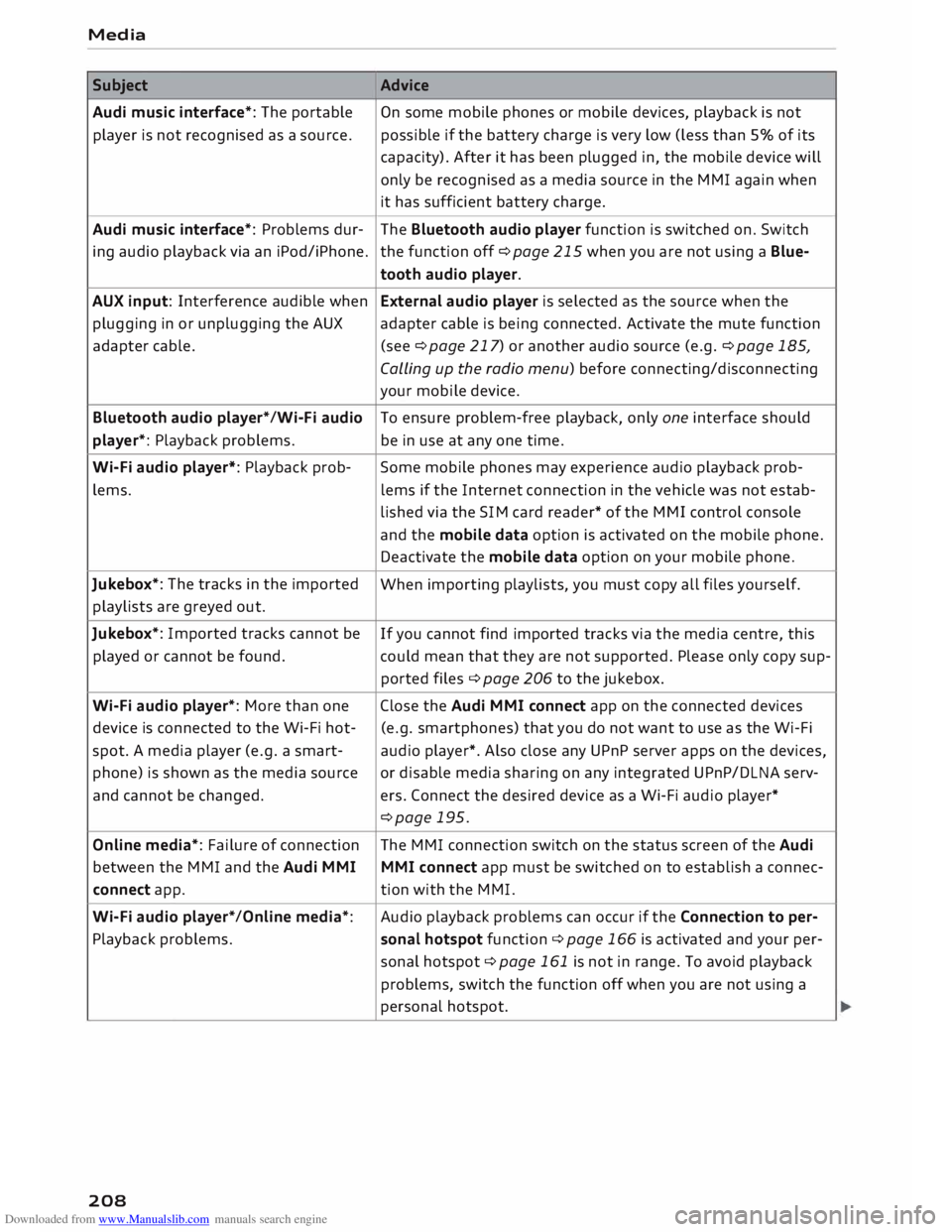
Subject Advice
Audi music interface*: The portable
On some mobile phones or mobile devices, playback is not
player is not recognised as a source. possible
if the battery charge is very low (less than 5% of its
capacity). After it has been plugged in, the mobile device will
only be recognised as a media source in the MMI again when
it has sufficient battery charge.
Audi music interface*: Problems dur-
The Bluetooth audio player function is switched on. Switch
ing audio playback via an iPod/iPhone. the function off ¢page 215 when you are not using a Blue-
tooth audio player.
AUX input: Interference audible when External audio player is selected as the source when the
plugging in or unplugging the AUX adapter cable is being connected. Activate the mute function
adapter cable. (see ¢page 217) or another audio source (e.g. ¢page 185,
Calling up the radio menu) before connecting/disconnecting
your mobile device.
Bluetooth audio player*/Wi-Fi audio
To ensure problem-free playback, only one interface should
player*: Playback problems. be in use at any one time.
Wi-Fi audio player*: Playback prob-
Some mobile phones may experience audio playback prob-
lems. lems
if the Internet connection in the vehicle was not estab-
lished via the SIM card reader* of the MMI control console
and the mobile data option is activated on the mobile phone.
Deactivate the mobile data option on your mobile phone.
Jukebox*: The tracks in the imported
When importing playlists, you must copy all files yourself.
playlists are greyed out.
Jukebox*: Imported tracks cannot be
If you cannot find imported tracks via the media centre, this
played or cannot be found. could mean that they are not supported. Please only copy sup-
ported files¢ page 206 to the jukebox.
Wi-Fi audio player*: More than one Close the Audi MMI connect app on the connected devices
device is connected to the Wi-Fi hot- (e.g.
smartphones) that you do not want to use as the Wi-Fi
spot. A media player (e.g. a smart-
audio player*. Also close any UPnP server apps on the devices,
phone) is shown as the media source
or disable media sharing on any integrated UPnP/DLNA serv-
and cannot be changed. ers. Connect the desired device as a Wi-Fi audio player*
¢page 195.
Online media*: Failure of connection The MMI connection switch on the status screen of the Audi
between the MMI and the Audi MMI
MMI connect app must be switched on to establish a connec-
connect app. tion
with the MMI.
Wi-Fi audio player* /Online media*: Audio
playback problems can occur if the Connection to per-
Playback problems. sonal
hotspot function¢ page 166 is activated and your per-
sonal hotspot ¢ page 161 is not in range. To avoid playback
problems, switch the function off when you are not using a
personal hotspot.
208
Page 214 of 306
Downloaded from www.Manualslib.com manuals search engine System
settings
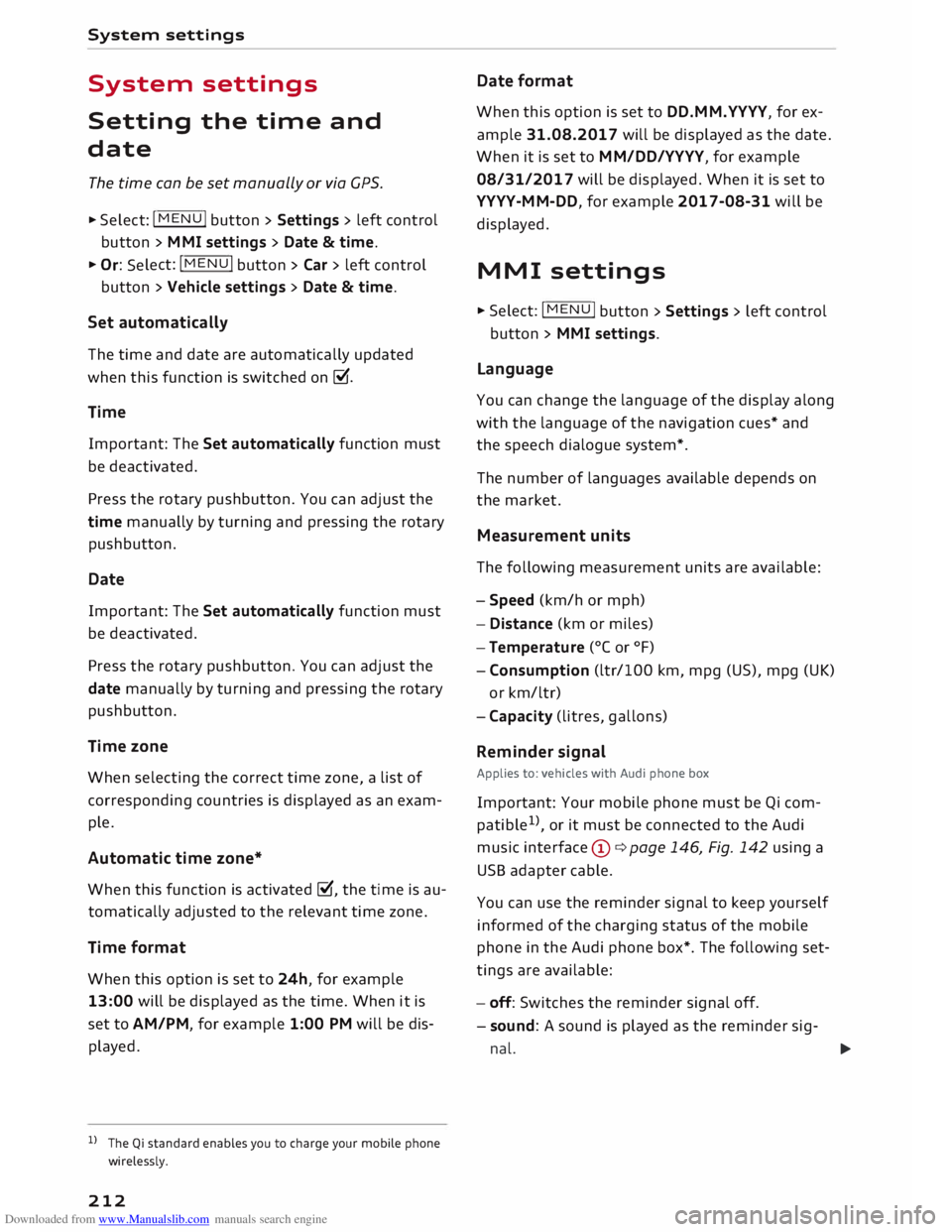
System settings
Setting the time and
date
The time can be set manually or via CPS.
... Select: I MEN
U
I button > Settings > left control
button > MMI settings > Date & time ....
Or: Select: !MENU! button
> Car > left control
button > Vehicle settings > Date & time.
Set automatically
The time and date are automatically updated
when this function is switched on�-
Time Important: The Set automatically function must
be deactivated.
Press the rotary pushbutton. You can adjust the
time manually by turning and pressing the rotary
pushbutton.
Date
Important: The Set automatically function must
be deactivated.
Press the rotary pushbutton. You can adjust the
date manually by turning and pressing the rotary
pushbutton.
Time zone
When selecting the correct time zone, a list of
corresponding countries is displayed as an exam
ple.
Automatic time zone*
When this function is activated �, the time is au
tomatically adjusted to the relevant time zone.
Time format
When this option is set to 24h, for example
13:00 will be displayed as the time. When it is
set to AM/PM, for example 1:00 PM will be dis
played.
l l
The Qi standard enables you to charge your mobile phone
wirelessly.
212 Date
format
When this option is set to DD.MM.YYYY, for ex
ample 31.08.2017 will be displayed as the date.
When it is set to MM/DD/YYYY, for example
08/31/2017 will be displayed. When it is set to
YYYY-MM-DD, for example 2017-08-31 will be
displayed.
MMI settings
... Select: I MEN
U
I button >Settings> Left control
button > MMI settings.
Language
You can change the language of the display along
with the language of the navigation cues* and
the speech dialogue system*.
The number of languages available depends on
the market.
Measurement units
The following measurement units are available:
- Speed (km/h or mph)
- Distance (km or miles)
- Temperature (0
( or °F)
- Consumption (ltr/100 km, mpg (US), mpg (UK)
or km/ltr)
- Capacity (litres, gallons)
Reminder signal
Applies to: vehicles with Audi phone box
Important: Your mobile phone must be Qi com
patible 1
>
, or it must be connected to the Audi
music interface (!)¢ page 146, Fig. 142 using a
USB adapter cable.
You can use the reminder signal to keep yourself
informed of the charging status of the mobile
phone in the Audi phone box*. The following set
tings are available:
- off: Switches the reminder signal off.
- sound: A sound is played as the reminder sig-
nal. �