change time AUDI TT ROADSTER 2016 User Guide
[x] Cancel search | Manufacturer: AUDI, Model Year: 2016, Model line: TT ROADSTER, Model: AUDI TT ROADSTER 2016Pages: 306, PDF Size: 31.82 MB
Page 69 of 306
Downloaded from www.Manualslib.com manuals search engine 0
N
,.....
N
......
0
,.....
Vl
CX) -
Do NOT stop the vehicle, drive in reverse or
switch off the engine before you are out of
the water.
- Bear in mind that waves created by oncom
ing traffic could exceed the permissible
wading depth of your vehicle.
- Avoid driving through salt water (corrosion).
How to improve economy and minimise
pollution
Fuel economy, environmental impact and wear
on the engine, brakes and tyres depend largely
on the way you drive the vehicle. By adopting an
economical driving style and anticipating the
traffic situation ahead, you can reduce fuel con
sumption by 10-15%. The following section gives
you some tips on lessening the impact on the en
vironment and reducing your operating costs at
the same time.
Anticipate well in advance
A car uses most fuel when accelerating. If you an
ticipate hazards and speed changes well in ad
vance, you will need to brake less and thus accel
erate less. Wherever possible, let the car slow
down gradually with a gear engaged, for in
stance when you can see that the next traffic
lights are red.
Change gear early to save fuel
An effective way of saving fuel is to change up
quickly through the gears. Running the engine at
high rpm in the lower gears uses an unnecessary
amount of fuel. Press the accelerator slowly and
avoid using the "kick-down" feature.
Avoid driving at high speed
Avoid travelling at top speed. Fuel consumption,
exhaust emissions and noise levels all increase
very rapidly at higher speeds. Driving at moder
ate speeds will help to save fuel.
Do not let the engine idle for longer than
necessary
Engine idling periods are automatically reduced
on vehicles with start/stop system*. On vehicles
without start/stop system*, it is worthwhile
switching off the engine at level crossings, for in- Driving
stance, or at traffic lights with a long red phase.
The fuel saved after only 30 -40 seconds is
greater than the amount of fuel needed to re
start the engine.
The engine takes a very long time to warm up
when it is running at idling speed. Mechanical
wear and pollutant emissions are also especially
high during this initial warm-up phase. It is
therefore best to drive off immediately after
starting the engine. Avoid running the engine at
high speed.
Regular servicing
Regular servicing can establish a basis for good
fuel economy before you start driving. A well
serviced engine gives you the benefit of im
proved fuel efficiency as well as maximum relia
bility and an enhanced resale value.
A poorly maintained engine can consume up to
ten percent more fuel than necessary.
Check the oil level when filling the tank. Oil con
sumption depends to a great extent on the en
gine load and engine speed. It is quite normal
that the oil consumption of a new engine only
reaches its lowest level after a certain mileage.
This means that the oil consumption can only be
properly assessed after about 5,000 km.
Avoid short trips
The engine and emission control system need to
reach their proper working temperature in order
to minimise fuel consumption and emissions.
A cold engine uses disproportionately more fuel.
The engine only reaches its working temperature
after about four kilometres, when fuel consump
tion will return to a normal level.
Check tyre pressures
Always make sure the tyres are inflated to the
correct tyre pressures to save fuel. If the tyre
pressures are just 0.5 bar too low, this can in
crease the fuel consumption by as much as 5 %.
Due to the greater rolling resistance, under-infla
tion also increases tyre wear and impairs han
dling.
67
Page 80 of 306
Downloaded from www.Manualslib.com manuals search engine Driving
while the engine is running, you must apply
the parking brake and engage the parking
lock P.
- To avoid accidents, apply the parking brake
and put the selector lever in position P be
fore opening the bonnet and working on the
vehicle with the engine running. Please ob
serve the important safety warnings
¢ page 244, Working on components in
the engine comportment.
Ct) Note
- Drive select: You can select the sport pro
gram for gear changes by activating the dy
namic mode. The infotainment display will
show S instead of D.
- If the lever is moved accidentally to N when
driving, take your foot off the accelerator
and let the engine speed drop to idling be
fore selecting Dor S again.
- It is not possible to move the selector lever
out of position P if the electrical power sup
ply fails. In this case, the selector lever can
be released manually. Left-hand drive
vehicles ¢page 84, right-hand drive
vehicles ¢page 85.
Selector lever lock
Applies to: vehicles with automatic gearbox
The selector Lever Lock prevents gears from being
engaged inadvertently, so that the vehicle is not
set in motion unintentionally.
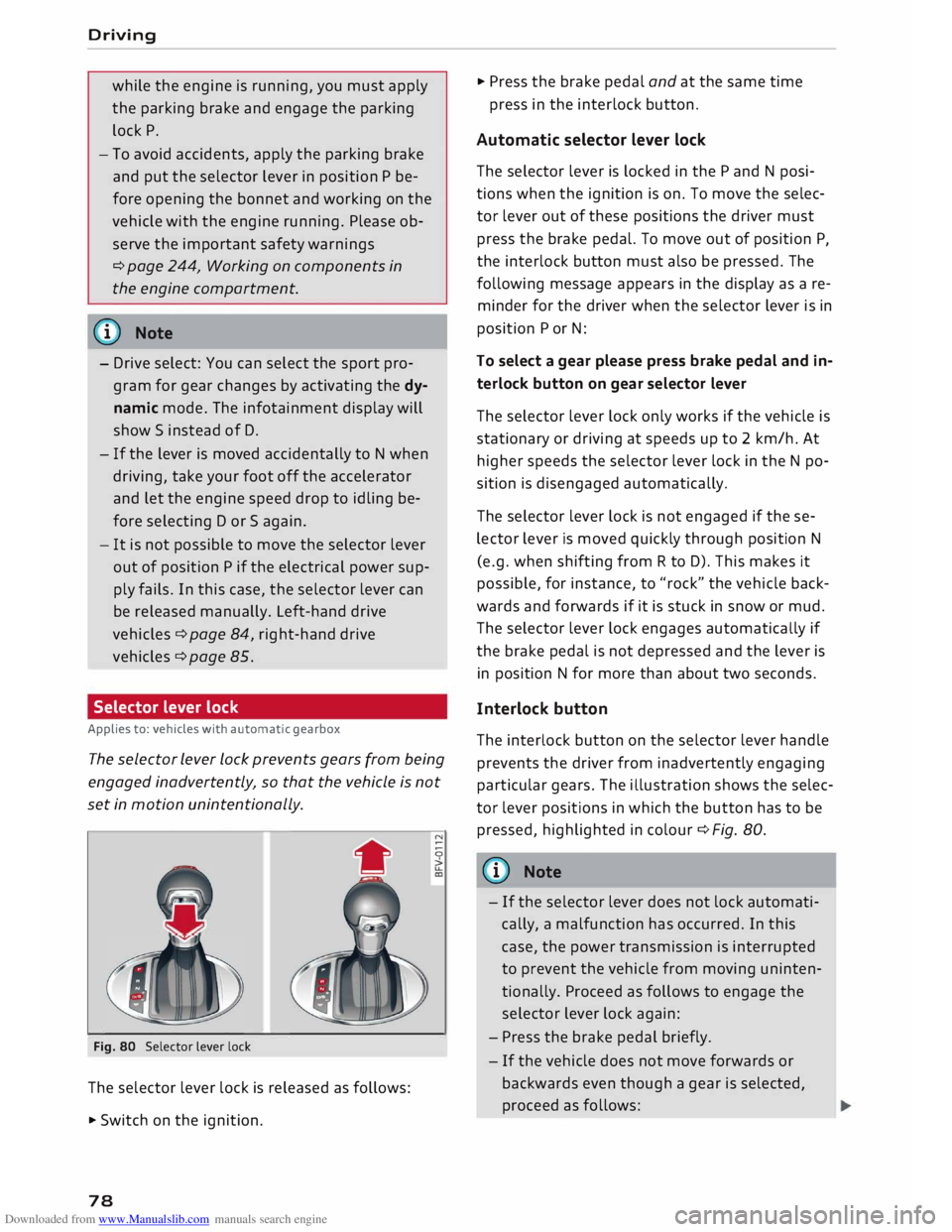
Fig. 80 Selector lever lock
The selector lever lock is released as follows:
• Switch on the ignition.
78 •
Press the brake pedal and at the same time
press in the interlock button.
Automatic selector lever lock
The selector lever is locked in the P and N posi
tions when the ignition is on. To move the selec
tor lever out of these positions the driver must
press the brake pedal. To move out of position P,
the interlock button must also be pressed. The
following message appears in the display as a re
minder for the driver when the selector lever is in
position P or N:
To select a gear please press brake pedal and in
terlock button on gear selector lever
The selector lever lock only works if the vehicle is
stationary or driving at speeds up to 2 km/h. At
higher speeds the selector lever lock in the N po
sition is disengaged automatically.
The selector lever lock is not engaged if the se
lector lever is moved quickly through position N
(e.g. when shifting from R to D). This makes it
possible, for instance, to "rock" the vehicle back
wards and forwards if it is stuck in snow or mud.
The selector lever lock engages automatically if
the brake pedal is not depressed and the lever is
in position N for more than about two seconds.
Interlock button
The interlock button on the selector lever handle
prevents the driver from inadvertently engaging
particular gears. The illustration shows the selec
tor lever positions in which the button has to be
pressed, highlighted in colour¢ Fig. 80.
{(D) Note
- If the selector lever does not lock automati
cally, a malfunction has occurred. In this
case, the power transmission is interrupted
to prevent the vehicle from moving uninten
tionally. Proceed as follows to engage the
selector lever lock again:
- Press the brake pedal briefly.
- If the vehicle does not move forwards or
backwards even though a gear is selected,
proceed as follows:
Page 83 of 306
Downloaded from www.Manualslib.com manuals search engine I&
WARNING
The downhill speed control function cannot
defy the laws of physics and may therefore
not be able to maintain a constant speed in
certain circumstances. Always be prepared to
use the brakes!
Manual gear selection (tiptronic mode)
Applies to: vehicles with automatic gearbox
The tiptronic feature allows the driver to also
change gear manually.
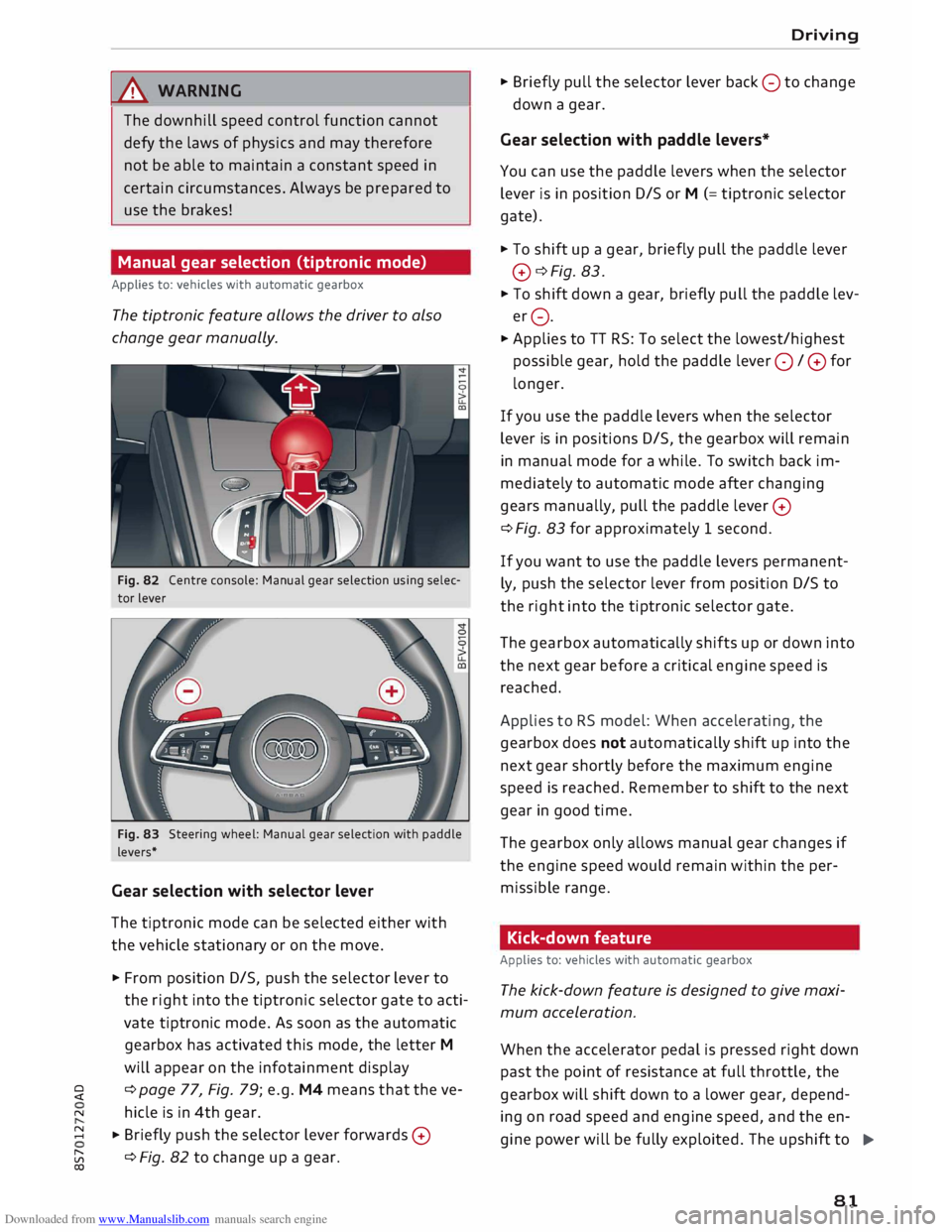
Fig. 82 Centre console: Manual gear selection using selec
tor lever
Fig. 83 Steering wheel: Manual gear selection with paddle
levers*
Gear selection with selector lever
The tiptronic mode can be selected either with
the vehicle stationary or on the move.
� From position D/S, push the selector lever to
the right into the tiptronic selector gate to acti
vate tiptronic mode. As soon as the automatic
gearbox has activated this mode, the letter M
will appear on the infotainment display
� ¢
page 77, Fig. 79; e.g. M4 means that the ve-
N hicle is in 4th gear.
� � Briefly
push the selector lever forwards 0
[;:j ¢
Fig. 82 to change up a gear.
CX) Driving
� Briefly pull the selector lever back 0 to change
down a gear.
Gear selection with paddle levers*
You can use the paddle levers when the selector
lever is in position D/S or M (= tiptronic selector
gate).
� To shift up a gear, briefly pull the paddle lever
0 ¢Fig. 83.
� To shift down a gear, briefly pull the paddle lev
er 0.
� Applies to TT RS: To select the lowest/highest
possible gear, hold the paddle lever 0 / 0 for
longer.
If you use the paddle levers when the selector
lever is in positions D/S, the gearbox will remain
in manual mode for a while. To switch back im
mediately to automatic mode after changing
gears manually, pull the paddle lever 0
¢ Fig. 83 for approximately 1 second.
If you want to use the paddle levers permanent
ly, push the selector lever from position D/S to
the right into the tiptronic selector gate.
The gearbox automatically shifts up or down into
the next gear before a critical engine speed is
reached.
Applies to RS model: When accelerating, the
gearbox does not automatically shift up into the
next gear shortly before the maximum engine
speed is reached. Remember to shift to the next
gear in good time.
The gearbox only allows manual gear changes if
the engine speed would remain within the per
missible range.
Kick-down feature
Applies to: vehicles with automatic gearbox
The kick-down feature is designed to give maxi
mum acceleration.
When the accelerator pedal is pressed right down
past the point of resistance at full throttle, the
gearbox will shift down to a lower gear, depend-
ing on road speed and engine speed, and the en
gine power will be fully exploited. The upshift to
.,..
81
Page 88 of 306
Downloaded from www.Manualslib.com manuals search engine Driver
assist systems
Driver assist systems
Speed warning function
Applies to: vehicles with speed warning function
The speed warning function can help you keep
below a pre-set maximum speed. It can be set,
changed and deleted on the infotainment sys
tem.
The speed warning function will warn you if the
vehicle exceeds the pre-set maximum speed. The
system gives an audible warning signal if the set
speed is exceeded by a small amount. At the
same time, an indicator lamp� and a message
will appear on the instrument cluster display.
The indicator lamp [9] and the message will dis
appear when the road speed drops below the set
value.
You are recommended to store this speed limit
warning if you wish to be reminded of a particu
lar speed limit. This could be when driving in
countries with general speed limits, or if you
need to keep below a particular speed when win
ter tyres are fitted, etc.
Setting speed limit warning
... Select the following on the infotainment sys
tem: I MENU
I button > Car > left control button
> Driver assist> Speed warning > manual.
(i) Note
- Please bear in mind that, even with the
speed warning function, it is still important
to keep a check on the car's speed with the
speedometer and to observe the statutory
speed limits.
- On vehicles for some markets, the speed
warning function warns you when you reach
a speed of 120 km/h. This speed limit warn
ing is preset at the factory.
86 Cruise
control system
Switching on
Applies to: vehicles with cruise control system
The cruise control system allows you to drive at a
constant speed of 20 km/h or higher.
0
f
� 0
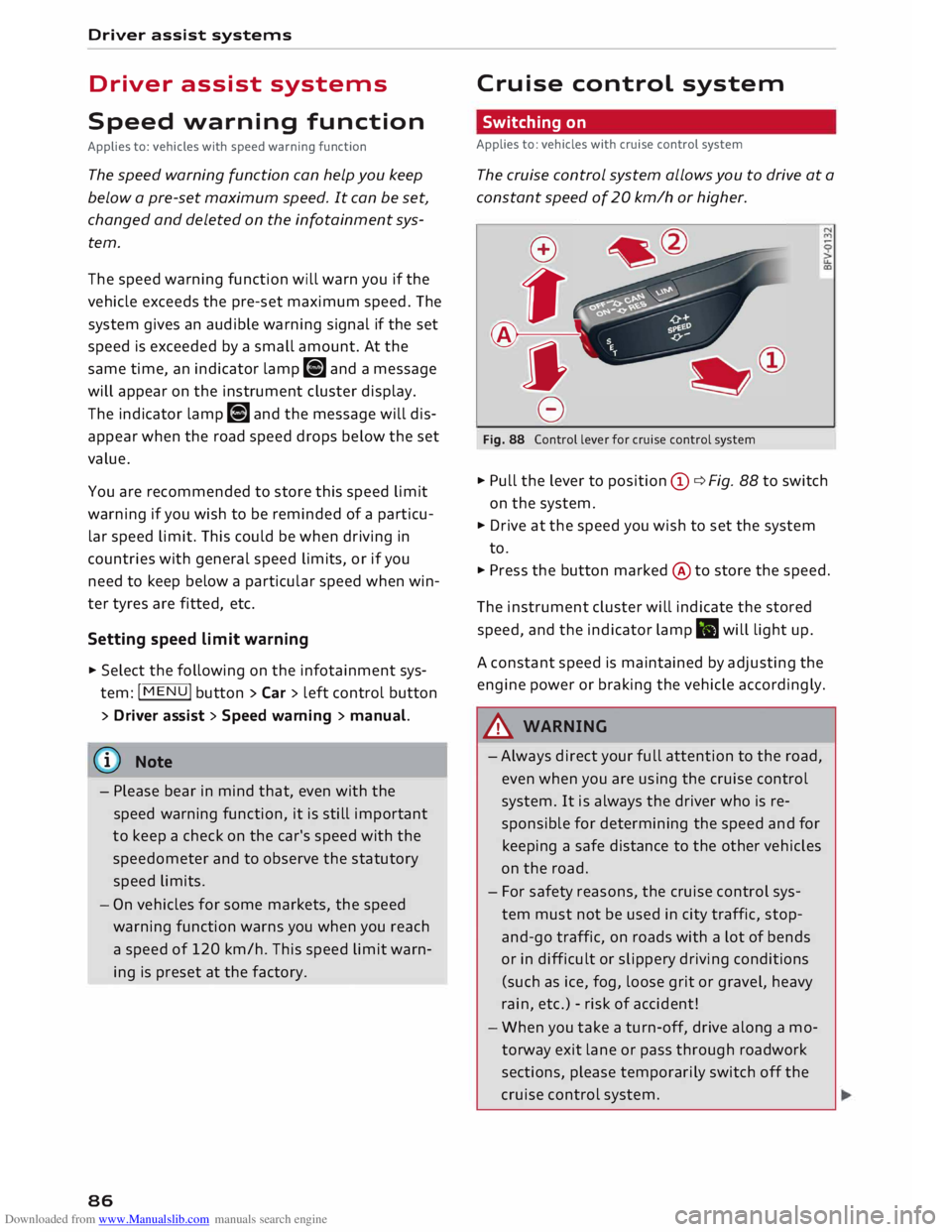
Fig. 88 Control lever for cruise control system
... Pull the lever to position (D ¢ Fig. 88 to switch
on the system.
... Drive at the speed you wish to set the system
to.
... Press the button marked @to store the speed.
The instrument cluster will indicate the stored
speed, and the indicator lamp .. will light up.
A constant speed is maintained by adjusting the
engine power or braking the vehicle accordingly.
A WARNING
- Always direct your full attention to the road,
even when you are using the cruise control
system. It is always the driver who is re
sponsible for determining the speed and for
keeping a safe distance to the other vehicles
on the road.
- For safety reasons, the cruise control sys
tem must not be used in city traffic, stop
and-go traffic, on roads with a lot of bends
or in difficult or slippery driving conditions
(such as ice, fog, loose grit or gravel, heavy
rain, etc.) -risk of accident!
- When you take a turn-off, drive along a mo
torway exit lane or pass through roadwork
sections, please temporarily switch off the
cruise control system.
Page 89 of 306
Downloaded from www.Manualslib.com manuals search engine -
Make sure you do not unintentionally rest
your foot on the accelerator -this will over
ride the cruise control system which, as a re
sult, will not brake the vehicle.
- The automatic braking function may be de
activated if a system fault occurs in the
brake system (e.g. if the brakes overheat)
while the cruise control system is activated.
All the other cruise control functions remain
activated as long as the indicator lamp.
is
lit.
@ Note
- Vehicles with manual gearbox: The set
speed cannot be reached if the currently se
lected gear is too high or too low or if the
engine would overrev or fail to run smoothly
at the target speed. Make sure to change up
or down a gear in good time.
- The brake lights come on when the system
brakes the vehicle.
Adjusting the speed
Applies to: vehicles with cruise control system
... To increase or reduce the cruising speed in
steps of 1 km/h, briefly push the lever one lev
el upwards or downwards towards
GY0
¢ page 86, Fig. 88 .
.., To increase or reduce the cruising speed in
steps of 10 km/h, briefly push the lever two
levels upwards or downwards towards
GY 0
¢ page 86, Fig. 88 .
.., To increase or reduce the speed gradually, hold
the Lever towards
GYO until
you reach the de
sired cruising speed.
Overriding the set speed
Applies to: vehicles with cruise control system
You can use the accelerator pedal to increase
speed in the normal way, for example to overtake
another vehicle. Once you release the accelera
tor, the system will revert to the speed you stor
ed initially.
� However,
if the vehicle exceeds the programmed
� speed
significantly for a long time, the cruise
::2 control
system will be deactivated temporarily.
Vl
CX) Driver
assist systems
The indicator lamp.
in the instrument cluster
will go out, but the programmed speed will re
main stored.
Pre-selecting a speed
Applies to: vehicles with cruise control system
You can pre-select a desired speed while the ve
hicle is stationary.
.., Switch on the ignition .
... Pull the Lever to position
(!)¢
page 86, Fig. 88.
... Press the Lever up towards 0 or down towards
0 in order to increase or reduce the cruising
speed setting.
This function allows you to enter the desired
cruise control setting speed ahead of time, for
example before joining a motorway. Once you are
on the motorway, you can activate the cruise con
trol system by pulling the Lever to position
(!).
Switching off
Applies to: vehicles with cruise control system
Switching off temporarily
... Press the brake pedal, or
.., Push the lever towards
@ (click
stop not en
gaged) ¢ page 86, Fig. 88.
Switching off completely
.., Push the Lever to position
@ (click
stop engag-
ed), or
.., Switch off the ignition.
The speed setting will remain stored after the
system is temporarily deactivated. To resume the
programmed cruising speed, release the clutch
or brake pedal and pull the lever to position
(!).
The stored speed will be deleted once the igni
tion is switched off.
.&, WARNING
Do not resume the programmed cruising
speed if this is too high for the traffic condi
tions -this can cause accidents.
87
Page 92 of 306
Downloaded from www.Manualslib.com manuals search engine Driver
assist systems
Camera-based traffic
sign recognition
Description
Applies to: vehicles with camera-based traffic sign recogni
tion
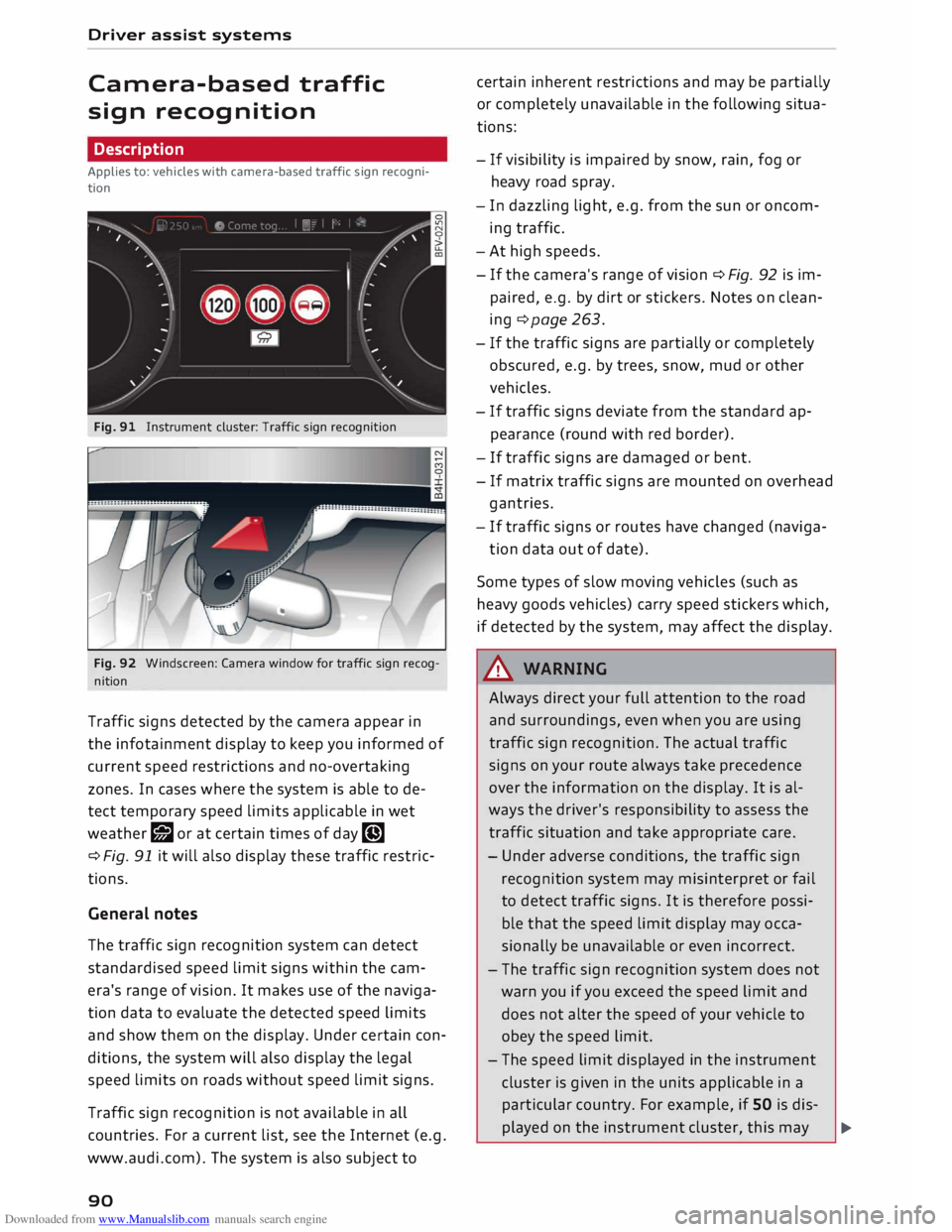
Fig. 91 Instrument cluster: Traffic sign recognition
Fig. 92 Windscreen: Camera window for traffic sign recog
nition
Traffic signs detected by the camera appear in
the infotainment display to keep you informed of
current speed restrictions and no-overtaking
zones. In cases where the system is able to de
tect temporary speed limits applicable in wet
weather r;J or at certain times of day �
¢ Fig. 91 it will also display these traffic restric
tions.
General notes
The traffic sign recognition system can detect
standardised speed limit signs within the cam
era's range of vision. It makes use of the naviga
tion data to evaluate the detected speed limits
and show them on the display. Under certain con
ditions, the system will also display the legal
speed limits on roads without speed limit signs.
Traffic sign recognition is not available in all
countries. For a current list, see the Internet (e.g.
www.audi.com). The system is also subject to
90 certain
inherent restrictions and may be partially
or completely unavailable in the following situa
tions:
- If visibility is impaired by snow, rain, fog or
heavy road spray.
- In dazzling light, e.g. from the sun or oncom
ing traffic.
- At high speeds.
- If the camera's range of vision ¢ Fig. 92 is im-
paired, e.g. by dirt or stickers. Notes on clean
ing ¢page 263.
- If the traffic signs are partially or completely
obscured, e.g. by trees, snow, mud or other
vehicles.
- If traffic signs deviate from the standard ap
pearance (round with red border).
- If traffic signs are damaged or bent.
- If matrix traffic signs are mounted on overhead
gantries.
- If traffic signs or routes have changed (naviga-
tion data out of date).
Some types of slow moving vehicles (such as
heavy goods vehicles) carry speed stickers which,
if detected by the system, may affect the display.
A WARNING
Always direct your full attention to the road
and surroundings, even when you are using
traffic sign recognition. The actual traffic
signs on your route always take precedence
over the information on the display. It is al
ways the driver's responsibility to assess the
traffic situation and take appropriate care.
- Under adverse conditions, the traffic sign
recognition system may misinterpret or fail
to detect traffic signs. It is therefore possi
ble that the speed limit display may occa
sionally be unavailable or even incorrect.
- The traffic sign recognition system does not
warn you if you exceed the speed limit and
does not alter the speed of your vehicle to
obey the speed limit.
- The speed limit displayed in the instrument
cluster is given in the units applicable in a
particular country. For example, if SO is dis-
played on the instrument cluster, this may �
Page 94 of 306
Downloaded from www.Manualslib.com manuals search engine Driver
assist systems
Audi active Lane assist
(Lane departure warning
feature)
Description
Applies to: vehicles with Audi active lane assist
The active lane assist uses a camera in the wind
screen to detect lane markings (subject to gener
al system limitations). If you approach one of the
detected lane markings, the system corrects the
steering to warn you that the vehicle might be
about to cross one of the markings. You can over
ride this steering input at any time. The steering
wheel vibrates slightly if you cross a lane mark
ing. The vibration warning must be activated be
forehand on the infotainment system. The active
lane assist is functional when it detects a demar
cation line on at least one side of the lane in
which you are driving.
As the system is designed for driving on motor
ways and other major roads, it is only active
above a speed of about 65 km/h (may vary in dif
ferent export markets).
Applies to vehicles with side assist*: If you oper
ate the turn signals while the active lane assist
and side assist are active, the steering will be cor
rected just before you cross the lane demarcation
if the side assist detects vehicles approaching
quickly or travelling at about the same speed as
your own vehicle and judges the situation to be
critical. This intervention is intended to keep the
vehicle in the lane.
Applies to vehicles without side assist*: The sys
tem does not warn you if you operate the turn
signal before crossing a lane demarcation. In this
case, it assumes that you intend to change lanes.
A WARNING
- The system initiates a corrective steering in
put to warn the driver that the vehicle is
about to leave the lane. As the driver you
are always responsible for staying in your
own lane.
l l
The steering input function is not available on all export
versions.
92 -
The system can assist you to keep the vehi
cle in the lane, however it is not capable of
driving on its own. Never take your hands
off the steering wheel.
- In certain situations, e.g. during heavy brak
ing, the system may not correct the steer
ing.
- In certain circumstances, not all of the lane
markings may be detected by the camera. A
corrective steering input can only be initi
ated if the system detects a lane marking on
the side in question.
- Variations in the road surface or objects on
the road may be misinterpreted as lane
markings. In this case, the steering may be
corrected unexpectedly or not at all.
- The camera's view might be obstructed, for
example by vehicles travelling in front, rain,
snow, a lot of water on the road, adverse
light or dirt on the windscreen. If this hap
pens, the active lane assist may not detect
the lane markings or may respond incorrect
ly.
- In certain circumstances, for instance if visi
bility is poor, the setting for the steering in
put may be switched
internally
from "early"
to"late" l)_
- In certain driving conditions, such as ruts in
the road surface, adverse cambers or side
winds, the assistance provided by the steer
ing correction may be insufficient to keep
the vehicle in the middle of the lane.
- For safety reasons, the active lane assist
must not be used in poor weather or in diffi
cult or slippery road conditions (such as ice,
fog, loose grit or gravel, heavy rain, snow,
etc.) -risk of accident!
Page 96 of 306
Downloaded from www.Manualslib.com manuals search engine Driver
assist systems
This message is displayed when the camera is no
longer functional after the system has continu
ously failed to detect the lane markings. This can
have the following causes:
- The outside of the camera window¢ page 93,
Fig. 95 is dirty or frosted. Remove dirt or ice
from this area of the windscreen.
- The inside of the camera window is misted up.
In this case, wait for the camera window to de
mist before switching on the active lane assist
system again.
- Due to the road conditions, the system has not
been able to detect the lane markings for a
long period. Do not switch the active lane assist
system on again before the lane markings are
discernible.
Audi active lane assist: currently unavailable.
See owner's manual
A temporary fault is preventing the active lane
assist system from being switched on. Try switch
ing on the active lane assist system again later.
Audi active lane assist: fault. See owner's man
ual
Drive to a qualified workshop soon and have the
fault rectified.
Audi active lane assist: please take over steering
This message will appear if you do not steer the
vehicle yourself. In this case, the active lane as
sist will switch to "not ready for warning" but will
not be deactivated completely. The system can
assist you to keep the vehicle in the lane. Howev
er it is your own responsibility to steer and con
trol the vehicle.
A WARNING
Please note that the messages only appear
with a delay or are not displayed at all on
vehicles with additional equipment (such as
steering wheel knobs) fitted on the steering
wheel. Always keep your hands on the steer
ing wheel.
l l
The steering input function is not available on all export
versions.
94 Setting
the steering input time and
vibration warning
Applies to: vehicles with Audi active lane assist
You can change the active Lane assist settings on
the infotainment system to suit your individual
preferences.
Select the following
on the infotainment system:
!MENU! button> Car > left control button> Driv
er assist > Audi active lane assist.
Steering input1
)
early: If this setting is selected, a continuous
steering input assists the driver to keep the vehi
cle in the middle of the lane.
late: If this setting is selected, the steering is not
corrected until just before a wheel touches a de
tected lane marking.
Vibration warning
You can switch the additional steering wheel vi
bration warning on/off.
(Q'j) Note
Your personal settings are stored automati
cally and assigned to the remote control key
which is being used (only applies to some
countries).
Lap timer
Introduction
Applies to: vehicles with lap timer
Lap timer
You can use the lap timer in the display to record
and evaluate lap times. The times are recorded in
minutes, seconds and tenths of a second. The
hour will appear in the display and the tenths of a
second will disappear if the session lasts for over
60 minutes.
Individual lap times stop automatically after
99 hours 59 minutes and 59 seconds. A new lap
will then start automatically.
�
Page 101 of 306
Downloaded from www.Manualslib.com manuals search engine 0
N
,.....
N
......
0
,.....
Vl
CX) -
In certain situations, the system may not
function properly, or the functionality of the
system may be restricted. For example:
- If other vehicles are approaching very
quickly, or if you are overtaking other
vehicles quickly. The warning lamp may
not light up in time.
- In poor weather conditions, such as heavy
rain, snow or road spray.
- If you are travelling in very wide lanes, in
tight bends or over crests. The system
may not detect vehicles in the adjacent
lane because they are outside the area
covered by the sensors.
CD CAUTION
Impacts or damage to the bumper, wheel
arches or underbody can cause misalignment
of the sensors. This can impair the functional
ity of the system. Have the systems checked
by a qualified workshop.
(D} Note
The warning lamps on the exterior mirrors
may not be properly visible if tinted foil is af
fixed to the side windows on the driver's or
passenger's side.
Switching on and off
Applies to: vehicles with Audi side assist
The system can be switched on and off on the in
fotainment system.
"' Select the following on the infotainment sys
tem: I MENU I button >Car> left control button
> Driver assist> Audi side assist.
The warning lamps in the exterior mirrors light
up briefly each time the ignition is switched on to
indicate that the system is activated. Driver
assist systems
Adjusting brightness of warning lamp
Applies to: vehicles with Audi side assist
The brightness of the warning lamp can be ad
justed on the infotainment system.
"' Select the following on the infotainment sys
tem: I MENU I button >Car> left control button
> Driver assist> Audi side assist.
The brightness of the warning lamp in both the
information and warning modes is regulated au
tomatically according to the ambient light level.
If you are in very dark or very light surroundings
when you adjust the brightness of the warning
lamp, the automatic brightness control may al
ready have reached the lowest or the brightest
setting. In such a case it is possible that you
won't notice a difference while you are adjusting
the brightness or that you will only notice it once
the light surroundings have changed.
Please adjust the brightness of the warning lamp
for the information mode so that it does not dis
tract you while you are looking at the road in
front. When you change the brightness, the
warning lamp on the exterior mirror will light up
briefly with the intensity set for the information
mode. The intensity of the lamp in the warning
mode is linked to the intensity in the information
mode and is adjusted automatically.
(CD) Note
- The side assist is not active while the set
tings are being adjusted.
- Your personal settings are stored automati
cally and assigned to the remote control key
which is being used.
Driver messages
Applies to: vehicles with Audi side assist
Should the side assist be deactivated automati
cally, a driver message will appear on the info
tainment display.
@j Audi
side assist: currently unavailable.
Sensor view restricted due to surroundi ngs.
See owner's manual
The radar sensors are blocked. The area in front
of the sensors must not be obstructed by bicycle
..,..
99
Page 122 of 306
Downloaded from www.Manualslib.com manuals search engine Intelligent
technology
with an airbag system, accident-related data
such as impact speed, seat belt status, seat posi
tions and trigger times can be saved. The exact
information saved depends on the manufacturer.
The installation of an event data recorder is sub
ject to the agreement of the vehicle's owner. This
process is governed by legislation in some coun
tries.
Reprogramming control units
All data for controlling components are saved in
the control units. Some convenience features,
such as one-touch signalling, single door unlock
ing and display messages can be reprogrammed
using special workshop equipment. If any con
venience features are reprogrammed, the infor
mation in this Owner's Manual will no longer be
accurate for the features that have been
changed. We recommend having the reprogram
ming approved.
Your Audi dealer will be able to provide you with
information about possible reprogramming op
tions.
Event memory
There is a diagnostic connection for reading out
the event memory located in the footwell on the
driver's side of the vehicle. Information regard
ing the operation and status of the vehicle's elec
tronic control units is stored in the event memo
ry. The event memory should only be read out
and erased by a qualified workshop.
A WARNING
The diagnostic connection must not be used
for other purposes. Incorrect use can cause
malfunctions -risk of accident!
120