key AUDI TT ROADSTER 2016 Owner's Manual
[x] Cancel search | Manufacturer: AUDI, Model Year: 2016, Model line: TT ROADSTER, Model: AUDI TT ROADSTER 2016Pages: 306, PDF Size: 31.82 MB
Page 77 of 306
Downloaded from www.Manualslib.com manuals search engine 0
N
,.....
N
......
0
,.....
Vl
CX) A
WARNING
- Never press the accelerator pedal or release
the clutch inadvertently if a gear is engaged
or if the selector lever is not in position P or
N (on automatic vehicles) while the vehicle
is stationary with the engine running. The
vehicle will otherwise start moving immedi
ately and could cause an accident.
- You should only use the emergency braking
function in a real emergency, for example if
the brake system were to fail or if the brake
pedal were to be obstructed. If you use the
emergency braking function by activating
the parking brake switch, this has the same
effect as heavy braking. Please remember
that the ESC (and the integrated ABS, EDL
and traction control functions) is still sub
ject to certain physical limits. In a corner or
in bad road or weather conditions an emer
gency stop can cause the vehicle to skid or
lose steering control.
- It is not possible to apply the parking brake
if the electrical power supply fails. In this
case, park the vehicle on a level surface and
select 1st gear (manual gearbox) or move
the selector lever to position P (automatic
gearbox) to prevent it from rolling. Obtain
professional assistance.
- Always take the key with you when leaving
your vehicle -even if you only intend to be
gone for a short time. This is especially im
portant if children are left in the car. They
might otherwise be able to start the engine,
release the parking brake or use power-op
erated equipment such as the electric win
dows -this could lead to injuries.
- Do not leave anyone (especially children) in
the vehicle when it is locked. Locked doors
could delay assistance in an emergency, po
tentially putting lives at risk.
Applies to: vehicles with automatic gearbox
You can apply the parking brake manually or
switch on the hold assist* when stopping at
traffic lights, etc. You do not then have to
hold the car with the brake pedal, as the Driving
brakes will stop it creeping forward while a
gear is engaged in the automatic transmis
sion. When you drive off in the normal way,
the parking brake will be released automati
cally and your vehicle will start moving
¢page 75.
(CD) Note
- Any slight noise which may be heard when
the parking brake is applied or released is
quite normal and no cause for concern.
- The parking brake runs an automatic test
cycle at regular intervals when the vehicle is
parked. This may cause a slight noise, which
is normal.
- If the electrical power supply fails, it is not
possible to release the parking brake (if it
was applied) or to apply the parking brake
(if it was released) ¢ &,. Obtain professional
assistance.
Moving off
Various features and safety functions are availa
ble for driving off, depending on the equipment
in your vehicle.
Hill starting with the parking brake applied
Important: The driver's door must be closed.
� To drive off more easily on a slope, apply the
parking brake and drive off just as you usually
would. The parking brake will be released auto
matically, but not until there is enough power
at the wheels to make the vehicle move in the
desired direction.
Hill starting with the hill hold assist
The hill hold assist function makes it easier to
drive away on a slope.
Important: The driver's door must be closed and
the engine must be running.
� To activate the hill hold assist, press and hold
the brake pedal for several seconds. The vehicle
must be on a slope and facing uphill.
When you release the brake pedal the braking
force will be maintained for a moment ¢.&. in
..,.
75
Page 81 of 306
Downloaded from www.Manualslib.com manuals search engine 0
N
,.....
N
......
0
,.....
Vl
CX) -
If the vehicle does not move in the desired
direction, the system may have failed to en
gage the gear correctly. In this case, press
the brake pedal and select the gear again.
- If the vehicle still does not move in the de
sired direction, a system malfunction has
occurred. Seek professional assistance and
have the system checked.
General notes on driving an automatic
Applies to: vehicles with automatic gearbox
The gearbox changes the forward gears up and
down automatically.
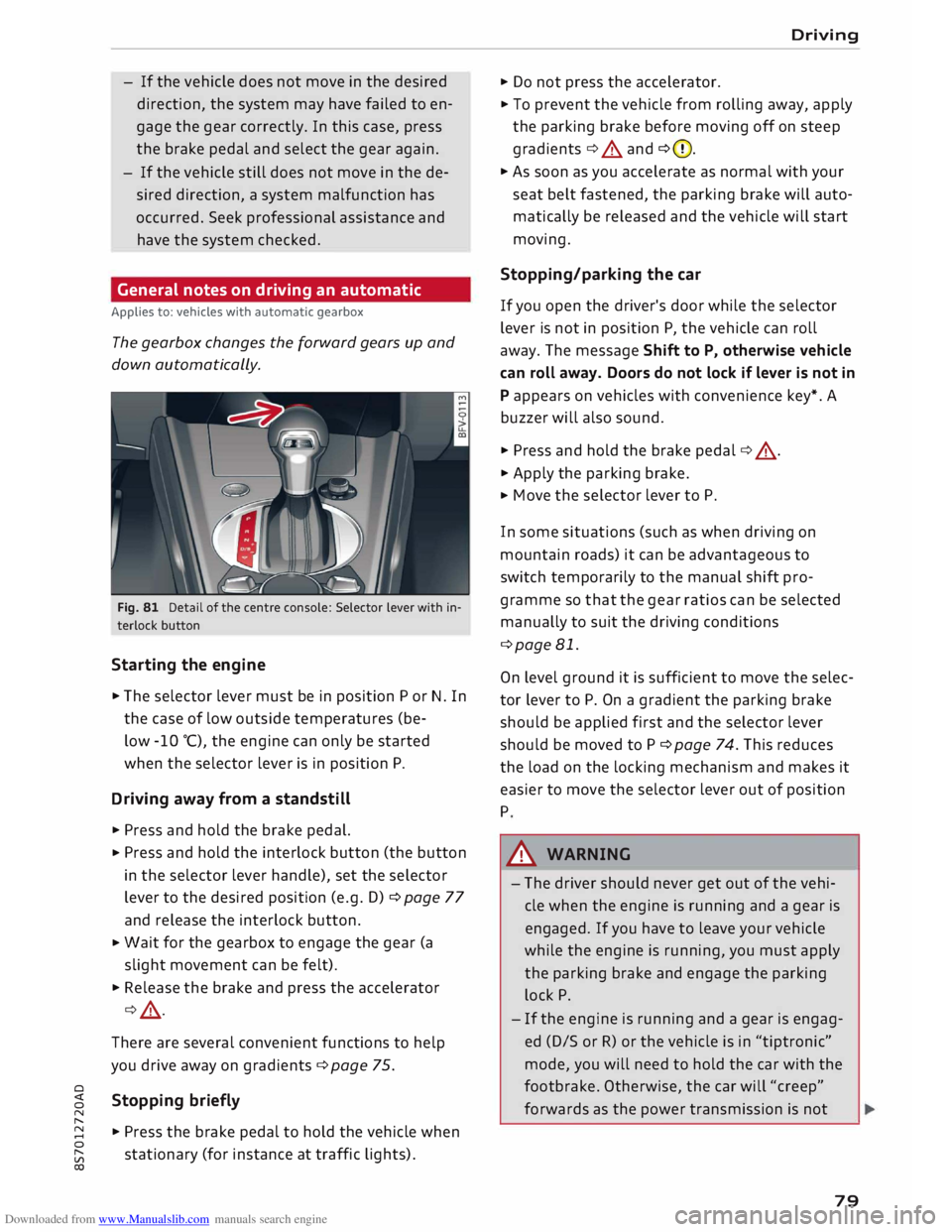
Fig. 81 Detail of the centre console: Selector lever with in
terlock button
Starting the engine
.,. The selector lever must be in position P or N. In
the case of low outside temperatures (be-
low -10 °(), the engine can only be started
when the selector lever is in position P.
Driving away from a standstill
.,. Press and hold the brake pedal.
.,. Press
and hold the interlock button (the button
in the selector lever handle), set the selector
lever to the desired position (e.g. D) ¢ page 77
and release the interlock button.
.,. Wait
for the gearbox to engage the gear (a
slight movement can be felt).
.,. Release the brake and press the accelerator
¢ .&, .
There are several convenient functions to help
you drive away on gradients ¢page 75.
Stopping briefly
.,. Press the brake pedal to hold the vehicle when
stationary (for instance at traffic lights). Driving
.,. Do not press the accelerator .
.,. To prevent the vehicle from rolling away, apply
the parking brake before moving off on steep
gradients ¢.&. and ¢(D.
.,. As soon as you accelerate as normal with your
seat belt fastened, the parking brake will auto
matically be released and the vehicle will start
moving.
Stopping/parking the car
If you open the driver's door while the selector
lever is not in position P, the vehicle can roll
away. The message Shift to P, otherwise vehicle
can roll away. Doors do not lock if lever is not in
P appears on vehicles with convenience key*. A
buzzer will also sound .
.,. Press and hold the brake pedal¢ .&, .
.,. Apply the parking brake .
.,. Move
the selector lever to P.
In some situations (such as when driving on
mountain roads) it can be advantageous to
switch temporarily to the manual shift pro
gramme so that the gear ratios can be selected
manually to suit the driving conditions
¢page 81.
On level ground it is sufficient to move the selec
tor lever to P. On a gradient the parking brake
should be applied first and the selector lever
should be moved to P ¢ page 74. This reduces
the load on the locking mechanism and makes it
easier to move the selector lever out of position
P
A WARNING
- The driver should never get out of the vehi
cle when the engine is running and a gear is
engaged. If you have to leave your vehicle
while the engine is running, you must apply
the parking brake and engage the parking
lock P.
- If the engine is running and a gear is engag
ed (D/S or R) or the vehicle is in "tiptronic"
mode, you will need to hold the car with the
footbrake. Otherwise, the car will "creep"
forwards as the power transmission is not
79
Page 96 of 306
Downloaded from www.Manualslib.com manuals search engine Driver
assist systems
This message is displayed when the camera is no
longer functional after the system has continu
ously failed to detect the lane markings. This can
have the following causes:
- The outside of the camera window¢ page 93,
Fig. 95 is dirty or frosted. Remove dirt or ice
from this area of the windscreen.
- The inside of the camera window is misted up.
In this case, wait for the camera window to de
mist before switching on the active lane assist
system again.
- Due to the road conditions, the system has not
been able to detect the lane markings for a
long period. Do not switch the active lane assist
system on again before the lane markings are
discernible.
Audi active lane assist: currently unavailable.
See owner's manual
A temporary fault is preventing the active lane
assist system from being switched on. Try switch
ing on the active lane assist system again later.
Audi active lane assist: fault. See owner's man
ual
Drive to a qualified workshop soon and have the
fault rectified.
Audi active lane assist: please take over steering
This message will appear if you do not steer the
vehicle yourself. In this case, the active lane as
sist will switch to "not ready for warning" but will
not be deactivated completely. The system can
assist you to keep the vehicle in the lane. Howev
er it is your own responsibility to steer and con
trol the vehicle.
A WARNING
Please note that the messages only appear
with a delay or are not displayed at all on
vehicles with additional equipment (such as
steering wheel knobs) fitted on the steering
wheel. Always keep your hands on the steer
ing wheel.
l l
The steering input function is not available on all export
versions.
94 Setting
the steering input time and
vibration warning
Applies to: vehicles with Audi active lane assist
You can change the active Lane assist settings on
the infotainment system to suit your individual
preferences.
Select the following
on the infotainment system:
!MENU! button> Car > left control button> Driv
er assist > Audi active lane assist.
Steering input1
)
early: If this setting is selected, a continuous
steering input assists the driver to keep the vehi
cle in the middle of the lane.
late: If this setting is selected, the steering is not
corrected until just before a wheel touches a de
tected lane marking.
Vibration warning
You can switch the additional steering wheel vi
bration warning on/off.
(Q'j) Note
Your personal settings are stored automati
cally and assigned to the remote control key
which is being used (only applies to some
countries).
Lap timer
Introduction
Applies to: vehicles with lap timer
Lap timer
You can use the lap timer in the display to record
and evaluate lap times. The times are recorded in
minutes, seconds and tenths of a second. The
hour will appear in the display and the tenths of a
second will disappear if the session lasts for over
60 minutes.
Individual lap times stop automatically after
99 hours 59 minutes and 59 seconds. A new lap
will then start automatically.
�
Page 101 of 306
Downloaded from www.Manualslib.com manuals search engine 0
N
,.....
N
......
0
,.....
Vl
CX) -
In certain situations, the system may not
function properly, or the functionality of the
system may be restricted. For example:
- If other vehicles are approaching very
quickly, or if you are overtaking other
vehicles quickly. The warning lamp may
not light up in time.
- In poor weather conditions, such as heavy
rain, snow or road spray.
- If you are travelling in very wide lanes, in
tight bends or over crests. The system
may not detect vehicles in the adjacent
lane because they are outside the area
covered by the sensors.
CD CAUTION
Impacts or damage to the bumper, wheel
arches or underbody can cause misalignment
of the sensors. This can impair the functional
ity of the system. Have the systems checked
by a qualified workshop.
(D} Note
The warning lamps on the exterior mirrors
may not be properly visible if tinted foil is af
fixed to the side windows on the driver's or
passenger's side.
Switching on and off
Applies to: vehicles with Audi side assist
The system can be switched on and off on the in
fotainment system.
"' Select the following on the infotainment sys
tem: I MENU I button >Car> left control button
> Driver assist> Audi side assist.
The warning lamps in the exterior mirrors light
up briefly each time the ignition is switched on to
indicate that the system is activated. Driver
assist systems
Adjusting brightness of warning lamp
Applies to: vehicles with Audi side assist
The brightness of the warning lamp can be ad
justed on the infotainment system.
"' Select the following on the infotainment sys
tem: I MENU I button >Car> left control button
> Driver assist> Audi side assist.
The brightness of the warning lamp in both the
information and warning modes is regulated au
tomatically according to the ambient light level.
If you are in very dark or very light surroundings
when you adjust the brightness of the warning
lamp, the automatic brightness control may al
ready have reached the lowest or the brightest
setting. In such a case it is possible that you
won't notice a difference while you are adjusting
the brightness or that you will only notice it once
the light surroundings have changed.
Please adjust the brightness of the warning lamp
for the information mode so that it does not dis
tract you while you are looking at the road in
front. When you change the brightness, the
warning lamp on the exterior mirror will light up
briefly with the intensity set for the information
mode. The intensity of the lamp in the warning
mode is linked to the intensity in the information
mode and is adjusted automatically.
(CD) Note
- The side assist is not active while the set
tings are being adjusted.
- Your personal settings are stored automati
cally and assigned to the remote control key
which is being used.
Driver messages
Applies to: vehicles with Audi side assist
Should the side assist be deactivated automati
cally, a driver message will appear on the info
tainment display.
@j Audi
side assist: currently unavailable.
Sensor view restricted due to surroundi ngs.
See owner's manual
The radar sensors are blocked. The area in front
of the sensors must not be obstructed by bicycle
..,..
99
Page 104 of 306
Downloaded from www.Manualslib.com manuals search engine Driver
assist systems
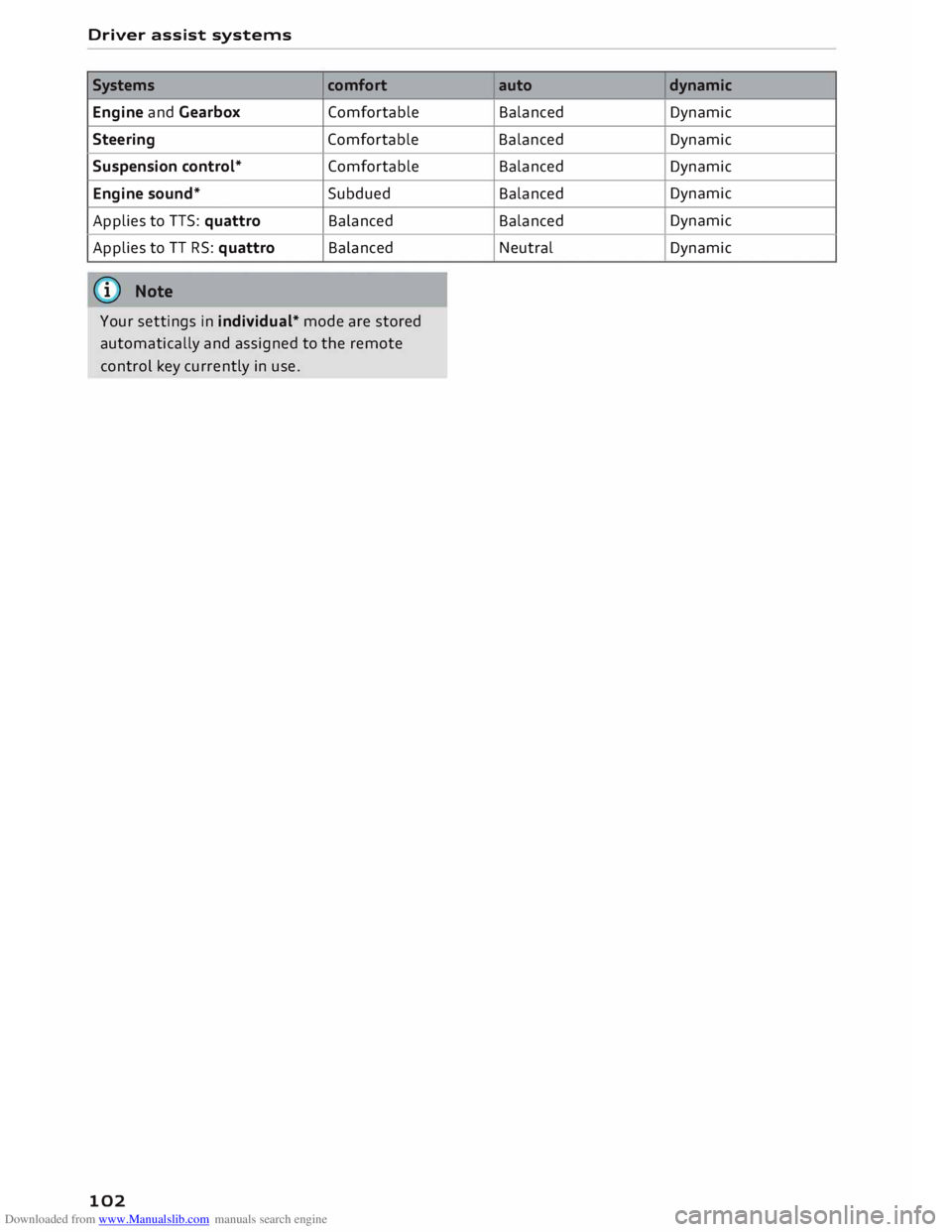
Systems comfort
Engine and Gearbox Comfortable
Steering Comfortable
Suspension control* Comfortable
Engine sound* Subdued
Applies to TTS: quattro Balanced
Applies to TT RS: quattro Balanced
(I)) Note
Your settings in individual* mode are stored
automatically and assigned to the remote
control key currently in use.
102 auto
dynamic
Balanced Dynamic
Balanced Dynamic
Balanced Dynamic
Balanced Dynamic
Balanced Dynamic
Neutral Dynamic
Page 114 of 306
Downloaded from www.Manualslib.com manuals search engine Parking
aids
After you select reverse gear, the vehicle has to
remain stationary for a moment so that the park
assist can activate the steering. Follow the direc
tions given in the display.
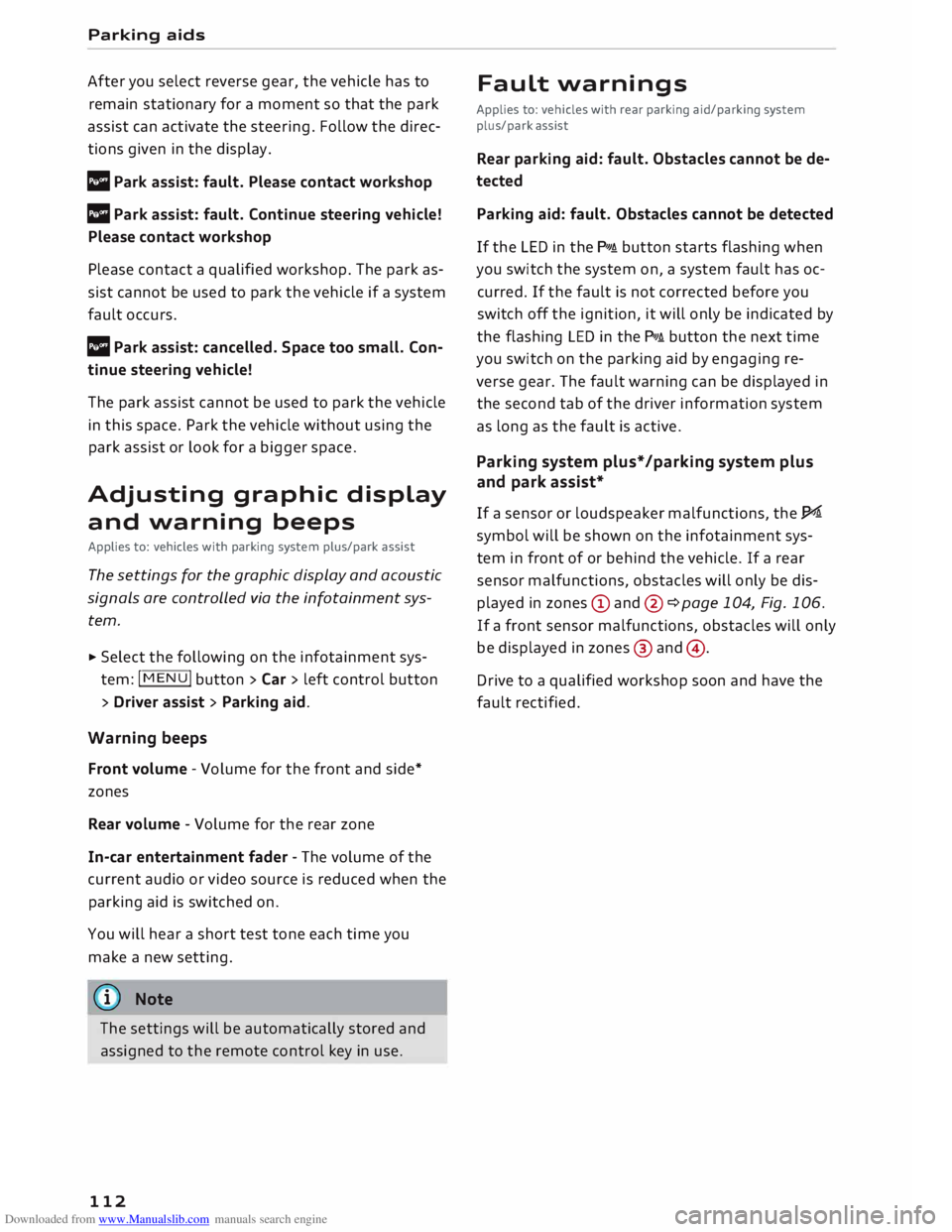
II Park assist: fault. Please contact workshop
Ill Park assist: fault. Continue steering vehicle!
Please contact workshop
Please contact a qualified workshop. The park as
sist cannot be used to park the vehicle if a system
fault occurs.
II Park assist: cancelled. Space too small. Con
tinue steering vehicle!
The park assist cannot be used to park the vehicle
in this space. Park the vehicle without using the
park assist or look for a bigger space.
Adjusting graphic display
and warning beeps
Applies to: vehicles with parking system plus/park assist
The settings for the graphic display and acoustic
signals are controlled via the infotainment sys
tem.
.. Select the following on the infotainment sys
tem: I MENU I button > Car > left control button
> Driver assist> Parking aid.
Warning beeps
Front volume -Volume for the front and side*
zones
Rear volume -Volume for the rear zone
In-car entertainment fader -The volume of the
current audio or video source is reduced when the
parking aid is switched on.
You will hear a short test tone each time you
make a new setting.
� Note
The settings will be automatically stored and
assigned to the remote control key in use.
112 Fault
warnings
Applies to: vehicles with rear parking aid/parking system
plus/park assist
Rear parking aid: fault. Obstacles cannot be de
tected
Parking aid: fault. Obstacles cannot be detected
If the LED in the P,J1A button starts flashing when
you switch the system on, a system fault has oc
curred. If the fault is not corrected before you
switch off the ignition, it will only be indicated by
the flashing LED in the P'),IA button the next time
you switch on the parking aid by engaging re
verse gear. The fault warning can be displayed in
the second tab of the driver information system
as long as the fault is active.
Parking system plus*/parking system plus
and park assist*
If a sensor or loudspeaker malfunctions, the�
symbol will be shown on the infotainment sys
tem in front of or behind the vehicle. If a rear
sensor malfunctions, obstacles will only be dis
played in zones (D and @ ¢page 104, Fig. 106.
If a front sensor malfunctions, obstacles will only
be displayed in zones @ and @ .
Drive to a qualified workshop soon and have the
fault rectified.
Page 145 of 306
Downloaded from www.Manualslib.com manuals search engine 0
N
,.....
N
......
0
,.....
Vl
CX) (D)
Note
- You can adjust further settings for connec
ted mobile phones using the connection
manager ¢page 213.
- You can also search for the MMI system via
the Bluetooth device search function on
your mobile phone.
- Bluetooth devices only have to be bonded
once. Any devices that have already been
bonded to the MMI system are connected
automatically when the Bluetooth function
is switched on, the devices are within range
of the car and the ignition is on. The mobile
phone last connected is given priority.
- You will need to authorise the MMI connec
tion on your mobile phone to enable auto
matic connection.
- Please note any system queries on your mo
bile phone, e.g. whether the phone should
connect automatically in the future. On
some mobile phones, you may also need to
download the directory and allow access to
your text messages separately.
- You receive the SIM PIN code from your mo
bile network service provider together with
the SIM card. If you enter the SIM PIN code
incorrectly three times1
>
in a row, the SIM
card will be be blocked. A PUK (personal un
blocking key) must be entered in order to
reactivate the SIM card.
- The Bluetooth connection between the sys
tem and the mobile phone is automatically
terminated when you leave the car. Depend
ing on the mobile phone, telephone calls
may be transferred automatically from the
MMI to your mobile phone so that you can
continue talking.
- For further information regarding your mo
bile phone, contact your mobile network
service provider or refer to the operating in
structions for your mobile phone. For infor
mation on using a phone in your car, please
l) The number of possible attempts depends on the SIM
card.
2 > Not available in all markets. On vehicles with Audi con
nect* and Audi phone box* Telephone
go online (e.g. www.audi.com/bluetooth)
or ask an Audi dealer.
Operating two phones via the MMI
Applies to: vehicles with Audi phone box
You can connect two mobile phones to the MMI
system using the Audi phone box (e.g. your busi
ness mobile as the primary phone and your per
sonal mobile as an additional phone). You can
then be reached inside the vehicle on both mo
bile phones.
The first mobile phone that you connect is shown
as the primary phone on the MMI system. The
second mobile phone is connected as an addi
tional phone.
The system will always display the phone book on
the primary phone while it is connected. To use
the phone book on the additional phone, you
have to swap the primary phone and additional
phone ¢ page 144.
Connecting a mobile phone as the primary
phone
Connect your mobile phone to the MMI system
via Bluetooth. The first mobile phone that you
connect is shown as the primary phone on the
MMI system.
Refer to ¢ page 142, Connecting a mobile phone
via Bluetooth.
Connecting a mobile phone as an additional
phone
Important: A mobile phone must be connected
to the MMI system as the primary phone. Or:
Your own mini SIM card2
> for making and receiv
ing calls must be inserted in the SIM card read
er*.
Select: I MENU!
button> Telephone > right con
trol button > Connect additional phone.
Refer to ¢ page 142, Connecting a mobile phone
via Bluetooth. llll-
143
Page 149 of 306
Downloaded from www.Manualslib.com manuals search engine 0
N
,.....
N
......
0
,.....
Vl
CX) -
When you charge your mobile phone wire
lessly, the charging procedure may be inter
rupted if you place your remote control key
in the Audi phone box together with the
mobile phone.
Using the telephone
Calling up the telephone
Applies to: vehicles with telephone
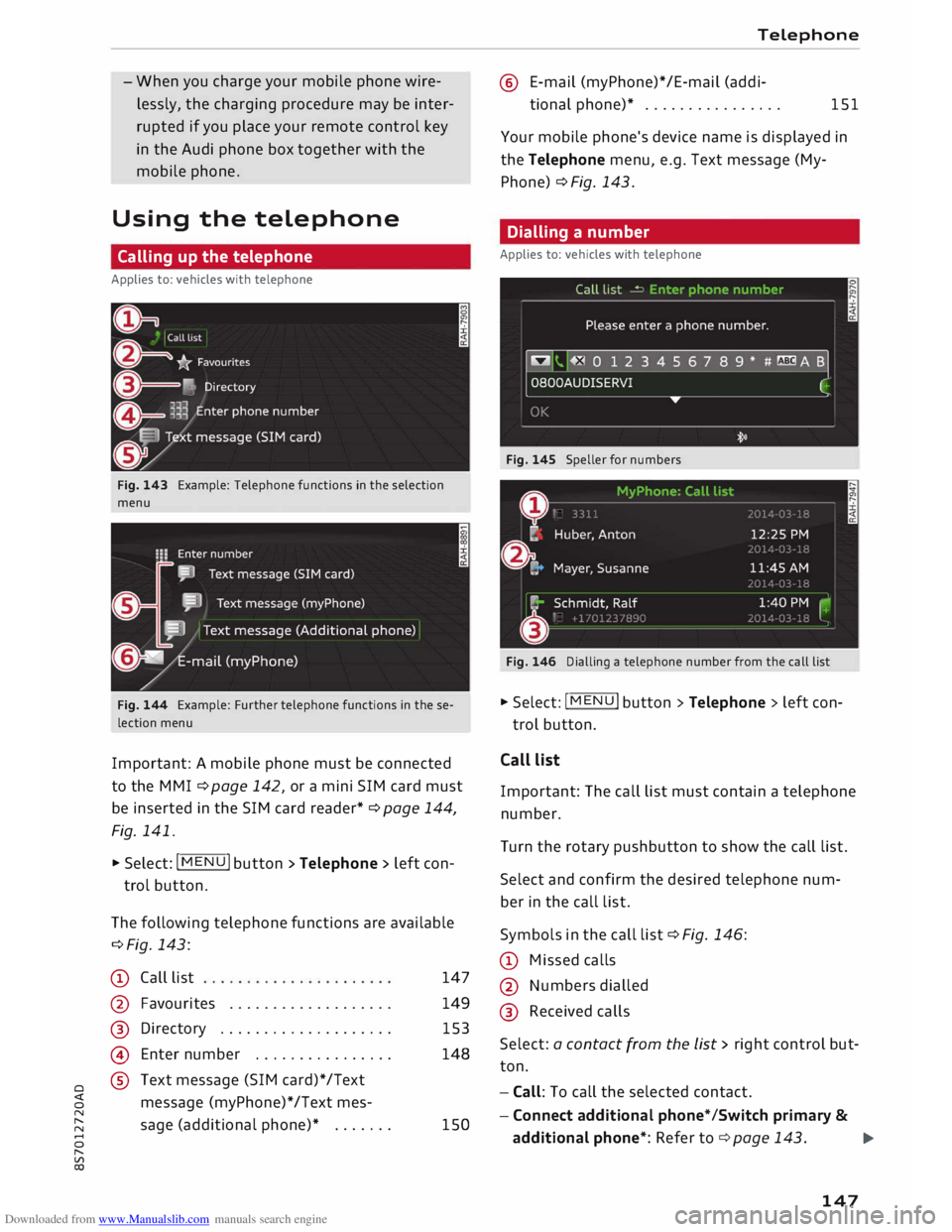
Fig. 143 Example: Telephone functions in the selection
menu
Fig. 144 Example: Further telephone functions in the se
lection menu
Important: A mobile phone must be connected
to the MMI ¢ page 142, or a mini SIM card must
be inserted in the SIM card reader* ¢ page 144,
Fig. 141.
� Select: IM EN
u I button > Telephone > left con
trol button.
The following telephone functions are available
¢Fig. 143:
CD Call list
@
®
@
® Favourites
.................. .
Directory ................... .
Enter number ............... .
Text message (SIM card)*/Text
message (myPhone)* /Text mes-
sage (additional phone)* ...... . 147
149 153
148
150 Telephone
@ E-mail (myPhone)*/E-mail (addi-
tional phone)* . . . . . . . . . . . . . . . . 151
Your mobile phone's device name is displayed in
the Telephone menu, e.g. Text message (My
Phone) ¢ Fig. 143.
Dialling a number
Applies to: vehicles with telephone
Fig. 145 Speller for numbers
Fig. 146 Dialling a telephone number from the call list
� Select: I MENU
I button
>Telephone > left con-
trol button.
Call list
Important: The call list must contain a telephone
number.
Turn the rotary pushbutton to show the call list.
Select and confirm the desired telephone num
ber in the call list.
Symbols in the call list¢ Fig. 146:
CD Missed calls
@ Numbers dialled
@ Received calls
Select: a contact from the list > rig ht control but
ton.
- Call: To call the selected contact.
- Connect additional phone*/Switch primary &
additional phone*: Refer to ¢ page 143.
..,.
147
Page 160 of 306
Downloaded from www.Manualslib.com manuals search engine Telephone
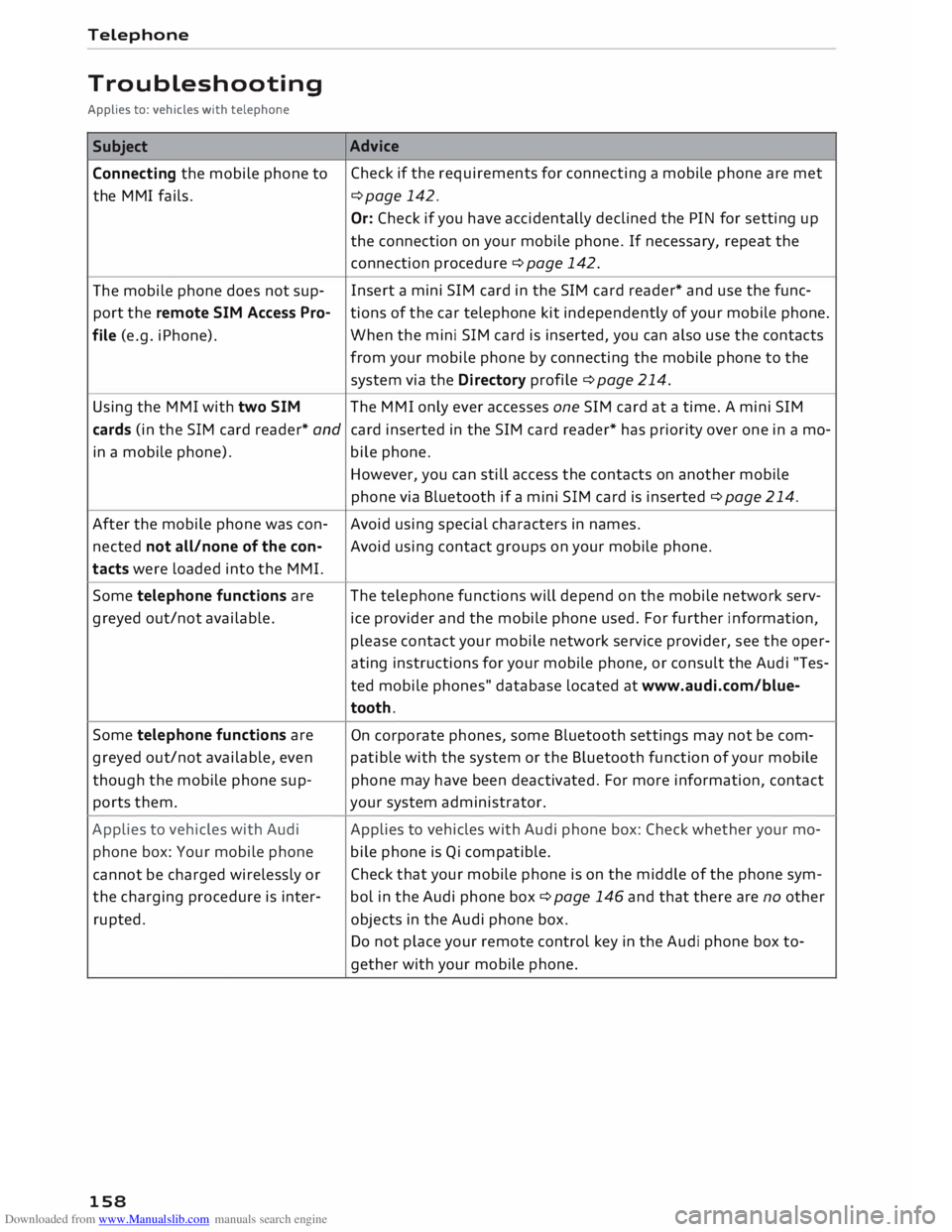
Troubleshooting
Applies to: vehicles with telephone
Subject
Connecting the mobile phone to
the MMI fails.
The mobile phone does not sup
port the remote SIM Access Pro
file (e.g. iPhone).
Using the MMI with two SIM Advice
Check if the requirements for connecting a mobile phone are met
¢page 142.
Or: Check if you have accidentally declined the PIN for setting up
the connection on your mobile phone. If necessary, repeat the
connection procedure¢ page 142.
Insert a mini SIM card in the SIM card reader* and use the func
tions of the car telephone kit independently of your mobile phone.
When the mini SIM card is inserted, you can also use the contacts
from your mobile phone by connecting the mobile phone to the
system via the Directory profile¢ page 214.
The MMI only ever accesses one SIM card at a time. A mini SIM
cards (in the SIM card reader* and card inserted in the SIM card reader* has priority over one in a ma-
in a mobile phone). bile
phone.
After the mobile phone was con
nected not all/none of the con
tacts were loaded into the MMI.
Some telephone functions are
greyed out/not available.
Some telephone functions are
greyed out/not available, even
though the mobile phone sup
ports them.
Applies to vehicles with Audi
phone box: Your mobile phone
cannot be charged wirelessly or
the charging procedure is inter
rupted.
158 However,
you can still access the contacts on another mobile
phone via Bluetooth if a mini SIM card is inserted ¢ page 214.
Avoid using special characters in names.
Avoid using contact groups on your mobile phone.
The telephone functions will depend on the mobile network serv
ice provider and the mobile phone used. For further information,
please contact your mobile network service provider, see the oper
ating instructions for your mobile phone, or consult the Audi "Tes
ted mobile phones" database located at www.audi.com/blue
tooth.
On corporate phones, some Bluetooth settings may not be com
patible with the system or the Bluetooth function of your mobile
phone may have been deactivated. For more information, contact
your system administrator.
Applies to vehicles with Audi phone box: Check whether your mo
bile phone is Qi compatible.
Check that your mobile phone is on the middle of the phone sym
bol in the Audi phone box¢ page 146 and that there are no other
objects in the Audi phone box.
Do not place your remote control key in the Audi phone box to
gether with your mobile phone.
Page 163 of 306
Downloaded from www.Manualslib.com manuals search engine Connecting
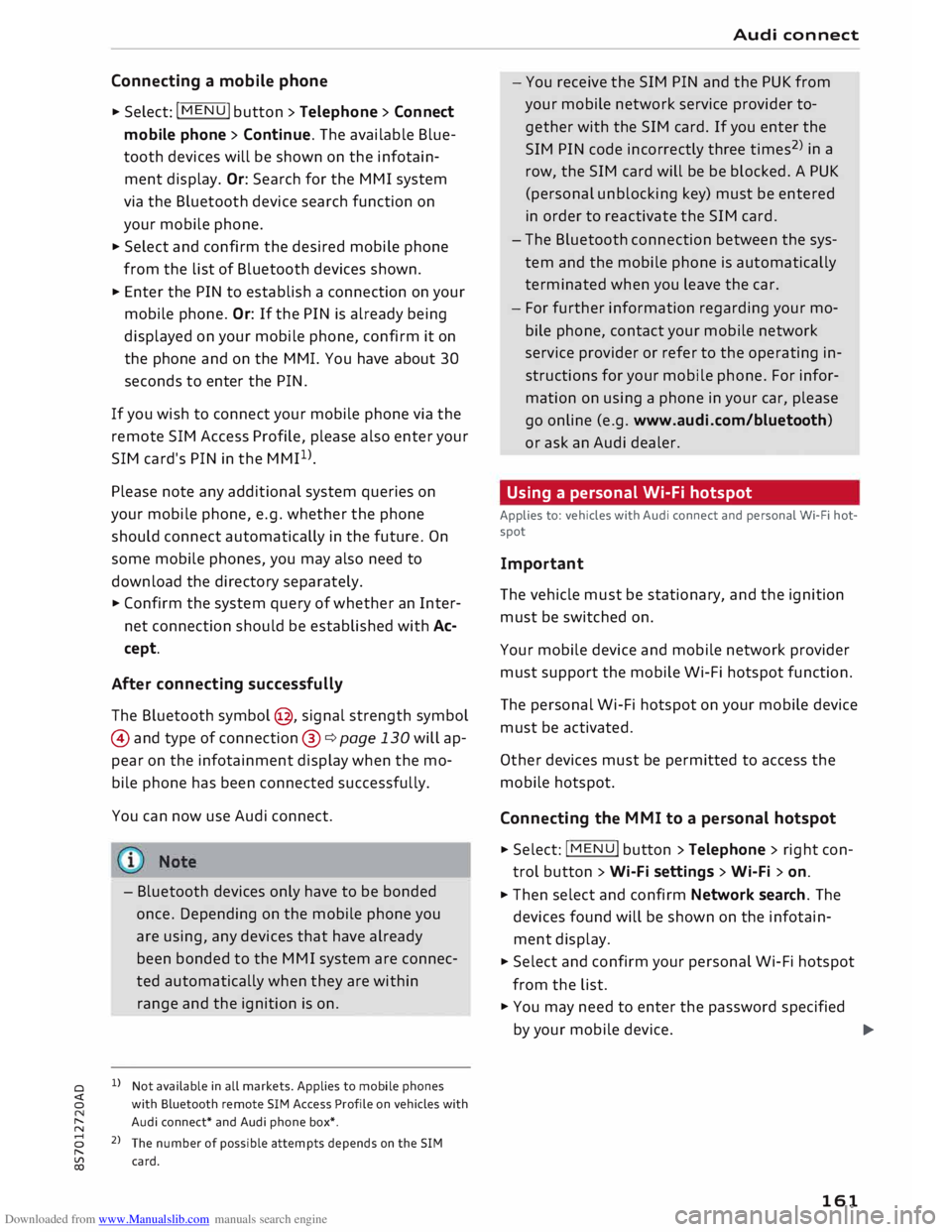
a mobile phone
� Select: IM
EN
u I button > Telephone > Connect
mobile phone> Continue. The available Blue
tooth devices will be shown on the infotain
ment display. Or: Search for the MMI system
via the Bluetooth device search function on
your mobile phone.
� Select and confirm the desired mobile phone
from the List of Bluetooth devices shown.
� Enter the PIN to establish a connection on your
mobile phone. Or: If the PIN is already being
displayed on your mobile phone, confirm it on
the phone and on the MMI. You have about 30
seconds to enter the PIN.
If you wish to connect your mobile phone via the
remote SIM Access Profile, please also enter your
SIM card's PIN in the MMI1
).
Please note any additional system queries on
your mobile phone, e.g. whether the phone
should connect automatically in the future. On
some mobile phones, you may also need to
download the directory separately.
� Confirm the system query of whether an Inter
net connection should be established with Ac
cept.
After connecting successfully
The Bluetooth symbol@, signal strength symbol
@ and type of connection@ � page 130 will ap
pear on the infotainment display when the mo
bile phone has been connected successfully.
You can now use Audi connect.
- Bluetooth devices only have to be bonded
once. Depending on the mobile phone you
are using, any devices that have already
been bonded to the MMI system are connec
ted automatically when they are within
range and the ignition is on.
o l)
Not available in all markets. Applies to mobile phones
� with Bluetooth remote SIM Access Profile on vehicles with
� Audi
connect* and Audi phone box*.
8 2
> The number of possible attempts depends on the SIM
"
� card. Audi
connect
- You receive the SIM PIN and the PUK from
your mobile network service provider to
gether with the SIM card. If you enter the
SIM PIN code incorrectly three times2
)
in a
row, the SIM card will be be blocked. A PUK
(personal unblocking key) must be entered
in order to reactivate the SIM card.
- The Bluetooth connection between the sys
tem and the mobile phone is automatically
terminated when you Leave the car.
- For further information regarding your mo
bile phone, contact your mobile network
service provider or refer to the operating in
structions for your mobile phone. For infor
mation on using a phone in your car, please
go online (e.g. www.audi .com/blue tooth)
or ask an Audi dealer.
Using a personal Wi-Fi hotspot
Applies to: vehicles with Audi connect and personal Wi-Fi hot
spot
Impor tant
The vehicle must be stationary, and the ignition
must be switched on.
Your mobile device and mobile network provider
must support the mobile Wi-Fi hotspot function.
The personal Wi-Fi hotspot on your mobile device
must be activated.
Other devices must be permitted to access the
mobile hotspot.
Connecting the MMI to a personal hotspot
� Select: I M EN
U I button >Telephone > right con
trol button > Wi-Fi settings > Wi-Fi > on.
� Then select and confirm Network search. The
devices found will be shown on the infotain
ment display.
� Select and confirm your personal Wi-Fi hotspot
from the List.
� You may need to enter the password specified
by your mobile device.
Ill-
161