ad blue AUDI TT ROADSTER 2016 Owner's Guide
[x] Cancel search | Manufacturer: AUDI, Model Year: 2016, Model line: TT ROADSTER, Model: AUDI TT ROADSTER 2016Pages: 306, PDF Size: 31.82 MB
Page 205 of 306
Downloaded from www.Manualslib.com manuals search engine -
If the search function is called up in the
Folders category (J) ¢ page 201, Fig. 177,
the system will only search for files in the
current folder. This is also the case in the
Composers, Podcasts und Audiobooks cate
gories.
Playlist
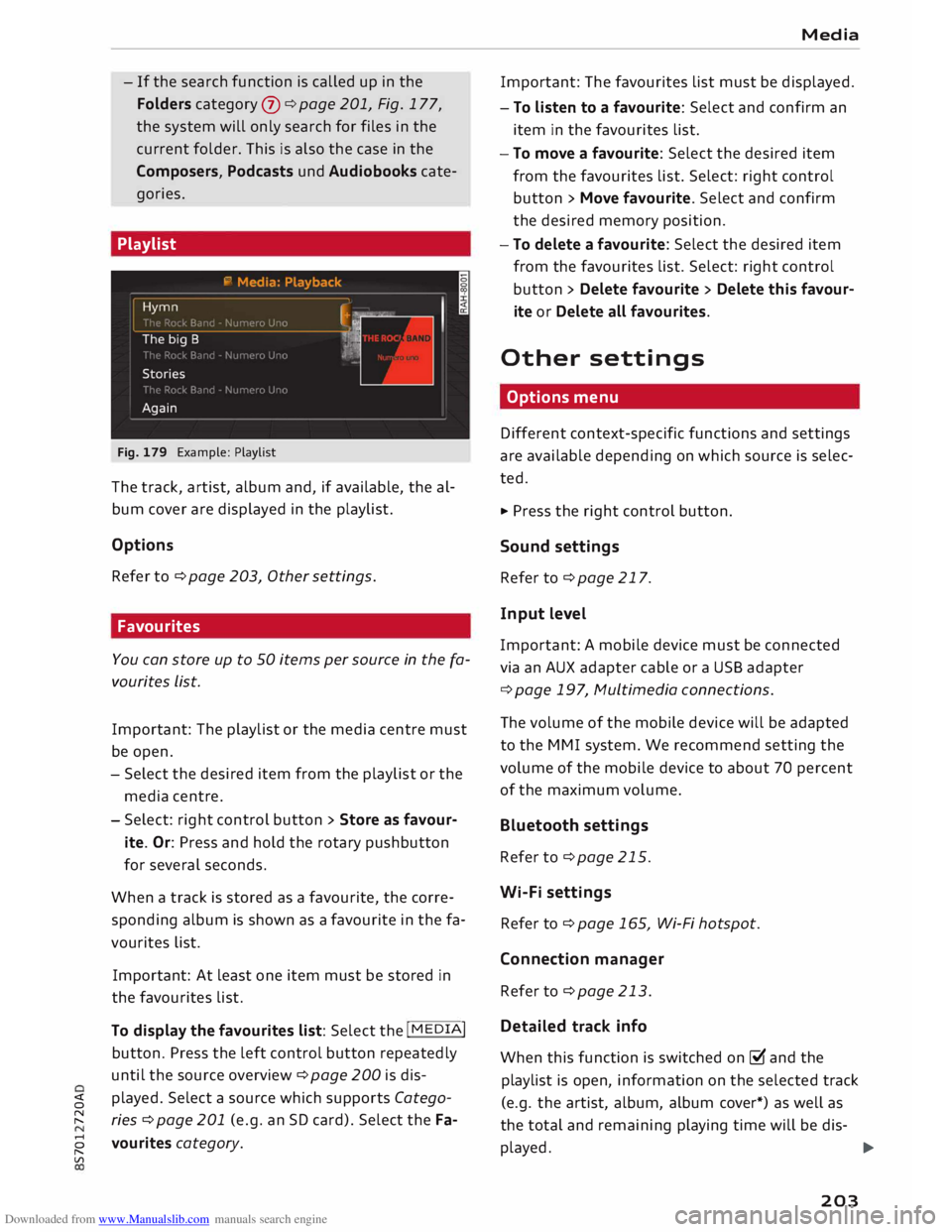
Fig. 179 Example: Playlist
The track, artist, album and, if available, the al
bum cover are displayed in the playlist.
Options Refer to¢ page 203, Other settings.
Fav ourites
You can store up to 50 items per source in the fa
vourites list.
Important: The playlist or the media centre must
be open.
- Select the desired item from the playlist or the
media centre.
- Select: rig ht control button > Store as favour
ite. Or: Press and hold the rotary pushbutton
for several seconds.
When a track is stored as a favourite, the corre
sponding album is shown as a favourite in the fa
vourites list.
Important: At least one item must be stored in
the favourites list.
To display the favourites list: Select the I MEDIA!
button. Press the left control button repeatedly
until the source overview ¢ page 200 is dis-
� played.
Select a source which supports Catego-
� ries ¢ page 201 (e.g. an SD card). Select the Fa-
8 vourites category.
"
Vl Media
Important: The favourites list must be displayed.
- To listen to a favourite: Select and confirm an
item in the favourites list.
- To move a favourite: Select the desired item
from the favourites list. Select: right control
button > Move favourite. Select and confirm
the desired memory position.
- To delete a favourite: Select the desired item
from the favourites list. Select: right control
button > Delete favourite > Delete this favour
ite or Delete all favourites.
Other settings
Options menu
Different context-specific functions and settings
are available depending on which source is selec
ted.
... Press the right control button.
Sound settings
Refer to¢ page 217.
Input level
Important: A mobile device must be connected
via an AUX adapter cable or a USB adapter
¢page 197, Multimedia connections.
The volume of the mobile device will be adapted
to the MMI system. We recommend setting the
volume of the mobile device to about 70 percent
of the maximum volume.
Bluetooth settings
Refer to¢ page 215.
Wi-Fi settings
Refer to ¢ page 165, Wi-Fi hotspot.
Connection manager
Refer to¢ page 213.
Detailed track info
When this function is switched on� and the
playlist is open, information on the selected track
(e.g. the artist, album, album cover*) as well as
the total and remaining playing time will be dis-
played. ..,.
203
Page 209 of 306
Downloaded from www.Manualslib.com manuals search engine 0
N
,.....
N
......
0
,.....
Vl
CX) Media
be ensured that these characters are always
dis played correctly. -
Some functions of MTP players such as vid
eo playback and the rating of tracks are not
supported.
- The manufacturer will provide you with in
formation on the "USB Device Subclass" of a
USB memory device.
CD drive
Applies to: vehicles with CD drive
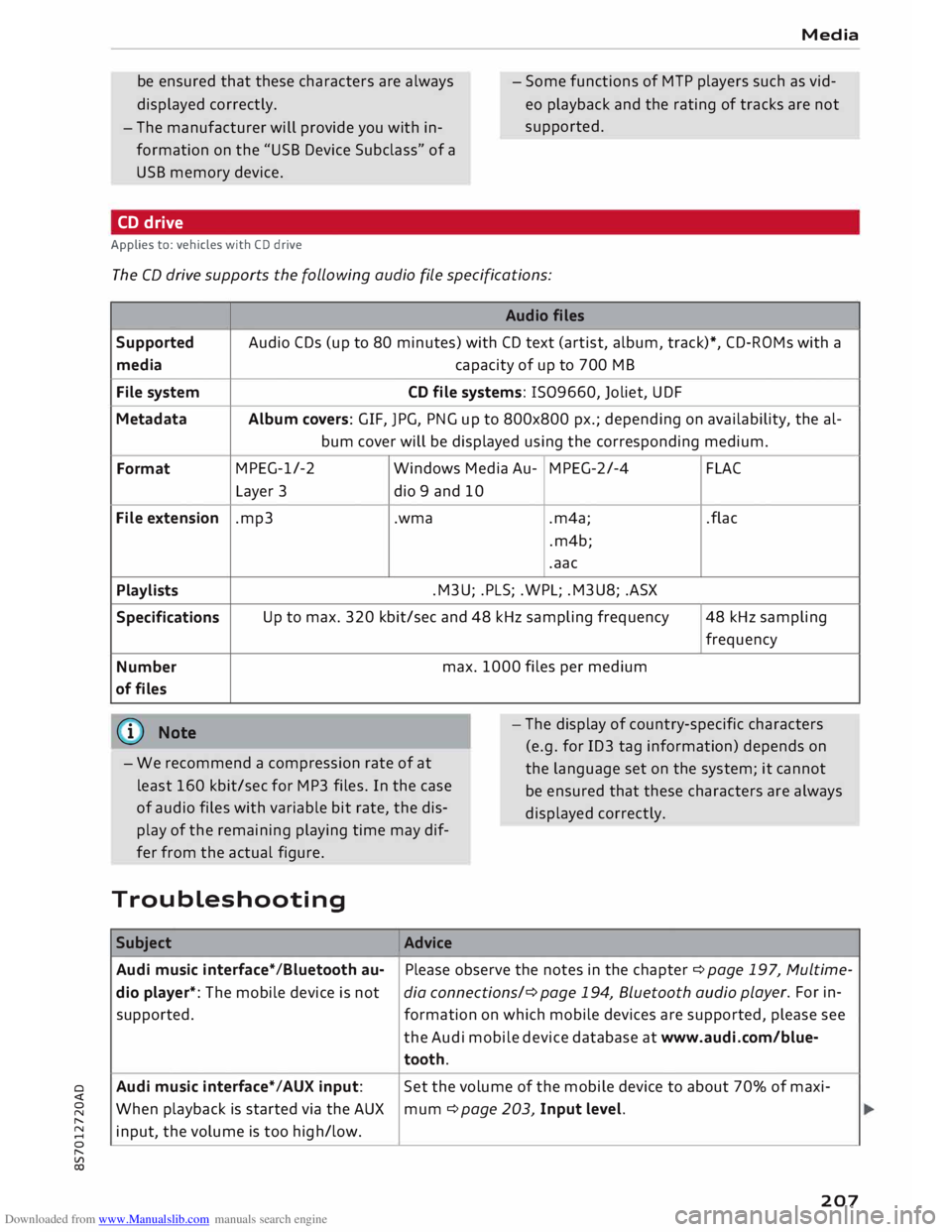
The CD drive supports the following audio fi
le specifications:
Audio files
Supported Audio
CDs (up to 80 minutes) with CD text (artist, album, track)*, CD-ROMs with a
media capacity
of up to 700 MB
File system CD
file systems: 1509660, Joliet, UDF
Metadata Album
covers: GIF, JPG, PNG up to 800x800 px.; depending on availability, the al-
bum cover will be displayed using the corresponding medium.
Format MPEG-1/-2
Windows Media Au-MPEG-2/-4
FLAC
Layer 3
dio 9 and 10
File extension .mp3
.wma
.m4a;
.flac
.m4b;
.aac
Playlists .M3U;
.PLS; .WPL; .M3U8; .ASX
Specifications Up
to max. 320 kbit/sec and 48 kHz sampling frequency 48 kHz sampling
frequency
Number max.
1000 files per medium
of files
@ Note
- We recommend a compression rate of at
least 160 kbit/sec for MP3 files. In the case
of audio files with variable bit rate, the dis
play of the remaining playing time may dif
fer from the actual figure. -
The display of country-specific characters
(e.g. for ID3 tag information) depends on
the language set on the system; it cannot
be ensured that these characters are always
dis played correctly.
Troubleshooting Subject Advice
Audi music interface* /Bluetooth au-Please
observe the notes in the chapter ¢ page 197, Multime-
dio player*: The mobile device is not dia connections/¢ page 194, Bluetooth audio play
er. For in-
supported. formation on which mobile devices are supported, please see
the Audi mobile device database at www.audi.com/blue-
tooth.
Audi music interface*/AUX input: Set
the volume of the mobile device to about 70% of maxi-
When playback is started via the AUX
mum ¢ page 203, Input level.
input, the volume is too high/low.
207
Page 210 of 306
Downloaded from www.Manualslib.com manuals search engine Media
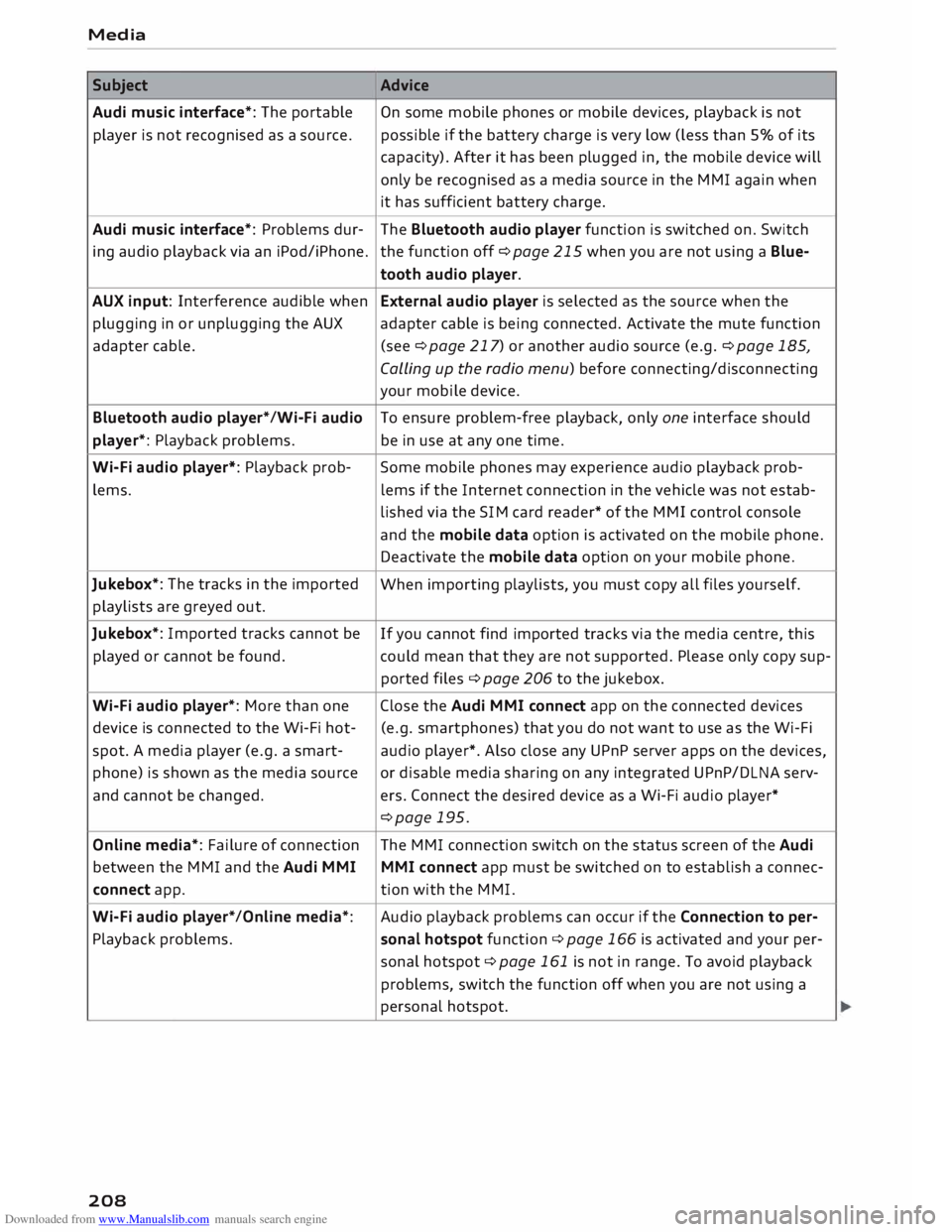
Subject Advice
Audi music interface*: The portable
On some mobile phones or mobile devices, playback is not
player is not recognised as a source. possible
if the battery charge is very low (less than 5% of its
capacity). After it has been plugged in, the mobile device will
only be recognised as a media source in the MMI again when
it has sufficient battery charge.
Audi music interface*: Problems dur-
The Bluetooth audio player function is switched on. Switch
ing audio playback via an iPod/iPhone. the function off ¢page 215 when you are not using a Blue-
tooth audio player.
AUX input: Interference audible when External audio player is selected as the source when the
plugging in or unplugging the AUX adapter cable is being connected. Activate the mute function
adapter cable. (see ¢page 217) or another audio source (e.g. ¢page 185,
Calling up the radio menu) before connecting/disconnecting
your mobile device.
Bluetooth audio player*/Wi-Fi audio
To ensure problem-free playback, only one interface should
player*: Playback problems. be in use at any one time.
Wi-Fi audio player*: Playback prob-
Some mobile phones may experience audio playback prob-
lems. lems
if the Internet connection in the vehicle was not estab-
lished via the SIM card reader* of the MMI control console
and the mobile data option is activated on the mobile phone.
Deactivate the mobile data option on your mobile phone.
Jukebox*: The tracks in the imported
When importing playlists, you must copy all files yourself.
playlists are greyed out.
Jukebox*: Imported tracks cannot be
If you cannot find imported tracks via the media centre, this
played or cannot be found. could mean that they are not supported. Please only copy sup-
ported files¢ page 206 to the jukebox.
Wi-Fi audio player*: More than one Close the Audi MMI connect app on the connected devices
device is connected to the Wi-Fi hot- (e.g.
smartphones) that you do not want to use as the Wi-Fi
spot. A media player (e.g. a smart-
audio player*. Also close any UPnP server apps on the devices,
phone) is shown as the media source
or disable media sharing on any integrated UPnP/DLNA serv-
and cannot be changed. ers. Connect the desired device as a Wi-Fi audio player*
¢page 195.
Online media*: Failure of connection The MMI connection switch on the status screen of the Audi
between the MMI and the Audi MMI
MMI connect app must be switched on to establish a connec-
connect app. tion
with the MMI.
Wi-Fi audio player* /Online media*: Audio
playback problems can occur if the Connection to per-
Playback problems. sonal
hotspot function¢ page 166 is activated and your per-
sonal hotspot ¢ page 161 is not in range. To avoid playback
problems, switch the function off when you are not using a
personal hotspot.
208
Page 211 of 306
Downloaded from www.Manualslib.com manuals search engine 0
N
,.....
N
....
0
,.....
Vl
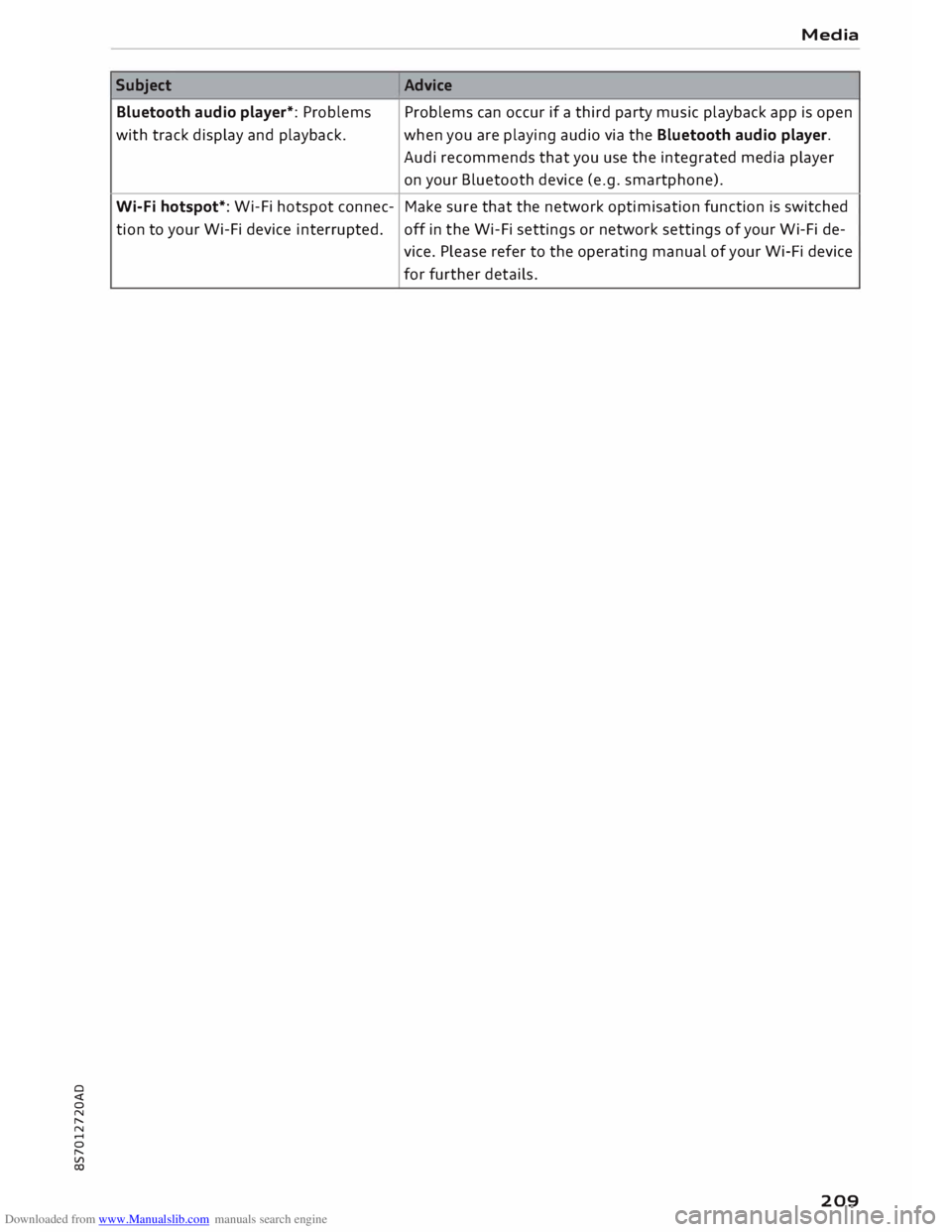
CX) Subject
Bluetooth audio player*: Problems
with track display and playback.
Wi-Fi hotspot*: Wi-Fi hotspot connec-
tion to your Wi-Fi device interrupted. Media
Advice Problems can occur if a third party music playback app is open
when you are playing audio via the Bluetooth audio player.
Audi recommends that you use the integrated media player
on your Bluetooth device (e.g. smartphone).
Make sure that the network optimisation function is switched
off in the Wi-Fi settings or network settings of your Wi-Fi de-
vice. Please refer to the operating manual of your Wi-Fi device
for further details.
209
Page 212 of 306
Downloaded from www.Manualslib.com manuals search engine Audi
smartphone interface
Audi smartphone
interface
Setting up1
)
Applies to: vehicles with Audi smartphone interface
You can connect your smartphone to the MMI
system via the Audi smartphone interface. Some
of the content on your smartphone is displayed
in an optimised screen format on the infotain
ment display and can be operated via the MMI
control console.
Requirements:
The vehicle must be stationary, and the ignition
must be switched on.
iPhone 5 or later with Lightning connector and
operating system iOS 7.1.2 or higher or:
Smartphone with Android Auto app and operat
ing system Android 5.0 Lollipop or later.
... Connect your smartphone to the Audi music in
terface ¢page 198via a USB adapter
¢page 197, Fig. 171.
... Select
and confirm Activate Apple CarPlay or
Activate Android Auto now.
... Follow the instructions given by the system.
... Please note any system queries on your smart-
phone.
If you decline the use of Apple CarPlay or Android
Auto the first time you connect your smartphone,
you can start the Audi smartphone interface at a
later time via the connection manager . ...
Sele ct: !MENU! button > Audi smartphone in
terface > Switch to connection manager .
... Connect your smartphone to the Audi music in
terface ¢page 198via a USB adapter
¢page 197, Fig. 171 .
... Select and confirm Audi smartphone in Con
nection manager ¢ page 213. You can select
your smartphone from the list of devices al
ready connected ¢ page 215.
... Follow the instructions given by the system.
l l
Not available in all markets.
210 CD
CAUTION
Please always observe the information ¢(Din
Wi-Fi hotspot on page 166.
ijj) Note
- The functions you can use depend on a num
ber of factors including:
- The brand of your smartphone
- The operating system version of your
smartphone
- The software version of the app in use
- The USB adapter/cable and the correct
connection
- Your mobile network/service provider
- The individual settings on your smart-
phone
- One or several of the factors listed above
can result in your smartphone being incom
patible with the Audi smartphone interface.
We regret that it is not possible to guaran
tee compatibility for all types of smart
phone. For further information and support,
please refer to the operating manual of your
smartphone or contact its manufacturer.
- If the smartphone you have connected has a
voice control feature, you can control your
smartphone using the external speech dia
logue system* ¢ page 139.
- The menu language displayed on the MMI is
based on the setting on your smartphone.
- The time displayed on the MMI is based on
the setting on your smartphone.
- Some of the MMI functions are not available
while an Apple CarPlay or Android Auto con
nection is active.
- You cannot use mobile devices via Bluetooth
when an Apple CarPlay connection is active.
- If you have inserted your own mini SIM card
in the SIM card reader* for making phone
calls, the SIM card will be used exclusively
for a data connection when the Audi smart
phone interface and the car phone function*
are active.
Page 215 of 306
Downloaded from www.Manualslib.com manuals search engine 0
N
,.....
N
......
0
,.....
Vl
CX) -
spoken: The reminder signal is spoken by the
system.
Reminder signal volume: You can adjust the vol
ume of the reminder signal by turning the rotary
pushbutton.
Switch off pop-up: This function is switched off
at the factory. When this function is switched on
� , the messages about the charging status of
the mobile phone in the Audi phone box* on the
infotainment display will not appear. The re
minder not to forget the mobile phone when
leaving the vehicle will also be switched off.
Usage tips
Your MMI displays usage tips when this function
is switched on�
. They will appear less often as
time goes by. You can switch the usage tips off at
any time.
Speech dialogue system
Applies to: vehicles with speech dialogue system
Command display: The MMI displays possible
voice commands in the corresponding menu
when this function is switched on�
. You can
switch this function off at any time.
Short dialogue: When this function is switched
on �
, the spoken cues are shortened. You can
switch this function off at any time.
Speech dialogue system volume: You can adjust
the volume of the spoken cues by turning the ro
tary pushbutton.
Individual speech training (only possible when
the vehicle is stationary): You can use the individ
ual speech training to adapt the speech dialogue
system to your voice or pronunciation so that the
speech dialogue system can then better recog
nise what you are saying. The individual speech
training prompts you to repeat 20 spoken phra
ses that consist of certain commands and blocks
of digits. If you would like to delete the stored
speech training setup, you can use the function
Reset individual speech training.
Factory settings
You can reset the following functions to the fac
tory settings: System
settings
- Sound settings
- Radio
- Media settings
-Jukebox*
- Directory*
- Telephone*
- Bluetooth and Wi-Fi*
- Navigation settings*
- Navigation and online memory*
- Speech dialogue system*
- Message settings*
-Apps*
- Usage tips
-Audi connect*
You can select the desired options individually or
mark Select all entries. Select and confirm Re
store factory settings.
ijj) Note
- Please note that not only settings will be
deleted when you do this; saved data may
also be erased.
- If you set Navigation and on line memory*
or Audi connect* to the factory settings, the
system will restart after approx. 20 sec
onds. During the restart, the infotainment
display
will
be black for a few minutes.
- Please note that the speech dialogue sys
tem* is not available as a factory option for
Cabriolet models without a seat belt micro
phone.
Connection manager
Introduction
The connection manager gives you an overview
of your connected devices and their connection
status.
.., Select: I MENU I button > Settings > left control
button > MMI settings > Connection manager.
.., Select and confirm a menu option.
If a mobile device has already been connected
and you then select and confirm the correspond
ing menu item, the device's name and connection
mode is displayed under this menu item.
...,.
213
Page 216 of 306
Downloaded from www.Manualslib.com manuals search engine System
settings
You can connect (�) or disconnect (0) a connec
ted device individually.
Telephone
Applies to: vehicles with telephone
- Connect new device: You can search for and
connect a mobile phone.
- List of devices already bonded: Select your mo
bile phone from the list of all devices which
have already been bonded. Or: Insert a mini
SIM card in the SIM card reader* ¢page 144.
Second phone
Applies to: vehicles with Audi phone box
- Connect new device: You can search for and
connect a mobile phone.
- List of devices already bonded: Select your mo
bile phone from the list of all devices which
have already been bonded.
Data connection
Applies to: vehicles with Audi connect
- Connect new device: You can search for and
connect a mobile device (e.g. a smartphone).
- List of devices already bonded: Select your mo
bile phone from the list of all devices which
have already been bonded. Or: Insert a mini
SIM card in the SIM card reader* ¢page 159.
CD CAUTION
Please always observe the information ¢0 in
Wi-Fi hotspot on page 166.
MMI connect app
Applies to: vehicles with Audi connect
Important: The Audi MMI connect app must be
installed on your mobile device and have been
started.
- Connect new device: You can search for and
connect a mobile device (e.g. a smartphone).
- List of devices already bonded: Select your mo
bile device from the list of all devices which
have already been bonded.
214 Music
Applies to: vehicles with Bluetooth audio player or Wi-Fi au
dio player
Audio players
Important: The Bluetooth function and the dis
coverability option of both the M MI system
¢ page 215 and the mobile phone must be acti
vated.
- To connect a new device: Press the rotary push
button. Select Bluetooth audio player. Search
for and connect a mobile device.
- List of devices already bonded: Select a Blue
tooth device from the list of all devices which
have already been bonded.
Wi-Fi audio players
Important: The Wi-Fi hotspot on the MMI system
¢page 165 and your mobile phone's Wi-Fi func
tion must be activated.
- To connect a new device: Press the rotary push
button. Search for and connect a Wi-Fi enabled
device.
- To disconnect a Wi-Fi audio player: Deactivate
Wi-Fi on your Wi-Fi enabled device. The device
will be removed from the list automatically.
CD CAUTION
Please always observe the information ¢0 in
Wi-Fi hotspot on page 166.
Dire ctory
Applies to: vehicles with telephone
You can display the contacts from (other) mobile
phones.
Important: No mobile phones are connected to
the MMI via the Bluetooth remote SIM Access
Profile or the Handsfree profile.
- Connect new device: You can search for and
connect a new mobile phone. Or: Insert a mini
SIM card in the SIM card reader* ¢page 159.
- List of devices already bonded: Select your mo
bile phone from the list of all mobile phones
which have already been bonded.
Page 217 of 306
Downloaded from www.Manualslib.com manuals search engine 0
N
,.....
N
......
0
,.....
Vl
CX) Audi
smartphone
Applies to: vehicles with Audi smartphone interface
- Connect your mobile phone to the Audi music
interface ¢page 198via a USB adapter
¢page 197, Fig. 171.
- Select your mobile phone from the list of mo
bile phones already connected.
Further options
Further options may be available in the connec
tion manager via the right control button de
pending on the function selected.
Bluetooth settings
- Bluetooth: Select and confirm a discoverability
setting for the Bluetooth connection. Select
visible to make the MMI visible to other devi
ces. Select invisible to make the MMI invisible
to other devices. Devices which have already
been bonded can connect via Bluetooth even
when discoverability is deactivated. Select off
to switch discoverability off. It is then not pos
sible to establish a Bluetooth connection.
- Bluetooth audio player: When this function is
switched on�, the Bluetooth audio player is
available as a source in the Media menu.
- Delete Bluetooth device: The selected mobile
phone/device is disconnected from the MMI.
- Display Bluetooth profiles: You can Connect or
Disconnect the Handsfree, Car phone and Di
rectory/contacts profiles individually.
- Bluetooth audio player: Switch this function on
� to be able to use the Bluetooth audio player
as a source in the media menu.
- Bluetooth name: The Bluetooth name of the
MMI system (e.g. "AUDI MMI 2017") is dis
played and can be changed.
When this function is on �. the symbol @
¢page 130, Fig. 137 will appear on the infotain
ment display.
Online settings*
- Data connection settings: Refer to ¢ page 166,
Configuring the data connection
- Data usage meter: The number of the data
packets sent/received via the MMI system is System
settings
displayed. Select Reset data meter to reset the
usage statistics to zero.
- Connection status: The mobile network provid
er for data services and the network status are
displayed.
Wi-Fi settings*
Refer to ¢ page 165, Wi-Fi hotspot.
SIM PIN settings*
-Automatic PIN entry: When this function is
switched on�, the SIM PIN is stored in the
MMI after it has been entered for the first time.
You can save the PIN codes of four different
SIM cards on the MMI. If this function is
switched off, the PIN currently stored in the
MMI will be deleted. If the automatic PIN entry
function is activated, the system does not ask
you to enter your SIM PIN explicitly.
- Deactivate PIN query: The system does not ask
for the SIM PIN when you switch it on. The au
tomatic PIN entry function is ignored in this
case.
- Change PIN: You can change the PIN code for
your SIM card. First enter the existing PIN code
for your SIM card. The SIM PIN code can only
consist of numbers from Oto 9. The new SIM
PIN code has to be entered twice, as a precau
tionary measure, and is stored on the SIM card.
Network settings*
- Registration: To dial into your service provid
er's mobile network automatically or to select a
network manually from the list of available
networks.
- Network selection: You can use this function to
select the available networks for the current
position of the vehicle. This function is only
available when the manual setting is activated
for registration.
Apple CarPlay sound settings/Android Auto
sound settings
Applies to: vehicles with Audi smartphone interface
Refer to ¢ page 217.
215
Page 284 of 306
Downloaded from www.Manualslib.com manuals search engine Fuses
and bulbs
Fuses and bulbs
Fuses Fuses in vehicle interior
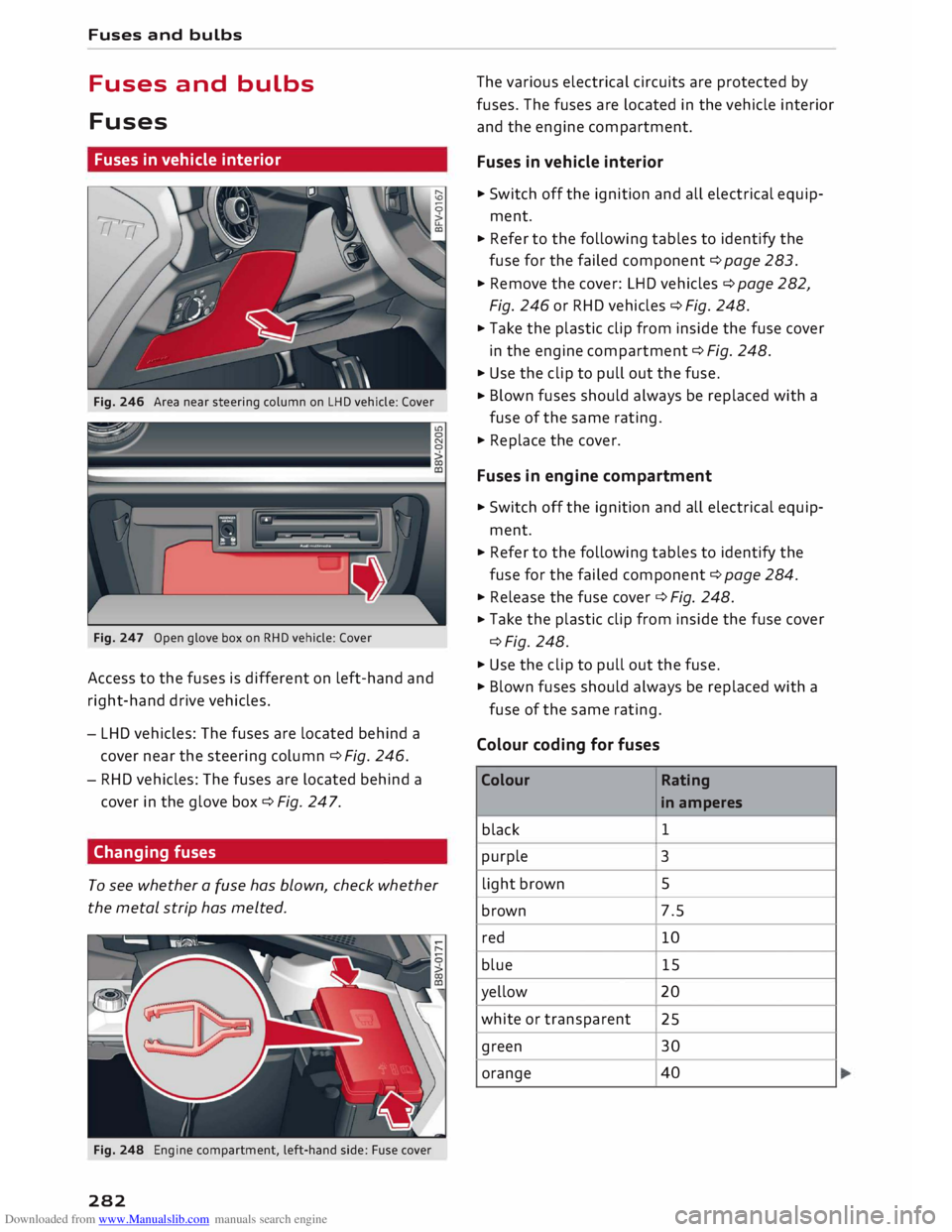
Fig. 246 Area near steering column on LHD vehicle: Cover
Fig. 247 Open glove box on RHD vehicle: Cover
Access to the fuses is different on left-hand and
right-hand drive vehicles.
- LHD vehicles: The fuses are located behind a
cover near the steering column c::> Fig. 246.
- RHD vehicles: The fuses are located behind a
cover in the glove box c::> Fig. 247.
Changing fuses
To see whether a fuse has blown, check whether
the metal strip has melted.
Fig. 248 Engine compartment, left-hand side: Fuse cover
282 The
various electrical circuits are protected by
fuses. The fuses are located in the vehicle interior
and the engine compartment.
Fuses in vehicle interior
.,,. Switch off the ignition and all electrical equip
ment .
... Refer to the following tables to identify the
fuse for the failed component c::> page 283 .
... Remove the cover: LHD vehicles c::> page 282,
Fig. 246 or RHD vehicles c::> Fig. 248 .
... Take the plastic clip from inside the fuse cover
in the engine compartment c::> Fig. 248 .
... Use the clip to pull out the fuse .
... Blown
fuses should always be replaced with a
fuse of the same rating .
.,,. Replace the cover.
Fuses in engine compartment
... Switch off the ignition and all electrical equip
ment .
... Refer to the following tables to identify the
fuse for the failed component c::> page 284 .
... Release the fuse cover c::> Fig. 248 .
... Take
the plastic clip from inside the fuse cover
c::>Fig. 248 .
.,,. Use the clip to pull out the fuse.
.,,. Blown fuses should always be replaced with a
fuse of the same rating.
Colour coding for fuses
Colour Rating
in amperes
black 1
purple 3
light brown 5
brown 7.5
red 10
blue 15
yellow 20
white or transparent
25
green 30
orange 40
Page 292 of 306
Downloaded from www.Manualslib.com manuals search engine Index
Numbers and
Symbols
360 °
display
A 104
A/C (air conditioner) . . . . . . . . . . . . . . . . . 61, 62
ABS see Anti-lock brake system . . . . . . . . . . . .
113
Accelerator pedal . . . . . . . . . . . . . . . . . . . . .
226
Accessories 285
Active lane assist . . . . . . . . . . . . . . . . . . . . . . 92
Cleaning area around camera . . . . . . . . . . 264
Driver messages . . . . . . . . . . . . . . . . . . . . . .
93
Indicator lamp . . . . . . . . . . . . . . . . . . . . . . .
93
Setting steering vibration . . . . . . . . . . . . . .
94
Setting time of warning . . . . . . . . . . . . . . . .
94
Switching on/off . . . . . . . . . . . . . . . . . . . . . 93
Adaptive light (indicator lamp) . . . . . . . . . . . 19
Additional phone ................. 143,214
Airbag . . . . . . . . . . . . . . . . . . . . . . . . . . . . . .
235
Deactivating passenger's airbag . . . . . . . .
237
Front airbags . . . . . . . . . . . . . . . . . . . . . . .
236
Side airbags . . . . . . . . . . . . . . . . . . . . . . . .
239
Warning lamp . . . . . . . . . . . . . . . . . . . . . . . 16
Air conditioner (automatic)
Adjusting air outlets . . . . . . . . . . . . . . . 62, 63
Air distribution, air outlets . . . . . . . . . . . . . 62
Air recirculation mode . . . . . . . . . . . . . . . . . 63
AUTO (automatic mode) . . . . . . . . . . . . . . . 62
Blower . . . . . . . . . . . . . . . . . . . . . . . . . . . . .
62
Controls . . . . . . . . . . . . . . . . . . . . . . . . . . . .
62
Defrosting windows . . . . . . . . . . . . . . . . . . .
63
Drive select . . . . . . . . . . . . . . . . . . . . . . . . . 100
Rear window heating . . . . . . . . . . . . . . . . . .
63
Selecting temperature . . . . . . . . . . . . . . . . .
62
Air conditioner (manual)
Adjusting air outlets . . . . . . . . . . . . . . . 61, 63
Adjusting temperature . . . . . . . . . . . . . . . . 61
Air distribution,
air outlets . . . . . . . . . . . . .
61
Air recirculation mode . . . . . . . . . . . . . . . . . 61
Blower . . . . . . . . . . . . . . . . . . . . . . . . . . . . .
61
Controls . . . . . . . . . . . . . . . . . . . . . . . . . . . .
60
Defrosting windows . . . . . . . . . . . . . . . . . . .
61
Rear window heating . . . . . . . . . . . . . . . . . . 61
Air distribution, setting (air conditioner) 61, 62
Air outlets, adjusting . . . . . . . . . . . . . . . . . . . 63
290 Air
recirculation mode (air conditioner)
Alarm system 61,63
see Anti-theft alarm system . . . . . . . . . 27, 32
All-season tyres
see All-weather tyres . . . . . . . . . . . . . . . . .
257
All-weather lights . . . . . . . . . . . . . . . . . . . . . . 44
All-weather tyres . . . . . . . . . . . . . . . . . . . . . 257
Alterations to the vehicle . . . . . . . . . . . . . . .
285
Alternative routes . . . . . . . . . . . . . . . . . . . . . 177
Alternator (warning lamp) . . . . . . . . . . . . . . . 15
AMI see Audi music interface .......... 197,
198
Android Auto
see Audi smartphone interface . . . . . . . . .
210
Announcements (traffic programme) . . . . .
218
Anti-dazzle exterior mirrors . . . . . . . . . . . . . . 49
Anti-dazzle interior mirror . . . . . . . . . . . . . . . 49
Anti-freeze Coolant . . . . . . . . . . . . . . . . . . . . . . . . . . . . 249
Windscreen washer system . . . . . . . . . . . .
252
Anti-lock brake system . . . . . . . . . . . . . . . . .
113
Anti-theft alarm system . . . . . . . . . . . . . . . . . 32
Anti-theft wheel bolts . . . . . . . . . . . . . . . . . 273
Apple CarPlay
see Audi smartphone interface . . . . . . . . . 210
Armrest . . . . . . . . . . . . . . . . . . . . . . . . . . . . . .
55
Ashtray . . . . . . . . . . . . . . . . . . . . . . . . . . . . . .
56
ASR see Traction control system .......... .
Audi connect ........................ .
Data connection .................... .
Data protection .................... . 113
159
166
168
Personal hotspot . . . . . . . . . . . . . . . . . . . . 161
Services (overview) . . . . . . . . . . . . . . . . . . 162
Setup . . . . . . . . . . . . . . . . . . . . . . . . . . . . . 159
Audi magnetic ride
see Suspension control . . . . . . . . . . . . . . .
100
Audi music interface . . . . . . . . . . . . . . . . . . .
197
Audi music stream
see Wi-Fi . . . . . . . . . . . . . . . . . . . . . . . . . . .
195
Audio files . . . . . . . . . . . . . . . . . . . . . . . . . . . 200
Audio player
Bluetooth audio player
194
Audio players
Wi-Fi audio players . . . . . . . . . . . . . . . . . .
195
Audio track 203