ignition AUDI TT ROADSTER 2016 Repair Manual
[x] Cancel search | Manufacturer: AUDI, Model Year: 2016, Model line: TT ROADSTER, Model: AUDI TT ROADSTER 2016Pages: 306, PDF Size: 31.82 MB
Page 155 of 306
Downloaded from www.Manualslib.com manuals search engine ((1'>
Note
Emergency numbers are not the same for all
countries. Please make sure that you know
the emergency number for the country you
are in.
Directory Calling up the directory
Applies to: vehicles with telephone
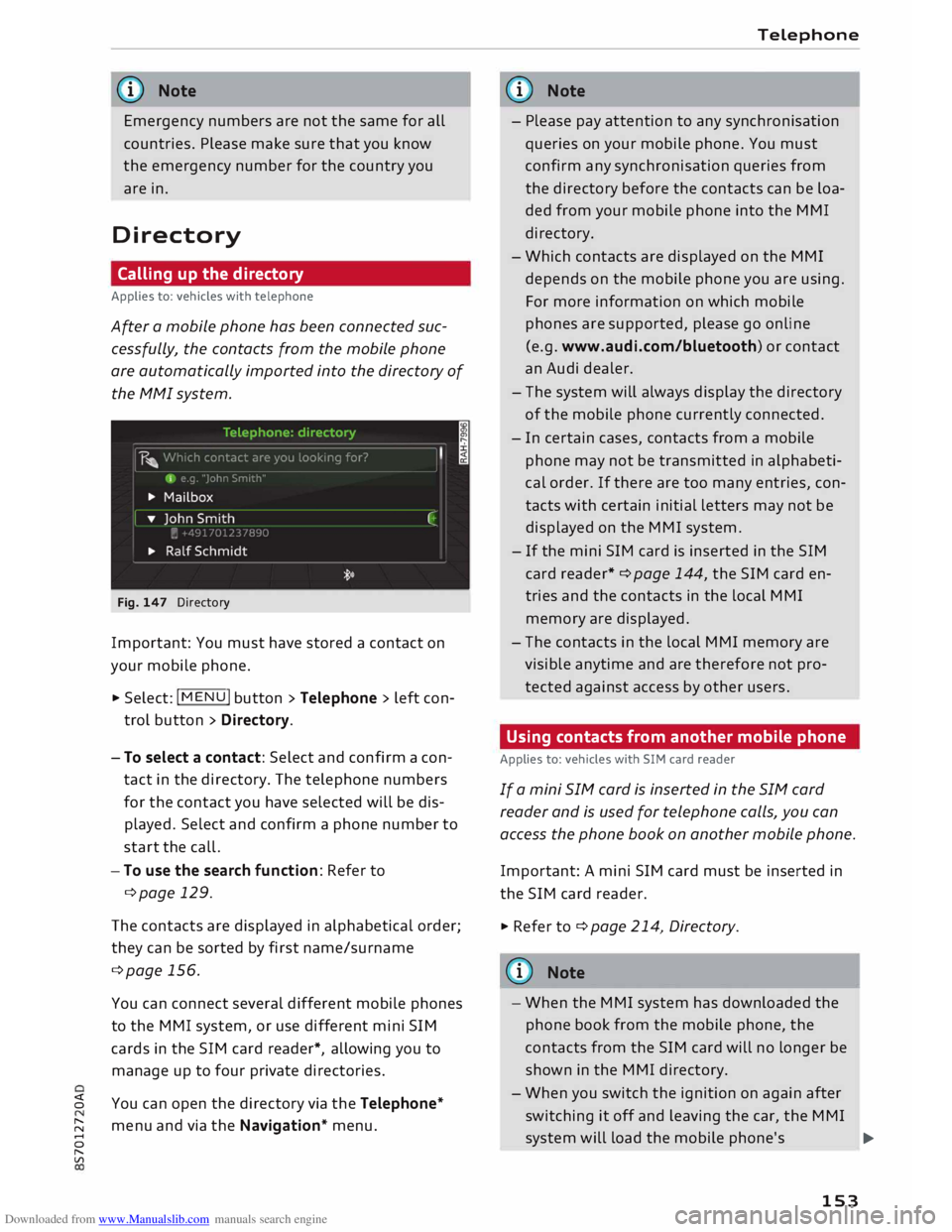
After a mobile phone has been connected suc
cessfully, the contacts from the mobile phone
are automatically imported into the directory of
the MMI system.
Fig. 147 Directory
Important: You must have stored a contact on
your mobile phone.
.,. Select: IM EN u I button > Telephone > left con
trol button > Directory.
- To select a contact: Select and confirm a con
tact in the directory. The telephone numbers
for the contact you have selected will be dis
played. Select and confirm a phone number to
start the call.
- To use the search function: Refer to
¢page 129.
The contacts are displayed in alphabetical order;
they can be sorted by first name/surname
¢page 156.
You can connect several different mobile phones
to the MMI system, or use different mini SIM
cards in the SIM card reader*, allowing you to
manage up to four private directories.
� You can open the directory via the Telephone*
� menu
and via the Navigation* menu.
......
0
"
Vl Telephone
G}) Note
- Please pay attention to any synchronisation
queries on your mobile phone. You must
confirm any synchronisation queries from
the directory before the contacts can be loa
ded from your mobile phone into the MMI
directory.
- Which contacts are displayed on the MMI
depends on the mobile phone you are using.
For more information on which mobile
phones are supported, please go online
(e.g. www.audi.com/bluetooth) or contact
an Audi dealer.
- The system will always display the directory
of the mobile phone currently connected.
- In certain cases, contacts from a mobile
phone may not be transmitted in alphabeti
cal order. If there are too many entries, con
tacts with certain initial letters may not be
displayed on the MMI system.
- If the mini SIM card is inserted in the SIM
card reader* ¢ page 144, the SIM card en
tries and the contacts in the local MMI
memory are displayed.
- The contacts in the local MMI memory are
visible anytime and are therefore not pro
tected against access by other users .
Using contacts from another mobile phone
Applies to: vehicles with SIM card reader
If a mini SIM card is inserted in the SIM card
reader and is used for telephone calls, you can
access the phone book on another mobile phone.
Important: A mini SIM card must be inserted in
the SIM card reader.
.,. Refer to¢ page 214, Directory.
@ Note
- When the MMI system has downloaded the
phone book from the mobile phone, the
contacts from the SIM card will no longer be
shown in the MMI directory.
- When you switch the ignition on again after
switching it off and leaving the car, the MMI
system will load the mobile phone's
..,.
153
Page 158 of 306
Downloaded from www.Manualslib.com manuals search engine Telephone
use of data services. There may be restrictions
when making and receiving calls.
If you select the telephone mode Automatic or
Telephony optimised, there may be network re
strictions if you try to use Audi connect services*
and make telephone calls at the same time.
Ring tone and volume settings 1
>
You can switch the MMI ring tone on or off using
the Mute telephone function. Ring tones are
played when you select the function Ring tone.
Select an entry from the list and confirm it. For
the settings Ring tone volume/Message volume,
see ¢ page 217. You can adjust the Microphone
input level during an active phone call using the
rotary pushbutton.
Network settings*
Refer to¢ page 215, Network settings*.
Serial number (IMEi)*
The serial number of the telephone module in
stalled in the MMI system is displayed.
Sw itch on telephone/Switch off telephone
Applies to: vehicles with car telephone kit
The car telephone will be turned "on" automati
cally when the ignition is switched on, as long as
it was not switched off separately the last time it
was used.
((!)} Note
- You can bond several mobile phones to the
MMI system; however only two* connec
tions are active at a time.
- All bonded Bluetooth devices can be deleted
by resetting the Bluetooth function to the
factory settings ¢ page 213.
- If you select the telephone mode Automatic
or Telephony optimised, there may be net
work restrictions if you try to use Audi con
nect services* and make telephone calls at
the same time.
l l
Depends on the connected mobile phone
156 Further
options
Applies to: vehicles with telephone
.,. Select: I MENU
I button >Telephone > right con-
trol button.
Connection manager
Refer to¢ page 213.
Bluetooth settings
Refer to¢ page 215.
Online settings*
Refer to¢ page 215.
Wi-Fi settings
Refer to¢ page 165, Wi-Fi hotspot.
Data connection settings*
Refer to ¢ page 166, Configuring the data con
nection.
Directory settings
Applies to: vehicles with telephone
.,. Select: I MENU
I button >Telephone > left con
trol button > Directory > right control button>
Directory settings.
Memory capacity
The Memory capacity of the directory will be dis
played.
You can manage up to 17,000 contacts with the
MMI's directory. Up to 4,000 contacts can be loa
ded from your mobile phone into each directory,
and up to 1,000 contacts can be imported from a
storage device.
Sort order
You can sort the contacts in your directory alpha
betically according to their surname or first
name.
Import contacts
Refer to¢ page 154, Importing/exporting con
tacts.
Page 161 of 306
Downloaded from www.Manualslib.com manuals search engine 0
N
,.....
N
......
0
,.....
Vl
CX) Audi
connect
Introduction
Applies to: vehicles with Audi connect
Audi connect services allow online information to
be directly transmitted and integrated into the
vehicle.
Thanks to a Wi-Fi hotspot, it is possible to use a
mobile device to access the Internet when the ve
hicle is stationary.
A WARNING
- Only use Audi connect services when the
traffic conditions allow you to do so safely -
risk of accident! Please always observe the
notes in the chapter ¢page 121, Notes on
traffic safety.
- Mobile devices, tablet and laptop computers
and devices of a similar weight can only be
operated safely when the vehicle is station
ary. Like any loose object, they can be cata
pulted through the vehicle in an accident
and cause serious injuries. Always make sure
that such devices are securely stowed while
you are driving.
-Audi connect services should only be used
via a Wi-Fi hotspot when the vehicle is sta
tionary -risk of accident!
Pl ease also refer to ¢ page 167, Notes on
Audi connect before using.
Setting up
Before you start
Applies to: vehicles with Audi connect
An Internet connection is required in order to use
Audi connect. You can establish a connection by
using one of the following options:
l) Not available in all markets. Applies to mobile phones
with Bluetooth remote SIM Access Profile on vehicles with
Audi connect and Audi phone box*.
2 > Not available for all countries and models Audi
connect
Option 1
Using a separate mini SIM card in the SIM card
reader ¢ page 159
Option 21
)
Connecting an rSAP¢ page 160 enabled mobile
phone via Bluetooth
Option 32
)
Using a mobile device (e.g. a smartphone) as a
personal Wi-Fi hotspot for the MMI ¢ page 161
Using the SIM card reader
Applies to: vehicles with SIM card reader
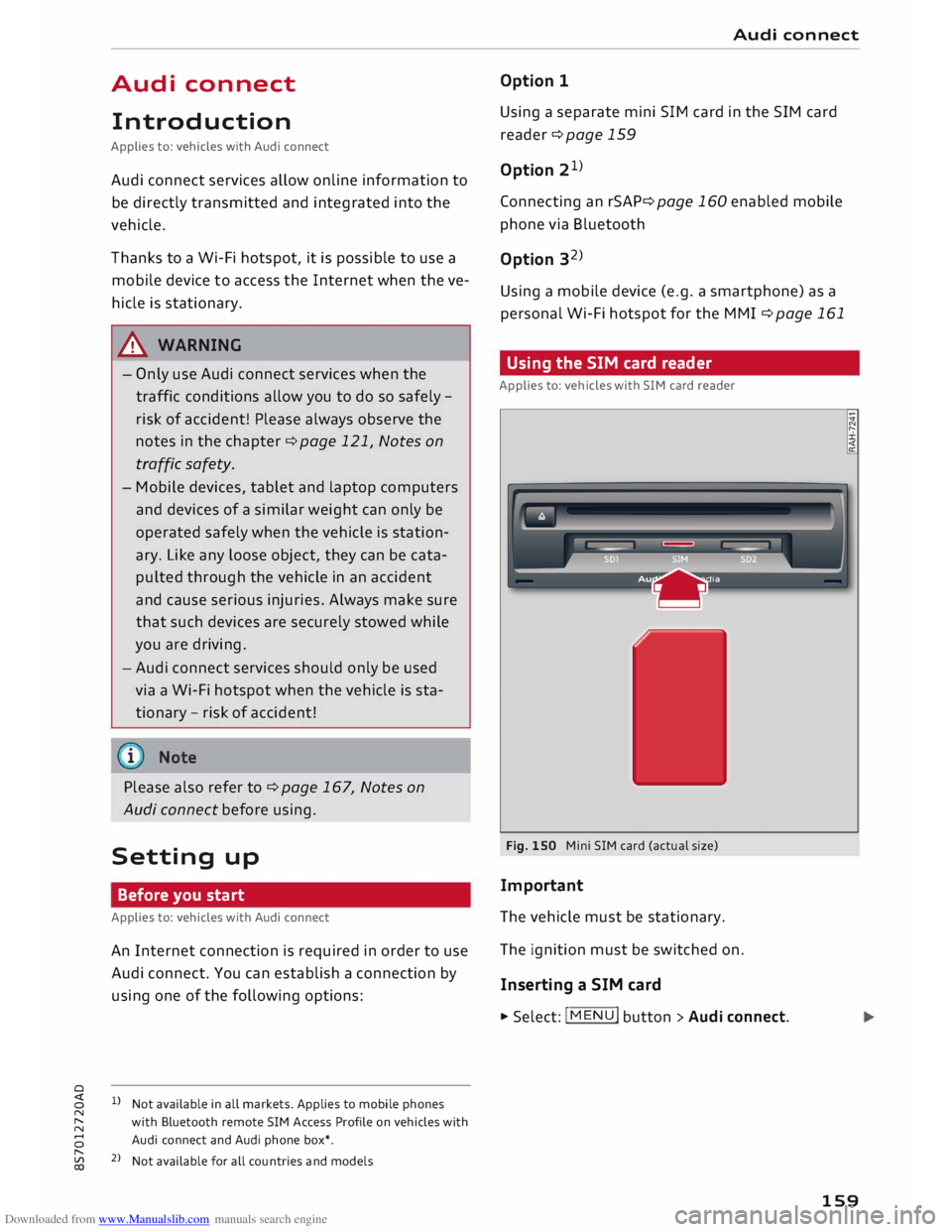
Fig. 150 Mini SIM card (actual size)
Important
The vehicle must be stationary.
The ignition must be switched on.
Inserting a SIM card
.,.. Select: I MENU
I button > Audi connect.
159
Page 162 of 306
Downloaded from www.Manualslib.com manuals search engine Audi
connect
... To establish an Internet connection for Audi
connect services, confirm the prompt on the
display with Accept .
... The missing corner of the mini SIM card should
be at the front left. Slide the mini SIM card into
the slot in the SIM card reader ¢ Fig. 150 until
you feel it engage.
... Select and confirm Enter PIN.
... Enter the PIN code for your SIM card in the
MMI.
... Select and confirm OK.
... To allow the MMI to connect automatically in
the future, select and confirm Yes .
... Confirm
the system query of whether an Inter
net connection should be established with Yes,
connect once or Yes, always connect if neces
sary.
After connecting successfully
After connecting successfully, the signal strength
and type of connection will appear in the status
line of the infotainment display@/@
¢ page 130, Fig. 137.
You can now use Audi connect.
The available Audi connect services will be listed
on the infotainment display.
Removing a SIM card
... Briefly press the mini SIM card. The card will
then eject from the slot. Remove the mini SIM
card.
CD CAUTION
- To avoid damaging the SIM card reader, on
ly use mini SIM cards (25 mm x 15 mm)
¢ Fig. 150. Please contact your service pro
vider for more information on mini SIM
cards.
- Should you have inserted a different SIM
card size in the SIM card reader, do not un
der any circumstances attempt to remove it
yourself as this may damage the SIM card
reader. Please contact a qualified workshop.
l l
Not available in all markets. Applies to mobile phones
with Bluetooth remote SIM Access Profile on vehicles with
Audi connect* and Audi phone box*.
160 -
If you use SIM card adapters, the vibrations
caused by the movement of the vehicle may
cause the SIM card to become detached
from the adapter -risk of damage to the
SIM card reader.
Connecting an rSAP enabled mobile phone
via Bluetooth
Applies to: vehicles with Audi connect
M
....
"' ....
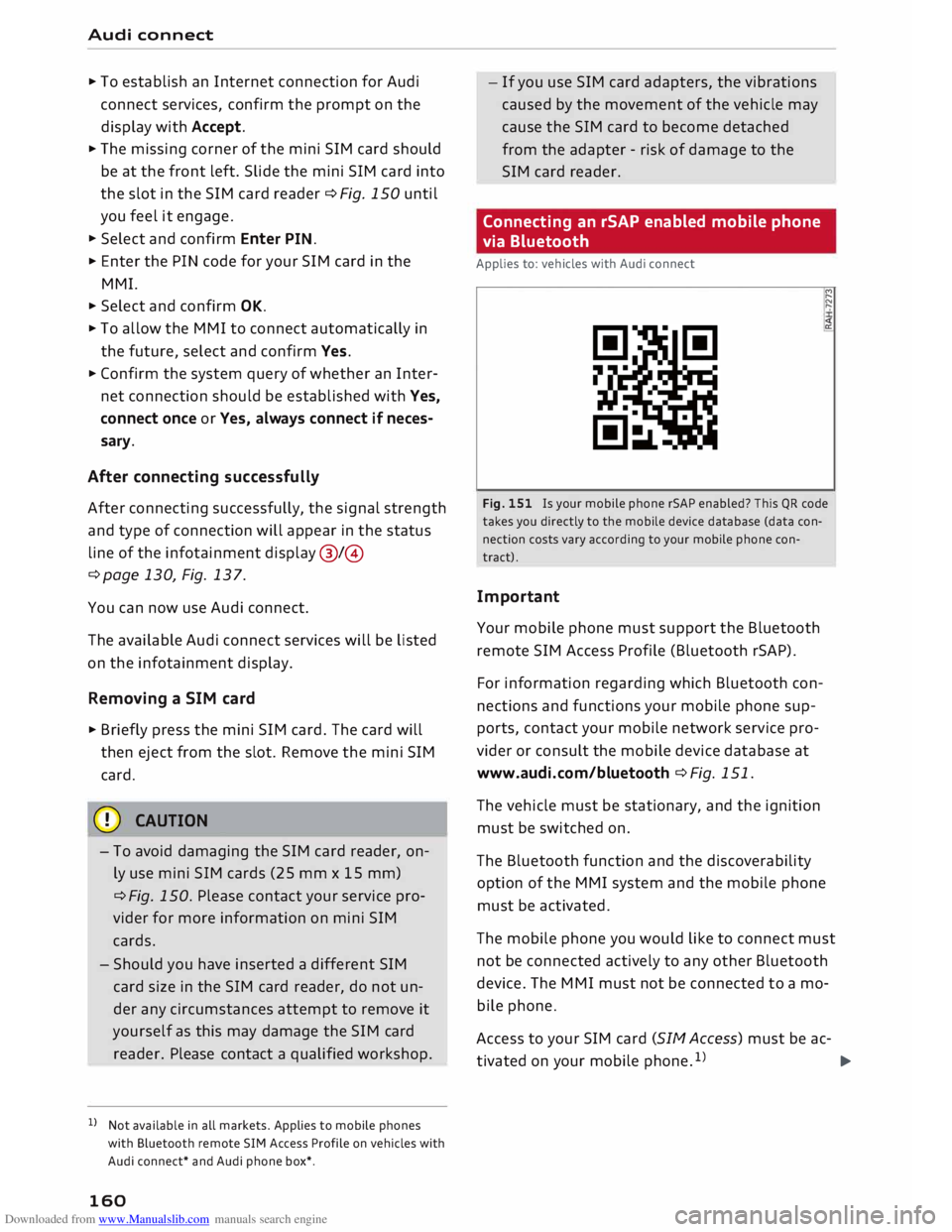
Fig. 151 Is your mobile phone rSAP enabled? This QR code
takes you directly to the mobile device database (data con
nection costs vary according to your mobile phone con
tract).
Important
Your mobile phone must support the Bluetooth
remote SIM Access Profile (Bluetooth rSAP).
For information regarding which Bluetooth con
nections and functions your mobile phone sup
ports, contact your mobile network service pro
vider or consult the mobile device database at
www.audi.com/bluetooth ¢ Fig. 151.
The vehicle must be stationary, and the ignition
must be switched on.
The Bluetooth function and the discoverability
option of the MMI system and the mobile phone
must be activated.
The mobile phone you would like to connect must
not be connected actively to any other Bluetooth
device. The MMI must not be connected to a mo
bile phone.
Access to your SIM card (SIM Access) must be ac-
tivated on your mobile phone.1
) ..,.
Page 163 of 306
Downloaded from www.Manualslib.com manuals search engine Connecting
a mobile phone
� Select: IM
EN
u I button > Telephone > Connect
mobile phone> Continue. The available Blue
tooth devices will be shown on the infotain
ment display. Or: Search for the MMI system
via the Bluetooth device search function on
your mobile phone.
� Select and confirm the desired mobile phone
from the List of Bluetooth devices shown.
� Enter the PIN to establish a connection on your
mobile phone. Or: If the PIN is already being
displayed on your mobile phone, confirm it on
the phone and on the MMI. You have about 30
seconds to enter the PIN.
If you wish to connect your mobile phone via the
remote SIM Access Profile, please also enter your
SIM card's PIN in the MMI1
).
Please note any additional system queries on
your mobile phone, e.g. whether the phone
should connect automatically in the future. On
some mobile phones, you may also need to
download the directory separately.
� Confirm the system query of whether an Inter
net connection should be established with Ac
cept.
After connecting successfully
The Bluetooth symbol@, signal strength symbol
@ and type of connection@ � page 130 will ap
pear on the infotainment display when the mo
bile phone has been connected successfully.
You can now use Audi connect.
- Bluetooth devices only have to be bonded
once. Depending on the mobile phone you
are using, any devices that have already
been bonded to the MMI system are connec
ted automatically when they are within
range and the ignition is on.
o l)
Not available in all markets. Applies to mobile phones
� with Bluetooth remote SIM Access Profile on vehicles with
� Audi
connect* and Audi phone box*.
8 2
> The number of possible attempts depends on the SIM
"
� card. Audi
connect
- You receive the SIM PIN and the PUK from
your mobile network service provider to
gether with the SIM card. If you enter the
SIM PIN code incorrectly three times2
)
in a
row, the SIM card will be be blocked. A PUK
(personal unblocking key) must be entered
in order to reactivate the SIM card.
- The Bluetooth connection between the sys
tem and the mobile phone is automatically
terminated when you Leave the car.
- For further information regarding your mo
bile phone, contact your mobile network
service provider or refer to the operating in
structions for your mobile phone. For infor
mation on using a phone in your car, please
go online (e.g. www.audi .com/blue tooth)
or ask an Audi dealer.
Using a personal Wi-Fi hotspot
Applies to: vehicles with Audi connect and personal Wi-Fi hot
spot
Impor tant
The vehicle must be stationary, and the ignition
must be switched on.
Your mobile device and mobile network provider
must support the mobile Wi-Fi hotspot function.
The personal Wi-Fi hotspot on your mobile device
must be activated.
Other devices must be permitted to access the
mobile hotspot.
Connecting the MMI to a personal hotspot
� Select: I M EN
U I button >Telephone > right con
trol button > Wi-Fi settings > Wi-Fi > on.
� Then select and confirm Network search. The
devices found will be shown on the infotain
ment display.
� Select and confirm your personal Wi-Fi hotspot
from the List.
� You may need to enter the password specified
by your mobile device.
Ill-
161
Page 167 of 306
Downloaded from www.Manualslib.com manuals search engine available
at my.audi.com. You can also have
the new navigation data installed by an Audi
dealer (carries additional charges).
- Further information on the myAudi special
destinations and the map update can be
found at my.audi.com.
Audi connect services for telephones
Applies to: vehicles with Audi connect
The following Audi connect services are currently
available:
Creating contacts on your PC via your myAudi ac
count and loading the contacts into the directory
of your MMI system ¢page 154.
Audi connect services in the Media menu
Applies to: vehicles with Wi-Fi audio player and Audi connect
- Wi-Fi audio player: To access the media centre
of your player (e.g. smartphone) connected via
Wi-Fi ¢page 195.
- Online media: With assistance from the Audi
MMI connect app, this function allows you to
access and operate various on line media serv
ices using the MMI.
CD CAUTION
Please always observe the information ¢(Din
Wi-Fi hotspot on page 166.
Note
Please contact an Audi dealer for more infor
mation on Wi-Fi audio players and for a list of
supported devices.
Further options
Applies to: vehicles with Audi connect .,.. Selec
t: I
MENU ! button
> Audi connect > right
control button.
The following options are available to you in the
overview of the Audi connect services:
- Login: Refer to ¢page 162, Logging into
0
� myAudi
in the vehicle.
� -Connection manager: Refer to ¢page 213.
N
......
0
"
Vl Audi
connect
- Licence periods: The validity and the time re
maining on your licences is displayed. If the Li
cence expiry warning function is switched on, a
message will be displayed before the licence
expires.
Wi-Fi hotspot
Applies to: vehicles with Wi-Fi hotspot
You can use your MMI system as a Wi-Fi hotspot
for connecting to the Internet on up to eight Wi
Fi devices.
Important: The ignition must be switched on.
.,.. Select:
I MENU
I button >Telephone > right con-
trol button > Wi-Fi settings.
The following settings can be made:
Wi-Fi
The Wi-Fi hotspot is deactivated when the vehicle
leaves the factory. Switch the Wi-Fi hotspot on
before establishing an Internet connection be
tween your vehicle and your Wi-Fi device.
- on: The MMI's Wi-Fi hotspot is activated and
visible to other devices. You can connect your
Wi-Fi device to the MMI.
- off: The M Mi's Wi-Fi hotspot is deactivated.
Wi-Fi devices will not be able to connect to the
Internet.
Network key
The Wi-Fi connection between your vehicle and
the Wi-Fi device (laptop or mobile phone) is en
crypted. Before a connection can be established,
you must enter the following values/settings
when setting up your Wi-Fi device (these values
can be edited as required):
-Access point (SSID): Name of the Wi-Fi net
work.
- Password: A random MMI password is set at
the factory. This password can be changed. The
encryption type WPA2 requires the password to
be at least 8 characters long. Please select a se
cure password.
- Discoverability: To switch the discoverability of
your Wi-Fi network on or off.
.,.
165
Page 200 of 306
Downloaded from www.Manualslib.com manuals search engine Media
Audi music interface
Applies to: vehicles with Audi music interface
You can connect your mobile devices via the Audi
music interface in order to charge the battery
and operate the devices via the MMI.
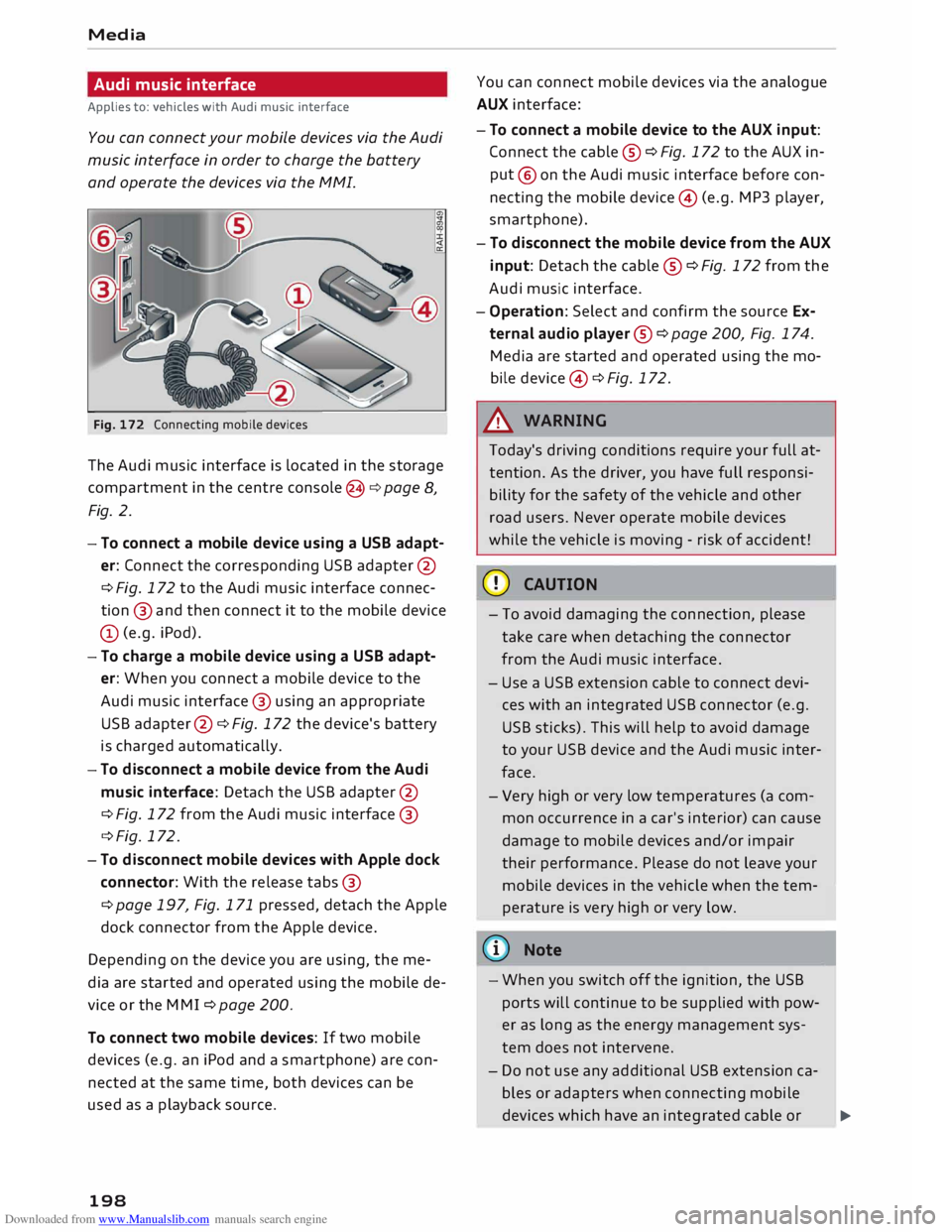
Fig. 172 Connecting mobile devices
The Audi music interface is Located in the storage
compartment in the centre console @c:> page 8,
Fig. 2.
- To connect a mobile device using a USB adapt
er: Connect the corresponding USB adapter @
c> Fig. 172 to the Audi music interface connec
tion @ and then connect it to the mobile device
(D (e.g. iPod).
- To charge a mobile device using a USB adapt
er: When you connect a mobile device to the
Audi music interface @ using an appropriate
USB adapter @ c:> Fig. 172 the device's battery
is charged automatically.
- To disconnect a mobile device from the Audi
music interface: Detach the USB adapter @
c> Fig. 172 from the Audi music interface @
c> Fig. 172.
- To disconnect mobile devices with Apple dock
connector: With the release tabs@
c> page 197, Fig. 171 pressed, detach the Apple
dock connector from the Apple device.
Depending on the device you are using, the me
dia are started and operated using the mobile de
vice or the MM I c:> page 200.
To connect two mobile devices: If two mobile
devices (e.g. an iPod and a smartphone) are con
nected at the same time, both devices can be
used as a playback source.
198 You
can connect mobile devices via the analogue
AUX interface:
- To connect a mobile device to the AUX input:
Connect the cable ® c:> Fig. 172 to the AUX in
put @ on the Audi music interface before con
necting the mobile device@ (e.g. MP3 player,
smartphone).
- To disconnect the mobile device from the AUX
input: Detach the cable ® c:> Fig. 172 from the
Audi music interface.
- Operation: Select and confirm the source Ex
ternal audio player @ c:> page 200, Fig. 174.
Media are started and operated using the mo
bile device @ c:> Fig. 172.
A WARNING
Today's driving conditions require your full at
tention. As the driver, you have full responsi
bility for the safety of the vehicle and other
road users. Never operate mobile devices
while the vehicle is moving -risk of accident!
CD CAUTION
- To avoid damaging the connection, please
take care when detaching the connector
from the Audi music interface.
- Use a USB extension cable to connect devi
ces with an integrated USB connector (e.g.
USB sticks). This will help to avoid damage
to your USB device and the Audi music inter
face.
- Very high or very Low temperatures (a com
mon occurrence in a car's interior) can cause
damage to mobile devices and/or impair
their performance. Please do not Leave your
mobile devices in the vehicle when the tem
perature is very high or very Low.
@ Note
-When you switch off the ignition, the USB
ports will continue to be supplied with pow-
er as long as the energy management sys-
tem does not intervene.
- Do not use any additional USB extension ca
bles or adapters when connecting mobile
devices which have an integrated cable or
�
Page 202 of 306
Downloaded from www.Manualslib.com manuals search engine Media
- To disconnect mobile devices with Apple dock
connector: With the release tabs®
¢ page 197, Fig. 171 pressed, detach the Apple
dock connector from the Apple device.
A WARNING
Today's driving conditions require your full at
tention. As the driver, you have full responsi
bility for the safety of the vehicle and other
road users. Never use mobile devices while
the vehicle is moving -risk of accident!
CD CAUTION
- To avoid damaging the connection on the
Audi music interface, please take care when
unplugging the connector from the AUX in
put or the USB charging socket.
- Very
high or very low temperatures (a com
mon occurrence in a car's interior) can cause
damage to mobile devices and/or impair
their performance. Please do not leave your
mobile devices in the vehicle when the tem
perature is very high or very low.
({D Note
-When you switch off the ignition, the USB
ports will continue to be supplied with pow
er as long as the energy management sys
tem does not intervene.
- USB charging sockets marked
I CHARGE
ONL vi
cannot transfer data and
are intended for charging only.
- Do not use any additional USB extension ca
bles or adapters when connecting mobile
devices which must be connected to the USB
charging socket®¢ Fig. 173 via a USB
adapter (¢ page 197); this could cause per
formance issues.
- The AUX adapter cable is available from
Audi dealers or specialist retailers.
- USB hubs are not supported.
- Please refer to the operating instructions of
your mobile device for important informa
tion on its operation.
- It
cannot be guaranteed that all mobile de
vices will function without any problems.
200 -
Using a mobile device with the engine
switched off will drain the vehicle's battery.
-Audi recommends setting the volume of a
mobile device connected to the AUX input to
about 70 % of maximum.
Playing media
Calling up media
You can start and operate various types of media
via the MMI control console.
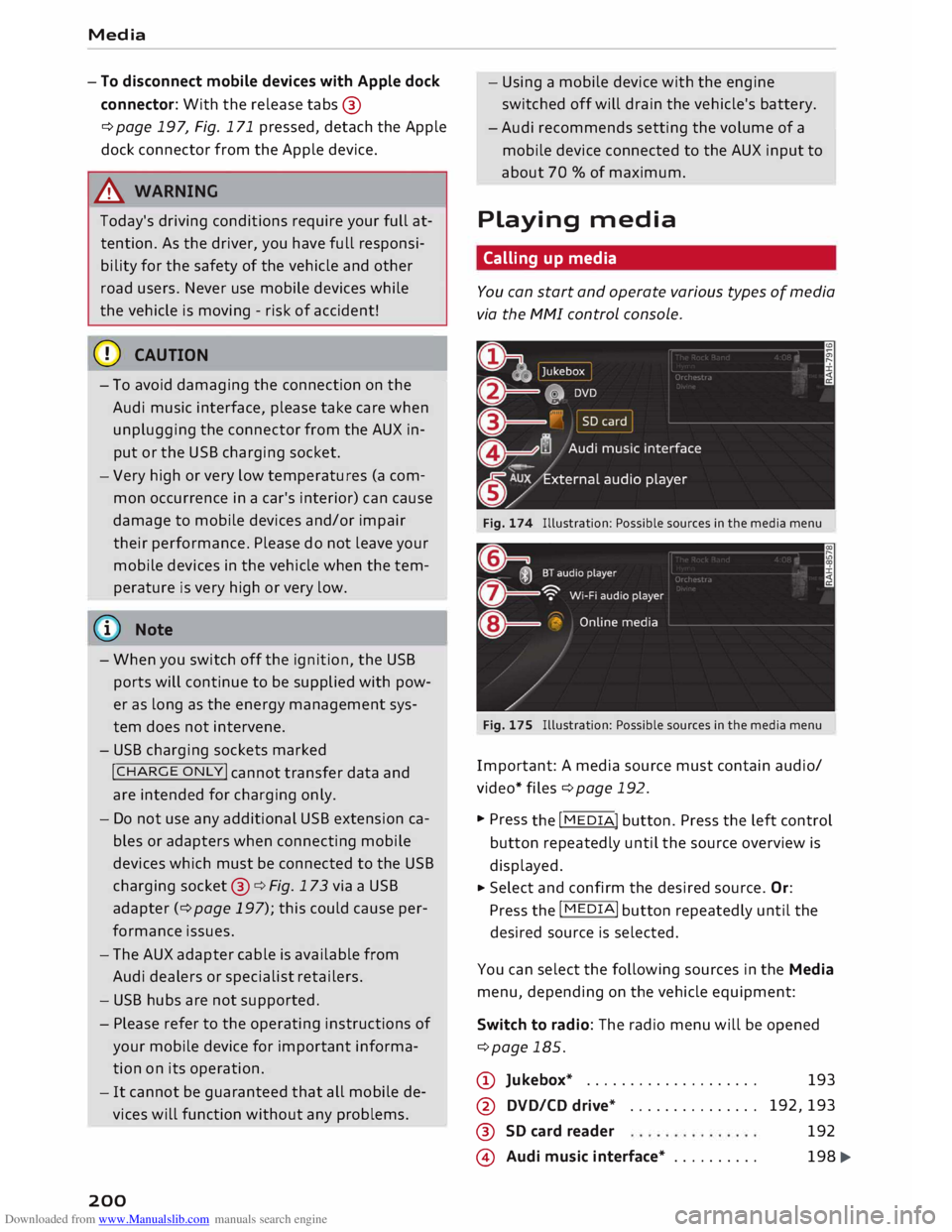
Fig. 174 Illustration: Possible sources in the media menu
Fig. 175 Illustration: Possible sources in the media menu
Important: A media source must contain audio/
video* files ¢page 192.
... Press
the I
ME
DIA !
button. Press the left control
button repeatedly until the source overview is
displayed.
... Select
and confirm the desired source. Or:
Press the I
MEDI Ai
button repeatedly until the
desired source is selected.
You can select the following sources in the Media
menu, depending on the vehicle equipment:
Switch to radio: The radio menu will be opened
¢page 185.
(D Jukebox* ................... .
@ DVD/CD drive* .............. .
®
@ SD
card reader
Audi music interface* ......... . 193
192,193 192
198 �
Page 212 of 306
Downloaded from www.Manualslib.com manuals search engine Audi
smartphone interface
Audi smartphone
interface
Setting up1
)
Applies to: vehicles with Audi smartphone interface
You can connect your smartphone to the MMI
system via the Audi smartphone interface. Some
of the content on your smartphone is displayed
in an optimised screen format on the infotain
ment display and can be operated via the MMI
control console.
Requirements:
The vehicle must be stationary, and the ignition
must be switched on.
iPhone 5 or later with Lightning connector and
operating system iOS 7.1.2 or higher or:
Smartphone with Android Auto app and operat
ing system Android 5.0 Lollipop or later.
... Connect your smartphone to the Audi music in
terface ¢page 198via a USB adapter
¢page 197, Fig. 171.
... Select
and confirm Activate Apple CarPlay or
Activate Android Auto now.
... Follow the instructions given by the system.
... Please note any system queries on your smart-
phone.
If you decline the use of Apple CarPlay or Android
Auto the first time you connect your smartphone,
you can start the Audi smartphone interface at a
later time via the connection manager . ...
Sele ct: !MENU! button > Audi smartphone in
terface > Switch to connection manager .
... Connect your smartphone to the Audi music in
terface ¢page 198via a USB adapter
¢page 197, Fig. 171 .
... Select and confirm Audi smartphone in Con
nection manager ¢ page 213. You can select
your smartphone from the list of devices al
ready connected ¢ page 215.
... Follow the instructions given by the system.
l l
Not available in all markets.
210 CD
CAUTION
Please always observe the information ¢(Din
Wi-Fi hotspot on page 166.
ijj) Note
- The functions you can use depend on a num
ber of factors including:
- The brand of your smartphone
- The operating system version of your
smartphone
- The software version of the app in use
- The USB adapter/cable and the correct
connection
- Your mobile network/service provider
- The individual settings on your smart-
phone
- One or several of the factors listed above
can result in your smartphone being incom
patible with the Audi smartphone interface.
We regret that it is not possible to guaran
tee compatibility for all types of smart
phone. For further information and support,
please refer to the operating manual of your
smartphone or contact its manufacturer.
- If the smartphone you have connected has a
voice control feature, you can control your
smartphone using the external speech dia
logue system* ¢ page 139.
- The menu language displayed on the MMI is
based on the setting on your smartphone.
- The time displayed on the MMI is based on
the setting on your smartphone.
- Some of the MMI functions are not available
while an Apple CarPlay or Android Auto con
nection is active.
- You cannot use mobile devices via Bluetooth
when an Apple CarPlay connection is active.
- If you have inserted your own mini SIM card
in the SIM card reader* for making phone
calls, the SIM card will be used exclusively
for a data connection when the Audi smart
phone interface and the car phone function*
are active.
Page 219 of 306
Downloaded from www.Manualslib.com manuals search engine 0
N
,.....
N
......
0
,.....
Vl
CX) Note
- The On-board Handbook is not available in
all countries. Your Audi dealer will be able
to provide you with more detailed informa
tion.
- Switch off the ignition while you are instal
ling/updating the On-board Handbook.
- Please note that the On-board Handbook is
not a substitute for the printed Owner's
Manual.
Sound settings
You can adjust the sound and volume of the MMI
individually. The settings depend on the equip
ment fitted in your vehicle.
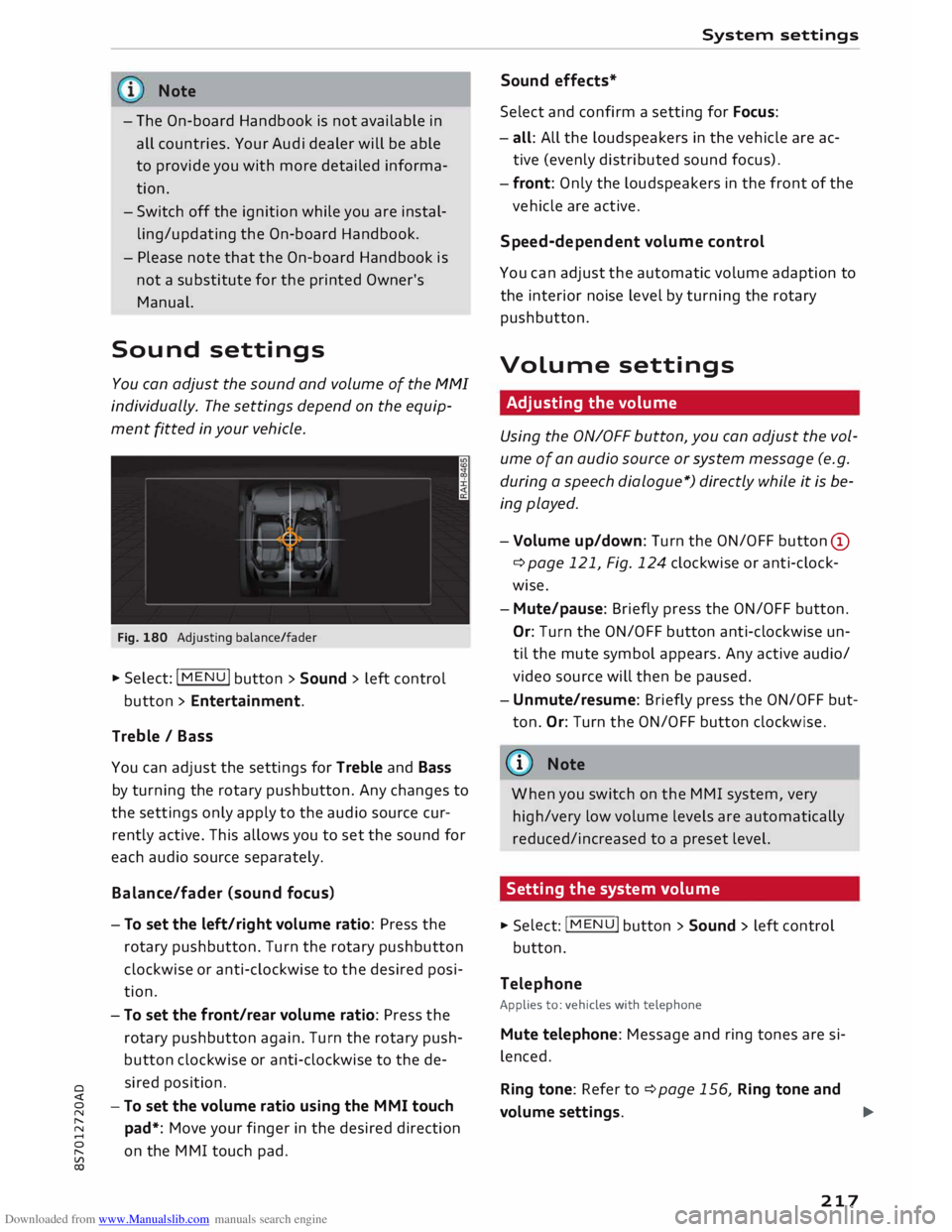
Fig. 180 Adjusting balance/fader
� Select: IM
E
N
u I button > Sound > left control
button > Entertainment.
Treble / Bass
You can adjust the settings for Treble and Bass
by turning the rotary pushbutton. Any changes to
the settings only apply to the audio source cur
rently active. This allows you to set the sound for
each audio source separately.
Bala nce/fader (sound focus)
- To set the left/right volume ratio: Press the
rotary pushbutton. Turn the rotary pushbutton
clockwise or anti-clockwise to the desired posi
tion.
- To set the front/rear volume ratio: Press the
rotary pushbutton again. Turn the rotary push
button clockwise or anti-clockwise to the de
sired position.
-To set the volume ratio using the MMI touch
pad*: Move your finger in the desired direction
on the MMI touch pad. System
settings
Sound effects*
Select and confirm a setting for Focus:
- all: All the loudspeakers in the vehicle are ac
tive (evenly distributed sound focus).
- front: Only the loudspeakers in the front of the
vehicle are active.
Speed-d ependent volume control
You can adjust the automatic volume adaption to
the interior noise level by turning the rotary
pushbutton.
Volume settings
Adjusting the volume
Using the ON/OFF button, you can adjust the vol
ume of an audio source or system message (e.g.
during a speech dialogue*) directly while it is be
ing played.
- Volume up/down: Turn the ON/OFF button (D
¢ page 121, Fig. 124 clockwise or anti-clock
wise.
- Mute/pause: Briefly press the ON/OFF button.
Or: Turn the ON/OFF button anti-clockwise un
til the mute symbol appears. Any active audio/
video source will then be paused.
- Unmute/resume: Briefly press the ON/OFF but
ton. Or: Turn the ON/OFF button clockwise.
{a)) Note
When you switch on the MMI system, very
high/very low volume levels are automatically
reduced/increased to a preset level.
Setting the system volume � Sele
ct:
IMENU! button > Sound > left control
button.
Telephone
Applies to: vehicles with telephone
Mute telephone: Message and ring tones are si
lenced.
Ring tone: Refer to ¢page 156, Ring tone and
volume settings.
..,.
217