phone AUDI TT ROADSTER 2016 Repair Manual
[x] Cancel search | Manufacturer: AUDI, Model Year: 2016, Model line: TT ROADSTER, Model: AUDI TT ROADSTER 2016Pages: 306, PDF Size: 31.82 MB
Page 213 of 306
Downloaded from www.Manualslib.com manuals search engine 0
N
,.....
N
......
0
,.....
Vl
CX) Audi
smartphone interface
- Tag this song for iTunes* 1
>2
> is not available
while an Apple CarPlay connection is active
¢page 185. Android Auto:
To open the menu bar of Android
Auto, push the rotary pushbutton downwards.
Calling up a menu item
How to use
Applies to: vehicles with Audi smartphone interface Use
the MMI control console to select an item
from the menu and confirm it.
Calling up the menu
Apple CarPlay: To return to the main menu of
Apple CarPlay from any other menu, press and
hold the I
BACK!
button.
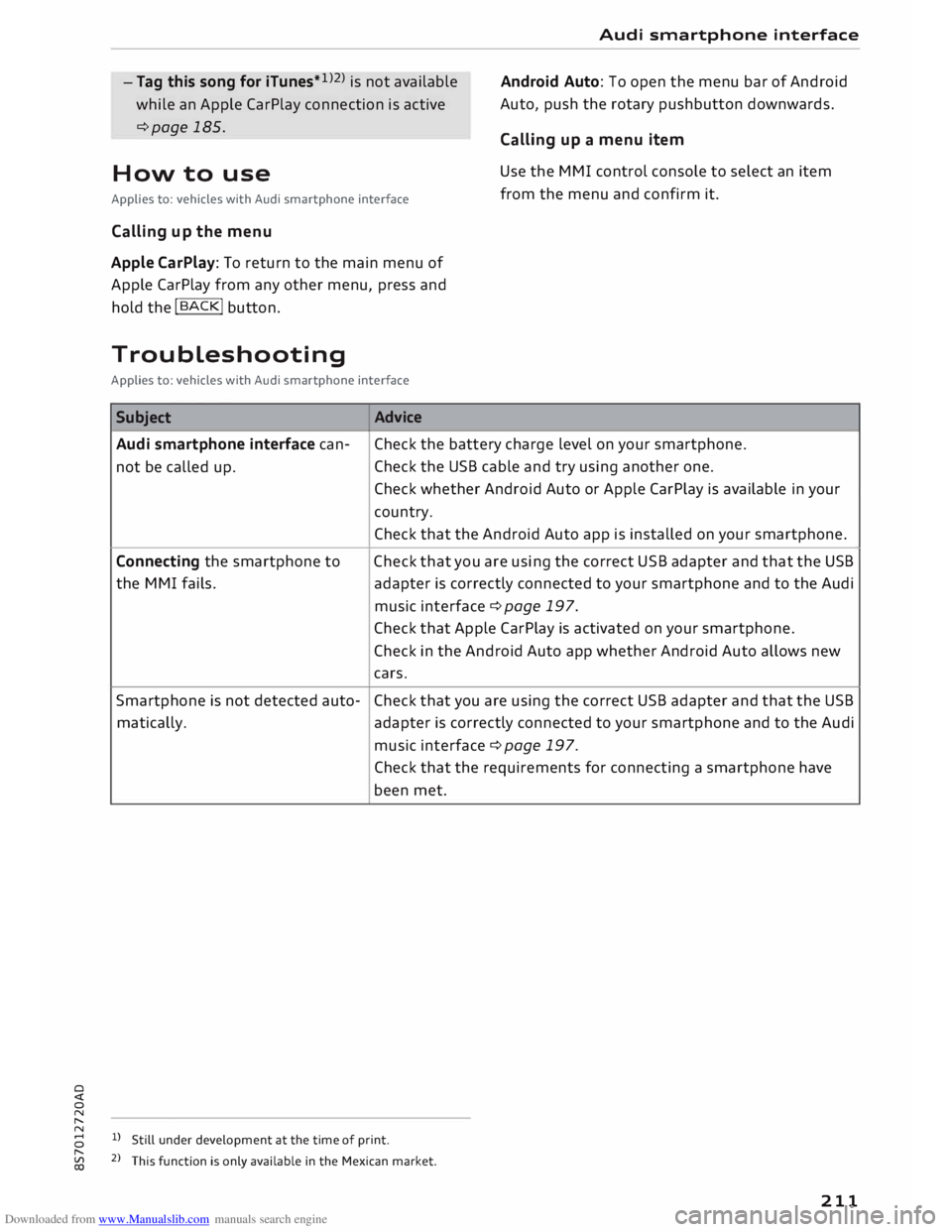
Troubleshooting
Applies to: vehicles with Audi smartphone interface
Subject Advice
Audi smartphone interface can-Check
the battery charge level on your smartphone.
not be called up. Check
the USB cable and try using another one.
Check whether Android Auto or Apple CarPlay is available in your
country. Check that the Android Auto app is installed on your smartphone.
Connecting the smartphone to Check that you are using
the correct USB adapter and that the USB
the MMI fails. adapter
is correctly connected to your smartphone and to the Audi
music interface ¢ page 197.
Check that Apple CarPlay is activated on your smartphone.
Check in the Android Auto app whether Android Auto allows new
cars.
Smartphone is not detected auto-Check that you are using the correct USB adapter and that the USB
matically. adapter
is correctly connected to your smartphone and to the Audi
music interface ¢ page 197.
Check that the requirements for connecting a smartphone have
been met.
l) Still under development at the time of print .
2 > This function is only available in the Mexican market.
211
Page 214 of 306
Downloaded from www.Manualslib.com manuals search engine System
settings
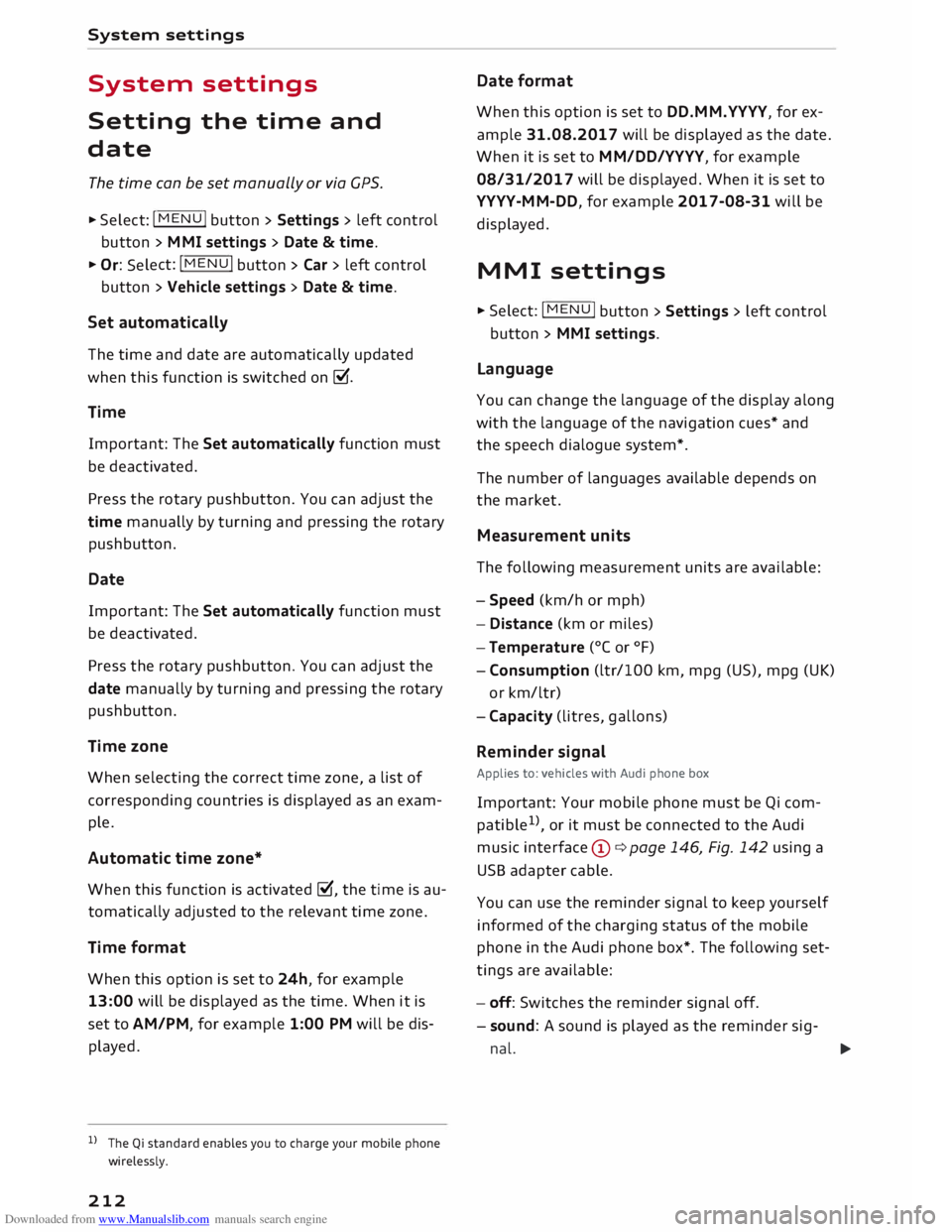
System settings
Setting the time and
date
The time can be set manually or via CPS.
... Select: I MEN
U
I button > Settings > left control
button > MMI settings > Date & time ....
Or: Select: !MENU! button
> Car > left control
button > Vehicle settings > Date & time.
Set automatically
The time and date are automatically updated
when this function is switched on�-
Time Important: The Set automatically function must
be deactivated.
Press the rotary pushbutton. You can adjust the
time manually by turning and pressing the rotary
pushbutton.
Date
Important: The Set automatically function must
be deactivated.
Press the rotary pushbutton. You can adjust the
date manually by turning and pressing the rotary
pushbutton.
Time zone
When selecting the correct time zone, a list of
corresponding countries is displayed as an exam
ple.
Automatic time zone*
When this function is activated �, the time is au
tomatically adjusted to the relevant time zone.
Time format
When this option is set to 24h, for example
13:00 will be displayed as the time. When it is
set to AM/PM, for example 1:00 PM will be dis
played.
l l
The Qi standard enables you to charge your mobile phone
wirelessly.
212 Date
format
When this option is set to DD.MM.YYYY, for ex
ample 31.08.2017 will be displayed as the date.
When it is set to MM/DD/YYYY, for example
08/31/2017 will be displayed. When it is set to
YYYY-MM-DD, for example 2017-08-31 will be
displayed.
MMI settings
... Select: I MEN
U
I button >Settings> Left control
button > MMI settings.
Language
You can change the language of the display along
with the language of the navigation cues* and
the speech dialogue system*.
The number of languages available depends on
the market.
Measurement units
The following measurement units are available:
- Speed (km/h or mph)
- Distance (km or miles)
- Temperature (0
( or °F)
- Consumption (ltr/100 km, mpg (US), mpg (UK)
or km/ltr)
- Capacity (litres, gallons)
Reminder signal
Applies to: vehicles with Audi phone box
Important: Your mobile phone must be Qi com
patible 1
>
, or it must be connected to the Audi
music interface (!)¢ page 146, Fig. 142 using a
USB adapter cable.
You can use the reminder signal to keep yourself
informed of the charging status of the mobile
phone in the Audi phone box*. The following set
tings are available:
- off: Switches the reminder signal off.
- sound: A sound is played as the reminder sig-
nal. �
Page 215 of 306
Downloaded from www.Manualslib.com manuals search engine 0
N
,.....
N
......
0
,.....
Vl
CX) -
spoken: The reminder signal is spoken by the
system.
Reminder signal volume: You can adjust the vol
ume of the reminder signal by turning the rotary
pushbutton.
Switch off pop-up: This function is switched off
at the factory. When this function is switched on
� , the messages about the charging status of
the mobile phone in the Audi phone box* on the
infotainment display will not appear. The re
minder not to forget the mobile phone when
leaving the vehicle will also be switched off.
Usage tips
Your MMI displays usage tips when this function
is switched on�
. They will appear less often as
time goes by. You can switch the usage tips off at
any time.
Speech dialogue system
Applies to: vehicles with speech dialogue system
Command display: The MMI displays possible
voice commands in the corresponding menu
when this function is switched on�
. You can
switch this function off at any time.
Short dialogue: When this function is switched
on �
, the spoken cues are shortened. You can
switch this function off at any time.
Speech dialogue system volume: You can adjust
the volume of the spoken cues by turning the ro
tary pushbutton.
Individual speech training (only possible when
the vehicle is stationary): You can use the individ
ual speech training to adapt the speech dialogue
system to your voice or pronunciation so that the
speech dialogue system can then better recog
nise what you are saying. The individual speech
training prompts you to repeat 20 spoken phra
ses that consist of certain commands and blocks
of digits. If you would like to delete the stored
speech training setup, you can use the function
Reset individual speech training.
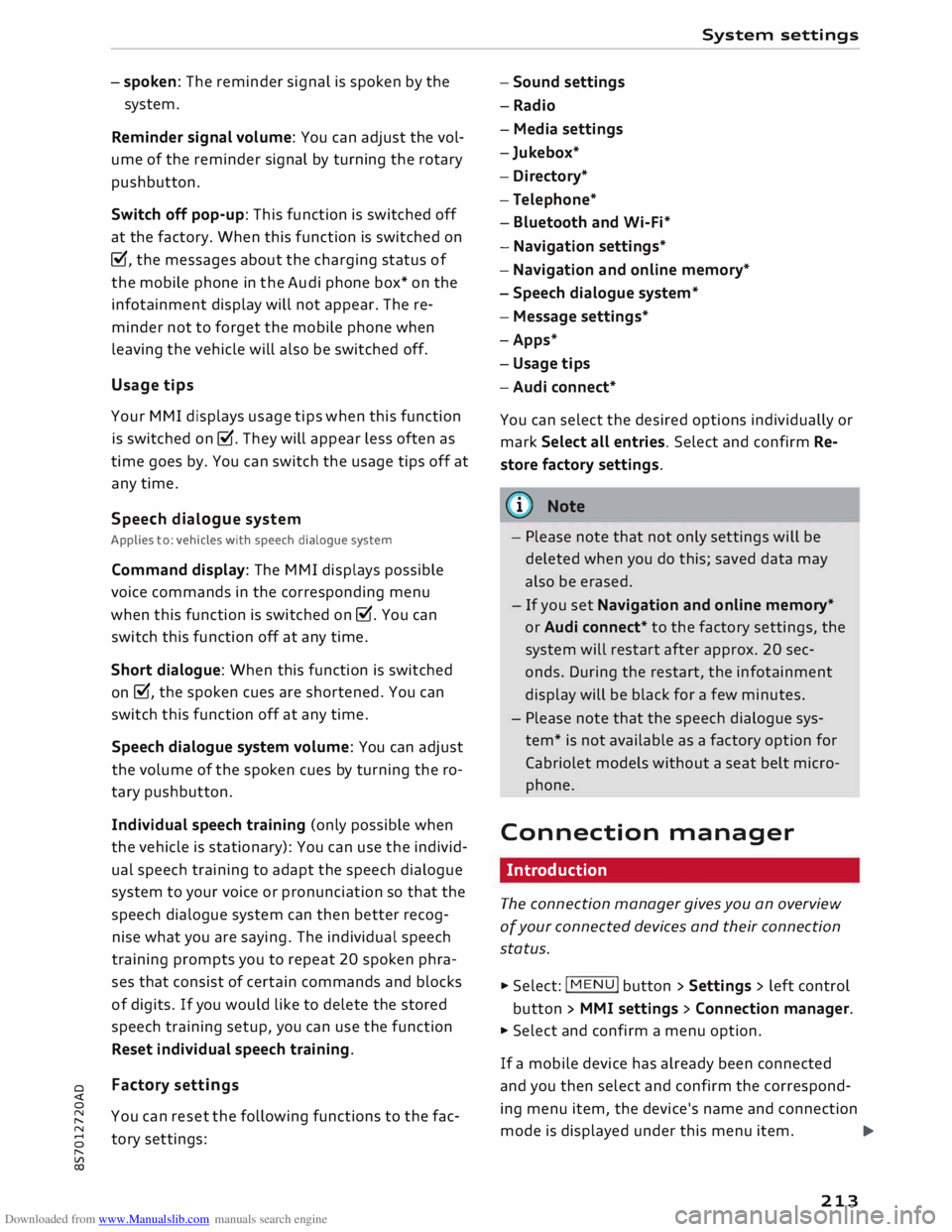
Factory settings
You can reset the following functions to the fac
tory settings: System
settings
- Sound settings
- Radio
- Media settings
-Jukebox*
- Directory*
- Telephone*
- Bluetooth and Wi-Fi*
- Navigation settings*
- Navigation and online memory*
- Speech dialogue system*
- Message settings*
-Apps*
- Usage tips
-Audi connect*
You can select the desired options individually or
mark Select all entries. Select and confirm Re
store factory settings.
ijj) Note
- Please note that not only settings will be
deleted when you do this; saved data may
also be erased.
- If you set Navigation and on line memory*
or Audi connect* to the factory settings, the
system will restart after approx. 20 sec
onds. During the restart, the infotainment
display
will
be black for a few minutes.
- Please note that the speech dialogue sys
tem* is not available as a factory option for
Cabriolet models without a seat belt micro
phone.
Connection manager
Introduction
The connection manager gives you an overview
of your connected devices and their connection
status.
.., Select: I MENU I button > Settings > left control
button > MMI settings > Connection manager.
.., Select and confirm a menu option.
If a mobile device has already been connected
and you then select and confirm the correspond
ing menu item, the device's name and connection
mode is displayed under this menu item.
...,.
213
Page 216 of 306
Downloaded from www.Manualslib.com manuals search engine System
settings
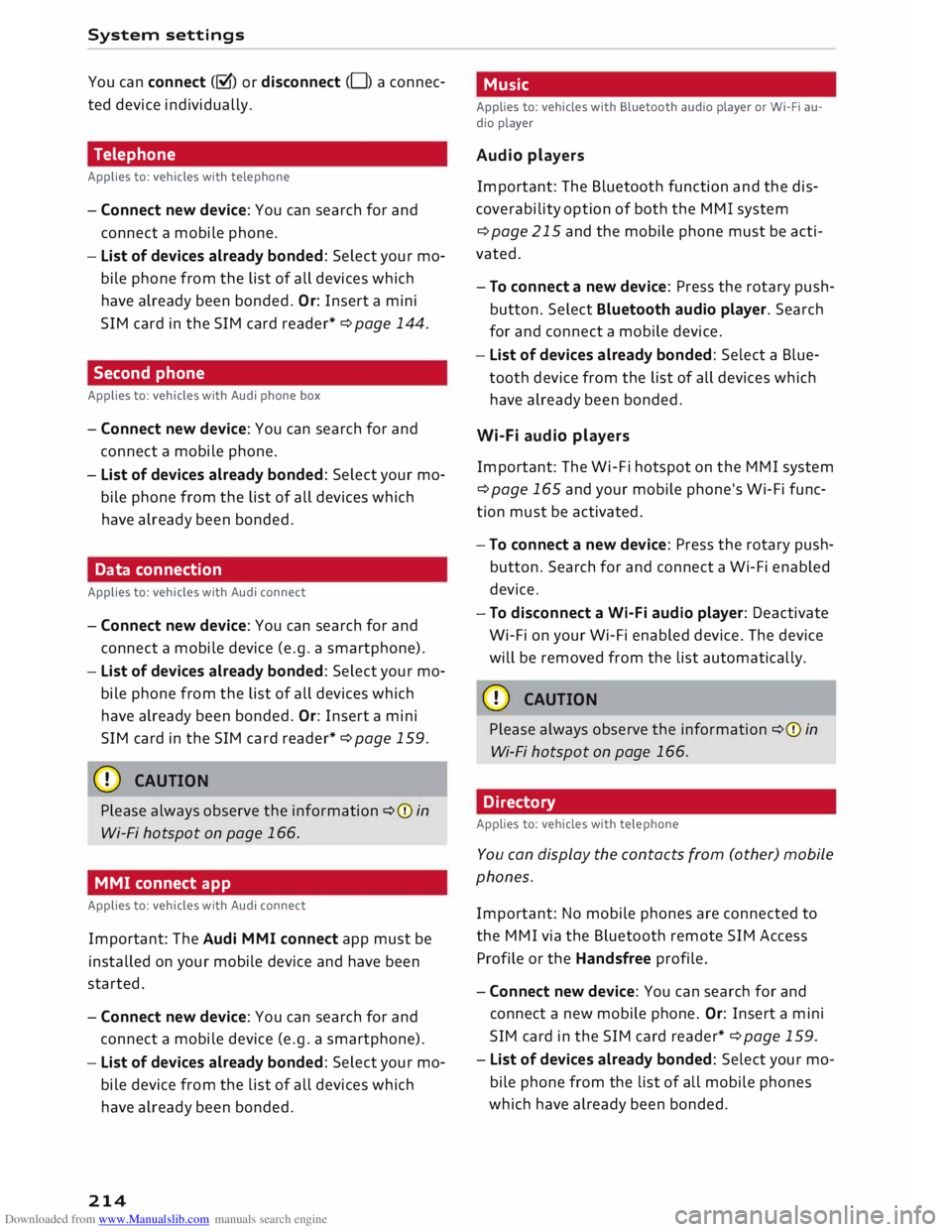
You can connect (�) or disconnect (0) a connec
ted device individually.
Telephone
Applies to: vehicles with telephone
- Connect new device: You can search for and
connect a mobile phone.
- List of devices already bonded: Select your mo
bile phone from the list of all devices which
have already been bonded. Or: Insert a mini
SIM card in the SIM card reader* ¢page 144.
Second phone
Applies to: vehicles with Audi phone box
- Connect new device: You can search for and
connect a mobile phone.
- List of devices already bonded: Select your mo
bile phone from the list of all devices which
have already been bonded.
Data connection
Applies to: vehicles with Audi connect
- Connect new device: You can search for and
connect a mobile device (e.g. a smartphone).
- List of devices already bonded: Select your mo
bile phone from the list of all devices which
have already been bonded. Or: Insert a mini
SIM card in the SIM card reader* ¢page 159.
CD CAUTION
Please always observe the information ¢0 in
Wi-Fi hotspot on page 166.
MMI connect app
Applies to: vehicles with Audi connect
Important: The Audi MMI connect app must be
installed on your mobile device and have been
started.
- Connect new device: You can search for and
connect a mobile device (e.g. a smartphone).
- List of devices already bonded: Select your mo
bile device from the list of all devices which
have already been bonded.
214 Music
Applies to: vehicles with Bluetooth audio player or Wi-Fi au
dio player
Audio players
Important: The Bluetooth function and the dis
coverability option of both the M MI system
¢ page 215 and the mobile phone must be acti
vated.
- To connect a new device: Press the rotary push
button. Select Bluetooth audio player. Search
for and connect a mobile device.
- List of devices already bonded: Select a Blue
tooth device from the list of all devices which
have already been bonded.
Wi-Fi audio players
Important: The Wi-Fi hotspot on the MMI system
¢page 165 and your mobile phone's Wi-Fi func
tion must be activated.
- To connect a new device: Press the rotary push
button. Search for and connect a Wi-Fi enabled
device.
- To disconnect a Wi-Fi audio player: Deactivate
Wi-Fi on your Wi-Fi enabled device. The device
will be removed from the list automatically.
CD CAUTION
Please always observe the information ¢0 in
Wi-Fi hotspot on page 166.
Dire ctory
Applies to: vehicles with telephone
You can display the contacts from (other) mobile
phones.
Important: No mobile phones are connected to
the MMI via the Bluetooth remote SIM Access
Profile or the Handsfree profile.
- Connect new device: You can search for and
connect a new mobile phone. Or: Insert a mini
SIM card in the SIM card reader* ¢page 159.
- List of devices already bonded: Select your mo
bile phone from the list of all mobile phones
which have already been bonded.
Page 217 of 306
Downloaded from www.Manualslib.com manuals search engine 0
N
,.....
N
......
0
,.....
Vl
CX) Audi
smartphone
Applies to: vehicles with Audi smartphone interface
- Connect your mobile phone to the Audi music
interface ¢page 198via a USB adapter
¢page 197, Fig. 171.
- Select your mobile phone from the list of mo
bile phones already connected.
Further options
Further options may be available in the connec
tion manager via the right control button de
pending on the function selected.
Bluetooth settings
- Bluetooth: Select and confirm a discoverability
setting for the Bluetooth connection. Select
visible to make the MMI visible to other devi
ces. Select invisible to make the MMI invisible
to other devices. Devices which have already
been bonded can connect via Bluetooth even
when discoverability is deactivated. Select off
to switch discoverability off. It is then not pos
sible to establish a Bluetooth connection.
- Bluetooth audio player: When this function is
switched on�, the Bluetooth audio player is
available as a source in the Media menu.
- Delete Bluetooth device: The selected mobile
phone/device is disconnected from the MMI.
- Display Bluetooth profiles: You can Connect or
Disconnect the Handsfree, Car phone and Di
rectory/contacts profiles individually.
- Bluetooth audio player: Switch this function on
� to be able to use the Bluetooth audio player
as a source in the media menu.
- Bluetooth name: The Bluetooth name of the
MMI system (e.g. "AUDI MMI 2017") is dis
played and can be changed.
When this function is on �. the symbol @
¢page 130, Fig. 137 will appear on the infotain
ment display.
Online settings*
- Data connection settings: Refer to ¢ page 166,
Configuring the data connection
- Data usage meter: The number of the data
packets sent/received via the MMI system is System
settings
displayed. Select Reset data meter to reset the
usage statistics to zero.
- Connection status: The mobile network provid
er for data services and the network status are
displayed.
Wi-Fi settings*
Refer to ¢ page 165, Wi-Fi hotspot.
SIM PIN settings*
-Automatic PIN entry: When this function is
switched on�, the SIM PIN is stored in the
MMI after it has been entered for the first time.
You can save the PIN codes of four different
SIM cards on the MMI. If this function is
switched off, the PIN currently stored in the
MMI will be deleted. If the automatic PIN entry
function is activated, the system does not ask
you to enter your SIM PIN explicitly.
- Deactivate PIN query: The system does not ask
for the SIM PIN when you switch it on. The au
tomatic PIN entry function is ignored in this
case.
- Change PIN: You can change the PIN code for
your SIM card. First enter the existing PIN code
for your SIM card. The SIM PIN code can only
consist of numbers from Oto 9. The new SIM
PIN code has to be entered twice, as a precau
tionary measure, and is stored on the SIM card.
Network settings*
- Registration: To dial into your service provid
er's mobile network automatically or to select a
network manually from the list of available
networks.
- Network selection: You can use this function to
select the available networks for the current
position of the vehicle. This function is only
available when the manual setting is activated
for registration.
Apple CarPlay sound settings/Android Auto
sound settings
Applies to: vehicles with Audi smartphone interface
Refer to ¢ page 217.
215
Page 218 of 306
Downloaded from www.Manualslib.com manuals search engine System
settings
Ab out Appl e CarPla y/About Android Auto
Applies to: vehicles with Audi smartphone interface
Here you will find legal information about using
Apple CarPlay/Android Auto and information
about data transfer for specific devices.
Delete CarPlay device/Delete Android Auto
device
Applies to: vehicles with Audi smartphone interface
Important: Your mobile phone must no longer be
connected to the Audi music interface via a USB
adapter.
Select: Audi smartphone > a device from the list
> right control button.
To remove your mobile phone from the list of
mobile phones already connected, select and
confirm Delete CarPlay device or Delete Android
Auto device.
� Note
Some SIM cards do not allow the SIM PIN
query to be deactivated.
System update ..,
Sele
ct:
!MENU! button > Settings > left control
button > System maintenance.
- System update: Insert the storage medium
with the update data into the appropriate drive
¢page 192. Select and confirm the appropri
ate drive > Start update. The duration of this
process depends on the size of the update.
- Reset driver installation: The media driver
package selected is reset to the factory de
faults.
- Version information: Information on the soft
ware version of the M MI and the navigation da
tabase* is displayed. In addition, you can use
the Software information function to display
information on the MMI's software and licence
conditions.
216 On-board
Handbook
Applies to: vehicles with On-board Handbook
The On-board Handbook includes the Owner's
Manual for your vehicle.
Insta lling/u pdating the On-board Handbook
Important: The storage medium on which the
On-board Handbook is stored must have been in
serted into the relevant drive ¢page 192.
.., Select: I MEN
U
I button >Settings > left control
button > System maintenance > System up
date> SD card 1, SD card 2, CD/DVD* or USB*.
.., Follow the instructions given by the system.
Starting the Handbook
Important: The Handbook must have been instal
led previously.
.., Select: I MENU
I button >Car> left control but-
ton > Handbo ok.
The On-board Handbook will automatically load
in the language that is set under the option Menu
language in the MMI ¢page 212.
Using the On-board Handbook
The following functions are available when you
are operating the On-board Handbook using the
rotary pushbutton:
- Select and confirm an entry: Turn the rotary
pushbutton to the entry you require and press
the rotary pushbutton.
- Show a picture in full size: Turn the rotary
pushbutton to the desired picture and press the
rotary pushbutton.
- Call up the options menu: You can use the
right control button to return to the Home
page, Refresh the content in the On-board
Handbook, Cancel refresh of the content and
open the Index.
A WARNING
You should only use the On-board Handbook
when the traffic conditions allow you to do so
safely and when you can maintain proper con-
trol of your vehicle -risk of injury.
�
Page 219 of 306
Downloaded from www.Manualslib.com manuals search engine 0
N
,.....
N
......
0
,.....
Vl
CX) Note
- The On-board Handbook is not available in
all countries. Your Audi dealer will be able
to provide you with more detailed informa
tion.
- Switch off the ignition while you are instal
ling/updating the On-board Handbook.
- Please note that the On-board Handbook is
not a substitute for the printed Owner's
Manual.
Sound settings
You can adjust the sound and volume of the MMI
individually. The settings depend on the equip
ment fitted in your vehicle.
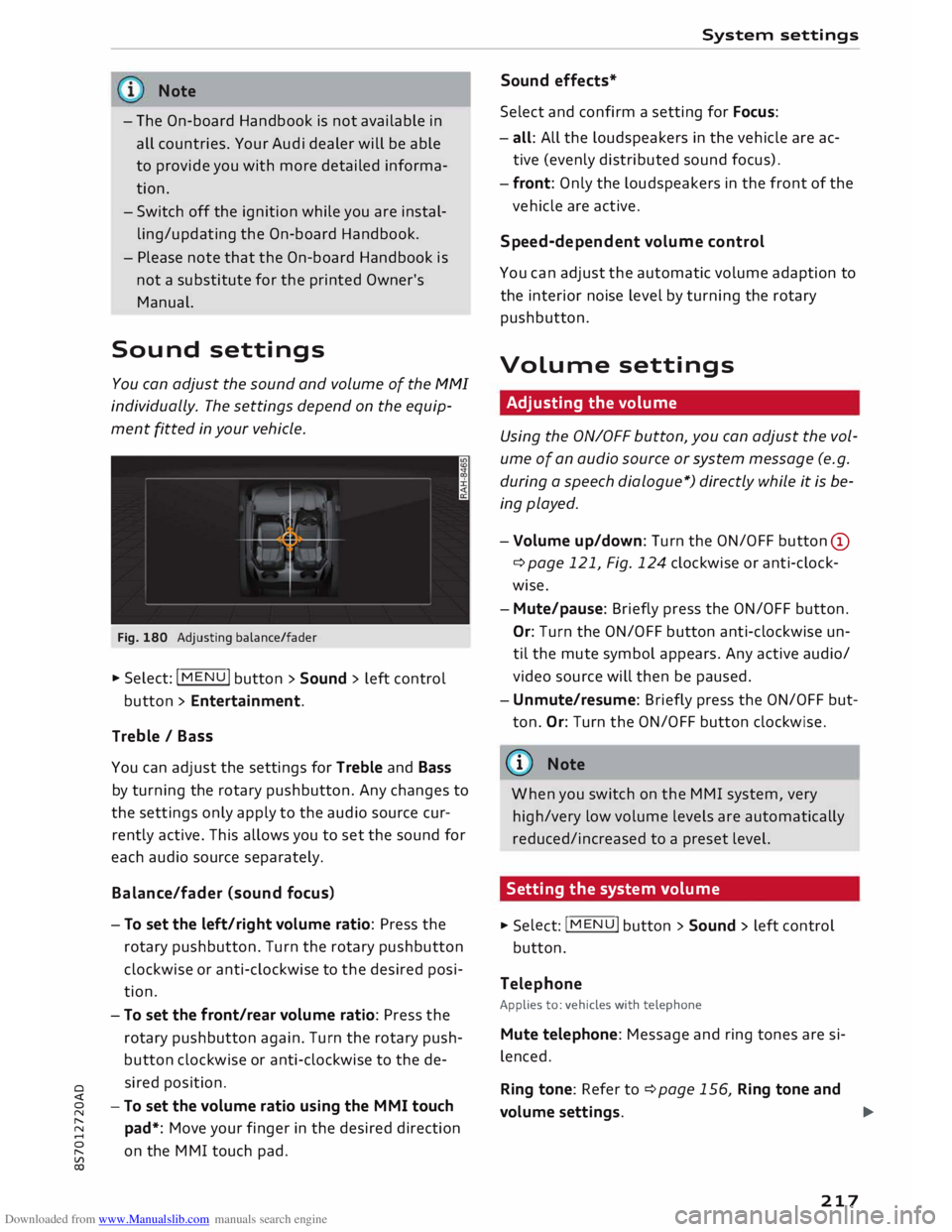
Fig. 180 Adjusting balance/fader
� Select: IM
E
N
u I button > Sound > left control
button > Entertainment.
Treble / Bass
You can adjust the settings for Treble and Bass
by turning the rotary pushbutton. Any changes to
the settings only apply to the audio source cur
rently active. This allows you to set the sound for
each audio source separately.
Bala nce/fader (sound focus)
- To set the left/right volume ratio: Press the
rotary pushbutton. Turn the rotary pushbutton
clockwise or anti-clockwise to the desired posi
tion.
- To set the front/rear volume ratio: Press the
rotary pushbutton again. Turn the rotary push
button clockwise or anti-clockwise to the de
sired position.
-To set the volume ratio using the MMI touch
pad*: Move your finger in the desired direction
on the MMI touch pad. System
settings
Sound effects*
Select and confirm a setting for Focus:
- all: All the loudspeakers in the vehicle are ac
tive (evenly distributed sound focus).
- front: Only the loudspeakers in the front of the
vehicle are active.
Speed-d ependent volume control
You can adjust the automatic volume adaption to
the interior noise level by turning the rotary
pushbutton.
Volume settings
Adjusting the volume
Using the ON/OFF button, you can adjust the vol
ume of an audio source or system message (e.g.
during a speech dialogue*) directly while it is be
ing played.
- Volume up/down: Turn the ON/OFF button (D
¢ page 121, Fig. 124 clockwise or anti-clock
wise.
- Mute/pause: Briefly press the ON/OFF button.
Or: Turn the ON/OFF button anti-clockwise un
til the mute symbol appears. Any active audio/
video source will then be paused.
- Unmute/resume: Briefly press the ON/OFF but
ton. Or: Turn the ON/OFF button clockwise.
{a)) Note
When you switch on the MMI system, very
high/very low volume levels are automatically
reduced/increased to a preset level.
Setting the system volume � Sele
ct:
IMENU! button > Sound > left control
button.
Telephone
Applies to: vehicles with telephone
Mute telephone: Message and ring tones are si
lenced.
Ring tone: Refer to ¢page 156, Ring tone and
volume settings.
..,.
217
Page 220 of 306
Downloaded from www.Manualslib.com manuals search engine System
settings
Ring tone volume: You can adjust the volume of
the ring tone currently selected by turning the ro
tary pushbutton.
Message volume: You can adjust the volume of
the tone informing you of a new text message by
turning the rotary pushbutton.
Microphone input Level: You can adjust the vol
ume during a call by turning the rotary pushbut
ton.
Navigation
Applies to: vehicles with navigation system
Voice guidance: Refer to ¢ page 177, Voice guid
ance.
Voice guidance during calls: Refer to
¢ page 177, Voice guidance.
Volume of spoken cues: You can adjust the vol
ume of the spoken cues while route guidance is
active by turning the rotary pushbutton.
Entertainment fader: This option allows the vol
ume of the current audio source to be temporari
ly reduced when the parking aid is active or while
a navigation cue is being played.
Announ cements
Traffic announcements: Refer to¢ page 186.
DAB announcements*: Refer to¢ page 186.
Volume of announcements: You can adjust the
volume of traffic announcements by turning the
rotary pushbutton.
Speech dialogue system
Applies to: vehicles with speech dialogue system
Short dialogue: This option can be switched on/
off. When it is activated, the spoken cues played
by the system are shortened.
Speech dialogue system volume: You can adjust
the volume of the spoken cues by turning the ro
tary pushbutton.
Parking aid*
Turn the rotary pushbutton to adjust the volume
of the beeps.
- To adjust the front volume: Select and confirm
high, medium or Low.
218 -
To adjust the rear volume: Select and confirm
high, medium or Low.
MMI touch volume*
You can adjust the volume of the M MI touch*
spoken cues by turning the rotary pushbutton.
Audi heartbeat
You can adjust the volume of the Audi heartbeat
by turning the rotary pushbutton.
� Note
Please note that the speech dialogue system*
is not available as a factory option for Cabrio
let models without a seat belt microphone.
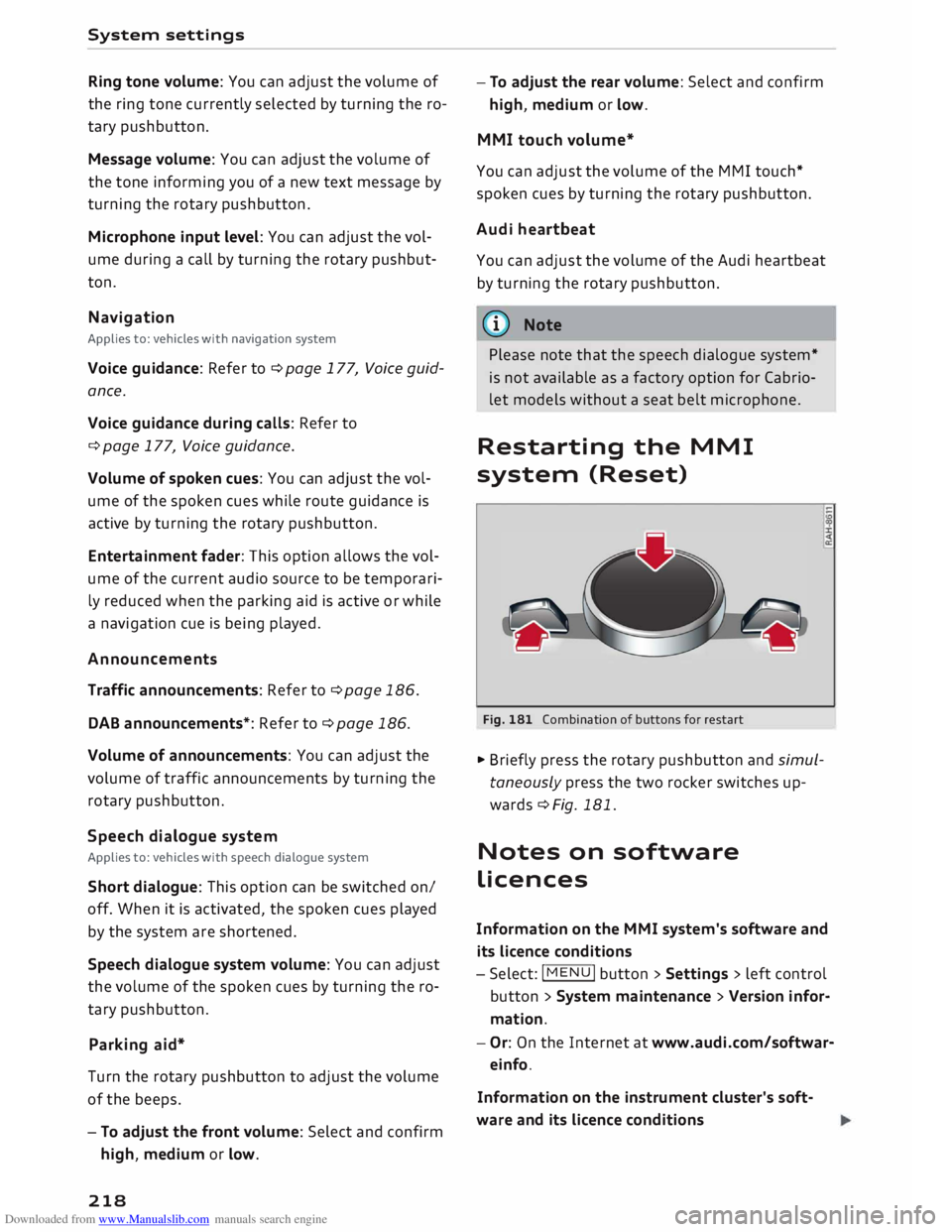
Restarting the MMI
system (Reset)
Fig. 181 Combination of buttons for restart
.,. Briefly press the rotary pushbutton and simul
taneously press the two rocker switches up
wards¢ Fig. 181.
Notes on software
licences
Information on the MMI system's software and
its Licence conditions
- Select: I MENU
I button
>Settings > left control
button > System maintenance > Version infor
mation.
- Or: On the Internet at www.audi.com/softwar
einfo.
Information on the instrument cluster's soft
ware and its Licence conditions
Page 223 of 306
Downloaded from www.Manualslib.com manuals search engine 0
N
,.....
N
......
0
,.....
Vl
CX) What
factors can impair your safety?
Safety on the road is directly related to how you
drive, and can also be affected by the passengers
in the vehicle.
The driver is responsible for the safety of the ve
hicle and all its occupants. If your ability to drive
is impaired in any way, you endanger yourself and
other road users ¢ ,A. Therefore:
""Do not let yourself be distracted by passengers
or by using a mobile phone, etc.
"" Never drive when your driving ability is im
paired (by medication, alcohol, drugs, etc.).
"" Obey all traffic regulations and speed limits
and always maintain a safe distance to the vehi
cle in front.
"" Always adjust your speed to suit the road, traf
fic and weather conditions.
"" Take frequent breaks on long trips. Do not drive
for more than two hours without a stop.
""If possible, avoid driving when you are tired or
stressed.
A WARNING
- Distractions while driving or any kind of im
pairment to your driving ability increase the
risk of accident and injury.
- Do not place loose objects on the dash pan
el. These objects could fly around the interi
or when the vehicle is moving (under accel
eration or whilst cornering) and distract the
driver -risk of accident! Safe
driving
Correct sitting positions
Correct driving position
The correct driving position is important for safe
driving.
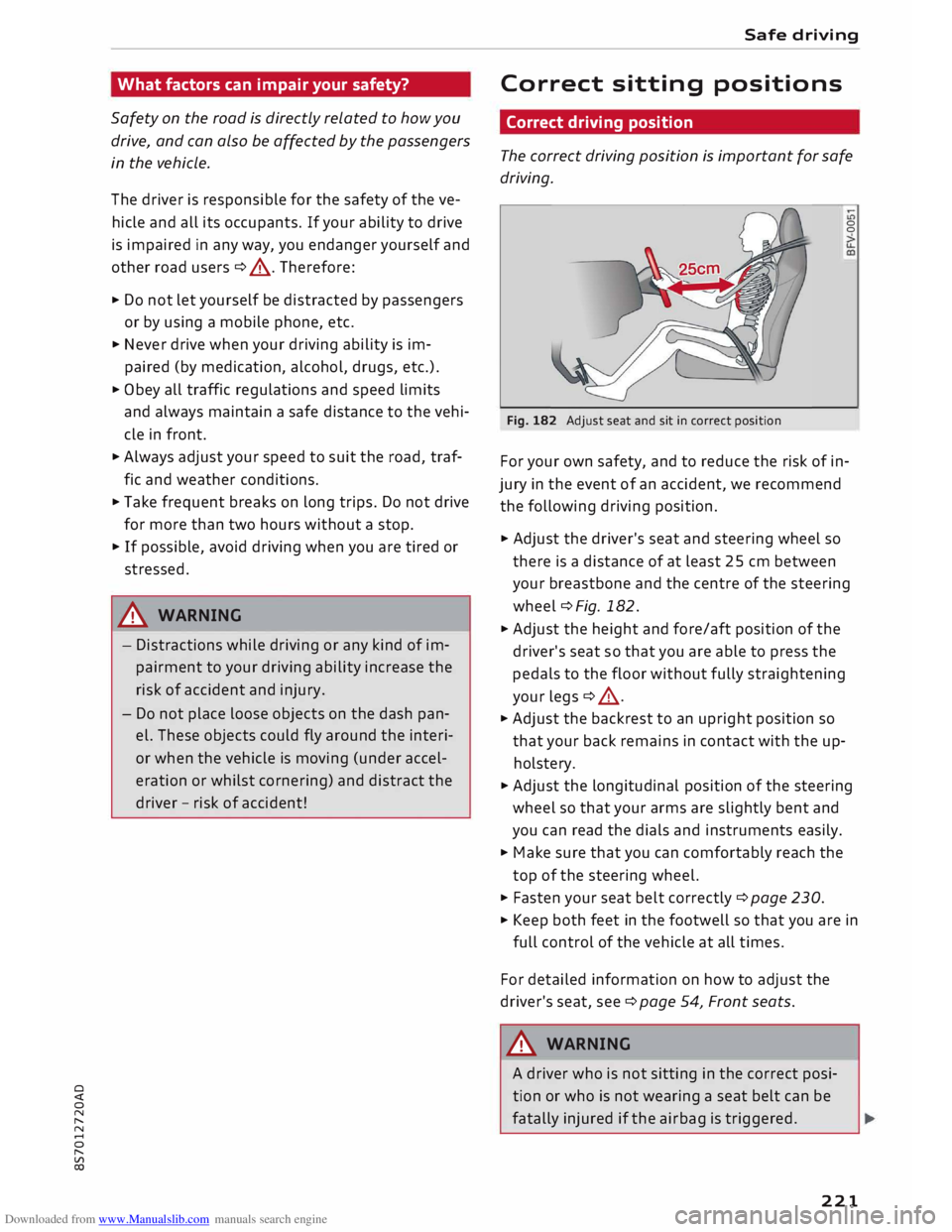
Fig. 182 Adjust seat and sit in correct position 0
0
For your own safety, and to reduce the risk of in
jury in the event of an accident, we recommend
the following driving position.
"" Adjust the driver's seat and steering wheel so
there is a distance of at least 25 cm between
your breastbone and the centre of the steering
wheel¢ Fig. 182.
"" Adjust the height and fore/aft position of the
driver's seat so that you are able to press the
pedals to the floor without fully straightening
your legs¢ A.
"" Adjust the backrest to an upright position so
that your back remains in contact with the up
holstery.
""Adjust the longitudinal position of the steering
wheel so that your arms are slightly bent and
you can read the dials and instruments easily.
"" Make sure that you can comfortably reach the
top of the steering wheel.
"" Fasten your seat belt correctly ¢ page 230.
"" Keep both feet in the footwell so that you are in
full control of the vehicle at all times.
For detailed information on how to adjust the
driver's seat, see¢ page 54, Front seats.
A WARNING
A driver who is not sitting in the correct posi
tion or who is not wearing a seat belt can be
fatally injured if the airbag is triggered.
221
Page 241 of 306
Downloaded from www.Manualslib.com manuals search engine 0
N
,.....
N
......
0
,.....
Vl
CX) use
a rearward-facing child seat on the
passenger's seat.
- Applies to vehicles with key-operated
switch for deactivating the passenger's
airbag: Do NOT use a rearward-facing child
seat on the passenger's seat while the
passenger's airbag is active. If you have no
alternative but to use a rearward-facing
child seat on the passenger's seat, the
passenger's airbag must be deactivated
beforehand via the key-operated switch*
¢ page 237. Make sure that the passeng
er's airbag is reactivated by means of the
key-operated switch* as soon as the child
seat is no longer needed on the passeng
er's seat.
- Occupants must never carry any objects or
pets in the space between them and the air
bags, or allow children or other passengers
to travel in this position.
- Do not cover or stick anything on the steer
ing wheel hub or the soft plastic surface of
the airbag unit on the passenger's side of
the dashboard, and do not obstruct or modi
fy them in any way. These parts should only
be cleaned with a dry cloth (or with a cloth
moistened with plain water). It is also im
portant not to attach any objects such as
cup holders or telephone mountings to the
surfaces covering the airbag units.
- Any work on the airbag system or removal
and installation of the airbag components
for other repairs (such as repairs to the
steering wheel or removal of seats) must be
performed by a qualified workshop. Airbag
system
Side airbags
Description of side airbags
Applies to: vehicles with side airbags
The airbag system is not a substitute for the seat
belts.
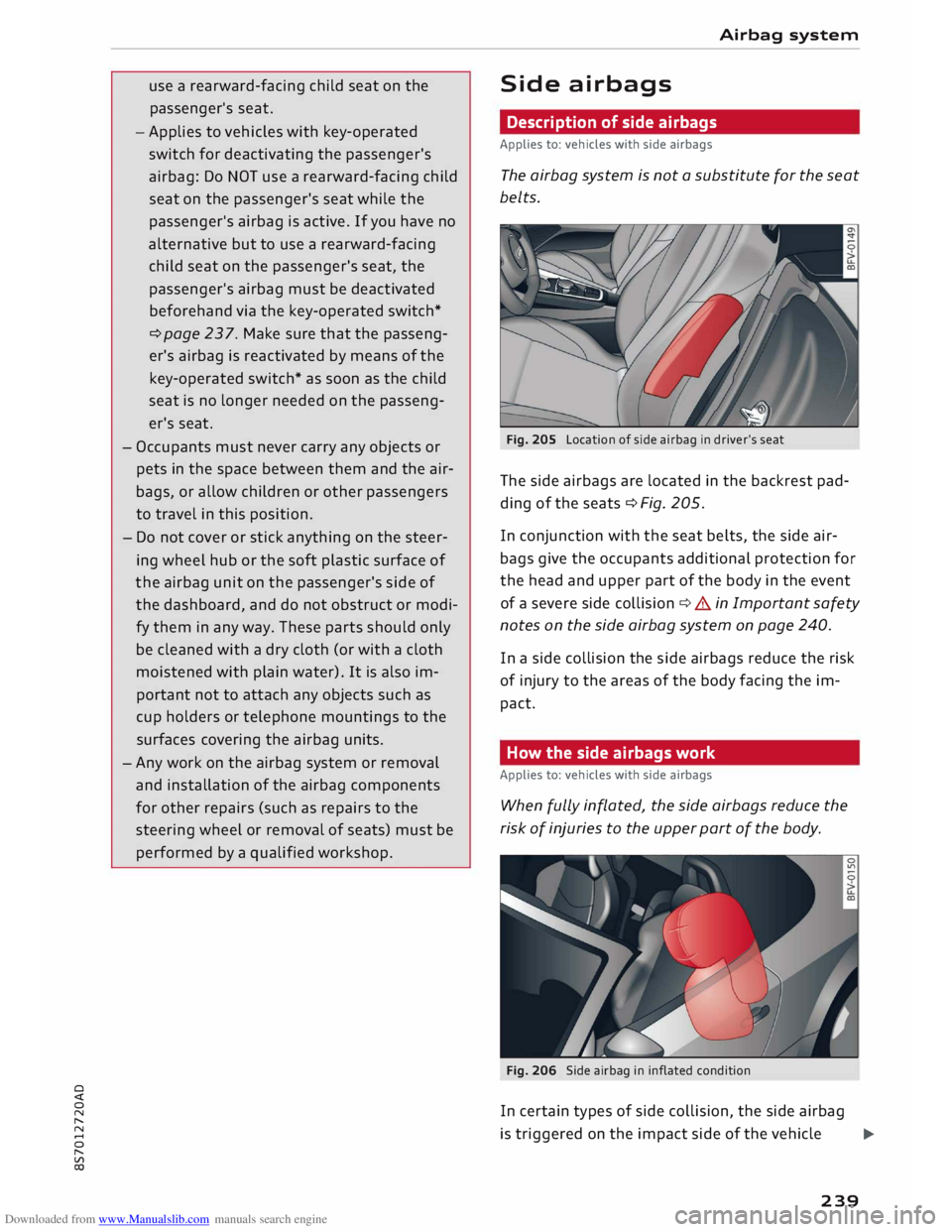
Fig. 205 Location of side airbag in driver's seat
The side airbags are located in the backrest pad
ding of the seats ¢Fig. 205.
In conjunction with the seat belts, the side air
bags give the occupants additional protection for
the head and upper part of the body in the event
of a severe side collision ¢&. in Important safety
notes on the side airbag system on page 240.
In a side collision the side airbags reduce the risk
of injury to the areas of the body facing the im
pact.
How the side airbags work
Applies to: vehicles with side airbags
When fully inflated, the side airbags reduce the
risk of injuries to the upper port of the body.
Fig. 206 Side airbag in inflated condition
In certain types of side collision, the side airbag
is triggered on the impact side of the vehicle ..,.
239