airbag off AUDI TT ROADSTER 2016 Owners Manual
[x] Cancel search | Manufacturer: AUDI, Model Year: 2016, Model line: TT ROADSTER, Model: AUDI TT ROADSTER 2016Pages: 306, PDF Size: 31.82 MB
Page 8 of 306
Downloaded from www.Manualslib.com manuals search engine FAQs
FAQs
Before you set off
- How do I adjust the seats? ¢ page 54.
- How do I adjust the steering wheel?
¢page 68.
- How does the selector lever for the automatic
gearbox work? ¢ page 77.
- How does the electro-mechanical parking brake
work? ¢page 74.
- How do I adjust the exterior mirrors?
¢page 48.
- How do I refuel my vehicle? ¢ page 242.
- How do
I operate
the windscreen wipers on
vehicles with rain sensor? ¢ page 50.
- Where is the windscreen washer container?
¢page 246.
- How can I store the tyre pressures?
¢page 259 or ¢page 261.
Breakdowns and
emergencies
- How do I jump-start the vehicle? ¢page 277.
- Where can I find the warning triangle?
¢page 269.
- Where can I find the first-aid kit? ¢ page 269.
- Where can I find the recommended tyre pres-
sures? ¢ page 256.
- Which airbags are installed in my vehicle?
¢page 235.
- Where are the towline anchorages on the vehi
cle? ¢page 278.
- How can I release the tank flap manually?
¢page 244.
Useful functions
- How can I use the parking aid?¢ page 103.
- How do I operate the main beam assist for the
headlights? ¢ page 46.
- How can I drive off more easily? ¢ page 76,
Driving off with the hold assist.
- How can I stay in my lane more easily?
6 ¢
page 92, Audi active lane assist (lane de
parture warning feature). -
How can I check the blind spot more easily
when changing lanes? ¢page 97, Audi side
assist (lane change assist feature).
- How can I adjust the brightness of the instru
ment and display lighting? ¢ page 48.
- How can I change the vehicle set-up in different
driving situations depending on my personal
mood and driving style? ¢page 100, Audi
drive select (vehicle set-up functions).
Using the infotainment
system
- How do I switch on the infotainment system
and adjust the volume? ¢ page 121.
- How do
I navigate
through the infotainment
menus? ¢ page 122, How to use the MMI.
- How can I enter letters and numbers by hand
writing? ¢ page 124, MMI touch.
- How do I use the search function on the info
tainment system?¢ page 129, Search func
tion.
- How do I operate the infotainment system by
voice? ¢ page 133.
- Which functions can I control using the buttons
on the steering wheel?¢ page 21, Multi
function steering wheel plus.
- How do I set the date and time? ¢ page 212.
Communication
- How can I connect my mobile phone to the
handsfree telephone system? ¢ page 142.
- How can I charge my mobile phone battery
without a cable? ¢ page 146, Using the Audi
phone box.
- How can I control certain apps on my smart
phone via the infotainment system?
¢ page 210, Audi smartphone interface.
- How can I call up information online?
¢ page 159, Audi connect.
- How can I use the Wi-Fi hotspot?¢ page 165.
Navigation
- What ways are there to enter a navigation des-
tination? ¢ page 170.
�
Page 11 of 306
Downloaded from www.Manualslib.com manuals search engine 0
N
,.....
N
....
0
,.....
Vl
CX) (D
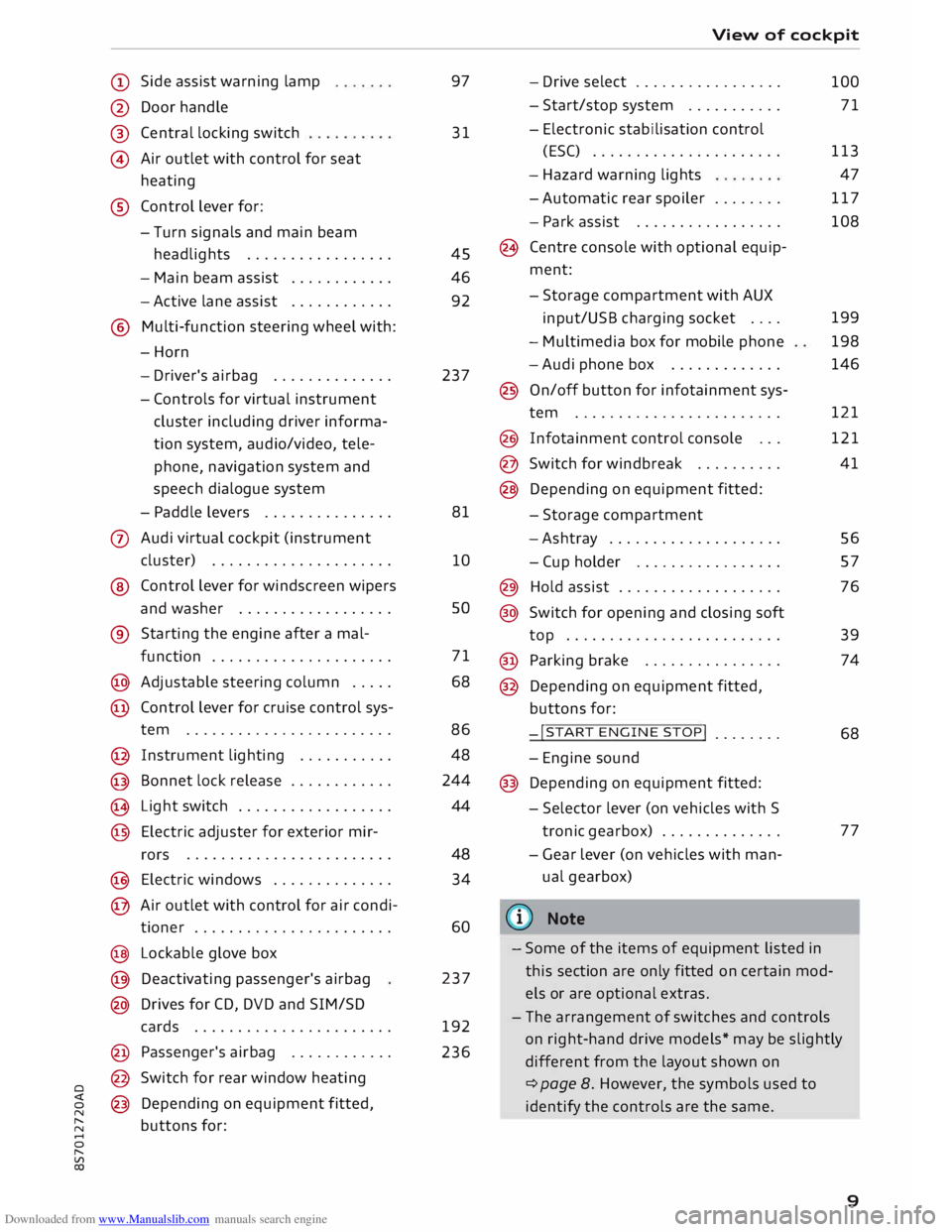
Side assist warning lamp
@ Door handle
®
@ Central
locking switch
Air outlet with control for seat
heating
® Control lever for:
- Turn signals and main beam
headlights ................ .
- Main beam assist ...........
.
- Active lane assist
........... .
@ Multi-function steering wheel with:
-Horn
- Driver's airbag ............. .
- Controls for virtual instrument
cluster including driver informa
tion system, audio/video, tele
phone, navigation system and
speech dialogue system
- Paddle levers .............. .
0 Audi virtual cockpit (instrument
cluster) .................... .
® Control lever for windscreen wipers
and washer ................. .
® Starting the
engine
after a mal-
function .................... .
@ Adjustable steering column .... .
@ Control lever for cruise control sys-
tem ....................... .
@ Instrument lighting .......... .
@ Bonnet lock release ........... .
� Light switch ................. .
@ Electric adjuster for exterior mir-
rors .......................
.
@ Electric windows ............. .
@ Air outlet with control for air condi-
tioner ...................... .
@ Lockable glove box
@ Deactivating passenger's airbag
@ Drives for CD, DVD and SIM/SD
cards ...................... .
@ Passenger's airbag ........... .
@ Switch for rear window heating
@ Depending on equipment fitted,
buttons for: 97
31
45
46
92
237
81
10 so
71
68
86 48
244
44
48 34
60
237
192
236 View
of cockpit
- Drive select ................ .
- Start/stop system .......... .
- Electronic stabilisation control
(ESC) ..................... .
- Hazard warning lights
- Automatic rear spoiler ....... .
- Park assist ................ .
(8 Centre console with optional equip
ment:
- Storage compartment with AUX
input/USB charging socket ....
- Multimedia box for mobile phone
-Audi phone box ............ .
@ On/off button for infotainment sys-
tem ....................... .
@ Infotainment control console .. .
@ Switch for windbreak ......... .
@ Depending on equipment fitted:
- Storage compartment
-Ashtray ................... .
- Cup holder ................ .
@) Hold assist .................. .
@ Switch for opening and closing soft
top ........................ .
@ Parking brake ............... .
@ Depending on equipment fitted,
buttons for:
-!START ENGINE STOP!
....... .
- Engine sound
@ Depending on equipment fitted:
- Selector lever (on vehicles with S
tronic gearbox) ............. .
- Gear lever (on vehicles with man
ual gearbox)
(© Note 100
71
113 47
117
108
199
198
146
121
121
41
56
57
76
39
74
68
77
- Some of the items of equipment listed in
this section are only fitted on certain mod
els or are optional extras.
- The arrangement of switches and controls
on right-hand drive models* may be slightly
different from the layout shown on
¢ page 8. However, the symbols used to
identify the controls are the same.
9
Page 29 of 306
Downloaded from www.Manualslib.com manuals search engine Doors
and windows
Central locking system
Description
The vehicle can be locked and unlocked via the
central locking system. You can use any of the
following:
- Remote control key¢ page 29
- Sensors in the door handles* ¢page 30
- Lock on driver's door¢ page 32
- Interior central locking switch ¢page 31
Automatic locking function (Auto Lock)
The Auto Lock function locks the doors and the
boot lid when the vehicle exceeds a speed of
about 15 km/h.
The vehicle is unlocked again immediately when
the unlock button in the central locking switch is
pressed or one of the inside door handles is
pulled. The Auto Lock function can be switched
on and off on the infotainment system
¢page 31.
In the event of an accident in which the airbags
inflate, the doors will be automatically unlocked
to facilitate access and assistance.
Unlocking one side of the vehicle only
When you lock the vehicle, the central locking
system will lock the doors and the boot lid. When
you unlock the vehicle, the central locking system
will unlock either the driver's door only, or all the
locks on the vehicle, depending on the setting
you have selected on the infotainment system
¢page 31.
Turn signals
The turn signals will flash twice when the vehicle
is unlocked and once when the vehicle is locked.
If the turn signals do not flash, one of the doors
or the boot lid is still open or the ignition is still
on.
Accidental lock-out
� To prevent yourself from being locked out, only
� lock
the vehicle when the remote control key is
......
0
"
Vl Doors
and windows
not in the vehicle and all of the doors and the
boot lid are closed.
The central locking system prevents you from be
ing locked out of the vehicle in the following sit
uations:
- When the driver's door is open, you cannot lock
the vehicle by pressing the ill! button on the re
mote control key or touching the locking sen
sor* on one of the doors.
- The boot lid will be released again automatical
ly if the convenience key* that was last in use is
detected inside the boot when the boot lid is
closed.
- If the convenience key* that was last in use is
detected in the vehicle, it is not possible to lock
the vehicle from the outside.
(CD) Note
- Never leave any valuable items in the vehi
cle unattended. Even a locked vehicle is not
a safe.
- When you lock the vehicle, the LED on the
driver's window sill flashes. If the LED is
still on about 30 seconds after the vehicle is
locked, the central locking system is not
working properly. You should have the mal
function repaired by a qualified workshop.
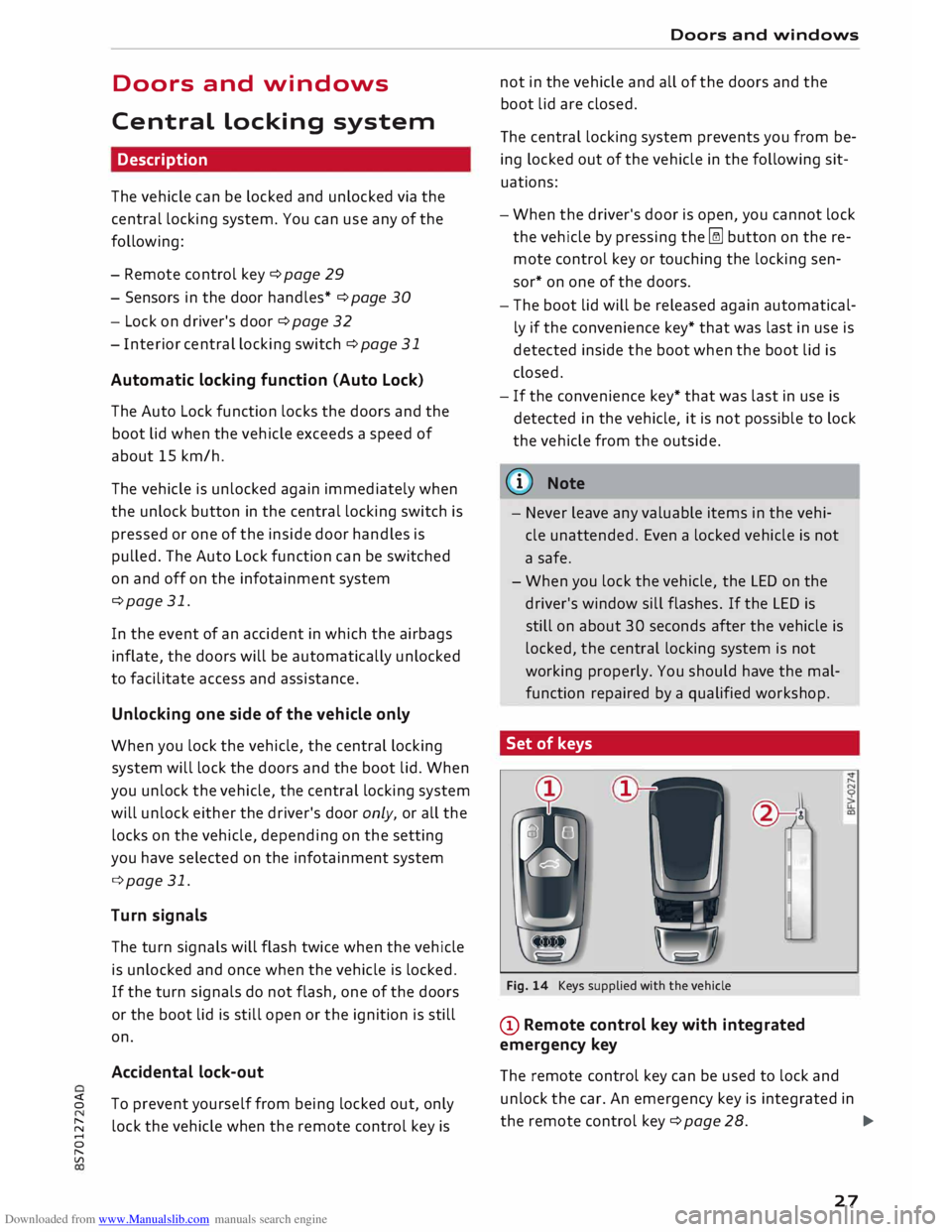
Set of keys
1
Fig. 14 Keys supplied with the vehicle
(D Remote control key with integrated
emergency key
The remote control key can be used to lock and
unlock the car. An emergency key is integrated in
the remote control key¢ page 28.
.,.
27
Page 30 of 306
Downloaded from www.Manualslib.com manuals search engine Doors
and windows
@ Key fob with vehicle code*
You can reveal the vehicle code* on the key fob by
rubbing off the coating. It is not, however, rele
vant for this vehicle.
Replacing a key
If you should lose a key, please contact an Audi
dealer. Have the remote control coding for that
key deactivated. For this purpose you should
bring all available keys with you. It is also impor
tant to notify your insurance company if a key has
been lost.
Number of keys
You can check how many keys are initialised for
your vehicle using the infotainment system. To
do so, select: I MENU I button >Car> left control
button > Servicing & checks > Car information.
This feature enables used car buyers to make
sure they have received all of the keys.
Electronic immobiliser
The immobiliser is designed to prevent unauthor
ised persons from driving the vehicle.
It may not be possible to start the engine with
the key if there is another remote control key
from a different make of vehicle on the same key
ring.
Data stored on remote control key
Data related to the service and maintenance of
the vehicle are stored continuously on your re
mote control key while you are driving. Your Audi
dealer can read out the data and will then be able
to tell you what service work is required. This also
applies to vehicles with convenience key*.
Personal convenience settings
If two people use the same car regularly, it is a
good idea for each person to have his or her
"own" remote control key. When you switch off
the ignition or lock the vehicle, your personal set
tings for the following convenience features are
stored and assigned to the remote control key:
- Air conditioner
- Parking aid*
- Active lane assist*
28 -
Side assist*
- Drive select
The stored settings are then recalled automati
cally the next time the vehicle is unlocked, the
doors are opened or the ignition is switched on.
A WARNING
Always take the key with you when leaving the
vehicle -even if you only intend to be gone for
a short time. This is especially important if
children are left in the car. They might other
wise be able to start the engine or use power
operated equipment such as the electric win
dows -this could lead to injuries.
.
1 Note
The function of the remote control key may
be impaired by interference from other near
by radio signals (for example from a mobile
telephone or TV transmitter) if these are in
the same frequency range. You should always
check that your vehicle is locked.
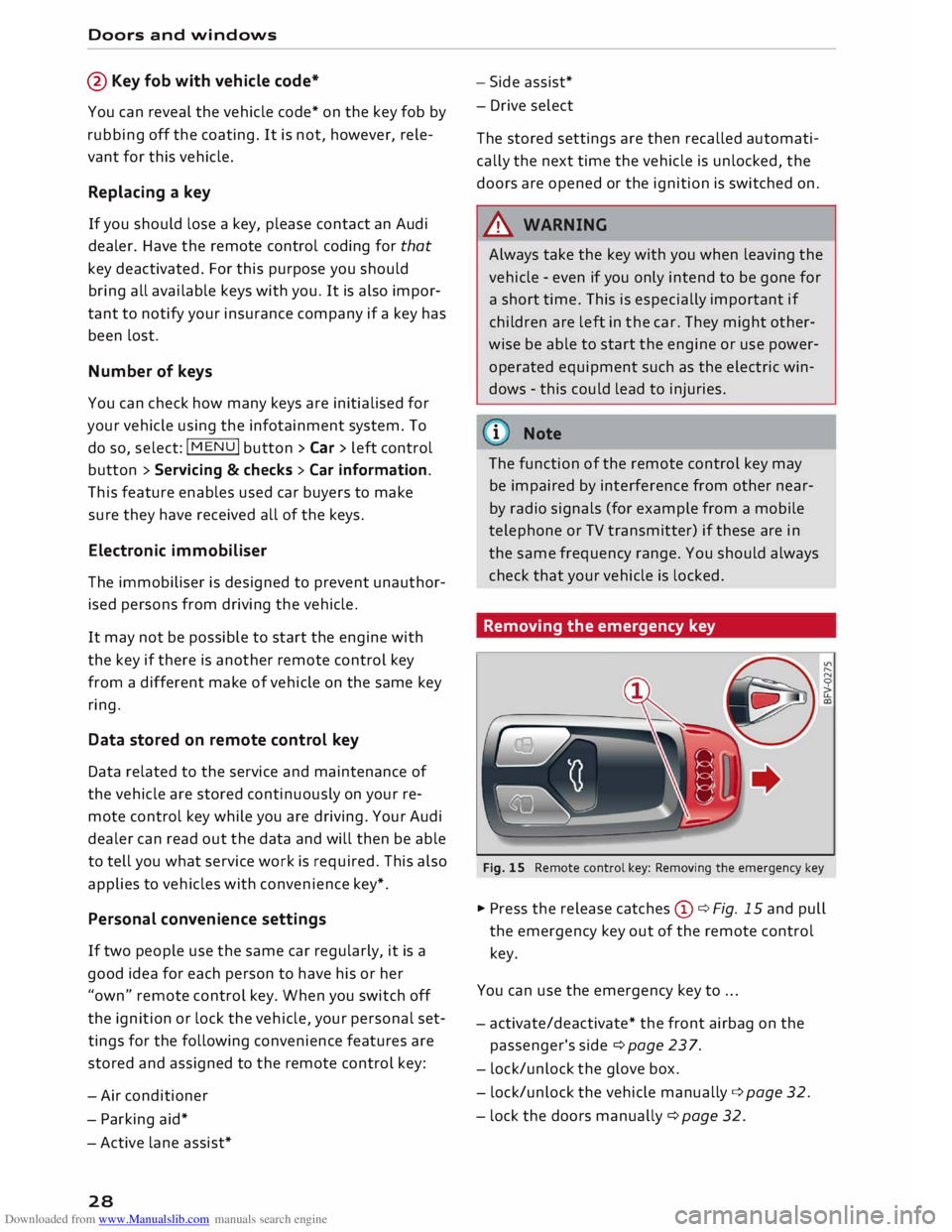
Removing the emergency key
Fig. 15 Remote control key: Removing the emergency key
� Press the release catches Cy¢ Fig. 15 and pull
the emergency key out of the remote control
key.
You can use the emergency key to ...
- activate/deactivate* the front airbag on the
passenger's side¢ page 237.
- lock/unlock the glove box.
- lock/unlock the vehicle manually ¢page 32.
- lock the doors manually ¢ page 32.
Page 33 of 306
Downloaded from www.Manualslib.com manuals search engine 0
N
,.....
N
.....
0
,.....
Vl
CX) Central
locking switch
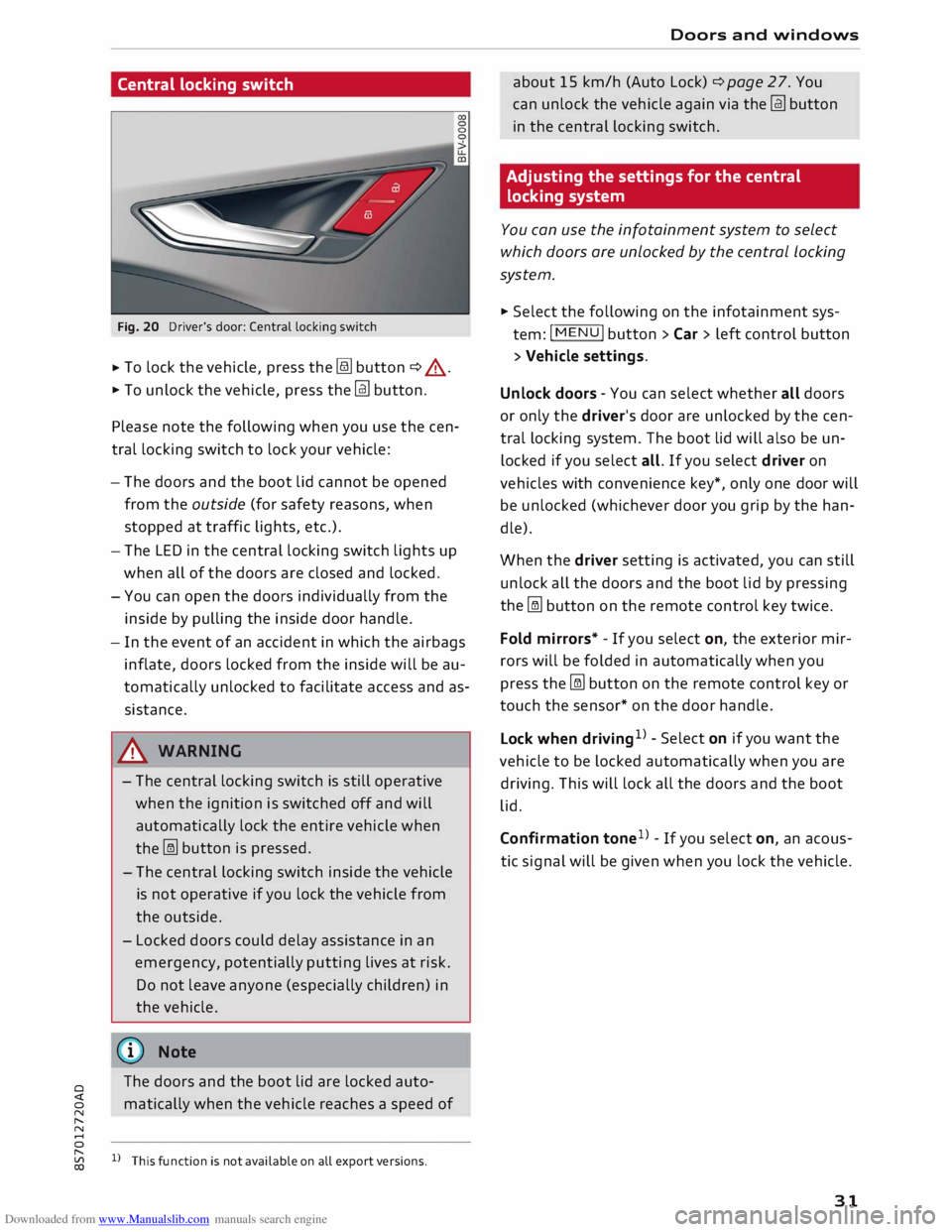
Fig. 20 Driver's door: Central locking switch
� To
lock the vehicle, press the[@] button ¢ .&_ .
� To unlock the vehicle, press the�
button.
Please note the following when you use the cen
tral locking switch to lock your vehicle:
- The doors and the boot lid cannot be opened
from the outside (for safety reasons, when
stopped at traffic lights, etc.).
- The LED in the central locking switch lights up
when all of the doors are closed and locked.
- You can open the doors individually from the
inside by pulling the inside door handle.
- In the event of an accident in which the airbags
inflate, doors locked from the inside will be au
tomatically unlocked to facilitate access and as
sistance.
A WARNING
- The central locking switch is still operative
when the ignition is switched off and will
automatically lock the entire vehicle when
the �
button is pressed.
- The central locking switch inside the vehicle
is not operative if you lock the vehicle from
the outside.
- Locked doors could delay assistance in an
emergency, potentially putting lives at risk.
Do not leave anyone (especially children) in
the vehicle.
ij} Note
The doors and the boot lid are locked auto
matically when the vehicle reaches a speed of
1} This function is not available on all export versions. Doors
and windows
about 15 km/h (Auto Lock) ¢page 27. You
can unlock the vehicle again via the �
button
in the central locking switch.
Adjusting the settings for the central
locking system
You can use the infotainment system to select
which doors are unlocked by the central Locking
system.
� Select the following on the infotainment sys
tem: I MENU
I button >Car> left control button
> Vehicle settings.
Unlock doors -You can select whether all doors
or only the driver's door are unlocked by the cen
tral locking system. The boot lid will also be un
locked if you select all. If you select driver on
vehicles with convenience key*, only one door will
be unlocked (whichever door you grip by the han
dle).
When the driver setting is activated, you can still
unlock all the doors and the boot lid by pressing
the �
button on the remote control key twice.
Fold mirrors* -If you select on, the exterior mir
rors will be folded in automatically when you
press the�
button on the remote control key or
touch the sensor* on the door handle.
Lock when driving 1
)
-Select on if you want the
vehicle to be locked automatically when you are
driving. This will lock all the doors and the boot
lid.
Confirmation tone1
)
-If you select on, an acous
tic signal will be given when you lock the vehicle.
31
Page 56 of 306
Downloaded from www.Manualslib.com manuals search engine Seats
and storage
Seats and storage
General notes
A WARNING
You will find important information, tips, sug
gestions and warnings that you should read
and observe for your own safety and the safe
ty of your passengers on¢ page 220, Safe
driving.
Front seats
Manual adjustment of seats
Applies to: vehicles with manual seat adjustment
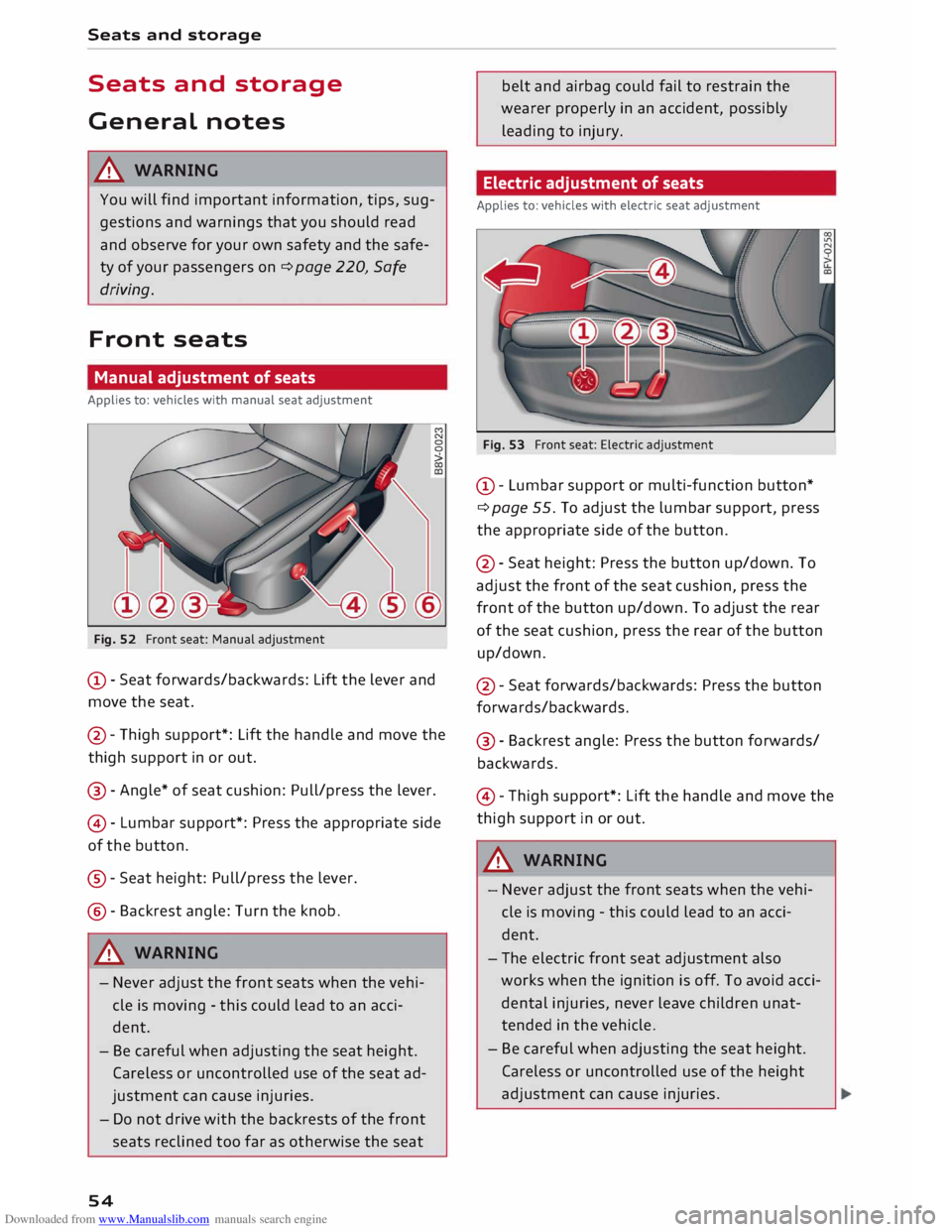
Fig. 52 Front seat: Manual adjustment
@ -Seat forwards/backwards: Lift the lever and
move the seat.
@ -Thigh support*: Lift the handle and move the
thigh support in or out.
@ -Angle* of seat cushion: Pull/press the lever.
@ -Lumbar support*: Press the appropriate side
of the button.
®- Seat height: Pull/press the lever.
@- Backrest angle: Turn the knob.
A WARNING
- Never adjust the front seats when the vehi
cle is moving -this could lead to an acci
dent.
- Be careful when adjusting the seat height.
Careless or uncontrolled use of the seat ad
justment can cause injuries.
- Do not drive with the backrests of the front
seats reclined too far as otherwise the seat
54 belt
and airbag could fail to restrain the
wearer properly in an accident, possibly
leading to injury.
Electric adjustment of seats
Applies to: vehicles with electric seat adjustment
Fig. 53 Front seat: Electric adjustment
@ -Lumbar support or multi-function button*
¢ page 55. To adjust the lumbar support, press
the appropriate side of the button.
@- Seat height: Press the button up/down. To
adjust the front of the seat cushion, press the
front of the button up/down. To adjust the rear
of the seat cushion, press the rear of the button
up/down.
@ -Seat forwards/backwards: Press the button
forwards/backwards.
@ -Backrest angle: Press the button forwards/
backwards.
© -Thigh support*: Lift the handle and move the
thigh support in or out.
A WARNING
- Never adjust the front seats when the vehi
cle is moving -this could lead to an acci
dent.
- The electric front seat adjustment also
works when the ignition is off. To avoid acci
dental injuries, never leave children unat
tended in the vehicle.
- Be careful when adjusting the seat height.
Careless or uncontrolled use of the height
adjustment can cause injuries.
Page 121 of 306
Downloaded from www.Manualslib.com manuals search engine 0
N
,.....
N
......
0
,.....
Vl
CX) consumed,
but only a small amount is supplied.
The situation is also critical if electrical equip
ment is in use when the engine is not running. In
this case power is consumed when none is being
generated.
In these situations you will be aware that the
power management system is intervening to con
trol the distribution of electrical power.
When the vehicle is parked for long periods
If you do not drive your vehicle for a period of
several days or weeks, the power management
will gradually shut off the on-board systems one
by one, or reduce the amount of current they are
using. This limits the amount of power consumed
and helps to ensure reliable starting even after a
long period. Certain convenience features, such
as remote control unlocking, may not be availa
ble. These functions will be restored when you
switch on the ignition and start the engine.
With the engine switched off
If you listen to the radio or use the other info
tainment functions when the engine is not run
ning, this will discharge the vehicle battery.
The infotainment display will show a warning
message before the battery power drops to a lev
el where the starting ability is impaired. This
message warns you that the system you are using
will soon be switched off automatically. You
should therefore start the engine if you wish to
continue using the system.
When the engine is running
Although the alternator generates electrical
power, the vehicle battery can still become dis
charged while the vehicle is being driven. This can
occur when a lot of power is being consumed but
only a small amount supplied, especially if the
vehicle battery is not fully charged initially.
To restore the necessary energy balance, the sys
tem will then temporarily shut off the electrical
components that are using a lot of power, or re
duce the current they are consuming. Heating
systems in particular use a large amount of elec
trical power. If you notice, for instance, that the
seat heating* or the rear window heater is not Intelligent
technology
working, they may have been temporarily switch
ed off or regulated to a lower heat output. These
systems will be available again as soon as suffi
cient electrical power is available.
You may also notice that the engine runs at a
slightly faster idling speed. This is quite normal,
and no cause for concern. The increased idling
speed allows the alternator to meet the greater
power requirement and charge the vehicle bat
tery at the same time.
Information saved in the
control units
The vehicle is fitted in the factory with electronic
control units that, among other things, control
the engine and the gearbox. The control units al
so monitor the exhaust system and the airbags.
The control units continually analyse data rele
vant to the vehicle while you are driving. In the
event of faults or anomalies in the vehicle data,
only these data are saved. As a rule, faults are
shown by the warning lamps in the instrument
cluster.
Data saved in the control units can only be read
and analysed with special equipment.
A qualified workshop is only able to recognise
and deal with faults by using the relevant saved
data. Among other things, the saved data may
contain the following information:
- Data relating to the engine and the gearbox
-Speed
- Direction of travel
- Braking force
- Seat belt warning system data
The control units installed will not under any cir
cumstances record conversations in the vehicle.
Event data recorder
Your vehicle is not equipped with an event data
recorder.
In an event data recorder, information about
the
vehicle is temporarily saved. In the event of an
accident, you can therefore obtain detailed infor-
mation about the course of events. On vehicles ...,.
119
Page 159 of 306
Downloaded from www.Manualslib.com manuals search engine 0
N
,.....
N
......
0
,.....
Vl
CX) Export
contacts
Refer to ¢page 154, Importing/exporting con
tacts.
Download directory
To update the contacts in the MMI, you can
download the contacts from your mobile phone
manu ally. Depending on the mobile phone you
are using, the Bluetooth connection may have to
be disconnected and re-established before you
can update the contacts.
Hiding contacts without a number
If this function is switched on� and if no num
ber has been stored for a contact, the contact is
displayed greyed out in the direc tory.
Seat belt microphone
Applies to: vehicles with seat belt microphone
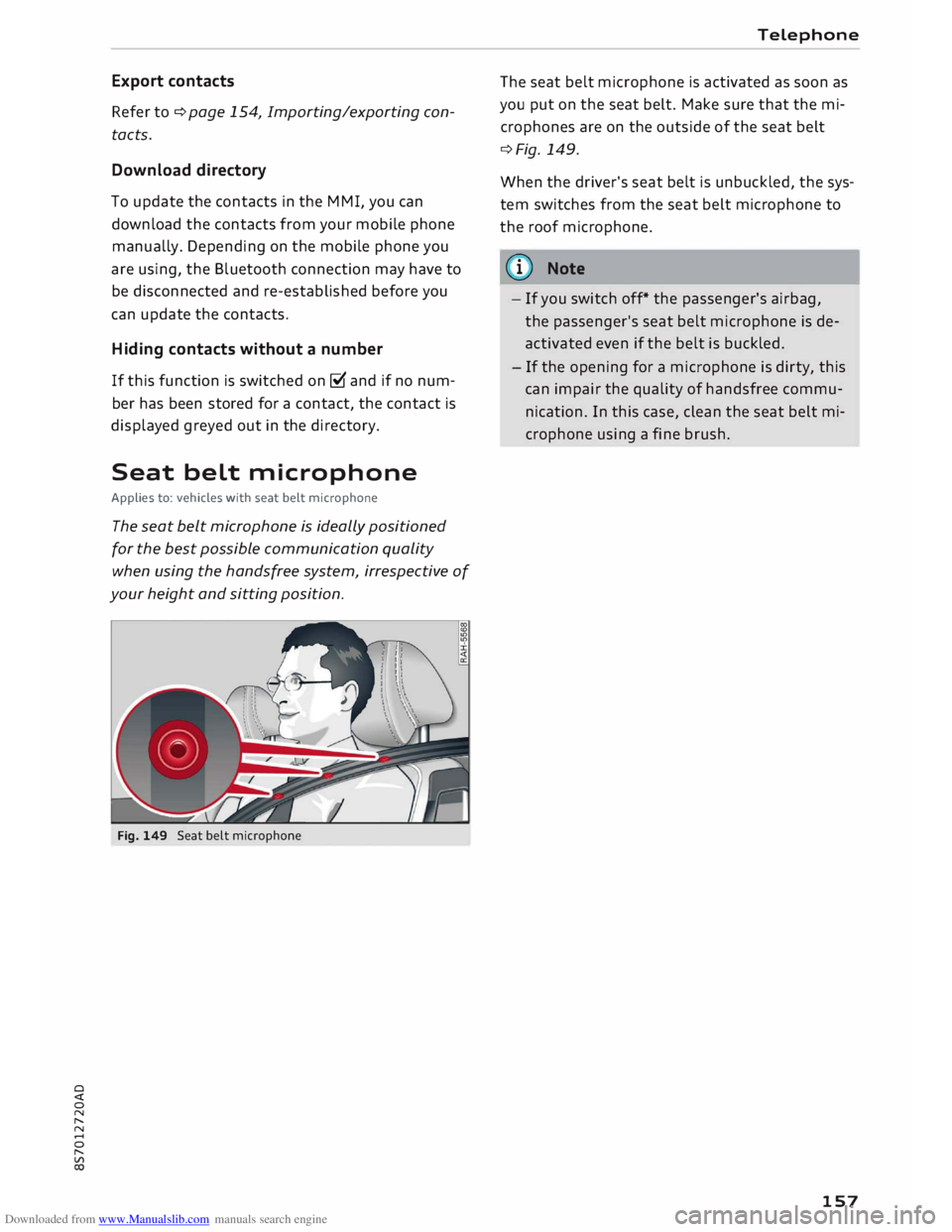
The seat belt microphone is ideally positioned
for the best possible communication quality
when using the handsfree system, irrespective of
your height and sitting position.
Fig. 149 Seat belt microphone Telephone
The seat belt microphone is activated as soon as
you put on the seat belt. Make sure that the mi
crophones are on the outside of the seat belt
¢Fig. 149.
When the driver's seat belt is unbuc kled, the sys
tem switches from the seat belt microphone to
the roof microphone.
@ Note
- If you switch off* the passenger's airbag,
the passenger's seat belt microphone is de
activated even if the belt is buckled.
- If the opening for a microphone is dirty, this
can impair the quality of handsfree commu
nication. In this case, clean the seat belt mi
crophone using a fine brush.
157
Page 168 of 306
Downloaded from www.Manualslib.com manuals search engine Audi
connect
Netwo rk search*
A List of the Wi-Fi networks available near you is
displayed.
Connection to personal hotspot1
)
The Wi-Fi hotspot of the MMI is activated. The
MMI can establish an Internet connection to a
personal Wi-Fi hotspot (e.g. smartphone). You
can search for your personal hotspot and connect
to the MMI using Network search. For more in
formation, please refer to ¢ page 161.
This mode is not available if your own SIM card is
inserted in the SIM card reader.
A WARNING
- Do not allow the features of the Wi-Fi hot
spot to distract you from watching the traf
fic -taking your eyes off the road can cause
an accident.
- Mobile devices, tablet and laptop computers
and devices of a similar weight can only be
operated safely when the vehicle is station
ary. Like any loose object, they can be cata
pulted through the vehicle in an accident
and cause serious injuries. Always make sure
that such devices are securely stowed while
you are driving.
- No Wi-Fi devices may be used in the areas
around the airbags while the vehicle is being
driven. Please also observe the safety warn
ings in the chapter on¢ page 235.
- Depending on the configuration of the Wi-Fi
device you are using (refer to the operating
manual of your Wi-Fi device for more de
tails), the SIM card of the device may be
used in certain
cases
to provide the data
connection for Internet-supported apps and
services which use the MMI Wi-Fi hotspot.
Depending on your network provider, you
may be charged for this service, especially if
you are using the system abroad. We there
fore strongly recommend that you use an
unlimited data plan. For more information,
l l
Not available in all markets.
166 contact
your service provider. Some exam
ple cases are described below:
- Data plan expired/used up
- Data plan not valid abroad
- SIM card in the card reader* is not a data
SIM card
- SIM card in the card reader* is defective/
not valid
- Network is switched automatically due to
a low signal strength/data rate of the Wi
Fi hotspot, the eSIM* or the SIM card in
the card reader*
- Connection to Wi-Fi hotspot interrupted
- Please note that it is your responsibility to
. take
precautions regarding data protection,
anti-virus protection and protection against
loss of data on mobile devices used to con
nect to the Internet via the Wi-Fi hotspot.
1 Note
- You might require a separate mobile phone
contract with extra costs before you can use
the Wi-Fi hotspot. For more information,
contact your service provider.
- In vehicles without Audi connect*, the Wi-Fi
hotspot can only be used for the Wi-Fi audio
player*. A data connection to the Internet
cannot be established.
- Further information can be found on the In
ternet at www.audi.com.
Configuring the data
connection
Applies to: vehicles with Audi connect
You must configure a data connection before you
can use Audi connect services.
� Select: I MENU
I button > right control button >
Connection manager.
� Select: right control button > Online settings >
Data connection settings.
You can select when you would Like the system to
establish an Internet connection in the Data con
nection settings menu. The online connection is �
Page 197 of 306

Downloaded from www.Manualslib.com manuals search engine 0
N
,.....
N
......
0
,.....
Vl
CX) Depending
on the device you are using, the me
dia are started and operated using the mobile de
vice or the MMI.
Note
- Pay attention to any connection queries on
your Bluetooth device.
- You can bond several Bluetooth audio play
ers to the MMI system; however only one
connection can be active at a time.
- The system supports the Bluetooth proto
cols AVRCP (1.0/1.3/1.4) and A2DP.
- Please consider the volume control on your
Bluetooth device. Audi recommends setting
the volume of mobile devices to maximum
when they are being used as Bluetooth au
dio players.
- Which media functions (e.g. random play
back) are supported depends on the Blue
tooth device you are using.
- For more information on which devices are
supported, please go online (e.g.
www.audi.com/bluetooth) or contact an
Audi dealer.
Wi-Fi audio players
Applies to: vehicles with Wi-Fi
The MMI's Wi-Fi audio player media source al
lows you to connect and operate your Wi-Fi me
dia player (e.g. smartphone) to play music wire
Lessly from your player's media centre. The me
dia player is connected via the vehicle's Wi-Fi
hotspot. A UPnP server opp or an integrated
UPnPIDLNA server on the media player is re
quired to access the media centre of your media
player.
Important: The Wi-Fi
function of
the media play
er must be switched on. The Audi MMI connect
app or a UPnP server app must be installed on
your media player. Or: You must be using a
UPnP/DLNA server integrated in the media play
er.
- To connect a media player: Select the I MEDIAi
button. Press the left control button repeatedly
until the source overview ¢page 200 is dis- Media
played. Select and confirm Wi-Fi audio player
0 ¢ page 200, Fig. 175.
- You may need to select and confirm Wi-Fi off>
Activate Wi-Fi to switch Wi-Fi on in the MMI.
Select Wi-Fi settings if necessary. Use the set
tings of the Wi-Fi hotspot for the media player
you are using.
- To start the Wi-Fi audio player: Start the Audi
MMI connect app or a UPnP server app, or ena
ble media sharing on your media player.
To use the media player: The media player is op
erated using the MMI.
- Press the left control button repeatedly until
the menu item Folders appears. Select and con
firm Folders.
- To play music from a media player: Select and
confirm Media centre.
Internet radio: See ¢page 196.
& WARNING
-
- Do not allow the features of the Wi-Fi hot
spot to distract you from watching the traf
fic -taking your eyes off the road can cause
an accident.
- Mobile devices, tablet and laptop computers
and devices of a similar weight can only be
operated safely when the vehicle is station
ary. Like any loose object, they can be cata
pulted through the vehicle in an accident
and cause serious injuries. Always make sure
that such devices are securely stowed while
you are driving.
- No Wi-Fi devices may be used in the areas
around the airbags while the vehicle is being
driven. Please also observe the safety warn
ings in the chapter on¢ page 235.
CD CAUTION
Please always observe the information ¢0 in
Wi-Fi hotspot on page 166.
@ Note
- Inserting or removing the mini SIM card
from the SIM card reader* causes the Wi-Fi
connection to be reconfigured. This may
cause a short interruption in the audio play-
back of some media players.
_____ _ ...,.
195