phone AUDI TT ROADSTER 2017 Owner's Manual
[x] Cancel search | Manufacturer: AUDI, Model Year: 2017, Model line: TT ROADSTER, Model: AUDI TT ROADSTER 2017Pages: 314, PDF Size: 76.54 MB
Page 122 of 314
Telephone
Write text message
Applies to: cell phones with Bluetooth Message Access Profile
(MAP)
"' Select : I MENU I button >Telephone > left con
trol button
> Text message (MyPhone)/Text
message (additional phone)*> Inbox
> right
control button.
Write text message
Select and confirm the desired template from
the list . Enter a recipient . Select and confirm
Send .
Reply*
Select and confirm the desired template from
the list. Select and confirm
Send.
Message options
Applies to: cell phones with Bluetooth Message Access Profile
(MAP)
.. Se lect: I MENU I button >Telephone > left con
trol button >
Text message (MyPhone)/Text
message (additional phone)* > Inbox /Sent /
Outbox
> right control button.
The fo llowing options may be ava ilab le depend
ing on the se lected menu.
Reply*
A reply can be sent for the selected message in
the
Inbox.
Forward
The selected text message can be forwarded to a
different recipient.
Send again*
The se lected text message can be resent.
Delete this text message*
The selected text message can be deleted.
Read aloud1>
You can have the MMI read an open text mes
sage.
1> Not availa ble in all l ang uage s.
120
Text messaging settings*
To display when a new text message is received,
activate the
Text message notifications. New
text messages are indicated with an enve lope 121
in the Infotainment system display status line.
Connection manager
See¢ page 176.
Telephone settings
See¢ page 124 .
{!) Tips
Messages that are deleted in the MMI are also
deleted in the cell phone automatically.
' E -mail*
App lies to: ce ll ph ones with Bluetooth Message Access Profile
(MAP)
Depending on the type of cell phone used, you
con receive and send e-mails through the MMI.
Requirement: the Message Access Profile (MAP)
must be activated in the Bluetooth settings on
you r ce ll phone and your cell phone m ust be con
nected to the MMI
¢page 114. You can find out
in your cell phone owner's manual if your cell
phone supports this function .
.. Select:
!MENU I button> Telephone > left con
trol button >
E-mail (MyPhone)/E-mail (addi
tional phone)*.
Write new e-mail
- Using a template :
select and confirm the de-
sired template from the list .
- Enter one or more rec ipients.
- Select and confirm
Send .
Inbox
All received e-mails are displayed.
Sent
All sent e-mails are displayed.
Page 123 of 314
co
co
.... N
" N .... 0
" "' c:o
Outbox
All e-m ails th at w ill be sent are d isplayed.
Drafts
All saved e-mails that have not been sent yet a re
d isp layed.
- Fo r more information on the supported cell
phones, v is it
www.audiusa .com/bluetooth
or contact an author ized A udi dealer or au
thorized Audi Service Facili ty.
- To e nsur e that your se nt e-mails a re re
ce ived, connect yo ur cell phone to the Wi-Fi
h otspo t* in t he vehicle so t hat the appli ca
b le e-mail app on yo ur cell phone con tinues
to have Interne t access . If you a re s till not
r eceivin g e-mails eve n though yo u have a
successful connection, then contact your e
mail service provider o r yo ur cell phone
service provider.
Message options
A pp lies to: ce ll ph ones w it h Bl uetooth Message Access Profil e
(MAP)
... Se lect: IMENUI button> Telephone > left con
t ro l button >
E -mail (MyPhone) /E-mail (addi
tional phone)* > Inbo x/Sent /Outbo x
> right
contro l button.
The fo llow ing options may be avai lab le depend
ing on the se lected menu.
Store as template
Ten e-mail templa tes are stored in the M MI. Yo u
can save up to ten a ddi tional temp lates .
- Create an e-ma il.
- Se lect and co nfirm
Store as templ ate .
Resume last edited e-mail
The last e-mai l in progress can be resumed.
Reply*
A reply can be sen t fo r the selec ted e -mail in t he
Inbox .
l) Not availab le in all la nguages .
Telephone
Reply to all*
A reply can be sent for the se lecte d e-m ail in the
In box and it wi ll be sent to all of the en tered re
c ipients .
Forward
The selec te d e-mail can be forwarded to a d iffe r
en t recipient .
Delete this message*
The selected e-mail can be deleted.
Read aloud1
)
Yo u can have the MMI read an o pen e-mail.
E-mail settings*
T o display when a new e-ma il is receive d, ac tiva te
the
E -mail notifications . New e -m ail s are indi cat
ed wi th an envelope~ in the Infotai nment sys
tem display status line .
Connection manager
See c::> pag e 176.
Telephone settings
See c::> page 124 .
(!) Tips
Messages t hat are de lete d in the MMI are also
a utomat ica lly deleted in the connected ce ll
phone.
Listening to voicemail
App lies to : vehicles wi th telepho ne
... Select: !ME NUI button> Telephone > left con
trol button. Se lect and confirm
Recent calls /Di ·
rectory /Favorites > Voicemail.
- Entering the voicemail number:
enter the de
sired n umber. Select and confirm
OK .
-Dialing the voicemail number : select and con
firm
Voicemail.
121
Page 124 of 314
Telephone
(D Tips
-This service must be set up and activated in
advance by the cell phone service provider.
You can obta in more information from your
cell phone service prov ider.
- The voicemai l number depends on the cell
phone service provider .
Emergency call functions
Appl ies to: ve hicles w ith tele phone
~ Select : I MENU I button >Telephone > left con
trol button >
Enter number > Enter emergency
call number (for example , 911)
> O K.
A WARNING
-
- Beca use your phone works with radio s ig
nals , a connect ion cannot be guaranteed un
der all ci rc u mstances. Do not rely on only
yo ur phone when it comes to essent ial com
mun ication (s uch as a medical eme rgency).
- Always follow the instructions given by the
emergency personnel du ring an emergency
call and only end the call when they instruct
yo u to do so .
(D Tips
Emergency numbers are not the same eve ry
where. Find out which eme rgency number is
used in yo ur current locat ion .
Directory
Opening the directory
Appl ies to: ve hicles w ith tele phone
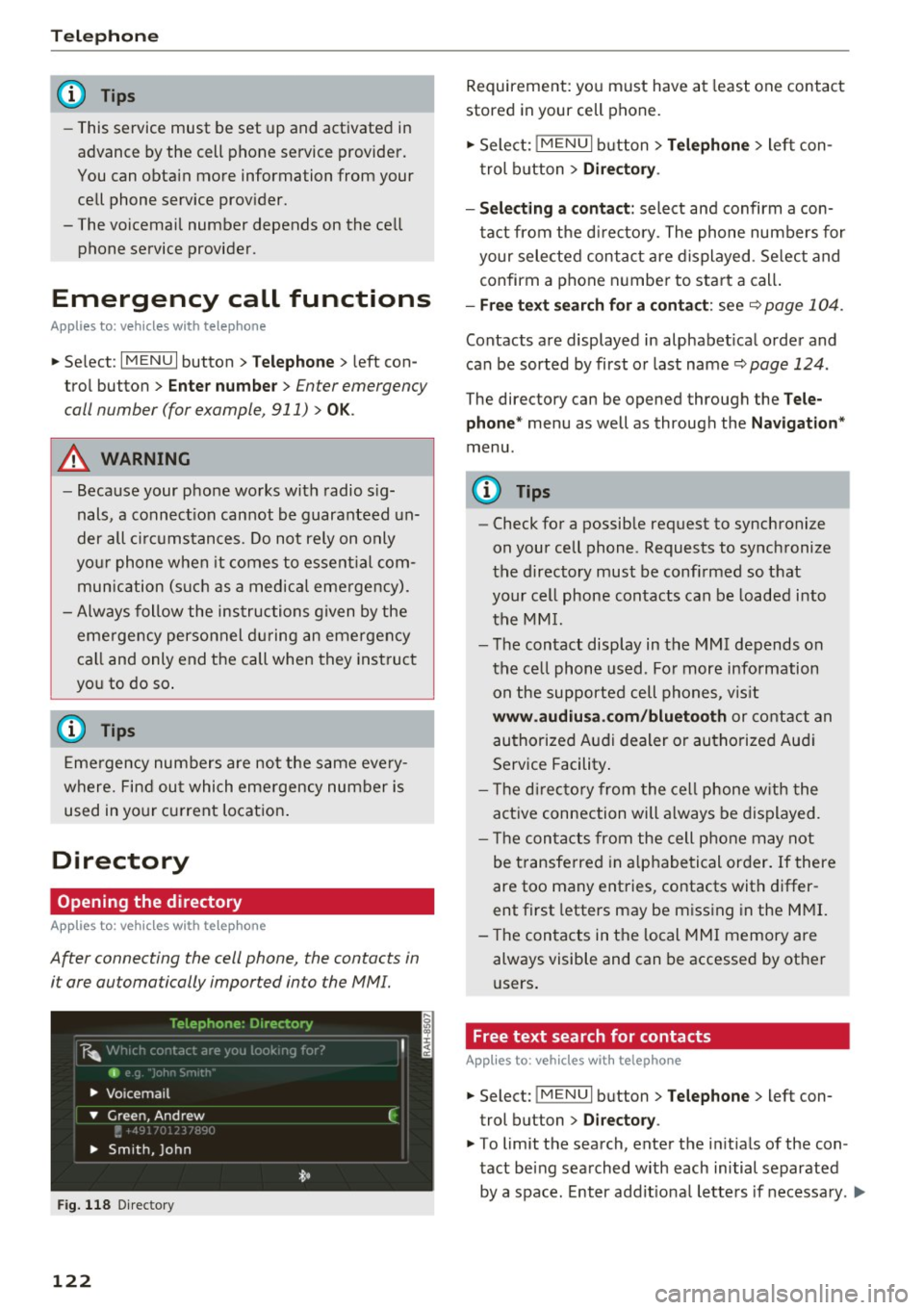
After connecting the cell phone, the contacts in
i t are automatically impor ted in to the MMI.
F ig . 11 8 Direc tory
122
Requirement: yo u must have at least one contact
stored in your cell phone.
~ Select: ! M ENUI button> T el ephone > left con
trol b utton >
Dire ctory .
- Selecting a contact :
select and confirm a con
tact from t he d irectory. The phone numbers for
your selected contact are displayed . Se lect and
confirm a phone n umbe r to sta rt a call .
-Fre e te xt sear ch for a conta ct : see q page 104 .
Contacts a re displayed in alphabet ical order and
can be sorted by first or last name ¢
page 124.
The directo ry can be opened th rough the Tele
phone "
menu as well as through the Navigation "
menu.
(D Tips
-Check for a possible request to synchronize
on your cell phone . Requests to synchronize
the directory must be confirmed so that
your cell phone contacts can be loaded into
the MM I.
- The contact display in the MMI depends on
the ce ll phone used . Fo r more information
on the supported cell phones , vis it
www .audiu sa .com /blu etooth or contact an
authorized Audi dealer or authorized Aud i
Service Facility .
- T he d irecto ry from the cell phone w ith the
active connection will a lways be displayed.
- T he contac ts from the cell phone may not
be transferred in a lphabetical order. If there
are too many entries, contacts with differ
ent first letters may be miss ing in the M MI.
- The contacts in the local MMI memory are
always visible and can be accessed by other
users.
, Free text search for contacts
App lies to : vehicles wi th telepho ne
~ Select: !MENU I button> Telephone > left con
trol button >
Director y.
~ To limit the search , enter the in it ials of the con
tact being searched with each initial separated
by a space. Enter addit iona l letters if necessa ry . .,..
Page 125 of 314
co
co
.... N
" N .... 0
" "' c:o
~ Select and confirm a contact from the di recto
ry. The p ho ne numbers for the selecte d contact
are disp layed .
~ To make t he call, se lect and confi rm a phone
number.
(D Tips
- You can scro ll through long lists quickly by
turning the contro l knob quick ly. The scroll
in g s peed depends on t he nu mbe r of list e n
tries.
- Additional informat io n on free text searches
ca n be found un der
r=> page 104.
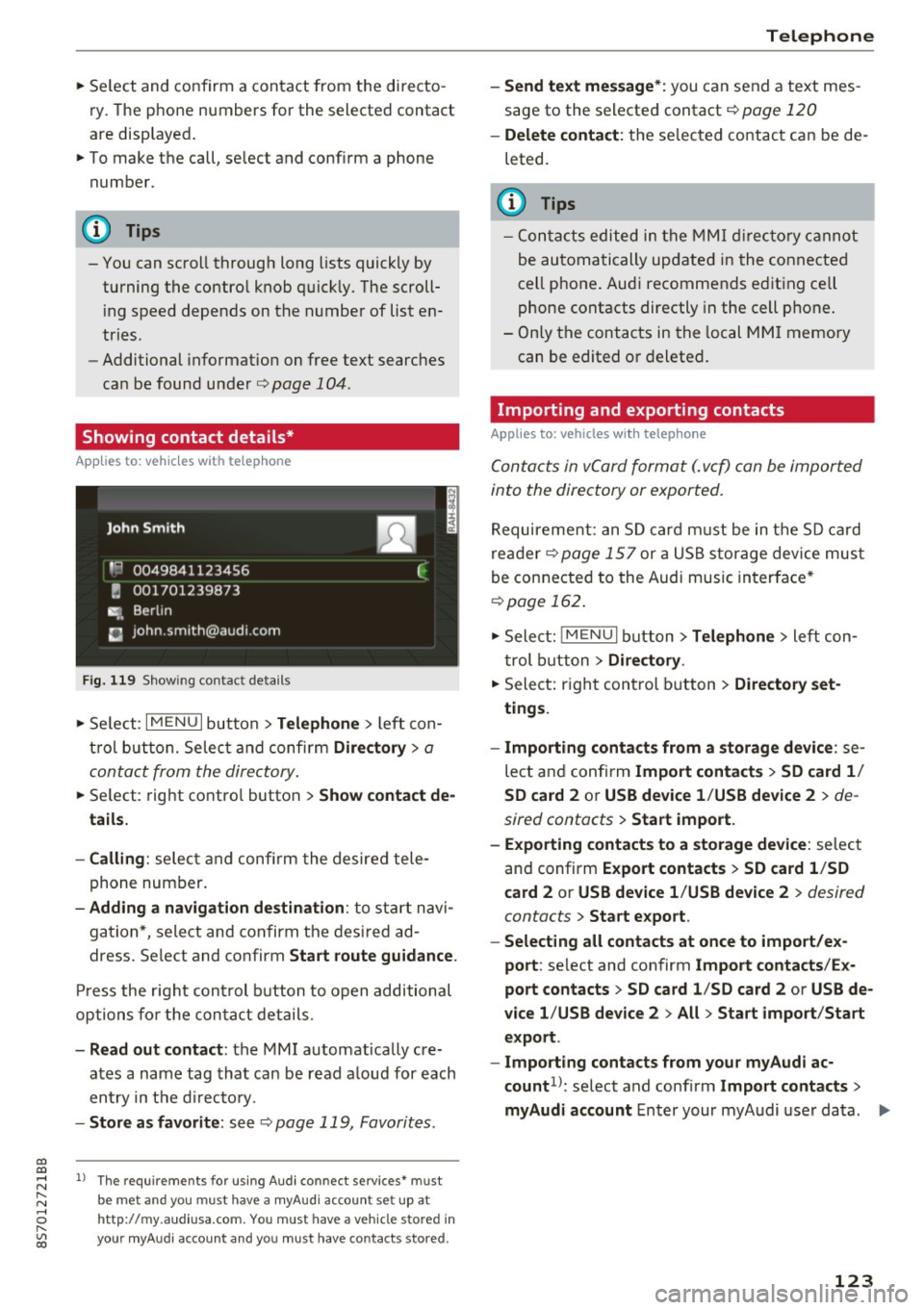
Showing contact details*
App lies to: ve hicles with telep hone
Fig. 119 S h ow ing contact deta ils
~ Se le ct: I M ENU I button> Telephone > left con
t rol butt on. Selec t and confir m
Directory > a
conta ct from the dire ctory .
~ Se lect: rig ht contro l button > Show contact de
tails.
- Calling :
select and con firm the desire d tele
phone number.
- Adding a navigation de stination : to sta rt n avi
ga tion *, sele ct and confirm t he des ire d a d
dress . Select and co nfirm
Start route guidance .
Press the r igh t con trol button to open additional
opti ons fo r the con ta ct det ails.
- Read out contact : the MMI automat ically cre
ates a name tag tha t can be r ead a loud for each
en try in t he dir ecto ry.
- Store as favorite : seer=> page 119, Favorites.
l) Th e requireme nts for using A udi co nn ect services• must
b e met and you must have a myAudi account set up at
ht tp:// my.aud iusa.com . You must have a ve hicle sto red in
your myAud i accou nt and you must have contacts stored .
Telephone
-Send text message *: you can send a text mes
sage to the selecte d contact r=>
page 120
-Delete contact : th e se lec ted co ntac t can be de
leted.
(D Tips
- C ont acts edited in the MMI dir ector y cann ot
be au tom atic ally up date d in t he connected
cell p hone . Aud i recommends e diting ce ll
p hone contacts directly in t he cell p hone .
- Only t he con tacts i n the local M MI memory
can be edited o r deleted .
Importing and exporting contacts
Applies to: vehicles wit h telep hone
Conta cts in vCard format ( . vc f) can be imported
into the directory or expor ted.
R equireme nt: an S D card must be in t he SD c ard
re ad er r=>
page 15 7 or a US B storage device mus t
be connecte d to the Audi music in terface *
r=>page 162.
~ Sele ct: ! ME NUI bu tton> Telephone > left c on
t rol b utton
> Directory .
~ Select: righ t con trol button > Directory set
tings .
- Importing conta cts from a storage device :
se
lect a nd confirm
Import contacts > SD card 1 /
SD card 2
o r USB device 1 /USB de vice 2 > de
sired contacts
> Start import.
- Exporting contacts to a storage device :
selec t
an d confirm
Expo rt cont acts > SD card 1 /SD
c ard 2
or USB device 1 /USB device 2 > desired
contacts
> Start export .
- Selecting all contacts at once to impo rt/ex
port :
select and con firm Import contacts /Ex
port contacts > SD card 1 /SD card 2
or USB de
vice 1 /USB device 2
> All > Start import /Start
export .
- Import ing contacts from your myAudi ac
count 1>:
select and confi rm Import contacts >
myAudi account
E nter your my A udi use r da ta. .,.
123
Page 126 of 314
Telephone
You must have a myAu di account in order to im
port contacts from the account. Entering your
myAudi user data or your myAudi PIN is on ly re
qu ired one time . You w ill receive the myAudi PIN
in your my Audi account once you have reg istered
a vehicle in the account .
(D Tips
- Always read the chapter¢ page 133, About
Audi connect.
- For additional informat ion on the myAudi
account, v is it
www .aud i.com /myaud i.
-The imported contacts are stored in the lo
ca l memory of the directory.
- A maxim um of 1,000 contacts can be im
ported. You can check the memory capacity
for the d irectory at any time¢
page 124.
-Never save important data on memory cards
or USB storage dev ices. Audi is not respons i
ble for damaged or lost files and media.
- Contacts that were downloaded from a cell
phone cannot be exported.
- There should be no other files or folders on
the storage medium conta ining the contacts
to be imported.
Settings
Telephone settings
App lies to: ve hicles with telep hone
... Se lect: I MENU I but ton > Telephone > right con-
tro l button >
Telephone settings .
Call options* Multi -party calling :
can be switched on/off .
R ing tone and volume settings
1>
Using the Mute telephone funct ion, you can
sw itch the ringtone on your MMI on or off . The
ringtones are played using the
R ingtone func
tion . Se lect and confirm an entry from the list .
F or the
Rin gtone volume /Mes sage vo lume set
tings, see ¢
page 179. The Microphone input
l e vel
can be adjus ted during a phone call usi ng
the control knob.
l) Depend s on th e connected cell phone.
124
(D Tips
- Severa l cell phones can be paired to the
MMI, but only two* ce ll phones can be ac
t ively connected.
- To delete a ll paired B luetoot h devices, the
Bluetooth function can be reset to the fac
tory default settings ¢
page 176.
· Additional options
App lies to: vehicles wit h telepho ne
... Select: !ME NUI button> Telephone > right con-
trol b utton .
Connection manager
See c::> page 176.
Bluetooth settings
See¢ page 177.
Online settings *
See ¢page 178.
Wi-Fi settings
See c::> page 131, Wi-Fi hotspot .
Directory settings
Applies to: vehicles wit h telephone
... Select: !MENUI button> Te lephone > left con
trol button >
Director y> right control button >
Direc tory settings .
M emory capacity
Shows the Memory capacit y for the directory.
You can manage up to 1 7,000 co ntacts with the
MM I di rectory. Yo u can load up to 4,000 contacts
from your cell phone into each directory. You can
also import up to 1,000 contacts from a storage
device .
Sort order
You can so rt the contacts in your d irec to ry alpha
betically ac co rding to
Last name or First name . IJ,-
Page 127 of 314
CD
CD
.... N
" N ...... 0
" V, co
Import contact s
See c:> page 123, Importing and exporting con
tacts .
Export contacts
See c:> page 123, Importing and exporting con
tacts.
Download directory
To upd ate the contacts in the MMI, you can man
ually download your cell phone contacts . De
pending on the cell phone , the Bluetooth connec
tion may need to be disconnected and reconnect ed to update the contacts.
Hide contacts w ithout phone number
W hen th is function is sw itched on~, contacts
that do not have any numbers ass igned to them
will be grayed out in the d irectory .
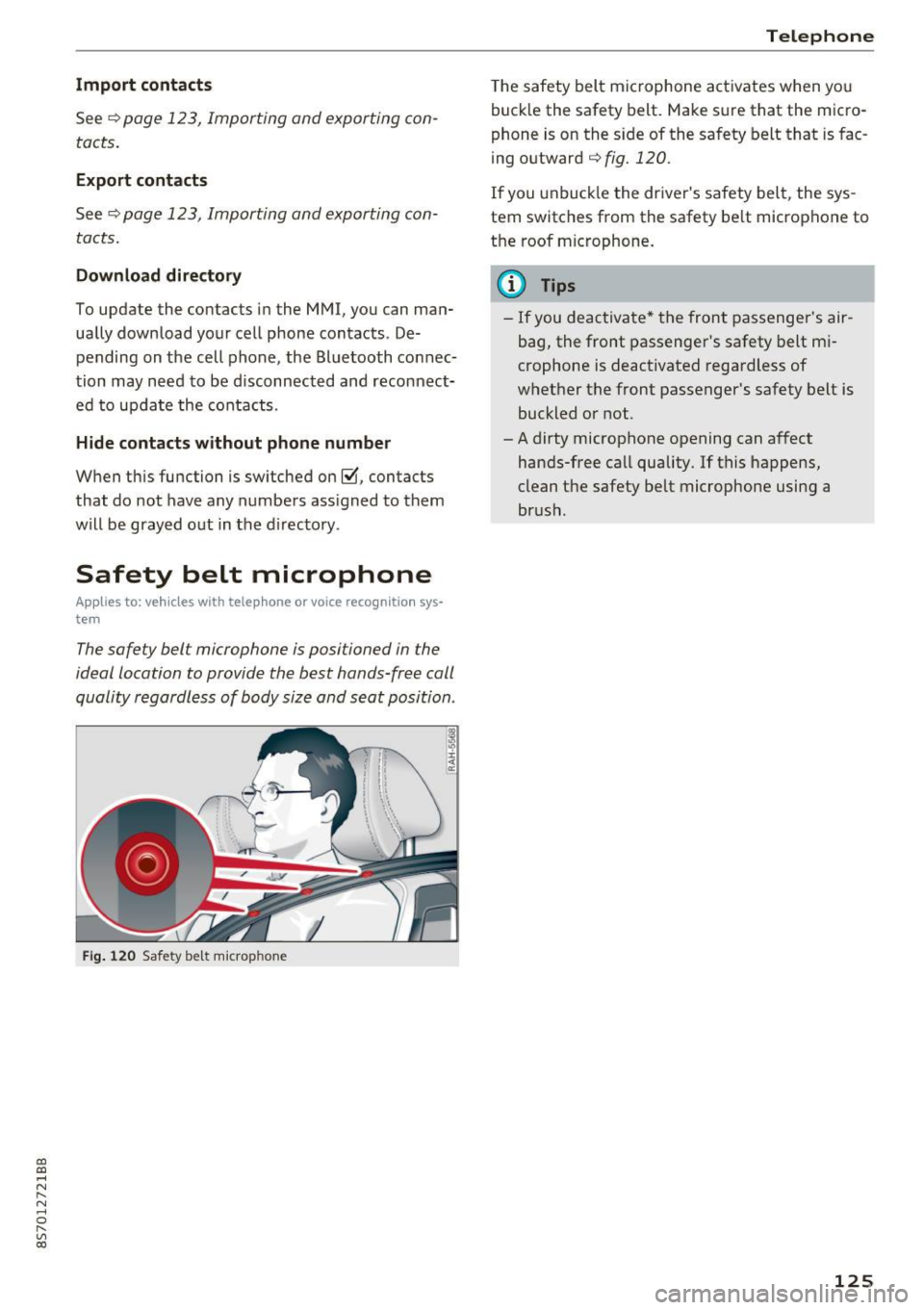
Safety belt microphone
Applies to: vehicles with telephone or voice recognitio n sys
tem
The safety belt microphone is positioned in the
ideal location to provide the best hands-free call
quality regardless of body size and seat position .
Fig. 12 0 Safety bel t mic rop hone
Teleph one
The safety belt mic rophone activates when yo u
buck le the safety belt. Make sure that the micro
phone is on the s ide of the sa fety belt that is fac
ing outward
c:> fig. 120 .
If you unbuck le the dr iver's safety belt, the sys
tem switches from the safety be lt microphone to
the roof microphone.
(D Tips
- If you deactivate * the front passenger's air
bag, the front passenger 's safety belt mi
crophone is deactivated regardless of
whet her the front passenger's safety belt is
buckled or not.
- A dirty microphone opening can affect
hands-free call quality. If this happens,
clean the safety belt microphone using a
br ush .
125
Page 128 of 314
Telephone
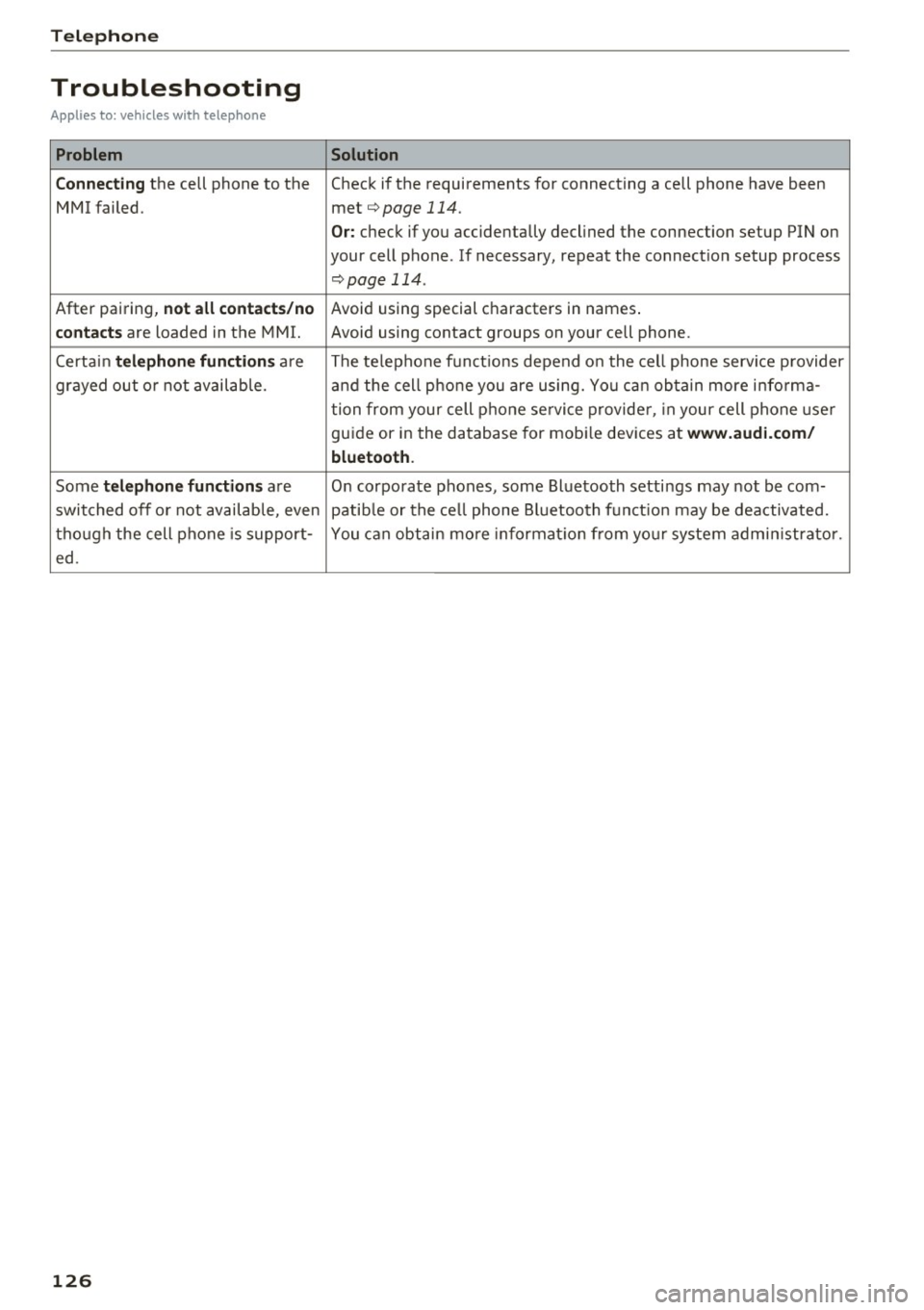
Troubleshooting
Applies to: vehicles with telephone
Problem Solution
C onn ecting
the cell phone to the Check if the requirements for connecting a cell phone have been
MMI failed. met¢
page 114.
Or: check if you accidentally declined the connection setup PIN on
your cell phone . If necessary, repeat the connection setup process
¢ page 114 .
After pairing,
n ot a ll cont act s/ no Avoid using sped.al characters in names .
co ntac ts are loaded in the MMI. Avoid using contact groups on your cell phone .
Certain
t e le ph one func tion s are The te lephone funct ions depend on the cell phone service provider
grayed out o r not availab le. and the cell phone you are using. You can obtain more i nfo rma-
tion from your cell phone se rvice provider, in your cell phone user
gu ide or in the database for mob ile dev ices at
www .audi.c om /
bluetoo th .
Some te le phone functi ons are O n corporate phones, some Bluetooth settings may not be com-
switched off o r not available, even patib le or the ce ll phone Bluetooth funct ion may be deactivated.
though the cell phone is support- You can obtain more informat io n from you r system admin istrato r.
ed .
126
Page 130 of 314
Audi connect
"'Enter the PIN for your SIM card .
"' Se lect and confirm
OK.
"'To connect to the Internet automatically in the
future, select and then confirm
Yes.
"' Confirm the system prompt asking to connect
to the Internet with either
Yes, connect once or
Yes, always if required.
After connecting successfully
After connecting successfully, the signal strength
and connection type are displayed in the Info
tainment system status line@/@ Qpage
105,
fig . 111.
You can now use Audi connect.
The list of available Audi connect services is dis
p la yed in the Infotainment system display.
Removing the Audi connect SIM card
"' Press on the Audi connect SIM card briefly. The
card is released from the slot. Remove the Audi
connect SIM card.
@ Note
-Audi connect is designed for use only with
the provided Audi connect SIM card. Audi
AG is not liable for the consequences of us
ing other SIM cards.
- If a SIM card of a different size is inserted in
the SIM card reader instead of an Audi con
nect mini SIM card, do not under any cir
cumstances remove this card yourself due
to the risk of damaging the SIM card reader.
Contact your authorized Audi dealer or au
thorized Audi Service Facility.
(D Tips
-You can connect a cell phone with Bluetooth
(handsfree) to make phone calls
Q page 114.
-Audi does not provide support for other SIM
cards. Audi recommends using only the pro
v ided SIM card .
- You can specify when the MMI connects to
the Internet Q
page 132. The Internet con
nection disconnects automatically once the
requested Audi connect service no longer re
quires any data packets.
128
Configuration through
myAudi
Activating/configuring specific Audi
connect services
Applies to: vehicles with Aud i connect
Some Audi connect services must be activated/
configured through your personal myAudi ac
count before using them for the first time .
- If you do not have a personal myAudi account
yet, you can register online at
my.audiusa.com .
-Add your vehicle to your myAudi account.
-Activate/configure the Audi connect services
you would like for your vehicle in your myAudi account.
- For some Audi connect services, you may also
have to enter your myAudi user data or your
myAudi PIN when accessing services in the MMI
to connect your vehicle to myAudi .
For detailed information on configuration, visit
my.audiusa .com.
Logging into myAudi in the vehicle
Applies to: vehicles with Audi connect
To use some Audi connect services (such as Twit
ter*), you must first connect your vehicle with
myAudi to transfer your personal settings from
your myAudi account.
"'S elect: !MENU I button> Audi connect > right
control button >
Log in.
"' Enter your myAudi user data. Or: enter your
eight-dig it myAudi PIN.
"' Confirm your entry w ith
OK .
Then you can open your personal settings from
your myAudi account in your vehicle .
(D Tips
You can receive your myA udi PIN if you have
set up a myAudi account. For additional infor
mation, see
my.audiusa.com .
Page 133 of 314
co
co
.... N
" N .... 0
" "' c:o
-Set up destinations in your MMI using your
m yA udi acc ount or online map view
¢ page 147.
-Onli ne traffic i nfo rmat ion: receive up-to-the
minute traffic information about accidents,
road construction and other incidents
¢ page 148.
-Map updates *: import navigation map updates
in your MMI using an SD card .
@ Tips
-For the Map update Audi connect service us
ing an SD card, check the current software
version in your vehicle and compare it with
my.aud iu sa. com to see if a new version is
available . You can also have the new naviga
tion data installed by an Audi dealer, which
can be done for an add itiona l charge.
- More information on
map updat es can be
found in the
Audi c onnect Operating Man
ual under
m y.audiusa .com .
Audi connect services on the phone
Applies to: vehicles with Audi connect
The follow ing Audi connect serv ices are currently
ava ilable:
Storing contacts on your computer using your
m yAudi Ac count and loading the contacts into
the MMI directory ¢page 123.
Audi connect services in the Media menu
Applies to: vehicles with Wi- Fi audio player and Audi connect
-Wi-Fi audi o play er: you can access the media
center through Wi-Fi connected media players
(such as smartphones)
¢ page 160.
- Online m edia : offers access to different online
med ia services and operation through the MMI
using the
Audi MMI connect app .
(D Tips
For mo re information on the Wi-Fi a udio p lay
er and supported devices, contact an author
ized Audi dealer or authorized Audi Service Facility.
Audi c onn ect
Additional options
Applies to: vehicles with Audi connect
., Select: !M ENUI button> Audi conn ect> right
cont rol button .
The following options are available in the Aud i
connect serv ices overv iew :
-Lo g in: see ¢ page 128, Logging into myAudi in
the vehicle .
-Connect ion manage r: see¢ page 176.
Wi-Fi hotspot
Applies to: vehicles with Wi-Fi hotspot
You can use the MMI as a Wi-Fi hotspot to con
nect up to eight Wi-Fi devices to the Internet.
Requirement: the ignition must be sw itched on .
.. Select:
!MENU I button> Telephone > right con-
trol button >
Wi-Fi setting s.
The following sett ings can be mod ified:
Wi -Fi
The MMI Wi-Fi hotspot is deactivated at the fac
tory . Sw itch the Wi-F i hotspot to
On before es
tab lishing an Internet connection between your
vehicle and you r Wi -Fi device.
- On : the MMI Wi-Fi hotspot is act ive and v is ible
to other dev ices. You can connect your W i-F i
dev ice w ith the MM I.
-Off : the MMI Wi-Fi hotspot is deactivated . An
Internet connect ion for W i- Fi dev ices is not
possible .
_&. WARNING
-As the driver, do not allow usage of the Wi
Fi hotspot to distract you from driving, as
this could increase the risk of an accident .
-It is only safe to use tablets, laptops, mo
bi le devices and other simi lar devices when
the vehicle is stationary because, like all loose objects, they could be thrown around
the inside of the vehicle in a crash and cause
serious injuries . Store these types of devices
securely while driving.
~
1 31
Page 134 of 314
Audi connect
- Do not u se any Wi-Fi devices within range of
the a irbags while d riving. Also read the
warnings in the chapter¢
page 196.
@ Note
You are respons ib le for a ll precautions taken
for data protection, anti-virus p rotection and
protection against loss of data on mobile de
vices that are used to access the Internet throug h the Wi-Fi hotspot .
(D Tips
-A separate, paid mobile s ubsc ription may be
needed to use the Wi-F i hotspot. You can
obtai n mo re informatio n from your cell
phone service provider .
- In vehicles without Aud i connect*, the use
of the Wi -Fi hotspot is only possib le for the
Wi-Fi audio playe r* . A da ta connection to
th e I nte rnet cannot b e establi she d.
- Addi tional informat io n can be found under
www.audiusa .com /audiconnect .
Configuring the data
connection
Appl ies to: vehicles w ith Audi co nnect
To use Audi connect services, a data connect ion
must be configured .
.,. Select: I M ENU I but ton > right cont rol b utt on>
Connection manager.
.,. Se lect: rig ht contro l button > Online settings >
Data connection settings .
Using the Data connection settings menu, you
can set when an I nternet connection sho uld be
made . The Inte rnet connection disconnects auto
mat ica lly once the requested A ud i connect serv
ice no longe r requ ires any data pac kets.
The fo llow ing options can be se lected:
Connection setup
- With request :
a data co nnect io n is only es tab
li sh ed whe n co nfirmed.
- No request : a data connection is automatically
estab lish ed to use A udi connec t se rvices .
132
-Never : a data connect ion is not established.
Audi connect services cannot be accessed .
I f a da ta conne ction is est ablishe d, the ty pe of
connection and the s ignal streng th is d isp layed in
t h e sta tus line o f the Info tainment sys tem dis
p lay @/@ ¢
page 105, fig. 111 .
An active data co nne ct ion can be ende d m anually
by set ting the
Connection setup t o Never.
Data roaming
Data roaming
is swi tched off at the factory. To
u se a data co nnection outs ide of the cou ntry,
Da·
ta roaming
must be swi tched on (~ ). The se tting
i s s to red for the cur rent S IM card o r the cell
p hone t hat is c urrent ly conne cted.
Audi connect (MMI)
With th is func tion, you can Allow or Deny the use
of Aud i connec t se rvic es if the connec tion is s et
to
No request or With request .
Connection settings
The connect io n is co nfigured automat ica lly based
o n the SIM card be ing used. These values can be
c h anged . You can obtain more i nfo rmation from
yo ur cell phone serv ice prov ider.
- APN : the access point depends on t he cell
phone service p rovider a nd is assigned auto
mat ically .
-User name : your cell phone se rvice provider as
signs the use r name for your on line profile .
-Password : your cell phone serv ice provider as-
signs the password for your on line profile .
Storing changed Connection settings: press the
IBACKI button.
Reset configuration
An on line p ro file is saved an d config ured au to
matically . The
Connection settings that yo u
c h anged manually are reset to t he default set
tings.
A WARNING
- As t he d river, do not allow usage of the Wi
Fi hotspot to distract you from driv ing, as
t his could increase the r isk of an accid ent.