phone AUDI TT ROADSTER 2017 User Guide
[x] Cancel search | Manufacturer: AUDI, Model Year: 2017, Model line: TT ROADSTER, Model: AUDI TT ROADSTER 2017Pages: 314, PDF Size: 76.54 MB
Page 110 of 314
Voice recognition system
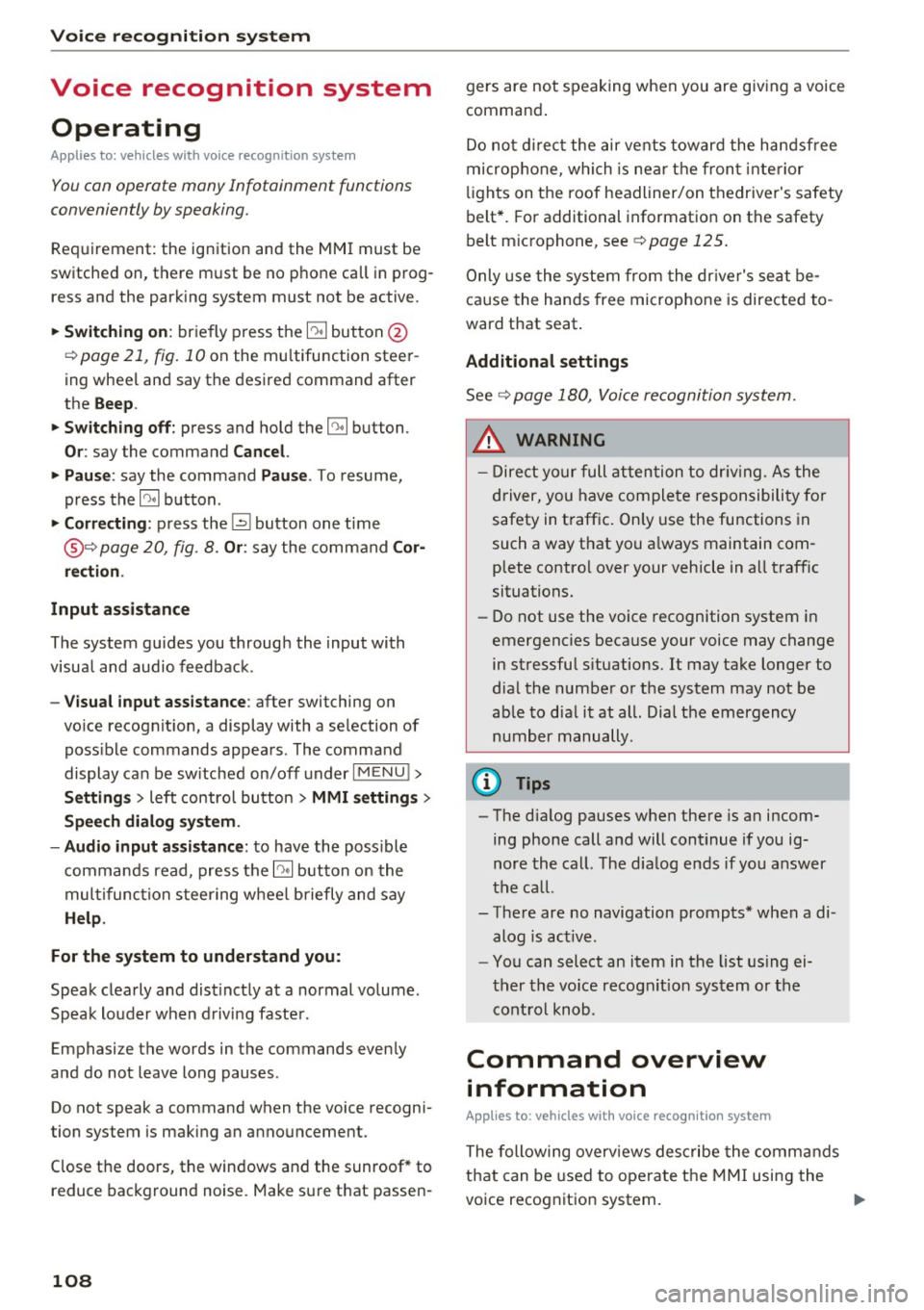
Voice recognition system Operating
Applies to: vehicles with vo ice recognition system
You con operate many Infotainment functions
conveniently by speaking.
Req uirement: the ignition and the MMI must be
sw itched on, there m ust be no p hone call in p rog
ress and the park ing system must not be active .
... Switching on : briefly press the~ but ton @
¢page 21, fig. 10 on the mu ltifunction stee r
ing whee l an d say the desired command after
the
Beep .
... Switching off :
press and hold the l2!J button.
Or: say the command C ancel.
.., Pause :
say the command Pause . To resume,
press the
l2!I button .
... Corre cting : press the ~ button one t ime
@ ¢
page 20, fig. 8. Or: say the command Cor
r ec tion .
Input assistance
The system gu ides you through the input with
visual and audio feedback .
-Visual input assistance : after switching on
vo ice recognit ion, a display with a se lection of
poss ible commands appea rs. The command
display can be sw itched on/off under
I M ENU !>
Setting s> left control bu tton > MMI setting s>
Speech dialog sy stem .
-Audio input as sistance :
to have the poss ible
comma nds read, press the
10, I button on the
mul tifunction steering wheel briefly and say
Help .
For the syst em to understand you:
Speak clearly and dist inctly at a normal volume .
Speak louder when d riving faster .
Emphasize the words in the commands evenly
and do not leave long pauses .
Do not speak a command when the voice recogni
tion system is making an announcement .
Close the doors, the windows and the sunroof* to reduce bac kground noise. Make sure t hat passen-
108
gers are not speaking when you are giv ing a voice
command .
Do no t direc t the air ve nts toward the handsfree
micropho ne, which is nea r the fron t interior
li ghts on the roof headliner/on thedriver's safety
belt*. For additional information on the safety
belt m icrophone, see ¢
page 125.
Only use the system from the dr ive r's seat be
ca use the hands free microphone is directed to
ward that seat .
Additional settings
See ¢ page 180, Voice recognition system.
.&_ WARNING
-Dire ct yo ur full attention to dr iv ing . As the
driver, you have complete responsibility fo r
safety in traffic. Only use the functions in
such a way that yo u always maintain com
plete contro l over your vehicle in a ll traffic
situations.
- Do not use the voice recognition system in
emergencies beca use your voice may change
in stressful s ituations. It may take longer to
dia l the number or the system may not be
ab le to dial it at all. Dial the emergency
number manually .
(D Tips
-The d ialog pauses when there is an incom
ing phone call and will continue if you ig
nore the call. The dia log ends if you answer
the ca ll.
- There are no navigation prompts* when a di alog is act ive .
- You can select an item in the list using ei
ther the vo ice recognit ion system or the
control knob .
Command overview
information
Appl ies to: vehicles with voice recognition system
The following overv iews describe the comma nds
that can be used to operate the MMI using the
voice recognition system. ..,.
Page 111 of 314
co
co
.... N
" N .... 0
" "' c:o
Voice recognition system
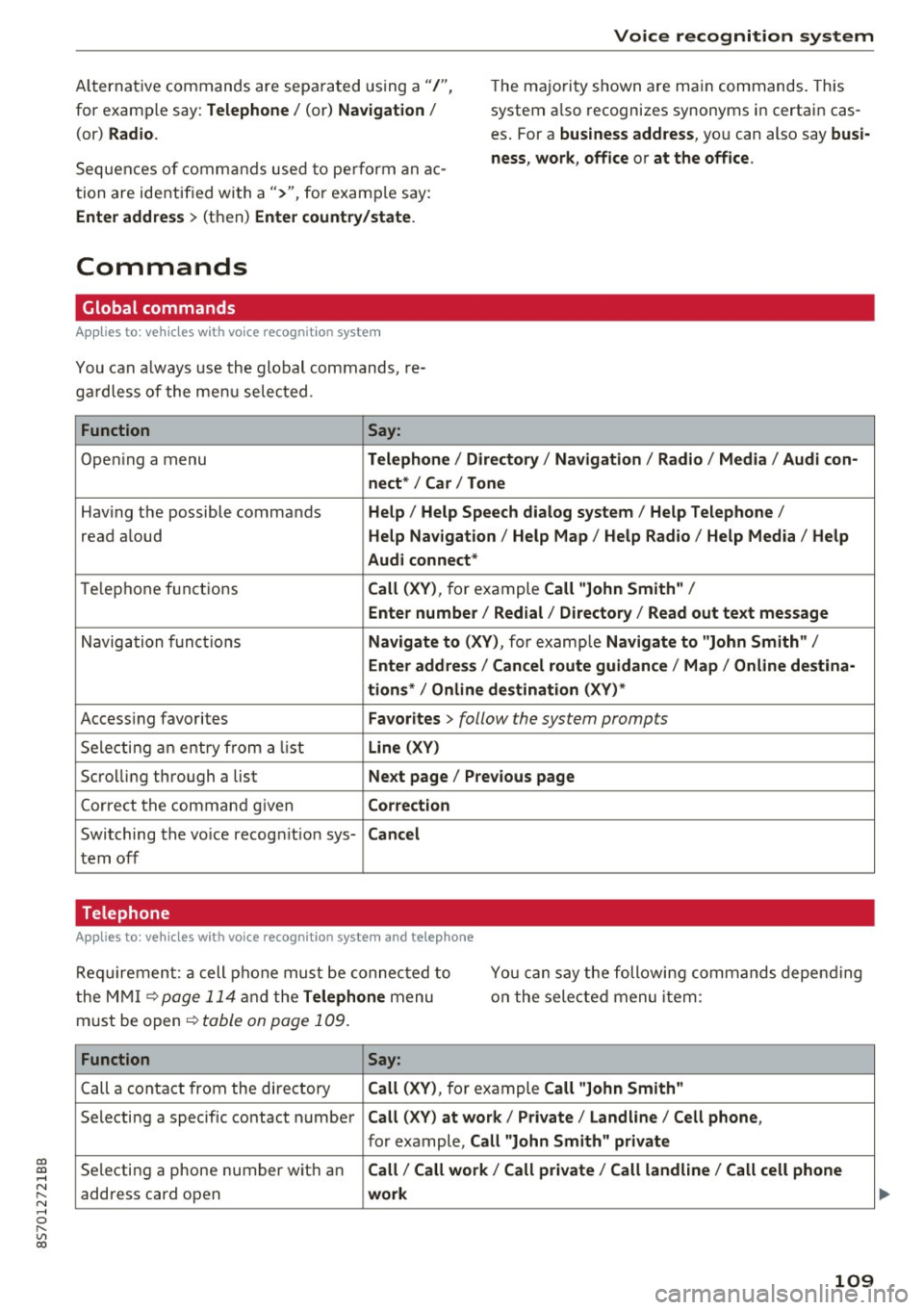
Alternative commands are sepa rated using a"/",
for examp le say:
Telephone / (or) Navigation /
(or) Radio.
Sequen ces o f comman ds used to pe rform an ac
tion are identif ied with a">'', for exam ple say: T
he ma jo rit y shown are ma in commands. This
system a lso recognizes synonyms in certain cas
es . For a
business address , you can also say busi
ness , work , office or at the office .
Enter address
> (then) Enter country/state .
Commands
Global commands
Applies to: vehicles with voice recognition system
You can always use t he global commands, re
ga rdless of the me nu selected.
Function Say:
Ope ning a menu Telephone / Directory / Navigation / Radio / Media / Audi con-
nect * /Car / Tone
Hav ing the possible commands Help / Help Speech dialog system / Help Telephone /
read aloud Help Nav igation / Help Map / Help Radio / Help Media / Help
Aud i connect *
Telep hone f unct ions Call (XV) , for example Call "John Smith" /
Enter number / Redial / Directory / Read out text message
Navigation f unc tions Navigate to (XV) , for example Navigate to "John Smith" /
Enter address / Cancel route guidance / Map / Online destina-
tions * /Online destination (XV) *
Accessing favorites Favorites > follow the system prompts
S ele cti ng an entry from a list Line (XV)
Scrolling thro ugh a list Next page / Previous page
Corre ct th e comman d given Correction
Switching the vo ice recog nition sys-Cancel
tern off
Telephone
Applies to: vehicles with vo ice recognition system and telephone
R equi reme nt: a cell p hone must be connec ted t o
t he MM I
¢page 114 a nd the Telephone menu
m ust be op en ¢
table on page 1 09 .
Yo u ca n say the foll owi ng commands depen ding
o n t he sele cted menu item:
Function Say:
Call a conta ct fr om the dire ctory Call (XV) , for ex ample Call "John Smith"
Se lecti ng a specif ic contact number Call (XV) at work / Private / Land line / Cell phone ,
for example, Call "John Smith" private
Selecting a phone number wit h an Call / Call work / Call private / Call land line / Call cell phone
address card open work
109
Page 112 of 314
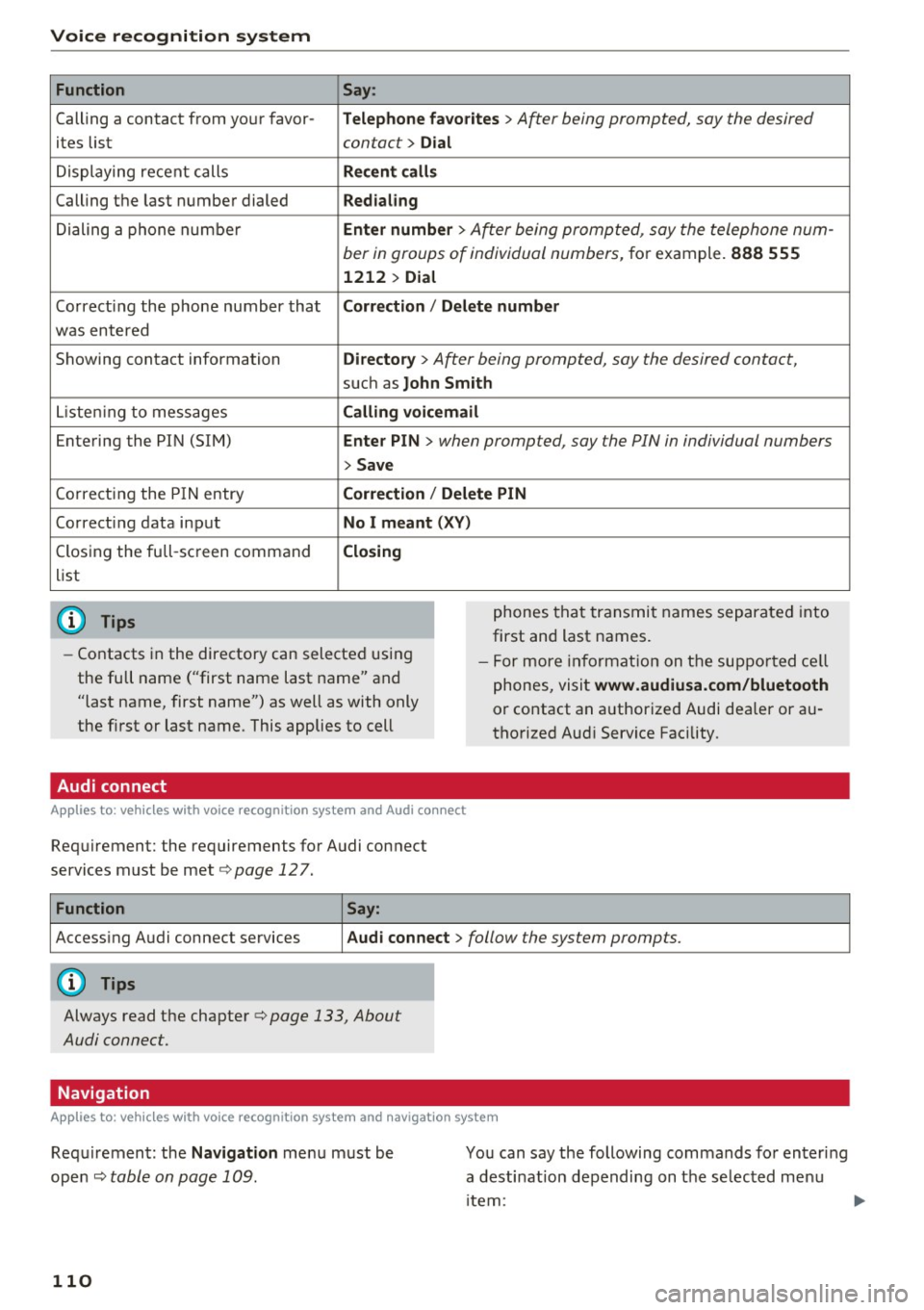
Voice recognition system Function
Calling a contact from your favor -
ites list
Displaying recent calls
Calling the last number dialed
Dialing a phone number
Co rrecting the phone number that
was entered
Showing contact information
L isten ing to messages
Entering the PIN (SIM)
C orrecting the P IN entry
Correcting data input
Closing the full-sc reen command
list
@ Tips
Say :
T elepho ne fa vo rites
> After being prompted, soy the desired
contact>
D ial
Re cen t c alls
Redialing
Enter number
> After being prompted, say the telephone num-
ber in groups of individual numbers,
for example. 888 555
1212 > Dial
Correct ion / Delete number
Dire ctory >
After being prompted, soy the desired contact,
such as John Smi th
Calling voic email
Ente r PIN
> when prompted, soy the PIN in individual numbers
> Save
Correct ion
I Delete PIN
No I m eant ( XV )
Closing
phones that transmit names separated into
first and last names.
- Contacts in the directory can selected using
the full name ("first name last name" and
"last name, first name") as well as with only
the first or last name. This applies to cell -
For more information on the suppo rted ce ll
phones, visit
www.audiusa.com/bluetooth
or contact an authorized Audi dealer or au
thorized Aud i Service Facility.
Audi connect
A ppl ies to: ve hicles w ith vo ice recognit ion sys te m and Audi co nnect
Requirement: the requirements for Audi connect
services must be met
c> page 12 7.
Function Say:
Accessing Audi connect services Aud i connect > follow the system prompts.
(D Tips
Always read the chapter c> page 133, About
Audi connect.
Navigation
A pp lies to: ve hicles w ith vo ice recognition syste m and navigation system
Requirement: the Navigation menu must be
ope n
Q table on page 109 .
110
You can say the following commands fo r entering
a desti nation depending on the se lec ted menu
i tem:
Page 115 of 314
Voice recognition system
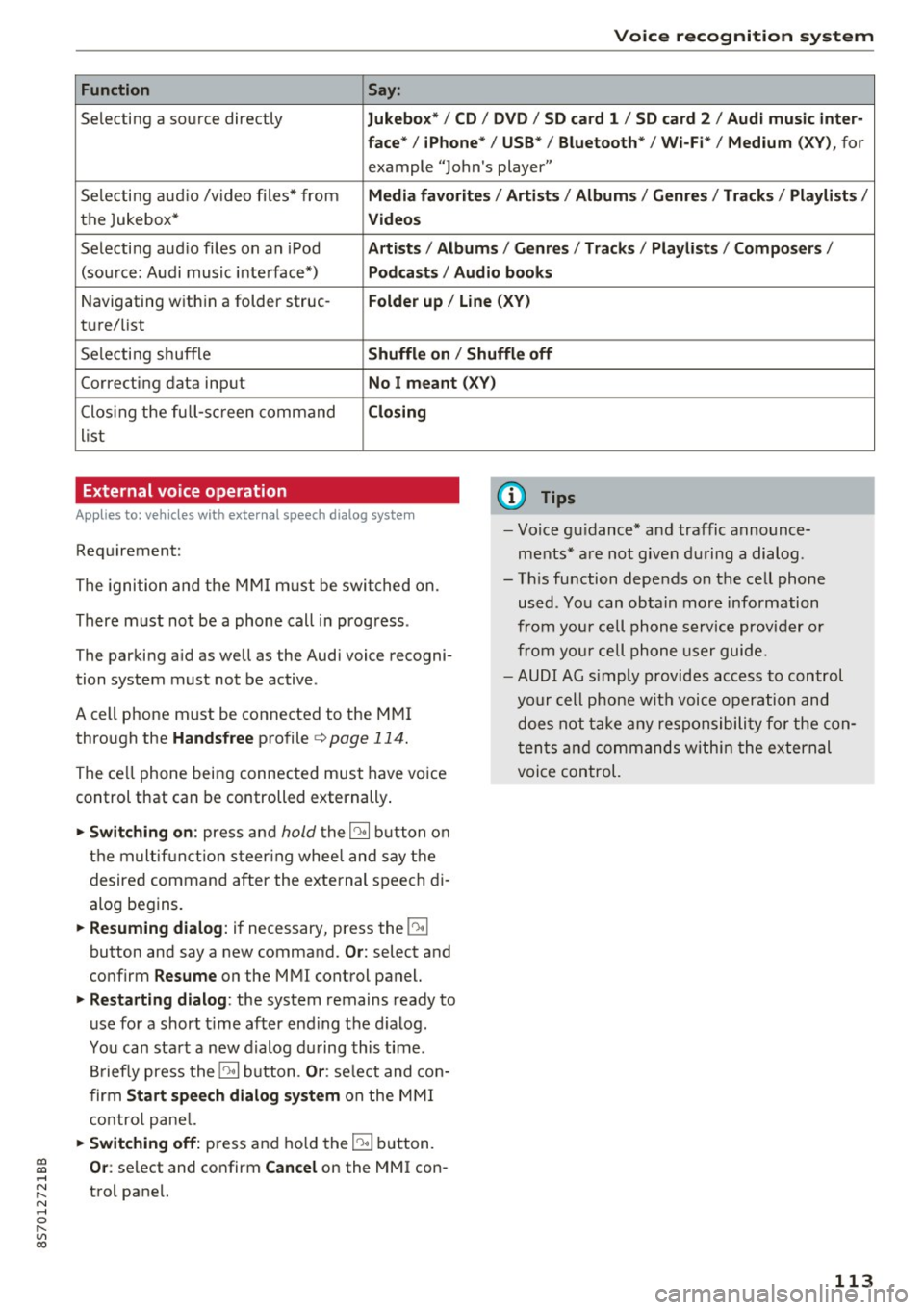
Function Say:
Selecting a so urce directly Jukebo x*/ CD/ DV D/ SD ca rd 1 / SD card 2 / Audi mu sic inter-
face * / iPhon e* / USB * / Bluetooth * / Wi -Fi * / Medium
(XV ), for
example "Jolhn's player"
Selecting aud io /v ideo files* from
Media favorite s/ Artists / Album s/ Genr es/ Track s/ Playli st s /
the Jukebox* Videos
Selecti ng aud io files on an iPod A rtists / Albums / Genre s/ Track s/ Playlists /Compos ers/
(sou rce: Audi music interface*) Podcast s / Audio books
Navigating w ith in a folder struc-Folder up / Line (XV )
tu re/list
Selecti ng shuffle
Shuffl e on / Shuffle off
Correcting data input No I meant (X V)
Clos ing the fu ll- sc reen command Closing
list
External voice operation
Applies to: veh icles with external speech dialog system
Requirement:
The ignition and the MMI m ust be swi tched on.
There must not be a phone call in progress .
The parki ng aid as well as the Audi voice recogni
tion system must not be active.
A cell phone must be connected to the MMI through the
Handsfree profile ¢page 114.
The ce ll phone being connected must have vo ice
control that can be controlled externally .
... Switching on : press and hold the 10• 1 button o n
the m ult if u nct ion s teer ing whee l and say the
desired command after the external speech di
alog begins .
... Resuming dialog : if necessary, press the 10•1
button and say a new command. Or: select and
confirm
R esume on the MMI control panel.
... Restarting dialog : the system remains ready to
use for a short t ime after end ing the d ialog.
You can sta rt a new dialog du ring this time .
B riefly press the
10• 1 button. Or : select and con
firm
Start sp eec h dialog sy stem on the M MI
contro l pane l.
... Switching off: press and ho ld the 51 b utton.
(D Tips
- Vo ice gu idance* and traffic announce
ments * are not given du ring a dialog .
- Th is function depends on the cell phone
used . You can obtain more information
from your cell phone service provider or
from your cell phone user guide.
- AUDI AG s imply provides access to control
your cell phone wit h voice opera tion and
does not take any responsibility fo r the con
t en ts and commands within the external
voice control.
~ Or : select and confirm Cancel on the MMI con-....
~ trol pane l. N ..... 0 r---
"' c:o
113
Page 116 of 314
Telephone
Telephone Introduction
Applies to: vehicles with telephone
To make phone coils in your vehicle using the
/11/111, connect your cell phone to the /11/111 via
Bluetooth.
Hand sfree
Afte r you have connected you r ce ll phone to the
MMI via Bluetooth , you can use the handsfree
system and operate telephone functions through
your MMI. You can make calls using the antenna
on your cell phone.
A WARNING
-Med ical experts warn that cell phones can
interfere w ith the funct ion of pacemakers .
Always mainta in a m inimum d istance of 20
c ent imeters between the cell phone anten
na and the pacemaker.
- Do not carry the cell phone in a pocket di
rectly over the pacemaker when the phone
is switched on.
- Sw itch the cell phone off immediately if
you suspect it may be interfering w ith the
pacemaker.
- Do not use the vo ice recognit ion sys-
tem* c>
page 108 in emergenc ies because
your vo ice may change in stressful situa
t ions. It may take longe r to dial the number
o r the system may not be able to dial it at
all. Dial the emergency n umbe r manually .
- Switch your cell phone off in areas where
there is a risk of an exp losion . These loca
tions are not always clea rly mar ked. This
may include gas stations, fuel and chemical
storage facilities or transport vehicles, or lo cations where fue l vapors (such as propane
or gaso line vapor in vehicles or bui ld ings),
chemicals or large quantities of dust parti
cles (such as flour, sawdust or metal) may
be present in the air. This also applies to all
other locations where you would normally
turn yo ur vehicle engine off .
- The demands of traffic requ ire yo ur full at
tent ion. Always read the chapter c>
page 96,
Traffic safety information.
114
-
(D Tips
- To learn which Bluetooth connections and
wh ich of the funct ions in your cell phone are
supported, check with your cell phone serv
ice provider or the database for mobile devi
ces at
www .audiu sa.com /bluetooth .
-The Bluetooth connection range is limited
to inside the vehicle . It can also be affected
by local condit ions and interference with
other devices .
Setup
Connecting a cell phone using Bluetooth
Applies to: vehicles with telephone
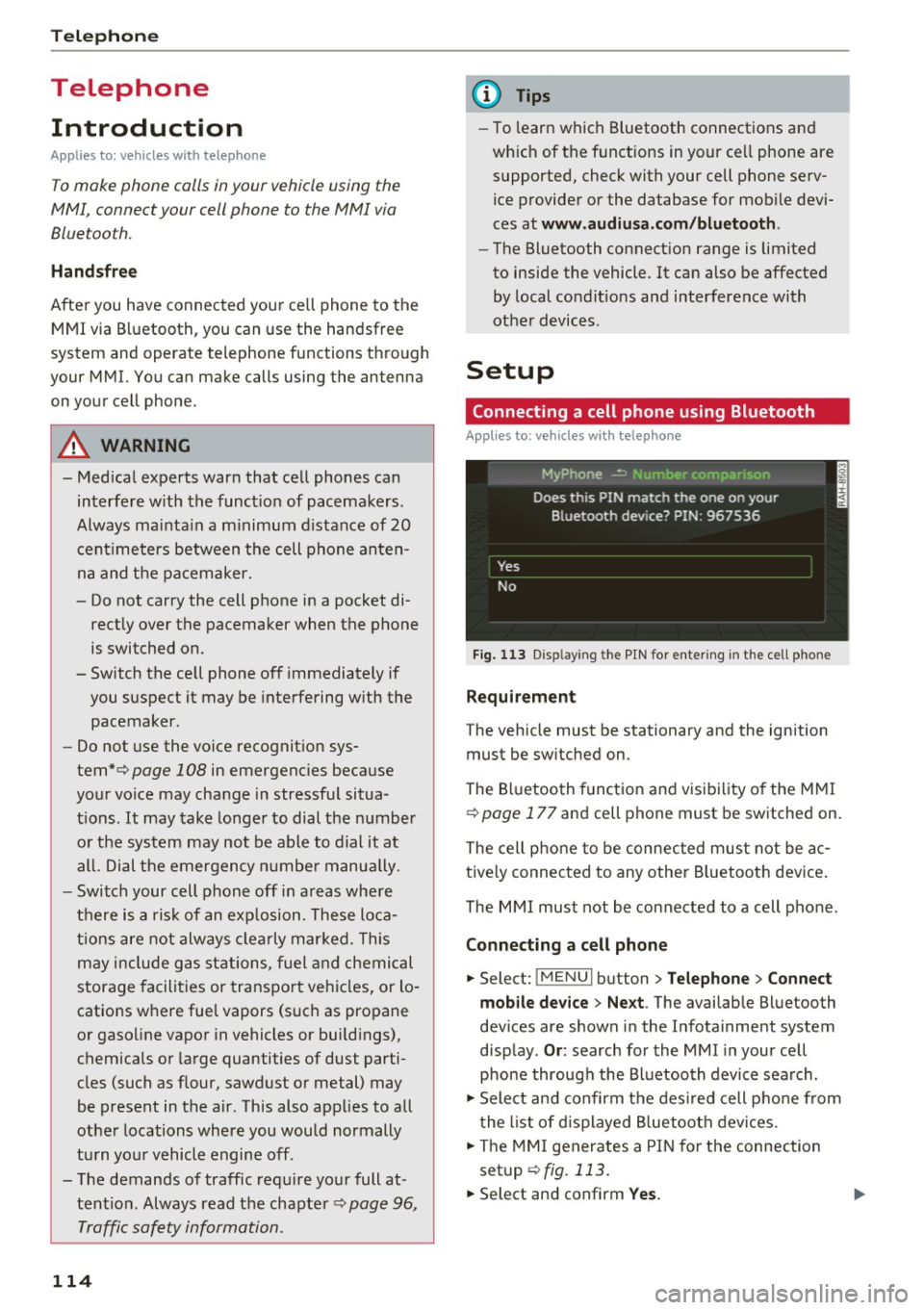
Fig. 11 3 Disp laying the PIN for entering in the cell phone
Requirement
The vehicle must be stationary and the ignition
must be sw itched on.
The Bluetooth funct ion and visibility of the MMI
c>
page 177 and cell phone must be switched on.
The cell phone to be connected must not be ac
tive ly connected to any othe r Bluetoot h dev ice .
The MMI must not be connected to a cell phone.
Connecting a cell phone
... Select: !MENUI button> Tel ephone > Connect
mob ile d ev ice > Ne xt .
The available Bluetooth
dev ices are shown in the Infotainment system
disp lay .
Or : search for the MMI in your cell
phone through the Bluetooth device search .
... Sele ct and confirm the des ired cell p hone from
the list of d isplayed B luetooth devices.
... The MMI generates a PIN for the connection
setup
c> fig. 113.
... Select and confirm Yes. .,..
Page 117 of 314
co
co
.... N
" N .... 0
" "' c:o
~ Enter the PIN for connecting on your cell
phone.
O r: when the PIN is displayed on your
ce ll phone, confirm the PIN on your ce ll phone
and in the MMI. The time allowed for entering
the PIN is limited to approximately 30 seconds.
~ Pay attention to any additional system prompts
displayed on your cell phone, for example if the
system should connect automatically in the fu
ture. Depend ing on the ce ll phone, you may
have to confirm downloading the directory sep
arately.
After conn ecting succes sfully
After connecting successfully, a sho rt message
w ith informat ion about the connected profi les
will appear. You can also change profiles later.
Select:
IMENU ! button> Setting s> left control
button >
MMI setting s > Conn ecti on ma nag er
c>page 177.
In addition, the cell phone contacts are automat
ically loaded in the MMI directory. This p rocess
can take several minutes, depending on the num
ber of contacts.
@ Tips
- Making phone calls through the MMI is only
possib le using the
Hand sfree Bl uetooth pro
file.
- You can apply additional settings to con
nected cell phones using the connection
manager
c> page 176.
- You can also search for the MMI in you r ce ll
phone using the Bluetooth device search .
- You only have to pair your dev ice one time.
Bluetooth devices that are already paired
automatically connect to the MMI when the Bluetooth function is switched on, they are
within range and the ignit ion is switched on.
The last connected cell phone is given first
prior ity .
- Authorizing the MMI connection in your cell
phone will make automat ic connection pos
s ible .
- Pay attention to any system prompts dis
played on your cell phone, for example if
the system should connect automat ica lly in
the future. Depending on the cell phone,
T e le ph on e
you may also need to download the directo
ry and confirm access to your text messages
separately .
- When leaving the vehicle, the Bluetooth
connection to the cell phone will automati
cally disconnect. Depending on your cell
phone, phone calls in progress may be auto
matically redirected from the MMI to your
cell phone and you can continue the call on
your phone.
- You can obtain more information from your
cell phone service provider or from yo ur cell
phone user gu ide. For informat ion on us ing
the te lephone, v is it
www .audiu sa .co m/
blu eto oth
or contact your authorized A udi
dea ler or authorized Audi Service Facility .
Operating two telephones through the
MMI
You can connect two cell phones to the MMI, for
example your business cell phone as the main
phone and your private cell phone as the addi
tional phone. You con be reached in your vehicle
through both cell phones.
The first connected ce ll phone is displayed as the
main phone in the MMI. The second cell phone is
connected as the additional phone.
The directory from the connected main phone
will a lways be displayed. If you would like to use
the d irectory from the additional phone, you
must switch the main and addit ional phone
c> page 116.
Connecting a ce ll phone as the m ain phone
Connect your cell phone to the MMI via Blue
tooth. The first connected cell phone is disp layed
as the
Main phone in the MMI.
See
c> page 114, Connecting a cell phone using
Bluetooth .
Connecting a ce ll phone as the additional
phone
Requirement: a ce ll phone must be connected to
the MMI as the main phone.
Se lect:
I MENU I button> Tel ephon e> right con-
t rol button >
Connect additional telephone . ..,.
115
Page 118 of 314
Telephone
Se e¢ pag e 114, Conn ecting a cell phone using
Bluetooth .
Example: you have connected yo ur business cell
phone to the MMI as the ma in phone and your
p rivate ce ll phone as the additiona l phone . To be
ab le to call contacts from your private c ell phone
directory , you must switch the ma in and addi
tional phone, since the directory from the main
phone is always displayed.
S wi tc h ing the ma in and add itional phone
Requirement: a main phone and an addit ional
phone must be connect ed.
Sw itc h main and additional ph one: select:
I MENU ! button >Telephone > right control but
ton >
S wi tch ma in and addit ional ph one.
(D Tips
-Please note that the directory from the
main phone is always displayed.
- You can see if a cell p hone is connected as
the main o r additional phone in the connec
tion manager ¢
page 176. Or: the device
name of the connected main phone is
shown in the
T elephone menu (s uch as My
Phone).
- If the main phone does not connect auto
matically to the MMI when the ignition is
switched on, for examp le because it is out
of the vehicle range or the B luetooth func
tion is switched off, then a previously paired
additional phone is automatically connected
as the main phone .
- You can send and receive messages on your
main phone as well as on your additional
phone
c> page 116, fig . 11 4. You do not
need to switch you r main phone and addi
tiona l phone for this.
- You can also make your connected cell
phone the default phone by selecting
S et a s
default telepho ne
in the Connection m an·
age r¢
page 177 .
116
Using the telephone
Opening the telephone
App lies to: vehicles with telepho ne
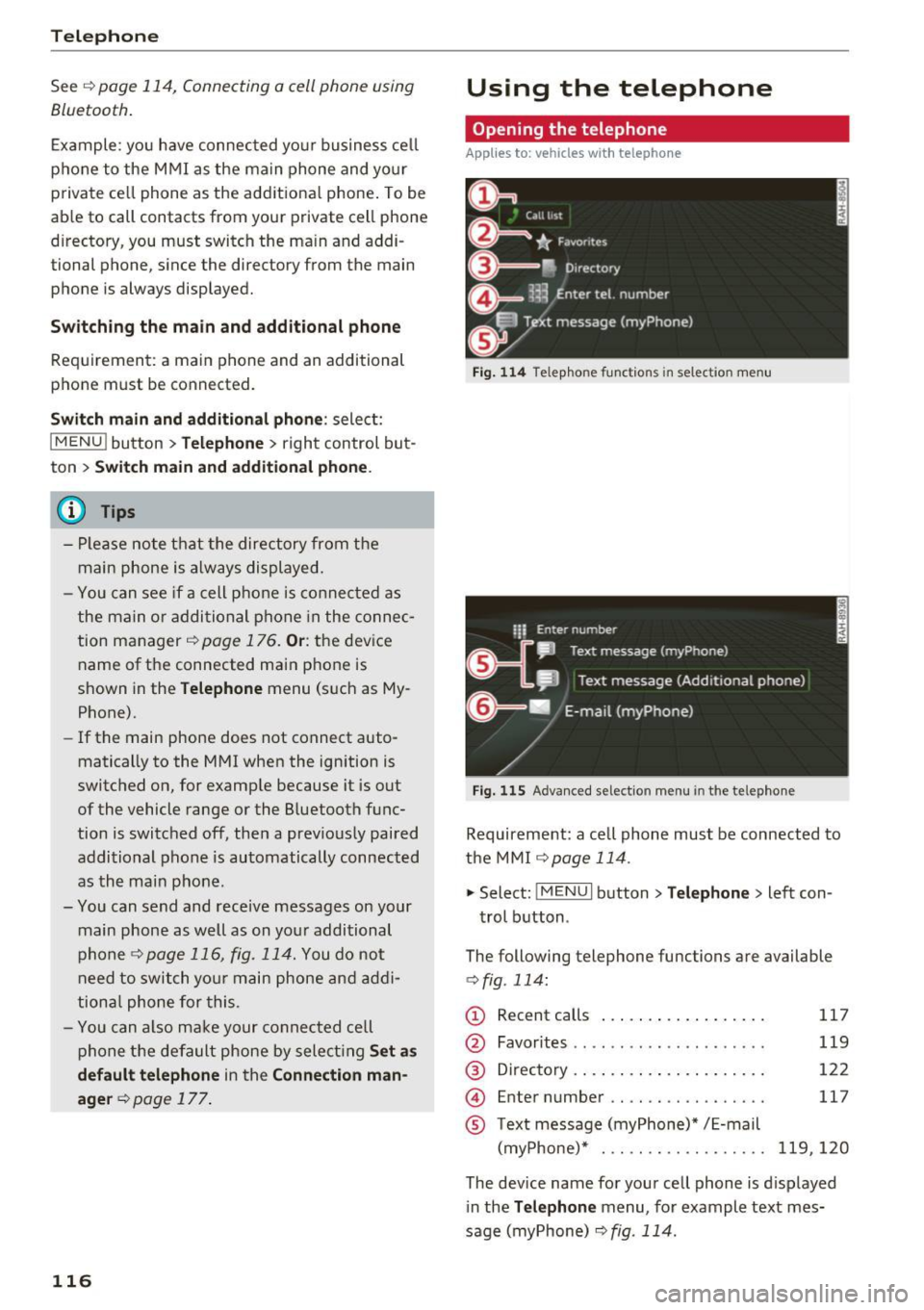
Fig . 11 4 Telep hone fu nctio ns in se lect ion me nu
Fig. 115 A dva nced selectio n menu in t he te le p hone
Requirement: a cell phone must be connected to
the MMI
r:::;, page 114 .
"'Select : !M ENUI button> Tele phone > left con
trol button .
The following telephone functions are available
c> fig. 114:
(!) Rec ent calls
@
®
©
®
Favorites .. .. .. .. .. .... .. .... .
D irectory .. .. .. .. .. ..... ..... .
Enter number .. .. .. .... .. .... .
Text message (myPhone)* / E-mail
(myPhone)* . .. .. .. ... .. . .... .
117
119
122
117
119,120
The device name for your cell phone is d isplayed
in the
Tel ephone menu, for example text mes
sage (myPhone)
r:::;, fig . 114.
Page 119 of 314
CD
CD
.... N
" N .... 0 r--. V, co
Dialing a phone number
Appl ies to: ve hicles with tele phone
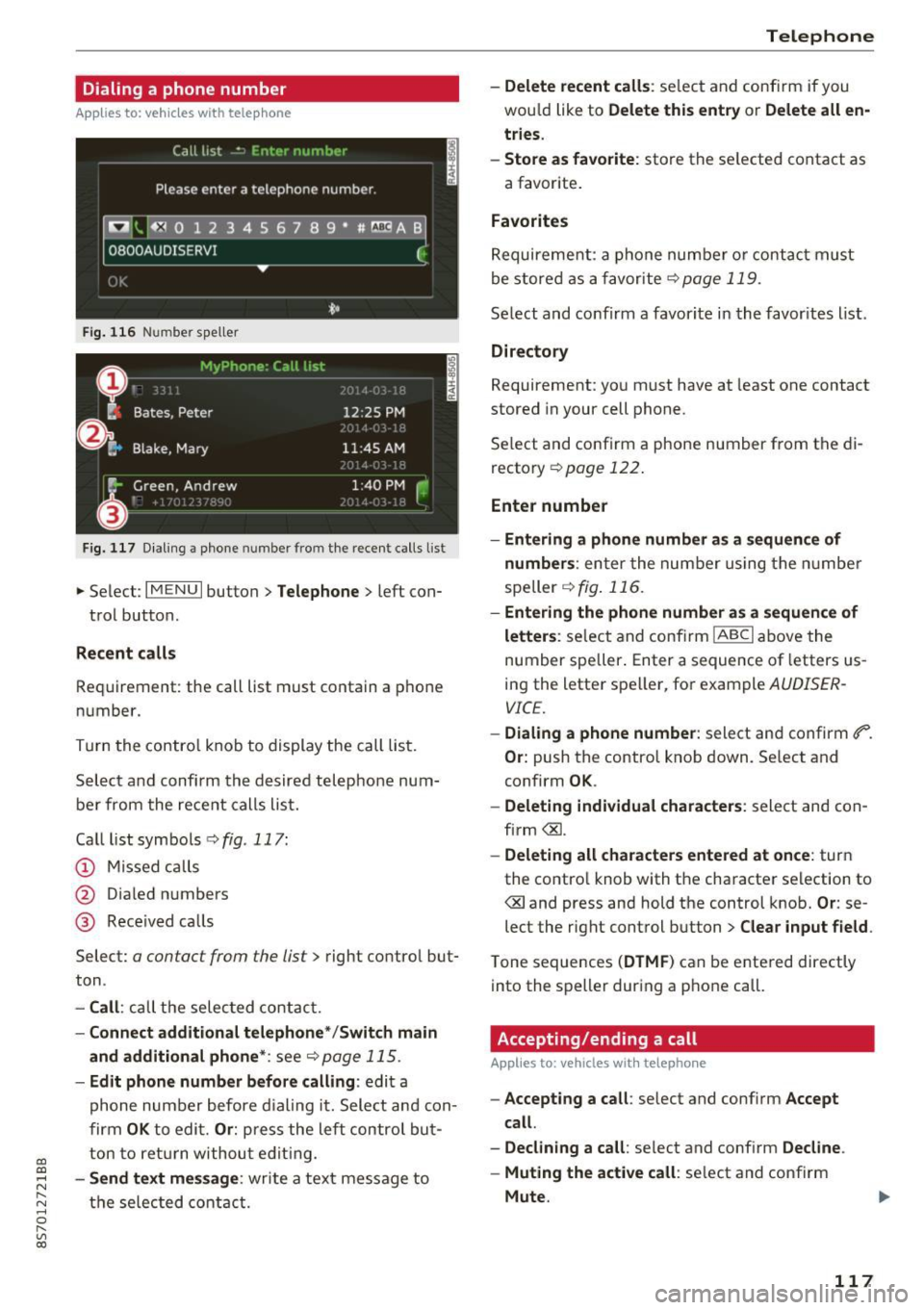
Fig. 116 Number speller
Fig. 1 17 Dialing a phone number fro m the recent calls list
.,.. Select : I MENU I button> Telephone > left con-
trol button.
Recent calls
Requirement: the call list must contain a phone
number.
Turn the contro l knob to display the call lis t.
Select and confirm the desired telephone num
be r from the rece nt calls list.
Ca lllistsymbo ls ¢ fig .117:
@ M issed calls
@ Dia led numbers
@ Rece ived ca lls
Select:
a contact from the list> right contro l but
ton .
-Call : call the selec ted contact.
- Connect additiona l te lephone */Switch main
and additional phone *:
see¢ page 115.
-Edit phone number befor e calling : edit a
phone number before d ialing it. Select and con
firm
OK to edi t. Or : press the left contro l but
ton to ret urn withou t edit ing.
- Send text me ssage : write a text message to
the se lec ted contac t.
Teleph one
- Delete recent calls : select and conf irm if you
wou ld like to
Delete this entry or Delete all en
tries .
- Sto re as fav orite :
store the se lected contact as
a favor ite .
Favorites
Requireme nt: a phone number o r contact must
be stored as a favorite ¢
page 119.
Select and confirm a favori te i n the favor ites list .
Directo ry
Requirement: you must have at least one contact
stored in your cell phone.
Se lect and confirm a phone number from the di
recto ry ¢
page 122 .
Enter number
- Entering a phone number a s a sequ ence of
numbers :
enter the num ber using the numbe r
speller ¢
fig. 116 .
-Entering the phone number as a sequen ce of
letter s:
select and conf irm IABC I above the
number spe ller . Enter a sequence of letters us
ing the letter speller, fo r example
AUDISER
VICE.
- Dialing a phone number : select and confirm ti".
Or: push the control knob down . Se lect and
confirm
OK .
-Deleting individual characters : select and con
firm <&l.
-Delet ing all characters entered at once : turn
the contro l knob with the character selection to
<&land press and hold the control knob.
Or: se
lect the right control button>
Clear input field .
Tone sequences (DTMF ) can be ente red directly
into the speller during a phone call.
Accepting/ending a call
Applies to : vehicles wit h telephone
- Ac cepting a call : select and conf irm Accept
call .
- Declining a c all :
se lect and conf irm Decline .
- Muting the active call :
select and confirm
Mute .
117
Page 120 of 314
Telephone
-Ending a phone call/cancel dialing: select and
confirm End call. Or : press the control knob.
A ccepting another call: see
q page 118, During
a phone call.
Caller information : the name, phone number or
Unknown appears in the Infotainment system
display depending on if the ca ller has bee n stored
in the directory and if the phone number has
been transmitted. A picture may also be dis
p layed, depending on whether you have assigned
a picture to a contact in your directory and if it
was transferred to your MMI. You can find out if
your cell phone supports this function from your cell phone network provider, your cell phone
owner's manual or at www.audiusa .com/blue
tooth .
{D) Tips
The radio or media playback is muted during a
phone call.
During a phone call
Applies to: vehicles with telephone
Requirement: there must be a call in progress.
"" Press the right control button.
The fo llowing options are possible during a call
depending on the ce ll phone being used and the
type of connection:
- Making an additional call: select: Find contact
> Recent calls /Directory /Favorites > an entry
from the list.
- Accepting an incoming call when there is an
active call and a call on hold : select Replace .
The active call is replaced with the incoming
call.
- Answering an additional call : if there is an in
coming call w hile another call is active, you can
select Accept call to put the exist ing call on
hold and answer the incomi ng call.
If you select
Decline , the incoming call w ill be declined.
Addit ional functions include:
Mute: if you se lect and confirm this function, the
other person on the phone cannot hear you . You
can hear the other person.
118
Hold call /Resume : you can place the existing call
on hold and resume it again . To res ume the call,
se lect and confirm the call you would like to re
sume .
Transfer call to mobile device* : select and con
firm Transfer call to mobile device to transfer
the exist ing ca ll from the MMI to your cell phone .
Switch to hands-free mode*: Requiremen t: you
must have a phone call in progress on your cell
phone. Select and confirm Switch to hands-free
mode to transfer the call from your cell phone to
the MMI.
Swap call: alternate between two phone calls
while one of the calls is on hold. Se lecting End
call will end the active phone call. A phone call on
hold can be resumed through the right control
button
> Resume .
Add to conference : a party on hold and up to five
active part ies (depending on the network) can be
added to a conference call. To make an addit ional
ca ll, put all participants in the current conference
call on hold using the right control button
> Hold
conference . Press the left control button . Se lect
and confirm Call list/Directory /Favorites
> an
entry from the list.
You can add called contacts
to the conference using the right control button
> Add to conference. Resume takes all part ies off
hold.
Multi-party calling: select the right con trol but
ton
> Telephone settings > Call options . When
the function is switched on~ you can accept an
additional ca ll using Accept call or decline a ca ll
using Decline. When the function is switched off,
you can Replace the call or Decline.
Connection manager: see
q page 176.
Telephone settings: see q page 124.
(D Tips
-To be notified of a n incom ing call dur ing a
phone call, the call wa iting function in your
cell phone must be switched on when using
the hands-free profile (Handsfree ).
- You can obtain more information from your
cell phone service provider or from your cell
phone user guide.
Ill>
Page 121 of 314
co
co
.... N
" N .... 0
" "' c:o
-W hen leaving the vehicle, the Bl uetoo th
co nnection to the ce ll phone wi ll automati
ca lly disconnect . Depending on your cell
phone, phone ca lls in progress may be a uto
matically redirected from the MMI to your
ce ll phon e and yo u can cont inue the call on
you r phone .
- The display of an i ncoming phone call in the
Infotainment system d is p lay may still be
v is ible fo r a f ew s eco nd s de pending on the
ce ll phone in use. Using th e
Replace or De·
dine
f unct ions m ay then end the a ctive
p ho ne call.
Favorites
Appl ies to: vehicles with telephone
Up to 50 contacts, in addition to the voicemail
number, can be stored in any order in the favor
ites list.
.. Se le ct: I M ENU I bu tton >Telephone > left con
t rol but ton .
-Storing an existing phone number as a favor ·
ite :
sele ct an d c onfirm Recent calls /Directory .
Select and co nf irm a conta ct or phone num ber
from the list . Select: right cont rol button >
Store as favorite. Enter a name for the favor ite
o r se lect a suggest ion. Select and confirm with
Store .
- Renaming a stored favorite :
select and confirm
Favorites > a favorite from the list. Select the
rig ht cont rol button>
Rename favorite .
- Moving a stored favorite :
select and confirm
Favorites > a favorite from the list. Select the
rig ht cont rol button>
Move favor ite . Se lect
and co nfirm the locat ion of t he se lected favor
it e.
- Deleting a stored favorite : select and confirm
Favorites > a favorit e from the list . Select the
r ig ht cont ro l but ton >
Delete favorite > Delete
this favorite or Delete all favorites .
Telephone
Messages
Text messages
Applies to: cell phones with Bluetooth Message Access Profile
(MAP)
Depending on the cell phone being used and the
cell phone network contract, you can receive and
send text messages using the MMI.
Requirement
A cell pho ne mus t be c onnec ted t o th e MMI via
Bl ue toot h M AP (M essage A ccess Pro fil e)
<=> page 11 4 .
.,. Sele ct: ! M EN UI button> Telephone > left con
t rol button
> Text message (MyPhone )/Text
message (additional phone)* .
lnbox
All received text messages are displayed .
Sent text messages
All sent text messages are displayed.
Outbox
All text messages to be sent a re displ aye d.
(D Tips
- Ple ase not e that you may hav e to activat e
t he receivi ng a nd se nding of te xt messages
in y our c ell pho ne dependin g on th e SI M
c ar d be ing use d (for ex am ple, when using a
M ulti -SIM) . Yo u ca n obtain more info rma
tion from yo ur ce ll phone service p rovider or
from your cell phone user guide.
- For more in format ion on t he suppo rted ce ll
p hones, visit
www.audiusa.com/bluetooth
or contact an a uthorized Audi dea ler or a u
thorized Audi Service Fac ility.
- You need a cell phon e with Message Access
Prof ile that a lso s upports the sen ding func
tion t o be able to se nd te xt messages
t hroug h the MMI.
119