phone AUDI TT ROADSTER 2017 Service Manual
[x] Cancel search | Manufacturer: AUDI, Model Year: 2017, Model line: TT ROADSTER, Model: AUDI TT ROADSTER 2017Pages: 314, PDF Size: 76.54 MB
Page 164 of 314
Media
@ Tips
-Depending on the Internet connection and
network traffic, a connection loss can occur
during p layback of on line media serv ices.
- Online media and Internet radio usage de·
pends on the service avai lability of the third
party provider.
- Audi AG simply makes the access to online
media serv ices possible th rough the MMI
and does not take any respons ibility for the
contents of the online med ia services.
- Always read the chapter <=>page 133, About
Audi connect.
- Depending on the mobile device used, the re
may be interrupt ions during media playback
and when using the
Audi MMI connect app .
To avoid interruptions when usi ng a mob ile
d evice, do not loc k the sc reen on yo ur mo
bile devi ce and keep the
Audi MMI connect
a pp in the foreground.
- Contact you r authorized Audi dea ler or au
thorized Audi Se rvice F acili ty for a ddi tional
i n format io n a bout o n line medi a.
Multimedia connections
USB adapter for Audi music interface or
USB charging port
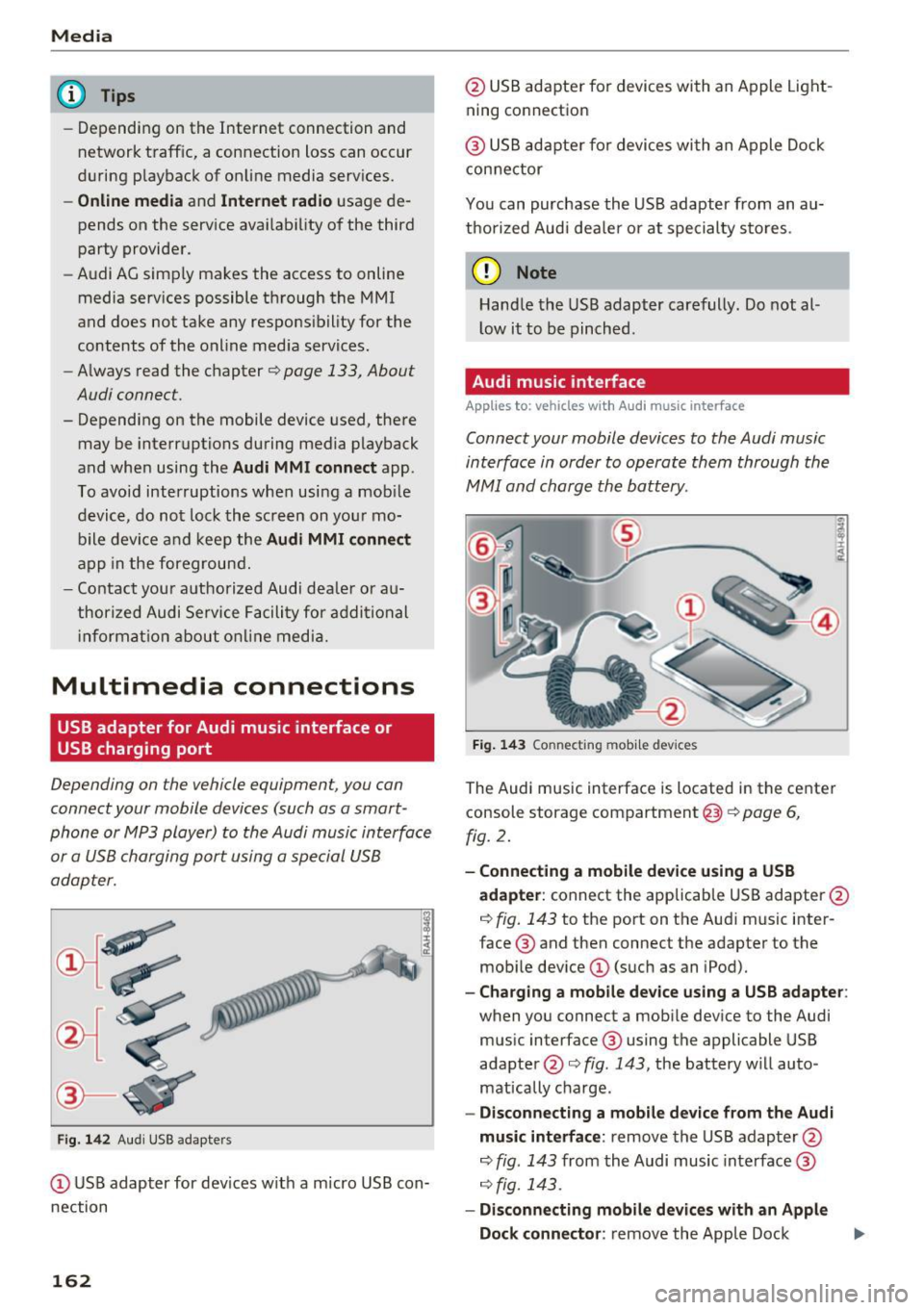
Depending on the vehicle equipment , you can
connect your mobile devices (such as a smart
phone or MP3 player) to the Audi music interface
or a USB charging port using a special USB
adapter.
Fig . 14 2 Aud i USS ada pte rs
CD US B adapter for dev ices w it h a m icro USB con
nection
162
@ USB adapte r fo r devi ces wi th an Apple Light
ning connection
@ USB ad ap ter fo r devices wi th an Apple Dock
con nector
You can purchase the USB adapter from an au
tho rized Audi dea ler or at specialty s to res.
(D Note
Hand le the USB adapter carefully. Do not al
l ow it to be pinched .
Audi music interface
Applies to: vehicles with Aud i music interface
Connect your mobile devices to the Audi music
interface in order to operate them through the
MMI and charge the battery.
Fi g. 14 3 Connect ing mob ile devic es
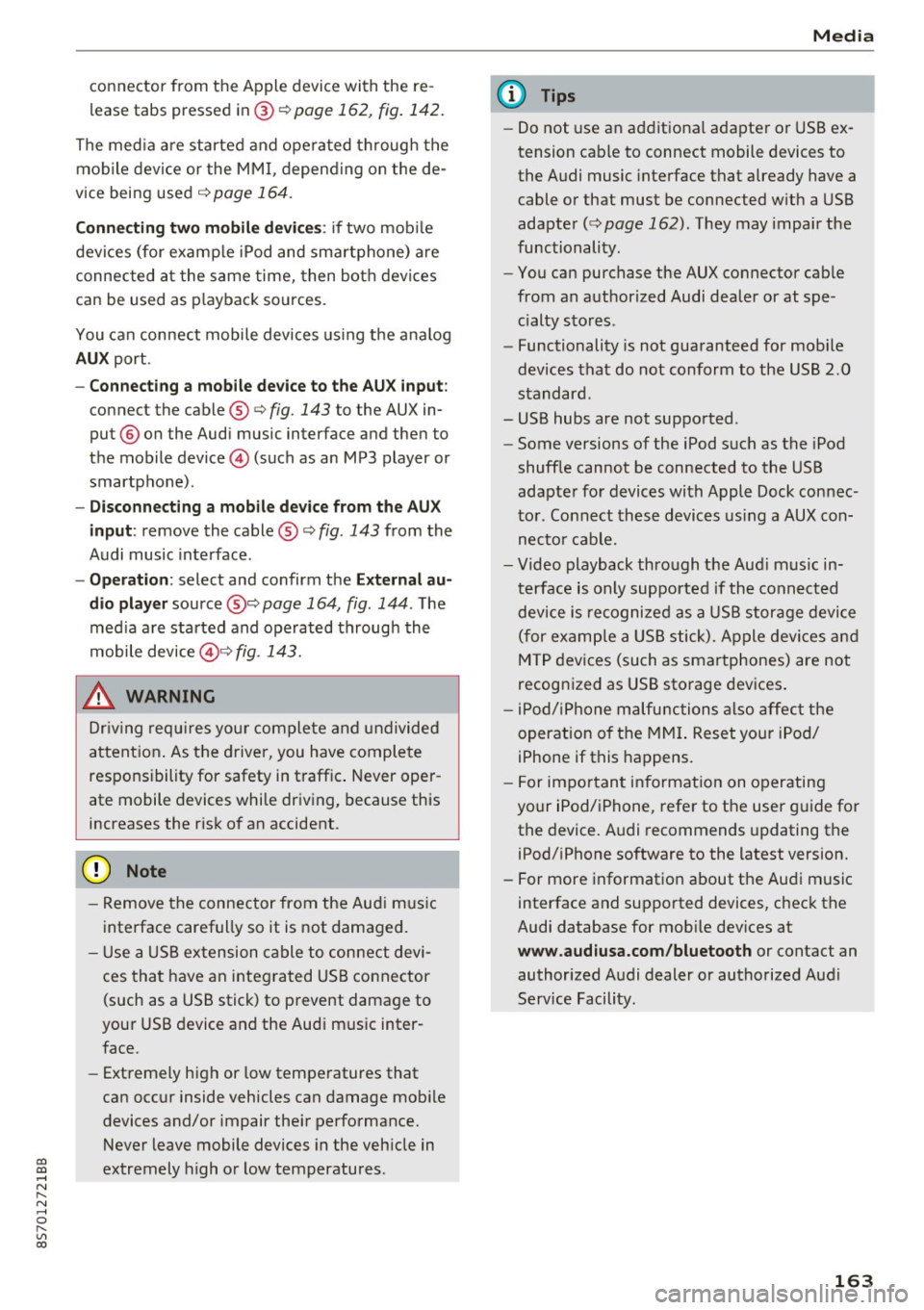
The Audi music interface is located in the center
console storage compartment @
~ page 6,
fig. 2.
- Connecting a mobile device using a USB
adapter :
connect the applicab le USB adapter @
c:!) fig. 143 to the port on the Audi music inter
face ® and then connect the adapter to the
mob ile dev ice
CD (suc h as an iPod).
- Charging a mobile device using a USB adapter :
when you connect a mobile device to the Audi
mus ic interface ® using the applicable USB
adapter @<=> fig . 143 , the battery w ill auto
mat ically cha rge.
- Disconnecting a mobile d evice from the Audi
music interface :
remove the USB adapter @
<=> fig . 143 from the Audi music interface ®
r=;, fig. 143.
-Disconn ecting mobile devices with an Apple
Dock connecto r:
remove the Apple Dock .,..
Page 165 of 314
co
co
.... N
" N .... 0
" "' c:o
connector from the Apple device with the re
lease tabs pressed in@
¢page 162, fig. 142.
The media are started and operated through the
mobile device or the MMI, depending on the de
vice being used
q page 164.
Connecting two mobile devices: if two mobile
devices (for example iPod and smartphone) are
connected at the same time, then both devices
can be used as playback sources.
You can connect mobile devices using the analog
AUX port.
-Connecting a mobile device to the AUX input:
connect the cable®¢ fig. 143 to the AUX in
put @ on the Audi music interface and then to
the mobile device © (such as an MP3 player or
smartphone) .
-Disconnecting a mobile device from the AUX
input:
remove the cable®¢ fig. 143 from the
Audi music interface.
-Operation: select and confirm the External au
dio player
source @¢ page 164, fig. 144 . The
media are started and operated through the
mobile device@~
fig. 143.
.8, WARNING
Driving requires your complete and undivided
attention. As the driver, you have complete
responsibility for safety in traffic. Never oper
ate mobile devices while driving, because this
increases the risk of an accident.
@ Note
- Remove the connector from the Audi music
interface carefully so it is not damaged.
- Use a USB extension cable to connect devi
ces that have an integrated USB connector
(such as a USB stick) to prevent damage to
your USB device and the Audi music inter
face.
- Extremely high or low temperatures that
can occur inside vehicles can damage mobile
devices and/or impair their performance.
Never leave mobile devices in the vehicle in
extremely high or low temperatures .
Media
{!) Tips
-Do not use an additional adapter or USB ex
tension cable to connect mobile devices to
the Audi music interface that already have a
cable or that must be connected with a USB
adapter( ¢
page 162). They may impair the
functionality .
- You can purchase the AUX connector cable
from an authorized Audi dealer or at spe
cialty stores .
- Functionality is not guaranteed for mobile
devices that do not conform to the USB 2.0
standard.
- USB hubs are not supported .
- Some versions of the iPod such as the iPod
shuffle cannot be connected to the USB
adapter for devices with Apple Dock connec
tor . Connect these devices using a AUX con
nector cable.
- Video playback through the Audi music in
terface is only supported if the connected
device is recognized as a USB storage device
(for example a USB stick). Apple devices and
MTP devices (such as smartphones) are not
recognized as USB storage devices .
- iPod/iPhone malfunctions also affect the
operation of the MMI. Reset your iPod/
iPhone if this happens.
- For important information on operating
your iPod/iPhone, refer to the user guide for
the device. Audi recommends updating the
iPod/iPhone software to the latest version.
- For more information about the Audi music
interface and supported devices, check the
Audi database for mobile devices at
www.audiusa.com/bluetooth or contact an
authorized Audi dealer or authorized Audi
Service Facility.
163
Page 169 of 314
"' "' ....
-Move fa vorite : select the desired entry from
the favorites list. Select the right control but
ton
> Mo ve fa vo rite. Select and confirm the
desired presets location.
- Deleting a fa vorite : select the desired entry
from the favor ites list. Select the right control
button
> Delete fa vorite > Delete thi s fa vorite
or D ele te all fa vori tes .
Additional settings
Options menu
Context-specific functions and settings are avai l
ab le depending on the se lected source.
.,. Press the right contro l button.
Sound setting s
See r::>page 179.
Input lev el
Requirement: a mobile device must be connected
to the AUX connect ion cable or to a USB adapter
r::> page 162, Multimedia connections.
The vo lume of the mobile device is adapted to
the MMI. Audi recommends adjusting the vo lume
on the mobile device to 70% of the max imum
volume output.
Blu etooth settings
See c> page 177.
Wi-Fi settings
See c> page 131, Wi-Fi hotspot.
Connection man ager
See c> page 176.
Additional tr ack inform ation
W ith the function switched on~ and a p lay list
open, vario us info rmation about the current track
(such as artist, album and album cover *) as well
as the playing t ime and the remaining playing
time are displayed.
N ~ l) The func tion automat ically sw itches off when the sou rce
8 is changed. r---~ 2> Th is func tion is not available for all cell phones.
Media
Jukebo x m emory capacity *
Information on the Jukebox memo ry c apac ity and
the n umber of sto red tracks in the Jukebox is dis
played.
Change playing position
T urn the cont rol knob to the left or r ight. Or :
move yo ur finge r on the MM I touch contro l pad
from the left to the r igh t.
Shuffle1>
With the function switched on~, all files in the
playlist are p layed and shown in random order.
Repeat track1>
When the funct ion is switched on~, the current
track repeats.
Back to 'Playback '
The options menu is closed. The track currently
playing appears in the playlist
c> page 166,
fig. 149.
Play s imilar mus ic *
T he tra ck cu rre ntly playing is quick ly an alyzed
(such as artists, genres, mood, beat) and a sma rt
playlist with sim ilar tracks is shown.
Play more ...
A smart playlist is shown based on the track cur
rently playing. Yo u can select between a p laylist
with more tracks
by thi s art ist, from thi s album
or of thi s genre.
Set as ringtone*
2>
Requirement: a ce ll phone must be connected to
the MMI. The trac k currently p lay ing must be in
t h e
Juk ebox * c> page 158 .
The selected track w ill be used as the ringtone
for incoming calls.
Gr acenote online databa se*
Requirement: the MMI must be connected to the
Internet. .,.
167
Page 173 of 314
co
co
.... N
" N .... 0
" "' c:o
Media
on the system language and cannot a lways
be g uaranteed .
Troubleshooting
Problem Solution
Audi music interface* /Bluetooth au-
Read the instructions in the chapter ¢ page 162, Multimedia
dio player *: mobile device is not sup-connections/ ¢ page 159, Bluetooth audio player. You can
ported. learn about supported mobile devices in the Audi database for
mob ile dev ices at
www .audiusa.com /bluetooth .
Audi music interface* /AUX input:
the Adjust the volume of the mobile device to approximate ly 70%
volume is too high/too low when of the maximum output
¢ page 167, Input level.
starting playback through the AUX in-
put.
Audi music interface *: the portable For many cell phones or mobile devices, playback is not possi-
device is not recognized as a source. b
le when the battery level is too low (less than 5% of its ca-
pacity) . The mobi le device will only be recognized as a media
source in the MMI after connecting if the battery charge level
is sufficient.
Audi music interface *: malfunctions The Bluetooth audio player functio n is switched on. Switch
dur ing audio playback through an this funct io n off¢
page 177 when you are not using the
iPod/ iPhone .
Bluetooth audio player.
AUX input:
there is stat ic when con- When connecting and d isconnecting, the E xternal audio play-
necting and disconnect ing the AUX er source is already selected . Before connecting or d isconnect-
connection cable. ing the mobile dev ice, either m ute the device (see
¢ page 179) or switch to a different aud io so urce (fo r exam-
p ie
¢page 151, Opening the radio).
Bluetooth audio player * /Wi-Fi audio On ly one interface should be act ively used at a time to ensure
player* : audio playback interference. problem-free playback.
Wi-Fi audio player* : audio pla yback Aud io playback interference can occur on some ce ll phones if
in terference . the Internet connection in the vehicle was not estab lished
through the SIM card reader* on the MMI control panel and
the
mobile data option on the cell phone is switched on. De-
activate the
mobile data option on your cell phone.
Jukebox* : tracks on the imported When importing p laylists , all of the files themse lves must be
playlist are grayed out. imported.
Jukebox*: imported tracks cannot be If you cannot find imported tracks in the media center, they
played or found . may not be supported. Only copy supported f iles
¢ page 169
to the Jukebox .
Wi-Fi audio player* : multiple devices
Close the Audi MMI connect app on the connected devices
are connected to the Wi-Fi hotspot. A (for exam ple, smartphones) that are not being used as the
med ia p layer (such as a smartphone) Wi-Fi audio player*. Likewise, close the UPnP server apps or
appears as the med ia source and can- the med ia permiss ions on the integrated UPnP/DLNA server.
not be changed . Connect the desired dev ice as a W i- F i aud io play-
er* ¢page 160 .
171
...
Page 174 of 314

Media
Problem Solution
Online media*:
connection failed be-To establish a connection to the MMI, the MMI connection
tween the MMI and the
Audi MMI switch must lbe switched on in the Audi MMI connect app sta-
connect app. tus screen.
Bluetooth
audio player *: interference Playback interference can occur when using the Bluetooth au-
with track display and audio playback. dio player if a music player app from a third party provider is
open. Audi recommends using the integrated media player on
your Bluetooth device (such as a smartphone) .
172
Page 175 of 314
co
co
.... N
" N .... 0
" "' c:o
Audi smartphone interface
Setup
App lies to: ve hicles with Audi smartpho ne interface
You can connect your smartphone to the MMI us
ing the Audi smartphone interface . Certain con
tent on your smartphone is adapted to the Info
tainment system display while driving and can
be operated through the MMI control panel.
Requirement:
The vehicle must be stationary and the ignition
must be switched on.
iPhone generation 5 or higher with Lightning
connector and iOS 7.1.2 operating system or
h igher.
O r:
Smartphone with Android Auto app and Android
5 .0 Loll ipop operating system or higher.
.,. Connect your smar tphone to the Audi music in
te rface
c:> page 162 using a USB adapter
¢page 162, fig. 142 .
.. Se lect and confirm A cti va te Apple CarPl ay or
Acti vate And roid Auto now.
.. Follow the system instruct ions.
.,. Pay attention to any add itional system prompts
on your smartphone if applicable.
If you chose not to use Apple CarPlay or Android
Auto when connecting your smartphone for the
first time, you can start the Audi smartphone in
terface later on using the
Connection m an ager .
.. Se lect: I MENU I button > Audi smartphone in·
terfa ce
> Change to connecti on manager .
.. Connect your smar tphone to the Audi music in
terface
c:>page 162 using a USB adapter
¢page 162, fig. 142 .
.. Se lect and confirm Audi smartphone : in the
Connection manager c:> page 176. You can se
lect your smartphone in the list of devices that
are already paired
c:> page 177.
.,. Follow the system instruct ions.
l ) In preparat io n at the t ime of pr inting.
Aud i smartphon e int erfac e
{!) Tips
-The functions that can be used depend on
the fo llow ing factors, among others:
- the brand of your smartphone
- the vers ion of the operating system in
your smartphone
- the software ve rsion of the app used
- the USB adapter cab le and correct connec-
tion
- your cell phone service provider
- the customized settings on your smart -
phone
- One of the factors
above or a combina tion
of any of them could cause your smartphone
to be incompatib le wit h the Audi smart
phone interface. Compatibility cannot be
guaranteed for all types of smartphones.
For more informat ion and assistance, refe r
to the use r guide and the manufactu rer of
your smartphone .
- If the connected smartphone has voice con
tr ol, you can operate your smartpho ne usi ng
the external voice recognition system*
c:>page 113.
-The menu language show n in the MMI is
based on the settings in you r smartphone .
- The time d isplayed in the MMI is based o n
t he settings in your smartphone.
- Several MMI functions are not avai lab le
when Apple Car Play or Andro id Auto is ac
tive.
- You cannot co nnect any mob ile dev ices via
Bl uetooth when an App le CarPlay connec
tion is act ive .
- Whe n the Apple CarPlay connection is ac
tive,
Tag this song for iTunes*1 ) is not ava il
able
¢page 152 .
Operating
Appl ies to: vehicles wit h Audi smartp hone interface
Opening a menu
App le CarPlay : you can go back to the Apple Ca r
Play main me nu regardless of the selected menu
item by p ressing and holding the
I BACKI button. Ill>-
173
Page 176 of 314
Audi smartphone interface
Android Auto: to go back to the Android Auto
menu bar, push the control knob down. Opening a menu item
Select and confirm a menu item using the MMI
contro l pane l.
Troubleshooting
Applies to: ve hicles w ith Audi smartpho ne interface
Problem Solution
Audi smartphone interface
can-Check the charge level of your smartphone battery.
not be opened . Check the
USB cable and use a different one if necessary.
Check if Android Auto or Apple CarPlay is available in your country.
Check if the Android Auto app is installed on your smartphone.
Connecting the smartphone to Check if you are UJsing the correct USB adapter and if the USB
the MMI failed. adapter is connected correctly to your smartphone and the Audi
music interface ¢
page 162.
Check if Apple CarP lay is activated on your smartphone.
Check in the Android Auto app if Android Auto permits new
vehicles.
T he smartphone is not automati -Check if yo u are UJsing the correct USB adapter and if the USB
cally detected.
adapter is connected correctly to your smartphone and the Aud i
music interface ¢
page 162.
Check if the requirements needed to connect a smartphone have
been met.
174
Page 178 of 314
System settings
Individual speech training (on ly when the vehi
cle is stationary): yo u can adapt the voice recog
n ition system to yo ur voice or pro nunciat ion in
order to improve the system's ability to recogni ze
your speech. Individua l train ing is comprised of
20 speech e ntries that cons ist of commands and
sequences o f num bers . You can dele te the p ro
g ramm ed vo ice tra ining w ith the
Reset individu·
al spee ch training
func tion.
Factory settings
The fo llow ing funct ions can be reset to the facto
ry default set tings :
-Sound settings
- Rad io
- Media settings
-Jukebox *
- Directory *
- Telephone*
- Bluetooth and Wi-Fi *
- Navigation sett ings *
- Navigation and online memory*
- Voice recognition system*
- Message settings*
-Apps *
- Tool tips
- Audi connect *
You can select the desi red functions individually
or all at once with the
Select all entries option.
Select and confirm
Restore factory settings .
@ Tips
-Make su re that not only t he settings we re
d eleted but also the stored data, if ap plica
bl e.
- If you reset the
Navigation and online
memory* or Audi connect*
to t he factory
default settings, the system automatically
r estarts afte r approximate ly 20 seconds.
The I nfota inme nt system display will be
b lack for several m inu tes when r estart ing.
- Please note t hat the vo ice recog nit io n sys
t e m* is not availabl e in Cabr io le ts t hat do
not hav e a factory- insta lled safety bel t mi
crophone.
176
Connection manager
' Introduction
The connection manager gives you an overview
of your connected devices and their network sta
tus.
"' Select: !ME NUI button> Settings > left control
button
> MMI settings > Conne ction manager .
"'Select and confirm a menu i tem .
If a mobile device was already connected and you
se lect and co nfirm the corresponding menu item,
the dev ice name and co nnect ion mode a re dis
played under the men u item.
You can individ ually
connect (~) or disconnect
(0) a pa ired device.
' Using the telephone
App lies to : vehicles wit h te lepho ne
- Connect new device: search for and con nect a
cell p ho ne.
- List of devices already paired : select your ce ll
phone from t he list of all th e dev ices tha t are
already paired .
Second telephone
Applies to : vehicles wi th telepho ne
- Connect new device : search for and co nnect a
c ell p hone.
- List of device s already paired : sele ct yo ur cell
ph one fr om t he list of all the dev ices tha t ar e
a lready paired .
Data connection
Applies to : vehicles wi th Audi connec t
-Connect new device: search for and con nect a
mob ile dev ice (such as a smart pho ne).
- List of devices already paired : select yo ur ce ll
phone from t he list of all the dev ices that a re
already paired.
Or: insert a m ini SIM ca rd into
the SIM card
reader *¢page 127.
Page 179 of 314
MMI connect app
Applies to: vehicles with Audi connect
Requ ireme nt: the Audi MMI connect app m ust
be i nst alled and open on your mobile devi ce.
- Connect new dev ice : search for and connect a
mobile device (s uch as a smartp hone).
- List of devices already paired : select your mo
bile device from th e list of a ll the devices that
are already paired.
Music
Applies to vehicles with Bluetooth or Wi -Fi audio player
Audio player
Req uirement: the Bl uetooth func tion a nd v is ib ili
ty mus t be sw itche d on in the MMI
¢page 177
and on the ce ll phone.
- Connect new device : press the contro l knob .
Se lect
Bluetooth audio player . Search fo r and
c o nne ct a mobile device.
- List of devices already paired : selec t a Bl ue
tooth device fro m the l ist of all the devi ces that
are already paire d.
Wi-Fi audio player
Req uirement: the Wi -Fi hotspot on the M MI
¢
page 131 and the Wi-Fi o n your cell p ho ne
must be switch ed on .
-Connect new device : press the control knob.
Sea rch for and connect a Wi-Fi capable device .
-DisconnectWi-Fi audio player : deactivate the
Wi-Fi on your Wi-Fi capab le device . The dev ice
will be automat ically removed from the list .
Directory
Applies to: vehicles with telephone
Display contacts from a cell phone (or an addi
tional cell phone) .
Requirement: cell phones must not be connected
to the MMI through the B luetooth remote SIM
access p rofile o r thr ough t he
Handsfree profi le.
co -Connect new device : search for and connect a co
;:::: new cell p hone.
" N ...... 0
" "' c:o
System settings
- List of devices already paired : select yo ur cell
phone from t he list of all the cell phones that
are a lready paired .
Audi smartphone
Applies to: vehicles with Aud i smartphone interface
- Connect yo ur ce ll phone to the Audi music in
terface¢
page 162 using a USB adapter
¢ page 162, fig . 142 .
-Select your cell pho ne from the list of cell
p hones that have a lready bee n connected .
Additional options
Depending on the selected f unction, yo u can use
t h e right contro l bu tto n to access the ava ilab le
additional options in t he connection manager.
Bluetooth settings
- Bluetooth:
select a nd confi rm a setti ng for the
Bluetooth co nnection visib ility . Se lect
Visible
for the MMI to be vis ible to othe r devic es. Se
lect
Invisible for the MMI to not be visib le to
o the r dev ices. However, i t is st ill poss ible t o es ·
t ablish a Blue tooth connec tion wit h pa ire d de
vices when the vi sibili ty is sw itched off . Select
Off to turn v is ib ility off . Then a Bl uetooth con
nection is not possib le .
- Bluetooth audio player: when t his function is
sw itched on~, the B luetooth a udio p laye r is
avai lab le as a source in the
Media men u.
- Delete Bluetooth device : the selected cell
phone/mob ile dev ice is disconnected from the
M MI.
- Show Bluetooth profile : you can Connect or
Disconnect the Handsfree profile and the Di
rectory/contacts *
separately.
- Bluetooth audio player : switch this f unction on
~ to be able to select the Bluetooth aud io play
er as a source i n the Med ia menu .
-Bluetooth name : the MMI Bluetooth name (fo r
examp le .,A UDI MMI 2017") is d isp layed and
can be changed.
When the funct io n is switched on~, the symbol
@ ¢
page 105 , fig. 111 appea rs in the In fotain-
ment system display.
1111-
177
Page 180 of 314
System settings
Online settings*
- Data connection setting s:
see~ page 132,
Configuring the data connection
- Data u sage counter : the amount of d ata p ack
e ts tha t ar e sent and received throug h the MM I
is d isp layed. You can reset the data usage infor
mation to zero using the
Reset data counter
option.
- Network statu s: the mobile netwo rk p rovider
for data se rvice as well as t he network status
are displayed.
Wi -Fi settings*
See Q page 131, Wi- Fi ho tspo t.
SIM PIN settings*
- Automatic PIN entry:
when t his fu nction is
swi tched on@', th e S IM PI N is automatically
saved in the M MI after it is e nte red for the f irst
t im e. The S IM PIN for four dif feren t SIM cards
c a n be save d in t he MM I. W ith the func tion
swi tc h ed o ff, the cur ren tly store d SI M P IN i s
deleted from the MMI. When the a utomatic
PI N entry is switched on, there are no SI M PIN
prompts.
- Disable PIN query : when switched on, the re are
no SI M PIN queries. The a utomat ic PIN entry is
not used in t his case .
-Change PIN : you can change the PI N on your
SIM card. First enter the c urrent SIM PI N. The
SIM PIN may only contain d ig its 0-9. The new
SIM PIN must be ente red tw ice for secur ity and
then it w ill be saved to t he SIM ca rd .
Apple CarPlay sound settings/ Android Auto
sound settings
A ppl ies to: ve hicles w ith Audi smartpho ne inte rface
See Qpoge 179.
About Apple CarPlay/About Android Auto
Appl ies to: ve hicles w ith Audi smartpho ne inte rface
Here you will f ind lega l in fo rmation regar ding
the use of App le Ca rPlay or Android Auto and in
formation abo ut dev ice-specif ic data excha nge.
178
Delete CarPlay device/Delete Android Auto
device
App lies to: vehicles wi th Audi s m art ph one interface
Requirement: yo ur cell phone m ust not be con
nected to the Aud i m usic interface with a USB
adapter.
To remove your cell phone from t he list of all ce ll
p hones t hat are a lready paired, se lect and con
firm
Delete CarPlay device or Delete Android Au·
to device .
(D Tips
Some SIM cards do not a llow the SI M PIN
qu eries to be sw itche d off.
System update
.,. Select: !ME NUI bu tton> Settings > left control
button >
System maintenance .
- System update :
slide the storage device with
the update data into t he a pprop riate drive
r=> poge 157. Se lect and confi rm the dr ive>
Start update . The length of the process de
pends on the size of the update .
-Reset driver installation: the selecte d media
driver package is reset to the settings at the
time of delivery.
- Version informat ion : info rmation on the MMI
software ve rsion and the navigation database*
so ftware ve rsion is d isp layed . The
Software in
formation
fu nction also prov ides infor mat ion
on t he softwa re contai ned in the M MI and the
li censing ag ree men t.