display AUDI TT ROADSTER 2019 Owners Manual
[x] Cancel search | Manufacturer: AUDI, Model Year: 2019, Model line: TT ROADSTER, Model: AUDI TT ROADSTER 2019Pages: 304, PDF Size: 80.77 MB
Page 170 of 304
Media
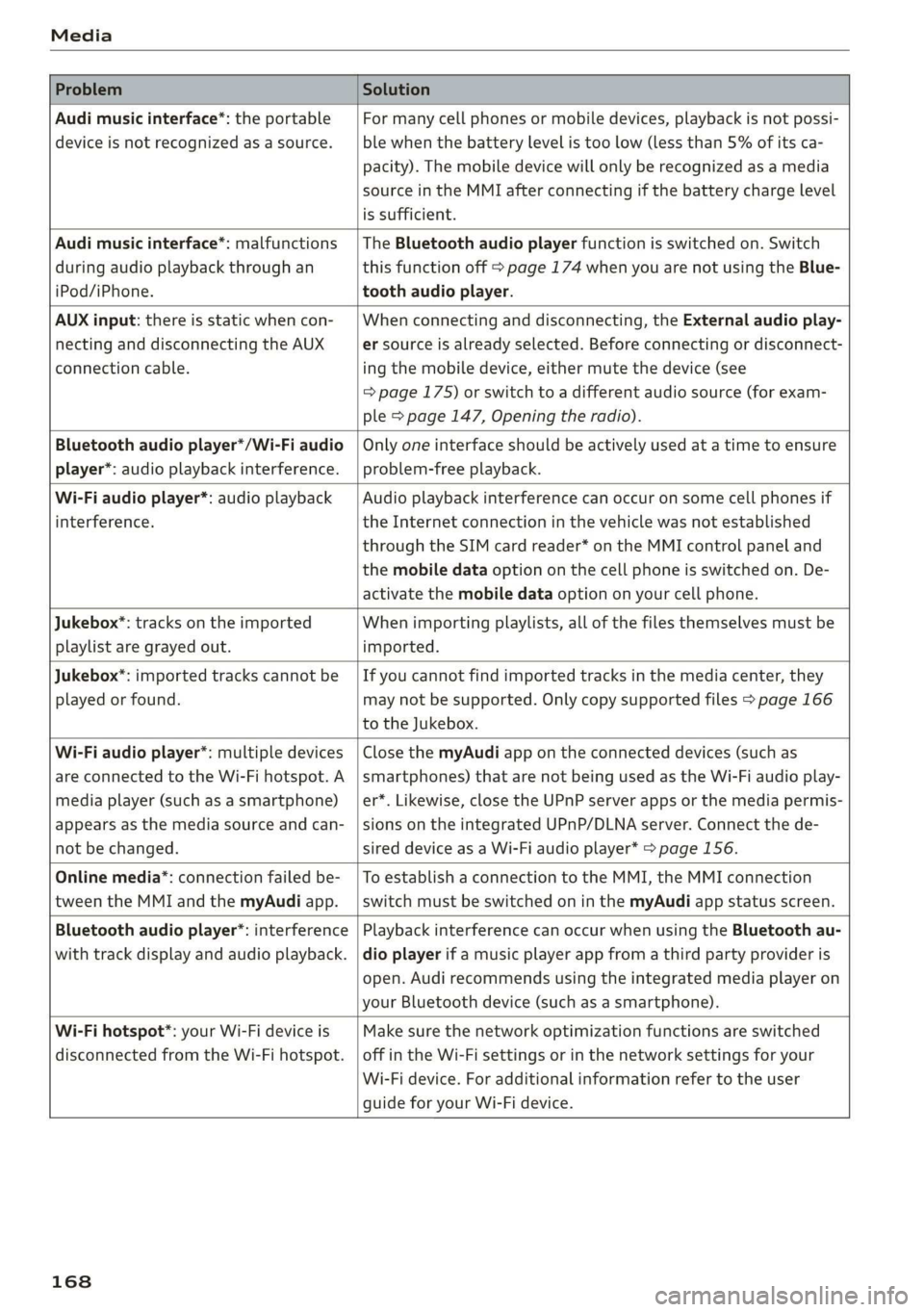
Problem Solution
Audi music interface*: the portable
device is not recognized as a source.
For many cell phones or mobile devices, playback is not possi-
ble when the battery level is too low (less than 5% of its ca-
pacity). The mobile device will only be recognized as a media
source in the MMI after connecting if the battery charge level
is sufficient.
Audi music interface*: malfunctions
during audio playback through an
iPod/iPhone.
The Bluetooth audio player function is switched on. Switch
this function off > page 174 when you are not using the Blue-
tooth audio player.
AUX input: there is static when con-
necting and disconnecting the AUX
connection cable.
When connecting and disconnecting, the External audio play-
er source is already selected. Before connecting or disconnect-
ing the mobile device, either mute the device (see
=> page 175) or switch to a different audio source (for exam-
ple > page 147, Opening the radio).
Bluetooth audio player*/Wi-Fi audio
player*: audio playback interference.
Only one interface should be actively used at a time to ensure
problem-free playback.
Wi-Fi audio player*: audio playback
interference.
Audio playback interference can occur on some cell phones if
the Internet connection in the vehicle was not established
through the SIM card reader* on the MMI control panel and
the mobile data option on the cell phone is switched on. De-
activate the mobile data option on your cell phone.
Jukebox®*: tracks on the imported
playlist are grayed out.
When importing playlists, all of the files themselves must be
imported.
Jukebox*: imported tracks cannot be
played or found.
If you cannot find imported tracks in the media center, they
may not be supported. Only copy supported files > page 166
to the Jukebox.
Wi-Fi audio player*: multiple devices
are connected to the Wi-Fi hotspot. A
media player (such as a smartphone)
appears as the media source and can-
not be changed.
Close the myAudi app on the connected devices (such as
smartphones) that are not being used as the Wi-Fi audio play-
er*. Likewise, close the UPnP server apps or the media permis-
sions on the integrated UPnP/DLNA server. Connect the de-
sired device as a Wi-Fi audio player* > page 156.
Online media*: connection failed be-
tween the MMI and the myAudi app.
To establish a connection to the MMI, the MMI connection
switch must be switched on in the myAudi app status screen.
Bluetooth audio player": interference
with track display and audio playback.
Playback interference can occur when using the Bluetooth au-
dio player if a music player app from a third party provider is
open. Audi recommends using the integrated media player on
your Bluetooth device (such as a smartphone).
Wi-Fi hotspot*: your Wi-Fi device is
disconnected from the Wi-Fi hotspot.
Make sure the network optimization functions are switched
off in the Wi-Fi settings or in the network settings for your
Wi-Fi device. For additional information refer to the user
guide for your Wi-Fi device.
168
Page 171 of 304
8S8012721BA
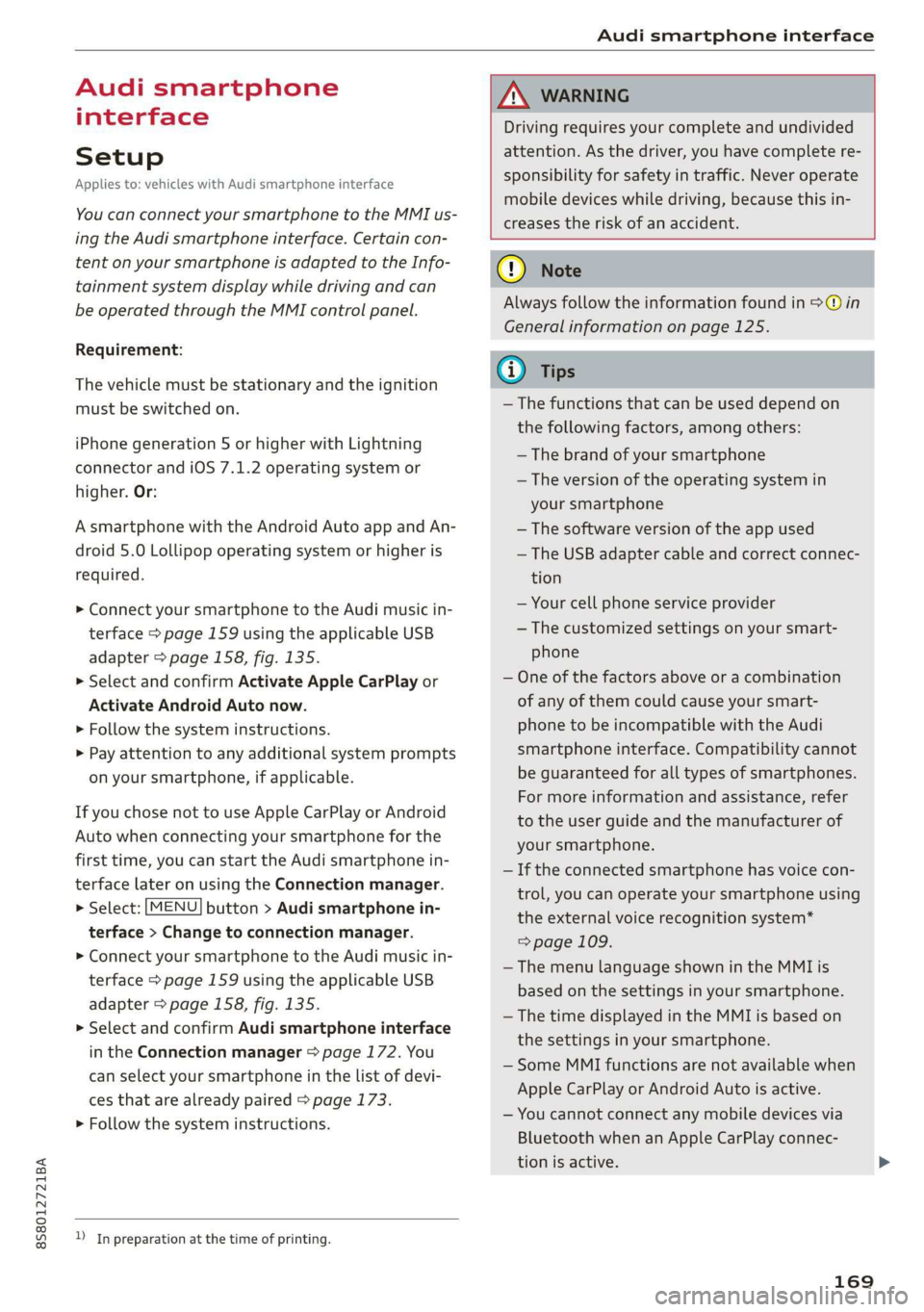
Audi smartphone interface
Audi smartphone
interface
Setup
Applies to: vehicles with Audi smartphone interface
You can connect your smartphone to the MMI us-
ing the Audi smartphone interface. Certain con-
tent on your smartphone is adapted to the Info-
tainment system display while driving and can
be operated through the MMI control panel.
Requirement:
The vehicle must be stationary and the ignition
must be switched on.
iPhone generation 5 or higher with Lightning
connector and iOS 7.1.2 operating system or
higher. Or:
A smartphone with the Android Auto app and An-
droid 5.0 Lollipop operating system or higher is
required.
> Connect your smartphone to the Audi music in-
terface > page 159 using the applicable USB
adapter > page 158, fig. 135.
> Select and confirm Activate Apple CarPlay or
Activate Android Auto now.
> Follow the system instructions.
> Pay attention to any additional system prompts
on your smartphone, if applicable.
If you chose not to use Apple CarPlay or Android
Auto when connecting your smartphone for the
first time, you can start the Audi smartphone in-
terface later on using the Connection manager.
> Select: [MENU] button > Audi smartphone in-
terface > Change to connection manager.
> Connect your smartphone to the Audi music in-
terface > page 159 using the applicable USB
adapter > page 158, fig. 135.
>» Select and confirm Audi smartphone interface
in the Connection manager > page 172. You
can select your smartphone in the list of devi-
ces that are already paired > page 173.
> Follow the system instructions.
) In preparation at the time of printing.
ZA WARNING
Driving requires your complete and undivided
attention. As the driver, you have complete re-
sponsibility for safety in traffic. Never operate
mobile devices while driving, because this in-
creases the risk of an accident.
@) Note
Always follow the information found in >@ in
General information on page 125.
@ Tips
— The functions that can be used depend on
the following factors, among others:
—The brand of your smartphone
~The version of the operating system in
your smartphone
— The software version of the app used
— The USB adapter cable and correct connec-
tion
— Your cell phone service provider
— The customized settings on your smart-
phone
— One of the factors above or a combination
of any of them could cause your smart-
phone to be incompatible with the Audi
smartphone interface. Compatibility cannot
be guaranteed for all types of smartphones.
For more information and assistance, refer
to the user guide and the manufacturer of
your smartphone.
— If the connected smartphone has voice con-
trol, you can operate your smartphone using
the external voice recognition system*
=> page 109.
— The menu language shown in the MMI is
based on the settings in your smartphone.
— The time displayed in the MMI is based on
the settings in your smartphone.
— Some MMI functions are not available when
Apple CarPlay or Android Auto is active.
— You cannot connect any mobile devices via
Bluetooth when an Apple CarPlay connec-
tion is active.
169
Page 173 of 304
![AUDI TT ROADSTER 2019 Owners Manual 8S8012721BA
System settings
System settings
Setting the date and
time
You can set the clock time manually or using the
GPS.
> Select: [MENU] button > Settings > left control
button](/img/6/57667/w960_57667-172.png "AUDI TT ROADSTER 2019 Owners Manual 8S8012721BA
System settings
System settings
Setting the date and
time
You can set the clock time manually or using the
GPS.
> Select: [MENU] button > Settings > left control
button")
8S8012721BA
System settings
System settings
Setting the date and
time
You can set the clock time manually or using the
GPS.
> Select: [MENU] button > Settings > left control
button > MMI settings > Date & time.
> Or: select: [MENU] button > Vehicle > left con-
trol button > Vehicle settings > Date & time.
Automatic setting
When this function is switched on ¥, the time
and date are automatically set.
Time
Requirement: the Automatic setting must be
switched off.
Press the control knob. You can set the Time
manually by turning and pressing the control
knob.
Date
Requirement: the Automatic setting must be
switched off.
Press the control knob. You can set the Date
manually by turning and pressing the control
knob.
Time zone
When selecting the appropriate time zone, a
sampling of countries in this zone will be listed.
Automatic time zone*
When this function is switched on @, the time
will automatically adjust to the corresponding
time zone.
Time format
If you select 24h, the clock will display, for exam-
ple, 13:00. If you select AM/PM, the clock will
display, for example, 1:00 PM.
D_ The Qi standard makes it possible to charge your mobile
device wirelessly.
Date format
If you select DD.MM.YYYY, the date display will
show, for example, 31.08.2017. If you select
MM/DD/YYVY, the date display will show, for ex-
ample, 08/31/2017. If you select YYYY-MM-DD,
the date display will show, for example,
2017-08-31.
MMI settings
> Select: [MENU] button > Settings > left control
button > MMI settings.
Language
You can change the display language as well as
the language for the voice guidance* and voice
recognition system*.
The number of languages available depends on
the market.
Measurement units
The following measurement units can be set de-
pending on availability: Speed, Distance, Tem-
perature, Fuel consumption, Volume, Pressure.
Mobile device reminder signal
Applies to: vehicles with Audi phone box
Requirement: your cell phone must be Qi-capa-
ble ) or connected to the Audi music interface @
with a USB adapter cable > page 113, fig. 110.
When the device reminder signal is switched on,
you will be notified that your mobile device is still
in the Audi phone box* when you leave the vehi-
cle. You can select between Spoken cue, Signal
tone
and Off.
Mobile device reminder signal volume: you can
adjust the reminder signal volume by turning the
control knob.
Switch off pop-up: when the function is switched
on [M, the messages in the Infotainment system
display regarding the charging status of your cell
phone in the Audi phone box* are hidden. The re-
minder not to forget your cell phone when leav-
ing the vehicle is likewise switched off.
171
Page 174 of 304
System settings
Tool tips
When this function is switched on M, your MMI
shows you tips for input. The frequency of how
often it displays decreases with time. You can
switch off the operating tips at any time.
Speech dialog system
Applies to: vehicles with voice recognition system
Command display: when this function is switch-
ed on, the MMI will show you the possible
commands for voice input in the respective
menu. You can switch the function off at any
time.
Short dialog: when this function is switched on
, a shorter form of the prompts is used. You
can switch the function off at any time.
Speech dialog system volume: you can adjust
the volume of the prompts by turning the control
knob.
Individual speech training (only when the vehi-
cle is stationary): you can adapt the voice recog-
nition system to your voice or pronunciation in or-
der to improve the system's ability to recognize
your speech. Individual speech training is com-
prised of 20 speech entries that consist of com-
mands and sequences of numbers. You can de-
lete the programmed voice training with the Re-
set individual speech training function.
Factory settings
The following functions can be reset to the facto-
ry default settings:
— Sound settings
— Radio
— Media settings
—Jukebox*
— Directory*
— Telephone*
— Bluetooth and Wi-Fi*
— Navigation settings*
— Navigation and online memory*
— Voice recognition system*
— Message settings*
— Apps*
— Tool tips
— Audi connect*
172
You can select the desired functions individually
or all at once with the option Select all entries.
Select and confirm Restore factory settings.
G) Tips
— Make sure that not only the settings were
deleted but also the stored data, if necessa-
ry.
— Please note that the voice recognition sys-
tem* is not available in Cabriolets that do
not have a factory-installed safety belt mi-
crophone.
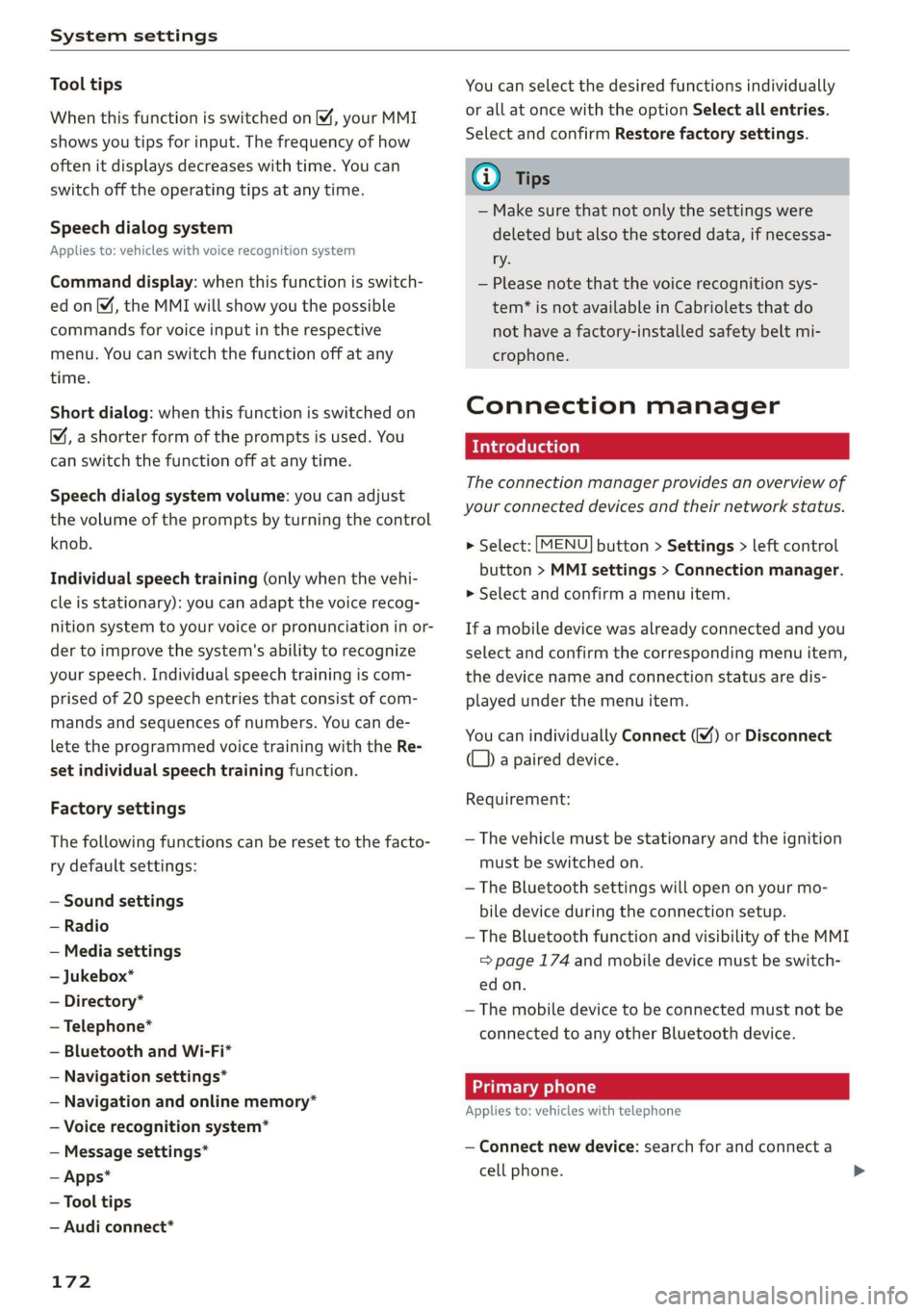
Connection manager
Introduction
The connection manager provides an overview of
your connected devices and their network status.
> Select: [MENU] button > Settings > left control
button > MMI settings > Connection manager.
> Select and confirm a menu item.
If a mobile device was already connected and you
select and confirm the corresponding menu item,
the
device name and connection status are dis-
played under the menu item.
You can individually Connect (M) or Disconnect
(_) a paired device.
Requirement:
— The vehicle must be stationary and the ignition
must be switched on.
— The Bluetooth settings will open on your mo-
bile device during the connection setup.
— The Bluetooth function and visibility of the MMI
= page 174 and mobile device must be switch-
ed on.
— The mobile device to be connected must not be
connected to any other Bluetooth device.
Primary phone
Applies to: vehicles with telephone
— Connect new device: search for and connect a
cell phone.
Page 175 of 304
8S8012721BA
System settings
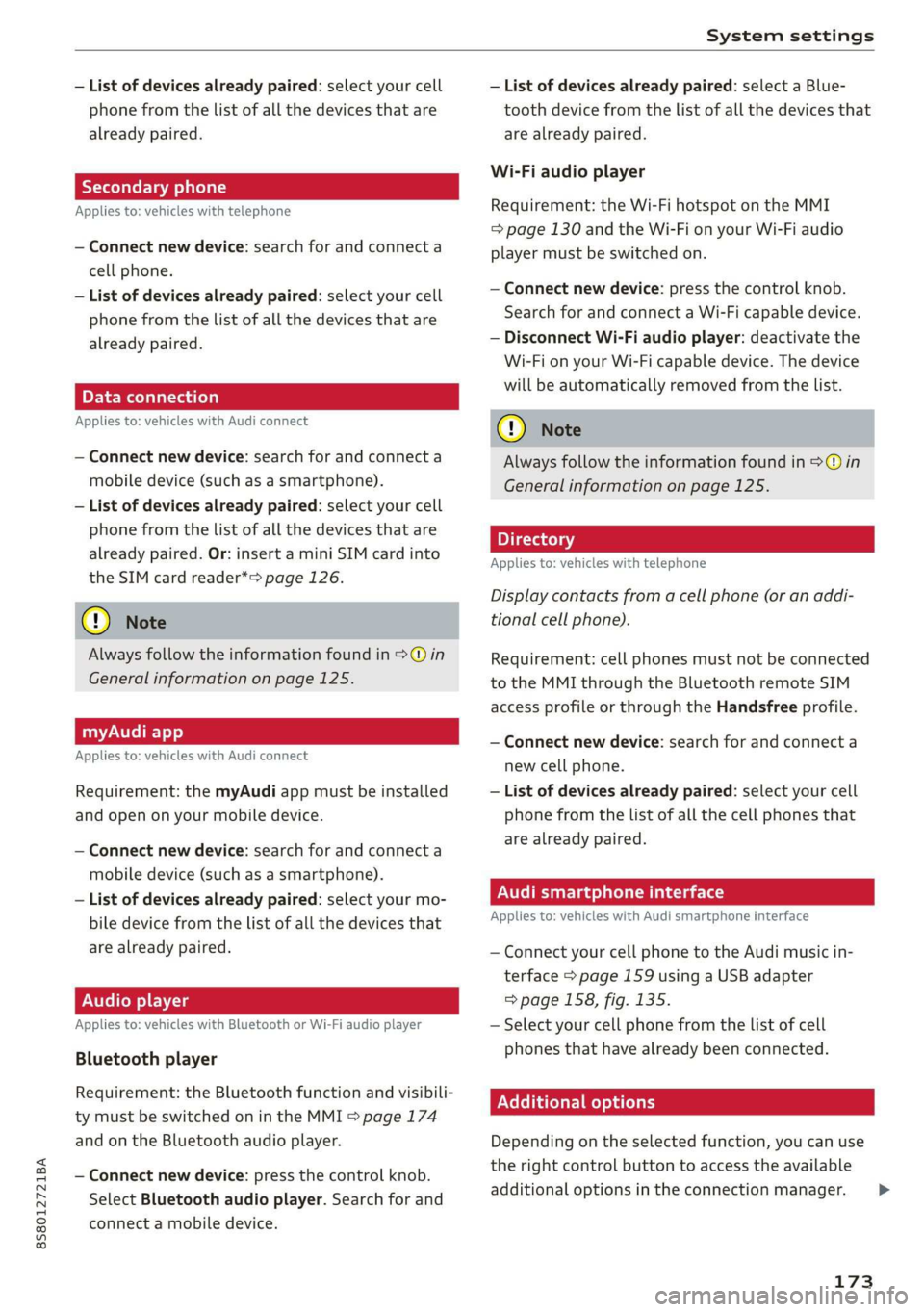
— List of devices already paired: select your cell — List of devices already paired: select a Blue-
phone from the list of all the devices that are tooth device from the list of all the devices that
already paired. are already paired.
Wi-Fi audio player
Applies to: vehicles with telephone Requirement: the Wi-Fi hotspot on the MMI
= page 130 and the Wi-Fi on your Wi-Fi audio
— Connect new device: search for and connect a player must be switched on.
cell phone.
— List of devices already paired: select your cell
phone from the list of all the devices that are
already paired. — Disconnect Wi-Fi audio player: deactivate the
Wi-Fi on your Wi-Fi capable device. The device
will be automatically removed from the list.
— Connect new device: press the control knob.
Search for and connect a Wi-Fi capable device.
PELE Mela a-\a a le)a)
Applies to: vehicles with Audi connect @) N
ote
— Connect new device: search for and connect a Always follow the information found in >@ in
mobile device (such as a smartphone). General information on page 125.
— List of devices already paired: select your cell
phone from the list of all the devices that are 7
. : aa . Directory
already paired. Or: insert a mini SIM card into Applies tor vehicles with telephone
the SIM card reader*> page 126.
Display contacts from a cell phone (or an addi-
(@) Note tional cell phone).
Always follow the information found in >@ in Requirement: cell phones must not be connected
General information on page 125. to the MMI through the Bluetooth remote SIM
access profile or through the Handsfree profile.
myAudi app
Applies to: vehicles with Audi connect
— Connect new device: search for and connect a
new cell phone.
Requirement: the myAudi app must be installed — List of devices already paired: select your cell
and open on your mobile device. phone from the list of all the cell phones that
. are already paired.
— Connect new device: search for and connect a yP
mobile device (such as a smartphone).
— List of devices already paired: select your mo- Audi smartphone interface
bile device from the list of all the devices that Applies to: vehicles with Audi smartphone interface
are already paired. — Connect your cell phone to the Audi music in-
terface > page 159 using a USB adapter
Audio player => page 158, fig. 135.
Applies to: vehicles with Bluetooth or Wi-Fi audio player — Select your cell phone from the list of cell
phones that have already been connected.
Bluetooth player
Requirement: the Bluetocth function and visibili- EER
ty must be switched on in the MMI > page 174
and on the Bluetooth audio player. Depending on the selected function, you can use
the
right control button to access the available
— Connect new device: press the control knob. 3 : . i
additional options in the connection manager. >
Select Bluetooth audio player. Search for and
connect a mobile device.
173
Page 176 of 304
System settings
Bluetooth settings
— Bluetooth: select and confirm a setting for the
Bluetooth connection visibility. Select Visible
for the MMI to be visible to other devices. Se-
lect Invisible for the MMI to not be visible to
other devices. However, it is still possible to es-
tablish a Bluetooth connection with paired de-
vices when the visibility is switched off. Select
Off to turn visibility off. Then a Bluetooth con-
nection is not possible.
— Bluetooth audio player: when this function is
switched on M, the Bluetooth audio player is
available as a source in the Media menu.
— Delete Bluetooth device: the selected cell
phone/mobile device is disconnected from the
MMI.
— Show Bluetooth profiles: you can Connect or
Disconnect the Handsfree profile and the Di-
rectory/contacts* separately.
— Bluetooth name: the MMI Bluetooth name (for
example ,AUDI MMI 2017“) is displayed and
can be changed.
When the function is switched on M, the symbol
@ © page 101, fig. 107 appears in the Infotain-
ment system display.
Online settings*
— Data connection settings: see > page 129, Cell
phone network
— Data usage counter: the amount of data pack-
ets that are sent and received through the MMI
is displayed. You can reset the data usage infor-
mation to zero using the Reset data counter
option.
— Network status: the mobile network provider
for data service as well as the network status
are displayed.
Wi-Fi settings*
See > page 130, Wi-Fi settings.
SIM PIN settings*
— Automatic PIN entry: when this function is
switched on, the SIM PIN is automatically
saved in the MMI after it is entered for the first
time. The SIM PIN for four different SIM cards
can be saved in the MMI. With the function
174
switched off, the currently stored SIM PIN is
deleted from the MMI. When the automatic
PIN entry is switched on, there are no SIM PIN
prompts.
— Disable PIN query: when switched on, there are
no SIM PIN queries. The automatic PIN entry is
not used in this case.
— Change PIN: you can change the PIN on your
SIM card. First enter the current SIM PIN. The
SIM PIN may only contain digits 0-9. The new
SIM PIN must be entered twice for security and
then it will be saved to the SIM card.
Apple CarPlay sound settings/Android Auto
sound settings
Applies to: vehicles with Audi smartphone interface
See > page 175.
About Apple CarPlay/About Android Auto
Applies to: vehicles with Audi smartphone interface
Here you will find legal information regarding the
use of Apple CarPlay or Android Auto and infor-
mation about device-specific data exchange.
Delete CarPlay device/Delete Android Auto
device
Applies to: vehicles with Audi smartphone interface
Requirement: your cell phone must not be con-
nected to the Audi music interface with a USB
adapter.
Select: Audi smartphone > a device from the list
> right control button.
To remove your cell phone from the list, select
and confirm Delete CarPlay device or Delete An-
droid
Auto device.
(i) Tips
Some SIM cards do not allow the SIM PIN
queries to be switched off.
System update
> Select: [MENU] button > Settings > left control
button > System maintenance.
— System update: insert the storage device with
the update data into the appropriate drive
= page 153. Select and confirm the drive > >
Page 177 of 304
8S8012721BA
System settings
Start update. The length of the process de-
pends on the size of the update.
— Reset driver installation: the selected media
driver package is reset to the settings at the
time of delivery.
— Version information: information on the MMI
software version and the navigation database*
software version is displayed. The Software in-
formation function also provides information
on the software contained in the MMI and the
licensing agreement.
Sound settings
The sound distribution and volume of the MMI
can be adjusted individually. The settings depend
on the vehicle equipment.
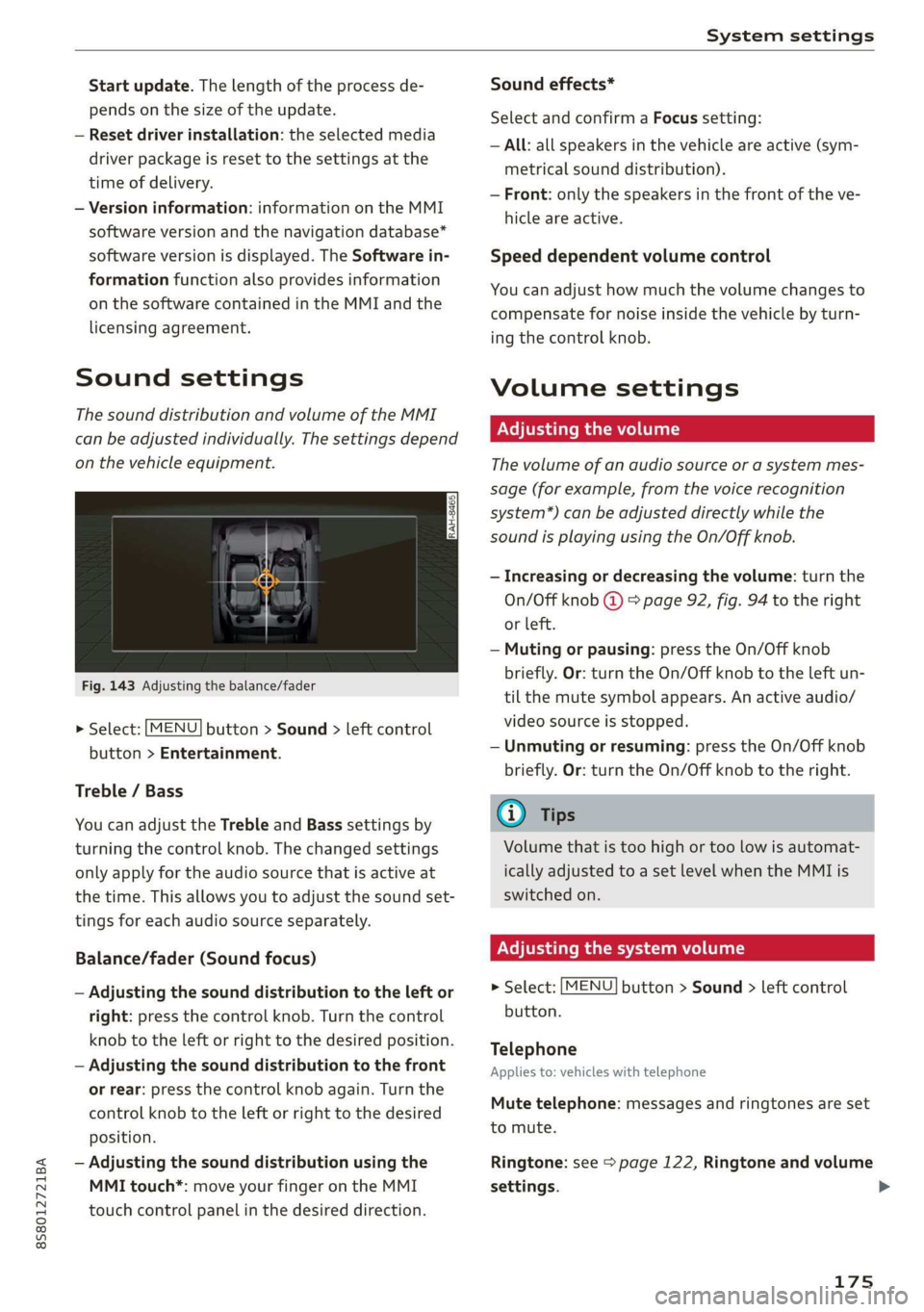
Fig. 143 Adjusting the balance/fader
> Select: [MENU] button > Sound > left control
button > Entertainment.
Treble / Bass
You can adjust the Treble and Bass settings by
turning the control knob. The changed settings
only apply for the audio source that is active at
the time. This allows you to adjust the sound set-
tings for each audio source separately.
Balance/fader (Sound focus)
— Adjusting the sound distribution to the left or
right: press the control knob. Turn the control
knob to the left or right to the desired position.
— Adjusting the sound distribution to the front
or rear: press the control knob again. Turn the
control knob to the left or right to the desired
position.
— Adjusting the sound distribution using the
MMI touch*: move your finger on the MMI
touch control panel in the desired direction.
Sound effects*
Select and confirm a Focus setting:
— All: all speakers in the vehicle are active (sym-
metrical sound distribution).
— Front: only the speakers in the front of the ve-
hicle are active.
Speed dependent volume control
You can adjust how much the volume changes to
compensate for noise inside the vehicle by turn-
ing the control knob.
Volume settings
Adjusting the volume
The volume of an audio source or a system mes-
sage (for example, from the voice recognition
system*) can be adjusted directly while the
sound is playing using the On/Off knob.
— Increasing or decreasing the volume: turn the
On/Off knob @) 9 page 92, fig. 94 to the right
or left.
—Muting or pausing: press the On/Off knob
briefly. Or: turn the On/Off knob to the left un-
til the mute symbol appears. An active audio/
video source is stopped.
—Unmuting or resuming: press the On/Off knob
briefly. Or: turn the On/Off knob to the right.
G@) Tips
Volume that is too high or too low is automat-
ically adjusted to a set level when the MMI is
switched on.
Adjusting the system volume
> Select: [MENU] button > Sound > left control
button.
Telephone
Applies to: vehicles with telephone
Mute telephone: messages and ringtones are set
to mute.
Ringtone: see => page 122, Ringtone and volume
settings.
175
Page 194 of 304
Airbag system
ZA WARNING
If, in exceptional circumstances, you must in-
stall a forward-facing child restraint on the
front passenger's seat:
— Always make sure the forward-facing seat
has been designed and certified by its manu-
facturer for use on a front seat with a pas-
senger front and side airbag.
— Never put the forward-facing child restraint
up against or very near the instrument pan-
el.
— Always move the front passenger seat to the
highest position in the up and down adjust-
ment range and move it back to the rear-
most position in the seat's fore and aft ad-
justment range, as far away from the airbag
as possible, before installing the forward-
facing child restraint.
— Always make sure that the safety belt upper
anchorage is behind the child restraint and
not next to or in front of the child restraint
so that the safety belt will be properly posi-
tioned.
— Make sure that the PASSENGER AIR BAG
OFF 7; light comes on and stays on all the
time whenever the ignition is switched on.
— Improper installation of child restraints can
reduce their effectiveness or even prevent
them from providing any protection.
— An improperly installed child restraint can
interfere with the airbag as it deploys and
seriously
injure or even kill the child - even
with an Advanced Airbag System.
— Always carefully follow the manufacturer's
instructions provided with the child seat or
carrier.
— Always make sure that there is nothing on
the front passenger seat that will cause the
capacitive passenger detection system in
the seat to signal to the Airbag System that
the seat is occupied by a person when it is
not, or to signal that it is occupied by some-
one who is heavier than the person actually
sitting on the seat. The presence of addi-
tional objects could cause the passenger
front airbag to be turned on when it should
be off, or could cause the airbag to work ina
way that is different from the way it would
have worked without the object on the seat.
ZA WARNING
To reduce the risk of serious injury, make sure
that the PASSENGER AIR BAG OFF 3; light
will be displayed whenever a child restraint is
installed on the front passenger seat and the
ignition is switched on.
— If the PASSENGER AIR BAG OFF %; light
does not stay on, perform the checks descri-
bed > page 200, Monitoring the Advanced
Airbag System.
— Have the airbag system inspected by your
Audi dealer immediately.
— Always carefully follow instructions from
child restraint manufacturers when instal-
ling child restraints.
ZA WARNING
If, in exceptional circumstances, you must in-
stall a forward or rearward-facing child re-
straint on the front passenger's seat:
192
Page 241 of 304
8S8012721BA
Checking and Filling
@) Note
— The concentration of anti-freezing agent
must be adjusted to the vehicle operating
conditions and the climate. A concentration
that is too high can lead to vehicle damage.
— Never add radiator anti-freeze or other addi-
tives to the washer fluid.
— Do not use a glass cleaner that contains
paint solvents, because this could damage
the paint.
Service interval display
The service interval display detects when your ve-
hicle is due for service.
The service interval display works in two stages:
— Inspection or oil change reminder: after a cer-
tain distance driven, a message appears in the
Infotainment system display each time the ig-
nition is switched on or off. The remaining dis-
tance or time is displayed briefly.
— Inspection or oil change due: if your vehicle
has reached an inspection or oil change interval
or both intervals at the same time, the mes-
sage Inspection due! or Oil change due! or Oil
change and inspection due! appears briefly af-
ter switching the ignition on/off.
Checking service intervals
You can check the remaining distance or time un-
til the next oil change or next inspection. Select
in the Infotainment system: the [MENU] button >
Vehicle > left control button > Service & checks >
Service intervals.
Resetting the indicator
An authorized Audi dealer or authorized Audi
Service Facility will reset the service interval dis-
play after performing service.
If you have changed the oil yourself, you must re-
set the oil change interval.
To reset the display, select in the Infotainment
system: the [MENU] button > Vehicle > left con-
trol button > Service & checks > Service intervals
> Reset oil change interval.
CG) Note
— Only reset the oil change indicator if the oil
was changed.
— Following the service intervals is critical to
maintaining the service life and value of
your vehicle, especially the engine. Even if
the mileage on the vehicle is low, do not ex-
ceed the time for the next service.
239
Page 259 of 304
8S8012721BA
Wheels
overheat and can lead to tire failure. Under-infla-
tion also reduces fuel efficiency and tire tread
life, and may affect the vehicle's handling and
stopping ability.
Please note that the TPMS is not a substitute for
proper tire maintenance, and it is the driver's re-
sponsibility to maintain correct tire pressure,
even if under-inflation has not reached the level
to trigger illumination of the TPMS low tire pres-
sure telltale.
Your vehicle has also been equipped with a TPMS
malfunction indicator to indicate when the sys-
tem is not operating properly. The TPMS mal-
function indicator is combined with the low tire
pressure telltale. When the system detects a
malfunction, the telltale will flash for approxi-
mately one minute and then remain continuously
illuminated. This sequence will continue upon
subsequent vehicle start-ups as long as the mal-
function exists.
When the malfunction indicator is illuminated,
the system may not be able to detect or signal
low tire pressure as intended. TPMS malfunctions
may occur for a variety of reasons, including the
installation of replacement or alternate tires or
wheels on the vehicle that prevent the TPMS
from functioning properly. Always check the
TPMS malfunction telltale after replacing one or
more tires or wheels on your vehicle to ensure
that the replacement or alternate tires and
wheels allow the TPMS to continue to function
properly.
If the Tire Pressure Monitoring System
indicator appears
Applies to: vehicles with Tire Pressure Monitoring System in-
dicator
The tire pressure indicator in the instrument
cluster informs you if the tire pressure is too low
or if there is a system malfunction.
Using the ABS sensors, the tire pressure monitor-
ing system compares the tire tread circumference
and vibration characteristics of the individual
tires. If the pressure changes in one or more
tires, this is indicated in the Infotainment system
display with an indicator light @ and a message.
If only one tire is affected, the location of that
tire will be indicated.
The tire pressures must be stored in the Infotain-
ment system again each time the pressures
change (switching between partial and full load
pressure) or after changing or replacing a tire on
your vehicle > page 258. The tire pressure moni-
toring system only monitors the tire pressure you
have stored. Refer to the tire pressure label for
the recommended tire pressure for your vehicle
=> page 250, fig. 184.
Tire tread circumference and vibration character-
istics can change and cause a tire pressure warn-
ing if:
— The tire pressure in one or more tires is too low
— The tire has structural damage
— The tire was replaced or the tire pressure was
changed and it was not stored > page 258
— The spare tire* is installed
Indicator lights
@® - Loss of pressure in at least one tire > A\.
Check the tires and replace or repair if necessary.
Check/correct the pressures of all four tires and
store the pressure again in the Infotainment sys-
tem > page 258.
ia (Tire Pressure Monitoring System) Tire pres-
sure: malfunction! See owner's manual - if io
appears after switching on the ignition or while
driving and then the @) indicator light in the in-
strument cluster also starts to blink for about
one minute and then stays on permanently, there
is a system malfunction. Try to store the correct
tire pressures > page 258. If the indicator light
does turn off or turns on again after a short peri-
od of time, drive to an authorized Audi dealer or
authorized Audi Service Facility immediately to
have the malfunction corrected.
ZA WARNING
— If the tire pressure indicator appears in the
display, reduce your speed immediately and
avoid any hard steering or braking maneu-
vers. Stop as soon as possible and check the
tires and their pressure.
257