remote control AUDI TT ROADSTER 2019 User Guide
[x] Cancel search | Manufacturer: AUDI, Model Year: 2019, Model line: TT ROADSTER, Model: AUDI TT ROADSTER 2019Pages: 304, PDF Size: 80.77 MB
Page 33 of 304
8S8012721BA
Opening and closing
Press both of the outer buttons on the con-
trol unit > page 30, fig. 25 until the yellow
LED (2) turns off and the green LED @ blinks.
This procedure clears the standard codes that
were set at the factory and does not need to
be repeated again to program the other but-
tons.
Briefly press the button in the control panel
that you want to program.
Wait until the yellow LED (2) blinks. The pro-
gramming mode is active for five minutes.
Go in front of the vehicle with the original re-
mote control transmitter for the system that
you are programming to the control panel
button.
Programming the button: step 2 at the
radiator grille
6. Hold the remote control transmitter at the
vehicle radiator grille > fig. 26.
Now press the remote control transmitter
until the turn signals on your vehicle blink.
This can take up to 30 seconds.
If the emergency flashers blink three times,
the programming was successful. If the
emergency flashers only blink one time, the
five-minute time limit for programming has
expired or the programming was unsuccess-
ful. Repeat the programming procedure
starting from the third step or change the
distance to the radiator grille.
If the garage door or other systems do not
open with the HomeLink buttons even if the
programming was successful, the system
may use a rolling code instead of a fixed
code. You must also then perform rolling
code programming > page 31.
The other two buttons in the control panel can be
programmed using the instructions given above.
Start with step 3.
Deleting button programming
The programmed buttons cannot be deleted indi-
vidually. They must be deleted all at once. Repro-
gram the buttons if necessary.
> Switch the ignition on.
> Press both of the outer buttons on the control
unit until the yellow LED (2) turns off and the
green LED (@ blinks.
Reprogramming buttons
> Switch the ignition on.
> To reprogram an individual button, press the
desired button until the green LED (@) turns off
and the yellow LED (2) starts to blink (after ap-
proximately 20 seconds). Release the button
immediately. The programming mode is active
for five minutes.
> Continue with step 5.
@ Tips
— The distance needed between the remote
control transmitter and the garage door
opener module in the radiator grille
=> fig. 26 depends on the system you are
programming.
— Depending on the system model, you may
need to release the button on the remote
control transmitter while it is programming
and press it again. Hold every position you
try when programming for at least 15 sec-
onds before trying a new position. Keep an
eye on the vehicle turn signals while doing
this.
Rolling code programming
Applies to: vehicles with garage door opener
On some systems, programming a rolling code is
also necessary.
Identifying a rolling code
> Press the button in the control unit that is al-
ready programmed again and hold it down.
>» Watch the green LED @) > page 30, fig. 25. If
the green LED blinks quickly, the system (such
as a garage door) has a rolling code.
> Program the rolling code as follows:
Activating the system motor unit
> Locate the programming button on the system
motor unit. The exact location and color of the
button may vary depending on the brand.
> Press the programming button on the system
motor unit (usually this will activate a “display” >
31
Page 36 of 304
Power top
— Visibility to the rear is limited when operat-
ing the power top. Avoid operating the top
while driving in reverse.
@) Note
—To prevent damage to the power top:
— do not store any objects in the power top
storage compartment.
— make sure there is enough space above
the vehicle when opening or closing the
power top.
0} Tips
— To prevent the vehicle battery from draining
unnecessarily, do not open or close the pow-
er top repeatedly when the engine is switch-
ed off.
— A message will appear in the instrument
cluster if there is a malfunction in the power
top > page 34.
— The power top can also be operated manual-
ly temporarily if there is a malfunction
= page 35, Power top emergency opera-
tion. An authorized Audi dealer or author-
ized Audi Service Facility should diagnose
and correct the cause of the malfunction as
soon as possible.
— If the vehicle is parked with the power top
open, the vehicle interior is not protected
from
damaging weather or unauthorized ac-
cess. Lock any items you leave behind in the
luggage compartment. Close the power top
before leaving the vehicle.
— The side windows automatically lower
slightly when opening or closing the power
top.
34
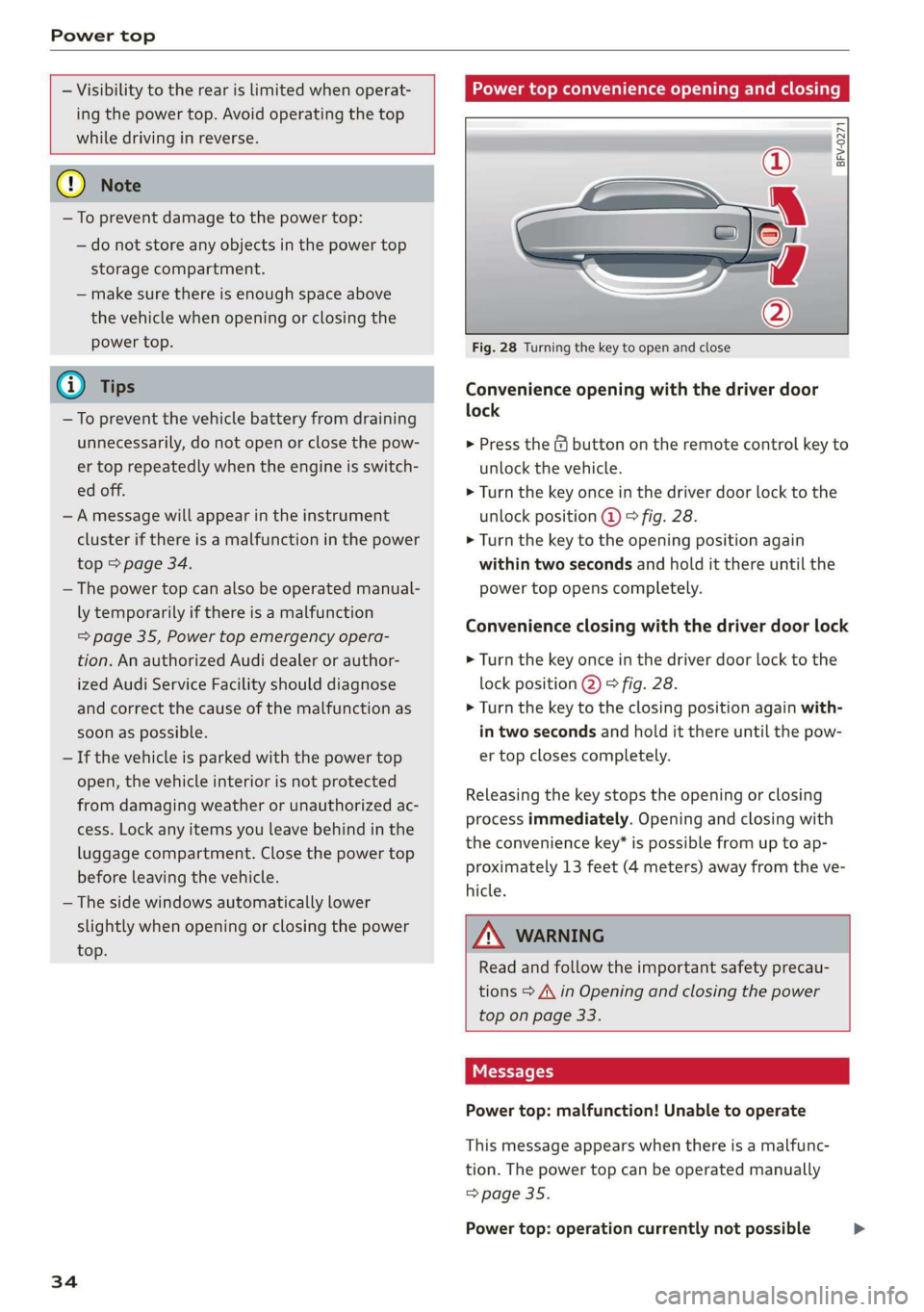
Power top convenience opening and closing
BFV-0271
Fig. 28 Turning the key to open and close
Convenience opening with the driver door
lock
> Press the & button on the remote control key to
unlock the vehicle.
> Turn the key once in the driver door lock to the
unlock position @ © fig. 28.
> Turn the key to the opening position again
within two seconds and hold it there until the
power top opens completely.
Convenience closing with the driver door lock
> Turn the key once in the driver door lock to the
lock position @) © fig. 28.
> Turn the key to the closing position again with-
in two seconds and hold it there until the pow-
er top closes completely.
Releasing the key stops the opening or closing
process immediately. Opening and closing with
the convenience key* is possible from up to ap-
proximately 13 feet (4 meters) away from the ve-
hicle.
ZA WARNING
Read and follow the important safety precau-
tions > A\ in Opening and closing the power
top on page 33.
Messages
Power top: malfunction! Unable to operate
This message appears when there is a malfunc-
tion. The power top can be operated manually
=> page 35.
Power top: operation currently not possible >
Page 46 of 304
Lights and Vision
Replacing windshield wiper blades
he
B8R-0379
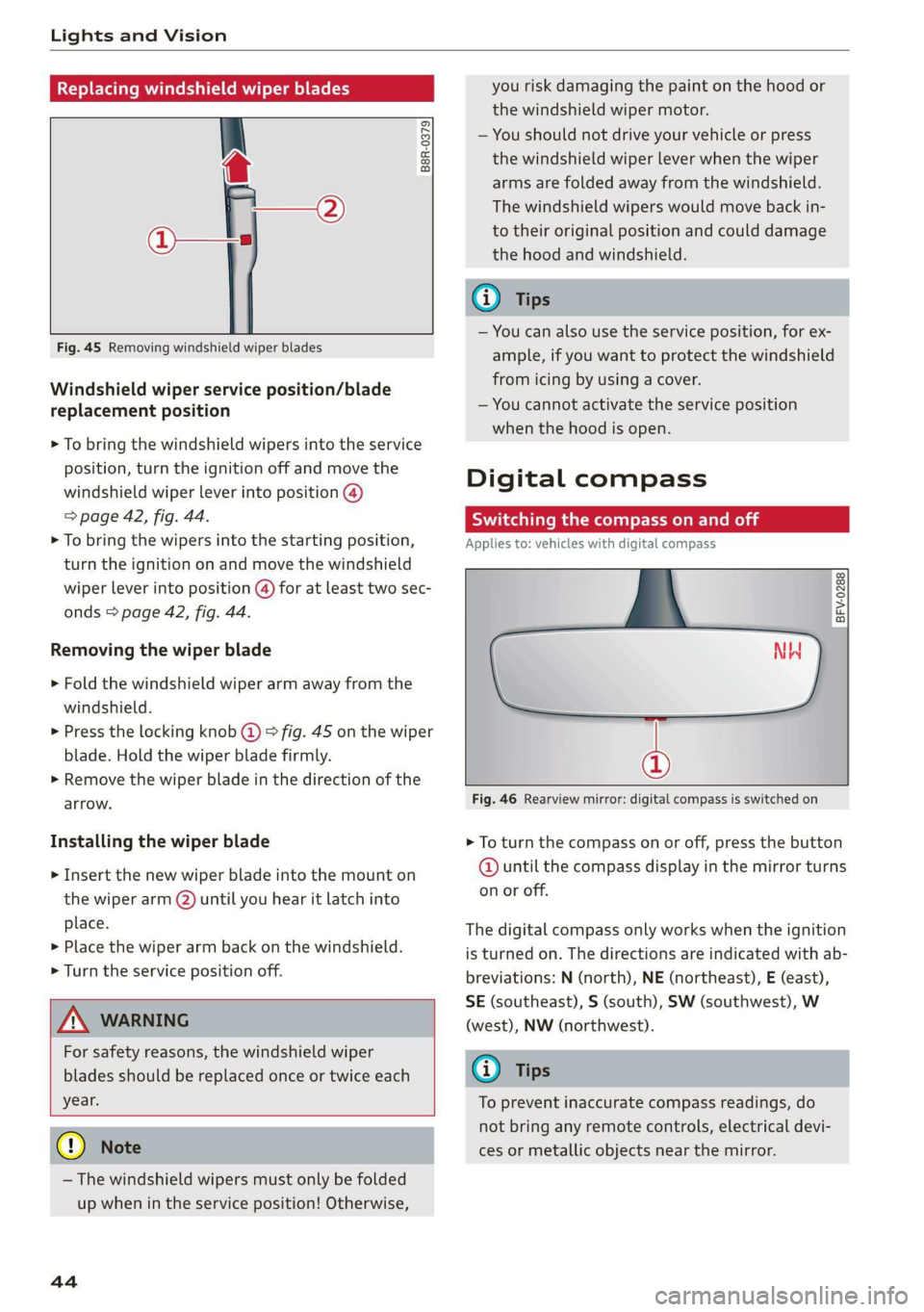
Fig. 45 Removing windshield wiper blades
Windshield wiper service position/blade
replacement position
> To bring the windshield wipers into the service
position, turn the ignition off and move the
windshield wiper lever into position @)
> page 42, fig. 44.
> To bring the wipers into the starting position,
turn the ignition on and move the windshield
wiper lever into position (@) for at least two sec-
onds > page 42, fig. 44.
Removing the wiper blade
> Fold the windshield wiper arm away from the
windshield.
> Press the locking knob (@) > fig. 45 on the wiper
blade. Hold the wiper blade firmly.
> Remove the wiper blade in the direction of the
arrow.
Installing the wiper blade
> Insert the new wiper blade into the mount on
the wiper arm (2) until you hear it latch into
place.
» Place the wiper arm back on the windshield.
> Turn the service position off.
Z\ WARNING
For safety reasons, the windshield wiper
blades should be replaced once or twice each
year.
@) Note
— The windshield wipers must only be folded
up when in the service position! Otherwise,
44
you risk damaging the paint on the hood or
the windshield wiper motor.
— You should not drive your vehicle or press
the windshield wiper lever when the wiper
arms are folded away from the windshield.
The windshield wipers would move back in-
to their original position and could damage
the hood and windshield.
G) Tips
— You can also use the service position, for ex-
ample, if you want to protect the windshield
from icing by using a cover.
— You cannot activate the service position
when the hood is open.
Digital compass
Scale ma meel eR meme a
Applies to: vehicles with digital compass
BFV-0288
NW
@
Fig. 46 Rearview mirror: digital compass is switched on
> To turn the compass on or off, press the button
@ until the compass display in the mirror turns
on or off.
The digital compass only works when the ignition
is turned on. The directions are indicated with ab-
breviations: N (north), NE (northeast), E (east),
SE (southeast), S (south), SW (southwest), W
(west), NW (northwest).
(i) Tips
To prevent inaccurate compass readings, do
not bring any remote controls, electrical devi-
ces or metallic objects near the mirror.
Page 54 of 304
Warm and cold
Warm and cold
Climate control system
The climate control system warms, cools and re-
moves humidity from the air in the vehicle interi-
or. It functions most effectively when the win-
dows are closed. If there is a build-up of heat in-
side the vehicle, ventilation can help to speed up
the cooling process.
Pollutant filter
The pollutant filter removes pollutants such as
dust and pollen from the air.
Key recognition
Certain settings are automatically stored and as-
signed to the remote control key being used.
ZA WARNING
Poor visibility can lead to accidents.
— For safer driving, keep all windows free of
ice, snow and fog.
— Become familiar as quickly as possible with
the correct use and function of the climate
control system, especially with the defrost-
ing and defogging function.
— When the temperature is below freezing,
only use the windshield washer system after
the
windshield has been warmed by the cli-
mate control system. The washer fluid could
freeze on the windshield and impair visibili-
ty.
@) Note
— If you suspect that the climate control sys-
tem is damaged, switch the system off to
52
prevent further damage and have it checked
by an authorized Audi dealer or authorized
Audi Service Facility.
— Repairs to the Audi climate control system
require special technical knowledge and
special tools. Have it inspected by an au-
thorized Audi dealership or a qualified elec-
tronics store.
(@) For the sake of the environment
Reducing the amount of fuel used also re-
duces the amount of pollutants that enter the
alr.
G) Tips
—To prevent interference with the heating
and cooling output and to prevent the win-
dows from fogging over, the air intake in
front of the windshield must be free of ice,
snow, or leaves.
— Condensation from the cooling system can
drip and form a puddle of water under the
vehicle. This is normal and does not mean
there is a leak.
— The energy management system may tem-
porarily switch off certain functions, such as
the seat heating* or rear window defogger.
These systems are available again as soon as
the energy supply has been restored.
— The flows through the vents under the rear
window. Make sure the openings are not
covered when placing clothing on the lug-
gage compartment cover.
Page 61 of 304
8S58012721BA
Driving
authorized Audi Service Facility immediately to
have the malfunction corrected. To start the en-
gine, press and hold the [START ENGINE STOP
button.
Remote control key: hold back of key
against the designated area. See owner's man-
ual
This message appears if there is no convenience
key inside the vehicle or if the system does not
recognize the key. The convenience key may not
be recognized, for example, if it is covered by an
object that disrupts the signal (such as a brief-
case), or if the key battery is weak. Electronic de-
vices such as cell phones can also interfere with
the signal.
To still be able to start or stop the engine, see
= page 59, Starting the engine when there is a
malfunction.
B Remote control key: key not detected. Is the
key still in the vehicle?
The BSB indicator light turns on and this message
appears if the convenience key was removed from
the vehicle when the engine was running. If the
convenience key is no longer in the vehicle, you
cannot switch the ignition on or start the engine
once you stop it. You also cannot lock the vehicle
from the outside.
Please press the brake pedal
This message appears if you do not press the
brake pedal when starting the engine.
Please select N or P
This message appears when starting or stopping
the engine if the selector lever is not in the "N" or
"P" position. The engine will not start/stop.
Starting the engine when there is a
Tare iira dea)
It may not be possible to start the engine under
certain circumstances, for example, if the bat-
tery
in the vehicle key is drained, if interference is
affecting the key or if there is a system malfunc-
tion.
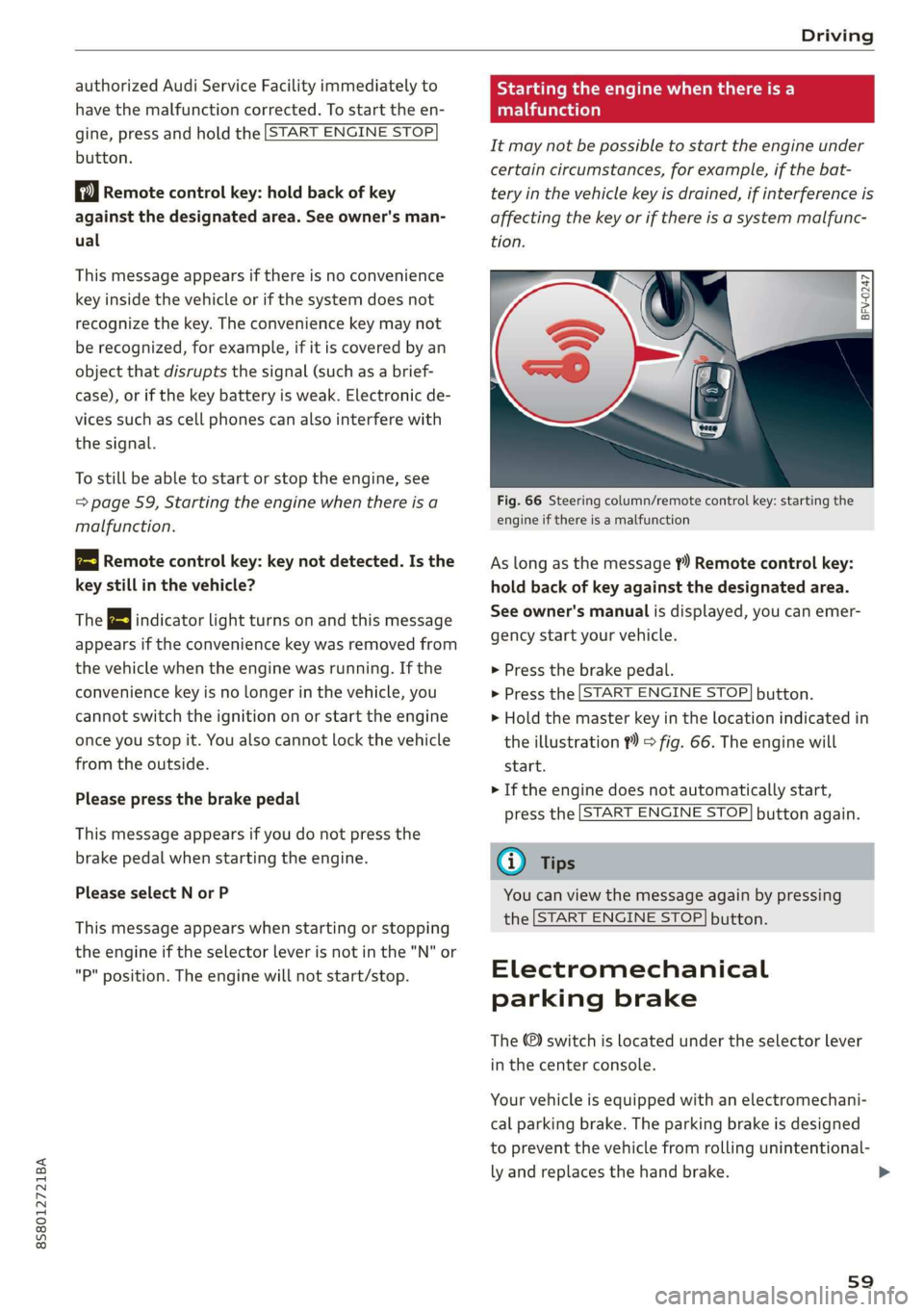
Fig. 66 Steering column/remote control key: starting the
engine if there is a malfunction
As long as the message ?) Remote control key:
hold back of key against the designated area.
See owner's manual is displayed, you can emer-
gency start your vehicle.
> Press the brake pedal.
> Press the [START ENGINE STOP] button.
> Hold the master key in the location indicated in
the illustration ?) © fig. 66. The engine will
start.
> If the engine does not automatically start,
press the [START ENGINE STOP] button again.
(i) Tips
You can view the message again by pressing
the [START ENGINE STOP] button.
Electromechanical
parking brake
The ©) switch is located under the selector lever
in the center console.
Your vehicle is equipped with an electromechani-
cal parking brake. The parking brake is designed
to prevent the vehicle from rolling unintentional-
ly and replaces the hand brake.
59
Page 76 of 304
Assist systems
— The camera field of view > page 73, fig. 76 is
dirty or covered in ice. Clean this area on the
windshield.
— The camera field of view is fogged over. Wait
until the fog has cleared before switching the
active lane assist on again.
— The system has been unable to detect the lanes
for an extended period of time due to road con-
ditions. Switch active lane assist back on when
the lines are more visible.
Audi active lane assist: currently unavailable.
See owner's manual
There is a temporary malfunction that may pre-
vent the active lane assist from switching on. Try
switching the active lane assist on again later.
Audi active lane assist: malfunction! See own-
er's manual
Drive to an authorized Audi dealer or authorized
Audi Service Facility immediately to have the
malfunction corrected.
Audi active lane assist: Please take over steer-
ing!
This message appears if you are not steering by
yourself. If this is the case, active lane assist does
not switch off, but it is “not ready” to provide a
warning. The system can help you keep the vehi-
cle in the lane. However, you are responsible for
driving the vehicle and must steer it yourself.
Z\ WARNING
Note that messages may be delayed or not
displayed on vehicles with accessories mount-
ed on the steering wheel, such as a steering
wheel spinner knob. Always keep your hands
on the steering wheel.
)) The corrective steering function is not available in all mar-
kets.
74
Adjusting the steering time and vibration
warning
Applies to: vehicles with Audi active lane assist
You can adjust individual active lane assist set-
tings in the Infotainment system.
Select in the Infotainment system: [MENU] but-
ton > Vehicle > left control button >Driver assis-
tance > Audi active lane assist
Steering time)
Early: in this setting, the corrective steering hap-
pens continuously to help keep the vehicle in the
center of the lane.
Late: in this setting, the system provides correc-
tive steering just before a vehicle wheel touches a
detected lane marker line.
Vibration warning
You can switch the additional vibration warning
in the steering wheel on or off.
G) Tips
In certain markets: your settings are stored
automatically and assigned to the remote
control key in use.
Page 79 of 304

8S8012721BA
Assist systems
If the system is activated, the displays in the ex-
terior mirrors will turn on briefly when the igni-
tion is switched on.
Adjusting the display brightness
Applies to: vehicles with Audi side assist
The display brightness can be adjusted in the In-
fotainment system.
> Select in the Infotainment system: [MENU] but-
ton > Vehicle > left control button >Driver as-
sistance > Audi side assist
The display brightness adjusts automatically to
the brightness of the surroundings, both in the
information and in the warning stage. In very
dark or very bright surroundings, the automatic
adjustment will set the display to the minimum
or maximum level. In such cases, you may notice
no change when adjusting the brightness, or the
change may only be noticeable once the sur-
roundings change.
Adjust the brightness to a level where the display
in the information stage will not disrupt your
view ahead. If you change the brightness, the dis-
play in the exterior mirror will briefly show the
brightness level in the information stage. The
brightness of the warning stage is linked to the
brightness in the information stage and is adjust-
ed along with the information stage.
G@) Tips
— Side assist is not active while you are mak-
ing the adjustment.
— Your settings are automatically stored and
assigned to the remote control key being
used.
Messages
Applies to: vehicles with Audi side assist
If the side assist switches off automatically, a
message appears in the Infotainment system dis-
play.
Audi side assist: currently unavailable.
Sensor vision restricted due to surroundings.
See owner's manual
The radar sensor vision is impaired. Do not cover
the area in front of the sensors with bike wheels,
stickers, dirt or other objects. Clean the area cov-
ering the sensors, if necessary > page 75, fig. 81.
Audi side assist: currently unavailable.
See owner's manual
Side assist cannot be switched on at this time be-
cause there is a malfunction (for example, the
battery charge level may be too low).
Audi side assist: malfunction! Please
contact Service
The system cannot guarantee that it will detect
vehicles correctly and it has switched off. The
sensors have been moved or are faulty. Have the
system checked by an authorized Audi dealer or
authorized Audi Service Facility soon.
Audi drive select (drive
settings)
Introduction
Applies to: vehicles with Audi drive select
Drive select makes it possible to experience dif-
ferent types of vehicle characteristics in one vehi-
cle. The driver can select from three modes,
Comfort,
Auto, and Dynamic, using the sist but-
ton in the center console or by using the Infotain-
ment system. This allows you to switch between
a sporty and a comfortable driving mode, for ex-
ample. In the Individual mode, the settings can
be adjusted to your personal preferences. This
makes it possible to combine settings such as a
sporty engine setting with light steering.
Z\ WARNING
Using Audi drive select incorrectly can lead to
collisions, other accidents and serious inju-
ries.
77
Page 81 of 304
8S58012721BA
Assist systems
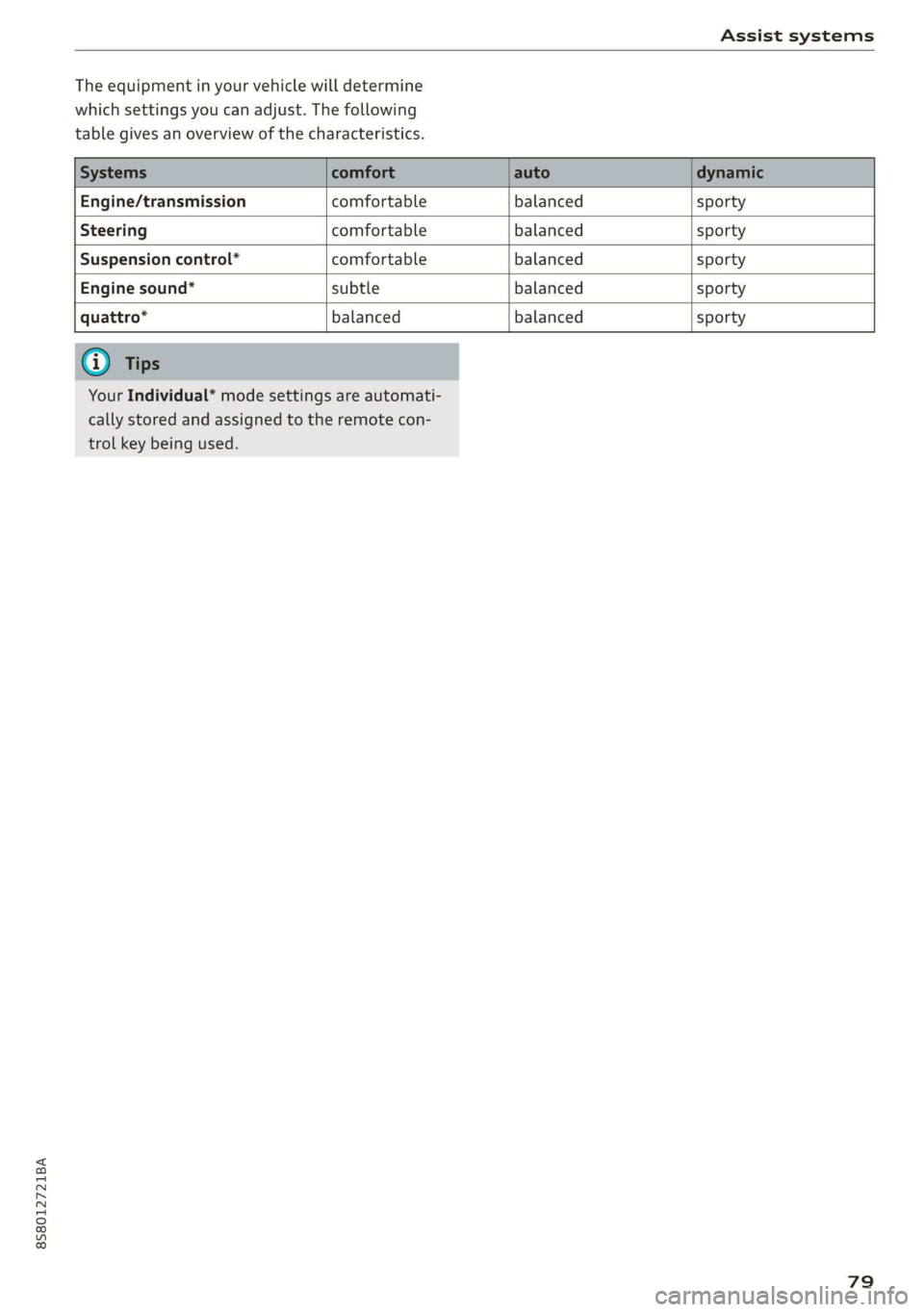
The equipment in your vehicle will determine
which settings you can adjust. The following
table gives an overview of the characteristics.
Engine/transmission comfortable balanced sporty
Steering comfortable balanced sporty
Suspension control” comfortable balanced sporty
Engine sound* subtle balanced sporty
quattro* balanced balanced sporty
Your Individual* mode settings are automati-
cally stored and assigned to the remote con-
trol key being used.
79
Page 86 of 304
Parking aid
® Tips
— The visual display in the left part of the dis-
play should help you detect the critical vehi-
cle areas.
— You can change the volume of the signals
and the display > page 84.
Perpendicular parking
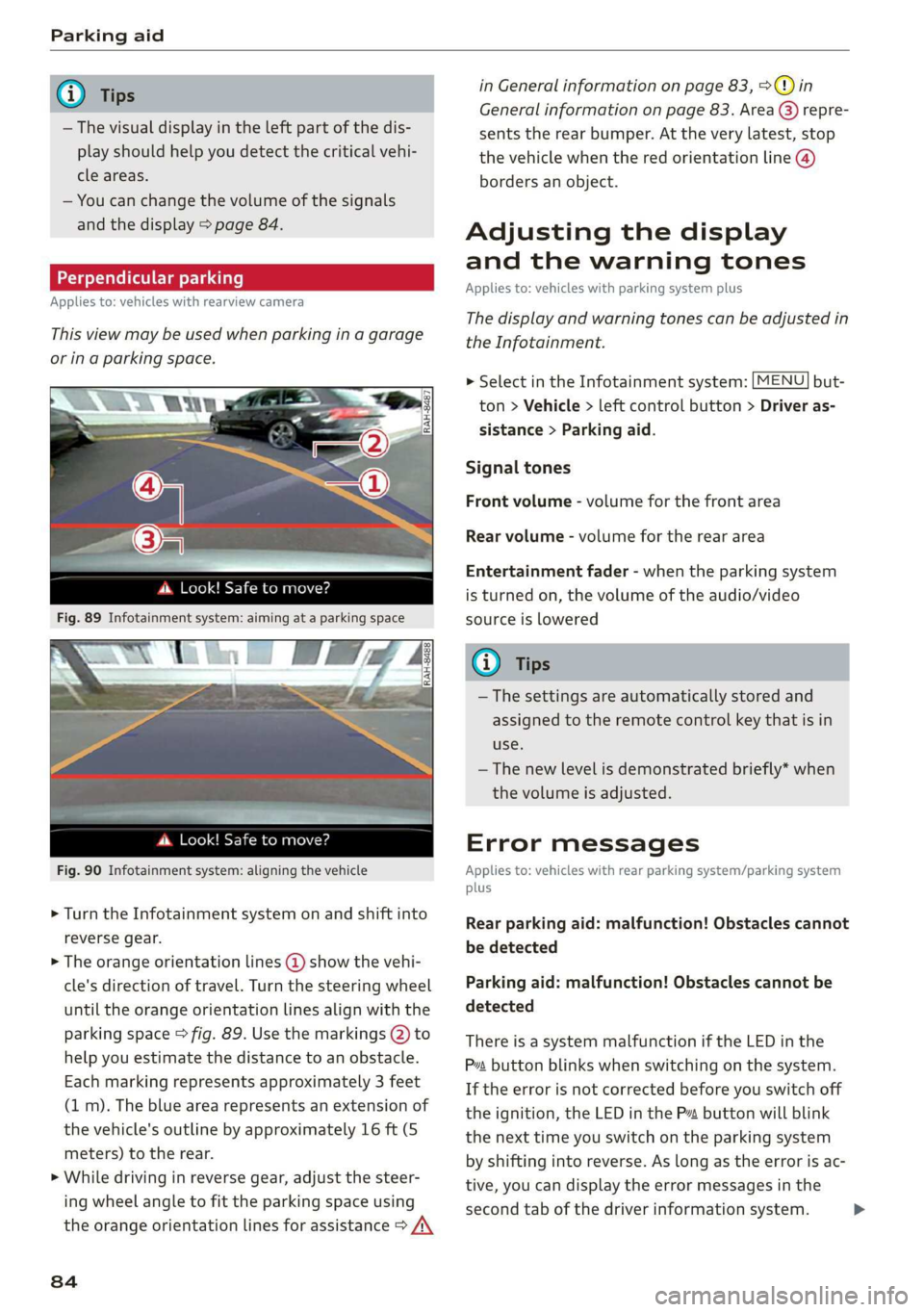
Applies to: vehicles with rearview camera
This view may be used when parking in a garage
or ina parking space.
4d. Look! Safe to move?
Fig. 90 Infotainment system: aligning the vehicle
> Turn the Infotainment system on and shift into
reverse gear.
> The orange orientation lines @ show the vehi-
cle's direction of travel. Turn the steering wheel
until the orange orientation lines align with the
parking space > fig. 89. Use the markings @) to
help you estimate the distance to an obstacle.
Each marking represents approximately 3 feet
(1 m). The blue area represents an extension of
the vehicle's outline by approximately 16 ft (5
meters) to the rear.
> While driving in reverse gear, adjust the steer-
ing wheel angle to fit the parking space using
the orange orientation lines for assistance > /\
84
in General information on page 83, >@) in
General information on page 83. Area @) repre-
sents the rear bumper. At the very latest, stop
the vehicle when the red orientation line @)
borders an object.
Adjusting the display
and the warning tones
Applies to: vehicles with parking system plus
The display and warning tones can be adjusted in
the Infotainment.
MENU > Select in the Infotainment system: but-
ton > Vehicle > left control button > Driver as-
sistance > Parking aid.
Signal tones
Front volume - volume for the front area
Rear volume - volume for the rear area
Entertainment fader - when the parking system
is turned on, the volume of the audio/video
source is lowered
G) Tips
— The settings are automatically stored and
assigned to the remote control key that is in
use.
— The new level is demonstrated briefly* when
the volume is adjusted.
Error messages
Applies to: vehicles with rear parking system/parking system
plus
Rear parking aid: malfunction! Obstacles cannot
be detected
Parking aid: malfunction! Obstacles cannot be
detected
There is a system malfunction if the LED in the
Pva button blinks when switching on the system.
If the error is not corrected before you switch off
the ignition, the LED in the P button will blink
the next time you switch on the parking system
by shifting into reverse. As long as the error is ac-
tive, you can display the error messages in the
second tab of the driver information system. >
Page 116 of 304
Telephone
@) Note
Applicable to Canada
In Canada, operation of a Zone Enhancer,
such as an Audi Phone Box, is subject to the
following requirements of the Innovation,
Science and Economic Development Canada
(ISED):
— This is a CONSUMER device.
— BEFORE USE, you MUST meet all require-
ments set out in CPC-2-1-05.
— You MUST operate this device with approved
antennas
and cables as specified by the
manufacturer. Antennas MUST NOT be in-
stalled within 20 cm of any person.
— You MUST cease operating this device im-
mediately if requested by ISED or a licensed
wireless service provider.
— WARNING: £911 location information may
not be provided or may be inaccurate for
calls served by using this device.
G) Tips
— The Audi phone box is not available in all
countries. For additional information, con-
tact an authorized Audi dealership.
— Placing the mobile device in a bag or protec-
tive sleeve inside the Audi phone box can in-
terfere with the connection to the external
antenna.
— Metal objects cannot be located in the Audi
phone box when using the exterior antenna*
and the Audi phone box charging function.
— The charging time and temperature will vary
depending on the mobile device being used.
— When the ignition is switched on, you can
charge your mobile device in the Audi phone
box.
—To reduce the risk of malfunctions, make
sure the mobile device is positioned correct-
ly in the Audi phone box.
— The maximum charging output is 5 watts.
— Strong transmission quality cannot be guar-
anteed if more than one mobile device is in
the box.
— Audi recommends using Audi Genuine Ac-
cessories. Audi has verified their reliability,
safety, and suitability.
114
— You can purchase a USB adapter from an au-
thorized Audi dealer or authorized Audi
Service Facility, or at specialty stores.
— If you place your remote control key togeth-
er with your mobile device in the Audi phone
box, it may cause your mobile device to stop
charging if wireless charging is active.
Using the telephone
Opening the telephone
Applies to: vehicles with telephone
Call list
(2 Sa
©— Directory
(4)o 4) Es yor Llane
(=) Tekt message (mobile device)
Sy
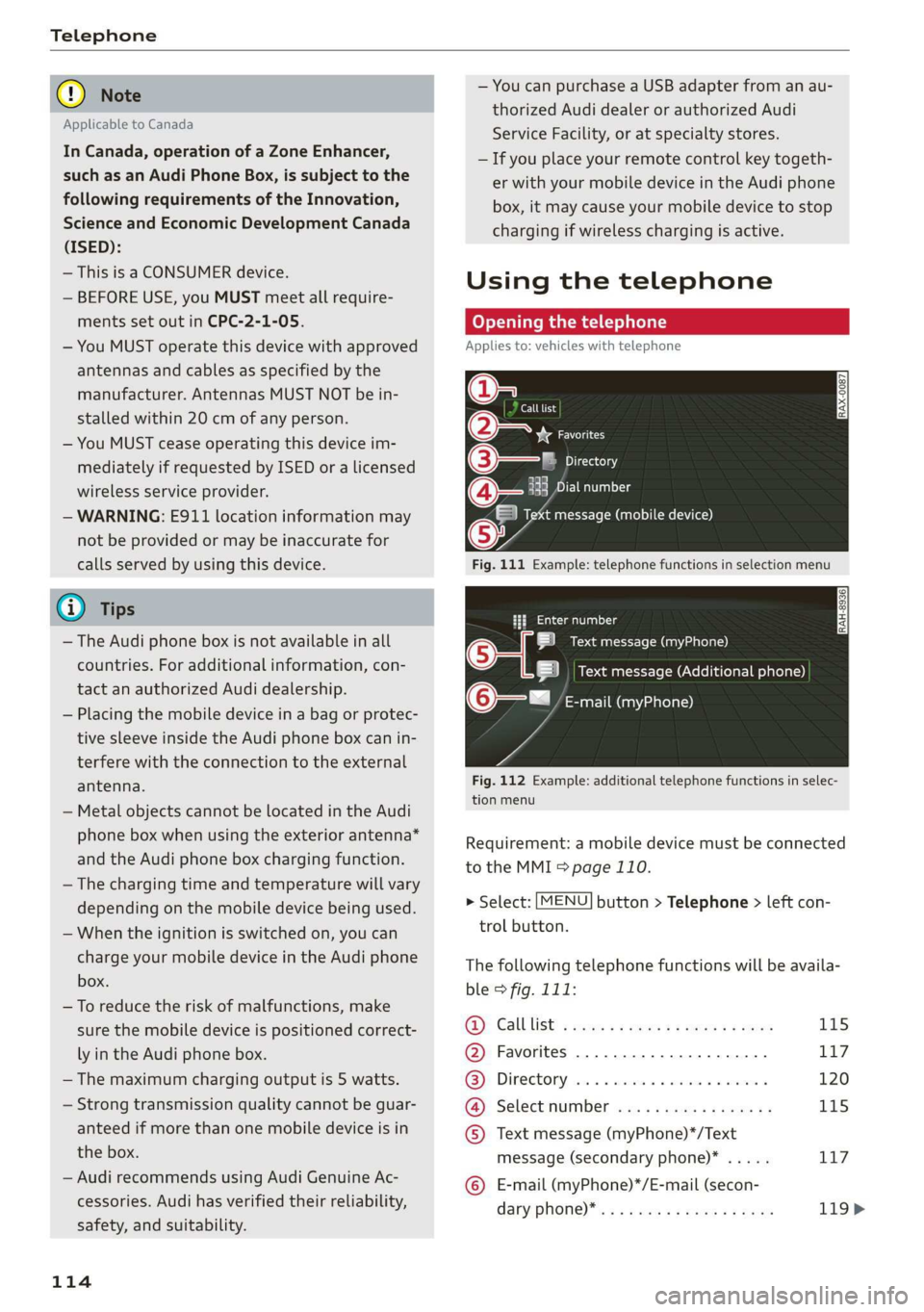
Fig. 111 Example: telephone functions in selection menu
Hy ee al dg
5 Text message (myPhone)
|i] Text message (Additional phone)
@—= E-mail (myPhone)
Fig. 112 Example: additional telephone functions in selec-
tion menu
Requirement: a mobile device must be connected
to the MMI > page 110.
> Select: [MENU] button > Telephone > left con-
trol button.
The following telephone functions will be availa-
ble > fig. 111:
@): Calllist: : soy. sc cease 4: ews yo ewe 115
@ Favorites ................20.0, 117
@® Directory ....... 0. cece eee eee 120
@ Select number ...............0. 115
© Text message (myPhone)*/Text
message (secondary phone)* ..... 117
© E-mail (myPhone)*/E-mail (secon-
dary: phone) * ws « een ss wawn se eee 119>