key AUDI TT ROADSTER 2019 Owner's Manual
[x] Cancel search | Manufacturer: AUDI, Model Year: 2019, Model line: TT ROADSTER, Model: AUDI TT ROADSTER 2019Pages: 304, PDF Size: 80.77 MB
Page 76 of 304
Assist systems
— The camera field of view > page 73, fig. 76 is
dirty or covered in ice. Clean this area on the
windshield.
— The camera field of view is fogged over. Wait
until the fog has cleared before switching the
active lane assist on again.
— The system has been unable to detect the lanes
for an extended period of time due to road con-
ditions. Switch active lane assist back on when
the lines are more visible.
Audi active lane assist: currently unavailable.
See owner's manual
There is a temporary malfunction that may pre-
vent the active lane assist from switching on. Try
switching the active lane assist on again later.
Audi active lane assist: malfunction! See own-
er's manual
Drive to an authorized Audi dealer or authorized
Audi Service Facility immediately to have the
malfunction corrected.
Audi active lane assist: Please take over steer-
ing!
This message appears if you are not steering by
yourself. If this is the case, active lane assist does
not switch off, but it is “not ready” to provide a
warning. The system can help you keep the vehi-
cle in the lane. However, you are responsible for
driving the vehicle and must steer it yourself.
Z\ WARNING
Note that messages may be delayed or not
displayed on vehicles with accessories mount-
ed on the steering wheel, such as a steering
wheel spinner knob. Always keep your hands
on the steering wheel.
)) The corrective steering function is not available in all mar-
kets.
74
Adjusting the steering time and vibration
warning
Applies to: vehicles with Audi active lane assist
You can adjust individual active lane assist set-
tings in the Infotainment system.
Select in the Infotainment system: [MENU] but-
ton > Vehicle > left control button >Driver assis-
tance > Audi active lane assist
Steering time)
Early: in this setting, the corrective steering hap-
pens continuously to help keep the vehicle in the
center of the lane.
Late: in this setting, the system provides correc-
tive steering just before a vehicle wheel touches a
detected lane marker line.
Vibration warning
You can switch the additional vibration warning
in the steering wheel on or off.
G) Tips
In certain markets: your settings are stored
automatically and assigned to the remote
control key in use.
Page 79 of 304

8S8012721BA
Assist systems
If the system is activated, the displays in the ex-
terior mirrors will turn on briefly when the igni-
tion is switched on.
Adjusting the display brightness
Applies to: vehicles with Audi side assist
The display brightness can be adjusted in the In-
fotainment system.
> Select in the Infotainment system: [MENU] but-
ton > Vehicle > left control button >Driver as-
sistance > Audi side assist
The display brightness adjusts automatically to
the brightness of the surroundings, both in the
information and in the warning stage. In very
dark or very bright surroundings, the automatic
adjustment will set the display to the minimum
or maximum level. In such cases, you may notice
no change when adjusting the brightness, or the
change may only be noticeable once the sur-
roundings change.
Adjust the brightness to a level where the display
in the information stage will not disrupt your
view ahead. If you change the brightness, the dis-
play in the exterior mirror will briefly show the
brightness level in the information stage. The
brightness of the warning stage is linked to the
brightness in the information stage and is adjust-
ed along with the information stage.
G@) Tips
— Side assist is not active while you are mak-
ing the adjustment.
— Your settings are automatically stored and
assigned to the remote control key being
used.
Messages
Applies to: vehicles with Audi side assist
If the side assist switches off automatically, a
message appears in the Infotainment system dis-
play.
Audi side assist: currently unavailable.
Sensor vision restricted due to surroundings.
See owner's manual
The radar sensor vision is impaired. Do not cover
the area in front of the sensors with bike wheels,
stickers, dirt or other objects. Clean the area cov-
ering the sensors, if necessary > page 75, fig. 81.
Audi side assist: currently unavailable.
See owner's manual
Side assist cannot be switched on at this time be-
cause there is a malfunction (for example, the
battery charge level may be too low).
Audi side assist: malfunction! Please
contact Service
The system cannot guarantee that it will detect
vehicles correctly and it has switched off. The
sensors have been moved or are faulty. Have the
system checked by an authorized Audi dealer or
authorized Audi Service Facility soon.
Audi drive select (drive
settings)
Introduction
Applies to: vehicles with Audi drive select
Drive select makes it possible to experience dif-
ferent types of vehicle characteristics in one vehi-
cle. The driver can select from three modes,
Comfort,
Auto, and Dynamic, using the sist but-
ton in the center console or by using the Infotain-
ment system. This allows you to switch between
a sporty and a comfortable driving mode, for ex-
ample. In the Individual mode, the settings can
be adjusted to your personal preferences. This
makes it possible to combine settings such as a
sporty engine setting with light steering.
Z\ WARNING
Using Audi drive select incorrectly can lead to
collisions, other accidents and serious inju-
ries.
77
Page 81 of 304
8S58012721BA
Assist systems
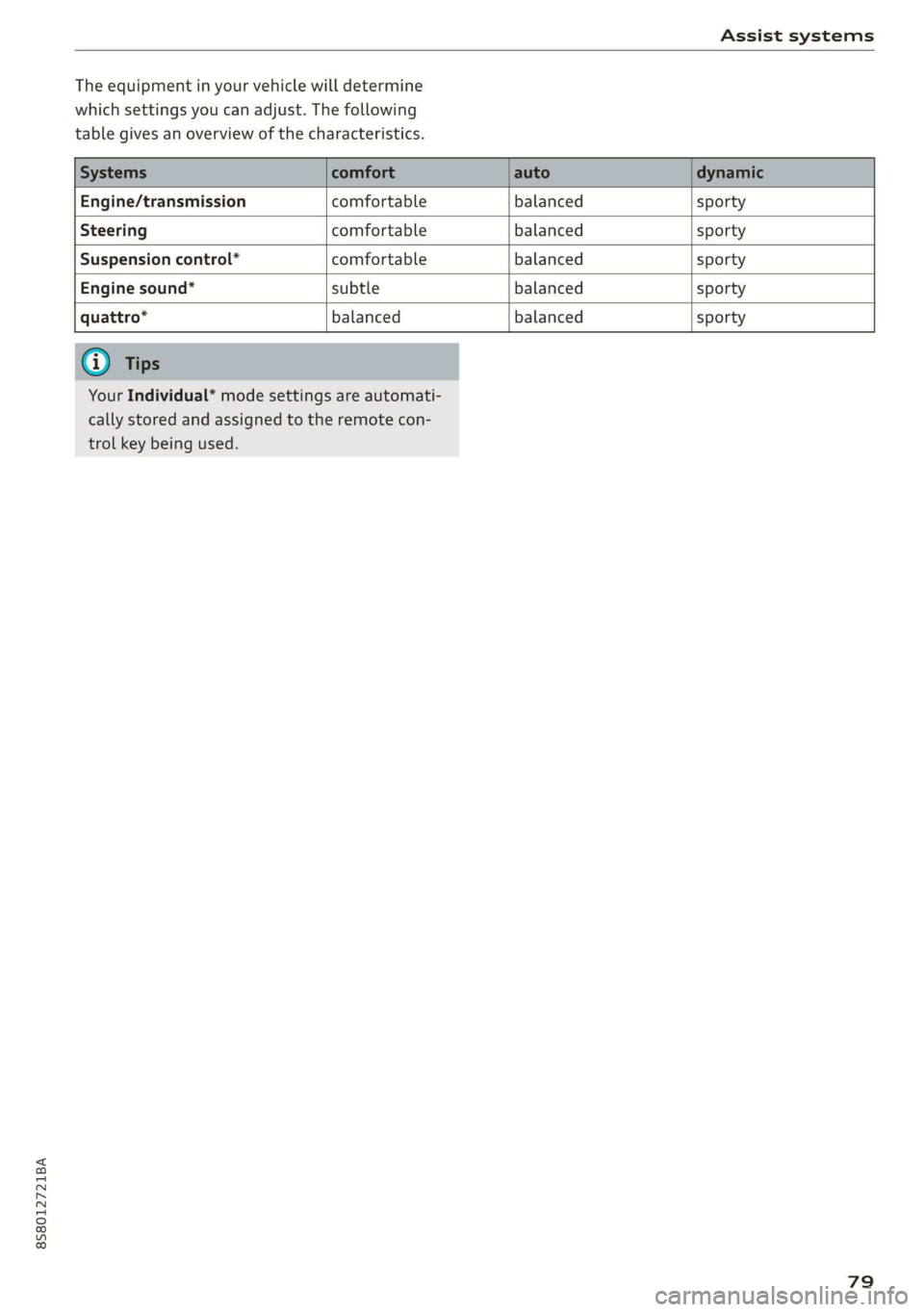
The equipment in your vehicle will determine
which settings you can adjust. The following
table gives an overview of the characteristics.
Engine/transmission comfortable balanced sporty
Steering comfortable balanced sporty
Suspension control” comfortable balanced sporty
Engine sound* subtle balanced sporty
quattro* balanced balanced sporty
Your Individual* mode settings are automati-
cally stored and assigned to the remote con-
trol key being used.
79
Page 86 of 304
Parking aid
® Tips
— The visual display in the left part of the dis-
play should help you detect the critical vehi-
cle areas.
— You can change the volume of the signals
and the display > page 84.
Perpendicular parking
Applies to: vehicles with rearview camera
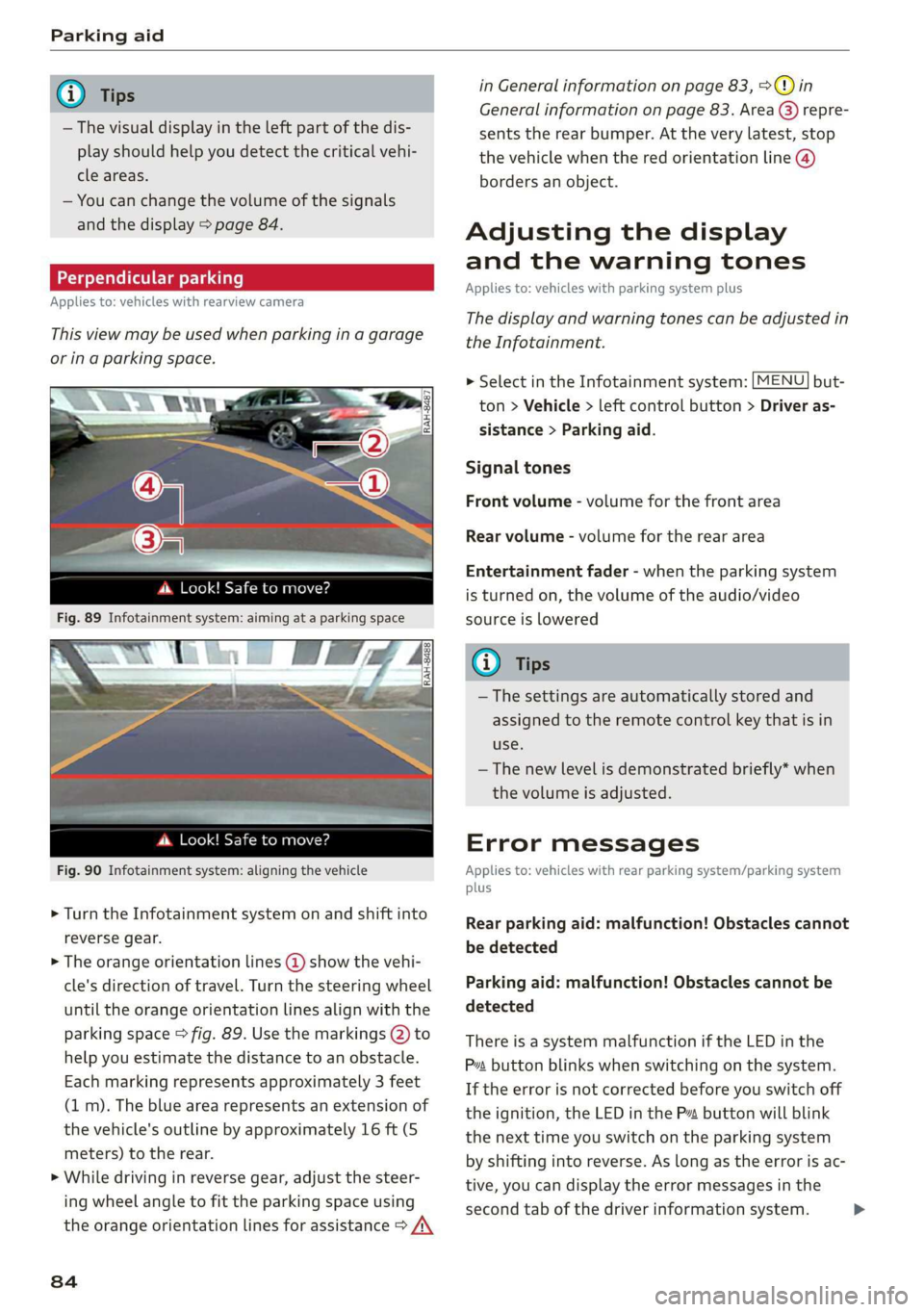
This view may be used when parking in a garage
or ina parking space.
4d. Look! Safe to move?
Fig. 90 Infotainment system: aligning the vehicle
> Turn the Infotainment system on and shift into
reverse gear.
> The orange orientation lines @ show the vehi-
cle's direction of travel. Turn the steering wheel
until the orange orientation lines align with the
parking space > fig. 89. Use the markings @) to
help you estimate the distance to an obstacle.
Each marking represents approximately 3 feet
(1 m). The blue area represents an extension of
the vehicle's outline by approximately 16 ft (5
meters) to the rear.
> While driving in reverse gear, adjust the steer-
ing wheel angle to fit the parking space using
the orange orientation lines for assistance > /\
84
in General information on page 83, >@) in
General information on page 83. Area @) repre-
sents the rear bumper. At the very latest, stop
the vehicle when the red orientation line @)
borders an object.
Adjusting the display
and the warning tones
Applies to: vehicles with parking system plus
The display and warning tones can be adjusted in
the Infotainment.
MENU > Select in the Infotainment system: but-
ton > Vehicle > left control button > Driver as-
sistance > Parking aid.
Signal tones
Front volume - volume for the front area
Rear volume - volume for the rear area
Entertainment fader - when the parking system
is turned on, the volume of the audio/video
source is lowered
G) Tips
— The settings are automatically stored and
assigned to the remote control key that is in
use.
— The new level is demonstrated briefly* when
the volume is adjusted.
Error messages
Applies to: vehicles with rear parking system/parking system
plus
Rear parking aid: malfunction! Obstacles cannot
be detected
Parking aid: malfunction! Obstacles cannot be
detected
There is a system malfunction if the LED in the
Pva button blinks when switching on the system.
If the error is not corrected before you switch off
the ignition, the LED in the P button will blink
the next time you switch on the parking system
by shifting into reverse. As long as the error is ac-
tive, you can display the error messages in the
second tab of the driver information system. >
Page 116 of 304
Telephone
@) Note
Applicable to Canada
In Canada, operation of a Zone Enhancer,
such as an Audi Phone Box, is subject to the
following requirements of the Innovation,
Science and Economic Development Canada
(ISED):
— This is a CONSUMER device.
— BEFORE USE, you MUST meet all require-
ments set out in CPC-2-1-05.
— You MUST operate this device with approved
antennas
and cables as specified by the
manufacturer. Antennas MUST NOT be in-
stalled within 20 cm of any person.
— You MUST cease operating this device im-
mediately if requested by ISED or a licensed
wireless service provider.
— WARNING: £911 location information may
not be provided or may be inaccurate for
calls served by using this device.
G) Tips
— The Audi phone box is not available in all
countries. For additional information, con-
tact an authorized Audi dealership.
— Placing the mobile device in a bag or protec-
tive sleeve inside the Audi phone box can in-
terfere with the connection to the external
antenna.
— Metal objects cannot be located in the Audi
phone box when using the exterior antenna*
and the Audi phone box charging function.
— The charging time and temperature will vary
depending on the mobile device being used.
— When the ignition is switched on, you can
charge your mobile device in the Audi phone
box.
—To reduce the risk of malfunctions, make
sure the mobile device is positioned correct-
ly in the Audi phone box.
— The maximum charging output is 5 watts.
— Strong transmission quality cannot be guar-
anteed if more than one mobile device is in
the box.
— Audi recommends using Audi Genuine Ac-
cessories. Audi has verified their reliability,
safety, and suitability.
114
— You can purchase a USB adapter from an au-
thorized Audi dealer or authorized Audi
Service Facility, or at specialty stores.
— If you place your remote control key togeth-
er with your mobile device in the Audi phone
box, it may cause your mobile device to stop
charging if wireless charging is active.
Using the telephone
Opening the telephone
Applies to: vehicles with telephone
Call list
(2 Sa
©— Directory
(4)o 4) Es yor Llane
(=) Tekt message (mobile device)
Sy
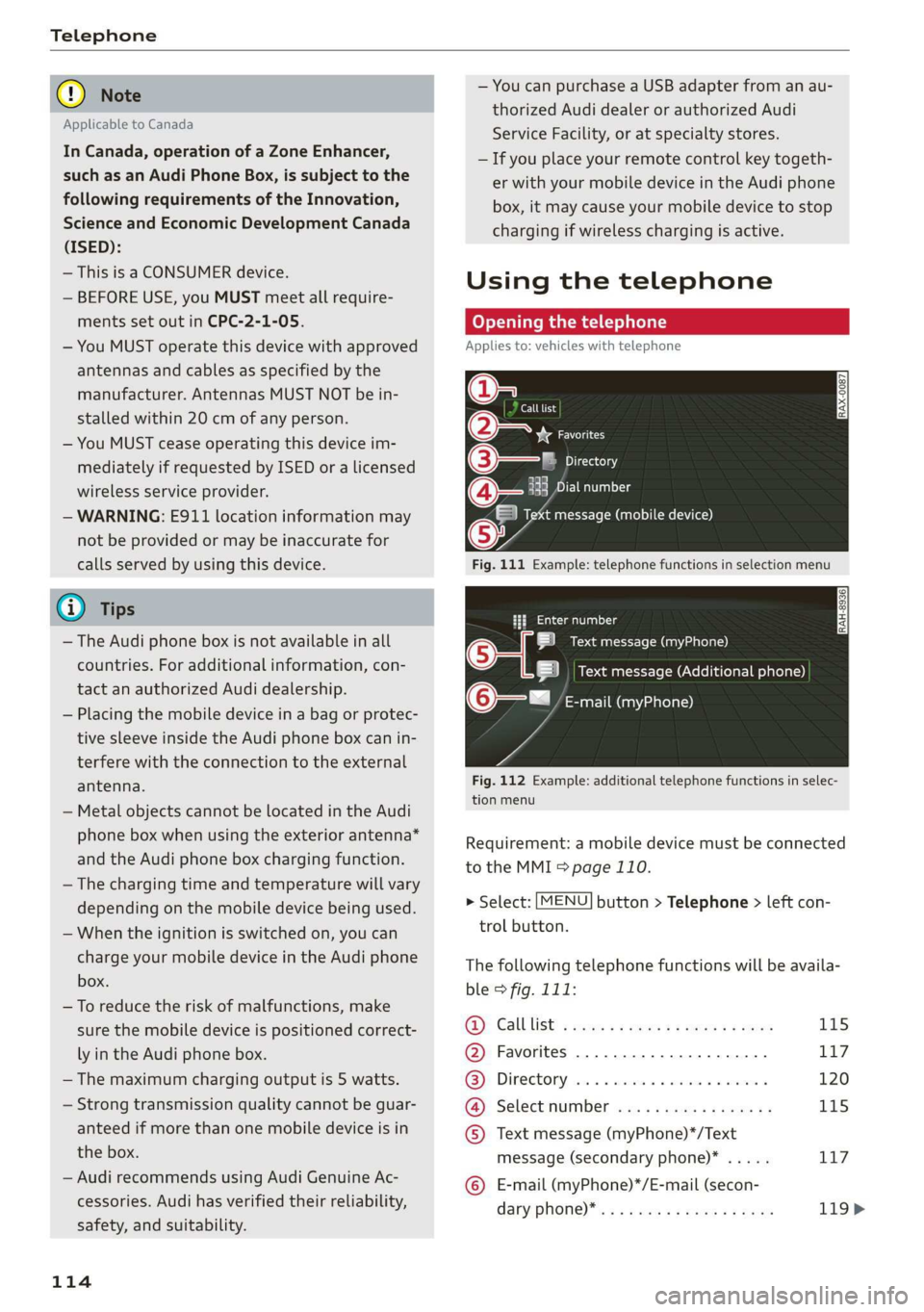
Fig. 111 Example: telephone functions in selection menu
Hy ee al dg
5 Text message (myPhone)
|i] Text message (Additional phone)
@—= E-mail (myPhone)
Fig. 112 Example: additional telephone functions in selec-
tion menu
Requirement: a mobile device must be connected
to the MMI > page 110.
> Select: [MENU] button > Telephone > left con-
trol button.
The following telephone functions will be availa-
ble > fig. 111:
@): Calllist: : soy. sc cease 4: ews yo ewe 115
@ Favorites ................20.0, 117
@® Directory ....... 0. cece eee eee 120
@ Select number ...............0. 115
© Text message (myPhone)*/Text
message (secondary phone)* ..... 117
© E-mail (myPhone)*/E-mail (secon-
dary: phone) * ws « een ss wawn se eee 119>
Page 126 of 304
Telephone
Troubleshooting
Applies to: vehicles with telephone
Problem Solution
Pairing the cell phone to the MMI
failed.
Check if the requirements for connecting a mobile device are met
=> page 110.
Or: check if you accidentally declined the connection setup PIN on
your cell phone. If necessary, repeat the pairing process
=> page 110.
After pairing, not all contacts or
no contacts have been loaded into
the MMI.
Avoid using special characters in names.
Avoid using contact groups on your mobile device.
Certain telephone functions are
grayed out or not available.
The telephone functions depend on the mobile device service pro-
vider and the mobile device you are using. You can obtain more in-
formation from your cell phone service provider, in your cell phone
user guide or in the database for mobile devices at www.audiusa.
com/bluetooth.
Some telephone functions may
be switched off or not available,
even though the mobile device is
supported.
On corporate phones, some Bluetooth settings may not be com-
patible or the cell phone Bluetooth function may be deactivated.
You can obtain more information from your system administrator.
Applies to: vehicles with Audi
phone box Wireless cell phone
charging is not working or is inter-
rupted.
Applies to: vehicles with Audi phone box Check if your mobile de-
vice is Qi-capable.
Check if your cell phone is centered on the phone symbol in the
Audi phone box page 113 and make sure there are no other ob-
jects in the Audi phone box.
Do not place your remote control key in the Audi phone box with
your cell phone.
124
Page 132 of 304
Audi connect
Wi-Fi settings
Applies to: vehicles with Wi-Fi hotspot
You can use the MMI as a Wi-Fi hotspot to con-
nect
up to eight Wi-Fi devices to the Internet.
Requirement: the ignition must be switched on.
> Select: [MENU] button > Telephone > right con-
trol button > Wi-Fi settings.
Depending on the country and the vehicle equip-
ment, the following functions may be available:
Wi-Fi
When this function is switched on, the MMI Wi-Fi
hotspot is active and visible to other devices (for
example, laptops and cell phones). You can con-
nect your Wi-Fi device to the MMI and use the In-
ternet connection if necessary. If you switch off
the Wi-Fi in the MMI, the Wi-Fi hotspot will be
deactivated. Therefore, any other devices access-
ing the Wi-Fi hotspot will no longer be connected
to the Wi-Fi.
Network key
The Wi-Fi connection between your vehicle and
your Wi-Fi device is encrypted. To establish a con-
nection, you must enter the following values
when setting up your wireless device. You can
change them if necessary.
— Access point (SSID): name of the Wi-Fi net-
work.
— Password: a random password was set at the
factory in the MMI. The password can be
changed. The encryption method requires a
password to be at least eight characters long.
Choose a secure password.
— Visible to others: your Wi-Fi network visibility
can be switched on or off.
Network search
A list of available Wi-Fi networks in your area is
displayed.
Connection to personal hotspot
The MMI Wi-Fi hotspot is activated. An MMI In-
ternet connection to a personal Wi-Fi hotspot
(such as a smartphone) can be established. For
additional information, see > page 126.
130
ZA WARNING
Always follow the information found in > A\
in General information on page 125.
(1) Note
Always follow the information found in © in
General information on page 125.
@ Tips
In vehicles without Audi connect Infotain-
ment, the use of the Wi-Fi hotspot is only
possible for the Wi-Fi audio player*. A data
connection to the Internet cannot be estab-
lished.
Data Privacy
Applies to: vehicles with Audi connect Infotainment
AUDI AG collects, uses, stores and shares your
personal information, such as contact data, vehi-
cle data, usage data, driving data and precise ge-
olocation, in order to provide you with the prod-
ucts and services you have purchased or request-
ed, and for a number of other purposes, for ex-
ample, to track quality issues, to performance
and safety, to meet our internal compliance or le-
gal requirements and to market to customers
and potential customers. For a more complete
list of the data we collect, how we use it and with
whom we share it, please visit your Audi nation-
al/sales region website at www.audi.com.
The collection, use and sharing may vary depend-
ing on your model and model year, your subscrip-
tion status, or the service offering. For example,
collection, use and sharing may vary between Au-
di connect services, if you have designated a key
user, or if you are driving a model equipped with
persistent data logging. Please review the com-
plete Privacy Statement to understand our data
handling practices with respect to a particular
service.
You can find additional information about our da-
ta privacy practices in your MMI.
> Select: [MENU] button > Audi connect > right
control button > About Audi connect.
Page 187 of 304
8S8012721BA
Safety belts
— Never remove a safety belt while the vehicle
is moving. Doing so will increase your risk of
being injured or killed.
— Never wear belts twisted.
— Never wear belts over rigid or breakable ob-
jects in or on your clothing, such as eye
glasses, pens, keys, etc., as these may cause
injury.
— Never allow safety belts to become dam-
aged by being caught in door or seat hard-
ware.
— Do not wear the shoulder part of the belt
under your arm or otherwise out of position.
— Several layers of heavy clothing may inter-
fere with correct positioning of belts and re-
duce the overall effectiveness of the system.
— Always keep belt buckles free of anything
that may prevent the buckle from latching
securely.
— Never use comfort clips or devices that cre-
ate slack in the shoulder belt. However, spe-
cial clips may be required for the proper use
of some child restraint systems.
— Torn or frayed safety belts can tear and
damaged belt hardware can break in an acci-
dent. Inspect belts regularly. If webbing,
bindings, buckles, or retractors are dam-
aged, have belts replaced by an authorized
Audi dealer or qualified workshop.
— Safety belts that have been worn and loaded
in an accident must be replaced with the
correct replacement safety belt by an au-
thorized Audi dealer. Replacement may be
necessary even if damage cannot be clearly
seen. Anchorages that were loaded must al-
so be inspected.
— Never remove, modify, disassemble, or try
to repair the safety belts yourself.
— Always keep the belts clean. Dirty belts may
not work properly and can impair the func-
tion of the inertia reel > table Interior
cleaning on page 264.
Safety belts
Fastening safety belts
Safety first - everybody buckle up!
|
B4H-0462
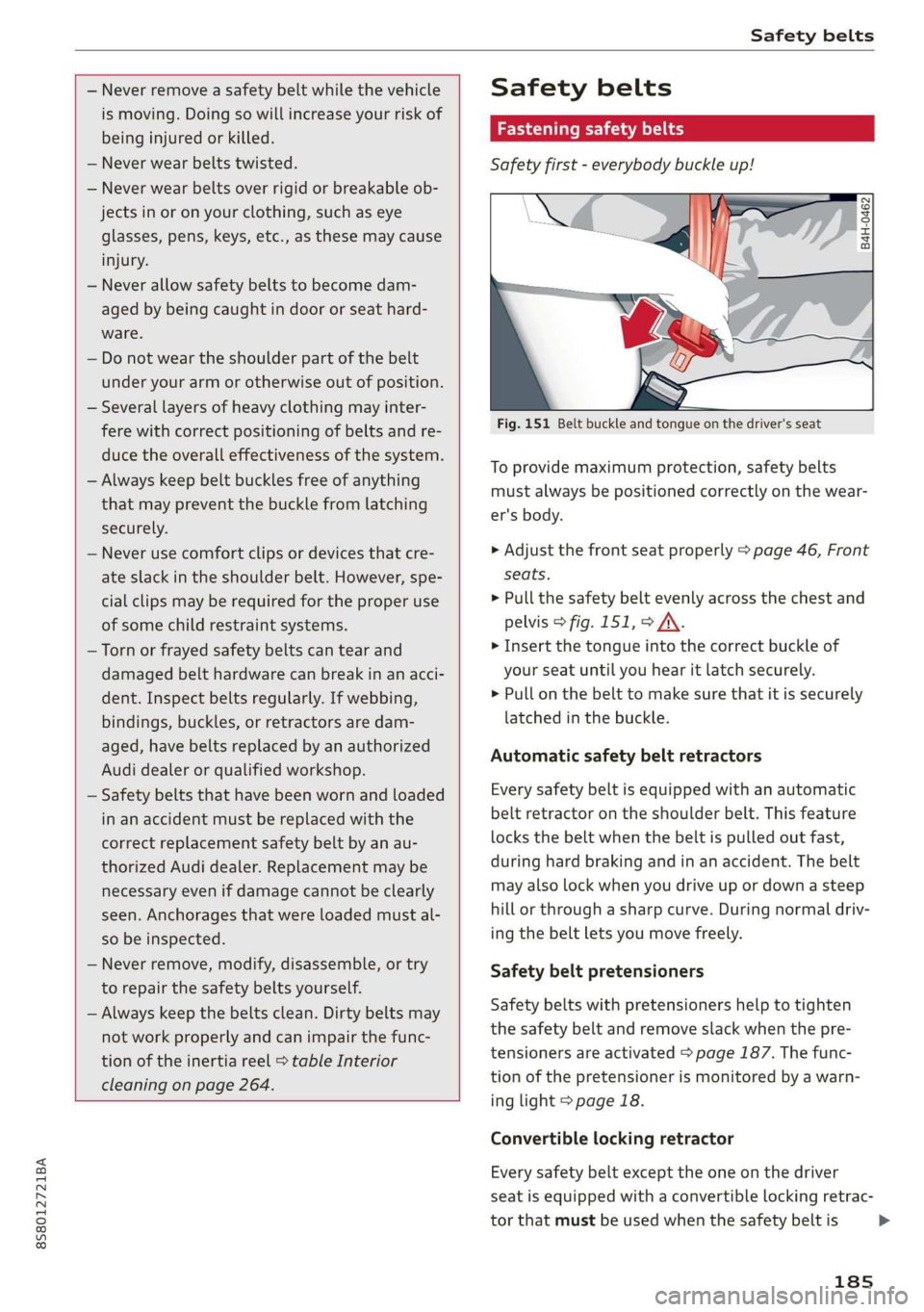
Fig. 151 Belt buckle and tongue on the driver's seat
To provide maximum protection, safety belts
must always be positioned correctly on the wear-
er's body.
> Adjust the front seat properly > page 46, Front
seats.
> Pull the safety belt evenly across the chest and
pelvis > fig. 151, > A\.
> Insert the tongue into the correct buckle of
your seat until you hear it latch securely.
> Pull on the belt to make sure that it is securely
latched in the buckle.
Automatic safety belt retractors
Every safety belt is equipped with an automatic
belt retractor on the shoulder belt. This feature
locks the belt when the belt is pulled out fast,
during hard braking and in an accident. The belt
may also lock when you drive up or down a steep
hill or through a sharp curve. During normal driv-
ing the belt lets you move freely.
Safety belt pretensioners
Safety belts with pretensioners help to tighten
the safety belt and remove slack when the pre-
tensioners are activated > page 187. The func-
tion of the pretensioner is monitored by a warn-
ing light > page 18.
Convertible locking retractor
Every safety belt except the one on the driver
seat is equipped with a convertible locking retrac-
tor that must be used when the safety belt is
185
>
Page 188 of 304
Safety belts
used to attach a child seat. Be sure to read the
important information about this feature
=> page 219.
ZA WARNING
Improperly positioned safety belts can cause
serious injury in an accident > page 186,
Safety belt position.
— Safety belts offer optimum protection only
when the seatback is upright and belts are
properly positioned on the body.
— Never attach the safety belt to the buckle
for another seat. Attaching the belt to the
wrong buckle will reduce safety belt effec-
tiveness and can cause serious personal in-
jury.
— A passenger who is not properly restrained
can be seriously injured by the safety belt it-
self when it moves from the stronger parts
of the body into critical areas like the abdo-
men.
— Always lock the convertible locking retractor
when you are securing a child seat in the ve-
hicle > page 220.
@) Tips
For information on safety belt pretensioners,
refer to > page 187.
Safety belt position
Correct belt position is the key to getting maxi-
mum protection from safety belts.
B4H-0751
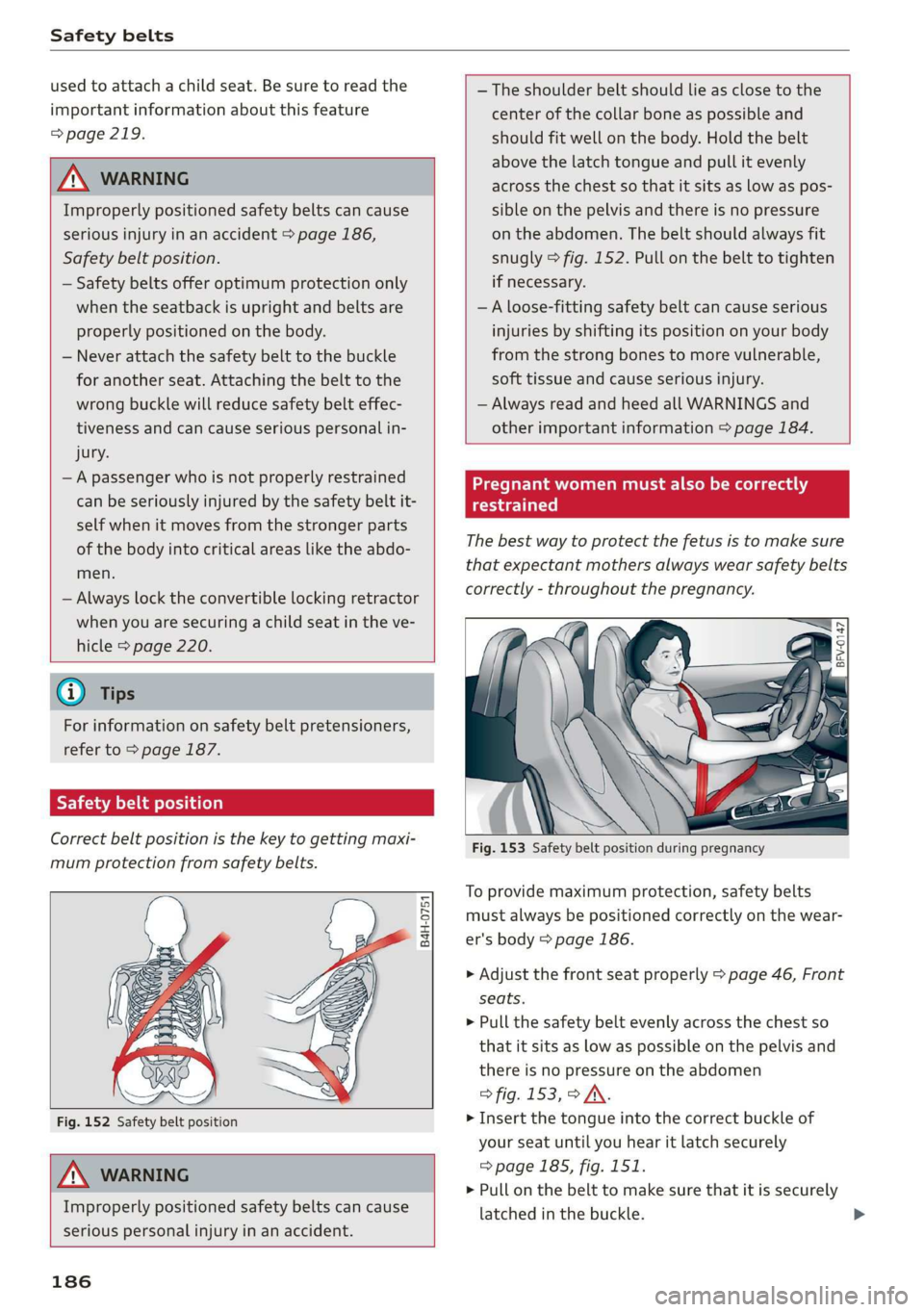
Fig. 152 Safety belt position
Z\ WARNING
Improperly positioned safety belts can cause
serious personal injury in an accident.
186
— The shoulder belt should lie as close to the
center of the collar bone as possible and
should fit well on the body. Hold the belt
above the latch tongue and pull it evenly
across the chest so that it sits as low as pos-
sible on the pelvis and there is no pressure
on the abdomen. The belt should always fit
snugly > fig. 152. Pull on the belt to tighten
if necessary.
—A loose-fitting safety belt can cause serious
injuries by shifting its position on your body
from the strong bones to more vulnerable,
soft tissue and cause serious injury.
— Always read and heed all WARNINGS and
other important information > page 184.
Pregnant women must also be correctly
restrained
The best way to protect the fetus is to make sure
that expectant mothers always wear safety belts
correctly - throughout the pregnancy.
A ee
Fig. 153 Safety belt position during pregnancy
To provide maximum protection, safety belts
must always be positioned correctly on the wear-
er's body > page 186.
> Adjust the front seat properly > page 46, Front
seats.
> Pull the safety belt evenly across the chest so
that it sits as low as possible on the pelvis and
there is no pressure on the abdomen
> fig. 153, > JV.
> Insert the tongue into the correct buckle of
your seat until you hear it latch securely
=> page 185, fig. 151.
> Pull on the belt to make sure that it is securely
latched in the buckle.
Page 285 of 304
8S8012721BA
Accessories and technical changes
or write to:
Administrator NHTSA
1200 New Jersey Ave.,
S.E. West Building
Washington, DC
20590.
You can also obtain other infor-
mation about motor vehicle safe-
ty from http://www.safercar.gov.
Applicable to Canada
If you live in Canada and you be-
lieve that your vehicle has a de-
fect that could cause a crash, in-
jury or death, you should immedi-
ately inform Transport Canada,
Defect Investigations and Recalls.
You should also notify Audi Cana-
da.
Canadian customers who wish to
report a safety-related defect to
Transport Canada, Defect Investi-
gations and Recalls, may either
call Transport Canada toll-free at:
Tel.: 1-800-333-0510 or
Tel.: 1-819-994-3328 (Ottawa re-
gion and from other countries)
TTY for hearing impaired:
1-888-675-6863
or contact Transport Canada by
mail at:
Motor Vehicle Safety Investiga-
tions Laboratory
80 Noel Street
Gatineau, QC
J8Z OA1
For additional road safety infor-
mation, please visit the Road
Safety website at:
English:
http://www.tc.gc.ca/eng/
motorvehiclesafety/menu.htm
French:
http://www.tc.gc.ca/fra/
securiteautomobile/menu.htm
Declaration of
compliance for telecom-
munications equipment
and electronic systems
The manufacturer is not liable for radio malfunc-
tions that are caused by unauthorized changes to
the equipment.
Equipment
The following equipment complies with FCC sec-
tion 15 and RSS-Gen:
— Audi side assist*
— Remote control key
— Garage door opener (HomeLink)*
— Tire pressure monitoring system*
FCC Part 15.19
This device complies with part 15 of the FCC
Rules. Operation is subject to the following two
conditions: (1) This device may not cause harmful
interference, and (2) this device must accept any
interference received, including interference that
may cause undesired operation.
283
>