audio AUDI TT ROADSTER 2019 Owners Manual
[x] Cancel search | Manufacturer: AUDI, Model Year: 2019, Model line: TT ROADSTER, Model: AUDI TT ROADSTER 2019Pages: 304, PDF Size: 80.77 MB
Page 5 of 304
8S58012721BA
Table of contents
Free text search...........-00e eee ee 100
Menus and Symbols...............005 101
Voice recognition system........ 104
Operating..................0..0.00. 103
Command overview information........ 105
Gommans « seis so wee se ew ve we ve 105
Telephone............... cee eee 110
Introduction ; « sees + ¢ sages ¢ ¢ ees ve gees 110
SOtUP ccicors © saorege wo amen a a pera © are © 110
Using the Audi phone box............. 113
Using the telephone.................. 114
FAVORS wins 6 6 avai © 6 sees & 6 aaron © aymes L117
Messages ...........0 000s eee eee eee 117
Listening to voicemail................ 120
Emergency call functions.............. 120
Directory... 2.0... eee 120
SGttinGSincn s « ews 2 e ces 2 eee ¢ aeEE y 122
Safety belt microphone............... 123
Troubleshooting...............000e0e 124
AUR COMMECE wise. 5 5 scsi oc ete se new Ea5
General information..............4.. 125
Audi connect Infotainment............ 125
Audi connect Infotainment services..... 127
SOCEIMGSccc so amwsns =n inwenn © omens o sueneas @ 129
Data Privacy. .... 0.0... cee eee ee eee 130
Troubleshooting sass ¢ ¢ cee « + eeny & + eee 131
Navigation.....................44. T32
Opening navigation...............05. 132
Entering a destination................ 133
Home address.............00.00 2005 138
PAVOTIteS ocx « x nous o 5 nese y 5 eee 2 eee 138
Directory contactsiv. ¢ sss ¢ sees 9 6 save 138
Additional settings ...............00. 138
Ma Bisse » = sues ¢ 2 satus x sae: 5 2 es x 140
Satellitemap's « 6 cess 2s wows 2 eawn oo wrens 143
Accessing traffic information.......... 143
Troubleshooting sass ss eee ss ees ss ees 146
FRG a cexcces 5 crsncnere anenams @ © cnwees «anim 147
Opening the radio................... 147
Radio functions. =. cces s seve: ween s 148
Radio menu... .... eee eee eee 149
Presets .... 0.0... cece cece eee eee 149
Additional settings................0. 150
Troubleshooting. ..............0e0 eee 151
PRS wise as woven ae asa a & einem © & ssn 152
Introduction...................0000. 152
NGS = siuen « # sane 5} aun 3 7 cere Fs ee 152
Mediadrivesis « scsi 2 2 ssc ss ween se aioe 153
Bluetooth audio player............... 155
Wi-Fi audio player 156
Online media and Internet radio........ 157
Multimedia connections.............. 158
Playing media..............2..2.002. 160
Additional settings...............005 163
Supported media and file formats...... 166
Troubleshooting............0.-.0e eee 167
Audi smartphone interface...... 169
Setup... eee cece eee eee 169
OPGKAtIG’s « x meen + wows us eee 5 Roem 170
Troubleshooting sie xs sisson v samen + 0 cous 170
System settings.................. TFL
Setting the date andtime............. 171
MMT SCECIA GSS. « rsiens + ccareiee © ¥ suisiene ©» ones L71
Connection manager................. 172
SYStEM/UPAALG aca « + wowa s & mesa x e EEE s 174
Sound settings..............-..0005- 175
Volume settings ...........-.0000eeee 175
Restarting the MMI (reset)............ 176
Software license information.......... 176 L77 177 177
Correct passenger seating positions..... 178
Driver and passenger side footwell...... 180
Pedalarea........ 2. cece eee 180
Safety: Belts « seccis ss sews s ween as aes 182
General MOtES:. « versa + «senate © 0 avr 6 6 wears 182
Why safety belts?................000. 183
Safety belts: eacu ss ween ss wees vo ween a 185
Safety belt tensioner................. 187
Airbag system..............00006- 189
Important information............... 189
Front airbags............-...0--000. 193
Monitoring the Advanced Airbag System. 200
Page 9 of 304
8S8012721BA
Quick access
OOOO
©
OOOOGOOOO
©
O
®OOO®
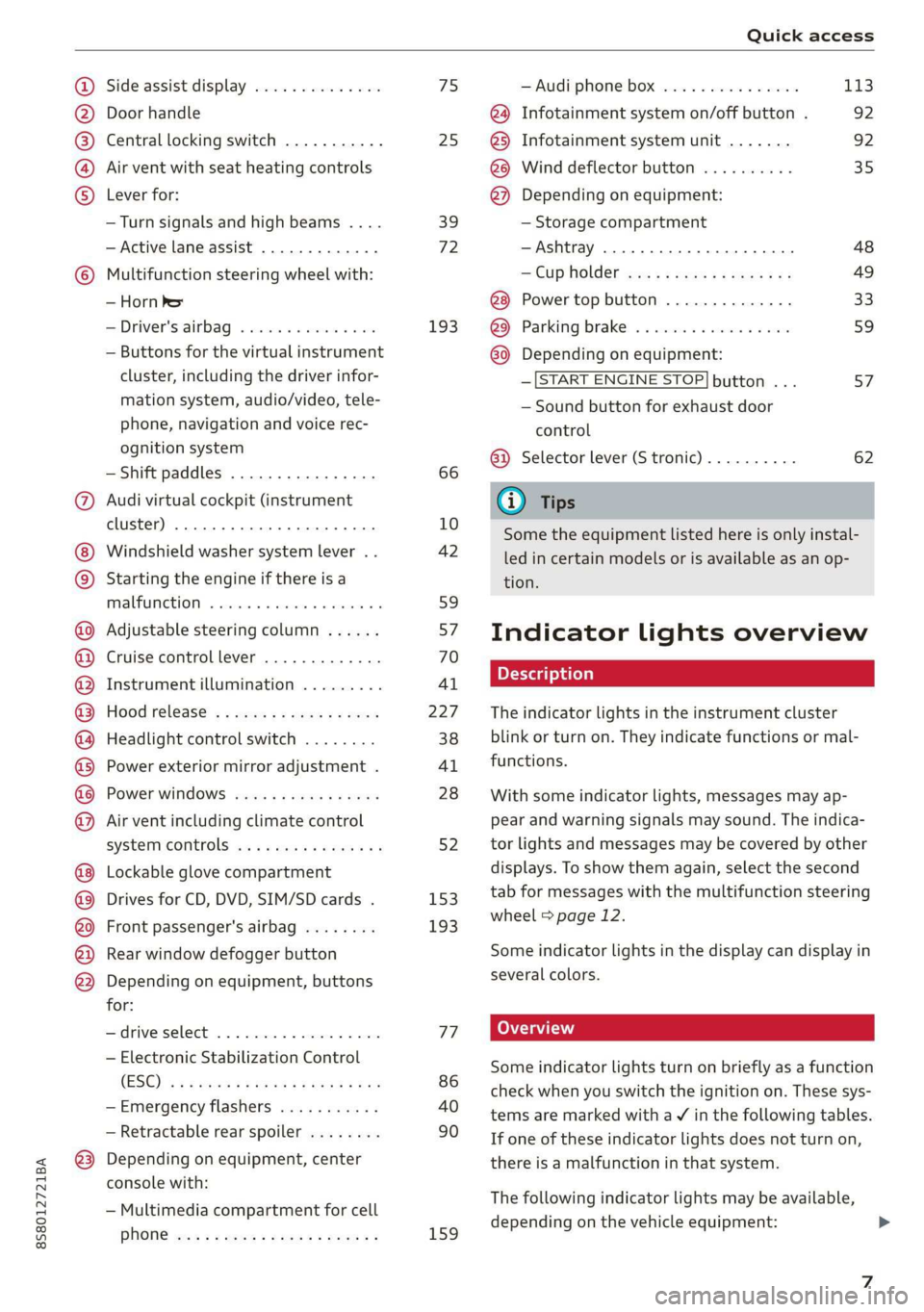
Side assist display ..............
Door handle
Central locking switch ...........
Air vent with seat heating controls
Lever for:
—Turn signals and high beams ....
— Active lane assist .............
Multifunction steering wheel with:
— Horn Pe
— Driver's airbag ...............
— Buttons for the virtual instrument
cluster, including the driver infor-
mation system, audio/video, tele-
phone, navigation and voice rec-
ognition system
—Shift paddles ................
Audi virtual cockpit (instrument
cluster) 22... 0... eee eee eee
Windshield washer system lever . .
Starting the engine if there is a
malfunction ..............00 00
Adjustable steering column ......
Cruise control lever .............
Instrument illumination .........
Hood release! » « wae ¢ s eae vs setee
Headlight control switch ........
Power exterior mirror adjustment .
Power windows ............005-
Air vent including climate control
system controls ................
Lockable glove compartment
Drives for CD, DVD, SIM/SD cards .
Front passenger's airbag ........
Rear window defogger button
Depending on equipment, buttons
for:
sdriverselect oc. seins 6 + cgies oo neve
— Electronic Stabilization Control
(ESC) «5 « cows ss owen 4 ¢ ee a8 i vee
—Emergency flashers ...........
— Retractable rear spoiler ........
Depending on equipment, center
console with:
— Multimedia compartment for cell
PNONG aces cs ees s Ree se BER es
75 25
39
72
193
66
10
42
59 57 70
Al
227
38
Al
28
52
153,
193
TT
86
40
90
159
= Audi phone box sessie ss owe oo cee 113
@) Infotainment system on/off button . 92
@5) Infotainment system unit ....... 92
@8 Wind deflector button .......... 35
@) Depending on equipment:
— Storage compartment
—Ashtray 0.2... 00. eee eee eee 48
—CUPHGIDES wis 5 2 wens s x eee 5 2: 49
Power top button .............. 33
@ Parking’ brake: « + cs ss wows so sors 59
G0 Depending on equipment:
—[START ENGINE STOP] button ... 57
— Sound button for exhaust door
control
@) Selector lever (S tronic).......... 62
@) Tips
Some the equipment listed here is only instal-
led in certain models or is available as an op-
tion.
Indicator lights overview
The indicator lights in the instrument cluster
blink or turn on. They indicate functions or mal-
functions.
With some indicator lights, messages may ap-
pear and warning signals may sound. The indica-
tor lights and messages may be covered by other
displays. To show them again, select the second
tab for messages with the multifunction steering
wheel © page 12.
Some indicator lights in the display can display in
several colors.
Some indicator lights turn on briefly as a function
check when you switch the ignition on. These sys-
tems are marked with a V in the following tables.
If one of these indicator lights does not turn on,
there is a malfunction in that system.
The following indicator lights may be available,
depending on the vehicle equipment:
Page 16 of 304
Instrument cluster
> Select on the multifunction steering wheel: left
control button > Layout > Sport layout or Clas-
sic layout.
Adjusting the additional display
Depending on the vehicle equipment, the addi-
tional displays that can be selected may vary.
> Open the first vehicle functions tab using the
[<>] button on the multifunction steering
wheel.
> Select on the multifunction steering wheel:
right control button > Additional display.
> Select the desired additional display.
@) Tips
Applies to: vehicles with sport view
Always set the desired default view before
driving, because the display functions will not
be available for several seconds.
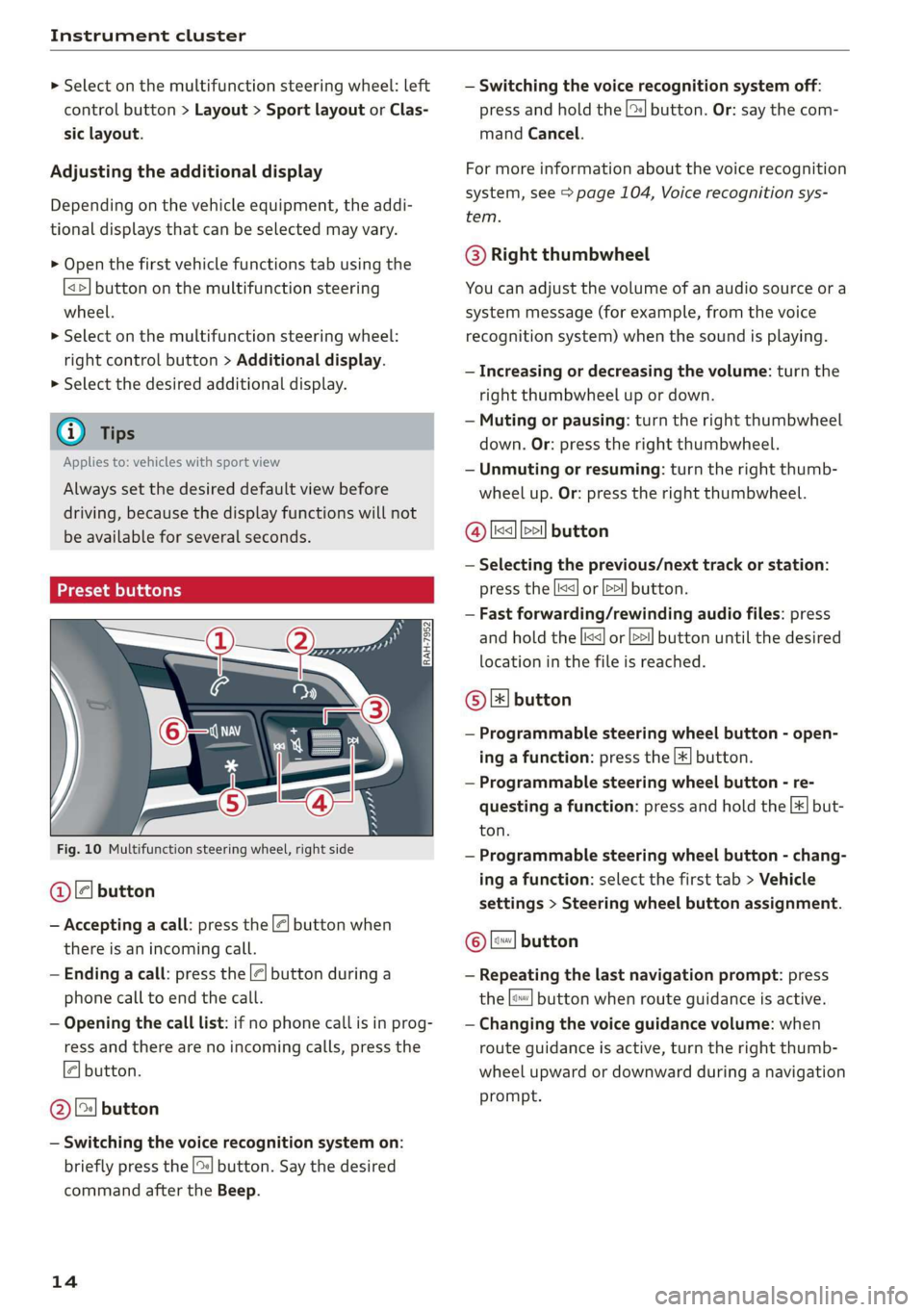
Preset buttons
Fig. 10 Multifunction steering wheel, right side
@[e] button
— Accepting a call: press the |@] button when
there is an incoming call.
— Ending a call: press the |] button during a
phone call to end the call.
— Opening the call list: if no phone call is in prog-
ress and there are no incoming calls, press the
[4] button.
@[2J button
— Switching the voice recognition system on:
briefly press the [%] button. Say the desired
command after the Beep.
14
— Switching the voice recognition system off:
press and hold the |] button. Or: say the com-
mand Cancel.
For more information about the voice recognition
system, see > page 104, Voice recognition sys-
tem.
@ Right thumbwheel
You can adjust the volume of an audio source or a
system message (for example, from the voice
recognition system) when the sound is playing.
— Increasing or decreasing the volume: turn the
right thumbwheel up or down.
— Muting or pausing: turn the right thumbwheel
down. Or: press the right thumbwheel.
—Unmuting or resuming: turn the right thumb-
wheel up. Or: press the right thumbwheel.
@ Ik] 21] button
— Selecting the previous/next track or station:
press the [xs] or [>>! button.
— Fast forwarding/rewinding audio files: press
and hold the button until the desired
location in the file is reached.
kid] or [D>
© [x] button
— Programmable steering wheel button - open-
ing a function: press the [*] button.
— Programmable steering wheel button - re-
questing a function: press and hold the [+] but-
ton.
— Programmable steering wheel button - chang-
ing a function: select the first tab > Vehicle
settings > Steering wheel button assignment.
© |] button
— Repeating the last navigation prompt: press
the [s} button when route guidance is active.
— Changing the voice guidance volume: when
route guidance is active, turn the right thumb-
wheel upward or downward during a navigation
prompt.
Page 29 of 304
8S8012721BA
Opening and closing
> Insert the key into the slot inside and turn it all
the way to the right (right door) or to the left
(left door*).
Once the front passenger's door is closed, it is no
longer possible to open it from the outside. The
door can be opened from the inside by pulling
the door handle.
PV ae Te
If the anti-theft alarm system detects a vehicle
break-in, audio and visual warning signals are
triggered. The anti-theft alarm system is switch-
ed on or off when locking or unlocking your vehi-
cle. If the alarm is triggered, it will shut off auto-
matically after a certain amount of time.
Switching the alarm off manually
> To switch the alarm off, press the G button on
the remote control key or switch the ignition
on.
Break-in security feature
The alarm will sound if there is a break-in at the
doors, hood, and/or luggage compartment lid.
Luggage compartment
lid
Opening and closing the luggage
compartment lid
Opening the luggage compartment lid
> To unlock the luggage compartment lid, press
the < button on the remote control key. Or
> Lift the luggage compartment lid.
Closing the luggage compartment lid
>» Use the inside grip to pull the luggage com-
partment lid down and allow it to close using a
gentle push > A\.
Z\ WARNING
— After closing the luggage compartment lid,
make sure that it is latched. Otherwise the
luggage compartment lid could open sud-
denly when driving, which increases the risk
of an accident.
— Never drive with the luggage compartment
lid ajar or open, because poisonous gases
can enter the vehicle interior and create the
risk of asphyxiation.
— Never leave your vehicle unattended when
the luggage compartment lid is open. A
child could crawl into the luggage compart-
ment. If the luggage compartment lid was
then closed, the child would be trapped in
the vehicle and unable to escape. To reduce
the risk of injury, do not allow children to
play in or around the vehicle. Always keep
the luggage compartment lid and the doors
closed when the vehicle is not in use.
— Always make sure no one is in the luggage
compartment lid's range of motion when it
is closing, especially near the hinges. Fin-
gers or hands could be pinched.
@) Tips
— When the vehicle is locked, the luggage
compartment lid can be unlocked separately
by pressing the << button on the remote
control key. The luggage compartment lid
locks automatically when it is closed again.
— Incase of an emergency or a faulty handle,
the luggage compartment lid can be opened
manually from the inside > page 28.
27
Page 83 of 304
8S58012721BA
Parking aid
Rear parking system
Applies to: vehicles with rear parking system
The rear parking system is an audible parking
aid.
Description
There is a sensor in the rear bumper cover. If
these detect an obstacle, audible signals warn
you.
Make sure the sensors are not covered by stick-
ers, deposits or any other obstructions as it may
impair the sensor function. For information on
cleaning, see > page 262.
The range at which the sensors begin to measure
is approximately:
Side
Center
3 ft (0.90 m)
5.2 ft (1.60 m)
Rear
The closer you get to the obstacle, the shorter
the interval between the audible signals. A con-
tinuous tone sounds when the obstacle is less
than approximately 1 foot (0.30 meters) away.
Do not continue backing up > A\ in Introduction
on page 80, >@ in Introduction on page 80!
If the distance to an obstacle remains constant,
the volume of the distance warning gradually
drops after about four seconds (this does not ap-
ply in the continuous tone range).
Activating
The rear parking assist activates automatically
when the reverse gear is engaged. A brief tone
will sound.
Parking system plus
Applies to: vehicles with parking system plus
Parking system plus provides audio and visual
signals when parking.
BFV-0262
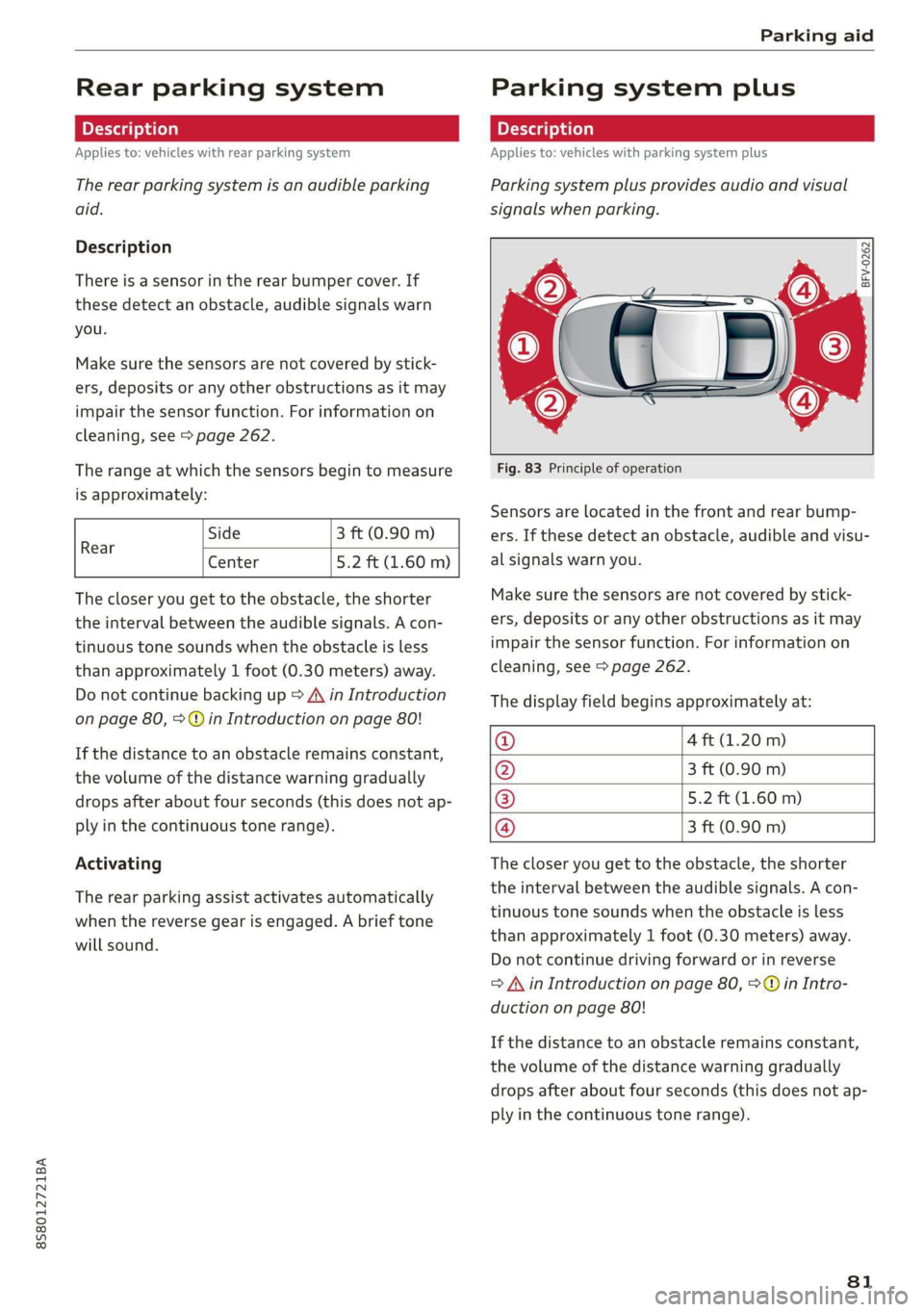
Fig. 83 Principle of operation
Sensors are located in the front and rear bump-
ers. If these detect an obstacle, audible and visu-
al signals warn you.
Make sure the sensors are not covered by stick-
ers, deposits or any other obstructions as it may
impair the sensor function. For information on
cleaning, see > page 262.
The display field begins approximately at:
@ 4 ft (1.20 m)
@ 3 ft (0.90 m)
® 5.2 ft (1.60 m)
@ 3 ft (0.90 m)
The closer you get to the obstacle, the shorter
the interval between the audible signals. A con-
tinuous tone sounds when the obstacle is less
than approximately 1 foot (0.30 meters) away.
Do not continue driving forward or in reverse
= A in Introduction on page 80, >© in Intro-
duction on page 80!
If the distance to an obstacle remains constant,
the volume of the distance warning gradually
drops after about four seconds (this does not ap-
ply in the continuous tone range).
81
Page 86 of 304
Parking aid
® Tips
— The visual display in the left part of the dis-
play should help you detect the critical vehi-
cle areas.
— You can change the volume of the signals
and the display > page 84.
Perpendicular parking
Applies to: vehicles with rearview camera
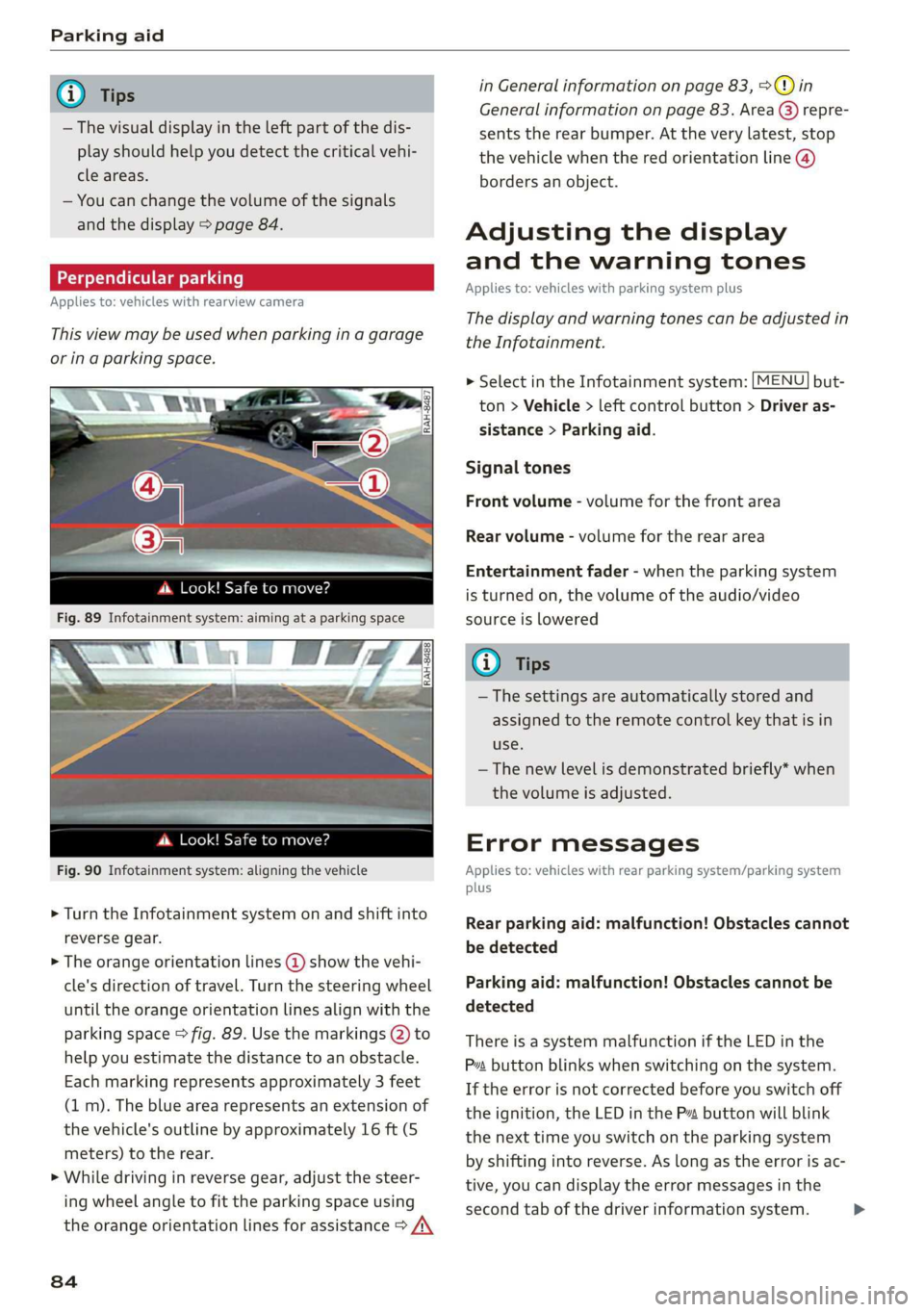
This view may be used when parking in a garage
or ina parking space.
4d. Look! Safe to move?
Fig. 90 Infotainment system: aligning the vehicle
> Turn the Infotainment system on and shift into
reverse gear.
> The orange orientation lines @ show the vehi-
cle's direction of travel. Turn the steering wheel
until the orange orientation lines align with the
parking space > fig. 89. Use the markings @) to
help you estimate the distance to an obstacle.
Each marking represents approximately 3 feet
(1 m). The blue area represents an extension of
the vehicle's outline by approximately 16 ft (5
meters) to the rear.
> While driving in reverse gear, adjust the steer-
ing wheel angle to fit the parking space using
the orange orientation lines for assistance > /\
84
in General information on page 83, >@) in
General information on page 83. Area @) repre-
sents the rear bumper. At the very latest, stop
the vehicle when the red orientation line @)
borders an object.
Adjusting the display
and the warning tones
Applies to: vehicles with parking system plus
The display and warning tones can be adjusted in
the Infotainment.
MENU > Select in the Infotainment system: but-
ton > Vehicle > left control button > Driver as-
sistance > Parking aid.
Signal tones
Front volume - volume for the front area
Rear volume - volume for the rear area
Entertainment fader - when the parking system
is turned on, the volume of the audio/video
source is lowered
G) Tips
— The settings are automatically stored and
assigned to the remote control key that is in
use.
— The new level is demonstrated briefly* when
the volume is adjusted.
Error messages
Applies to: vehicles with rear parking system/parking system
plus
Rear parking aid: malfunction! Obstacles cannot
be detected
Parking aid: malfunction! Obstacles cannot be
detected
There is a system malfunction if the LED in the
Pva button blinks when switching on the system.
If the error is not corrected before you switch off
the ignition, the LED in the P button will blink
the next time you switch on the parking system
by shifting into reverse. As long as the error is ac-
tive, you can display the error messages in the
second tab of the driver information system. >
Page 94 of 304
Multi Media Interface
Multi Media Interface
Traffic safety
information
Audi recommends performing certain Infotain-
ment system functions, such as entering a desti-
nation, only when the vehicle is stationary. Al-
ways be prepared to stop operating the Infotain-
ment system in the interest of your safety and
the safety of other road users.
Z\ WARNING
Only use the Infotainment system when road,
traffic, weather, and visibility conditions per-
mit and always in a way that allows you to
maintain complete control over your vehicle.
@ Tips
Certain functions are not available while driv-
ing.
Introduction
The Multi Media Interface, or MMI for short,
combines various systems for communication,
navigation* and entertainment in your Audi. You
can operate the MMI using the MMI control pan-
el, the multifunction steering wheel or the voice
recognition system*.
@
‘eo
OTe I @
Se2
Fig. 93 MMI control panel
[RAH-8837|
:
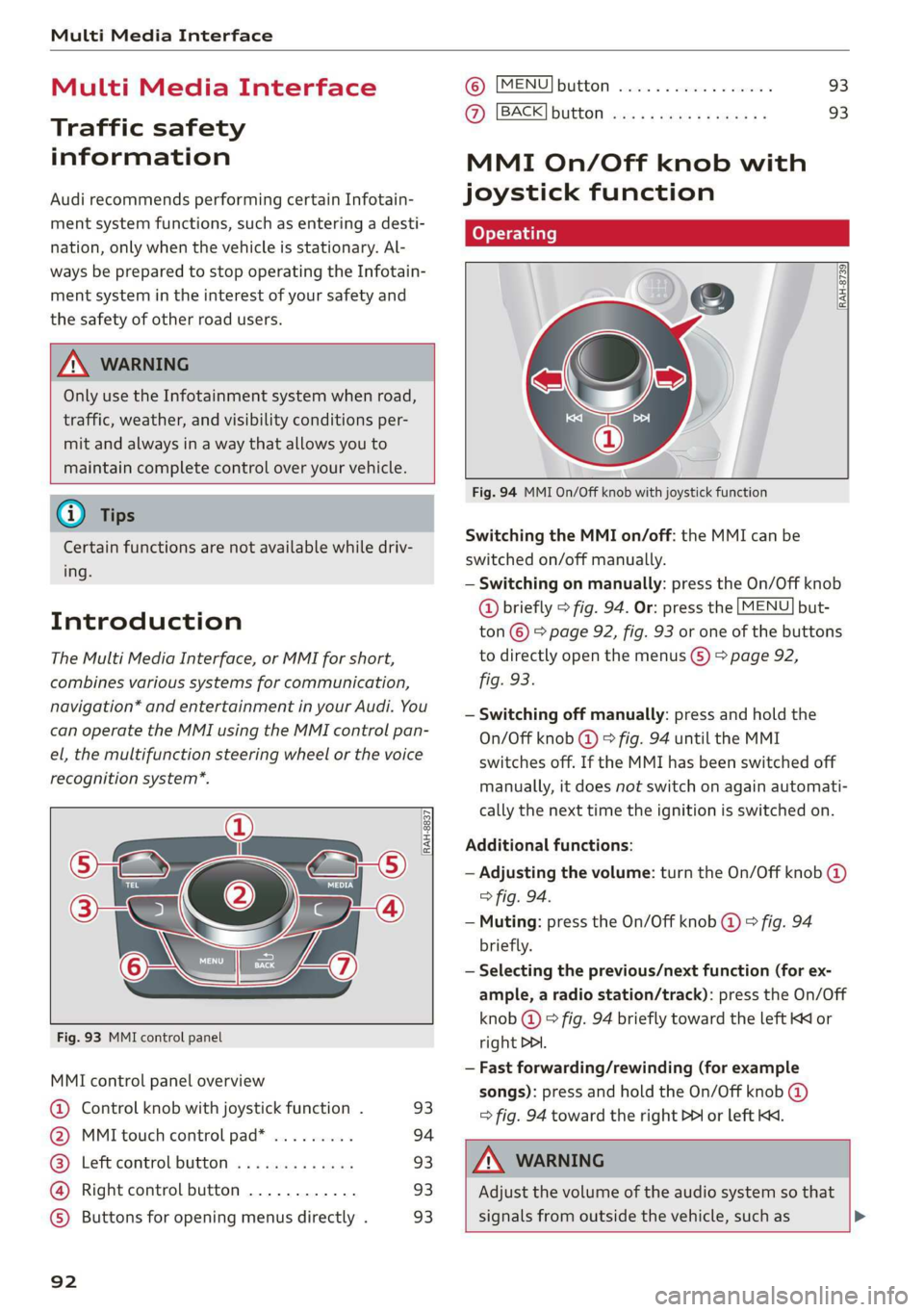
MMI control panel overview
@ Control knob with joystick function . 93
@ MMI touch control pad* ......... 94
@® Left control button ............. 93
@ Right control button ............ 93
©) Buttons for opening menus directly . 93
92
(GB) [MENU] button sess ss cosencs vs soteane » 93
@ [BACK] button ............0.08. 93
MMI On/Off knob with
joystick function
Operating
[RAH-8739
Fig. 94 MMI On/Off knob with joystick function
Switching the MMI on/off: the MMI can be
switched on/off manually.
— Switching on manually: press the On/Off knob
@ briefly > fig. 94. Or: press the [MENU] but-
ton © & page 92, fig. 93 or one of the buttons
to directly open the menus () > page 92,
fig. 93.
— Switching off manually: press and hold the
On/Off knob @ © fig. 94 until the MMI
switches off. If the MMI has been switched off
manually, it does not switch on again automati-
cally the next time the ignition is switched on.
Additional functions:
— Adjusting the volume: turn the On/Off knob @)
> fig. 94.
— Muting: press the On/Off knob @ © fig. 94
briefly.
— Selecting the previous/next function (for ex-
ample, a radio station/track): press the On/Off
knob @ ° fig. 94 briefly toward the left KK or
right DDI.
— Fast forwarding/rewinding (for example
songs): press and hold the On/Off knob @)
=> fig. 94 toward the right PPI or left Kd.
Z\ WARNING
Adjust the volume of the audio system so that
signals from outside the vehicle, such as >
Page 103 of 304
8S8012721BA
Multi Media Interface
Menus and Symbols
eis
Additional station information
Preferred picture view
Treble
Radio settings
v Slide show
RAH-9139)
ee ard
Telephone
ba oad sa
Ralf Schmidt
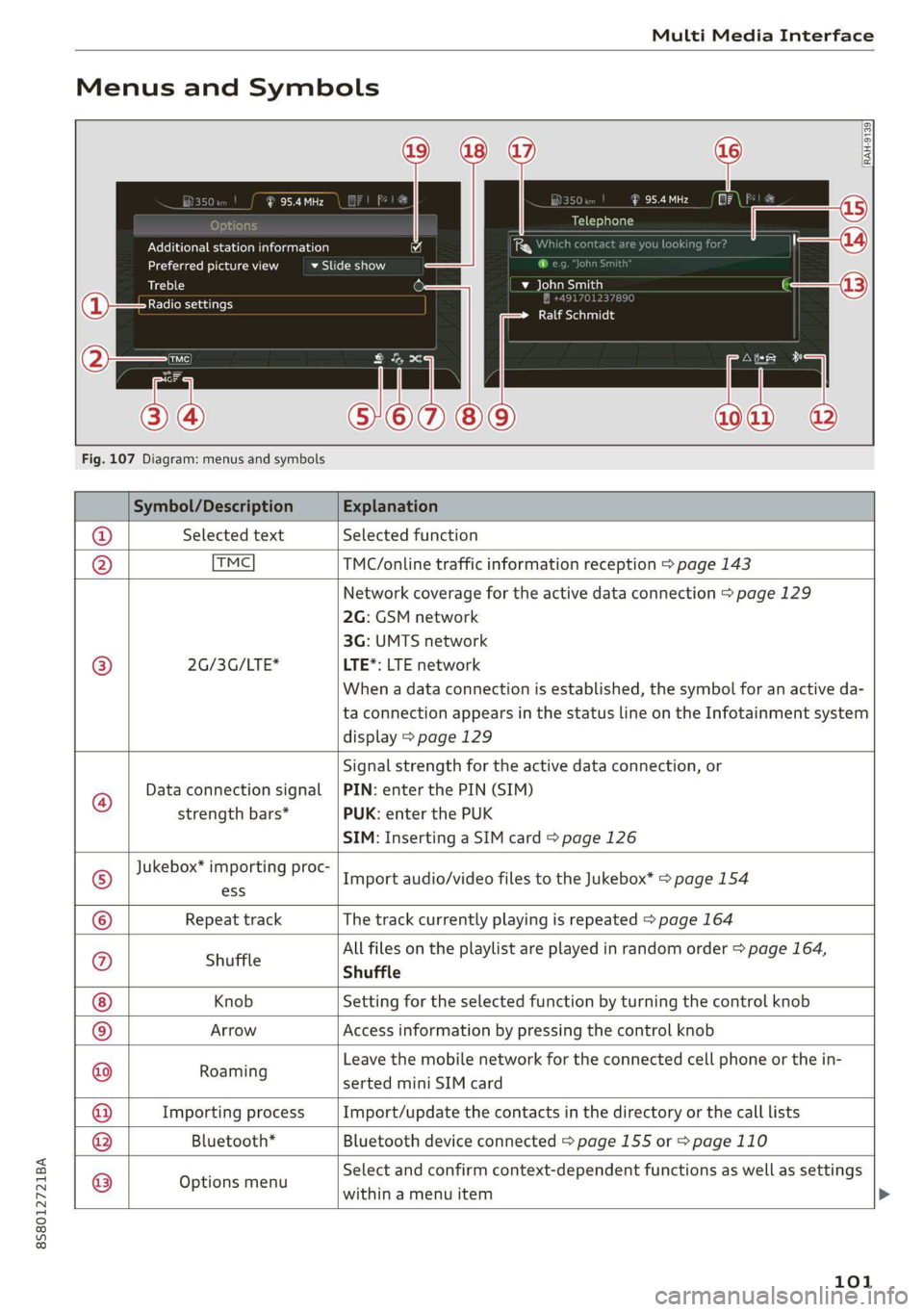
Fig. 107 Diagram: menus and symbols
Symbol/Description Explanation
@ Selected text Selected function
@ TMC TMC/online traffic information reception > page 143
Network coverage for the active data connection > page 129
2G: GSM network
3G: UMTS network
® 2G/3G/LTE* LTE*: LTE network
When a data connection is established, the symbol for an active da-
ta connection appears in the status line on the Infotainment system
display > page 129
®
Data connection signal
strength bars*
Signal strength for the active data connection, or
PIN: enter the PIN (SIM)
PUK: enter the PUK
SIM: Inserting a SIM card > page 126
Jukebox* importing proc-
® a Import audio/video files to the Jukebox” > page 154
© Repeat track The track currently playing is repeated > page 164
All files on the playlist are played in random order > page 164,
@ shuffle Shuffle
Knob Setting for the selected function by turning the control knob
© Arrow Access information by pressing the control knob
Rearing Leave the mobile network for the connected cell phone or the in-
serted mini SIM card
Importing process Import/update the contacts in the directory or the call lists
Bluetooth* Bluetooth device connected > page 155 or > page 110
®
|O|©
Options menu
Select and confirm context-dependent functions as well as settings
within a menu item
101
Page 106 of 304
Voice recognition system
Voice recognition system
Operating
Applies to: vehicles with voice recognition system
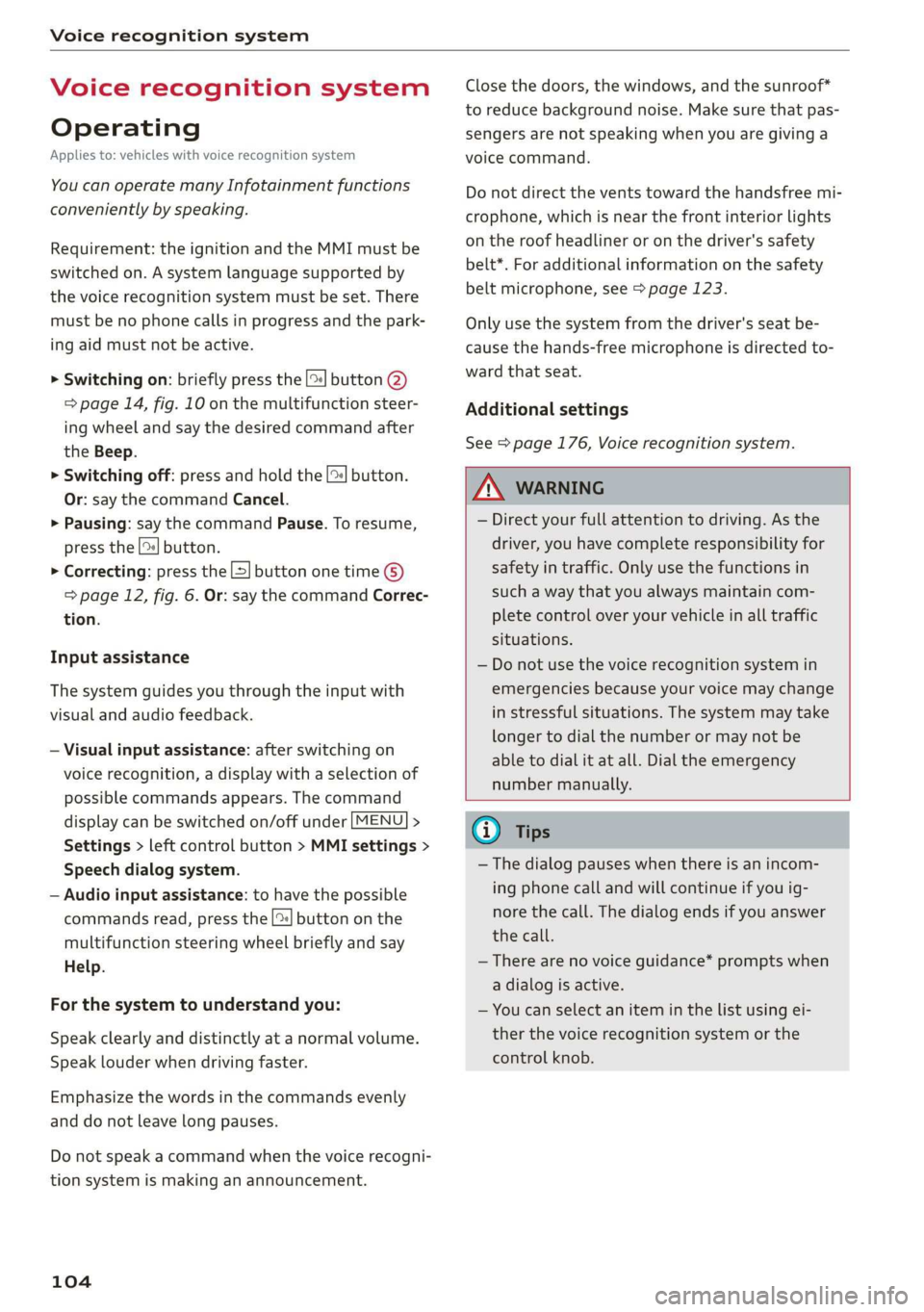
You can operate many Infotainment functions
conveniently by speaking.
Requirement: the ignition and the MMI must be
switched on. A system language supported by
the voice recognition system must be set. There
must be no phone calls in progress and the park-
ing aid must not be active.
> Switching on: briefly press the [2] button @)
=> page 14, fig. 10 on the multifunction steer-
ing wheel and say the desired command after
the Beep.
> Switching off: press and hold the |™] button.
Or: say the command Cancel.
> Pausing: say the command Pause. To resume,
press the |] button.
> Correcting: press the [>] button one time ©
=> page 12, fig. 6. Or: say the command Correc-
tion.
Input assistance
The system guides you through the input with
visual and audio feedback.
— Visual input assistance: after switching on
voice recognition, a display with a selection of
possible commands appears. The command
display can be switched on/off under [MENU] >
Settings > left control button > MMI settings >
Speech dialog system.
— Audio input assistance: to have the possible
commands read, press the [2] button on the
multifunction steering wheel briefly and say
Help.
For the system to understand you:
Speak clearly and distinctly at a normal volume.
Speak louder when driving faster.
Emphasize the words in the commands evenly
and do not leave long pauses.
Do not speak a command when the voice recogni-
tion system is making an announcement.
104
Close the doors, the windows, and the sunroof*
to reduce background noise. Make sure that pas-
sengers are not speaking when you are giving a
voice command.
Do not direct the vents toward the handsfree mi-
crophone, which is near the front interior lights
on the roof headliner or on the driver's safety
belt*. For additional information on the safety
belt microphone, see > page 123.
Only
use the system from the driver's seat be-
cause the hands-free microphone is directed to-
ward that seat.
Additional settings
See > page 176, Voice recognition system.
ZA\ WARNING
— Direct your full attention to driving. As the
driver, you have complete responsibility for
safety in traffic. Only use the functions in
such a way that you always maintain com-
plete control over your vehicle in all traffic
situations.
— Do not use the voice recognition system in
emergencies because your voice may change
in stressful situations. The system may take
longer to dial the number or may not be
able to dial it at all. Dial the emergency
number manually.
G) Tips
—The dialog pauses when there is an incom-
ing phone call and will continue if you ig-
nore the call. The dialog ends if you answer
the call.
— There are no voice guidance* prompts when
a dialog is active.
— You can select an item in the list using ei-
ther the voice recognition system or the
control knob.
Page 111 of 304
8S8012721BA
Voice recognition system
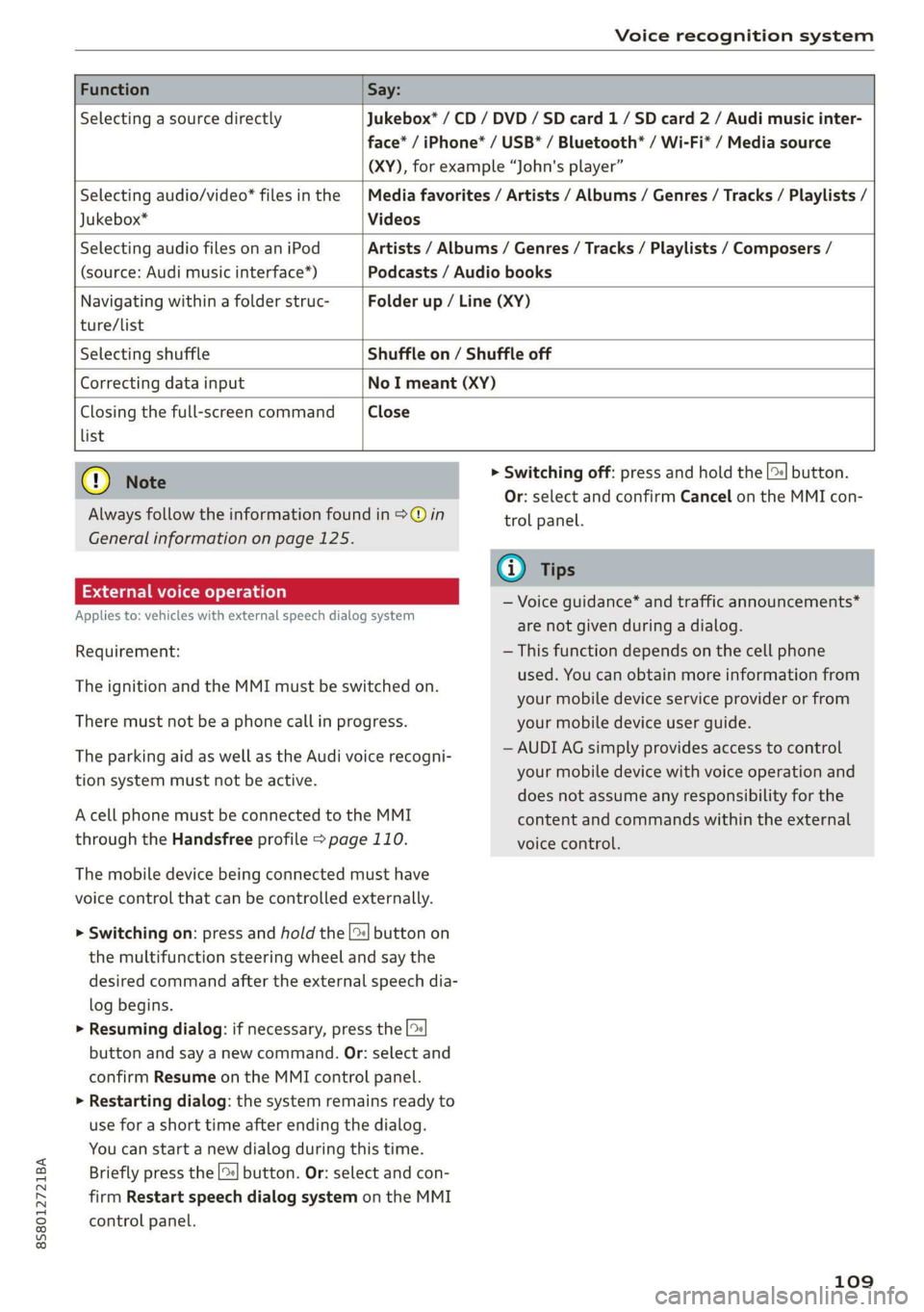
Function Say:
Selecting a source directly Jukebox* / CD / DVD / SD card 1/ SD card 2 / Audi music inter-
face* / iPhone* / USB* / Bluetooth* / Wi-Fi* / Media source
(XY), for example “John's player”
Selecting audio/video* files in the
Jukebox*
Media favorites / Artists / Albums / Genres / Tracks / Playlists /
Videos
Selecting audio files on an iPod
(source: Audi music interface*)
Artists / Albums / Genres / Tracks / Playlists / Composers /
Podcasts / Audio books
Navigating within a folder struc- Folder up / Line (XY)
ture/list
Selecting shuffle Shuffle on / Shuffle off
Correcting data input No I meant (XY)
Closing the full-screen command Close
list
@) Note
Always follow the information found in >@ in
General information on page 125.
External voice operation
Applies to: vehicles with external speech dialog system
Requirement:
The ignition and the MMI must be switched on.
There must not be a phone call in progress.
The parking aid as well as the Audi voice recogni-
tion system must not be active.
A cell phone must be connected to the MMI
through the Handsfree profile > page 110.
The mobile device being connected must have
voice control that can be controlled externally.
> Switching on: press and hold the [>| button on
the multifunction steering wheel and say the
desired command after the external speech dia-
log begins.
> Resuming dialog: if necessary, press the |%
button and say a new command. Or: select and
confirm Resume on the MMI control panel.
> Restarting dialog: the system remains ready to
use for a short time after ending the dialog.
You can start a new dialog during this time.
Briefly press the [2] button. Or: select and con-
firm
Restart speech dialog system on the MMI
control panel.
> Switching off: press and hold the |%] button.
Or: select and confirm Cancel on the MMI con-
trol panel.
G) Tips
— Voice guidance* and traffic announcements*
are not given during a dialog.
— This function depends on the cell phone
used. You can obtain more information from
your mobile device service provider or from
your mobile device user guide.
— AUDI AG simply provides access to control
your mobile device with voice operation and
does not assume any responsibility for the
content and commands within the external
voice control.
109