display BMW 3 SERIES 2011 Owner's Guide
[x] Cancel search | Manufacturer: BMW, Model Year: 2011, Model line: 3 SERIES, Model: BMW 3 SERIES 2011Pages: 325, PDF Size: 12.94 MB
Page 79 of 325
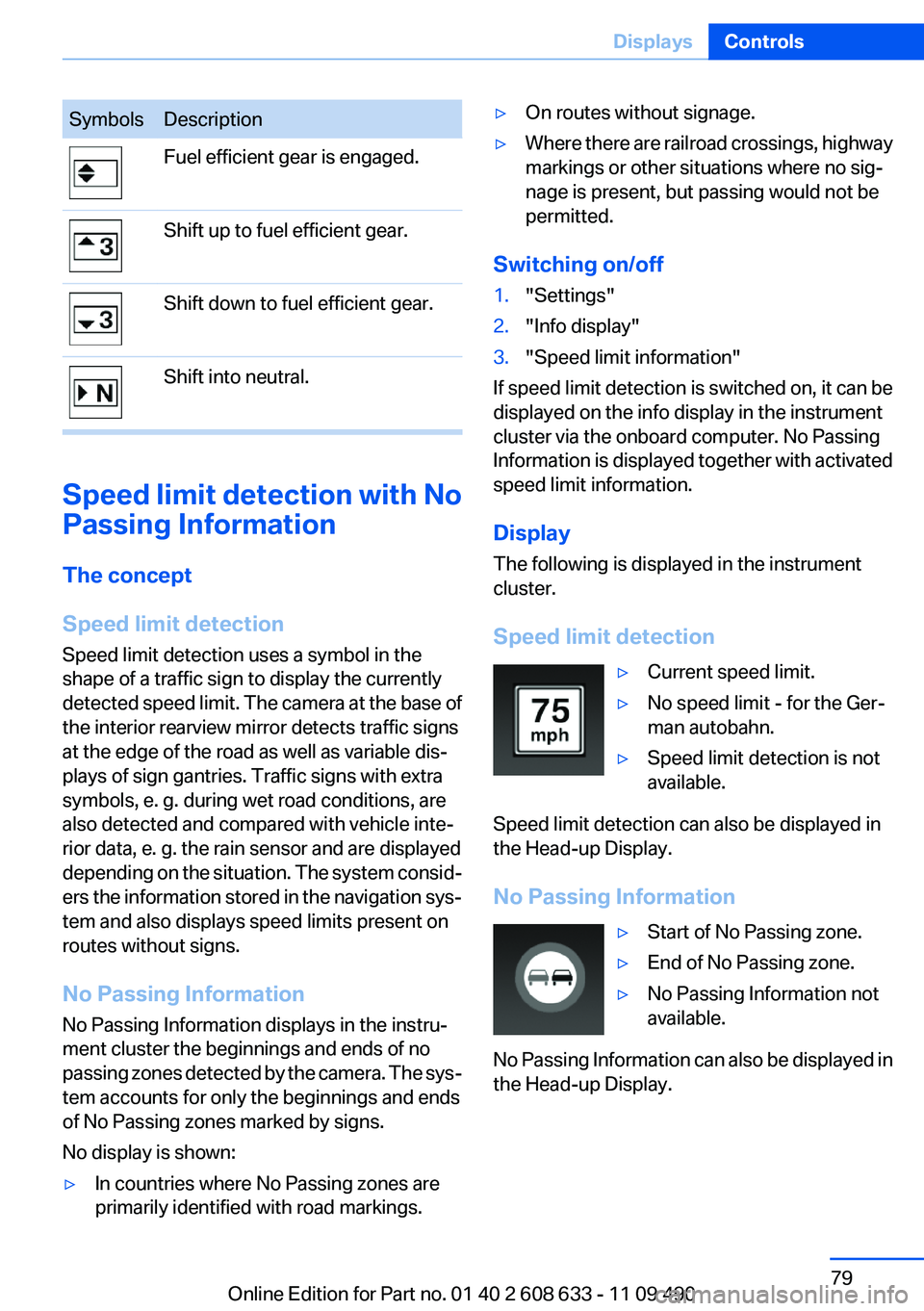
Symbols Description
Fuel efficient gear is engaged.
Shift up to fuel efficient gear.
Shift down to fuel efficient gear.
Shift into neutral.
Speed limit detection with No
Passing Information
The concept
Speed limit detection
Speed limit detection uses a symbol in the
shape of a traffic sign to display the currently
detected speed limit. The camera at the base of
the interior rearview mirror detects traffic signs
at the edge of the road as well as variable dis‐
plays of sign gantries. Traffic signs with extra
symbols, e. g. during wet road conditions, are
also detected and compared with vehicle inte‐
rior data, e. g. the rain sensor and are displayed
depending on the situation. The system consid‐
ers the information stored in the navigation sys‐
tem and also displays speed limits present on
routes without signs.
No Passing Information
No Passing Information displays in the instru‐
ment cluster the beginnings and ends of no
passing zones detected by the camera. The sys‐
tem accounts for only the beginnings and ends
of No Passing zones marked by signs.
No display is shown:
▷In countries where No Passing zones are
primarily identified with road markings.
▷On routes without signage.
▷Where there are railroad crossings, highway
markings or other situations where no sig‐
nage is present, but passing would not be
permitted.
Switching on/off
1."Settings"
2."Info display"
3."Speed limit information"
If speed limit detection is switched on, it can be
displayed on the info display in the instrument
cluster via the onboard computer. No Passing
Information is displayed together with activated
speed limit information.
Display
The following is displayed in the instrument
cluster.
Speed limit detection
▷Current speed limit.
▷No speed limit - for the Ger‐
man autobahn.
▷Speed limit detection is not
available.
Speed limit detection can also be displayed in
the Head-up Display.
No Passing Information
▷Start of No Passing zone.
▷End of No Passing zone.
▷No Passing Information not
available.
No Passing Information can also be displayed in
the Head-up Display.
Seite 79
DisplaysControls
79Online Edition for Part no. 01 40 2 608 633 - 11 09 490
Page 80 of 325
System limits
Personal judgment
The system cannot serve as a substitute
for the driver's personal judgment of the traffic
situation.
The system assists the driver and does not re‐
place the human eye.◀
The system may not be fully functional and may
provide incorrect information in the following
situations:
▷In heavy fog, rain or snowfall.
▷When signs are concealed by objects.
▷When driving very close to the vehicle in
front of you.
▷When driving toward bright lights.
▷When the windshield behind the interior
rearview mirror is fogged over, dirty or cov‐
ered by a sticker, etc.
▷In the event of incorrect detection by the
camera.
▷If the speed limits stored in the navigation
system are incorrect.
▷In areas not covered by the navigation sys‐
tem.
▷When roads differ from the navigation, e.g.
due to changes in the road network.
▷When passing buses or trucks with a speed
sticker.
▷If the traffic signs are non-conforming.
▷During the calibration process of the camera
immediately after vehicle shipment.
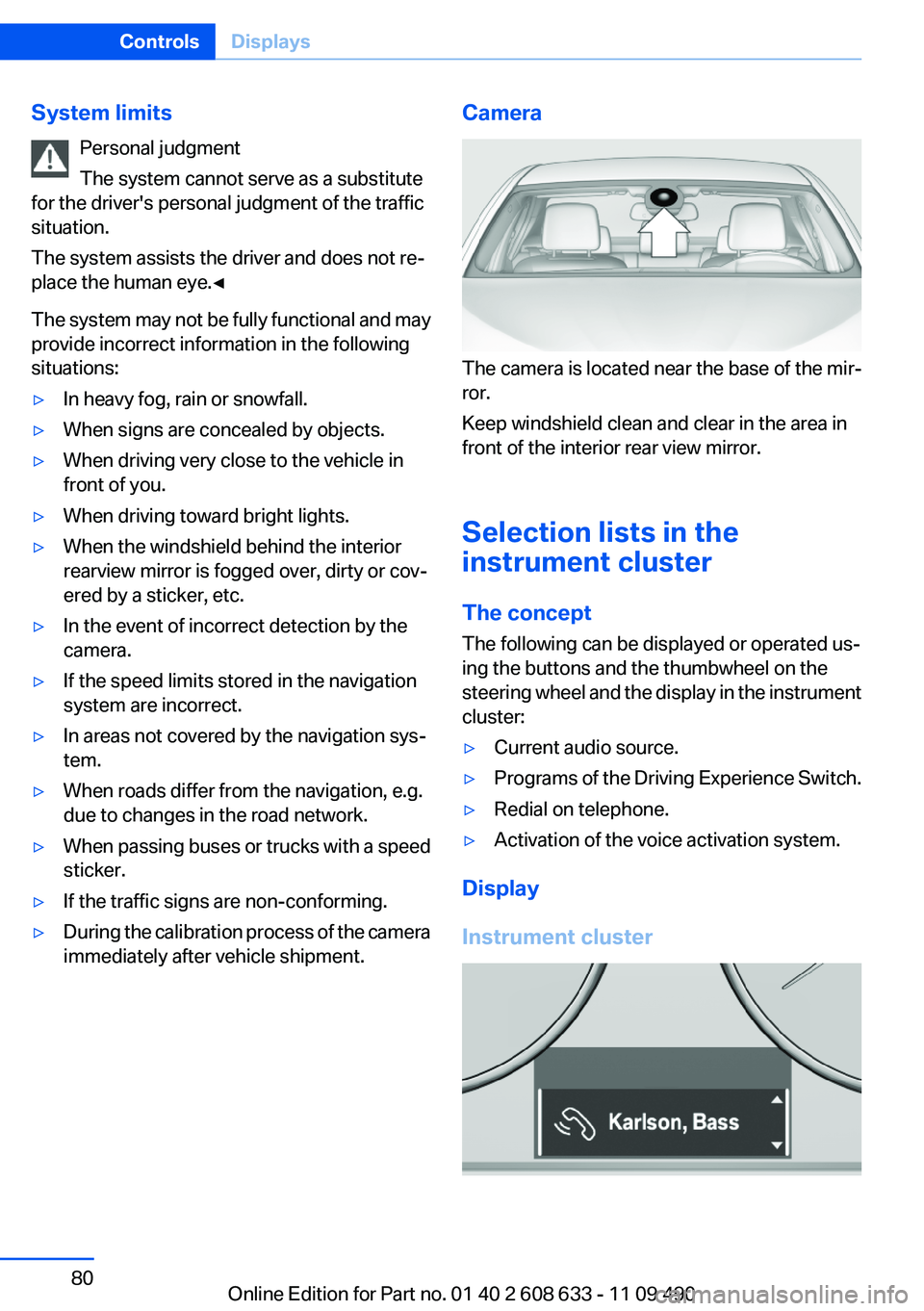
Camera
The camera is located near the base of the mir‐
ror.
Keep windshield clean and clear in the area in
front of the interior rear view mirror.
Selection lists in the
instrument cluster
The concept
The following can be displayed or operated us‐
ing the buttons and the thumbwheel on the
steering wheel and the display in the instrument
cluster:
▷Current audio source.
▷Programs of the Driving Experience Switch.
▷Redial on telephone.
▷Activation of the voice activation system.
Display
Instrument cluster
Seite 80
ControlsDisplays
80Online Edition for Part no. 01 40 2 608 633 - 11 09 490
Page 81 of 325
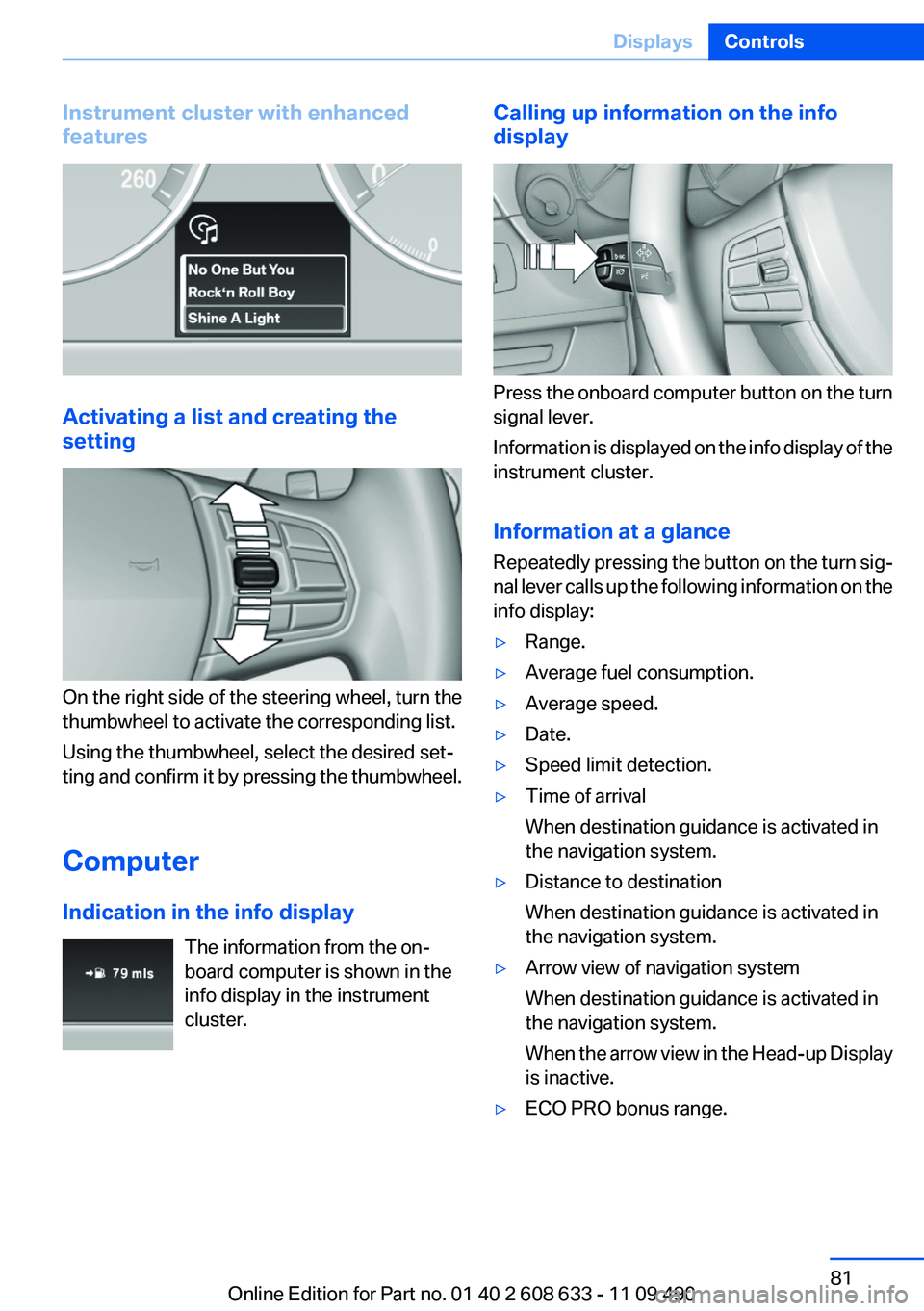
Instrument cluster with enhanced
features
Activating a list and creating the
setting
On the right side of the steering wheel, turn the
thumbwheel to activate the corresponding list.
Using the thumbwheel, select the desired set‐
ting and confirm it by pressing the thumbwheel.
Computer
Indication in the info display
The information from the on‐
board computer is shown in the
info display in the instrument
cluster.
Calling up information on the info
display
Press the onboard computer button on the turn
signal lever.
Information is displayed on the info display of the
instrument cluster.
Information at a glance
Repeatedly pressing the button on the turn sig‐
nal lever calls up the following information on the
info display:
▷Range.
▷Average fuel consumption.
▷Average speed.
▷Date.
▷Speed limit detection.
▷Time of arrival
When destination guidance is activated in
the navigation system.
▷Distance to destination
When destination guidance is activated in
the navigation system.
▷Arrow view of navigation system
When destination guidance is activated in
the navigation system.
When the arrow view in the Head-up Display
is inactive.
▷ECO PRO bonus range.
Seite 81
DisplaysControls
81Online Edition for Part no. 01 40 2 608 633 - 11 09 490
Page 82 of 325
Adjusting the info display
You can select what information from the on‐
board computer is to be displayed on the info
display of the instrument cluster.
1."Settings"
2."Info display"
3.Select the desired displays.
Information in detail
Range
Displays the estimated cruising range available
with the remaining fuel.
It is calculated based on your driving style over
the last 20 miles/30 km.
If there is only enough fuel left for less than
45 miles/80 km, the color of the display changes.
Average fuel consumption
This is calculated for the period during which the
engine is running.
The average fuel consumption is calculated on
the basis of various distances.
Average speed
Periods in which the vehicle is parked with the
engine manually stopped do not enter into the
calculation of the average speed.
Resetting average values
Press and hold the computer button on the turn
signal lever.
Distance to destination
The distance remaining to the destination is dis‐
played if a destination is entered in the naviga‐
tion system before the trip is started.
The distance to the destination is adopted au‐
tomatically.
Time of arrival
The estimated time of arrival is
displayed if a destination is en‐
tered in the navigation system
before the trip is started.
The time must be correctly set.
Speed limit detection
Description of the speed limit detection, refer to
page 79, function
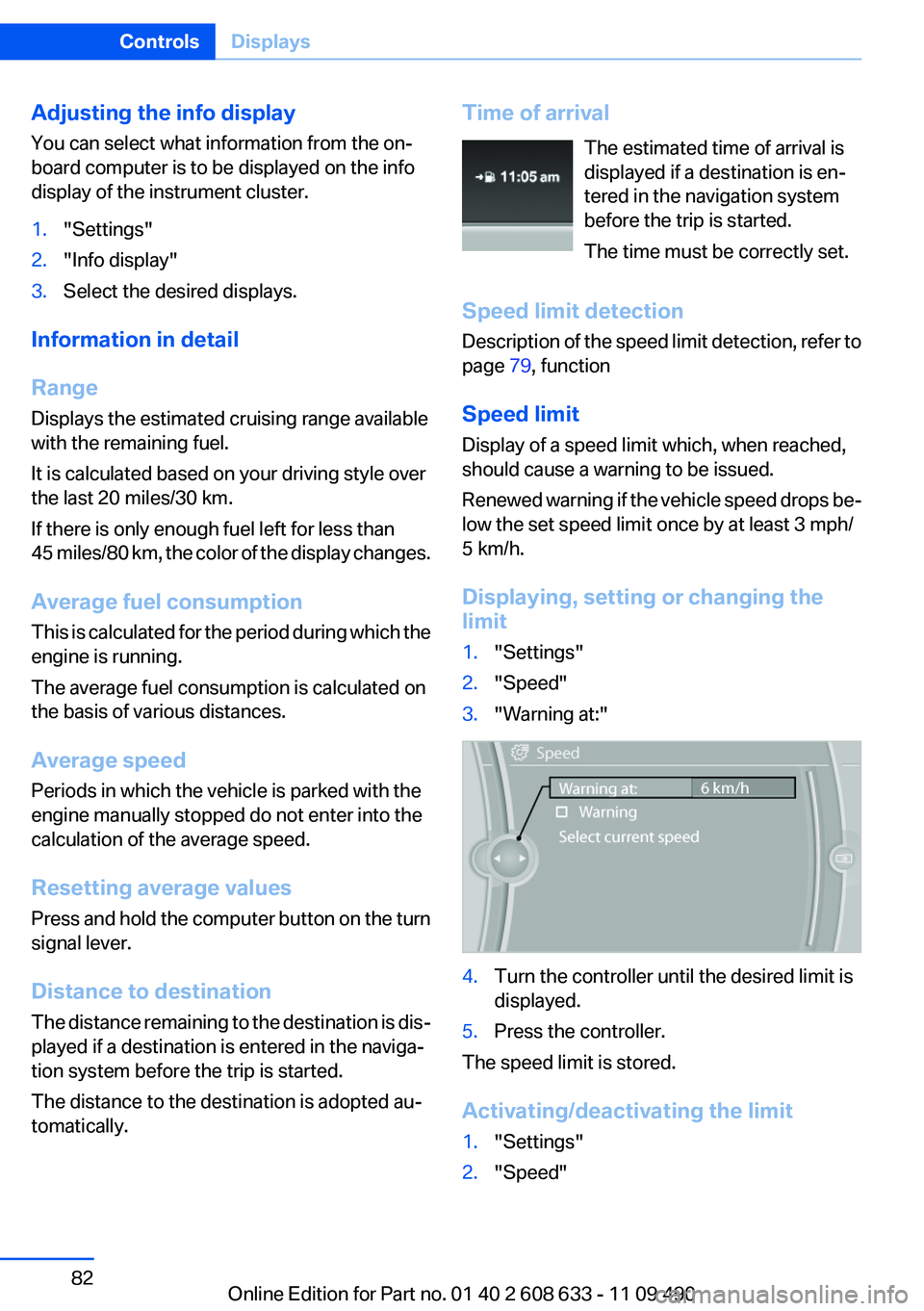
Speed limit
Display of a speed limit which, when reached,
should cause a warning to be issued.
Renewed warning if the vehicle speed drops be‐
low the set speed limit once by at least 3 mph/
5 km/h.
Displaying, setting or changing the
limit
1."Settings"
2."Speed"
3."Warning at:"
4.Turn the controller until the desired limit is
displayed.
5.Press the controller.
The speed limit is stored.
Activating/deactivating the limit
1."Settings"
2."Speed"
Seite 82
ControlsDisplays
82Online Edition for Part no. 01 40 2 608 633 - 11 09 490
Page 83 of 325
3."Warning"
4.Press the controller.
Applying your current speed as the
limit
1."Settings"
2."Speed"
3."Select current speed"
4.Press the controller.
The current vehicle speed is stored as the
limit.
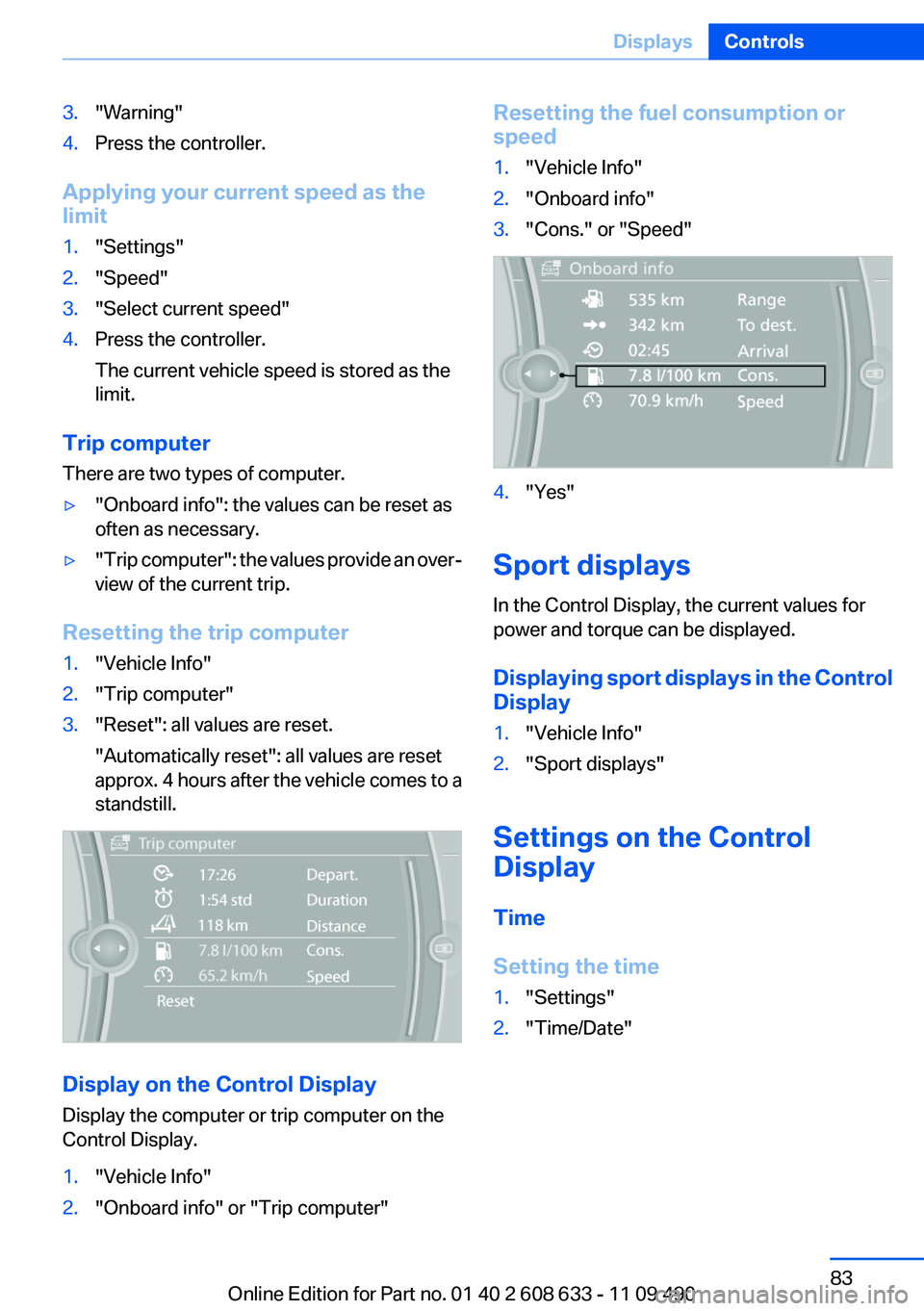
Trip computer
There are two types of computer.
▷"Onboard info": the values can be reset as
often as necessary.
▷"Trip computer": the values provide an over‐
view of the current trip.
Resetting the trip computer
1."Vehicle Info"
2."Trip computer"
3."Reset": all values are reset.
"Automatically reset": all values are reset
approx. 4 hours after the vehicle comes to a
standstill.
Display on the Control Display
Display the computer or trip computer on the
Control Display.
1."Vehicle Info"
2."Onboard info" or "Trip computer"
Resetting the fuel consumption or
speed
1."Vehicle Info"
2."Onboard info"
3."Cons." or "Speed"
4."Yes"
Sport displays
In the Control Display, the current values for
power and torque can be displayed.
Displaying sport displays in the Control
Display
1."Vehicle Info"
2."Sport displays"
Settings on the Control
Display
Time
Setting the time
1."Settings"
2."Time/Date"
Seite 83
DisplaysControls
83Online Edition for Part no. 01 40 2 608 633 - 11 09 490
Page 84 of 325
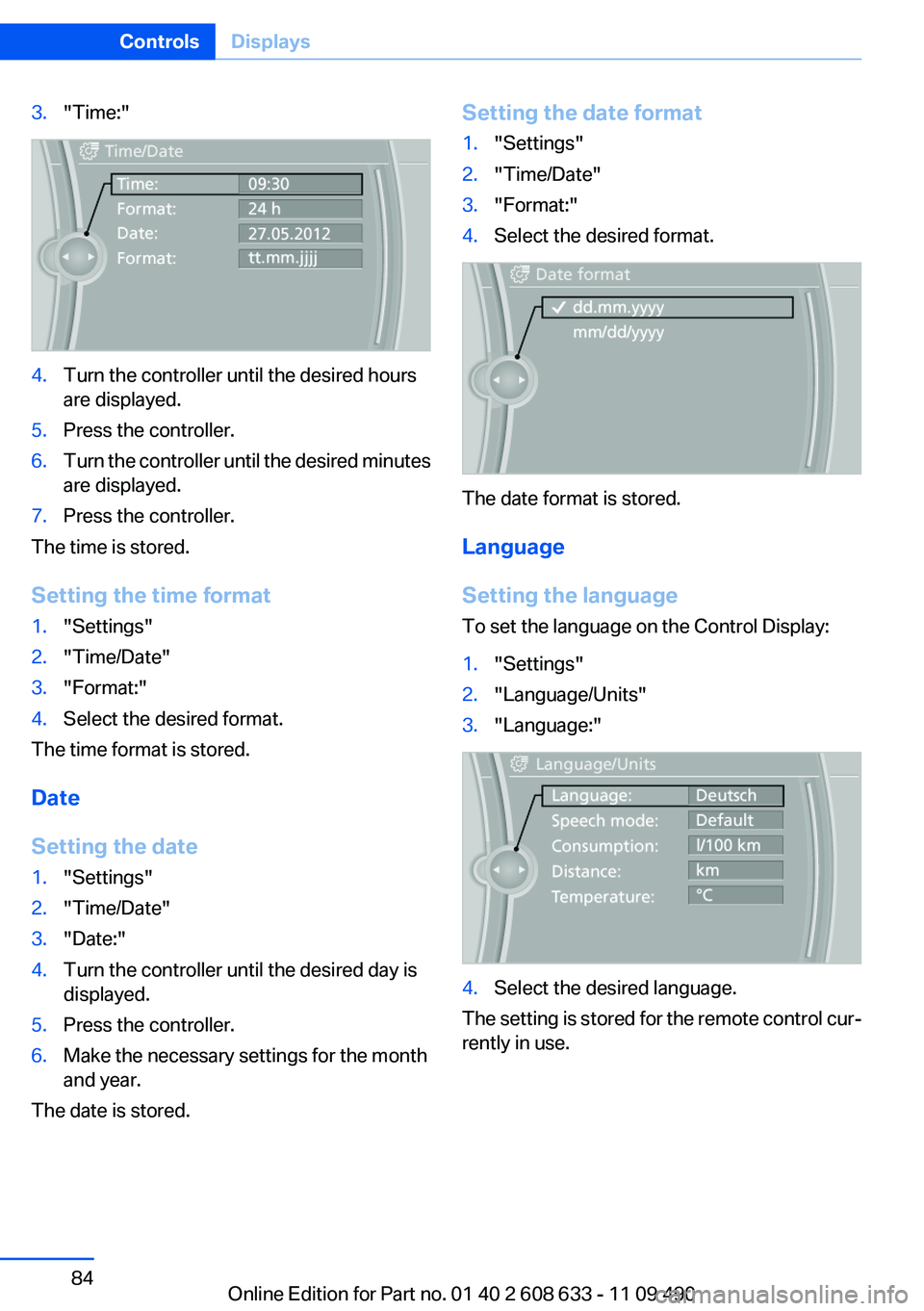
3."Time:"
4.Turn the controller until the desired hours
are displayed.
5.Press the controller.
6.Turn the controller until the desired minutes
are displayed.
7.Press the controller.
The time is stored.
Setting the time format
1."Settings"
2."Time/Date"
3."Format:"
4.Select the desired format.
The time format is stored.
Date
Setting the date
1."Settings"
2."Time/Date"
3."Date:"
4.Turn the controller until the desired day is
displayed.
5.Press the controller.
6.Make the necessary settings for the month
and year.
The date is stored.
Setting the date format
1."Settings"
2."Time/Date"
3."Format:"
4.Select the desired format.
The date format is stored.
Language
Setting the language
To set the language on the Control Display:
1."Settings"
2."Language/Units"
3."Language:"
4.Select the desired language.
The setting is stored for the remote control cur‐
rently in use.
Seite 84
ControlsDisplays
84Online Edition for Part no. 01 40 2 608 633 - 11 09 490
Page 85 of 325
Units of measure
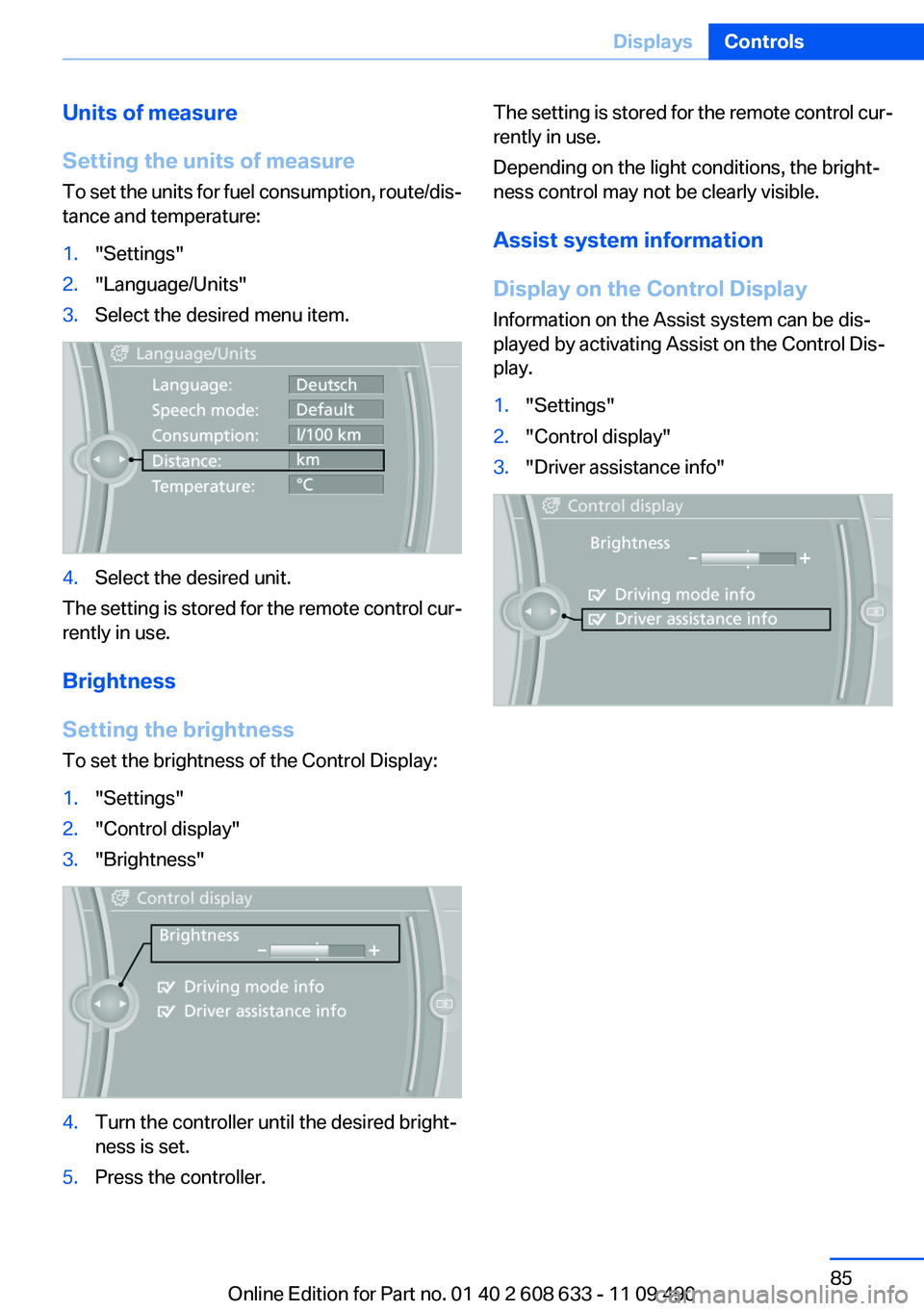
Setting the units of measure
To set the units for fuel consumption, route/dis‐
tance and temperature:
1."Settings"
2."Language/Units"
3.Select the desired menu item.
4.Select the desired unit.
The setting is stored for the remote control cur‐
rently in use.
Brightness
Setting the brightness
To set the brightness of the Control Display:
1."Settings"
2."Control display"
3."Brightness"
4.Turn the controller until the desired bright‐
ness is set.
5.Press the controller.
The setting is stored for the remote control cur‐
rently in use.
Depending on the light conditions, the bright‐
ness control may not be clearly visible.
Assist system information
Display on the Control Display
Information on the Assist system can be dis‐
played by activating Assist on the Control Dis‐
play.
1."Settings"
2."Control display"
3."Driver assistance info"
Seite 85
DisplaysControls
85Online Edition for Part no. 01 40 2 608 633 - 11 09 490
Page 88 of 325
Adaptive light control
The concept
Adaptive light control is a variable headlamp
control system that enables dynamic illumina‐
tion of the road surface.
Depending on the steering angle and other pa‐
rameters, the light from the headlamp follows
the course of the road.
In tight curves, e.g., on mountainous roads or
when turning, one of the two front fog lamps is
switched on as a turning lamp. As a result the
inside of the curve is better lighted.
Activating
Switch position with the ignition switched
on.
The turning lamps are automatically switched
on depending on the steering angle or the use
of turn signals.
To avoid blinding oncoming traffic, the Adaptive
Light Control directs light towards the front pas‐
senger side when the vehicle is at a standstill.
When driving in reverse, only the turning lamp is
active.
Malfunction
A Check Control message is displayed.
Adaptive light control is malfunctioning or has
failed. Have the system checked as soon as pos‐
sible.
High-beam Assistant
The concept
When the low beams are switched on, this sys‐
tem automatically switches the high beams on
and off or suppresses the light in the areas that
blind oncoming traffic. The procedure is con‐
trolled by a sensor on the front of the interior
rearview mirror. The assistant ensures that the
high beams are switched on whenever the traffic
situation allows. The driver can intervene at any
time and switch the high beams on and off as
usual.
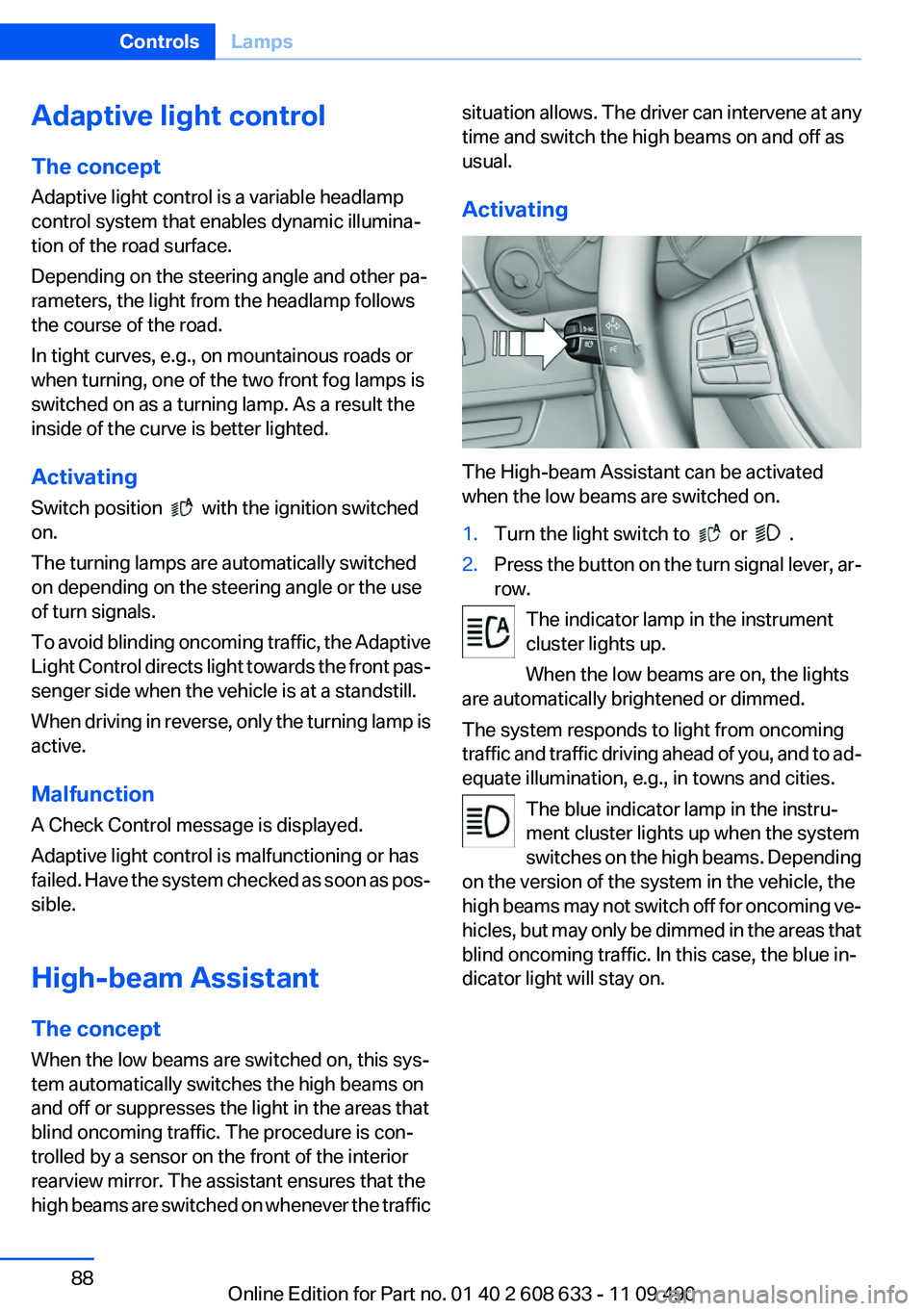
Activating
The High-beam Assistant can be activated
when the low beams are switched on.
1.Turn the light switch to or .
2.Press the button on the turn signal lever, ar‐
row.
The indicator lamp in the instrument
cluster lights up.
When the low beams are on, the lights
are automatically brightened or dimmed.
The system responds to light from oncoming
traffic and traffic driving ahead of you, and to ad‐
equate illumination, e.g., in towns and cities.
The blue indicator lamp in the instru‐
ment cluster lights up when the system
switches on the high beams. Depending
on the version of the system in the vehicle, the
high beams may not switch off for oncoming ve‐
hicles, but may only be dimmed in the areas that
blind oncoming traffic. In this case, the blue in‐
dicator light will stay on.
Seite 88
ControlsLamps
88Online Edition for Part no. 01 40 2 608 633 - 11 09 490
Page 90 of 325
Interior lamps
General information
The interior lamps, footwell lamps, entry lamps
and courtesy lamps are controlled automati‐
cally.
The brightness of some of these lamps is influ‐
enced by the thumbwheel for the instrument
lighting.
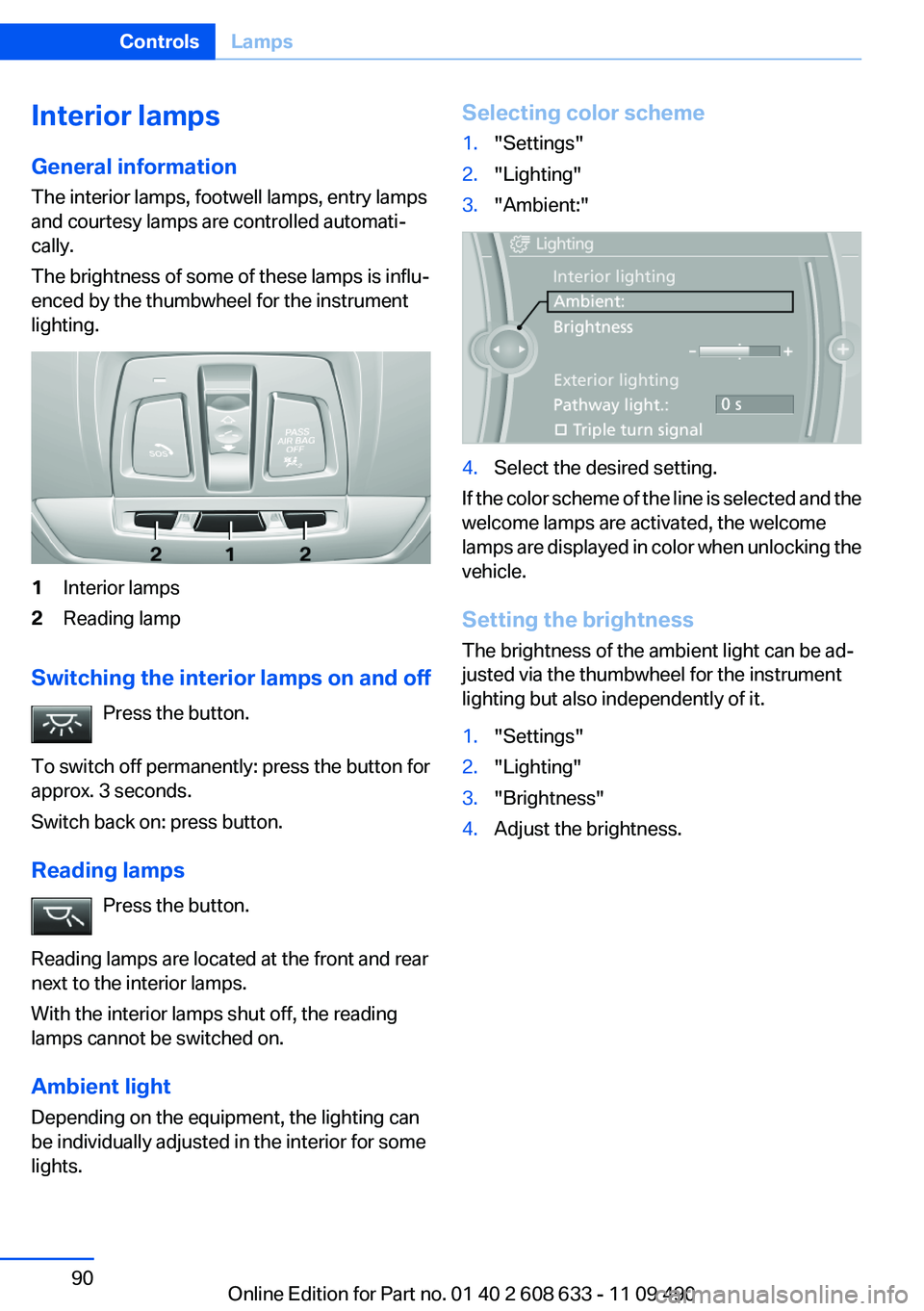
1Interior lamps
2Reading lamp
Switching the interior lamps on and off
Press the button.
To switch off permanently: press the button for
approx. 3 seconds.
Switch back on: press button.
Reading lamps
Press the button.
Reading lamps are located at the front and rear
next to the interior lamps.
With the interior lamps shut off, the reading
lamps cannot be switched on.
Ambient light
Depending on the equipment, the lighting can
be individually adjusted in the interior for some
lights.
Selecting color scheme
1."Settings"
2."Lighting"
3."Ambient:"
4.Select the desired setting.
If the color scheme of the line is selected and the
welcome lamps are activated, the welcome
lamps are displayed in color when unlocking the
vehicle.
Setting the brightness
The brightness of the ambient light can be ad‐
justed via the thumbwheel for the instrument
lighting but also independently of it.
1."Settings"
2."Lighting"
3."Brightness"
4.Adjust the brightness.
Seite 90
ControlsLamps
90Online Edition for Part no. 01 40 2 608 633 - 11 09 490
Page 94 of 325
senger airbags lights up. This indicates that the
child seat has been detected and the front pas‐
senger airbags are not activated.
Strength of the driver's and front
passenger airbag
The strength with which the driver's and front
passenger airbags are triggered depends on the
position of the driver's and front passenger
seats.
To maintain the accuracy of this function over
the long-term, calibrate the front seats when a
corresponding message appears on the Control
Display.
Calibrating the front seats
A corresponding message appears on the Con‐
trol Display.
1.Move the respective seat forward all the
way.
2.Move the respective seat forward again. It
moves forward briefly.
3.Readjust the seat to the desired position.
The calibration procedure is completed when
the message on the Control Display disappears.
If the message continues to be displayed, repeat
the calibration.
If the message does not disappear after a repeat
calibration, have the system checked as soon as
possible.
Unobstructed area of movement
Ensure that the area of movement of the
seats is unobstructed to avoid personal injury or
damage to objects.◀
Tire Pressure Monitor TPM
The concept
The tire inflation pressure is measured in the
four mounted tires. The system notifies you if
there is a significant loss of pressure in one or
more tires.
Functional requirements
The system must have been reset when the in‐
flation pressure was correct; otherwise, reliable
signaling of a flat tire is not ensured. Always use
wheels with TPM electronics to ensure that the
system will operate properly. Reset the system
after each correction of the tire inflation pres‐
sure and after every tire or wheel change.
System limits
Sudden tire damage
Sudden serious tire damage caused by
external influences cannot be indicated in ad‐
vance.◀
The system does not operate correctly if it has
not been reset. For example, a flat tire may be
indicated despite correct tire inflation pres‐
sures.
The system is inactive and cannot indicate a flat
tire:
▷For a mounted wheel without TPM electron‐
ics.
▷When the TPM is disturbed by other sys‐
tems or devices with the same radio fre‐
quency.
Status display
The current status of the Tire Pressure Monitor
TPM can be displayed on the Control Display,
e.g., whether or not the TPM is active.
1."Vehicle Info"
2."Vehicle status"
3. "Tire Pressure Monitor - TPM"
The status is displayed.
Status display
The tire and system status is indicated by the
color of the tires.
Seite 94
ControlsSafety
94Online Edition for Part no. 01 40 2 608 633 - 11 09 490