ECO BMW 330XI IDRIVE SEDAN 2005 Owner's Manual
[x] Cancel search | Manufacturer: BMW, Model Year: 2005, Model line: 330XI IDRIVE SEDAN, Model: BMW 330XI IDRIVE SEDAN 2005Pages: 223, PDF Size: 7.49 MB
Page 66 of 223
Controls
65Reference
At a glance
Driving tips
Communications
Navigation
Entertainment
Mobility
style is conducive to fuel economy with mini-
mum exhaust emissions.
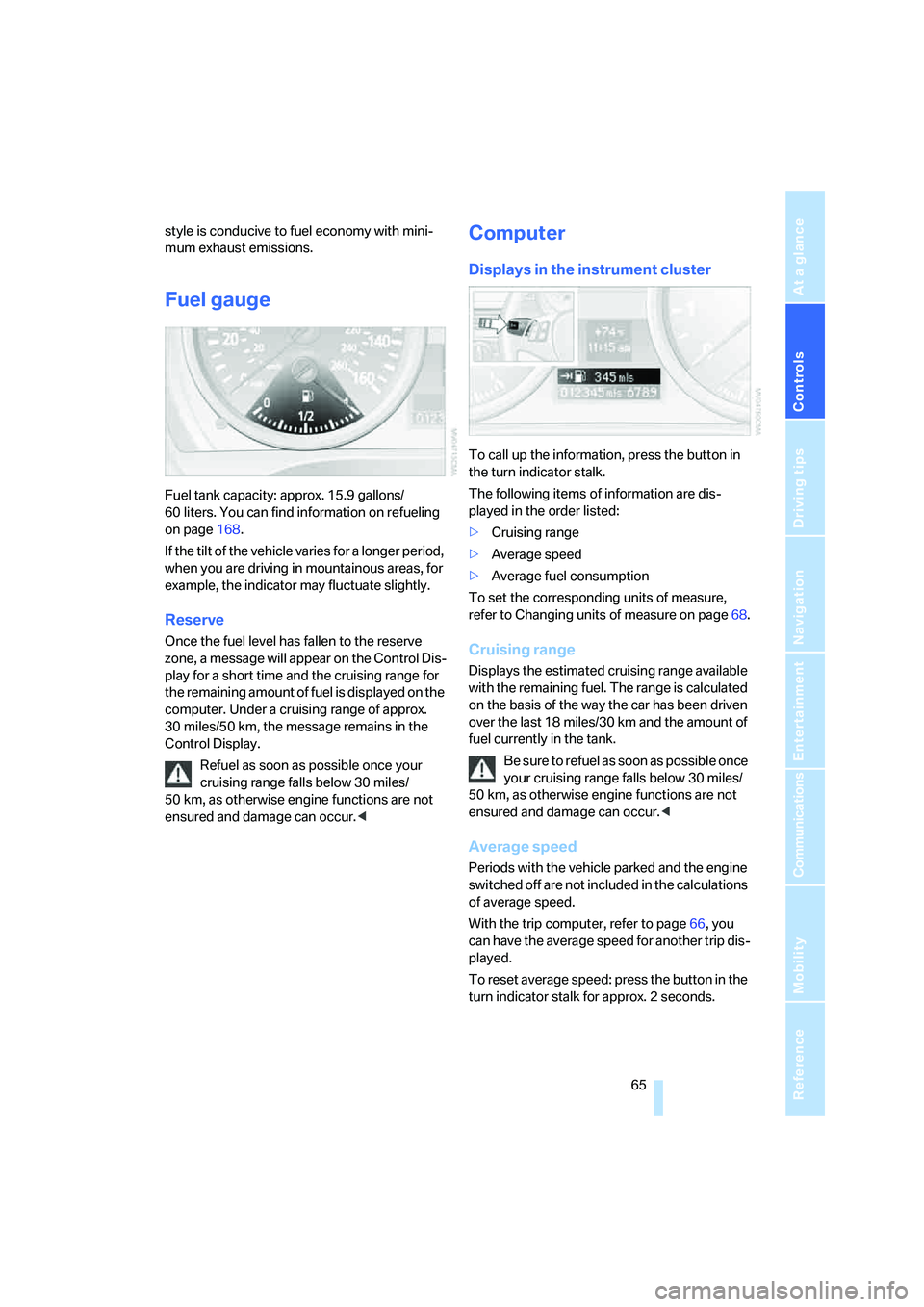
Fuel gauge
Fuel tank capacity: approx. 15.9 gallons/
60 liters. You can find information on refueling
on page168.
If the tilt of the vehicle varies for a longer period,
when you are driving in mountainous areas, for
example, the indicator may fluctuate slightly.
Reserve
Once the fuel level has fallen to the reserve
zone, a message will appear on the Control Dis-
play for a short time and the cruising range for
the remaining amount of fuel is displayed on the
computer. Under a cruising range of approx.
30 miles/50 km, the message remains in the
Control Display.
Refuel as soon as possible once your
cruising range falls below 30 miles/
50 km, as otherwise engine functions are not
ensured and damage can occur.<
Computer
Displays in the instrument cluster
To call up the information, press the button in
the turn indicator stalk.
The following items of information are dis-
played in the order listed:
>Cruising range
>Average speed
>Average fuel consumption
To set the corresponding units of measure,
refer to Changing units of measure on page68.
Cruising range
Displays the estimated cruising range available
with the remaining fuel. The range is calculated
on the basis of the way the car has been driven
over the last 18 miles/30 km and the amount of
fuel currently in the tank.
B e s u r e t o r e f u e l a s s o o n a s p o s s i b l e o n c e
your cruising range falls below 30 miles/
50 km, as otherwise engine functions are not
ensured and damage can occur.<
Average speed
Periods with the vehicle parked and the engine
switched off are not included in the calculations
of average speed.
With the trip computer, refer to page66, you
can have the average speed for another trip dis-
played.
To reset average speed: press the button in the
turn indicator stalk for approx. 2 seconds.
Page 67 of 223
Everything under control
66
Average fuel consumption
The average fuel consumption is calculated for
the time during which the engine is running.
With the trip computer, refer to page66, you
can have the average consumption for another
trip displayed.
To reset average fuel consumption: press the
button in the turn indicator stalk for approx.
2seconds.
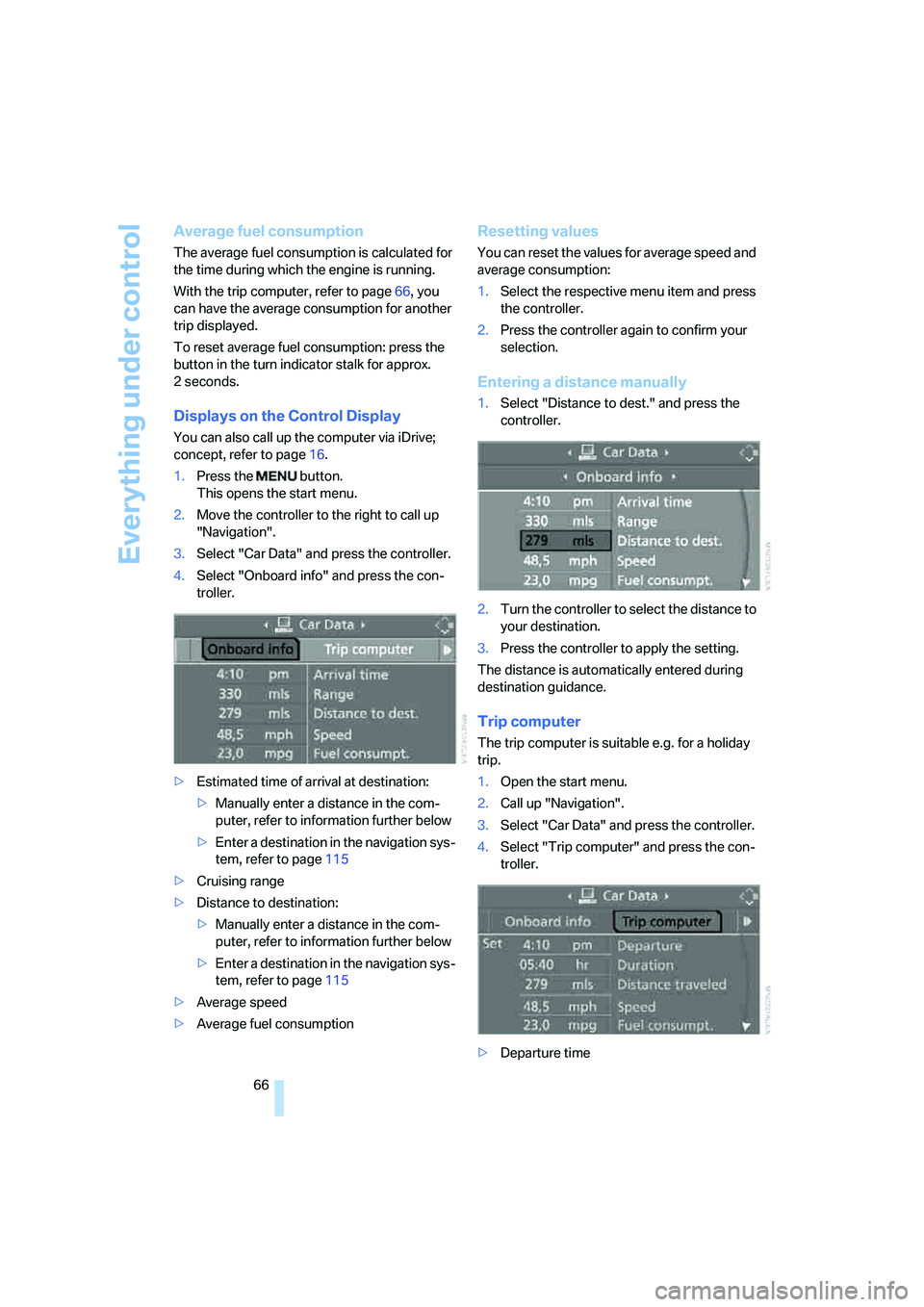
Displays on the Control Display
You can also call up the computer via iDrive;
concept, refer to page16.
1.Press the button.
This opens the start menu.
2.Move the controller to the right to call up
"Navigation".
3.Select "Car Data" and press the controller.
4.Select "Onboard info" and press the con-
troller.
>Estimated time of arrival at destination:
>Manually enter a distance in the com-
puter, refer to information further below
>Enter a destination in the navigation sys-
tem, refer to page115
>Cruising range
>Distance to destination:
>Manually enter a distance in the com-
puter, refer to information further below
>Enter a destination in the navigation sys-
tem, refer to page115
>Average speed
>Average fuel consumption
Resetting values
You can reset the values for average speed and
average consumption:
1.Select the respective menu item and press
the controller.
2.Press the controller again to confirm your
selection.
Entering a distance manually
1.Select "Distance to dest." and press the
controller.
2.Turn the controller to select the distance to
your destination.
3.Press the controller to apply the setting.
The distance is automatically entered during
destination guidance.
Trip computer
The trip computer is suitable e.g. for a holiday
trip.
1.Open the start menu.
2.Call up "Navigation".
3.Select "Car Data" and press the controller.
4.Select "Trip computer" and press the con-
troller.
>Departure time
Page 69 of 223
Everything under control
68
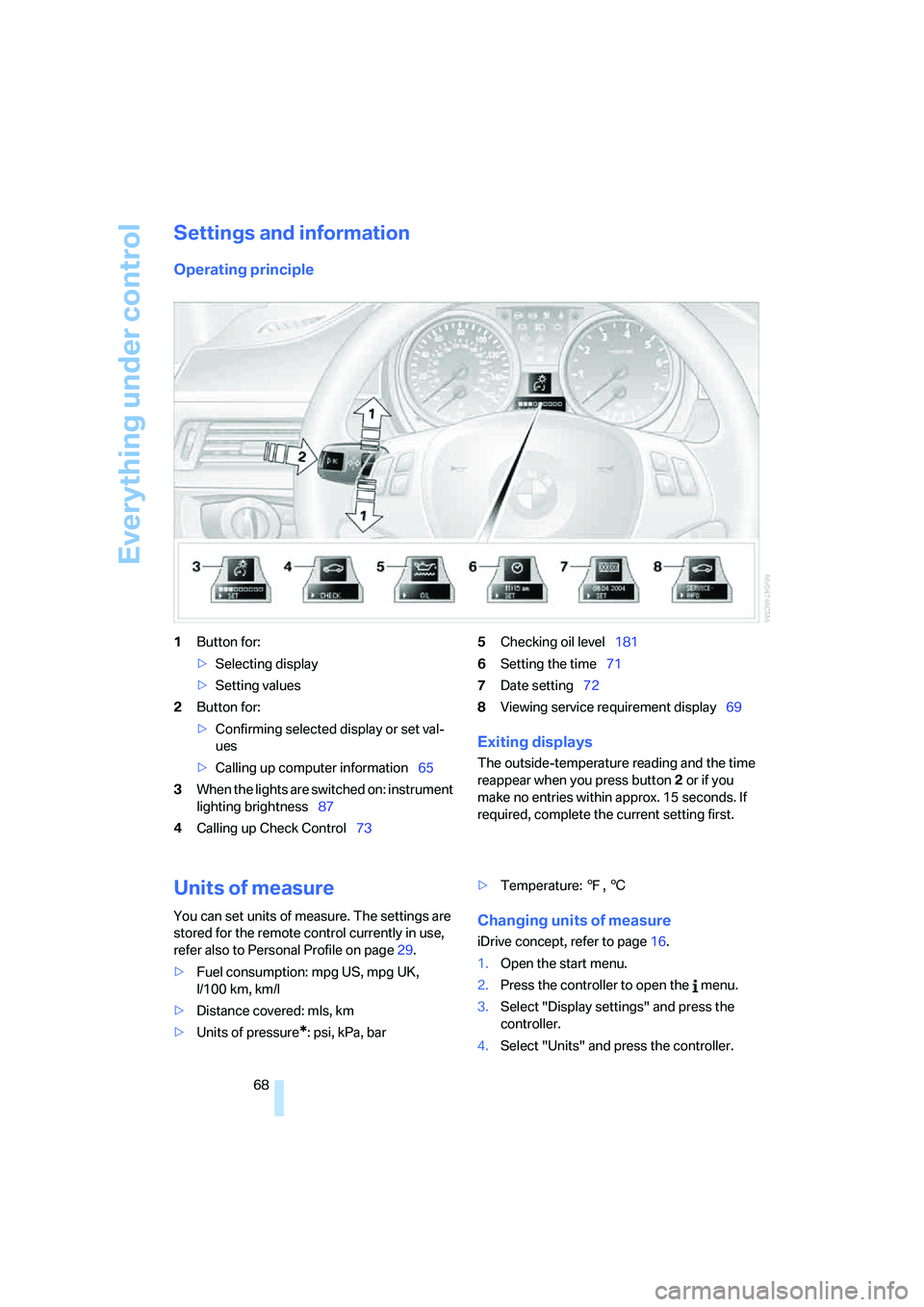
Settings and information
Operating principle
1Button for:
>Selecting display
>Setting values
2Button for:
>Confirming selected display or set val-
ues
>Calling up computer information65
3When the lights are switched on: instrument
lighting brightness87
4Calling up Check Control735Checking oil level181
6Setting the time71
7Date setting72
8Viewing service requirement display69
Exiting displays
The outside-temperature reading and the time
reappear when you press button2 or if you
make no entries within approx. 15 seconds. If
required, complete the current setting first.
Units of measure
You can set units of measure. The settings are
stored for the remote control currently in use,
refer also to Personal Profile on page29.
>Fuel consumption: mpg US, mpg UK,
l/100 km, km/l
>Distance covered: mls, km
>Units of pressure
*: psi, kPa, bar>Temperature: 7, 6
Changing units of measure
iDrive concept, refer to page16.
1.Open the start menu.
2.Press the controller to open the menu.
3.Select "Display settings" and press the
controller.
4.Select "Units" and press the controller.
Page 75 of 223
Everything under control
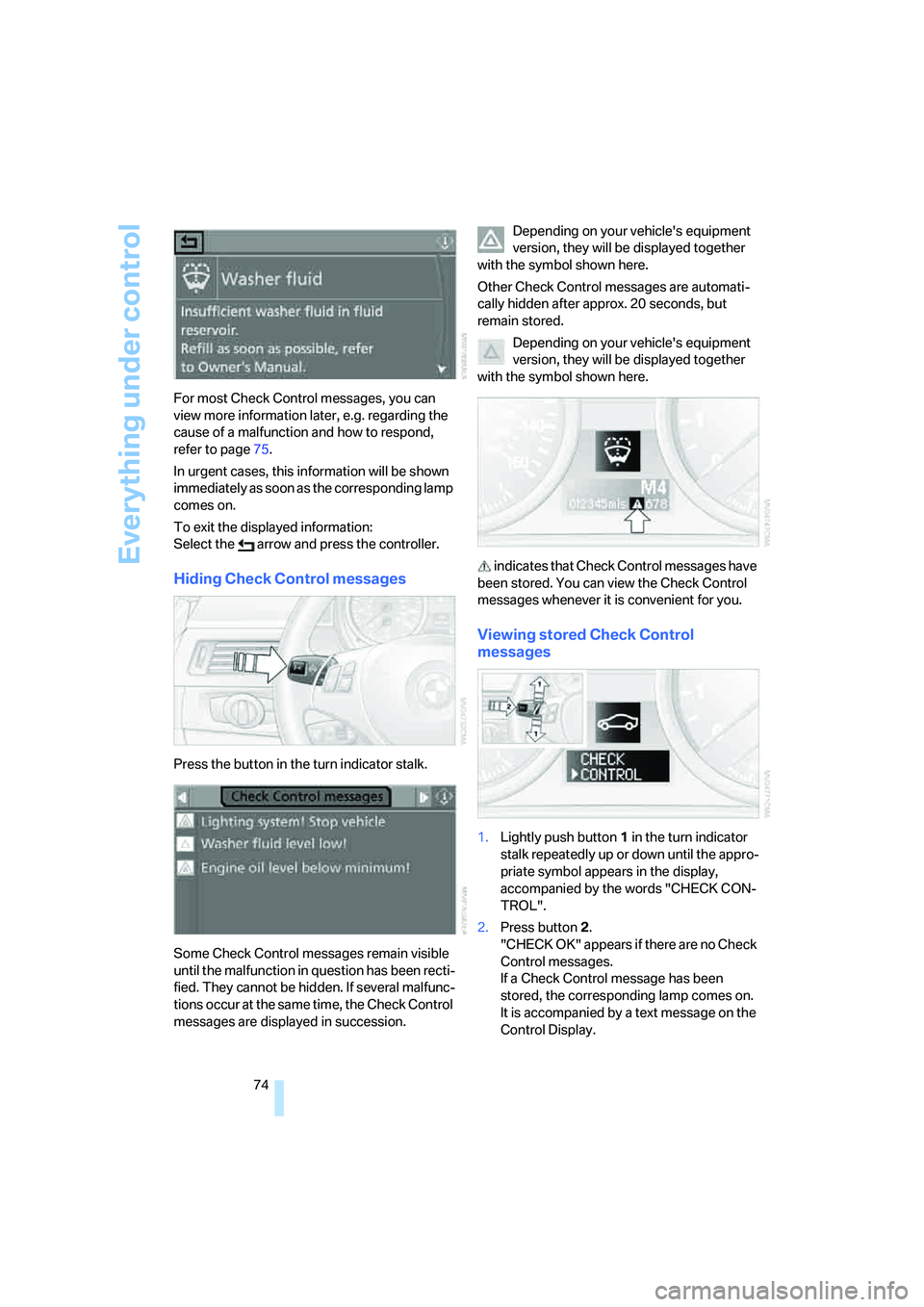
74 For most Check Control messages, you can
view more information later, e.g. regarding the
cause of a malfunction and how to respond,
refer to page75.
In urgent cases, this information will be shown
immediately as soon as the corresponding lamp
comes on.
To exit the displayed information:
Select the arrow and press the controller.
Hiding Check Control messages
Press the button in the turn indicator stalk.
Some Check Control messages remain visible
until the malfunction in question has been recti-
fied. They cannot be hidden. If several malfunc-
tions occur at the same time, the Check Control
messages are displayed in succession.Depending on your vehicle's equipment
version, they will be displayed together
with the symbol shown here.
Other Check Control messages are automati-
cally hidden after approx. 20 seconds, but
remain stored.
Depending on your vehicle's equipment
version, they will be displayed together
with the symbol shown here.
indicates that Check Control messages have
been stored. You can view the Check Control
messages whenever it is convenient for you.
Viewing stored Check Control
messages
1.Lightly push button 1 in the turn indicator
stalk repeatedly up or down until the appro-
priate symbol appears in the display,
accompanied by the words "CHECK CON-
TROL".
2.Press button 2.
"CHECK OK" appears if there are no Check
Control messages.
If a Check Control message has been
stored, the corresponding lamp comes on.
It is accompanied by a text message on the
Control Display.
Page 76 of 223
Controls
75Reference
At a glance
Driving tips
Communications
Navigation
Entertainment
Mobility
3.Lightly push button 1 to check for other
messages.
4.Press button 2.
The display again shows the outside tem-
perature and the time.
Viewing more information later
iDrive concept, refer to page16.
1.Press the button.
This opens the start menu.
2.Press the controller to open the menu.
3.Select "Service" and press the controller.
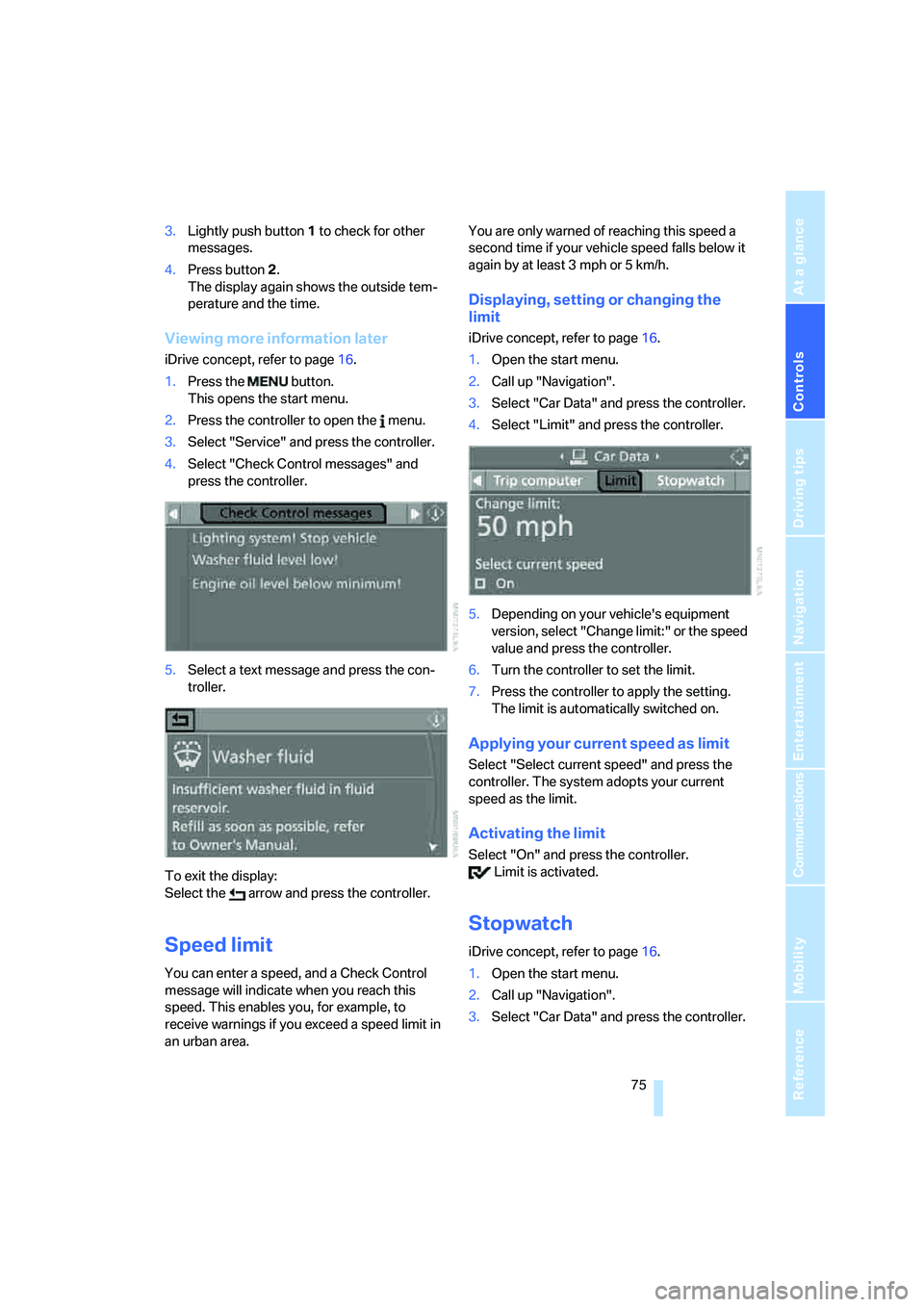
4.Select "Check Control messages" and
press the controller.
5.Select a text message and press the con-
troller.
To exit the display:
Select the arrow and press the controller.
Speed limit
You can enter a speed, and a Check Control
message will indicate when you reach this
speed. This enables you, for example, to
receive warnings if you exceed a speed limit in
an urban area. You are only warned of reaching this speed a
second time if your vehicle speed falls below it
again by at least 3 mph or 5 km/h.
Displaying, setting or changing the
limit
iDrive concept, refer to page16.
1.Open the start menu.
2.Call up "Navigation".
3.Select "Car Data" and press the controller.
4.Select "Limit" and press the controller.
5.Depending on your vehicle's equipment
version, select "Change limit:" or the speed
value and press the controller.
6.Turn the controller to set the limit.
7.Press the controller to apply the setting.
The limit is automatically switched on.
Applying your current speed as limit
Select "Select current speed" and press the
controller. The system adopts your current
speed as the limit.
Activating the limit
Select "On" and press the controller.
Limit is activated.
Stopwatch
iDrive concept, refer to page16.
1.Open the start menu.
2.Call up "Navigation".
3.Select "Car Data" and press the controller.
Page 78 of 223
Controls
77Reference
At a glance
Driving tips
Communications
Navigation
Entertainment
Mobility
Technology for driving comfort and safety
PDC Park Distance Control*
The concept
The PDC assists you with maneuvering in tight
parking spaces. Acoustic signals and a visual
indicator
warn you of the presence of an object
in front of
* or behind your car. To measure the
distance, there are four ultrasonic sensors in
each bumper. The sensors at the front
* and at
the two rear corners have a range of approx.
24 in/60 cm; the rear middle sensors have
approx. 5 ft/1.50 m.
PDC is a parking aid that can indicate
objects when they are approached
slowly, as is usually the case when parking.
Avoid approaching an object at high speed, as
otherwise physical circumstances may lead to
the system warning being issued too late.<
Automatic mode
With the engine running or the ignition switched
on, the system is activated automatically after
approx. 1 second when you engage reverse
gear or move the automatic transmission selec-
tor lever to position R. Wait this short period
before driving.
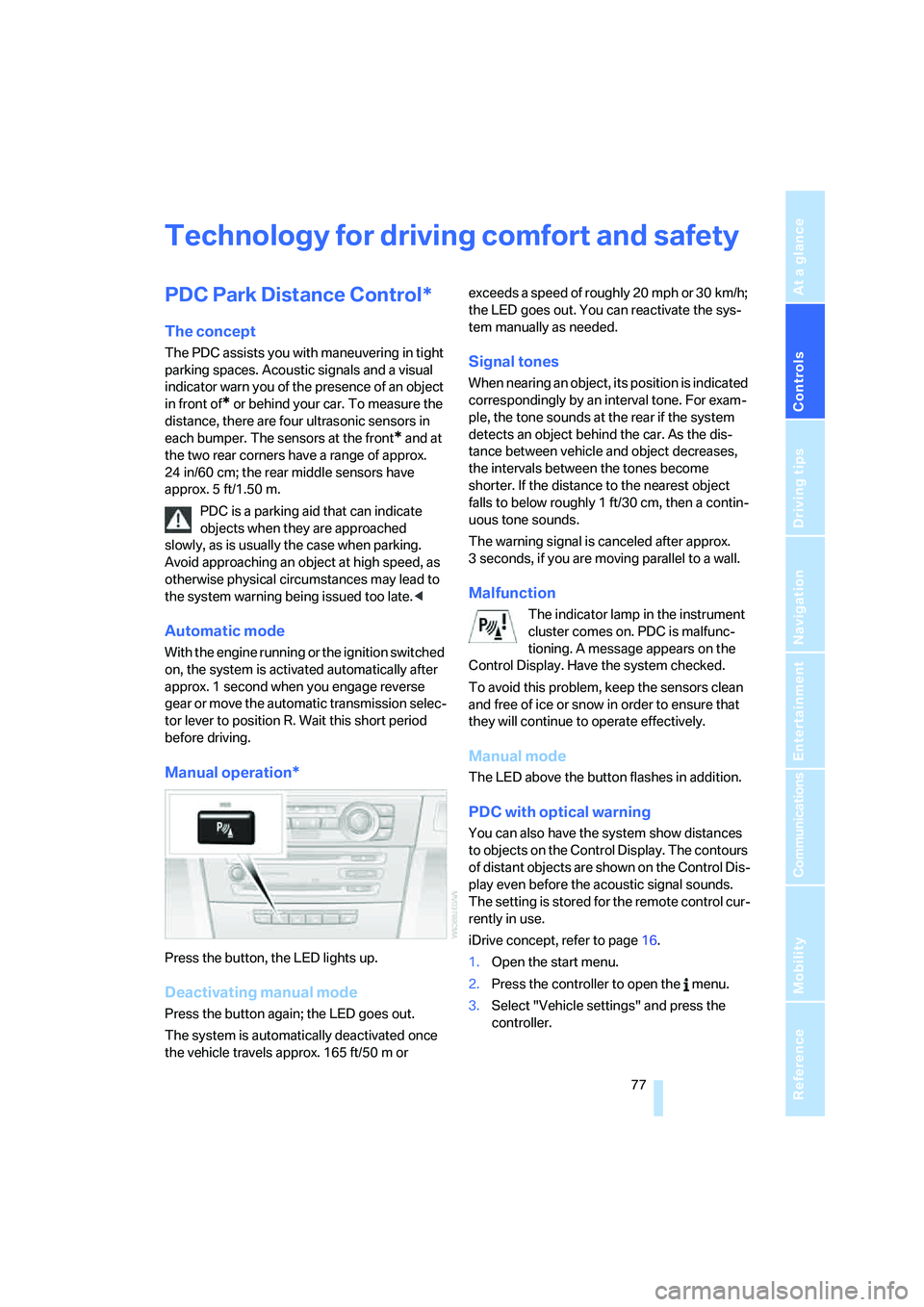
Manual operation*
Press the button, the LED lights up.
Deactivating manual mode
Press the button again; the LED goes out.
The system is automatically deactivated once
the vehicle travels approx. 165 ft/50 m or exceeds a speed of roughly 20 mph or 30 km/h;
the LED goes out. You can reactivate the sys-
tem manually as needed.
Signal tones
When nearing an object, its position is indicated
correspondingly by an interval tone. For exam-
ple, the tone sounds at the rear if the system
detects an object behind the car. As the dis-
tance between vehicle and object decreases,
the intervals between the tones become
shorter. If the distance to the nearest object
falls to below roughly 1 ft/30 cm, then a contin-
uous tone sounds.
The warning signal is canceled after approx.
3 seconds, if you are moving parallel to a wall.
Malfunction
The indicator lamp in the instrument
cluster comes on. PDC is malfunc-
tioning. A message appears on the
Control Display. Have the system checked.
To avoid this problem, keep the sensors clean
and free of ice or snow in order to ensure that
they will continue to operate effectively.
Manual mode
The LED above the button flashes in addition.
PDC with optical warning
You can also have the system show distances
to objects on the Control Display. The contours
of distant objects are shown on the Control Dis-
play even before the acoustic signal sounds.
The setting is stored for the remote control cur-
rently in use.
iDrive concept, refer to page16.
1.Open the start menu.
2.Press the controller to open the menu.
3.Select "Vehicle settings" and press the
controller.
Page 79 of 223
Technology for driving comfort and safety
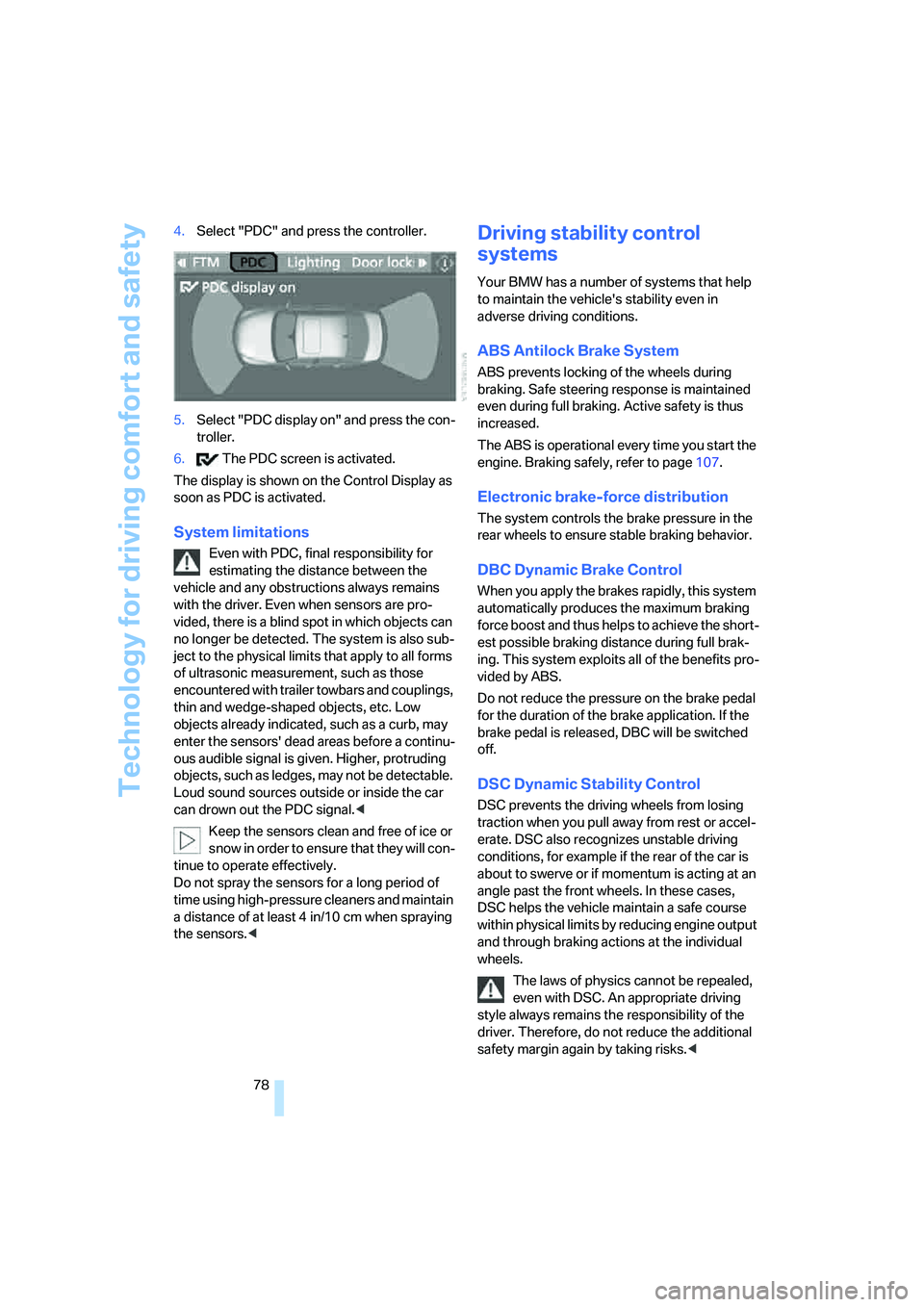
78 4.Select "PDC" and press the controller.
5.Select "PDC display on" and press the con-
troller.
6. The PDC screen is activated.
The display is shown on the Control Display as
soon as PDC is activated.
System limitations
Even with PDC, final responsibility for
estimating the distance between the
vehicle and any obstructions always remains
with the driver. Even when sensors are pro-
vided, there is a blind spot in which objects can
no longer be detected. The system is also sub-
ject to the physical limits that apply to all forms
of ultrasonic measurement, such as those
encountered with trailer towbars and couplings,
thin and wedge-shaped objects, etc. Low
objects already indicated, such as a curb, may
enter the sensors' dead areas before a continu-
ous audible signal is given. Higher, protruding
objects, such as ledges, may not be detectable.
Loud sound sources outside or inside the car
can drown out the PDC signal.<
Keep the sensors clean and free of ice or
snow in order to ensure that they will con-
tinue to operate effectively.
Do not spray the sensors for a long period of
time using high-pressure cleaners and maintain
a distance of at least 4 in/10 cm when spraying
the sensors.<
Driving stability control
systems
Your BMW has a number of systems that help
to maintain the vehicle's stability even in
adverse driving conditions.
ABS Antilock Brake System
ABS prevents locking of the wheels during
braking. Safe steering response is maintained
even during full braking. Active safety is thus
increased.
The ABS is operational every time you start the
engine. Braking safely, refer to page107.
Electronic brake-force distribution
The system controls the brake pressure in the
rear wheels to ensure stable braking behavior.
DBC Dynamic Brake Control
When you apply the brakes rapidly, this system
automatically produces the maximum braking
force boost and thus helps to achieve the short-
est possible braking distance during full brak-
ing. This system exploits all of the benefits pro-
vided by ABS.
Do not reduce the pressure on the brake pedal
for the duration of the brake application. If the
brake pedal is released, DBC will be switched
off.
DSC Dynamic Stability Control
DSC prevents the driving wheels from losing
traction when you pull away from rest or accel-
erate. DSC also recognizes unstable driving
conditions, for example if the rear of the car is
about to swerve or if momentum is acting at an
angle past the front wheels. In these cases,
DSC helps the vehicle maintain a safe course
within physical limits by reducing engine output
and through braking actions at the individual
wheels.
The laws of physics cannot be repealed,
even with DSC. An appropriate driving
style always remains the responsibility of the
driver. Therefore, do not reduce the additional
safety margin again by taking risks.<
Page 80 of 223
Controls
79Reference
At a glance
Driving tips
Communications
Navigation
Entertainment
Mobility
DTC Dynamic Traction Control
DTC is a version of DSC in which the drive out-
put is optimized for particular road conditions,
e.g. unplowed snow-covered roads. The sys-
tem assures the maximal drive output, but with
reduced driving stability. It is therefore neces-
sary to drive with appropriate caution.
You may find it useful to briefly activate DTC
under the following special circumstances:
>When driving uphill on snow-covered roads,
in slush or on unplowed, snow-covered
roads
>When rocking a stuck vehicle free or start-
ing off in deep snow or on loose ground
>When driving with snow chains
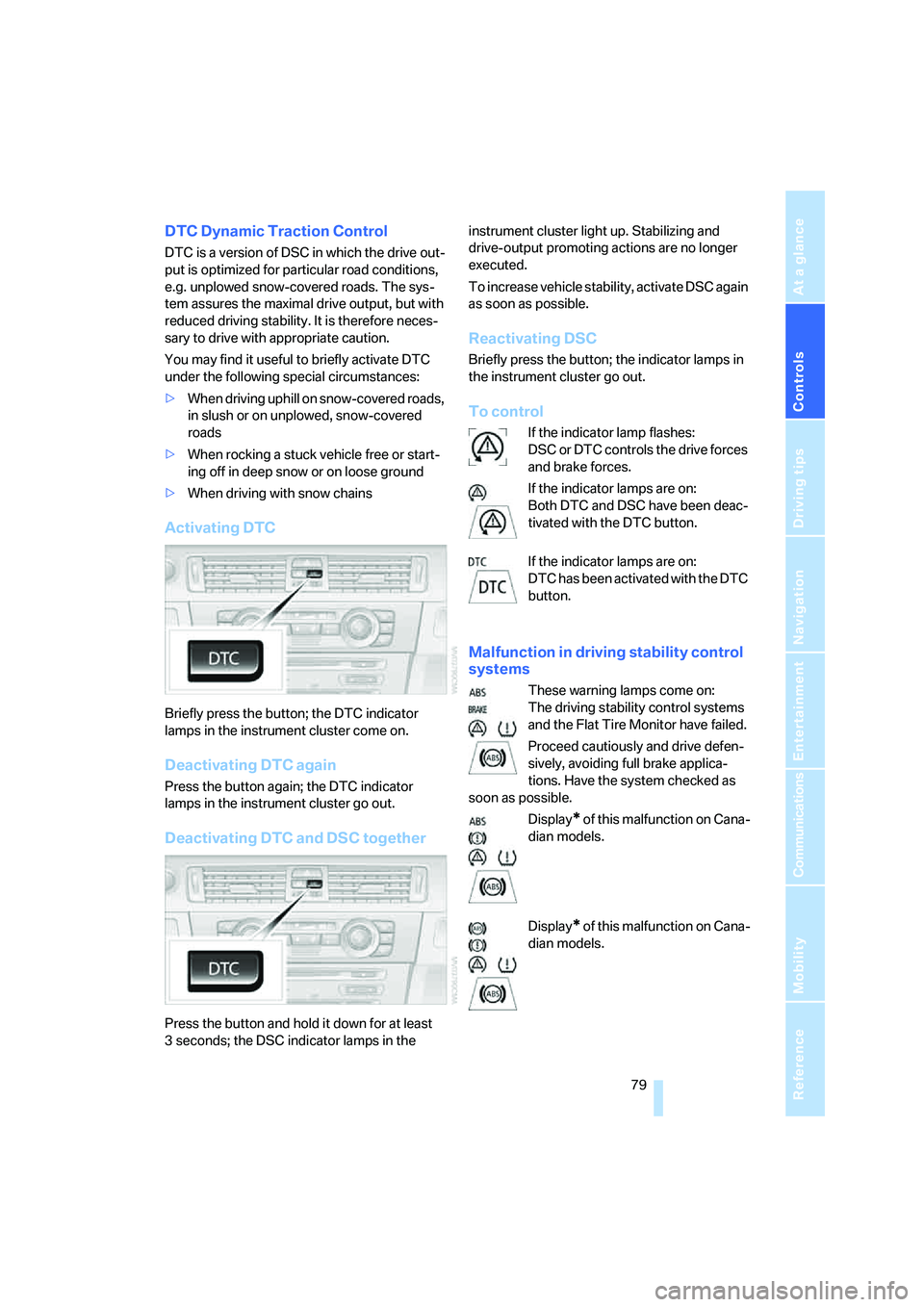
Activating DTC
Briefly press the button; the DTC indicator
lamps in the instrument cluster come on.
Deactivating DTC again
Press the button again; the DTC indicator
lamps in the instrument cluster go out.
Deactivating DTC and DSC together
Press the button and hold it down for at least
3 seconds; the DSC indicator lamps in the instrument cluster light up. Stabilizing and
drive-output promoting actions are no longer
executed.
To increase vehicle stability, activate DSC again
as soon as possible.
Reactivating DSC
Briefly press the button; the indicator lamps in
the instrument cluster go out.
To control
If the indicator lamp flashes:
DSC or DTC controls the drive forces
and brake forces.
If the indicator lamps are on:
Both DTC and DSC have been deac-
tivated with the DTC button.
If the indicator lamps are on:
DTC has been activated with the DTC
button.
Malfunction in driving stability control
systems
These warning lamps come on:
The driving stability control systems
and the Flat Tire Monitor have failed.
Proceed cautiously and drive defen-
sively, avoiding full brake applica-
tions. Have the system checked as
soon as possible.
Display
* of this malfunction on Cana-
dian models.
Display
* of this malfunction on Cana-
dian models.
Page 81 of 223
Technology for driving comfort and safety
80 If the warning lamps for DSC come
on. DSC including DTC and DBC is
malfunctioning.
The stabilizing action and brake-
servo boost are no longer available. The vehicle
remains operational. Have the system checked
as soon as possible.
Drive-off assistant
The drive-off assistant enables you to drive off
smoothly on uphill gradients. It is not necessary
to use the handbrake for this.
1.Hold the car in place by pressing the brake
pedal.
2.Release the brake pedal and drive off with-
out delay.
The drive-off assistant holds the car in
place for approx. 2 seconds after the
brake pedal is released. Depending on vehicle
load, the car may roll backwards a little during
this time span. Drive off without delay after
releasing the brake pedal. Otherwise, the drive-
off assistant will no longer hold the car in place
after approx. 2 seconds and the car will start to
roll backwards.<
Malfunction
The warning lamps for the brake sys-
tem light up in yellow. The drive-off
assistant has failed. The car will not
be held in place after the brake pedal
is released. Have the system checked as soon
as possible.
Display of this malfunction on Cana-
dian models.
Flat Tire Monitor FTM
The concept
The Flat Tire Monitor monitors tire pressures
while the car is being driven. The system
reports any significant loss of pressure in one
tire in relation to another.If a tire loses pressure, its rolling radius
changes, and this in turn alters the speed of
rotation. This change is detected and is
reported as a flat tire.
Functional requirement
In order to assure the reliable reporting of a flat
tire, the system must be initialized for the cor-
rect tire inflation pressure.
The system must be reinitialized each
time a tire inflation pressure has been cor-
rected or a wheel or tire has been changed.<
System limitations
The Flat Tire Monitor is unable to warn
the driver of sudden, severe tire damage
caused by external factors, nor can it identify
the gradual loss of pressure that will inevitably
occur in all four tires over a lengthy period of
time.<
In the following situations, the system could be
delayed or malfunction:
>System has not been initialized
>Driving on snowy or slippery road surface
>Performance-oriented style of driving: slip
in the drive wheels, high lateral acceleration
>If snow chains are attached
Initializing the system
The initialization is completed during driv-
ing, which can be interrupted at any time.
When driving resumes, the initialization is con-
tinued automatically.
Do not initialize the system while snow chains
are attached.<
iDrive concept, refer to page16.
1.Press the button.
This opens the start menu.
2.Press the controller to open the menu.
3.Select "Vehicle settings" and press the
controller.
Page 83 of 223
Technology for driving comfort and safety
82 ments. It also varies the steering force required
to turn the wheels depending on the speed at
which you are driving.
When you are driving in the low road-speed
range, e.g. in a town or when parking, the steer-
ing angle increases, i.e. the steering becomes
very direct, and less effort is required to turn the
wheels. In the higher speed range, on the other
hand, the steering angle is reduced more and
more. This improves the handling capability of
your BMW over the entire speed range.
In critical situations, the system can make tar-
geted corrections to the steering angle pro-
vided by the driver and thus stabilize the vehicle
before the driver intervenes. This stabilizing
intervention is simultaneously deactivated
when DSC is switched off, refer to page79.
Malfunction
The warning lamps come on. Active
steering is no longer operational. At
low speeds, greater steering wheel
movements are required, whereas at
higher speeds the vehicle reacts more sensi-
tively to steering wheel movements. Drive cau-
tiously and think well ahead. Have the system
checked.
If the warning lamp lights up during the first
engine starting following a power supply inter-
ruption, the system must be activated by being
initialized.
Initializing the system
1.Start the engine.
2.With the vehicle stationary, turn the steer-
ing wheel from the straight-ahead position
to the left as far as it will go and then back to
the straight-ahead position.
3.Switch off the engine.
When you start the engine again, all the func-
tions of Active steering are available once again.
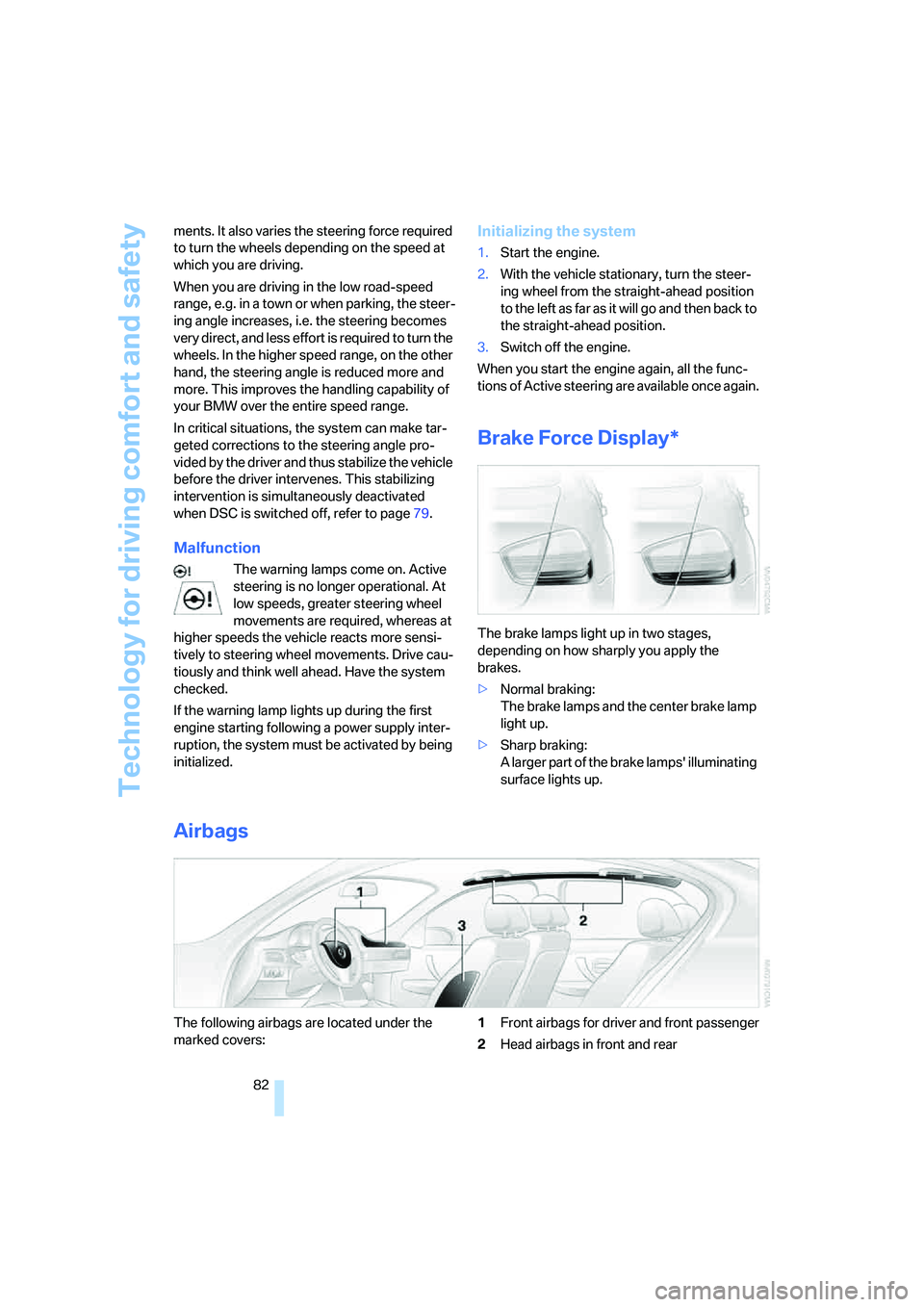
Brake Force Display*
The brake lamps light up in two stages,
depending on how sharply you apply the
brakes.
>Normal braking:
The brake lamps and the center brake lamp
light up.
>Sharp braking:
A larger part of the brake lamps' illuminating
surface lights up.
Airbags
The following airbags are located under the
marked covers:1Front airbags for driver and front passenger
2Head airbags in front and rear