memory BMW 335I COUPE 2008 E92 User Guide
[x] Cancel search | Manufacturer: BMW, Model Year: 2008, Model line: 335I COUPE, Model: BMW 335I COUPE 2008 E92Pages: 272, PDF Size: 8.98 MB
Page 162 of 272
On/off and settings
160
On/off and settings
The following audio sources have shared con-
trols and setting options:
>Radio
>CD player
>CD changer
*
Controls
The audio sources can be operated using:
>Buttons near the CD player
>iDrive
>Buttons
on the steering wheel, refer to
page11
>Programmable memory keys, refer to
page21
Buttons on the CD player
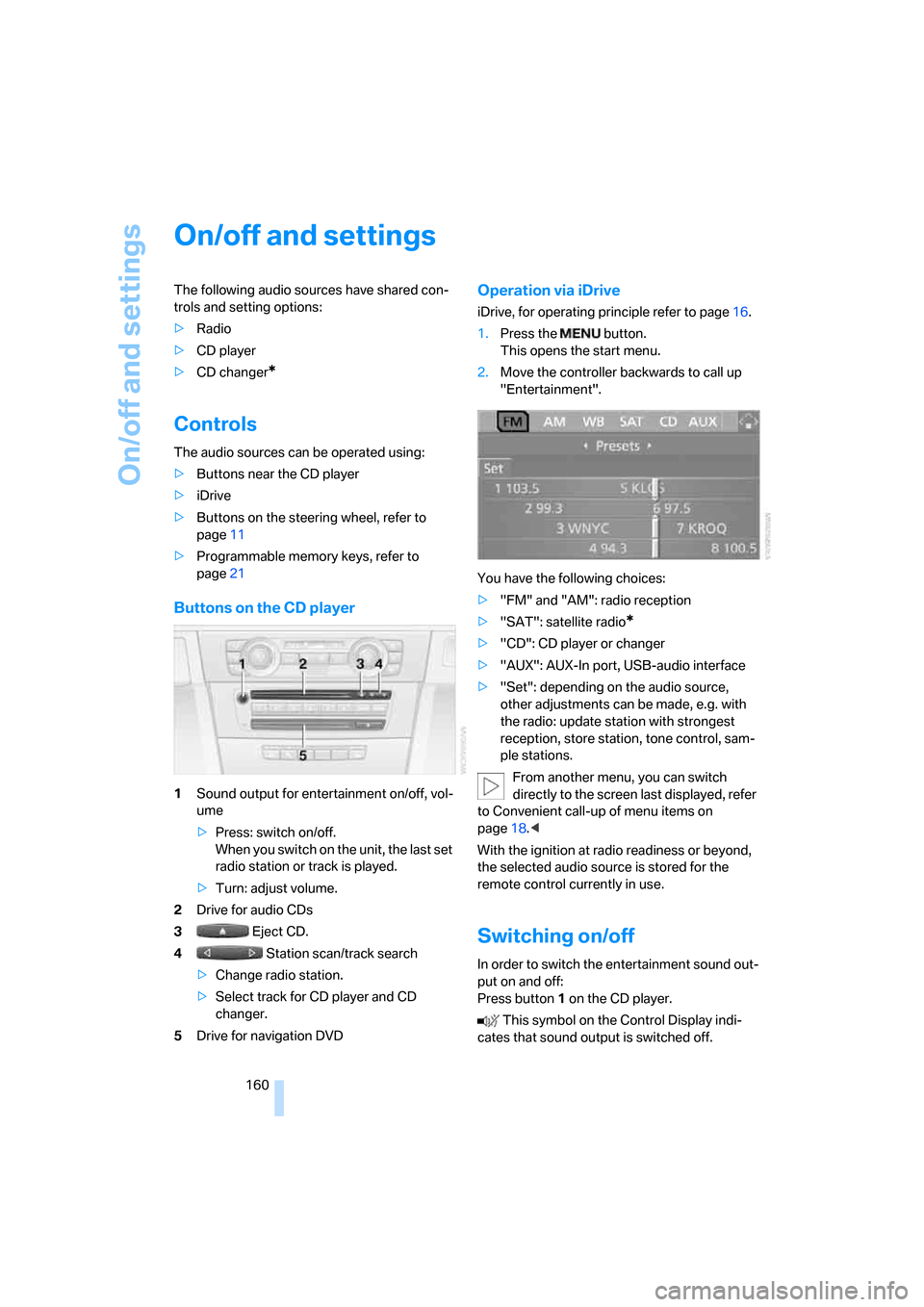
1Sound output for entertainment on/off, vol-
ume
>Press: switch on/off.
When you switch on the unit, the last set
radio station or track is played.
>Turn: adjust volume.
2Drive for audio CDs
3 Eject CD.
4 Station scan/track search
>Change radio station.
>Select track for CD player and CD
changer.
5Drive for navigation DVD
Operation via iDrive
iDrive, for operating principle refer to page16.
1.Press the button.
This opens the start menu.
2.Move the controller backwards to call up
"Entertainment".
You have the following choices:
>"FM" and "AM": radio reception
>"SAT": satellite radio
*
>"CD": CD player or changer
>"AUX": AUX-In port, USB-audio interface
>"Set": depending on the audio source,
other adjustments can be made, e.g. with
the radio: update station with strongest
reception, store station, tone control, sam-
ple stations.
From another menu, you can switch
directly to the screen last displayed, refer
to Convenient call-up of menu items on
page18.<
With the ignition at radio readiness or beyond,
the selected audio source is stored for the
remote control currently in use.
Switching on/off
In order to switch the entertainment sound out-
put on and off:
Press button1 on the CD player.
This symbol on the Control Display indi-
cates that sound output is switched off.
Page 168 of 272
Radio
166 5.Select "Autostore" and press the controller.
The display of the stations with the strongest
reception is updated. The frequencies of the
stations are displayed.
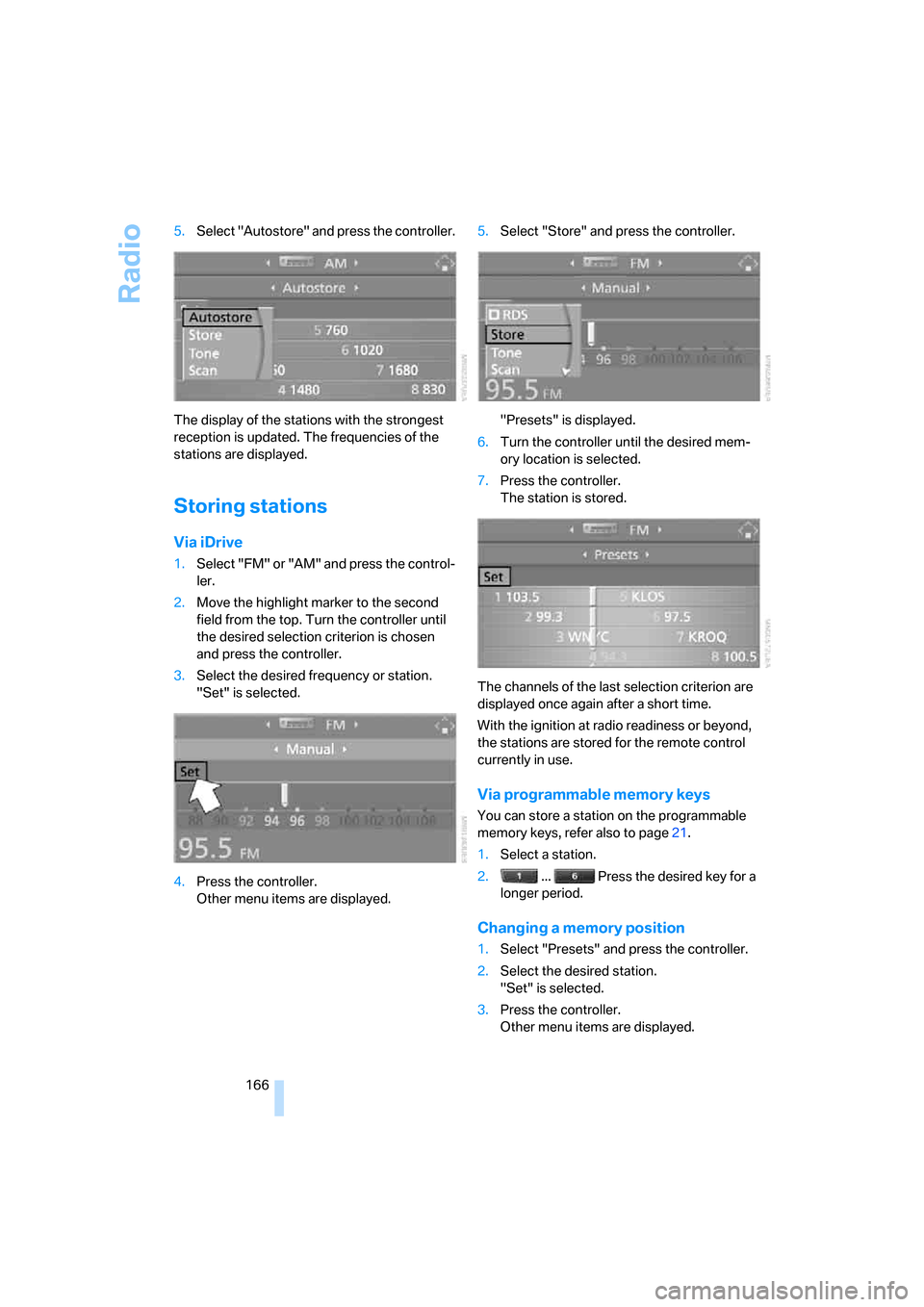
Storing stations
Via iDrive
1.Select "FM" or "AM" and press the control-
ler.
2.Move the highlight marker to the second
field from the top. Turn the controller until
the desired selection criterion is chosen
and press the controller.
3.Select the desired frequency or station.
"Set" is selected.
4.Press the controller.
Other menu items are displayed.5.Select "Store" and press the controller.
"Presets" is displayed.
6.Turn the controller until the desired mem-
ory location is selected.
7.Press the controller.
The station is stored.
The channels of the last selection criterion are
displayed once again after a short time.
With the ignition at radio readiness or beyond,
the stations are stored for the remote control
currently in use.
Via programmable memory keys
You can store a station on the programmable
memory keys, refer also to page21.
1.Select a station.
2. ... Press the desired key for a
longer period.
Changing a memory position
1.Select "Presets" and press the controller.
2.Select the desired station.
"Set" is selected.
3.Press the controller.
Other menu items are displayed.
Page 169 of 272
Navigation
Entertainment
Driving tips
167Reference
At a glance
Controls
Communications
Mobility
4.Select "Store" and press the controller.
5.Turn the controller until the desired mem-
ory location is selected.
The number of the memory location
appears beside the name or frequency of
the station.
6.Press the controller.
The station is stored.
RDS Radio Data System
On the FM waveband, additional information is
broadcast via RDS. If the reception conditions
are good, the station names are shown on the
Control Display. Where reception is poor or in
the event of interference, it may take some time
before the station names will appear in the dis-
play.
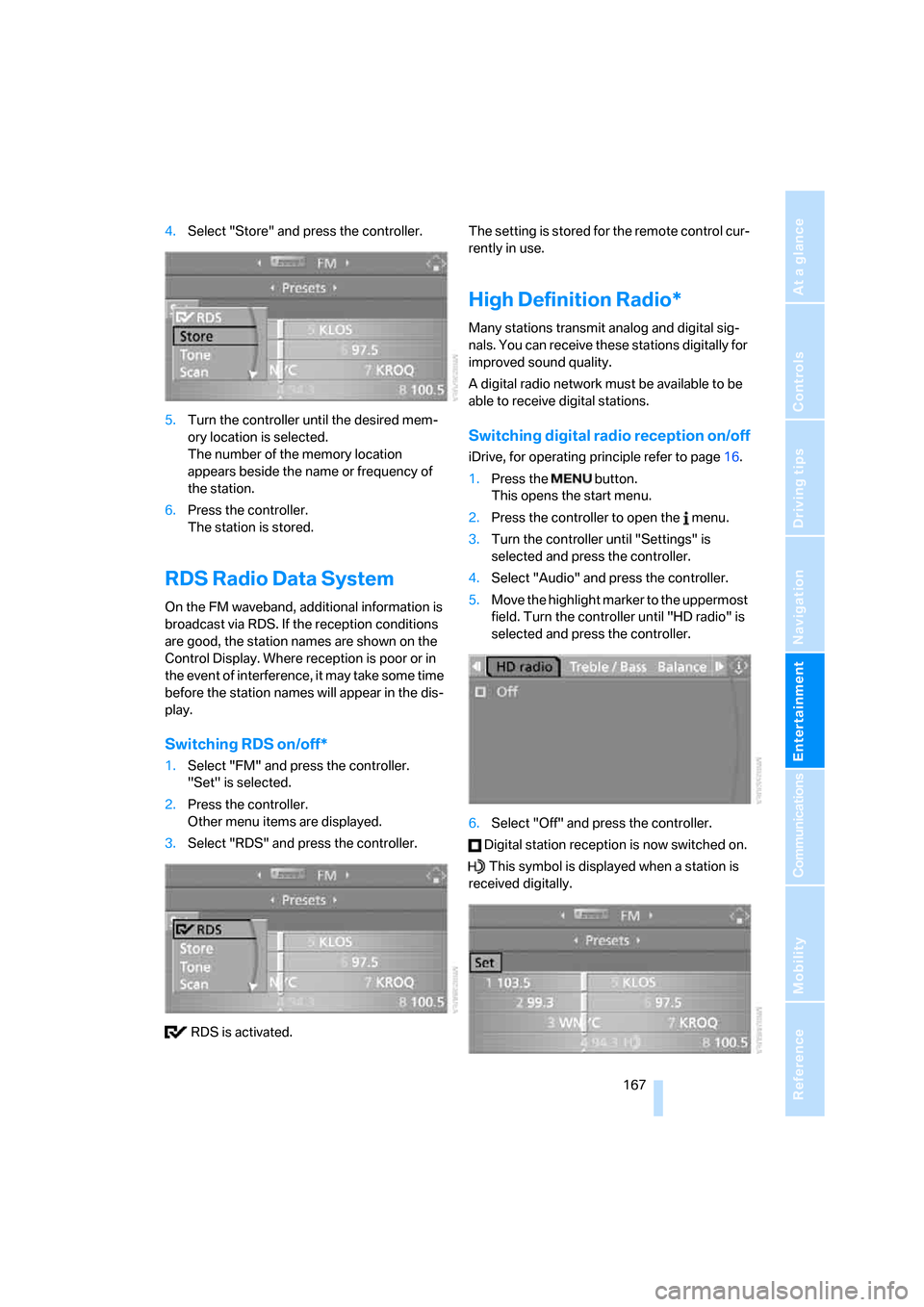
Switching RDS on/off*
1.Select "FM" and press the controller.
"Set" is selected.
2.Press the controller.
Other menu items are displayed.
3.Select "RDS" and press the controller.
RDS is activated.The setting is stored for the remote control cur-
rently in use.
High Definition Radio*
Many stations transmit analog and digital sig-
nals. You can receive these stations digitally for
improved sound quality.
A digital radio network must be available to be
able to receive digital stations.
Switching digital radio reception on/off
iDrive, for operating principle refer to page16.
1.Press the button.
This opens the start menu.
2.Press the controller to open the menu.
3.Turn the controller until "Settings" is
selected and press the controller.
4.Select "Audio" and press the controller.
5.Move the highlight marker to the uppermost
field. Turn the controller until "HD radio" is
selected and press the controller.
6.Select "Off" and press the controller.
Digital station reception is now switched on.
This symbol is displayed when a station is
received digitally.
Page 174 of 272
Satellite radio
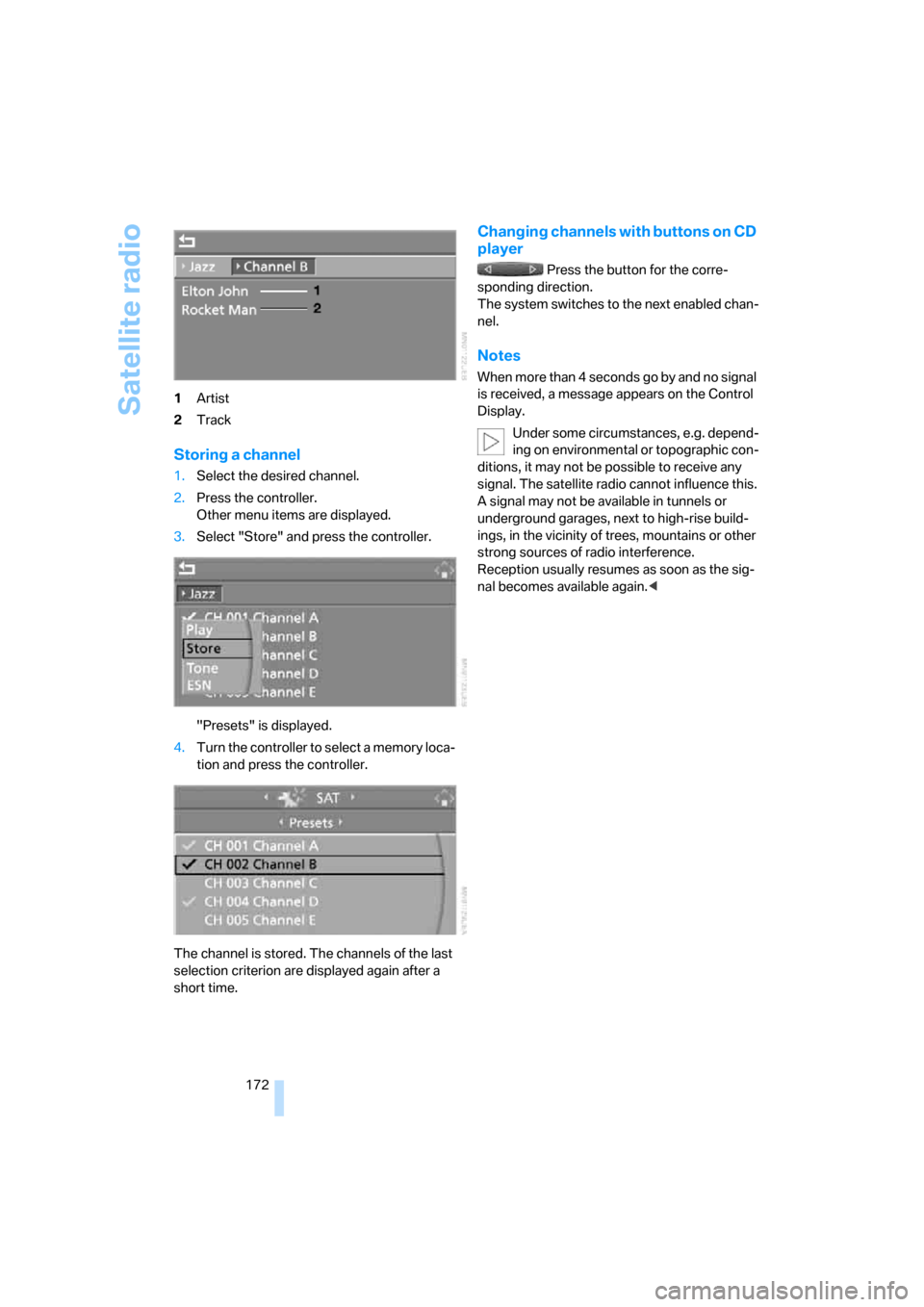
172 1Artist
2Track
Storing a channel
1.Select the desired channel.
2.Press the controller.
Other menu items are displayed.
3.Select "Store" and press the controller.
"Presets" is displayed.
4.Turn the controller to select a memory loca-
tion and press the controller.
The channel is stored. The channels of the last
selection criterion are displayed again after a
short time.
Changing channels with buttons on CD
player
Press the button for the corre-
sponding direction.
The system switches to the next enabled chan-
nel.
Notes
W hen mo re than 4 seconds go by and no s igna l
is received, a message appears on the Control
Display.
Under some circumstances, e.g. depend-
ing on environmental or topographic con-
ditions, it may not be possible to receive any
signal. The satellite radio cannot influence this.
A signal may not be available in tunnels or
underground garages, next to high-rise build-
ings, in the vicinity of trees, mountains or other
strong sources of radio interference.
Reception usually resumes as soon as the sig-
nal becomes available again.<
Page 175 of 272
Navigation
Entertainment
Driving tips
173Reference
At a glance
Controls
Communications
Mobility
CD player and CD changer
Listening to CDs
Compressed audio files*
CDs with compressed audio files, MP3s, can be
played by the CD player and CD changer.
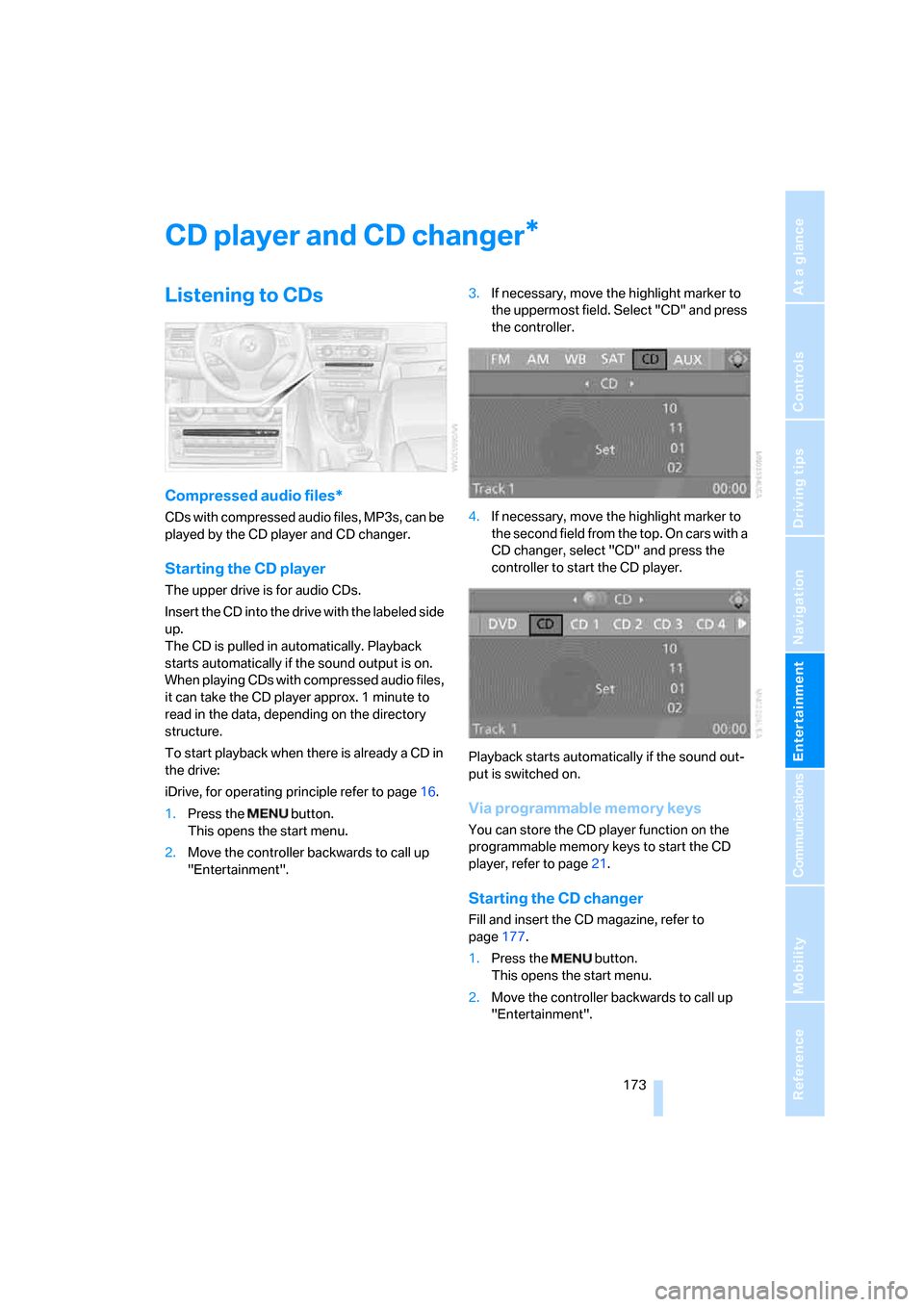
Starting the CD player
The upper drive is for audio CDs.
Insert the CD into the drive with the labeled side
up.
The CD is pulled in automatically. Playback
starts automatically if the sound output is on.
When playing CDs with compressed audio files,
it can take the CD player approx. 1 minute to
read in the data, depending on the directory
structure.
To start playback when there is already a CD in
the drive:
iDrive, for operating principle refer to page16.
1.Press the button.
This opens the start menu.
2.Move the controller backwards to call up
"Entertainment".3.If necessary, move the highlight marker to
the uppermost field. Select "CD" and press
the controller.
4.If necessary, move the highlight marker to
the second field from the top. On cars with a
CD changer, select "CD" and press the
controller to start the CD player.
Playback starts automatically if the sound out-
put is switched on.
Via programmable memory keys
You can store the CD player function on the
programmable memory keys to start the CD
player, refer to page21.
Starting the CD changer
Fill and insert the CD magazine, refer to
page177.
1.Press the button.
This opens the start menu.
2.Move the controller backwards to call up
"Entertainment".
*
Page 176 of 272
CD player and CD changer
174 3.If necessary, move the highlight marker to
the uppermost field. Select "CD" and press
the controller.
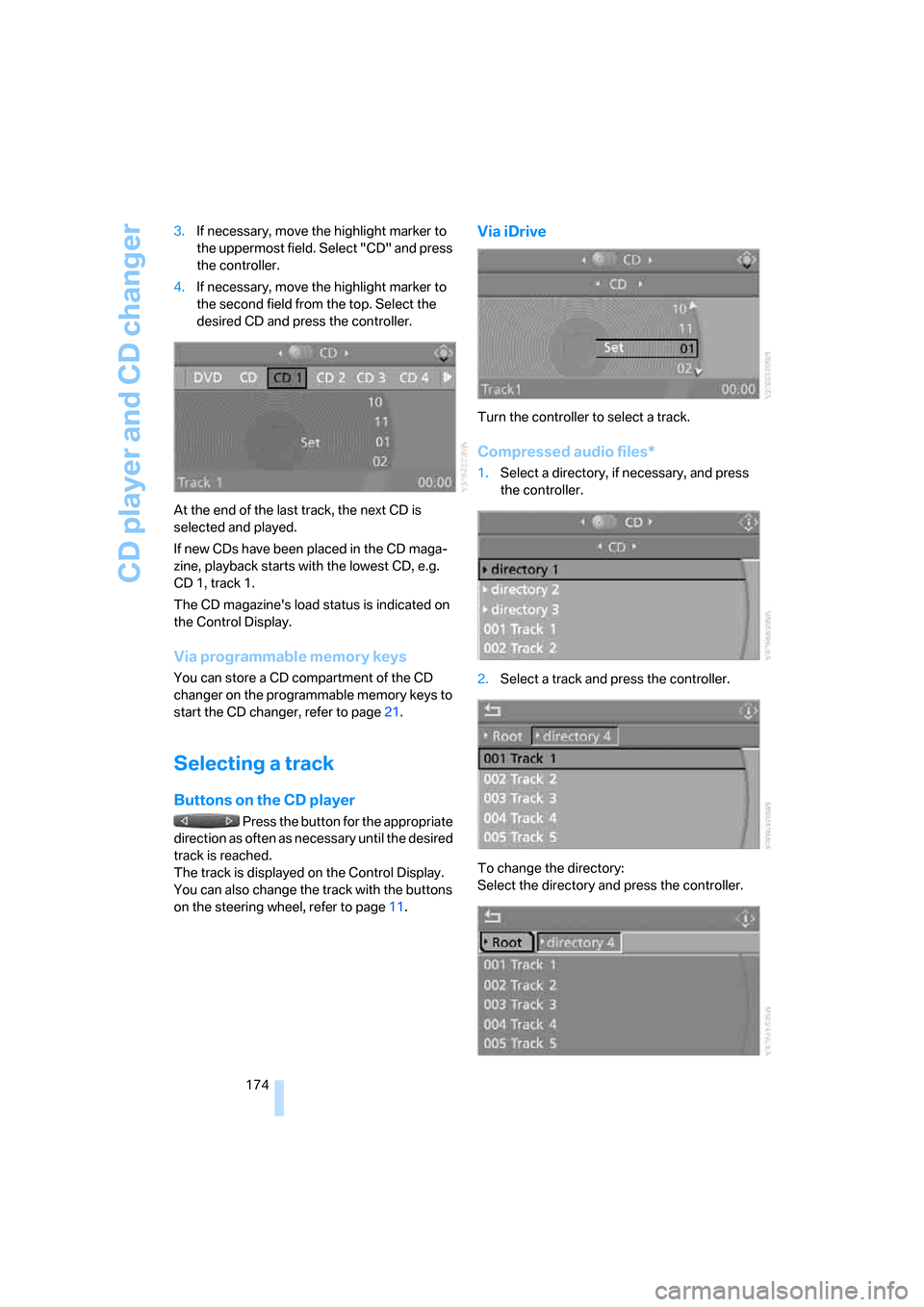
4.If necessary, move the highlight marker to
the second field from the top. Select the
desired CD and press the controller.
At the end of the last track, the next CD is
selected and played.
If new CDs have been placed in the CD maga-
zine, playback starts with the lowest CD, e.g.
CD 1, track 1.
The CD magazine's load status is indicated on
the Control Display.
Via programmable memory keys
You can store a CD compartment of the CD
changer on the programmable memory keys to
start the CD changer, refer to page21.
Selecting a track
Buttons on the CD player
Press the button for the appropriate
direction as often as necessary until the desired
track is reached.
The track is displayed on the Control Display.
You can also change the track with the buttons
on the steering wheel, refer to page11.
Via iDrive
Turn the controller to select a track.
Compressed audio files*
1.Select a directory, if necessary, and press
the controller.
2.Select a track and press the controller.
To change the directory:
Select the directory and press the controller.
Page 177 of 272
Navigation
Entertainment
Driving tips
175Reference
At a glance
Controls
Communications
Mobility
To exit from the menu:
Select the arrow and press the controller.
If the car is equipped with two CD drives, you
can save specific tracks on the programmable
memory keys, refer to page21.
Displaying information about the
track*
With compressed audio files, any information
about the current track that has been recorded
can be displayed, e.g. the name of the artist.
1.Press the controller.
2.Select "Details" and press the controller.
The information is shown for the current track.
The setting is stored for the remote control cur-
rently in use.
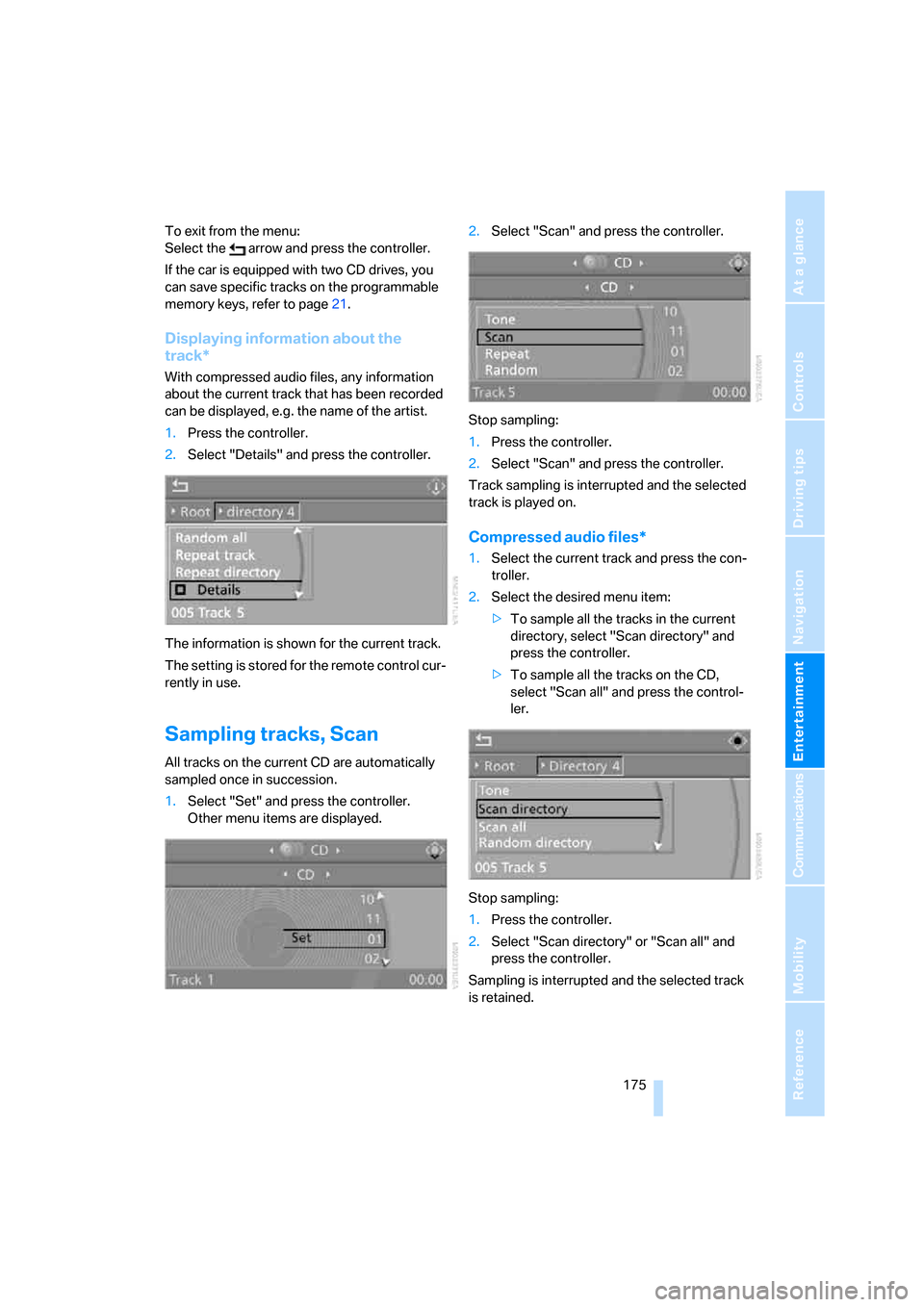
Sampling tracks, Scan
All tracks on the current CD are automatically
sampled once in succession.
1.Select "Set" and press the controller.
Other menu items are displayed.2.Select "Scan" and press the controller.
Stop sampling:
1.Press the controller.
2.Select "Scan" and press the controller.
Track sampling is interrupted and the selected
track is played on.
Compressed audio files*
1.Select the current track and press the con-
troller.
2.Select the desired menu item:
>To sample all the tracks in the current
directory, select "Scan directory" and
press the controller.
>To sample all the tracks on the CD,
select "Scan all" and press the control-
ler.
Stop sampling:
1.Press the controller.
2.Select "Scan directory" or "Scan all" and
press the controller.
Sampling is interrupted and the selected track
is retained.
Page 181 of 272
Navigation
Entertainment
Driving tips
179Reference
At a glance
Controls
Communications
Mobility
AUX-In port
You can connect an external audio device, for
instance an MP3 player, and play audio tracks
over the car's loudspeaker system. You can
adjust the tone using iDrive.
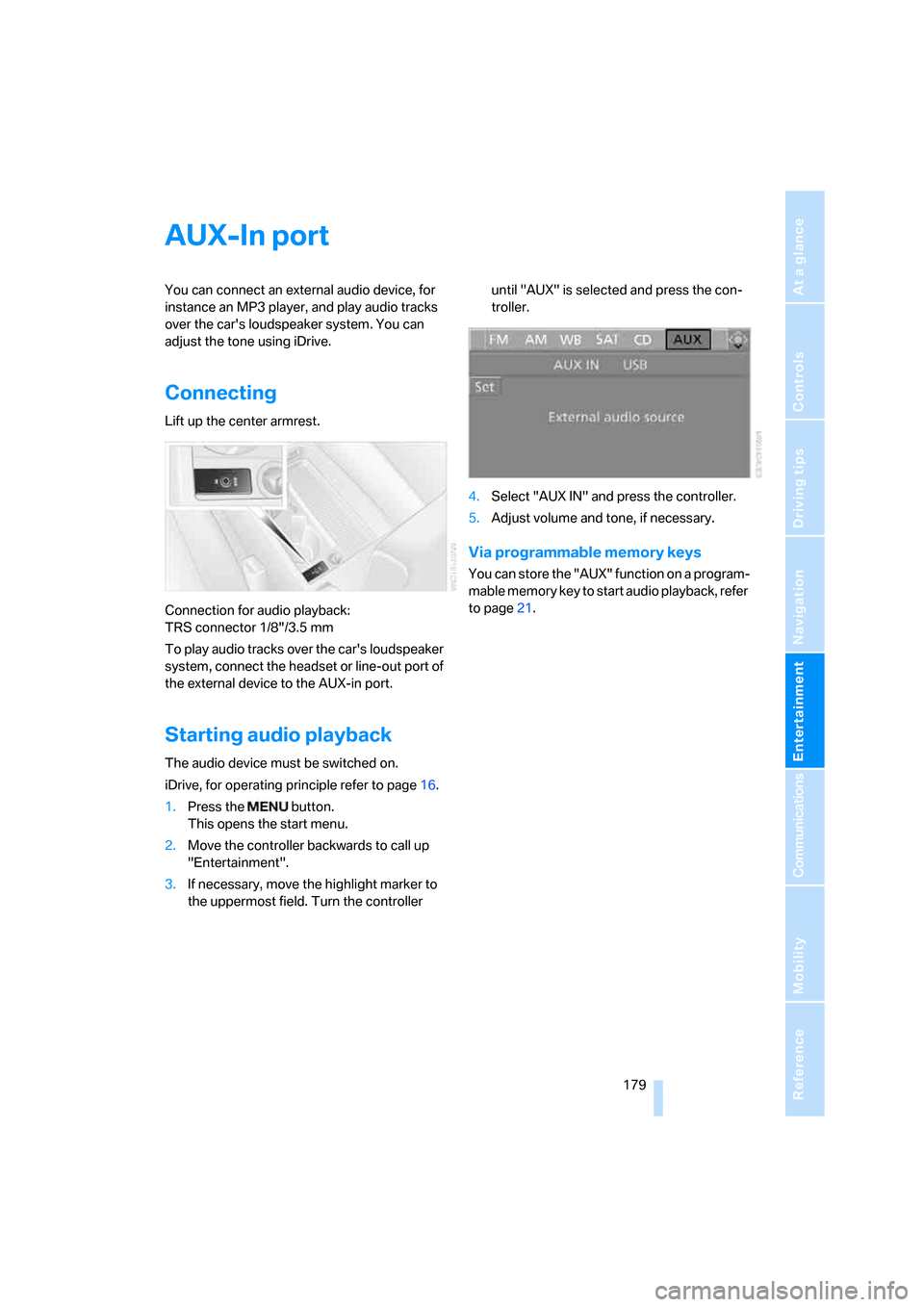
Connecting
Lift up the center armrest.
Connection for audio playback:
TRS connector 1/8"/3.5 mm
To play audio tracks over the car's loudspeaker
system, connect the headset or line-out port of
the external device to the AUX-in port.
Starting audio playback
The audio device must be switched on.
iDrive, for operating principle refer to page16.
1.Press the button.
This opens the start menu.
2.Move the controller backwards to call up
"Entertainment".
3.If necessary, move the highlight marker to
the uppermost field. Turn the controller until "AUX" is selected and press the con-
troller.
4.Select "AUX IN" and press the controller.
5.Adjust volume and tone, if necessary.
Via programmable memory keys
You can store the "AUX" function on a program-
mable memory key to start audio playback, refer
to page21.
Page 183 of 272
Navigation
Entertainment
Driving tips
181Reference
At a glance
Controls
Communications
Mobility
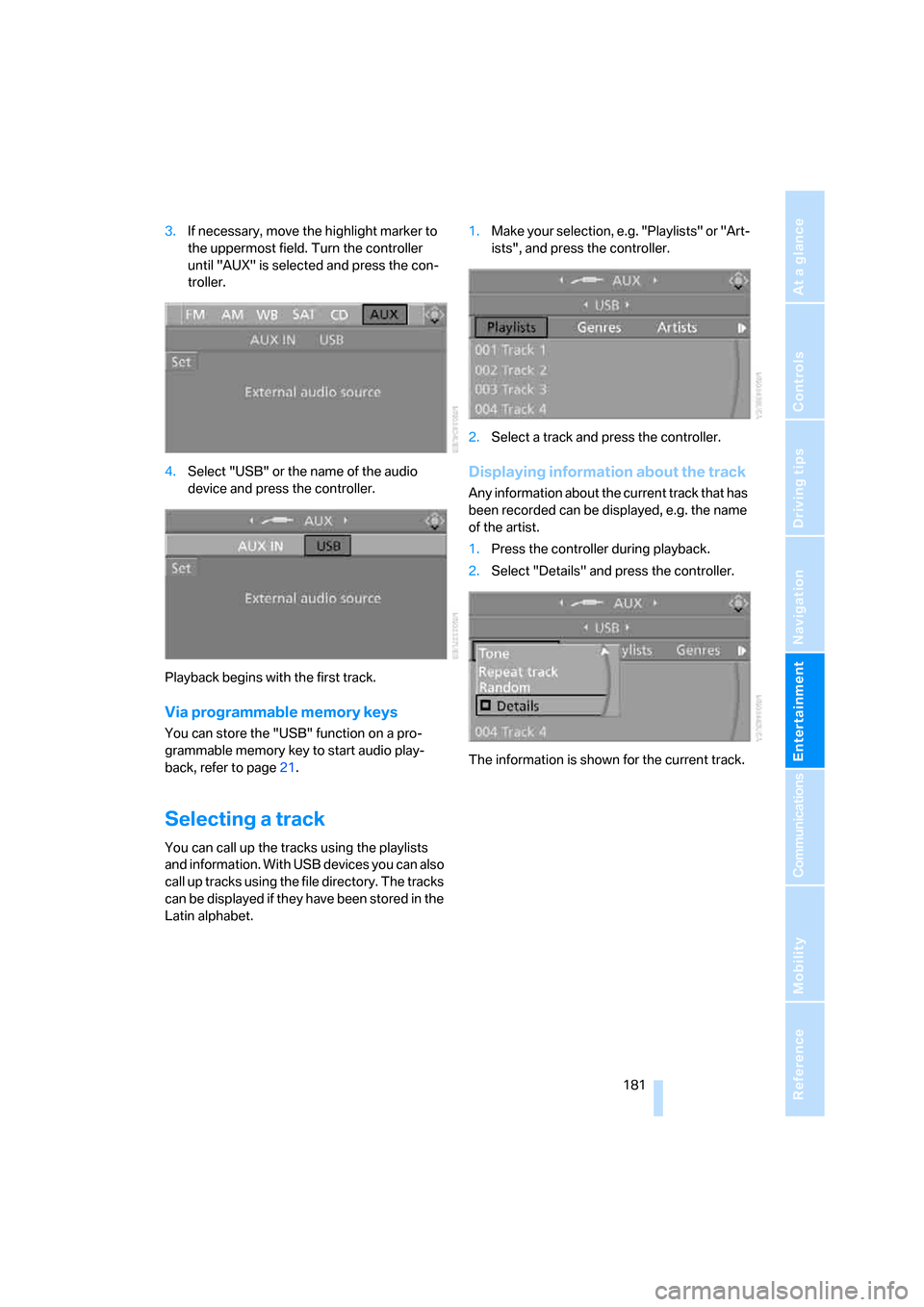
3.If necessary, move the highlight marker to
the uppermost field. Turn the controller
until "AUX" is selected and press the con-
troller.
4.Select "USB" or the name of the audio
device and press the controller.
Playback begins with the first track.
Via programmable memory keys
You can store the "USB" function on a pro-
grammable memory key to start audio play-
back, refer to page21.
Selecting a track
You can call up the tracks using the playlists
and information. With USB devices you can also
call up tracks using the file directory. The tracks
can be displayed if they have been stored in the
Latin alphabet.1.Make your selection, e.g. "Playlists" or "Art-
ists", and press the controller.
2.Select a track and press the controller.
Displaying information about the track
Any information about the current track that has
been recorded can be displayed, e.g. the name
of the artist.
1.Press the controller during playback.
2.Select "Details" and press the controller.
The information is shown for the current track.
Page 188 of 272
Telephoning
186
Telephoning
The concept
Your BMW is equipped with a full mobile phone
preparation package. After pairing a suitable
mobile phone with the vehicle once, you can
operate the mobile phone via iDrive, the buttons
on the steering wheel or via voice commands.
Once a mobile phone has been paired with your
vehicle, it is automatically recognized as soon
as it is inside the vehicle while the engine is run-
ning or the ignition is switched on. You can
store the pairing data for up to four mobile
phones simultaneously. If several mobile
phones are detected at the same time, the
mobile phone last paired can be operated via
the vehicle.
Using the telephone inside
the vehicle
Using the snap-in adapter*
The so-called snap-in adapter, a holder for
mobile phones, allows you to charge the mobile
phone's battery and connect the mobile phone
to your vehicle's outside antenna. This ensures
better network reception and consistent repro-
duction quality. Please contact your
BMW center to find out for which mobile
phones there are snap-in adapters available.
For your safety
A car phone makes life more convenient in
many ways, and can even save lives in an emer-
gency. While you should consult your mobile
phone's separate Owner's Manual for a detailed
description of safety precautions and informa-
tion, we request that you direct your particular
attention to the following:
Only make entries when the traffic situa-
tion allows you to do so. Do not hold the
mobile phone in your hand while you are driving;
use the hands-free system instead. If you do
not observe this precaution, your being dis-tracted can endanger vehicle occupants and
other road users.<
Suitable mobile phones
Please ask your BMW center which mobile
phones with Bluetooth interface are supported
by the mobile phone preparation package and/
or which mobile phones are compatible with the
snap-in adapter. By virtue of their particular
software versions, these mobile phones sup-
port the functions described in this Owner's
Manual. Malfunctions may occur with other
mobile phones.
Care instructions
You can find what you need to know about car-
ing for your mobile phone in the separate Caring
for your vehicle brochure and in the mobile
phone Owner's Manual.
Operating options
You can operate the mobile phone* using:
>Buttons on the steering wheel, refer to
page10
>iDrive, refer to page191
>Voice commands, refer to page197
>Programmable memory keys, refer to
page21
Avoid operating a mobile phone recognized by
the vehicle via the mobile phone's keypad, oth-
erwise malfunctions may result.
Making phone calls with the
BMW Assist system*: BMW Assist
calls
You can use the BMW Assist System via the
hands-free unit for BMW Assist calls.
*