idrive BMW 335I COUPE 2009 E92 Owner's Manual
[x] Cancel search | Manufacturer: BMW, Model Year: 2009, Model line: 335I COUPE, Model: BMW 335I COUPE 2009 E92Pages: 260, PDF Size: 7.95 MB
Page 5 of 260
Reference
At a glance
Controls
Driving tips
Communications
Navigation
Entertainment
Mobility
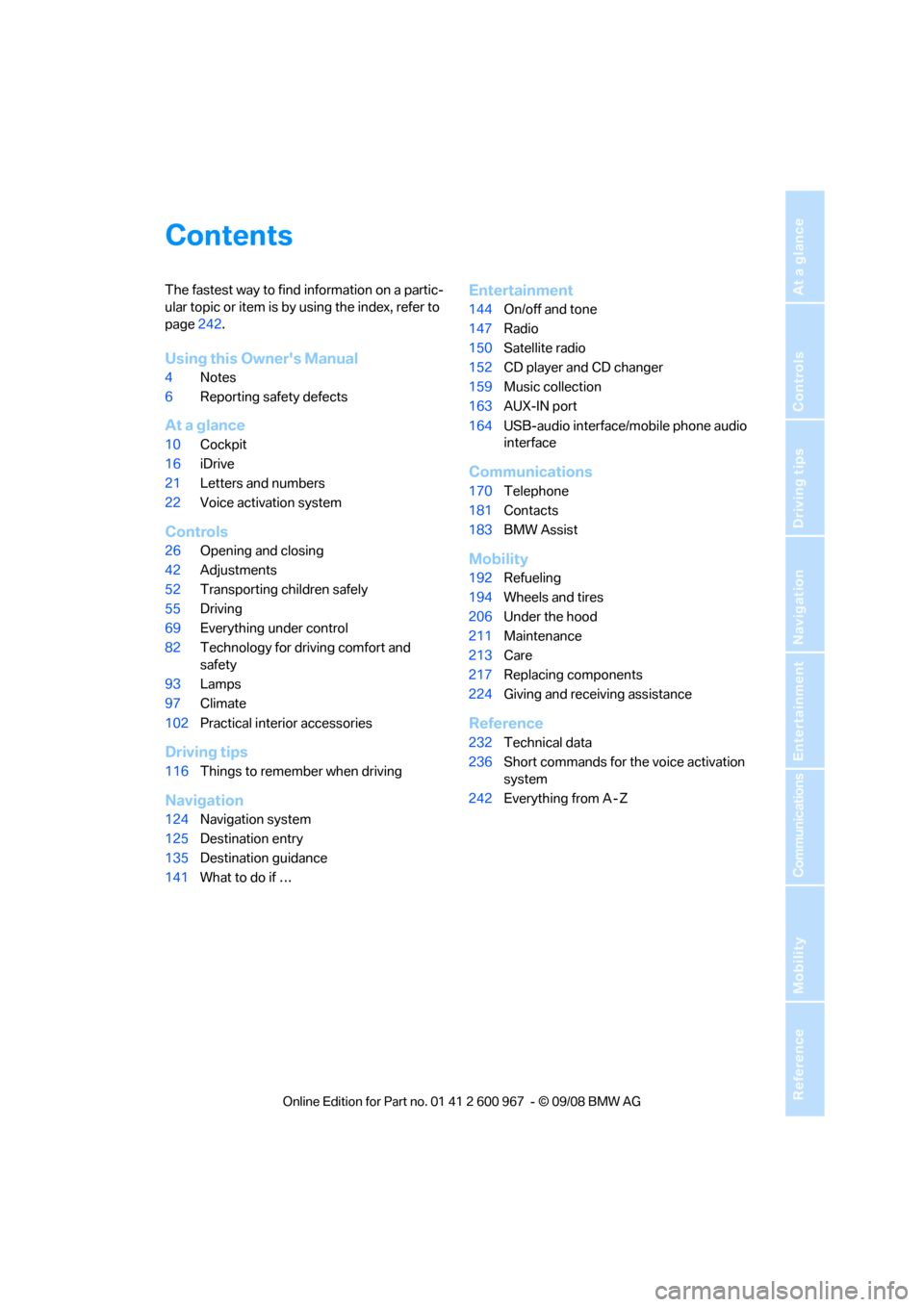
Contents
The fastest way to find information on a partic-
ular topic or item is by using the index, refer to
page242.
Using this Owner's Manual
4Notes
6Reporting safety defects
At a glance
10Cockpit
16iDrive
21Letters and numbers
22Voice activation system
Controls
26Opening and closing
42Adjustments
52Transporting children safely
55Driving
69Everything under control
82Technology for driving comfort and
safety
93Lamps
97Climate
102Practical interior accessories
Driving tips
116Things to remember when driving
Navigation
124Navigation system
125Destination entry
135Destination guidance
141What to do if …
Entertainment
144On/off and tone
147Radio
150Satellite radio
152CD player and CD changer
159Music collection
163AUX-IN port
164USB-audio interface/mobile phone audio
interface
Communications
170Telephone
181Contacts
183BMW Assist
Mobility
192Refueling
194Wheels and tires
206Under the hood
211Maintenance
213Care
217Replacing components
224Giving and receiving assistance
Reference
232Technical data
236Short commands for the voice activation
system
242Everything from A - Z
Page 18 of 260
iDrive
16
iDrive
iDrive integrates the functions of a large num-
ber of switches. This allows these functions to
be operated from a single central position. The
following section provides an introduction to basic menu navigation. The control of the indi-
vidual functions is described in connection with
the relevant equipment.
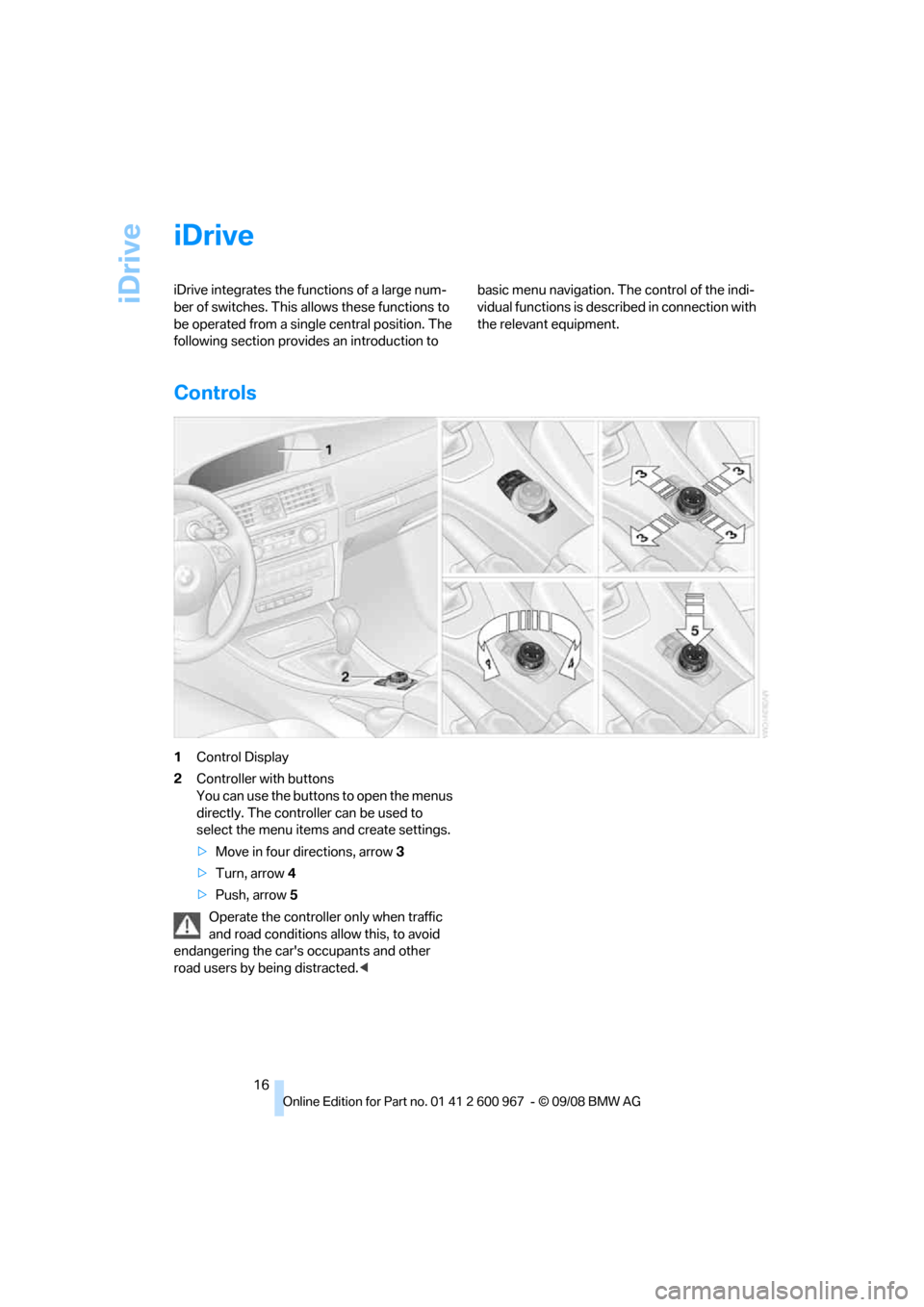
Controls
1Control Display
2Controller with buttons
You can use the buttons to open the menus
directly. The controller can be used to
select the menu items and create settings.
>Move in four directions, arrow3
>Turn, arrow 4
>Push, arrow 5
Operate the controller only when traffic
and road conditions allow this, to avoid
endangering the car's occupants and other
road users by being distracted.<
Page 19 of 260
At a glance
17Reference
Controls
Driving tips
Communications
Navigation
Entertainment
Mobility
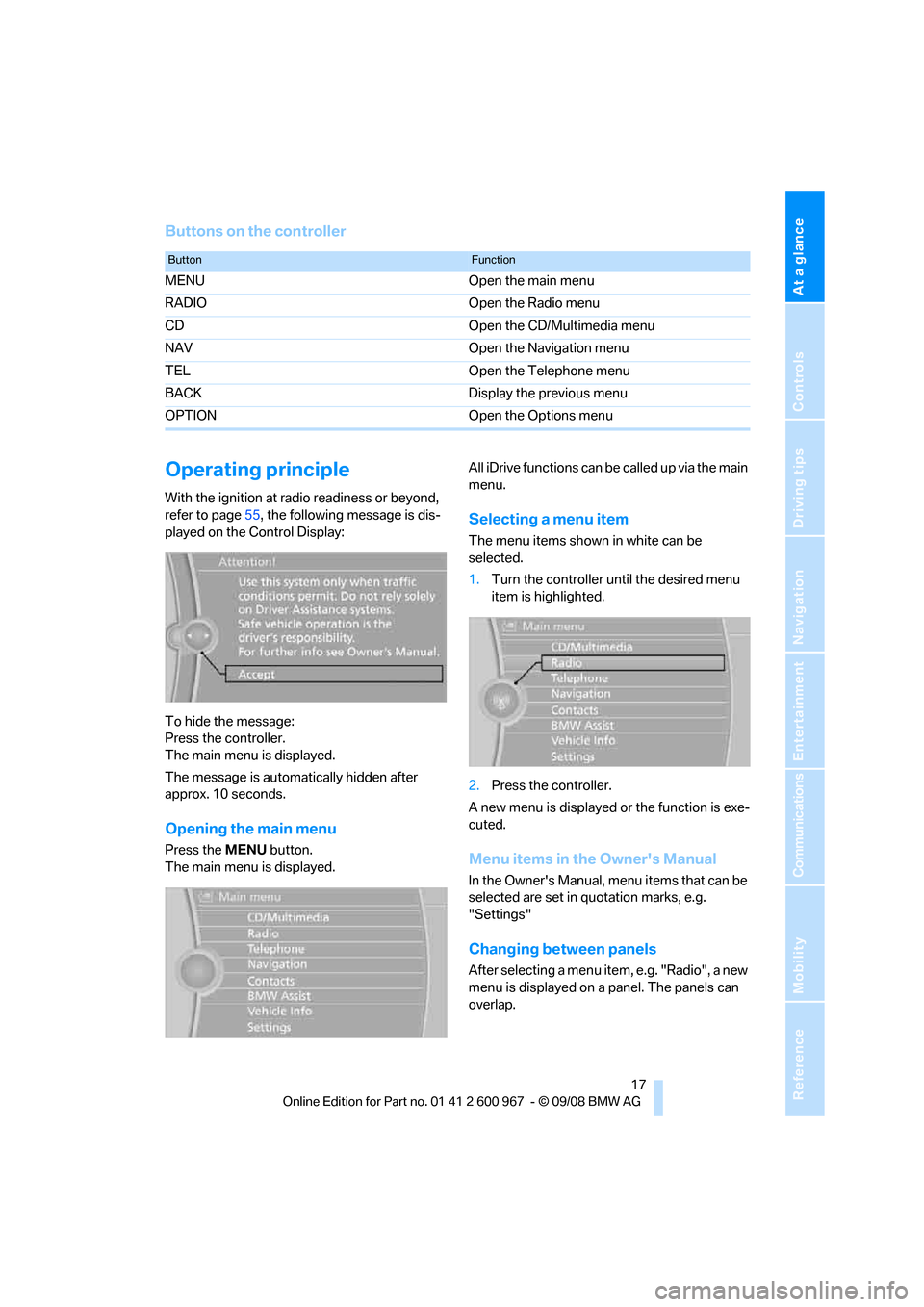
Buttons on the controller
Operating principle
With the ignition at radio readiness or beyond,
refer to page55, the following message is dis-
played on the Control Display:
To hide the message:
Press the controller.
The main menu is displayed.
The message is automatically hidden after
approx. 10 seconds.
Opening the main menu
Press the MENU button.
The main menu is displayed.All iDrive functions can be called up via the main
menu.
Selecting a menu item
The menu items shown in white can be
selected.
1.Turn the controller until the desired menu
item is highlighted.
2.Press the controller.
A new menu is displayed or the function is exe-
cuted.
Menu items in the Owner's Manual
In the Owner's Manual, menu items that can be
selected are set in quotation marks, e.g.
"Settings"
Changing between panels
After selecting a menu item, e.g. "Radio", a new
menu is displayed on a panel. The panels can
overlap.
ButtonFunction
MENU Open the main menu
RADIO Open the Radio menu
CD Open the CD/Multimedia menu
NAV Open the Navigation menu
TEL Open the Telephone menu
BACK Display the previous menu
OPTION Open the Options menu
Page 20 of 260
iDrive
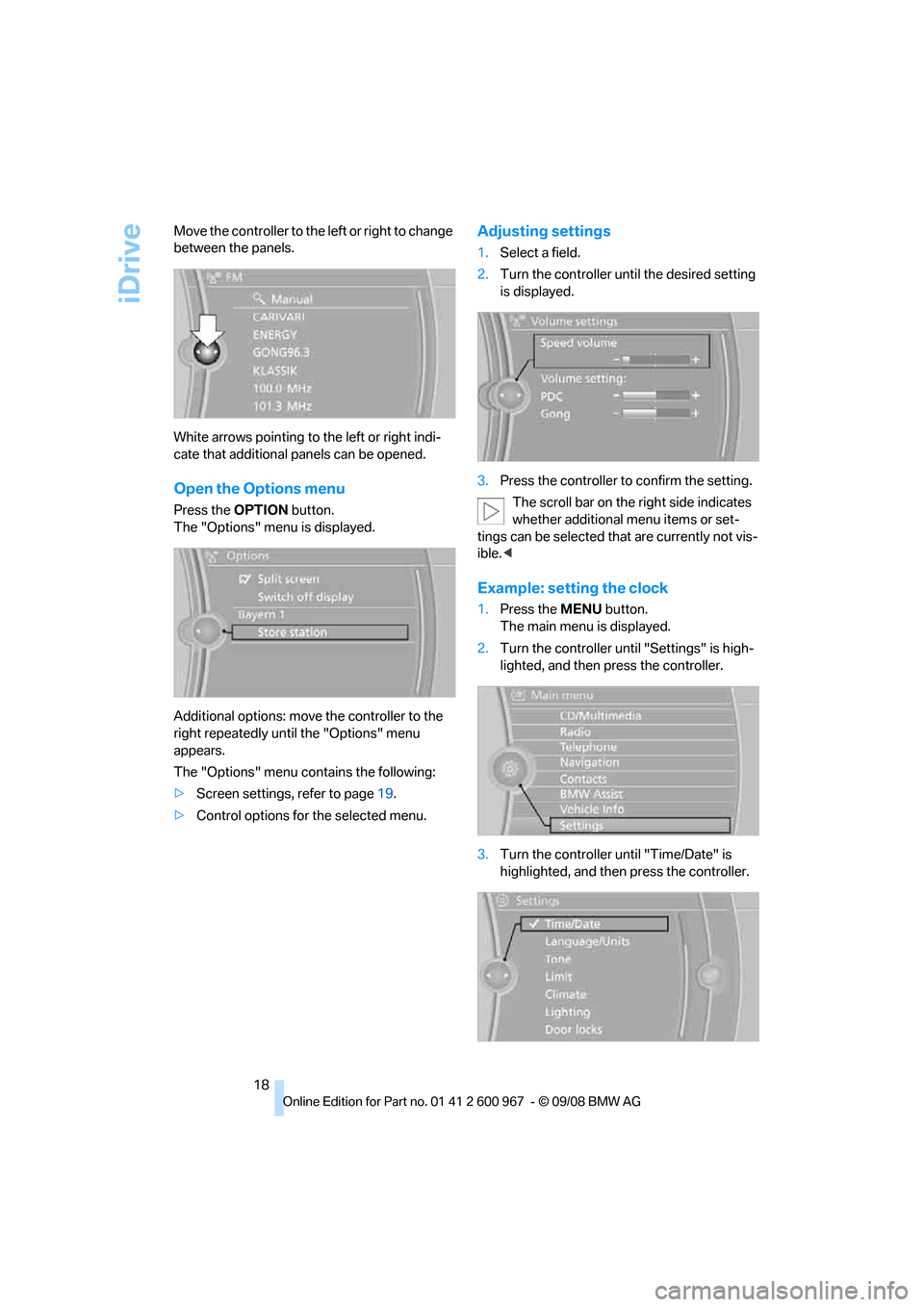
18 Move the controller to the left or right to change
between the panels.
White arrows pointing to the left or right indi-
cate that additional panels can be opened.
Open the Options menu
Press the OPTION button.
The "Options" menu is displayed.
Additional options: move the controller to the
right repeatedly until the "Options" menu
appears.
The "Options" menu contains the following:
>Screen settings, refer to page19.
>Control options for the selected menu.
Adjusting settings
1.Select a field.
2.Turn the controller until the desired setting
is displayed.
3.Press the controller to confirm the setting.
The scroll bar on the right side indicates
whether additional menu items or set-
tings can be selected that are currently not vis-
ible.<
Example: setting the clock
1.Press the MENU button.
The main menu is displayed.
2.Turn the controller until "Settings" is high-
lighted, and then press the controller.
3.Turn the controller until "Time/Date" is
highlighted, and then press the controller.
Page 22 of 260
iDrive
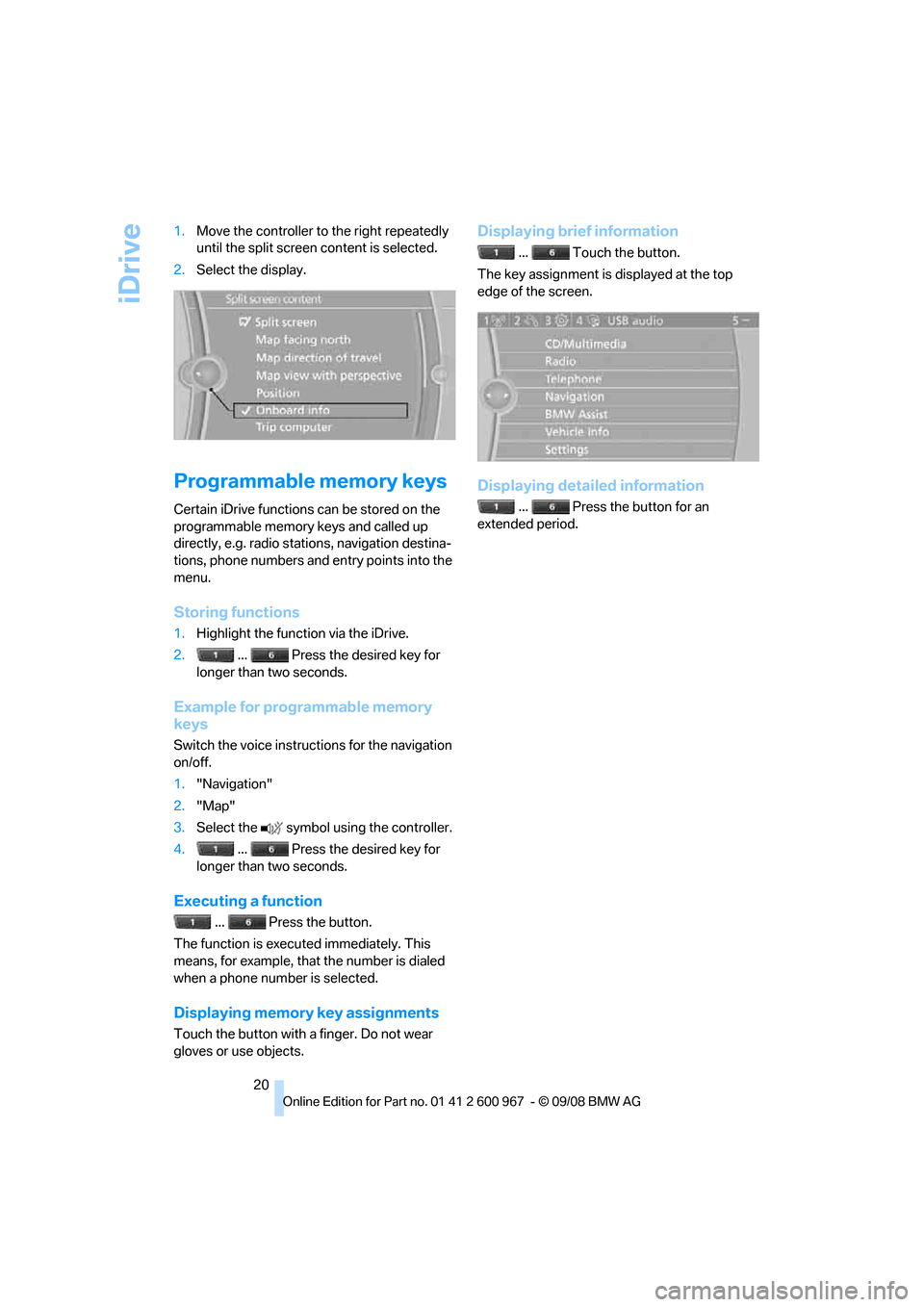
20 1.Move the controller to the right repeatedly
until the split screen content is selected.
2.Select the display.
Programmable memory keys
Certain iDrive functions can be stored on the
programmable memory keys and called up
directly, e.g. radio stations, navigation destina-
tions, phone numbers and entry points into the
menu.
Storing functions
1.Highlight the function via the iDrive.
2. ... Press the desired key for
longer than two seconds.
Example for programmable memory
keys
Switch the voice instructions for the navigation
on/off.
1."Navigation"
2."Map"
3.Select the symbol using the controller.
4. ... Press the desired key for
longer than two seconds.
Executing a function
... Press the button.
The function is executed immediately. This
means, for example, that the number is dialed
when a phone number is selected.
Displaying memory key assignments
Touch the button with a finger. Do not wear
gloves or use objects.
Displaying brief information
... Touch the button.
The key assignment is displayed at the top
edge of the screen.
Displaying detailed information
... Press the button for an
extended period.
Page 24 of 260
Voice activation system
22
Voice activation system
The concept
The voice activation system allows you to con-
trol operation of various vehicle systems with-
out removing your hands from the steering
wheel.
Individual menu items on the Control Display
can be spoken as commands. It is not neces-
sary to use the controller.
The voice activation system transforms your
oral commands into control signals for the
selected systems and provides support in the
form of instructions or questions.
Coupe: the voice activation system uses a spe-
cial microphone located in the area of the inte-
rior rearview mirror, refer to page14.
Convertible: the voice activation system uses a
special microphone located in the area of the
steering column.
Precondition
Via iDrive, select the language in which the
voice activation system is operating, so that the
spoken commands can be identified. Selecting
the language for iDrive, refer to page80.
Symbols in the Owner's Manual
Saying commands
Activating voice activation system
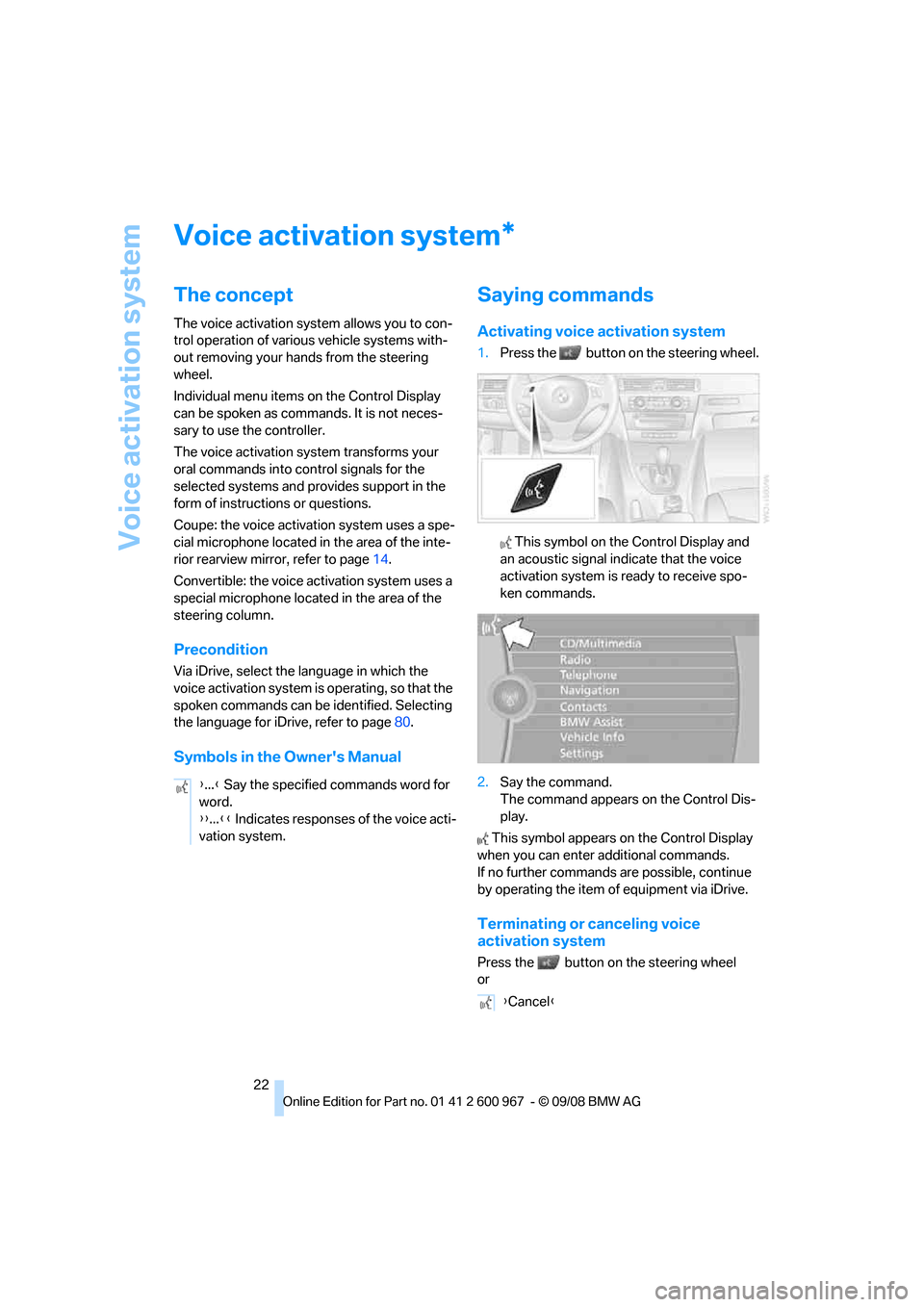
1.Press the button on the steering wheel.
This symbol on the Control Display and
an acoustic signal indicate that the voice
activation system is ready to receive spo-
ken commands.
2.Say the command.
The command appears on the Control Dis-
play.
This symbol appears on the Control Display
when you can enter additional commands.
If no further commands are possible, continue
by operating the item of equipment via iDrive.
Terminating or canceling voice
activation system
Press the button on the steering wheel
or
*
{...} Say the specified commands word for
word.
{{...}} Indicates responses of the voice acti-
vation system.
{Cancel}
Page 29 of 260
Controls
27Reference
At a glance
Driving tips
Communications
Navigation
Entertainment
Mobility
>Settings for the display on the Control Dis-
play and in the instrument cluster:
>12h/24h format of the clock, refer to
page76
>Date format, refer to page77
>Brightness of Control Display, refer to
page80
>Language on the Control Display, refer
to page80
>Units of measure, refer to page72
>Show visual warning for Park Distance Con-
trol PDC
*, refer to page82
>Light settings:
>Welcome lamps, refer to page93
>Pathway lighting, refer to page94
>Daytime running lamps, refer to page94
>Automatic climate control: activating/deac-
tivating AUTO program, cooling function
and automatic recirculated-air control, set-
ting temperature, air flow rate and distribu-
tion, refer to page98 ff
>Entertainment:
>Audio volume, refer to page144
>Tone control, refer to page144
>Speed-dependent volume control, refer
to page145
Central locking system
The concept
The central locking system functions when the
driver's door is closed.
The system simultaneously engages and
releases the locks on the following:
>Doors
>Luggage compartment lid
>Fuel filler door
>Convertible: glove compartment
Operating from outside
>Via the remote control>Via the door lock
*
>In cars with convenient access*, via the
handles on the driver's and front passen-
ger's doors
In addition, if the remote control is used, the
welcome lamps, interior lamps and the door's
courtesy lamps
* are switched on or off. The
alarm system
* is also armed or disarmed.
For further details of the alarm system,
refer to
page32.
Operating from inside
By means of the button for central locking, refer
to page30.
In the event of a sufficiently severe accident, the
central locking system unlocks automatically. In
addition, the hazard warning flashers and inte-
rior lamps come on.
Opening and closing:
Using the remote control
Persons or animals in a parked vehicle
could lock the doors from the inside. You
should therefore take the remote control with
you when you leave the vehicle so that the latter
can be opened from outside.<
Convertible: to operate the retractable
hardtop with the remote control, the
doors and luggage compartment lid must be
closed and the cargo bay partition must be
folded down and engaged on both sides. Refer
also to page39.<
Unlocking
Press the button.
The interior lamps, the courtesy lamps
* and the
welcome lamps come on.
Setting unlocking characteristics
You can set whether only the driver's door or
the entire vehicle is to be unlocked when the
button is pressed for the first time.
iDrive, for operating principle refer to page16.
Page 31 of 260
Controls
29Reference
At a glance
Driving tips
Communications
Navigation
Entertainment
Mobility
position. The luggage compartment lid
opens slightly.
2.Open the luggage compartment lid, press
the cargo bay partition upward and stow the
cargo in the cargo bay.
3.Press down the cargo bay partition until it
engages on both sides and close the lug-
gage compartment lid.
4.Press the button for a longer period to
fold the retractable hardtop back in.
Confirmation signals
You can activate or deactivate the confirmation
signals.
iDrive, for operating principle refer to page16.
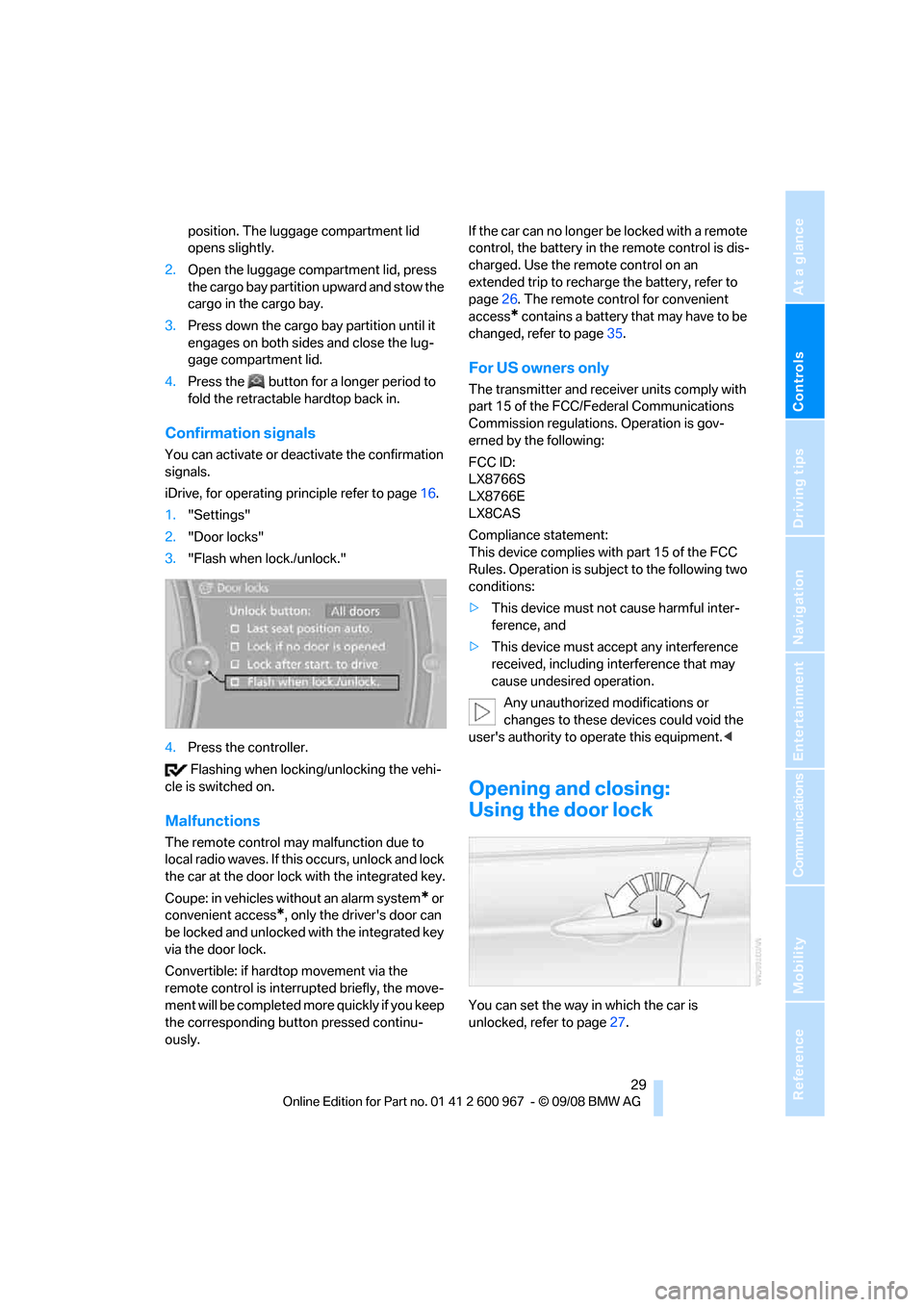
1."Settings"
2."Door locks"
3."Flash when lock./unlock."
4.Press the controller.
Flashing when locking/unlocking the vehi-
cle is switched on.
Malfunctions
The remote control may malfunction due to
local radio waves. If this occurs, unlock and lock
the car at the door lock with the integrated key.
Coupe: in vehicles without an alarm system
* or
convenient access
*, only the driver's door can
be locked and unlocked with the integrated key
via the door lock.
Convertible: if hardtop movement via the
remote control is interrupted briefly, the move-
ment will be completed more quickly if you keep
the corresponding button pressed continu-
ously.If the car can no longer be locked with a remote
control, the battery in the remote control is dis-
charged. Use the remote control on an
extended trip to recharge the battery, refer to
page26. The remote control for convenient
access
* contains a battery that may have to be
changed, refer to page35.
For US owners only
The transmitter and receiver units comply with
part 15 of the FCC/Federal Communications
Commission regulations. Operation is gov-
erned by the following:
FCC ID:
LX8766S
LX8766E
LX8CAS
Compliance statement:
This device complies with part 15 of the FCC
Rules. Operation is subject to the following two
conditions:
>This device must not cause harmful inter-
ference, and
>This device must accept any interference
received, including interference that may
cause undesired operation.
Any unauthorized modifications or
changes to these devices could void the
user's authority to operate this equipment.<
Opening and closing:
Using the door lock
You can set the way in which the car is
unlocked, refer to page27.
Page 32 of 260
Opening and closing
30
Coupe
In vehicles without an alarm system* or
convenient access
*, only the driver's
door can be locked via the door lock.<
To lock all doors, the fuel filler door and the lug-
gage compartment lid at once:
1.With the doors closed, lock the vehicle
using the button for the central locking sys-
tem in the interior, refer to page30.
2.Unlock and open the driver's or front pas-
senger's door, refer to page31.
3.Lock the vehicle.
>Lock the driver's door via the door lock
using the integrated key, or
>push down the locking knob on the front
passenger's door and close the door
from the outside.
Convenient operation
Coupe: if the vehicle is equipped with an alarm
system
* or convenience access*, you can also
operate the windows and the glass roof
* via the
door lock.
Convertible: you can operate the windows and
the retractable hardtop via the door lock.
Hold the key in the position for unlocking or
locking.
During each closing procedure, and when
opening the retractable hardtop, watch
the process and ensure that no one becomes
trapped. Releasing the key stops the opera-
tion.<
Manual operation
In the event of an electrical malfunction, you can
lock and unlock the driver's door by turning the
integrated key to the corresponding limit posi-
tions in the door lock.
Opening and closing:
From inside
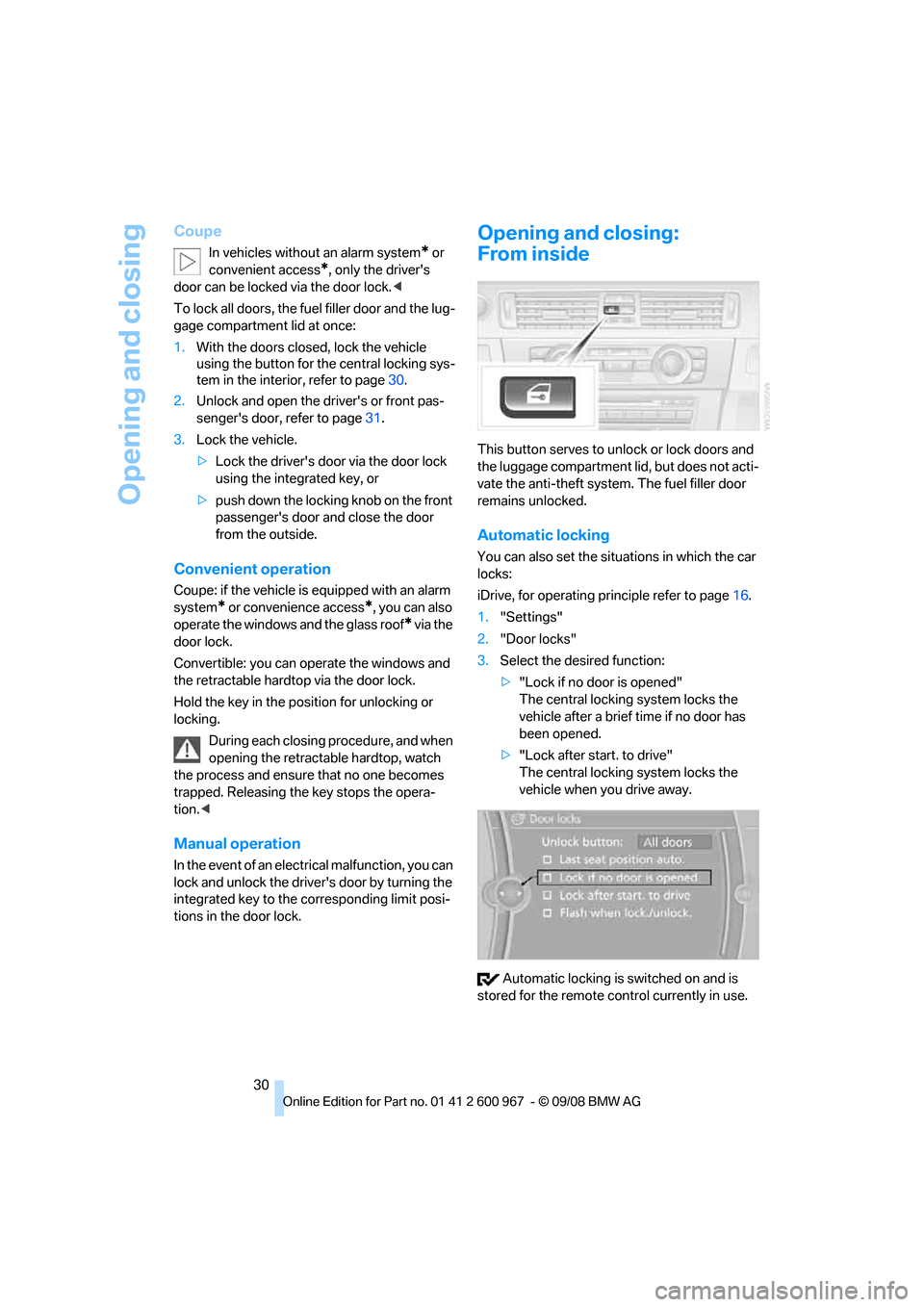
This button serves to unlock or lock doors and
the luggage compartment lid, but does not acti-
vate the anti-theft system. The fuel filler door
remains unlocked.
Automatic locking
You can also set the situations in which the car
locks:
iDrive, for operating principle refer to page16.
1."Settings"
2."Door locks"
3.Select the desired function:
>"Lock if no door is opened"
The central locking system locks the
vehicle after a brief time if no door has
been opened.
>"Lock after start. to drive"
The central locking system locks the
vehicle when you drive away.
Automatic locking is switched on and is
stored for the remote control currently in use.
Page 50 of 260
Adjustments
48
Call-up with the remote control
The driver's seat position last stored is stored
for the remote control currently in use.
You can select the occasion on which the seat is
reset to that position.
>Call-up when the vehicle is unlocked.
>Call-up when the driver's door is opened.
When this Personal Profile function is
used, first make sure that the footwell
behind the driver's seat is free of obstacles.
Failure to do so could cause injury to persons or
damage to objects as a result of a rearward
movement of the seat.<
The adjusting procedure is halted immediately
when you touch a seat adjustment switch or
one of the memory buttons.
Selecting automatic call-up
iDrive, for operating principle refer to page16.
1."Settings"
2."Door locks"
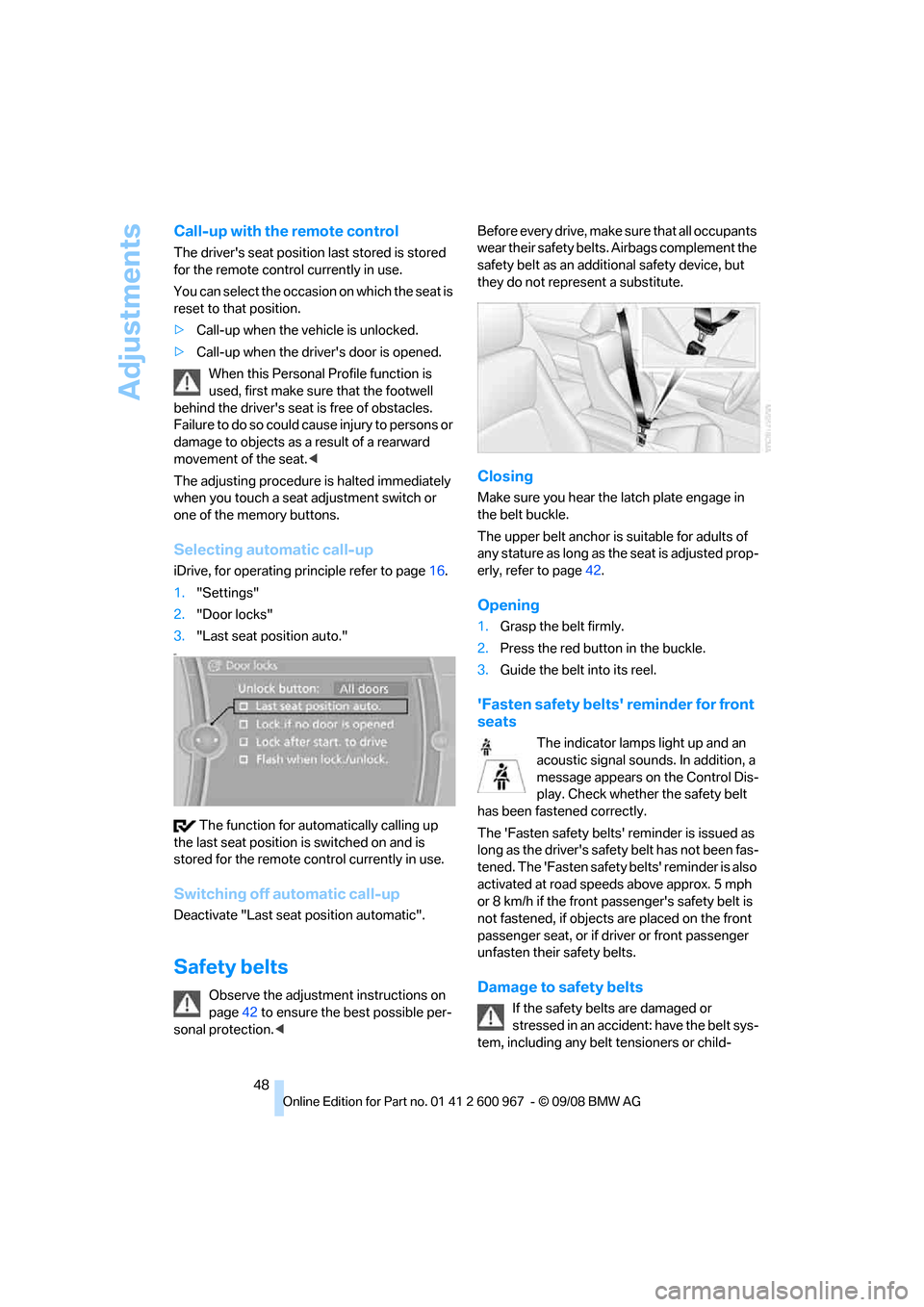
3."Last seat position auto."
et
The function for automatically calling up
the last seat position is switched on and is
stored for the remote control currently in use.
Switching off automatic call-up
Deactivate "Last seat position automatic".
Safety belts
Observe the adjustment instructions on
page42 to ensure the best possible per-
sonal protection.
safety belt as an additional safety device, but
they do not represent a substitute.
Closing
Make sure you hear the latch plate engage in
the belt buckle.
The upper belt anchor is suitable for adults of
any stature as long as the seat is adjusted prop-
erly, refer to page42.
Opening
1.Grasp the belt firmly.
2.Press the red button in the buckle.
3.Guide the belt into its reel.
'Fasten safety belts' reminder for front
seats
The indicator lamps light up and an
acoustic signal sounds. In addition, a
message appears on the Control Dis-
play. Check whether the safety belt
has been fastened correctly.
The 'Fasten safety belts' reminder is issued as
long as the driver's safety belt has not been fas-
tened. The 'Fasten safety belts' reminder is also
activated at road speeds above approx. 5 mph
or 8 km/h if the front passenger's safety belt is
not fastened, if objects are placed on the front
passenger seat, or if driver or front passenger
unfasten their safety belts.
Damage to safety belts
If the safety belts are damaged or
stressed in an accident: have the belt sys-
tem, including any belt tensioners or child-